 Скачать презентацию IBM Software Group Tivoli Workload Scheduler Distributed
4005b70662c80f20c060ed8486da2c65.ppt
- Количество слайдов: 53




® IBM Software Group Tivoli Workload Scheduler Distributed Managing Events in a Tivoli Workload Scheduler Environment © 2008 IBM Corporation
IBM Software Group | Tivoli software Introduction Using the Event-Driven Workload Automation you can: § Solve many workload automation scenarios § Perform on-demand workload automation § Carry out a predefined set of actions in response to events Event- driven workload automation performs on-demand workload automation and plan-based job scheduling. This automation defines rules that can trigger on-demand workload automation. The object of event-driven workload automation in Tivoli Workload Scheduler is to carry out a predefined set of actions in response to events that occur in the environment. The focus of this session will be to demonstrate how you can solve workload automation scenarios by using event-driven workload automation. 2 © 2008 IBM Corporation
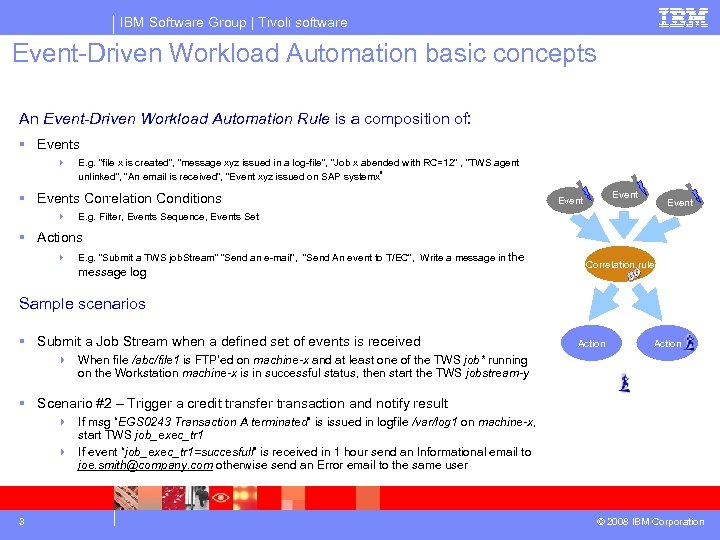
IBM Software Group | Tivoli software Event-Driven Workload Automation basic concepts An Event-Driven Workload Automation Rule is a composition of: § Events 4 E. g. “file x is created”, “message xyz issued in a log-file“, “Job x abended with RC=12” , “TWS agent unlinked”, “An email is received”, “Event xyz issued on SAP systemx” § Events Correlation Conditions 4 Event E. g. Filter, Events Sequence, Events Set § Actions 4 E. g. “Submit a TWS job. Stream” “Send an e-mail”, “Send An event to T/EC”, Write a message in the message log Correlation rule Sample scenarios § Submit a Job Stream when a defined set of events is received Action 4 When file /abc/file 1 is FTP’ed on machine-x and at least one of the TWS job* running on the Workstation machine-x is in successful status, then start the TWS jobstream-y § Scenario #2 – Trigger a credit transfer transaction and notify result 4 If msg “EGS 0243 Transaction A terminated” is issued in logfile /var/log 1 on machine-x, start TWS job_exec_tr 1 4 If event “job_exec_tr 1=succesfull” is received in 1 hour send an Informational email to joe. smith@company. com otherwise send an Error email to the same user 3 © 2008 IBM Corporation
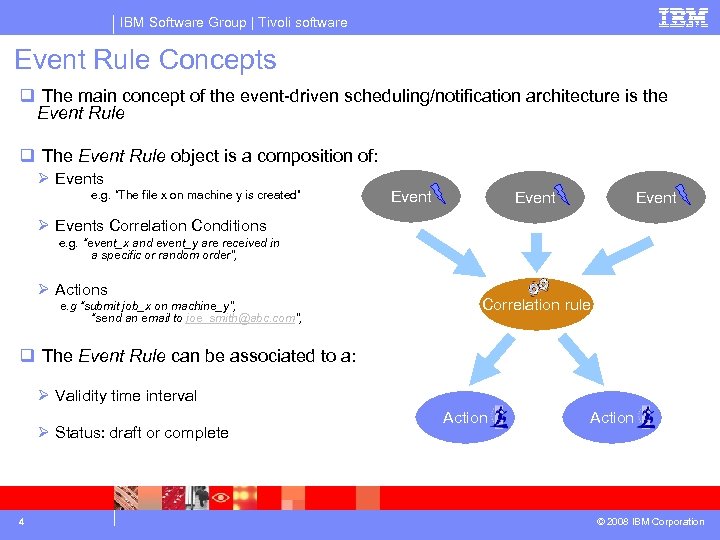
IBM Software Group | Tivoli software Event Rule Concepts q The main concept of the event-driven scheduling/notification architecture is the Event Rule q The Event Rule object is a composition of: Ø Events e. g. “The file x on machine y is created” Event Ø Events Correlation Conditions e. g. “event_x and event_y are received in a specific or random order”, Ø Actions e. g “submit job_x on machine_y”, “send an email to joe_smith@abc. com”, Correlation rule q The Event Rule can be associated to a: Ø Validity time interval Ø Status: draft or complete 4 Action © 2008 IBM Corporation
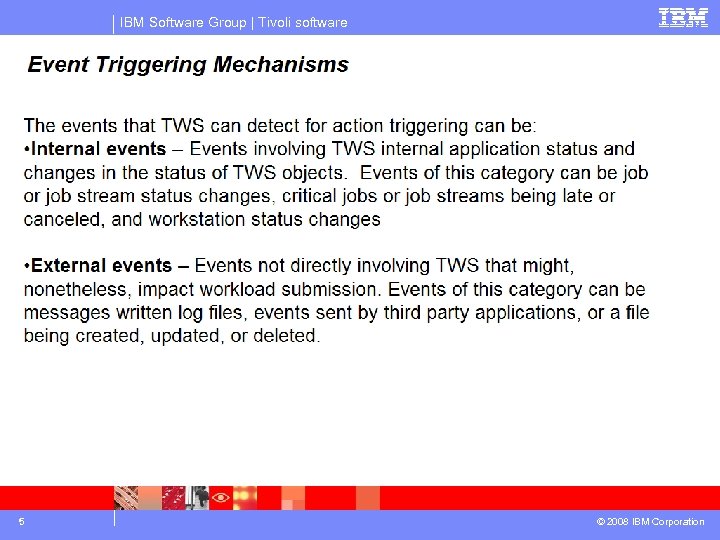
IBM Software Group | Tivoli software 5 © 2008 IBM Corporation
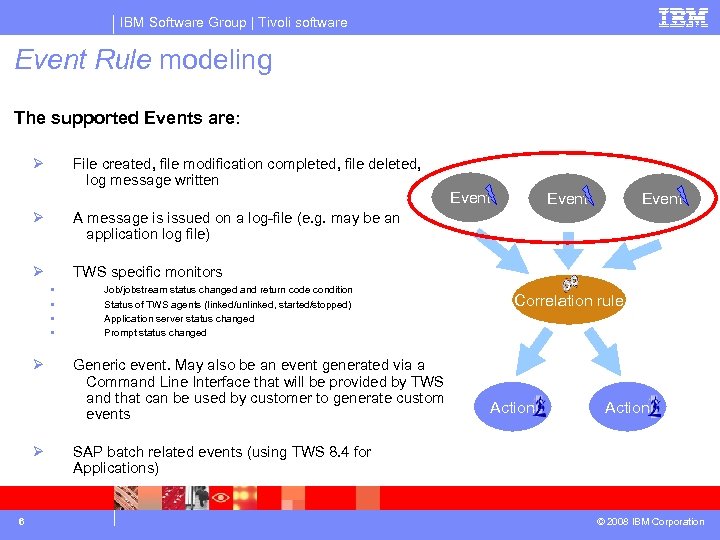
IBM Software Group | Tivoli software Event Rule modeling The supported Events are: Ø File created, file modification completed, file deleted, log message written Event Ø TWS specific monitors § § Ø Ø 6 Event A message is issued on a log-file (e. g. may be an application log file) Ø Event Job/jobstream status changed and return code condition Status of TWS agents (linked/unlinked, started/stopped) Application server status changed Prompt status changed Generic event. May also be an event generated via a Command Line Interface that will be provided by TWS and that can be used by customer to generate custom events Correlation rule Action SAP batch related events (using TWS 8. 4 for Applications) © 2008 IBM Corporation
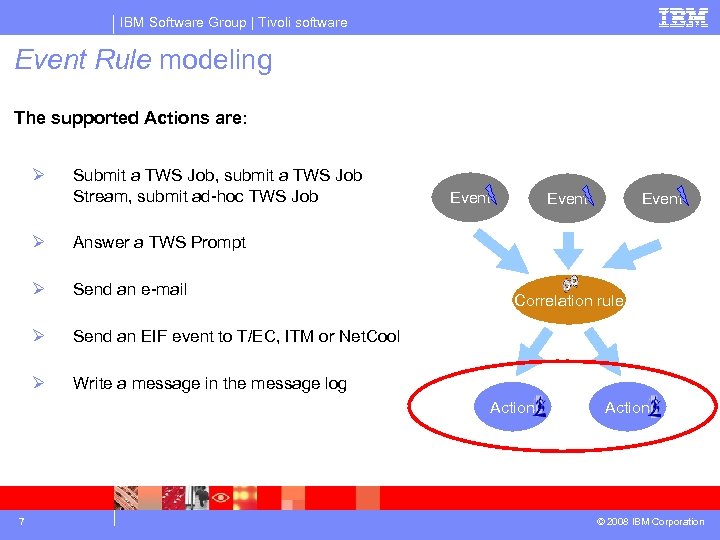
IBM Software Group | Tivoli software Event Rule modeling The supported Actions are: Ø Submit a TWS Job, submit a TWS Job Stream, submit ad-hoc TWS Job Ø Send an e-mail Ø Write a message in the message log Correlation rule Action 7 Event Send an EIF event to T/EC, ITM or Net. Cool Ø Event Answer a TWS Prompt Ø Event Action © 2008 IBM Corporation
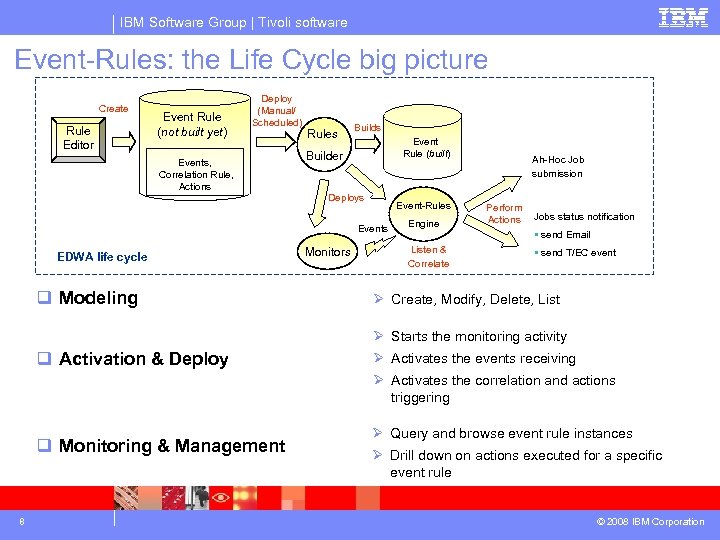
IBM Software Group | Tivoli software Event-Rules: the Life Cycle big picture Create Rule Editor Event Rule (not built yet) Deploy (Manual/ Scheduled) Events, Correlation Rule, Actions Rules Builds Event Rule (built) Builder Deploys Event-Rules Events EDWA life cycle q Modeling Monitors Engine Listen & Correlate Ah-Hoc Job submission Perform Actions Jobs status notification § send Email § send T/EC event Ø Create, Modify, Delete, List Ø Starts the monitoring activity q Activation & Deploy Ø Activates the events receiving Ø Activates the correlation and actions triggering q Monitoring & Management 8 Ø Query and browse event rule instances Ø Drill down on actions executed for a specific event rule © 2008 IBM Corporation
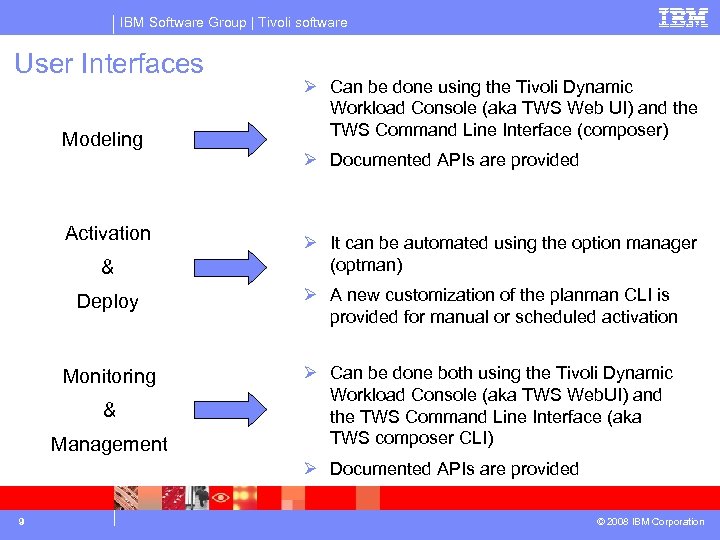
IBM Software Group | Tivoli software User Interfaces Modeling Activation & Ø Can be done using the Tivoli Dynamic Workload Console (aka TWS Web UI) and the TWS Command Line Interface (composer) Ø Documented APIs are provided Ø It can be automated using the option manager (optman) Deploy Ø A new customization of the planman CLI is provided for manual or scheduled activation Monitoring Ø Can be done both using the Tivoli Dynamic Workload Console (aka TWS Web. UI) and the TWS Command Line Interface (aka TWS composer CLI) & Management Ø Documented APIs are provided 9 © 2008 IBM Corporation
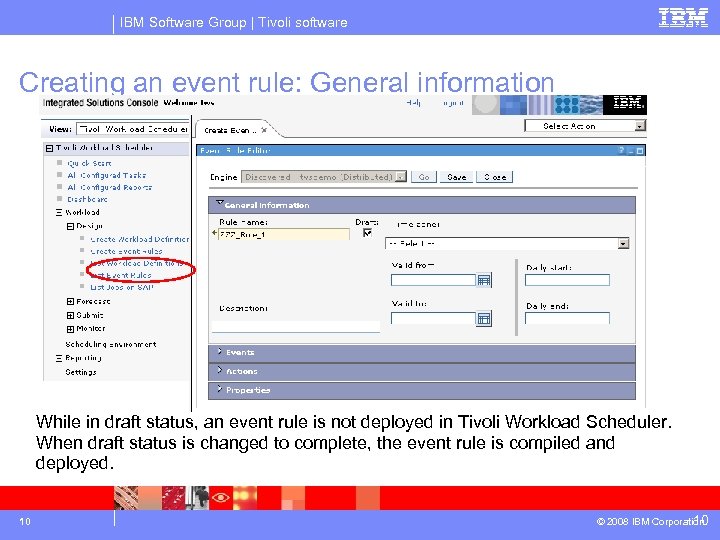
IBM Software Group | Tivoli software Creating an event rule: General information While in draft status, an event rule is not deployed in Tivoli Workload Scheduler. When draft status is changed to complete, the event rule is compiled and deployed. 10 10 © 2008 IBM Corporation
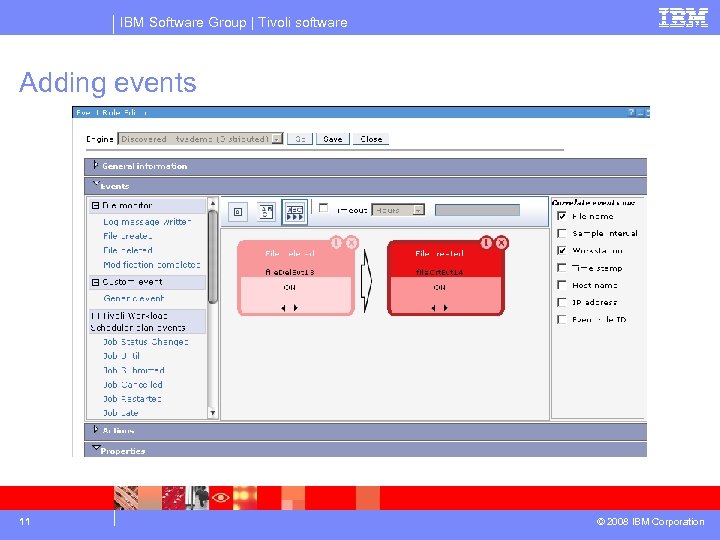
IBM Software Group | Tivoli software Adding events 11 © 2008 IBM Corporation
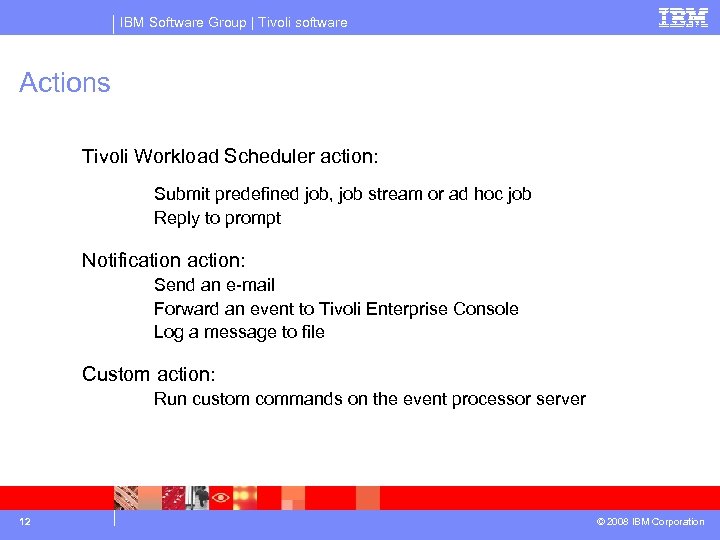
IBM Software Group | Tivoli software Actions Tivoli Workload Scheduler action: Submit predefined job, job stream or ad hoc job Reply to prompt Notification action: Send an e-mail Forward an event to Tivoli Enterprise Console Log a message to file Custom action: Run custom commands on the event processor server 12 © 2008 IBM Corporation
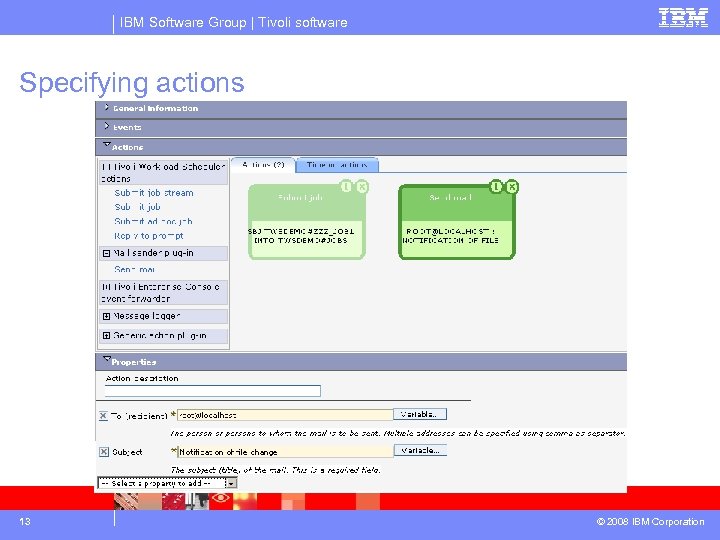
IBM Software Group | Tivoli software Specifying actions 13 © 2008 IBM Corporation
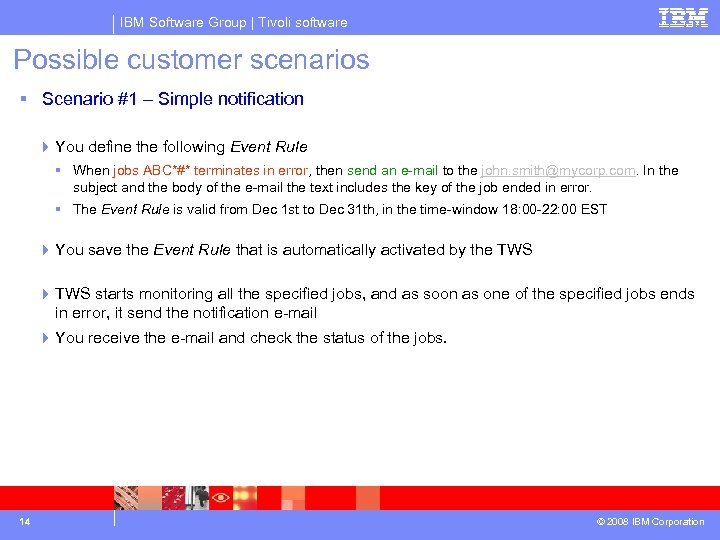
IBM Software Group | Tivoli software Possible customer scenarios § Scenario #1 – Simple notification 4 You define the following Event Rule § When jobs ABC*#* terminates in error, then send an e-mail to the john. smith@mycorp. com. In the subject and the body of the e-mail the text includes the key of the job ended in error. § The Event Rule is valid from Dec 1 st to Dec 31 th, in the time-window 18: 00 -22: 00 EST 4 You save the Event Rule that is automatically activated by the TWS 4 TWS starts monitoring all the specified jobs, and as soon as one of the specified jobs ends in error, it send the notification e-mail 4 You receive the e-mail and check the status of the jobs. 14 © 2008 IBM Corporation
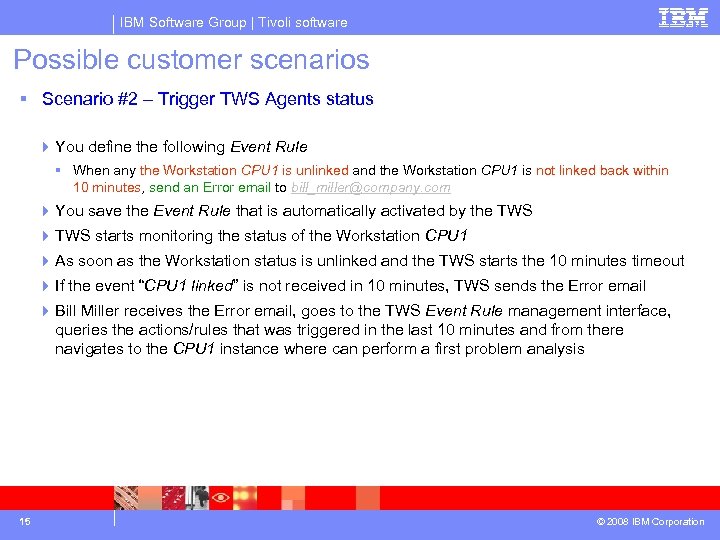
IBM Software Group | Tivoli software Possible customer scenarios § Scenario #2 – Trigger TWS Agents status 4 You define the following Event Rule § When any the Workstation CPU 1 is unlinked and the Workstation CPU 1 is not linked back within 10 minutes, send an Error email to bill_miller@company. com 4 You save the Event Rule that is automatically activated by the TWS 4 TWS starts monitoring the status of the Workstation CPU 1 4 As soon as the Workstation status is unlinked and the TWS starts the 10 minutes timeout 4 If the event “CPU 1 linked” is not received in 10 minutes, TWS sends the Error email 4 Bill Miller receives the Error email, goes to the TWS Event Rule management interface, queries the actions/rules that was triggered in the last 10 minutes and from there navigates to the CPU 1 instance where can perform a first problem analysis 15 © 2008 IBM Corporation
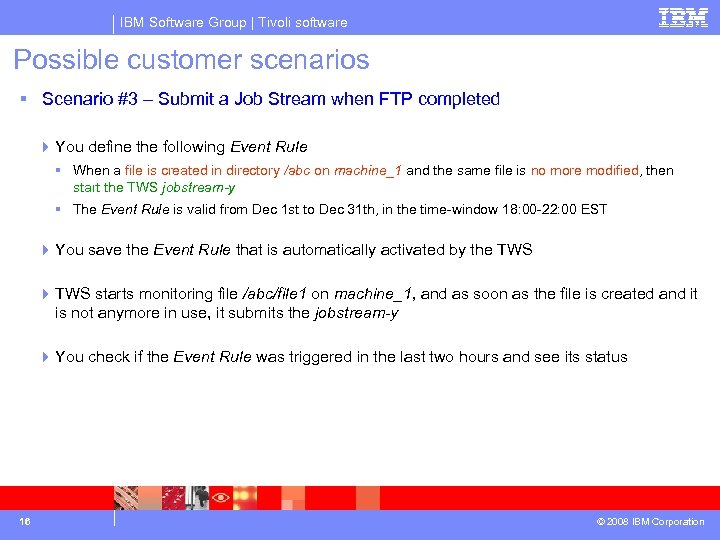
IBM Software Group | Tivoli software Possible customer scenarios § Scenario #3 – Submit a Job Stream when FTP completed 4 You define the following Event Rule § When a file is created in directory /abc on machine_1 and the same file is no more modified, then start the TWS jobstream-y § The Event Rule is valid from Dec 1 st to Dec 31 th, in the time-window 18: 00 -22: 00 EST 4 You save the Event Rule that is automatically activated by the TWS 4 TWS starts monitoring file /abc/file 1 on machine_1, and as soon as the file is created and it is not anymore in use, it submits the jobstream-y 4 You check if the Event Rule was triggered in the last two hours and see its status 16 © 2008 IBM Corporation
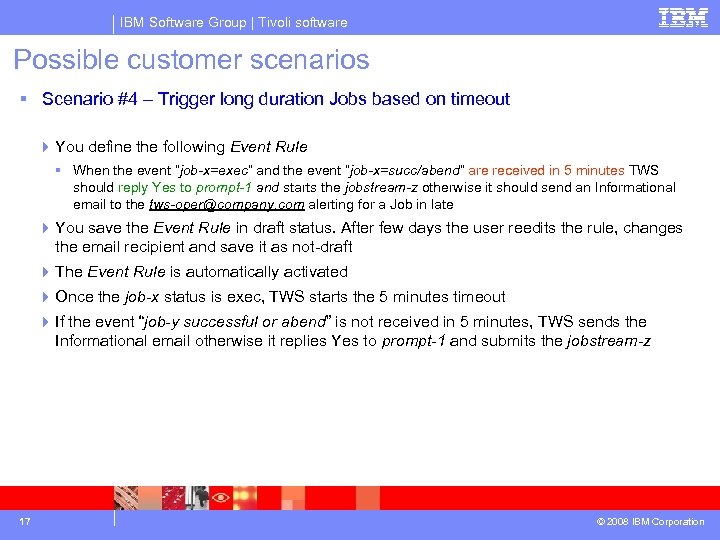
IBM Software Group | Tivoli software Possible customer scenarios § Scenario #4 – Trigger long duration Jobs based on timeout 4 You define the following Event Rule § When the event “job-x=exec” and the event “job-x=succ/abend” are received in 5 minutes TWS should reply Yes to prompt-1 and starts the jobstream-z otherwise it should send an Informational email to the tws-oper@company. com alerting for a Job in late 4 You save the Event Rule in draft status. After few days the user reedits the rule, changes the email recipient and save it as not-draft 4 The Event Rule is automatically activated 4 Once the job-x status is exec, TWS starts the 5 minutes timeout 4 If the event “job-y successful or abend” is not received in 5 minutes, TWS sends the Informational email otherwise it replies Yes to prompt-1 and submits the jobstream-z 17 © 2008 IBM Corporation
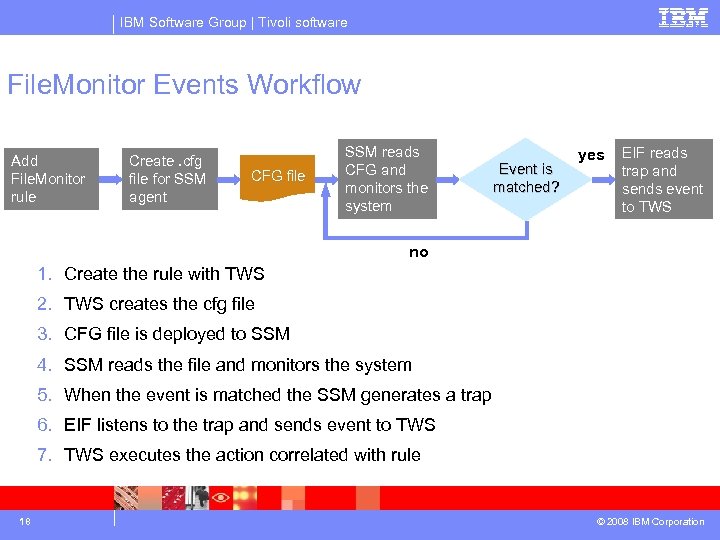
IBM Software Group | Tivoli software File. Monitor Events Workflow Add File. Monitor rule Create. cfg file for SSM agent CFG file SSM reads CFG and monitors the system Event is matched? yes EIF reads trap and sends event to TWS no 1. Create the rule with TWS 2. TWS creates the cfg file 3. CFG file is deployed to SSM 4. SSM reads the file and monitors the system 5. When the event is matched the SSM generates a trap 6. EIF listens to the trap and sends event to TWS 7. TWS executes the action correlated with rule 18 © 2008 IBM Corporation
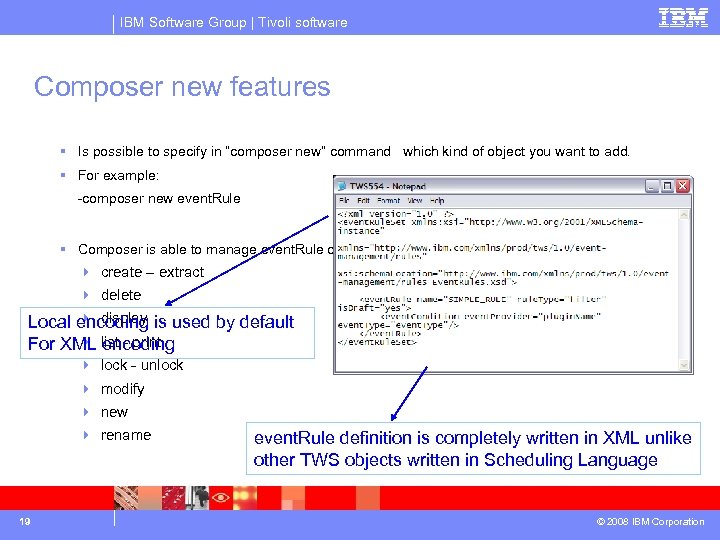
IBM Software Group | Tivoli software Composer new features § Is possible to specify in “composer new” command which kind of object you want to add. § For example: -composer new event. Rule § Composer is able to manage event. Rule objects with commands: 4 create – extract 4 delete 4 display Local encoding is used by default 4 encoding For XML list - print 4 lock - unlock 4 modify 4 new 4 rename 19 event. Rule definition is completely written in XML unlike other TWS objects written in Scheduling Language © 2008 IBM Corporation
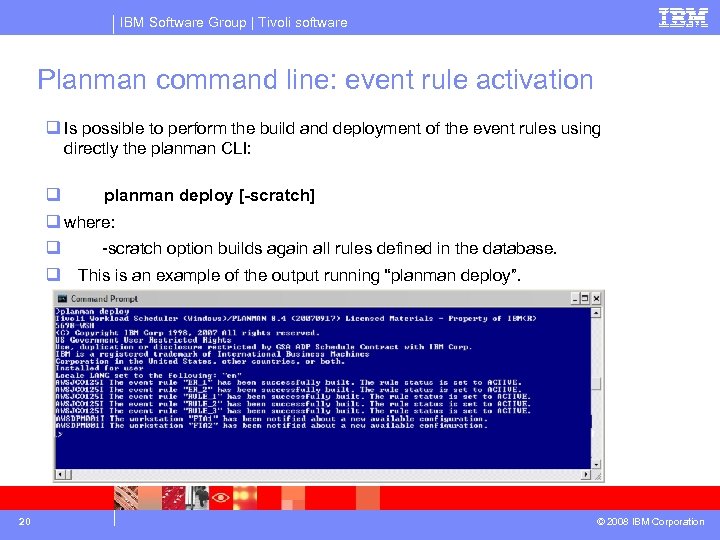
IBM Software Group | Tivoli software Planman command line: event rule activation q Is possible to perform the build and deployment of the event rules using directly the planman CLI: q planman deploy [-scratch] q where: q -scratch option builds again all rules defined in the database. q This is an example of the output running “planman deploy”. 20 © 2008 IBM Corporation
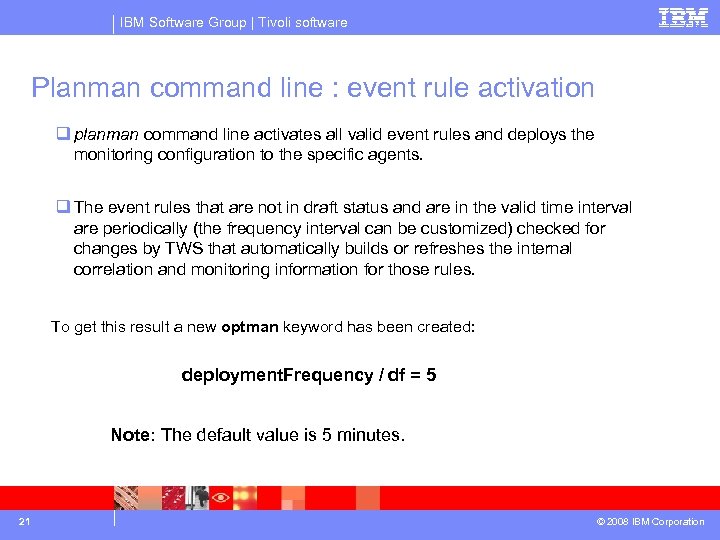
IBM Software Group | Tivoli software Planman command line : event rule activation q planman command line activates all valid event rules and deploys the monitoring configuration to the specific agents. q The event rules that are not in draft status and are in the valid time interval are periodically (the frequency interval can be customized) checked for changes by TWS that automatically builds or refreshes the internal correlation and monitoring information for those rules. To get this result a new optman keyword has been created: deployment. Frequency / df = 5 Note: The default value is 5 minutes. 21 © 2008 IBM Corporation
IBM Software Group | Tivoli software Monitor triggered actions 22 © 2008 IBM Corporation
IBM Software Group | Tivoli software Monitoring Events 23 © 2008 IBM Corporation
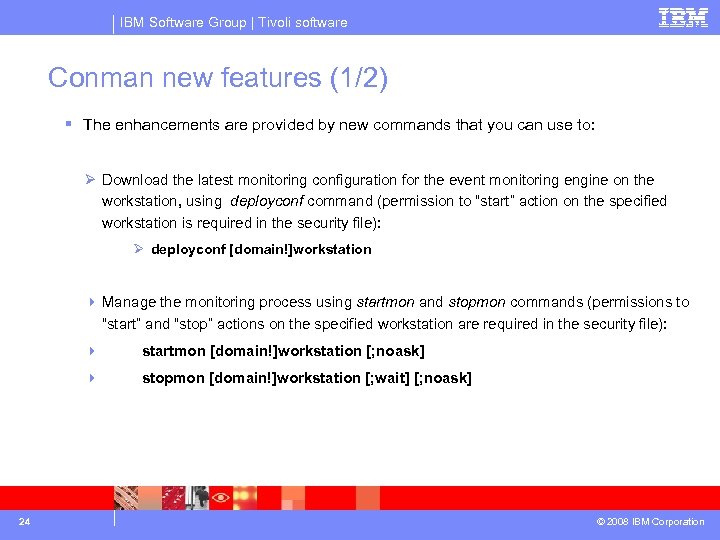
IBM Software Group | Tivoli software Conman new features (1/2) § The enhancements are provided by new commands that you can use to: Ø Download the latest monitoring configuration for the event monitoring engine on the workstation, using deployconf command (permission to “start” action on the specified workstation is required in the security file): Ø deployconf [domain!]workstation 4 Manage the monitoring process using startmon and stopmon commands (permissions to “start” and “stop” actions on the specified workstation are required in the security file): 4 4 24 startmon [domain!]workstation [; noask] stopmon [domain!]workstation [; wait] [; noask] © 2008 IBM Corporation
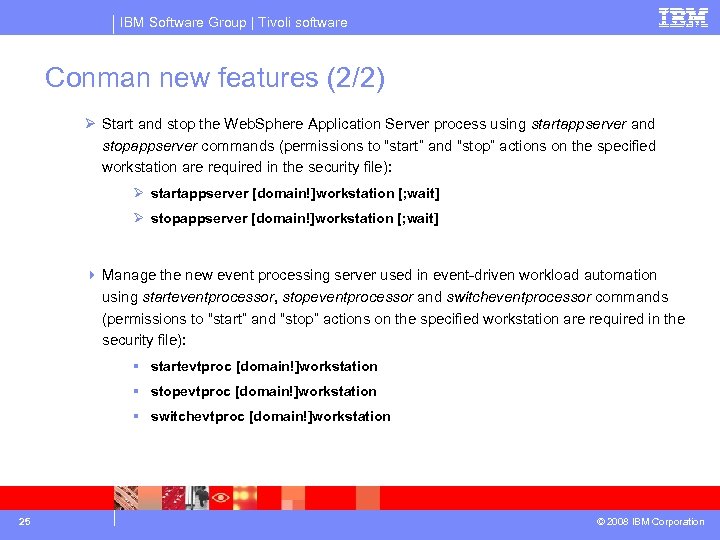
IBM Software Group | Tivoli software Conman new features (2/2) Ø Start and stop the Web. Sphere Application Server process using startappserver and stopappserver commands (permissions to “start” and “stop” actions on the specified workstation are required in the security file): Ø startappserver [domain!]workstation [; wait] Ø stopappserver [domain!]workstation [; wait] 4 Manage the new event processing server used in event-driven workload automation using starteventprocessor, stopeventprocessor and switcheventprocessor commands (permissions to “start” and “stop” actions on the specified workstation are required in the security file): § startevtproc [domain!]workstation § stopevtproc [domain!]workstation § switchevtproc [domain!]workstation 25 © 2008 IBM Corporation
® IBM Software Group EDWA Using the TDWC Web Console Creating or editing an Event Rule © 2008 IBM Corporation
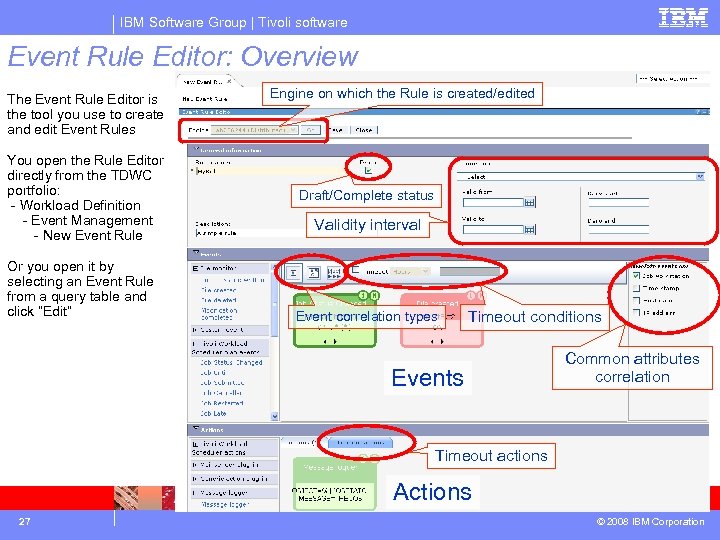
IBM Software Group | Tivoli software Event Rule Editor: Overview The Event Rule Editor is the tool you use to create and edit Event Rules You open the Rule Editor directly from the TDWC portfolio: - Workload Definition - Event Management - New Event Rule Or you open it by selecting an Event Rule from a query table and click “Edit” Engine on which the Rule is created/edited Draft/Complete status Validity interval Event correlation types Timeout conditions Events Common attributes correlation Timeout actions Actions 27 © 2008 IBM Corporation
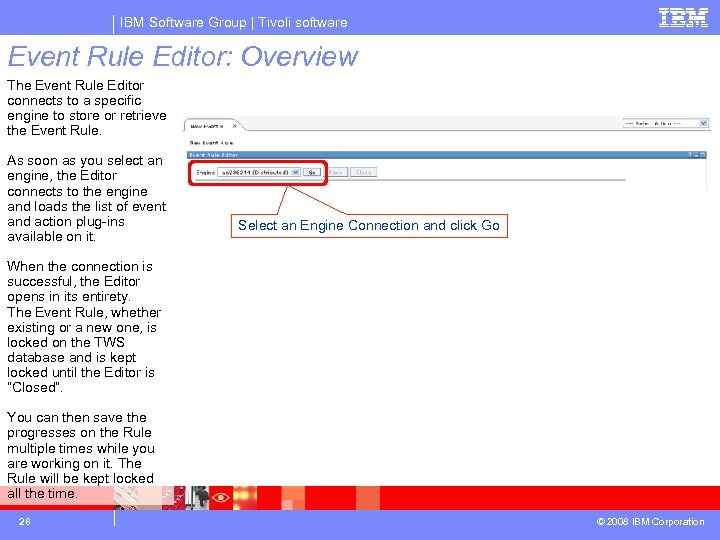
IBM Software Group | Tivoli software Event Rule Editor: Overview The Event Rule Editor connects to a specific engine to store or retrieve the Event Rule. As soon as you select an engine, the Editor connects to the engine and loads the list of event and action plug-ins available on it. Select an Engine Connection and click Go When the connection is successful, the Editor opens in its entirety. The Event Rule, whether existing or a new one, is locked on the TWS database and is kept locked until the Editor is “Closed”. You can then save the progresses on the Rule multiple times while you are working on it. The Rule will be kept locked all the time. 28 © 2008 IBM Corporation
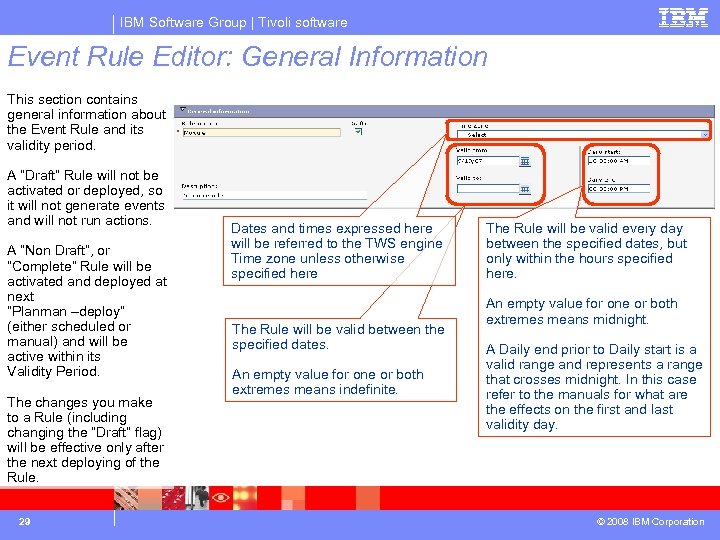
IBM Software Group | Tivoli software Event Rule Editor: General Information This section contains general information about the Event Rule and its validity period. A “Draft” Rule will not be activated or deployed, so it will not generate events and will not run actions. A “Non Draft”, or “Complete” Rule will be activated and deployed at next “Planman –deploy” (either scheduled or manual) and will be active within its Validity Period. The changes you make to a Rule (including changing the “Draft” flag) will be effective only after the next deploying of the Rule. 29 Dates and times expressed here will be referred to the TWS engine Time zone unless otherwise specified here The Rule will be valid between the specified dates. An empty value for one or both extremes means indefinite. The Rule will be valid every day between the specified dates, but only within the hours specified here. An empty value for one or both extremes means midnight. A Daily end prior to Daily start is a valid range and represents a range that crosses midnight. In this case refer to the manuals for what are the effects on the first and last validity day. © 2008 IBM Corporation
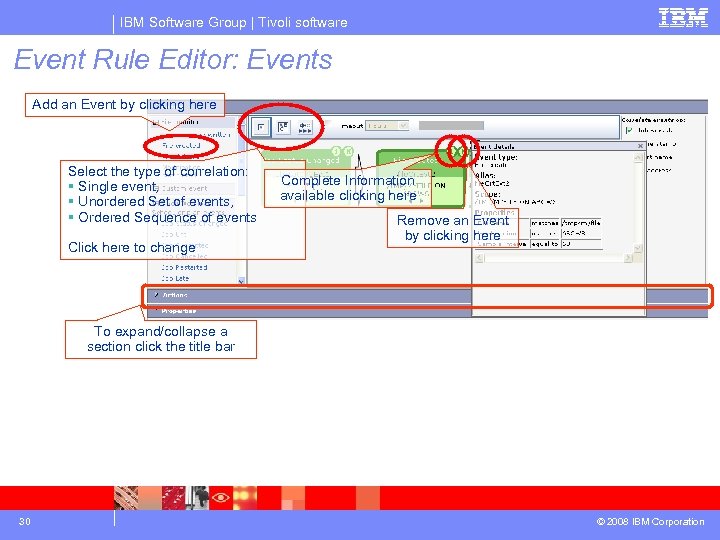
IBM Software Group | Tivoli software Event Rule Editor: Events Add an Event by clicking here Select the type of correlation: § Single event, § Unordered Set of events, § Ordered Sequence of events Click here to change Complete Information available clicking here Remove an Event by clicking here To expand/collapse a section click the title bar 30 © 2008 IBM Corporation
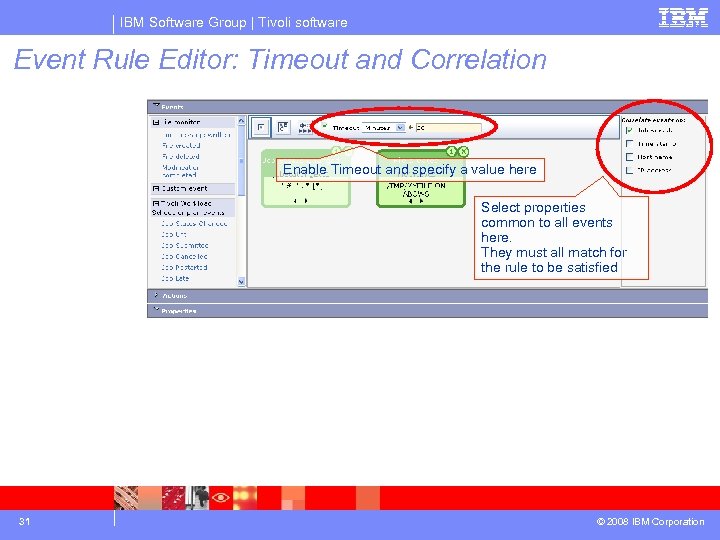
IBM Software Group | Tivoli software Event Rule Editor: Timeout and Correlation Enable Timeout and specify a value here Select properties common to all events here. They must all match for the rule to be satisfied 31 © 2008 IBM Corporation
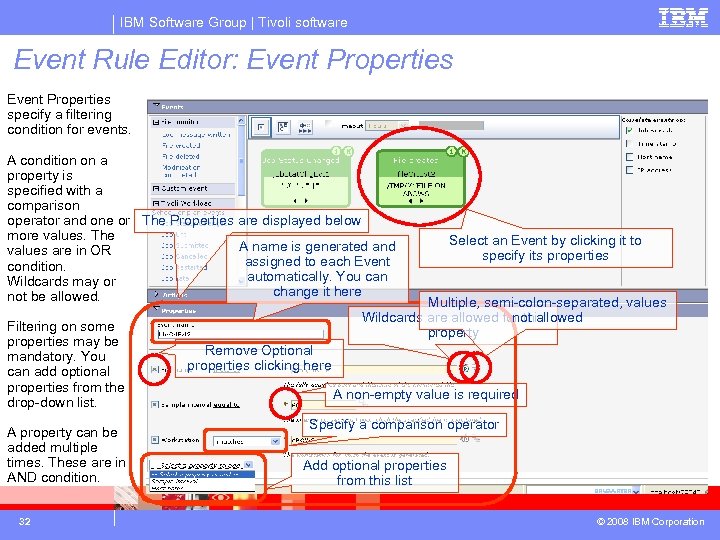
IBM Software Group | Tivoli software Event Rule Editor: Event Properties specify a filtering condition for events. A condition on a property is specified with a comparison operator and one or The Properties are displayed below more values. The A name is generated and values are in OR assigned to each Event condition. automatically. You can Wildcards may or change it here not be allowed. Filtering on some properties may be mandatory. You can add optional properties from the drop-down list. A property can be added multiple times. These are in AND condition. 32 Select an Event by clicking it to specify its properties Multiple, semi-colon-separated, values not allowed Wildcards are allowed for this property Remove Optional properties clicking here A non-empty value is required Specify a comparison operator Add optional properties from this list © 2008 IBM Corporation
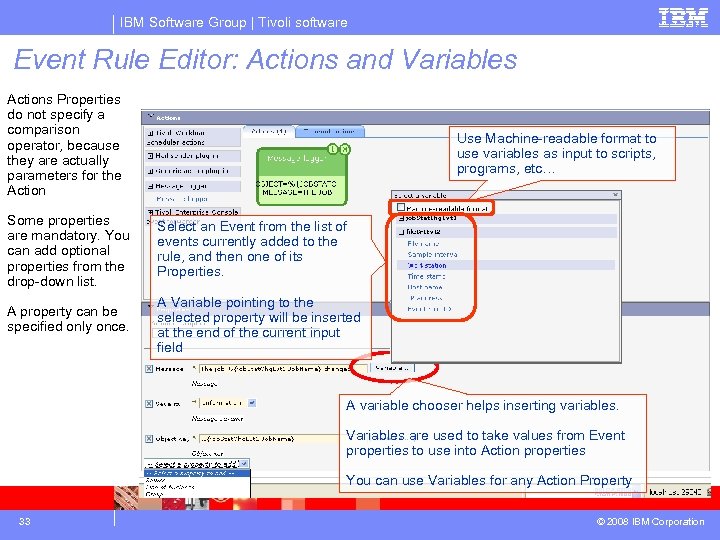
IBM Software Group | Tivoli software Event Rule Editor: Actions and Variables Actions Properties do not specify a comparison operator, because they are actually parameters for the Action Use Machine-readable format to use variables as input to scripts, programs, etc… Some properties are mandatory. You can add optional properties from the drop-down list. Select an Event from the list of events currently added to the rule, and then one of its Properties. A property can be specified only once. A Variable pointing to the selected property will be inserted at the end of the current input field A variable chooser helps inserting variables. Variables are used to take values from Event properties to use into Action properties You can use Variables for any Action Property 33 © 2008 IBM Corporation
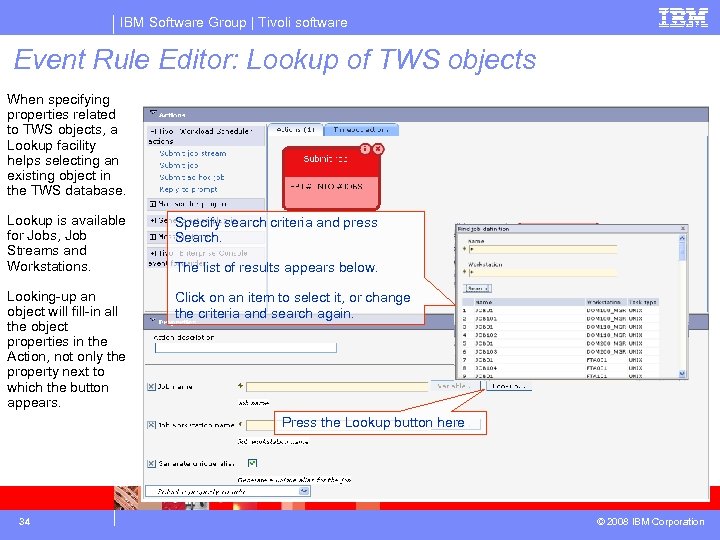
IBM Software Group | Tivoli software Event Rule Editor: Lookup of TWS objects When specifying properties related to TWS objects, a Lookup facility helps selecting an existing object in the TWS database. Lookup is available for Jobs, Job Streams and Workstations. Specify search criteria and press Search. Looking-up an object will fill-in all the object properties in the Action, not only the property next to which the button appears. Click on an item to select it, or change the criteria and search again. The list of results appears below. Press the Lookup button here 34 © 2008 IBM Corporation
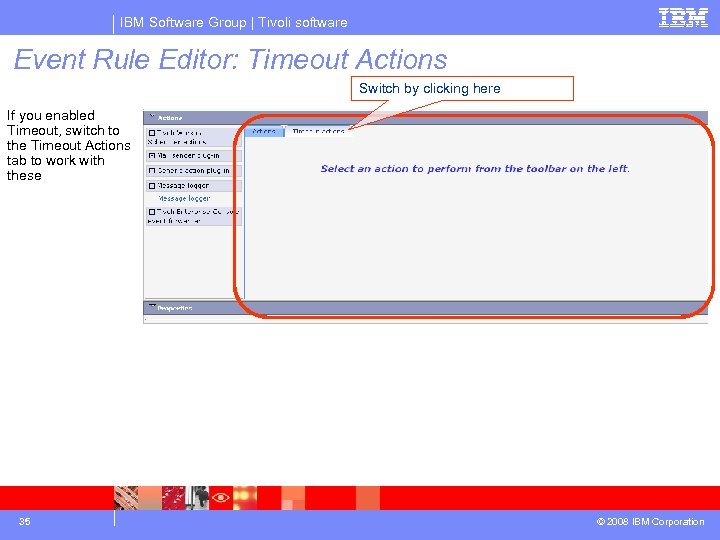
IBM Software Group | Tivoli software Event Rule Editor: Timeout Actions Switch by clicking here If you enabled Timeout, switch to the Timeout Actions tab to work with these 35 © 2008 IBM Corporation
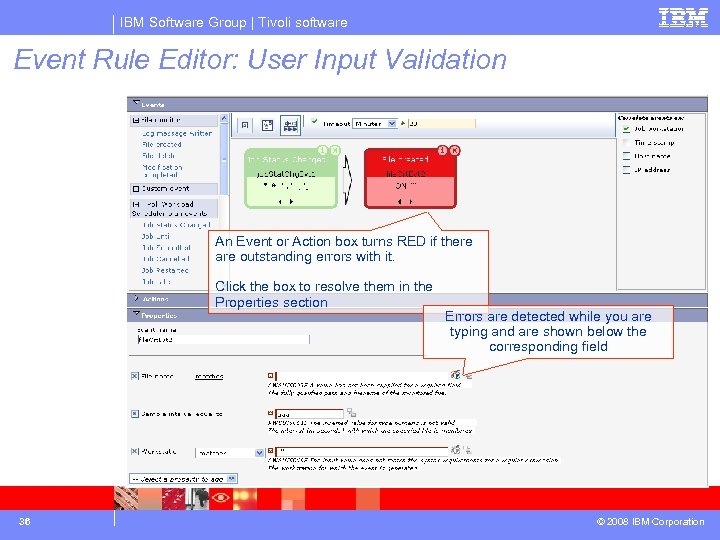
IBM Software Group | Tivoli software Event Rule Editor: User Input Validation An Event or Action box turns RED if there are outstanding errors with it. Click the box to resolve them in the Properties section 36 Errors are detected while you are typing and are shown below the corresponding field © 2008 IBM Corporation
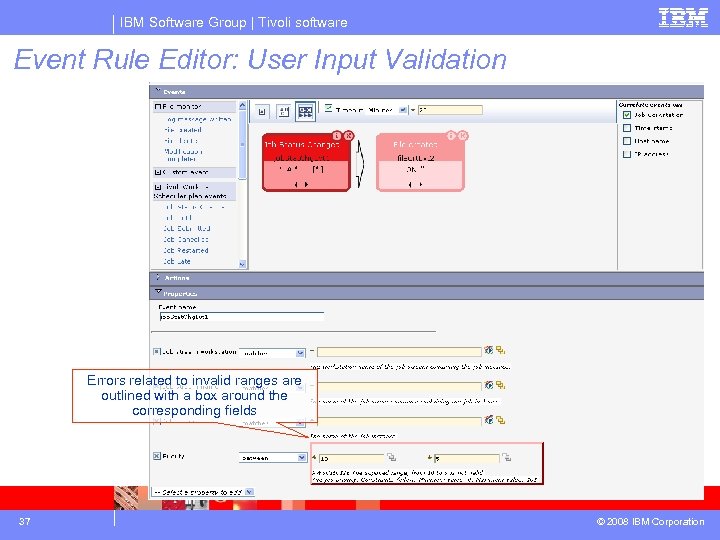
IBM Software Group | Tivoli software Event Rule Editor: User Input Validation Errors related to invalid ranges are outlined with a box around the corresponding fields 37 © 2008 IBM Corporation
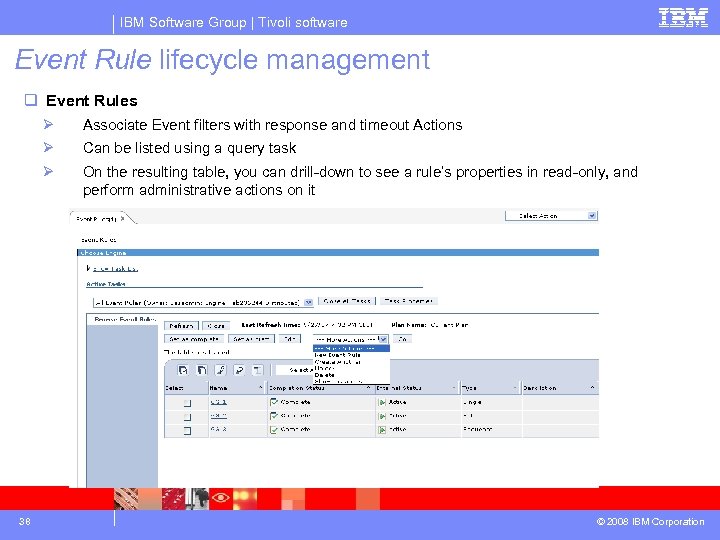
IBM Software Group | Tivoli software Event Rule lifecycle management q Event Rules Ø Ø Can be listed using a query task Ø 38 Associate Event filters with response and timeout Actions On the resulting table, you can drill-down to see a rule’s properties in read-only, and perform administrative actions on it © 2008 IBM Corporation
® IBM Software Group Event Monitoring using the TDWC Web Console © 2008 IBM Corporation
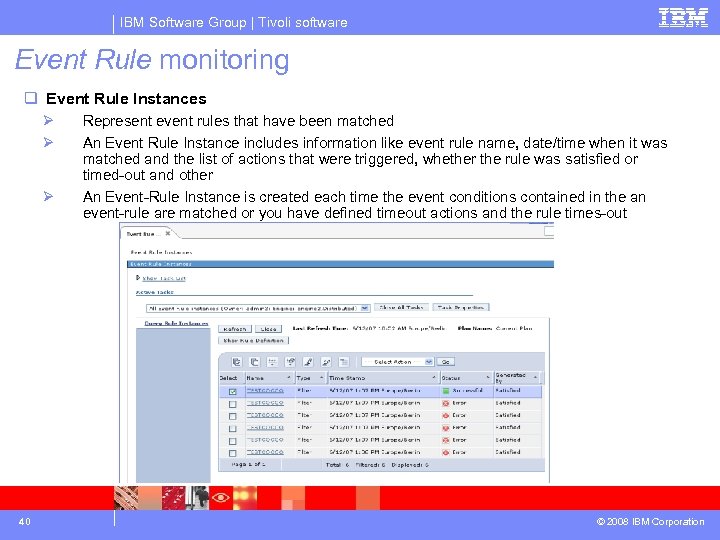
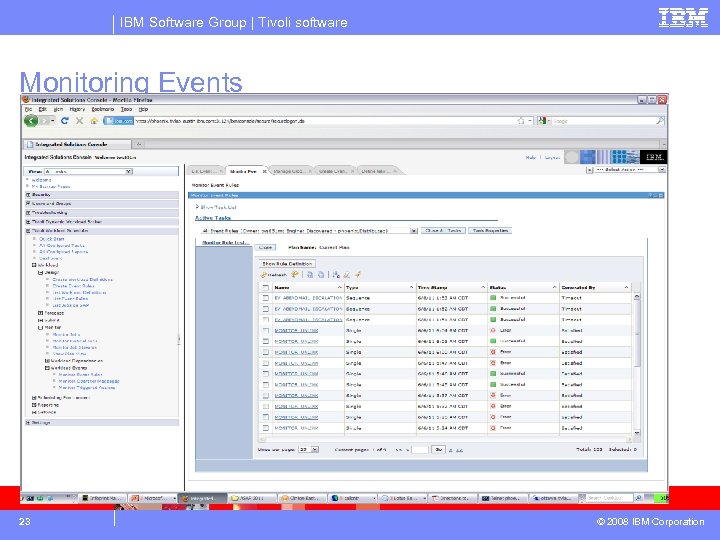
IBM Software Group | Tivoli software Event Rule monitoring q Event Rule Instances Ø Ø Ø 40 Represent event rules that have been matched An Event Rule Instance includes information like event rule name, date/time when it was matched and the list of actions that were triggered, whether the rule was satisfied or timed-out and other An Event-Rule Instance is created each time the event conditions contained in the an event-rule are matched or you have defined timeout actions and the rule times-out © 2008 IBM Corporation
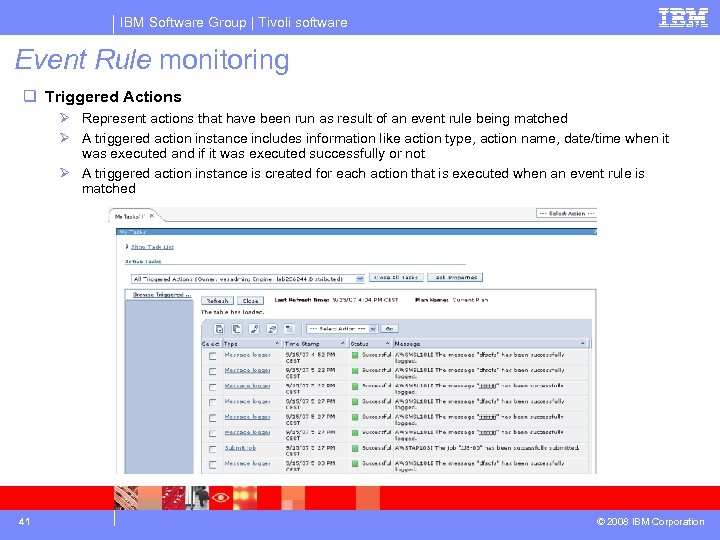
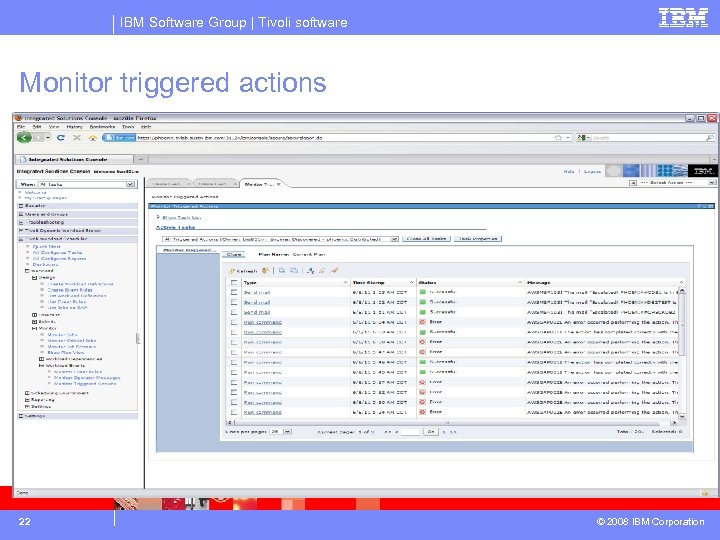
IBM Software Group | Tivoli software Event Rule monitoring q Triggered Actions Ø Represent actions that have been run as result of an event rule being matched Ø A triggered action instance includes information like action type, action name, date/time when it was executed and if it was executed successfully or not Ø A triggered action instance is created for each action that is executed when an event rule is matched 41 © 2008 IBM Corporation
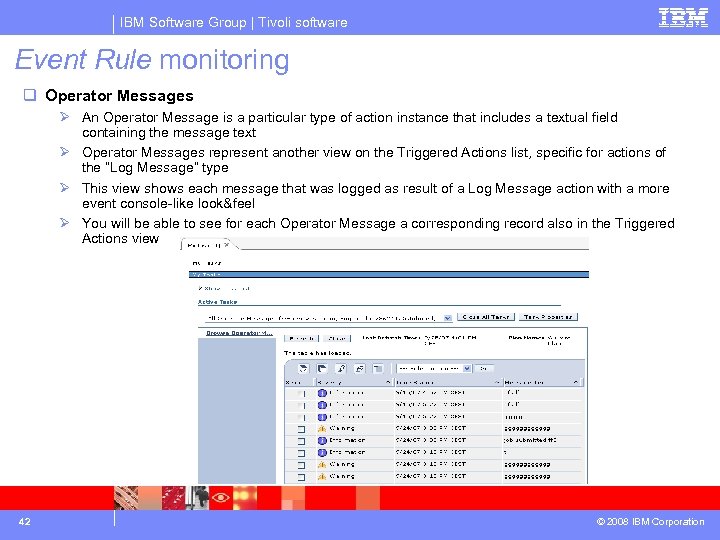
IBM Software Group | Tivoli software Event Rule monitoring q Operator Messages Ø An Operator Message is a particular type of action instance that includes a textual field containing the message text Ø Operator Messages represent another view on the Triggered Actions list, specific for actions of the “Log Message” type Ø This view shows each message that was logged as result of a Log Message action with a more event console-like look&feel Ø You will be able to see for each Operator Message a corresponding record also in the Triggered Actions view 42 © 2008 IBM Corporation
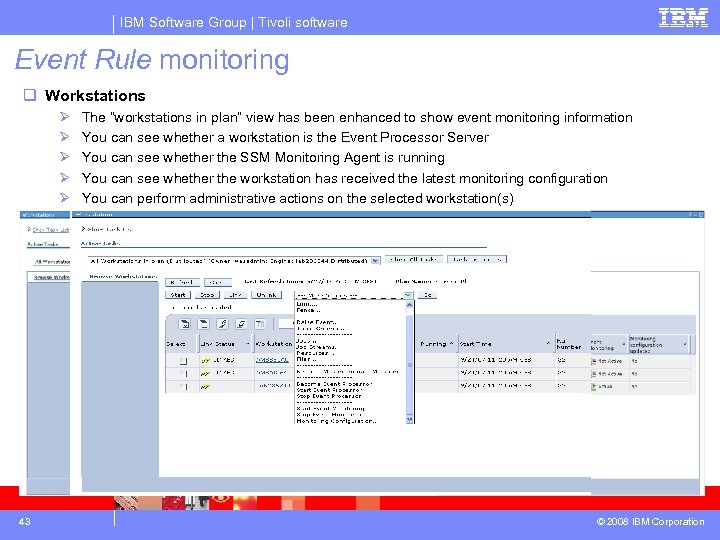
IBM Software Group | Tivoli software Event Rule monitoring q Workstations Ø Ø Ø 43 The “workstations in plan” view has been enhanced to show event monitoring information You can see whether a workstation is the Event Processor Server You can see whether the SSM Monitoring Agent is running You can see whether the workstation has received the latest monitoring configuration You can perform administrative actions on the selected workstation(s) © 2008 IBM Corporation
® IBM Software Group Troubleshooting EDWA © 2008 IBM Corporation
IBM Software Group | Tivoli software Global Options § General options for EDWA: 4 en. Event. Driven. Workload. Automation (ed) enables or disables the event driven workload automation feature default = YES (EDWA is enabled) 4 deployment. Frequency (df) specifies how often event rule updates are applied on the event processor and deployed to the TWS agents default = 5 (minutes) 4 en. Event. Processor. Https. Protocol (eh) enables or disables use of the HTTPS protocol to connect to the event processor server default = YES (HTTPS is enabled) 4 event. Processor. EIFPort (ee) port of the Tivoli Event Integration Facility (EIF) for communication with the event processor server default = 31131 4 log. History (lh) number of days for which history of triggered rule instances, action runs and logged messages are kept in the TWS database default = 10 4 log. Cleanup. Frequency (lc) specifies how often to look for history data older than log. History days, which must be deleted default = 5 (minutes) 45 © 2008 IBM Corporation
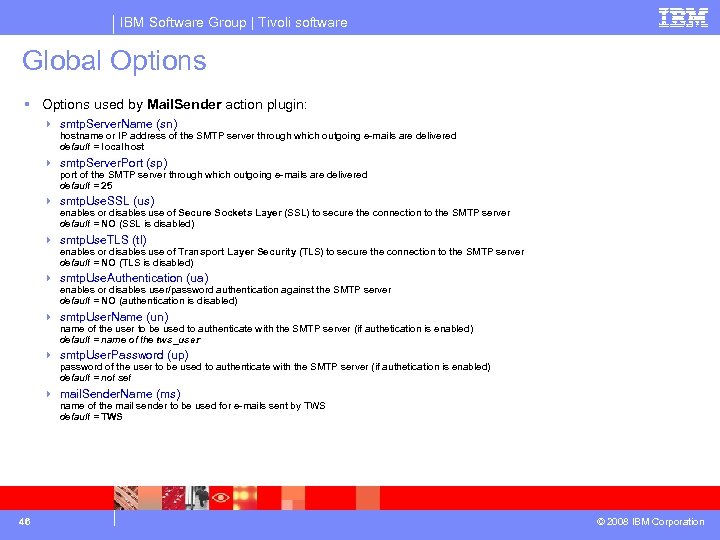
IBM Software Group | Tivoli software Global Options § Options used by Mail. Sender action plugin: 4 smtp. Server. Name (sn) hostname or IP address of the SMTP server through which outgoing e-mails are delivered default = localhost 4 smtp. Server. Port (sp) port of the SMTP server through which outgoing e-mails are delivered default = 25 4 smtp. Use. SSL (us) enables or disables use of Secure Sockets Layer (SSL) to secure the connection to the SMTP server default = NO (SSL is disabled) 4 smtp. Use. TLS (tl) enables or disables use of Transport Layer Security (TLS) to secure the connection to the SMTP server default = NO (TLS is disabled) 4 smtp. Use. Authentication (ua) enables or disables user/password authentication against the SMTP server default = NO (authentication is disabled) 4 smtp. User. Name (un) name of the user to be used to authenticate with the SMTP server (if authetication is enabled) default = name of the tws_user 4 smtp. User. Password (up) password of the user to be used to authenticate with the SMTP server (if authetication is enabled) default = not set 4 mail. Sender. Name (ms) name of the mail sender to be used for e-mails sent by TWS default = TWS 46 © 2008 IBM Corporation
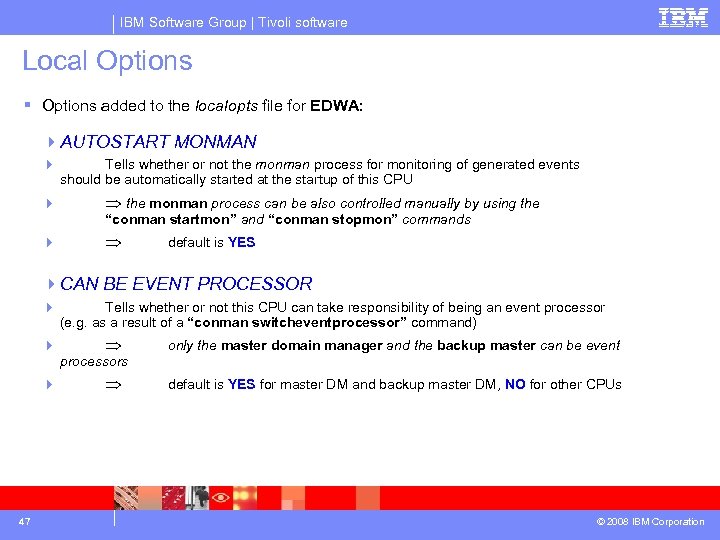
IBM Software Group | Tivoli software Local Options § Options added to the localopts file for EDWA: 4 AUTOSTART MONMAN 4 Tells whether or not the monman process for monitoring of generated events should be automatically started at the startup of this CPU 4 the monman process can be also controlled manually by using the 4 “conman startmon” and “conman stopmon” commands default is YES 4 CAN BE EVENT PROCESSOR 4 47 Tells whether or not this CPU can take responsibility of being an event processor (e. g. as a result of a “conman switcheventprocessor” command) only the master domain manager and the backup master can be event default is YES for master DM and backup master DM, NO for other CPUs processors © 2008 IBM Corporation
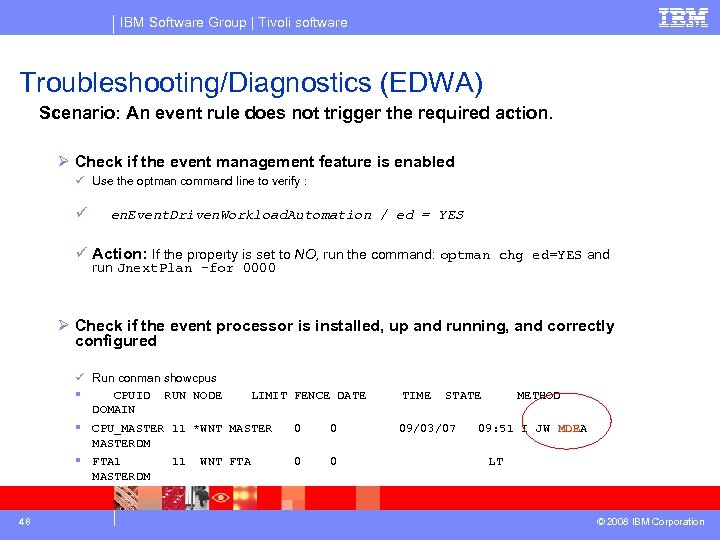
IBM Software Group | Tivoli software Troubleshooting/Diagnostics (EDWA) Scenario: An event rule does not trigger the required action. Ø Check if the event management feature is enabled ü Use the optman command line to verify : ü en. Event. Driven. Workload. Automation / ed = YES ü Action: If the property is set to NO, run the command: optman chg ed=YES and run Jnext. Plan –for 0000 Ø Check if the event processor is installed, up and running, and correctly configured ü Run conman showcpus § CPUID RUN NODE LIMIT FENCE DATE DOMAIN § CPU_MASTER 11 *WNT MASTER 0 0 MASTERDM § FTA 1 11 WNT FTA 0 0 MASTERDM 48 TIME STATE 09/03/07 METHOD 09: 51 I JW MDEA LT © 2008 IBM Corporation
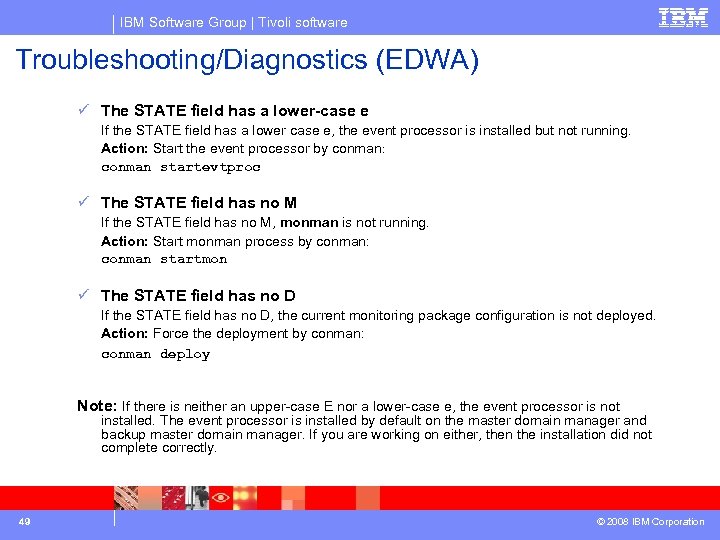
IBM Software Group | Tivoli software Troubleshooting/Diagnostics (EDWA) ü The STATE field has a lower-case e If the STATE field has a lower case e, the event processor is installed but not running. Action: Start the event processor by conman: conman startevtproc ü The STATE field has no M If the STATE field has no M, monman is not running. Action: Start monman process by conman: conman startmon ü The STATE field has no D If the STATE field has no D, the current monitoring package configuration is not deployed. Action: Force the deployment by conman: conman deploy Note: If there is neither an upper-case E nor a lower-case e, the event processor is not installed. The event processor is installed by default on the master domain manager and backup master domain manager. If you are working on either, then the installation did not complete correctly. 49 © 2008 IBM Corporation
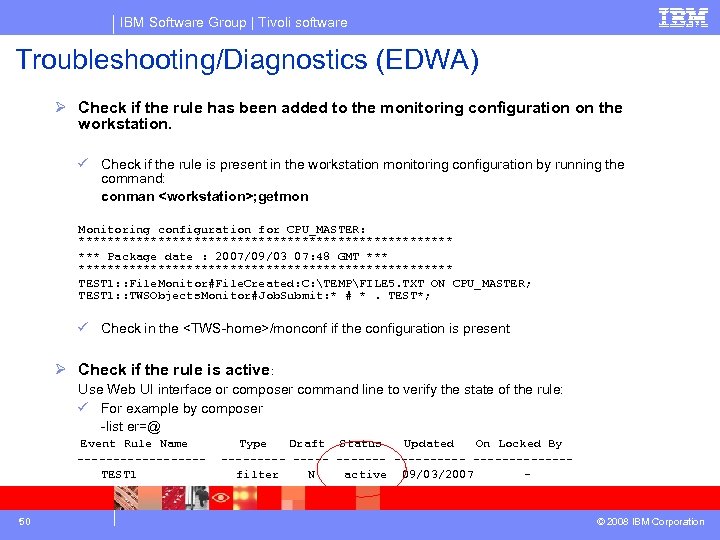
IBM Software Group | Tivoli software Troubleshooting/Diagnostics (EDWA) Ø Check if the rule has been added to the monitoring configuration on the workstation. ü Check if the rule is present in the workstation monitoring configuration by running the command: conman <workstation>; getmon Monitoring configuration for CPU_MASTER: ************************** *** Package date : 2007/09/03 07: 48 GMT **************************** TEST 1: : File. Monitor#File. Created: C: TEMPFILE 5. TXT ON CPU_MASTER; TEST 1: : TWSObjects. Monitor#Job. Submit: * # *. TEST*; ü Check in the <TWS-home>/monconf if the configuration is present Ø Check if the rule is active: Use Web UI interface or composer command line to verify the state of the rule: ü For example by composer -list er=@ Event Rule Name ---------TEST 1 50 Type Draft Status Updated On Locked By ------- -------------filter N active 09/03/2007 – © 2008 IBM Corporation
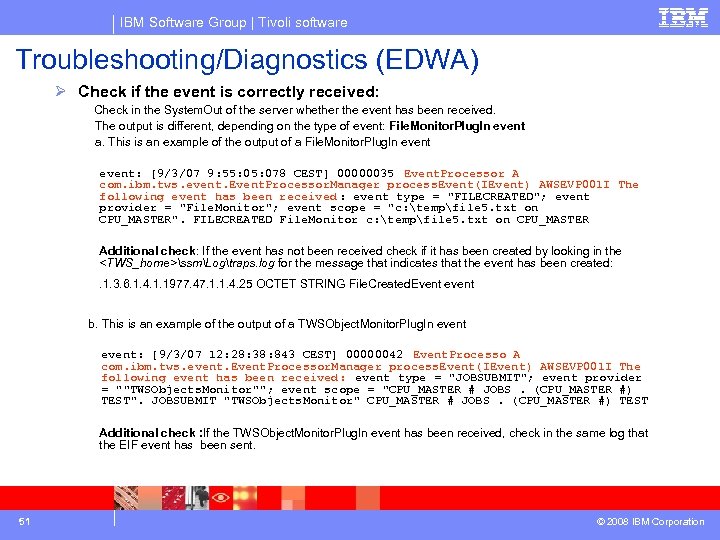
IBM Software Group | Tivoli software Troubleshooting/Diagnostics (EDWA) Ø Check if the event is correctly received: Check in the System. Out of the server whether the event has been received. The output is different, depending on the type of event: File. Monitor. Plug. In event a. This is an example of the output of a File. Monitor. Plug. In event: [9/3/07 9: 55: 078 CEST] 00000035 Event. Processor A com. ibm. tws. event. Event. Processor. Manager process. Event(IEvent) AWSEVP 001 I The following event has been received : event type = "FILECREATED"; event provider = "File. Monitor"; event scope = "c: tempfile 5. txt on CPU_MASTER". FILECREATED File. Monitor c: tempfile 5. txt on CPU_MASTER Additional check: If the event has not been received check if it has been created by looking in the <TWS_home>ssmLogtraps. log for the message that indicates that the event has been created: . 1. 3. 6. 1. 4. 1. 1977. 47. 1. 1. 4. 25 OCTET STRING File. Created. Event event b. This is an example of the output of a TWSObject. Monitor. Plug. In event: [9/3/07 12: 28: 38: 843 CEST] 00000042 Event. Processo A com. ibm. tws. event. Event. Processor. Manager process. Event(IEvent) AWSEVP 001 I The following event has been received: event type = "JOBSUBMIT"; event provider = ""TWSObjects. Monitor""; event scope = "CPU_MASTER # JOBS. (CPU_MASTER #) TEST". JOBSUBMIT "TWSObjects. Monitor" CPU_MASTER # JOBS. (CPU_MASTER #) TEST Additional check : If the TWSObject. Monitor. Plug. In event has been received, check in the same log that the EIF event has been sent. 51 © 2008 IBM Corporation
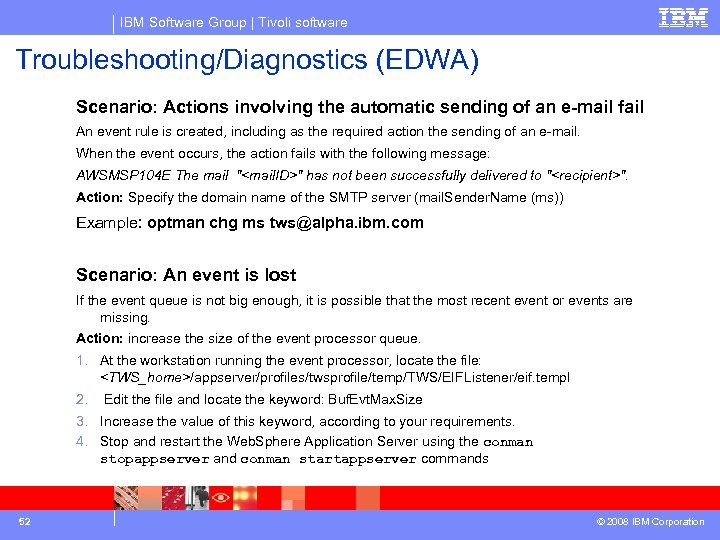
IBM Software Group | Tivoli software Troubleshooting/Diagnostics (EDWA) Scenario: Actions involving the automatic sending of an e-mail fail An event rule is created, including as the required action the sending of an e-mail. When the event occurs, the action fails with the following message: AWSMSP 104 E The mail "<mail. ID>" has not been successfully delivered to "<recipient>". Action: Specify the domain name of the SMTP server (mail. Sender. Name (ms)) Example: optman chg ms tws@alpha. ibm. com Scenario: An event is lost If the event queue is not big enough, it is possible that the most recent event or events are missing. Action: increase the size of the event processor queue. 1. At the workstation running the event processor, locate the file: <TWS_home>/appserver/profiles/twsprofile/temp/TWS/EIFListener/eif. templ 2. Edit the file and locate the keyword: Buf. Evt. Max. Size 3. Increase the value of this keyword, according to your requirements. 4. Stop and restart the Web. Sphere Application Server using the conman stopappserver and conman startappserver commands 52 © 2008 IBM Corporation
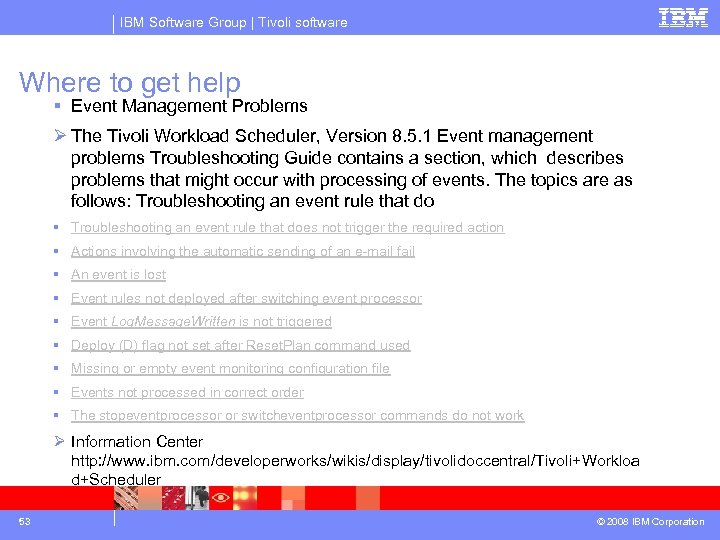
IBM Software Group | Tivoli software Where to get help § Event Management Problems Ø The Tivoli Workload Scheduler, Version 8. 5. 1 Event management problems Troubleshooting Guide contains a section, which describes problems that might occur with processing of events. The topics are as follows: Troubleshooting an event rule that do § Troubleshooting an event rule that does not trigger the required action § Actions involving the automatic sending of an e-mail fail § An event is lost § Event rules not deployed after switching event processor § Event Log. Message. Written is not triggered § Deploy (D) flag not set after Reset. Plan command used § Missing or empty event monitoring configuration file § Events not processed in correct order § The stopeventprocessor or switcheventprocessor commands do not work Ø Information Center http: //www. ibm. com/developerworks/wikis/display/tivolidoccentral/Tivoli+Workloa d+Scheduler 53 © 2008 IBM Corporation
Скачать презентацию IBM Software Group Tivoli Workload Scheduler Distributed
4005b70662c80f20c060ed8486da2c65.ppt