 Скачать презентацию IBM Software Group ITM for Virtual Servers
b914d9ba6ec1086352954a1ff6d831fd.ppt
- Количество слайдов: 73



® IBM Software Group ITM for Virtual Servers Citrix Xen. Server Agent v 623 Deep-Dive (Updated 06/11 to include updates related to IF 1 and TCR 1. 3 report bundle) 2011/06 © IBM Corporation
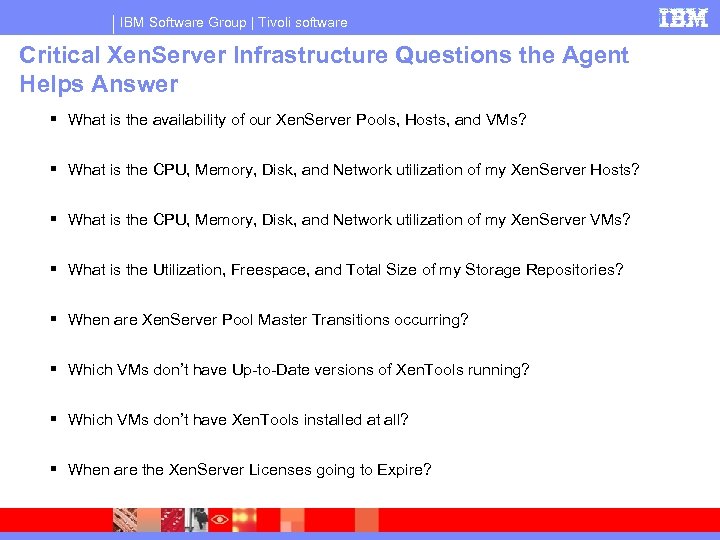
IBM Software Group | Tivoli software Critical Xen. Server Infrastructure Questions the Agent Helps Answer What is the availability of our Xen. Server Pools, Hosts, and VMs? What is the CPU, Memory, Disk, and Network utilization of my Xen. Server Hosts? What is the CPU, Memory, Disk, and Network utilization of my Xen. Server VMs? What is the Utilization, Freespace, and Total Size of my Storage Repositories? When are Xen. Server Pool Master Transitions occurring? Which VMs don’t have Up-to-Date versions of Xen. Tools running? Which VMs don’t have Xen. Tools installed at all? When are the Xen. Server Licenses going to Expire?
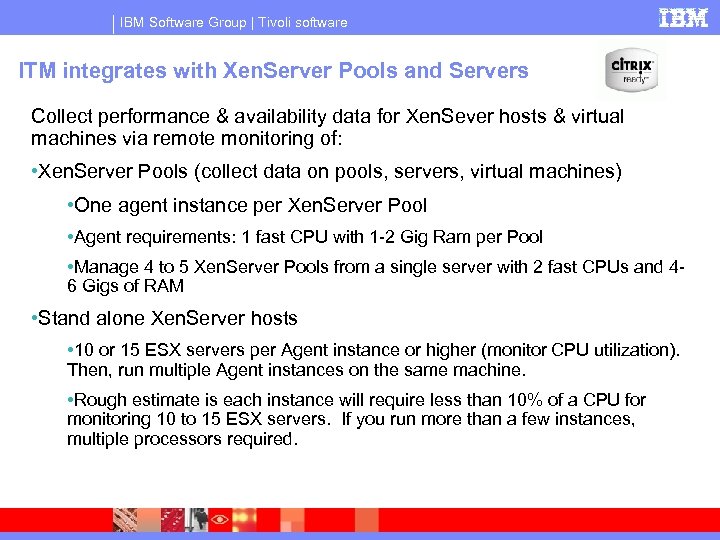
IBM Software Group | Tivoli software ITM integrates with Xen. Server Pools and Servers Collect performance & availability data for Xen. Sever hosts & virtual machines via remote monitoring of: • Xen. Server Pools (collect data on pools, servers, virtual machines) • One agent instance per Xen. Server Pool • Agent requirements: 1 fast CPU with 1 -2 Gig Ram per Pool • Manage 4 to 5 Xen. Server Pools from a single server with 2 fast CPUs and 46 Gigs of RAM • Stand alone Xen. Server hosts • 10 or 15 ESX servers per Agent instance or higher (monitor CPU utilization). Then, run multiple Agent instances on the same machine. • Rough estimate is each instance will require less than 10% of a CPU for monitoring 10 to 15 ESX servers. If you run more than a few instances, multiple processors required.
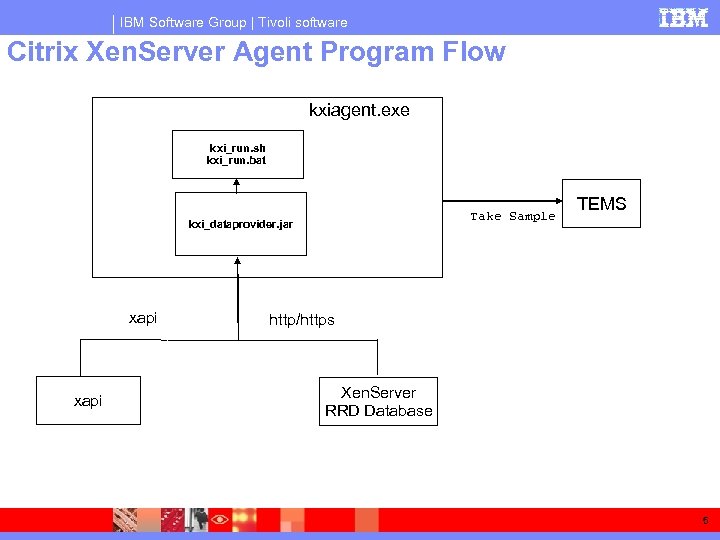
IBM Software Group | Tivoli software Citrix Xen. Server Agent Program Flow kxiagent. exe kxi_run. sh kxi_run. bat Take Sample kxi_dataprovider. jar xapi TEMS http/https Xen. Server RRD Database 5
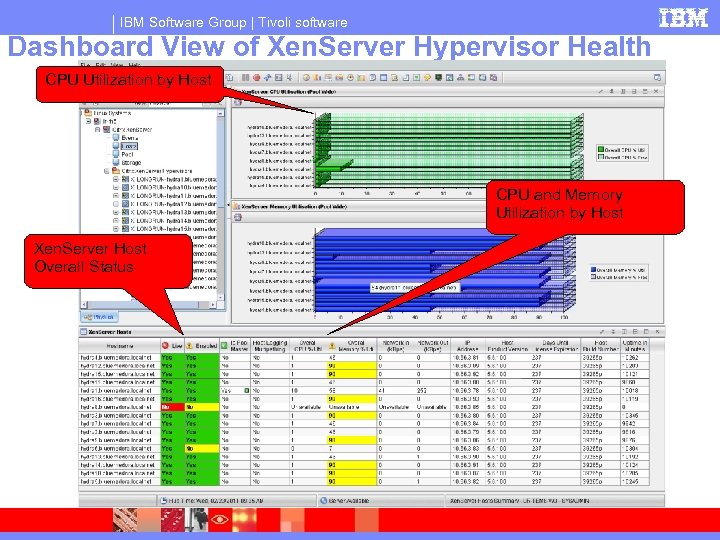
IBM Software Group | Tivoli software Dashboard View of Xen. Server Hypervisor Health CPU Utilization by Host CPU and Memory Utilization by Host Xen. Server Host Overall Status
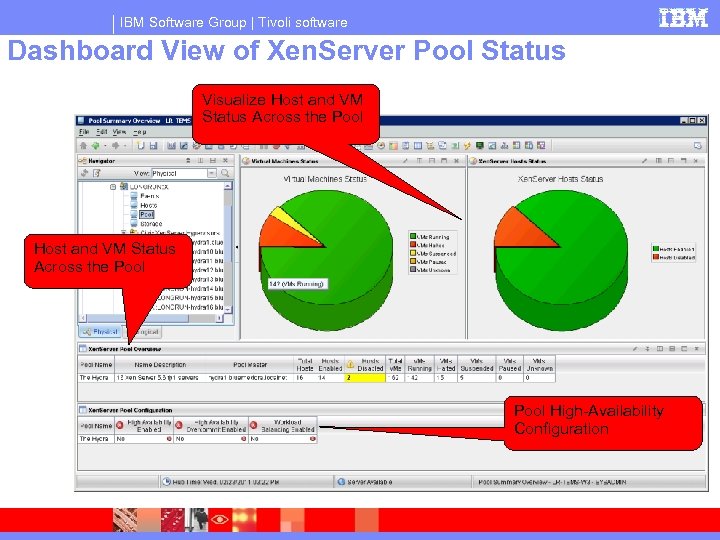
IBM Software Group | Tivoli software Dashboard View of Xen. Server Pool Status Visualize Host and VM Status Across the Pool High-Availability Configuration
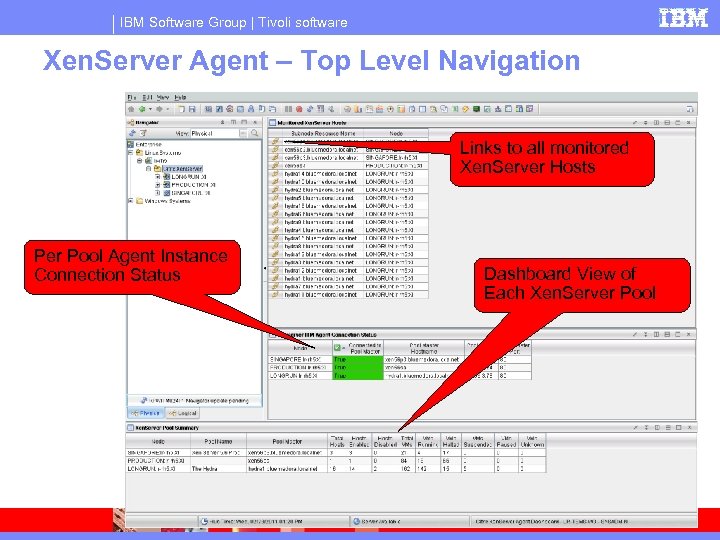
IBM Software Group | Tivoli software Xen. Server Agent – Top Level Navigation Links to all monitored Xen. Server Hosts Per Pool Agent Instance Connection Status Dashboard View of Each Xen. Server Pool
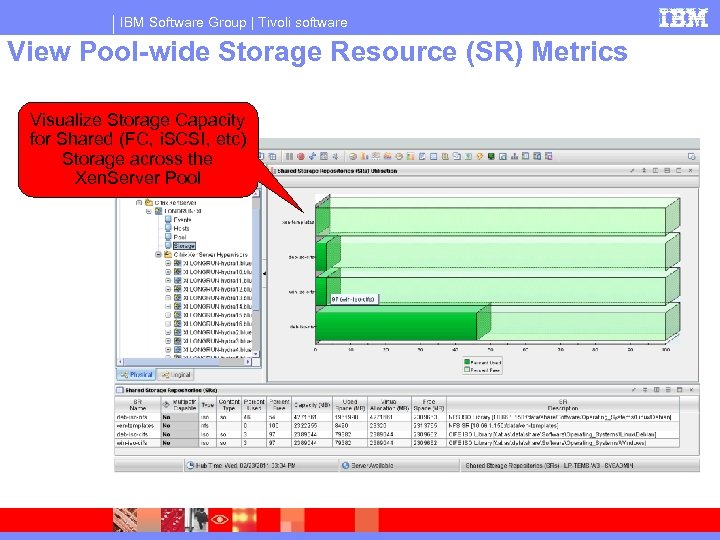
IBM Software Group | Tivoli software View Pool-wide Storage Resource (SR) Metrics Visualize Storage Capacity for Shared (FC, i. SCSI, etc) Storage across the Xen. Server Pool
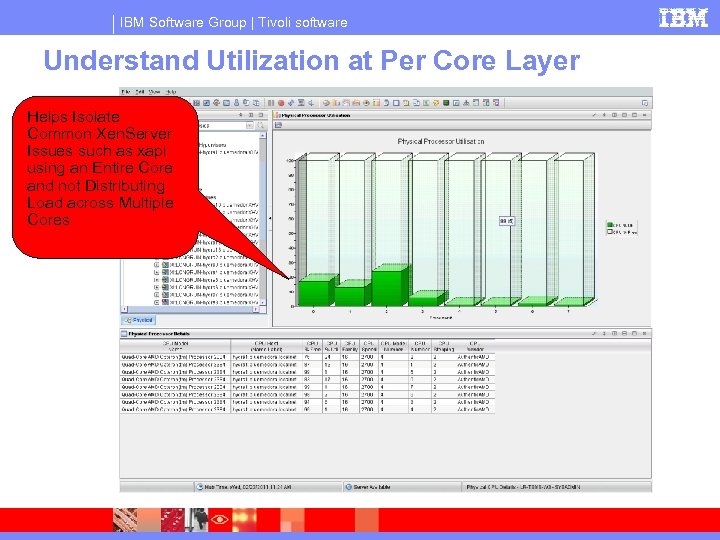
IBM Software Group | Tivoli software Understand Utilization at Per Core Layer Helps Isolate Common Xen. Server Issues such as xapi using an Entire Core and not Distributing Load across Multiple Cores
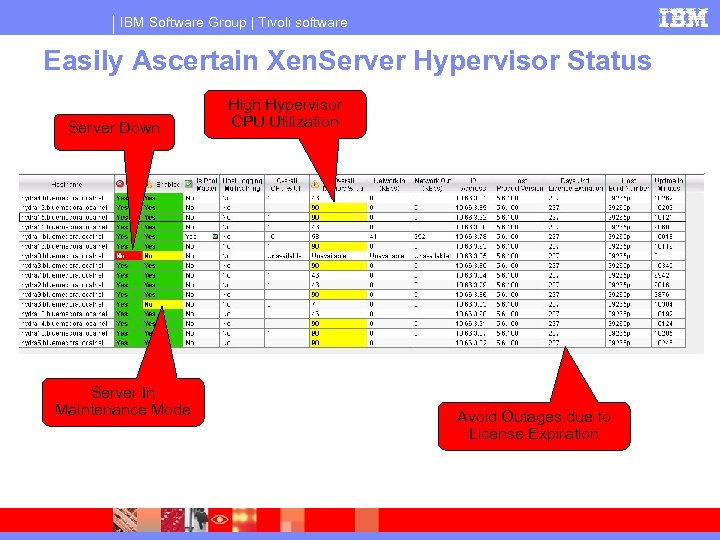
IBM Software Group | Tivoli software Easily Ascertain Xen. Server Hypervisor Status Server Down Server In Maintenance Mode High Hypervisor CPU Utilization Avoid Outages due to License Expiration
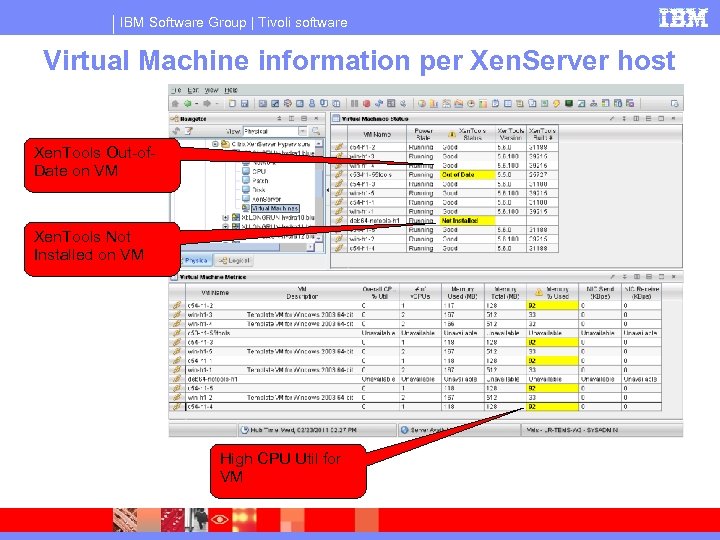
IBM Software Group | Tivoli software Virtual Machine information per Xen. Server host Xen. Tools Out-of. Date on VM Xen. Tools Not Installed on VM High CPU Util for VM
IBM Software Group | Tivoli software Citrix Xen. Server agent Notable Differences from other ITM for Virtual Server agents The agent cannot be installed stand-alone, it must be installed onto a server that has an already existing ITM 622 agent installed This version of the agent installer is not globalized This version of the agent does not have ITM Language Pack available – workspaces, attributes, situations, expert advice, etc are not globalized The Silent Installation method is different than standard ITM Agent 13
® IBM Software Group Citrix Xen. Server Agent v 623 Before You Install © IBM Corporation
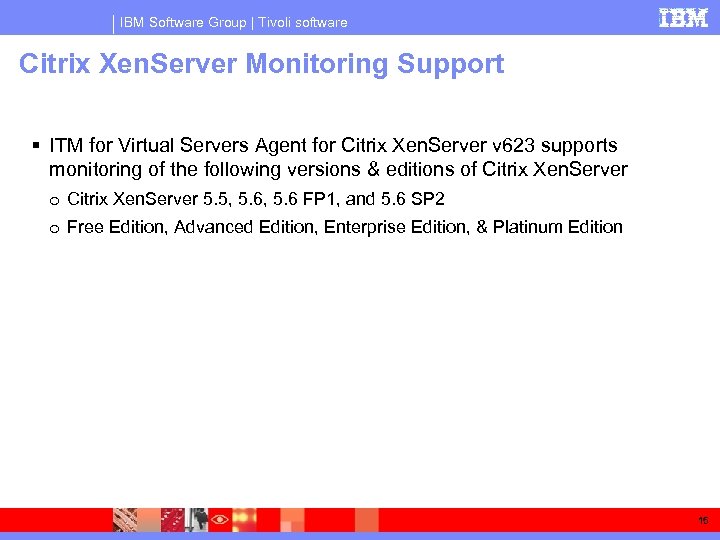
IBM Software Group | Tivoli software Citrix Xen. Server Monitoring Support ITM for Virtual Servers Agent for Citrix Xen. Server v 623 supports monitoring of the following versions & editions of Citrix Xen. Server o Citrix Xen. Server 5. 5, 5. 6 FP 1, and 5. 6 SP 2 o Free Edition, Advanced Edition, Enterprise Edition, & Platinum Edition 15
IBM Software Group | Tivoli software IBM Tivoli Monitoring Supported on ITM 622 Fix. Pack 2 and above 16
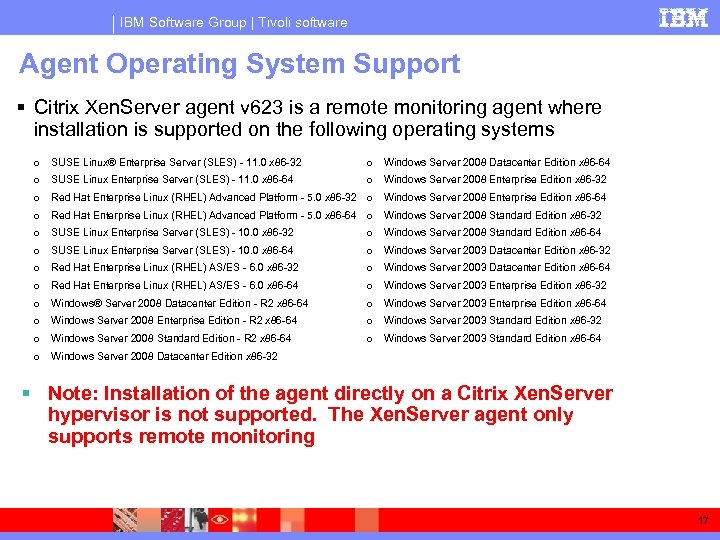
IBM Software Group | Tivoli software Agent Operating System Support Citrix Xen. Server agent v 623 is a remote monitoring agent where installation is supported on the following operating systems o SUSE Linux® Enterprise Server (SLES) - 11. 0 x 86 -32 o Windows Server 2008 Datacenter Edition x 86 -64 o SUSE Linux Enterprise Server (SLES) - 11. 0 x 86 -64 o Windows Server 2008 Enterprise Edition x 86 -32 o Red Hat Enterprise Linux (RHEL) Advanced Platform - 5. 0 x 86 -32 o Windows Server 2008 Enterprise Edition x 86 -64 o Red Hat Enterprise Linux (RHEL) Advanced Platform - 5. 0 x 86 -64 o Windows Server 2008 Standard Edition x 86 -32 o SUSE Linux Enterprise Server (SLES) - 10. 0 x 86 -32 o Windows Server 2008 Standard Edition x 86 -64 o SUSE Linux Enterprise Server (SLES) - 10. 0 x 86 -64 o Windows Server 2003 Datacenter Edition x 86 -32 o Red Hat Enterprise Linux (RHEL) AS/ES - 6. 0 x 86 -32 o Windows Server 2003 Datacenter Edition x 86 -64 o Red Hat Enterprise Linux (RHEL) AS/ES - 6. 0 x 86 -64 o Windows Server 2003 Enterprise Edition x 86 -32 o Windows® Server 2008 Datacenter Edition - R 2 x 86 -64 o Windows Server 2003 Enterprise Edition x 86 -64 o Windows Server 2008 Enterprise Edition - R 2 x 86 -64 o Windows Server 2003 Standard Edition x 86 -32 o Windows Server 2008 Standard Edition - R 2 x 86 -64 o Windows Server 2003 Standard Edition x 86 -64 o Windows Server 2008 Datacenter Edition x 86 -32 Note: Installation of the agent directly on a Citrix Xen. Server hypervisor is not supported. The Xen. Server agent only supports remote monitoring 17
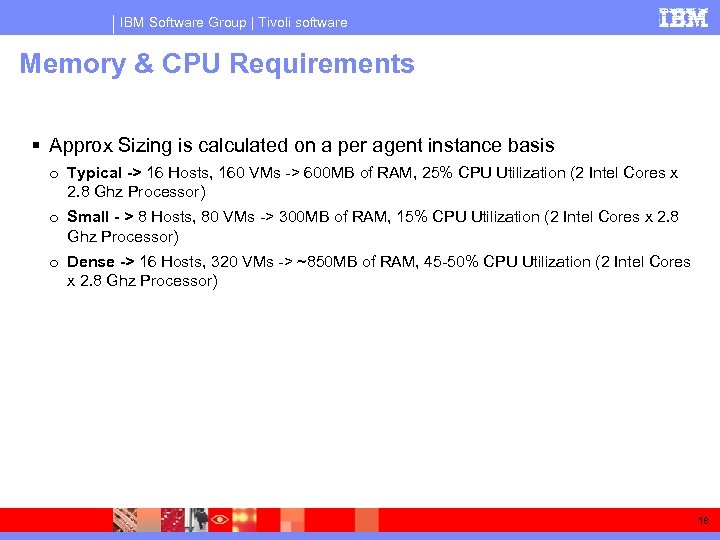
IBM Software Group | Tivoli software Memory & CPU Requirements Approx Sizing is calculated on a per agent instance basis o Typical -> 16 Hosts, 160 VMs -> 600 MB of RAM, 25% CPU Utilization (2 Intel Cores x 2. 8 Ghz Processor) o Small - > 8 Hosts, 80 VMs -> 300 MB of RAM, 15% CPU Utilization (2 Intel Cores x 2. 8 Ghz Processor) o Dense -> 16 Hosts, 320 VMs -> ~850 MB of RAM, 45 -50% CPU Utilization (2 Intel Cores x 2. 8 Ghz Processor) 18
® IBM Software Group Citrix Xen. Server Agent v 623 Installation © IBM Corporation
IBM Software Group | Tivoli software Installation Pre-requisites The Citrix Xen. Server agent is Agent Builder based and requires a preexisting ITM 622 agent installation on the server where the Citrix Xen. Server agent is to be installed o Typically an Operating System agent is used to satisfy this requirement 20
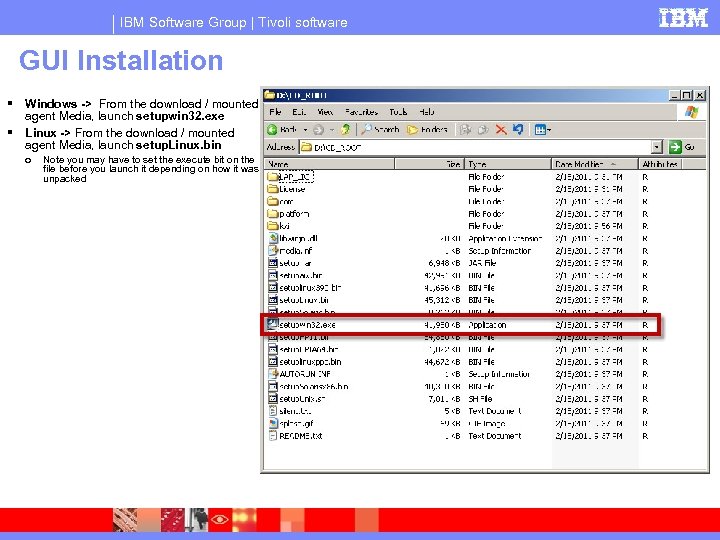
IBM Software Group | Tivoli software GUI Installation Windows -> From the download / mounted agent Media, launch setupwin 32. exe Linux -> From the download / mounted agent Media, launch setup. Linux. bin o Note you may have to set the execute bit on the file before you launch it depending on how it was unpacked
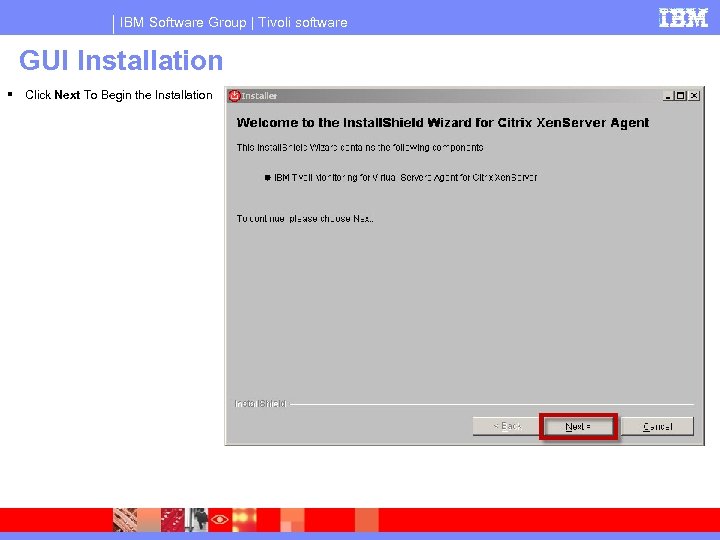
IBM Software Group | Tivoli software GUI Installation Click Next To Begin the Installation
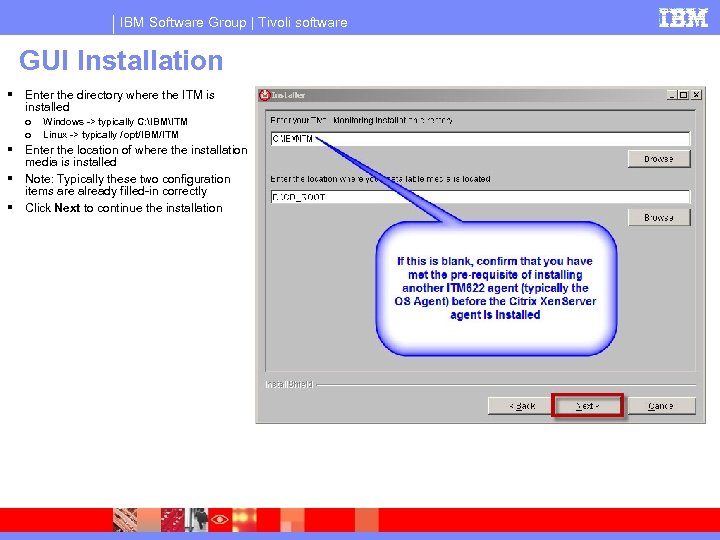
IBM Software Group | Tivoli software GUI Installation Enter the directory where the ITM is installed o o Windows -> typically C: IBMITM Linux -> typically /opt/IBM/ITM Enter the location of where the installation media is installed Note: Typically these two configuration items are already filled-in correctly Click Next to continue the installation
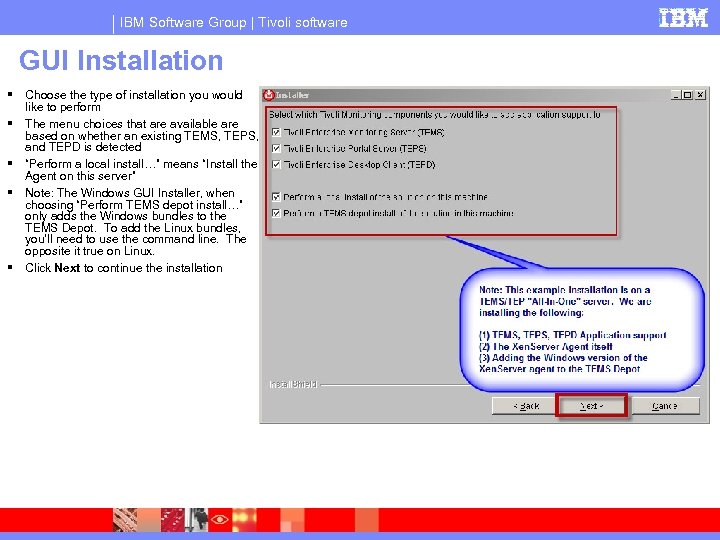
IBM Software Group | Tivoli software GUI Installation Choose the type of installation you would like to perform The menu choices that are available are based on whether an existing TEMS, TEPS, and TEPD is detected “Perform a local install…” means “Install the Agent on this server” Note: The Windows GUI Installer, when choosing “Perform TEMS depot install…” only adds the Windows bundles to the TEMS Depot. To add the Linux bundles, you’ll need to use the command line. The opposite it true on Linux. Click Next to continue the installation
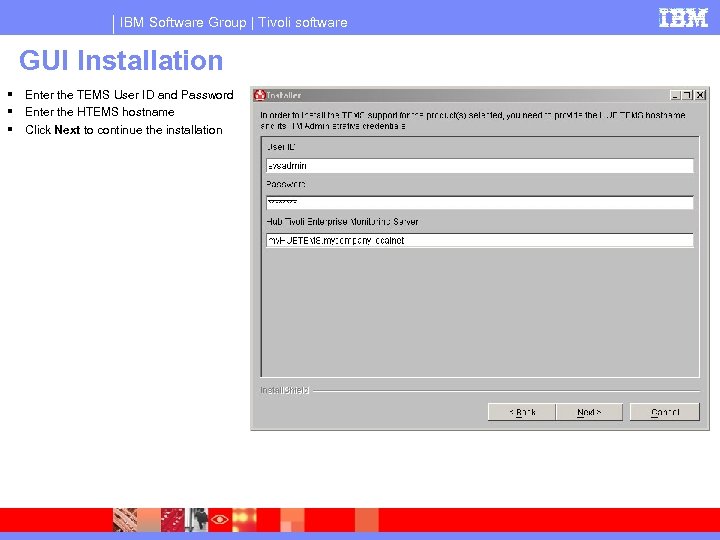
IBM Software Group | Tivoli software GUI Installation Enter the TEMS User ID and Password Enter the HTEMS hostname Click Next to continue the installation
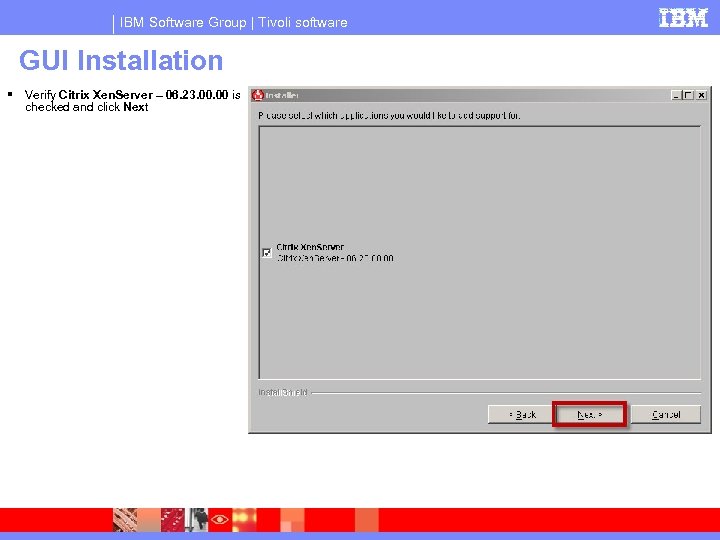
IBM Software Group | Tivoli software GUI Installation Verify Citrix Xen. Server – 06. 23. 00 is checked and click Next
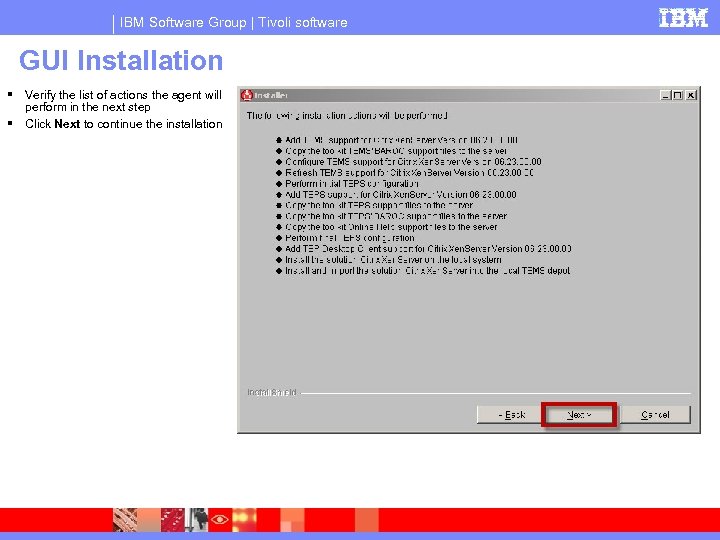
IBM Software Group | Tivoli software GUI Installation Verify the list of actions the agent will perform in the next step Click Next to continue the installation
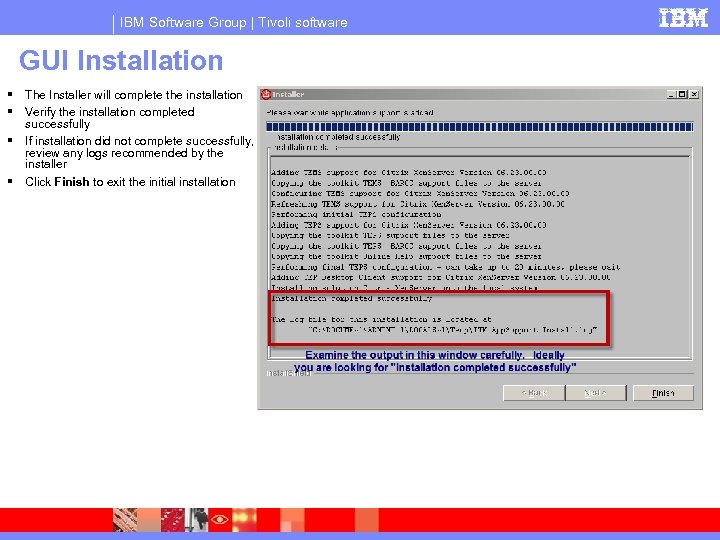
IBM Software Group | Tivoli software GUI Installation The Installer will complete the installation Verify the installation completed successfully If installation did not complete successfully, review any logs recommended by the installer Click Finish to exit the initial installation
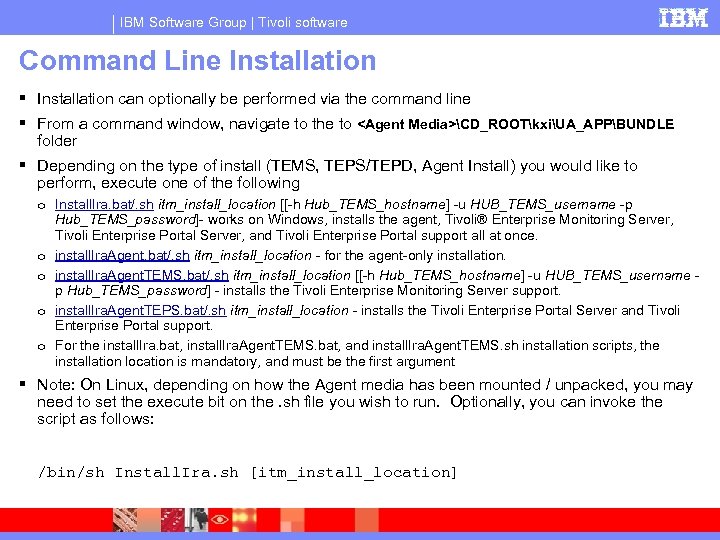
IBM Software Group | Tivoli software Command Line Installation can optionally be performed via the command line From a command window, navigate to the to <Agent Media>CD_ROOTkxiUA_APPBUNDLE folder Depending on the type of install (TEMS, TEPS/TEPD, Agent Install) you would like to perform, execute one of the following o Install. Ira. bat/. sh itm_install_location [[-h Hub_TEMS_hostname] -u HUB_TEMS_username -p Hub_TEMS_password]- works on Windows, installs the agent, Tivoli® Enterprise Monitoring Server, Tivoli Enterprise Portal Server, and Tivoli Enterprise Portal support all at once. o install. Ira. Agent. bat/. sh itm_install_location - for the agent-only installation. o install. Ira. Agent. TEMS. bat/. sh itm_install_location [[-h Hub_TEMS_hostname] -u HUB_TEMS_username p Hub_TEMS_password] - installs the Tivoli Enterprise Monitoring Server support. o install. Ira. Agent. TEPS. bat/. sh itm_install_location - installs the Tivoli Enterprise Portal Server and Tivoli Enterprise Portal support. o For the install. Ira. bat, install. Ira. Agent. TEMS. bat, and install. Ira. Agent. TEMS. sh installation scripts, the installation location is mandatory, and must be the first argument Note: On Linux, depending on how the Agent media has been mounted / unpacked, you may need to set the execute bit on the. sh file you wish to run. Optionally, you can invoke the script as follows: /bin/sh Install. Ira. sh [itm_install_location]
IBM Software Group | Tivoli software Silent Installation To silently install the Citrix Xen. Server agent, run the appropriate installer in the main CD_ROOT folder for the operating system with the -silent option. For example: Windows -> setupwin 32. exe -silent -options response_file Linux -> setup. Linux. bin –silent –options response_file Where response_file is the path to a copy of the CD_ROOT/silent. txt file you have customized for your environment. Note: This silent installation does not support the -console option
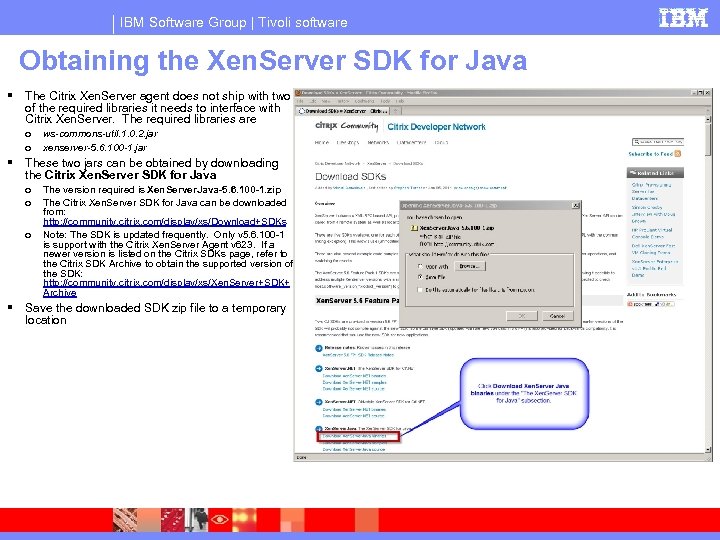
IBM Software Group | Tivoli software Obtaining the Xen. Server SDK for Java The Citrix Xen. Server agent does not ship with two of the required libraries it needs to interface with Citrix Xen. Server. The required libraries are o o ws-commons-util. 1. 0. 2. jar xenserver-5. 6. 100 -1. jar These two jars can be obtained by downloading the Citrix Xen. Server SDK for Java o o o The version required is Xen. Server. Java-5. 6. 100 -1. zip The Citrix Xen. Server SDK for Java can be downloaded from: http: //community. citrix. com/display/xs/Download+SDKs Note: The SDK is updated frequently. Only v 5. 6. 100 -1 is support with the Citrix Xen. Server Agent v 623. If a newer version is listed on the Citrix SDKs page, refer to the Citrix SDK Archive to obtain the supported version of the SDK: http: //community. citrix. com/display/xs/Xen. Server+SDK+ Archive Save the downloaded SDK zip file to a temporary location
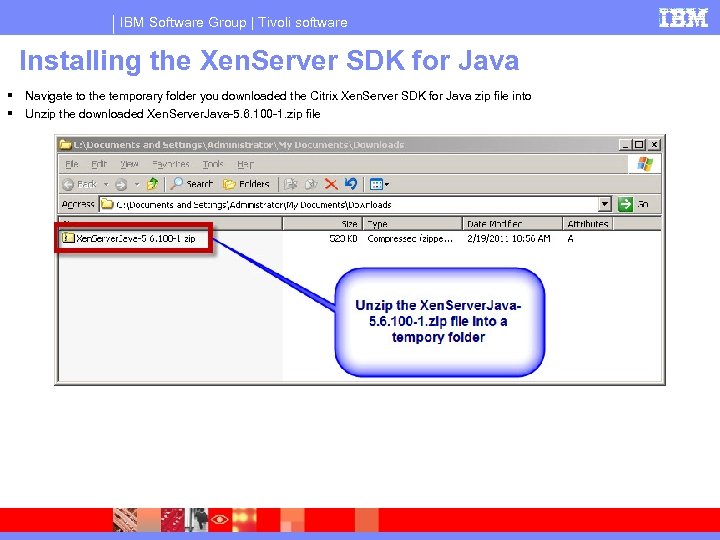
IBM Software Group | Tivoli software Installing the Xen. Server SDK for Java Navigate to the temporary folder you downloaded the Citrix Xen. Server SDK for Java zip file into Unzip the downloaded Xen. Server. Java-5. 6. 100 -1. zip file
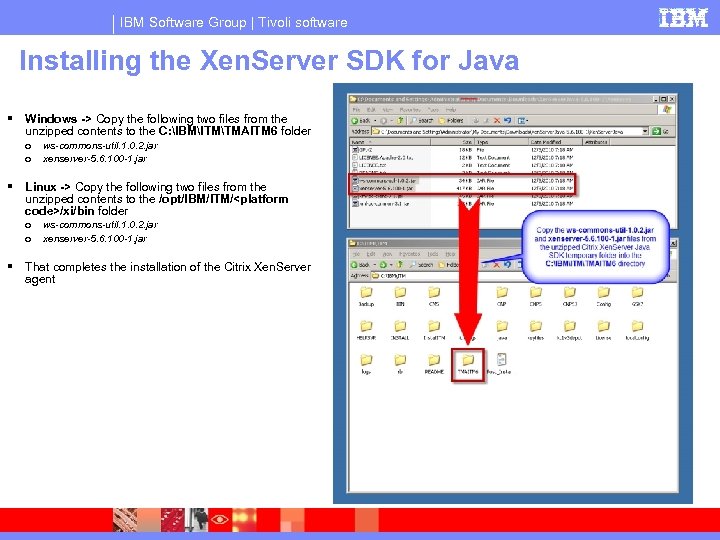
IBM Software Group | Tivoli software Installing the Xen. Server SDK for Java Windows -> Copy the following two files from the unzipped contents to the C: IBMITMTMAITM 6 folder o o ws-commons-util. 1. 0. 2. jar xenserver-5. 6. 100 -1. jar Linux -> Copy the following two files from the unzipped contents to the /opt/IBM/ITM/<platform code>/xi/bin folder o o ws-commons-util. 1. 0. 2. jar xenserver-5. 6. 100 -1. jar That completes the installation of the Citrix Xen. Server agent
IBM Software Group | Tivoli software Note about the Citrix Xen. Server SDK for Java The #1 Most Common Installation Issue with the Xen. Server Agent is that required Xen. Server Java SDK files are not installed at all or are installed into the wrong location The prior Blue Medora version of the Xen. Server Agent shipped with those libraries, the IBM version does not. Customers with prior experience with the Blue Medora version of the agent may miss this new installation requirement
IBM Software Group | Tivoli software Install latest Interim Fixes and Fix Packs Install the latest interim fixes (IFs) and Fix Packs (FPs) As of 6/07/11, the latest update to the Citrix Xen. Server 623 Agent is 6. 23. 00. 01 (Xen. Server Agent v 623 IF 1). It can be obtained here: https: //www-304. ibm. com/support/docview. wss? mynp=OCSS 9 U 76&mync=R&uid=swg 24030060&myns=swgtiv IF 1 includes numerous scalability enhancements focused on high density VM environments and fixes related to agent shutdown issues
® IBM Software Group Citrix Xen. Server Agent v 623 Basic Configuration © IBM Corporation
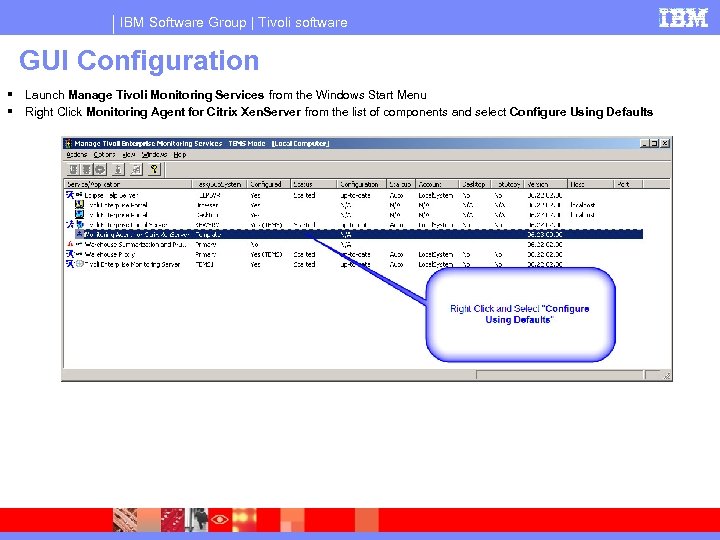
IBM Software Group | Tivoli software GUI Configuration Launch Manage Tivoli Monitoring Services from the Windows Start Menu Right Click Monitoring Agent for Citrix Xen. Server from the list of components and select Configure Using Defaults
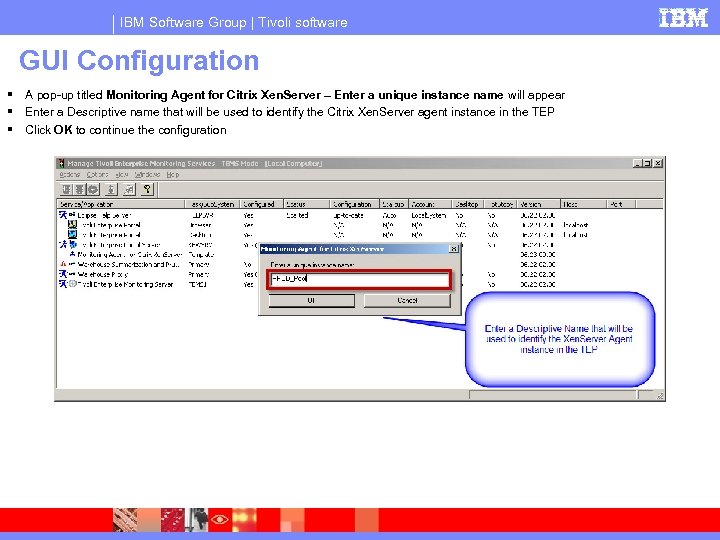
IBM Software Group | Tivoli software GUI Configuration A pop-up titled Monitoring Agent for Citrix Xen. Server – Enter a unique instance name will appear Enter a Descriptive name that will be used to identify the Citrix Xen. Server agent instance in the TEP Click OK to continue the configuration
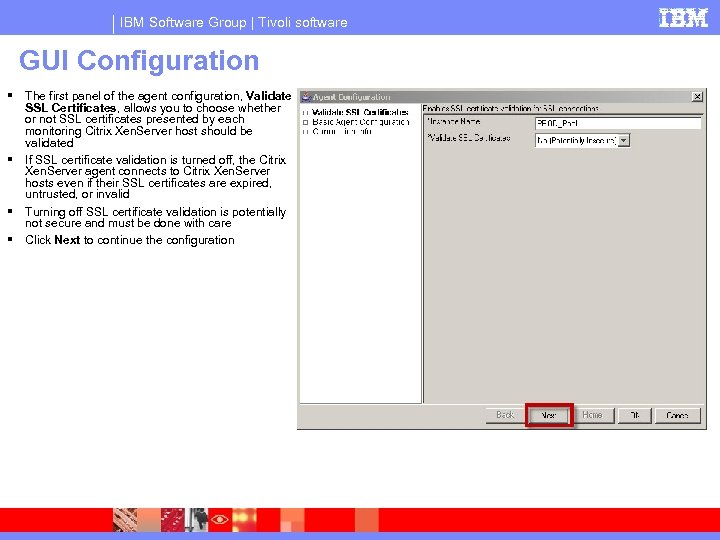
IBM Software Group | Tivoli software GUI Configuration The first panel of the agent configuration, Validate SSL Certificates, allows you to choose whether or not SSL certificates presented by each monitoring Citrix Xen. Server host should be validated If SSL certificate validation is turned off, the Citrix Xen. Server agent connects to Citrix Xen. Server hosts even if their SSL certificates are expired, untrusted, or invalid Turning off SSL certificate validation is potentially not secure and must be done with care Click Next to continue the configuration
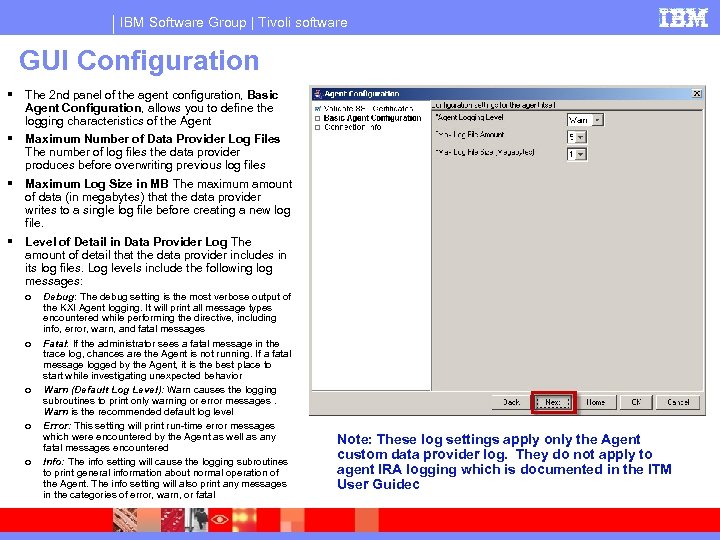
IBM Software Group | Tivoli software GUI Configuration The 2 nd panel of the agent configuration, Basic Agent Configuration, allows you to define the logging characteristics of the Agent Maximum Number of Data Provider Log Files The number of log files the data provider produces before overwriting previous log files Maximum Log Size in MB The maximum amount of data (in megabytes) that the data provider writes to a single log file before creating a new log file. Level of Detail in Data Provider Log The amount of detail that the data provider includes in its log files. Log levels include the following log messages: o o o Debug: The debug setting is the most verbose output of the KXI Agent logging. It will print all message types encountered while performing the directive, including info, error, warn, and fatal messages Fatal: If the administrator sees a fatal message in the trace log, chances are the Agent is not running. If a fatal message logged by the Agent, it is the best place to start while investigating unexpected behavior Warn (Default Log Level): Warn causes the logging subroutines to print only warning or error messages. Warn is the recommended default log level Error: This setting will print run-time error messages which were encountered by the Agent as well as any fatal messages encountered Info: The info setting will cause the logging subroutines to print general information about normal operation of the Agent. The info setting will also print any messages in the categories of error, warn, or fatal Note: These log settings apply only the Agent custom data provider log. They do not apply to agent IRA logging which is documented in the ITM User Guidec
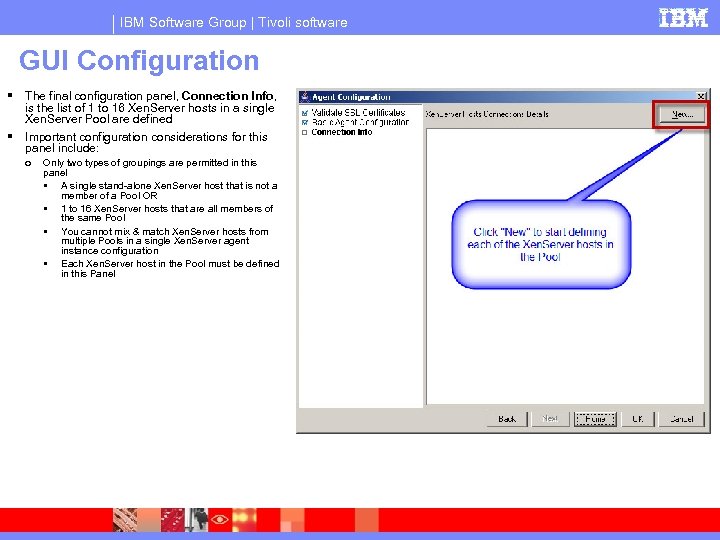
IBM Software Group | Tivoli software GUI Configuration The final configuration panel, Connection Info, is the list of 1 to 16 Xen. Server hosts in a single Xen. Server Pool are defined Important configuration considerations for this panel include: o Only two types of groupings are permitted in this panel A single stand-alone Xen. Server host that is not a member of a Pool OR 1 to 16 Xen. Server hosts that are all members of the same Pool You cannot mix & match Xen. Server hosts from multiple Pools in a single Xen. Server agent instance configuration Each Xen. Server host in the Pool must be defined in this Panel
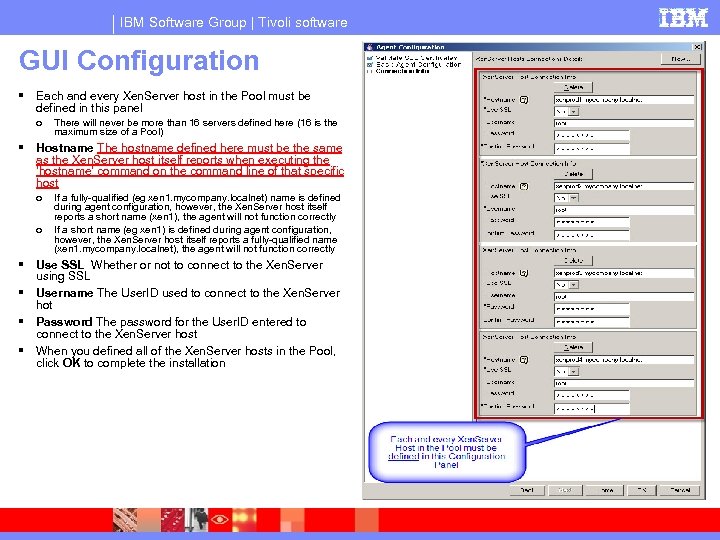
IBM Software Group | Tivoli software GUI Configuration Each and every Xen. Server host in the Pool must be defined in this panel o There will never be more than 16 servers defined here (16 is the maximum size of a Pool) Hostname The hostname defined here must be the same as the Xen. Server host itself reports when executing the ‘hostname’ command on the command line of that specific host o o If a fully-qualified (eg xen 1. mycompany. localnet) name is defined during agent configuration, however, the Xen. Server host itself reports a short name (xen 1), the agent will not function correctly If a short name (eg xen 1) is defined during agent configuration, however, the Xen. Server host itself reports a fully-qualified name (xen 1. mycompany. localnet), the agent will not function correctly Use SSL Whether or not to connect to the Xen. Server using SSL Username The User. ID used to connect to the Xen. Server hot Password The password for the User. ID entered to connect to the Xen. Server host When you defined all of the Xen. Server hosts in the Pool, click OK to complete the installation
IBM Software Group | Tivoli software Command Line Configuration Once installed, the Citrix Xen. Server agent can be configured on the command line just like any other ITM Agent. Refer to the procedures in the IBM Tivoli Monitoring Installation and Setup Guide to configure the agent on the command line
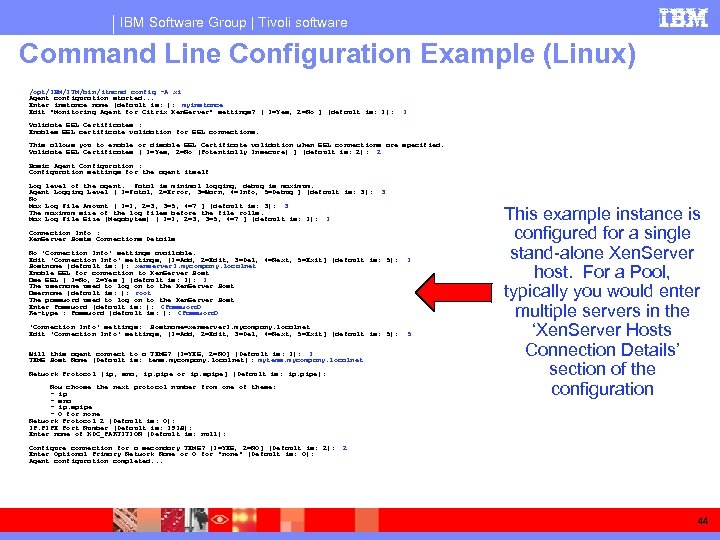
IBM Software Group | Tivoli software Command Line Configuration Example (Linux) /opt/IBM/ITM/bin/ itmcmd config -A xi Agent configuration started. . . Enter instance name (default is: ): myinstance Edit "Monitoring Agent for Citrix Xen. Server" settings? [ 1=Yes, 2=No ] (default is: 1): 1 Validate SSL Certificates : Enables SSL certificate validation for SSL connections. This allows you to enable or disable SSL Certificate validation when SSL connections are specified. Validate SSL Certificates [ 1=Yes, 2=No (Potentially Insecure) ] (default is: 2): 2 Basic Agent Configuration : Configuration settings for the agent itself Log level of the agent. Fatal is minimal logging, debug is maximum. Agent Logging Level [ 1=Fatal, 2=Error, 3=Warn, 4=Info, 5=Debug ] (default is: 3): No Max Log File Amount [ 1=1, 2=3, 3=5, 4=7 ] (default is: 3): 3 The maximum size of the log files before the file rolls. Max Log File Size (Megabytes) [ 1=1, 2=3, 3=5, 4=7 ] (default is: 1): 1 3 Connection Info : Xen. Server Hosts Connections Details No 'Connection Info' settings available. Edit 'Connection Info' settings, [1=Add, 2=Edit, 3=Del, 4=Next, 5=Exit] (default is: 5): Hostname (default is: ): xenserver 1. mycompany. localnet Enable SSL for connection to Xen. Server Host Use SSL [ 1=No, 2=Yes ] (default is: 1): 1 The username used to log on to the Xen. Server Host Username (default is: ): root The password used to log on to the Xen. Server Host Enter Password (default is: ): <Password> Re-type : Password (default is: ): <Password> 'Connection Info' settings: Hostname=xenserver 1. mycompany. localnet Edit 'Connection Info' settings, [1=Add, 2=Edit, 3=Del, 4=Next, 5=Exit] (default is: 5): Will this agent connect to a TEMS? [1=YES, 2=NO] (Default is: 1): 1 TEMS Host Name (Default is: tems. mycompany. localnet ): mytems. mycompany. localnet Network Protocol [ ip, sna, ip. pipe or ip. spipe] (Default is: ip. pipe): Now choose the next protocol number from one of these: - ip - sna - ip. spipe - 0 for none Network Protocol 2 (Default is: 0): IP. PIPE Port Number (Default is: 1918): Enter name of KDC_PARTITION (Default is: null): Configure connection for a secondary TEMS? [1=YES, 2=NO] (Default is: 2): Enter Optional Primary Network Name or 0 for "none" (Default is: 0): Agent configuration completed. . . 1 5 This example instance is configured for a single stand-alone Xen. Server host. For a Pool, typically you would enter multiple servers in the ‘Xen. Server Hosts Connection Details’ section of the configuration 2 44
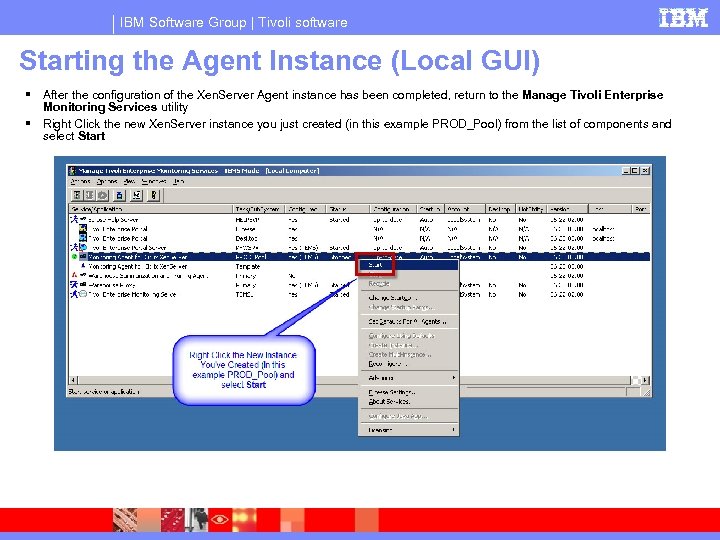
IBM Software Group | Tivoli software Starting the Agent Instance (Local GUI) After the configuration of the Xen. Server Agent instance has been completed, return to the Manage Tivoli Enterprise Monitoring Services utility Right Click the new Xen. Server instance you just created (in this example PROD_Pool) from the list of components and select Start
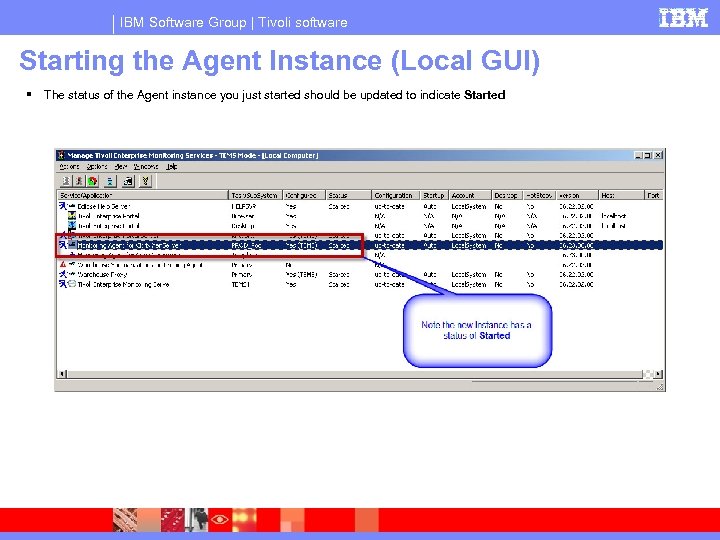
IBM Software Group | Tivoli software Starting the Agent Instance (Local GUI) The status of the Agent instance you just started should be updated to indicate Started
IBM Software Group | Tivoli software Starting the Agent Instance (Command Line) Once installed, a Citrix Xen. Server agent instance can be stopped & started from the command line like any other ITM agent. Refer to the procedures in the IBM Tivoli Monitoring Installation and Setup Guide for more info An example agent instance start on Linux: itmcmd agent –o myinstance start xi An example agent instance stop of Linux: itmcmd agent –o myinstance stop xi
IBM Software Group | Tivoli software Configuring the Agent to Use SSL The Citrix Xen. Server Agent can be configured to communicate with Citrix Xen. Server hosts securely using SSL. In order to enable this option, you must first add each Xen. Server host’s SSL certificate to the Xen. Server agent's SSL Trust store: 1. 2. 3. Copy the SSL certificate that was loaded each Xen. Server Host in the Pool (that is enabled with SSL) to the Agent's machine It is recommended that you create a directory to store Xen. Server certificates on the Agent machine Run the keytool command on the Agent machine to add the certificate to the Xen. Server Agent Truststore which is installed along with the Agent binaries.
IBM Software Group | Tivoli software Configuring the Agent to Use SSL keytool o keytool -import -noprompt -trustcacerts -alias CERT_ALIAS -file CERT_FILE -keystore TRUSTSTORE -storepass XENTRUST • CERT_ALIAS is a unique alias for the certificate to be added to the Agent's Truststore. • CERT_FILE is the fully qualified path to the certificate to be added to the Agent's Truststore. • TRUSTSTORE is the fully qualified path to the Agent's Truststore as shown below: Ø On Windows - agent_install_dirTMAITM 6kxi_truststore. jks Ø On Linux - agent_install_dir/<platform_code>/xi/bin/kxi_truststore. jks • STOREPASS is the password for the Truststore. The password for the kxi_truststore. jks trustore file that is shipped with the agent is "XENTRUST"
® IBM Software Group Citrix Xen. Server Agent v 623 Confirming Agent Health © IBM Corporation
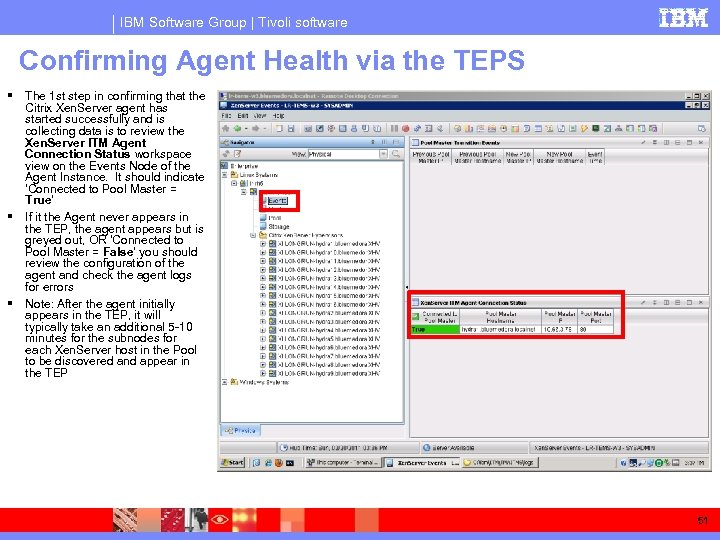
IBM Software Group | Tivoli software Confirming Agent Health via the TEPS The 1 st step in confirming that the Citrix Xen. Server agent has started successfully and is collecting data is to review the Xen. Server ITM Agent Connection Status workspace view on the Events Node of the Agent Instance. It should indicate ‘Connected to Pool Master = True’ If it the Agent never appears in the TEP, the agent appears but is greyed out, OR ‘Connected to Pool Master = False’ you should review the configuration of the agent and check the agent logs for errors Note: After the agent initially appears in the TEP, it will typically take an additional 5 -10 minutes for the subnodes for each Xen. Server host in the Pool to be discovered and appear in the TEP 51
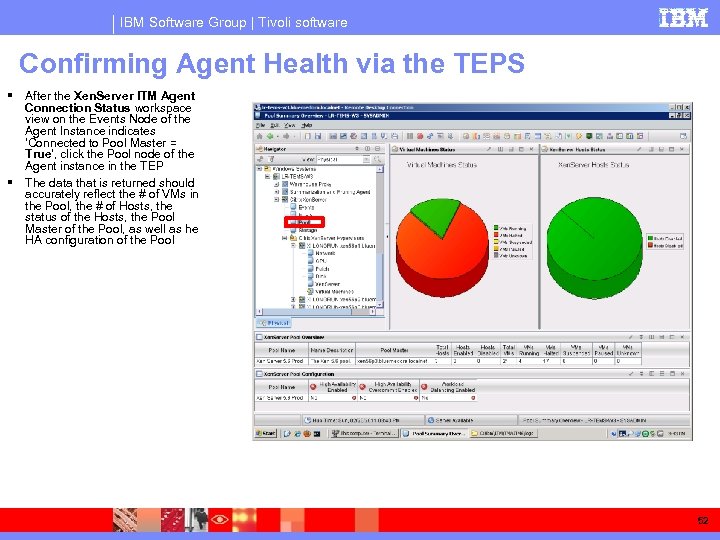
IBM Software Group | Tivoli software Confirming Agent Health via the TEPS After the Xen. Server ITM Agent Connection Status workspace view on the Events Node of the Agent Instance indicates ‘Connected to Pool Master = True’, click the Pool node of the Agent instance in the TEP The data that is returned should accurately reflect the # of VMs in the Pool, the # of Hosts, the status of the Hosts, the Pool Master of the Pool, as well as he HA configuration of the Pool 52
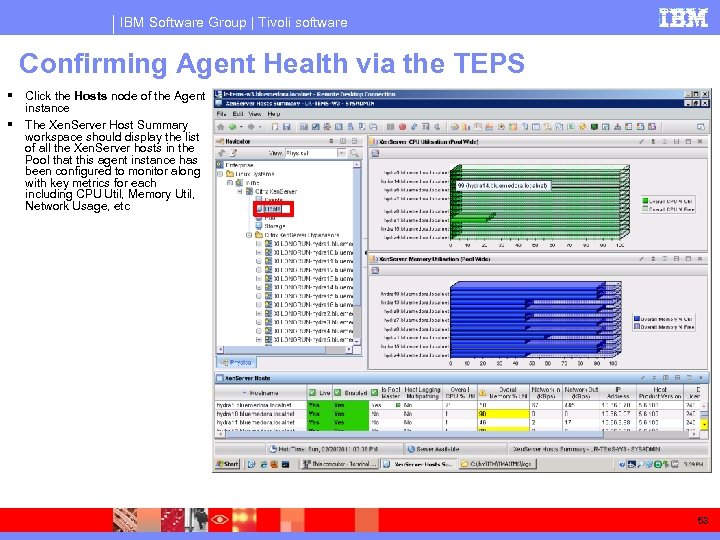
IBM Software Group | Tivoli software Confirming Agent Health via the TEPS Click the Hosts node of the Agent instance The Xen. Server Host Summary workspace should display the list of all the Xen. Server hosts in the Pool that this agent instance has been configured to monitor along with key metrics for each including CPU Util, Memory Util, Network Usage, etc 53
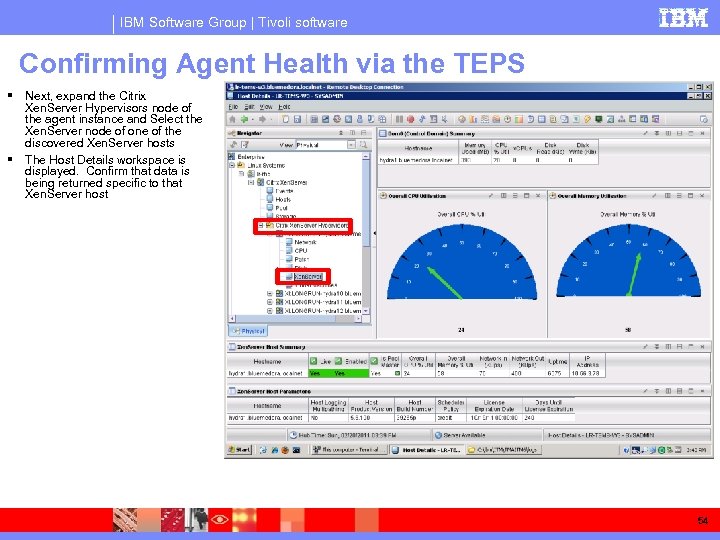
IBM Software Group | Tivoli software Confirming Agent Health via the TEPS Next, expand the Citrix Xen. Server Hypervisors node of the agent instance and Select the Xen. Server node of one of the discovered Xen. Server hosts The Host Details workspace is displayed. Confirm that data is being returned specific to that Xen. Server host 54
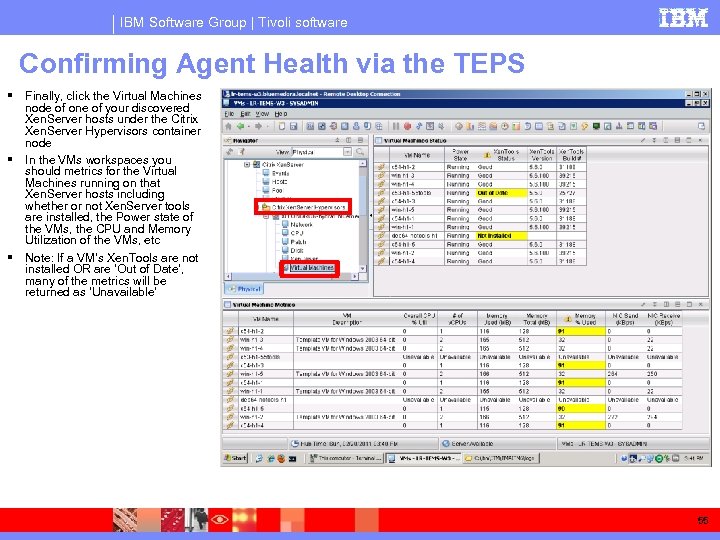
IBM Software Group | Tivoli software Confirming Agent Health via the TEPS Finally, click the Virtual Machines node of one of your discovered Xen. Server hosts under the Citrix Xen. Server Hypervisors container node In the VMs workspaces you should metrics for the Virtual Machines running on that Xen. Server hosts including whether or not Xen. Server tools are installed, the Power state of the VMs, the CPU and Memory Utilization of the VMs, etc Note: If a VM’s Xen. Tools are not installed OR are ‘Out of Date’, many of the metrics will be returned as ‘Unavailable’ 55
® IBM Software Group Citrix Xen. Server Agent v 623 Agent Tuning © IBM Corporation
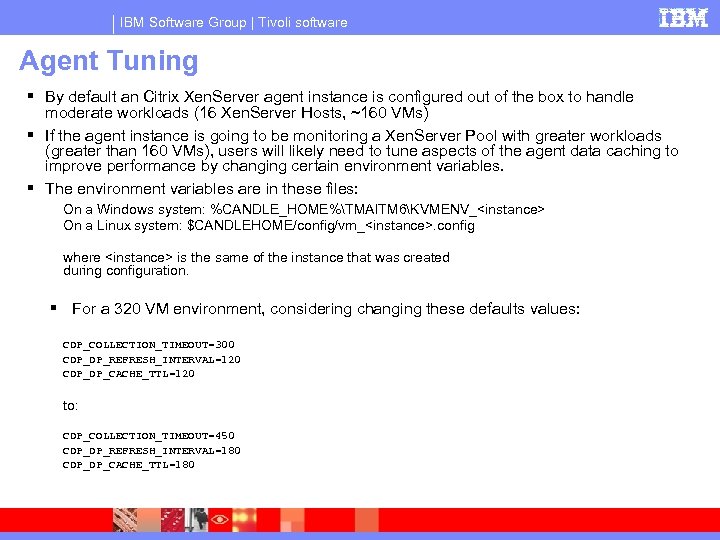
IBM Software Group | Tivoli software Agent Tuning By default an Citrix Xen. Server agent instance is configured out of the box to handle moderate workloads (16 Xen. Server Hosts, ~160 VMs) If the agent instance is going to be monitoring a Xen. Server Pool with greater workloads (greater than 160 VMs), users will likely need to tune aspects of the agent data caching to improve performance by changing certain environment variables. The environment variables are in these files: On a Windows system: %CANDLE_HOME%TMAITM 6KVMENV_<instance> On a Linux system: $CANDLEHOME/config/vm_<instance>. config where <instance> is the same of the instance that was created during configuration. For a 320 VM environment, considering changing these defaults values: CDP_COLLECTION_TIMEOUT=300 CDP_DP_REFRESH_INTERVAL=120 CDP_DP_CACHE_TTL=120 to: CDP_COLLECTION_TIMEOUT=450 CDP_DP_REFRESH_INTERVAL=180 CDP_DP_CACHE_TTL=180
IBM Software Group | Tivoli software TEC Integration Agent uses default TEC integration facility to forward agent's situation's event to TEC server. Agent provides kxi. baroc file in the <CANDLEHOME>/CMS/TECLIB directory, which is required to be compiled in TEC server's rule base. Agent's situation's events can be seen on portal by providing the TEC server name and credentials. Custom situations forwarding to TEC event mapping is provided. 58
® IBM Software Group Citrix Xen. Server Agent v 623 Common Problems & Troubleshooting © IBM Corporation
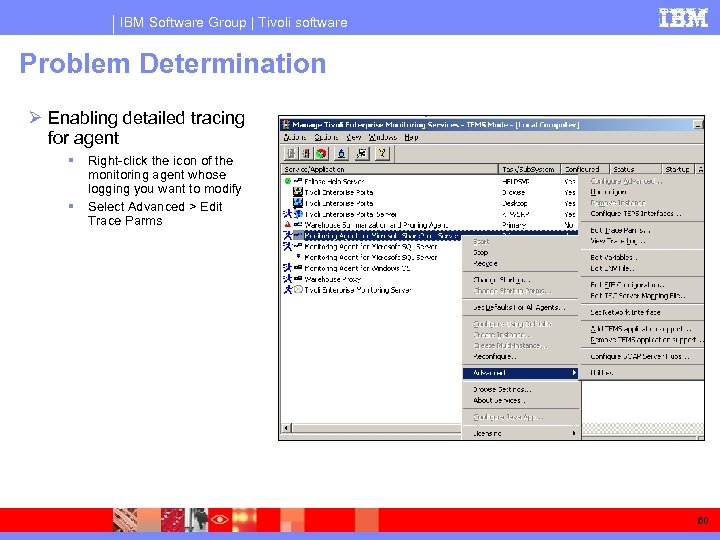
IBM Software Group | Tivoli software Problem Determination Ø Enabling detailed tracing for agent Right-click the icon of the monitoring agent whose logging you want to modify Select Advanced > Edit Trace Parms 60
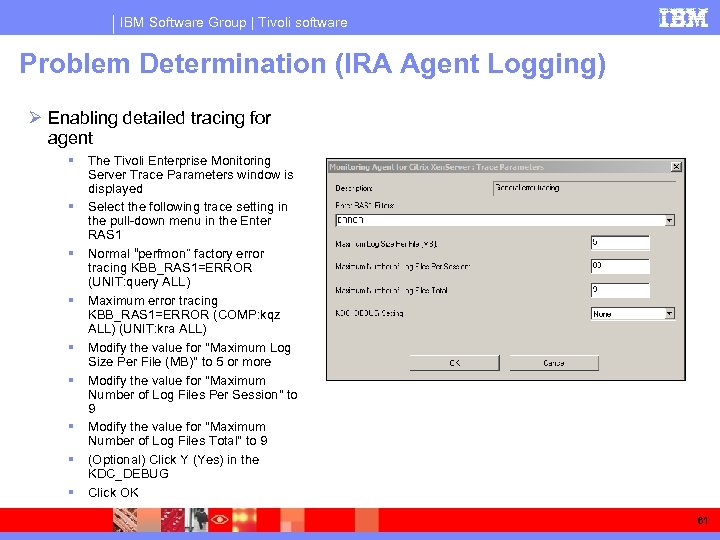
IBM Software Group | Tivoli software Problem Determination (IRA Agent Logging) Ø Enabling detailed tracing for agent The Tivoli Enterprise Monitoring Server Trace Parameters window is displayed Select the following trace setting in the pull-down menu in the Enter RAS 1 Normal “perfmon” factory error tracing KBB_RAS 1=ERROR (UNIT: query ALL) Maximum error tracing KBB_RAS 1=ERROR (COMP: kqz ALL) (UNIT: kra ALL) Modify the value for "Maximum Log Size Per File (MB)" to 5 or more Modify the value for "Maximum Number of Log Files Per Session" to 9 Modify the value for "Maximum Number of Log Files Total" to 9 (Optional) Click Y (Yes) in the KDC_DEBUG Click OK 61
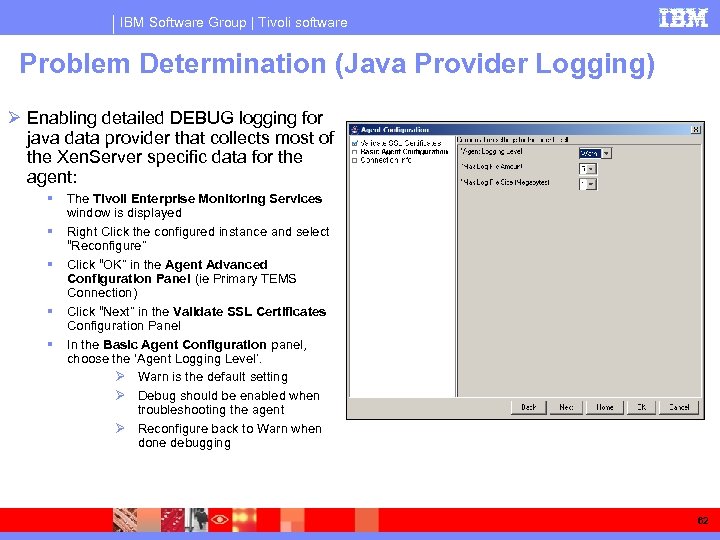
IBM Software Group | Tivoli software Problem Determination (Java Provider Logging) Ø Enabling detailed DEBUG logging for java data provider that collects most of the Xen. Server specific data for the agent: The Tivoli Enterprise Monitoring Services window is displayed Right Click the configured instance and select “Reconfigure” Click “OK” in the Agent Advanced Configuration Panel (ie Primary TEMS Connection) Click “Next” in the Validate SSL Certificates Configuration Panel In the Basic Agent Configuration panel, choose the ‘Agent Logging Level’. Ø Warn is the default setting Ø Debug should be enabled when troubleshooting the agent Ø Reconfigure back to Warn when done debugging 62
IBM Software Group | Tivoli software Problem Determination Files created by Citrix Xen. Server Agent to aid debugging Ø Location of Log Files For 32 bit Windows Agent : <Candle Home>TMAITM 6logs directory For 64 bit Windows Agent : <Candle Home>TMAITM 6_x 64logs directory For 32 bit Linux Agent : <Candle Home>logs directory For 64 bit Windows Agent : <Candle Home>logs directory Ø Agent log files Trace Log -> kxi_<Instance Name>_trace. log Output Log -> kxi_<Instance Name>_output. log <hostname>_xi_<instance name>_kxiagent_<IRA_Timestamp>. log Note: Please refer to Agent User Guide: Trace Logging for more details 63
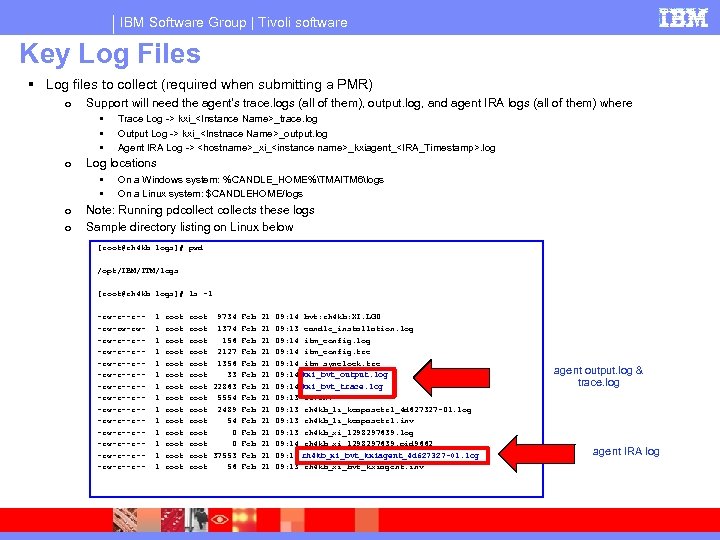
IBM Software Group | Tivoli software Key Log Files Log files to collect (required when submitting a PMR) o Support will need the agent’s trace. logs (all of them), output. log, and agent IRA logs (all of them) where • • • o Log locations • • o o Trace Log -> kxi_<Instance Name>_trace. log Output Log -> kxi_<Instnace Name>_output. log Agent IRA Log -> <hostname>_xi_<instance name>_kxiagent_<IRA_Timestamp>. log On a Windows system: %CANDLE_HOME%TMAITM 6logs On a Linux system: $CANDLEHOME/logs Note: Running pdcollects these logs Sample directory listing on Linux below [root@rh 4 kb logs]# pwd /opt/IBM/ITM/logs [root@rh 4 kb logs]# ls –l -rw-r--r--rw-rw-r--r--rw-r--r--rw-r--r--rw-r--r--rw-r--r--rw-r--r--rw-r--r-- 1 1 1 1 root root root root 9734 Feb 21 09: 14 bvt: rh 4 kb: XI. LG 0 root 1374 Feb 21 09: 13 candle_installation. log root 156 Feb 21 09: 14 itm_config. log root 2127 Feb 21 09: 14 itm_config. trc root 1356 Feb 21 09: 14 itm_synclock. trc root 33 Feb 21 09: 14 kxi_bvt_output. log root 22863 Feb 21 09: 14 kxi_bvt_trace. log root 5554 Feb 21 09: 13 lz. env root 2489 Feb 21 09: 13 rh 4 kb_lz_kcapasctrl_4 d 627327 -01. log root 54 Feb 21 09: 13 rh 4 kb_lz_kcapasctrl. inv root 0 Feb 21 09: 13 rh 4 kb_xi_1298297639. log root 0 Feb 21 09: 14 rh 4 kb_xi_1298297639. pid 9662 root 37553 Feb 21 09: 14 rh 4 kb_xi_bvt_kxiagent_4 d 627327 -01. log root 56 Feb 21 09: 13 rh 4 kb_xi_bvt_kxiagent. inv agent output. log & trace. log agent IRA log
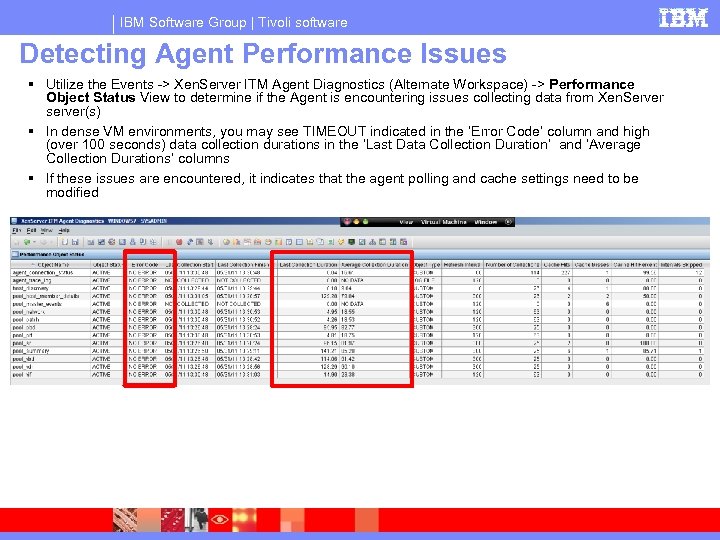
IBM Software Group | Tivoli software Detecting Agent Performance Issues Utilize the Events -> Xen. Server ITM Agent Diagnostics (Alternate Workspace) -> Performance Object Status View to determine if the Agent is encountering issues collecting data from Xen. Server server(s) In dense VM environments, you may see TIMEOUT indicated in the ‘Error Code’ column and high (over 100 seconds) data collection durations in the ‘Last Data Collection Duration’ and ‘Average Collection Durations’ columns If these issues are encountered, it indicates that the agent polling and cache settings need to be modified
IBM Software Group | Tivoli software Citrix Xen. Server Agent TCR Reports (via IBM ISM Library) 66
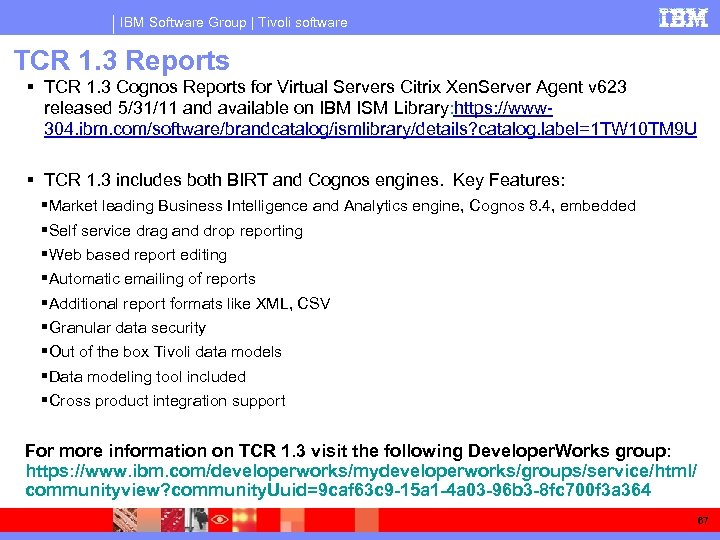
IBM Software Group | Tivoli software TCR 1. 3 Reports TCR 1. 3 Cognos Reports for Virtual Servers Citrix Xen. Server Agent v 623 released 5/31/11 and available on IBM ISM Library: https: //www 304. ibm. com/software/brandcatalog/ismlibrary/details? catalog. label=1 TW 10 TM 9 U TCR 1. 3 includes both BIRT and Cognos engines. Key Features: Market leading Business Intelligence and Analytics engine, Cognos 8. 4, embedded Self service drag and drop reporting Web based report editing Automatic emailing of reports Additional report formats like XML, CSV Granular data security Out of the box Tivoli data models Data modeling tool included Cross product integration support For more information on TCR 1. 3 visit the following Developer. Works group: https: //www. ibm. com/developerworks/mydeveloperworks/groups/service/html/ communityview? community. Uuid=9 caf 63 c 9 -15 a 1 -4 a 03 -96 b 3 -8 fc 700 f 3 a 364 67
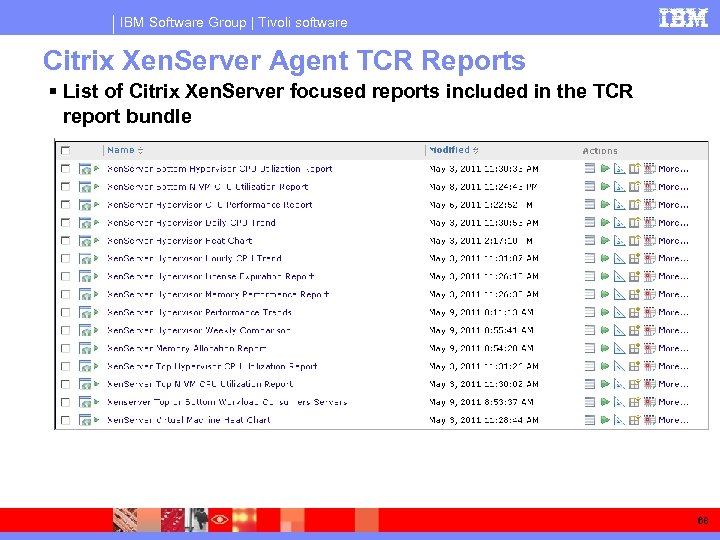
IBM Software Group | Tivoli software Citrix Xen. Server Agent TCR Reports List of Citrix Xen. Server focused reports included in the TCR report bundle 68
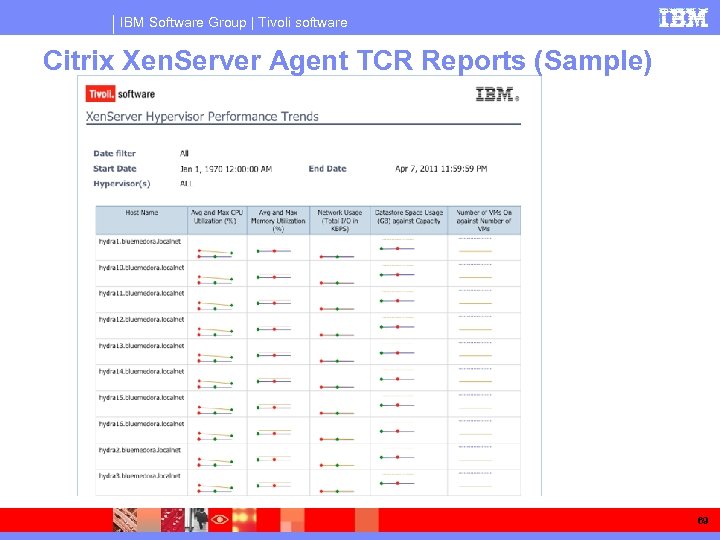
IBM Software Group | Tivoli software Citrix Xen. Server Agent TCR Reports (Sample) 69
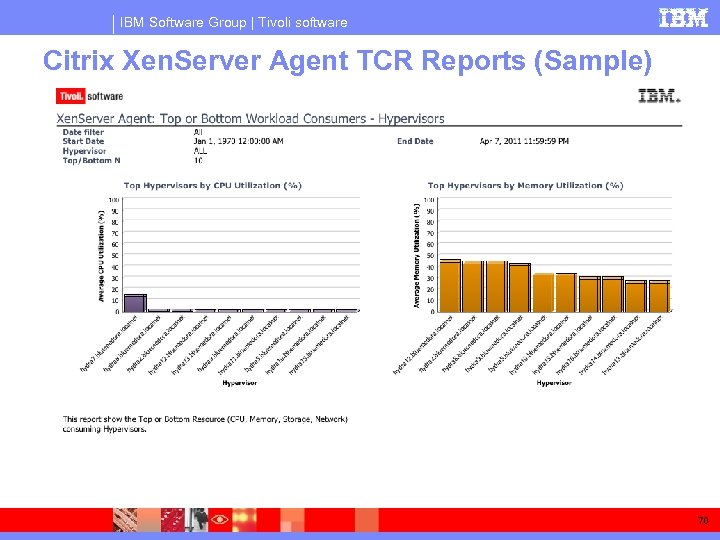
IBM Software Group | Tivoli software Citrix Xen. Server Agent TCR Reports (Sample) 70
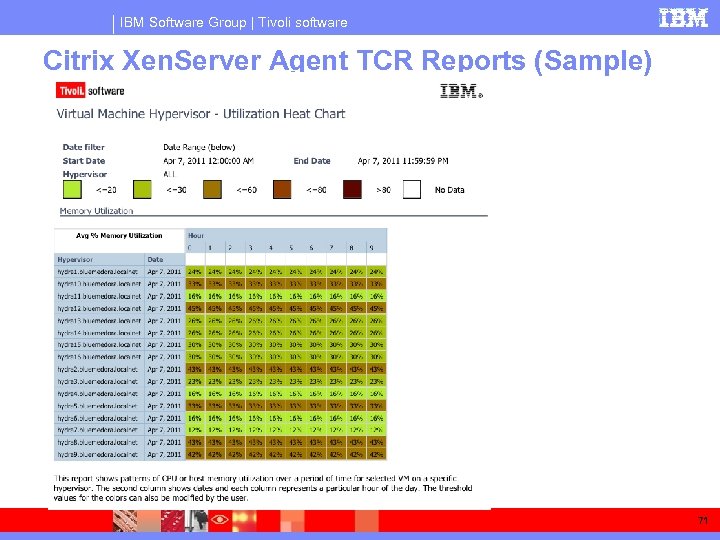
IBM Software Group | Tivoli software Citrix Xen. Server Agent TCR Reports (Sample) 71
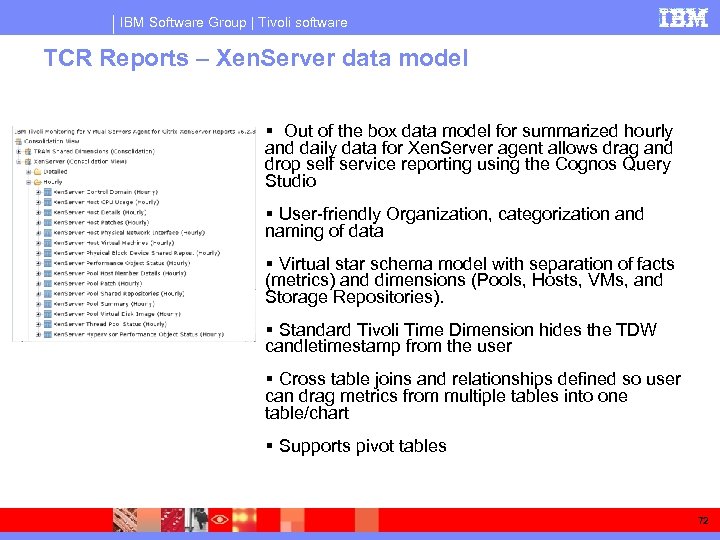
IBM Software Group | Tivoli software TCR Reports – Xen. Server data model Out of the box data model for summarized hourly and daily data for Xen. Server agent allows drag and drop self service reporting using the Cognos Query Studio User-friendly Organization, categorization and naming of data Virtual star schema model with separation of facts (metrics) and dimensions (Pools, Hosts, VMs, and Storage Repositories). Standard Tivoli Time Dimension hides the TDW candletimestamp from the user Cross table joins and relationships defined so user can drag metrics from multiple tables into one table/chart Supports pivot tables 72
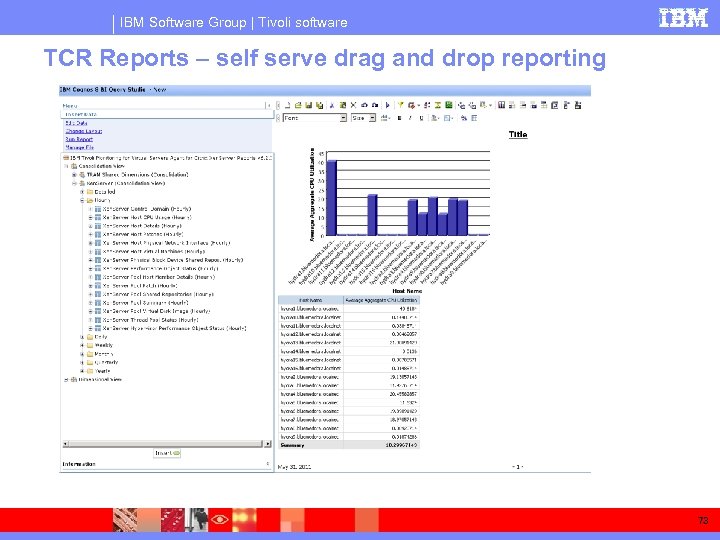
IBM Software Group | Tivoli software TCR Reports – self serve drag and drop reporting 73
IBM Software Group | Tivoli software TCR Reports Known Issues & Solution ØError for missing table or attribute Make sure all the prerequisites are met and the warehouse is collecting historical data. Ø‘No data available’ in Ad Hoc Querying on querying two tables but data shows up the two tables are queried individually This happens if there is no relationship defined between the two tables. Make sure all your ad hoc queries have at least one identifier. ØArithmetic Overflow Errors in Ad Hoc Querying If you drag certain columns during an ad-hoc query and it returns an arithmetic overflow error, switch to Limited Data or No Data preview and add Standard Timestamp to the query. Certain columns may average or sum up to a number that is bigger than the size that the database supports. Hence a SQL error of arithmetic overflow is returned. 74
Скачать презентацию IBM Software Group ITM for Virtual Servers
b914d9ba6ec1086352954a1ff6d831fd.ppt