 Скачать презентацию IBM Software Group IBM Rational Rhapsody Advanced
390a051853a46e16ef9918904c922ee0.ppt
- Количество слайдов: 44



® IBM Software Group IBM Rational Rhapsody Advanced Systems Training v 7. 5 Table and Matrix Views © 2010 IBM Corporation
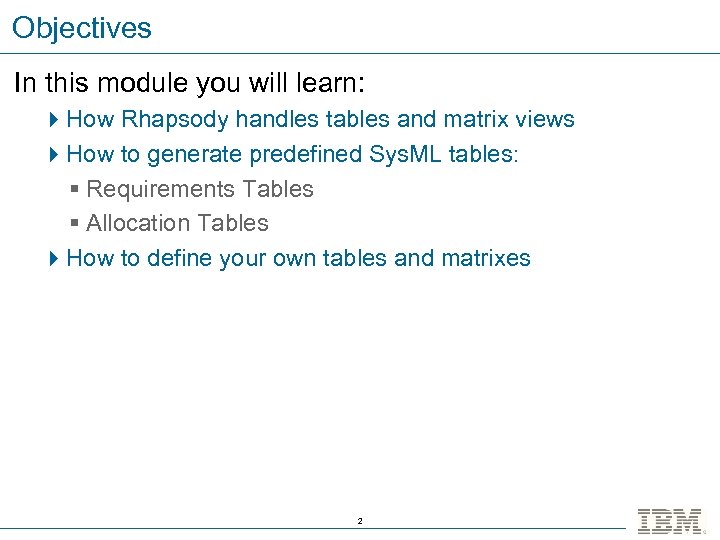
Objectives In this module you will learn: 4 How Rhapsody handles tables and matrix views 4 How to generate predefined Sys. ML tables: § Requirements Tables § Allocation Tables 4 How to define your own tables and matrixes 2
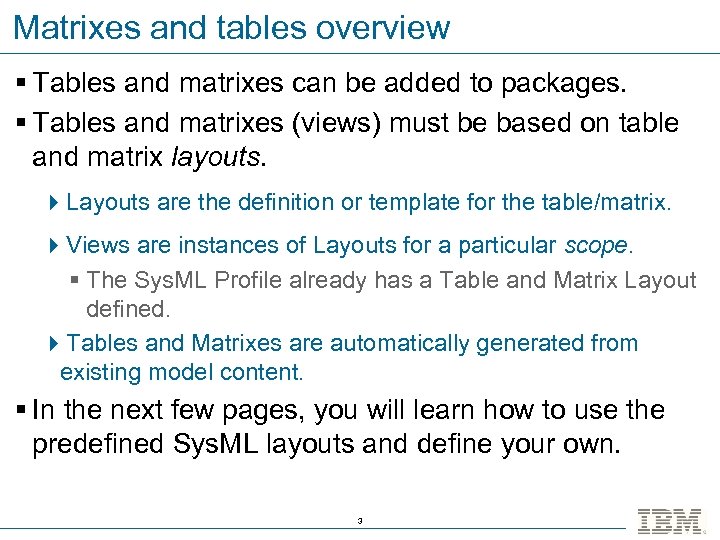
Matrixes and tables overview § Tables and matrixes can be added to packages. § Tables and matrixes (views) must be based on table and matrix layouts. 4 Layouts are the definition or template for the table/matrix. 4 Views are instances of Layouts for a particular scope. § The Sys. ML Profile already has a Table and Matrix Layout defined. 4 Tables and Matrixes are automatically generated from existing model content. § In the next few pages, you will learn how to use the predefined Sys. ML layouts and define your own. 3
® IBM Software Group IBM Rational Rhapsody Advanced Systems Training v 7. 5 Tables © 2010 IBM Corporation
Open a model § Launch Rhapsody. § From the menu: 4 File > Open § Open the Table. And. Matrix. Views model. 5
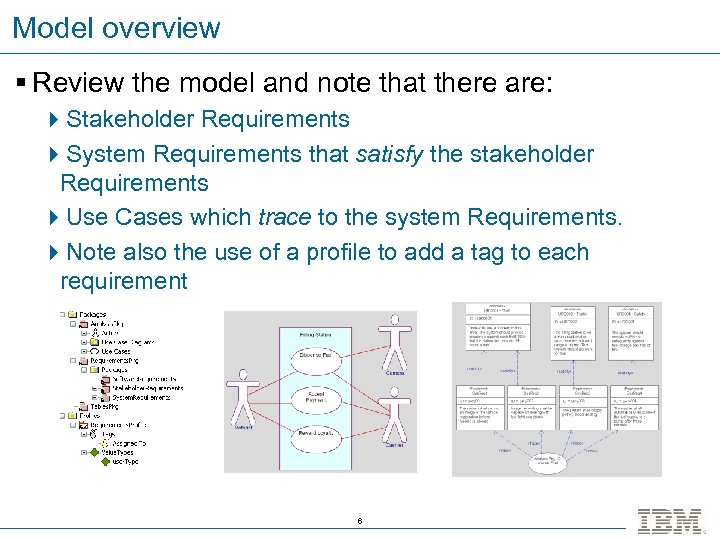
Model overview § Review the model and note that there are: 4 Stakeholder Requirements 4 System Requirements that satisfy the stakeholder Requirements 4 Use Cases which trace to the system Requirements. 4 Note also the use of a profile to add a tag to each requirement 6
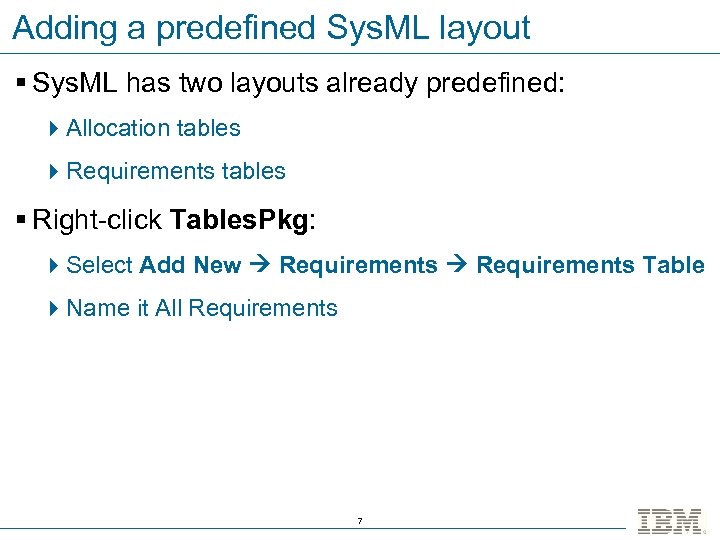
Adding a predefined Sys. ML layout § Sys. ML has two layouts already predefined: 4 Allocation tables 4 Requirements tables § Right-click Tables. Pkg: 4 Select Add New Requirements Table 4 Name it All Requirements 7
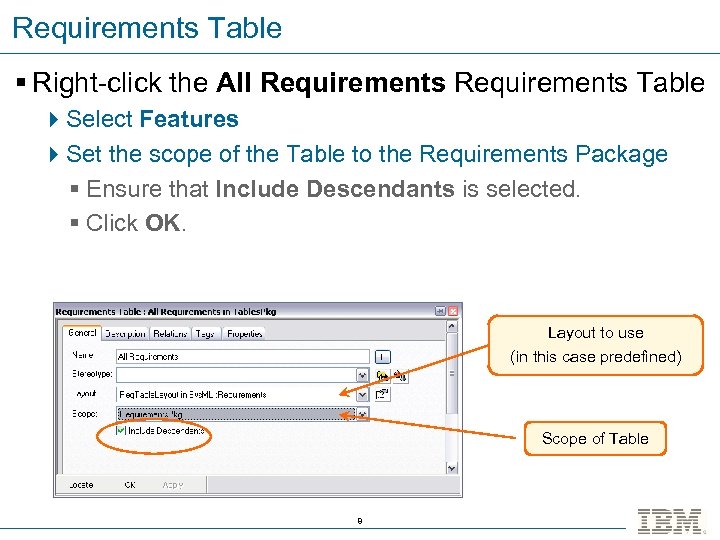
Requirements Table § Right-click the All Requirements Table 4 Select Features 4 Set the scope of the Table to the Requirements Package § Ensure that Include Descendants is selected. § Click OK. Layout to use (in this case predefined) Scope of Table 8
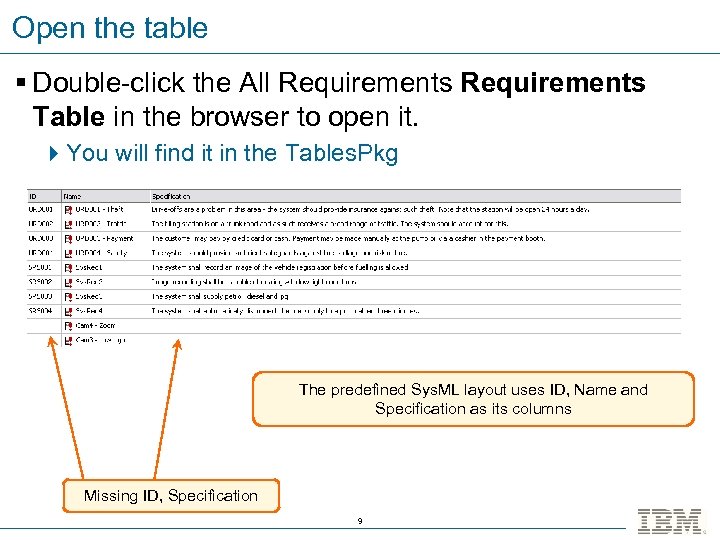
Open the table § Double-click the All Requirements Table in the browser to open it. 4 You will find it in the Tables. Pkg The predefined Sys. ML layout uses ID, Name and Specification as its columns Missing ID, Specification 9
What can you do with Tables ? § Tables provide a more convenient view of textual information. 4 Locate missing information § Use them for navigation. 4 Each cell in the table is context sensitive § Use them to add new elements quickly § Tables can be printed. § Tables can be copied into other documents. 10
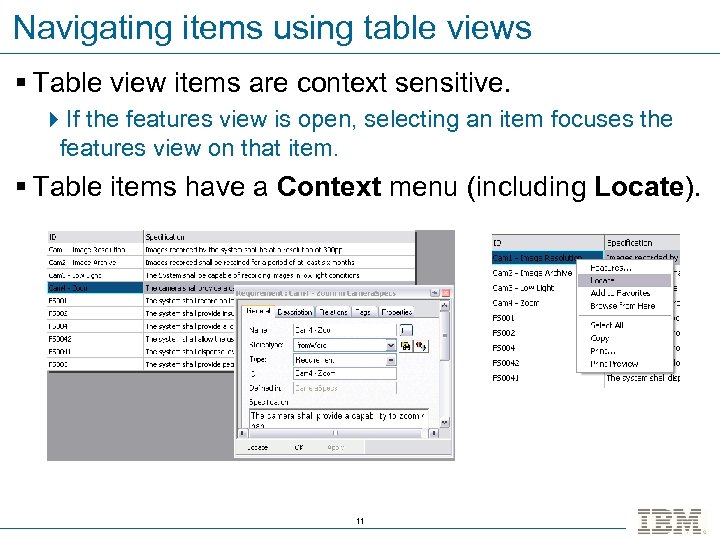
Navigating items using table views § Table view items are context sensitive. 4 If the features view is open, selecting an item focuses the features view on that item. § Table items have a Context menu (including Locate). 11
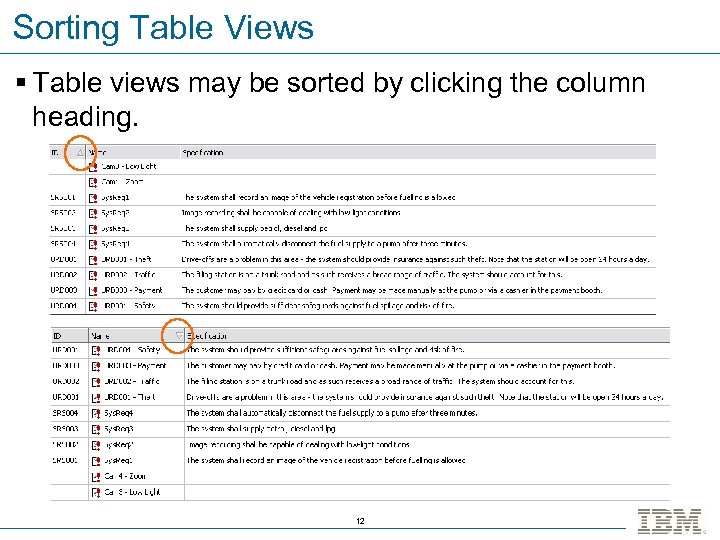
Sorting Table Views § Table views may be sorted by clicking the column heading. 12
Copying table views - overview § If you have Microsoft Excel installed then you may want to try this (it is optional) 4 To select the entire table: § Press Ctrl+A. § Right-click and select Select All. 4 To copy the selection: § Press Ctrl+C. § Right-click and select Copy. 4 Table views can be pasted directly into other documents including spreadsheets. § Cells in the table become cells in a spreadsheet. 13
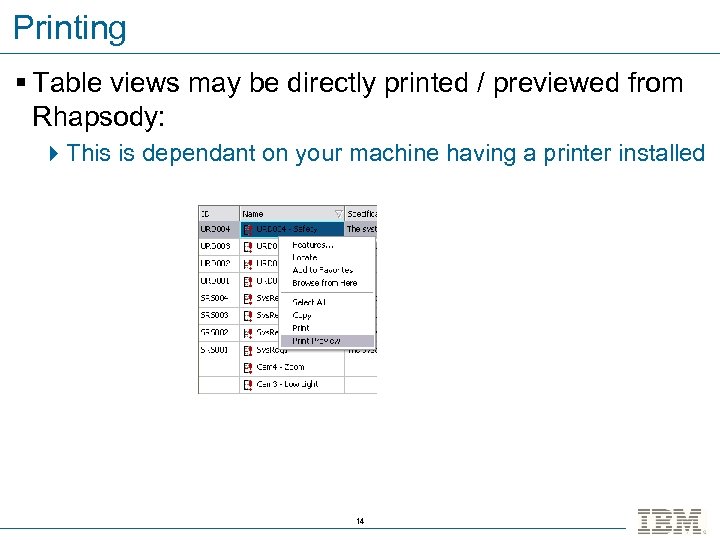
Printing § Table views may be directly printed / previewed from Rhapsody: 4 This is dependant on your machine having a printer installed 14
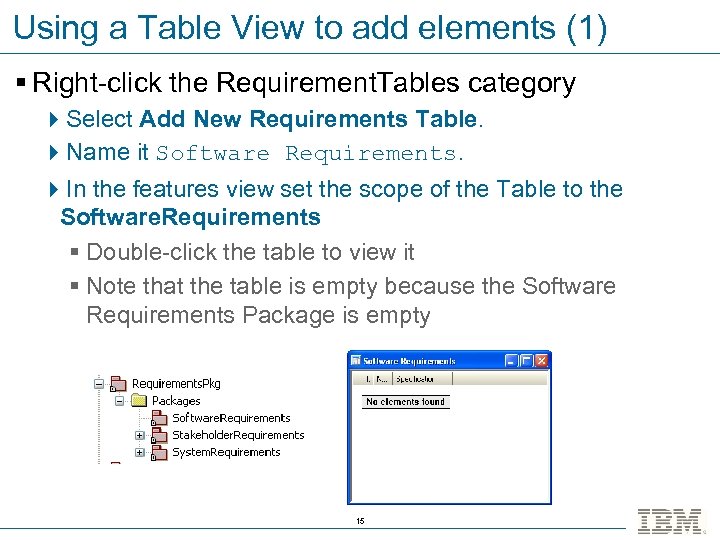
Using a Table View to add elements (1) § Right-click the Requirement. Tables category 4 Select Add New Requirements Table. 4 Name it Software Requirements. 4 In the features view set the scope of the Table to the Software. Requirements § Double-click the table to view it § Note that the table is empty because the Software Requirements Package is empty 15
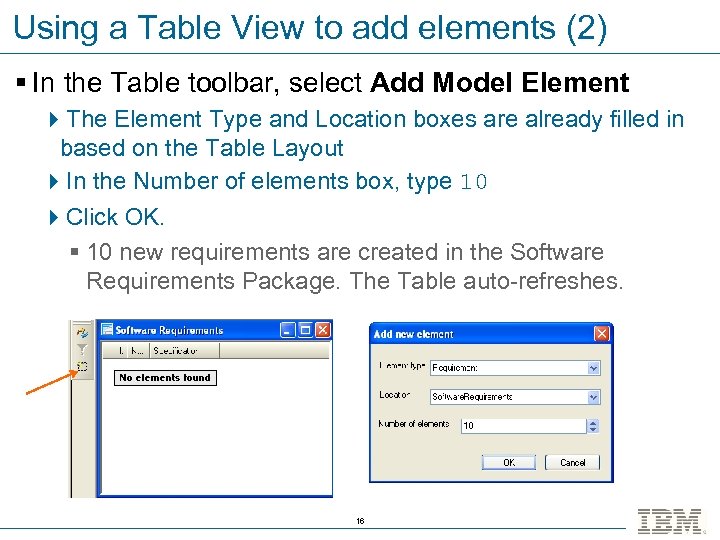
Using a Table View to add elements (2) § In the Table toolbar, select Add Model Element 4 The Element Type and Location boxes are already filled in based on the Table Layout 4 In the Number of elements box, type 10 4 Click OK. § 10 new requirements are created in the Software Requirements Package. The Table auto-refreshes. 16
Refreshing a Table § If you double-click a Table View then it will open and refresh 4 If it is already open it will refresh § If the Table View is already open then you may use the Refresh button on the Table toolbar to manually refresh the content. 17
® IBM Software Group IBM Rational Rhapsody Advanced Systems Training v 7. 5 Layouts © 2010 IBM Corporation
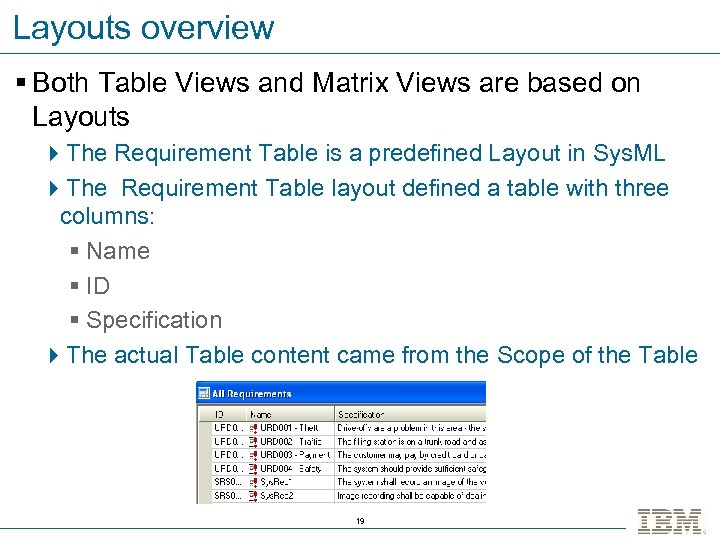
Layouts overview § Both Table Views and Matrix Views are based on Layouts 4 The Requirement Table is a predefined Layout in Sys. ML 4 The Requirement Table layout defined a table with three columns: § Name § ID § Specification 4 The actual Table content came from the Scope of the Table 19
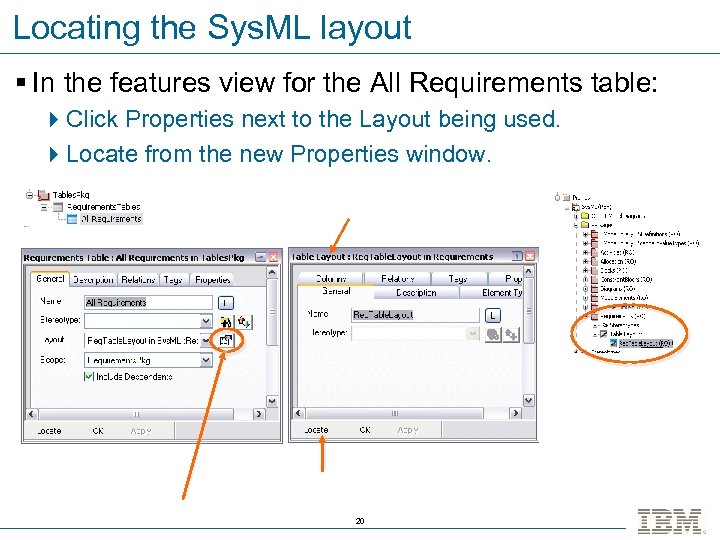
Locating the Sys. ML layout § In the features view for the All Requirements table: 4 Click Properties next to the Layout being used. 4 Locate from the new Properties window. 20
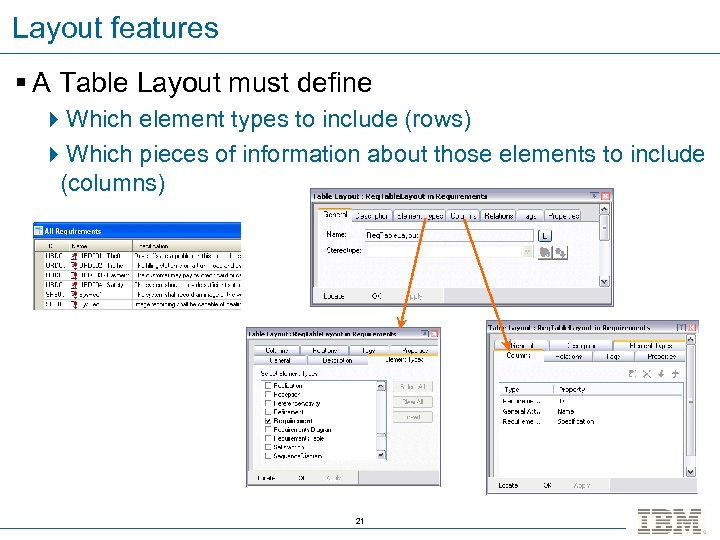
Layout features § A Table Layout must define 4 Which element types to include (rows) 4 Which pieces of information about those elements to include (columns) 21
® IBM Software Group IBM Rational Rhapsody Advanced Systems Training v 7. 5 Defining a Layout © 2010 IBM Corporation
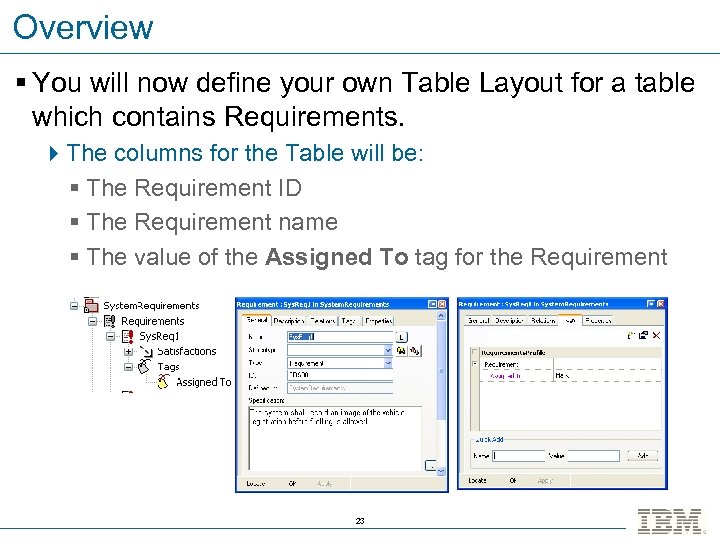
Overview § You will now define your own Table Layout for a table which contains Requirements. 4 The columns for the Table will be: § The Requirement ID § The Requirement name § The value of the Assigned To tag for the Requirement 23
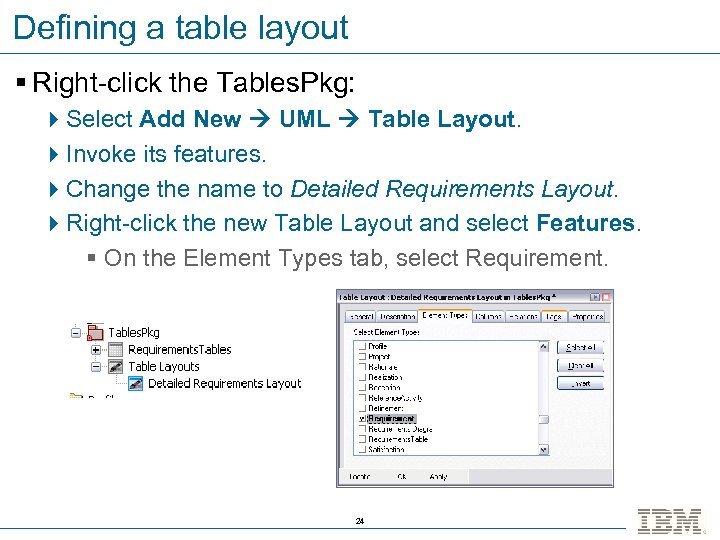
Defining a table layout § Right-click the Tables. Pkg: 4 Select Add New UML Table Layout. 4 Invoke its features. 4 Change the name to Detailed Requirements Layout. 4 Right-click the new Table Layout and select Features. § On the Element Types tab, select Requirement. 24
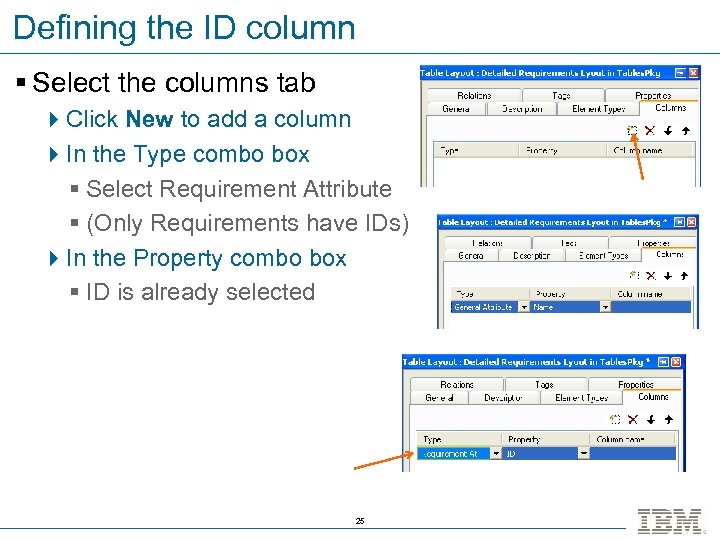
Defining the ID column § Select the columns tab 4 Click New to add a column 4 In the Type combo box § Select Requirement Attribute § (Only Requirements have IDs) 4 In the Property combo box § ID is already selected 25
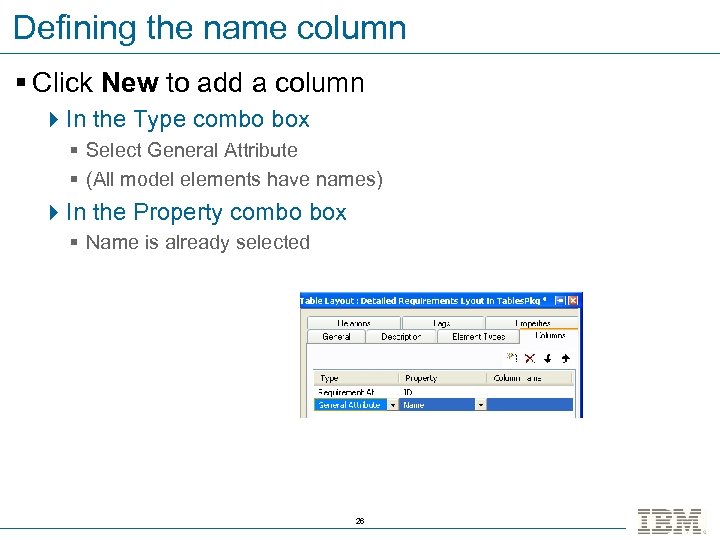
Defining the name column § Click New to add a column 4 In the Type combo box § Select General Attribute § (All model elements have names) 4 In the Property combo box § Name is already selected 26
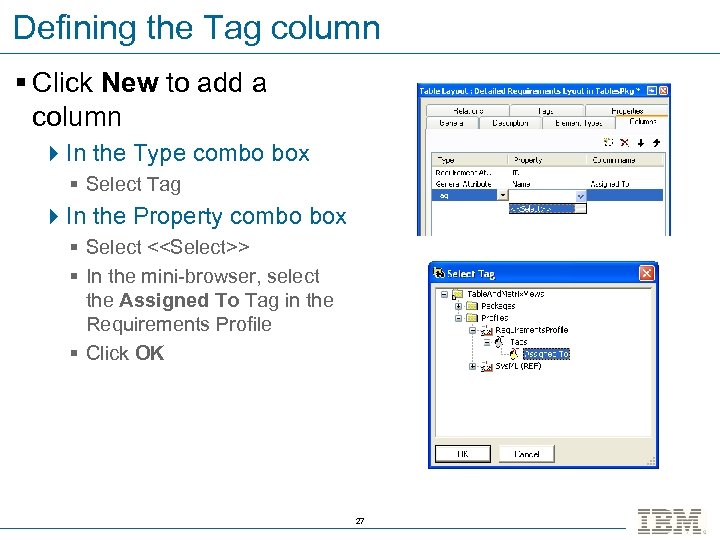
Defining the Tag column § Click New to add a column 4 In the Type combo box § Select Tag 4 In the Property combo box § Select <<Select>> § In the mini-browser, select the Assigned To Tag in the Requirements Profile § Click OK 27
® IBM Software Group IBM Rational Rhapsody Advanced Systems Training v 7. 5 Defining a Table View © 2010 IBM Corporation
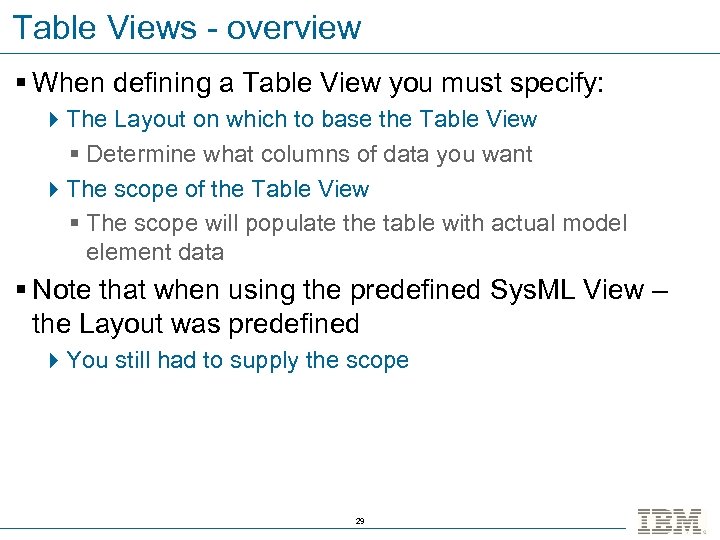
Table Views - overview § When defining a Table View you must specify: 4 The Layout on which to base the Table View § Determine what columns of data you want 4 The scope of the Table View § The scope will populate the table with actual model element data § Note that when using the predefined Sys. ML View – the Layout was predefined 4 You still had to supply the scope 29
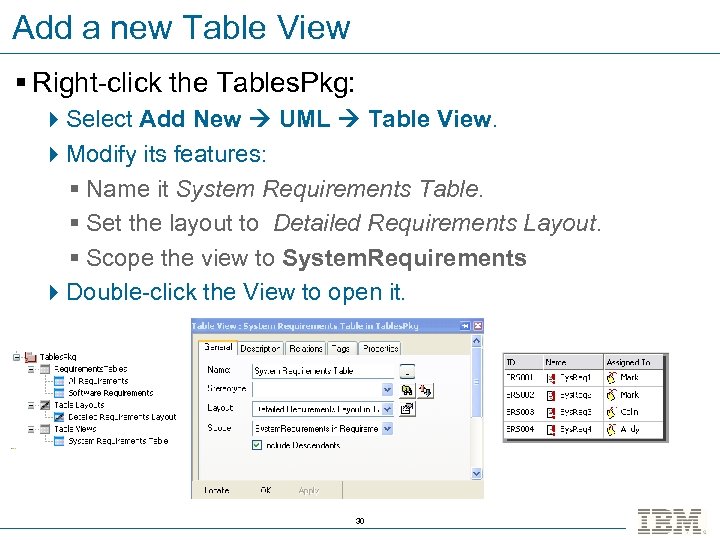
Add a new Table View § Right-click the Tables. Pkg: 4 Select Add New UML Table View. 4 Modify its features: § Name it System Requirements Table. § Set the layout to Detailed Requirements Layout. § Scope the view to System. Requirements 4 Double-click the View to open it. 30
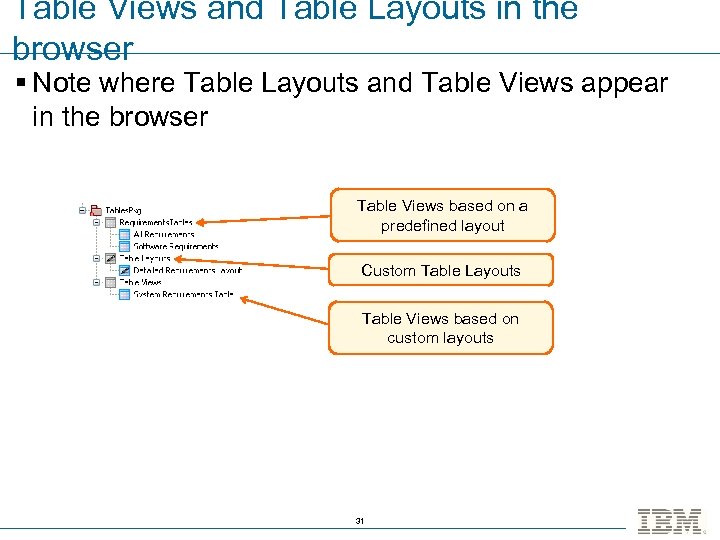
Table Views and Table Layouts in the browser § Note where Table Layouts and Table Views appear in the browser Table Views based on a predefined layout Custom Table Layouts Table Views based on custom layouts 31
® IBM Software Group IBM Rational Rhapsody Advanced Systems Training v 7. 5 Matrix Views © 2010 IBM Corporation
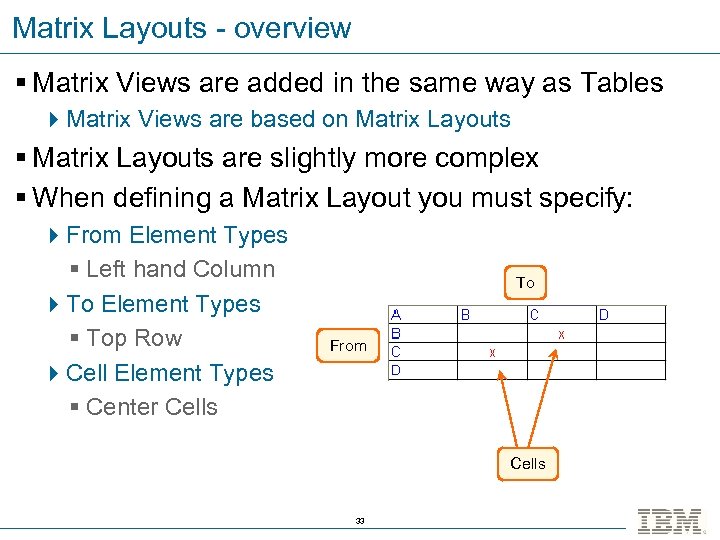
Matrix Layouts - overview § Matrix Views are added in the same way as Tables 4 Matrix Views are based on Matrix Layouts § Matrix Layouts are slightly more complex § When defining a Matrix Layout you must specify: 4 From Element Types § Left hand Column 4 To Element Types § Top Row 4 Cell Element Types § Center Cells To From Cells 33
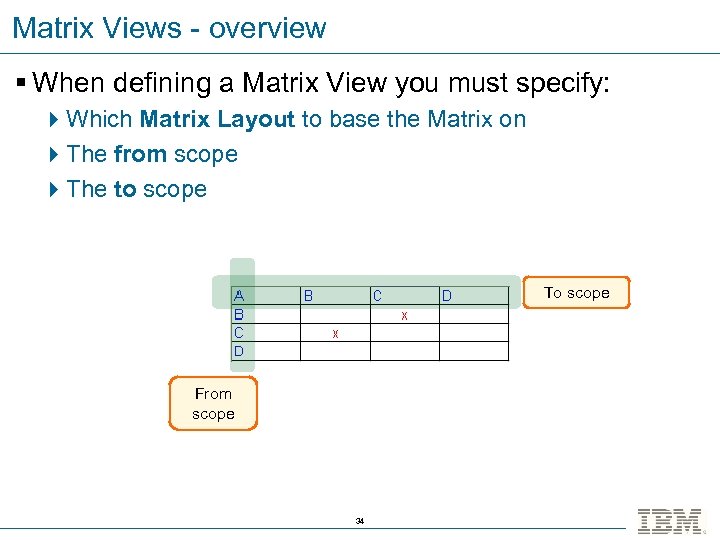
Matrix Views - overview § When defining a Matrix View you must specify: 4 Which Matrix Layout to base the Matrix on 4 The from scope 4 The to scope To scope From scope 34
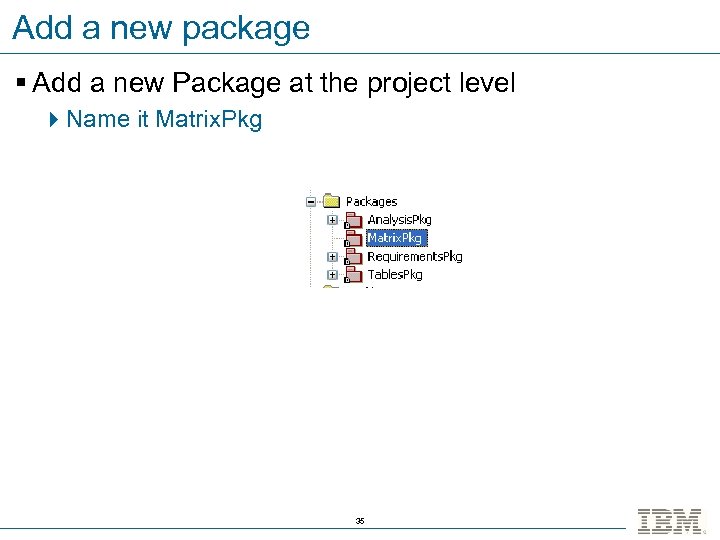
Add a new package § Add a new Package at the project level 4 Name it Matrix. Pkg 35
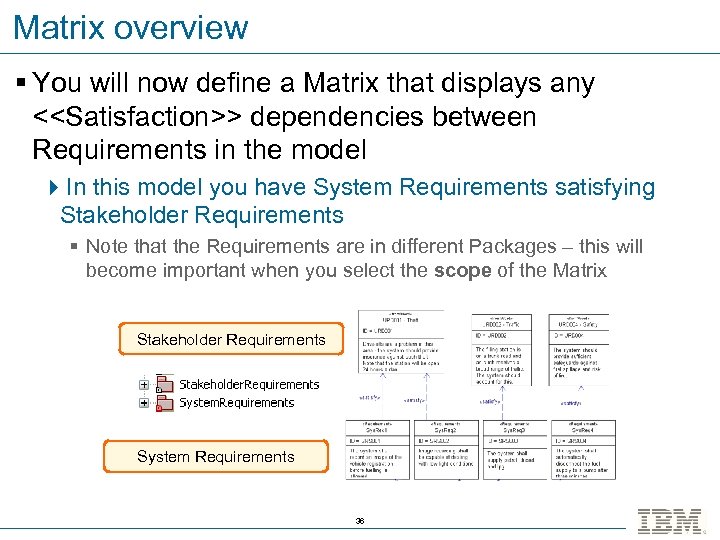
Matrix overview § You will now define a Matrix that displays any <<Satisfaction>> dependencies between Requirements in the model 4 In this model you have System Requirements satisfying Stakeholder Requirements § Note that the Requirements are in different Packages – this will become important when you select the scope of the Matrix Stakeholder Requirements System Requirements 36
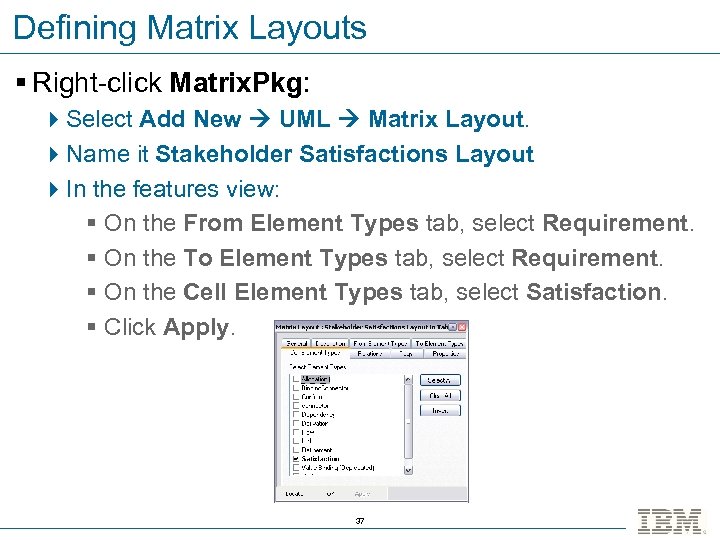
Defining Matrix Layouts § Right-click Matrix. Pkg: 4 Select Add New UML Matrix Layout. 4 Name it Stakeholder Satisfactions Layout 4 In the features view: § On the From Element Types tab, select Requirement. § On the To Element Types tab, select Requirement. § On the Cell Element Types tab, select Satisfaction. § Click Apply. 37
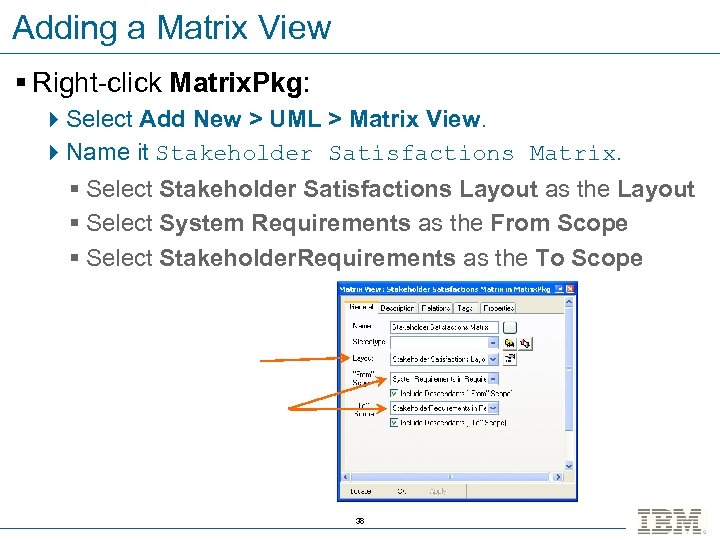
Adding a Matrix View § Right-click Matrix. Pkg: 4 Select Add New > UML > Matrix View. 4 Name it Stakeholder Satisfactions Matrix. § Select Stakeholder Satisfactions Layout as the Layout § Select System Requirements as the From Scope § Select Stakeholder. Requirements as the To Scope 38
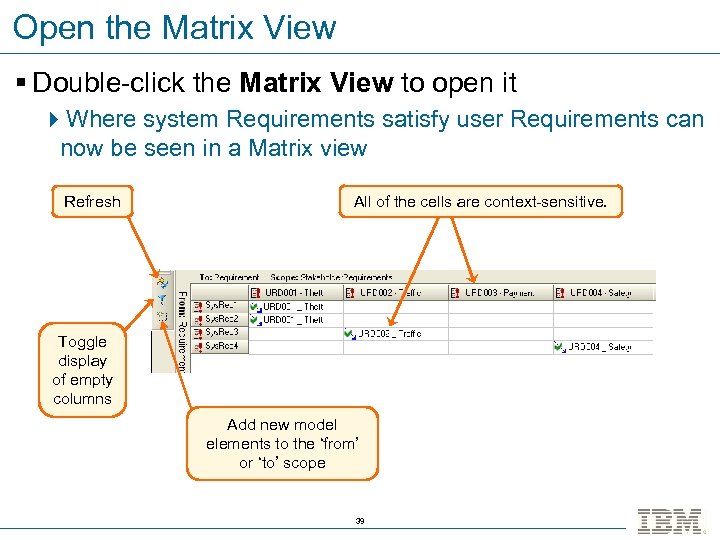
Open the Matrix View § Double-click the Matrix View to open it 4 Where system Requirements satisfy user Requirements can now be seen in a Matrix view Refresh All of the cells are context-sensitive. Toggle display of empty columns Add new model elements to the ‘from’ or ‘to’ scope 39
Adding new relations using the Matrix View § Right-click inside an empty cell on the Matrix View 4 Select Add New Relation 4 A new dependency stereotyped <<satisfy>> is added into the model 4 Note that multiple selection also works 40
® IBM Software Group IBM Rational Rhapsody Advanced Systems Training v 7. 5 Matrix Views - Exercise © 2010 IBM Corporation
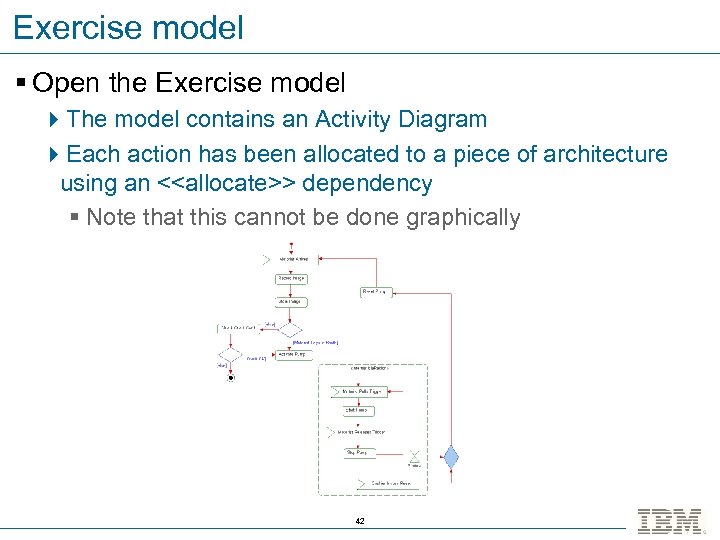
Exercise model § Open the Exercise model 4 The model contains an Activity Diagram 4 Each action has been allocated to a piece of architecture using an <<allocate>> dependency § Note that this cannot be done graphically 42
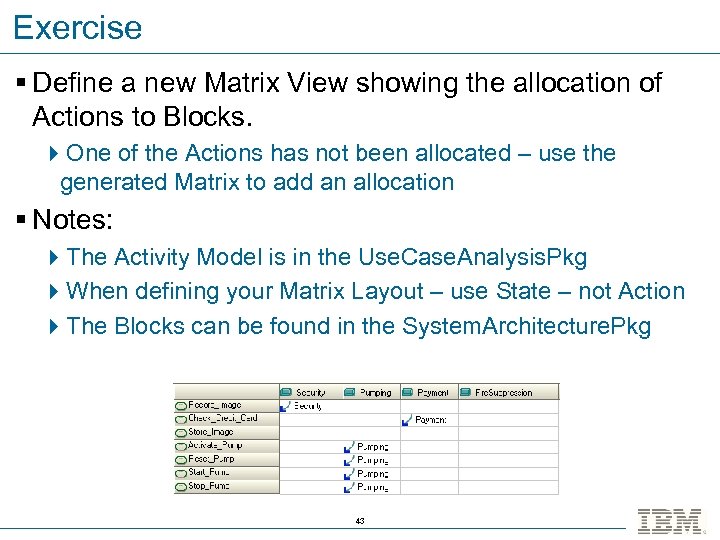
Exercise § Define a new Matrix View showing the allocation of Actions to Blocks. 4 One of the Actions has not been allocated – use the generated Matrix to add an allocation § Notes: 4 The Activity Model is in the Use. Case. Analysis. Pkg 4 When defining your Matrix Layout – use State – not Action 4 The Blocks can be found in the System. Architecture. Pkg 43
Summary § You have now learned: 4 How to use the predefined Table Layouts in Sys. ML 4 How to define your own Layouts for Tables and Matrix Views 4 How to define actual Tables and Matrix views that display model data 4 How to use Tables and Matrix views to add new model elements and relations 44
Скачать презентацию IBM Software Group IBM Rational Rhapsody Advanced
390a051853a46e16ef9918904c922ee0.ppt