


 Скачать презентацию i Site 3 5 System Preferences 1
f2f9a42bb16678a20920c26514eb461d.ppt
- Количество слайдов: 105
 i. Site 3. 5: System Preferences 1
 Learning Objectives Understand the purpose and configuration of: • General Preferences • Window/Center • Image Processing • Filters • Annotations • DICOM Sources • Screen Overlay • Paper Printing CONFIDENTIAL TRN-0035 -05 Rev 04/19/06 2
 Learning Objectives (cont. ) • i. Export • i. Query • Organization Dictionary • Location Dictionary • Plug Ins • DICOM Print • Body Part Dictionary (i. Site Radiology only) • Hanging Protocols (i. Site Radiology only) CONFIDENTIAL TRN-0035 -05 Rev 04/19/06 3
 Table of Contents • General Preferences • Window/Center • Image Processing • Filters • Annotations • DICOM Sources • Screen Overlay • Paper Printing CONFIDENTIAL TRN-0035 -05 Rev 04/19/06 4
 Table of Contents (cont. ) • i. Export • i. Query • Organization Dictionary • Location Dictionary • Plug Ins • DICOM Print • Body Part Dictionary (i. Site Radiology only) • Hanging Protocols (i. Site Radiology only) CONFIDENTIAL TRN-0035 -05 Rev 04/19/06 5
 Preferences Dialog CONFIDENTIAL TRN-0035 -05 Rev 04/19/06 6
 System Preferences • System Preferences configure system-wide settings for every user • System and Machine Preferences are associated with the Security Codes ISTUSRPREF and ISTSUPPORT • System Preferences are typically only accessible by administrators and are not visible to standard users CONFIDENTIAL TRN-0035 -05 Rev 04/19/06 7
 Importing and Exporting Preferences • Many preference settings can be imported and exported to facilitate setting up User and System Preferences • The User Preferences that can be imported and exported are Window Width/Center and Filters • The System Preferences that can be imported and exported are Window Width/Center, Filters, Annotation, DICOM Sources, Screen Overlays, Paper Printing, Organization Dictionary, Location Dictionary and Body Part Dictionary • Please note that importing preferences will override any preferences in the system CONFIDENTIAL TRN-0035 -05 Rev 04/19/06 8
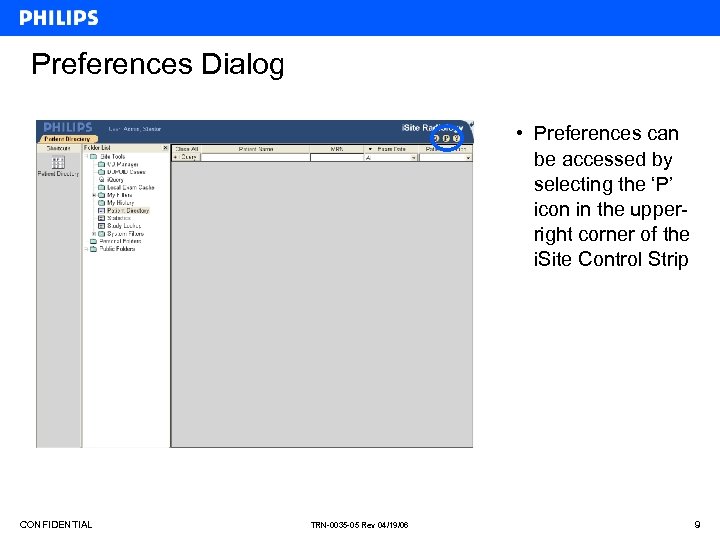 Preferences Dialog • Preferences can be accessed by selecting the ‘P’ icon in the upperright corner of the i. Site Control Strip CONFIDENTIAL TRN-0035 -05 Rev 04/19/06 9
 General Preferences CONFIDENTIAL TRN-0035 -05 Rev 04/19/06 10
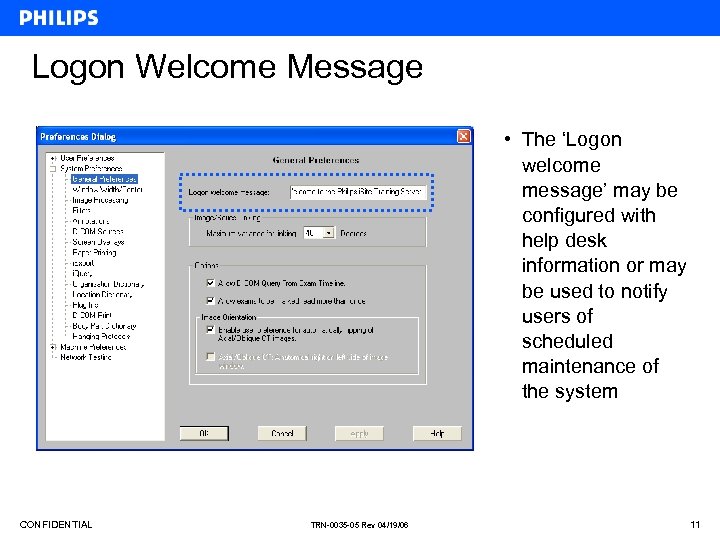 Logon Welcome Message • The ‘Logon welcome message’ may be configured with help desk information or may be used to notify users of scheduled maintenance of the system CONFIDENTIAL TRN-0035 -05 Rev 04/19/06 11
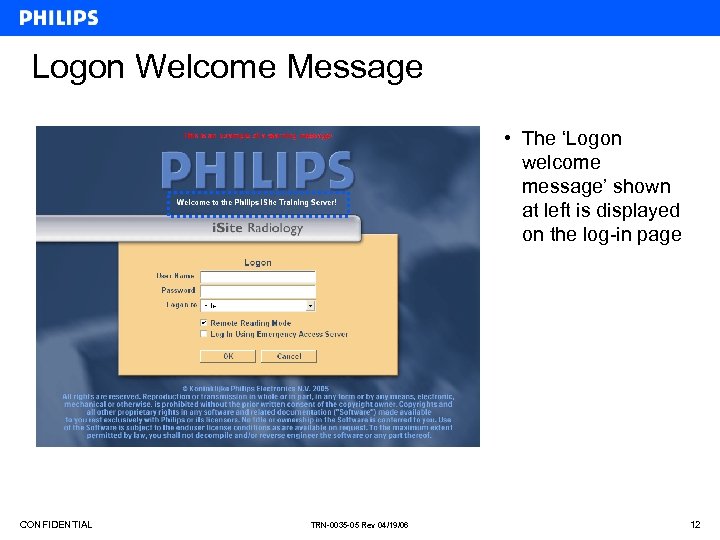 Logon Welcome Message • The ‘Logon welcome message’ shown at left is displayed on the log-in page CONFIDENTIAL TRN-0035 -05 Rev 04/19/06 12
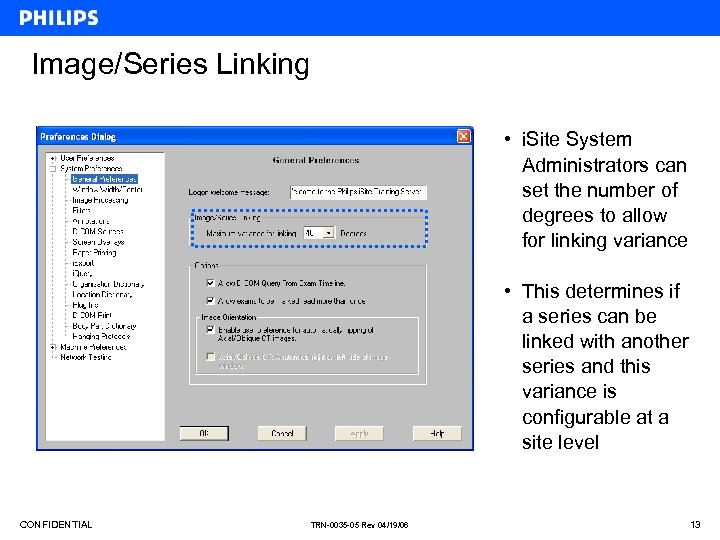 Image/Series Linking • i. Site System Administrators can set the number of degrees to allow for linking variance • This determines if a series can be linked with another series and this variance is configurable at a site level CONFIDENTIAL TRN-0035 -05 Rev 04/19/06 13
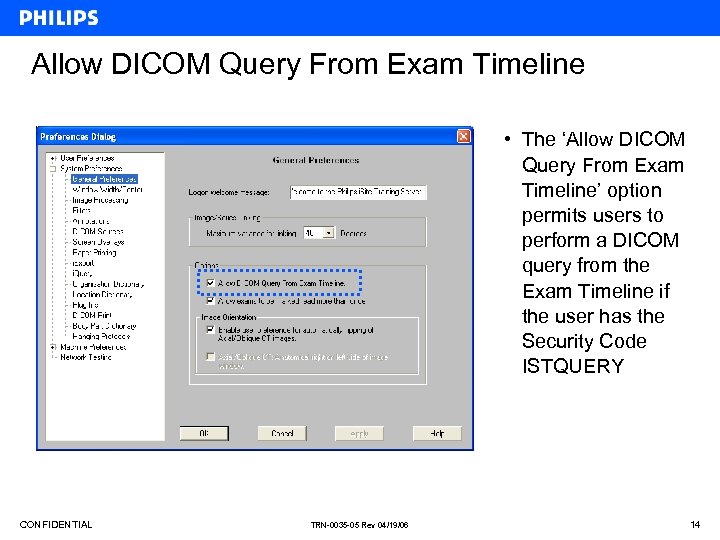 Allow DICOM Query From Exam Timeline • The ‘Allow DICOM Query From Exam Timeline’ option permits users to perform a DICOM query from the Exam Timeline if the user has the Security Code ISTQUERY CONFIDENTIAL TRN-0035 -05 Rev 04/19/06 14
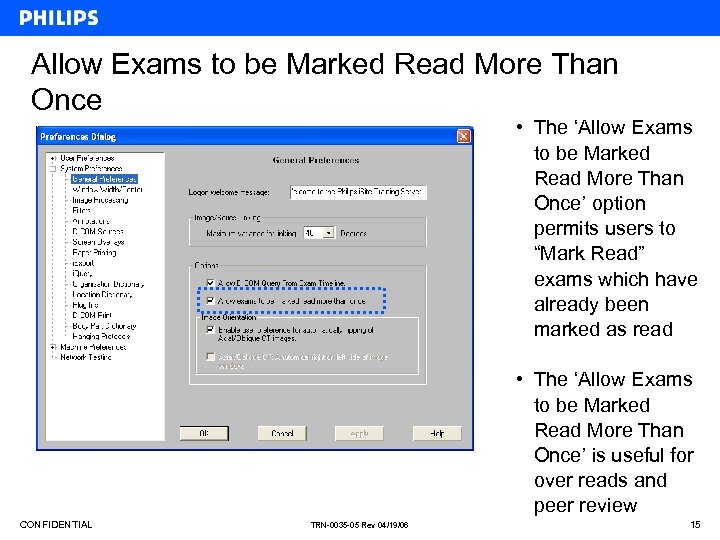 Allow Exams to be Marked Read More Than Once • The ‘Allow Exams to be Marked Read More Than Once’ option permits users to “Mark Read” exams which have already been marked as read • The ‘Allow Exams to be Marked Read More Than Once’ is useful for over reads and peer review CONFIDENTIAL TRN-0035 -05 Rev 04/19/06 15
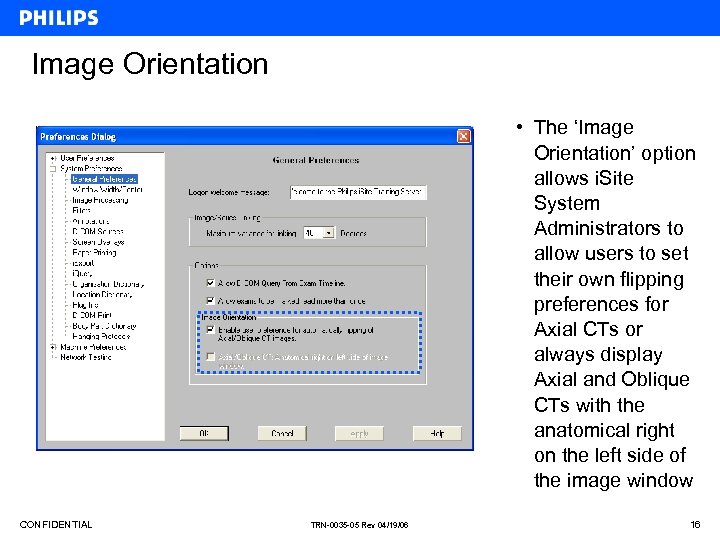 Image Orientation • The ‘Image Orientation’ option allows i. Site System Administrators to allow users to set their own flipping preferences for Axial CTs or always display Axial and Oblique CTs with the anatomical right on the left side of the image window CONFIDENTIAL TRN-0035 -05 Rev 04/19/06 16
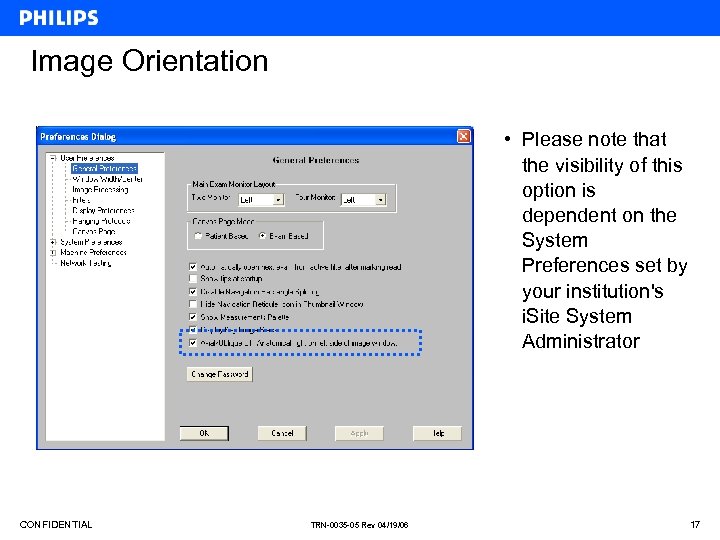 Image Orientation • Please note that the visibility of this option is dependent on the System Preferences set by your institution's i. Site System Administrator CONFIDENTIAL TRN-0035 -05 Rev 04/19/06 17
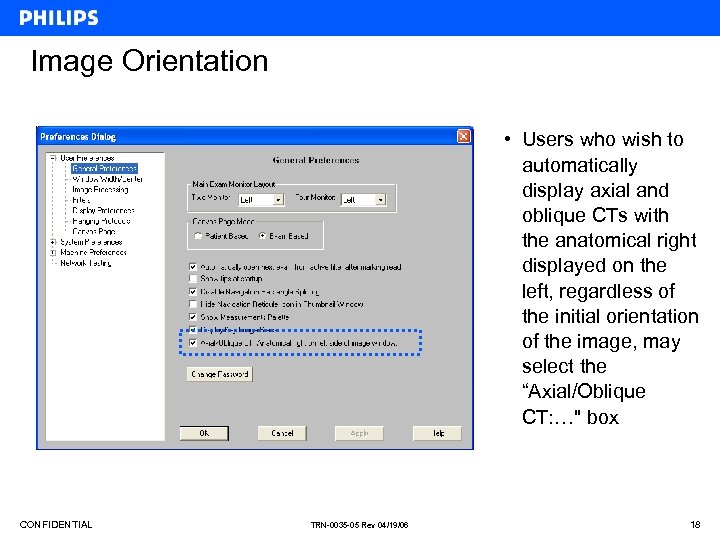 Image Orientation • Users who wish to automatically display axial and oblique CTs with the anatomical right displayed on the left, regardless of the initial orientation of the image, may select the “Axial/Oblique CT: …" box CONFIDENTIAL TRN-0035 -05 Rev 04/19/06 18
 Window Width/Center CONFIDENTIAL TRN-0035 -05 Rev 04/19/06 19
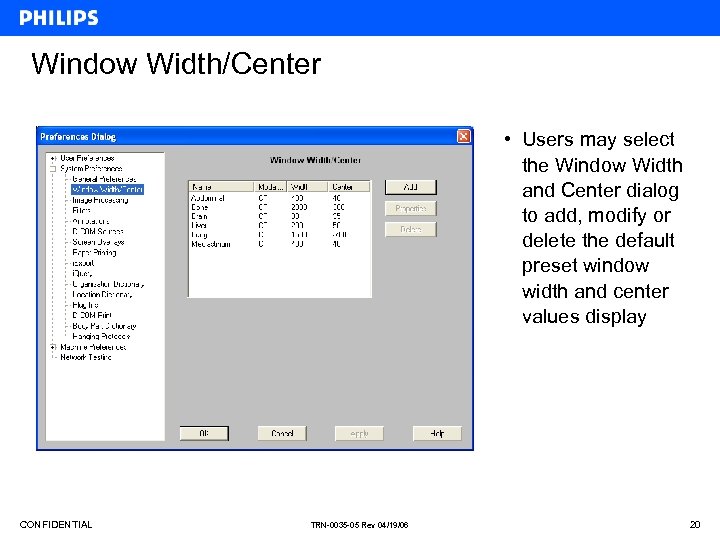 Window Width/Center • Users may select the Window Width and Center dialog to add, modify or delete the default preset window width and center values display CONFIDENTIAL TRN-0035 -05 Rev 04/19/06 20
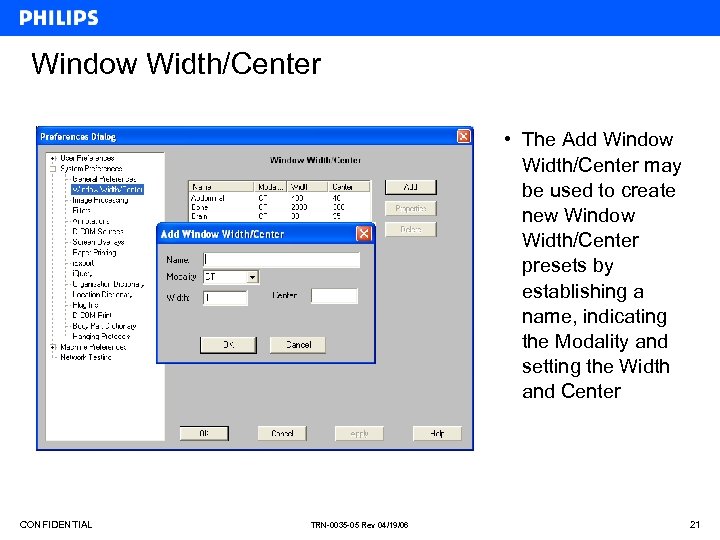 Window Width/Center • The Add Window Width/Center may be used to create new Window Width/Center presets by establishing a name, indicating the Modality and setting the Width and Center CONFIDENTIAL TRN-0035 -05 Rev 04/19/06 21
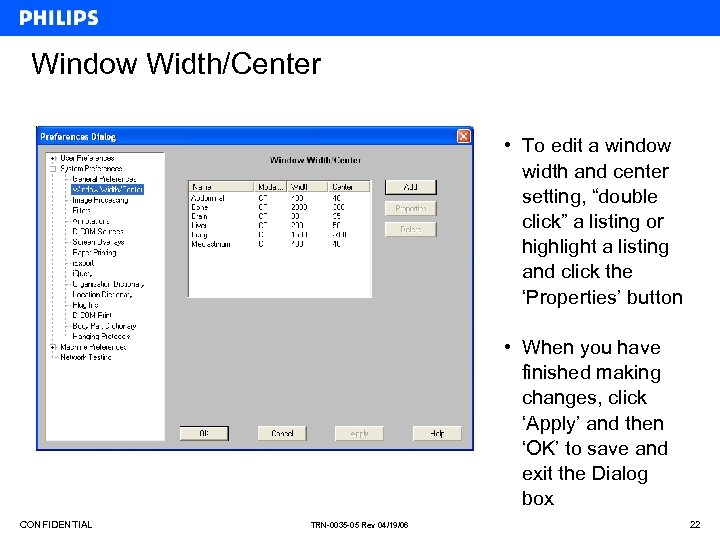 Window Width/Center • To edit a window width and center setting, “double click” a listing or highlight a listing and click the ‘Properties’ button • When you have finished making changes, click ‘Apply’ and then ‘OK’ to save and exit the Dialog box CONFIDENTIAL TRN-0035 -05 Rev 04/19/06 22
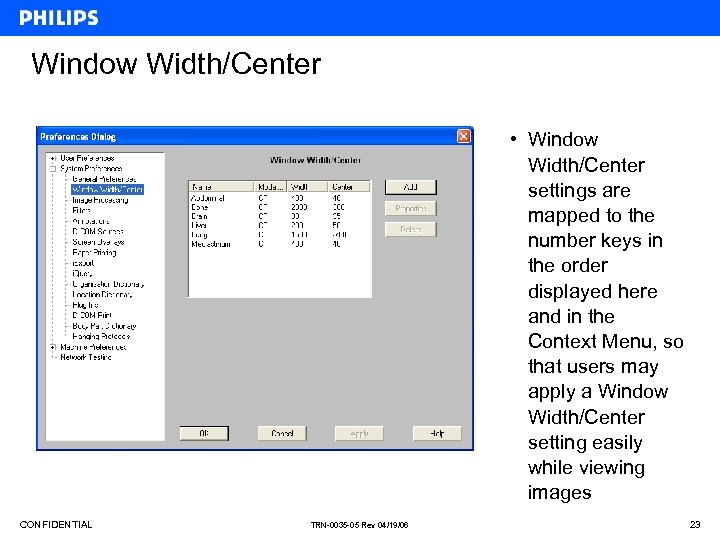 Window Width/Center • Window Width/Center settings are mapped to the number keys in the order displayed here and in the Context Menu, so that users may apply a Window Width/Center setting easily while viewing images CONFIDENTIAL TRN-0035 -05 Rev 04/19/06 23
 Image Processing CONFIDENTIAL TRN-0035 -05 Rev 04/19/06 24
 Image Processing • Edge Enhance: Uses a Laplacian method to increase the visibility of edges in the image • Edge Detection: Provides an alternative to the Edge Enhance tool, using a Sobel operator to increase the visibility of edges • Median Filtering: Uses a common filtering method to reduce noise in an image • CLAHE (Contrast Limited Adaptive Histogram Equalization): Uses an adaptive form of histogram equalization that enhances the contrast adaptively across the image CONFIDENTIAL TRN-0035 -05 Rev 04/19/06 25
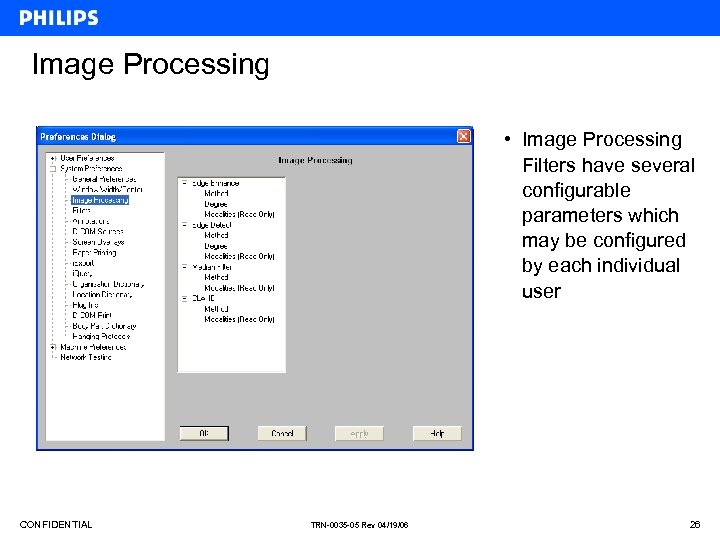 Image Processing • Image Processing Filters have several configurable parameters which may be configured by each individual user CONFIDENTIAL TRN-0035 -05 Rev 04/19/06 26
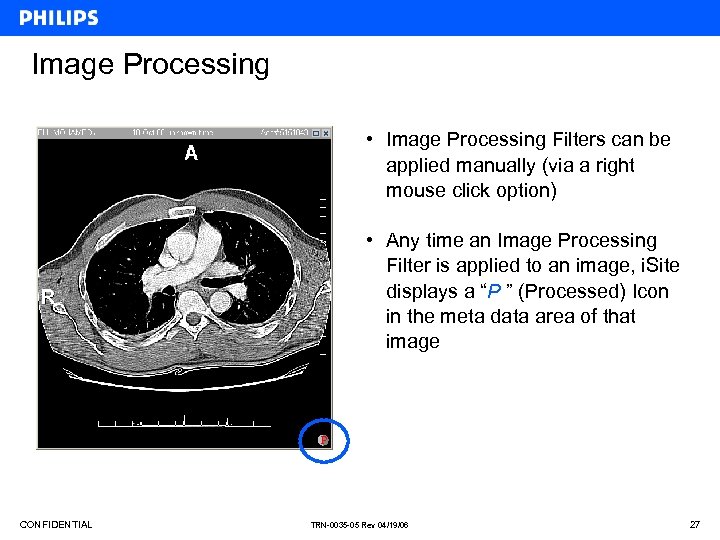 Image Processing • Image Processing Filters can be applied manually (via a right mouse click option) • Any time an Image Processing Filter is applied to an image, i. Site displays a “P ” (Processed) Icon in the meta data area of that image CONFIDENTIAL TRN-0035 -05 Rev 04/19/06 27
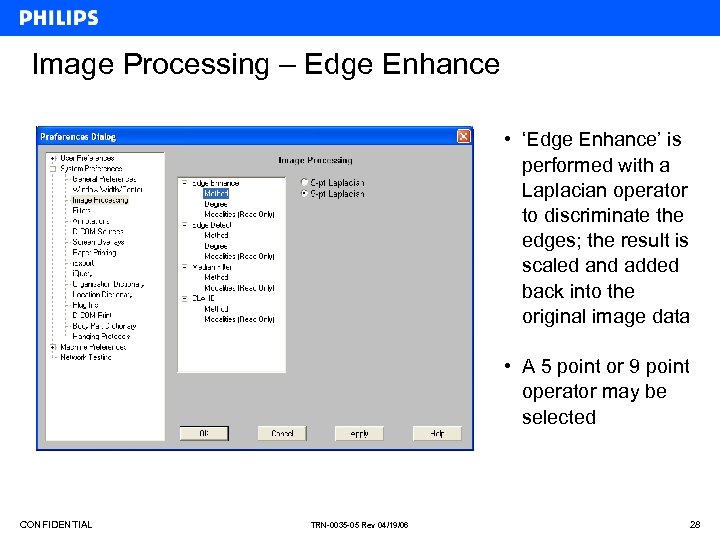 Image Processing – Edge Enhance • ‘Edge Enhance’ is performed with a Laplacian operator to discriminate the edges; the result is scaled and added back into the original image data • A 5 point or 9 point operator may be selected CONFIDENTIAL TRN-0035 -05 Rev 04/19/06 28
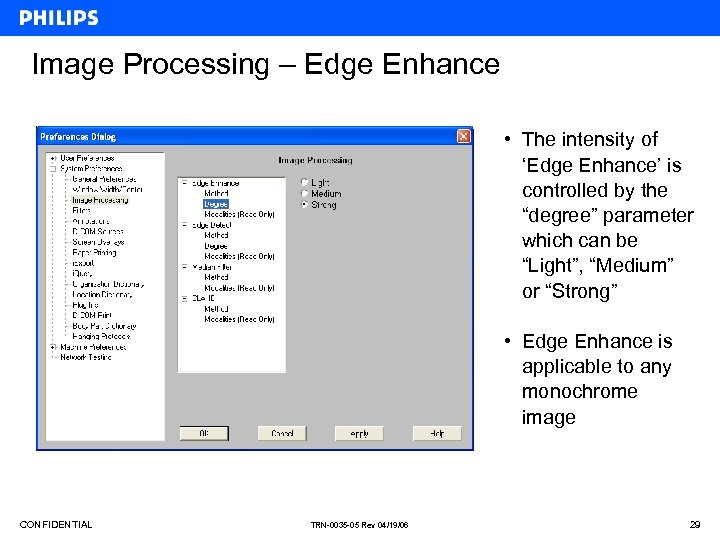 Image Processing – Edge Enhance • The intensity of ‘Edge Enhance’ is controlled by the “degree” parameter which can be “Light”, “Medium” or “Strong” • Edge Enhance is applicable to any monochrome image CONFIDENTIAL TRN-0035 -05 Rev 04/19/06 29
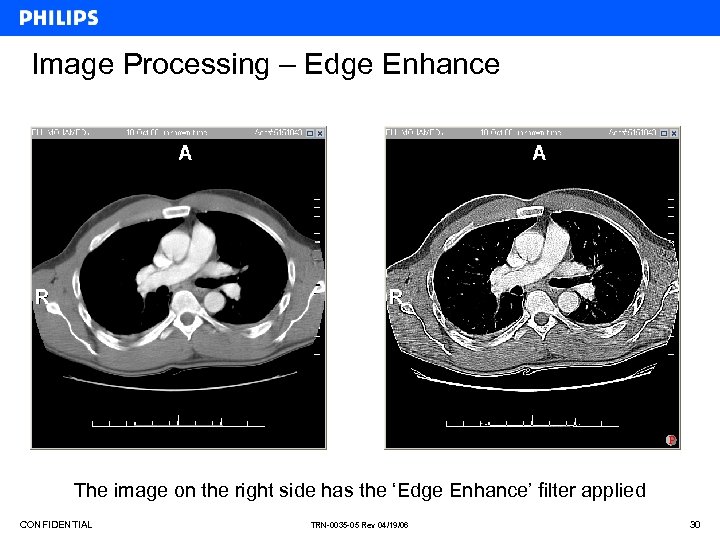 Image Processing – Edge Enhance The image on the right side has the ‘Edge Enhance’ filter applied CONFIDENTIAL TRN-0035 -05 Rev 04/19/06 30
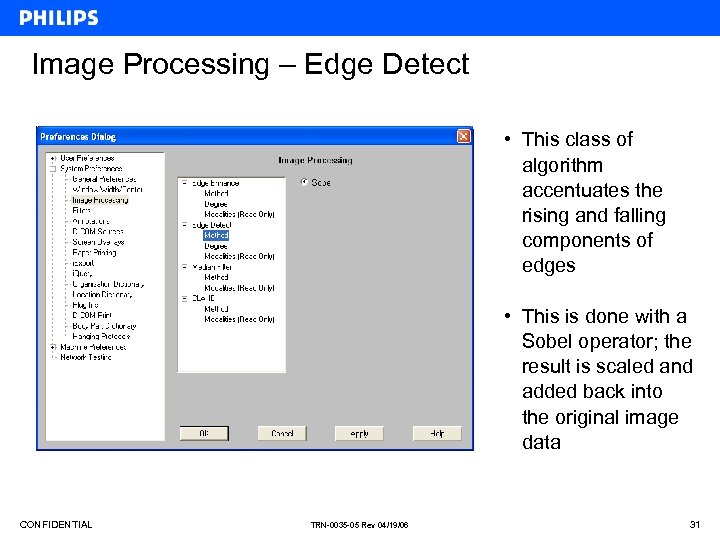 Image Processing – Edge Detect • This class of algorithm accentuates the rising and falling components of edges • This is done with a Sobel operator; the result is scaled and added back into the original image data CONFIDENTIAL TRN-0035 -05 Rev 04/19/06 31
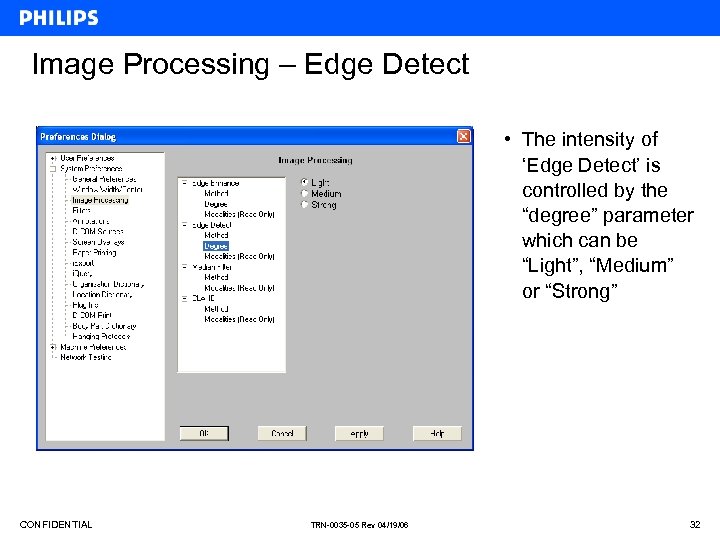 Image Processing – Edge Detect • The intensity of ‘Edge Detect’ is controlled by the “degree” parameter which can be “Light”, “Medium” or “Strong” CONFIDENTIAL TRN-0035 -05 Rev 04/19/06 32
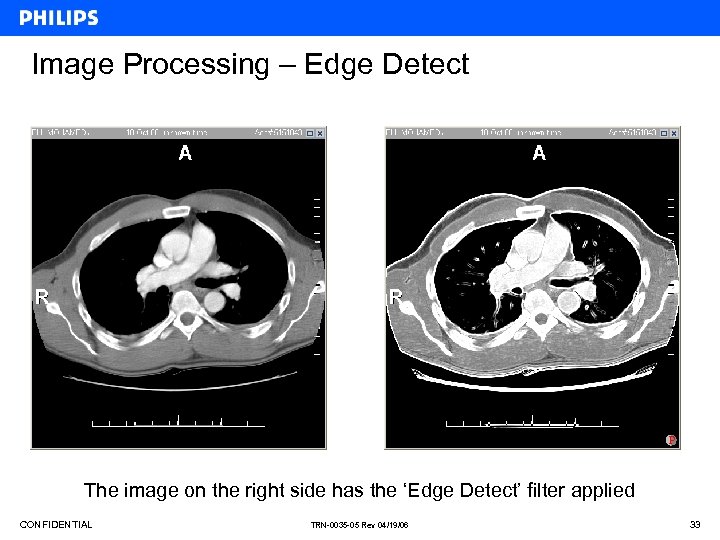 Image Processing – Edge Detect The image on the right side has the ‘Edge Detect’ filter applied CONFIDENTIAL TRN-0035 -05 Rev 04/19/06 33
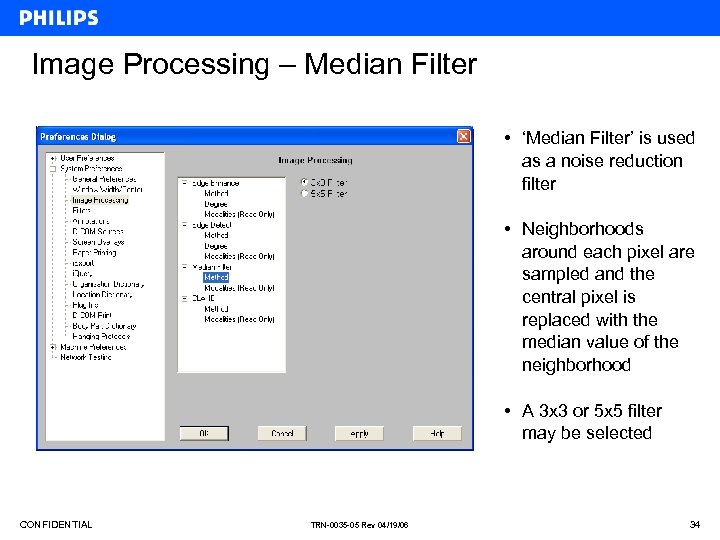 Image Processing – Median Filter • ‘Median Filter’ is used as a noise reduction filter • Neighborhoods around each pixel are sampled and the central pixel is replaced with the median value of the neighborhood • A 3 x 3 or 5 x 5 filter may be selected CONFIDENTIAL TRN-0035 -05 Rev 04/19/06 34
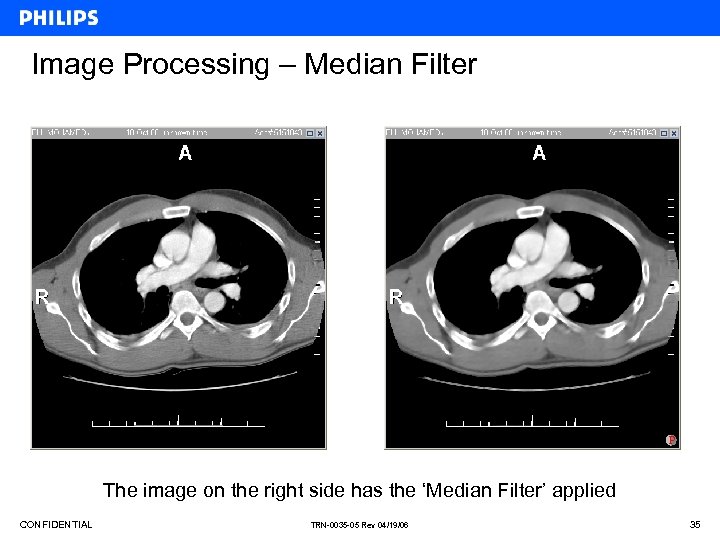 Image Processing – Median Filter The image on the right side has the ‘Median Filter’ applied CONFIDENTIAL TRN-0035 -05 Rev 04/19/06 35
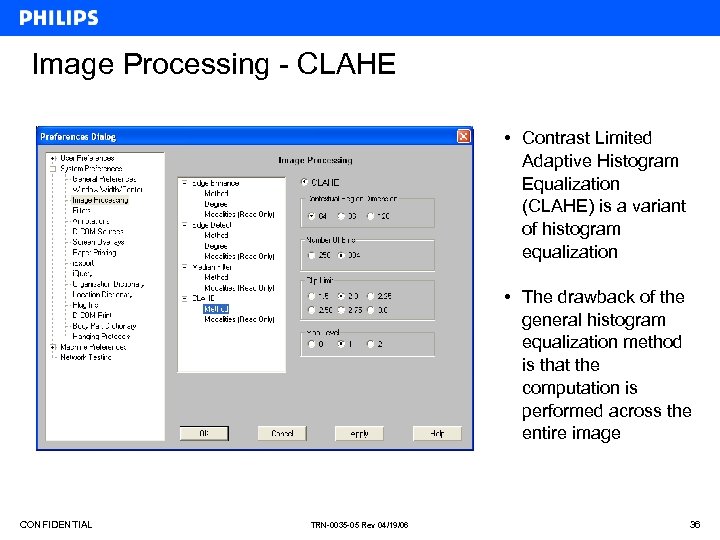 Image Processing - CLAHE • Contrast Limited Adaptive Histogram Equalization (CLAHE) is a variant of histogram equalization • The drawback of the general histogram equalization method is that the computation is performed across the entire image CONFIDENTIAL TRN-0035 -05 Rev 04/19/06 36
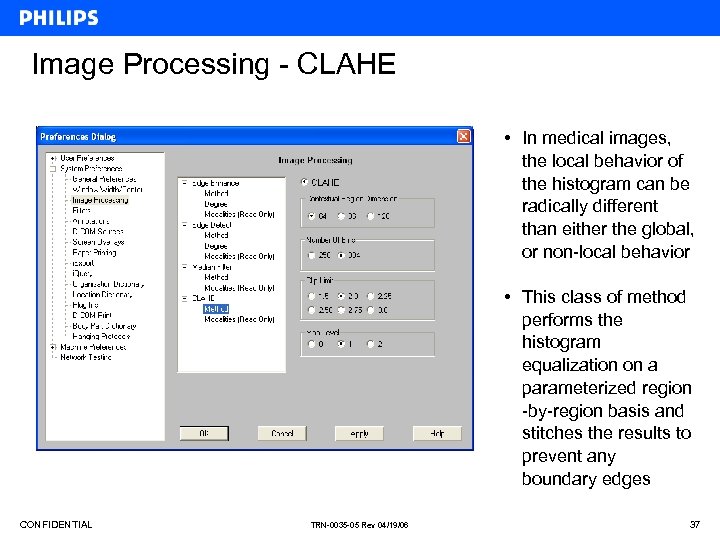 Image Processing - CLAHE • In medical images, the local behavior of the histogram can be radically different than either the global, or non-local behavior • This class of method performs the histogram equalization on a parameterized region -by-region basis and stitches the results to prevent any boundary edges CONFIDENTIAL TRN-0035 -05 Rev 04/19/06 37
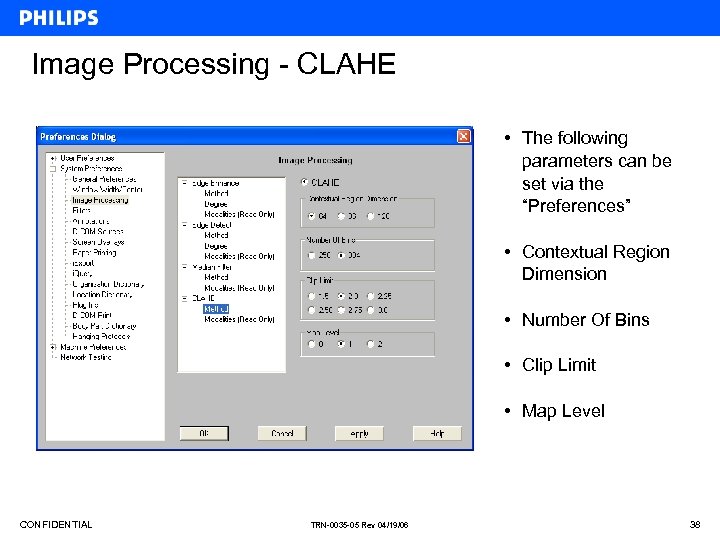 Image Processing - CLAHE • The following parameters can be set via the “Preferences” • Contextual Region Dimension • Number Of Bins • Clip Limit • Map Level CONFIDENTIAL TRN-0035 -05 Rev 04/19/06 38
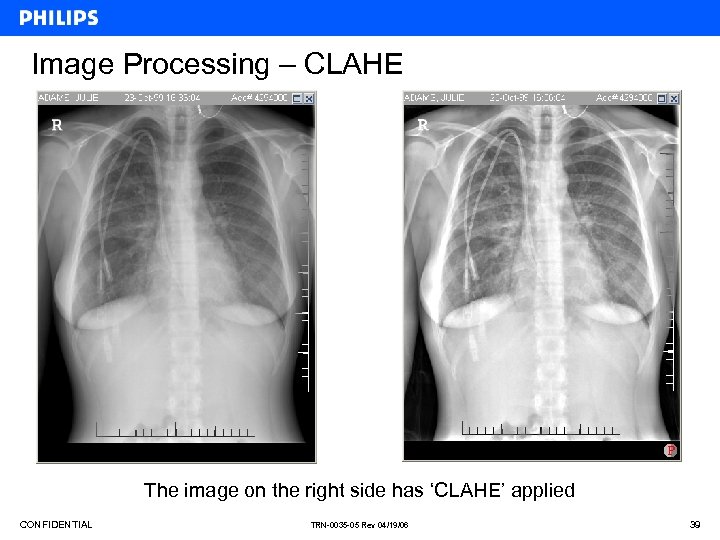 Image Processing – CLAHE The image on the right side has ‘CLAHE’ applied CONFIDENTIAL TRN-0035 -05 Rev 04/19/06 39
 Filters CONFIDENTIAL TRN-0035 -05 Rev 04/19/06 40
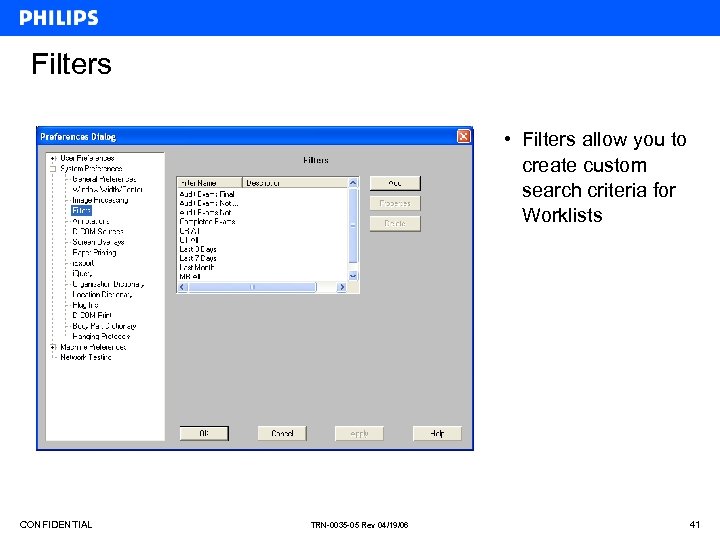 Filters • Filters allow you to create custom search criteria for Worklists CONFIDENTIAL TRN-0035 -05 Rev 04/19/06 41
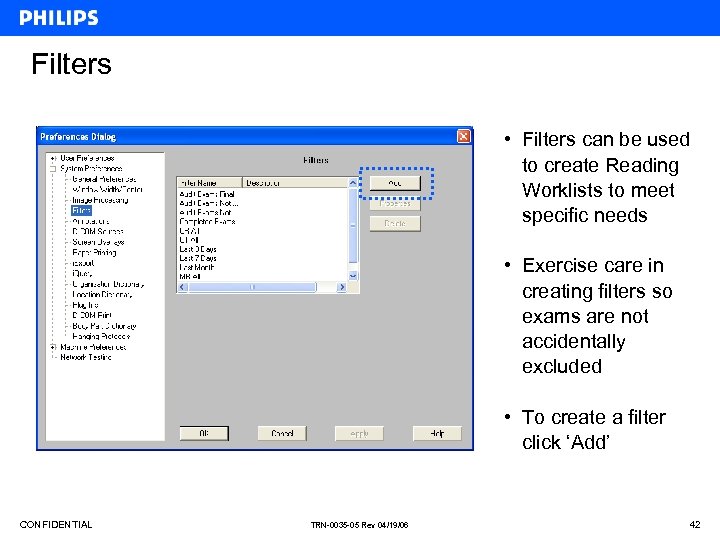 Filters • Filters can be used to create Reading Worklists to meet specific needs • Exercise care in creating filters so exams are not accidentally excluded • To create a filter click ‘Add’ CONFIDENTIAL TRN-0035 -05 Rev 04/19/06 42
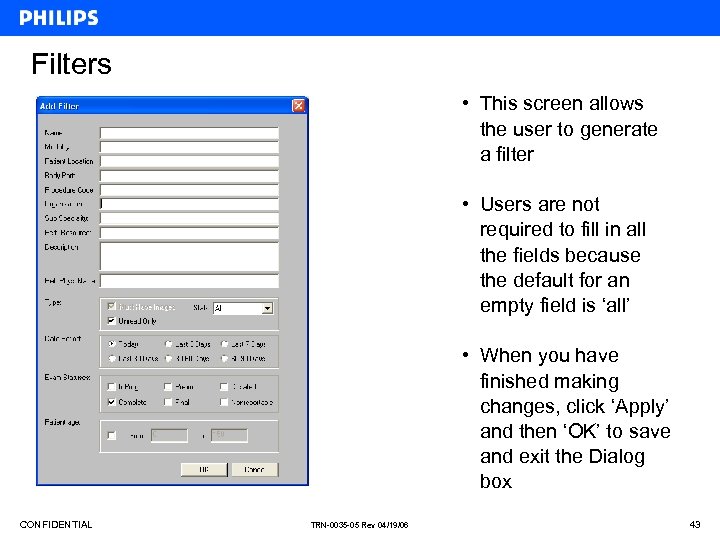 Filters • This screen allows the user to generate a filter • Users are not required to fill in all the fields because the default for an empty field is ‘all’ • When you have finished making changes, click ‘Apply’ and then ‘OK’ to save and exit the Dialog box CONFIDENTIAL TRN-0035 -05 Rev 04/19/06 43
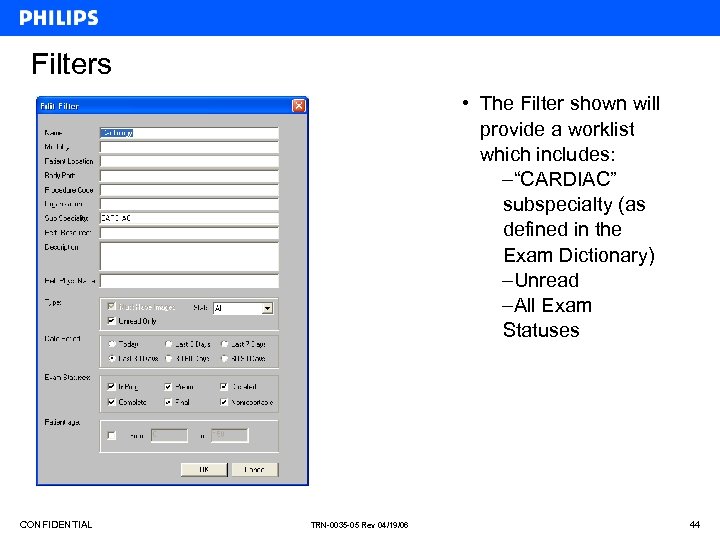 Filters • The Filter shown will provide a worklist which includes: –“CARDIAC” subspecialty (as defined in the Exam Dictionary) –Unread –All Exam Statuses CONFIDENTIAL TRN-0035 -05 Rev 04/19/06 44
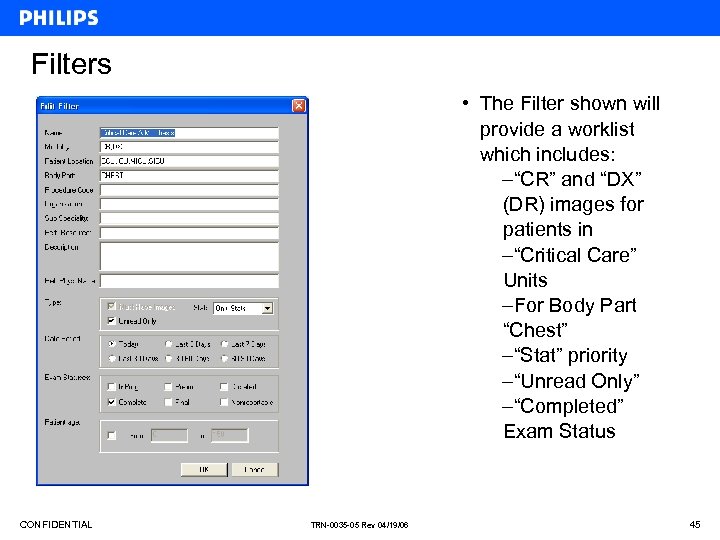 Filters • The Filter shown will provide a worklist which includes: –“CR” and “DX” (DR) images for patients in –“Critical Care” Units –For Body Part “Chest” –“Stat” priority –“Unread Only” –“Completed” Exam Status CONFIDENTIAL TRN-0035 -05 Rev 04/19/06 45
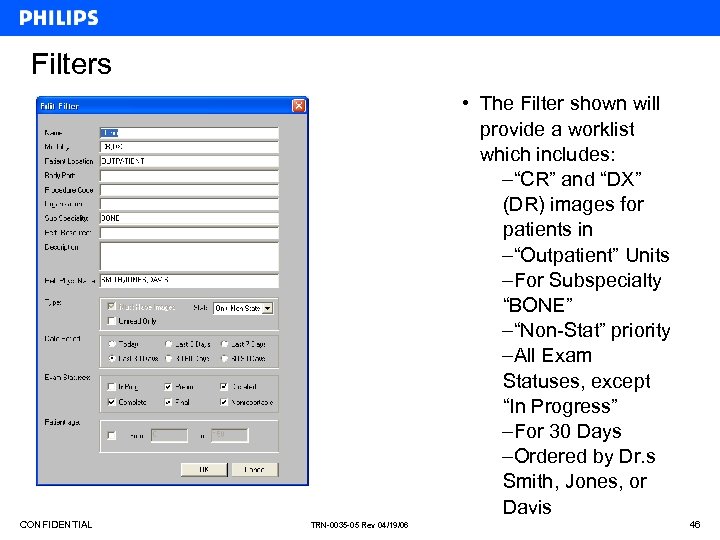 Filters • The Filter shown will provide a worklist which includes: –“CR” and “DX” (DR) images for patients in –“Outpatient” Units –For Subspecialty “BONE” –“Non-Stat” priority –All Exam Statuses, except “In Progress” –For 30 Days –Ordered by Dr. s Smith, Jones, or Davis CONFIDENTIAL TRN-0035 -05 Rev 04/19/06 46
 Annotations CONFIDENTIAL TRN-0035 -05 Rev 04/19/06 47
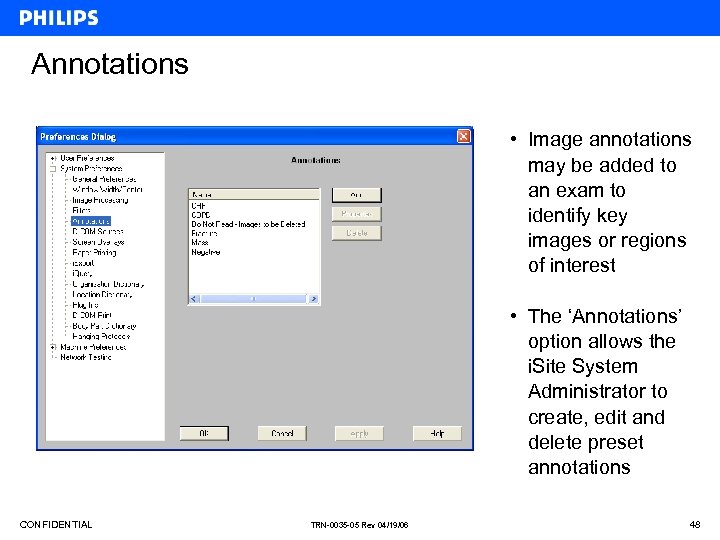 Annotations • Image annotations may be added to an exam to identify key images or regions of interest • The ‘Annotations’ option allows the i. Site System Administrator to create, edit and delete preset annotations CONFIDENTIAL TRN-0035 -05 Rev 04/19/06 48
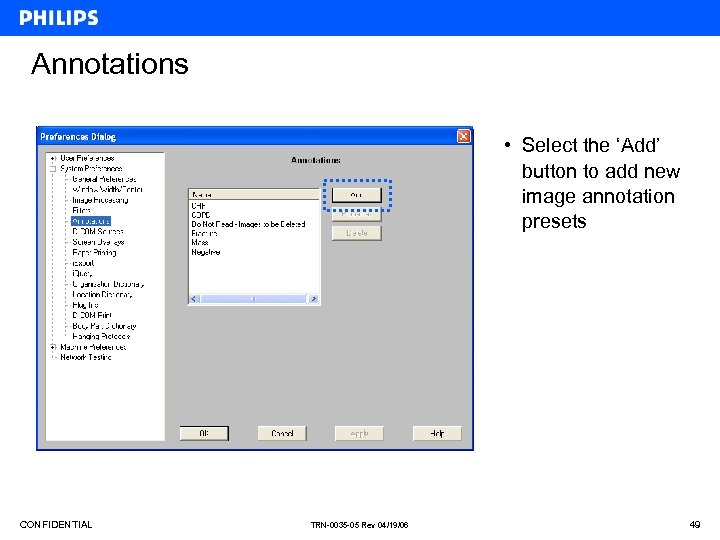 Annotations • Select the ‘Add’ button to add new image annotation presets CONFIDENTIAL TRN-0035 -05 Rev 04/19/06 49
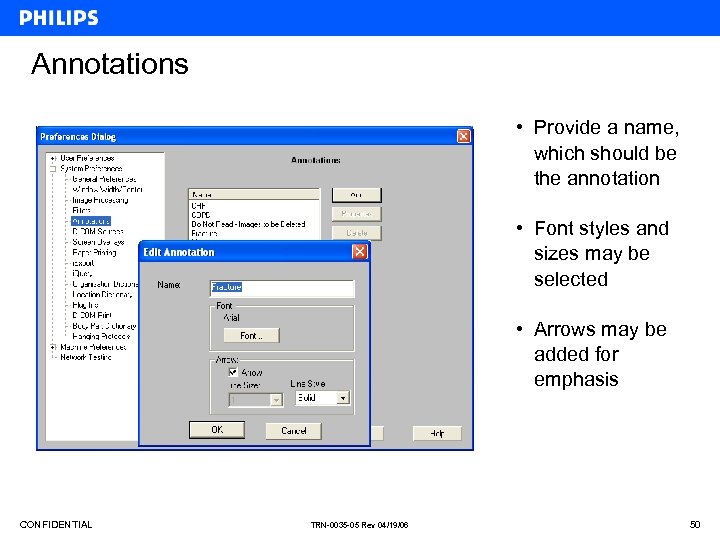 Annotations • Provide a name, which should be the annotation • Font styles and sizes may be selected • Arrows may be added for emphasis CONFIDENTIAL TRN-0035 -05 Rev 04/19/06 50
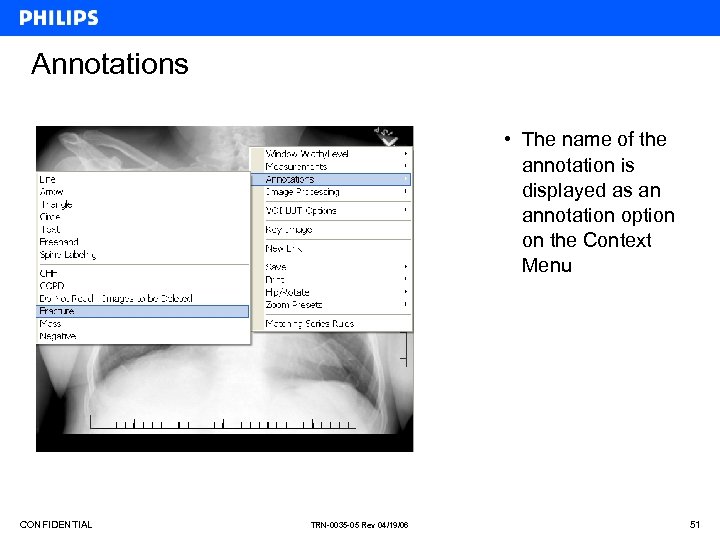 Annotations • The name of the annotation is displayed as an annotation option on the Context Menu CONFIDENTIAL TRN-0035 -05 Rev 04/19/06 51
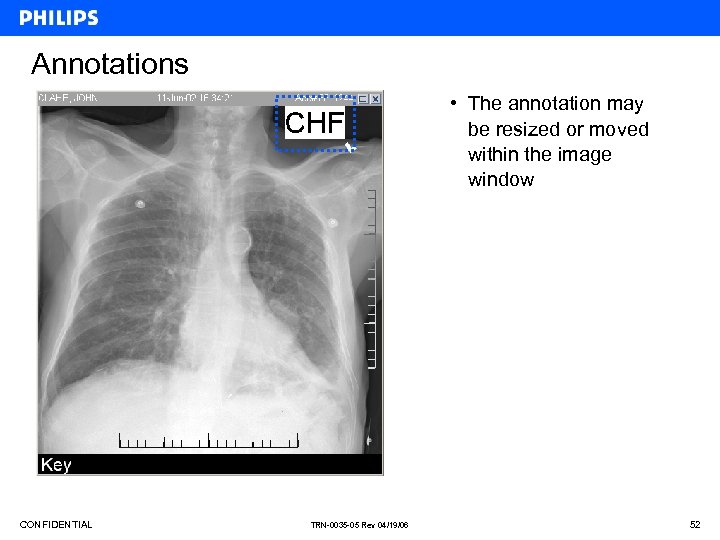 Annotations • The annotation may be resized or moved within the image window CONFIDENTIAL TRN-0035 -05 Rev 04/19/06 52
 DICOM Sources CONFIDENTIAL TRN-0035 -05 Rev 04/19/06 53
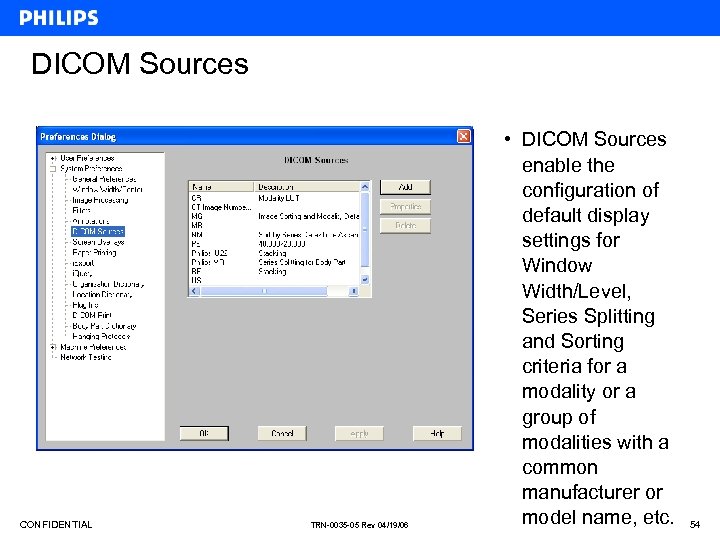 DICOM Sources CONFIDENTIAL TRN-0035 -05 Rev 04/19/06 • DICOM Sources enable the configuration of default display settings for Window Width/Level, Series Splitting and Sorting criteria for a modality or a group of modalities with a common manufacturer or model name, etc. 54
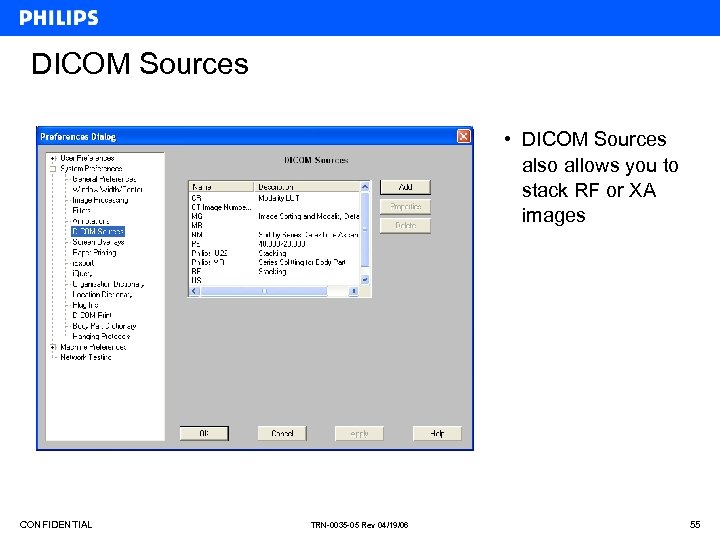 DICOM Sources • DICOM Sources also allows you to stack RF or XA images CONFIDENTIAL TRN-0035 -05 Rev 04/19/06 55
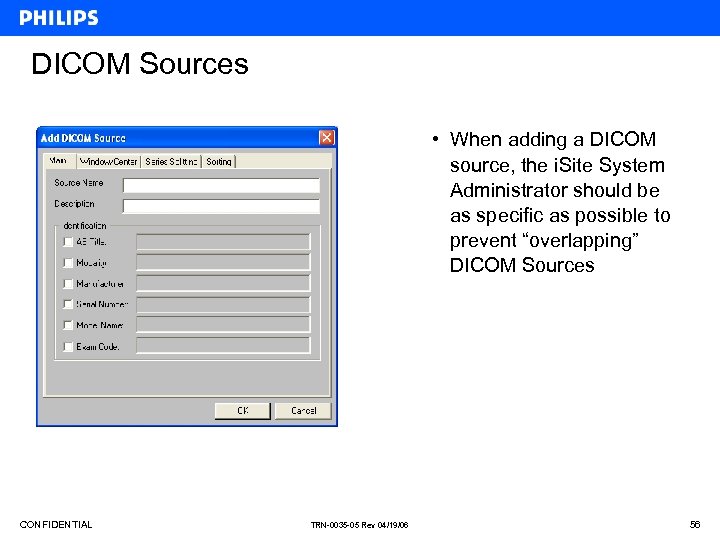 DICOM Sources • When adding a DICOM source, the i. Site System Administrator should be as specific as possible to prevent “overlapping” DICOM Sources CONFIDENTIAL TRN-0035 -05 Rev 04/19/06 56
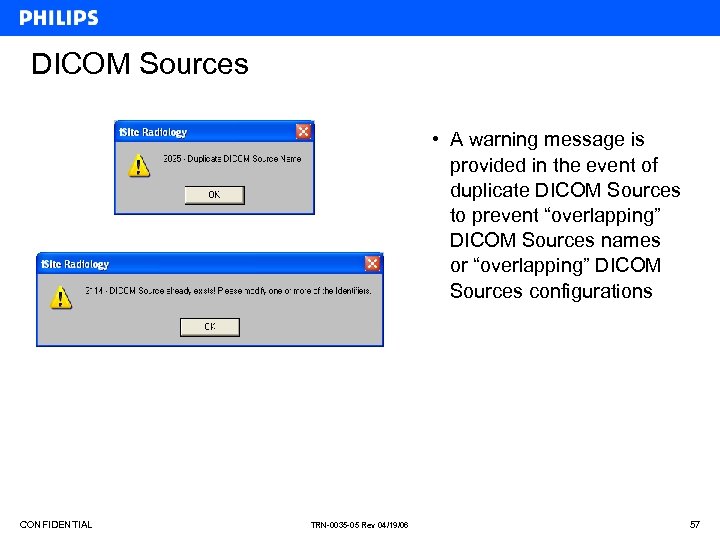 DICOM Sources • A warning message is provided in the event of duplicate DICOM Sources to prevent “overlapping” DICOM Sources names or “overlapping” DICOM Sources configurations CONFIDENTIAL TRN-0035 -05 Rev 04/19/06 57
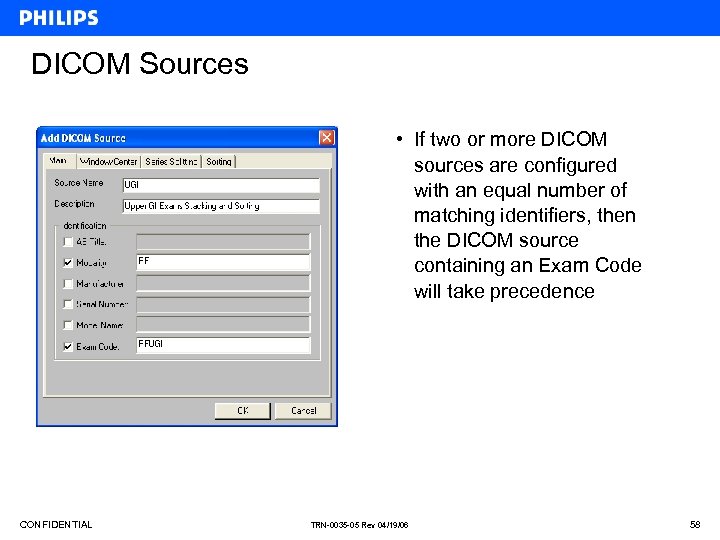 DICOM Sources • If two or more DICOM sources are configured with an equal number of matching identifiers, then the DICOM source containing an Exam Code will take precedence CONFIDENTIAL TRN-0035 -05 Rev 04/19/06 58
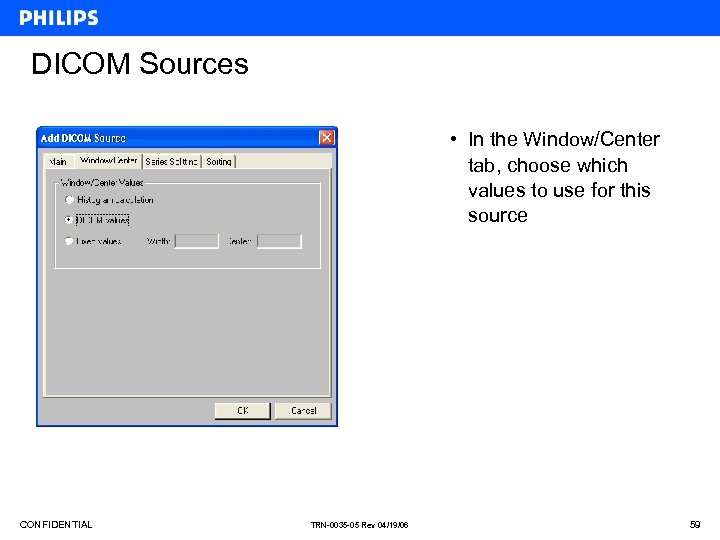 DICOM Sources • In the Window/Center tab, choose which values to use for this source CONFIDENTIAL TRN-0035 -05 Rev 04/19/06 59
 DICOM Sources • Histogram Calculation – This is the default selection in the ‘Add DICOM Source’ dialog – The histogram is a graph showing the total tonal distribution in the image – The histogram maps Luminance, which is defined from the way human eye perceives the brightness of different colors – Every pixel in the color or gray image computes to a luminance value between 0 and 255. The histogram uses bins to graph the pixel count of every possible value of luminance or brightness. The total tonal range of a pixel’s 8 bit tone value is 0 to 255, where the 0 is the blackest at the left end and 255 is the whitest at the right end CONFIDENTIAL TRN-0035 -05 Rev 04/19/06 60
 DICOM Sources • DICOM Values – DICOM Values are the Window Center and Window Width values provided by the modality – DICOM Sources utilizing DICOM Values should be configured for a specific AE Title to ensure that images from other devices are not impacted – The DICOM modality values are stored in Window Center (0028, 1050) and Window Width (0028, 1051) DICOM attributes CONFIDENTIAL TRN-0035 -05 Rev 04/19/06 61
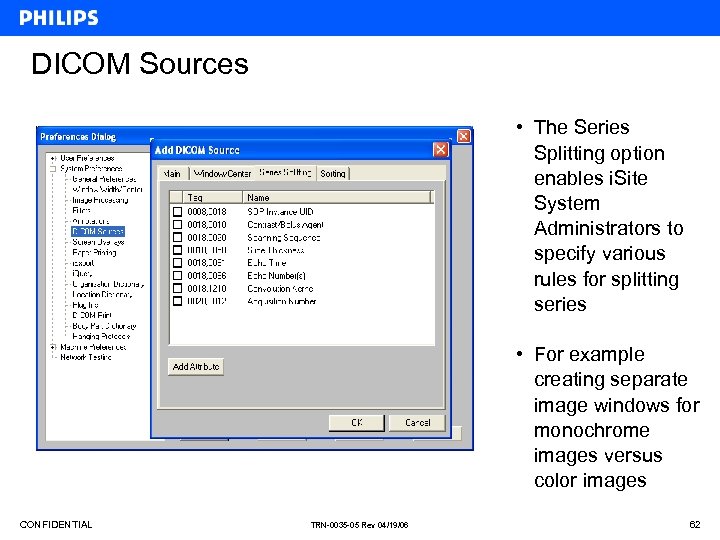 DICOM Sources • The Series Splitting option enables i. Site System Administrators to specify various rules for splitting series • For example creating separate image windows for monochrome images versus color images CONFIDENTIAL TRN-0035 -05 Rev 04/19/06 62
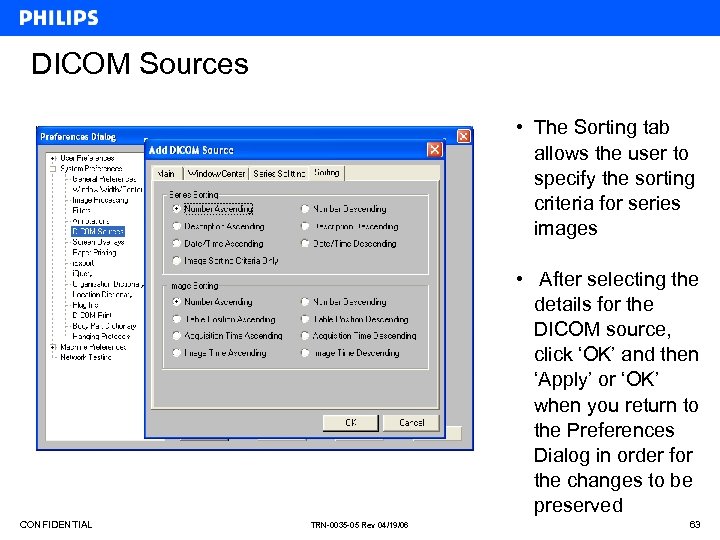 DICOM Sources • The Sorting tab allows the user to specify the sorting criteria for series images • After selecting the details for the DICOM source, click ‘OK’ and then ‘Apply’ or ‘OK’ when you return to the Preferences Dialog in order for the changes to be preserved CONFIDENTIAL TRN-0035 -05 Rev 04/19/06 63
 Screen Overlays CONFIDENTIAL TRN-0035 -05 Rev 04/19/06 64
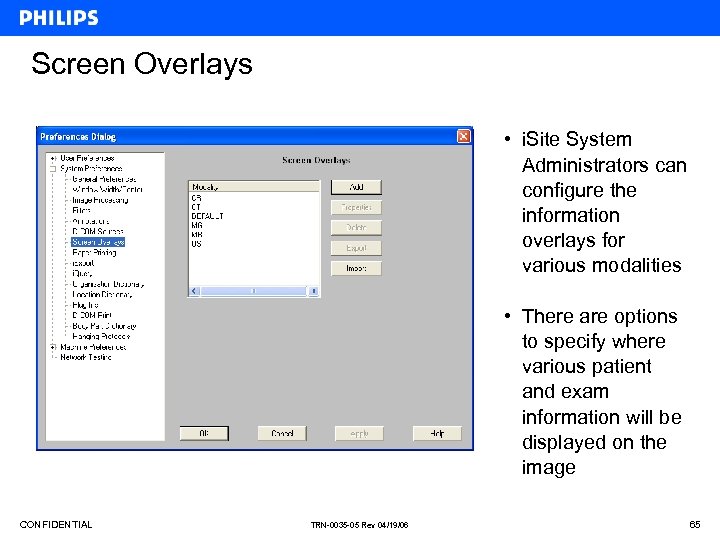 Screen Overlays • i. Site System Administrators can configure the information overlays for various modalities • There are options to specify where various patient and exam information will be displayed on the image CONFIDENTIAL TRN-0035 -05 Rev 04/19/06 65
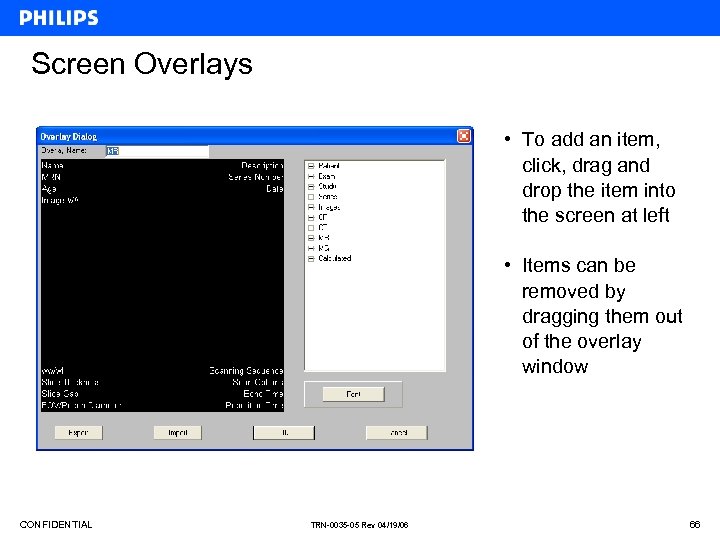 Screen Overlays • To add an item, click, drag and drop the item into the screen at left • Items can be removed by dragging them out of the overlay window CONFIDENTIAL TRN-0035 -05 Rev 04/19/06 66
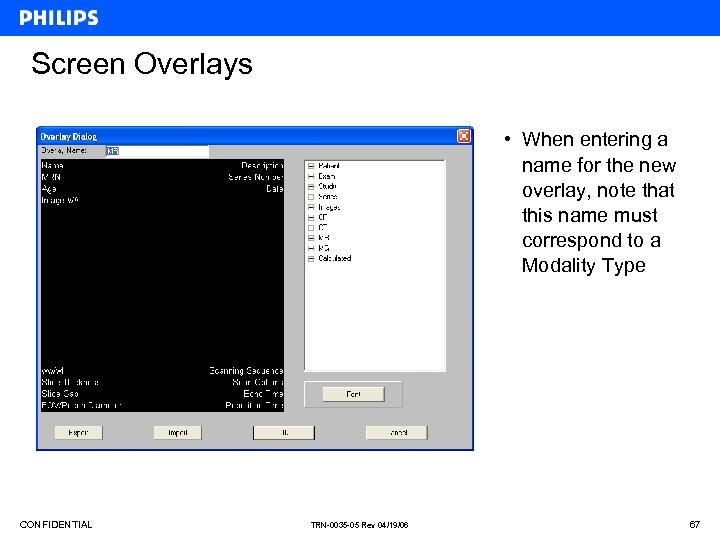 Screen Overlays • When entering a name for the new overlay, note that this name must correspond to a Modality Type CONFIDENTIAL TRN-0035 -05 Rev 04/19/06 67
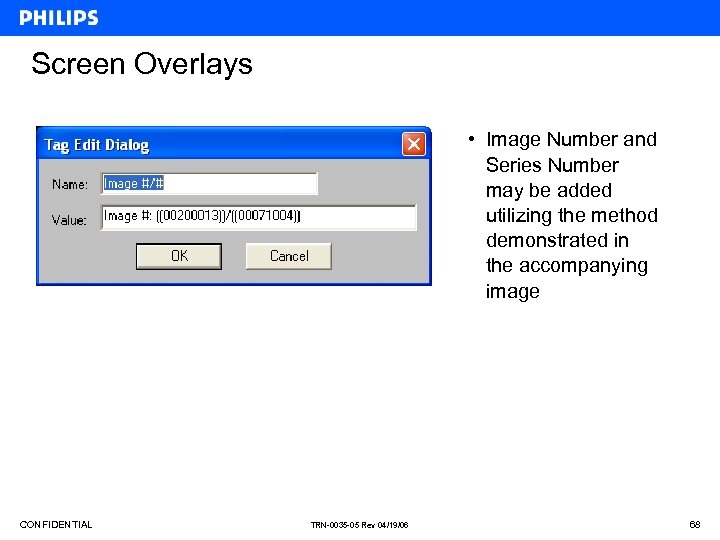 Screen Overlays • Image Number and Series Number may be added utilizing the method demonstrated in the accompanying image CONFIDENTIAL TRN-0035 -05 Rev 04/19/06 68
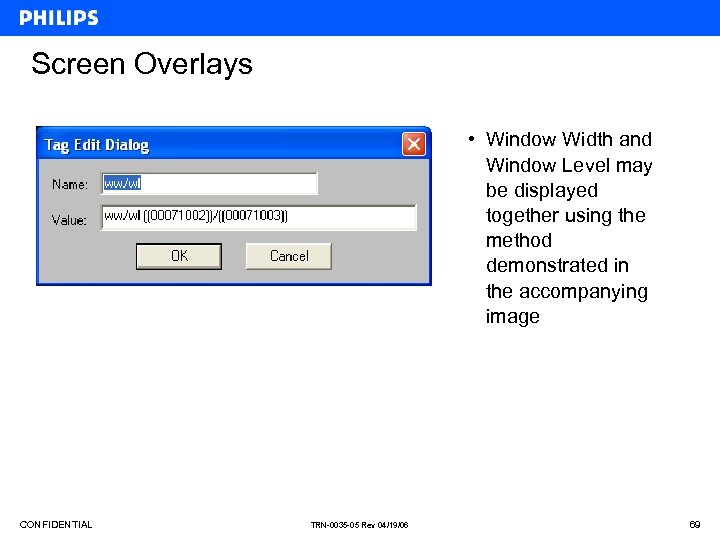 Screen Overlays • Window Width and Window Level may be displayed together using the method demonstrated in the accompanying image CONFIDENTIAL TRN-0035 -05 Rev 04/19/06 69
 Paper Printing CONFIDENTIAL TRN-0035 -05 Rev 04/19/06 70
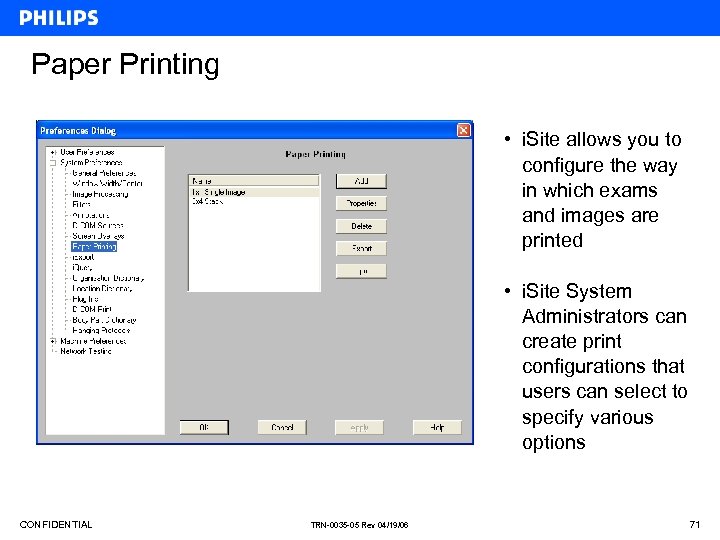 Paper Printing • i. Site allows you to configure the way in which exams and images are printed • i. Site System Administrators can create print configurations that users can select to specify various options CONFIDENTIAL TRN-0035 -05 Rev 04/19/06 71
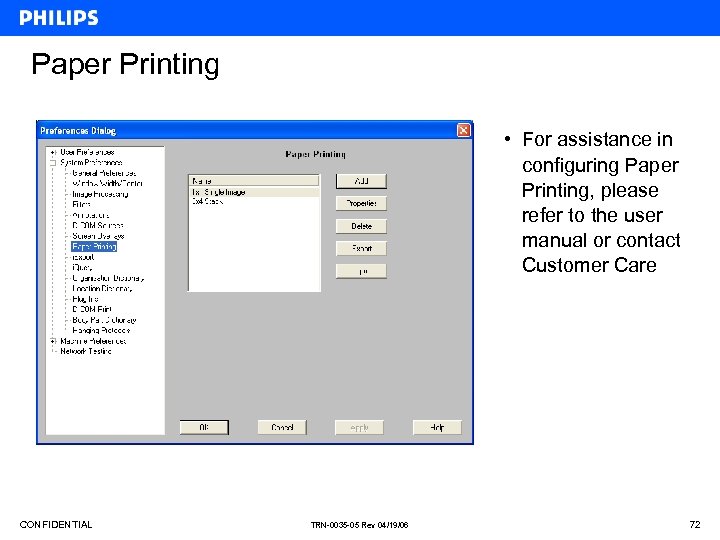 Paper Printing • For assistance in configuring Paper Printing, please refer to the user manual or contact Customer Care CONFIDENTIAL TRN-0035 -05 Rev 04/19/06 72
 i. Export CONFIDENTIAL TRN-0035 -05 Rev 04/19/06 73
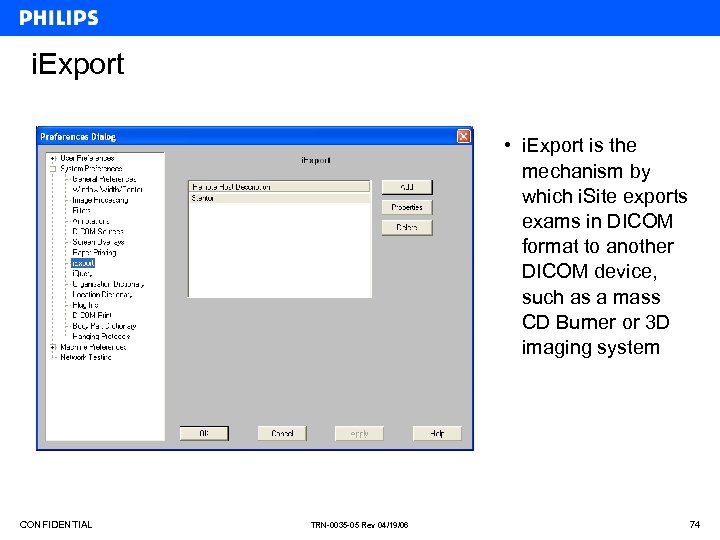 i. Export • i. Export is the mechanism by which i. Site exports exams in DICOM format to another DICOM device, such as a mass CD Burner or 3 D imaging system CONFIDENTIAL TRN-0035 -05 Rev 04/19/06 74
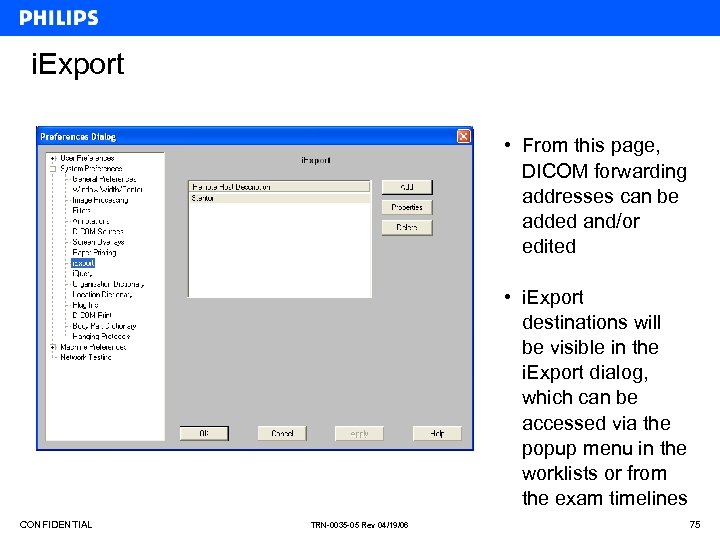 i. Export • From this page, DICOM forwarding addresses can be added and/or edited • i. Export destinations will be visible in the i. Export dialog, which can be accessed via the popup menu in the worklists or from the exam timelines CONFIDENTIAL TRN-0035 -05 Rev 04/19/06 75
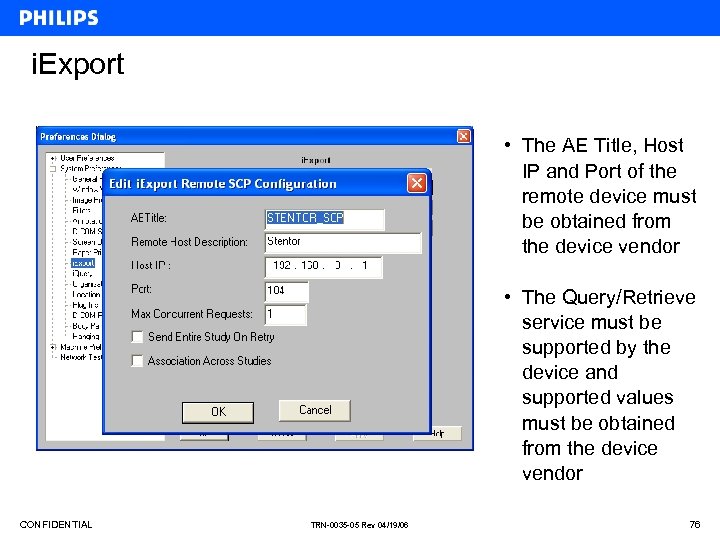 i. Export • The AE Title, Host IP and Port of the remote device must be obtained from the device vendor • The Query/Retrieve service must be supported by the device and supported values must be obtained from the device vendor CONFIDENTIAL TRN-0035 -05 Rev 04/19/06 76
 i. Query CONFIDENTIAL TRN-0035 -05 Rev 04/19/06 77
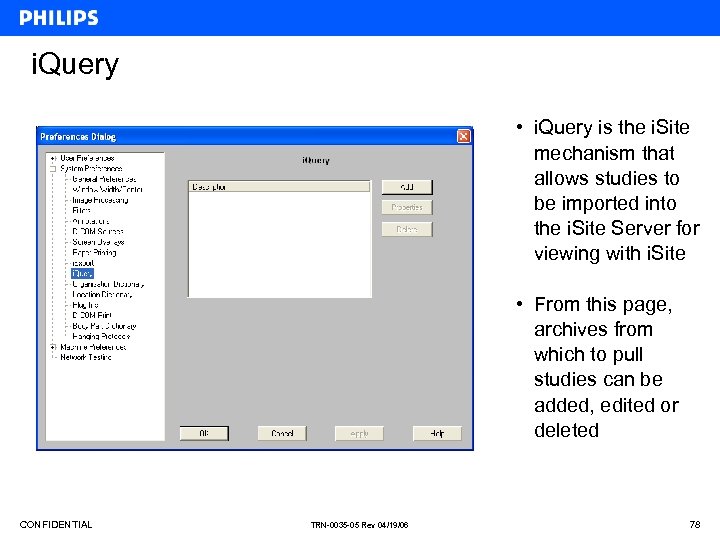 i. Query • i. Query is the i. Site mechanism that allows studies to be imported into the i. Site Server for viewing with i. Site • From this page, archives from which to pull studies can be added, edited or deleted CONFIDENTIAL TRN-0035 -05 Rev 04/19/06 78
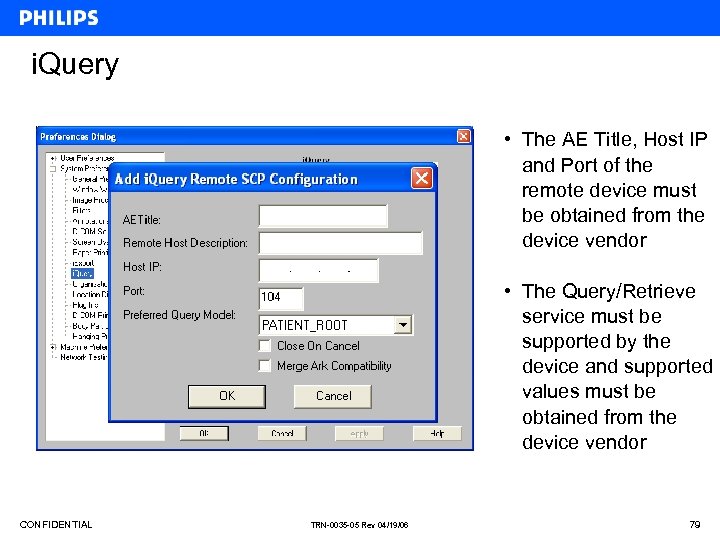 i. Query • The AE Title, Host IP and Port of the remote device must be obtained from the device vendor • The Query/Retrieve service must be supported by the device and supported values must be obtained from the device vendor CONFIDENTIAL TRN-0035 -05 Rev 04/19/06 79
 Organization Dictionary CONFIDENTIAL TRN-0035 -05 Rev 04/19/06 80
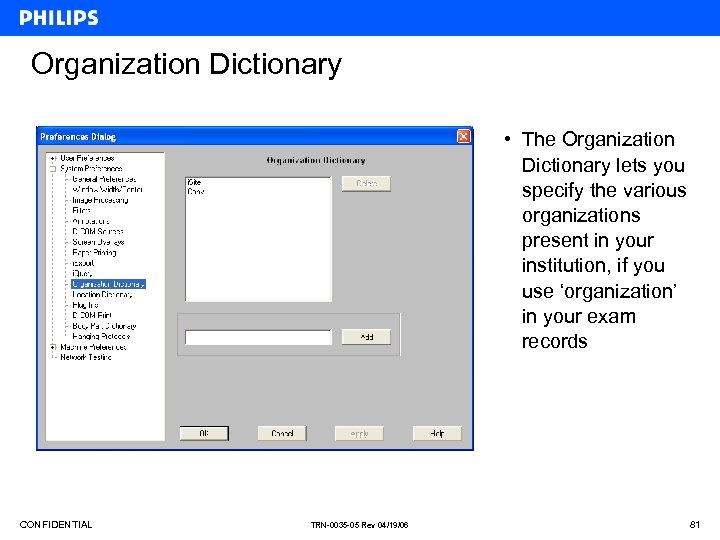 Organization Dictionary • The Organization Dictionary lets you specify the various organizations present in your institution, if you use ‘organization’ in your exam records CONFIDENTIAL TRN-0035 -05 Rev 04/19/06 81
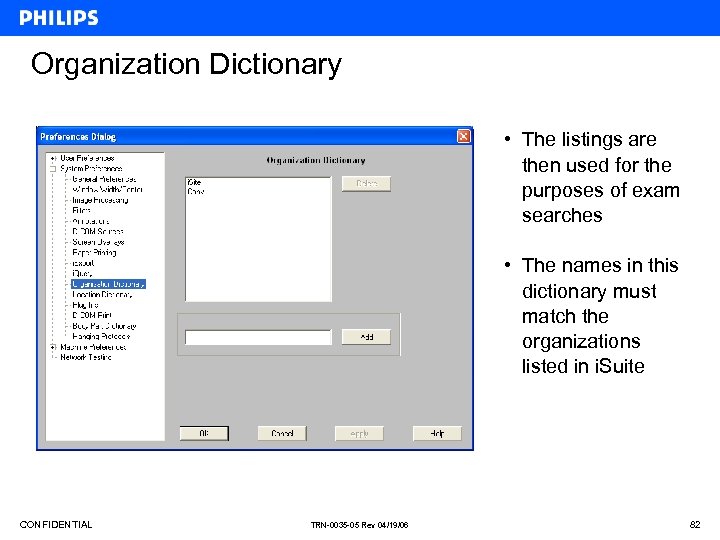 Organization Dictionary • The listings are then used for the purposes of exam searches • The names in this dictionary must match the organizations listed in i. Suite CONFIDENTIAL TRN-0035 -05 Rev 04/19/06 82
 Location Dictionary CONFIDENTIAL TRN-0035 -05 Rev 04/19/06 83
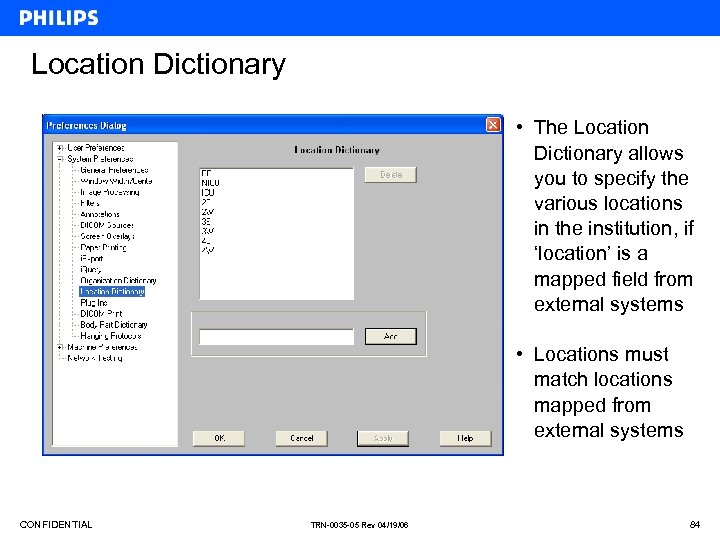 Location Dictionary • The Location Dictionary allows you to specify the various locations in the institution, if ‘location’ is a mapped field from external systems • Locations must match locations mapped from external systems CONFIDENTIAL TRN-0035 -05 Rev 04/19/06 84
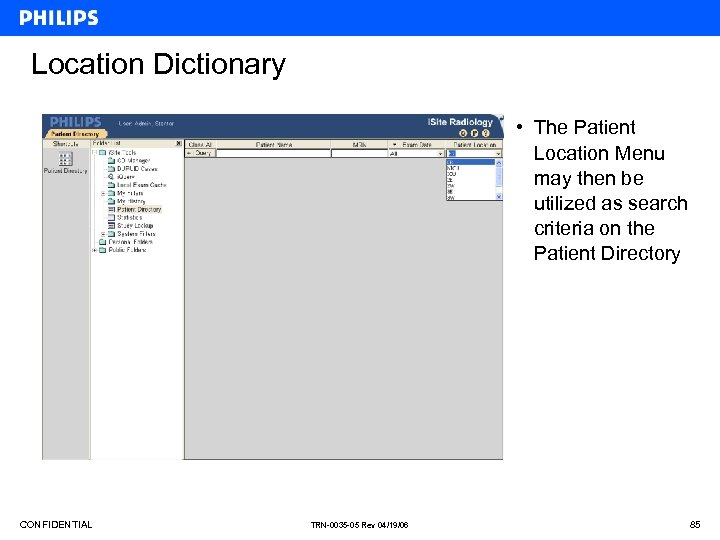 Location Dictionary • The Patient Location Menu may then be utilized as search criteria on the Patient Directory CONFIDENTIAL TRN-0035 -05 Rev 04/19/06 85
 Plug Ins CONFIDENTIAL TRN-0035 -05 Rev 04/19/06 86
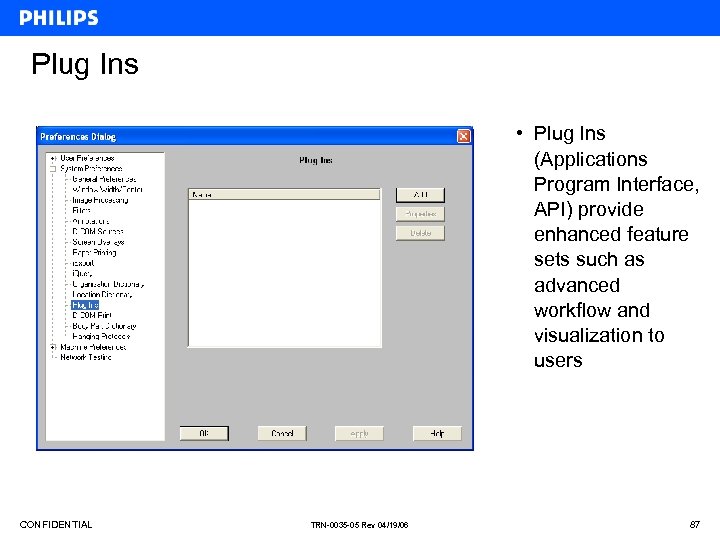 Plug Ins • Plug Ins (Applications Program Interface, API) provide enhanced feature sets such as advanced workflow and visualization to users CONFIDENTIAL TRN-0035 -05 Rev 04/19/06 87
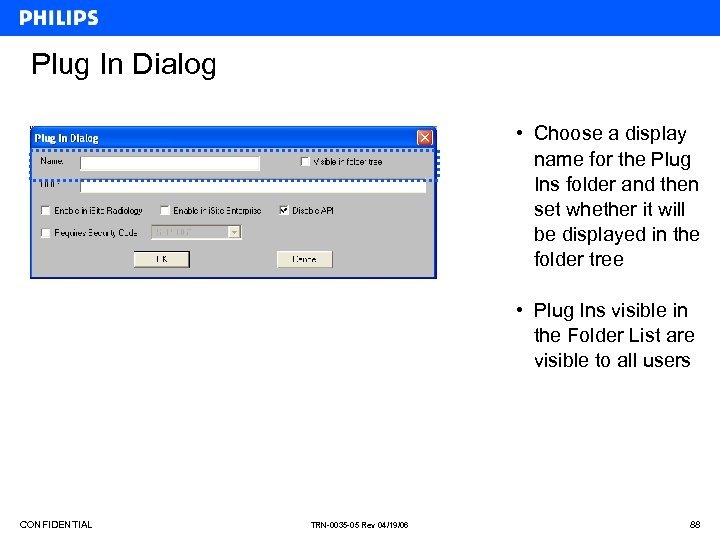 Plug In Dialog • Choose a display name for the Plug Ins folder and then set whether it will be displayed in the folder tree • Plug Ins visible in the Folder List are visible to all users CONFIDENTIAL TRN-0035 -05 Rev 04/19/06 88
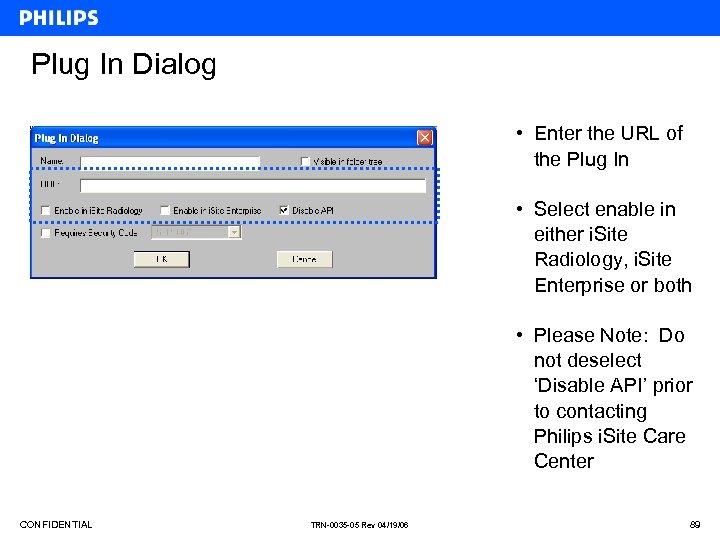 Plug In Dialog • Enter the URL of the Plug In • Select enable in either i. Site Radiology, i. Site Enterprise or both • Please Note: Do not deselect ‘Disable API’ prior to contacting Philips i. Site Care Center CONFIDENTIAL TRN-0035 -05 Rev 04/19/06 89
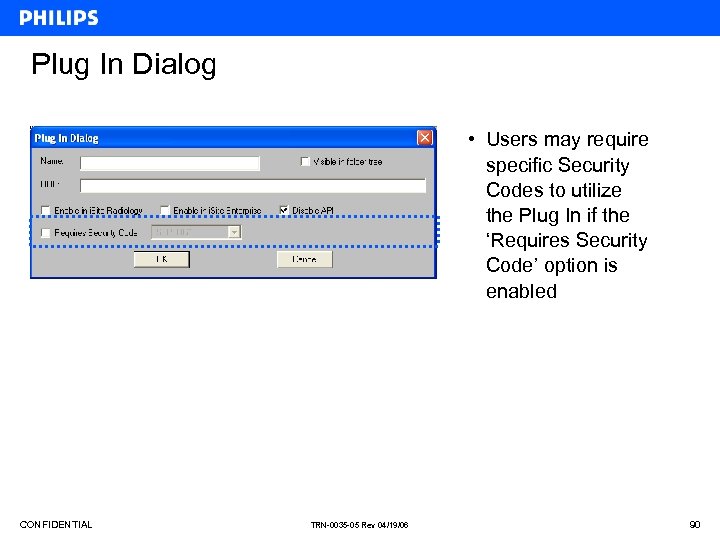 Plug In Dialog • Users may require specific Security Codes to utilize the Plug In if the ‘Requires Security Code’ option is enabled CONFIDENTIAL TRN-0035 -05 Rev 04/19/06 90
 DICOM Print CONFIDENTIAL TRN-0035 -05 Rev 04/19/06 91
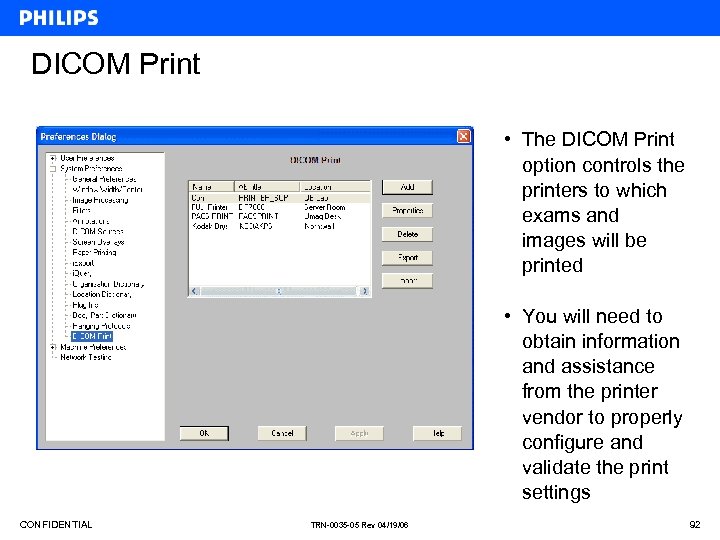 DICOM Print • The DICOM Print option controls the printers to which exams and images will be printed • You will need to obtain information and assistance from the printer vendor to properly configure and validate the print settings CONFIDENTIAL TRN-0035 -05 Rev 04/19/06 92
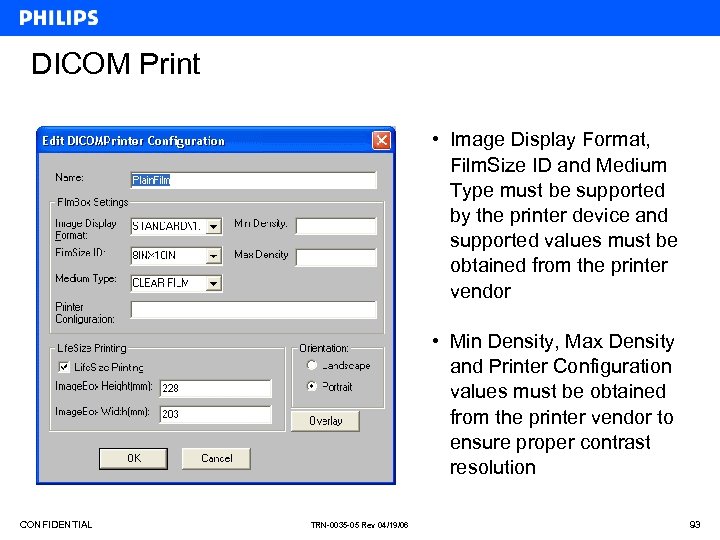 DICOM Print • Image Display Format, Film. Size ID and Medium Type must be supported by the printer device and supported values must be obtained from the printer vendor • Min Density, Max Density and Printer Configuration values must be obtained from the printer vendor to ensure proper contrast resolution CONFIDENTIAL TRN-0035 -05 Rev 04/19/06 93
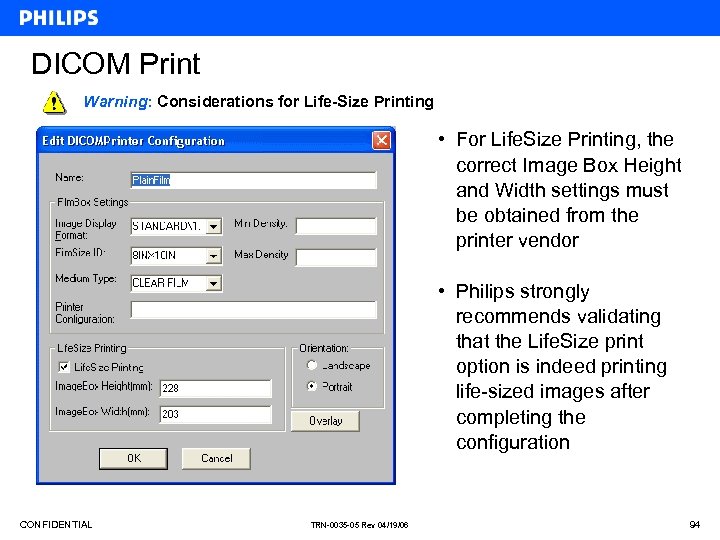 DICOM Print Warning: Considerations for Life-Size Printing • For Life. Size Printing, the correct Image Box Height and Width settings must be obtained from the printer vendor • Philips strongly recommends validating that the Life. Size print option is indeed printing life-sized images after completing the configuration CONFIDENTIAL TRN-0035 -05 Rev 04/19/06 94
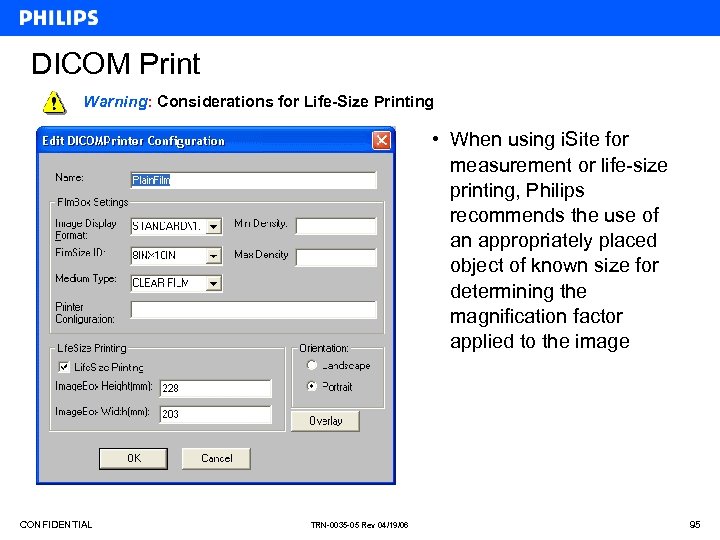 DICOM Print Warning: Considerations for Life-Size Printing • When using i. Site for measurement or life-size printing, Philips recommends the use of an appropriately placed object of known size for determining the magnification factor applied to the image CONFIDENTIAL TRN-0035 -05 Rev 04/19/06 95
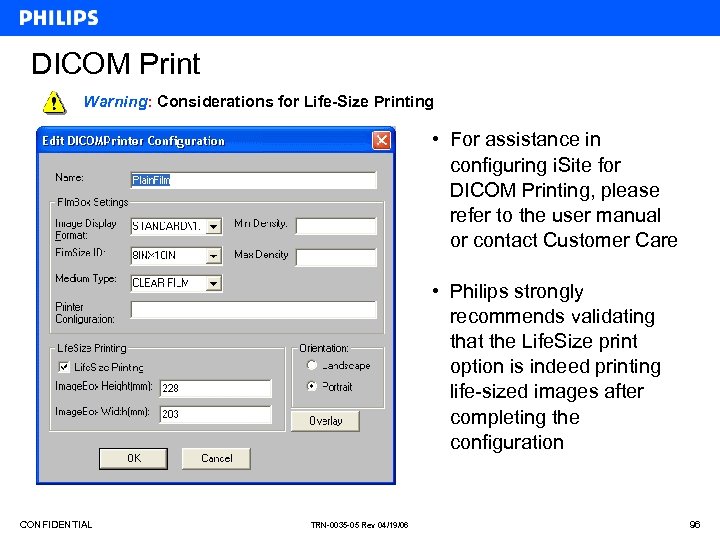 DICOM Print Warning: Considerations for Life-Size Printing • For assistance in configuring i. Site for DICOM Printing, please refer to the user manual or contact Customer Care • Philips strongly recommends validating that the Life. Size print option is indeed printing life-sized images after completing the configuration CONFIDENTIAL TRN-0035 -05 Rev 04/19/06 96
 Body Part Dictionary CONFIDENTIAL TRN-0035 -05 Rev 04/19/06 97
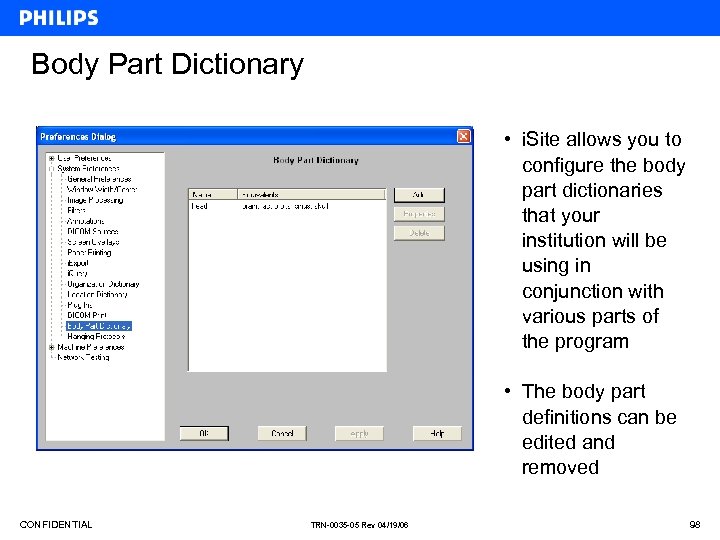 Body Part Dictionary • i. Site allows you to configure the body part dictionaries that your institution will be using in conjunction with various parts of the program • The body part definitions can be edited and removed CONFIDENTIAL TRN-0035 -05 Rev 04/19/06 98
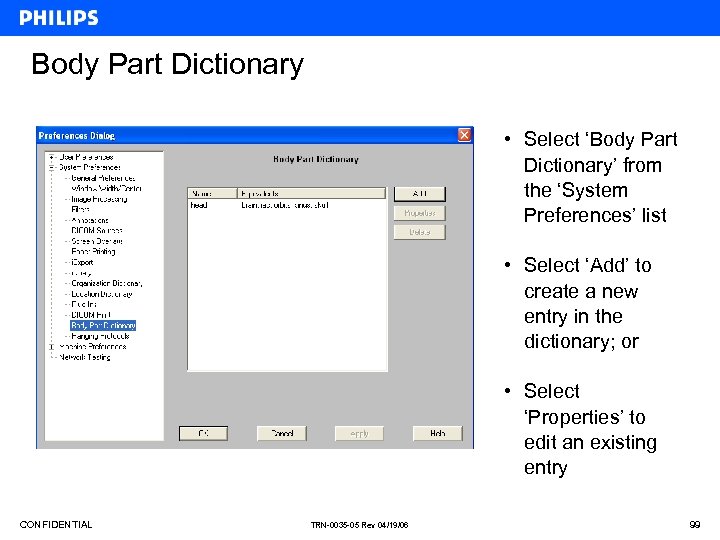 Body Part Dictionary • Select ‘Body Part Dictionary’ from the ‘System Preferences’ list • Select ‘Add’ to create a new entry in the dictionary; or • Select ‘Properties’ to edit an existing entry CONFIDENTIAL TRN-0035 -05 Rev 04/19/06 99
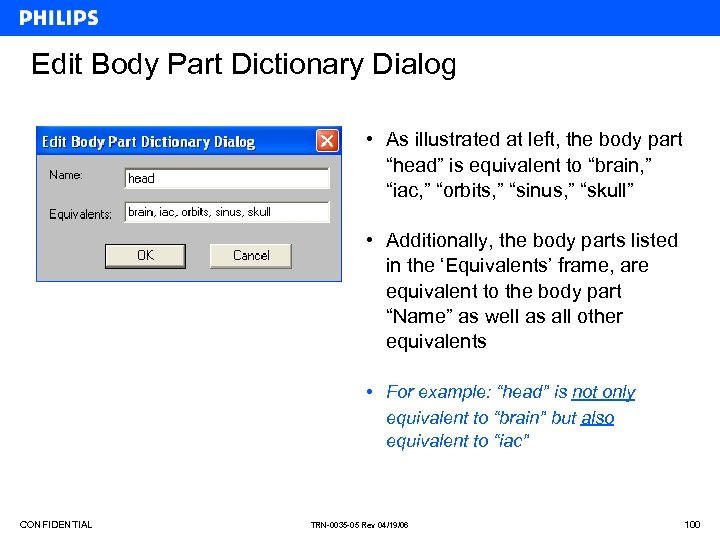 Edit Body Part Dictionary Dialog • As illustrated at left, the body part “head” is equivalent to “brain, ” “iac, ” “orbits, ” “sinus, ” “skull” • Additionally, the body parts listed in the ‘Equivalents’ frame, are equivalent to the body part “Name” as well as all other equivalents • For example: “head” is not only equivalent to “brain” but also equivalent to “iac” CONFIDENTIAL TRN-0035 -05 Rev 04/19/06 100
 Hanging Protocols CONFIDENTIAL TRN-0035 -05 Rev 04/19/06 101
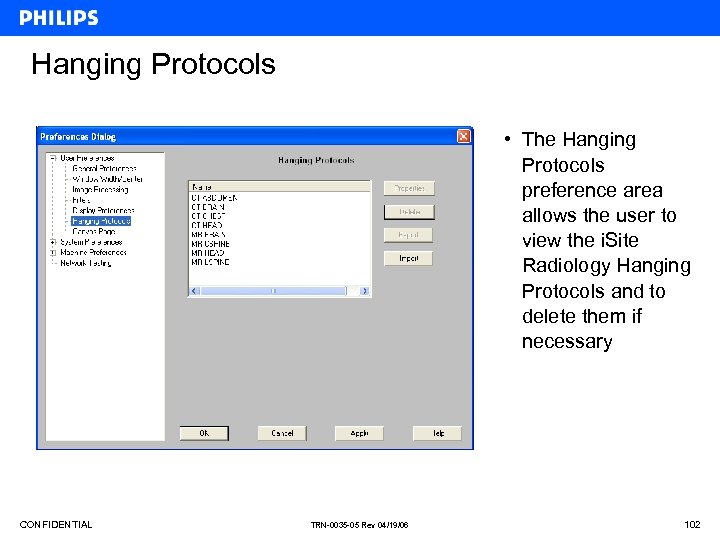 Hanging Protocols • The Hanging Protocols preference area allows the user to view the i. Site Radiology Hanging Protocols and to delete them if necessary CONFIDENTIAL TRN-0035 -05 Rev 04/19/06 102
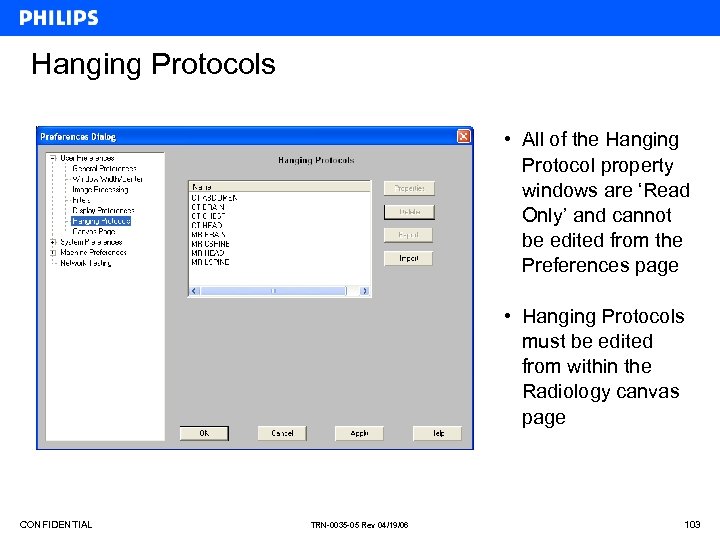 Hanging Protocols • All of the Hanging Protocol property windows are ‘Read Only’ and cannot be edited from the Preferences page • Hanging Protocols must be edited from within the Radiology canvas page CONFIDENTIAL TRN-0035 -05 Rev 04/19/06 103
 For assistance, please call customer support at 1 -877 -328 -2808 or 1 -877 -328 -2809 CONFIDENTIAL TRN-0035 -05 Rev 04/19/06 104
 CONFIDENTIAL TRN-0035 -05 Rev 04/19/06 105