 Скачать презентацию i Pad Basic Training Brought to You By
5e44c2a62caff9948d91fc9fcc1b5f7a.ppt
- Количество слайдов: 33




i. Pad Basic Training Brought to You By: Chad Hoffbeck Ag Services Everything you wanted to know about an i. Pad but were afraid to ask a 10 -year-old. Presented by: Jamie. Steffl jamiesteffl@gmail. com

Teacher & techie Blogger Business owner Married to a farmer
When I leave this Class I Will Be able to: • Manage Settings • Download apps: • I will download Dropbox, i. Books, & Twitter. • Clean Up Apps & Screens • Download & Share any content or file • Understand how to search for apps • Use the camera/video and store and send images from safari or the camera roll • Search for. . . and find any file/email/info on my i. Pad • Manage Email • Save an attachment or file to i. Books
Overview • About i. OS Devices • Device Basic Functions • Settings • Find My i. Pad/i. Phone • Apps: Native • Camera, Calendar, Notes, Maps, Safari, contacts, Reminders, Clock • i. Tunes and App Store • Safari & Browsing • Apps: Must Haves for Productivity • i. Books • Dropbox • Apps: Farm • Apps: Good To Have • Add Ons (additional items for i. Pad use)
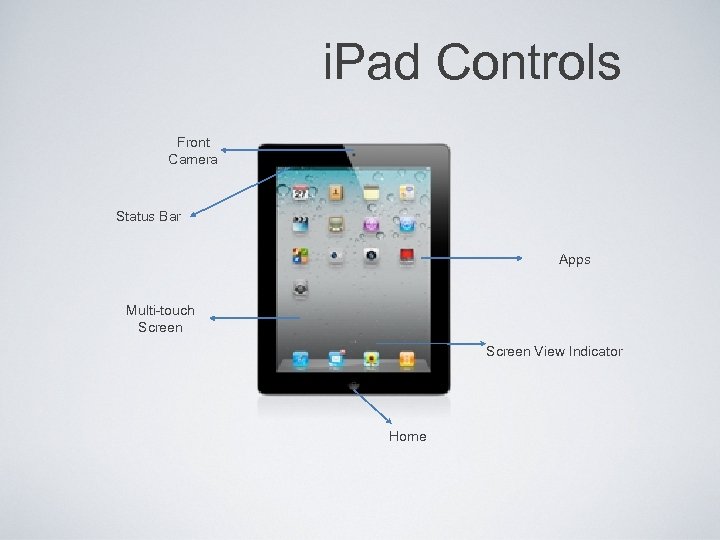
i. Pad Controls Front Camera Status Bar Apps Multi-touch Screen View Indicator Home
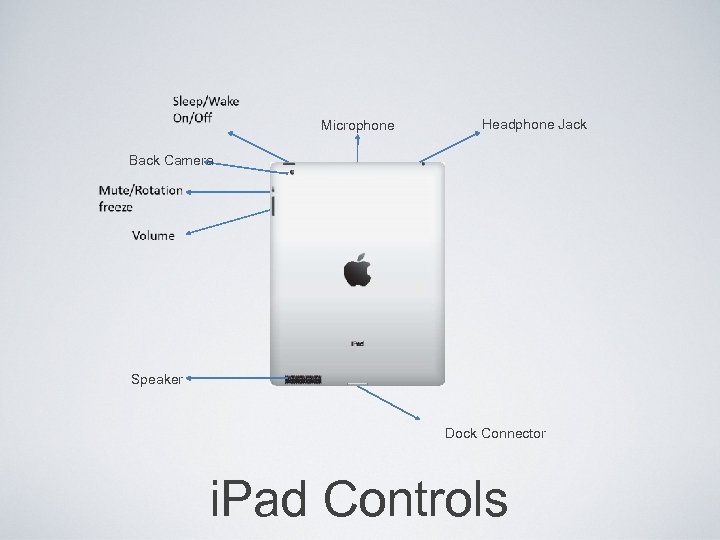
Microphone Headphone Jack Back Camera Speaker Dock Connector i. Pad Controls
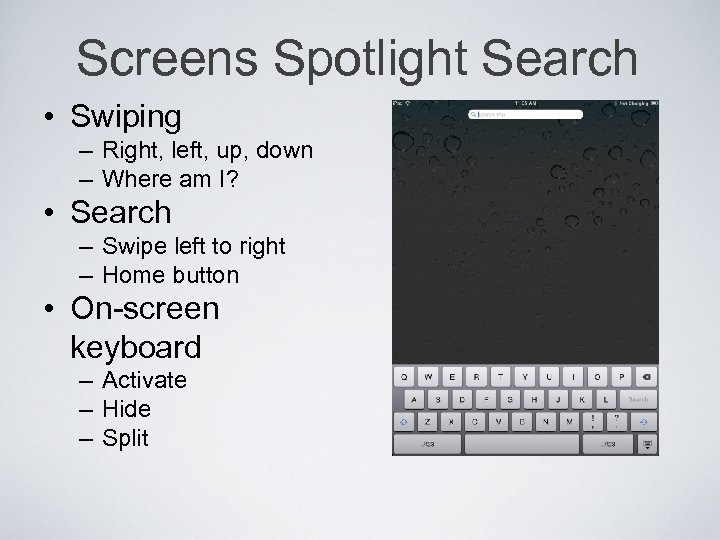
Screens Spotlight Search • Swiping – Right, left, up, down – Where am I? • Search – Swipe left to right – Home button • On-screen keyboard – Activate – Hide – Split
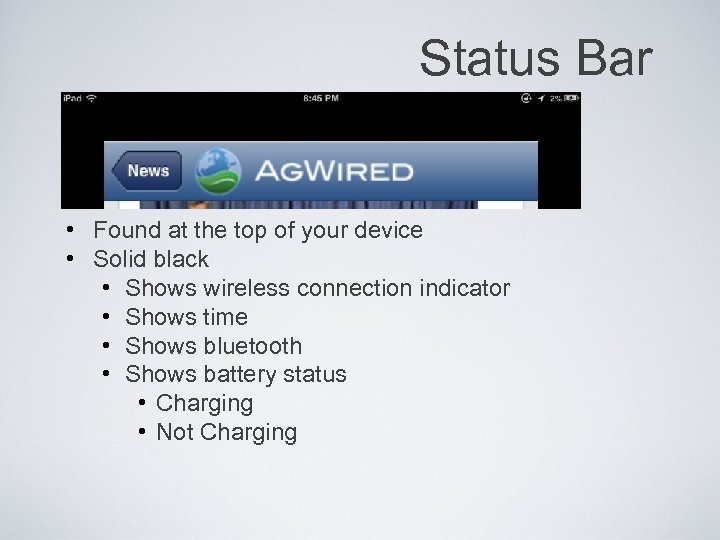
Status Bar • Found at the top of your device • Solid black • Shows wireless connection indicator • Shows time • Shows bluetooth • Shows battery status • Charging • Not Charging
Settings • Personalize your i. Pad • Set the date and time • Configure your network connection • Change other i. Pad settings • Control features in apps
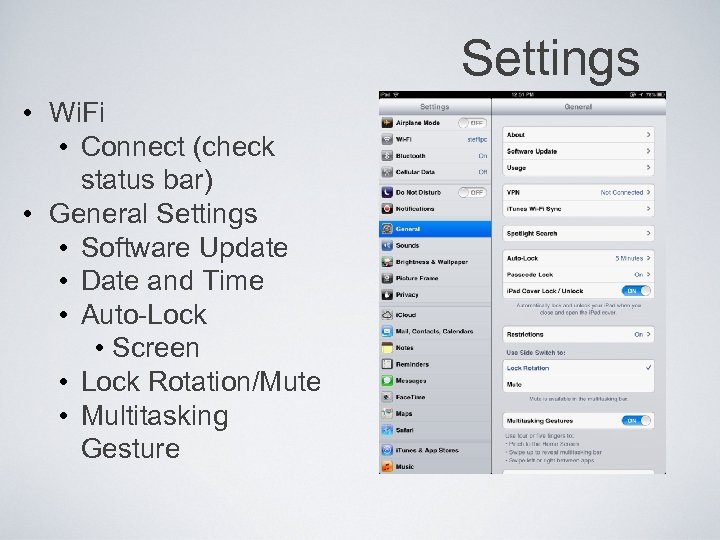
Settings • Wi. Fi • Connect (check status bar) • General Settings • Software Update • Date and Time • Auto-Lock • Screen • Lock Rotation/Mute • Multitasking Gesture
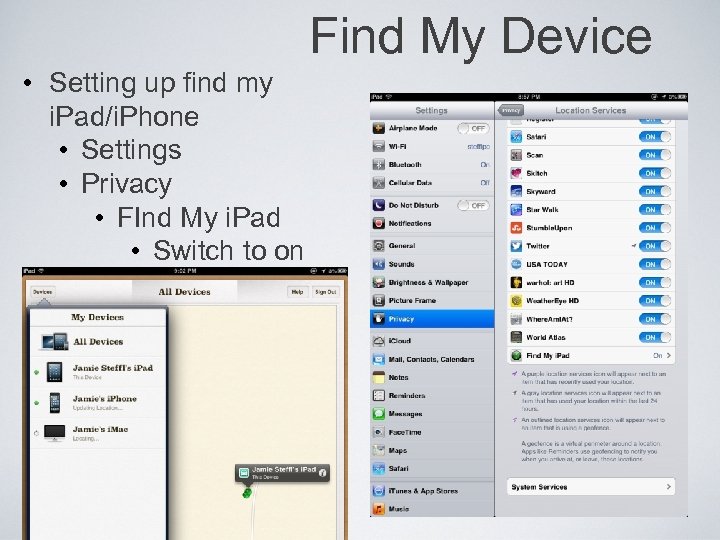
Find My Device • Setting up find my i. Pad/i. Phone • Settings • Privacy • FInd My i. Pad • Switch to on
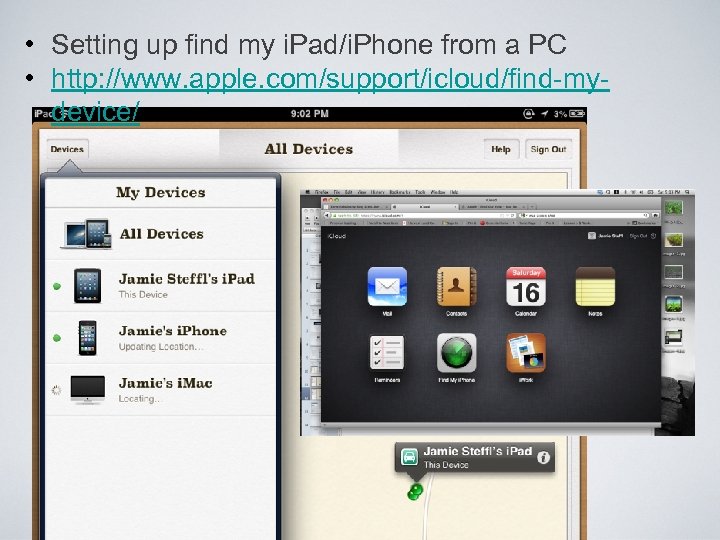
• Setting up find my i. Pad/i. Phone from a PC • http: //www. apple. com/support/icloud/find-mydevice/
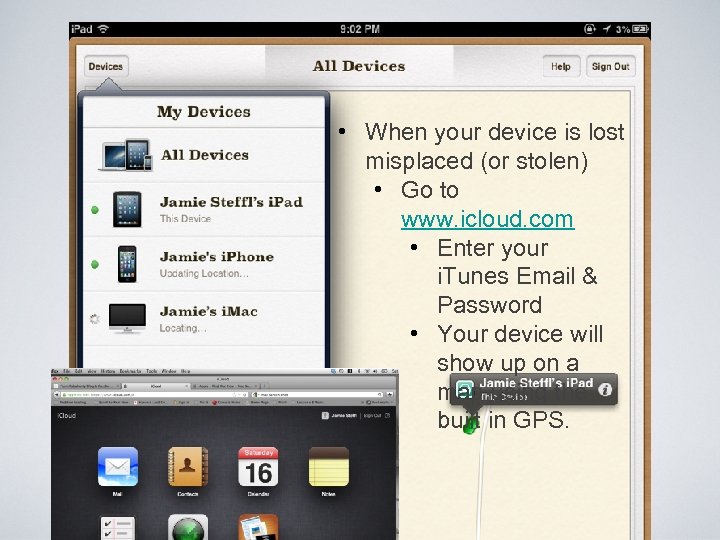
• When your device is lost misplaced (or stolen) • Go to www. icloud. com • Enter your i. Tunes Email & Password • Your device will show up on a map using the built in GPS.
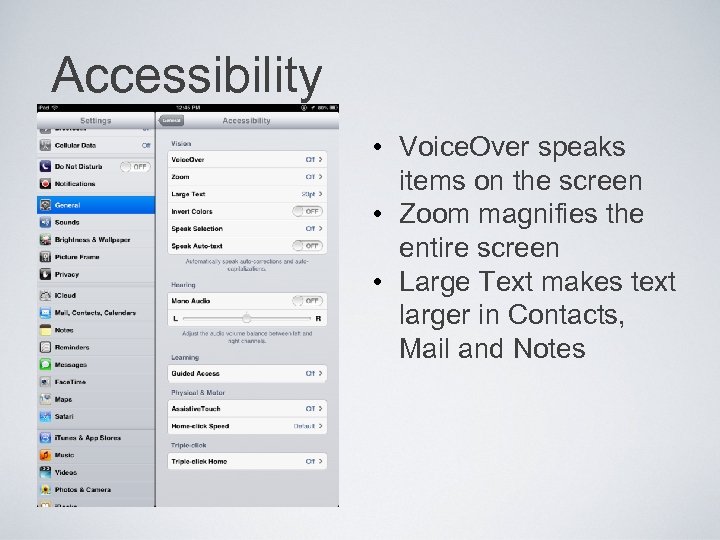
Accessibility • Voice. Over speaks items on the screen • Zoom magnifies the entire screen • Large Text makes text larger in Contacts, Mail and Notes
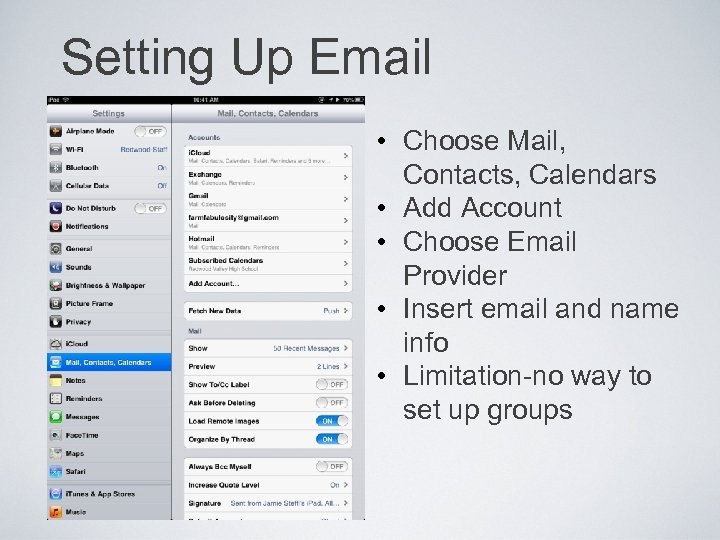
Setting Up Email • Choose Mail, Contacts, Calendars • Add Account • Choose Email Provider • Insert email and name info • Limitation-no way to set up groups
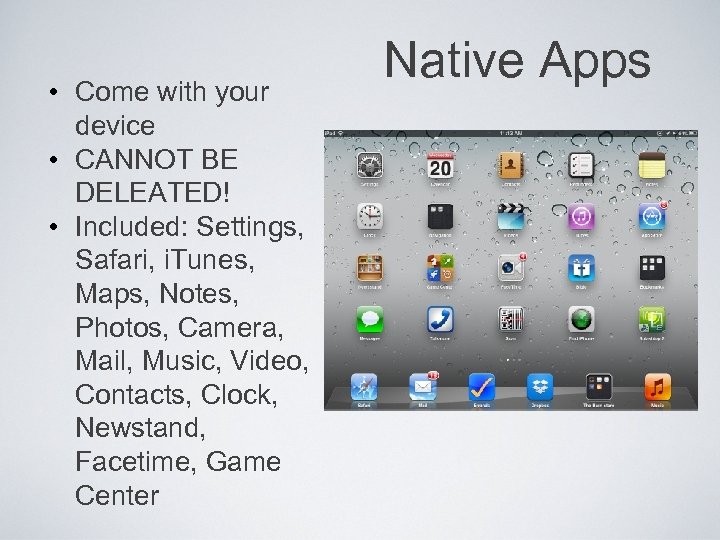
• Come with your device • CANNOT BE DELEATED! • Included: Settings, Safari, i. Tunes, Maps, Notes, Photos, Camera, Mail, Music, Video, Contacts, Clock, Newstand, Facetime, Game Center Native Apps
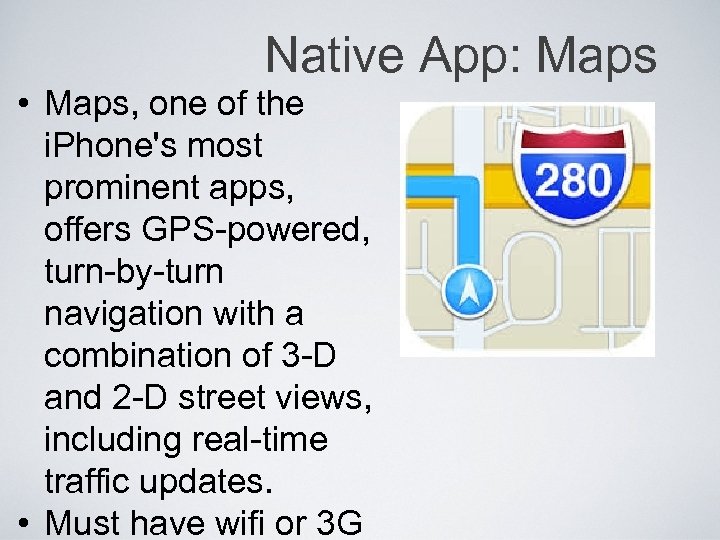
Native App: Maps • Maps, one of the i. Phone's most prominent apps, offers GPS-powered, turn-by-turn navigation with a combination of 3 -D and 2 -D street views, including real-time traffic updates. • Must have wifi or 3 G
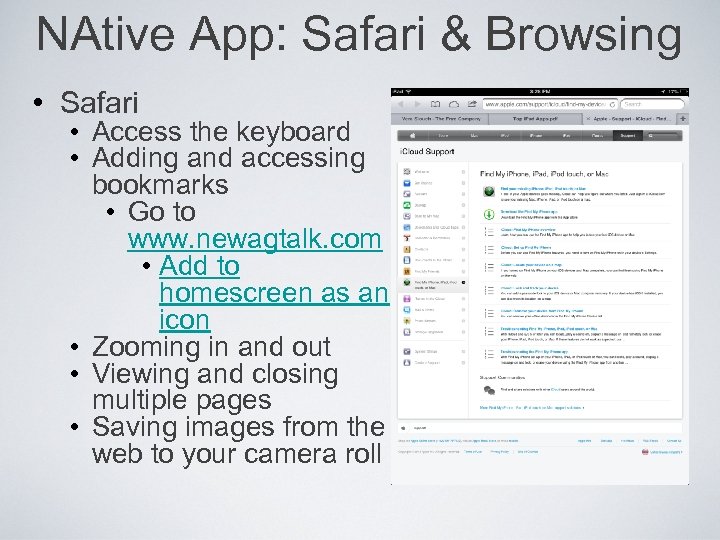
NAtive App: Safari & Browsing • Safari • Access the keyboard • Adding and accessing bookmarks • Go to www. newagtalk. com • Add to homescreen as an icon • Zooming in and out • Viewing and closing multiple pages • Saving images from the web to your camera roll
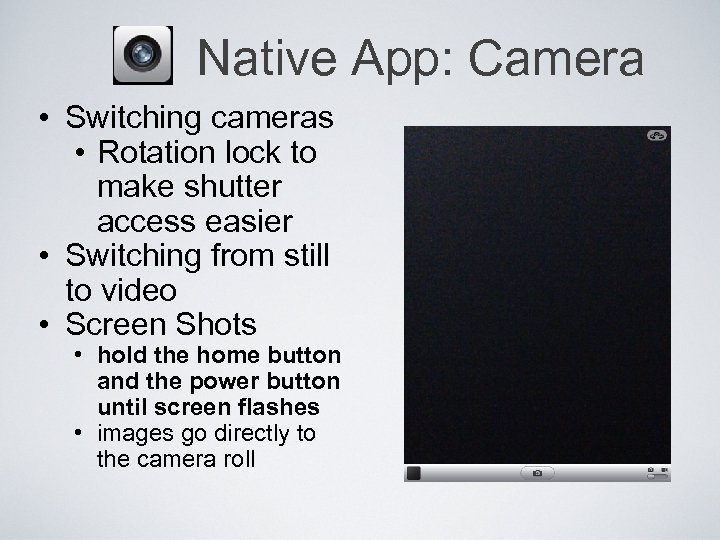
Native App: Camera • Switching cameras • Rotation lock to make shutter access easier • Switching from still to video • Screen Shots • hold the home button and the power button until screen flashes • images go directly to the camera roll
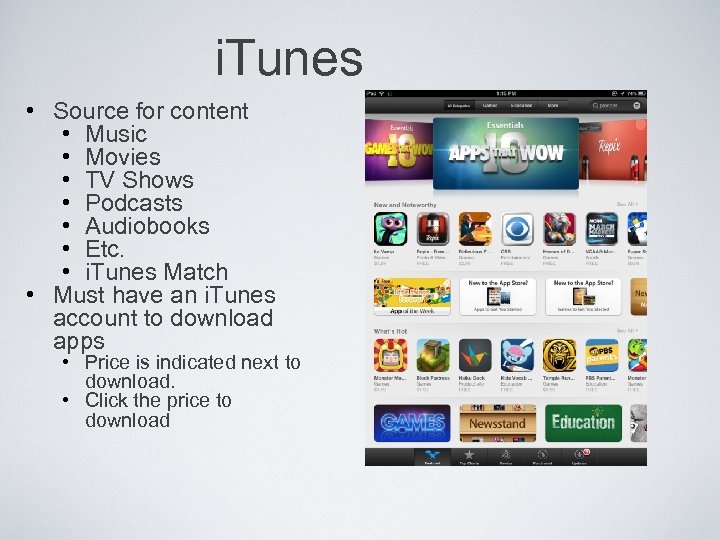
i. Tunes • Source for content • Music • Movies • TV Shows • Podcasts • Audiobooks • Etc. • i. Tunes Match • Must have an i. Tunes account to download apps • Price is indicated next to download. • Click the price to download
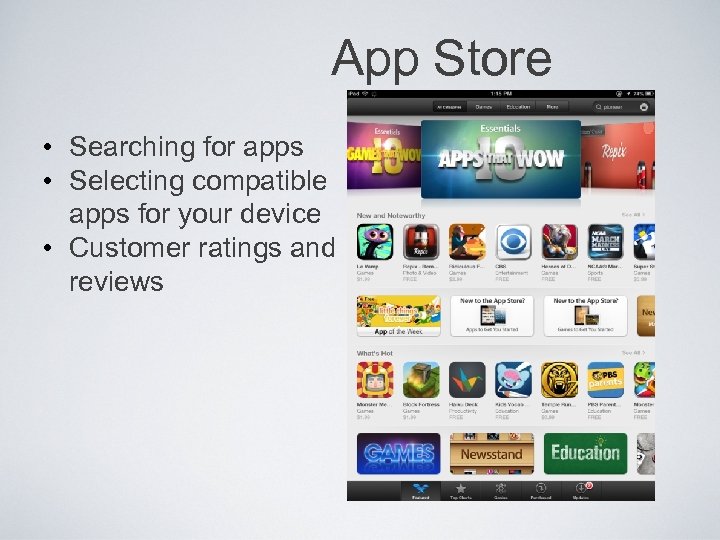
App Store • Searching for apps • Selecting compatible apps for your device • Customer ratings and reviews
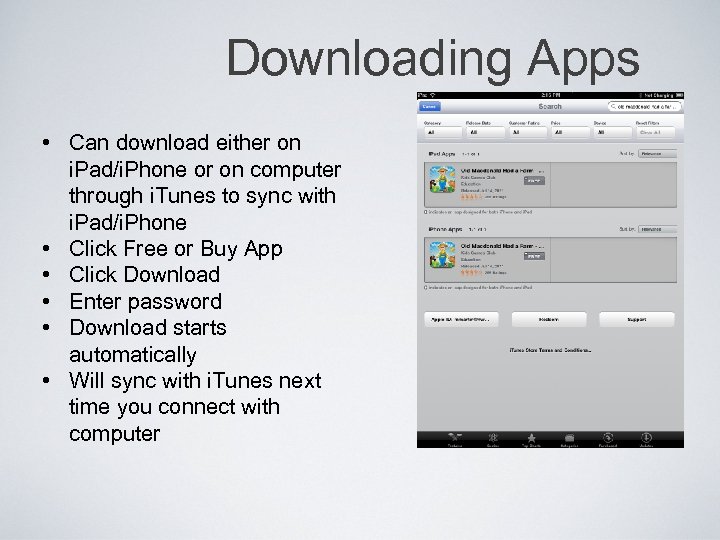
Downloading Apps • Can download either on i. Pad/i. Phone or on computer through i. Tunes to sync with i. Pad/i. Phone • Click Free or Buy App • Click Download • Enter password • Download starts automatically • Will sync with i. Tunes next time you connect with computer
App Management • • Moving Deleting Folders Viewing and closing open apps
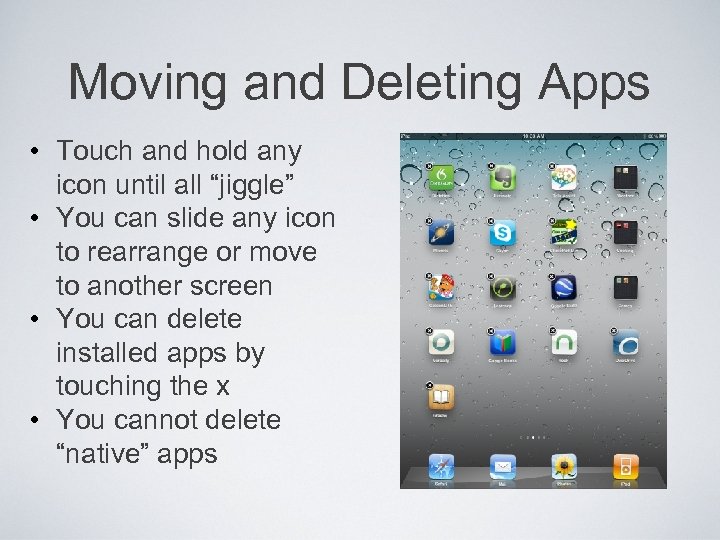
Moving and Deleting Apps • Touch and hold any icon until all “jiggle” • You can slide any icon to rearrange or move to another screen • You can delete installed apps by touching the x • You cannot delete “native” apps
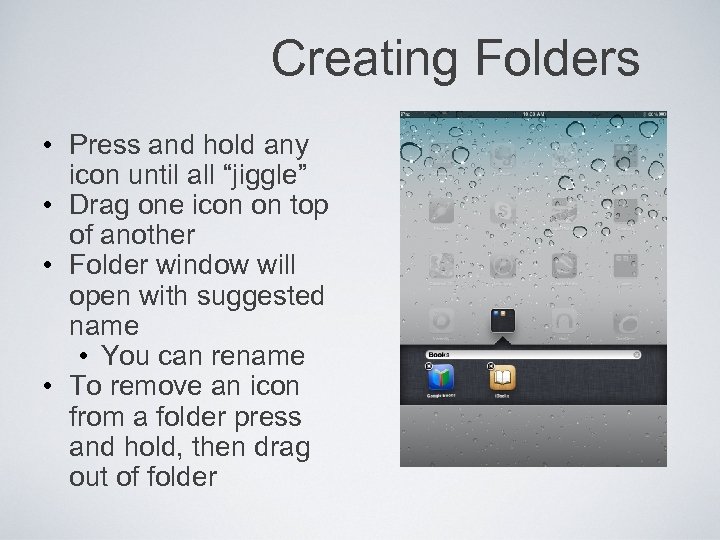
Creating Folders • Press and hold any icon until all “jiggle” • Drag one icon on top of another • Folder window will open with suggested name • You can rename • To remove an icon from a folder press and hold, then drag out of folder
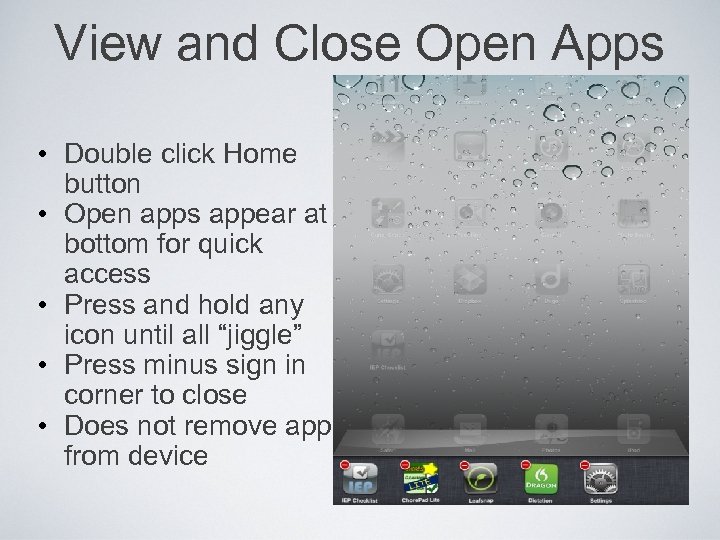
View and Close Open Apps • Double click Home button • Open apps appear at bottom for quick access • Press and hold any icon until all “jiggle” • Press minus sign in corner to close • Does not remove app from device
• • • Must Have Apps for Productivity i. Books Scan Find my i. Pad Dropbox • Skitch GDrive (googledocs) Evernote Page. Send/Show. Me Calculator. Pro Image. To. Text (i. Phone) Notability Recorder. Plus. HD Dragon. Dictation
i. Books • A library you CREATE • Stores reading material for reference • Manuals, parts, etc. . • Any file that is attached to something email, download can be sent and stored in i. Books.
Drop. Box • File Sharing • Among devices & desktops • Among colleagues/ clients/etc.
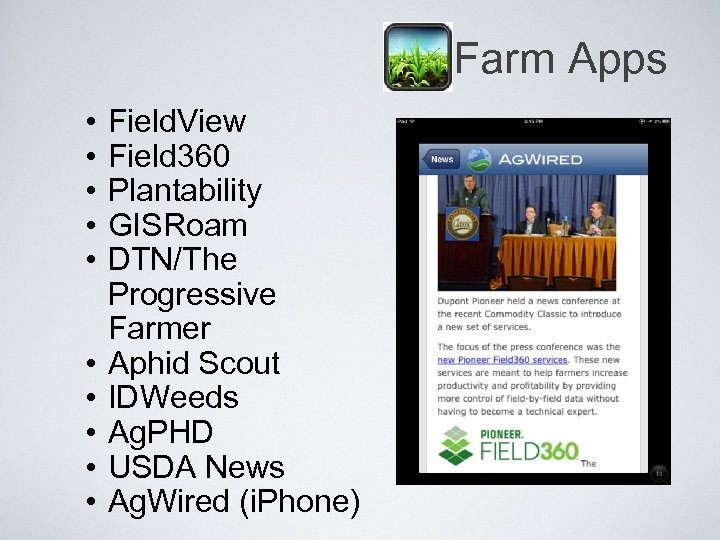
Farm Apps • • • Field. View Field 360 Plantability GISRoam DTN/The Progressive Farmer Aphid Scout IDWeeds Ag. PHD USDA News Ag. Wired (i. Phone)

• Facebook • Twitter follow: • @pioneermn • @farmfabulosi ty • @bigyielder • (#agchat) • Flashlight • Clinometer • Units • First. Aid • Flip. Board • Craigslist Good To Have Apps Why Twitter? http: //www. youtube. com/wa tch? v=4 AN 4_N 5 N 52 U&feat ure=share&list=PL 5 BDD 80 6 D 28 E 9 A 9 E 7
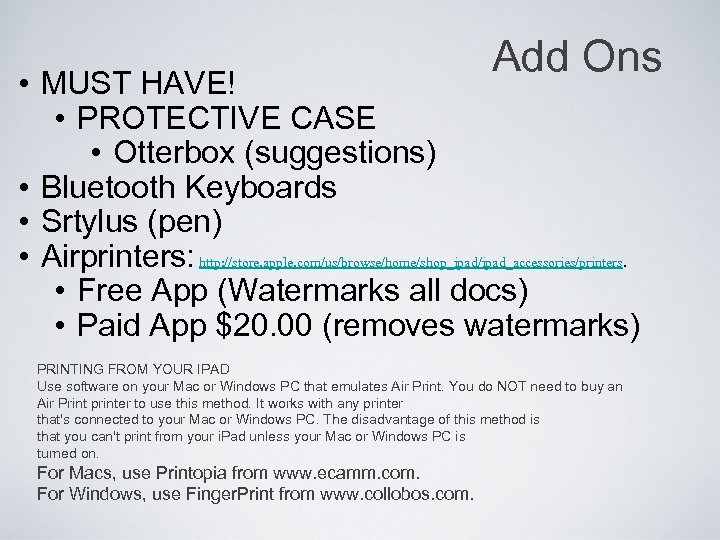
Add Ons • MUST HAVE! • PROTECTIVE CASE • Otterbox (suggestions) • Bluetooth Keyboards • Srtylus (pen) • Airprinters: http: //store. apple. com/us/browse/home/shop_ipad/ipad_accessories/printers. • Free App (Watermarks all docs) • Paid App $20. 00 (removes watermarks) PRINTING FROM YOUR IPAD Use software on your Mac or Windows PC that emulates Air Print. You do NOT need to buy an Air Print printer to use this method. It works with any printer that's connected to your Mac or Windows PC. The disadvantage of this method is that you can't print from your i. Pad unless your Mac or Windows PC is turned on. For Macs, use Printopia from www. ecamm. com. For Windows, use Finger. Print from www. collobos. com.

Presented by: Jamie. Steffl Ph: 320 -491 -3702 twitter: farmfabulosity website: farmfabulsoity. com jamiesteffl@gmail. com Resources • • • http: //apple. com/education/resources/ http: //apple. com/education/ipad http: //dmourlam. wordpress. com/2011/08/18/ipad-app-of-the-week-add-to-homescreen/ List of Apps For Farming: http: //bit. ly/16 Ht. NAN 100 Top Apps From PC Mag:
Скачать презентацию i Pad Basic Training Brought to You By
5e44c2a62caff9948d91fc9fcc1b5f7a.ppt