


 Скачать презентацию Human-Shape Interaction modalities CS 4451 Prof Jarek Rossignac
68c2544f5120346ceacbdb7eea95087e.ppt
- Количество слайдов: 11
 Human-Shape Interaction modalities CS 4451 Prof. Jarek Rossignac College of Computing Georgia Institute of Technology 3/18/2018 Jarek Rossignac, Co. C, GT, ©Copyright 2003 Transformations, slide 1
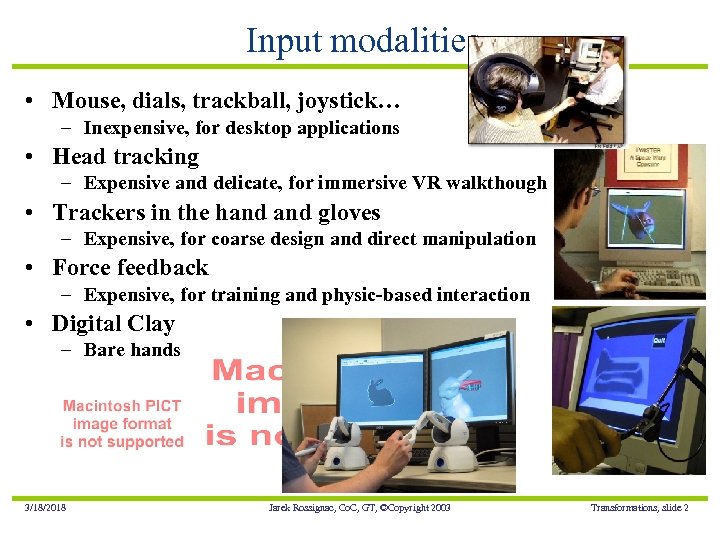 Input modalities • Mouse, dials, trackball, joystick… – Inexpensive, for desktop applications • Head tracking – Expensive and delicate, for immersive VR walkthough • Trackers in the hand gloves – Expensive, for coarse design and direct manipulation • Force feedback – Expensive, for training and physic-based interaction • Digital Clay – Bare hands 3/18/2018 Jarek Rossignac, Co. C, GT, ©Copyright 2003 Transformations, slide 2
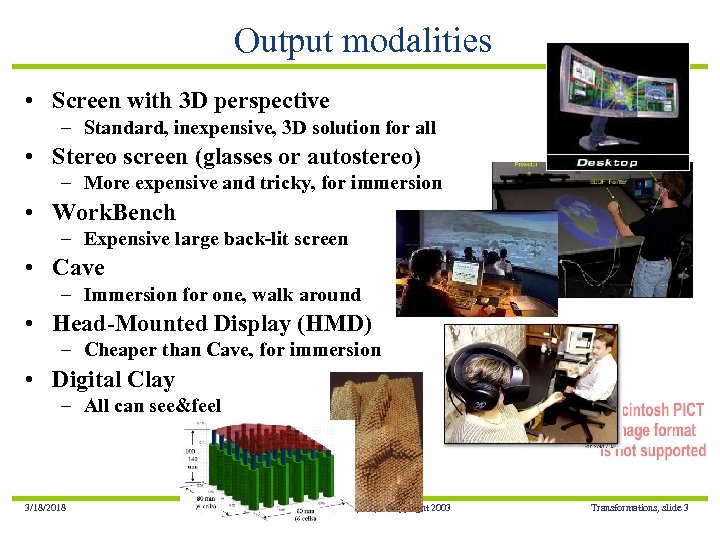 Output modalities • Screen with 3 D perspective – Standard, inexpensive, 3 D solution for all • Stereo screen (glasses or autostereo) – More expensive and tricky, for immersion • Work. Bench – Expensive large back-lit screen • Cave – Immersion for one, walk around • Head-Mounted Display (HMD) – Cheaper than Cave, for immersion • Digital Clay – All can see&feel 3/18/2018 Jarek Rossignac, Co. C, GT, ©Copyright 2003 Transformations, slide 3
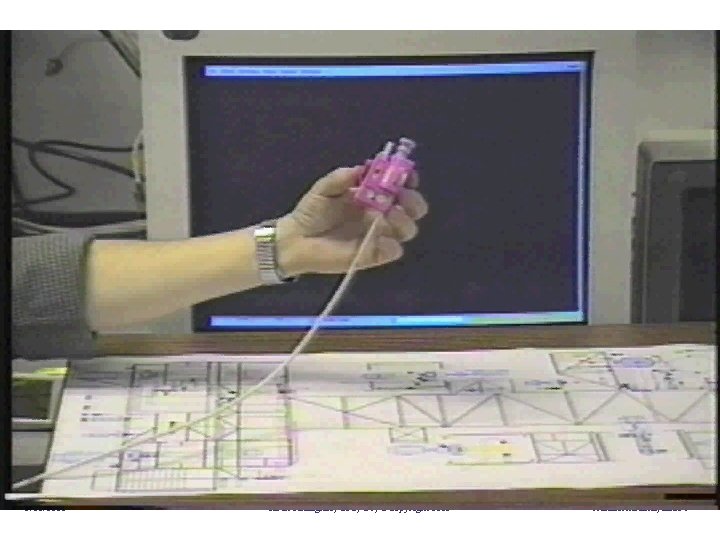
 View manipulation • Point/look where you want to go (walkthrough, flythrough) – Use joystick or mouse equivalent (forward/rotation velocities) – In HMD, set forward direction by turning/tilting head, set velocity by moving hand (or leaning body? ) • Inspect selected point – Put it at the center of the screen and rotate around it or approach it • Follow geometry – Maintain constant distance and angle to surface – Follow central axis of street, corridor, or artery • Move camera in small scale model – Jarek’s camera (Best Product Award) • Links traditional 2 D blueprints with easy to use 3 D view (point, annotate) • Trivial to learn. Leads immediately to very effective navigation • Others can see what you are looking at (you never get lost) 3/18/2018 Jarek Rossignac, Co. C, GT, ©Copyright 2003 Transformations, slide 4
 3/18/2018 Jarek Rossignac, Co. C, GT, ©Copyright 2003 Transformations, slide 5
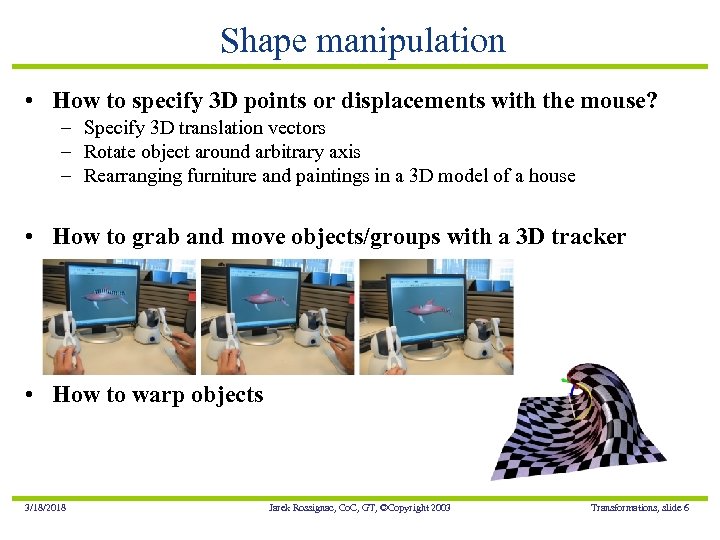 Shape manipulation • How to specify 3 D points or displacements with the mouse? – Specify 3 D translation vectors – Rotate object around arbitrary axis – Rearranging furniture and paintings in a 3 D model of a house • How to grab and move objects/groups with a 3 D tracker • How to warp objects 3/18/2018 Jarek Rossignac, Co. C, GT, ©Copyright 2003 Transformations, slide 6
 Questions • List 3 input modalities and, for each one, suggest an application or environment where it is most effective. • List 3 output modalities and, for each one, suggest an application that would benefit from it. • Describe an easy to use and effective set-up for view maniplation and discuss its advantages/drawbacks 3/18/2018 Jarek Rossignac, Co. C, GT, ©Copyright 2003 Transformations, slide 7
 Implementing dragging
![Pick closest point with mouse pt [] PP = new pt[4]; // declare an](https://present5.com/presentation/68c2544f5120346ceacbdb7eea95087e/image-9.jpg "Pick closest point with mouse pt [] PP = new pt[4]; // declare an") Pick closest point with mouse pt [] PP = new pt[4]; // declare an array of 4 points int p=0; // index to the selected point being dragged void mouse. Pressed() { if (mouse(). is. In. Window()) { if (!key. Pressed) { p=0; float d=PP[0]. dis. To. Mouse(); for (int i=1; i
Pick closest point with mouse pt [] PP = new pt[4]; // declare an array of 4 points int p=0; // index to the selected point being dragged void mouse. Pressed() { if (mouse(). is. In. Window()) { if (!key. Pressed) { p=0; float d=PP[0]. dis. To. Mouse(); for (int i=1; i
![Drag picked point with mouse pt [] PP = new pt[4]; // declare an](https://present5.com/presentation/68c2544f5120346ceacbdb7eea95087e/image-10.jpg "Drag picked point with mouse pt [] PP = new pt[4]; // declare an") Drag picked point with mouse pt [] PP = new pt[4]; // declare an array of 4 points int p=0; // index to the selected point being dragged void draw() { if ((mouse. Pressed)&& (!key. Pressed)&& mouse. Is. In. Window()) PP[p]. move. With. Mouse(); boolean mouse. Is. In. Window() {return( ((mouse. X>0)&&(mouse. X
Drag picked point with mouse pt [] PP = new pt[4]; // declare an array of 4 points int p=0; // index to the selected point being dragged void draw() { if ((mouse. Pressed)&& (!key. Pressed)&& mouse. Is. In. Window()) PP[p]. move. With. Mouse(); boolean mouse. Is. In. Window() {return( ((mouse. X>0)&&(mouse. X
![Rubber-banding pt [] PP = new pt[4]; int p=0; // declare an array of](https://present5.com/presentation/68c2544f5120346ceacbdb7eea95087e/image-11.jpg "Rubber-banding pt [] PP = new pt[4]; int p=0; // declare an array of") Rubber-banding pt [] PP = new pt[4]; int p=0; // declare an array of 4 points // index to the selected point being dragged void draw() { background(121); if ((mouse. Pressed)&&(!key. Pressed)&&mouse. Is. In. Window()) PP[p]. move. With. Mouse(); stroke(blue); begin. Shape(); for (int i=0; i
Rubber-banding pt [] PP = new pt[4]; int p=0; // declare an array of 4 points // index to the selected point being dragged void draw() { background(121); if ((mouse. Pressed)&&(!key. Pressed)&&mouse. Is. In. Window()) PP[p]. move. With. Mouse(); stroke(blue); begin. Shape(); for (int i=0; i