


 Скачать презентацию HTML Concepts and Techniques Fifth Edition Chapter 4
a10d64f249cc2b57360f35174380661a.ppt
- Количество слайдов: 61
 HTML Concepts and Techniques Fifth Edition Chapter 4 Creating Tables in a Web Site
 Chapter Objectives • Define table elements • Describe the steps used to plan, design, and code a table • Create a borderless table to position images • Create a horizontal menu bar with text links Chapter 4: Creating Tables in a Web Site 2
 Chapter Objectives • • Copy and paste HTML code to a new file Create a borderless table to organize text Create a table with borders and insert text Change the horizontal alignment of text Chapter 4: Creating Tables in a Web Site 3
 Chapter Objectives • Add background color to rows and cells • Alter the spacing between and within cells using the cellspacing and cellpadding attributes • Insert a caption below a table • Create headings that span rows and columns using the rowspan and colspan attributes Chapter 4: Creating Tables in a Web Site 4
 Starting Notepad • Click the Start button on the Windows Vista taskbar to display the Start menu • Click All Programs at the bottom of the left pane on the Start menu to display the All Programs list • Click Accessories in the All Programs list • Click Notepad in the Accessories list to display the Notepad window • If the Notepad window is not maximized, click the Maximize button on the Notepad title bar to maximize it • Click Format on the menu bar. • If the Word Wrap command does not have a check mark next to it, click Word Wrap Chapter 4: Creating Tables in a Web Site 5
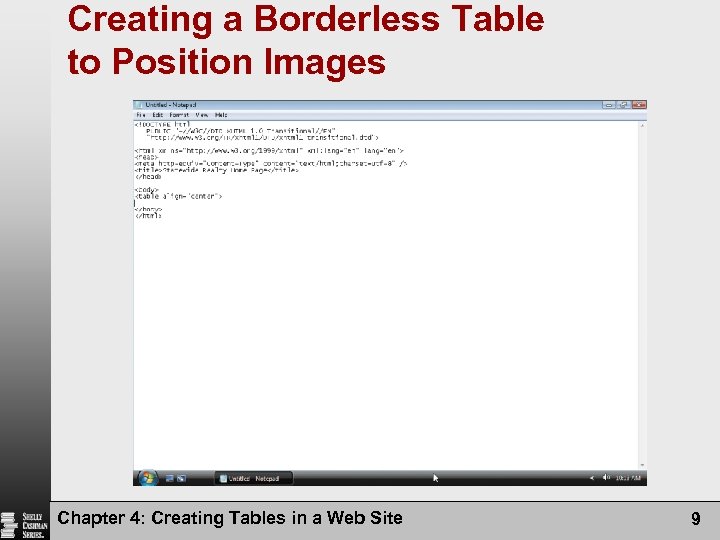
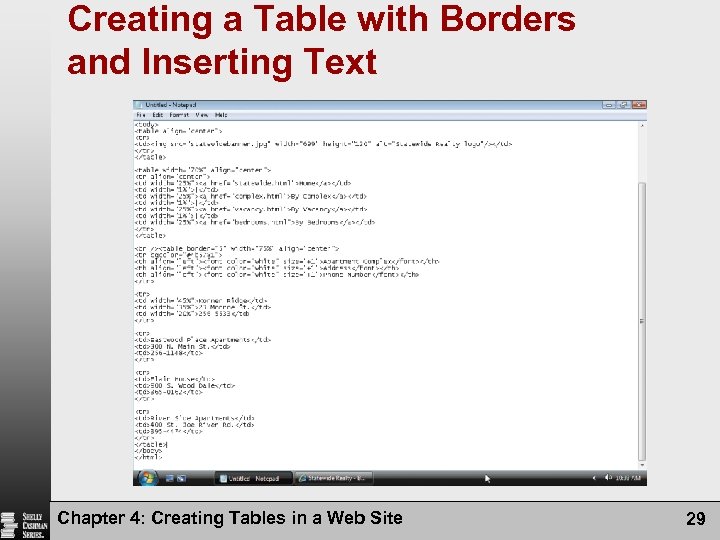
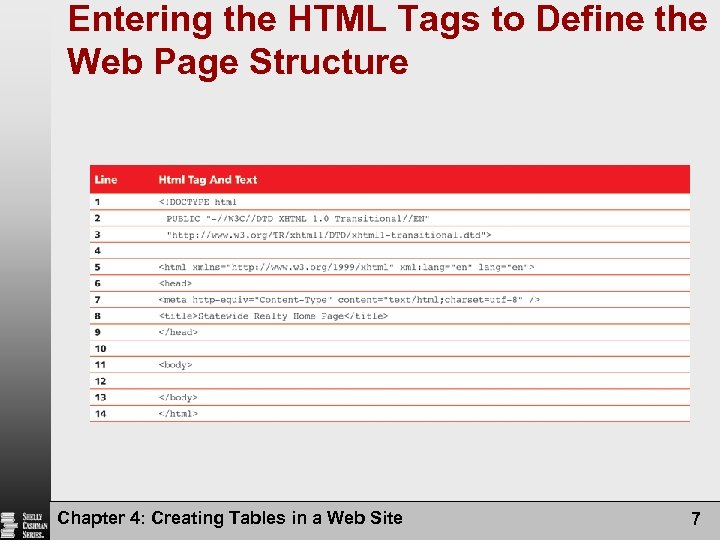
 Entering the HTML Tags to Define the Web Page Structure • Enter the HTML code shown in Table 4– 3. Press ENTER at the end of each line. If you make an error as you are typing, use the BACKSPACE key to delete all the characters back to and including the incorrect characters, then continue typing • Compare what you typed to Figure 4– 12. If you notice errors, use your mouse pointer or ARROW keys to move the insertion point to the right of each error and use the BACKSPACE key to correct the error • Position the insertion point on the blank line between the
 Entering the HTML Tags to Define the Web Page Structure Chapter 4: Creating Tables in a Web Site 7
 Creating a Borderless Table to Position Images • If necessary, click line 12 to position the insertion point • Type
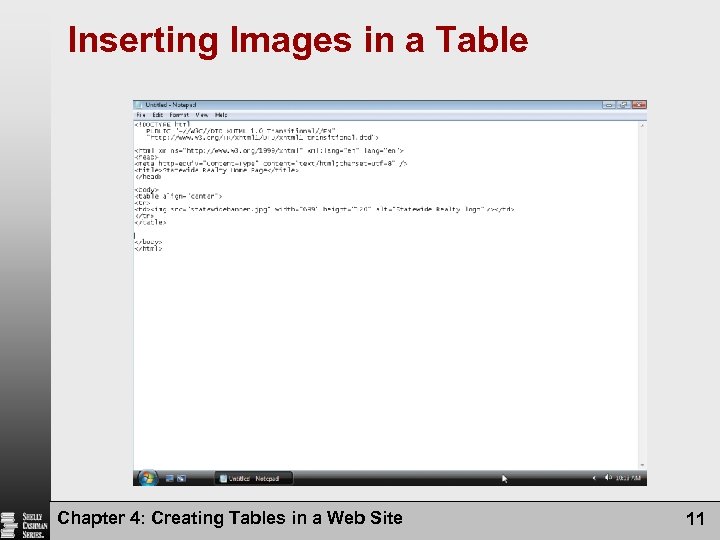 Inserting Images in a Table Chapter 4: Creating Tables in a Web Site 11
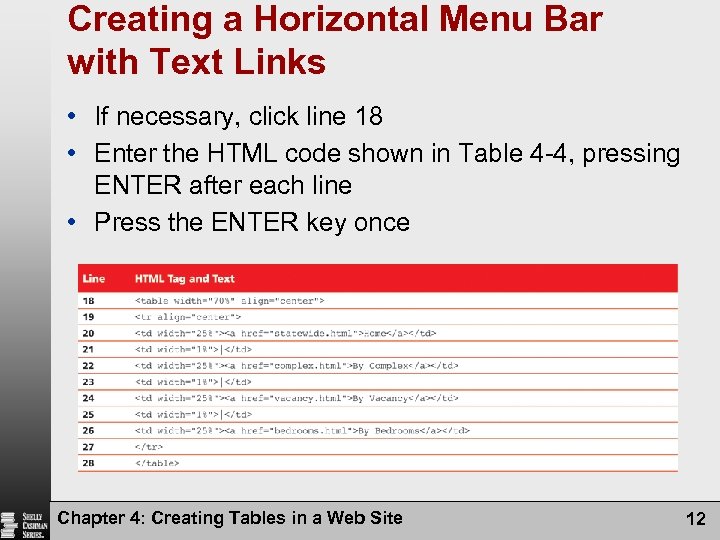 Creating a Horizontal Menu Bar with Text Links • If necessary, click line 18 • Enter the HTML code shown in Table 4 -4, pressing ENTER after each line • Press the ENTER key once Chapter 4: Creating Tables in a Web Site 12
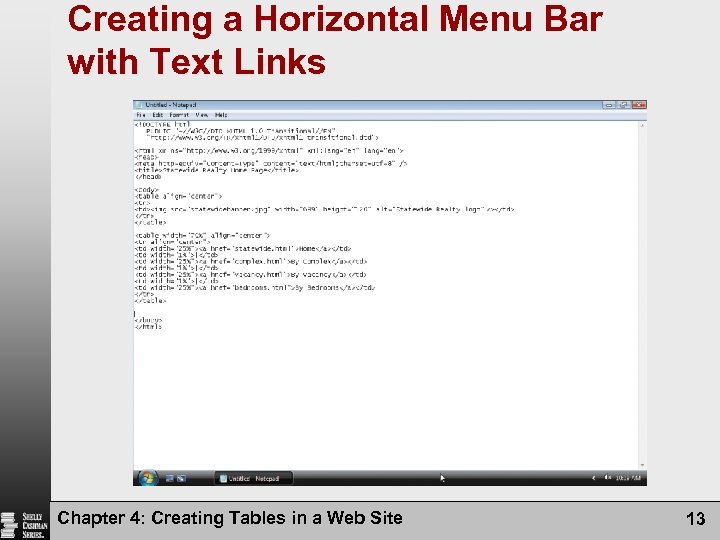 Creating a Horizontal Menu Bar with Text Links Chapter 4: Creating Tables in a Web Site 13
 Adding Text to a Table Cell • If necessary, click line 30 • Enter the HTML code as shown in Table 4 -5 to specify the table width and add text to the table, pressing the ENTER key after each line Chapter 4: Creating Tables in a Web Site 14
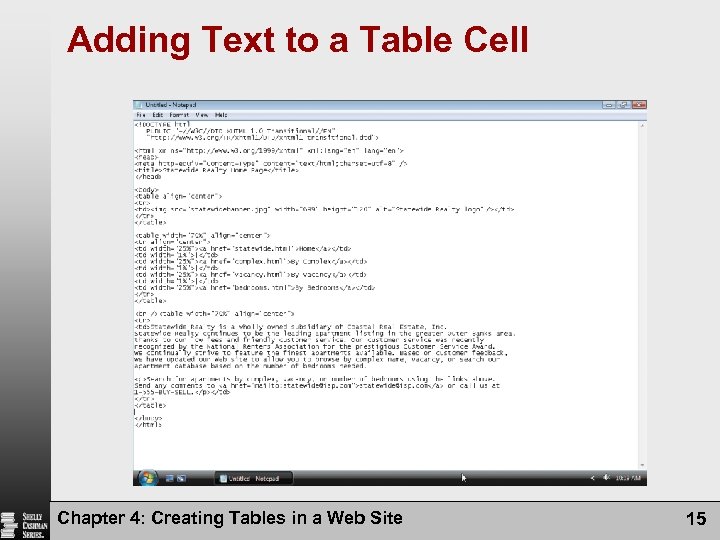 Adding Text to a Table Cell Chapter 4: Creating Tables in a Web Site 15
 Saving and Printing the HTML File • With a USB flash drive connected to one of the computer’s USB ports, click File on the Notepad menu bar and then click Save As. Type statewide. html in the File name text box (do not press ENTER) • Navigate to the g: Chapter 04 Chapter. Files folder, or the folder where you store your chapter files • Click the Save button in the Save As dialog box to save the file with the name statewide. html • Click File on the menu bar, click Print on the File menu then click the Print button in the Print dialog box Chapter 4: Creating Tables in a Web Site 16
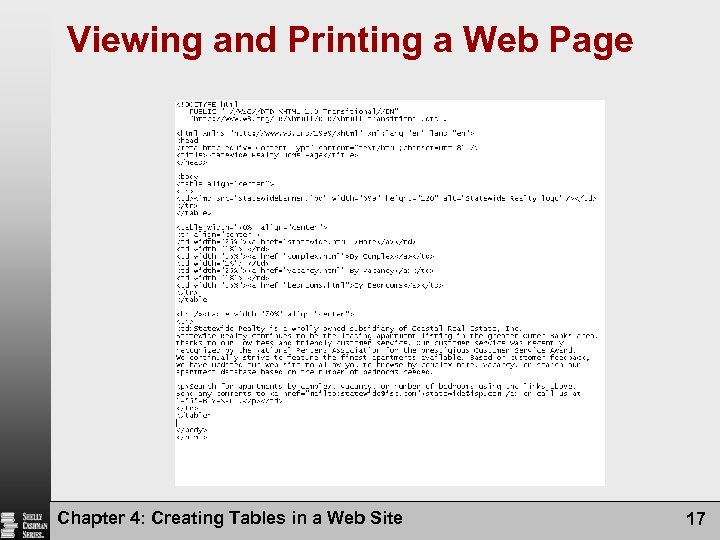 Viewing and Printing a Web Page Chapter 4: Creating Tables in a Web Site 17
 Validating a Web Page • Open Internet Explorer and navigate to the Web site validator. w 3. org • Click the Validate by File Upload tab • Click the Browse button • Locate the statewide. html file on your storage device and click the file name • Click the Open button in the Choose file dialog box and the file name will be inserted into the File box • Click the Check button Chapter 4: Creating Tables in a Web Site 18
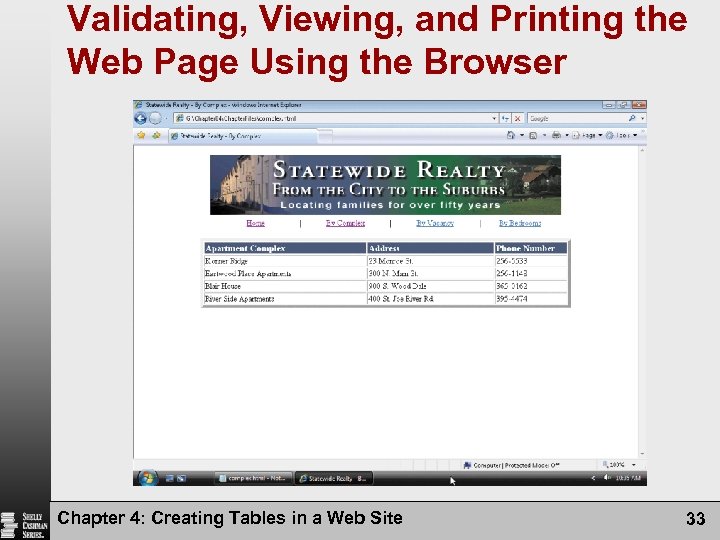
 Viewing a Web Page • In Internet Explorer, click the Address bar to select the URL on the Address bar • Type g: Chapter 04Chapter. Files statewide. html on the Address bar of your browser and press ENTER to display the Web page Chapter 4: Creating Tables in a Web Site 19
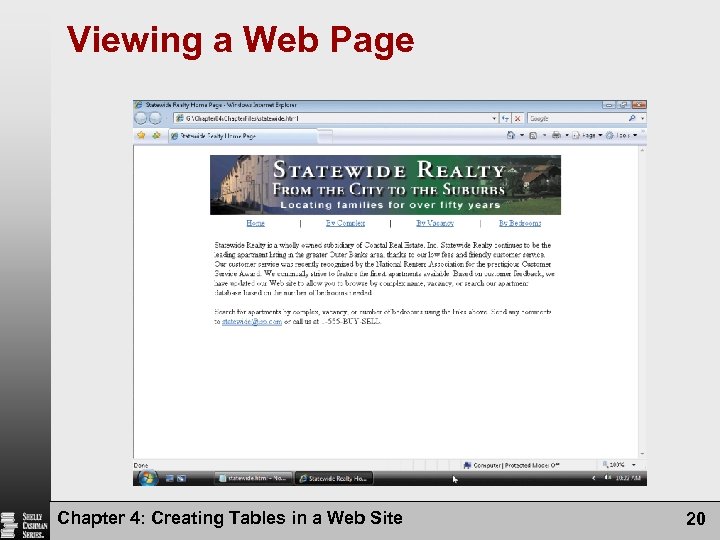 Viewing a Web Page Chapter 4: Creating Tables in a Web Site 20
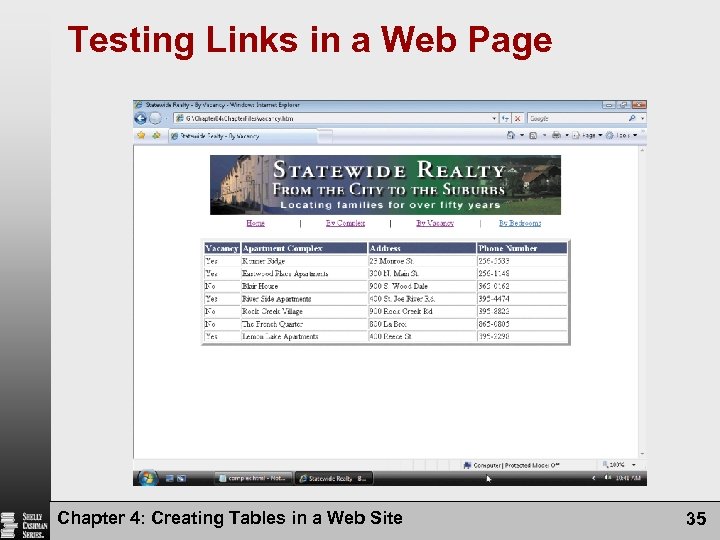
 Testing Links on a Web Page • With the home page displayed in the browser, point to the e-mail link, statewide@isp. com and click the link to open the default e-mail program with the address statewide@isp. com in the To: text box • Click the Close button in the New Message window. If a dialog box asks if you want to save changes, click No • With the USB flash drive in drive G, click the By Vacancy link and the By Bedrooms link to test these links to the additional Web pages provided on the Data Disk for Students (vacancy. html and bedrooms. html). Test the link to the home page from each of those Web pages Chapter 4: Creating Tables in a Web Site 21
 Printing a Web Page • Return to the Statewide Realty home page • Click the Print icon on the Command bar to print the Web page Chapter 4: Creating Tables in a Web Site 22
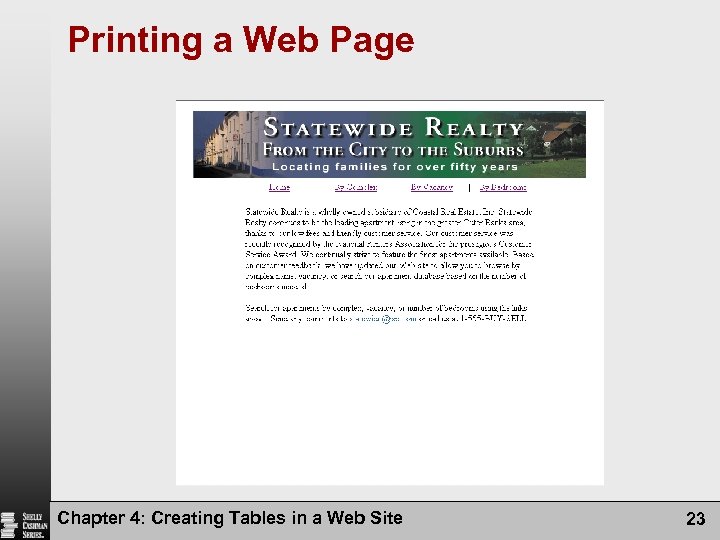 Printing a Web Page Chapter 4: Creating Tables in a Web Site 23
 Copying and Pasting HTML Code to a New File • Click the statewide – Notepad button on the taskbar • Click immediately to the left of the < in the tag on line 28 to highlight lines 1 through 28 • Press CTRL+C to copy the selected lines to the Clipboard • Click File on the Notepad menu bar and then click New • Press CTRL+V to paste the contents from the Clipboard into a new file Chapter 4: Creating Tables in a Web Site 24
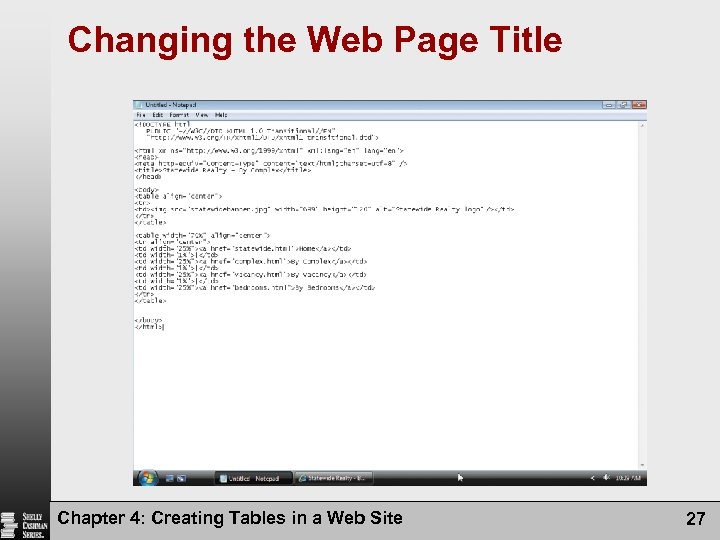
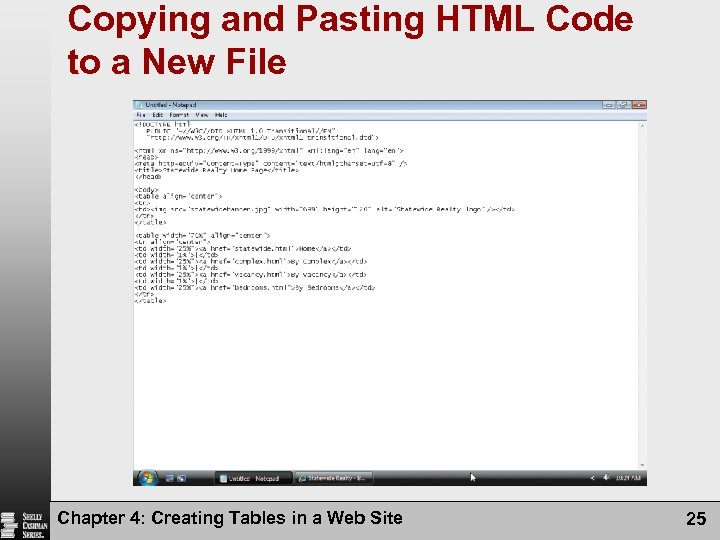 Copying and Pasting HTML Code to a New File Chapter 4: Creating Tables in a Web Site 25
 Changing the Web Page Title • Highlight the words Home Page between the