


 Скачать презентацию HRMS End User Training HRMS Payroll and Reports
99b549c73b12bc5cb1df516cbb4e1396.ppt
- Количество слайдов: 176
 HRMS End User Training HRMS Payroll and Reports Training Guide X
 Classroom Introductions Welcome to Payroll and Reports • Security • Building Evacuations • Name • Restrooms • Participant • Lounge Role • Agency • Messages • Cell Phones • Goal(s) for class • Computers HRMS Payroll and Reports 2
 Course Objectives Upon completion of this course, you will be able to: n Explain the big picture (overview) of HRMS Payroll and Reports. n Explain the new terms and concepts associated with HRMS Payroll and Reports. n Complete the Pre-Payroll Analysis, including simulations and reports. n Discuss the release of payroll and how agencies are involved in correcting reports. n Run and view payroll reports. n Complete extended payroll scenarios. 3
 Training Materials The following training materials and tools are used: n HRMS Training Guide: Designed to introduce you to HRMS navigation terms and concepts and to provide the necessary information to complete the activities and exercises throughout the course. n HRMS Activity Guide: Designed to provide you with activities and exercises that help solidify your understanding of concepts learned in the course and also provide you with an opportunity to use HRMS. 4
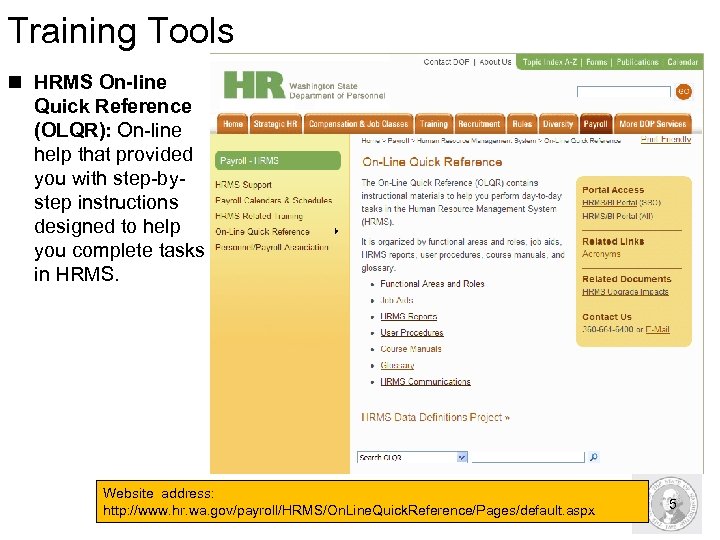 Training Tools n HRMS On-line Quick Reference (OLQR): On-line help that provided you with step-bystep instructions designed to help you complete tasks in HRMS. Website address: http: //www. hr. wa. gov/payroll/HRMS/On. Line. Quick. Reference/Pages/default. aspx 5
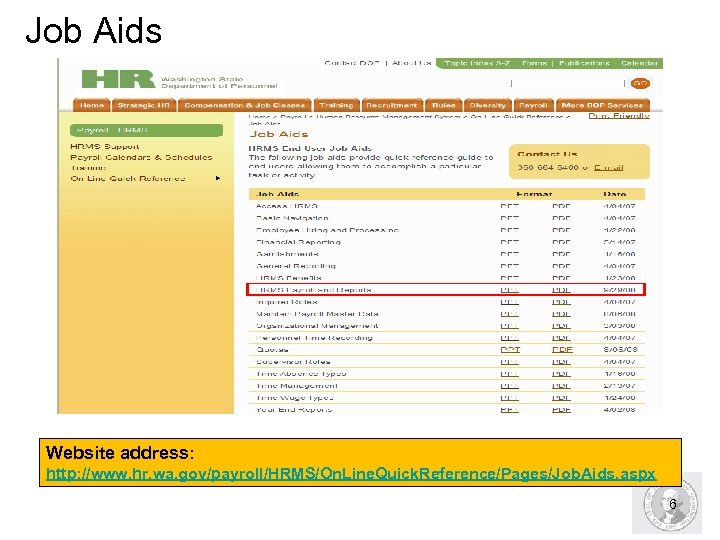 Job Aids Website address: http: //www. hr. wa. gov/payroll/HRMS/On. Line. Quick. Reference/Pages/Job. Aids. aspx 6
 HRMS Payroll and Reports Overview 7
 HRMS Payroll and Reports Overview Upon completion of this section, you will be able to: n Understand the concept of payroll processing in HRMS. n Know and understand the functions you will perform as a Payroll Analyst in HRMS. n Understand where payroll processing fits into HRMS. n Explain the five areas of payroll processing. n Understand key terms and concepts of payroll processing. n Understand roles as they relate to the course. 8
 New Terms n Payroll Processing: Process which runs payroll for the State. n Payroll Simulations: Transaction that is run to check payroll results prior to the DES payroll run. n Master data: This is essential personnel information that includes personal and organizational data which is unique to each employee. n Payroll: Calculation of pay for an employee for a pay period. n Payroll Area: Grouping in HRMS that divides employees into areas to run payroll. n Regular Payroll: Period during which payroll is scheduled to run according to the payroll calendar. 9
 Agency Roles n For payroll processing, four primary roles work together to complete the payroll tasks in HRMS. – Payroll Analyst: Responsible for producing and reviewing payroll reports. – Payroll Processor: Creates and maintains an employee’s payroll master data in HRMS. – Payroll Inquirer: Views an employee’s master data after it is entered by the Payroll Processor to verify the information entered is complete and accurate. – Payroll Supervisor: Provides oversight to all three of the payroll processing rolls. Has read and reporting access to most payroll information. Must also be mapped to the Payroll Processor or Payroll Analyst roles in order to perform the specific tasks of the roles 10
 Department of Enterprise Services n Department of Enterprise Services (DES) is vital to the centralized payroll process n During the payroll process DES is responsible for: – – Releasing and starting the payroll run (executing payroll). Distributing error reports to agencies. Correcting technical errors. Processing payroll postings and third party remittance. 11
 Office of the State Treasurer n The Office of the State Treasurer (OST) collaborates with DES and each agency to assist in payroll processing. n During the payroll process, OST is responsible for: – Verifying payroll balances based on information provided during the payroll run – Releasing signatures on payroll warrants – Transmitting Automated Clearinghouse (ACH) files (direct deposit) Note: The term EFT (Electronic Funds Transfer) has been replaced with ACH in HRMS. 12
 Office of Financial Management n During the payroll process, OFM is responsible for: – Financial interfaces between HRMS and the Agency Financial Reporting System (AFRS) § HRMS coding will be converted to AFRS. § JV to transfer dollars from operating accounts to Fund 035. § JV Payments to other state agencies – DRS, HCA – Combined Fund Drive , Guaranteed Education Tuition via JV. – Paying 3 rd party vendors through AFRS: § Taxes paid to the IRS through the Electronic Funds Payment Transfer System (EFTPS) § Savings Bond Purchases. § Union Dues § Garnishments § Other payroll deductions 13
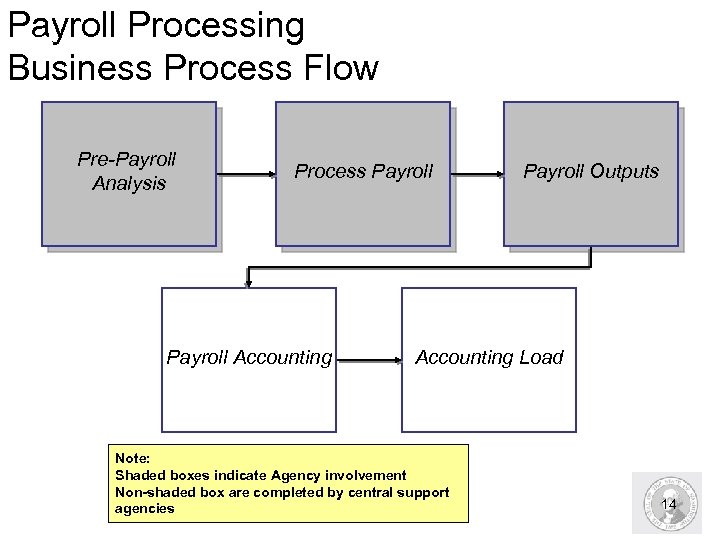 Payroll Processing Business Process Flow Pre-Payroll Analysis Process Payroll Accounting Payroll Outputs Accounting Load Note: Shaded boxes indicate Agency involvement Non-shaded box are completed by central support agencies 14
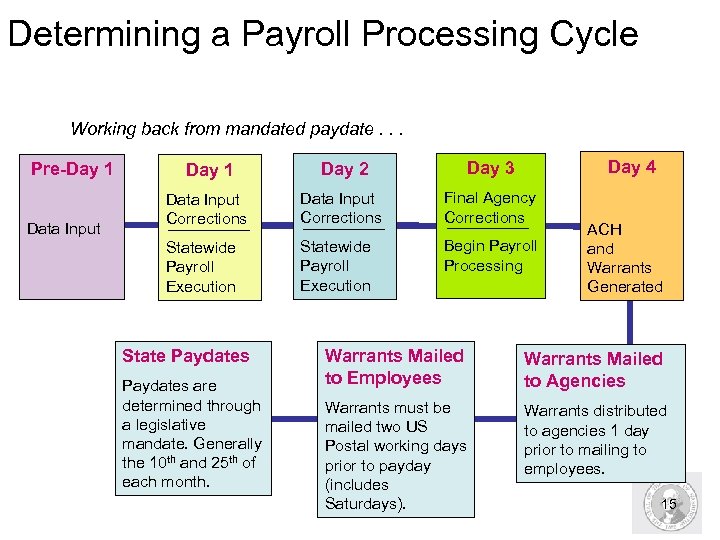 Determining a Payroll Processing Cycle Working back from mandated paydate. . . Pre-Day 1 Data Input Day 4 Day 1 Day 2 Day 3 Data Input Corrections Final Agency Corrections Statewide Payroll Execution Begin Payroll Processing State Paydates are determined through a legislative mandate. Generally the 10 th and 25 th of each month. ACH and Warrants Generated Warrants Mailed to Employees Warrants Mailed to Agencies Warrants must be mailed two US Postal working days prior to payday (includes Saturdays). Warrants distributed to agencies 1 day prior to mailing to employees. 15
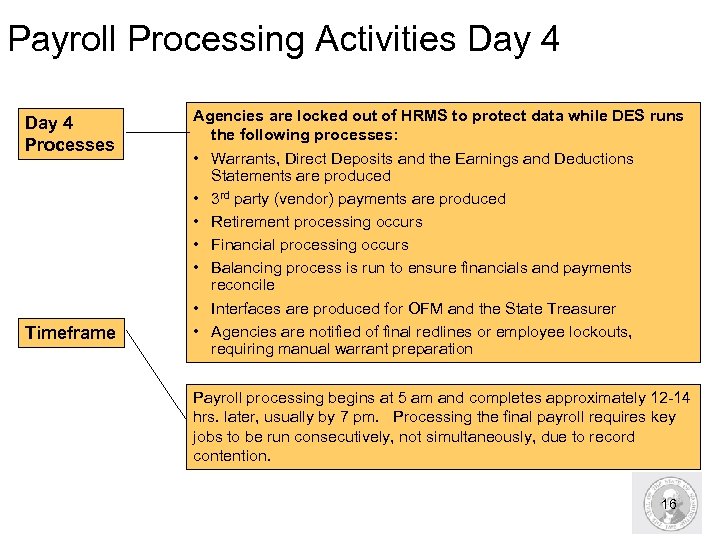 Payroll Processing Activities Day 4 Processes Timeframe Agencies are locked out of HRMS to protect data while DES runs the following processes: • Warrants, Direct Deposits and the Earnings and Deductions Statements are produced • 3 rd party (vendor) payments are produced • Retirement processing occurs • Financial processing occurs • Balancing process is run to ensure financials and payments reconcile • Interfaces are produced for OFM and the State Treasurer • Agencies are notified of final redlines or employee lockouts, requiring manual warrant preparation Payroll processing begins at 5 am and completes approximately 12 -14 hrs. later, usually by 7 pm. Processing the final payroll requires key jobs to be run consecutively, not simultaneously, due to record contention. 16
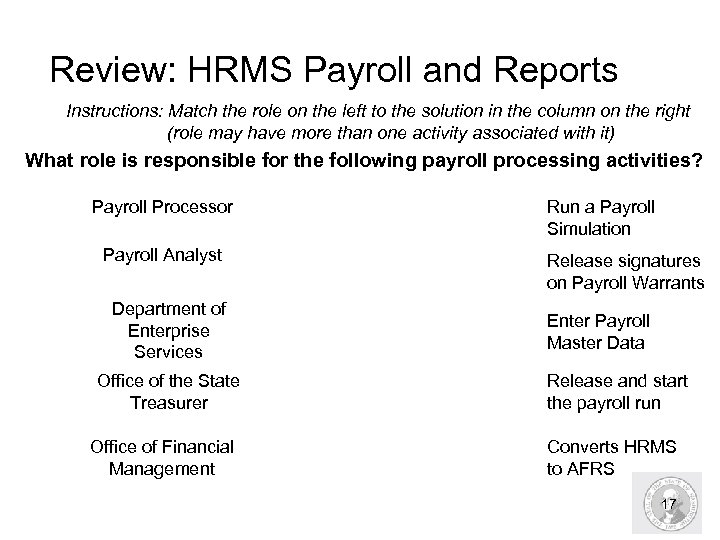 Review: HRMS Payroll and Reports Instructions: Match the role on the left to the solution in the column on the right (role may have more than one activity associated with it) What role is responsible for the following payroll processing activities? Payroll Processor Payroll Analyst Department of Enterprise Services Office of the State Treasurer Office of Financial Management Run a Payroll Simulation Release signatures on Payroll Warrants Enter Payroll Master Data Release and start the payroll run Converts HRMS to AFRS 17
 Pre-Payroll Analysis 18
 Pre-Payroll Analysis Upon completion of this section, you will be able to: n Understand where Pre-Payroll Analysis tasks are completed within the overall payroll process. n View Preemptive payroll reports to review payroll master data. n Run a simulation and view simulation logs. n View simulation reports. n Identify errors and prepare payroll processing. 19
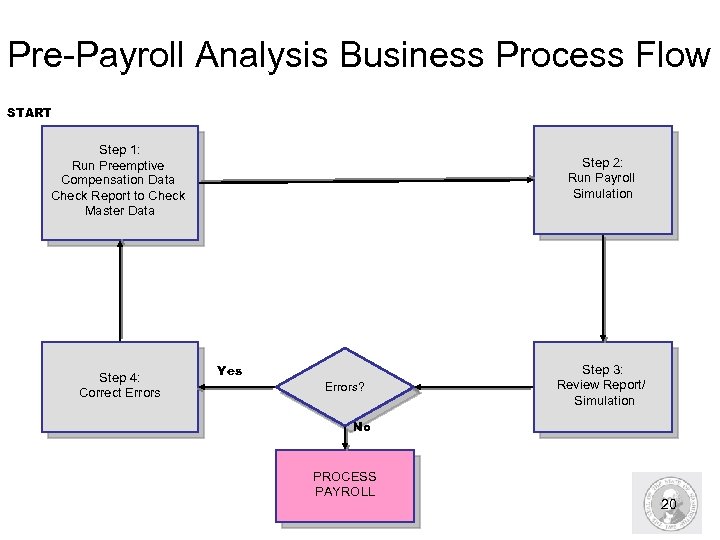 Pre-Payroll Analysis Business Process Flow START Step 1: Run Preemptive Compensation Data Check Report to Check Master Data Step 4: Correct Errors Step 2: Run Payroll Simulation Yes Errors? Step 3: Review Report/ Simulation No PROCESS PAYROLL 20
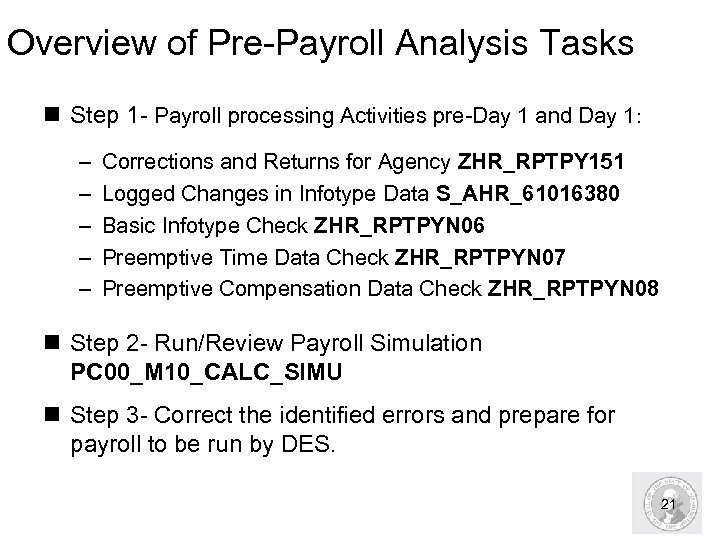 Overview of Pre-Payroll Analysis Tasks n Step 1 - Payroll processing Activities pre-Day 1 and Day 1: – – – Corrections and Returns for Agency ZHR_RPTPY 151 Logged Changes in Infotype Data S_AHR_61016380 Basic Infotype Check ZHR_RPTPYN 06 Preemptive Time Data Check ZHR_RPTPYN 07 Preemptive Compensation Data Check ZHR_RPTPYN 08 n Step 2 - Run/Review Payroll Simulation PC 00_M 10_CALC_SIMU n Step 3 - Correct the identified errors and prepare for payroll to be run by DES. 21
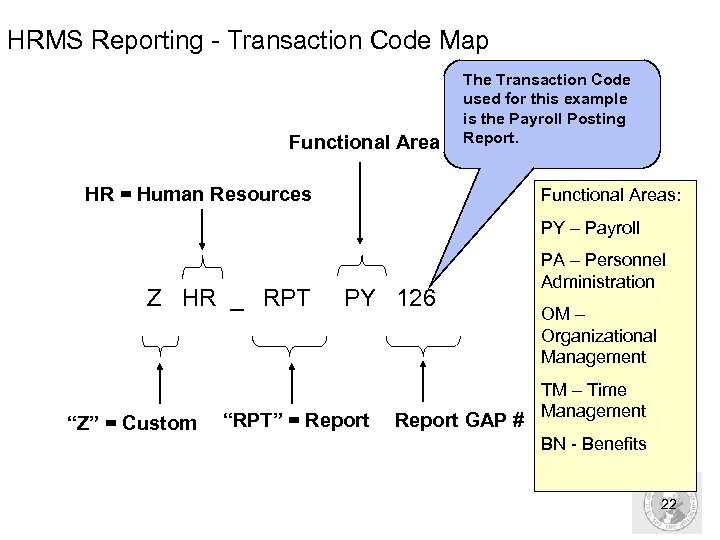 HRMS Reporting - Transaction Code Map Functional Area The Transaction Code used for this example is the Payroll Posting Report. HR = Human Resources Functional Areas: PY – Payroll Z HR _ RPT PY 126 “Z” = Custom “RPT” = Report GAP # PA – Personnel Administration OM – Organizational Management TM – Time Management BN - Benefits 22
 Step 1. Payroll processing Activities Pre-day 1 and day 1
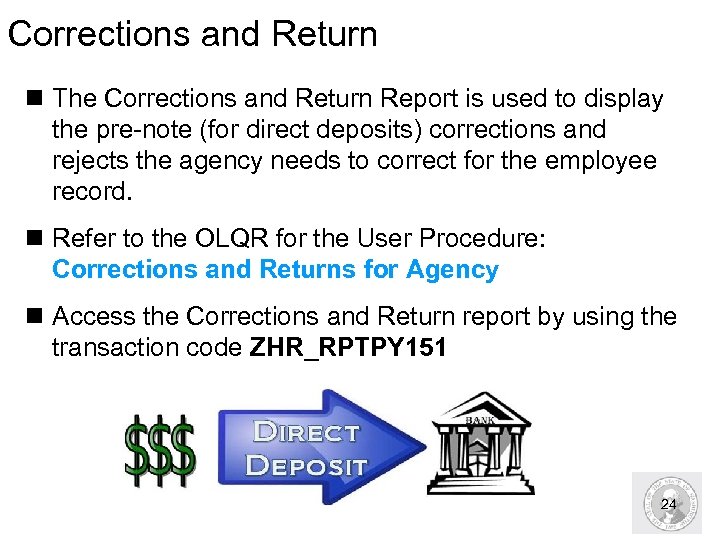 Corrections and Return n The Corrections and Return Report is used to display the pre-note (for direct deposits) corrections and rejects the agency needs to correct for the employee record. n Refer to the OLQR for the User Procedure: Corrections and Returns for Agency n Access the Corrections and Return report by using the transaction code ZHR_RPTPY 151 24
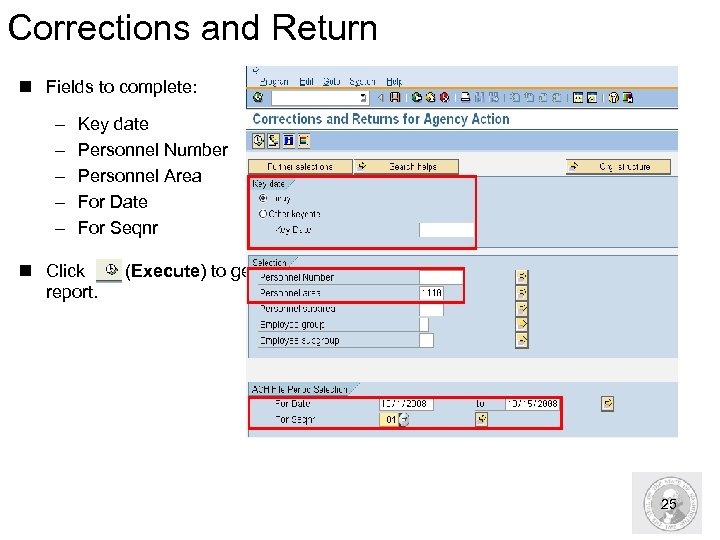 Corrections and Return n Fields to complete: – – – Key date Personnel Number Personnel Area For Date For Seqnr n Click (Execute) to generate report. 25
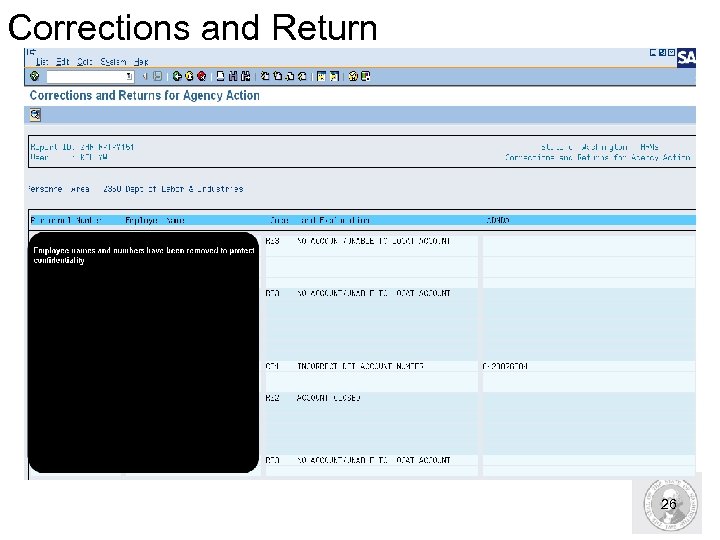 Corrections and Return 26
 Logged Changes in Infotype Data n Helps identify data changes according to personnel numbers, Infotype and/or date and time. n Run this report daily n Refer to the OLQR User Procedure: Logged changes in infotype data n Access the Logged Changes in Infotype Data by using the transaction code S_AHR_61016380 27
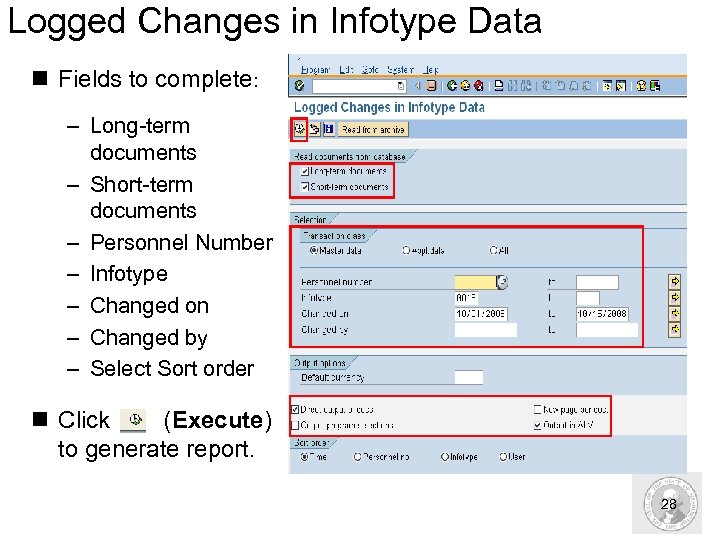 Logged Changes in Infotype Data n Fields to complete: – Long-term documents – Short-term documents – Personnel Number – Infotype – Changed on – Changed by – Select Sort order n Click (Execute) to generate report. 28
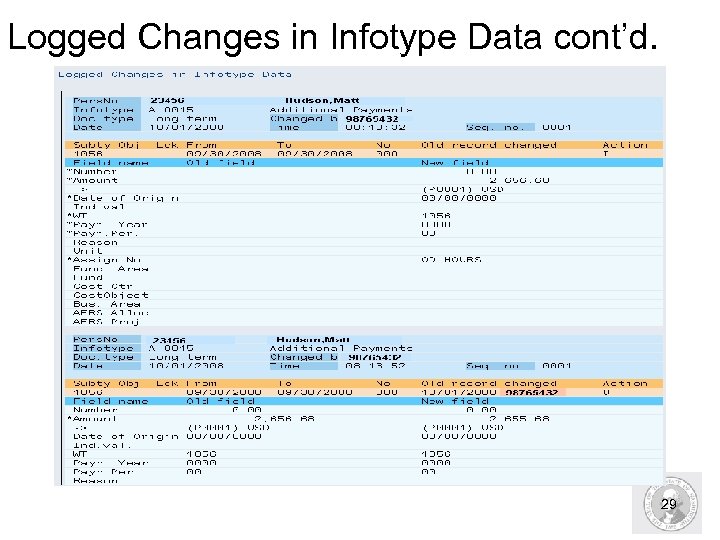 Logged Changes in Infotype Data cont’d. 29
 Basic Infotype Check n The report helps to identify any employees with missing data. n Run this report at the beginning or end of each day to help eliminate errors during payroll. n Refer to the OLQR User Procedure: Preemptive Basic Data Check n Access the Basic Infotype Check by using the transaction code ZHR_RPTPYN 06 30
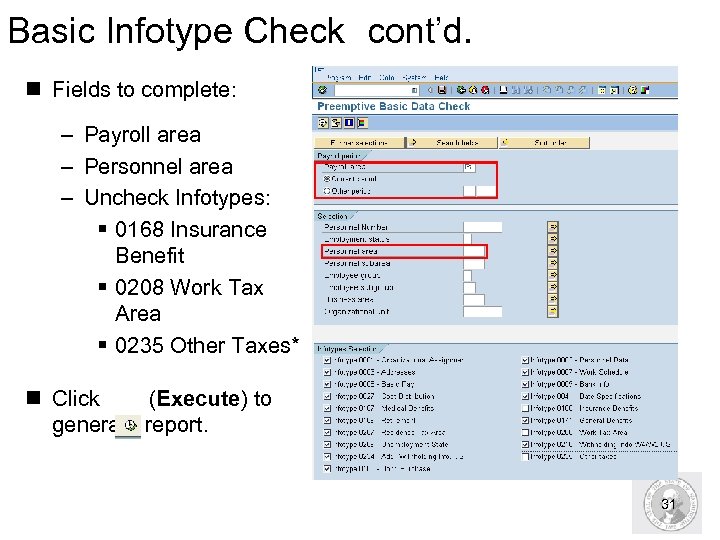 Basic Infotype Check cont’d. n Fields to complete: – Payroll area – Personnel area – Uncheck Infotypes: § 0168 Insurance Benefit § 0208 Work Tax Area § 0235 Other Taxes* n Click (Execute) to generate report. 31
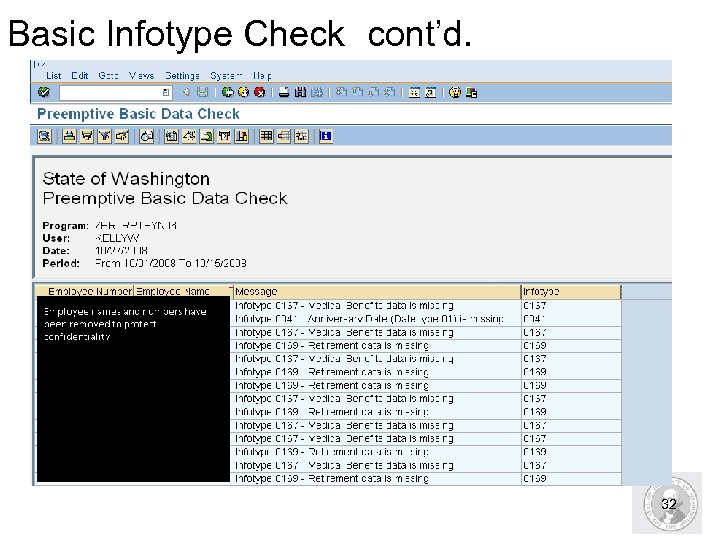 Basic Infotype Check cont’d. 32
 Preemptive Time Data Check n Helps identify any ZCATA time transfer errors. n Run this report when time data has been transferred via the ZCATA action into HRMS n Refer to the OLQR User Procedure: Preemptive Time Data Check n Access the Basic Infotype Check by using the transaction code ZHR_RPTPYN 07 33
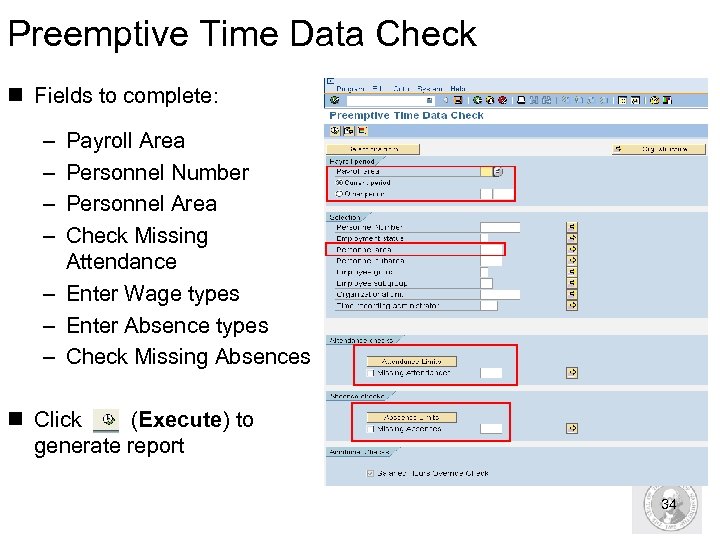 Preemptive Time Data Check n Fields to complete: – – Payroll Area Personnel Number Personnel Area Check Missing Attendance – Enter Wage types – Enter Absence types – Check Missing Absences n Click (Execute) to generate report 34
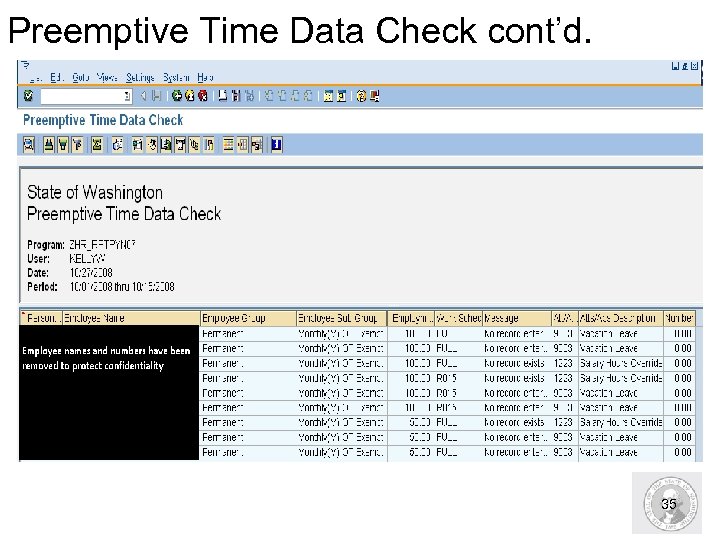 Preemptive Time Data Check cont’d. 35
 Preemptive Compensation Data Check n The Preemptive Compensation Data Check report helps to verify that all payroll master data is complete prior to running a payroll simulation n This report validates (current payroll processing cycle): – – – – Arrears Deductions not taken Claims Payments and deductions limits Time quota compensation status Reversal checks Garnishments checks n Refer to the OLQR User Procedure: Preemptive Compensation Data check n Access the Preemptive Compensation Data Check by using the transaction code ZHR_RPTPYN 08 36
 Preemptive Compensation Data Check cont’d. § Arrears: Can be created when a health or retirement deduction is adjusted in a previous pay period. § Deductions Not Taken: When there is not enough net pay in the previous pay period to take the deducted wage type from pay. § Claims: When the systems recognizes an overpayment situation in the previous pay period. § Payments and Deductions Limits: When a payment or deduction amount is higher than normal and should be checked. § Time Quota Compensation Status: When time entered does not match employee status. § Garnishments Checks: When a garnishment has been created using the incorrect vendor number. 37
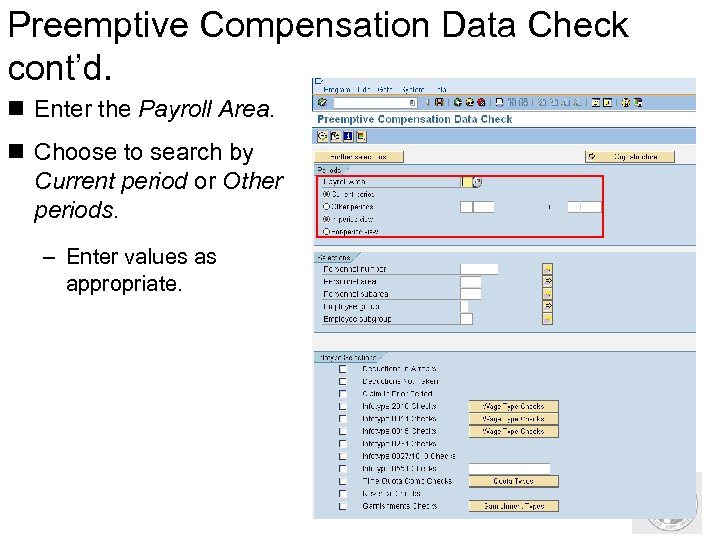 Preemptive Compensation Data Check cont’d. n Enter the Payroll Area. n Choose to search by Current period or Other periods. – Enter values as appropriate. 38
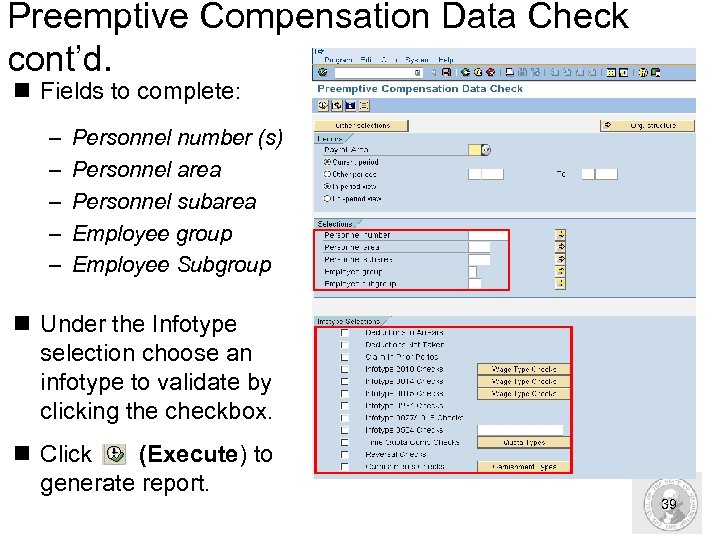 Preemptive Compensation Data Check cont’d. n Fields to complete: – – – Personnel number (s) Personnel area Personnel subarea Employee group Employee Subgroup n Under the Infotype selection choose an infotype to validate by clicking the checkbox. n Click (Execute) to generate report. 39
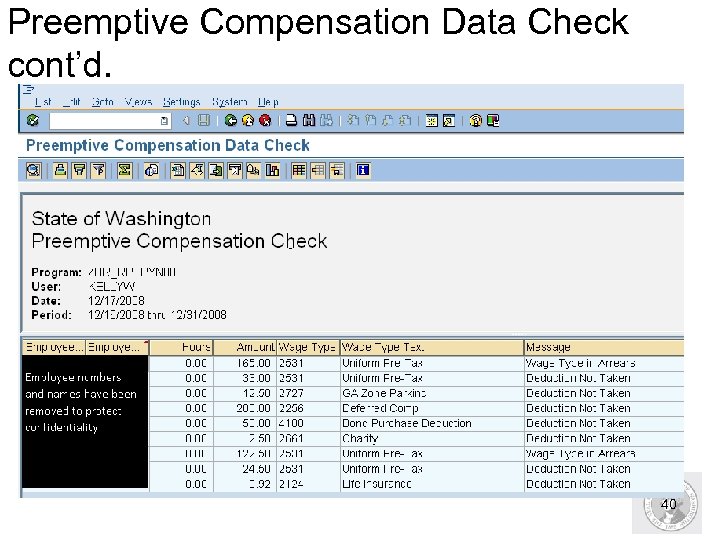 Preemptive Compensation Data Check cont’d. 40
 HRMS Activity Run the Preemptive Compensation Data Check Walkthrough – Pg 4 41
 Step 2. Run Payroll Simulation/View Log n A payroll simulation is the process used prior to running payroll that allows you to: – Check for infotypes needed in payroll that might be missing from an employee’s master data. – Verify that employee master data is valid. – Verify what the employee is paid. – Find red lines. n Use the payroll simulation to evaluate an individual’s employee payroll results or the results of a group of individuals. n Refer to the OLQR User Procedure: Payroll Simulation n Access the Payroll Simulation using the transaction code: PC 00_M 10_CALC_SIMU 42
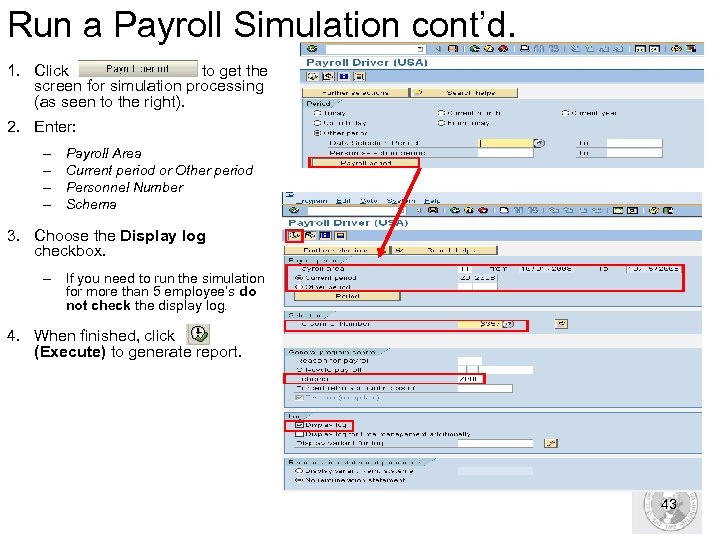 Run a Payroll Simulation cont’d. 1. Click to get the screen for simulation processing (as seen to the right). 2. Enter: – – Payroll Area Current period or Other period Personnel Number Schema 3. Choose the Display log checkbox. – If you need to run the simulation for more than 5 employee’s do not check the display log. 4. When finished, click (Execute) to generate report. 43
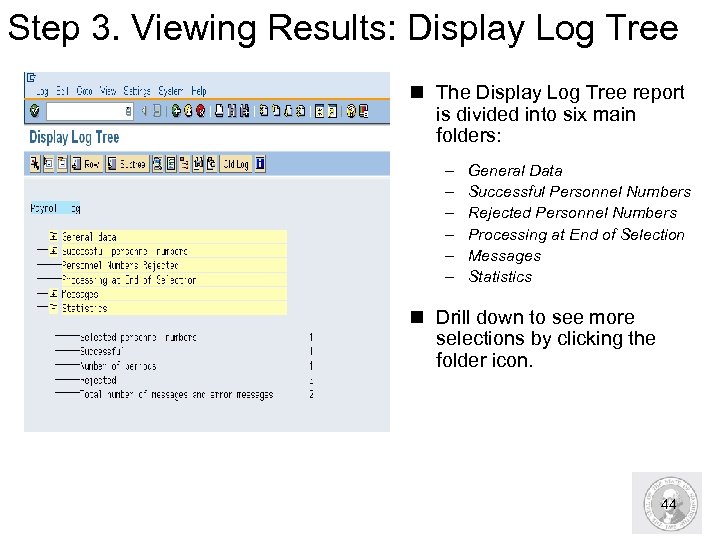 Step 3. Viewing Results: Display Log Tree n The Display Log Tree report is divided into six main folders: – – – General Data Successful Personnel Numbers Rejected Personnel Numbers Processing at End of Selection Messages Statistics n Drill down to see more selections by clicking the folder icon. 44
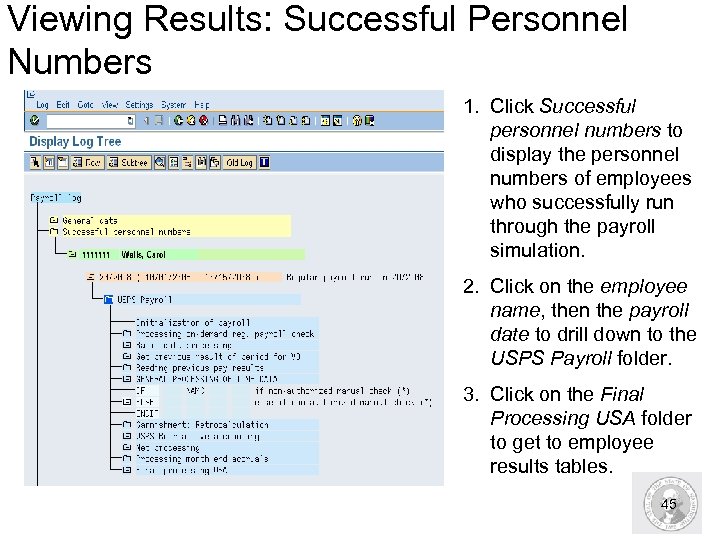 Viewing Results: Successful Personnel Numbers 1. Click Successful personnel numbers to display the personnel numbers of employees who successfully run through the payroll simulation. 2. Click on the employee name, then the payroll date to drill down to the USPS Payroll folder. 3. Click on the Final Processing USA folder to get to employee results tables. 45
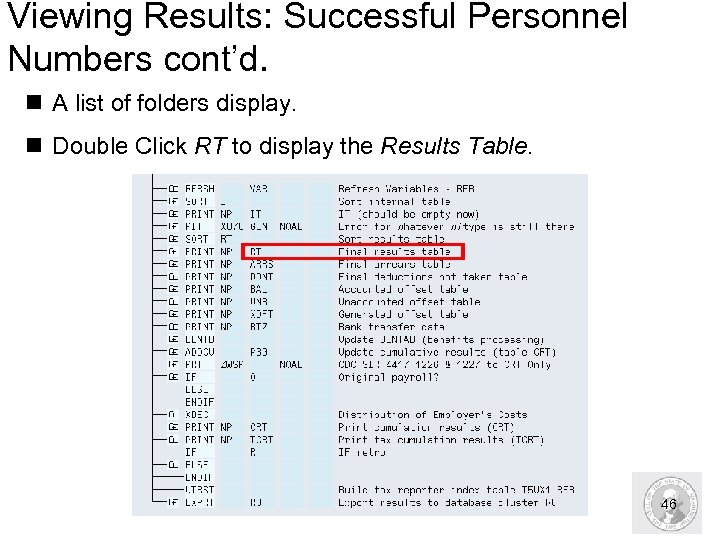 Viewing Results: Successful Personnel Numbers cont’d. n A list of folders display. n Double Click RT to display the Results Table. 46
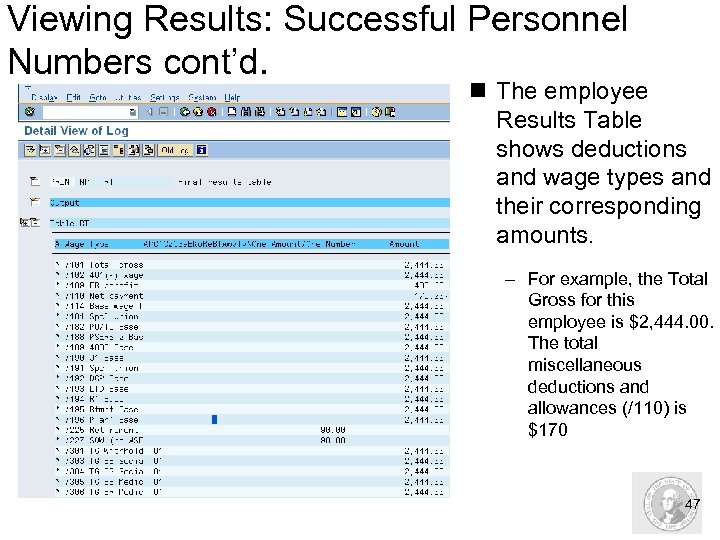 Viewing Results: Successful Personnel Numbers cont’d. n The employee Results Table shows deductions and wage types and their corresponding amounts. – For example, the Total Gross for this employee is $2, 444. 00. The total miscellaneous deductions and allowances (/110) is $170 47
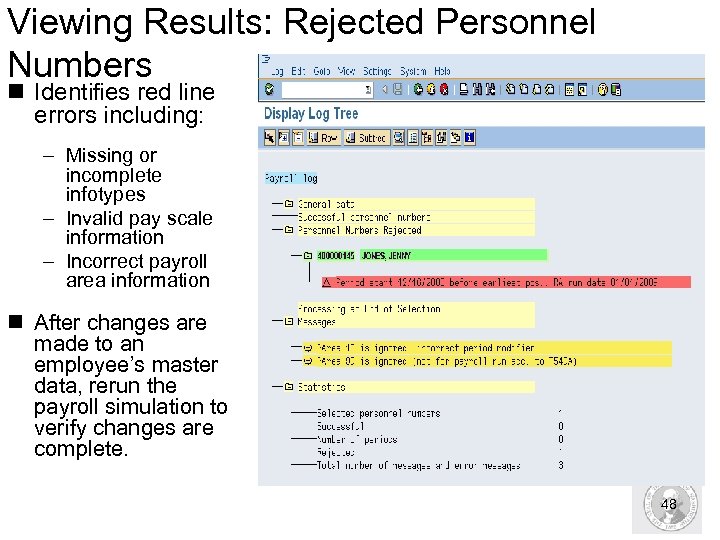 Viewing Results: Rejected Personnel Numbers n Identifies red line errors including: – Missing or incomplete infotypes – Invalid pay scale information – Incorrect payroll area information n After changes are made to an employee’s master data, rerun the payroll simulation to verify changes are complete. 48
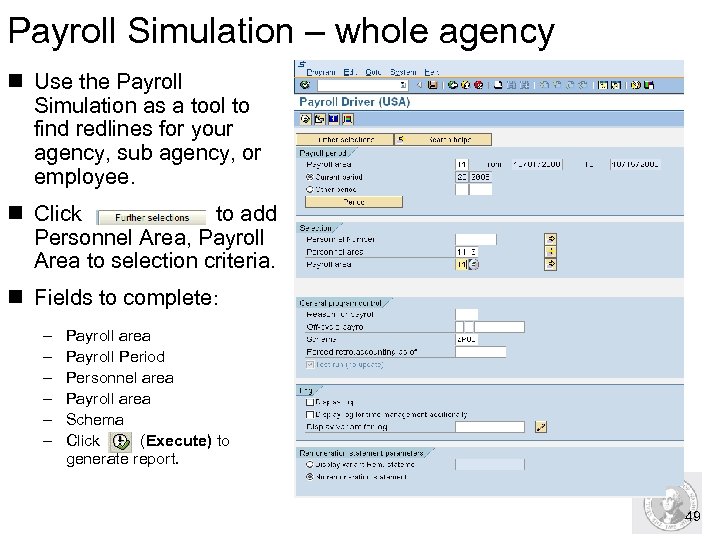 Payroll Simulation – whole agency n Use the Payroll Simulation as a tool to find redlines for your agency, sub agency, or employee. n Click to add Personnel Area, Payroll Area to selection criteria. n Fields to complete: – – – Payroll area Payroll Period Personnel area Payroll area Schema Click (Execute) to generate report. 49
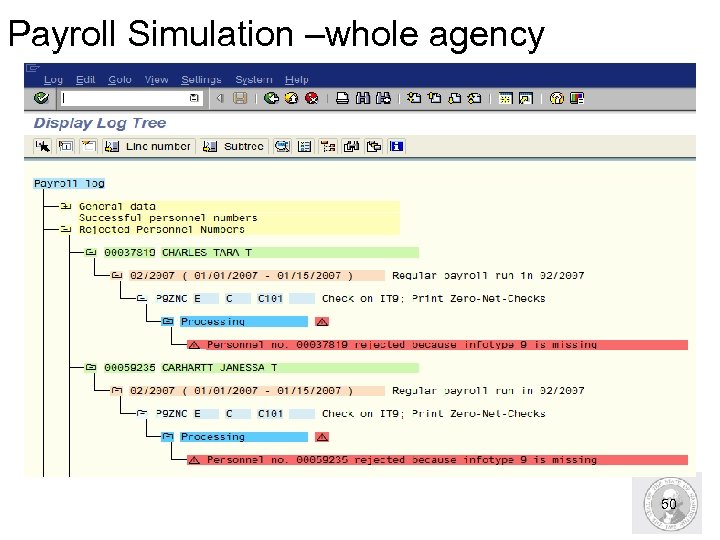 Payroll Simulation –whole agency 50
 Payroll Simulation Helpful hints n After corrections have been made run a Payroll Simulation, without the Display log checked using the code W- Payroll correction run. n Using the Payroll Correction will run the simulation for employee’s who had changes to their master data since the last payroll was processed by DES. n Refer to the User Procedure Payroll_Simulation. Payroll Correction Run 51
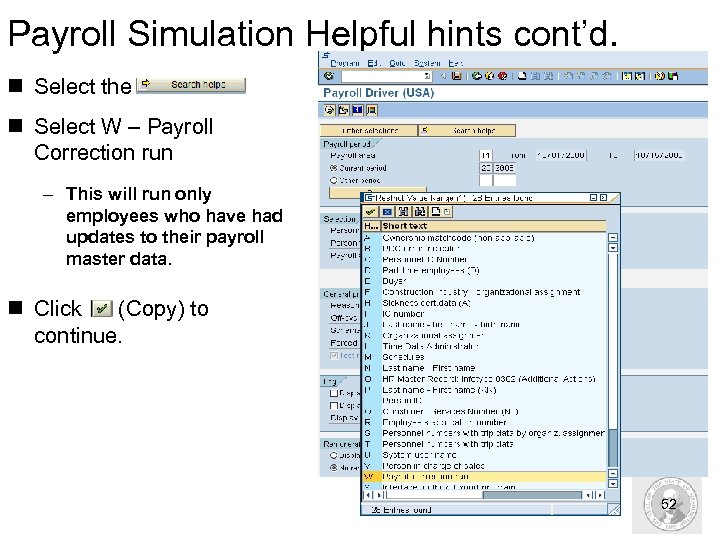 Payroll Simulation Helpful hints cont’d. n Select the n Select W – Payroll Correction run – This will run only employees who have had updates to their payroll master data. n Click (Copy) to continue. 52
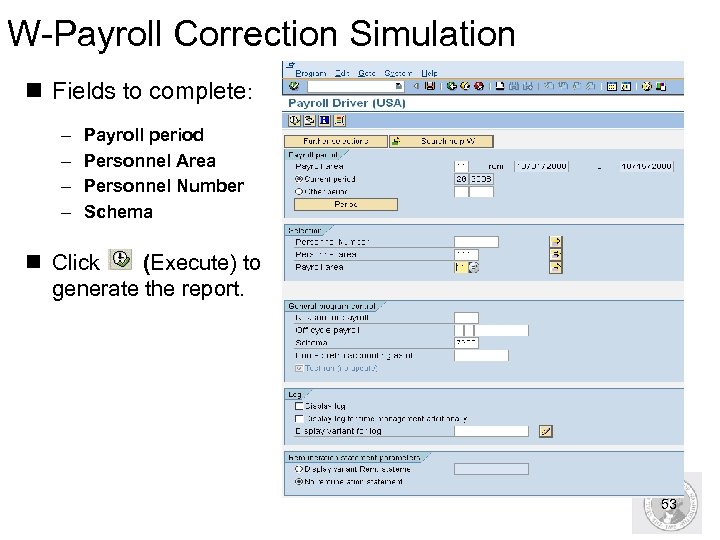 W-Payroll Correction Simulation n Fields to complete: – – Payroll period Personnel Area Personnel Number Schema n Click (Execute) to generate the report. 53
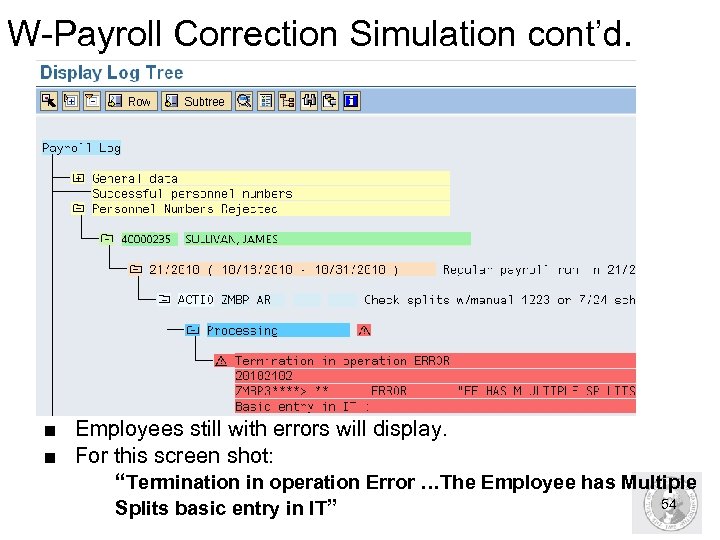 W-Payroll Correction Simulation cont’d. ■ Employees still with errors will display. ■ For this screen shot: “Termination in operation Error …The Employee has Multiple 54 Splits basic entry in IT”
 HRMS Activity Run a Payroll Simulation Without Display Log Exercise pg. 7 Run a Payroll Simulation and View the Display Log Tree Exercise pg. 9 55
 Step 3 : Correct the Identified errors n Run each of these reports prior to payroll cut-offs: – Corrections and Returns for Agency ZHR_RPTPY 151 – Logged Changes in Infotype Data S_AHR_61016380 – Basic Infotype Check ZHR_RPTPYN 06 – Preemptive Time Data Check ZHR_RPTPYN 07 – Preemptive Compensation Data Check ZHR_RPTPYN 08 – Payroll Simulation (PC 00_M 10_CALC_SIMU) n Catching these errors and correcting them prior to the release of payroll helps to make sure that payroll is calculated correctly for the employee. 56
 Review: Pre-Payroll Analysis n Why should you run a Preemptive Compensation Data Check ? To verify that all payroll master data is complete prior to running a payroll simulation. n True or False: You should run a simulation when the payroll processor has made a change to the employee’s payroll related master data. True. You need to verify that payroll will run correctly for that employee. 57
 Payroll processing activities for Day 2 and 3 58
 Payroll processing activities for Day 2 and 3 Upon completion of this section, you will be able to: n Understand the tasks and responsibilities for processing payroll. n Work through the steps of processing payroll. n Run reports to check employee payroll results. n Correct payroll errors as needed. 59
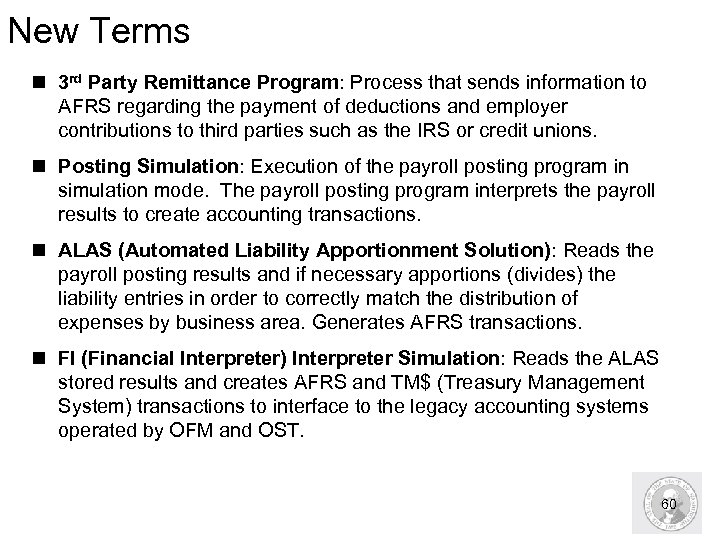 New Terms n 3 rd Party Remittance Program: Process that sends information to AFRS regarding the payment of deductions and employer contributions to third parties such as the IRS or credit unions. n Posting Simulation: Execution of the payroll posting program in simulation mode. The payroll posting program interprets the payroll results to create accounting transactions. n ALAS (Automated Liability Apportionment Solution): Reads the payroll posting results and if necessary apportions (divides) the liability entries in order to correctly match the distribution of expenses by business area. Generates AFRS transactions. n FI (Financial Interpreter) Interpreter Simulation: Reads the ALAS stored results and creates AFRS and TM$ (Treasury Management System) transactions to interface to the legacy accounting systems operated by OFM and OST. 60
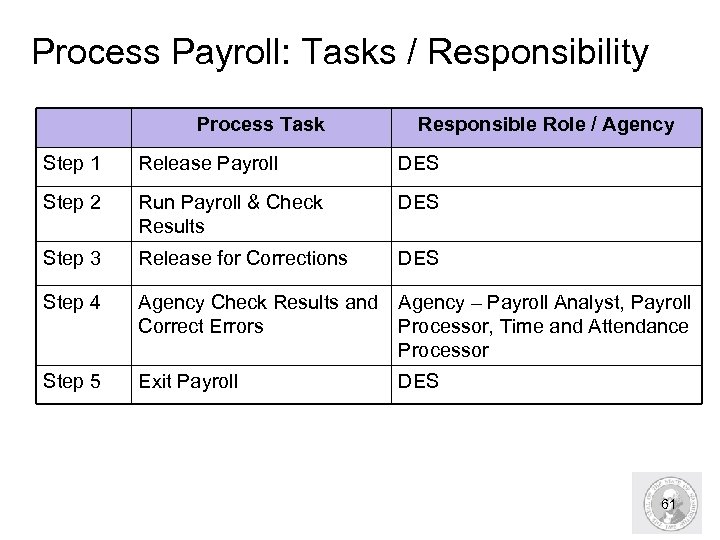 Process Payroll: Tasks / Responsibility Process Task Responsible Role / Agency Step 1 Release Payroll DES Step 2 Run Payroll & Check Results DES Step 3 Release for Corrections DES Step 4 Agency Check Results and Agency – Payroll Analyst, Payroll Correct Errors Processor, Time and Attendance Processor Step 5 Exit Payroll DES 61
 Step 1: Release Payroll n At 6: 00 p. m. on the evening of the 1 st business day of payroll processing, DES releases payroll. n During this time, all employee records are locked and therefore can not be accessed to make updates during the running of payroll. n Agencies do not have any responsibility during this step, however, should be aware that when system messages appear regarding locked payroll, this process is occurring. n After corrections are made (Step 4), the process is repeated in order to run payroll again. 62
 Step 2: Run Payroll n DES processes payroll. This task occurs on the 1 st business day for processing the prior payroll period. n Like a simulation, running payroll produces reports and identifies errors that need to be validated and verified. These reports are addressed in Step 5 of the payroll process. n DES will check payroll results for any technical errors. 63
 Step 3: Release for Corrections n During this step, DES unlocks the employee records that were previously locked during payroll run. This occurs each day until the final day of payroll processing. n Agencies receive a list of corrections from DES. Which includes RPCIPE and ALAS errors. n Check the Spool file for errors (Payroll, ZCATA). 64
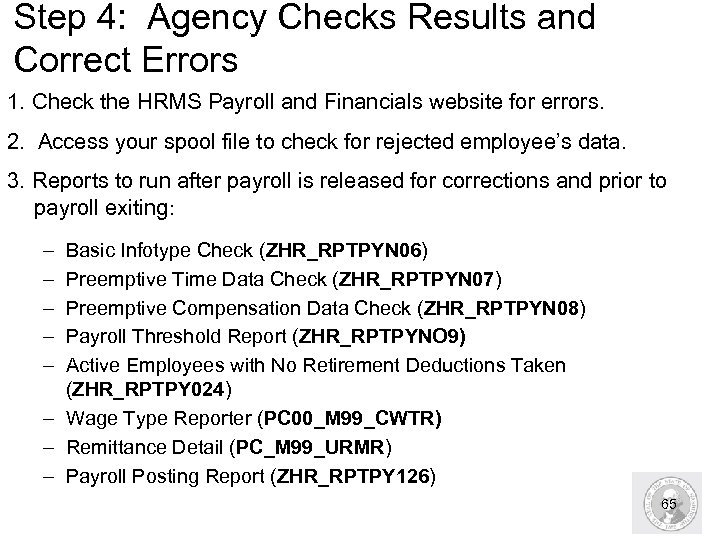 Step 4: Agency Checks Results and Correct Errors 1. Check the HRMS Payroll and Financials website for errors. 2. Access your spool file to check for rejected employee’s data. 3. Reports to run after payroll is released for corrections and prior to payroll exiting: – – – Basic Infotype Check (ZHR_RPTPYN 06) Preemptive Time Data Check (ZHR_RPTPYN 07) Preemptive Compensation Data Check (ZHR_RPTPYN 08) Payroll Threshold Report (ZHR_RPTPYNO 9) Active Employees with No Retirement Deductions Taken (ZHR_RPTPY 024) – Wage Type Reporter (PC 00_M 99_CWTR) – Remittance Detail (PC_M 99_URMR) – Payroll Posting Report (ZHR_RPTPY 126) 65
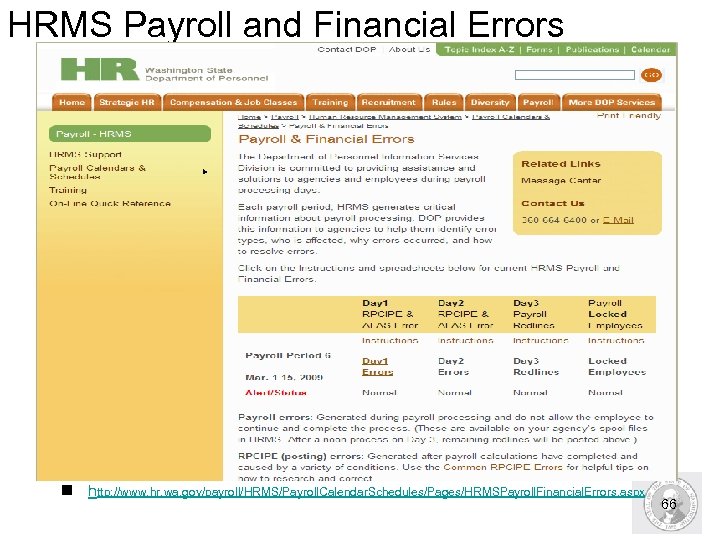 HRMS Payroll and Financial Errors n http: //www. hr. wa. gov/payroll/HRMS/Payroll. Calendar. Schedules/Pages/HRMSPayroll. Financial. Errors. aspx 66
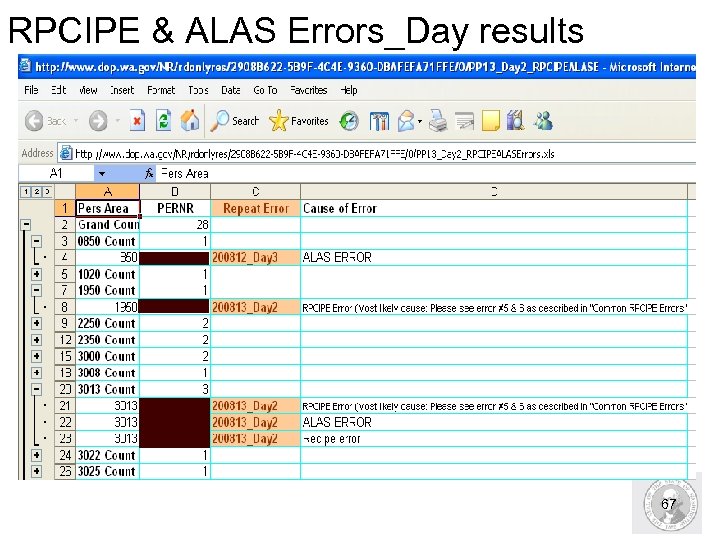 RPCIPE & ALAS Errors_Day results 67
 RPCIPE errors n Are cost distribution errors that can be caused by a variety of conditions. n Common cause of RPCIPE errors include: – Changes to the employees: § Position funding. § Position relationship. § Employee position information. § Employee’s master data. § Terminated employee errors. § Cost distribution (Infotype 0027) end dating n To assist agencies in correcting these errors DES sends out “Common RPCIPE errors” document. n Use the Payroll Simulation Validate RPCIPE Error Corrections n Use the Preemptive Compensation Data check report (ZHR_RPTPYN 08) selecting infotype 0027/1018 ( cost distribution) 68
 ALAS errors n Caused by claims from prior periods that are not offset in the current period. n These errors cause the ALAS financials to be out of balance. n If these errors are not corrected prior to DES exiting payroll the employee will be locked out of the payroll process in HRMS. n Use the Payroll Threshold Report (ZHR_RPTPYN 09) 69
 Error Spool File n Run the Spool file after payroll has been run by DES. n Use the spool file to access Time, Payroll, and GAP 1, Reports. n Errors that are found on the reports must be resolved before payroll is exited. 70
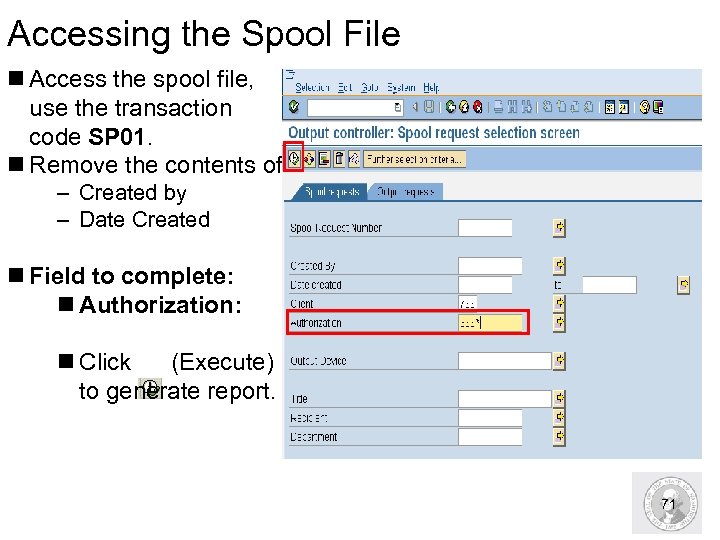 Accessing the Spool File n Access the spool file, use the transaction code SP 01. n Remove the contents of: – Created by – Date Created n Field to complete: n Authorization: n Click (Execute) to generate report. 71
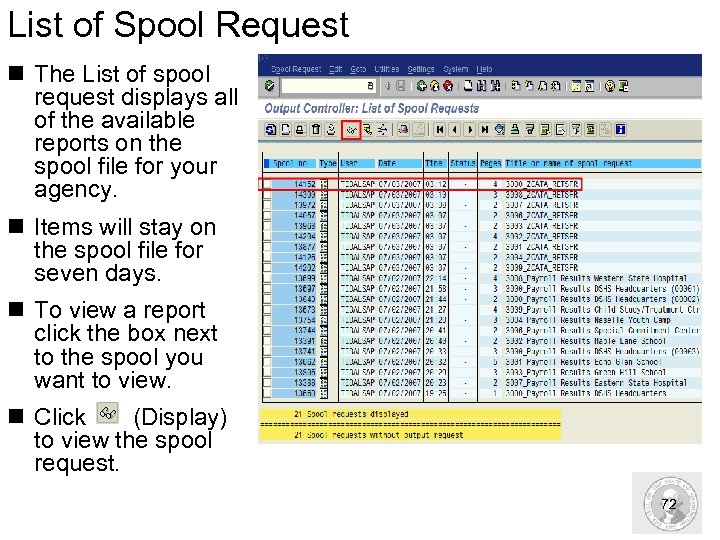 List of Spool Request n The List of spool request displays all of the available reports on the spool file for your agency. n Items will stay on the spool file for seven days. n To view a report click the box next to the spool you want to view. n Click (Display) to view the spool request. 72
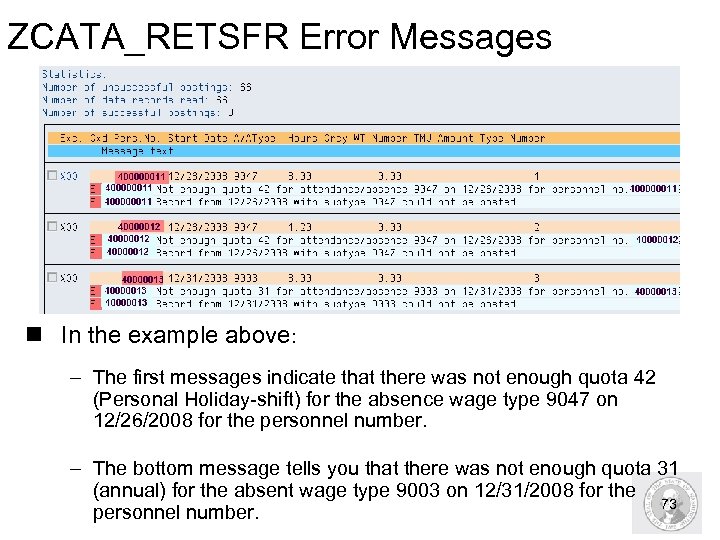 ZCATA_RETSFR Error Messages n In the example above: – The first messages indicate that there was not enough quota 42 (Personal Holiday-shift) for the absence wage type 9047 on 12/26/2008 for the personnel number. – The bottom message tells you that there was not enough quota 31 (annual) for the absent wage type 9003 on 12/31/2008 for the 73 personnel number.
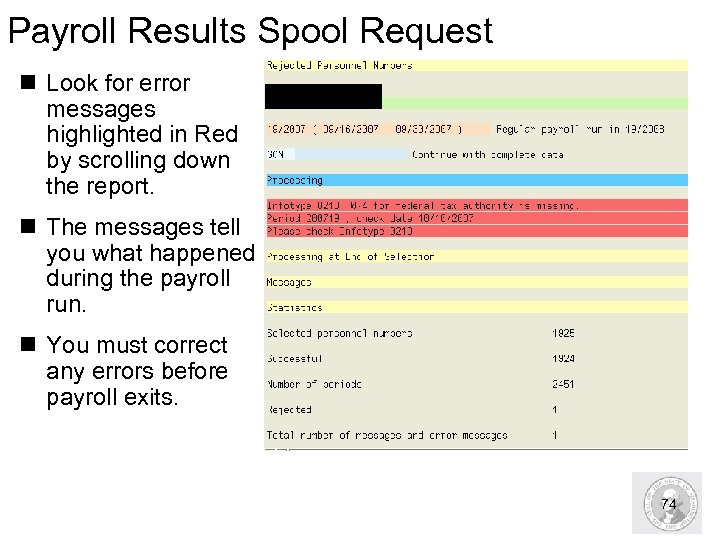 Payroll Results Spool Request n Look for error messages highlighted in Red by scrolling down the report. n The messages tell you what happened during the payroll run. n You must correct any errors before payroll exits. 74
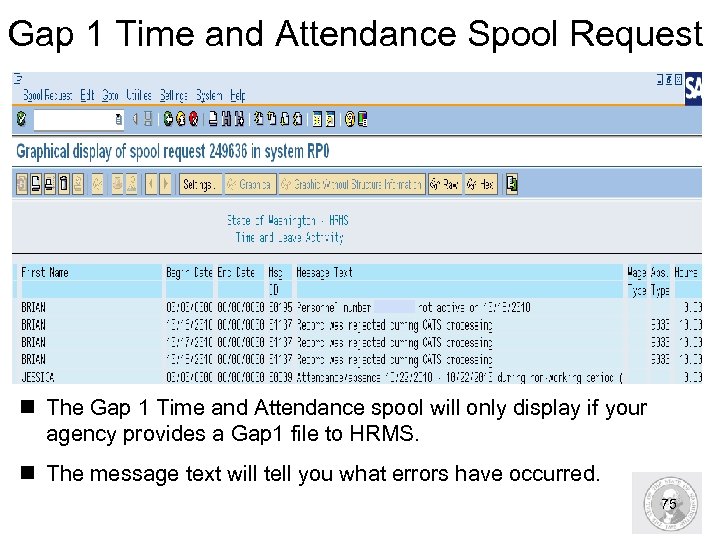 Gap 1 Time and Attendance Spool Request n The Gap 1 Time and Attendance spool will only display if your agency provides a Gap 1 file to HRMS. n The message text will tell you what errors have occurred. 75
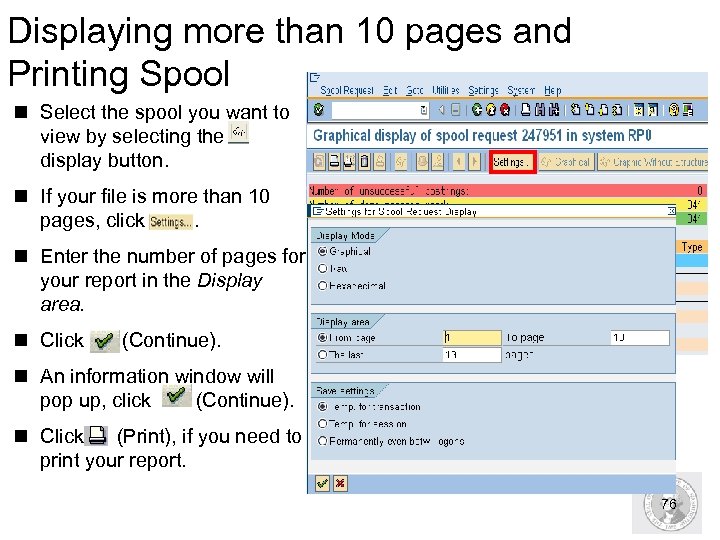 Displaying more than 10 pages and Printing Spool n Select the spool you want to view by selecting the display button. n If your file is more than 10 pages, click . n Enter the number of pages for your report in the Display area. n Click (Continue). n An information window will pop up, click (Continue). n Click (Print), if you need to print your report. 76
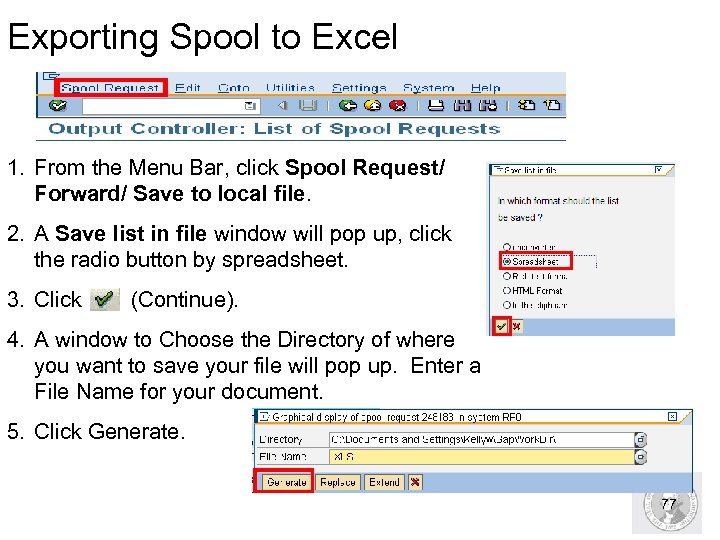 Exporting Spool to Excel 1. From the Menu Bar, click Spool Request/ Forward/ Save to local file. 2. A Save list in file window will pop up, click the radio button by spreadsheet. 3. Click (Continue). 4. A window to Choose the Directory of where you want to save your file will pop up. Enter a File Name for your document. 5. Click Generate. 77
 Payroll Threshold Report n Run the Payroll Threshold Report after payroll has been run by DES. n The report checks the accuracy of payroll run by displaying issues that have arisen after payroll has been processed. n Refer to the OLQR User Procedure: Payroll Threshold Report n To access this report, use the transaction code: ZHR_RPTPYN 09 78
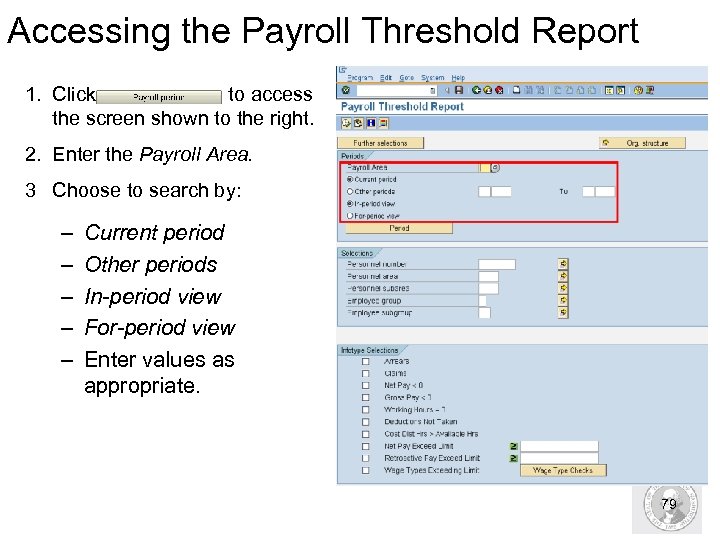 Accessing the Payroll Threshold Report 1. Click to access the screen shown to the right. 2. Enter the Payroll Area. 3 Choose to search by: – – – Current period Other periods In-period view For-period view Enter values as appropriate. 79
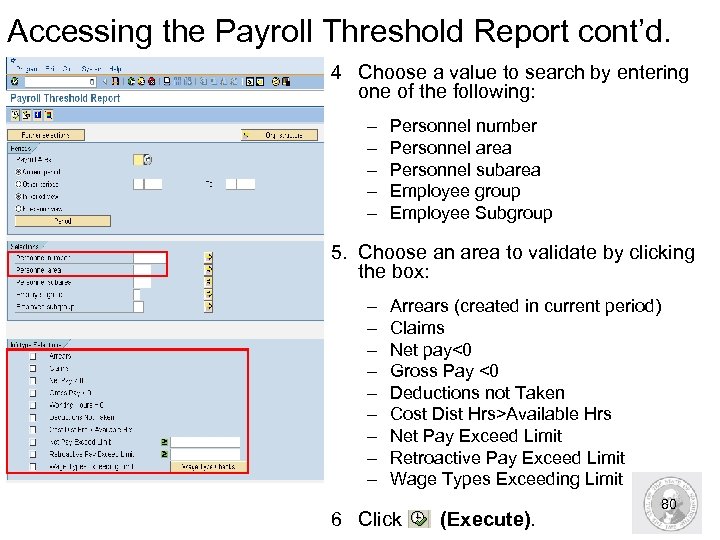 Accessing the Payroll Threshold Report cont’d. 4 Choose a value to search by entering one of the following: – – – Personnel number Personnel area Personnel subarea Employee group Employee Subgroup 5. Choose an area to validate by clicking the box: – – – – – Arrears (created in current period) Claims Net pay<0 Gross Pay <0 Deductions not Taken Cost Dist Hrs>Available Hrs Net Pay Exceed Limit Retroactive Pay Exceed Limit Wage Types Exceeding Limit 6 Click (Execute). 80
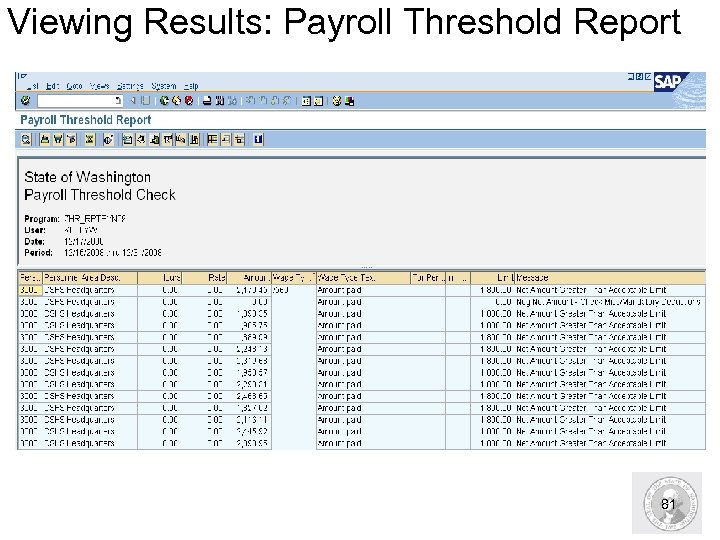 Viewing Results: Payroll Threshold Report 81
 HRMS Activity Run and View Payroll Threshold Report Exercise – Pg 14 82
 Active Employee with No Retirement Deductions Taken Report n Use to identify employees who did not have retirement subtracted from their pay during a particular payroll period. n Run this report for a single pay period to validate that retirement deductions have been taken for all eligible employees. n Refer to OLQR User Procedure: Active Employees with No Retirement Deductions Taken n Access this report using the transaction code: ZHR_RPTPY 024 83
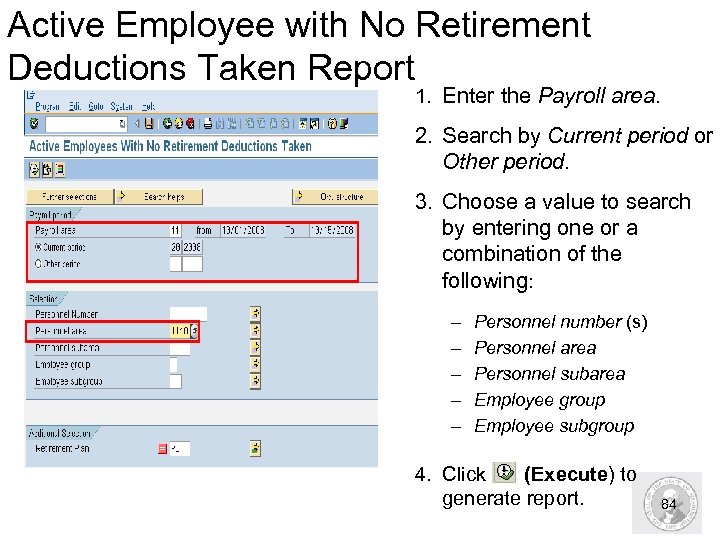 Active Employee with No Retirement Deductions Taken Report 1. Enter the Payroll area. 2. Search by Current period or Other period. 3. Choose a value to search by entering one or a combination of the following: – – – Personnel number (s) Personnel area Personnel subarea Employee group Employee subgroup 4. Click (Execute) to generate report. 84
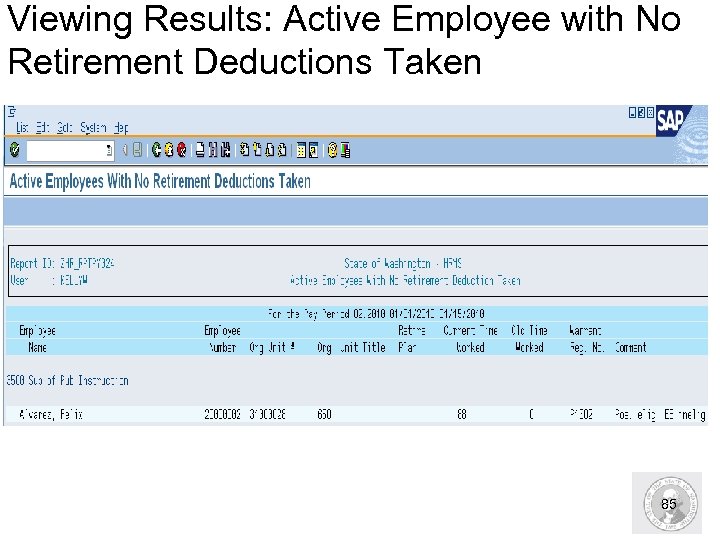 Viewing Results: Active Employee with No Retirement Deductions Taken 85
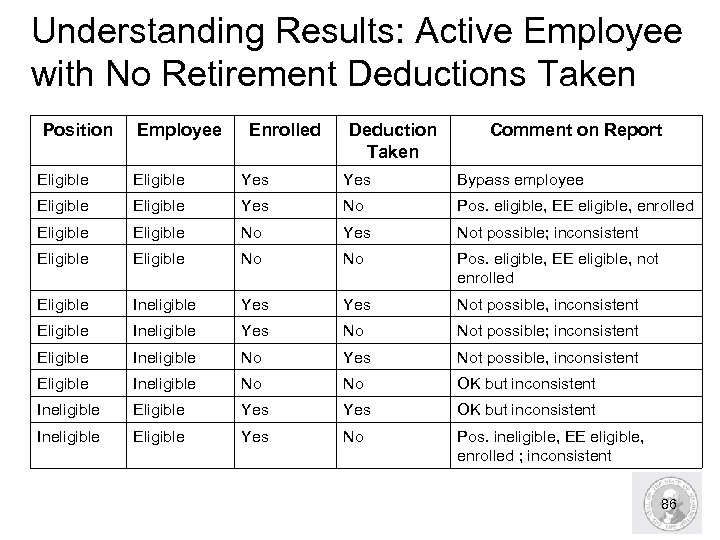 Understanding Results: Active Employee with No Retirement Deductions Taken Position Employee Enrolled Deduction Taken Comment on Report Eligible Yes Bypass employee Eligible Yes No Pos. eligible, EE eligible, enrolled Eligible No Yes Not possible; inconsistent Eligible No No Pos. eligible, EE eligible, not enrolled Eligible Ineligible Yes Not possible, inconsistent Eligible Ineligible Yes No Not possible; inconsistent Eligible Ineligible No Yes Not possible, inconsistent Eligible Ineligible No No OK but inconsistent Ineligible Eligible Yes No Pos. ineligible, EE eligible, enrolled ; inconsistent 86
 Payroll Posting Report n The Payroll Posting Report displays all General Ledgers and the Cost Coding. n This report reads payroll posting data after it has been processed through payroll. n Refer to the OLQR User Procedure: Payroll Posting Report n Access this report using the transaction code: ZHR_RPTPY 126 87
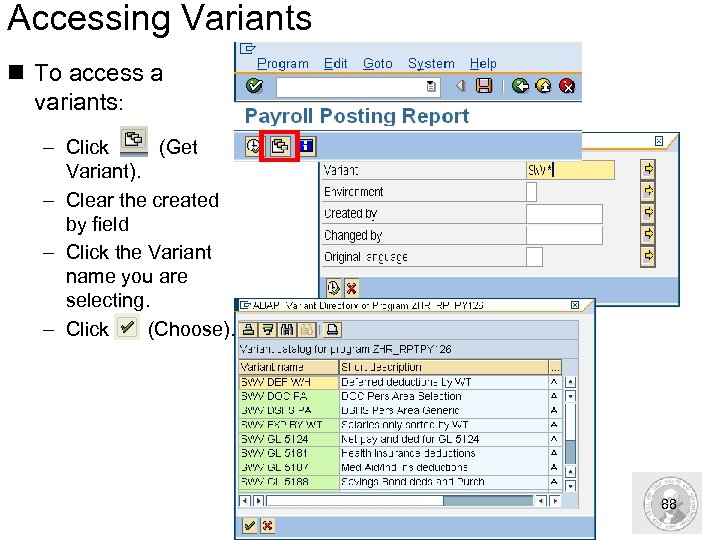 Accessing Variants n To access a variants: – Click (Get Variant). – Clear the created by field – Click the Variant name you are selecting. – Click (Choose). 88
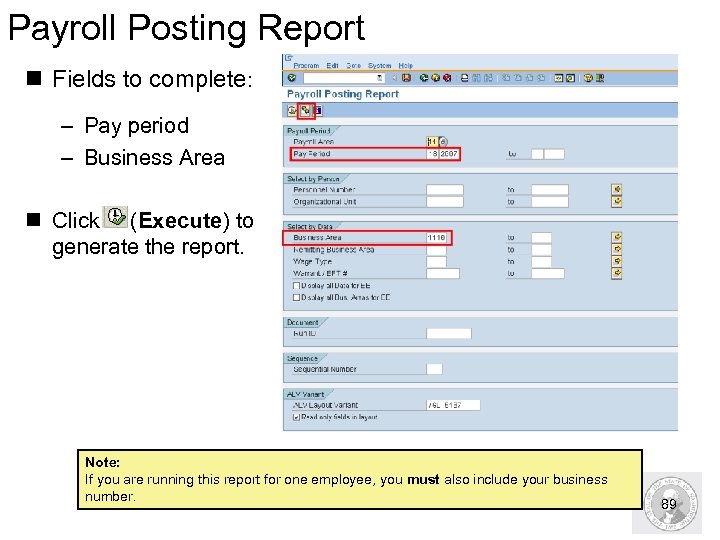 Payroll Posting Report n Fields to complete: – Pay period – Business Area n Click (Execute) to generate the report. Note: If you are running this report for one employee, you must also include your business number. 89
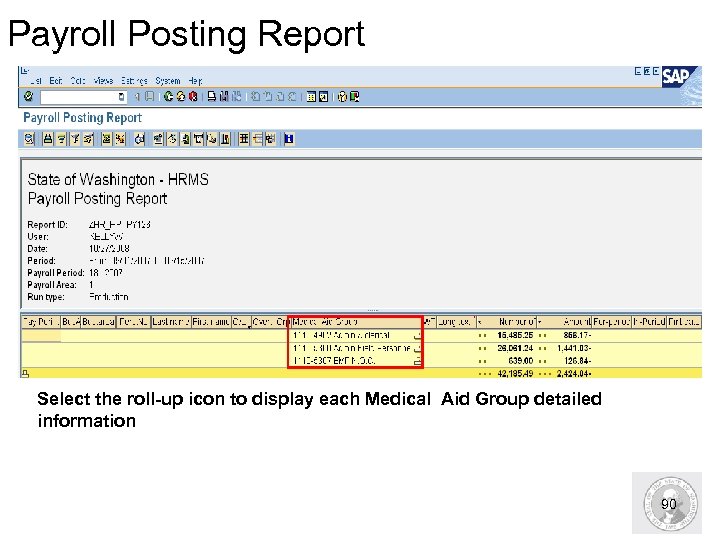 Payroll Posting Report Select the roll-up icon to display each Medical Aid Group detailed information 90
 Wage Type Assignment § Run this report to view the list of all HRMS wage types and view the General Ledger account the wage type will post to in OFM’s Agency Financial Reporting System (AFRS) § Refer to the OLQR User Procedure: Wage Type Assignment - Display G/L Accounts § Access this report using the transaction code: PC 00_M 99_DKON 91
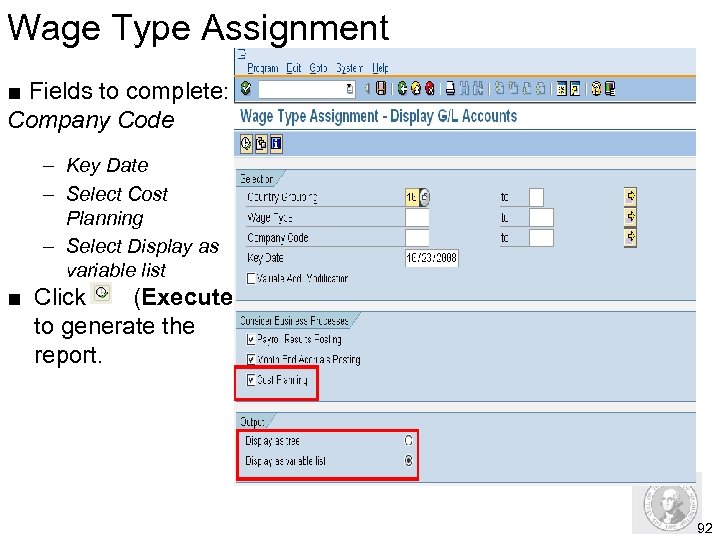 Wage Type Assignment ■ Fields to complete: Company Code – Key Date – Select Cost Planning – Select Display as variable list ■ Click (Execute) to generate the report. 92
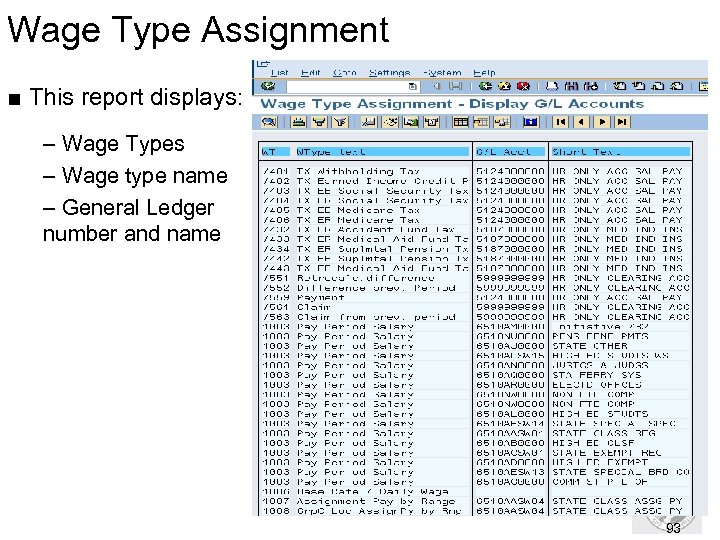 Wage Type Assignment ■ This report displays: – Wage Types – Wage type name – General Ledger number and name 93
 Wage Type Reporter n Use Wage Type Reporter to run analysis on wage types used in the payroll process. n This report is used to identify transactions automatically recorded in the Agency Sate payroll Revolving Account 035 in General Ledger (GL) 5199 - Other payables. n Refer to the OLQR User Procedure: Wage Type Reporter n To access this report, use the transaction code: PC 00_M 99_CWTR 94
 Wage Type Reporter – Statewide Variants n The following Variants have been created for statewide use: – SWV GL 5199 – This report should be run each payroll to determine if the agency has any transactions that need to be transferred from the Agency 035 GL 5199 for employee deductions. It is also used in 035 Reconciliation. – SWV HI ERSHARE-Employer health insurance costs – SWV DEF COMP- Deferred compensation deduction 95
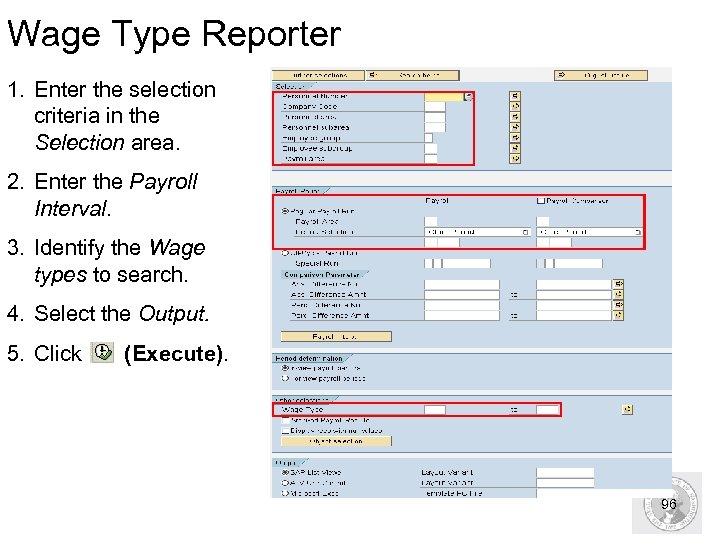 Wage Type Reporter 1. Enter the selection criteria in the Selection area. 2. Enter the Payroll Interval. 3. Identify the Wage types to search. 4. Select the Output. 5. Click (Execute). 96
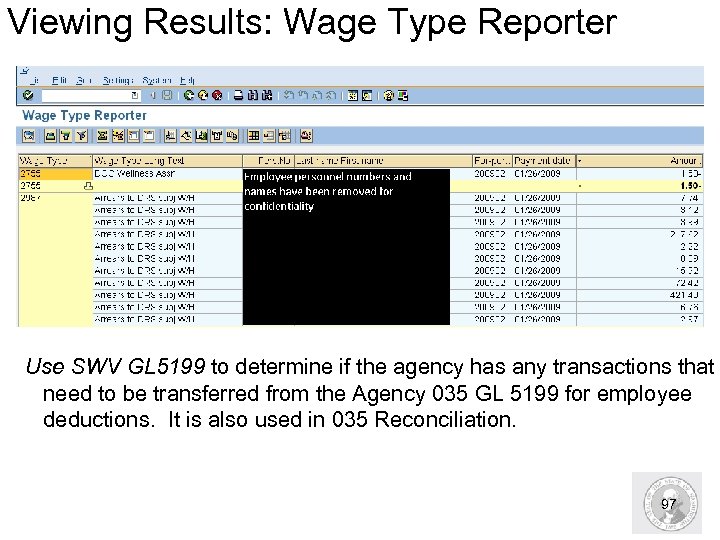 Viewing Results: Wage Type Reporter Use SWV GL 5199 to determine if the agency has any transactions that need to be transferred from the Agency 035 GL 5199 for employee deductions. It is also used in 035 Reconciliation. 97
 HRMS Activity Run and View a Wage Type Reporter Exercise– Pg. 16 98
 Remittance Detail Report n Is used to provide a list of warrants that are not mailed out centrally by OFM. n This can act as the agencies Miscellaneous Deduction Register (MDR). n Refer to the OLQR User Procedure: 3 rd Party Reconciliation n Access the Remittance Detail Report using the transaction code PC 00_M 99_URMR 99
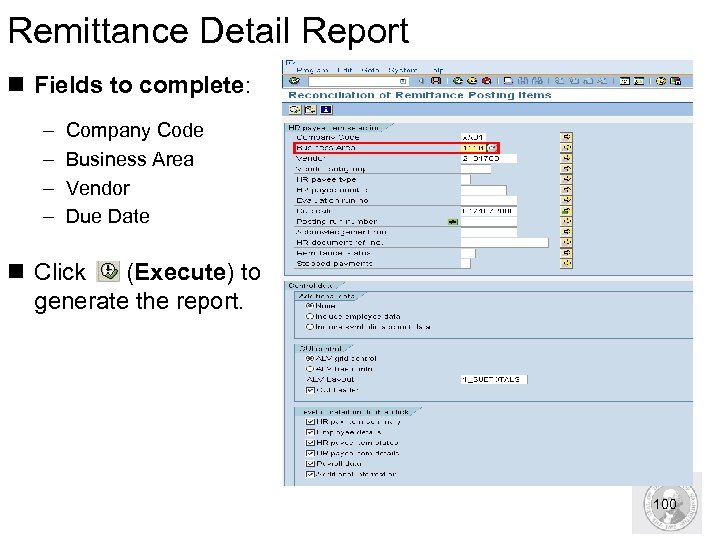 Remittance Detail Report n Fields to complete: – – Company Code Business Area Vendor Due Date n Click (Execute) to generate the report. 100
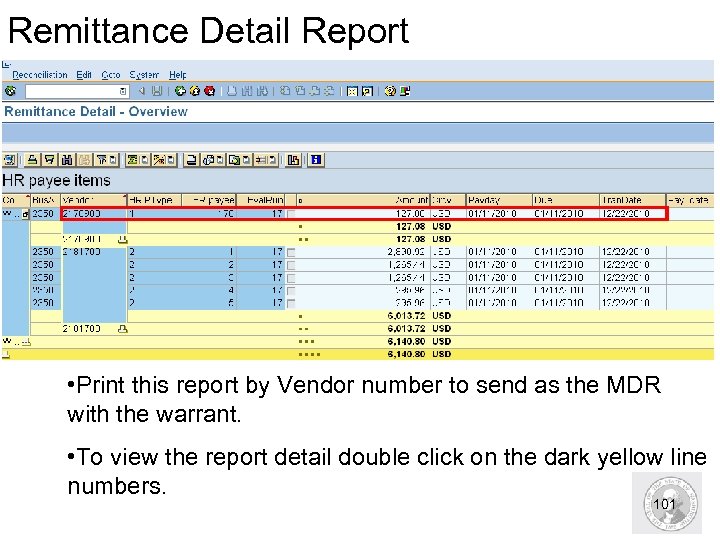 Remittance Detail Report • Print this report by Vendor number to send as the MDR with the warrant. • To view the report detail double click on the dark yellow line numbers. 101
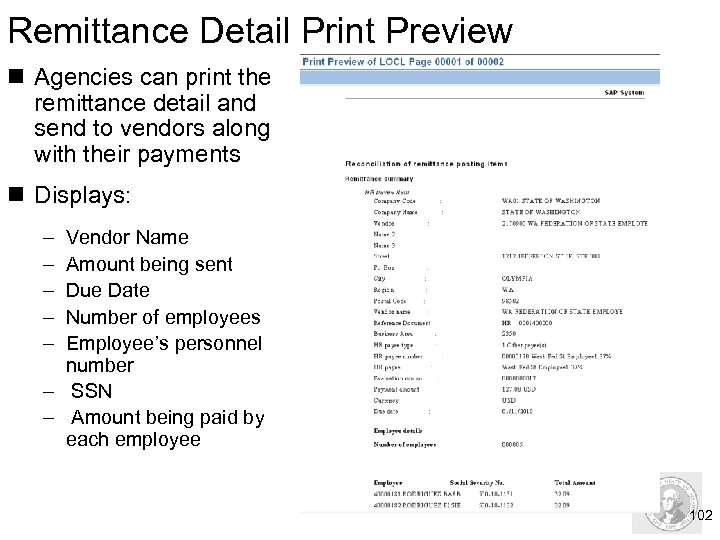 Remittance Detail Print Preview n Agencies can print the remittance detail and send to vendors along with their payments n Displays: – – – Vendor Name Amount being sent Due Date Number of employees Employee’s personnel number – SSN – Amount being paid by each employee 102
 Step 5: Exit Payroll n The final step in the processing of payroll is exiting payroll. n DES prepares the payroll data for printing of warrants and ACH transmission. n DES is responsible for exiting payroll. Exiting of payroll occurs on the morning of Day 4 prior to Day 4 activities starting. 103
 Review Questions. n True or False? ALAS errors are caused by claims from prior periods that are not offset in the current period. True. ALAS errors are caused by claims from prior periods. . n When do agencies need to check their spool file? What is the transaction code to access the spool file? On each of the payroll processing days to verify that they do not have errors with the time transfer, payroll processing. SP 01 104
 Reports to run after payroll is exited 105
 Reports to run after payroll is exited n Upon completion of this section, you will be able to access key HRMS payroll processing reports including: – – – – Payroll Journal (ZHR_RPTPPYN 33) Negative Summary Records (ZHR_RPTPY 455) Wages Not Subject to OASI/Medicare (ZHR_RPTPY 632) Payroll Results Table (PC_PAYRESULT) Accrued and Mandatory Deduction Reports (ZHR_RPTPY 010) Warrant/ACH register and Summary (ZHR_RPTPY 635) Employee Year to Date (YTD) Payroll register (ZHR_RPTPY 646) – Payroll Posting Report (ZHR_RPTPY 126) 106
 Payroll Journal n This report is used for Payroll certification based on the State of Washington Office of Financial Management State Administrative & Accounting Manual (SAAM) Chapter 25. 20. 30. http: //www. ofm. wa. gov/policy/25. 20. htm n Before you can receive current results, DES must execute a payroll run and have stored results during a payroll cycle. n Signatures for certification should not occur until DES has processed their final run for the payroll cycle and DES has generated warrants and ACH. n Access the Payroll Journal using the transaction code ZHR_RPTPYN 33 107
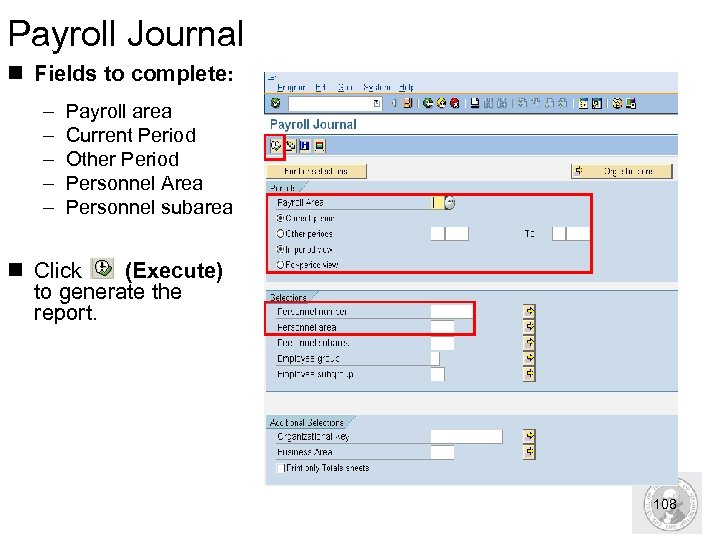 Payroll Journal n Fields to complete: – – – Payroll area Current Period Other Period Personnel Area Personnel subarea n Click (Execute) to generate the report. 108
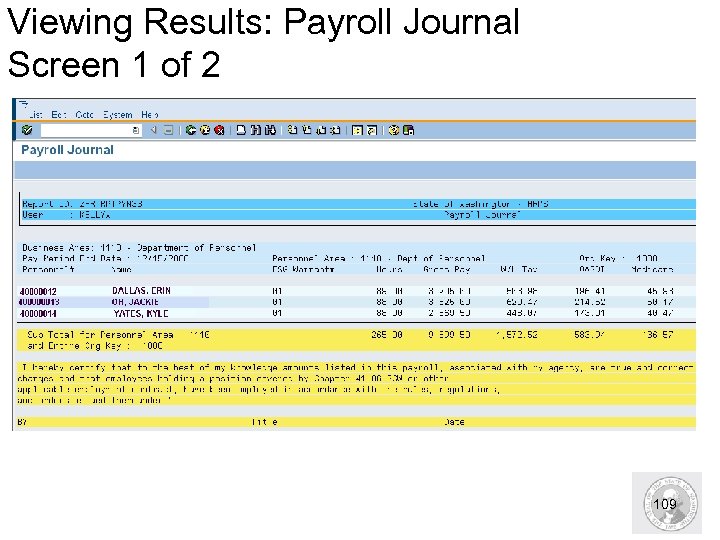 Viewing Results: Payroll Journal Screen 1 of 2 109
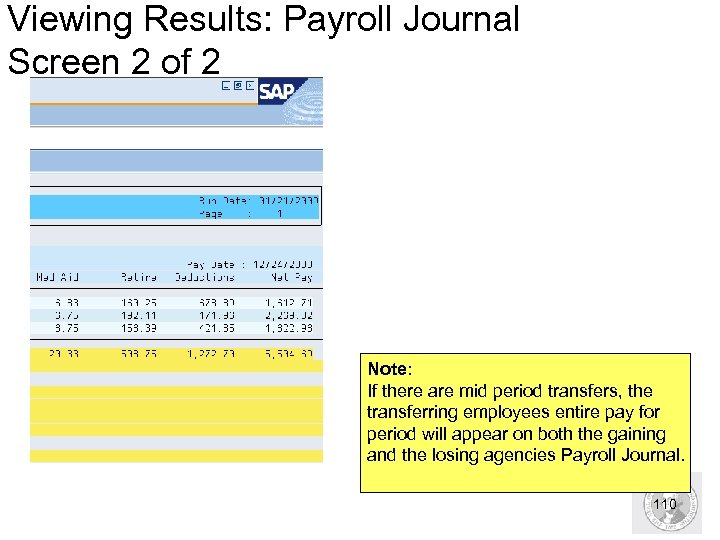 Viewing Results: Payroll Journal Screen 2 of 2 Note: If there are mid period transfers, the transferring employees entire pay for period will appear on both the gaining and the losing agencies Payroll Journal. 110
 HRMS Activity Run and View the Payroll Journal Exercise– pg. 18 111
 Negative Summary Records Report n Use the Negative Summary Records report to identify any negative third party remittances that may have been generated from: – Warrant cancellation – Credit / Miscellaneous Deductions – Retroactive Change n Run this report for every payroll to have documentation of any negative deductions and for fund reconciliation. n Refer to the OLQR User Procedure: Negative Summary Records n Access the Negative Summary Records report using the transaction code ZHR_RPTPY 455. 112
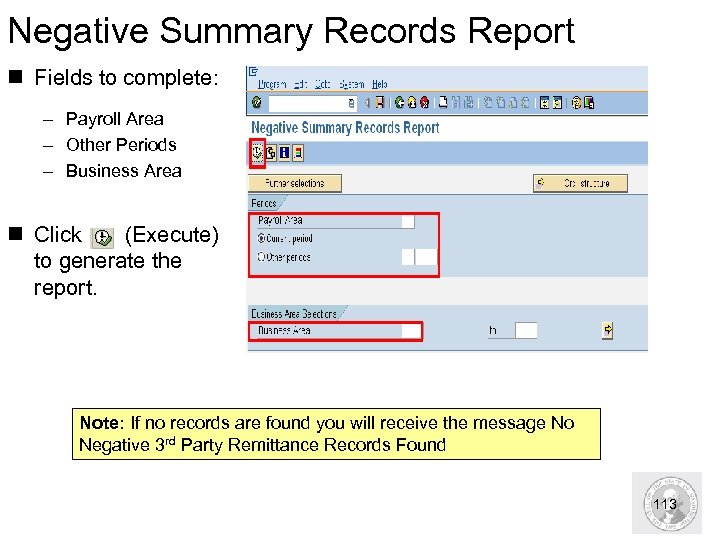 Negative Summary Records Report n Fields to complete: – Payroll Area – Other Periods – Business Area n Click (Execute) to generate the report. Note: If no records are found you will receive the message No Negative 3 rd Party Remittance Records Found 113
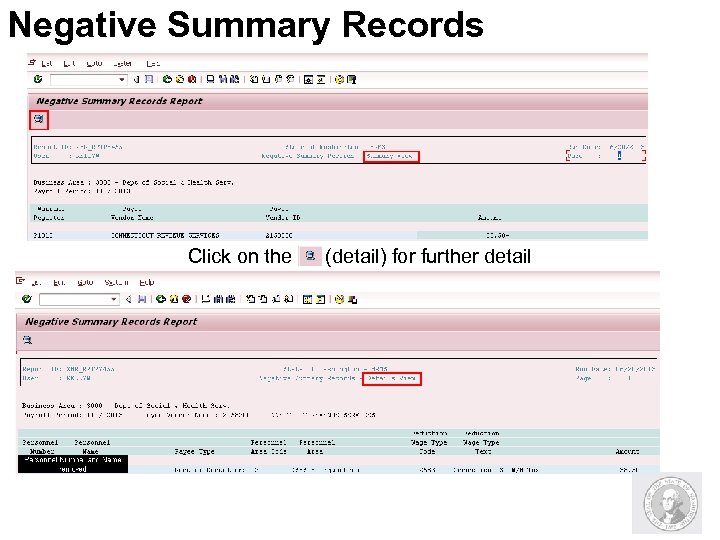 Negative Summary Records Click on the (detail) for further detail
 Wages Not Subject to OASI/Medicare n Displays employees who have wages not subject to OASI and Medicare. – – – Employees exempt from OASI. Employees over OASI maximum Sick leave buyout not subject due to death or disability Dependant care Pretax insurance n Refer to the OLQR User Procedure: Wages Not Subject to OASI/Medicare n Access the Wages Not Subject to OASI/Medicare report using the transaction code ZHR_RPTPY 632 115
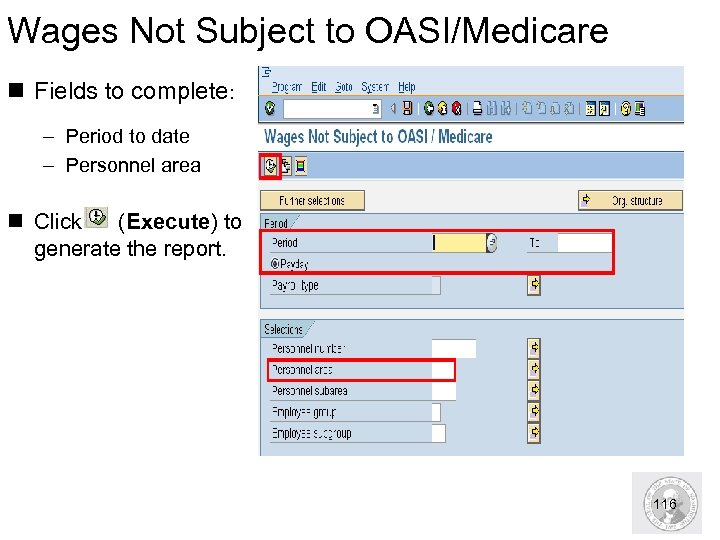 Wages Not Subject to OASI/Medicare n Fields to complete: – Period to date – Personnel area n Click (Execute) to generate the report. 116
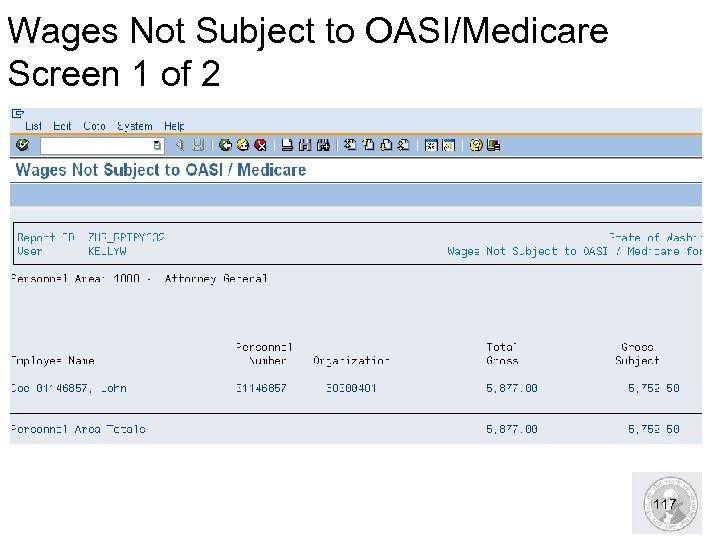 Wages Not Subject to OASI/Medicare Screen 1 of 2 117
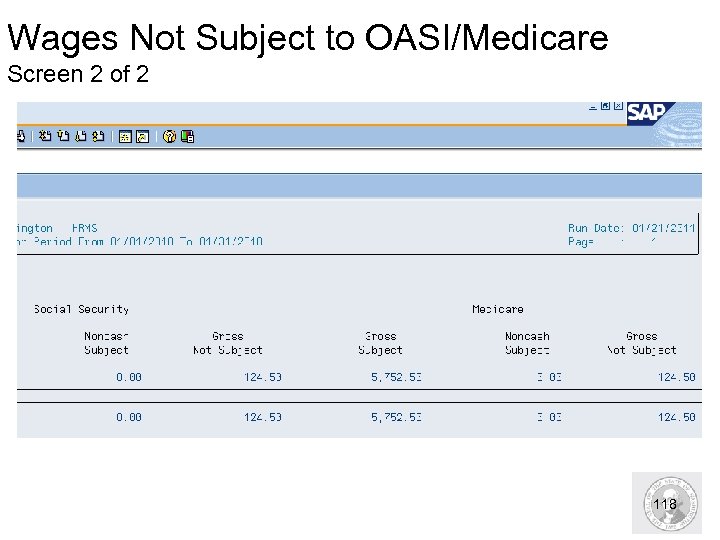 Wages Not Subject to OASI/Medicare Screen 2 of 2 118
 Payroll Results Table n Used to view the stored payroll results for a specific payroll run. n Refer to the OLQR User Procedure: Payroll Results n Access the Payroll Results Table by using the transaction code PC_PAYRESULT 119
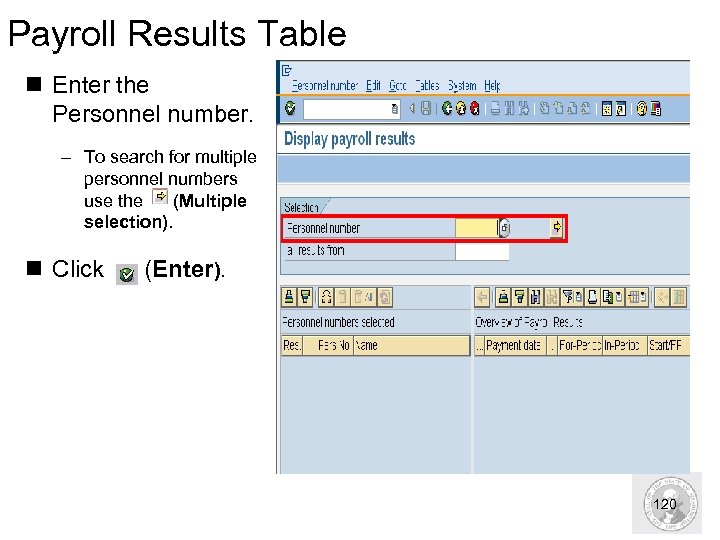 Payroll Results Table n Enter the Personnel number. – To search for multiple personnel numbers use the (Multiple selection). n Click (Enter). 120
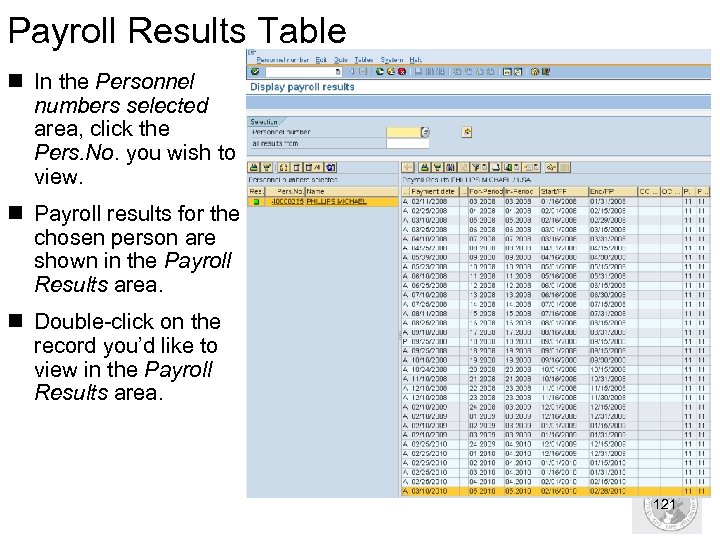 Payroll Results Table n In the Personnel numbers selected area, click the Pers. No. you wish to view. n Payroll results for the chosen person are shown in the Payroll Results area. n Double-click on the record you’d like to view in the Payroll Results area. 121
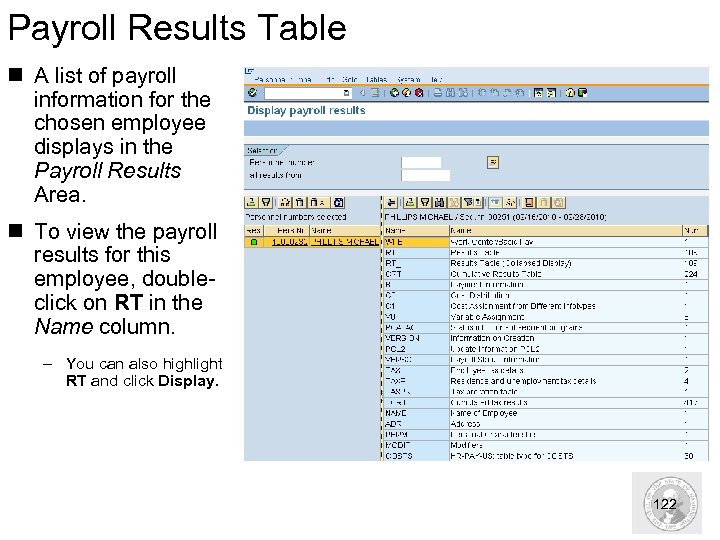 Payroll Results Table n A list of payroll information for the chosen employee displays in the Payroll Results Area. n To view the payroll results for this employee, doubleclick on RT in the Name column. – You can also highlight RT and click Display. 122
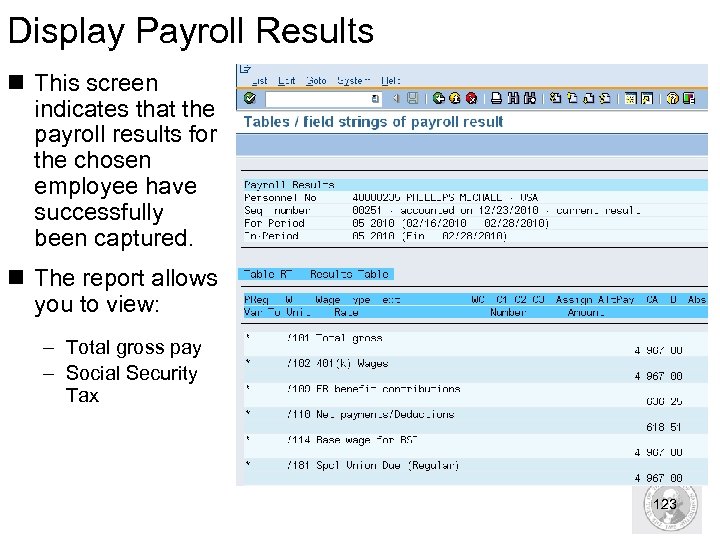 Display Payroll Results n This screen indicates that the payroll results for the chosen employee have successfully been captured. n The report allows you to view: – Total gross pay – Social Security Tax 123
 HRMS Activity Run and View the Payroll Results Table Exercise – Pg. 20 124
 Accrued and Mandatory Payroll Deduction Reports n Used to show: – Medical aid and industrial insurance – Court payments – Social Security and Medicare for both employees and employer – Retirement summaries by plan n Refer to the OLQR User Procedure: Accrued and Mandatory Payroll Deductions n Access this report by using the transaction code ZHR_RPTPY 010. 125
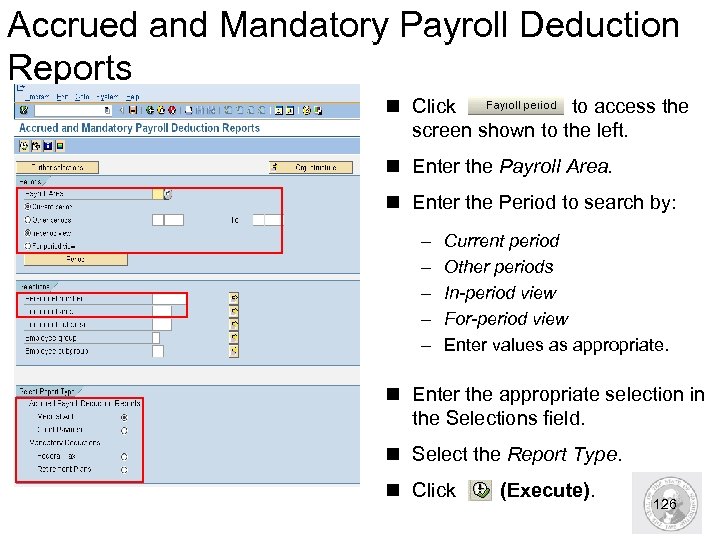 Accrued and Mandatory Payroll Deduction Reports n Click to access the screen shown to the left. n Enter the Payroll Area. n Enter the Period to search by: – – – Current period Other periods In-period view For-period view Enter values as appropriate. n Enter the appropriate selection in the Selections field. n Select the Report Type. n Click (Execute). 126
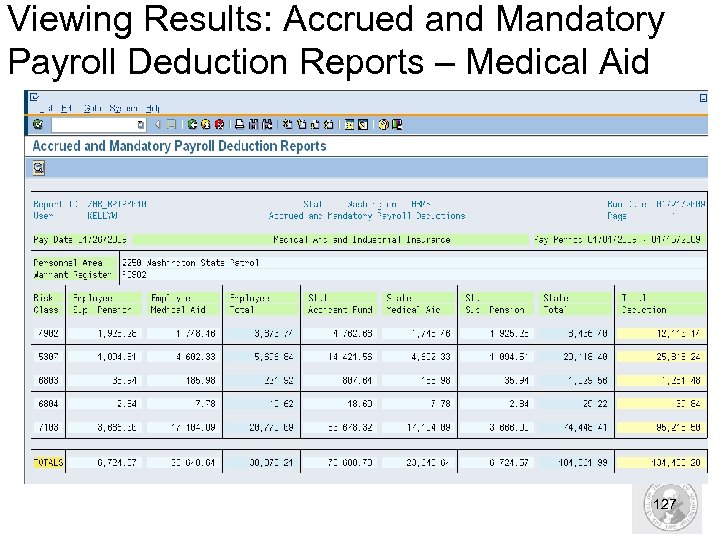 Viewing Results: Accrued and Mandatory Payroll Deduction Reports – Medical Aid 127
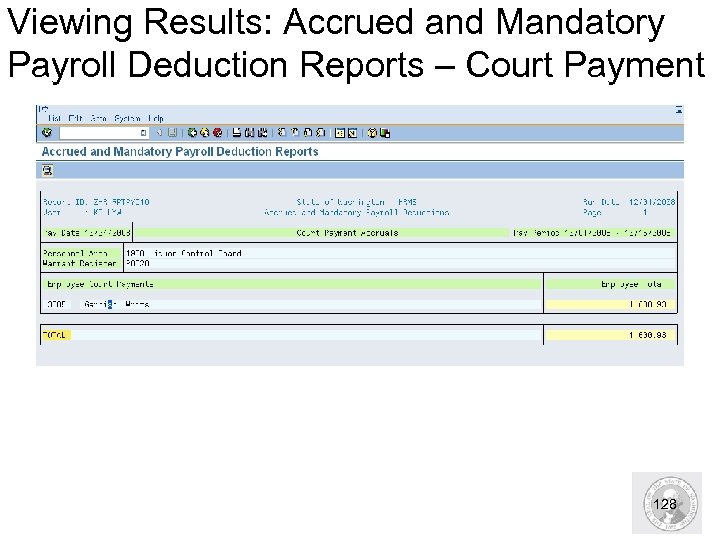 Viewing Results: Accrued and Mandatory Payroll Deduction Reports – Court Payment 128
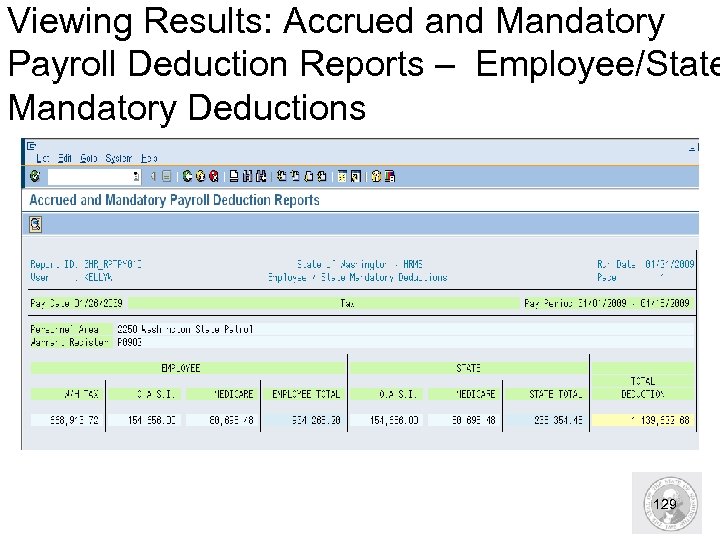 Viewing Results: Accrued and Mandatory Payroll Deduction Reports – Employee/State Mandatory Deductions 129
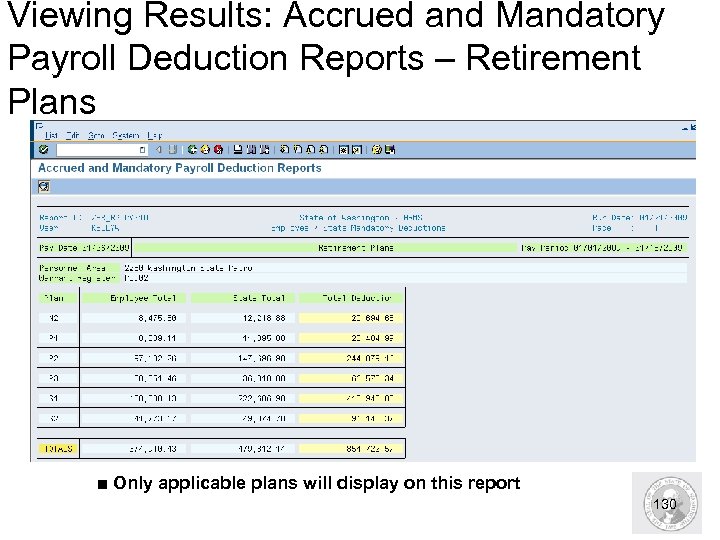 Viewing Results: Accrued and Mandatory Payroll Deduction Reports – Retirement Plans ■ Only applicable plans will display on this report 130
 HRMS Activity Run Accrued & Mandatory Payroll Deductions Exercise – 22 131
 Warrant/ACH Register and Summary n Displays both detail and summary information for warrants and ACH. n Refer to the OLQR User Procedure: Warrant/ACH Register and Summary n Access the Warrant/ACH Register and Summary by using the transaction code ZHR_RPTPY 635 132
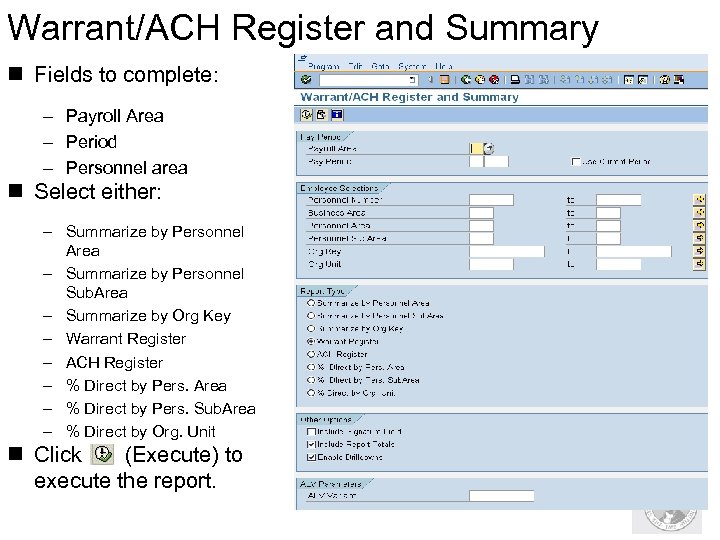 Warrant/ACH Register and Summary n Fields to complete: – Payroll Area – Period – Personnel area n Select either: – Summarize by Personnel Area – Summarize by Personnel Sub. Area – Summarize by Org Key – Warrant Register – ACH Register – % Direct by Pers. Area – % Direct by Pers. Sub. Area – % Direct by Org. Unit n Click (Execute) to execute the report. 133
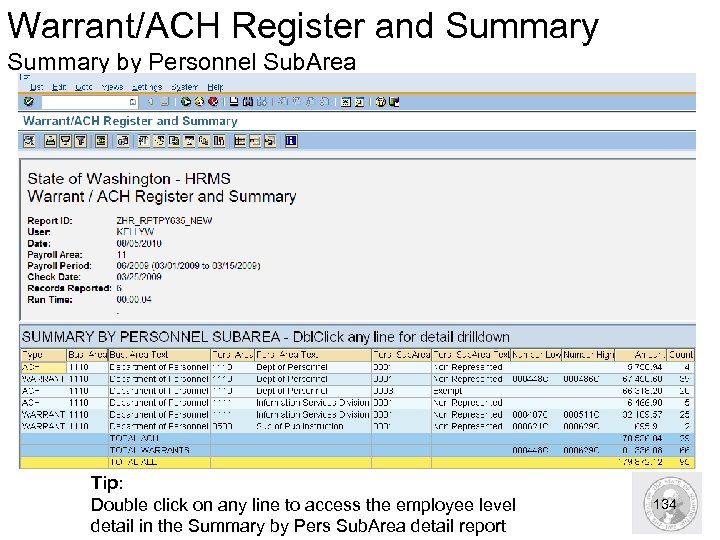 Warrant/ACH Register and Summary by Personnel Sub. Area Tip: Double click on any line to access the employee level detail in the Summary by Pers Sub. Area detail report 134
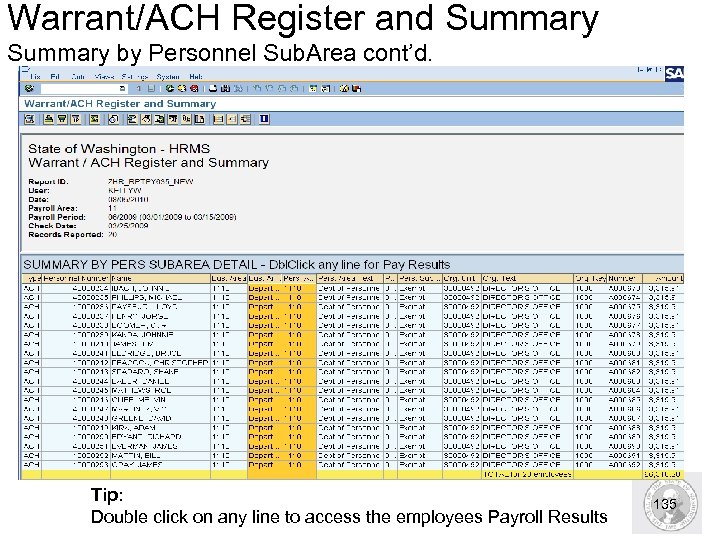 Warrant/ACH Register and Summary by Personnel Sub. Area cont’d. Tip: Double click on any line to access the employees Payroll Results 135
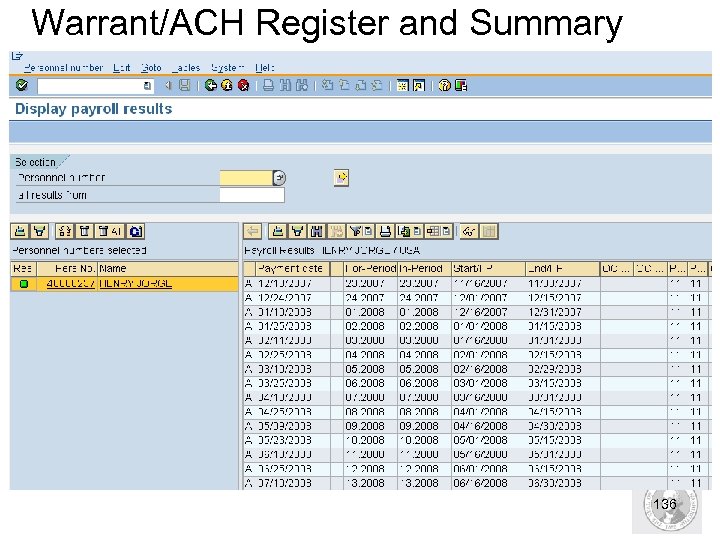 Warrant/ACH Register and Summary 136
 Employee Year to Date (YTD) Payroll Register n Use to view detailed results of employee’s year to date earnings totals. n This report shows the year-to-date totals for Gross pay, Withholding tax, Social Security, Medicare, Deferred Compensation and Union Dues. n This information is used to create an employee’s W-2 form and form 941 for IRS. n Access the Employee Year to Date (YTD) Payroll Register using the transaction code ZHR_RPTPY 646. 137
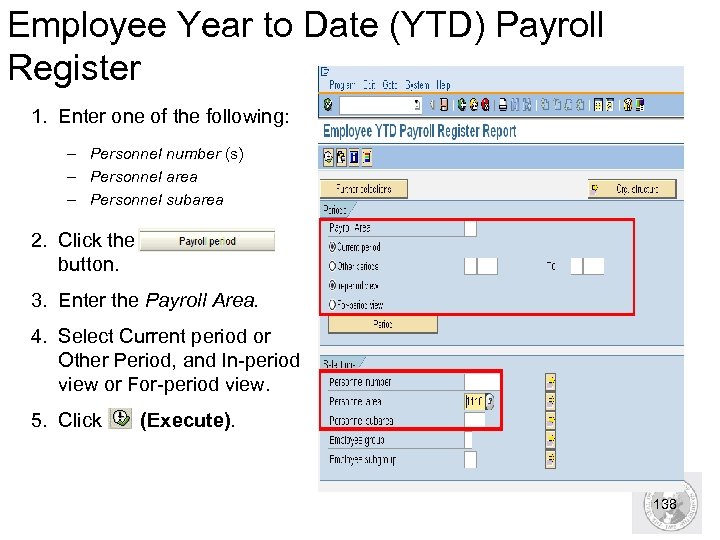 Employee Year to Date (YTD) Payroll Register 1. Enter one of the following: – Personnel number (s) – Personnel area – Personnel subarea 2. Click the button. 3. Enter the Payroll Area. 4. Select Current period or Other Period, and In-period view or For-period view. 5. Click (Execute). 138
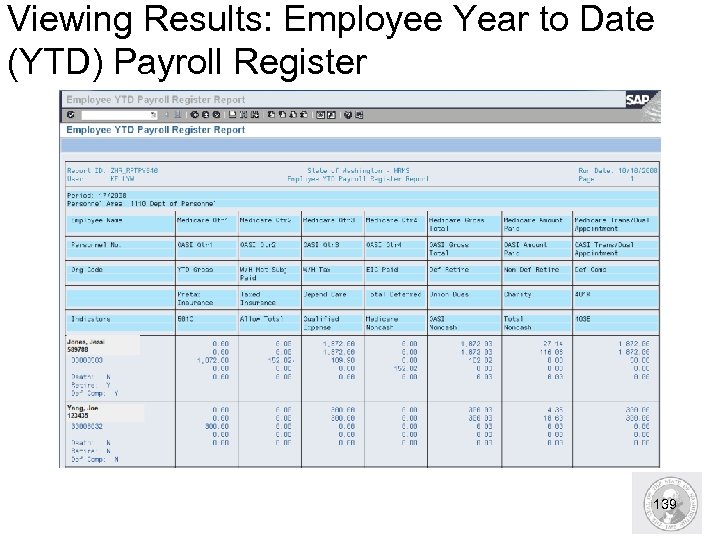 Viewing Results: Employee Year to Date (YTD) Payroll Register 139
 HRMS Activity Run the Employee Year to Date (YTD) Payroll Register Exercise – Pg. 24 140
 Other Payroll Reports n The following reports are also available to run for payroll purposes. – Medical Aid Detail Report (ZHR_RPTPY 394) – Displays quarterly gross salary (inclusive of wage types subject to Medical Aid only) and work hours by medical aid risk class code for the quarter – Buyout Statements / Lag Leave (ZHR_RPTPY 681) – Form that is mailed to employees eligible and have been given the option to buyout sick leave. – Adjustments to Earnings Subject to Employment Security (ZHR_RPTPY 123) – Used to read payroll posting data after it has been processed through ALAS. This report displays all the posted entries affected by an employee with a cancelled warrant. 141
 Year End Reports n The following reports are available for year end reporting in HRMS – Form 1099 R- (PU 19)* Displays information reported on the 1099 R Tax Statement (organization code, gross pension) – W-2 Wage and Tax Statement- (PU 19)* Displays employee’s wages and other information reported to IRS for calendar year – W-2 Audit –(PU 19)* Displays employees who received wages during calendar year and will receive a W-2 from the agency – Transmitter Report and Summary of Magnetic Media (PU 19)* Displays data transmitted to the Social Security Administration, summarizes wages reported – Appointments with EIC at Year End - (ZHR_RPTPY 675) Displays active employees who have Earned Income Credits (EIC) – Sick Leave Over 480 – Non eligible report– (ZHR_RPTPY 007) Identifies employees with more than 480 hours of sick leave who are not eligible for buyout. * Only end users with the Tax Reporter Role may access the transaction PU 19 142
 Business Intelligence Reports n The following reports are available Business Intelligence reporting in HRMS: – Distribution of Payroll and Related Costs – Shows employer costs by employee and by AFRS account distribution – Position Cost Report – Displays an audit for employer costs, full-time costs, overtime hours, overtime amounts, and shift differential amounts for each position and class title in an agency – “Who Charged” Reporting – Displays the AFRS account code structure as to “who” is charged, hours worked, salary used, and organization structure 143
 Review Questions n Which report must be run, printed and signed to certify payroll each payroll ? Payroll Journal (ZHR_RPTPYN 33) n Which report shows the year-to-date totals for Gross pay, Withholding tax, Social Security, Medicare, Deferred Compensation and Union Dues? Employee Year to Date Payroll Register (ZHR_RPTPY 646) 144
 Payroll Outputs 145
 HRMS Earning Statements n When the payroll process is complete, earnings statements and warrants are distributed to agencies. n HRMS earning statements are two-sided. – Side 1 contains employee information and net pay. – Side 2 contains a breakdown of earning types, allowances, mandatory deductions, voluntary deductions, and employer contributions. n Refer to the OLQR User Procedure: Earnings and Deductions Statement n Access Earnings and Deductions Statement using the transaction code ZHR_RPTPY 711 146
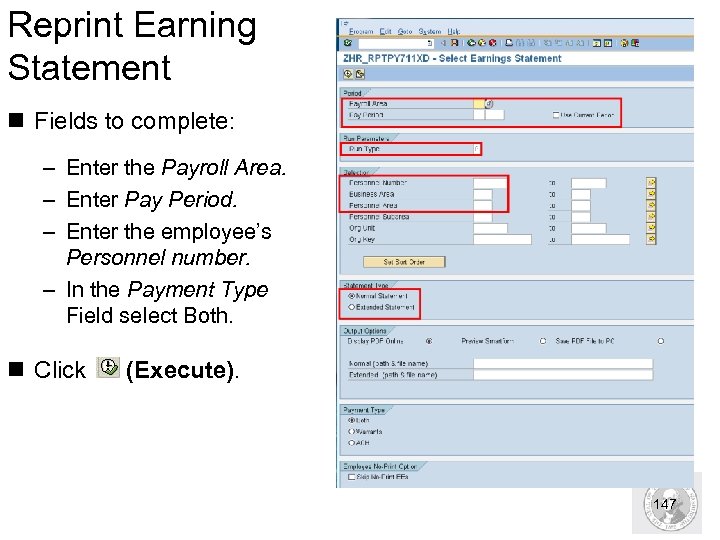 Reprint Earning Statement n Fields to complete: – Enter the Payroll Area. – Enter Pay Period. – Enter the employee’s Personnel number. – In the Payment Type Field select Both. n Click (Execute). 147
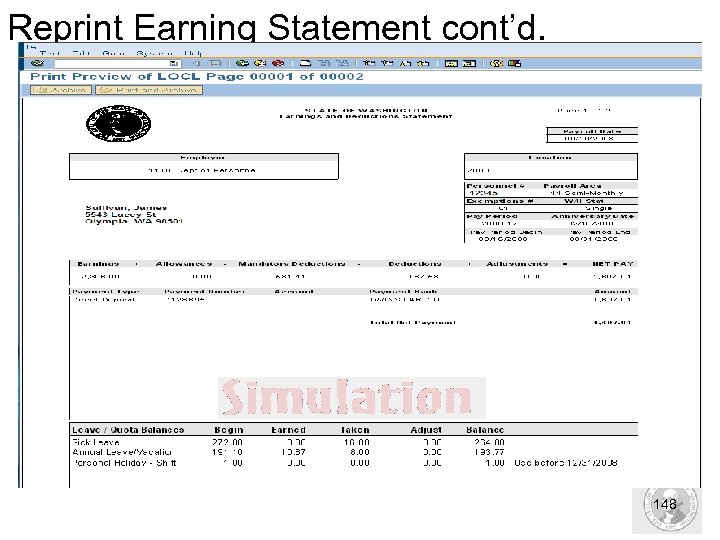 Reprint Earning Statement cont’d. 148
 EFT Employee Letter n Used to create letters for employees informing them of direct deposit. n The letter contains details of changes made to direct deposit including: – Financial Institution Name and Number – Type of Account – Account Number n Access EFT Employee Letter using transaction code ZHR_RPTPY 713. 149
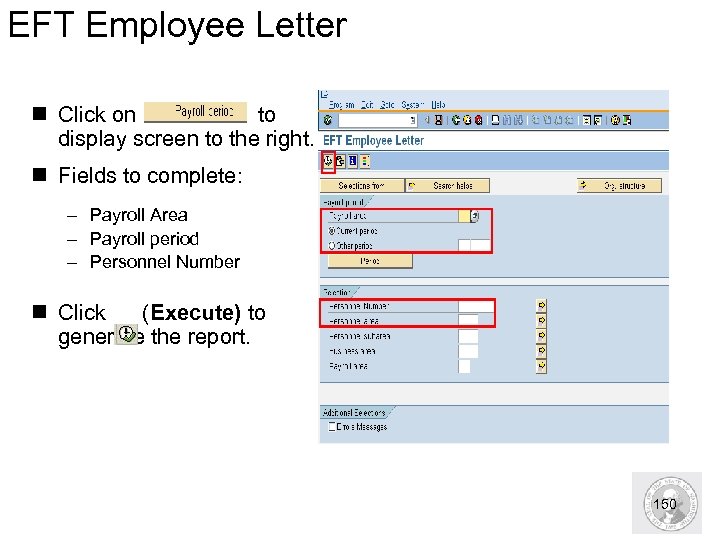 EFT Employee Letter n Click on to display screen to the right. n Fields to complete: – Payroll Area – Payroll period – Personnel Number n Click (Execute) to generate the report. 150
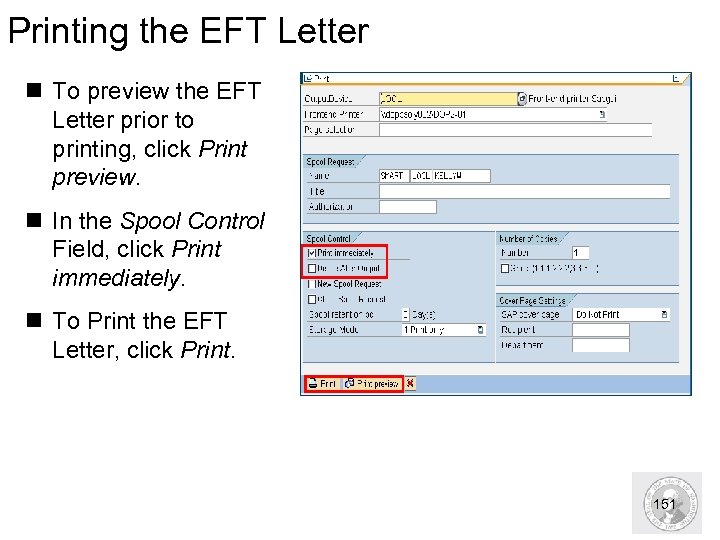 Printing the EFT Letter n To preview the EFT Letter prior to printing, click Print preview. n In the Spool Control Field, click Print immediately. n To Print the EFT Letter, click Print. 151
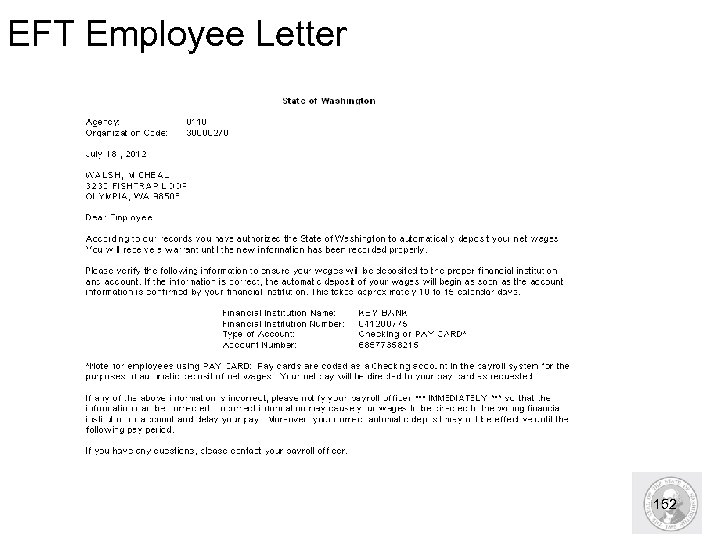 EFT Employee Letter 152
 Extended Payroll Scenarios 153
 Extended Payroll Scenarios Upon completion of this section, you will be able to: n Complete extended payroll scenarios including: – Cancel a Warrant/ACH using the off-cycle reversal – Find Overpayments – Offsetting overpayments – Recover Overpayments – Mid-Period Transfers – Recover a Manual Warrant 154
 New Terms n Off-Cycle Reversal: Two step process to cancel a Warrant/ACH created in error. – Step 1. Contact the DES Service Center (360)664. 6400 or Service. Center@des. wa. gov to process the ACH Reversal – Step 2. Process the reversal n Off-cycle workbench: Transaction that recovers money back in HRMS 155
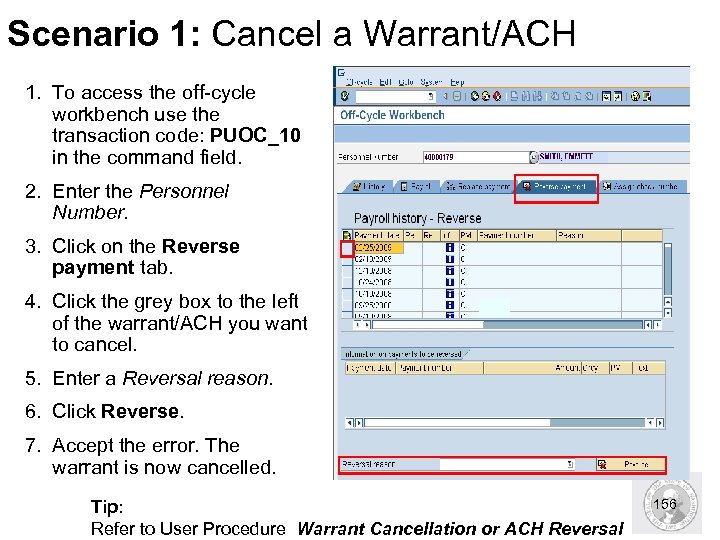 Scenario 1: Cancel a Warrant/ACH 1. To access the off-cycle workbench use the transaction code: PUOC_10 in the command field. 2. Enter the Personnel Number. 3. Click on the Reverse payment tab. 4. Click the grey box to the left of the warrant/ACH you want to cancel. 5. Enter a Reversal reason. 6. Click Reverse. 7. Accept the error. The warrant is now cancelled. Tip: Refer to User Procedure Warrant Cancellation or ACH Reversal 156
 HRMS Activity Run the Off-cycle Reversal for a Warrant Exercise – Pg. 26 157
 Scenario 2: Identify Cost Distributions n To identify Employees with a Cost Distribution Infotype (0027) – Employee Cost Distribution Report (ZHR_RPTFI 0027) n To identify the Cost Distribution Infotype (1018) by Position – Position Cost Distribution (ZHR_RPTFI 1018) n User Procedures on the OLQR – Cost Distribution- Employee (IT 0027) – Cost Distribution- Position (IT 1018) 158
 Scenario 3: Find Overpayments n Reports to run help identify overpayments: – Payroll Simulation (PC 00_M 99_CALC_SIMU) – Preemptive Compensation Data Check (ZHR_RPTPYN 08) § Run After Day 1 of payroll processing. – Payroll Threshold Report (ZHR_RPTPYN 09) § Run After Day 1 of payroll processing. – Payroll Posting Report (ZHR_RPTPY 126) § Run After Day 1 through Day 3 of payroll processing § Use the ALAS communication Run ID and Doc #. – Payroll Journal (ZHR_RPTPYN 33) – Payroll Results (PC_PAYRESULT) n Wage Type Reporter (PC 00_M 99_CWTR) – Use to Identify new HR actions, catch overpayments before they occur. 159
 Scenario 4: Recover Overpayments need to be recovered in HRMS. n Since money can not be withheld from an employee’s check without his/her approval, you and the Payroll Processor must create a positive balancing adjustment that matches the overpayment amount. n If you have the employee’s permission to collect the entire amount then you will not have to do anything in the system. HRMS will automatically process the claim and recover the overpayment. n If you have an employee’s permission to recover the overpayment within an agreed amount of time use recurring deduction (Infotype 0014). This must be completed by the Payroll Processor. – It is your responsibility for informing the Payroll Processor of any necessary changes to master data (including setting up a recurring deduction). 160
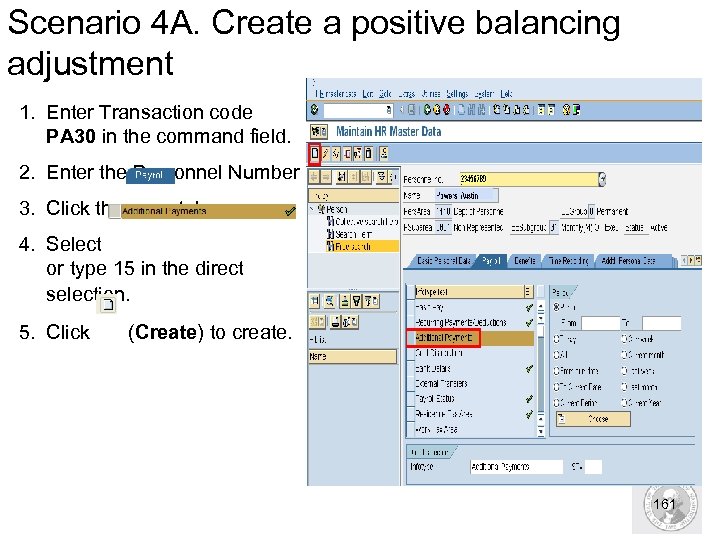 Scenario 4 A. Create a positive balancing adjustment 1. Enter Transaction code PA 30 in the command field. 2. Enter the Personnel Number 3. Click the tab. 4. Select or type 15 in the direct selection. 5. Click (Create) to create. 161
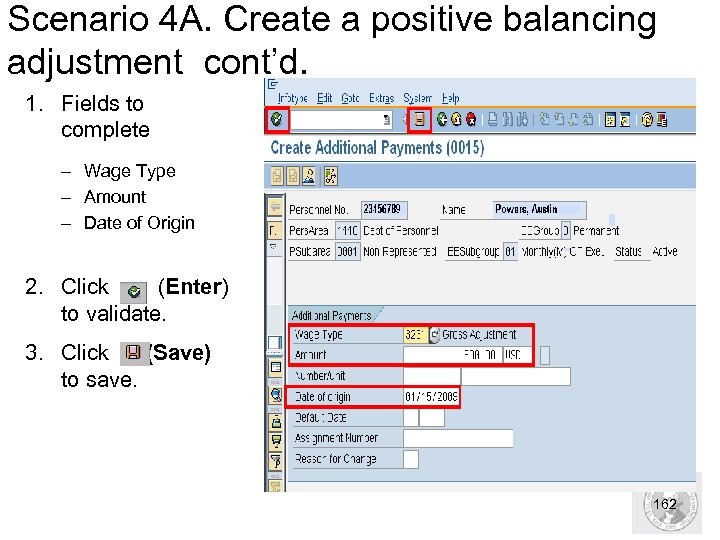 Scenario 4 A. Create a positive balancing adjustment cont’d. 1. Fields to complete – Wage Type – Amount – Date of Origin 2. Click (Enter) to validate. 3. Click (Save) to save. 162
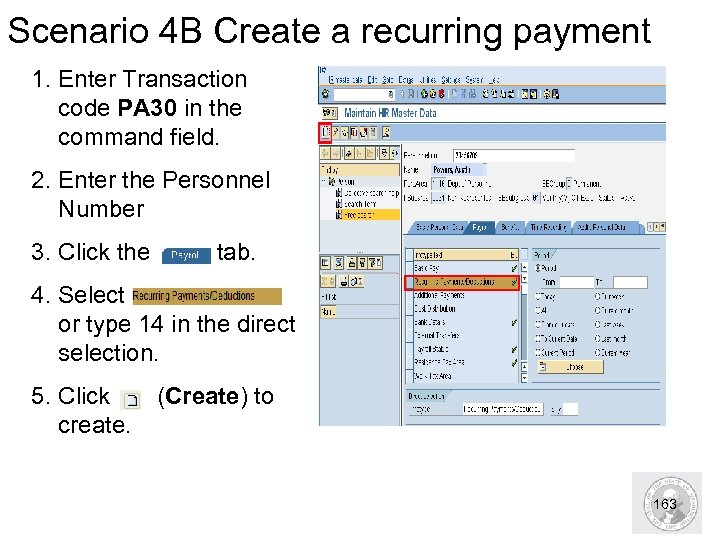 Scenario 4 B Create a recurring payment 1. Enter Transaction code PA 30 in the command field. 2. Enter the Personnel Number 3. Click the tab. 4. Select or type 14 in the direct selection. 5. Click (Create) to create. 163
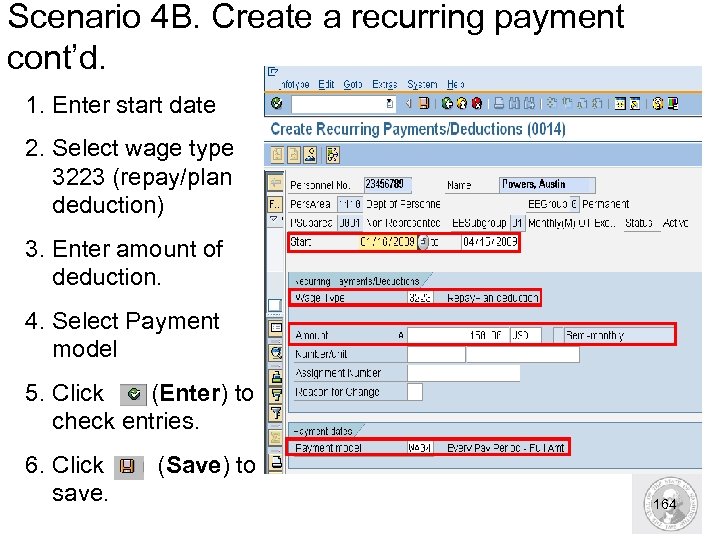 Scenario 4 B. Create a recurring payment cont’d. 1. Enter start date 2. Select wage type 3223 (repay/plan deduction) 3. Enter amount of deduction. 4. Select Payment model 5. Click (Enter) to check entries. 6. Click (Save) to save. 164
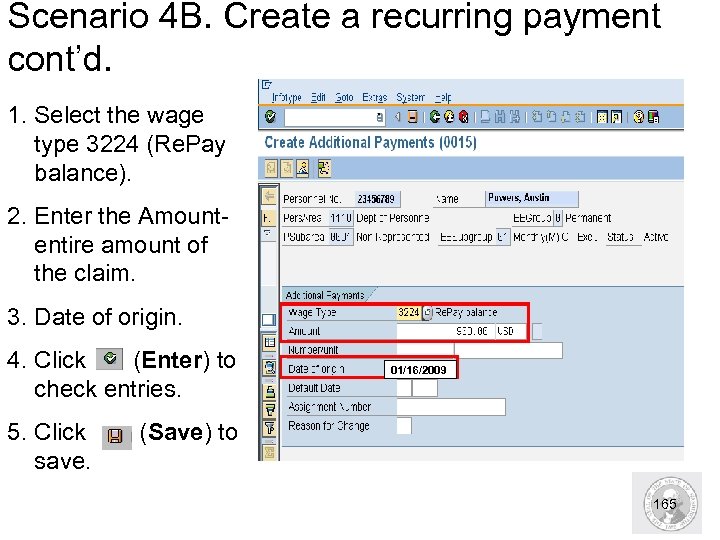 Scenario 4 B. Create a recurring payment cont’d. 1. Select the wage type 3224 (Re. Pay balance). 2. Enter the Amount- entire amount of the claim. 3. Date of origin. 4. Click (Enter) to check entries. 01/16/2009 5. Click (Save) to save. 165
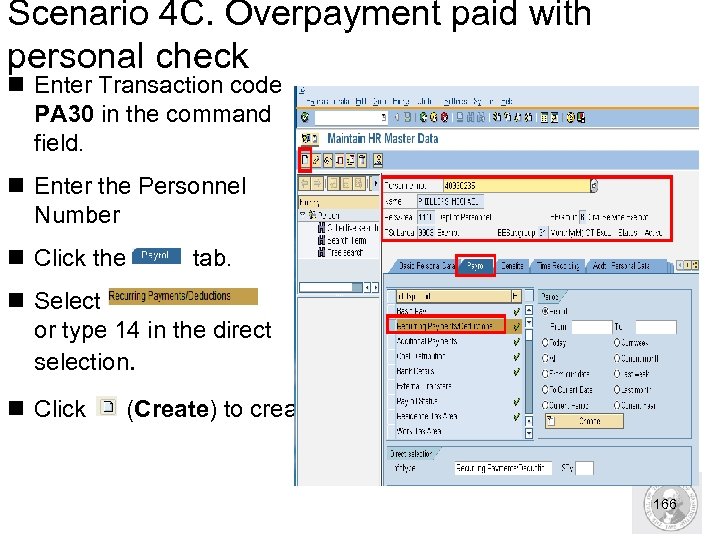 Scenario 4 C. Overpayment paid with personal check n Enter Transaction code PA 30 in the command field. n Enter the Personnel Number n Click the tab. n Select or type 14 in the direct selection. n Click (Create) to create. 166
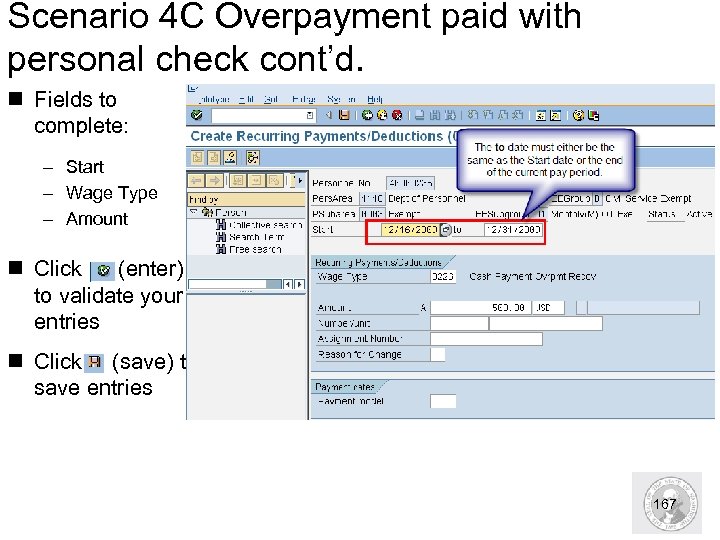 Scenario 4 C Overpayment paid with personal check cont’d. n Fields to complete: – Start – Wage Type – Amount n Click (enter) to validate your entries n Click (save) to save entries 167
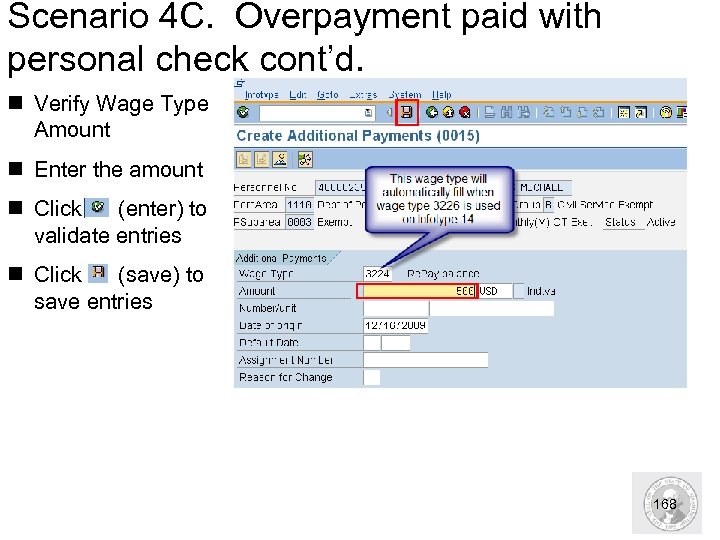 Scenario 4 C. Overpayment paid with personal check cont’d. n Verify Wage Type Amount n Enter the amount n Click (enter) to validate entries n Click (save) to save entries 168
 Scenario 5: Mid Period Transfers n Department of Personnel encourages managers to make hiring and termination dates align with pay periods (1 st or 16 th) when possible due to the complicated involvement for payroll processors of the losing & gaining agencies. n In HRMS, when an employee transfers mid-period (Appointment Change), a single warrant / EFT is processed for that period. The agency that receives the transferring employee reports the entire pay period taxes and most deductions. – The monies are automatically transferred from the losing agency to the gaining agency to cover their portion of the costs on the period n After payroll is run, the losing agency no longer owns the employee. Therefore they will not see payroll results, payroll register, mandatory deductions, etc. All this will appear in the gaining agency. – The losing agency will see transactions on the expenditure reports. The losing and gaining agencies transfer Journal Vouchers (transfer of money from losing agency to gaining agency). 169
 Scenario 5: Mid Period Transfers: W/H, Social Security, Medicare n In a mid-period transfer, the applicable employer share of expenditures are recorded in each agency’s operating / capital accounts and 035 payroll revolving account GL 5124. n A transfer is then recorded automatically. This transfers the applicable employer share from the losing agency GL 5124 to the gaining agency GL 5124. n Both the employer shares and employee shares of withholding, Social Security, and Medicare paid and reported by the gaining agency. – The gaining agency is responsible for reporting tax information on the 941 and W-2 reports. 170
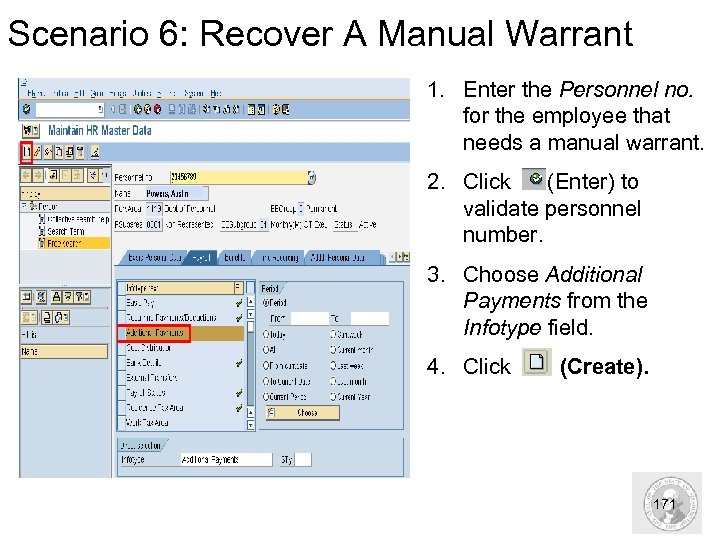 Scenario 6: Recover A Manual Warrant 1. Enter the Personnel no. for the employee that needs a manual warrant. 2. Click (Enter) to validate personnel number. 3. Choose Additional Payments from the Infotype field. 4. Click (Create). 171
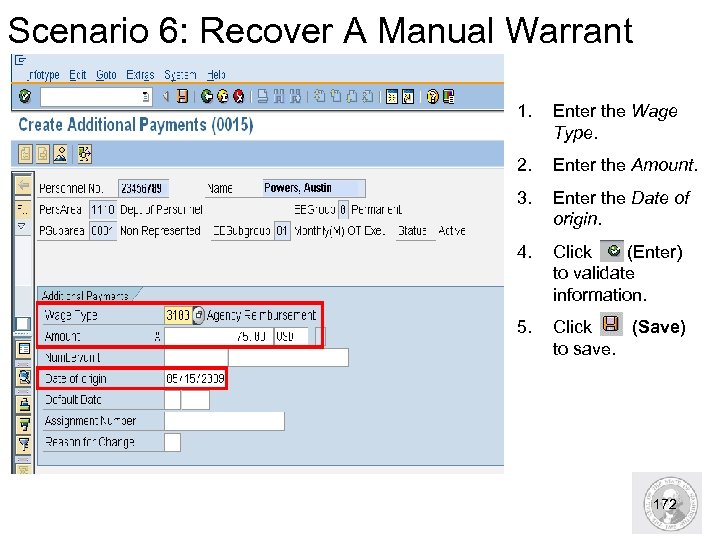 Scenario 6: Recover A Manual Warrant 1. Enter the Wage Type. 2. Enter the Amount. 3. Enter the Date of origin. 4. Click (Enter) to validate information. 5. Click (Save) to save. 172
 Summary n Throughout the course, you have learned how to: – Explain the big picture (overview) of HRMS Payroll and Reports. – Explain the new terms and concepts associated with HRMS Payroll and Reports. – Complete the Pre-Payroll Analysis, including simulations and reports. – Discuss the release of payroll completed in Process Payroll and how agencies are involved in correcting reports. View payroll results. – Run and view payroll reports. – Complete extended payroll scenarios. 173
 Question and Answer 174
 Resources n The following resources are available for your use: – DES Service Center (360) 664 -6400 Service. Center@dop. wa. gov – HRMS Resources http: //www. hr. wa. gov/payroll/HRMSSupport/Pages/HRMSResources. aspx – The On-Line Quick Reference (OLQR) http: //www. hr. wa. gov/payroll/HRMS/On. Line. Quick. Reference/Pages/default. aspx – The Office of Financial Management http: //www. ofm. wa. gov/resources/payroll. asp 175
 Training Evaluation n Please take a few minutes to complete the course evaluation and participant assessment prior to leaving. Thank you for your participation 176