


 Скачать презентацию HP PPM Time Approvers and Resource Pool
PPM-Time-Approver.pptx
- Количество слайдов: 27
 HP PPM – Time Approvers and Resource Pool Managers July 8, 2014 www. it. ufl. edu
 Introduction Workshop will be 2 hours total (½ hour instructed) Restroom Locations Phone calls Emergency Evacuation Materials (https: //training. it. ufl. edu) www. it. ufl. edu
 Typically Time Approvers and Resource Pool Managers are the same person (supervisor). There are typically two portlets that can be added by this person to his Personalized Dashboard that will help them manage these tasks. Time Approving Portlet Analyze Assignment Load Portlet www. it. ufl. edu
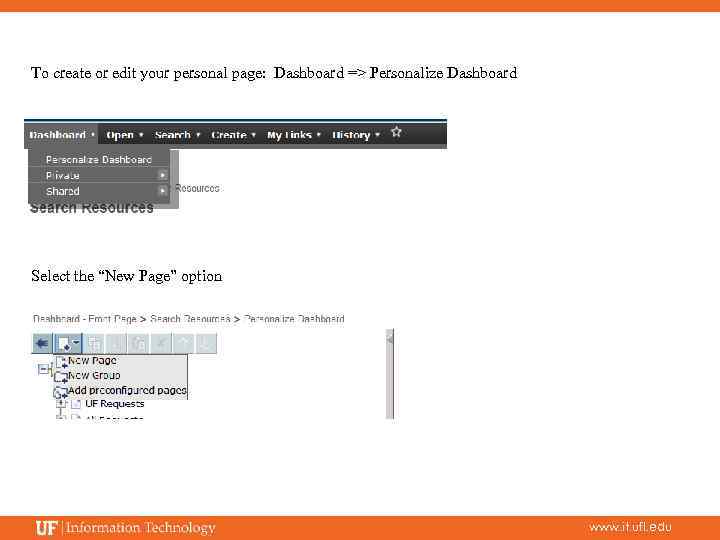 To create or edit your personal page: Dashboard => Personalize Dashboard Select the “New Page” option www. it. ufl. edu
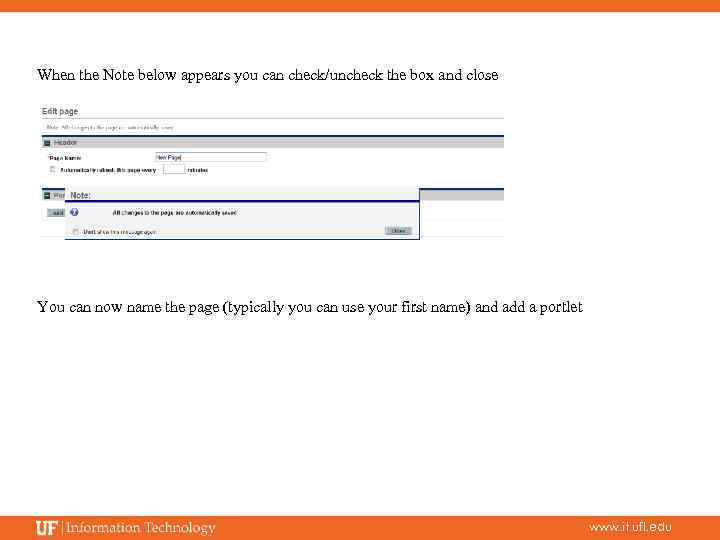 When the Note below appears you can check/uncheck the box and close You can now name the page (typically you can use your first name) and add a portlet www. it. ufl. edu
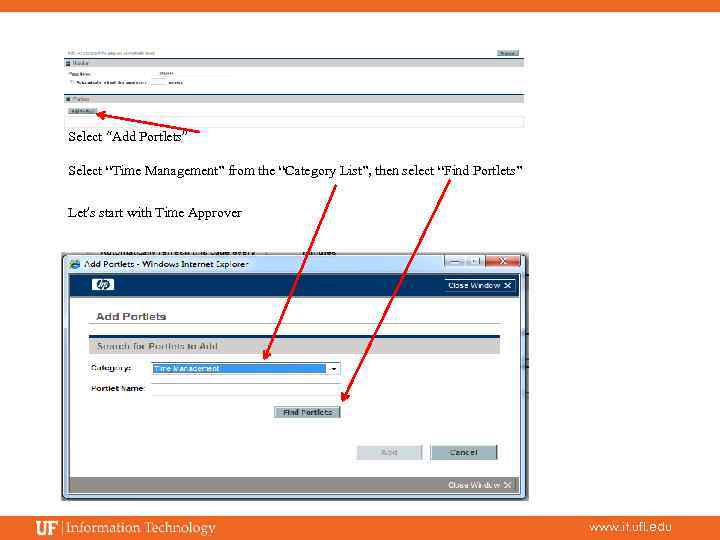 Select “Add Portlets” Select “Time Management” from the “Category List”, then select “Find Portlets” Let’s start with Time Approver www. it. ufl. edu
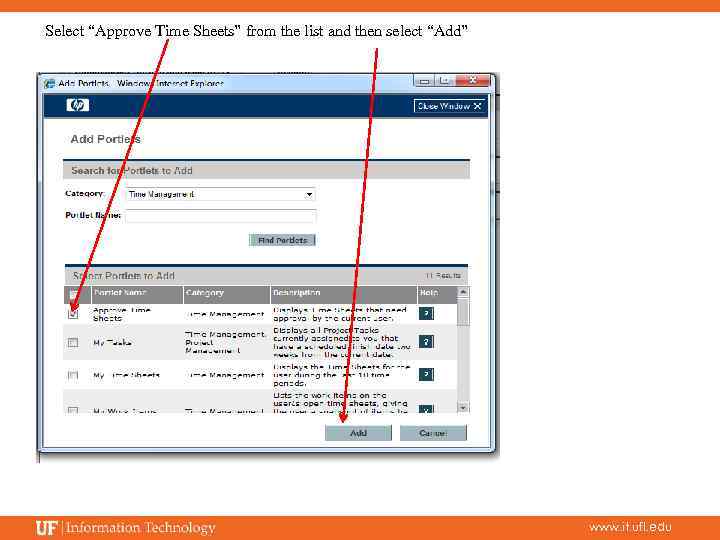 Select “Approve Time Sheets” from the list and then select “Add” www. it. ufl. edu
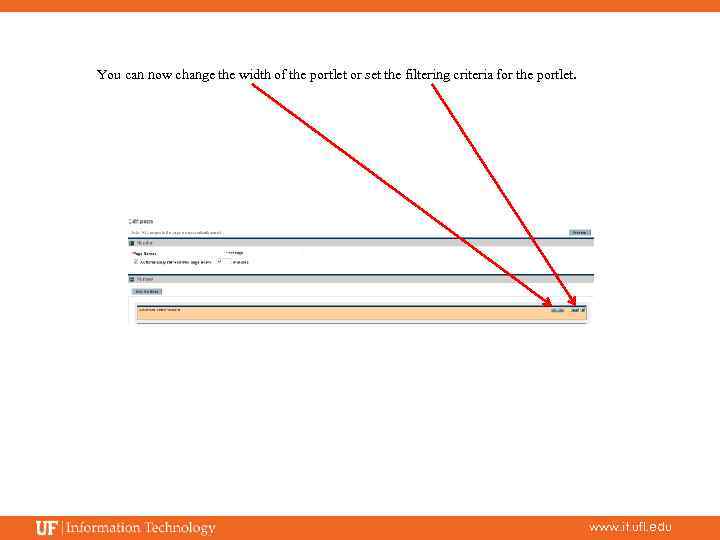 You can now change the width of the portlet or set the filtering criteria for the portlet. www. it. ufl. edu
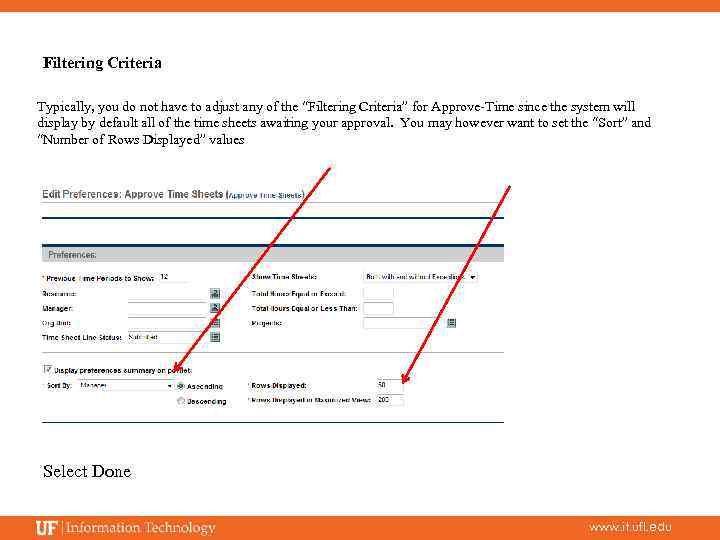 Filtering Criteria Typically, you do not have to adjust any of the “Filtering Criteria” for Approve-Time since the system will display by default all of the time sheets awaiting your approval. You may however want to set the “Sort” and “Number of Rows Displayed” values Select Done www. it. ufl. edu
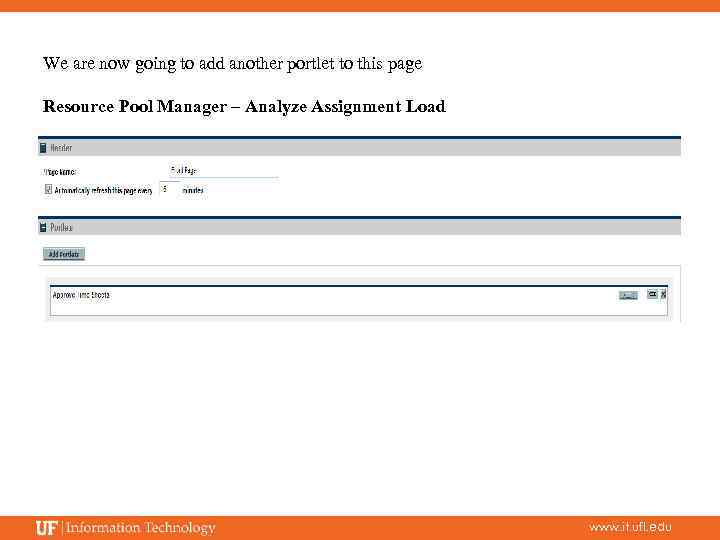 We are now going to add another portlet to this page Resource Pool Manager – Analyze Assignment Load www. it. ufl. edu
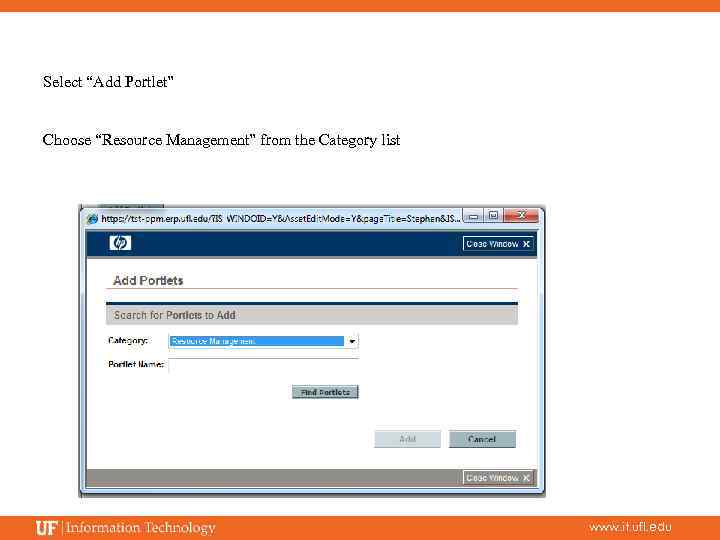 Select “Add Portlet” Choose “Resource Management” from the Category list www. it. ufl. edu
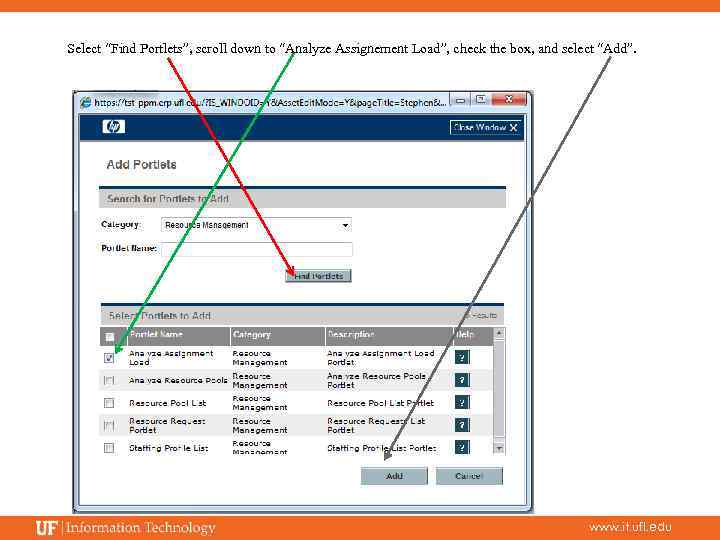 Select “Find Portlets”, scroll down to “Analyze Assignement Load”, check the box, and select “Add”. www. it. ufl. edu
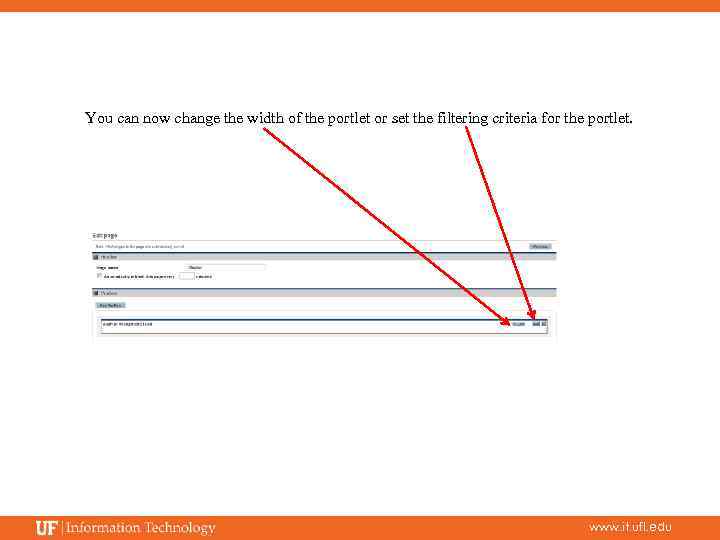 You can now change the width of the portlet or set the filtering criteria for the portlet. www. it. ufl. edu
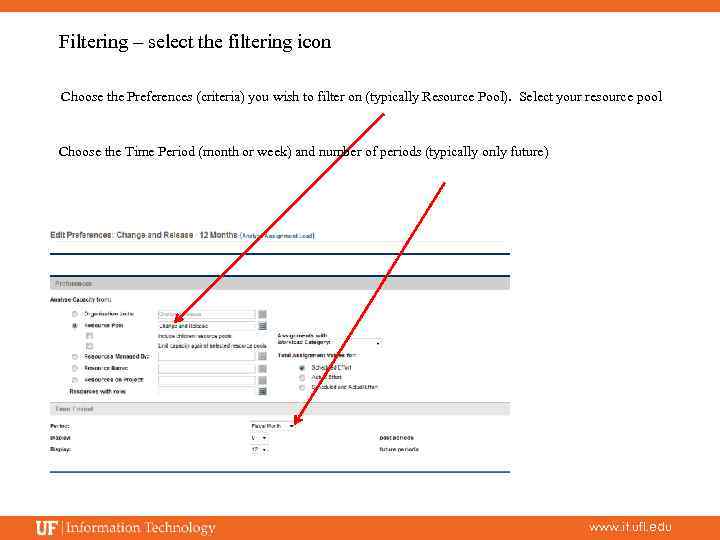 Filtering – select the filtering icon Choose the Preferences (criteria) you wish to filter on (typically Resource Pool). Select your resource pool Choose the Time Period (month or week) and number of periods (typically only future) www. it. ufl. edu
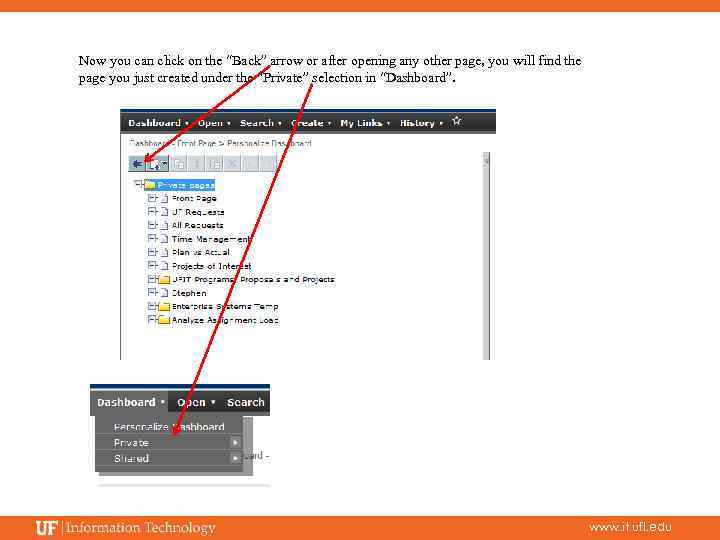 Now you can click on the “Back” arrow or after opening any other page, you will find the page you just created under the “Private” selection in “Dashboard”. www. it. ufl. edu
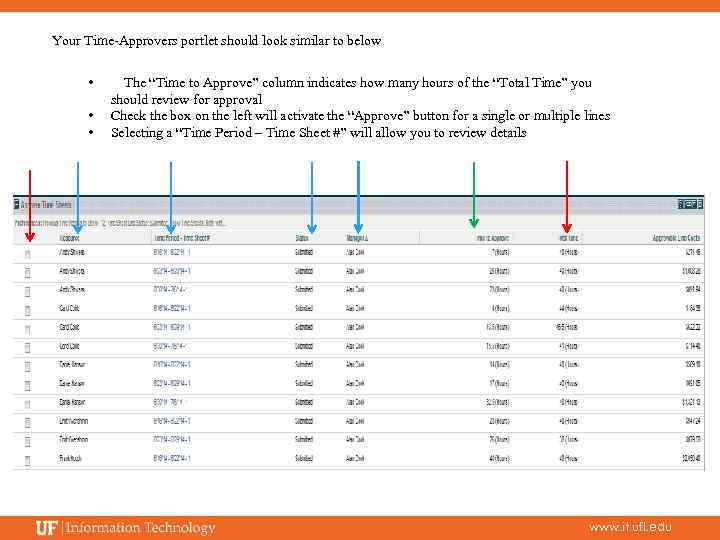 Your Time-Approvers portlet should look similar to below • • • The “Time to Approve” column indicates how many hours of the “Total Time” you should review for approval Check the box on the left will activate the “Approve” button for a single or multiple lines Selecting a “Time Period – Time Sheet #” will allow you to review details www. it. ufl. edu
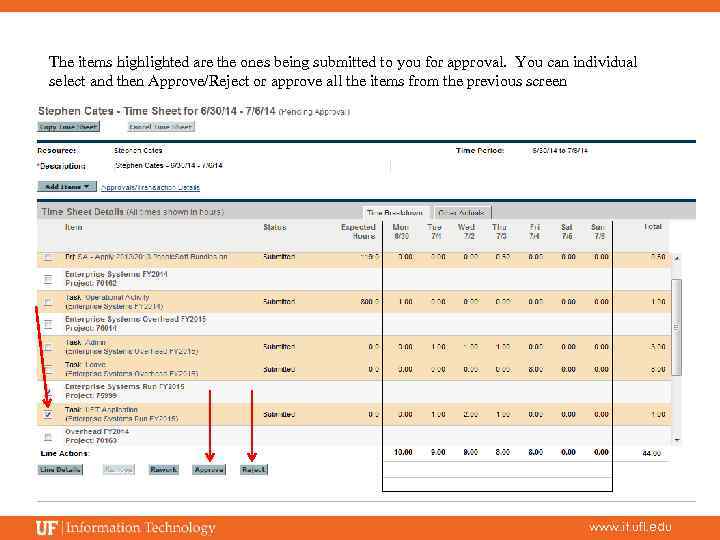 The items highlighted are the ones being submitted to you for approval. You can individual select and then Approve/Reject or approve all the items from the previous screen www. it. ufl. edu
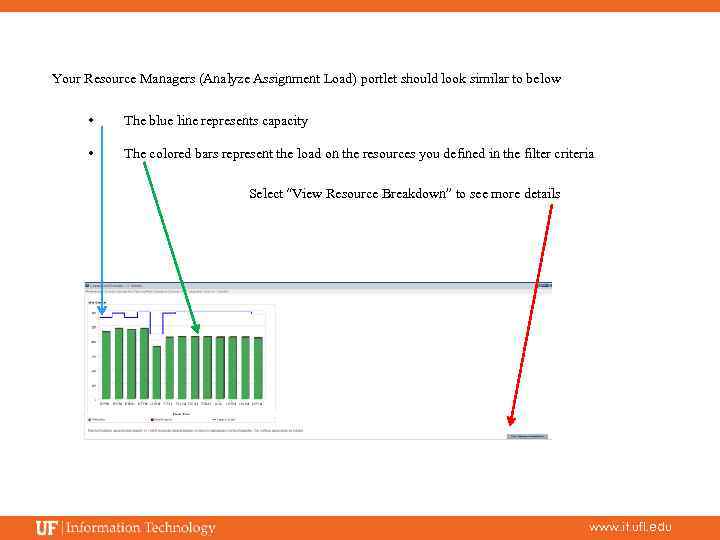 Your Resource Managers (Analyze Assignment Load) portlet should look similar to below • The blue line represents capacity • The colored bars represent the load on the resources you defined in the filter criteria Select “View Resource Breakdown” to see more details www. it. ufl. edu
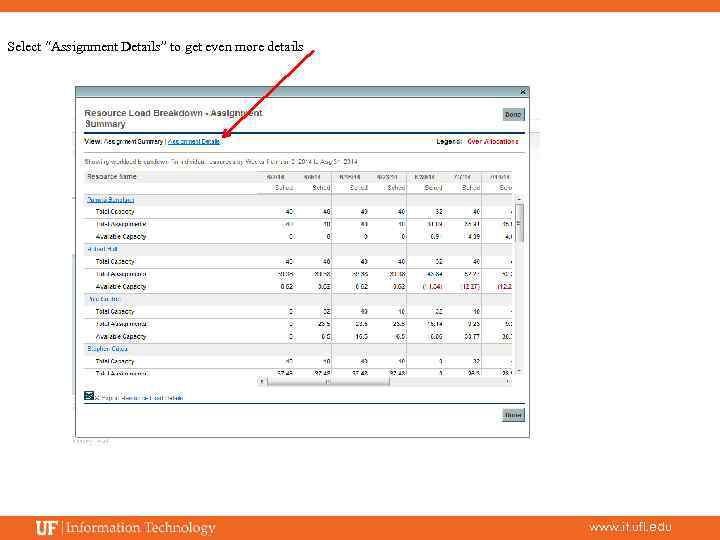 Select “Assignment Details” to get even more details www. it. ufl. edu
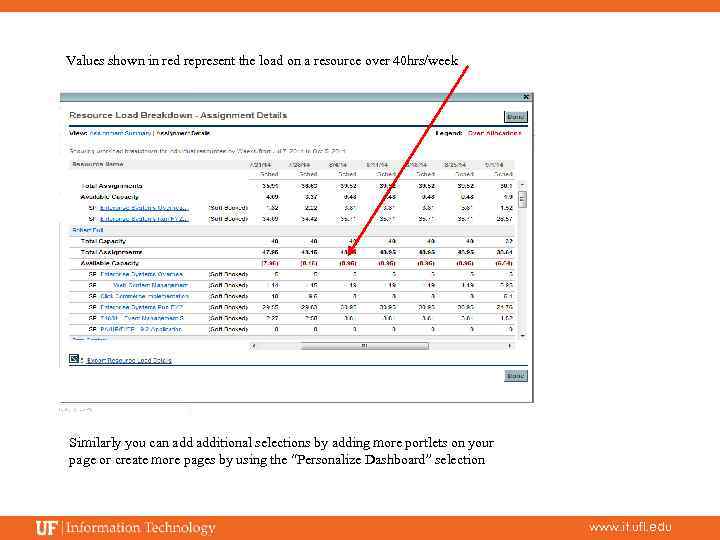 Values shown in red represent the load on a resource over 40 hrs/week Similarly you can additional selections by adding more portlets on your page or create more pages by using the “Personalize Dashboard” selection www. it. ufl. edu
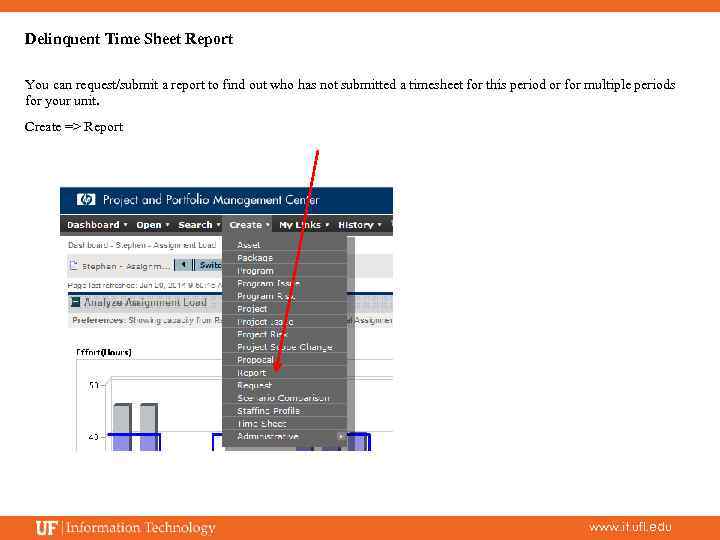 Delinquent Time Sheet Report You can request/submit a report to find out who has not submitted a timesheet for this period or for multiple periods for your unit. Create => Report www. it. ufl. edu
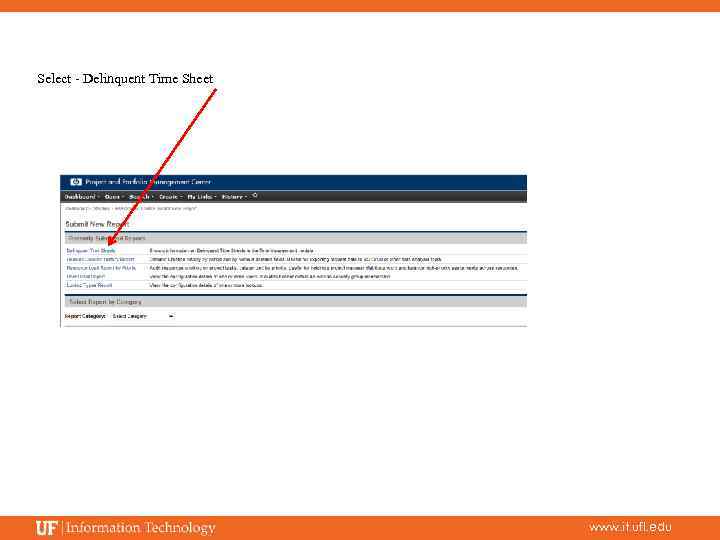 Select - Delinquent Time Sheet www. it. ufl. edu
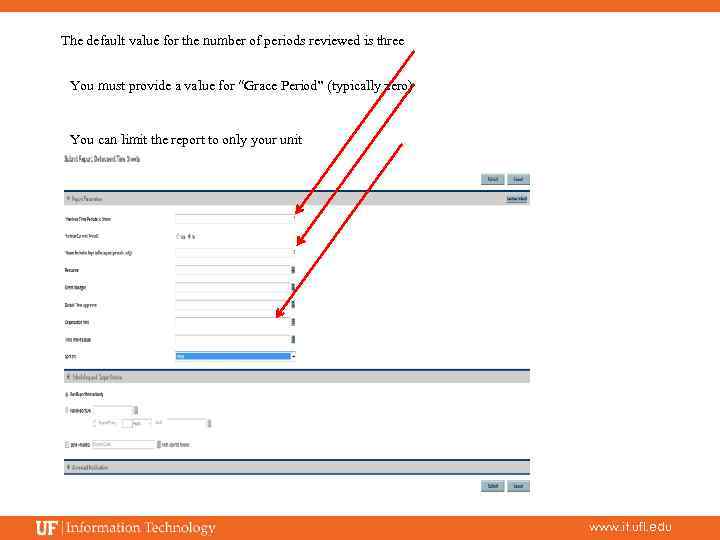 The default value for the number of periods reviewed is three You must provide a value for “Grace Period” (typically zero) You can limit the report to only your unit www. it. ufl. edu
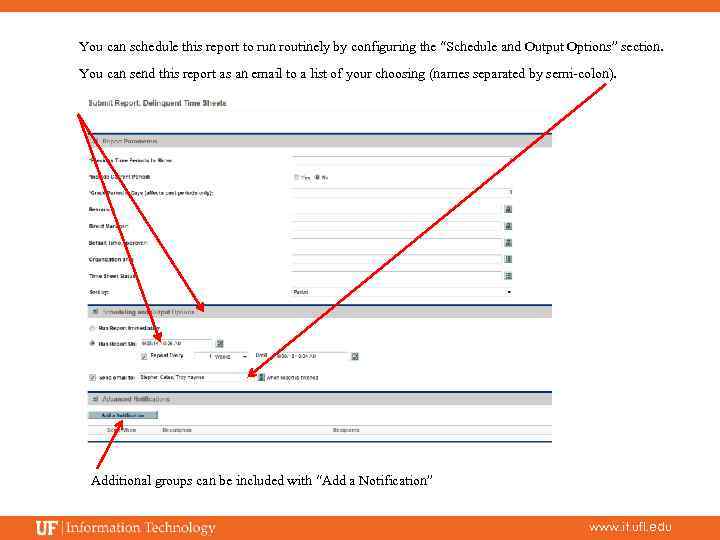 You can schedule this report to run routinely by configuring the “Schedule and Output Options” section. You can send this report as an email to a list of your choosing (names separated by semi-colon). Additional groups can be included with “Add a Notification” www. it. ufl. edu
 Questions www. it. ufl. edu
 Effort Reporting – Common Definitions Project – Effort to deliver new service or enhance current service. May be grow or transform. • Separately Named – Chartered and budgeted efforts requiring 80 or more hours • Enhancements – General grouping of small, not separately budgeted efforts to provide enhancement of current services Run – Effort required to support and deliver current service portfolio. Defined by each unit based on activities and/or applications. Overhead – Effort not attributable to specific project or service activity • Administration – Effort required to plan for, manage and administer the IT operation. Examples include strategic planning, campus outreach, staff meetings, staff evaluations, email, etc. • Leave – Vacation and sick leave • Professional development – Continuing professional education not attributable to specific project or service www. it. ufl. edu
 Effort Reporting – Principles for Unit Buckets Activities meaningful to staff – Should relate to what person does, for example working on Hyperion support or course development or wireless Mapping –Unit director should be able to map activity buckets to service(s) Right sized – As simple as possible but should provide enough information to identify effort to service portfolio www. it. ufl. edu