 Скачать презентацию How to Submit Graphic Design Web Design and
183ad4e9031f725ded0cb8ff7add6f05.ppt
- Количество слайдов: 37



How to Submit Graphic Design, Web Design and Print Shop Job Tickets
Thank you for joining us! This training is intended for faculty and staff who submit job tickets for Print Shop, Graphic Design, or Web Design services from Public Relations (PR). You will learn how to efficiently submit Job Tickets for PR services. Welcome and Introduction
Topics will include: Why Issue. Trak? Location of Issue. Trak Vocabulary Form usage guidelines Instructions Logging in to Issue. Trak Job Ticket Requests Overview
Public Relations and the Print Shop get a lot of requests for help. This process gets your job into the queue. Both sides - you and PR or Print Shop – whomever your request was with can keep track of the progress. Separate job tickets will need to be made for your design needs and print shop needs – they are separate jobs, involving separate tasks and workers in separate locations. Why Issue. Trak?
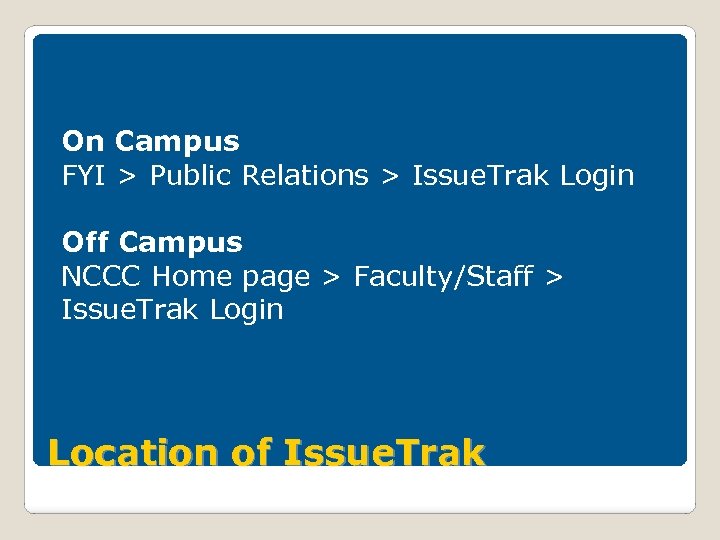
On Campus FYI > Public Relations > Issue. Trak Login Off Campus NCCC Home page > Faculty/Staff > Issue. Trak Login Location of Issue. Trak
Issue Type: Main category for selecting your overall job request. Sub-Type: A more specific service pertaining to the Issue Type selected. Vocabulary
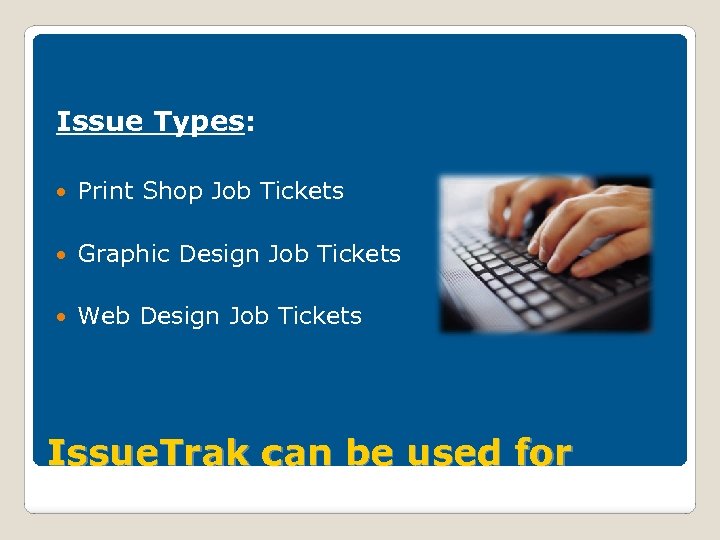
Issue Types: Print Shop Job Tickets Graphic Design Job Tickets Web Design Job Tickets Issue. Trak can be used for
Issue. Trak cannot be used for Posting to TV Monitors Adding events to College Web calendar Requesting a press release Scheduling photography for events Purchasing of ads (print and Web) Creation of Publisher/Word documents
Before submitting a job ticket for Print Shop, Graphic Design, or Web Design request, view applicable instructions to determine best service to suit your needs. These documents can be found on: On Campus: FYI > Public Relations Off Campus: NCCC home page > Faculty/Staff Instructions
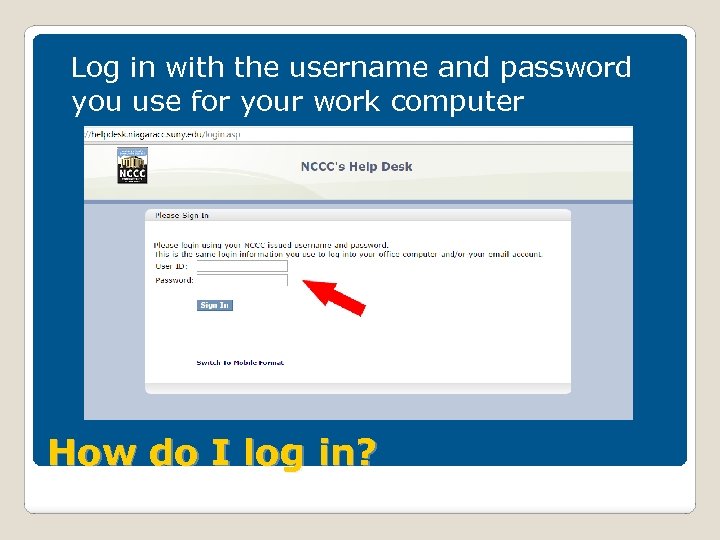
Log in with the username and password you use for your work computer How do I log in?
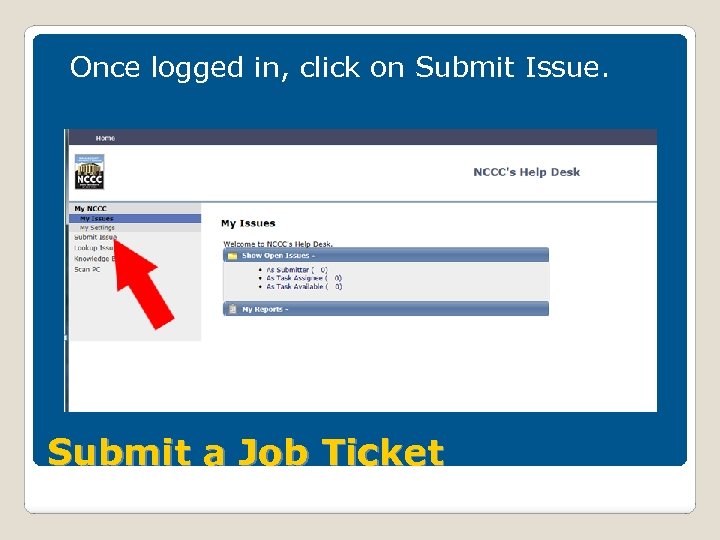
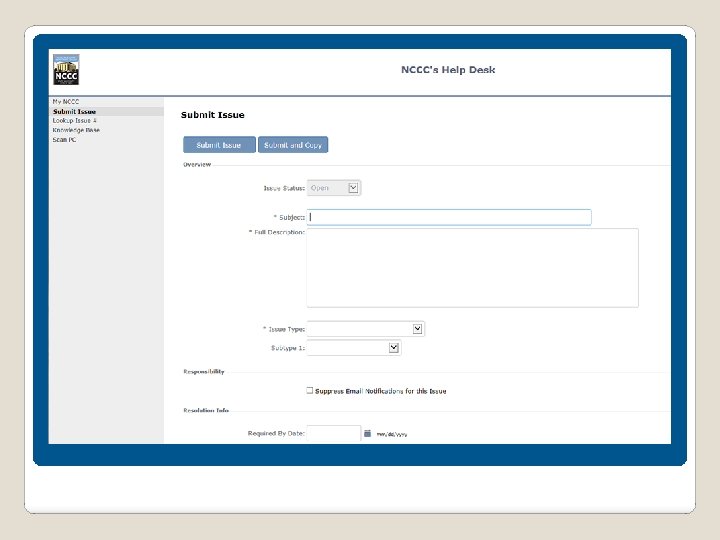
Once logged in, click on Submit Issue. Submit a Job Ticket
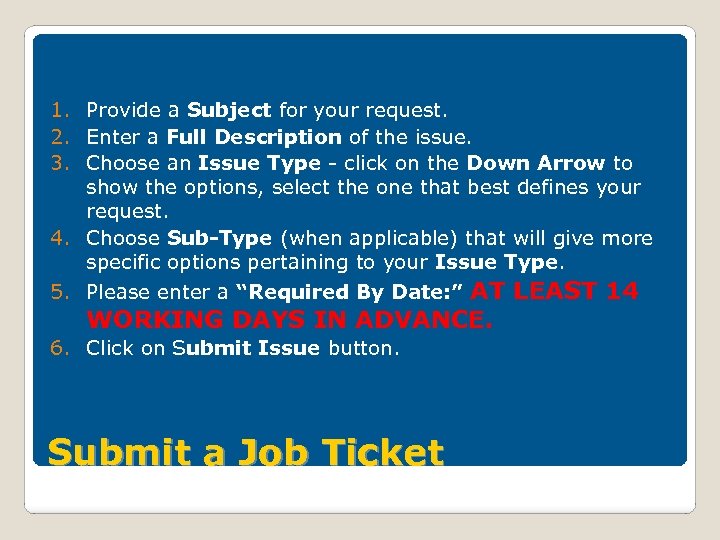
1. Provide a Subject for your request. 2. Enter a Full Description of the issue. 3. Choose an Issue Type - click on the Down Arrow to show the options, select the one that best defines your request. 4. Choose Sub-Type (when applicable) that will give more specific options pertaining to your Issue Type. 5. Please enter a “Required By Date: ” AT LEAST 14 WORKING DAYS IN ADVANCE. 6. Click on Submit Issue button. Submit a Job Ticket
Print Shop Job Tickets
Topics will include: Print Shop Job Ticket PDF Submit a Print Shop Job Ticket Issue Type: Print Shop Include Attachment Overview
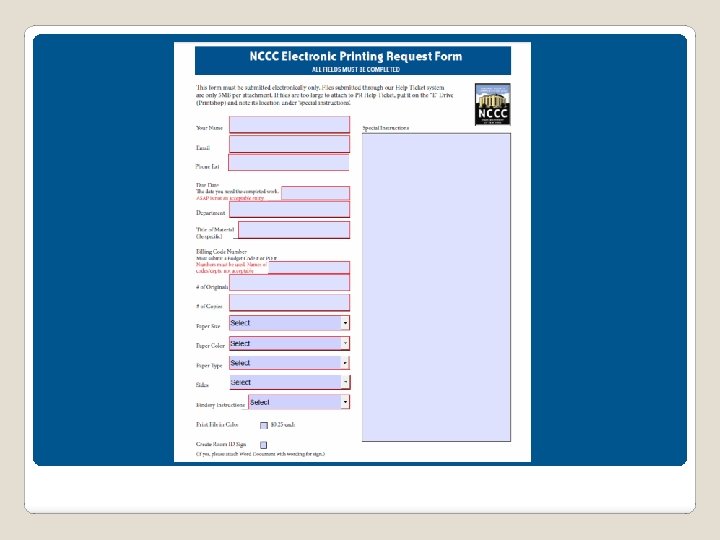
When requesting Print Shop work, first use our Print Shop Job Ticket PDF. On Campus: FYI > Public Relations > Print Shop Job Ticket PDF Off Campus: NCCC home page > Faculty/Staff> Print Shop Job Ticket PDF Right-click on Print Shop Job Ticket PDF. Choose Save As or Save Link As and download PDF to your desktop. Fill out form from the fields. Choose ‘File’, then ‘Save As’ to rename document. Print Shop Job Ticket PDF
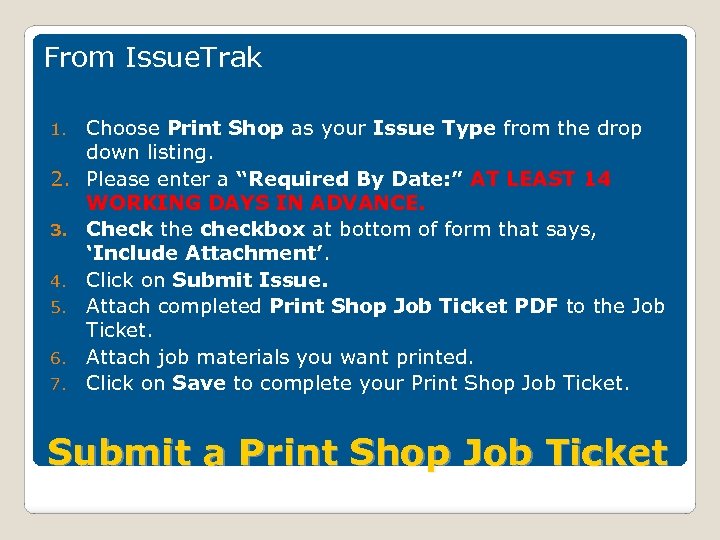
From Issue. Trak 1. 2. 3. 4. 5. 6. 7. Choose Print Shop as your Issue Type from the drop down listing. Please enter a “Required By Date: ” AT LEAST 14 WORKING DAYS IN ADVANCE. Check the checkbox at bottom of form that says, ‘Include Attachment’. Click on Submit Issue. Attach completed Print Shop Job Ticket PDF to the Job Ticket. Attach job materials you want printed. Click on Save to complete your Print Shop Job Ticket. Submit a Print Shop Job Ticket
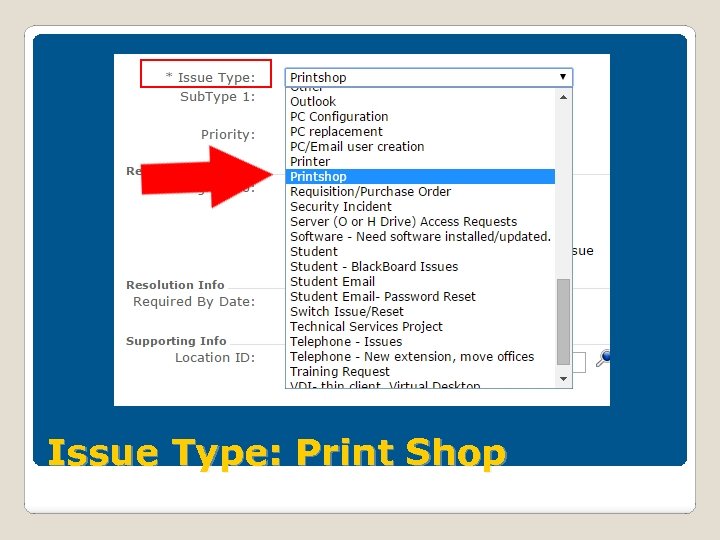
Issue Type: Print Shop
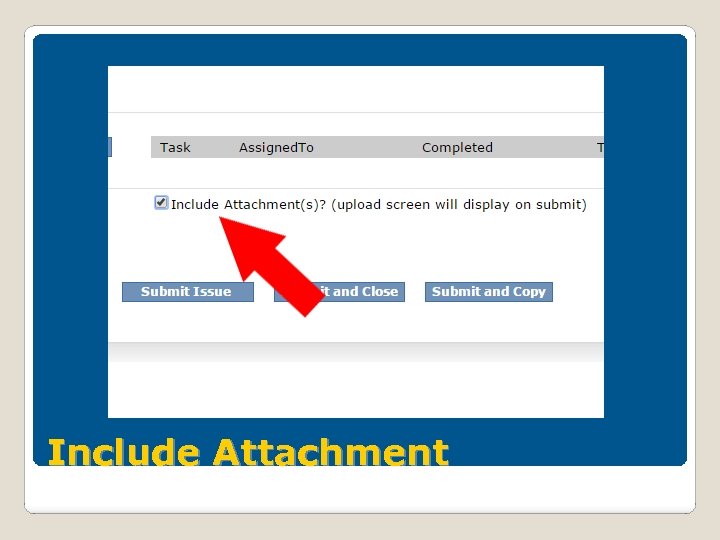
Include Attachment
Each attachment can not exceed *5 MB. You can add as many attachments as you wish. If you need to attach any specific file larger than 5 MB, please put in on the Print Shop “L” drive in your folder. Please keep your “L” drive folders clean. It is not meant to be a storage area, but is for the purpose of placing files too large to attach to a help ticket. If folders are kept clean there is never an issue of whether we have the correct files for printing or not. You are responsible for keeping track of your own documents for future printing. Attachments
Graphic Design Job Tickets
Topics will include: Submit a Graphic Design Job Ticket Issue Type: Graphic Design Sub-Type: Graphic Design Include Attachment Overview
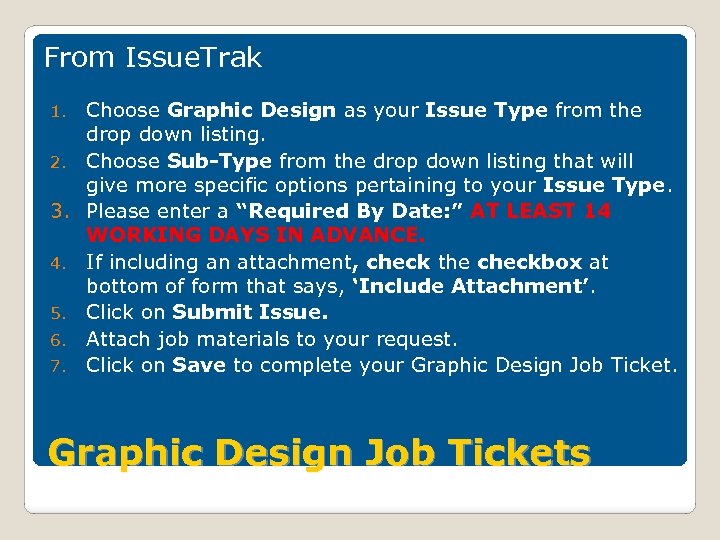
From Issue. Trak 1. 2. 3. 4. 5. 6. 7. Choose Graphic Design as your Issue Type from the drop down listing. Choose Sub-Type from the drop down listing that will give more specific options pertaining to your Issue Type. Please enter a “Required By Date: ” AT LEAST 14 WORKING DAYS IN ADVANCE. If including an attachment, check the checkbox at bottom of form that says, ‘Include Attachment’. Click on Submit Issue. Attach job materials to your request. Click on Save to complete your Graphic Design Job Tickets
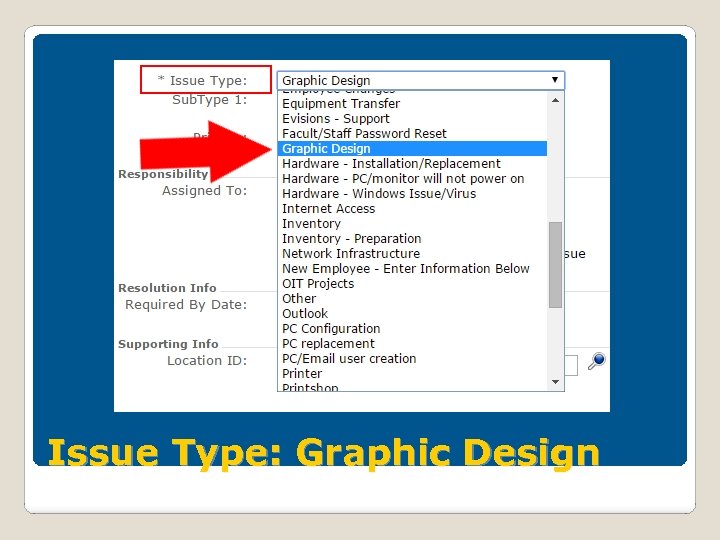
Issue Type: Graphic Design
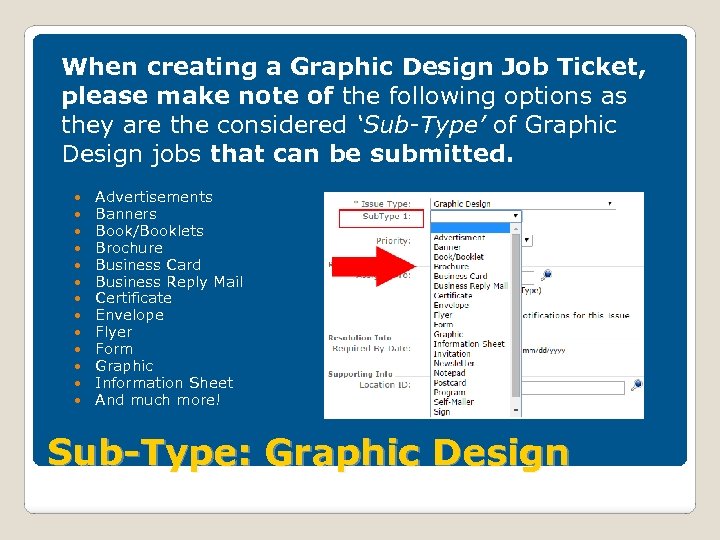
When creating a Graphic Design Job Ticket, please make note of the following options as they are the considered ‘Sub-Type’ of Graphic Design jobs that can be submitted. Advertisements Banners Book/Booklets Brochure Business Card Business Reply Mail Certificate Envelope Flyer Form Graphic Information Sheet And much more! Sub-Type: Graphic Design
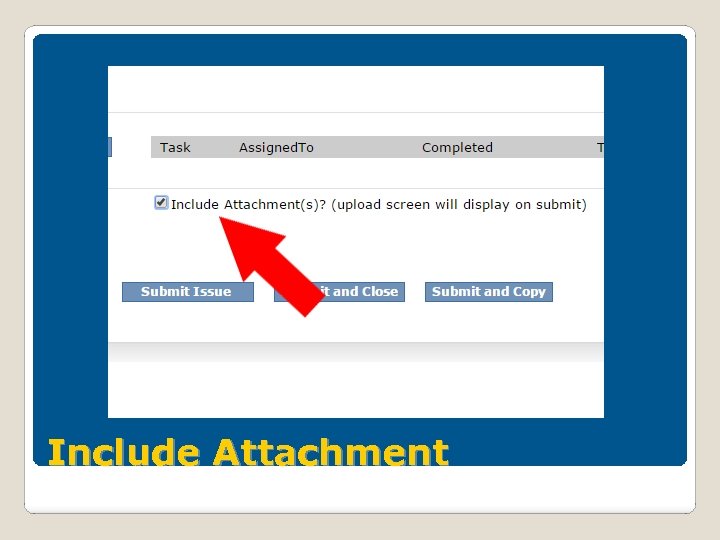
Include Attachment
Each attachment can not exceed *5 MB. You can add as many attachments as you wish. If you need to attach any specific file larger than 5 MB, please put in on the Print Shop “L” drive in your folder. Please keep your “L” drive folders clean. It is not meant to be a storage area, but is for the purpose of placing files too large to attach to a help ticket. If folders are kept clean there is never an issue of whether we have the correct files for printing or not. You are responsible for keeping track of your own documents for future printing. Attachments
Important Designer will submit artwork back to you for final approval. Once approved, you will then have to submit a new job ticket to the Print Shop and attach the approved artwork along with a completed Print Shop Job Ticket PDF.

Web Design Job Tickets
Topics will include: Submit a Web Design Job Ticket Issue Type: Web Design Sub-Type: Web Design Include Attachment Overview
From Issue. Trak 1. 2. 3. 4. 5. 6. 7. Choose Web Design as your Issue Type from the drop down listing. Choose Sub-Type from the drop down listing that will give more specific options pertaining to your Issue Type. Please enter a “Required By Date: ” AT LEAST 14 WORKING DAYS IN ADVANCE. If including an attachment, check the checkbox at bottom of form that says, ‘Include Attachment’. Click on Submit Issue. Attach job materials to your request. Click on Save to complete your Web Design Job Tickets
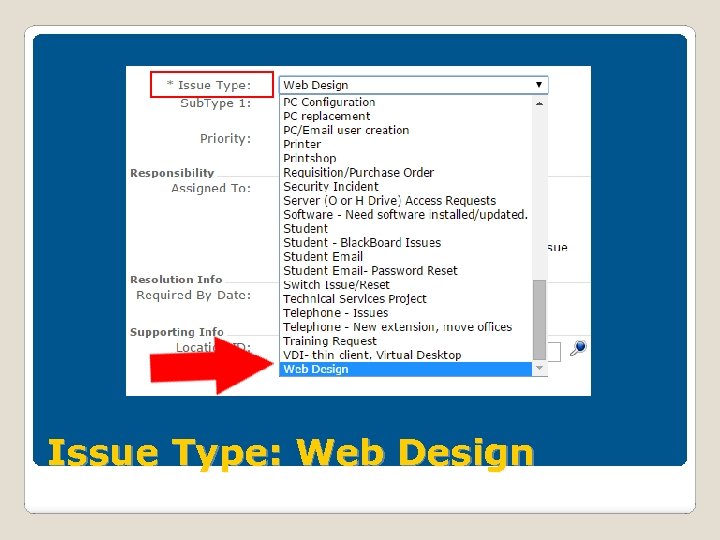
Issue Type: Web Design
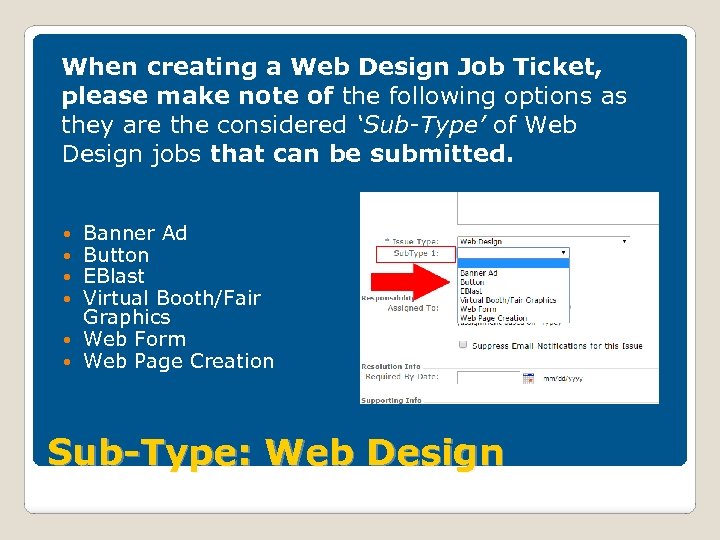
When creating a Web Design Job Ticket, please make note of the following options as they are the considered ‘Sub-Type’ of Web Design jobs that can be submitted. Banner Ad Button EBlast Virtual Booth/Fair Graphics Web Form Web Page Creation Sub-Type: Web Design
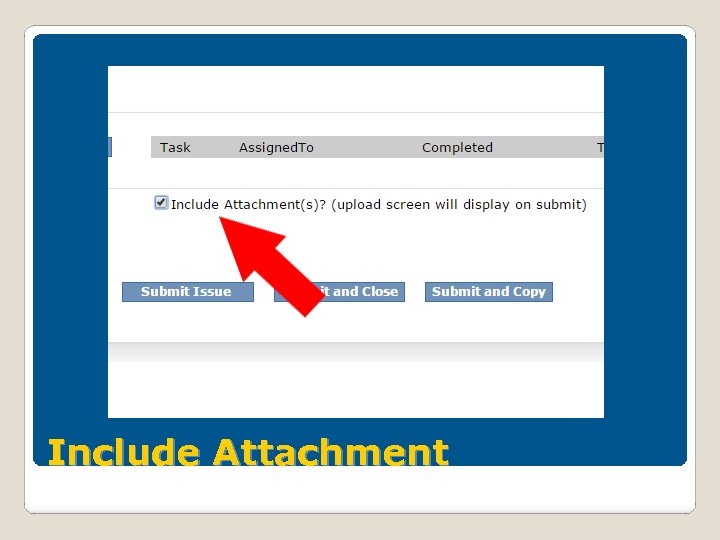
Include Attachment
Each attachment can not exceed *5 MB. You can add as many attachments as you wish. If you need to attach any specific file larger than 5 MB, please put in on the Print Shop “L” drive in your folder. Please keep your “L” drive folders clean. It is not meant to be a storage area, but is for the purpose of placing files too large to attach to a help ticket. If folders are kept clean there is never an issue of whether we have the correct files for printing or not. You are responsible for keeping track of your own documents for future printing. Attachments
Questions
Скачать презентацию How to Submit Graphic Design Web Design and
183ad4e9031f725ded0cb8ff7add6f05.ppt