


 Скачать презентацию HOW TO SAVE USE FILES FOR PRINT
45340daa9083acc7669a742d0418f15c.ppt
- Количество слайдов: 55
 HOW TO SAVE & USE FILES FOR PRINT & WEB
 CONTENTS OVERVIEW: FILE FORMATS, RESOLUTION, COLOR MODELS PREPARING FOR OUTPUT Advance to section needed. USING FILES FOR SOCIAL MEDIA & ONLINE PORTFOLIOS SEE SEPARATE SOCIAL MEDIA PPT USING SCREENSHOTS FOR ONLINE PORTFOLIOS USING FILES FOR PRINT (SLIDE #10) PRINT WORKFLOW PRINT OUTPUT TO EXPORT AS PDF PACKAGING INDESIGN FILES SAVING FILES FOR WEB (SLIDE #20) SAVING PDF FOR WEB OR E-VIEWING SAVING GRAPHICS FOR WEB IN PHOTOSHOP SAVING GRAPHICS FOR WEB IN ILLUSTRATOR SAVING FOR WEB IN INDESIGN (PORTFOLIO THUMBNAILS) USING SCREENSHOTS FOR ONLINE PORTFOLIOS
 Overview File Formats, Resolution, Color Models
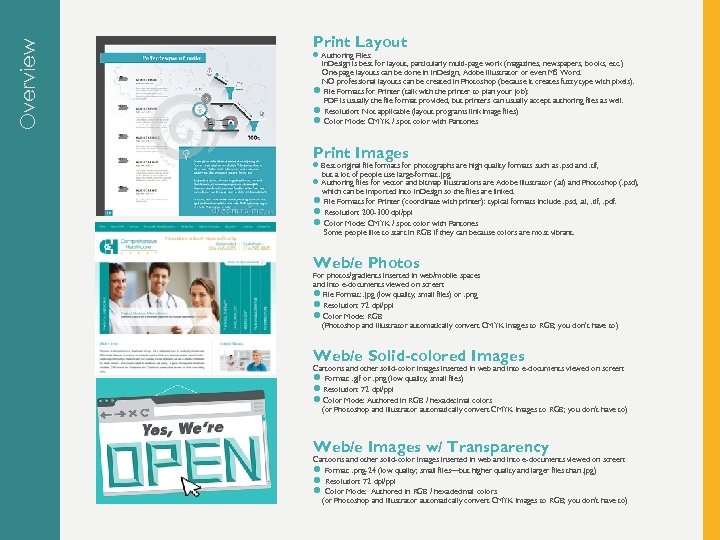 Overview Print Layout l Authoring Files: In. Design is best for layout, particularly multi-page work (magazines, newspapers, books, etc. ) One-page layouts can be done in In. Design, Adobe Illustrator or even MS Word. NO professional layouts can be created in Photoshop (because it creates fuzzy type with pixels). l File Formats for Printer (talk with the printer to plan your job): PDF is usually the file format provided, but printers can usually accept authoring files as well. l Resolution: Not applicable (layout programs link image files) l Color Mode: CMYK / spot color with Pantones Print Images l Best original file formats for photographs are high quality formats such as. psd and. tif, but a lot of people use large-format. jpg l Authoring files for vector and bitmap illustrations are Adobe Illustrator (. ai) and Photoshop (. psd), which can be imported into In. Design so the files are linked. l File Formats for Printer (coordinate with printer): typical formats include. psd, . ai, . tif, . pdf. l Resolution: 200 -300 dpi/ppi l Color Mode: CMYK / spot color with Pantones Some people like to start in RGB if they can because colors are most vibrant. Web/e Photos For photos/gradients inserted in web/mobile spaces and into e-documents viewed on screen: l File Format: . jpg (low quality; small files) or. png l Resolution: 72 dpi/ppi l Color Mode: RGB (Photoshop and Illustrator automatically convert CMYK images to RGB; you don’t have to) Web/e Solid-colored Images Cartoons and other solid-color images inserted in web and into e-documents viewed on screen: l Format: . gif or. png (low quality; small files) l Resolution: 72 dpi/ppi l Color Mode: Authored in RGB / hexadecimal colors (or Photoshop and Illustrator automatically convert CMYK images to RGB; you don’t have to) Web/e Images w/ Transparency Cartoons and other solid-color images inserted in web and into e-documents viewed on screen: l Format: . png-24 (low quality; small files—but higher quality and larger files than. jpg) l Resolution: 72 dpi/ppi l Color Mode: Authored in RGB / hexadecimal colors (or Photoshop and Illustrator automatically convert CMYK images to RGB; you don’t have to)
 Preparing for Output Print or Web
 1. Use the right tools for the job. Logos can be created in which Adobe program? Photos can be combined and edited in which Adobe program? Newsletters can be created in which Adobe program? Q?
 Never author layout in Photoshop (because pixels make fuzzy type). Use a layout program (e. g. , In. Design) or Vector program (e. g. , Illustrator). To create logos, Use a vector program like Illustrator (so it can be resized without pixilation). Remember, you can place Adobe authoring files (like. psd and. ai) directly inside other Adobe files (and link the two so changes in one file also appear in aother). For quick social media graphics and reports, Canva (www. canva. com) is helpful. ALWAYS
 2) In Photoshop, when you’re done with an image, you should: A. save your layers B. flatten layers ] ALWAYS
 3) Make copies original files before you alter them for output (e. g. , dimensions). For example, are you going to create a version of a file with smaller dimensions? Make copies of all your original files so you don’t end up accidentally ruining your originals. Also, remember, web files are going to be low-quality versions of your original files, so you don’t want to lose the original high quality files. ALWAYS
 4) In Photoshop, you should start at the ____ dimensions and resolution you will ever need. A. highest B. lowest C. average
 Always start a Photoshop image at the highest dimensions and resolution you will ever need to use it. You can always create a copy at lower dpi or dimensions for web and mobile devices, which takes away quality. But you can’t add quality back in after it’s taken away. Even if you increase the pixels per inch later, the image won’t get better because the image has already been degraded.
 USING FILES FOR PRINT
 Print Workflow. ai. psd. indd. pdf
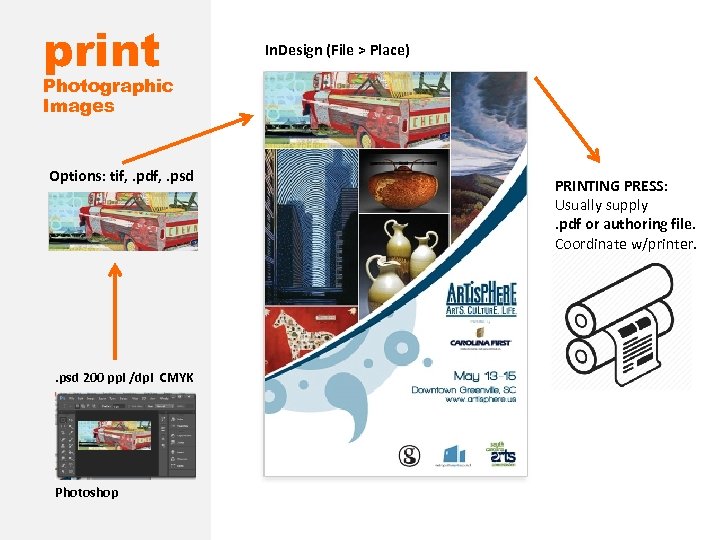 print In. Design (File > Place) Photographic Images Options: tif, . pdf, . psd 200 ppi /dpi CMYK Photoshop PRINTING PRESS: Usually supply. pdf or authoring file. Coordinate w/printer.
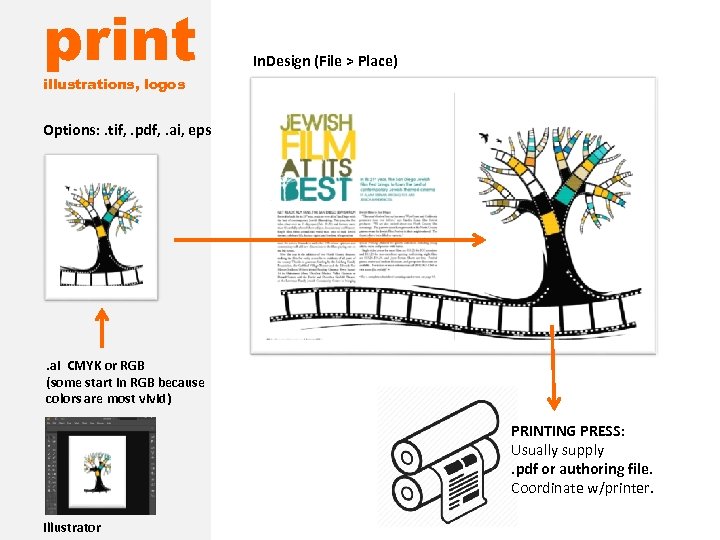 print In. Design (File > Place) illustrations, logos Options: . tif, . pdf, . ai, eps . ai CMYK or RGB (some start in RGB because colors are most vivid) PRINTING PRESS: Usually supply. pdf or authoring file. Coordinate w/printer. Illustrator
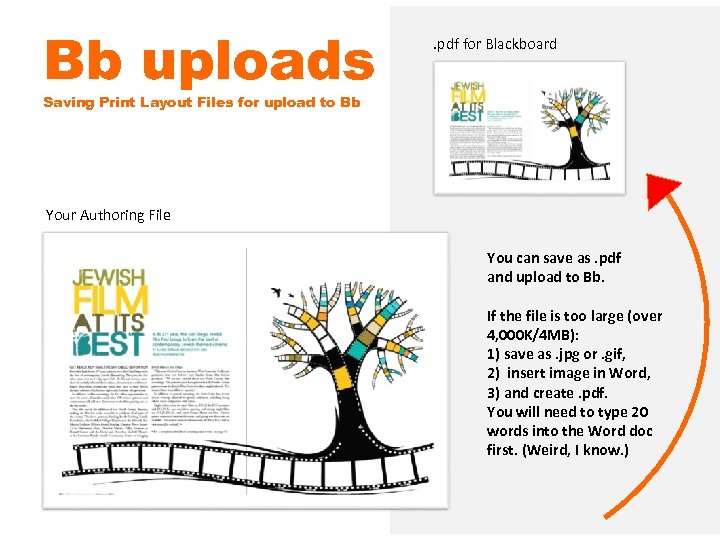 Bb uploads . pdf for Blackboard Saving Print Layout Files for upload to Bb Your Authoring File You can save as. pdf and upload to Bb. If the file is too large (over 4, 000 K/4 MB): 1) save as. jpg or. gif, 2) insert image in Word, 3) and create. pdf. You will need to type 20 words into the Word doc first. (Weird, I know. )
 A NOTE ON INSERTING GRAPHICS IN WORD DOCS • If you are planning to print a Word document and want high quality (e. g. , for a resume or flyer), “Export for MS Word” or create a. tif. • If you are planning to view a Word document only on a computer and don’t need high quality, you can insert a. jpg, . gif, or. png • MS Word is not considered to be a professional layout program
 Print Output. pdf or authoring file (with any fonts and linked files)
 Adobe PDF Portable Document Format (PDF) is a universal file format that: 1) preserves the fonts, images, and layout of source documents 2) can be created on a wide range of applications and platforms. 3) can be shared/viewed/printed by anyone with free Adobe Reader®. Using. pdf
 TO EXPORT AS. PDF More Information from Adobe 1. 2. 3. 4. 5. 6. 7. From an open file, choose File > Export. Specify a name and location for the file. For Save As Type (Windows) or Format (Mac OS), choose Adobe PDF (Print), and then click Save. When you select the Adobe PDF (Print) option, you cannot include interactive elements in the PDF. To export an interactive document to PDF, see Create interactive documents for PDF. Do one of the following: To use a predefined set of job options, choose a preset from the Adobe PDF Preset menu. To create a PDF/X file, either choose a PDF/X preset from the Adobe PDF Preset menu, or choose a predefined PDF/X format from the Standard menu. To customize options, select a category from the list on the left and then set the options. For Compatibility, choose the lowest PDF version necessary to open the files you create. Click Export (Windows) or Save (Mac OS).
 PACKAGING AN INDESIGN FILE (FILE > PACKAGE) 1. Go to File > Package. 2. Click the Package button at the bottom of the Summary window (This window was called the preflight window in older versions. ) 3. Click continue on the “Printing Instructions” window (most people ignore these instructions). 4. Browse to where you’d like to create the package folder (desktop would be fine) and enter the name of the folder. 5. Make sure that the “Copy Fonts, ” “Copy Linked Graphics, ” “Update Graphic Links in Package, ” and “Include Fonts and Links from Hidden…. ” are all checked. Other boxes should be unchecked. 6. Click the package button. 7. Find the new folder that In. Design created and verify that it contains copies of all required files. 8. Right-click the folder and choose “Compress” (Mac) or “Send to ZIP” (Windows, might be something different but similar depending on what software you have installed). This will zip it up. 9. If the file size is less than 10 MB, you can probably safely e-mail it. If it’s more, then you should use some other method (Drop. Box, FTP, You. Send. It, web server, etc. ) to share the file.
 USING FILES FOR SOCIAL MEDIA & ONLINE PORTFOLIOS
 Social Media Images See This Separate Power. Point
 Using Screenshots for Online Porfolios Portfolio Thumbnails and HTML Pages
 PORTFOLIO THUMBNAILS: SCREENSHOTS You can view a print document in preview mode and take a screenshot (alt+prtsc (Windows) or Command-Shift-3 (Mac), then open it in Photoshop to resize if necessary. Or, export the file as a. pdf (File > Export (export as PDF), take a screen shot, and resize it in Photoshop. Web pages can also be captured with screen shots for portfolios. You can even take screen shots on your mobile devices to show those perspectives in your portfolio.
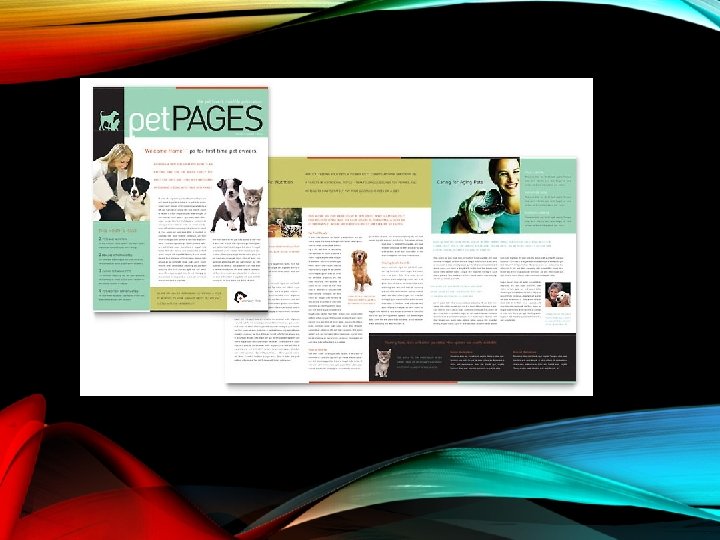
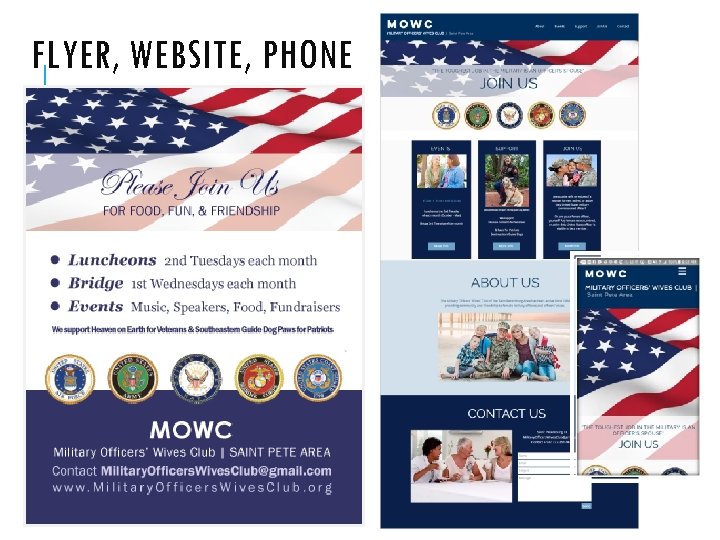 FLYER, WEBSITE, PHONE
 SAVING FILES FOR WEB This presentation assumes you have already viewed “File Sizes & Types. ”
 Saving Graphics for Web in PHOTOSHOP JPG, GIF, PNG
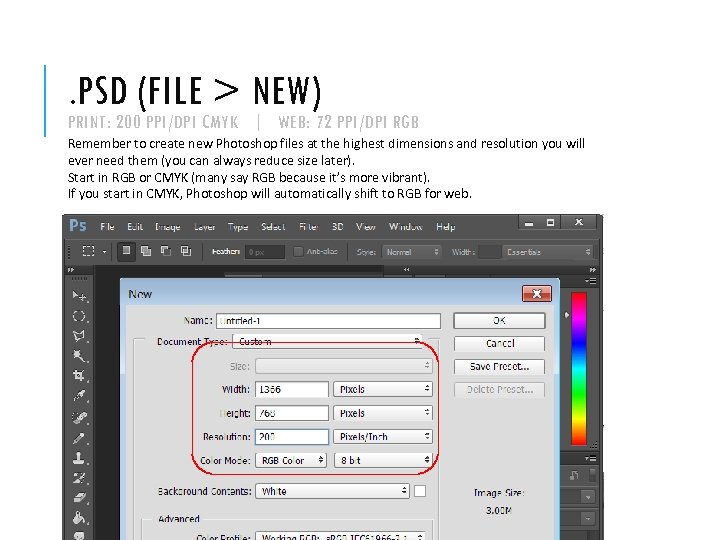 . PSD (FILE > NEW) PRINT: 200 PPI/DPI CMYK | WEB: 72 PPI/DPI RGB Remember to create new Photoshop files at the highest dimensions and resolution you will ever need them (you can always reduce size later). Start in RGB or CMYK (many say RGB because it’s more vibrant). If you start in CMYK, Photoshop will automatically shift to RGB for web.
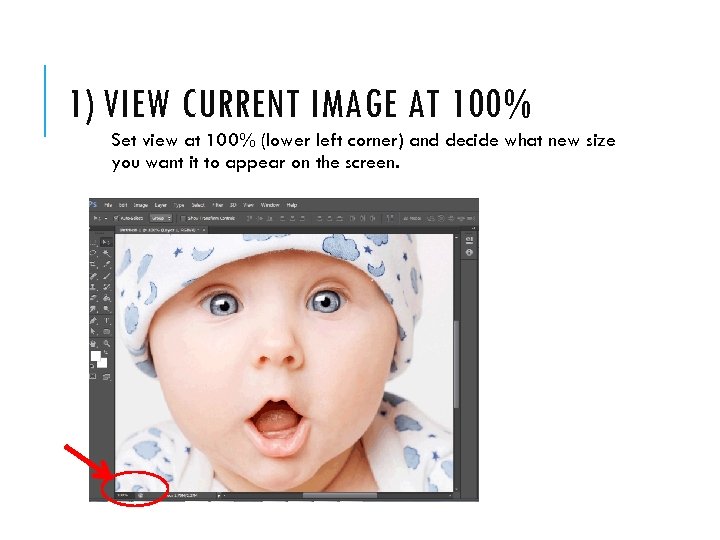 1) VIEW CURRENT IMAGE AT 100% Set view at 100% (lower left corner) and decide what new size you want it to appear on the screen.
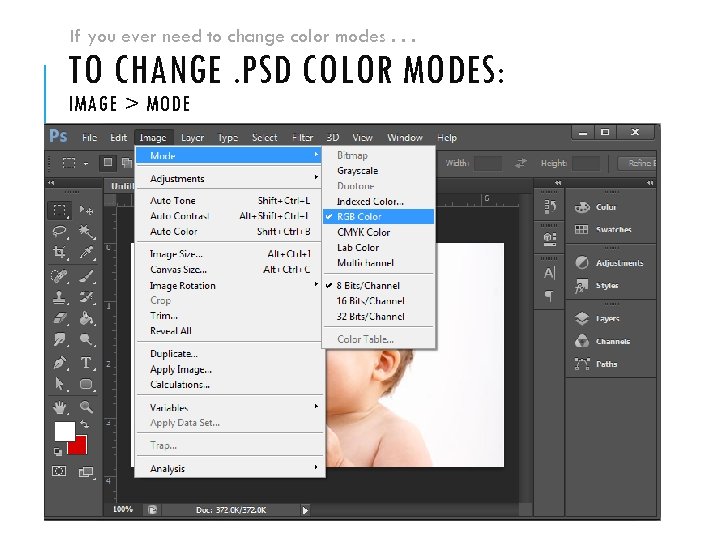 If you ever need to change color modes. . . TO CHANGE. PSD COLOR MODES: IMAGE > MODE
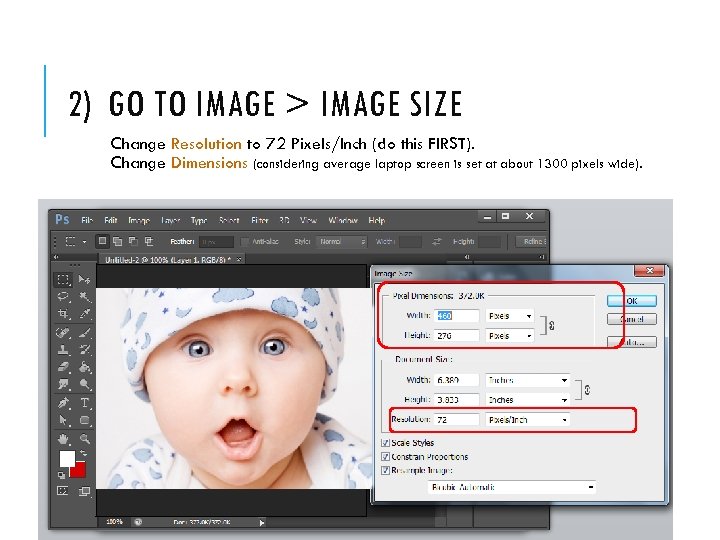 2) GO TO IMAGE > IMAGE SIZE Change Resolution to 72 Pixels/Inch (do this FIRST). Change Dimensions (considering average laptop screen is set at about 1300 pixels wide).
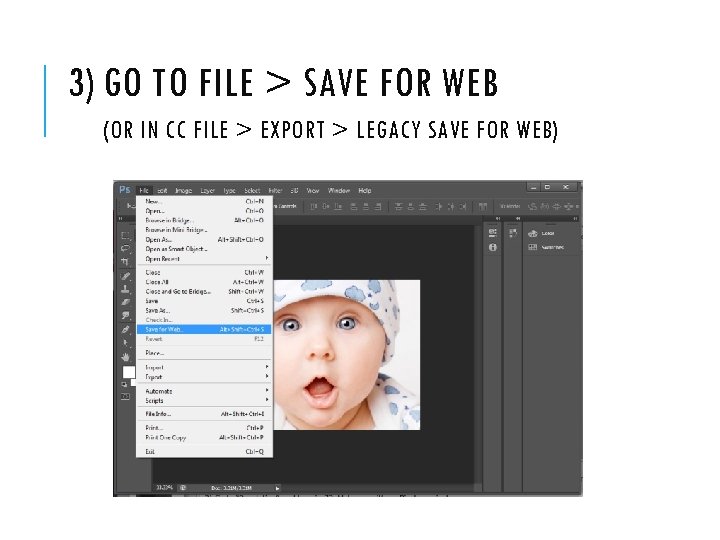 3) GO TO FILE > SAVE FOR WEB (OR IN CC FILE > EXPORT > LEGACY SAVE FOR WEB)
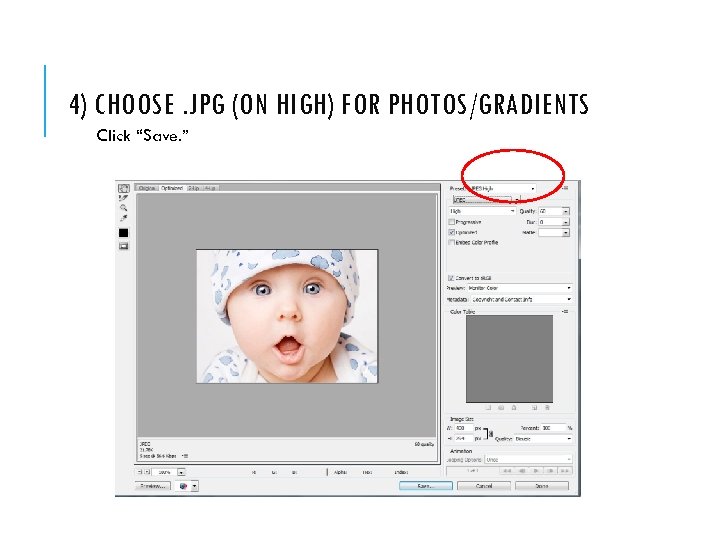 4) CHOOSE. JPG (ON HIGH) FOR PHOTOS/GRADIENTS Click “Save. ”
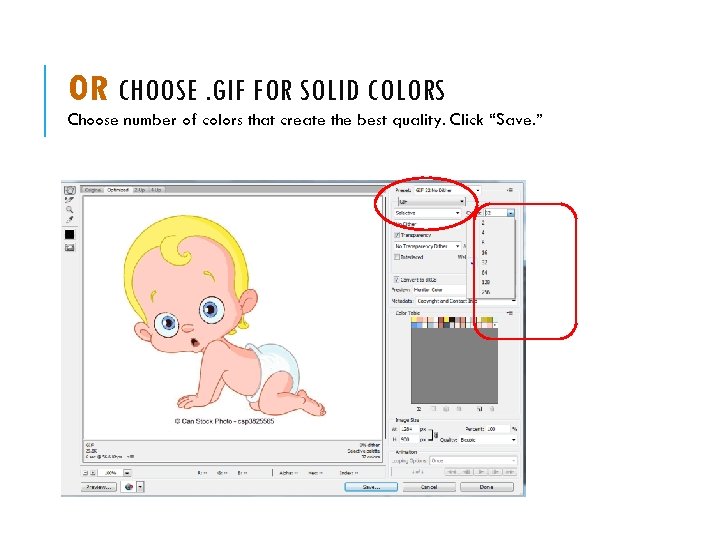 OR CHOOSE. GIF FOR SOLID COLORS Choose number of colors that create the best quality. Click “Save. ”
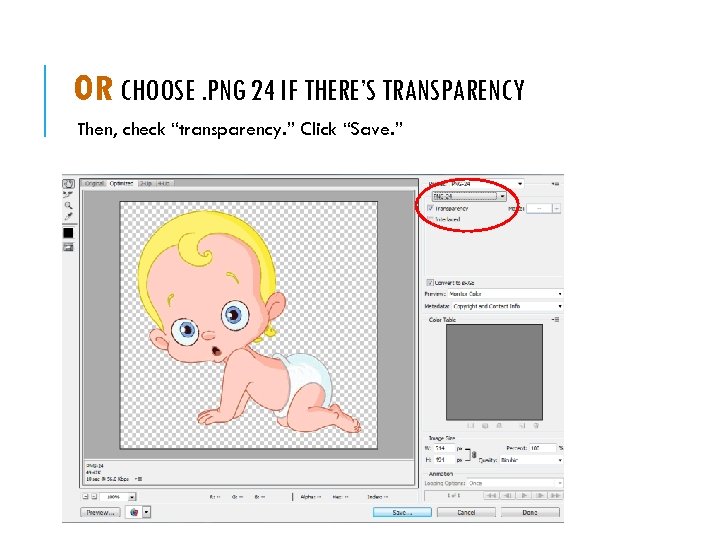 OR CHOOSE. PNG 24 IF THERE’S TRANSPARENCY Then, check “transparency. ” Click “Save. ”
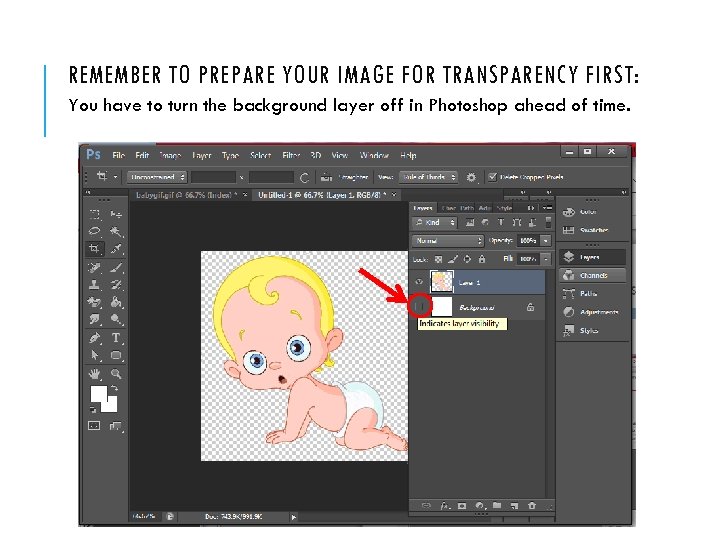 REMEMBER TO PREPARE YOUR IMAGE FOR TRANSPARENCY FIRST: You have to turn the background layer off in Photoshop ahead of time.
 REVIEW Resolution: Change to 72 dpi/ppi Dimension: Change dimension of the image to be the exact dimensions you will need for the Web (not bigger or smaller) File Format: -. jpg (on “high”) for photos and other continuous tone images -. gif for solid colors (choose #of colors needed) -. png (at 24 -bit) for transparency
 Saving Graphics for Web in ILLUSTRATOR JPG, GIF, PNG
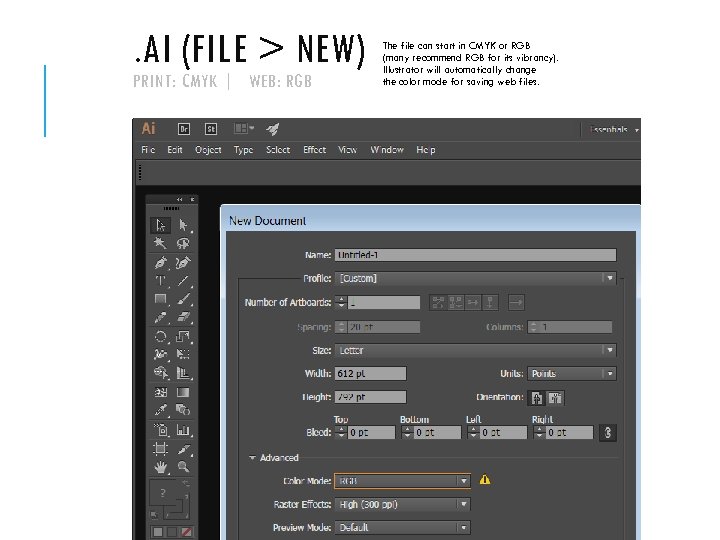 . AI (FILE > NEW) PRINT: CMYK | WEB: RGB The file can start in CMYK or RGB (many recommend RGB for its vibrancy). Illustrator will automatically change the color mode for saving web files.
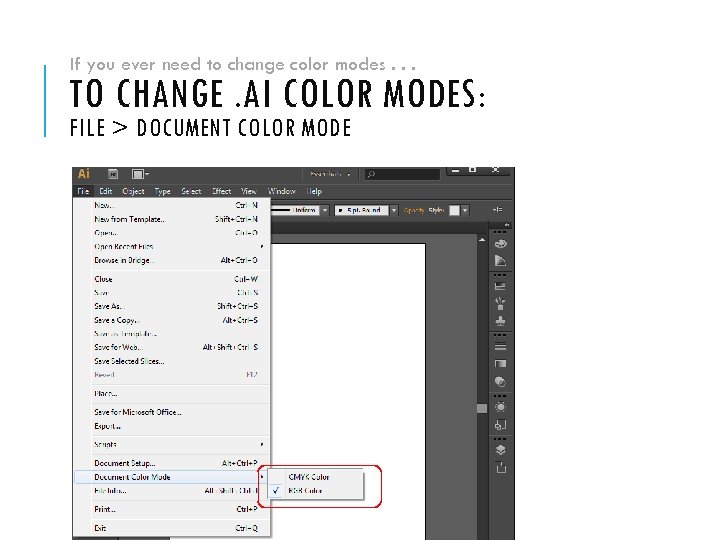 If you ever need to change color modes. . . TO CHANGE. AI COLOR MODES: FILE > DOCUMENT COLOR MODE
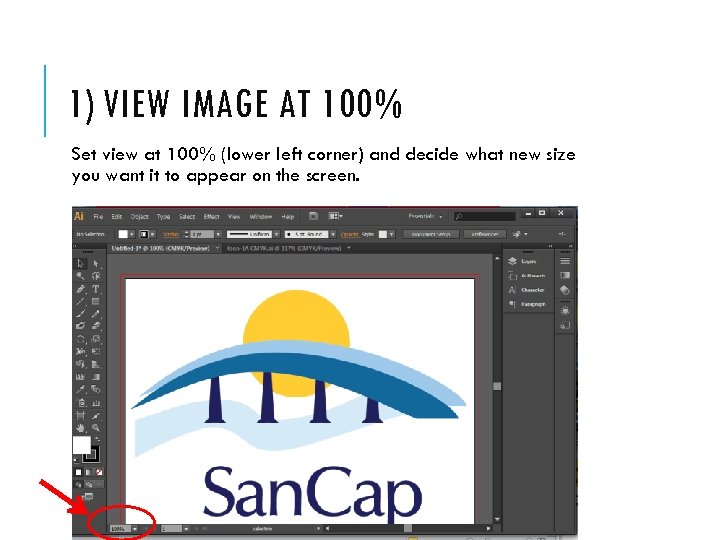 1) VIEW IMAGE AT 100% Set view at 100% (lower left corner) and decide what new size you want it to appear on the screen.
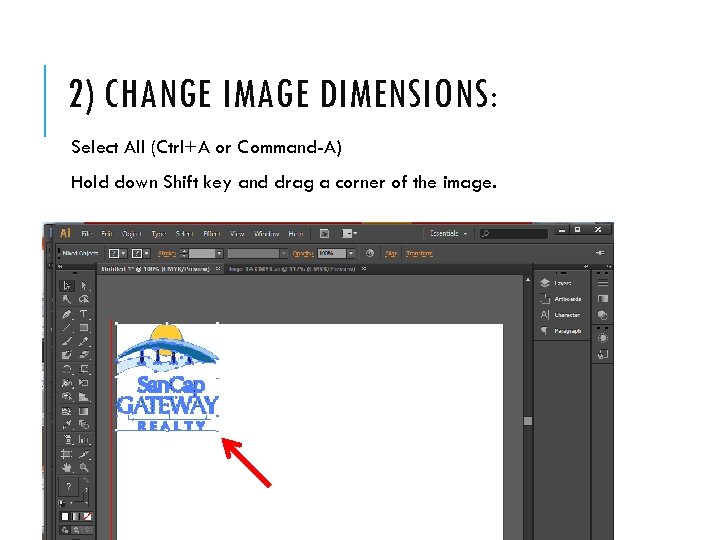 2) CHANGE IMAGE DIMENSIONS: Select All (Ctrl+A or Command-A) Hold down Shift key and drag a corner of the image.
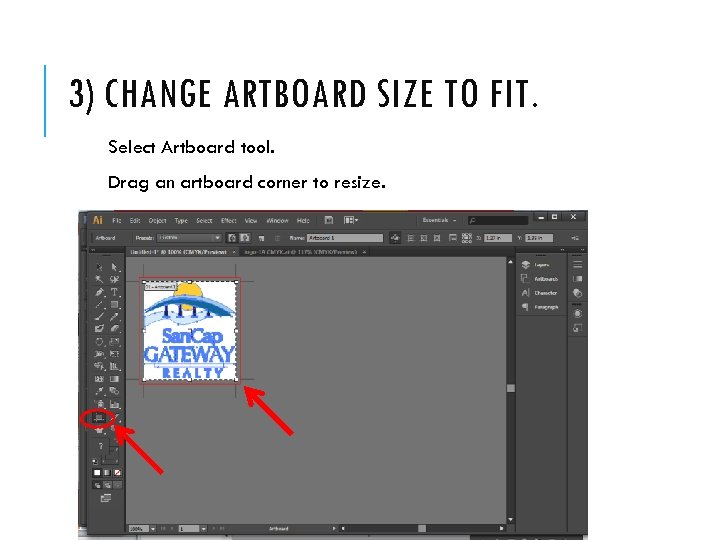 3) CHANGE ARTBOARD SIZE TO FIT. Select Artboard tool. Drag an artboard corner to resize.
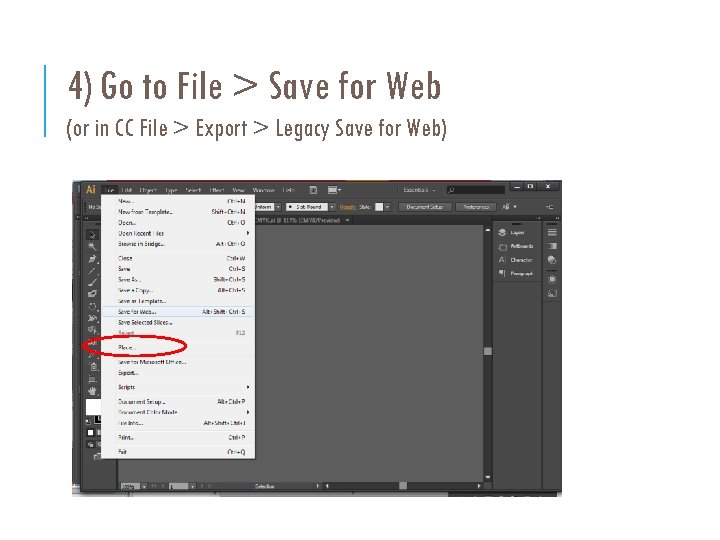 4) Go to File > Save for Web (or in CC File > Export > Legacy Save for Web)
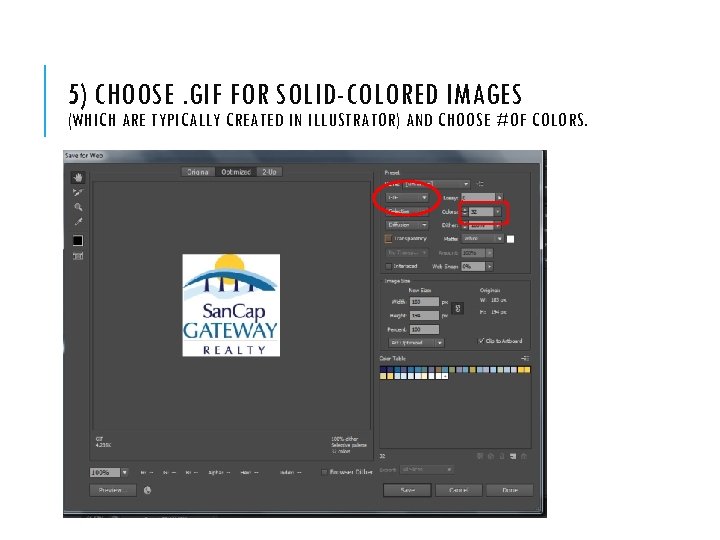 5) CHOOSE. GIF FOR SOLID-COLORED IMAGES (WHICH ARE TYPICALLY CREATED IN ILLUSTRATOR) AND CHOOSE #OF COLORS.
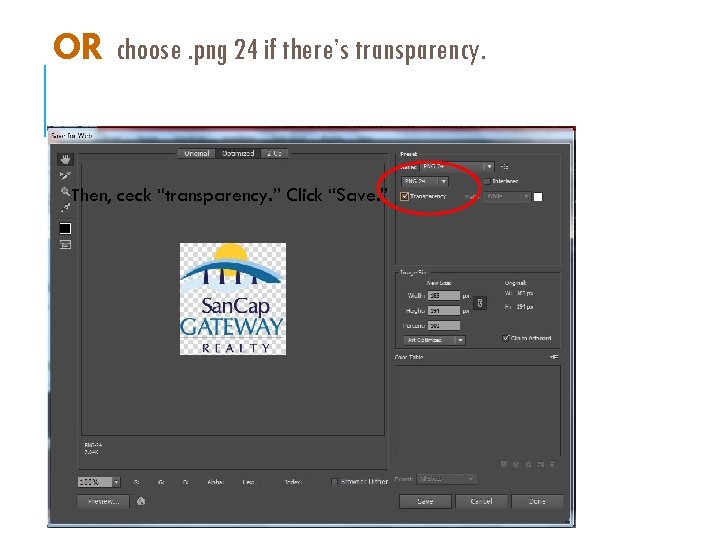 OR choose. png 24 if there’s transparency. Then, ceck “transparency. ” Click “Save. ”
 REVIEW To optimize files for the Web, you will change Dimension: Change dimension of the image to be the exact dimensions you will need for the Web (not bigger or smaller). Resolution: In Photoshop, change resolution to 72 dpi. In Illustrator, there’s no “change” here because it’s vector-based. File Format: Choose the proper file format for the highest quality and lowest download times. -. jpg (on “high”) for photos -. gif for solid colors (choose #of colors needed) -. png (at 24 -bit) for transparency
 Saving a PDF for the Web or e-viewing
 TO REDUCE THE SIZE OF PDF’S FOR WEB For PDF files that are intended to be distributed for viewing purposes only, you may want to reduce the size of PDF files when you export: 1) Choose File > Export 2) Choose [Smallest File Size] from the Adobe PDF Preset menu. 3) In the Compression area, downsample images to 72 pixels per inch, select automatic compression, and select either low- or medium-image quality for color and grayscale images. When you work with photographic images, use Automatic (JPEG) compression; when you work with images that are mostly solid color, such as charts and graphs, use ZIP compression. 4) In the Output area, use the Ink Manager to convert spot colors to process colors.
 Saving for Web in In. Design Portfolio Thumbnails and HTML Pages
 PORTFOLIO THUMBNAILS Typically, we don’t use In. Design to create web pages, even though they can be saved for Web. Instead, we build web pages using Dreamweaver or Content Management Systems (CMS’s) such as Word. Press, Wix, or Squarespace. However, one case for saving In. Design layouts to a web format is for portfolio thumbnail images. 1) In. Design can save a graphic file of a layout (e. g. , a gif or png of a magazine page, flyer, etc. ). Resizing the file beforehand can be a bit awkward. Be sure to make a backup of any file you manipulate. 2) Or, you can go into Preview mode, take screenshots, and save the screen shots as. png files or other web files (see earlier slides in this presentation).
 Which file format should I use?
 QUESTIONS?
 NOTE TO SELF: • JUST SO I REMEMBER: This is a new presentation that combines two old presentations and updates them. 1) “How to Save Graphics For Web” (www. julietdavis. com/COM 302/howtosavegraphicsforweb. ppt). 2) “Basic File Formats” www. julietdavis. com/COM 302/basicfileformats. ppt This new presentation combines these presentations and deletes some slides so that there won’t be so many Power. Points with so much redundancy to confuse students. This PPT is long, but it’s broken down into sections.