


 Скачать презентацию How to Program with JTAG ECE 353
28b386b8764f3ff2cbee3ec76be1e7c9.ppt
- Количество слайдов: 13
 How to Program with JTAG ECE 353 – Computer Systems lab I Mike O’Malley Tom Stack September 20 th 2005 Electrical and Computer Engineering
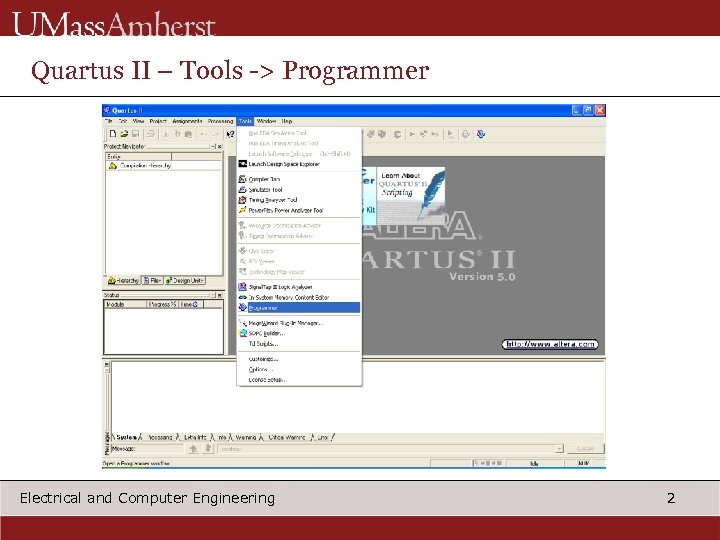 Quartus II – Tools -> Programmer Electrical and Computer Engineering 2
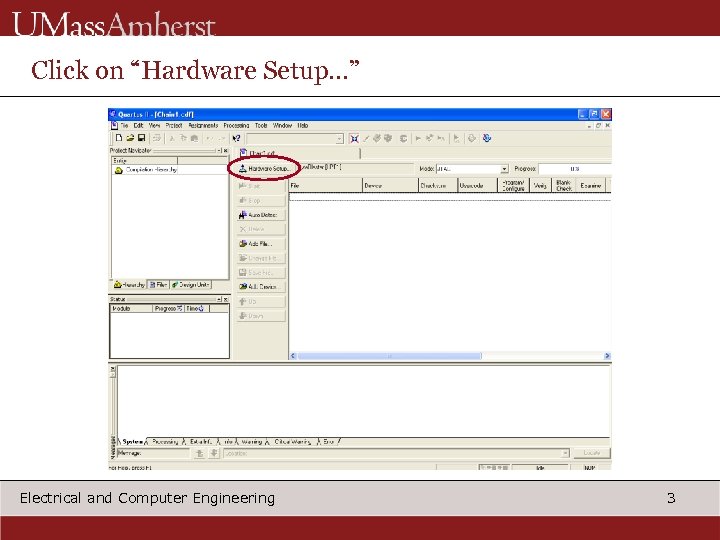 Click on “Hardware Setup…” Electrical and Computer Engineering 3
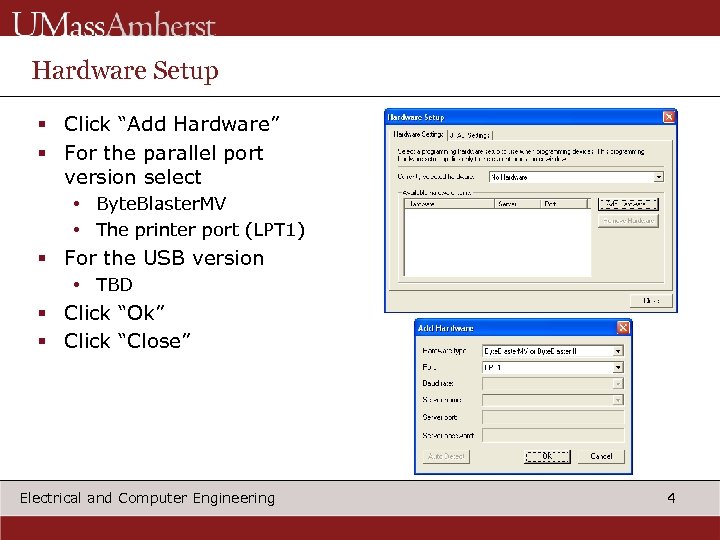 Hardware Setup § Click “Add Hardware” § For the parallel port version select • Byte. Blaster. MV • The printer port (LPT 1) § For the USB version • TBD § Click “Ok” § Click “Close” Electrical and Computer Engineering 4
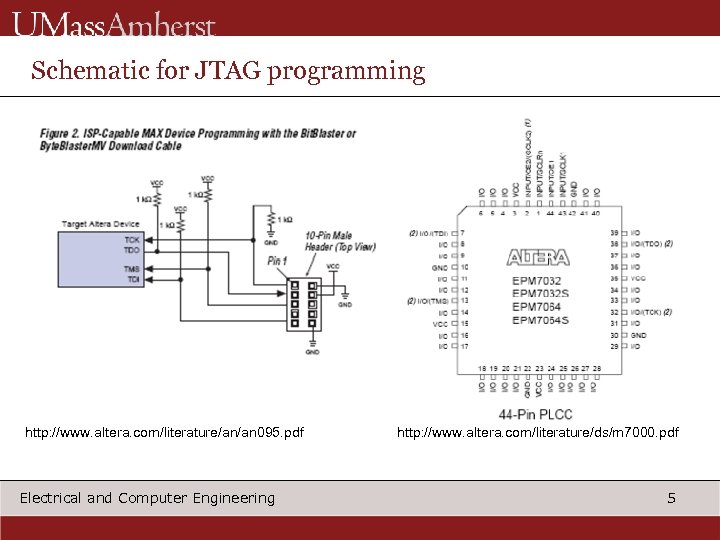 Schematic for JTAG programming http: //www. altera. com/literature/an/an 095. pdf Electrical and Computer Engineering http: //www. altera. com/literature/ds/m 7000. pdf 5
 WARNING! DISCONNECT 4 Mhz CLOCK BEFORE ATTACHING TO PROGRAMMER Electrical and Computer Engineering 6
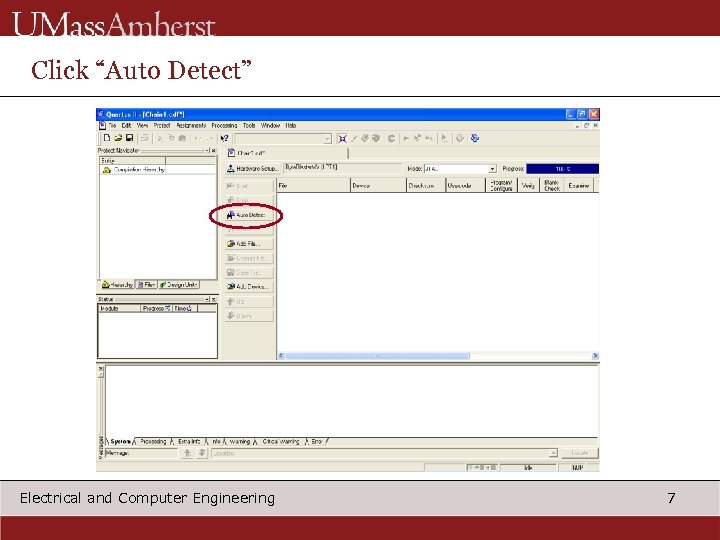 Click “Auto Detect” Electrical and Computer Engineering 7
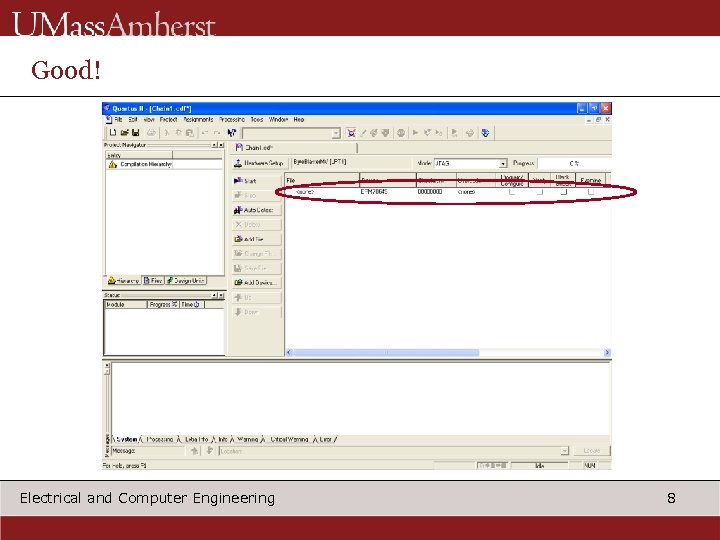 Good! Electrical and Computer Engineering 8
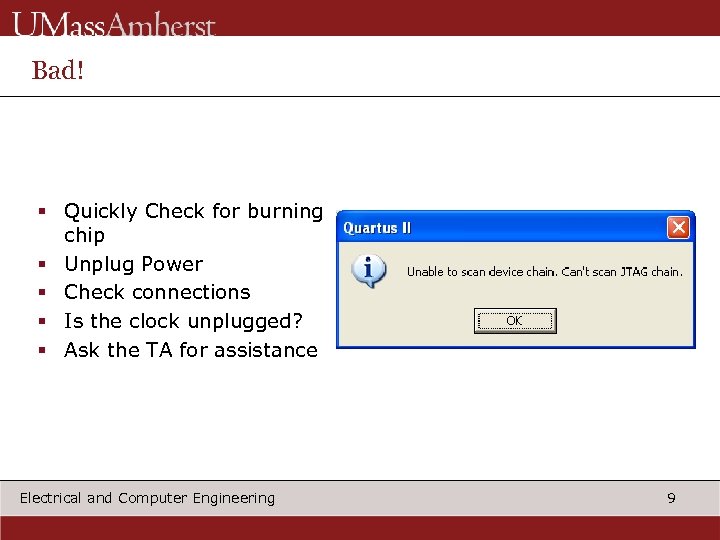 Bad! § Quickly Check for burning chip § Unplug Power § Check connections § Is the clock unplugged? § Ask the TA for assistance Electrical and Computer Engineering 9
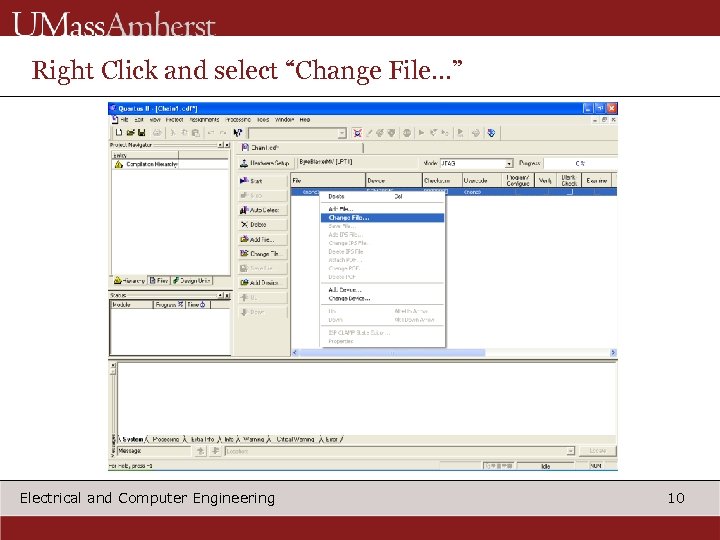 Right Click and select “Change File…” Electrical and Computer Engineering 10
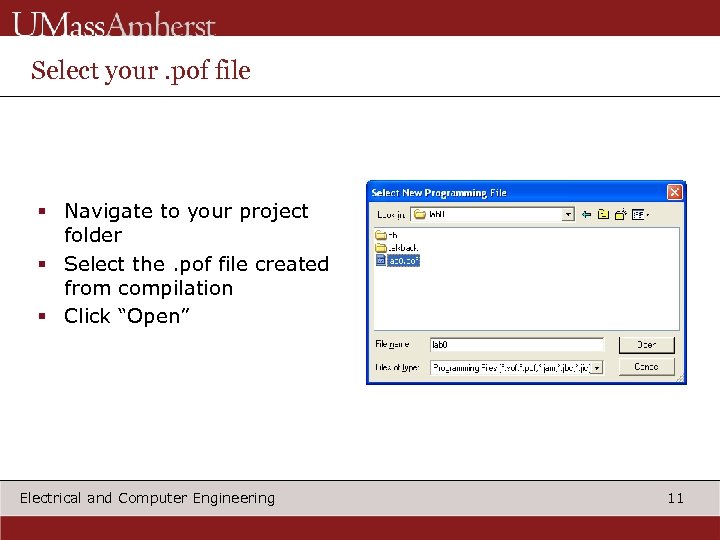 Select your. pof file § Navigate to your project folder § Select the. pof file created from compilation § Click “Open” Electrical and Computer Engineering 11
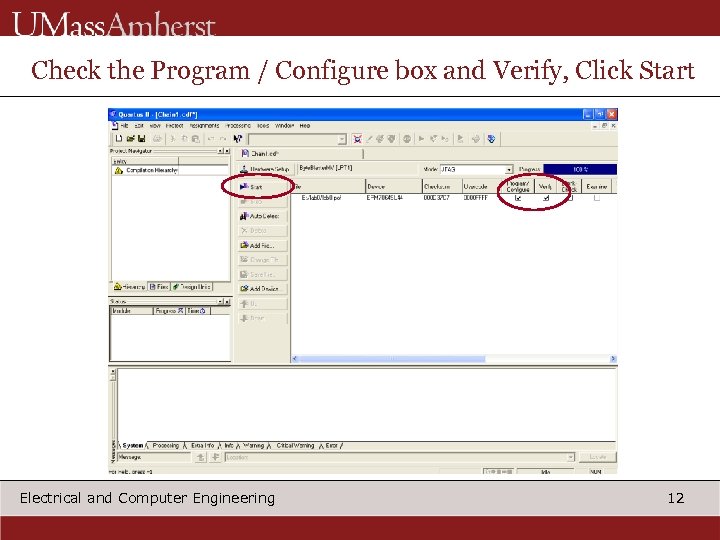 Check the Program / Configure box and Verify, Click Start Electrical and Computer Engineering 12
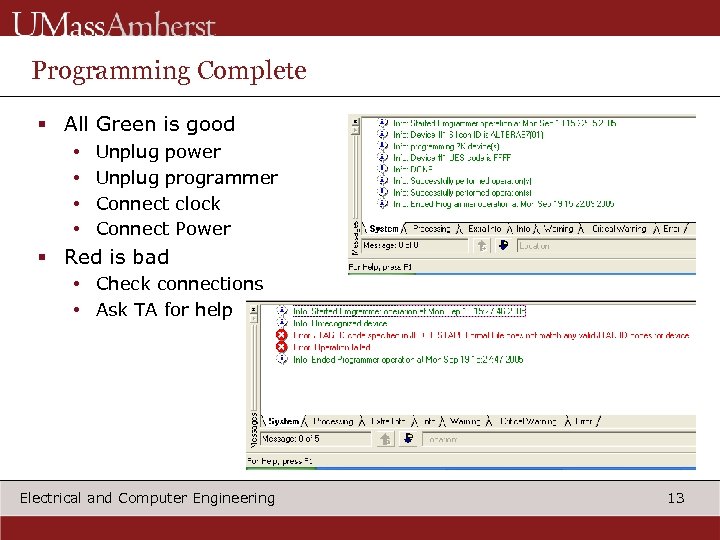 Programming Complete § All Green is good • • Unplug power Unplug programmer Connect clock Connect Power § Red is bad • Check connections • Ask TA for help Electrical and Computer Engineering 13