


 Скачать презентацию How to Make the Final MU Check Occur
ea39146265bc9d402c1382441a4c544e.ppt
- Количество слайдов: 82
 How to Make the Final MU Check Occur After the Last Human Intervention in an Electronic Chart Alan Kepka Northwestern Memorial Hospital
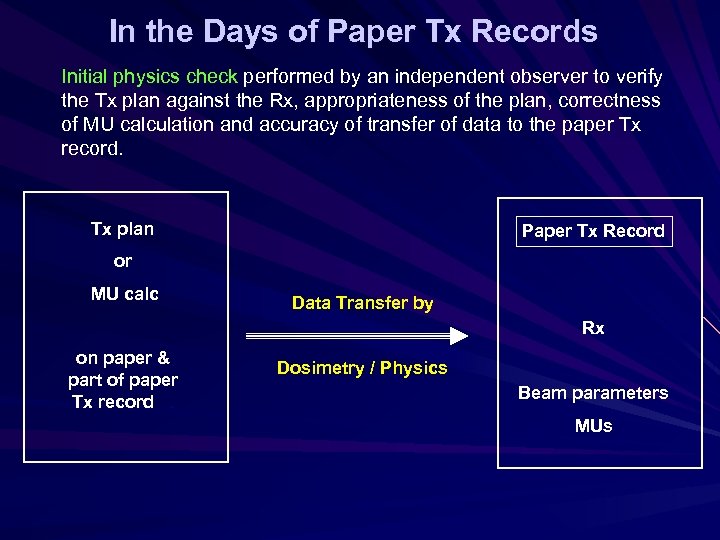 In the Days of Paper Tx Records Initial physics check performed by an independent observer to verify the Tx plan against the Rx, appropriateness of the plan, correctness of MU calculation and accuracy of transfer of data to the paper Tx record. Tx plan Paper Tx Record or MU calc Data Transfer by Rx on paper & part of paper Tx record. Dosimetry / Physics Beam parameters MUs
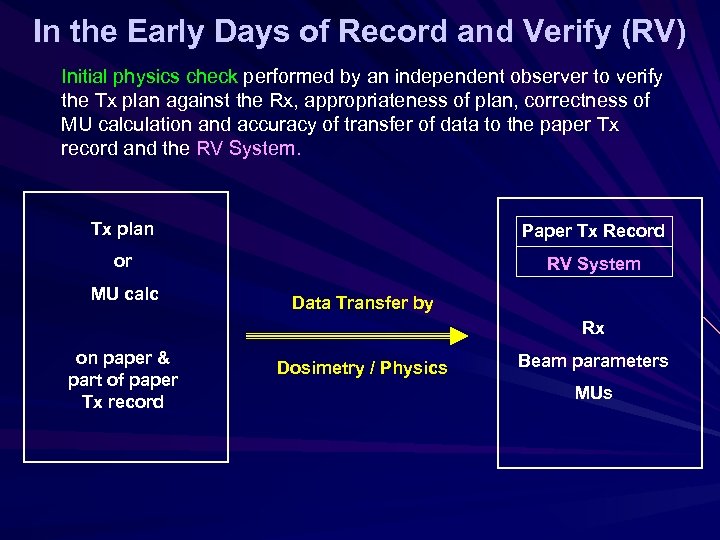 In the Early Days of Record and Verify (RV) Initial physics check performed by an independent observer to verify the Tx plan against the Rx, appropriateness of plan, correctness of MU calculation and accuracy of transfer of data to the paper Tx record and the RV System. Tx plan Paper Tx Record or RV System MU calc Data Transfer by Rx on paper & part of paper Tx record Dosimetry / Physics Beam parameters MUs
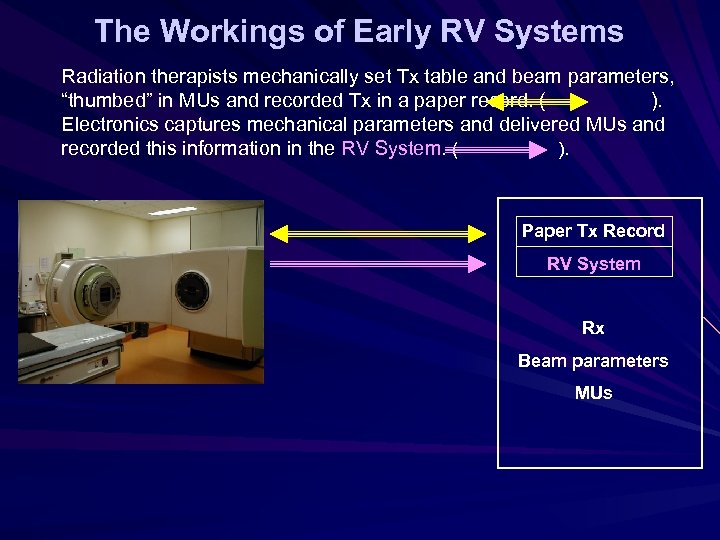 The Workings of Early RV Systems Radiation therapists mechanically set Tx table and beam parameters, “thumbed” in MUs and recorded Tx in a paper record. ( ). Electronics captures mechanical parameters and delivered MUs and recorded this information in the RV System. ( ). Paper Tx Record RV System Rx Beam parameters MUs
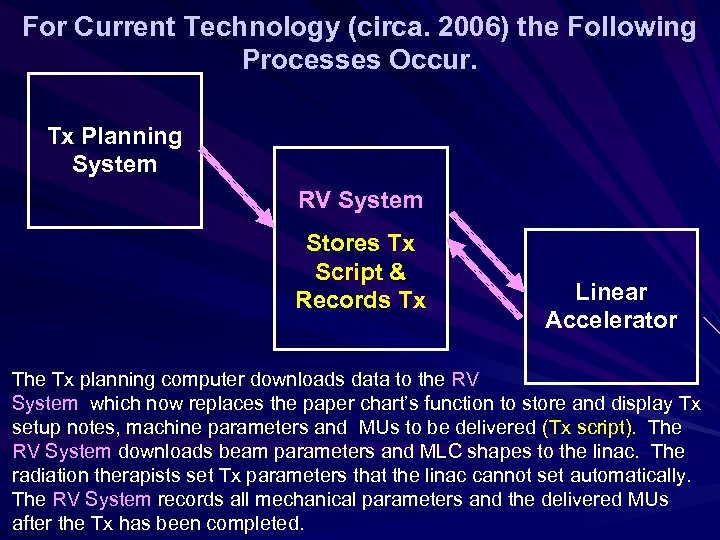 For Current Technology (circa. 2006) the Following Processes Occur. Tx Planning System RV System Stores Tx Script & Records Tx Linear Accelerator The Tx planning computer downloads data to the RV System which now replaces the paper chart’s function to store and display Tx setup notes, machine parameters and MUs to be delivered (Tx script). The RV System downloads beam parameters and MLC shapes to the linac. The radiation therapists set Tx parameters that the linac cannot set automatically. The RV System records all mechanical parameters and the delivered MUs after the Tx has been completed.
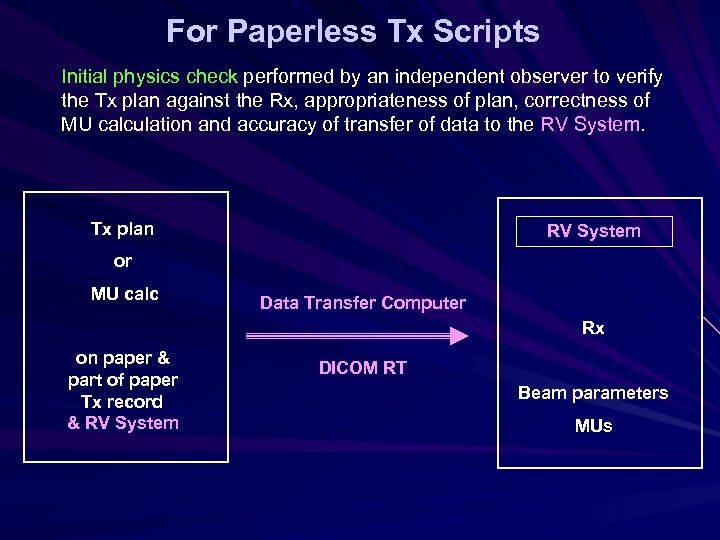 For Paperless Tx Scripts Initial physics check performed by an independent observer to verify the Tx plan against the Rx, appropriateness of plan, correctness of MU calculation and accuracy of transfer of data to the RV System. Tx plan RV System or MU calc Data Transfer Computer Rx on paper & part of paper …Tx record. & RV System DICOM RT Beam parameters MUs
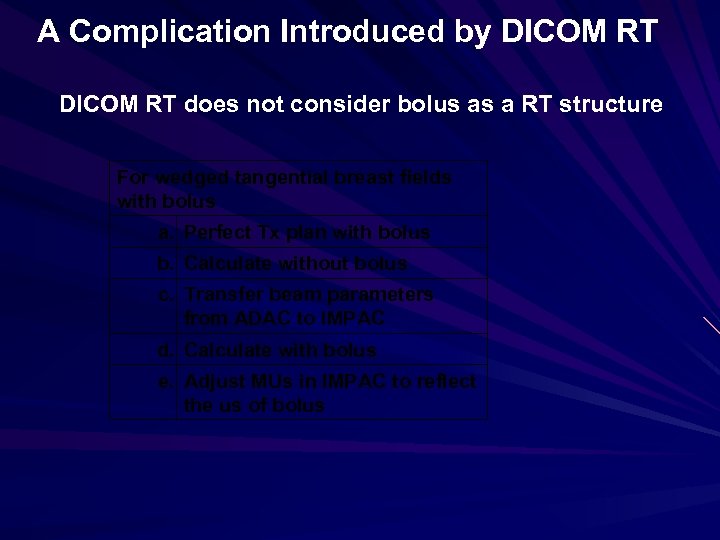 A Complication Introduced by DICOM RT does not consider bolus as a RT structure For wedged tangential breast fields with bolus a. Perfect Tx plan with bolus b. Calculate without bolus c. Transfer beam parameters from ADAC to IMPAC d. Calculate with bolus e. Adjust MUs in IMPAC to reflect the us of bolus
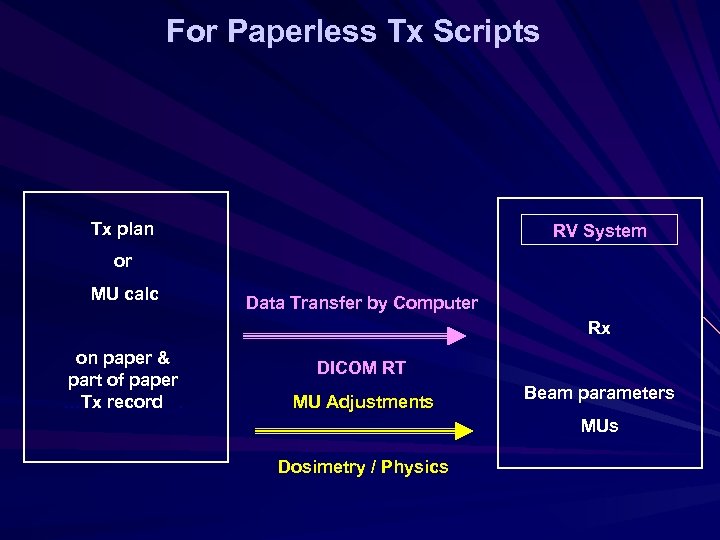 For Paperless Tx Scripts Tx plan RV System or MU calc Data Transfer by Computer Rx on paper & part of paper …Tx record. DICOM RT MU Adjustments Beam parameters MUs Dosimetry / Physics
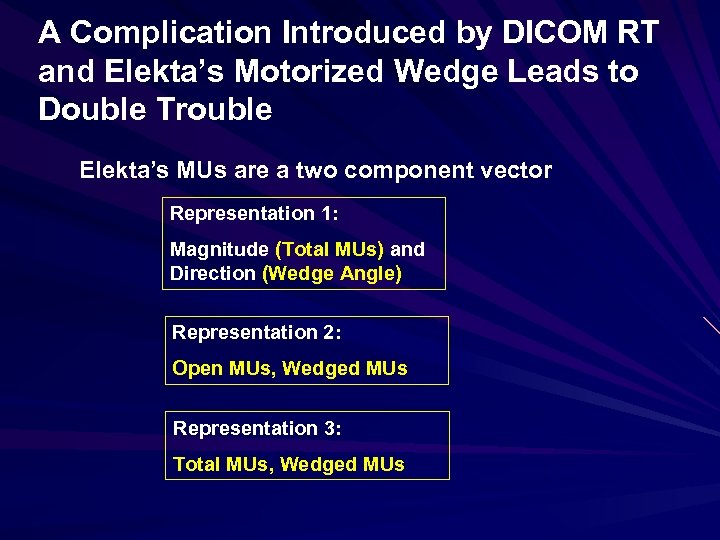 A Complication Introduced by DICOM RT and Elekta’s Motorized Wedge Leads to Double Trouble Elekta’s MUs are a two component vector Representation 1: Magnitude (Total MUs) and Direction (Wedge Angle) Representation 2: Open MUs, Wedged MUs Representation 3: Total MUs, Wedged MUs
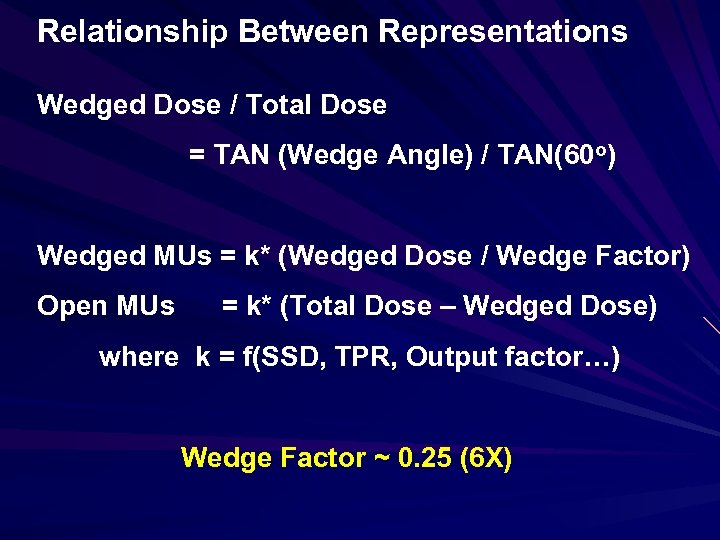 Relationship Between Representations Wedged Dose / Total Dose = TAN (Wedge Angle) / TAN(60 o) Wedged MUs = k* (Wedged Dose / Wedge Factor) Open MUs = k* (Total Dose – Wedged Dose) where k = f(SSD, TPR, Output factor…) Wedge Factor ~ 0. 25 (6 X)
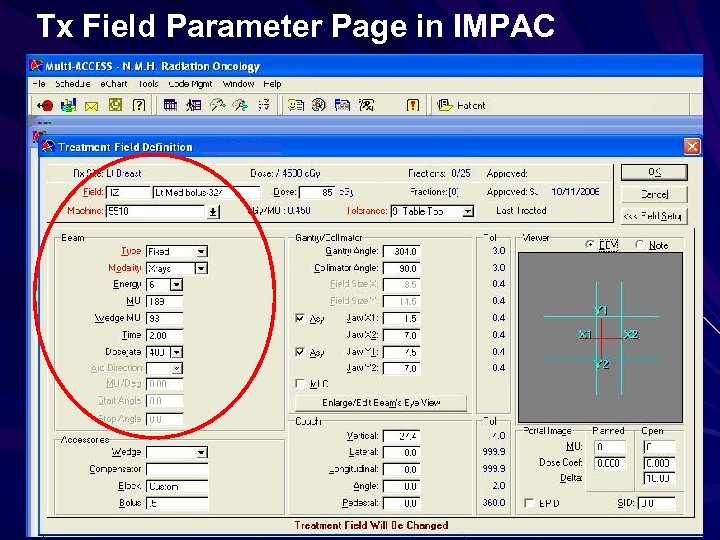 Tx Field Parameter Page in IMPAC
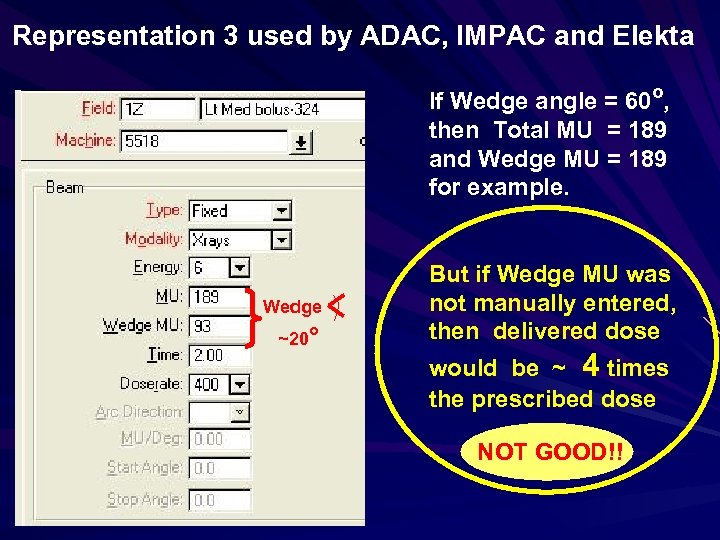 Representation 3 used by ADAC, IMPAC and Elekta If Wedge angle = 60 o, then Total MU = 189 and Wedge MU = 189 for example. Wedge ~20 o But if Wedge MU was not manually entered, then delivered dose would be ~ 4 times the prescribed dose. NOT GOOD!!
 To Catch MU Vector Entry Errors Strategy 1. . For wedged fields, have 2 nd independent physics review. Measure entrance dose and compare with expected result. Strategy 2. Electronically confirm the. correctness of the MU vector entry in the electronic Tx script. after all human interventions. have occurred. .
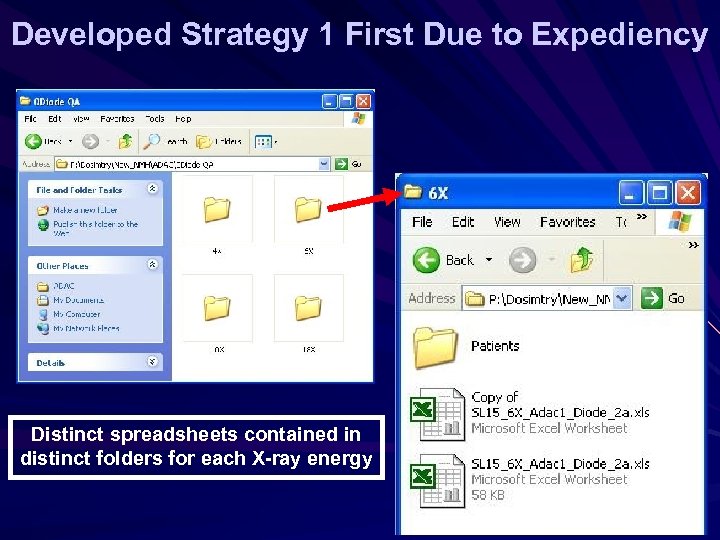 Developed Strategy 1 First Due to Expediency Distinct spreadsheets contained in distinct folders for each X-ray energy
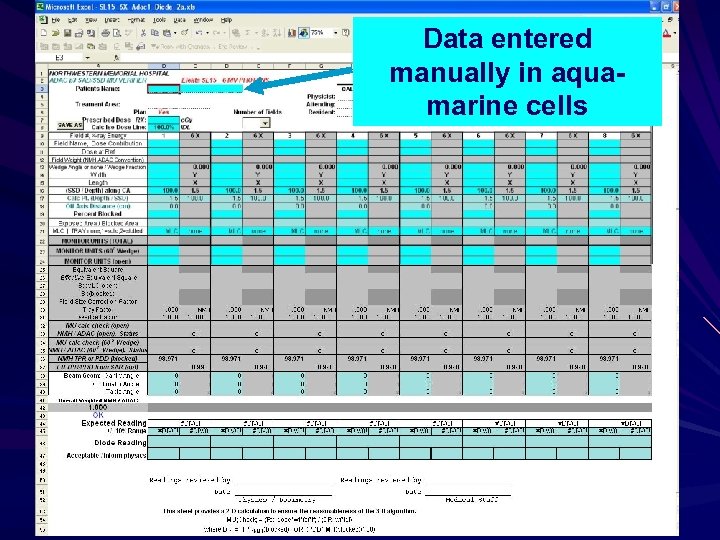 Data entered manually in aquamarine cells
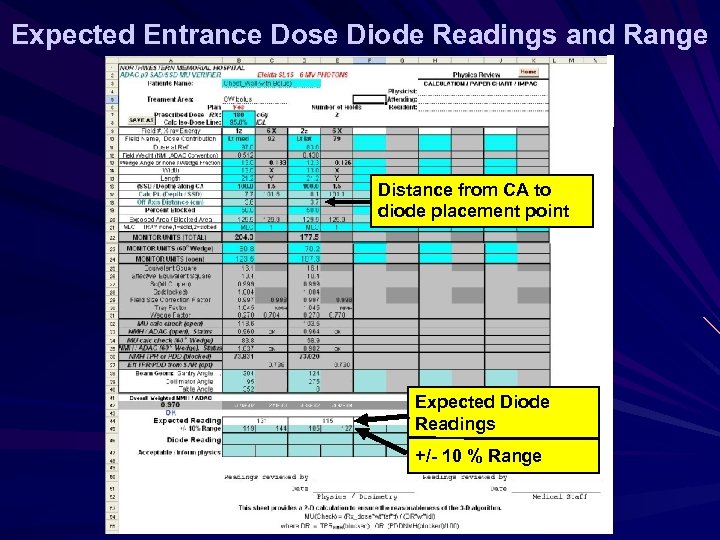 Expected Entrance Dose Diode Readings and Range Distance from CA to diode placement point Expected Diode Readings +/- 10 % Range
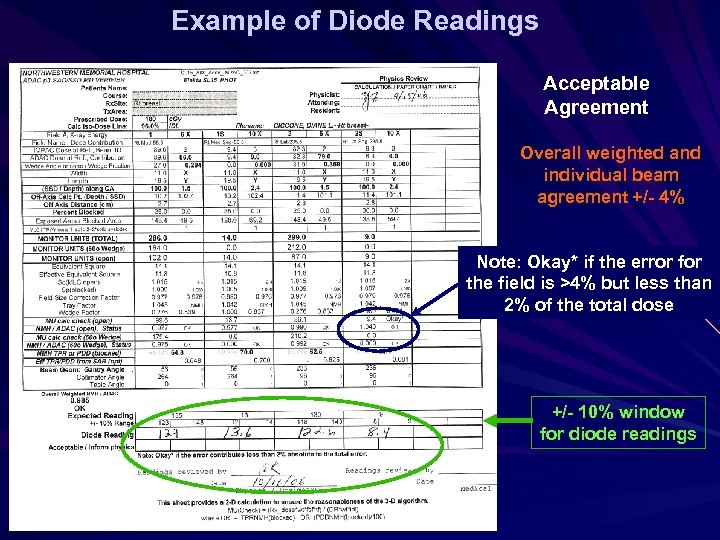 Example of Diode Readings Acceptable Agreement Overall weighted and individual beam agreement +/- 4% Note: Okay* if the error for the field is >4% but less than 2% of the total dose +/- 10% window for diode readings
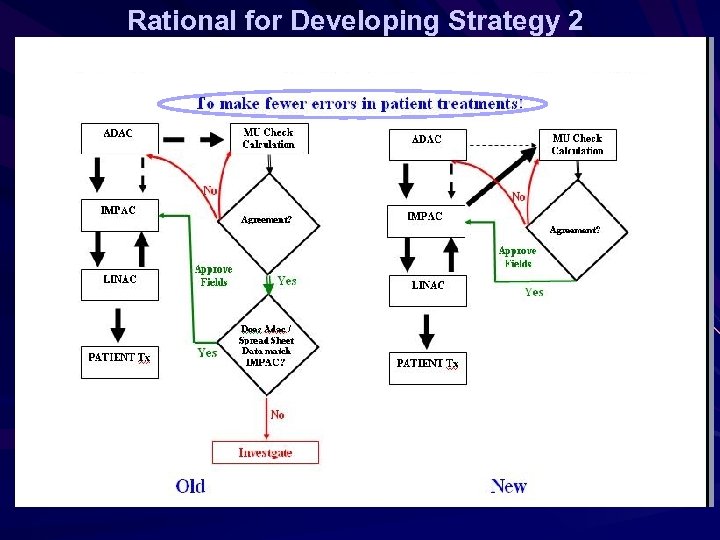 Rational for Developing Strategy 2
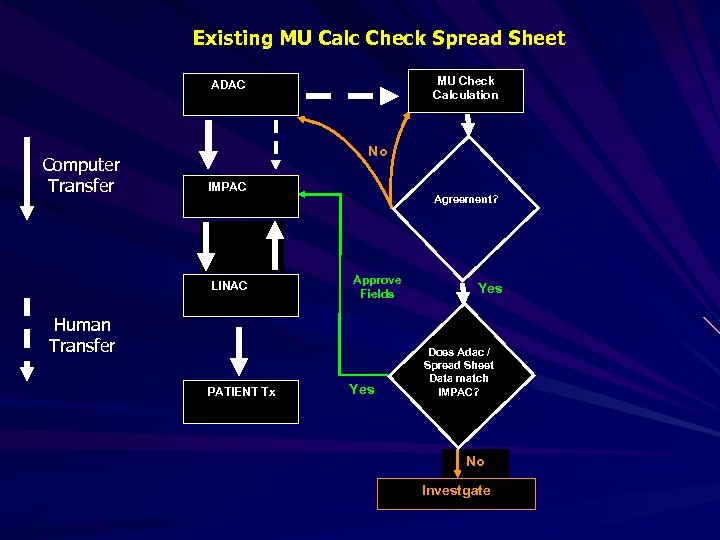 Existing MU Calc Check Spread Sheet MU Check Calculation ADAC Computer Transfer No IMPAC Agreement? LINAC Approve Fields Human Transfer PATIENT Tx Yes Does Adac / Spread Sheet Data match IMPAC? No Investgate
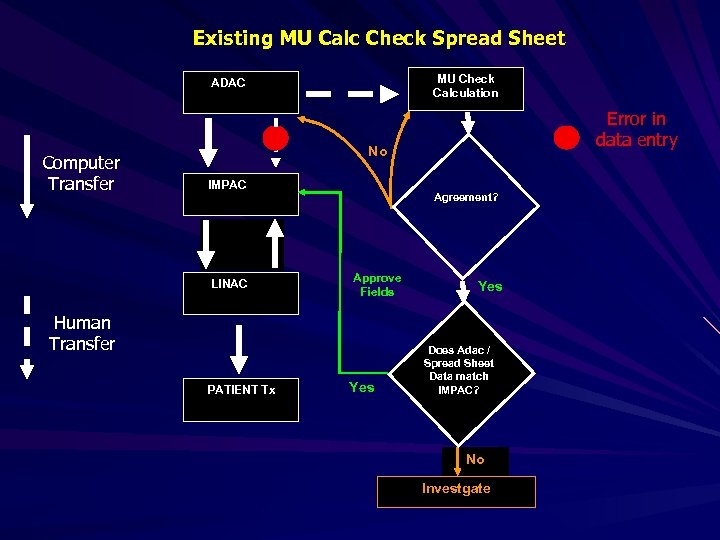 Existing MU Calc Check Spread Sheet MU Check Calculation ADAC Computer Transfer Error in data entry No IMPAC Agreement? LINAC Approve Fields Human Transfer PATIENT Tx Yes Does Adac / Spread Sheet Data match IMPAC? No Investgate
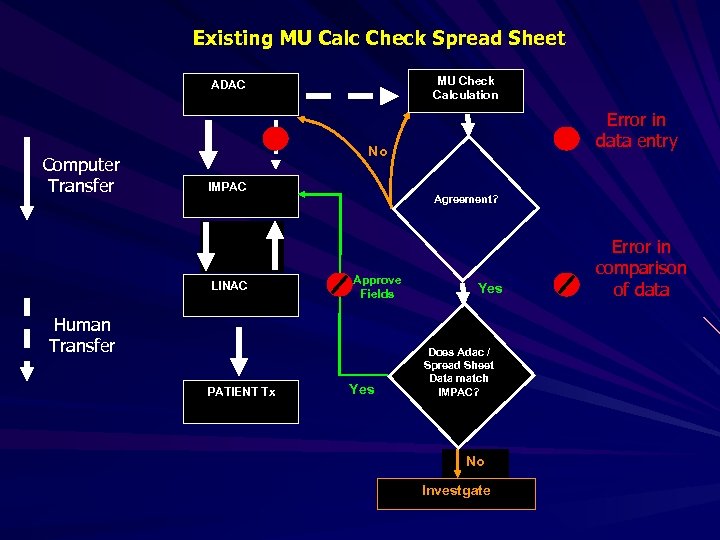 Existing MU Calc Check Spread Sheet MU Check Calculation ADAC Computer Transfer Error in data entry No IMPAC Agreement? LINAC Approve Fields Human Transfer PATIENT Tx Yes Does Adac / Spread Sheet Data match IMPAC? No Investgate Error in comparison of data
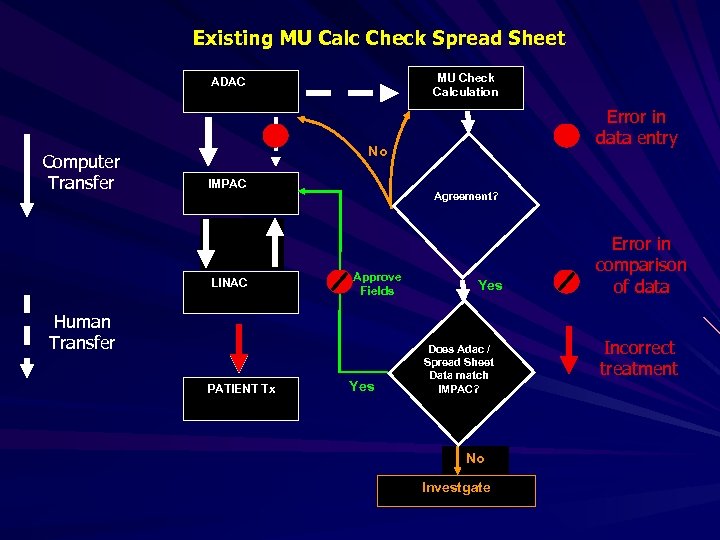 Existing MU Calc Check Spread Sheet MU Check Calculation ADAC Computer Transfer Error in data entry No IMPAC Agreement? LINAC Approve Fields Human Transfer PATIENT Tx Yes Does Adac / Spread Sheet Data match IMPAC? No Investgate Error in comparison of data Incorrect treatment
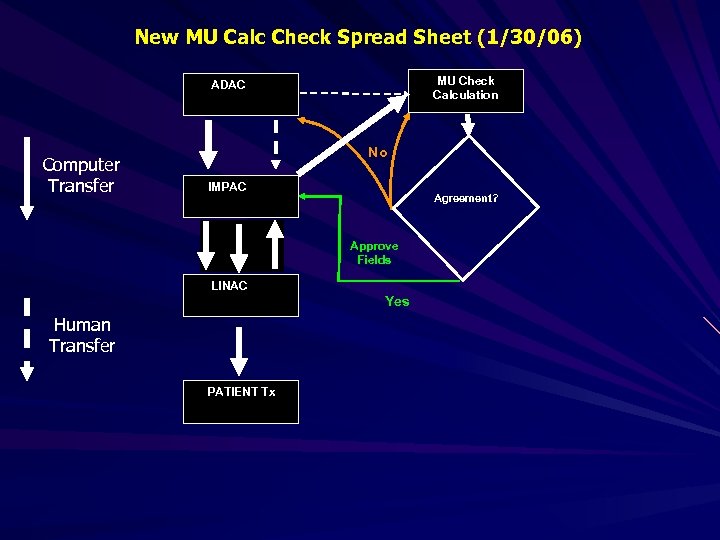 New MU Calc Check Spread Sheet (1/30/06) MU Check Calculation ADAC Computer Transfer No IMPAC Agreement? Approve Fields LINAC Yes Human Transfer PATIENT Tx
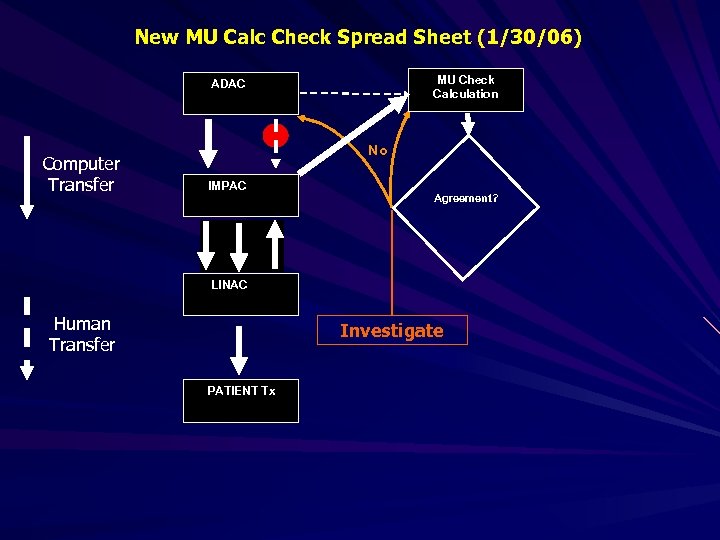 New MU Calc Check Spread Sheet (1/30/06) MU Check Calculation ADAC Computer Transfer No IMPAC Agreement? LINAC Human Transfer Investigate PATIENT Tx
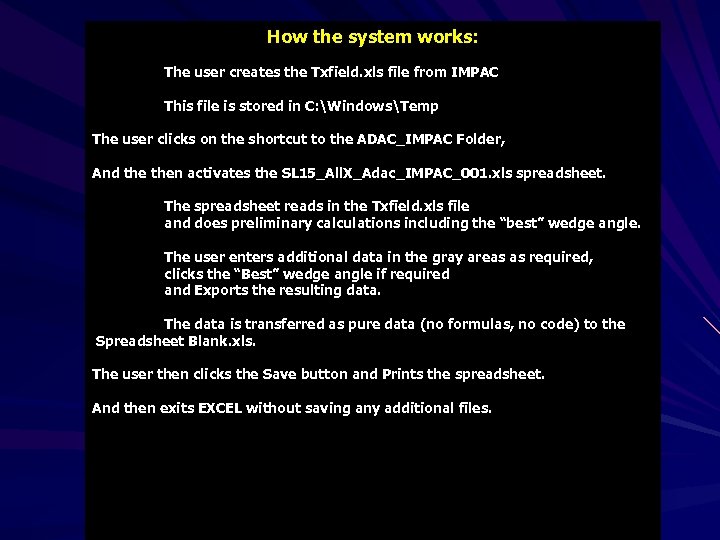 How the system works: The user creates the Txfield. xls file from IMPAC This file is stored in C: WindowsTemp The user clicks on the shortcut to the ADAC_IMPAC Folder, And then activates the SL 15_All. X_Adac_IMPAC_001. xls spreadsheet. The spreadsheet reads in the Txfield. xls file and does preliminary calculations including the “best” wedge angle. The user enters additional data in the gray areas as required, clicks the “Best” wedge angle if required and Exports the resulting data. The data is transferred as pure data (no formulas, no code) to the Spreadsheet Blank. xls. The user then clicks the Save button and Prints the spreadsheet. And then exits EXCEL without saving any additional files.
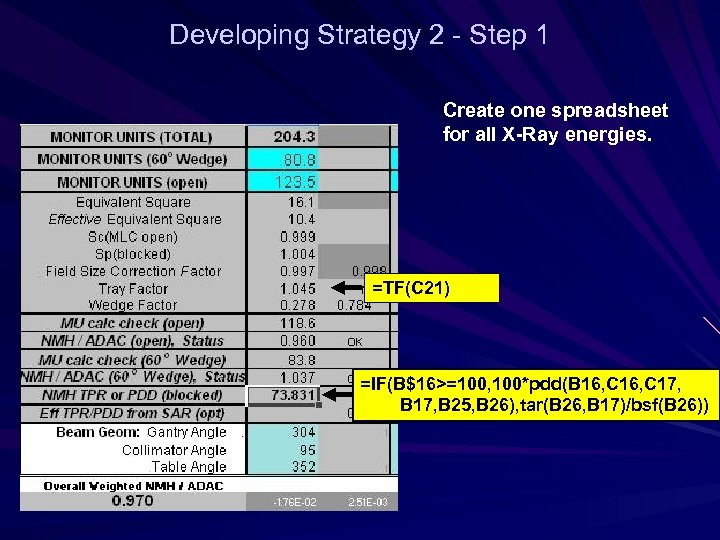 Developing Strategy 2 - Step 1 Create one spreadsheet for all X-Ray energies. =TF(C 21) =IF(B$16>=100, 100*pdd(B 16, C 17, . B 17, B 25, B 26), tar(B 26, B 17)/bsf(B 26))
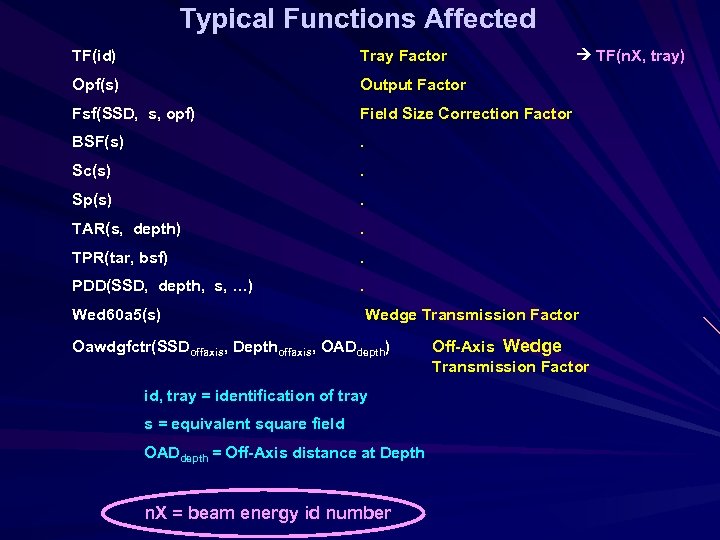 Typical Functions Affected TF(id) Tray Factor Opf(s) Output Factor Fsf(SSD, s, opf) Field Size Correction Factor BSF(s) . Sc(s) . Sp(s) . TAR(s, depth) . TPR(tar, bsf) . PDD(SSD, depth, s, …) . Wed 60 a 5(s) TF(n. X, tray) Wedge Transmission Factor Oawdgfctr(SSDoffaxis, Depthoffaxis, OADdepth) id, tray = identification of tray s = equivalent square field OADdepth = Off-Axis distance at Depth n. X = beam energy id number Off-Axis Wedge Transmission Factor
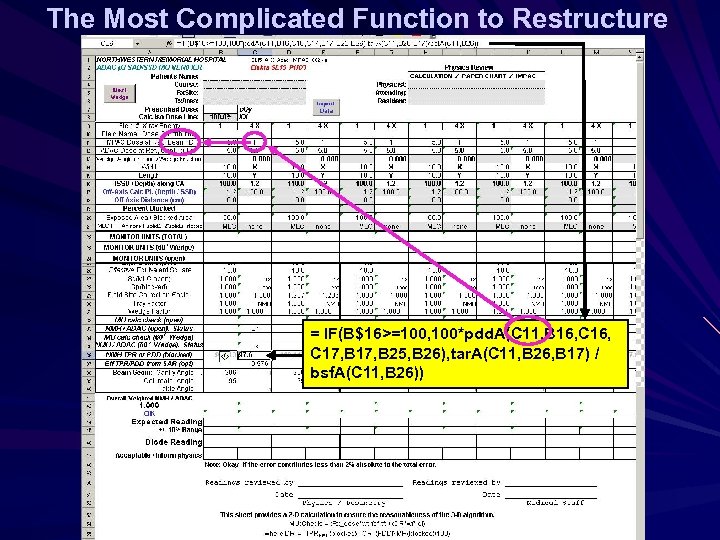 The Most Complicated Function to Restructure = IF(B$16>=100, 100*pdd. A(C 11, B 16, C 16, . C 17, B 25, B 26), tar. A(C 11, B 26, B 17) /. bsf. A(C 11, B 26))
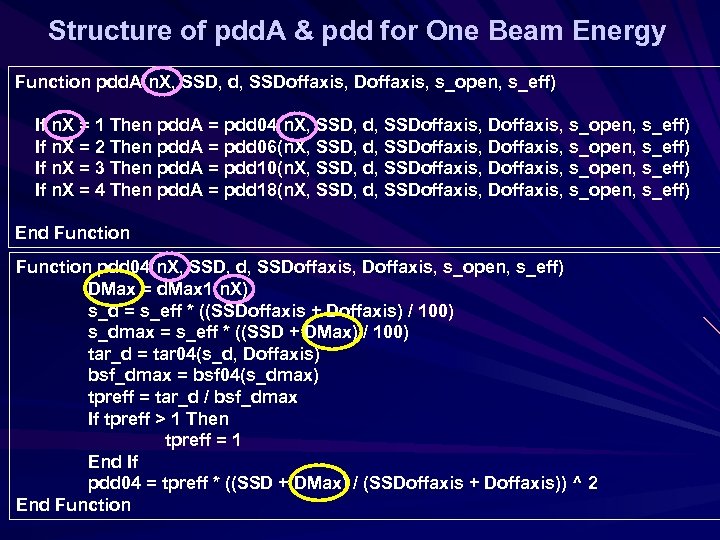 Structure of pdd. A & pdd for One Beam Energy Function pdd. A(n. X, SSD, d, SSDoffaxis, s_open, s_eff) If n. X = 1 Then pdd. A = pdd 04(n. X, SSD, d, SSDoffaxis, s_open, s_eff) If n. X = 2 Then pdd. A = pdd 06(n. X, SSD, d, SSDoffaxis, s_open, s_eff) If n. X = 3 Then pdd. A = pdd 10(n. X, SSD, d, SSDoffaxis, s_open, s_eff) If n. X = 4 Then pdd. A = pdd 18(n. X, SSD, d, SSDoffaxis, s_open, s_eff) End Function pdd 04(n. X, SSD, d, SSDoffaxis, s_open, s_eff) DMax = d. Max 1(n. X) s_d = s_eff * ((SSDoffaxis + Doffaxis) / 100) s_dmax = s_eff * ((SSD + DMax) / 100) tar_d = tar 04(s_d, Doffaxis) bsf_dmax = bsf 04(s_dmax) tpreff = tar_d / bsf_dmax If tpreff > 1 Then tpreff = 1 End If pdd 04 = tpreff * ((SSD + DMax) / (SSDoffaxis + Doffaxis)) ^ 2 End Function
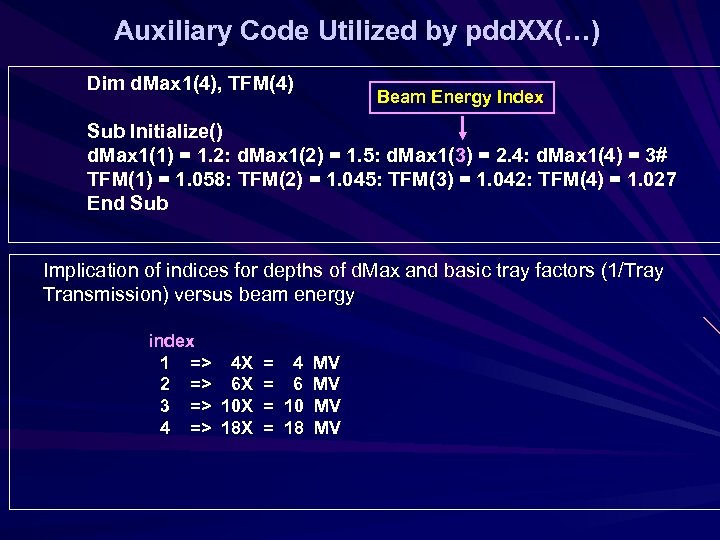 Auxiliary Code Utilized by pdd. XX(…) Dim d. Max 1(4), TFM(4) Beam Energy Index Sub Initialize() d. Max 1(1) = 1. 2: d. Max 1(2) = 1. 5: d. Max 1(3) = 2. 4: d. Max 1(4) = 3# TFM(1) = 1. 058: TFM(2) = 1. 045: TFM(3) = 1. 042: TFM(4) = 1. 027 End Sub Implication of indices for depths of d. Max and basic tray factors (1/Tray Transmission) versus beam energy index 1 => 4 X = 4 MV 2 => 6 X = 6 MV 3 => 10 X = 10 MV 4 => 18 X = 18 MV
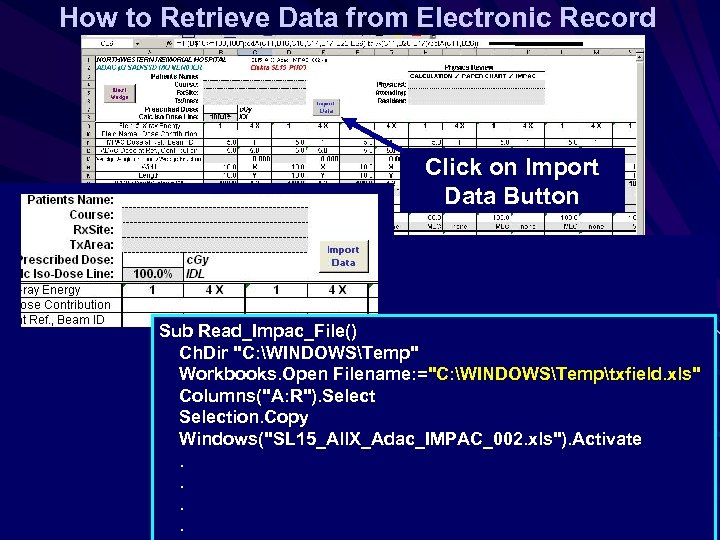 How to Retrieve Data from Electronic Record Click on Import Data Button Sub Read_Impac_File() Ch. Dir "C: WINDOWSTemp" Workbooks. Open Filename: ="C: WINDOWSTemptxfield. xls" Columns("A: R"). Selection. Copy Windows("SL 15_All. X_Adac_IMPAC_002. xls"). Activate. .
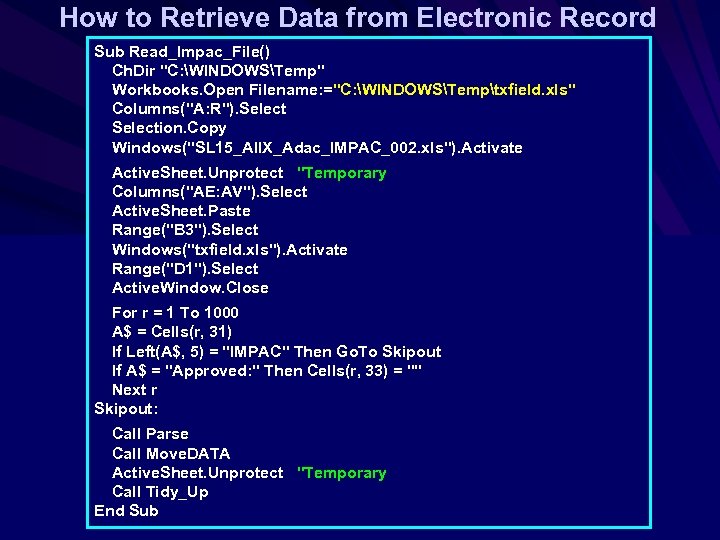 How to Retrieve Data from Electronic Record Sub Read_Impac_File() Ch. Dir "C: WINDOWSTemp" Workbooks. Open Filename: ="C: WINDOWSTemptxfield. xls" Columns("A: R"). Selection. Copy Windows("SL 15_All. X_Adac_IMPAC_002. xls"). Activate Active. Sheet. Unprotect ''Temporary Columns("AE: AV"). Select Active. Sheet. Paste Range("B 3"). Select Windows("txfield. xls"). Activate Range("D 1"). Select Active. Window. Close For r = 1 To 1000 A$ = Cells(r, 31) If Left(A$, 5) = "IMPAC" Then Go. To Skipout If A$ = "Approved: " Then Cells(r, 33) = "" Next r Skipout: Call Parse Call Move. DATA Active. Sheet. Unprotect ''Temporary Call Tidy_Up End Sub
 Developing Strategy 2 - Step 2 Mechanism for transferring data from the electronic chart to the Excel spreadsheet
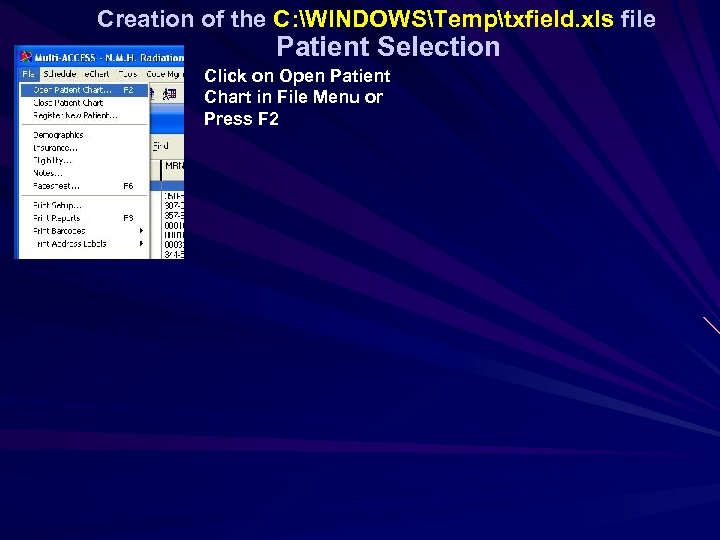 Creation of the C: WINDOWSTemptxfield. xls file Patient Selection Click on Open Patient Chart in File Menu or Press F 2
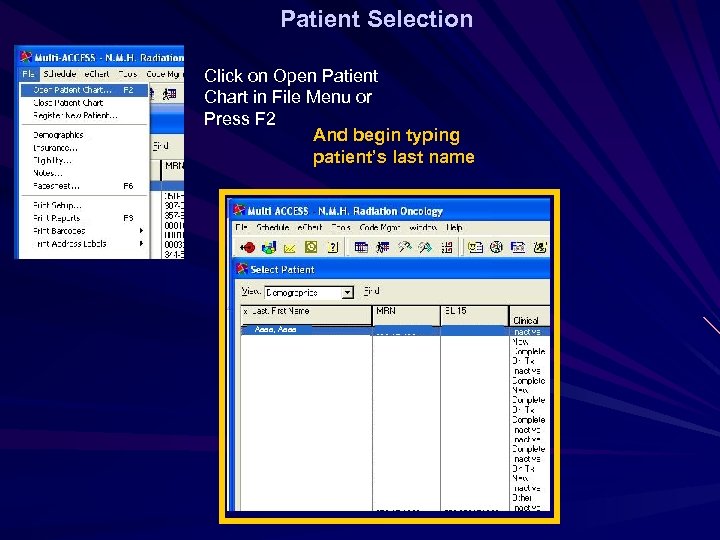 Patient Selection Click on Open Patient Chart in File Menu or Press F 2 And begin typing patient’s last name Aaaa, Aaaa
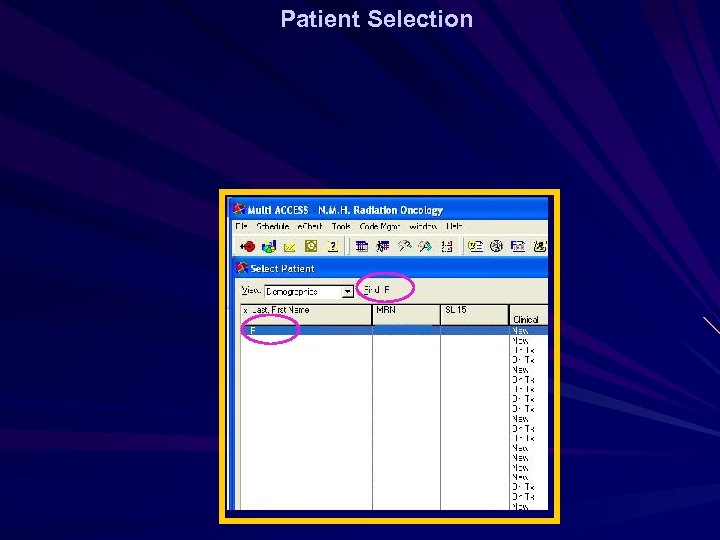 Patient Selection
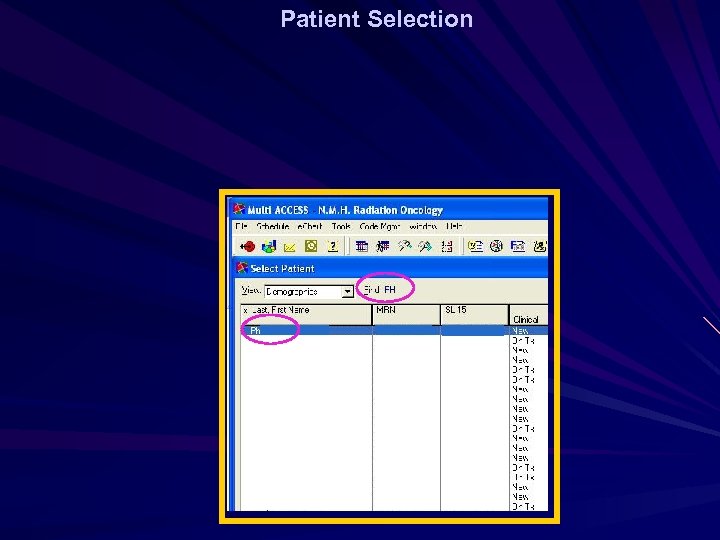 Patient Selection
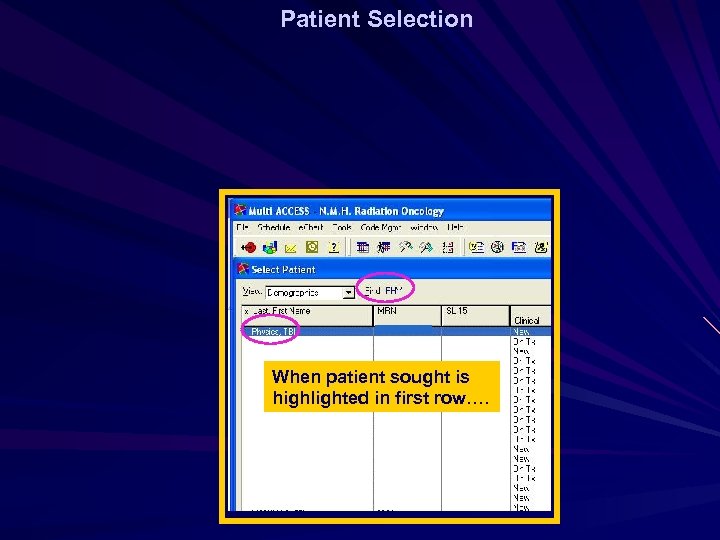 Patient Selection When patient sought is highlighted in first row….
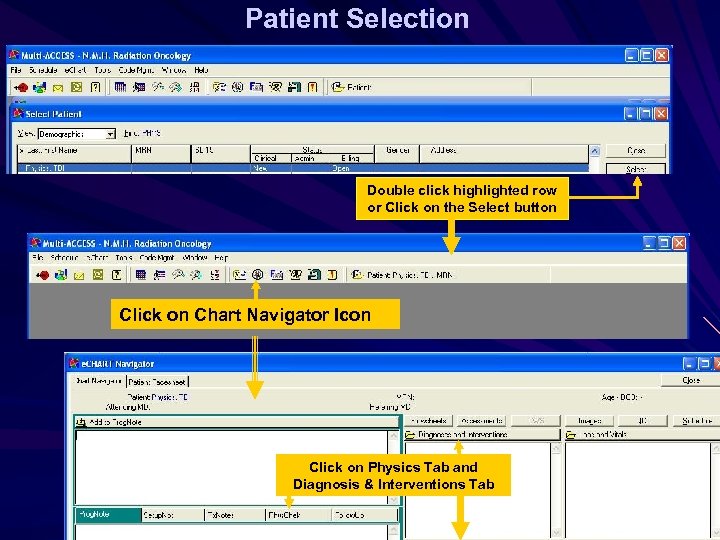 Patient Selection Double click highlighted row or Click on the Select button Click on Chart Navigator Icon Click on Physics Tab and Diagnosis & Interventions Tab
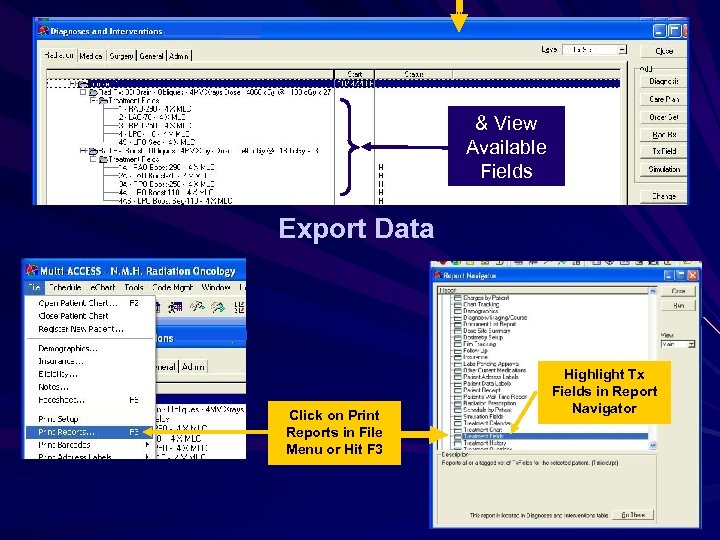 & View Available Fields Export Data Click on Print Reports in File Menu or Hit F 3 Highlight Tx Fields in Report Navigator
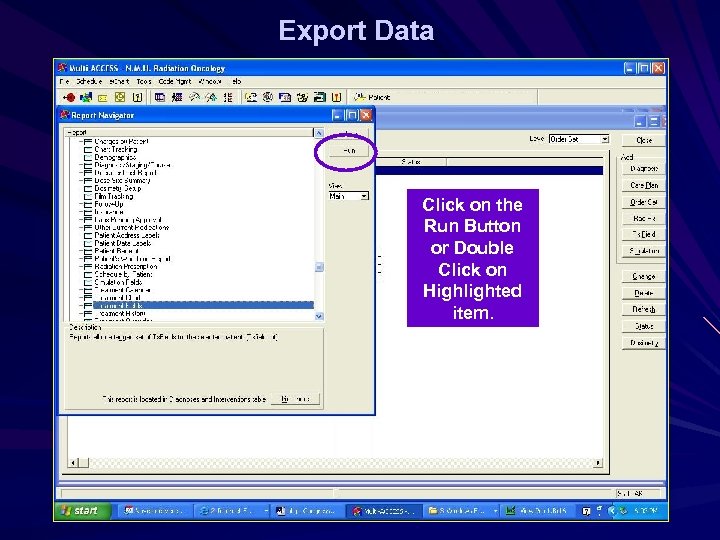 Export Data Click on the Run Button or Double Click on Highlighted item.
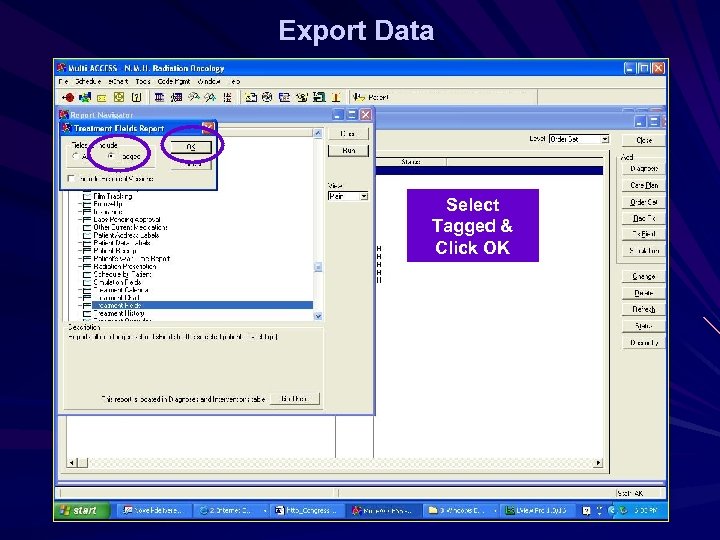 Export Data Select Tagged & Click OK
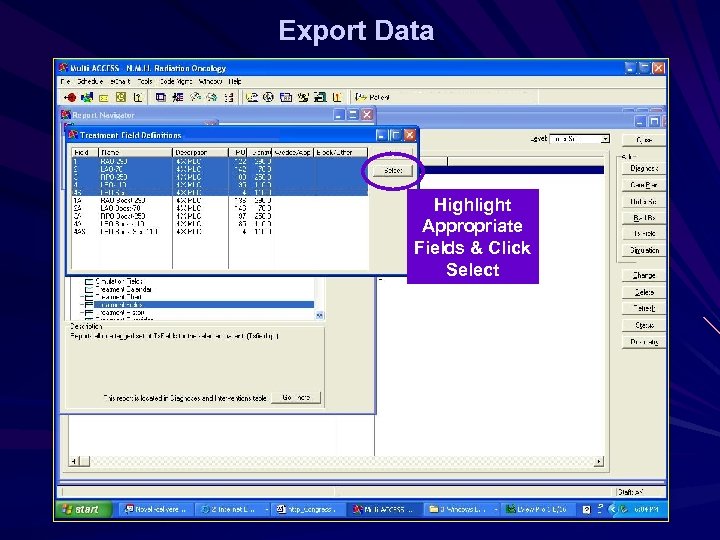 Export Data Highlight Appropriate Fields & Click Select
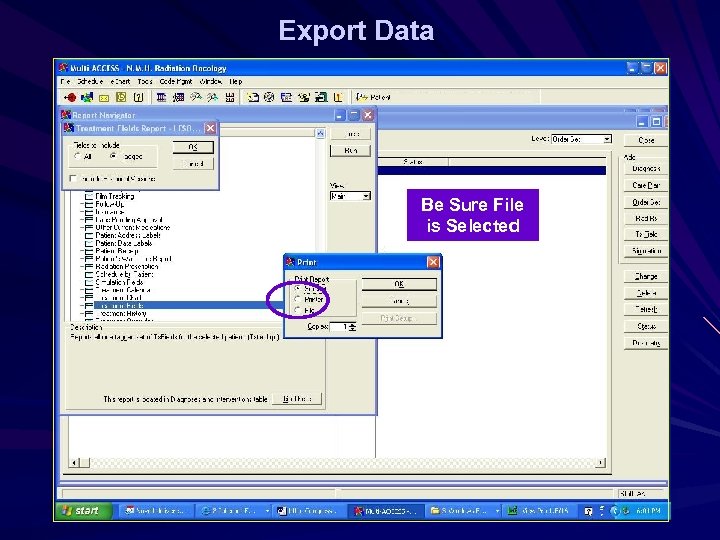 Export Data Be Sure File is Selected
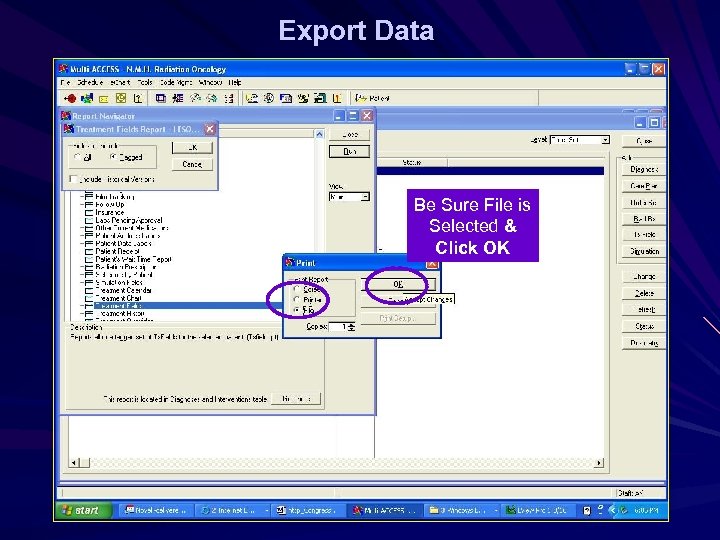 Export Data Be Sure File is Selected & Click OK
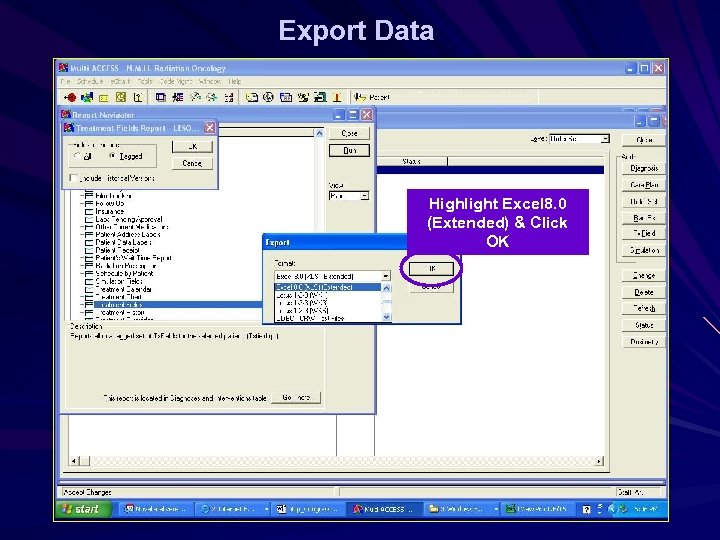 Export Data Highlight Excel 8. 0 (Extended) & Click OK
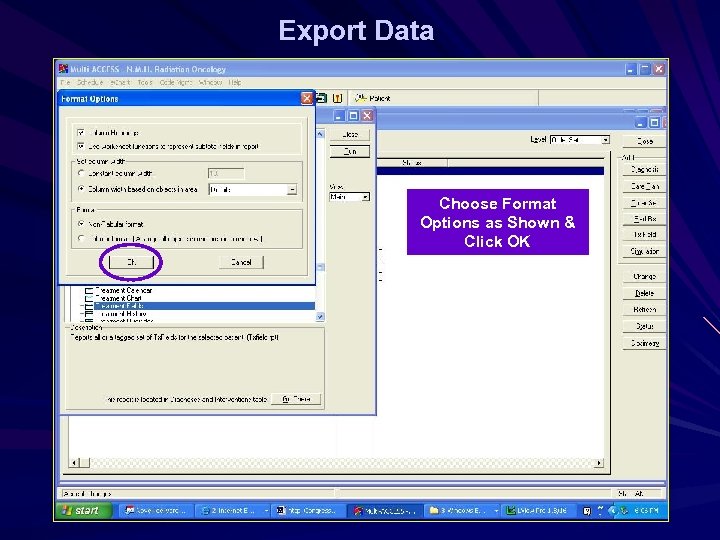 Export Data Choose Format Options as Shown & Click OK
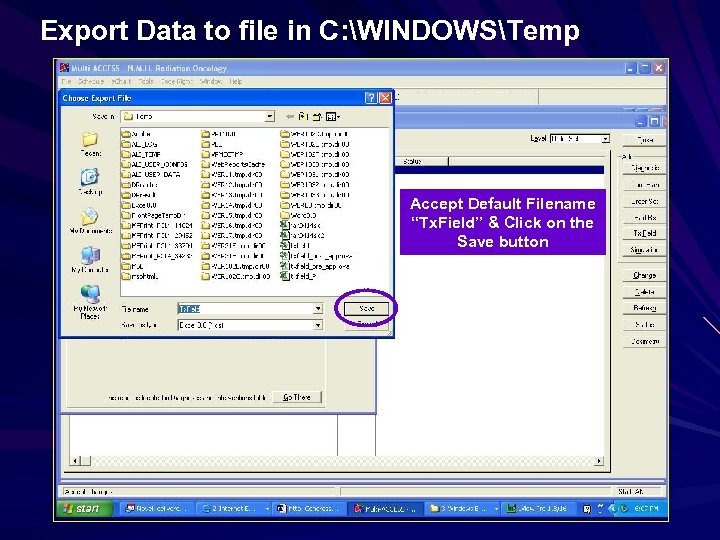 Export Data to file in C: WINDOWSTemp Accept Default Filename “Tx. Field” & Click on the Save button
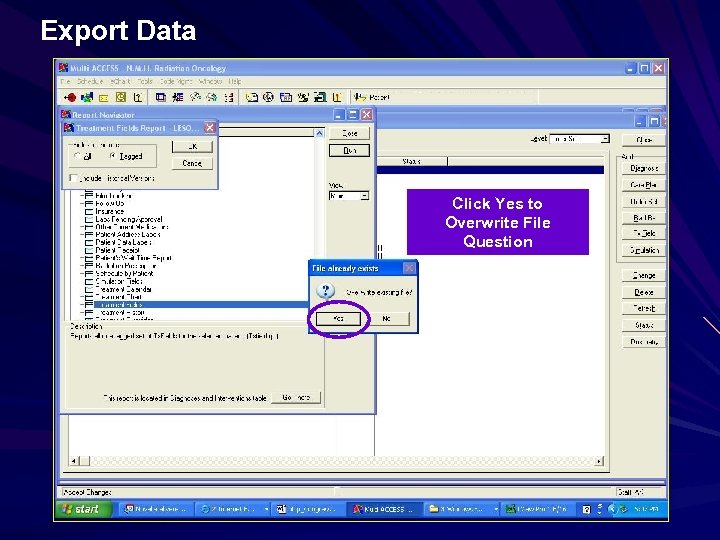 Export Data Click Yes to Overwrite File Question
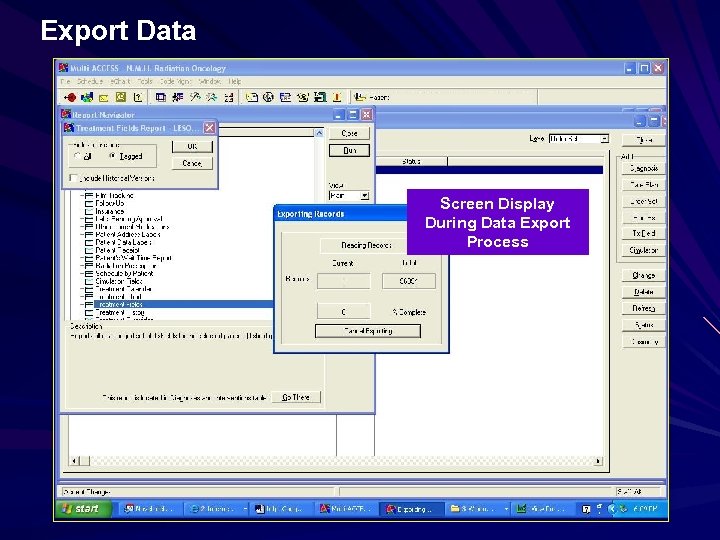 Export Data Screen Display During Data Export Process
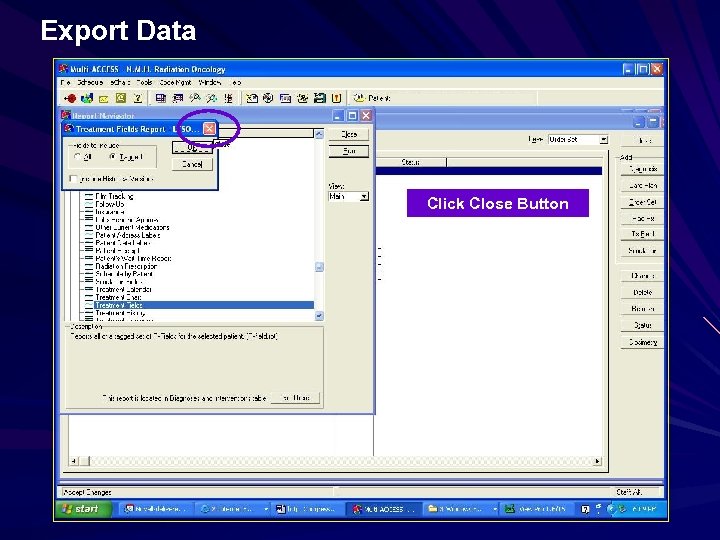 Export Data Click Close Button
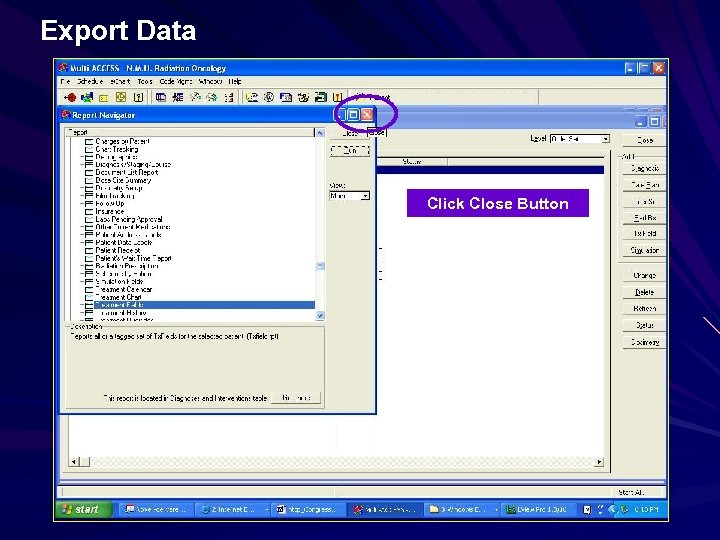 Export Data Click Close Button
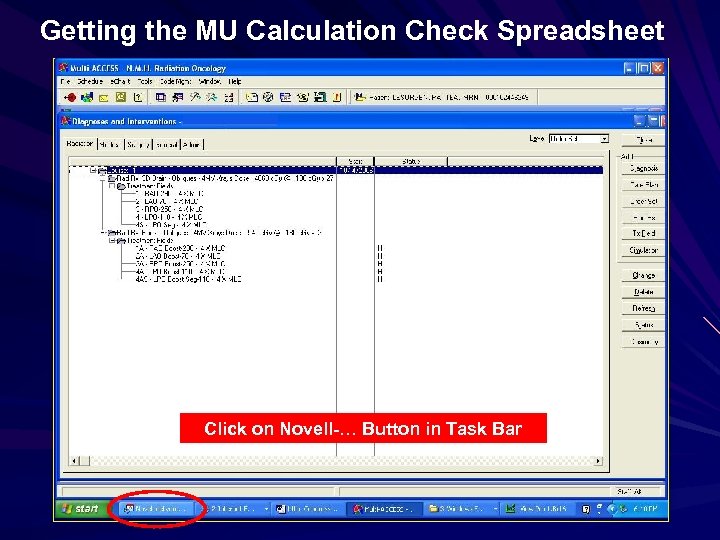 Getting the MU Calculation Check Spreadsheet Click on Novell-… Button in Task Bar
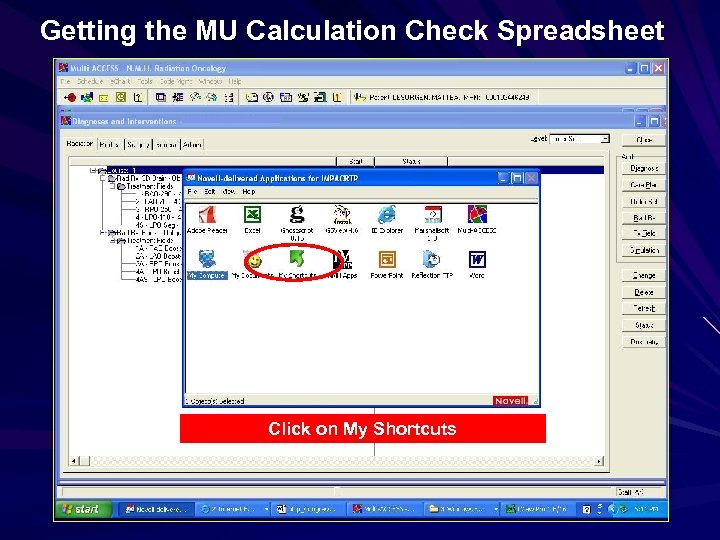 Getting the MU Calculation Check Spreadsheet Click on My Shortcuts
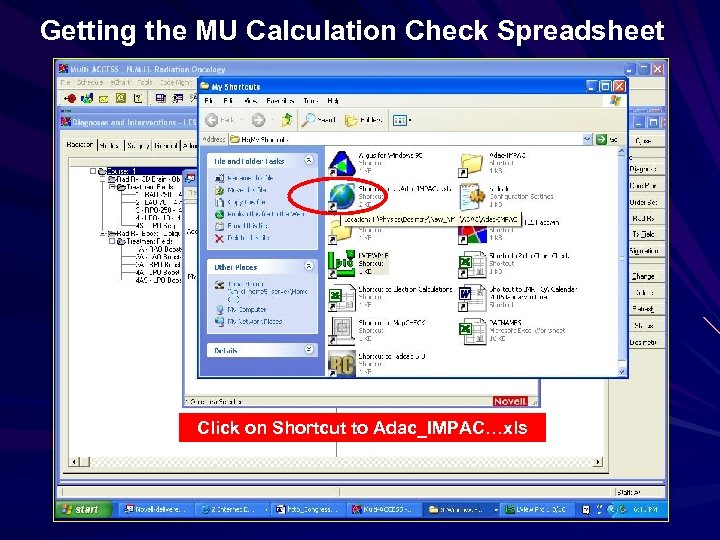 Getting the MU Calculation Check Spreadsheet Click on Shortcut to Adac_IMPAC…xls
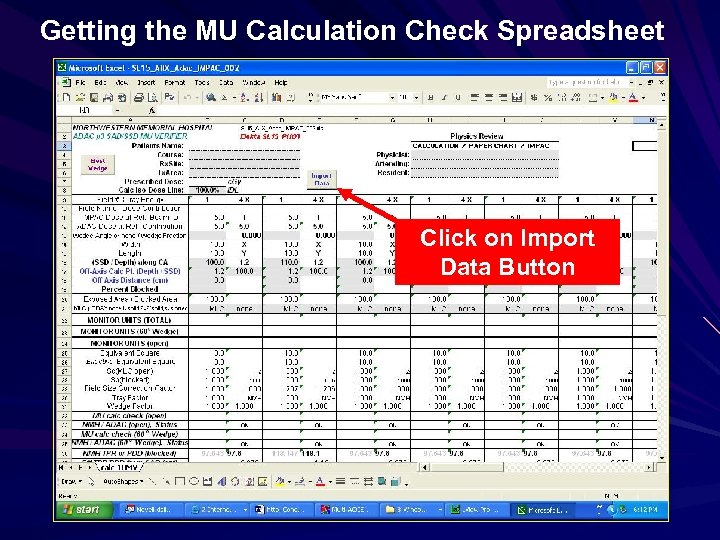 Getting the MU Calculation Check Spreadsheet Click on Import Data Button
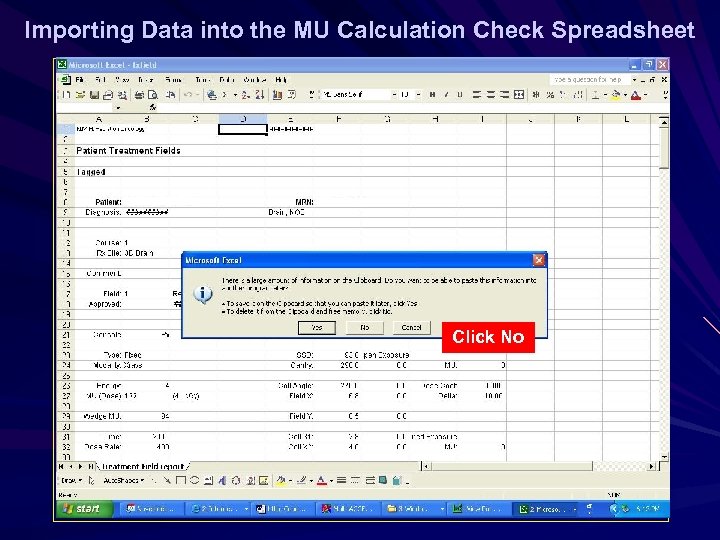 Importing Data into the MU Calculation Check Spreadsheet Click No
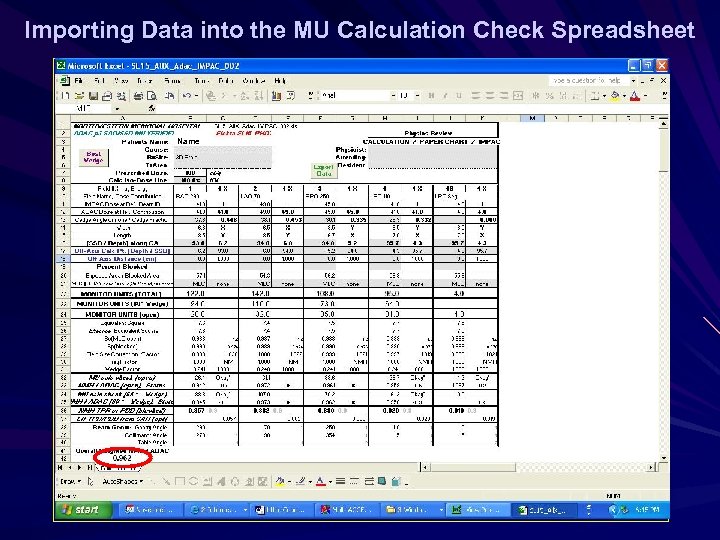 Importing Data into the MU Calculation Check Spreadsheet Name
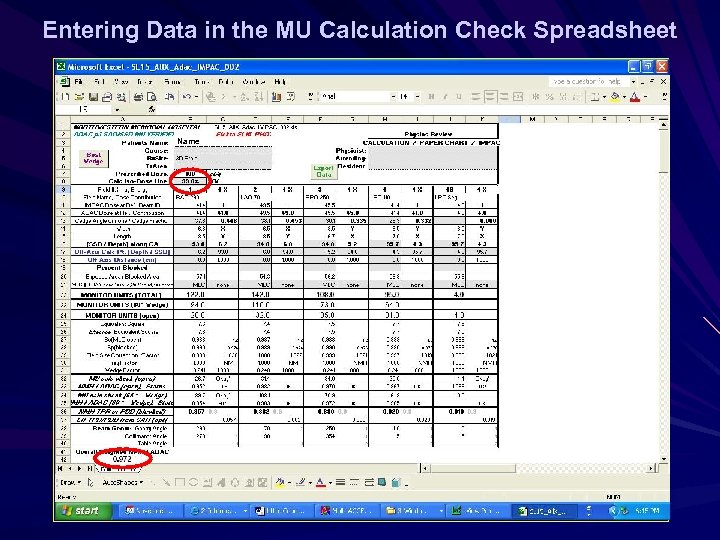 Entering Data in the MU Calculation Check Spreadsheet Name
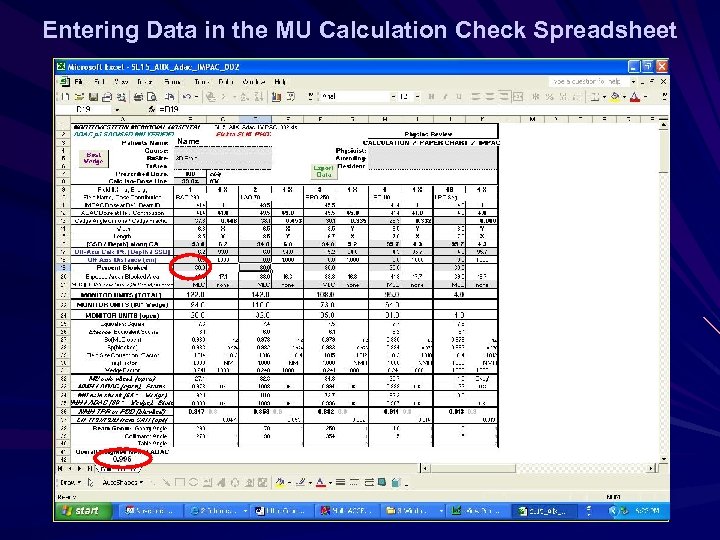 Entering Data in the MU Calculation Check Spreadsheet Name
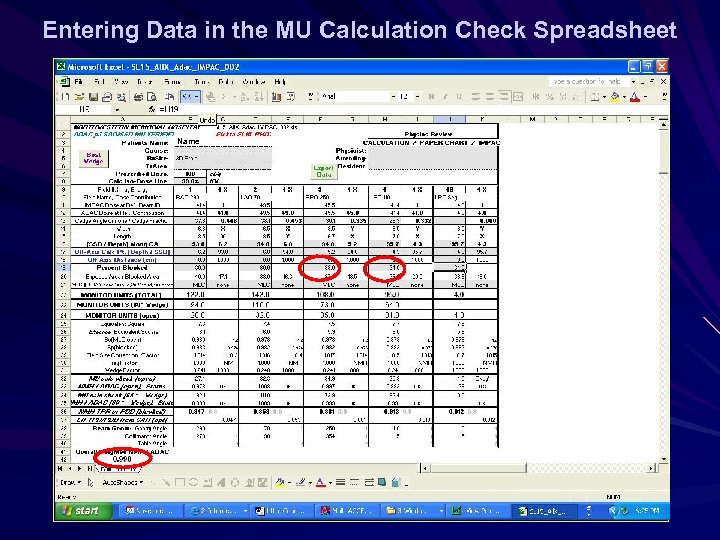 Entering Data in the MU Calculation Check Spreadsheet Name
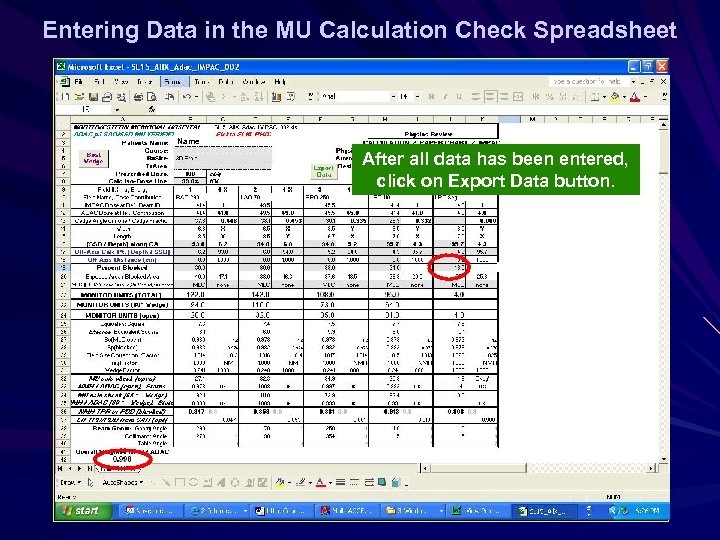 Entering Data in the MU Calculation Check Spreadsheet Name After all data has been entered, click on Export Data button.
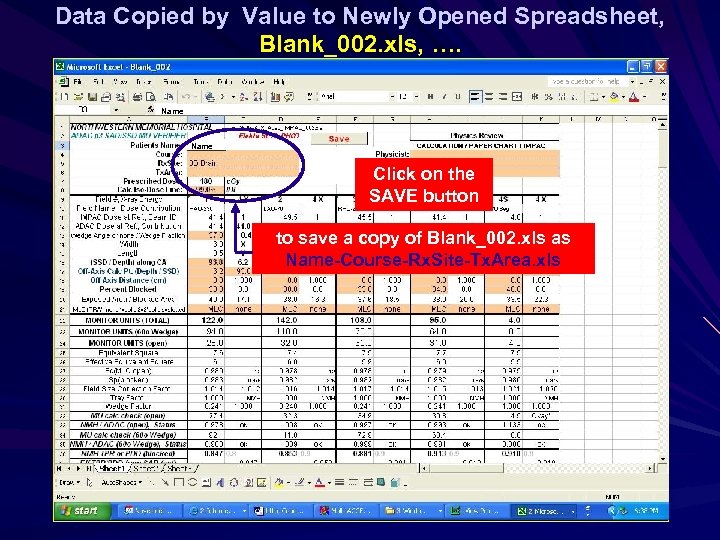 Data Copied by Value to Newly Opened Spreadsheet, Blank_002. xls, …. Name Click on the SAVE button to save a copy of Blank_002. xls as Name-Course-Rx. Site-Tx. Area. xls
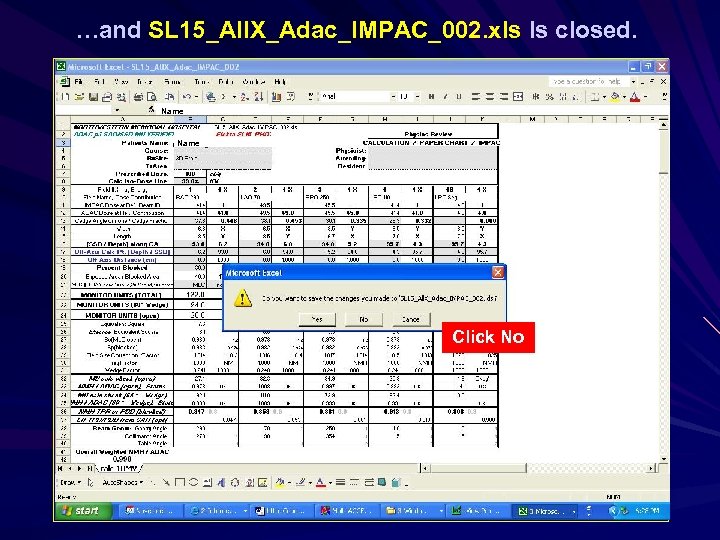 …and SL 15_All. X_Adac_IMPAC_002. xls Is closed. Name Click No
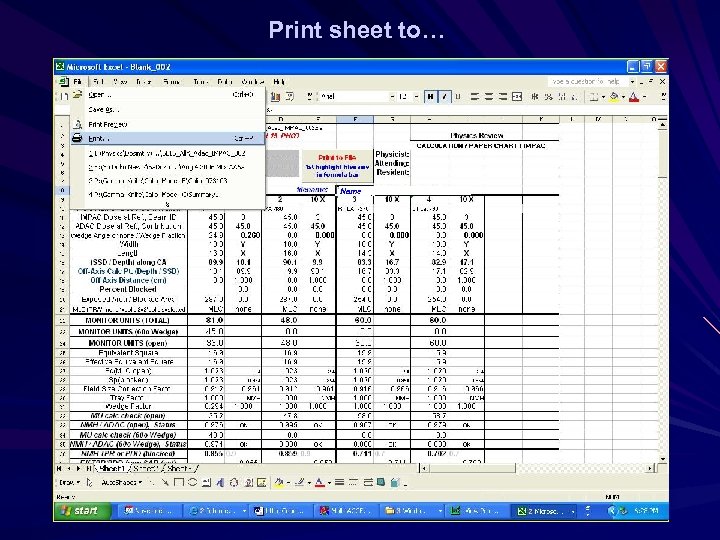 Print sheet to… Name
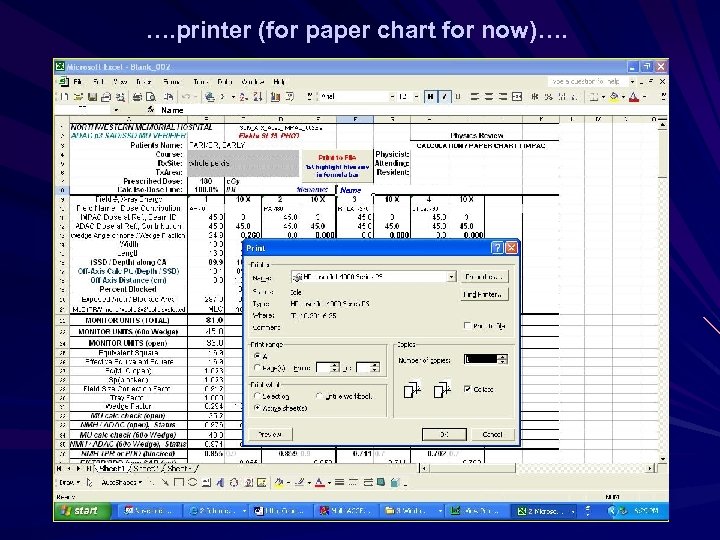 …. printer (for paper chart for now)…. Name
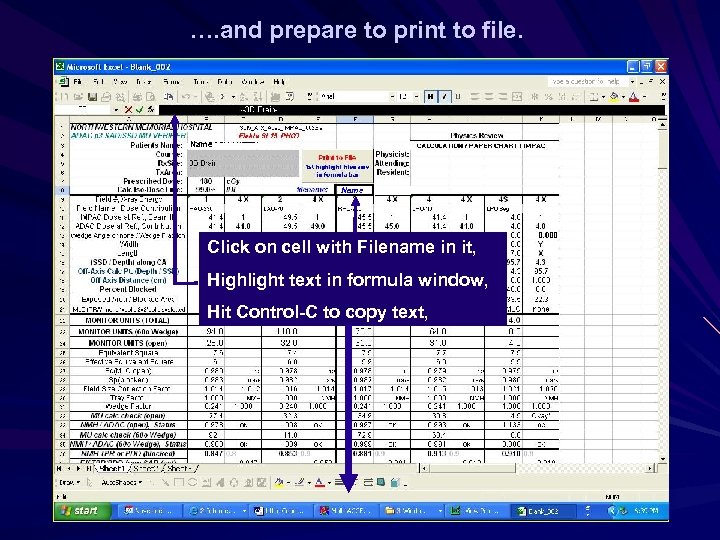 …. and prepare to print to file. Name Click on cell with Filename in it, Highlight text in formula window, Hit Control-C to copy text,
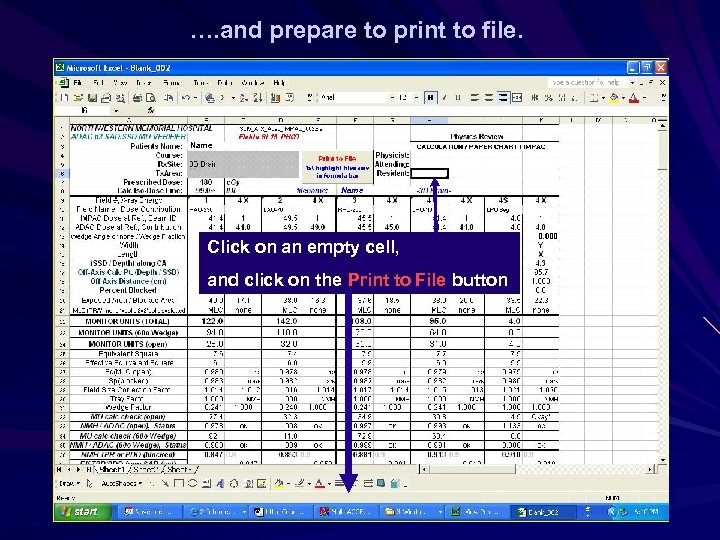 …. and prepare to print to file. Name Click on an empty cell, and click on the Print to File button
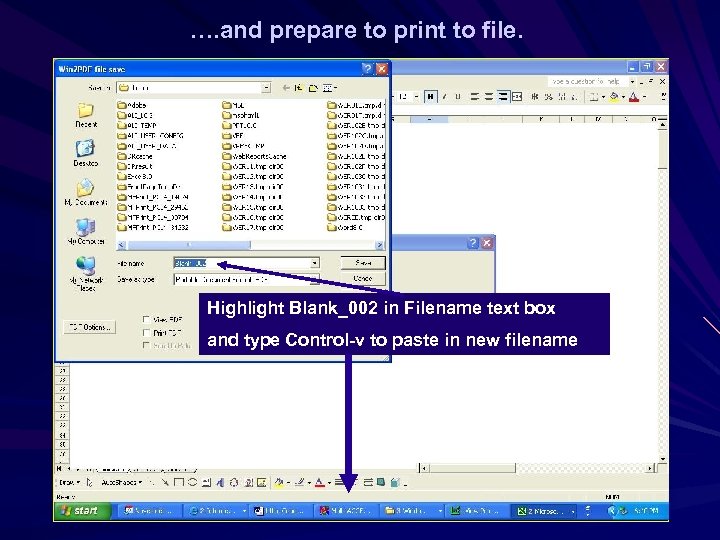 …. and prepare to print to file. Highlight Blank_002 in Filename text box and type Control-v to paste in new filename
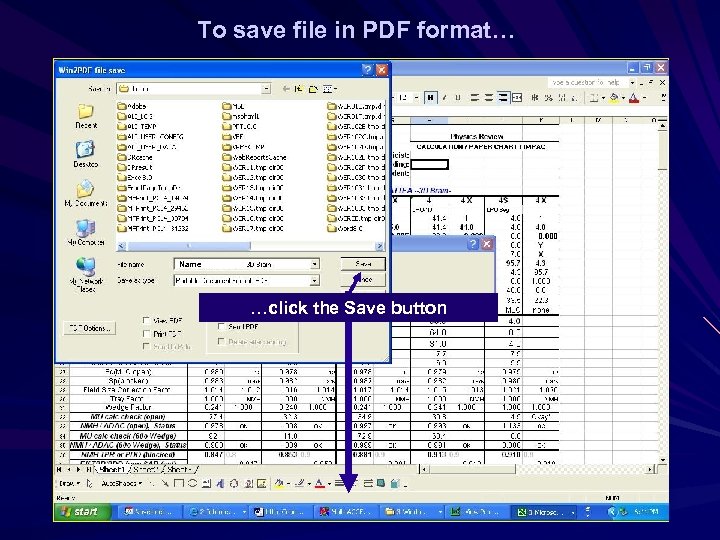 To save file in PDF format… Name …click the Save button
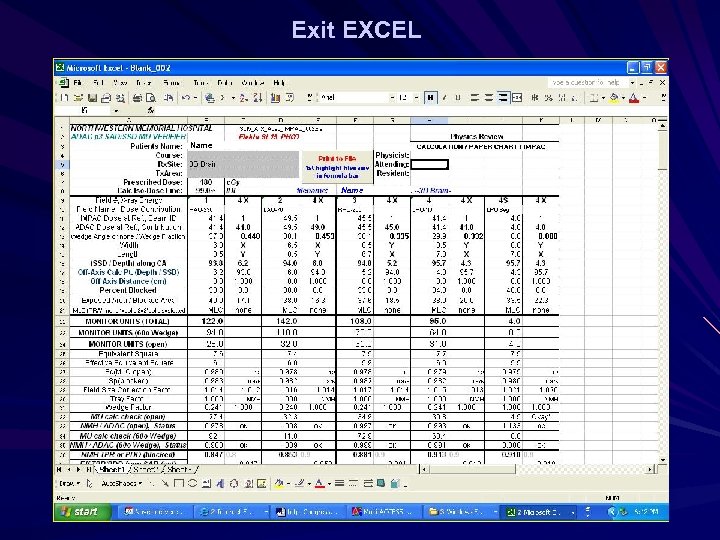 Exit EXCEL Name
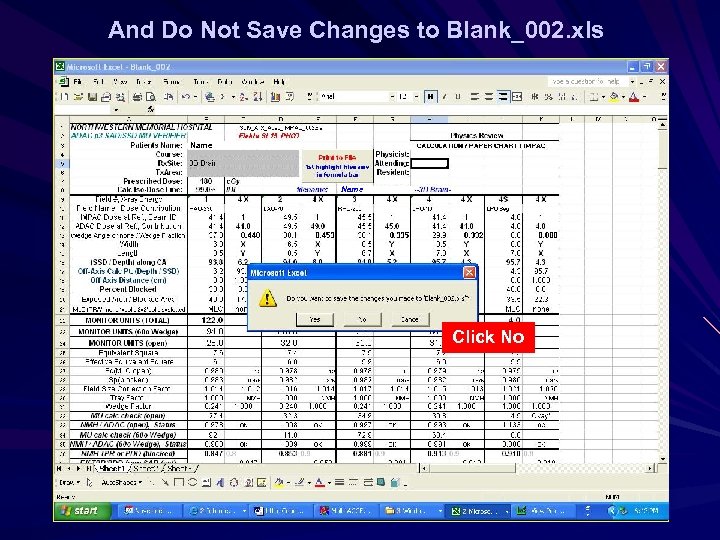 And Do Not Save Changes to Blank_002. xls Name Click No
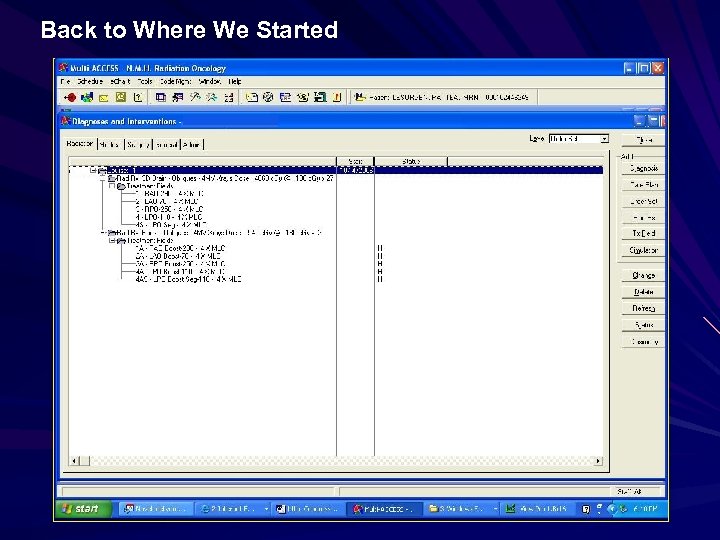 Back to Where We Started
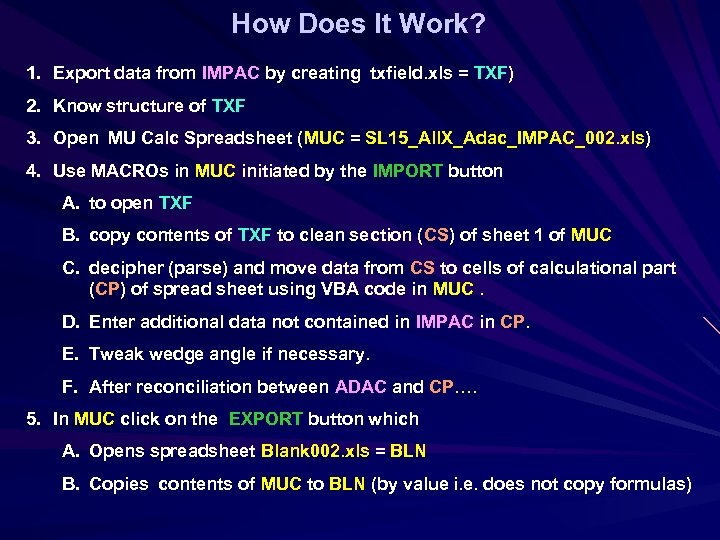 How Does It Work? 1. Export data from IMPAC by creating txfield. xls = TXF) 2. Know structure of TXF 3. Open MU Calc Spreadsheet (MUC = SL 15_All. X_Adac_IMPAC_002. xls) 4. Use MACROs in MUC initiated by the IMPORT button A. to open TXF B. copy contents of TXF to clean section (CS) of sheet 1 of MUC C. decipher (parse) and move data from CS to cells of calculational part (CP) of spread sheet using VBA code in MUC. D. Enter additional data not contained in IMPAC in CP. E. Tweak wedge angle if necessary. F. After reconciliation between ADAC and CP…. 5. In MUC click on the EXPORT button which A. Opens spreadsheet Blank 002. xls = BLN B. Copies contents of MUC to BLN (by value i. e. does not copy formulas)
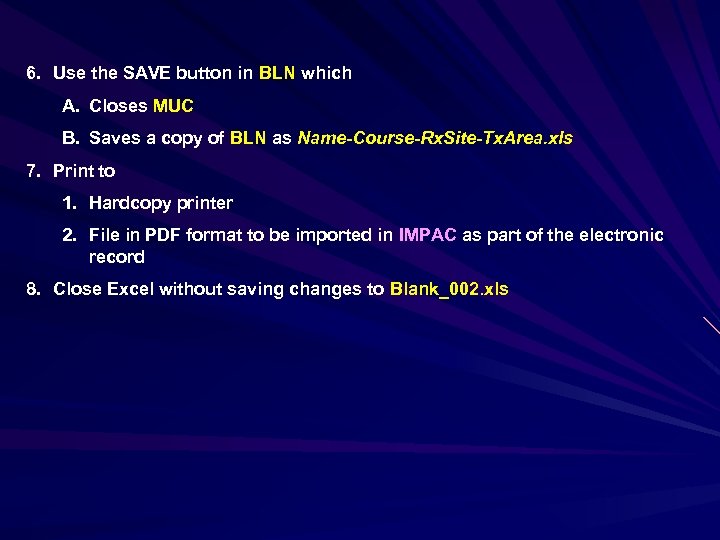 6. Use the SAVE button in BLN which A. Closes MUC B. Saves a copy of BLN as Name-Course-Rx. Site-Tx. Area. xls 7. Print to 1. Hardcopy printer 2. File in PDF format to be imported in IMPAC as part of the electronic record 8. Close Excel without saving changes to Blank_002. xls
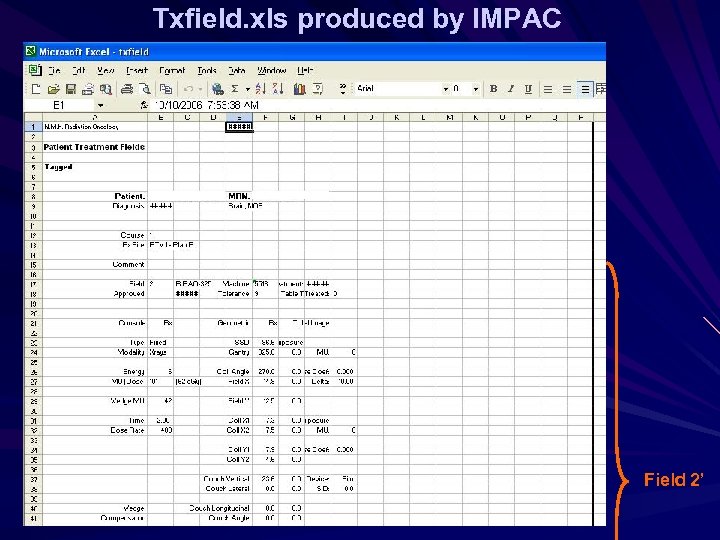 Txfield. xls produced by IMPAC Field 2’
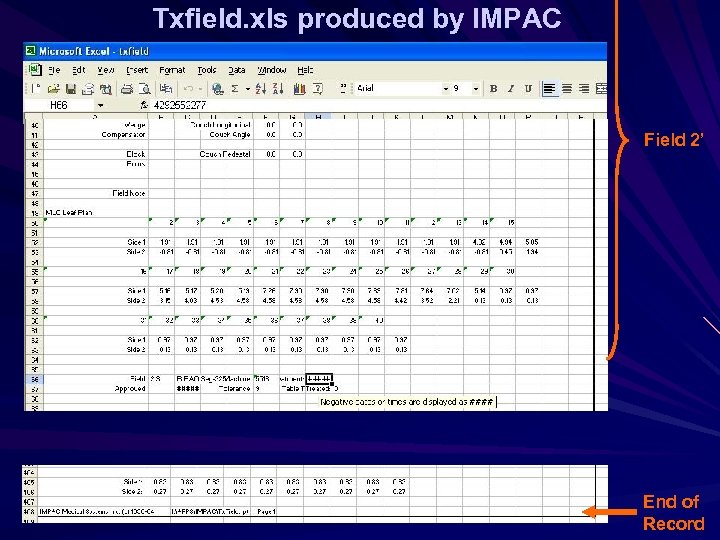 Txfield. xls produced by IMPAC Field 2’ End of Record
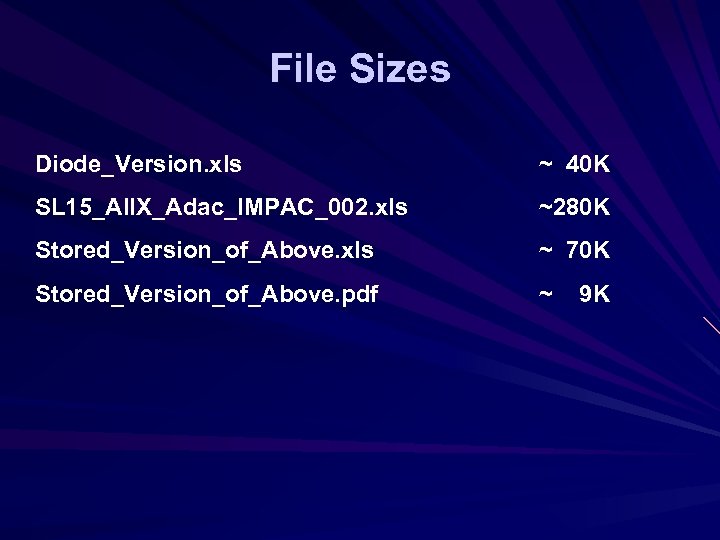 File Sizes Diode_Version. xls ~ 40 K SL 15_All. X_Adac_IMPAC_002. xls ~280 K Stored_Version_of_Above. xls ~ 70 K Stored_Version_of_Above. pdf ~ 9 K
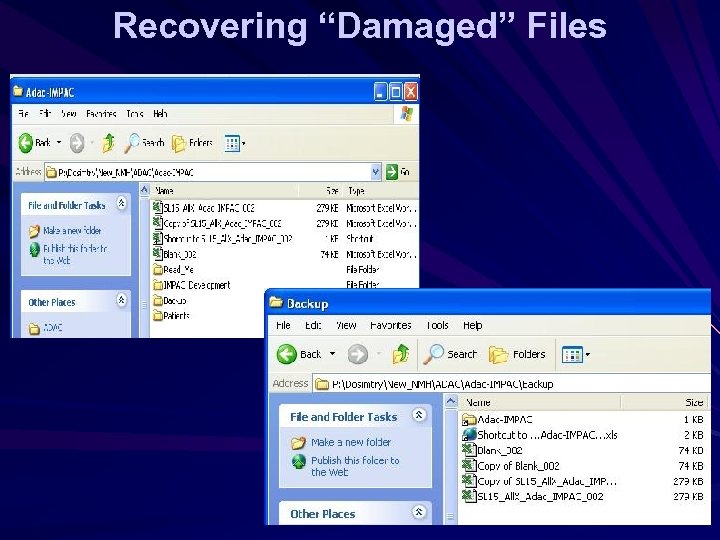 Recovering “Damaged” Files
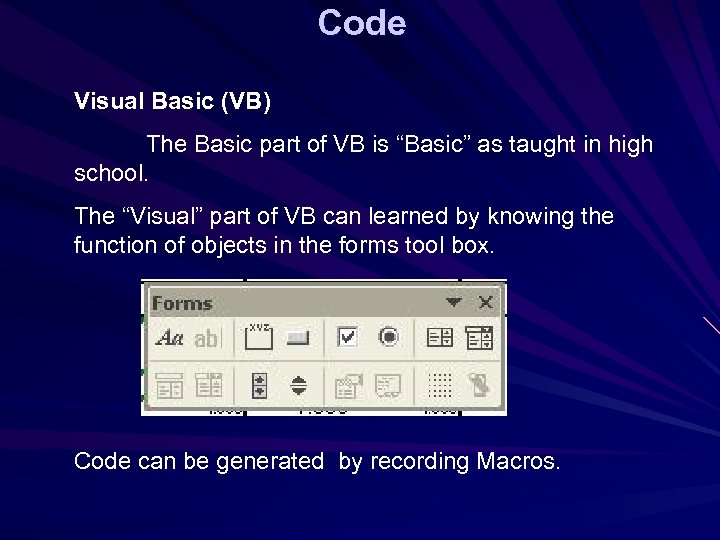 Code Visual Basic (VB) The Basic part of VB is “Basic” as taught in high school. The “Visual” part of VB can learned by knowing the function of objects in the forms tool box. Code can be generated by recording Macros.
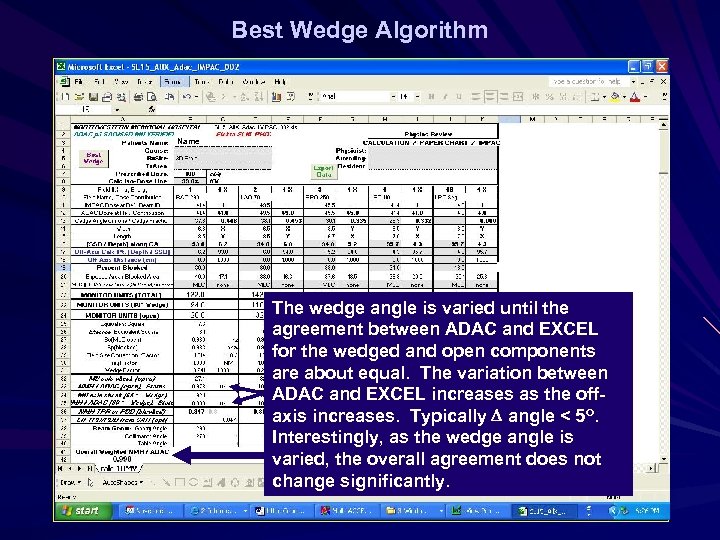 Best Wedge Algorithm Name The wedge angle is varied until the agreement between ADAC and EXCEL for the wedged and open components are about equal. The variation between ADAC and EXCEL increases as the offaxis increases. Typically D angle < 5 o. Interestingly, as the wedge angle is varied, the overall agreement does not change significantly.
 The End