


 Скачать презентацию How to Deploy Office XP and Windows XP
1d9cdf282e5ce4433e61b8f7e830b87d.ppt
- Количество слайдов: 33
 How to Deploy Office XP and Windows XP With One Desktop Touch Liz Levitt Desktop Solution Specialist Microsoft Corporation
 Overview u u u Planning is important Deployment Tools Deployment Methods
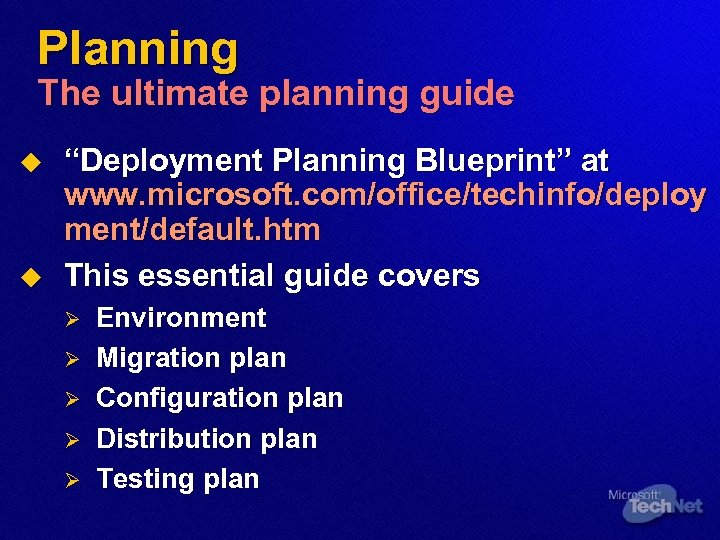 Planning The ultimate planning guide u u “Deployment Planning Blueprint” at www. microsoft. com/office/techinfo/deploy ment/default. htm This essential guide covers Ø Ø Ø Environment Migration plan Configuration plan Distribution plan Testing plan
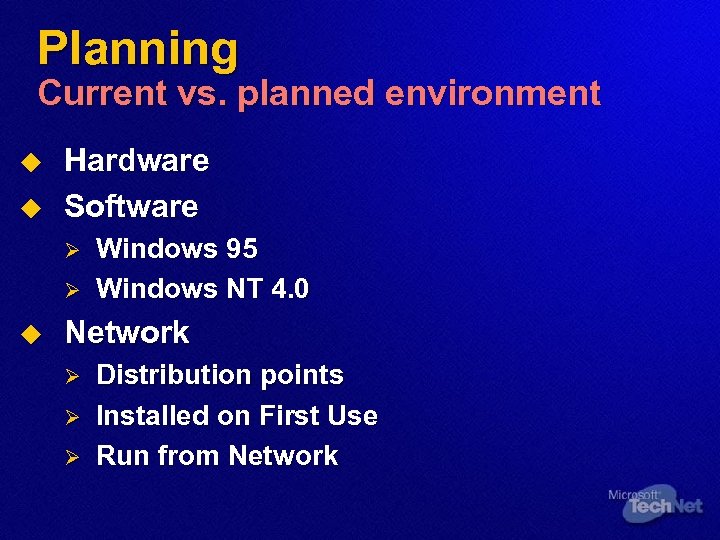 Planning Current vs. planned environment u u Hardware Software Ø Ø u Windows 95 Windows NT 4. 0 Network Ø Ø Ø Distribution points Installed on First Use Run from Network
 Planning Configuration plan u u u u Packages and applications Removal of earlier versions Feature installation states User settings and policies Additional files and programs Office XP security settings Outlook 2002 profiles
 Planning Configuration plan u Available Packages Ø Ø Ø u u Office XP Standard Office XP Small Business Office XP Professional with Front. Page Office XP Developer Individual application editions Enterprise vs. retail editions
 Planning Distribution plan u Distribution methods Ø Ø u u u Conventional Disk imaging Management software Active Directory System Files Update Administrative rights Network requirements
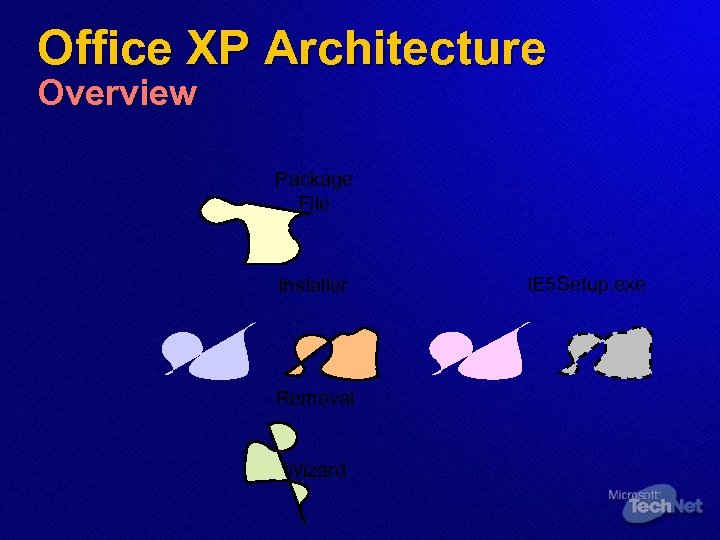 Office XP Architecture Overview Package File Installer Removal Wizard IE 5 Setup. exe
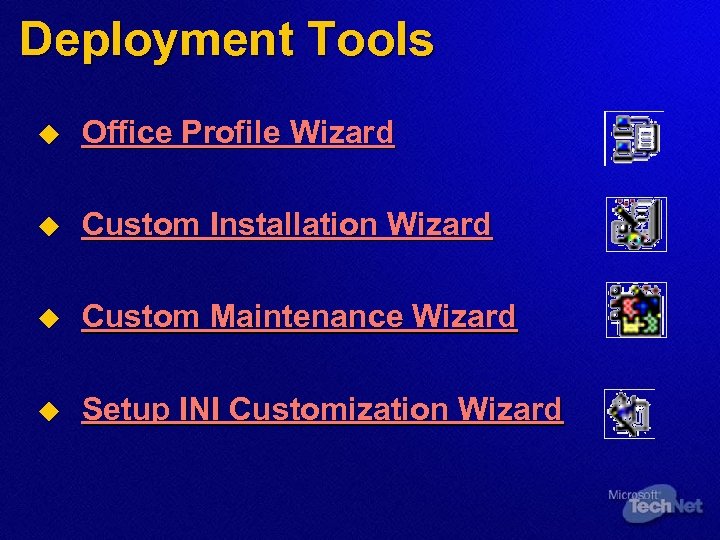 Deployment Tools u Office Profile Wizard u Custom Installation Wizard u Custom Maintenance Wizard u Setup INI Customization Wizard
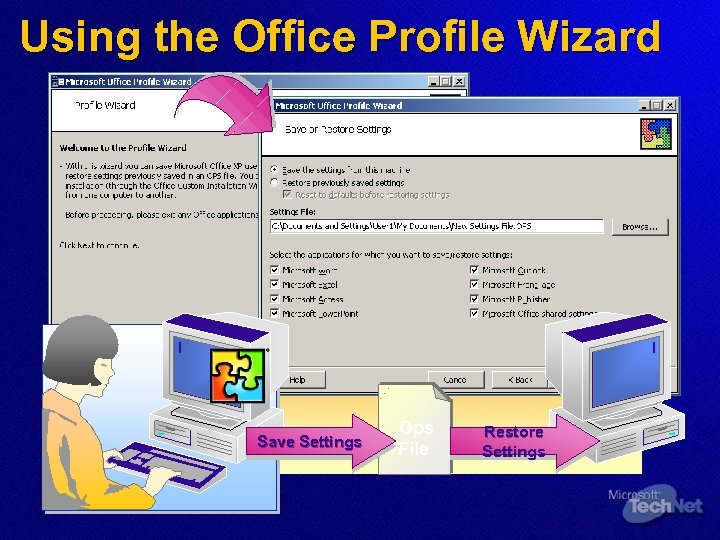 Using the Office Profile Wizard Save Settings . Ops File Restore Settings
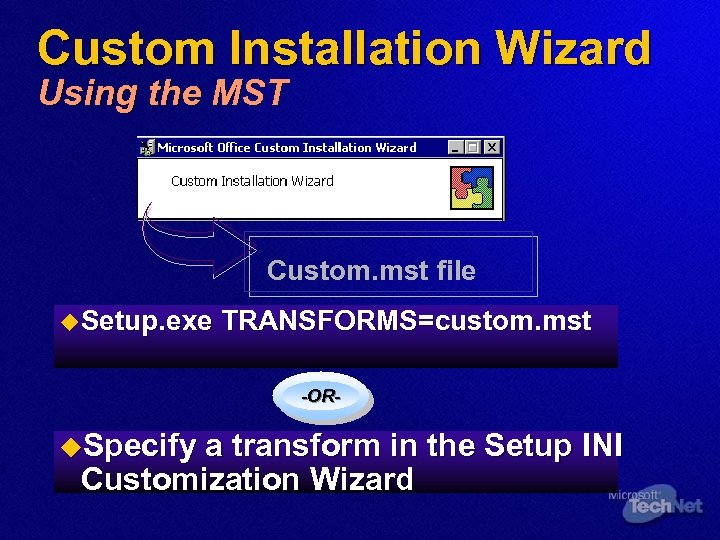 Custom Installation Wizard Using the MST Custom. mst file u Setup. exe TRANSFORMS=custom. mst -OR- u. Specify a transform in the Setup INI Customization Wizard
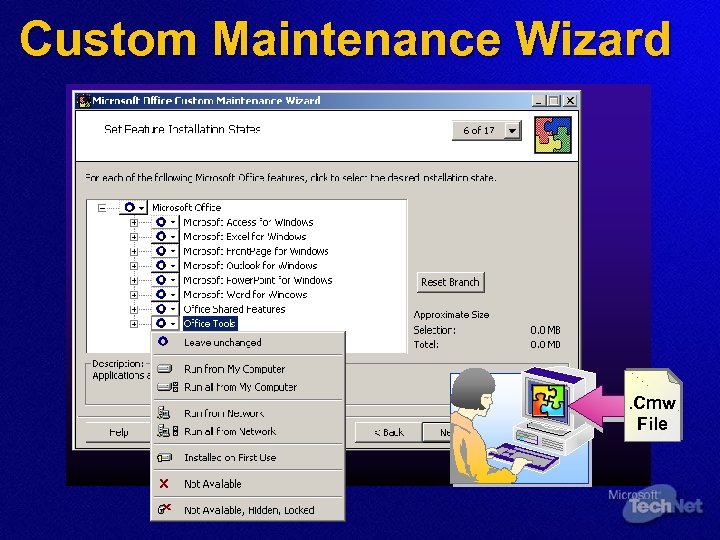 Custom Maintenance Wizard . Cmw File
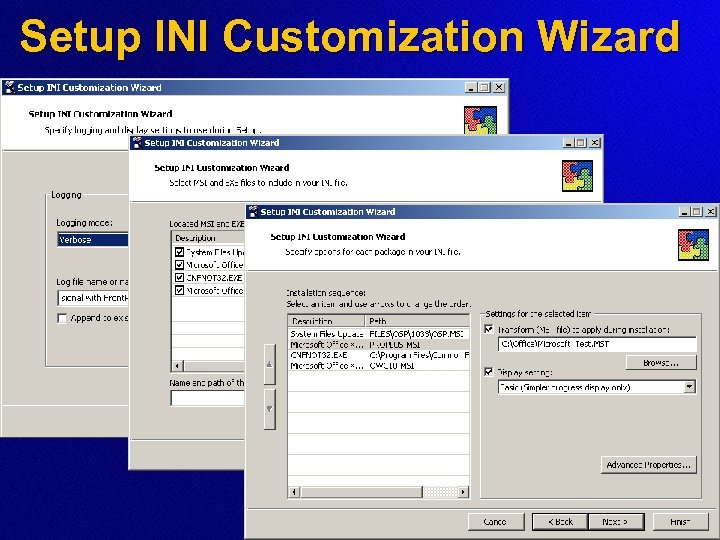 Setup INI Customization Wizard
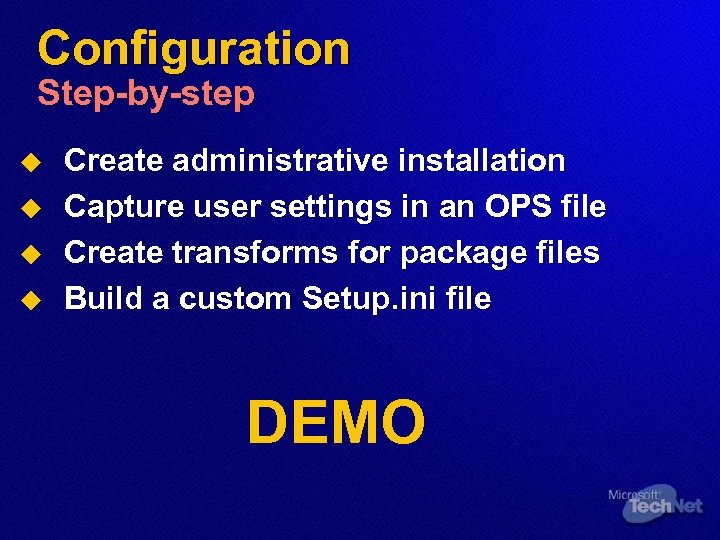 Configuration Step-by-step u u Create administrative installation Capture user settings in an OPS file Create transforms for package files Build a custom Setup. ini file DEMO
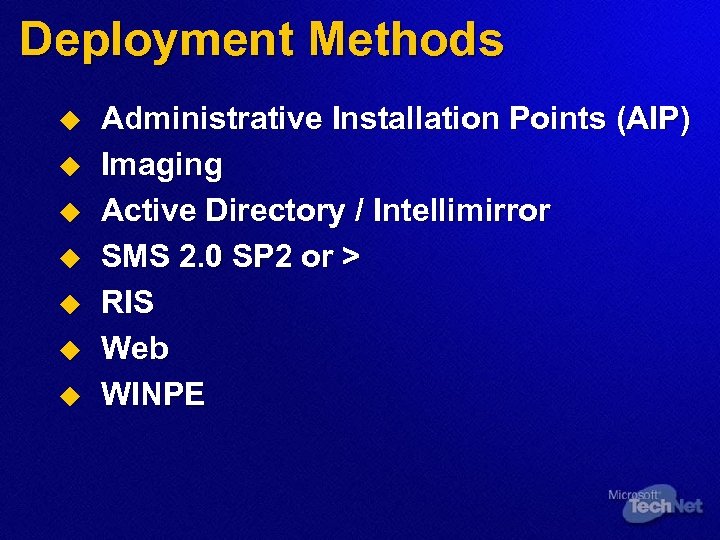 Deployment Methods u u u u Administrative Installation Points (AIP) Imaging Active Directory / Intellimirror SMS 2. 0 SP 2 or > RIS Web WINPE
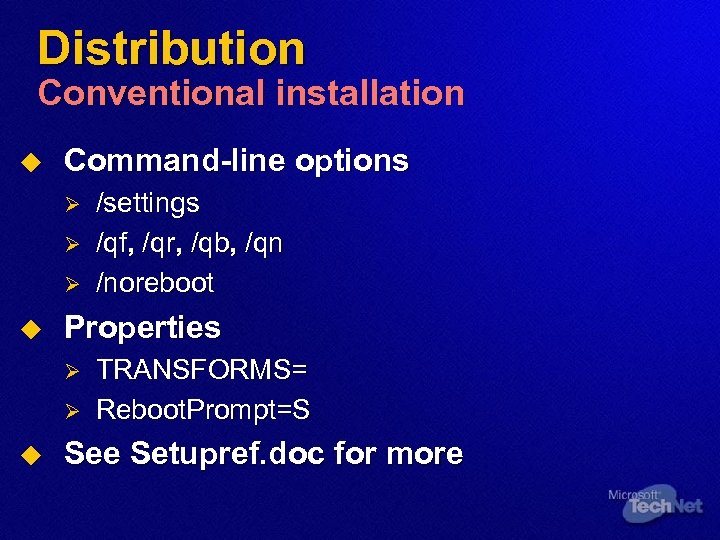 Distribution Conventional installation u Command-line options Ø Ø Ø u Properties Ø Ø u /settings /qf, /qr, /qb, /qn /noreboot TRANSFORMS= Reboot. Prompt=S See Setupref. doc for more
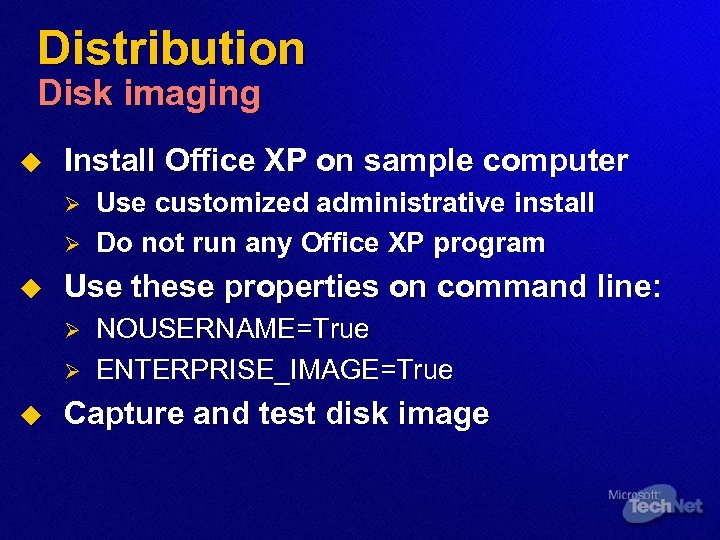 Distribution Disk imaging u Install Office XP on sample computer Ø Ø u Use these properties on command line: Ø Ø u Use customized administrative install Do not run any Office XP program NOUSERNAME=True ENTERPRISE_IMAGE=True Capture and test disk image
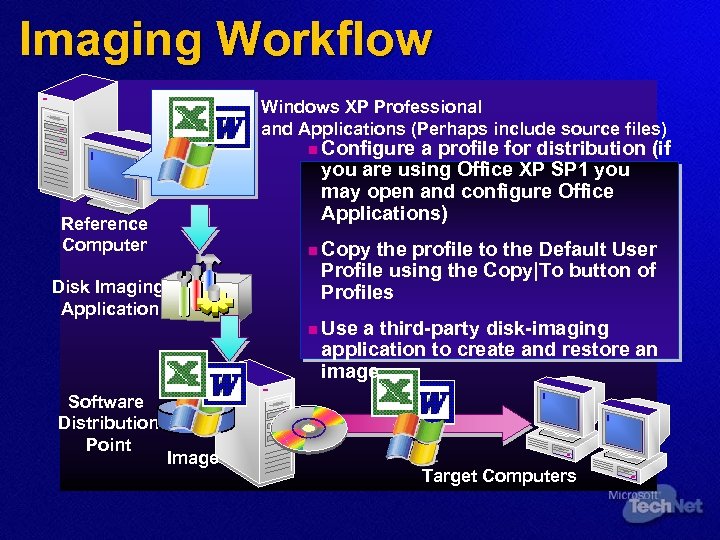 Imaging Workflow Windows XP Professional and Applications (Perhaps include source files) n Configure a profile for distribution (if you are using Office XP SP 1 you may open and configure Office Applications) Reference Computer n Copy the profile to the Default User Profile using the Copy|To button of Profiles Disk Imaging Application Software Distribution Point n Use a third-party disk-imaging application to create and restore an image Image Target Computers
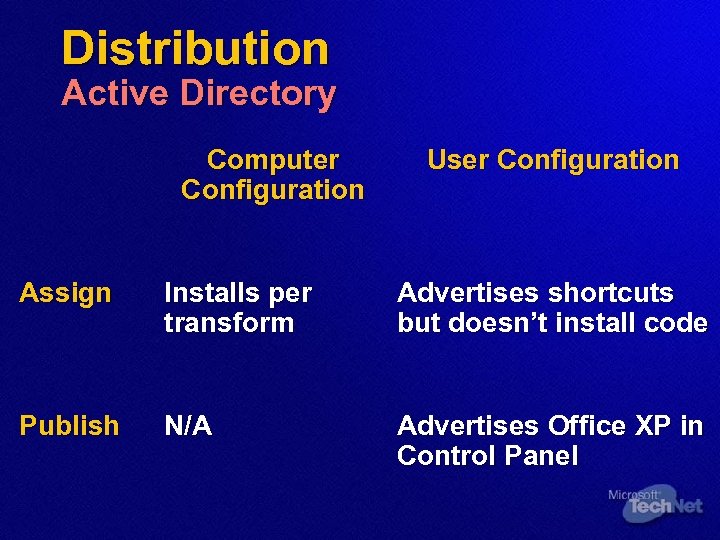 Distribution Active Directory Computer Configuration User Configuration Assign Installs per transform Advertises shortcuts but doesn’t install code Publish N/A Advertises Office XP in Control Panel
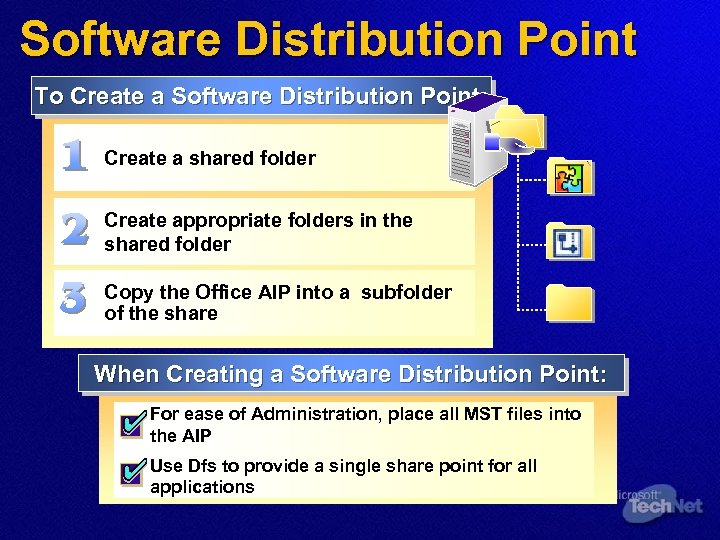 Software Distribution Point To Create a Software Distribution Point: Create a shared folder Create appropriate folders in the shared folder Copy the Office AIP into a subfolder of the share When Creating a Software Distribution Point: For ease of Administration, place all MST files into the AIP Use Dfs to provide a single share point for all applications
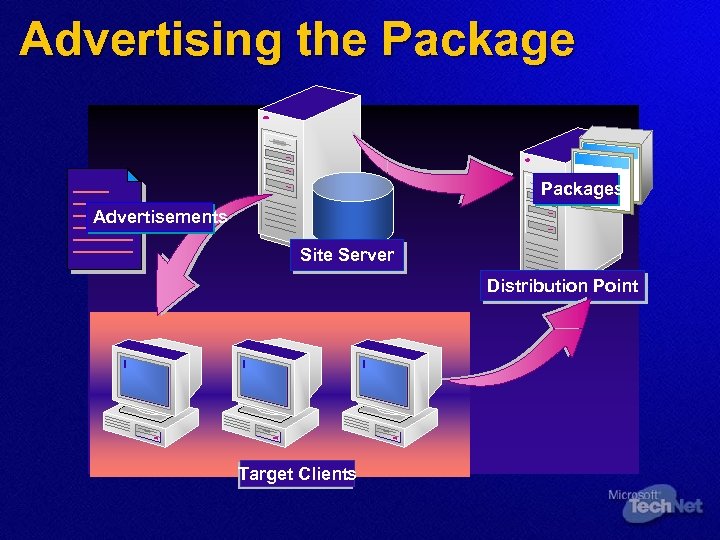 Advertising the Packages Advertisements Site Server Distribution Point Target Clients
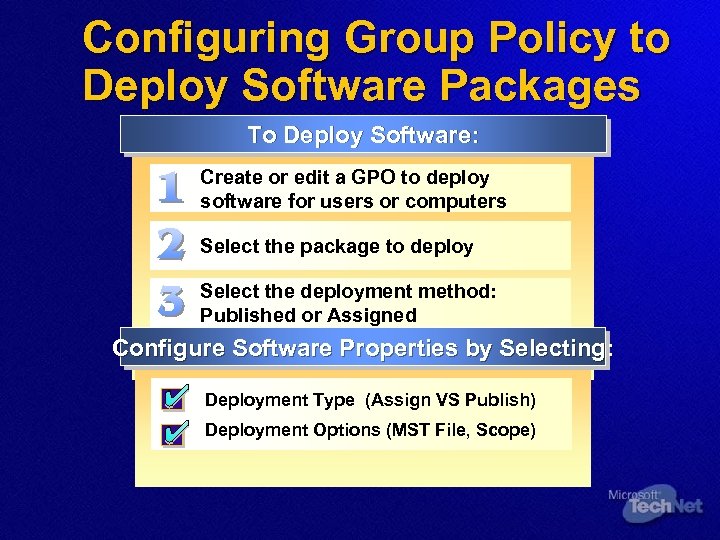 Configuring Group Policy to Deploy Software Packages To Deploy Software: Create or edit a GPO to deploy software for users or computers Select the package to deploy Select the deployment method: Published or Assigned Configure Software Properties by Selecting: Deployment Type (Assign VS Publish) Deployment Options (MST File, Scope)
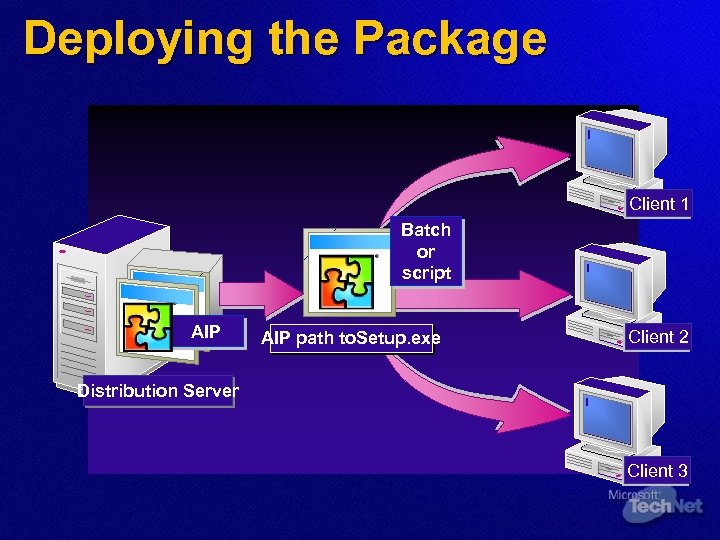 Deploying the Package Client 1 Batch or script AIP path to. Setup. exe Client 2 Distribution Server Client 3
 Distribution Management software (SMS) u u u SMS 2. 0 SP 3 SMS files in ORK Toolbox SMS resolves issues Ø Ø Requirement to be administrator Logging back on after each restart
 RIS u u u u Remote Installation Service supports PXE Prom or floppy boot to automated installation Single install point Helpdesk tool extraordinaire Unicast – Not multicast Quick for the delighted End User experience Staggered Deployments Imaging via RIPrep, unattended install (RISetup)
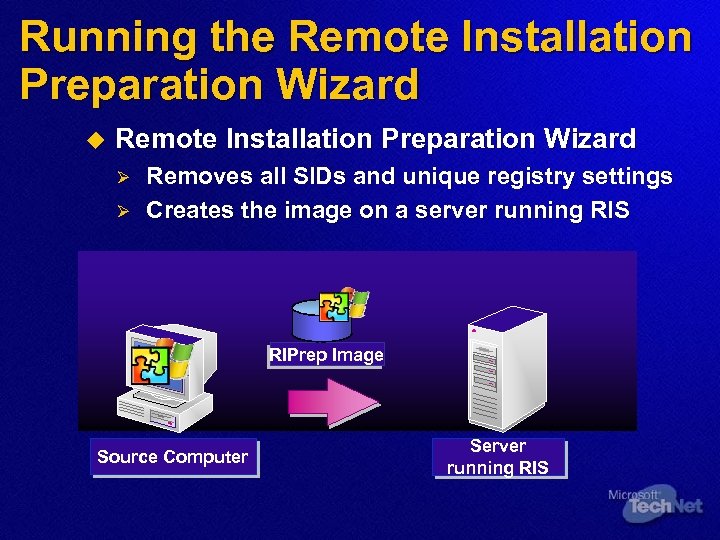 Running the Remote Installation Preparation Wizard u Remote Installation Preparation Wizard Ø Ø Removes all SIDs and unique registry settings Creates the image on a server running RIS RIPrep Image Source Computer Server running RIS
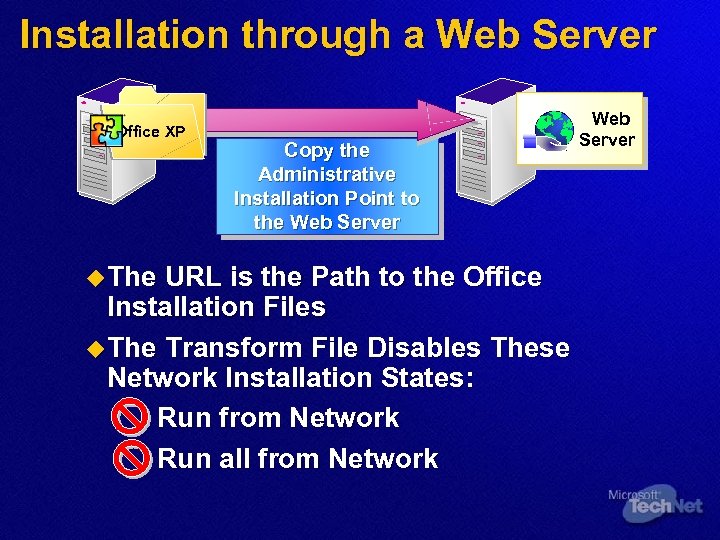 Installation through a Web Server Office XP u The Copy the Administrative Installation Point to the Web Server URL is the Path to the Office Installation Files u The Transform File Disables These Network Installation States: Run from Network Run all from Network Web Server
 WINPE u u Windows Preinstallation Environment Cmdline based version of Windows XP Ø u Flexible installation methods Ø Ø u CD, PXE, HDD boot Imaging (Sysprep & XCopy or 3 rd party vendor) Scripted install (winnt 32 with unattend, fire off Office install when completed) Can be used to deploy, migrate, recover
 For More Information… u Tech. Net Web site at u Office XP Resource Kit at u Deployment whitepapers at www. microsoft. com/technet www. microsoft. com/office/ork www. microsoft. com/office/techi nfo/deployment/default. htm

 Windows XP Deployment – Case Study – Microsoft ITG u Deployment Goals were: Ø Ø u 50, 000 Clients by RTM (August 24 th) 70, 000 Clients by Launch (October 25 th Test Ø Ø Ø 50 Standard Hardware Configurations 11 Standard Software Products 200 LOB Applications
 Windows XP Deployment – Case Study – Microsoft ITG u Deploy New Product Features including: Ø Ø Ø Ø Windows Product Activation Windows Messenger Remote Assistant More Intelli. Mirror Scenarios Connection Manager Internet Connection Firewall Wireless LAN and Zero Configuration
 Windows XP Deployment – Case Study – Microsoft ITG u Used 7 different deployment methods Ø ITG Website Ø Ø Ø Ø 153 software distribution points Bootable CD-ROM Unattended Installs Sysprep RIS SMS – Advertise Add Remove/Program