 Скачать презентацию How to Create INFOGRAPHICS In Power Point About
How_to_Create_Infographics_In_PowerPoint_by_HubSpot.ppt
- Количество слайдов: 10



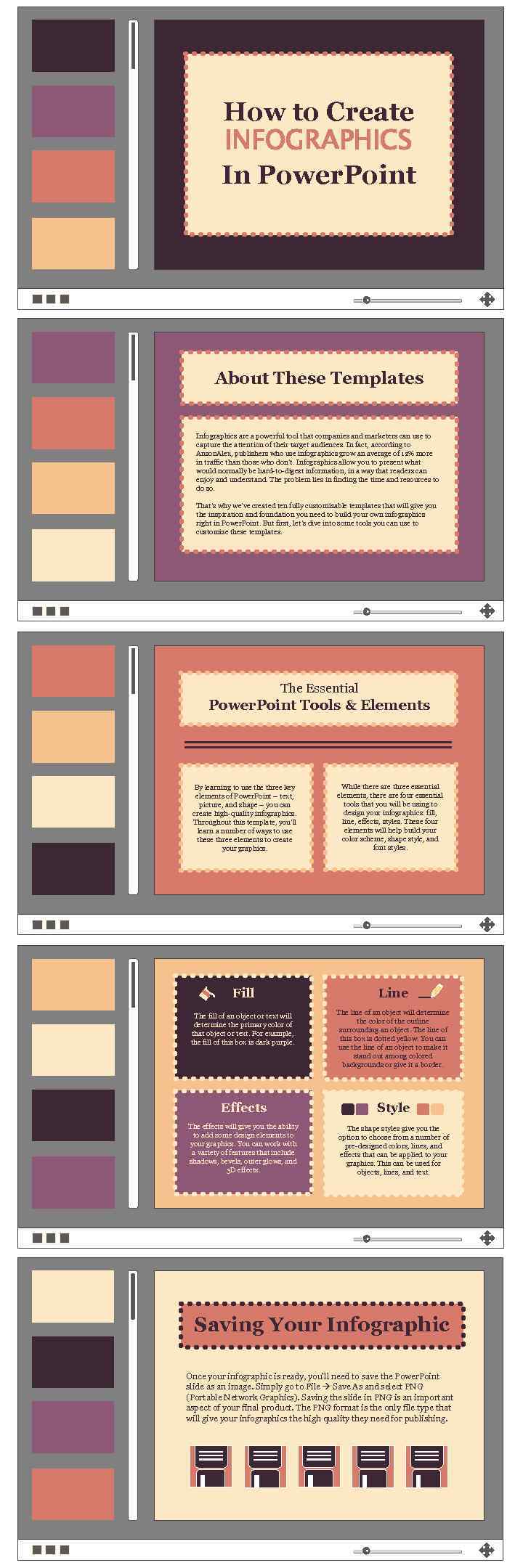
How to Create INFOGRAPHICS In Power. Point About These Templates Infographics are a powerful tool that companies and marketers can use to capture the attention of their target audiences. In fact, according to Anson. Alex, publishers who use infographics grow an average of 12% more in traffic than those who don’t. Infographics allow you to present what would normally be hard-to-digest information, in a way that readers can enjoy and understand. The problem lies in finding the time and resources to do so. That’s why we’ve created ten fully customizable templates that will give you the inspiration and foundation you need to build your own infographics right in Power. Point. But first, let’s dive into some tools you can use to customize these templates. The Essential Power. Point Tools & Elements By learning to use three key elements of Power. Point – text, picture, and shape – you can create high-quality infographics. Throughout this template, you’ll learn a number of ways to use these three elements to create your graphics. Fill The fill of an object or text will determine the primary color of that object or text. For example, the fill of this box is dark purple. While there are three essential elements, there are four essential tools that you will be using to design your infographics: fill, line, effects, styles. These four elements will help build your color scheme, shape style, and font styles. Line The line of an object will determine the color of the outline surrounding an object. The line of this box is dotted yellow. You can use the line of an object to make it stand out among colored backgrounds or give it a border. Effects Style The effects will give you the ability to add some design elements to your graphics. You can work with a variety of features that include shadows, bevels, outer glows, and 3 D effects. The shape styles give you the option to choose from a number of pre-designed colors, lines, and effects that can be applied to your graphics. This can be used for objects, lines, and text. Saving Your Infographic Once your infographic is ready, you’ll need to save the Power. Point slide as an image. Simply go to File Save As and select PNG (Portable Network Graphics). Saving the slide in PNG is an important aspect of your final product. The PNG format is the only file type that will give your infographics the high quality they need for publishing.
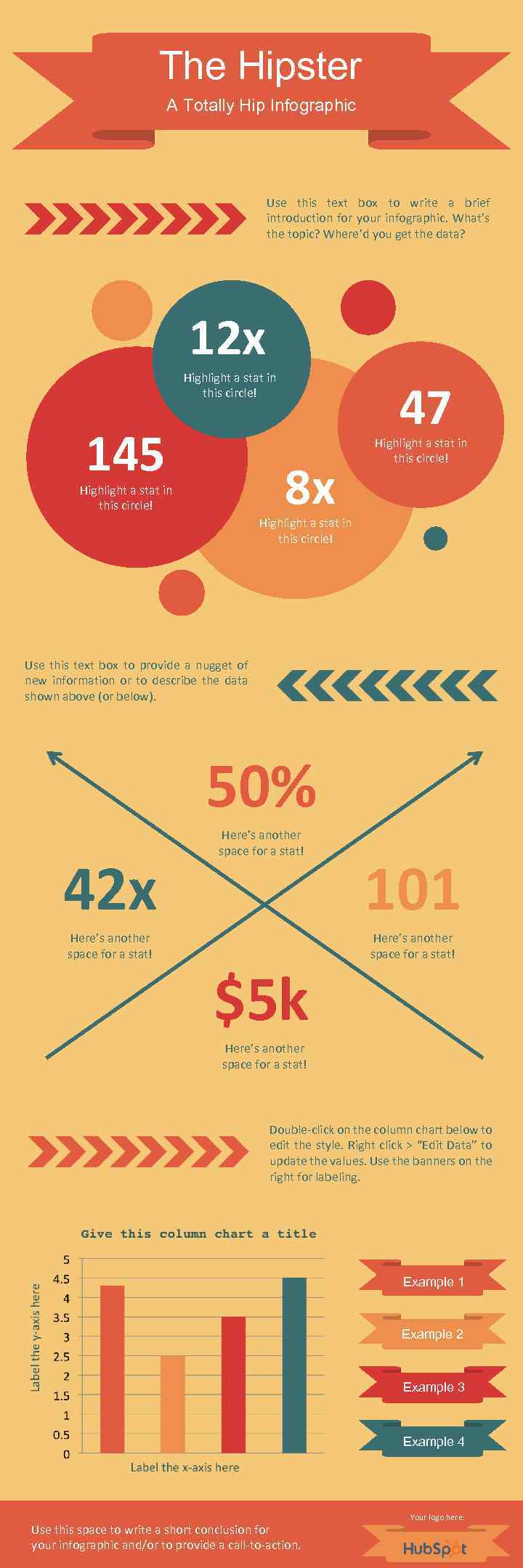
The Hipster A Totally Hip Infographic Use this text box to write a brief introduction for your infographic. What’s the topic? Where’d you get the data? 12 x Highlight a stat in this circle! 145 47 8 x Highlight a stat in this circle! Use this text box to provide a nugget of new information or to describe the data shown above (or below). 50% 42 x Here’s another space for a stat! $5 k 101 Here’s another space for a stat! Double-click on the column chart below to edit the style. Right click > “Edit Data” to update the values. Use the banners on the right for labeling. Example 1 Example 2 Example 3 Example 4 Use this space to write a short conclusion for your infographic and/or to provide a call-to-action. Your logo here:
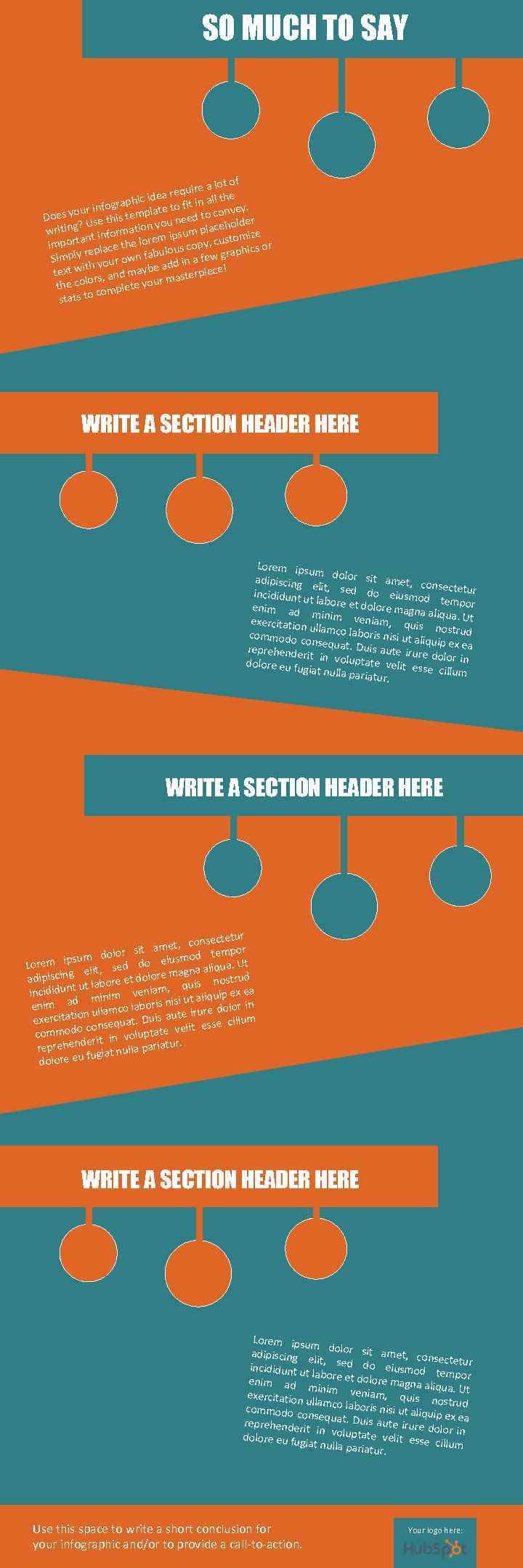
SO MUCH TO SAY ot of uire a l e ea req phic id to fit in all th. fogra ey your in is template to conv er oes D need e th ing? Us ormation you um placehold e writ ips miz t inf portan ce the lorem s copy, custo s or im hic pla lou mply re our own fabu in a few grap Si add th y text wi s, and maybe asterpiece! m or the col omplete your c stats to WRITE A SECTION HEADER HERE Lorem ips um dolor sit amet, adipiscing consectetu elit, sed r do eiusmo incididunt u d tempor t labore et dolore mag enim ad na ali minim ve niam, quis qua. Ut exercitation ullamco lab nostrud oris nisi ut a commodo liquip ex ea consequat. Duis aute ir reprehende ure dolor in rit in volu ptate velit dolore eu f esse cillum ugiat nulla pariatur. WRITE A SECTION HEADER HERE ectetur et, cons am r dolor sit eiusmod tempo ipsum do a. Ut Lorem elit, sed gna aliqu a adipiscing labore et dolore m uis nostrud q t ut veniam, incididun p ex ea minim i ut aliqui r in s enim ad ullamco laboris ni irure dolo on s aute exercitati cillum quat. Dui velit esse do conse commo oluptate erit in v d. reprehen giat nulla pariatur fu dolore eu WRITE A SECTION HEADER HERE Lorem ipsu m dolor s it amet, c adipiscing onsectetur elit, sed d o eiusmod incididunt u tempor t labore et d olore magna enim ad aliqua. Ut minim ven iam, quis exercitation nostrud ullamco labo ris nisi ut ali commodo c quip ex ea onsequat. D uis aute irur reprehende e dolor in rit in volup tate velit e dolore eu fu sse cillum giat nulla pa riatur. Use this space to write a short conclusion for your infographic and/or to provide a call-to-action. Your logo here:
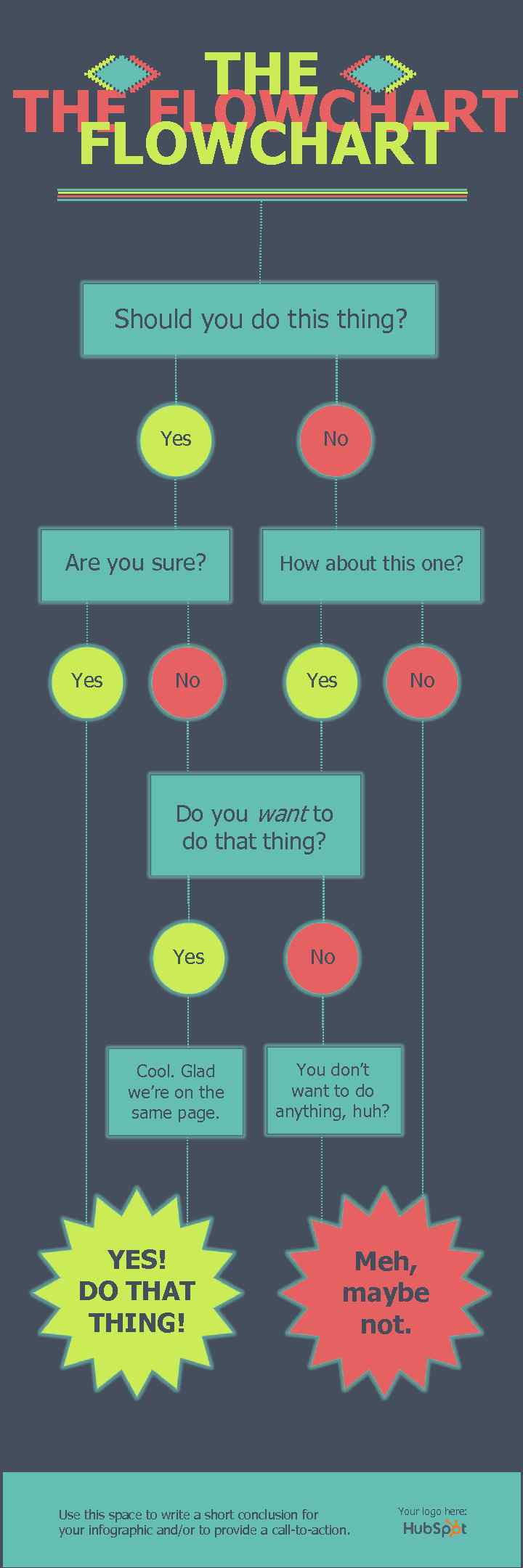
THE FLOWCHART Should you do this thing? Yes Are you sure? Yes No No How about this one? Yes No Do you want to do that thing? Yes Cool. Glad we’re on the same page. YES! DO THAT THING! No You don’t want to do anything, huh? Meh, maybe not. Use this space to write a short conclusion for your infographic and/or to provide a call-to-action. Your logo here:
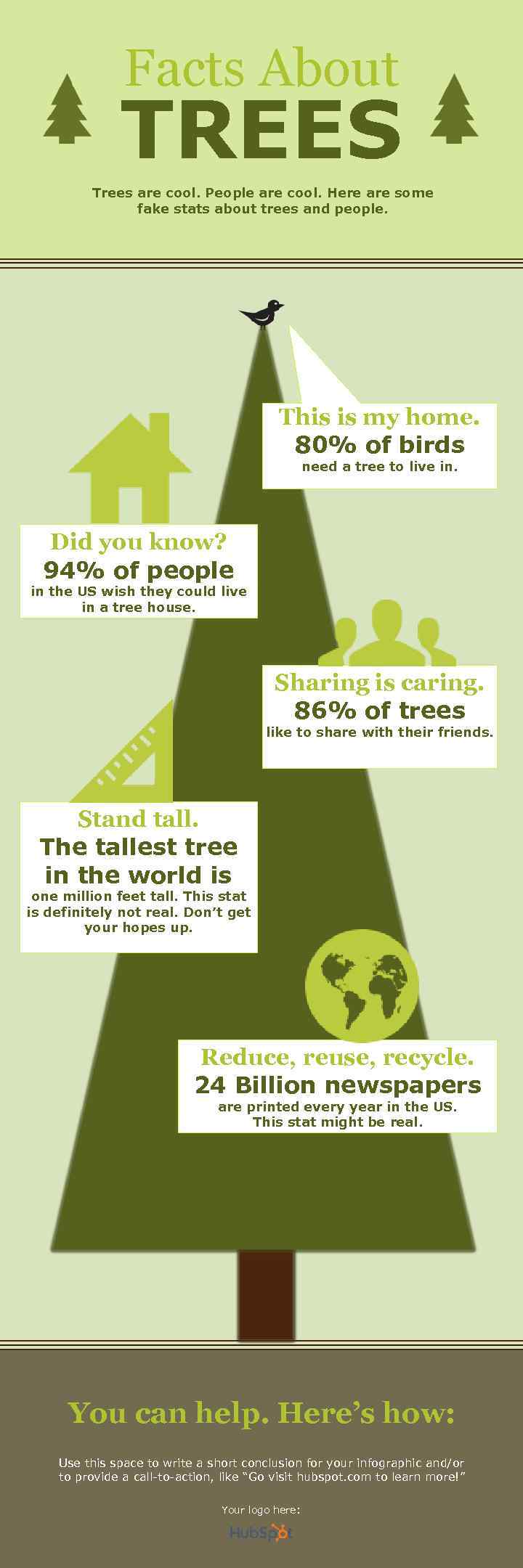
Facts About TREES Trees are cool. People are cool. Here are some fake stats about trees and people. This is my home. 80% of birds need a tree to live in. Did you know? 94% of people in the US wish they could live in a tree house. Sharing is caring. 86% of trees like to share with their friends. Stand tall. The tallest tree in the world is one million feet tall. This stat is definitely not real. Don’t get your hopes up. Reduce, reuse, recycle. 24 Billion newspapers are printed every year in the US. This stat might be real. You can help. Here’s how: Use this space to write a short conclusion for your infographic and/or to provide a call-to-action, like “Go visit hubspot. com to learn more!” Your logo here:
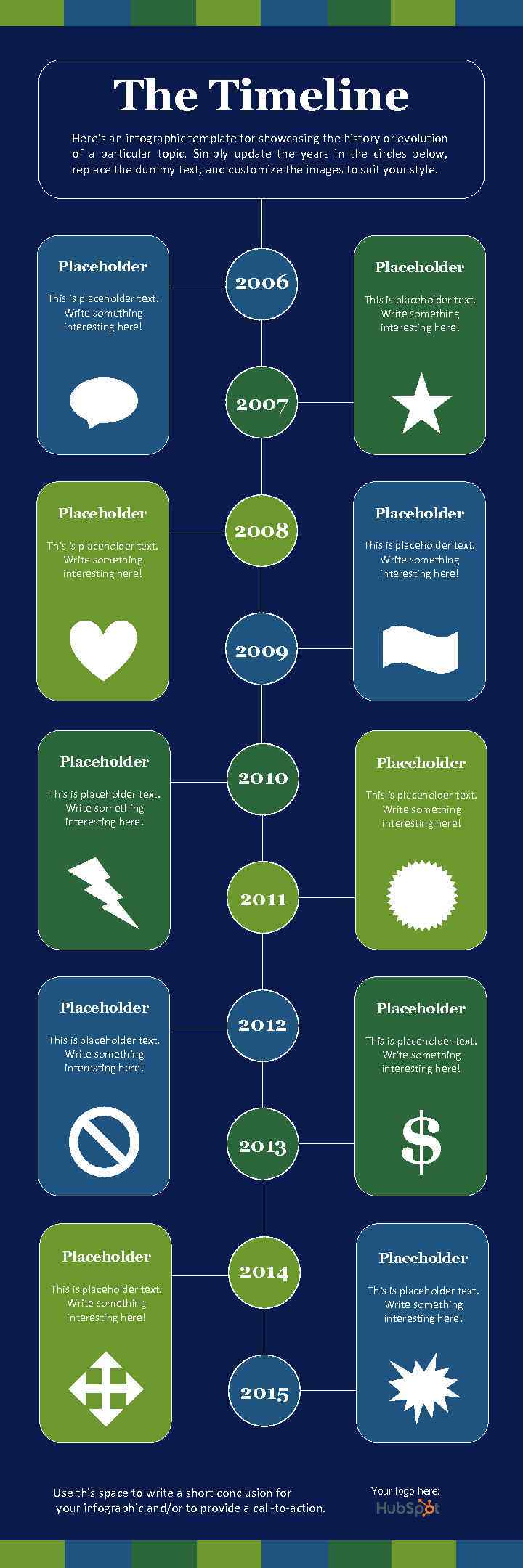
The Timeline Here’s an infographic template for showcasing the history or evolution of a particular topic. Simply update the years in the circles below, replace the dummy text, and customize the images to suit your style. Placeholder This is placeholder text. Write something interesting here! 2006 Placeholder This is placeholder text. Write something interesting here! 2007 Placeholder This is placeholder text. Write something interesting here! 2008 Placeholder This is placeholder text. Write something interesting here! 2009 Placeholder This is placeholder text. Write something interesting here! 2010 Placeholder This is placeholder text. Write something interesting here! 2011 Placeholder This is placeholder text. Write something interesting here! 2012 2013 Placeholder 2014 This is placeholder text. Write something interesting here! Placeholder This is placeholder text. Write something interesting here! $ Placeholder This is placeholder text. Write something interesting here! 2015 Use this space to write a short conclusion for your infographic and/or to provide a call-to-action. Your logo here:
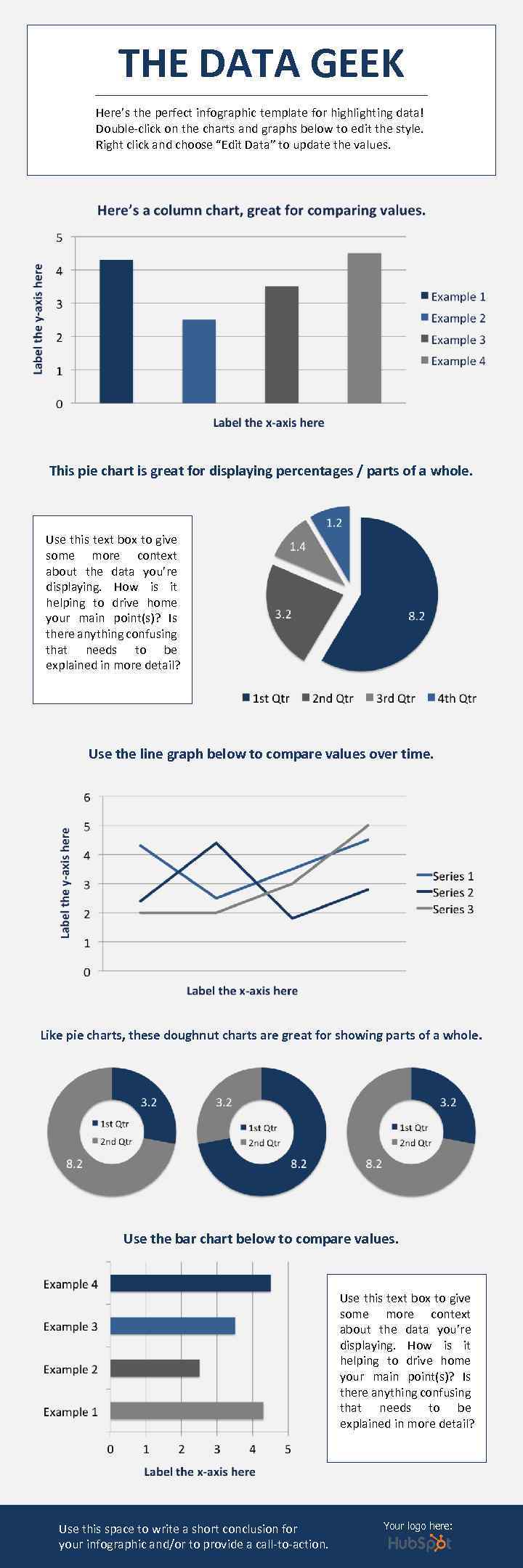
THE DATA GEEK Here’s the perfect infographic template for highlighting data! Double-click on the charts and graphs below to edit the style. Right click and choose “Edit Data” to update the values. This pie chart is great for displaying percentages / parts of a whole. Use this text box to give some more context about the data you’re displaying. How is it helping to drive home your main point(s)? Is there anything confusing that needs to be explained in more detail? Use the line graph below to compare values over time. Like pie charts, these doughnut charts are great for showing parts of a whole. Use the bar chart below to compare values. Use this text box to give some more context about the data you’re displaying. How is it helping to drive home your main point(s)? Is there anything confusing that needs to be explained in more detail? Use this space to write a short conclusion for your infographic and/or to provide a call-to-action. Your logo here:
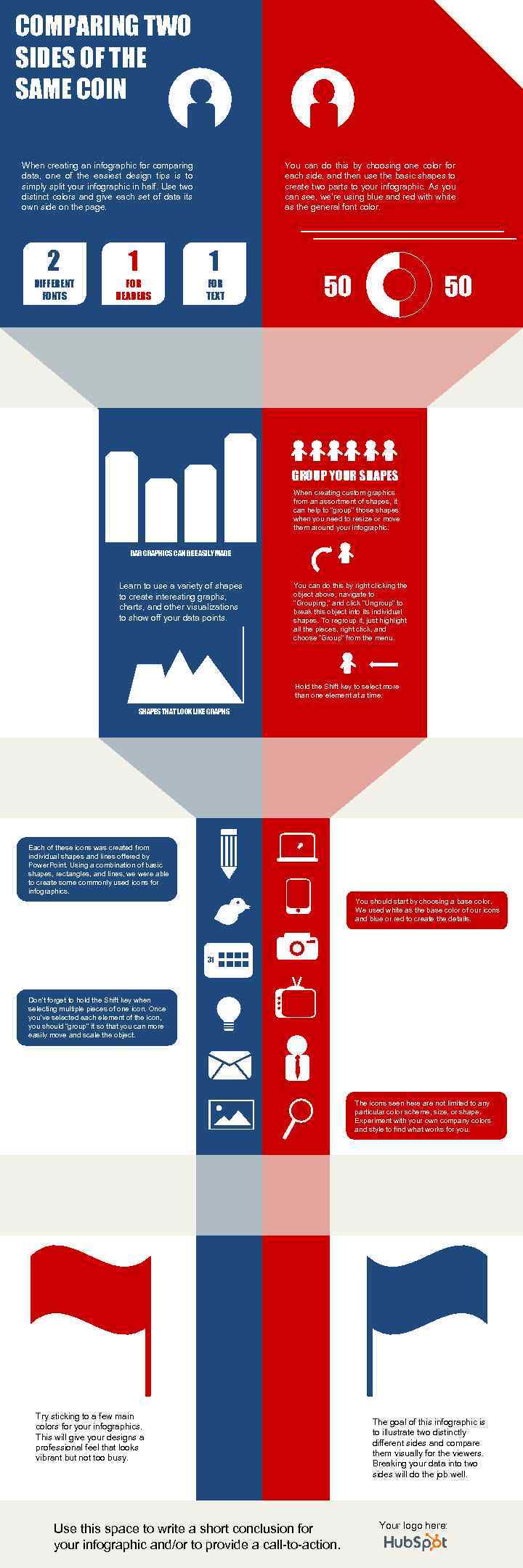
COMPARING TWO SIDES OF THE SAME COIN When creating an infographic for comparing data, one of the easiest design tips is to simply split your infographic in half. Use two distinct colors and give each set of data its own side on the page. You can do this by choosing one color for each side, and then use the basic shapes to create two parts to your infographic. As you can see, we’re using blue and red with white as the general font color. 2 1 1 DIFFERENT FONTS FOR HEADERS FOR TEXT 50 50 GROUP YOUR SHAPES When creating custom graphics from an assortment of shapes, it can help to “group” those shapes when you need to resize or move them around your infographic. BAR GRAPHICS CAN BE EASILY MADE Learn to use a variety of shapes to create interesting graphs, charts, and other visualizations to show off your data points. You can do this by right clicking the object above, navigate to “Grouping, ” and click “Ungroup” to break this object into its individual shapes. To regroup it, just highlight all the pieces, right click, and choose “Group” from the menu. Hold the Shift key to select more than one element at a time. SHAPES THAT LOOK LIKE GRAPHS Each of these icons was created from individual shapes and lines offered by Power. Point. Using a combination of basic shapes, rectangles, and lines, we were able to create some commonly used icons for infographics. You should start by choosing a base color. We used white as the base color of our icons and blue or red to create the details. 31 Don’t forget to hold the Shift key when selecting multiple pieces of one icon. Once you’ve selected each element of the icon, you should “group” it so that you can more easily move and scale the object. The icons seen here are not limited to any particular color scheme, size, or shape. Experiment with your own company colors and style to find what works for you. Try sticking to a few main colors for your infographics. This will give your designs a professional feel that looks vibrant but not too busy. Use this space to write a short conclusion for your infographic and/or to provide a call-to-action. The goal of this infographic is to illustrate two distinctly different sides and compare them visually for the viewers. Breaking your data into two sides will do the job well. Your logo here:
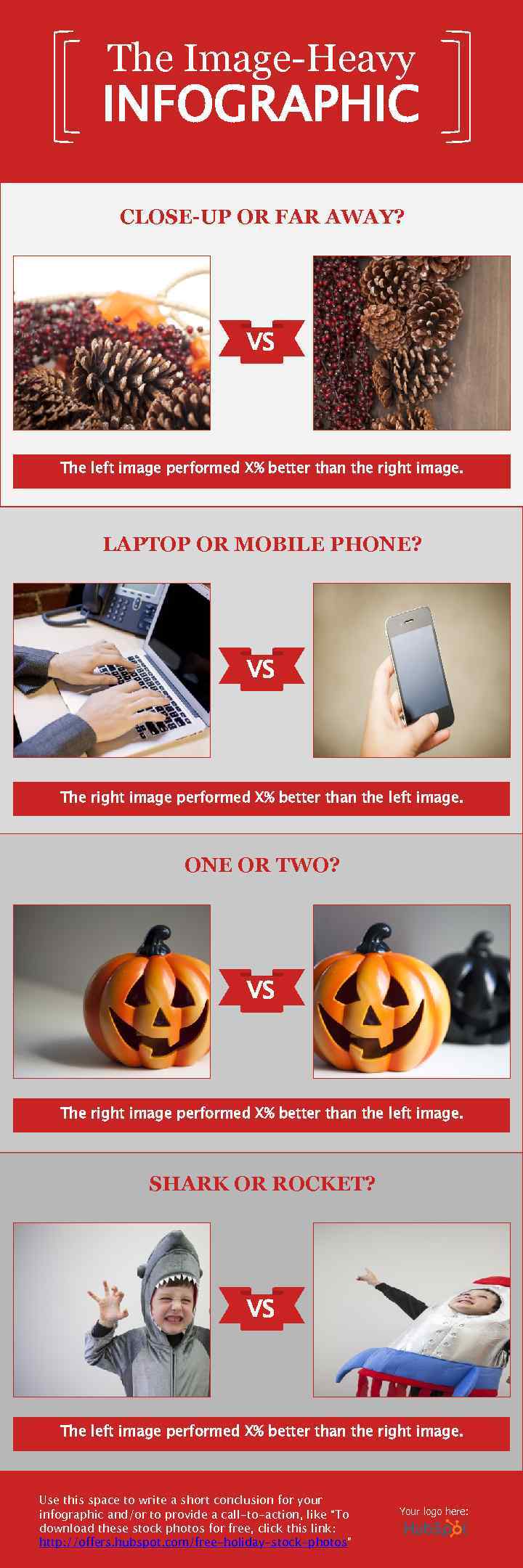
The Image-Heavy INFOGRAPHIC CLOSE-UP OR FAR AWAY? VS The left image performed X% better than the right image. LAPTOP OR MOBILE PHONE? VS The right image performed X% better than the left image. ONE OR TWO? VS The right image performed X% better than the left image. SHARK OR ROCKET? VS The left image performed X% better than the right image. Use this space to write a short conclusion for your infographic and/or to provide a call-to-action, like “To download these stock photos for free, click this link: http: //offers. hubspot. com/free-holiday-stock-photos” Your logo here:
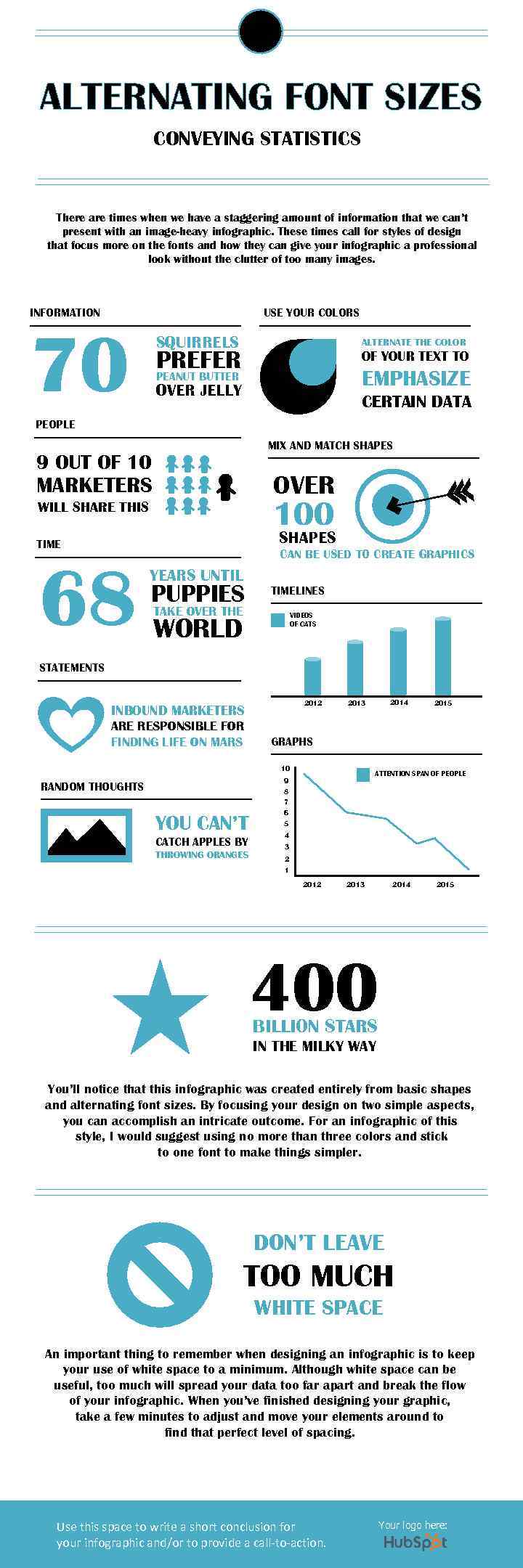
ALTERNATING FONT SIZES CONVEYING STATISTICS There are times when we have a staggering amount of information that we can’t present with an image-heavy infographic. These times call for styles of design that focus more on the fonts and how they can give your infographic a professional look without the clutter of too many images. INFORMATION USE YOUR COLORS 70 SQUIRRELS ALTERNATE THE COLOR PREFER PEANUT BUTTER OF YOUR TEXT TO EMPHASIZE OVER JELLY CERTAIN DATA PEOPLE MIX AND MATCH SHAPES 9 OUT OF 10 OVER MARKETERS 100 WILL SHARE THIS SHAPES TIME 68 CAN BE USED TO CREATE GRAPHICS YEARS UNTIL PUPPIES TIMELINES TAKE OVER THE VIDEOS OF CATS WORLD STATEMENTS 2012 INBOUND MARKETERS ARE RESPONSIBLE FOR FINDING LIFE ON MARS ATTENTION SPAN OF PEOPLE 9 YOU CAN’T CATCH APPLES BY THROWING ORANGES 2015 GRAPHS 10 RANDOM THOUGHTS 2014 2013 8 7 6 5 4 3 2 1 2012 2013 2014 2015 400 BILLION STARS IN THE MILKY WAY You’ll notice that this infographic was created entirely from basic shapes and alternating font sizes. By focusing your design on two simple aspects, you can accomplish an intricate outcome. For an infographic of this style, I would suggest using no more than three colors and stick to one font to make things simpler. DON’T LEAVE TOO MUCH WHITE SPACE An important thing to remember when designing an infographic is to keep your use of white space to a minimum. Although white space can be useful, too much will spread your data too far apart and break the flow of your infographic. When you’ve finished designing your graphic, take a few minutes to adjust and move your elements around to find that perfect level of spacing. Use this space to write a short conclusion for your infographic and/or to provide a call-to-action. Your logo here:
Скачать презентацию How to Create INFOGRAPHICS In Power Point About
How_to_Create_Infographics_In_PowerPoint_by_HubSpot.ppt