


 Скачать презентацию How To Activate Your New i Pod Mini
a561a19ddbee524842381f6cf0676fa4.ppt
- Количество слайдов: 14
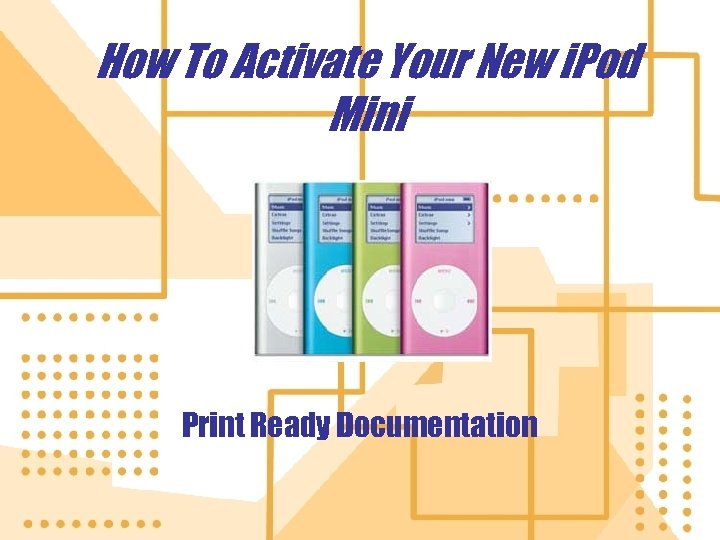 How To Activate Your New i. Pod Mini Print Ready Documentation
 Interview Questions For Users • Were there any unexpected difficulties while operating the i. Pod mini? • Was there any trouble in understanding the document? • Were you able to successfully manage to do all 4 main steps to set up your i. Pod mini?
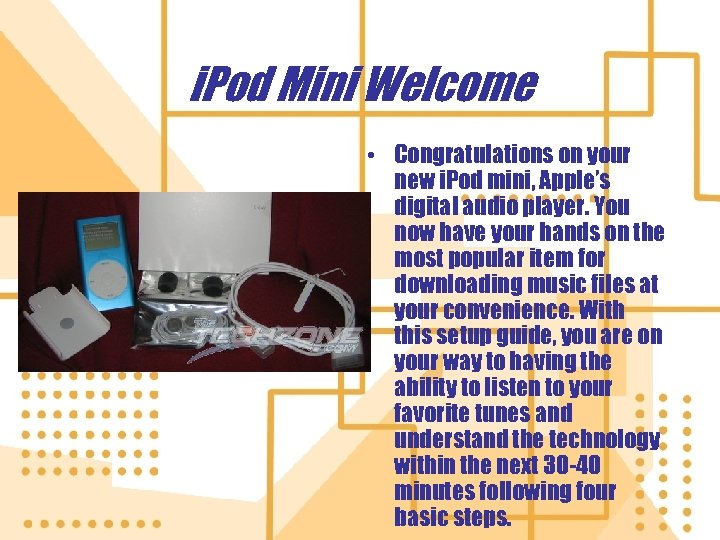 i. Pod Mini Welcome • Congratulations on your new i. Pod mini, Apple’s digital audio player. You now have your hands on the most popular item for downloading music files at your convenience. With this setup guide, you are on your way to having the ability to listen to your favorite tunes and understand the technology within the next 30 -40 minutes following four basic steps.
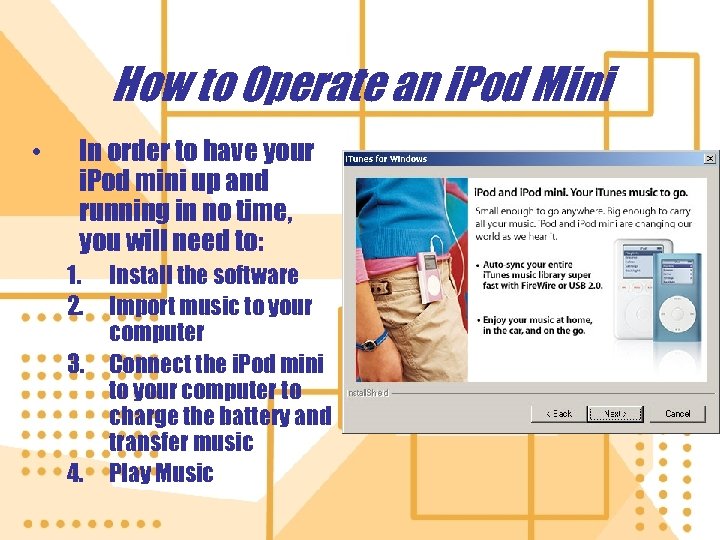 How to Operate an i. Pod Mini • In order to have your i. Pod mini up and running in no time, you will need to: 1. 2. 3. 4. Install the software Import music to your computer Connect the i. Pod mini to your computer to charge the battery and transfer music Play Music
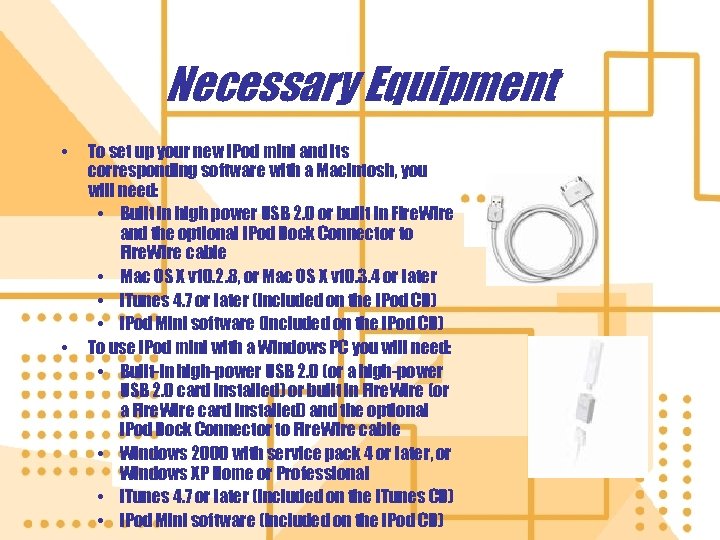 Necessary Equipment • • To set up your new i. Pod mini and its corresponding software with a Macintosh, you will need: • Built in high power USB 2. 0 or built in Fire. Wire and the optional i. Pod Dock Connector to Fire. Wire cable • Mac OS X v 10. 2. 8, or Mac OS X v 10. 3. 4 or later • i. Tunes 4. 7 or later (included on the i. Pod CD) • i. Pod Mini software (included on the i. Pod CD) To use i. Pod mini with a Windows PC you will need: • Built-in high-power USB 2. 0 (or a high-power USB 2. 0 card installed) or built in Fire. Wire (or a Fire. Wire card installed) and the optional i. Pod Dock Connector to Fire. Wire cable • Windows 2000 with service pack 4 or later, or Windows XP Home or Professional • i. Tunes 4. 7 or later (included on the i. Tunes CD) • i. Pod Mini software (included on the i. Pod CD)
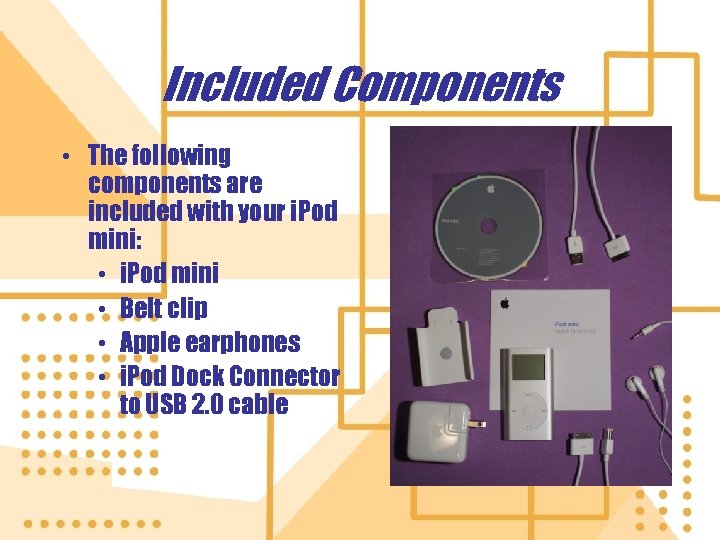 Included Components • The following components are included with your i. Pod mini: • i. Pod mini • Belt clip • Apple earphones • i. Pod Dock Connector to USB 2. 0 cable
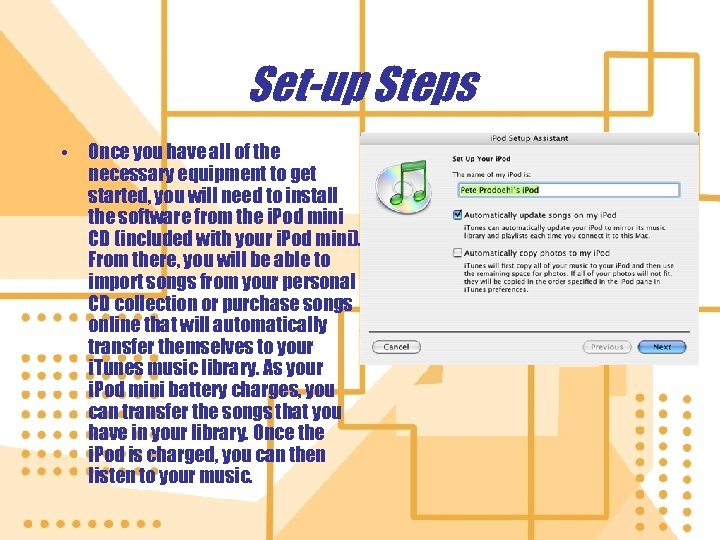 Set-up Steps • Once you have all of the necessary equipment to get started, you will need to install the software from the i. Pod mini CD (included with your i. Pod mini). From there, you will be able to import songs from your personal CD collection or purchase songs online that will automatically transfer themselves to your i. Tunes music library. As your i. Pod mini battery charges, you can transfer the songs that you have in your library. Once the i. Pod is charged, you can then listen to your music.
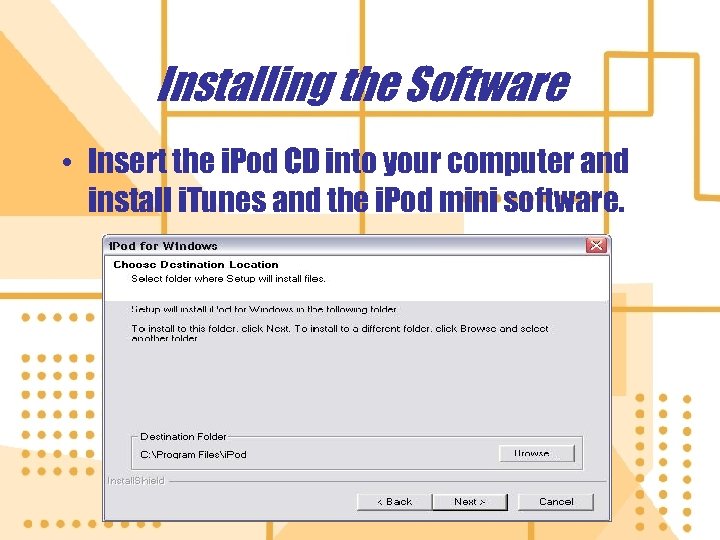 Installing the Software • Insert the i. Pod CD into your computer and install i. Tunes and the i. Pod mini software.
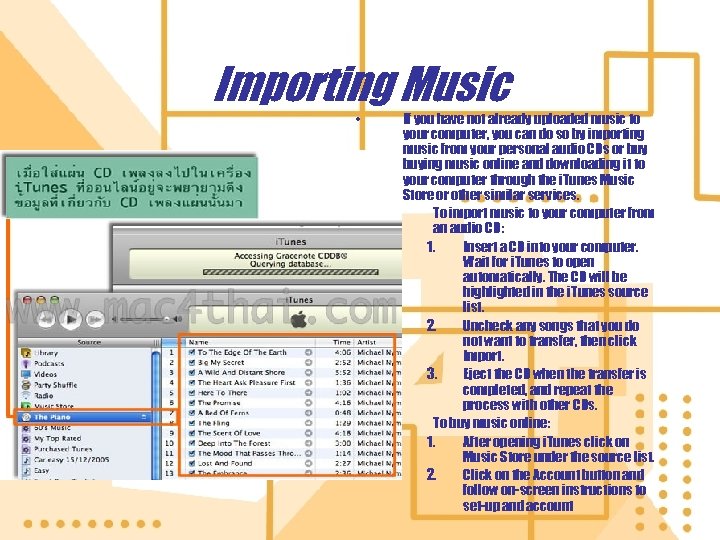 Importing Music • If you have not already uploaded music to your computer, you can do so by importing music from your personal audio CDs or buying music online and downloading it to your computer through the i. Tunes Music Store or other similar services. • To import music to your computer from an audio CD: 1. Insert a CD into your computer. Wait for i. Tunes to open automatically. The CD will be highlighted in the i. Tunes source list. 2. Uncheck any songs that you do not want to transfer, then click Import. 3. Eject the CD when the transfer is completed, and repeat the process with other CDs. • To buy music online: 1. After opening i. Tunes click on Music Store under the source list. 2. Click on the Account button and follow on-screen instructions to set-up and account
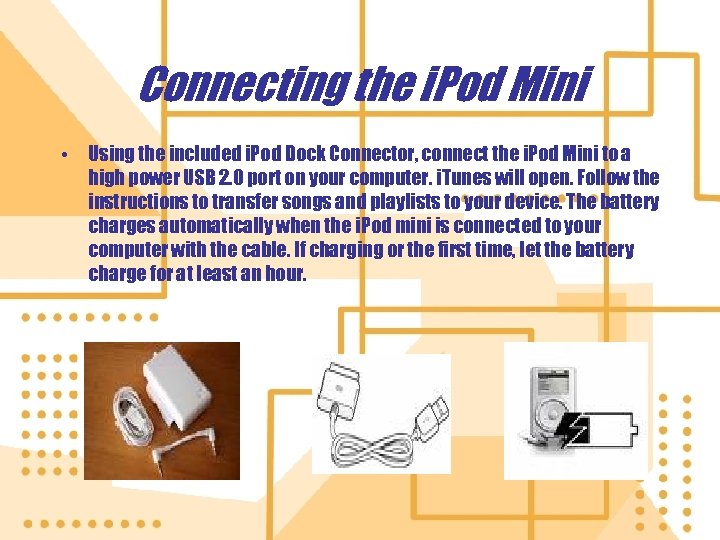 Connecting the i. Pod Mini • Using the included i. Pod Dock Connector, connect the i. Pod Mini to a high power USB 2. 0 port on your computer. i. Tunes will open. Follow the instructions to transfer songs and playlists to your device. The battery charges automatically when the i. Pod mini is connected to your computer with the cable. If charging or the first time, let the battery charge for at least an hour.
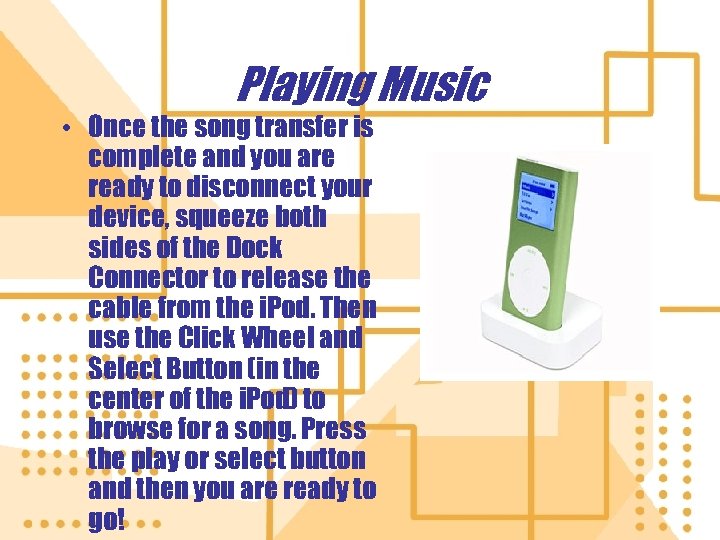 Playing Music • Once the song transfer is complete and you are ready to disconnect your device, squeeze both sides of the Dock Connector to release the cable from the i. Pod. Then use the Click Wheel and Select Button (in the center of the i. Pod) to browse for a song. Press the play or select button and then you are ready to go!
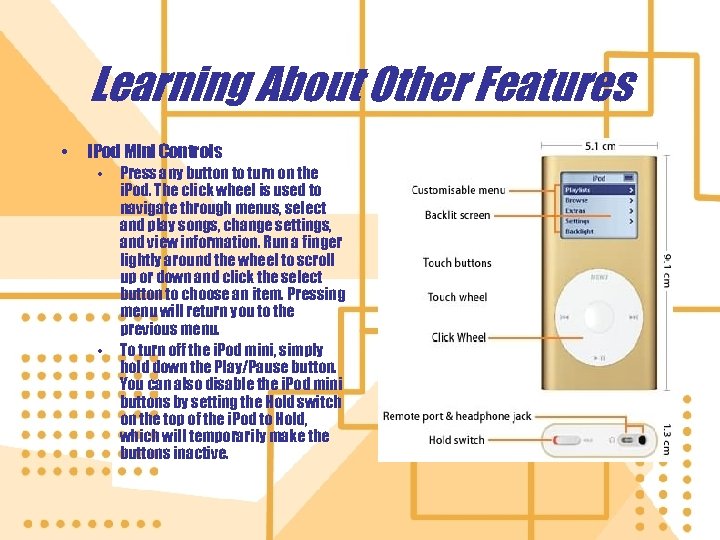 Learning About Other Features • i. Pod Mini Controls • • Press any button to turn on the i. Pod. The click wheel is used to navigate through menus, select and play songs, change settings, and view information. Run a finger lightly around the wheel to scroll up or down and click the select button to choose an item. Pressing menu will return you to the previous menu. To turn off the i. Pod mini, simply hold down the Play/Pause button. You can also disable the i. Pod mini buttons by setting the Hold switch on the top of the i. Pod to Hold, which will temporarily make the buttons inactive.
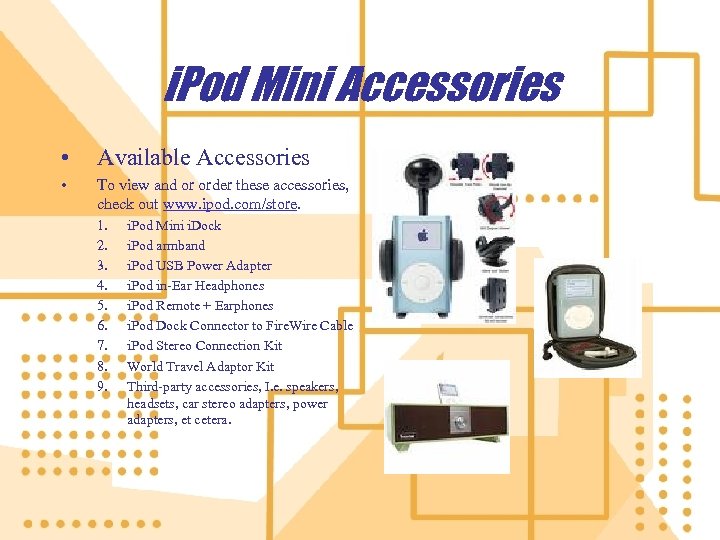 i. Pod Mini Accessories • Available Accessories • To view and or order these accessories, check out www. ipod. com/store. 1. 2. 3. 4. 5. 6. 7. 8. 9. i. Pod Mini i. Dock i. Pod armband i. Pod USB Power Adapter i. Pod in-Ear Headphones i. Pod Remote + Earphones i. Pod Dock Connector to Fire. Wire Cable i. Pod Stereo Connection Kit World Travel Adaptor Kit Third-party accessories, I. e. speakers, headsets, car stereo adapters, power adapters, et cetera.
 Troubleshooting • Most problems with the i. Pod mini can be fixed by resetting it. To do so, toggle the hold switch on and off. Next press and hold the Select and Menu buttons for at least 6 seconds until the Apple logo appears.