


 Скачать презентацию Hotel Room Intelligent System applications SMART-HDL 1
21-Smart-Hotel .ppt
- Количество слайдов: 45
 Hotel Room Intelligent System applications SMART-HDL
 1. System Composition
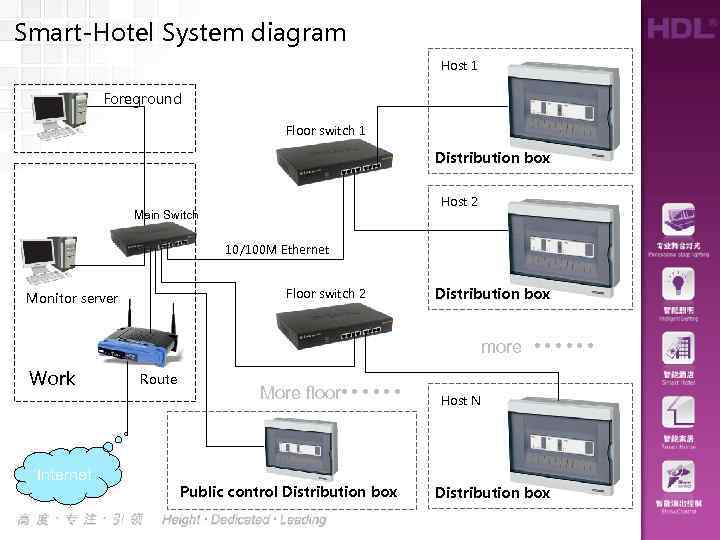 Smart-Hotel System diagram Host 1 Foreground Floor switch 1 Distribution box Host 2 Main Switch 10/100 M Ethernet Floor switch 2 Monitor server Distribution box more Work Internet Route …… More floor Public control Distribution box …… Host N Distribution box
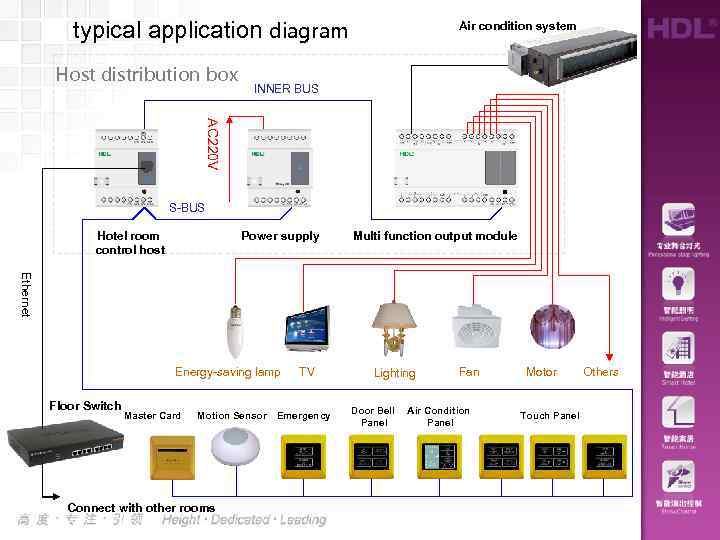 typical application diagram Host distribution box Air condition system INNER BUS AC 220 V S-BUS Hotel room control host Power supply Multi function output module Ethernet Energy-saving lamp Floor Switch Master Card Motion Sensor Connect with other rooms TV Emergency Lighting Door Bell Panel Fan Air Condition Panel Motor Touch Panel Others
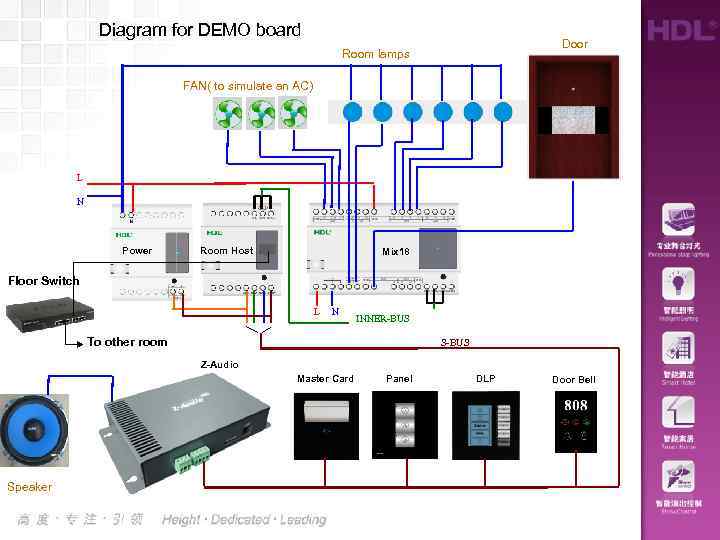 Diagram for DEMO board Door Room lamps FAN( to simulate an AC) L N Power Room Host Mix 18 Floor Switch L N INNER-BUS To other room S-BUS Z-Audio Master Card Speaker Panel DLP Door Bell
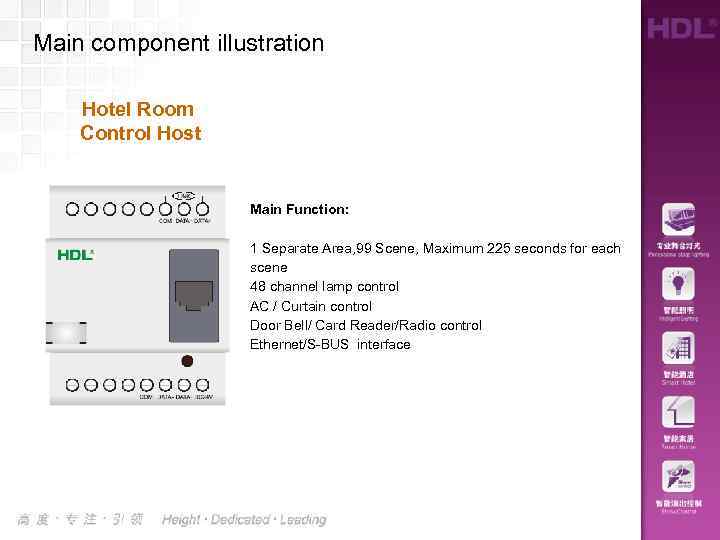 Main component illustration Hotel Room Control Host Main Function: 1 Separate Area, 99 Scene, Maximum 225 seconds for each scene 48 channel lamp control AC / Curtain control Door Bell/ Card Reader/Radio control Ethernet/S-BUS interface
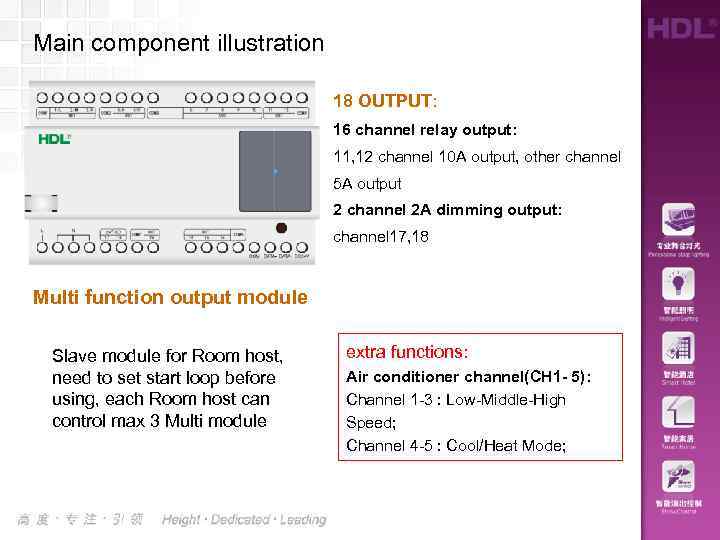 Main component illustration 18 OUTPUT: 16 channel relay output: 11, 12 channel 10 A output, other channel 5 A output 2 channel 2 A dimming output: channel 17, 18 Multi function output module Slave module for Room host, need to set start loop before using, each Room host can control max 3 Multi module extra functions: Air conditioner channel(CH 1 - 5): Channel 1 -3 : Low-Middle-High Speed; Channel 4 -5 : Cool/Heat Mode;
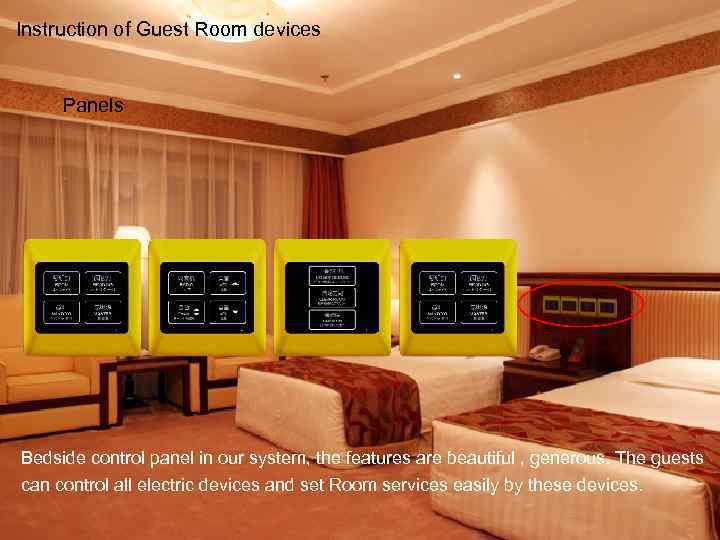 Instruction of Guest Room devices Panels Bedside control panel in our system, the features are beautiful , generous. The guests can control all electric devices and set Room services easily by these devices.
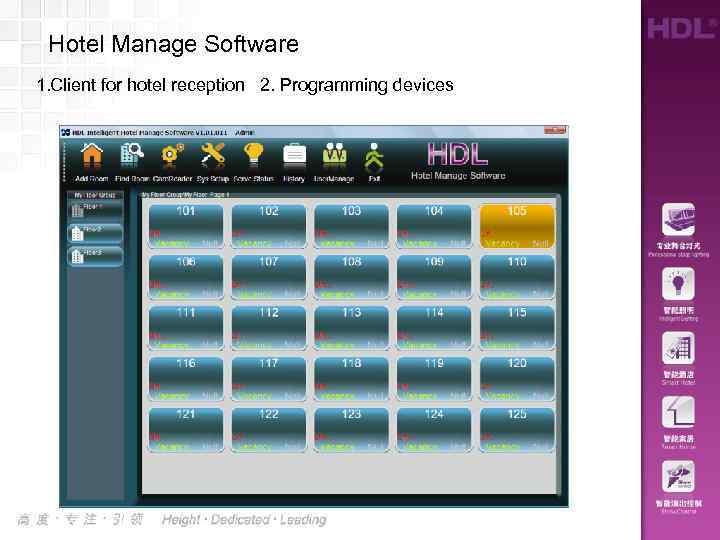 Hotel Manage Software 1. Client for hotel reception 2. Programming devices
 Questions and idea of our system ?
 2. system application
 Application examples • • • 1 Add a Room 2 Issue a Room card 3 Open the door with a room card 4 Insert a card for power 5 panel application:Lamp/AC control 6 panel application:Set service status clear-up/laundry/DND • 7 panel application: Playing music
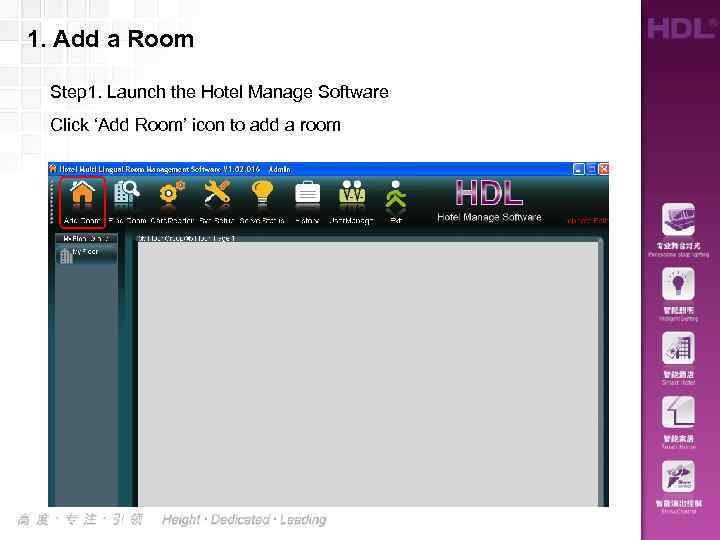 1. Add a Room Step 1. Launch the Hotel Manage Software Click ‘Add Room’ icon to add a room
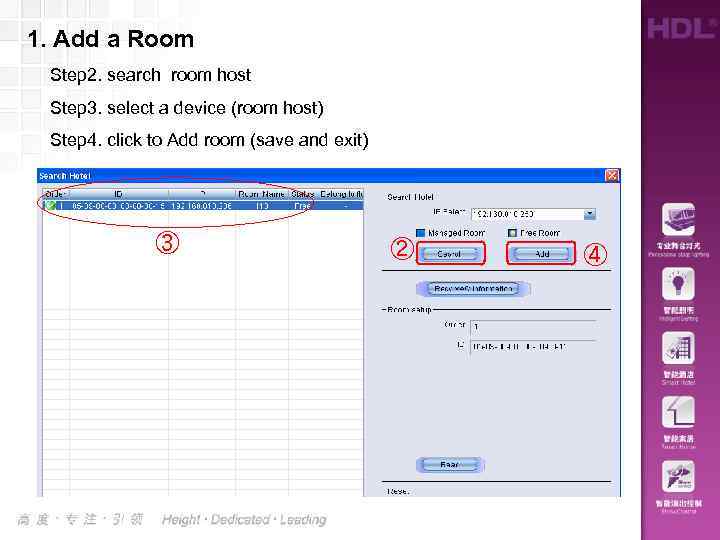 1. Add a Room Step 2. search room host Step 3. select a device (room host) Step 4. click to Add room (save and exit) ③ ② ④
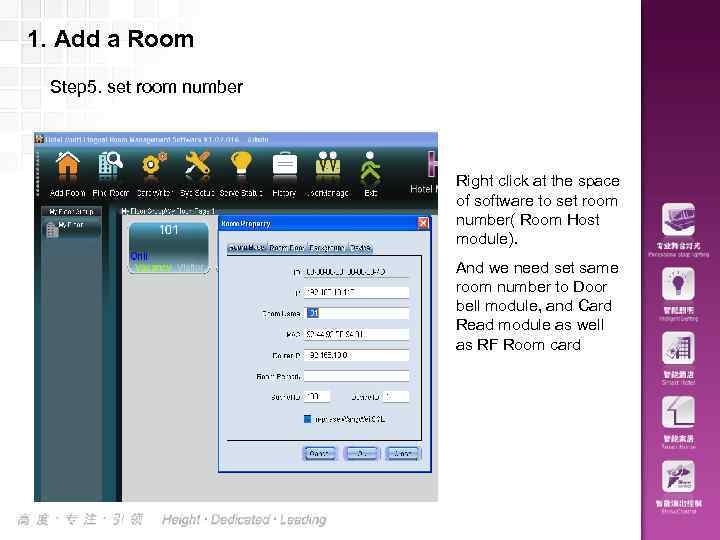 1. Add a Room Step 5. set room number Right click at the space of software to set room number( Room Host module). And we need set same room number to Door bell module, and Card Read module as well as RF Room card
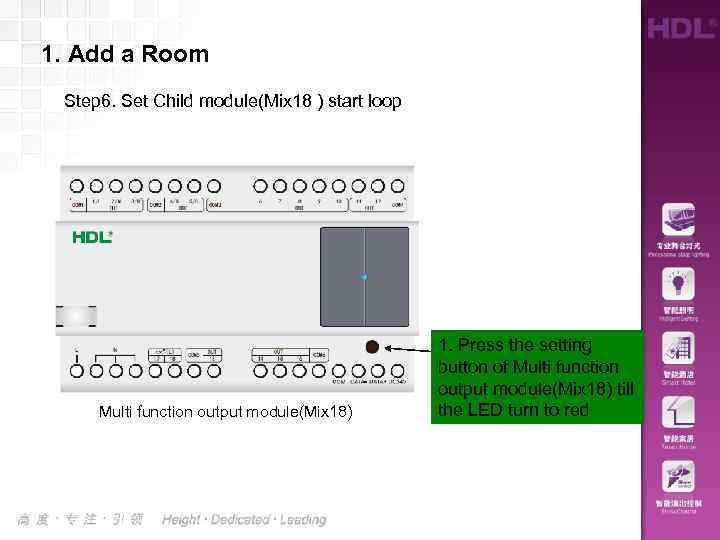 1. Add a Room Step 6. Set Child module(Mix 18 ) start loop Multi function output module(Mix 18) 1. Press the setting button of Multi function output module(Mix 18) till the LED turn to red
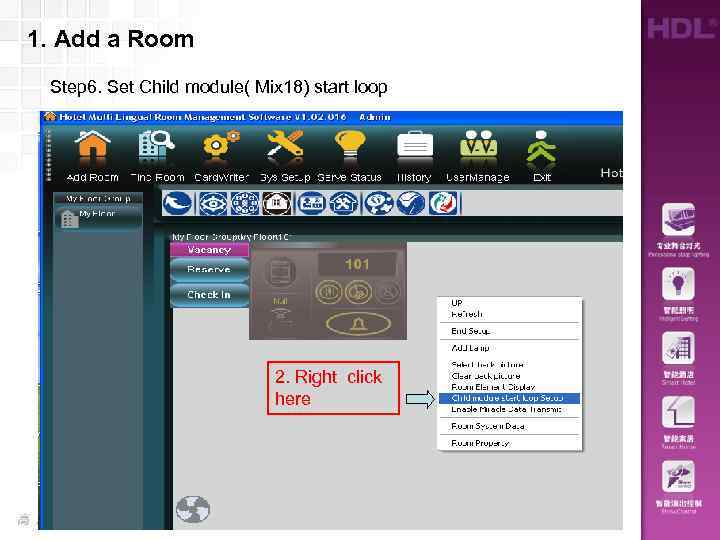 1. Add a Room Step 6. Set Child module( Mix 18) start loop 2. Right click here
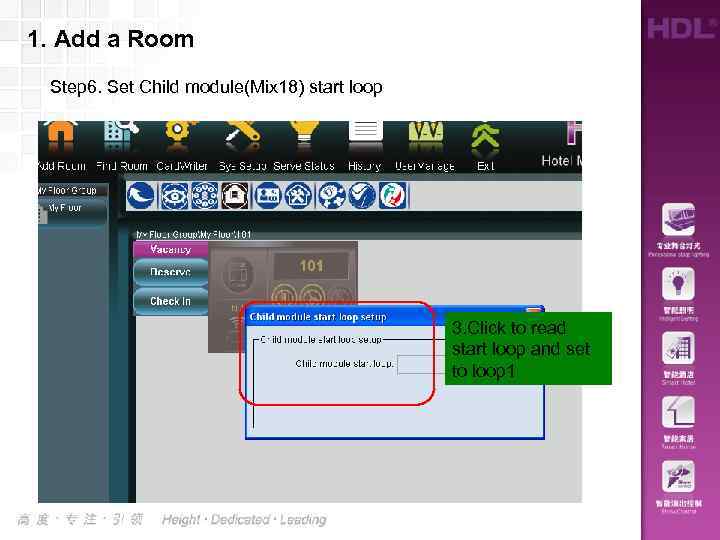 1. Add a Room Step 6. Set Child module(Mix 18) start loop 3. Click to read start loop and set to loop 1
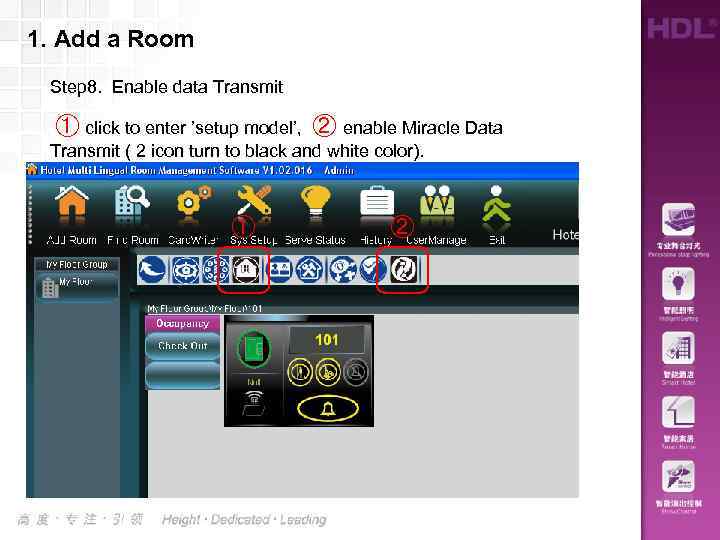 1. Add a Room Step 8. Enable data Transmit ① click to enter ’setup model’, ② enable Miracle Data Transmit ( 2 icon turn to black and white color). ① ②
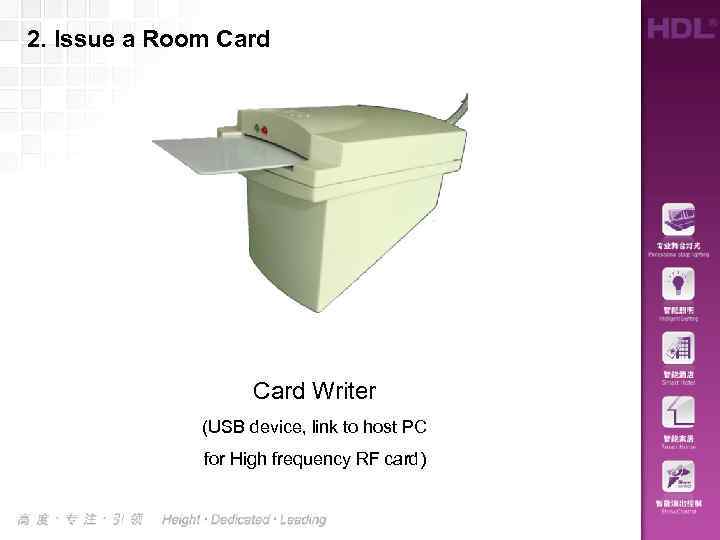 2. Issue a Room Card Writer (USB device, link to host PC for High frequency RF card)
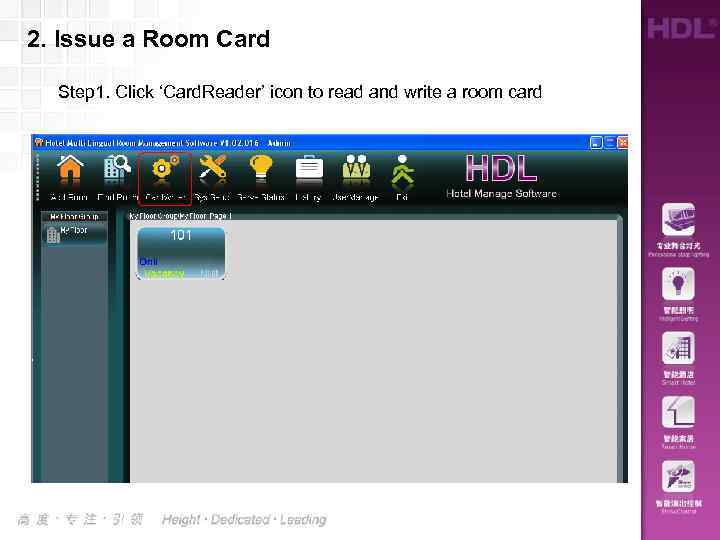 2. Issue a Room Card Step 1. Click ‘Card. Reader’ icon to read and write a room card
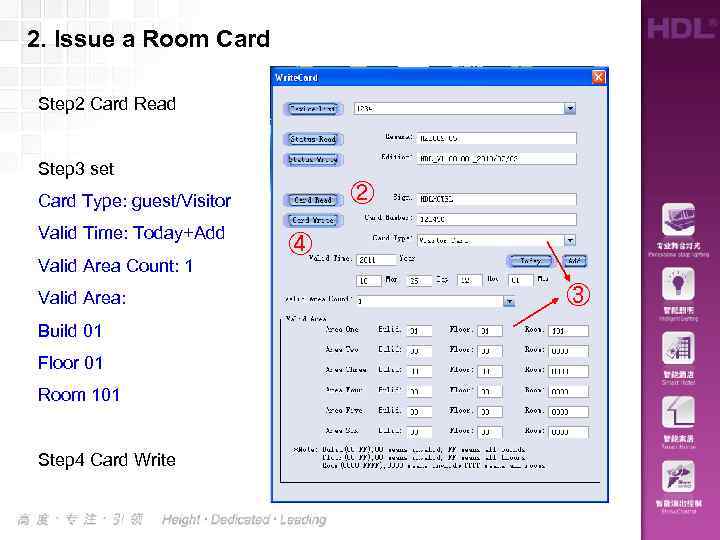 2. Issue a Room Card Step 2 Card Read Step 3 set ② Card Type: guest/Visitor Valid Time: Today+Add ④ Valid Area Count: 1 Valid Area: Build 01 Floor 01 Room 101 Step 4 Card Write ③
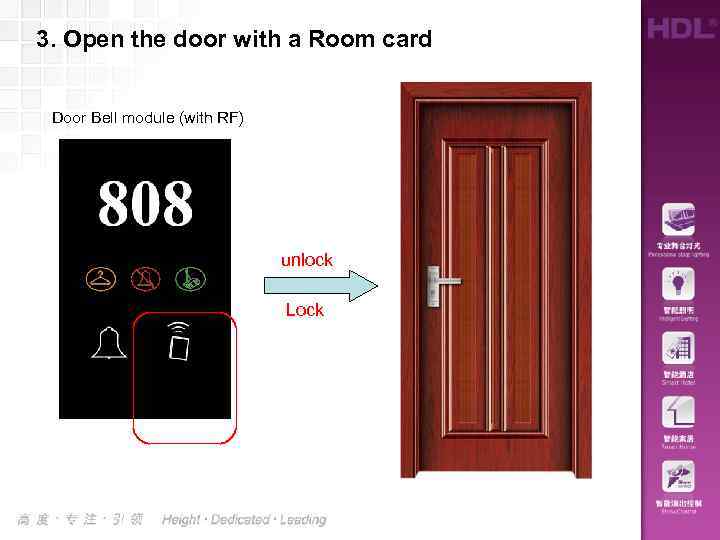 3. Open the door with a Room card Door Bell module (with RF) unlock Lock
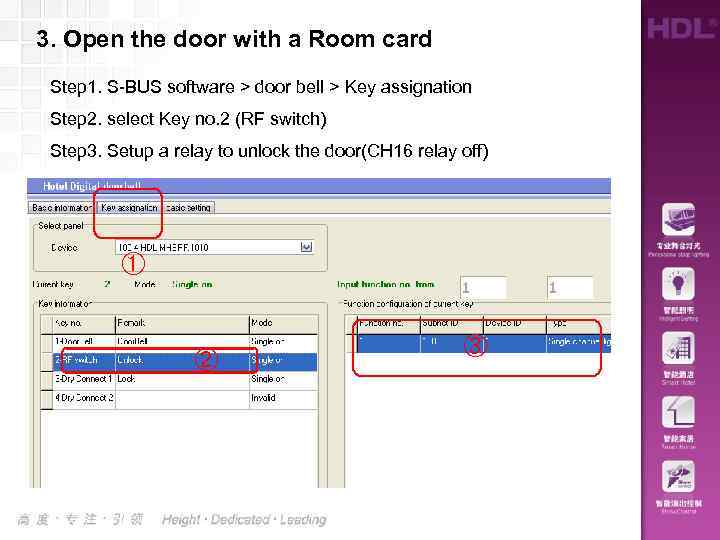 3. Open the door with a Room card Step 1. S-BUS software > door bell > Key assignation Step 2. select Key no. 2 (RF switch) Step 3. Setup a relay to unlock the door(CH 16 relay off) ① ② ③
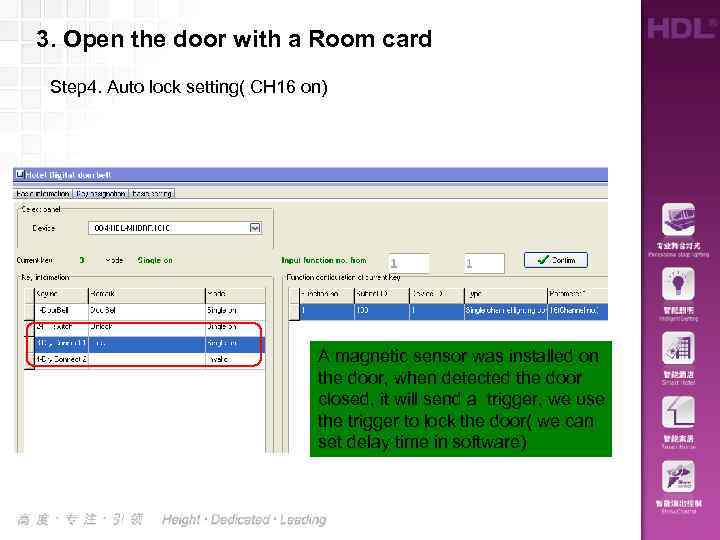 3. Open the door with a Room card Step 4. Auto lock setting( CH 16 on) A magnetic sensor was installed on the door, when detected the door closed, it will send a trigger, we use the trigger to lock the door( we can set delay time in software)
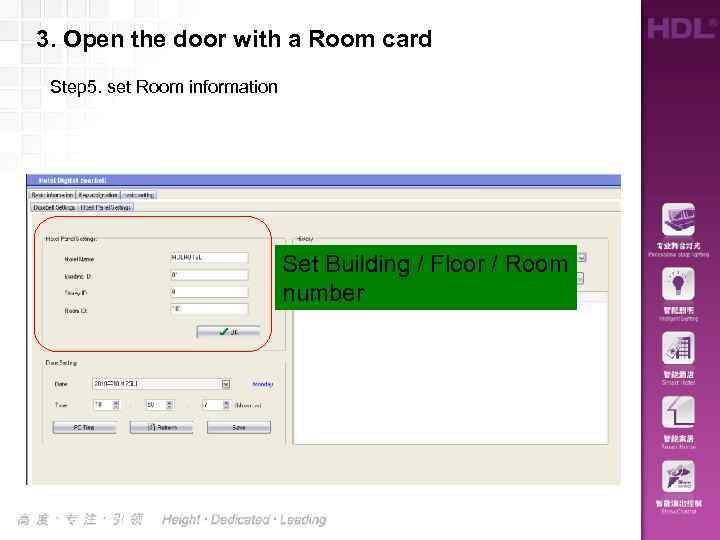 3. Open the door with a Room card Step 5. set Room information Set Building / Floor / Room number
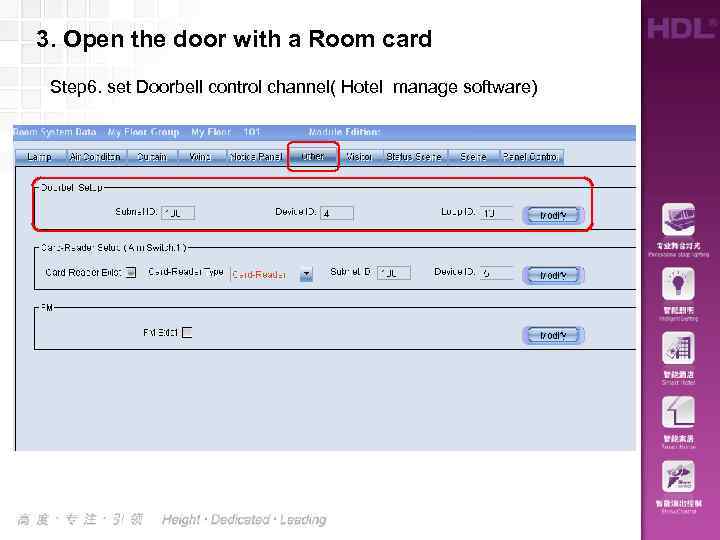 3. Open the door with a Room card Step 6. set Doorbell control channel( Hotel manage software)
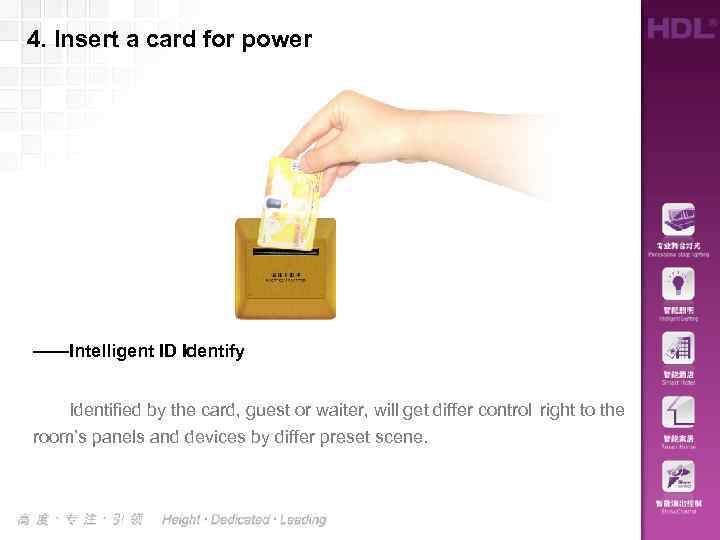 4. Insert a card for power ——Intelligent ID Identify Identified by the card, guest or waiter, will get differ control right to the room’s panels and devices by differ preset scene.
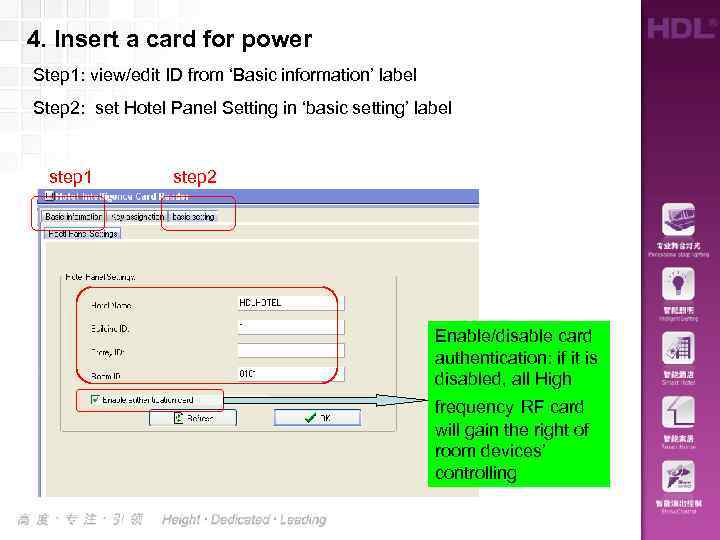 4. Insert a card for power Step 1: view/edit ID from ‘Basic information’ label Step 2: set Hotel Panel Setting in ‘basic setting’ label step 1 step 2 Enable/disable card authentication: if it is disabled, all High frequency RF card will gain the right of room devices’ controlling
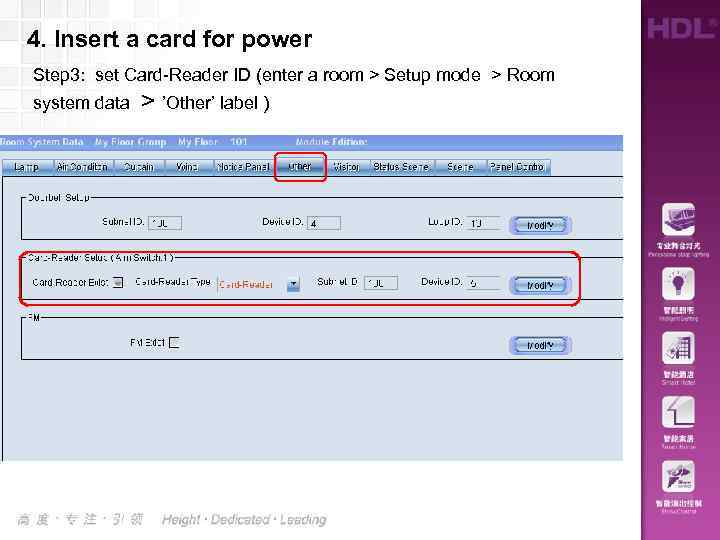 4. Insert a card for power Step 3: set Card-Reader ID (enter a room > Setup mode > Room system data > ’Other’ label )
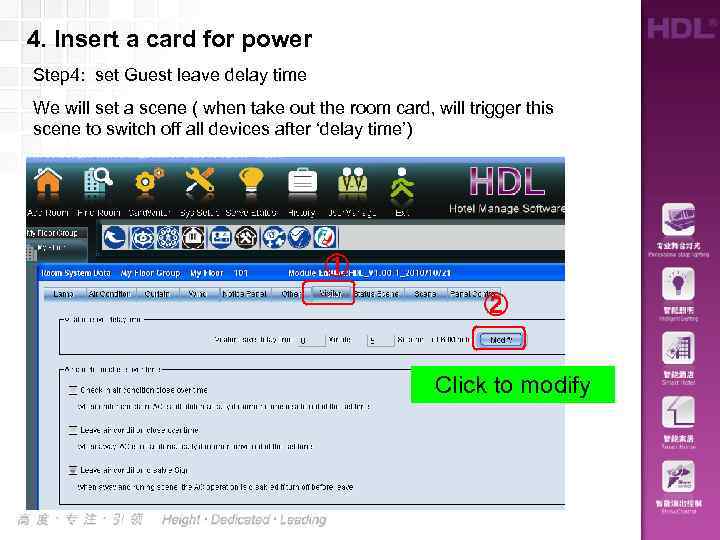 4. Insert a card for power Step 4: set Guest leave delay time We will set a scene ( when take out the room card, will trigger this scene to switch off all devices after ‘delay time’) ① ② Click to modify
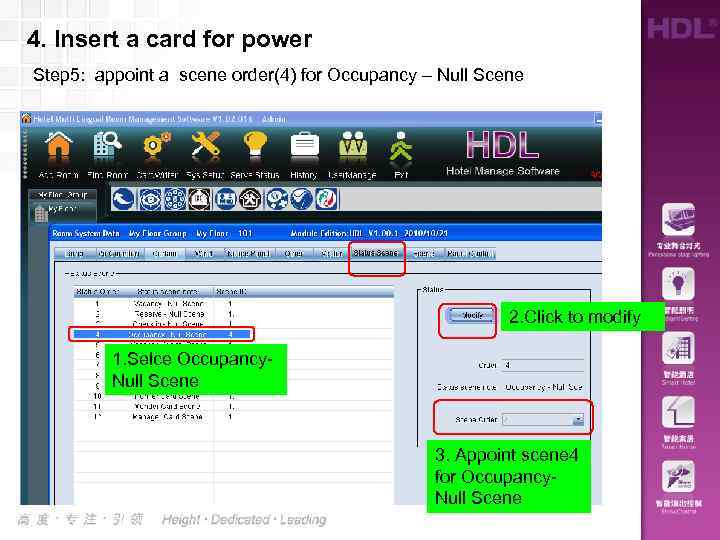 4. Insert a card for power Step 5: appoint a scene order(4) for Occupancy – Null Scene 2. Click to modify 1. Selce Occupancy. Null Scene 3. Appoint scene 4 for Occupancy. Null Scene
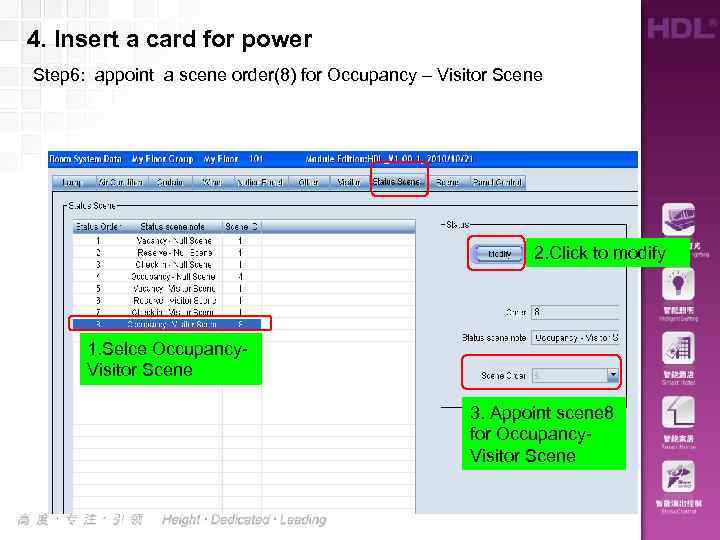 4. Insert a card for power Step 6: appoint a scene order(8) for Occupancy – Visitor Scene 2. Click to modify 1. Selce Occupancy. Visitor Scene 3. Appoint scene 8 for Occupancy. Visitor Scene
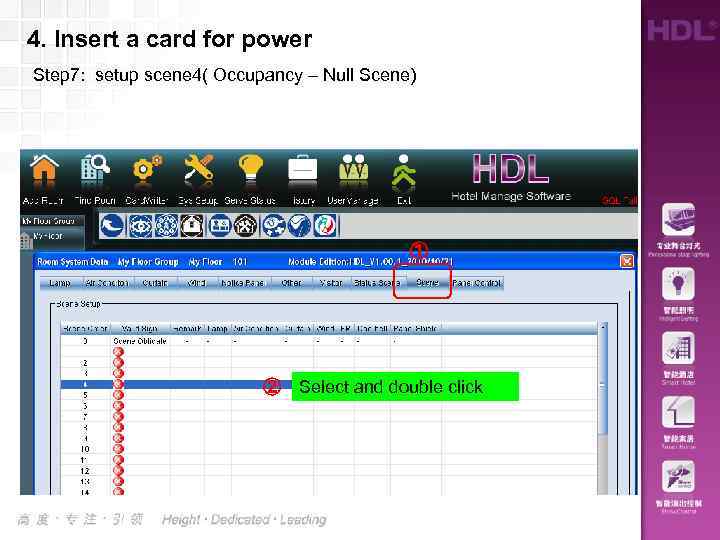 4. Insert a card for power Step 7: setup scene 4( Occupancy – Null Scene) ① ② Select and double click
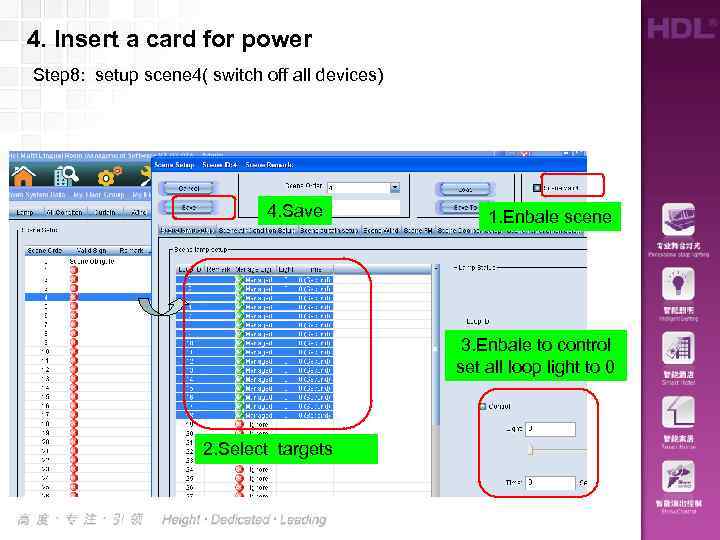 4. Insert a card for power Step 8: setup scene 4( switch off all devices) 4. Save 1. Enbale scene 3. Enbale to control set all loop light to 0 2. Select targets
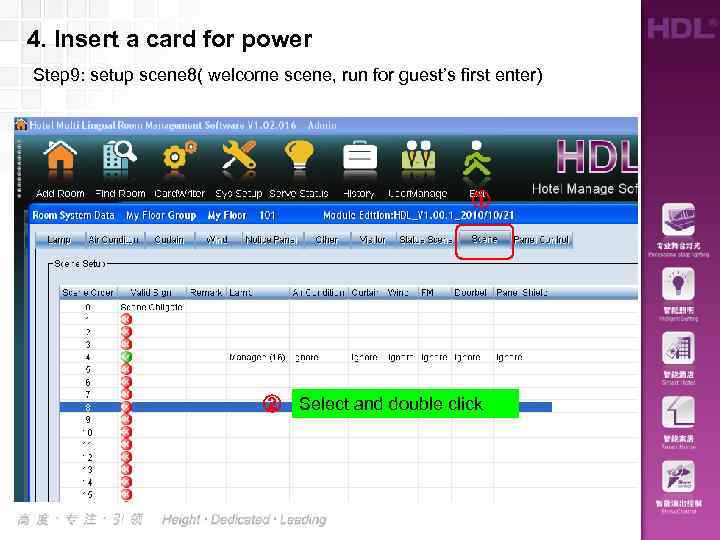 4. Insert a card for power Step 9: setup scene 8( welcome scene, run for guest’s first enter) ① ② Select and double click
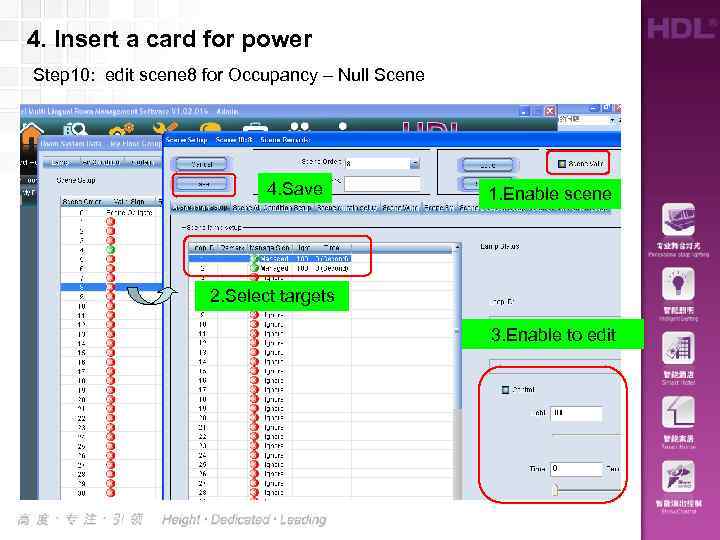 4. Insert a card for power Step 10: edit scene 8 for Occupancy – Null Scene 4. Save 1. Enable scene 2. Select targets 3. Enable to edit
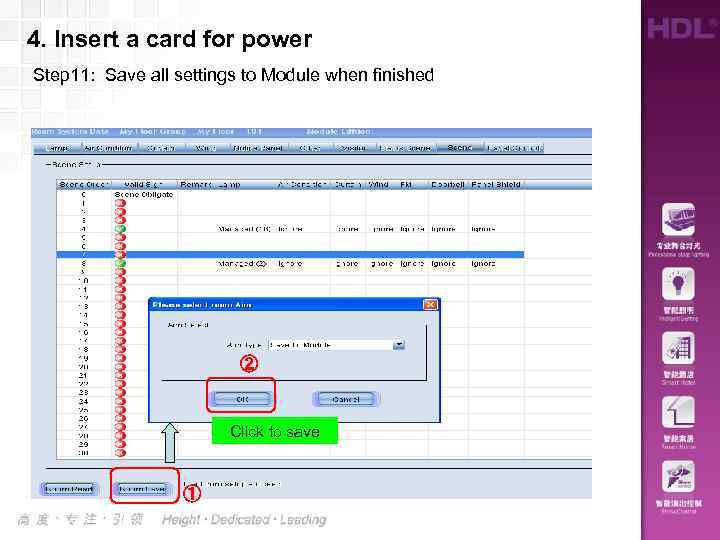 4. Insert a card for power Step 11: Save all settings to Module when finished ② Click to save ①
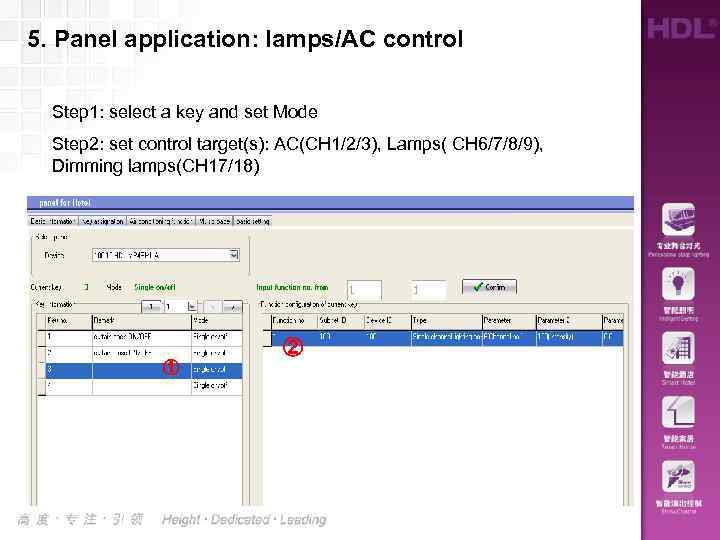 5. Panel application: lamps/AC control Step 1: select a key and set Mode Step 2: set control target(s): AC(CH 1/2/3), Lamps( CH 6/7/8/9), Dimming lamps(CH 17/18) ② ①
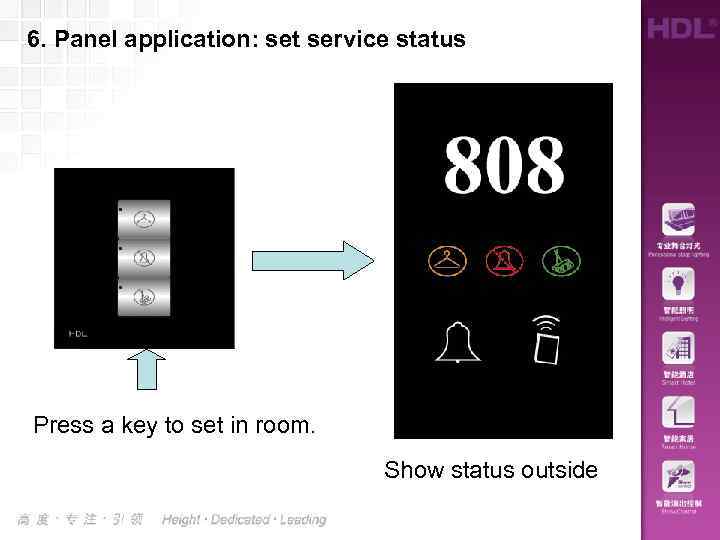 6. Panel application: set service status Press a key to set in room. Show status outside
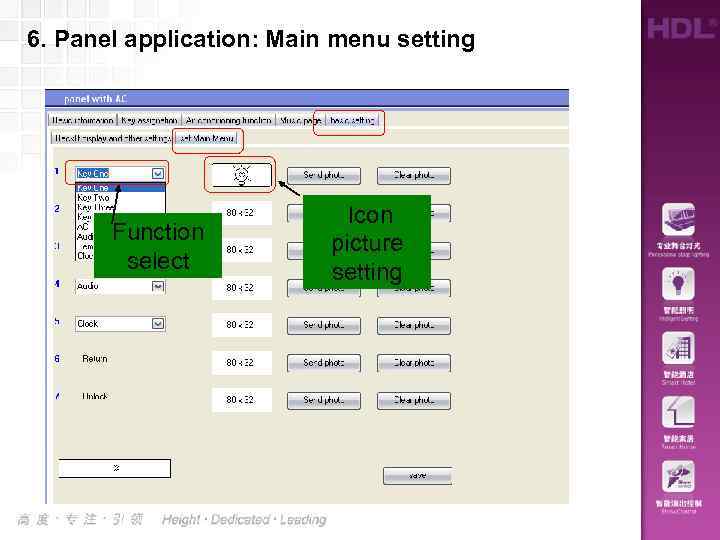 6. Panel application: Main menu setting Function select Icon picture setting
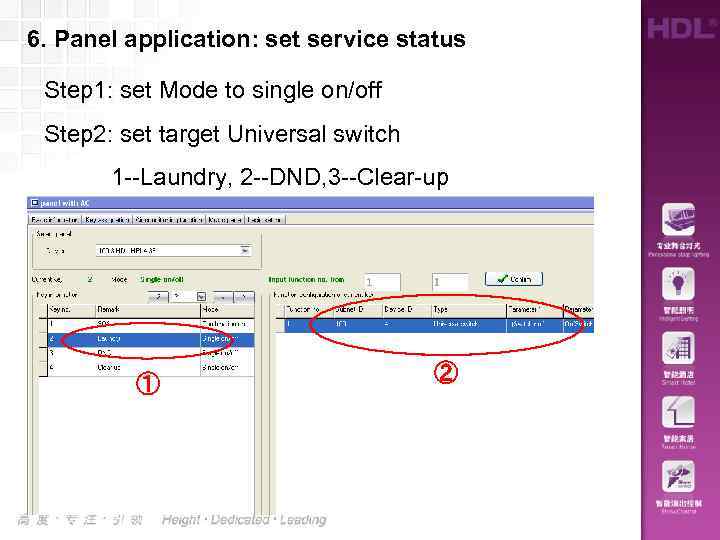 6. Panel application: set service status Step 1: set Mode to single on/off Step 2: set target Universal switch 1 --Laundry, 2 --DND, 3 --Clear-up ① ②
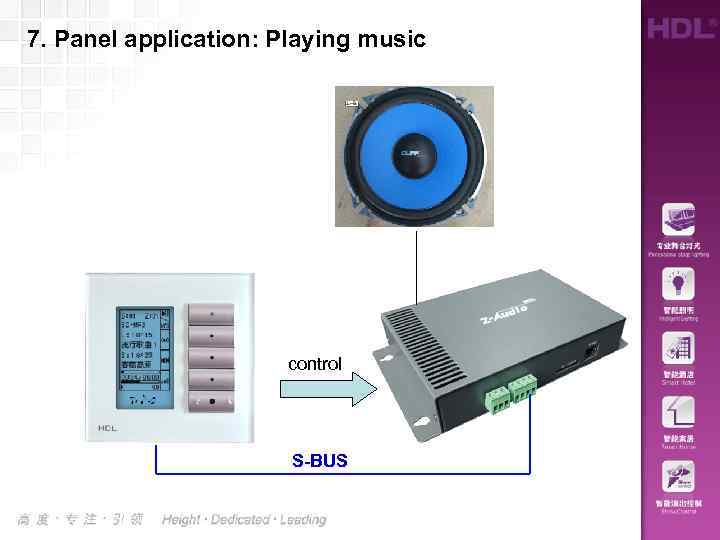 7. Panel application: Playing music control S-BUS
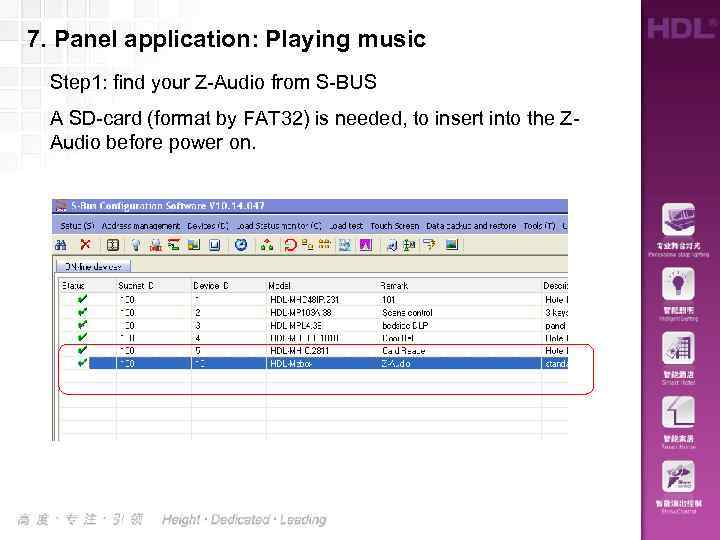 7. Panel application: Playing music Step 1: find your Z-Audio from S-BUS A SD-card (format by FAT 32) is needed, to insert into the ZAudio before power on.
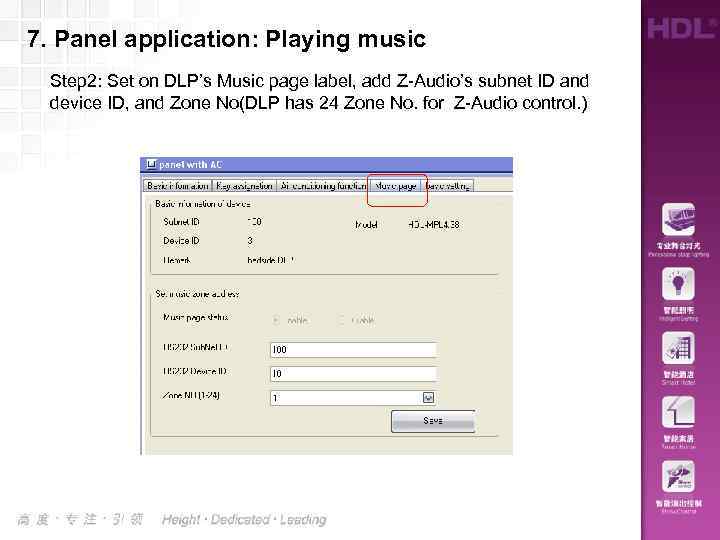 7. Panel application: Playing music Step 2: Set on DLP’s Music page label, add Z-Audio’s subnet ID and device ID, and Zone No(DLP has 24 Zone No. for Z-Audio control. )