 Скачать презентацию Hosted Voice Product Training Automatic Call Distributor ACD
e984aa3049dea4fa42d44de4987091fc.ppt
- Количество слайдов: 34




Hosted Voice Product Training Automatic Call Distributor (ACD) 1
Agenda 1. Resource Center 8. Monitor 2. Logging in 9. Whisper 3. Main Screen 10. Call History 4. Search Calls 11. Monitor Agents 5. Download Reports 12. Monitor Queue’s 6. Queue’s 13. Help 7. Queue Calls 2
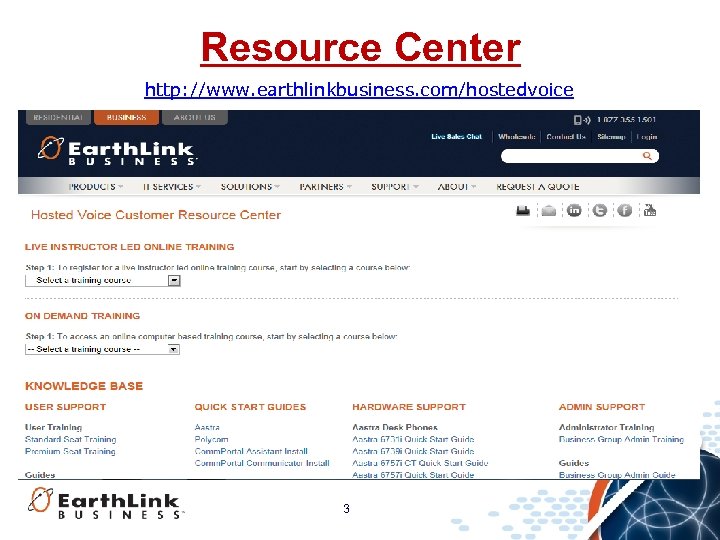
Resource Center http: //www. earthlinkbusiness. com/hostedvoice 3
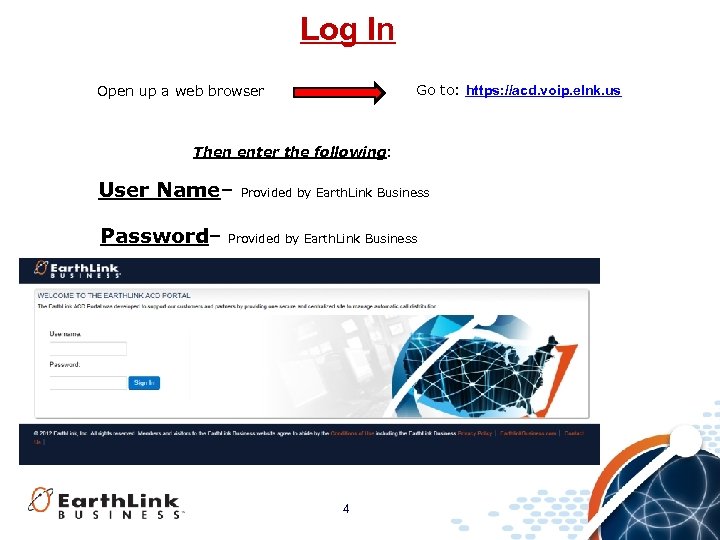
Log In Go to: https: //acd. voip. elnk. us Open up a web browser Then enter the following: User Name– Password– Provided by Earth. Link Business 4
Receiving Your Login Password After having the ACD platform active: in order to get your initial password for logging into the ACD platform, you MUST do the following: 1. Press the ACD button then dial *password (*72779673) on your phone 2. The ACD line will be busied out. 3. The system states “your password has been changed, thank you” and disconnects 1. Within five minutes, the system will call the user back and will provide an automated response with the user passcode to get into the web portal 2. The system will provide a 10 digit number that will be used on initial login. It will continue to read this out to the user until the call is disconnected by the user • Once logged in, the user can reset the password to something that is more logical to them 1. At the reset request an email is sent to the email addresses we have on file for all of the supervisors alerting them that the agent has reset their password 5
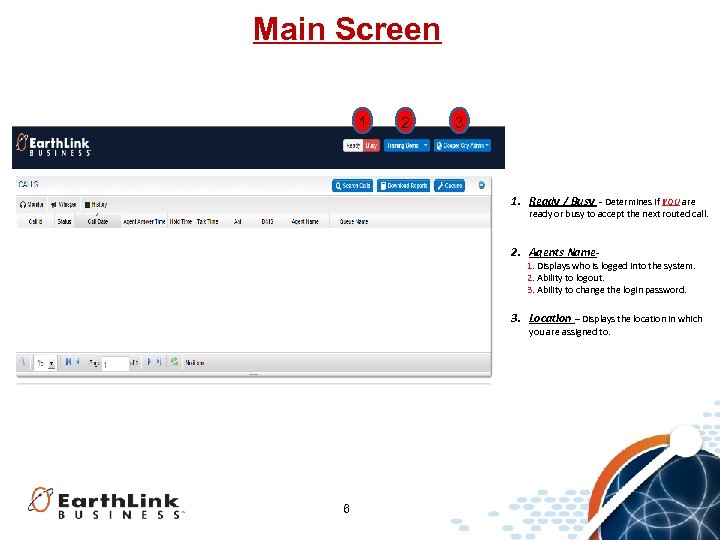
Main Screen 1 2 3 1. Ready / Busy - Determines if YOU are ready or busy to accept the next routed call. 2. Agents Name- 1. Displays who is logged into the system. 2. Ability to logout. 3. Ability to change the login password. 3. Location – Displays the location in which you are assigned to. 6
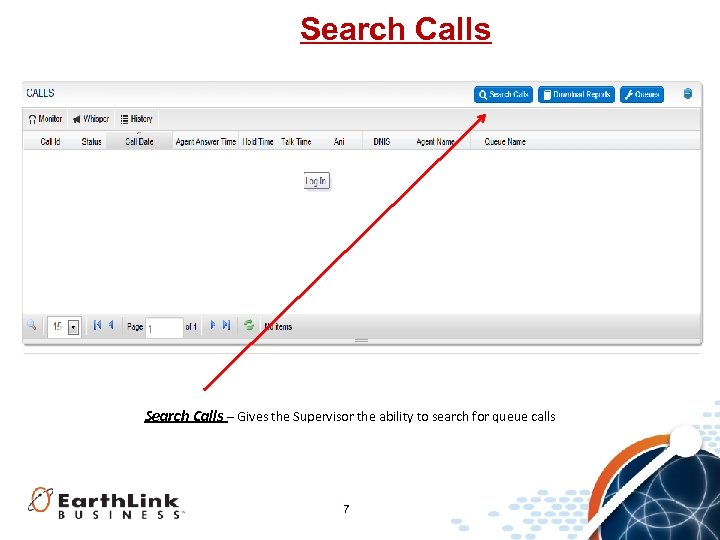
Search Calls – Gives the Supervisor the ability to search for queue calls 7
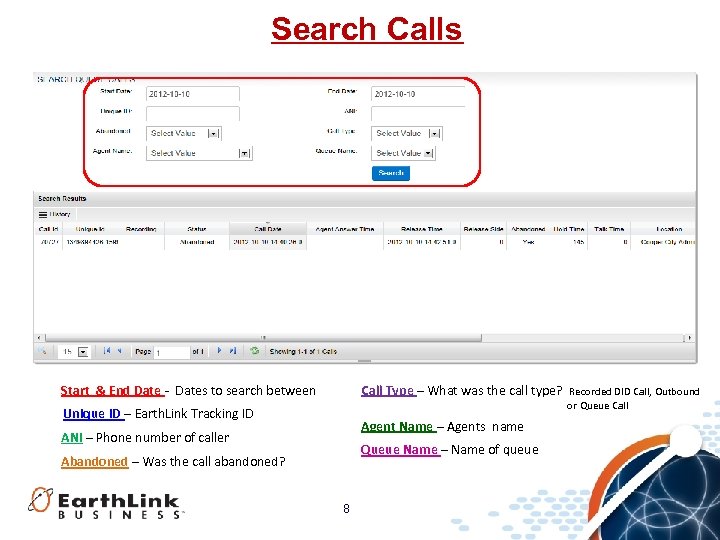
Search Calls Start & End Date - Dates to search between Call Type – What was the call type? Unique ID – Earth. Link Tracking ID Agent Name – Agents name ANI – Phone number of caller Queue Name – Name of queue Abandoned – Was the call abandoned? 8 Recorded DID Call, Outbound or Queue Call
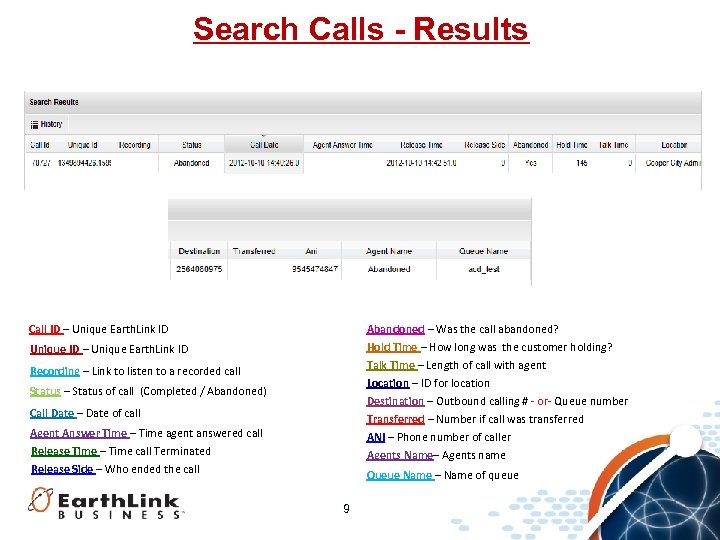
Search Calls - Results Call ID – Unique Earth. Link ID Abandoned – Was the call abandoned? Hold Time – How long was the customer holding? Talk Time – Length of call with agent Location – ID for location Destination – Outbound calling # - or- Queue number Transferred – Number if call was transferred ANI – Phone number of caller Agents Name– Agents name Unique ID – Unique Earth. Link ID Recording – Link to listen to a recorded call Status – Status of call (Completed / Abandoned) Call Date – Date of call Agent Answer Time – Time agent answered call Release Time – Time call Terminated Release Side – Who ended the call Queue Name – Name of queue 9
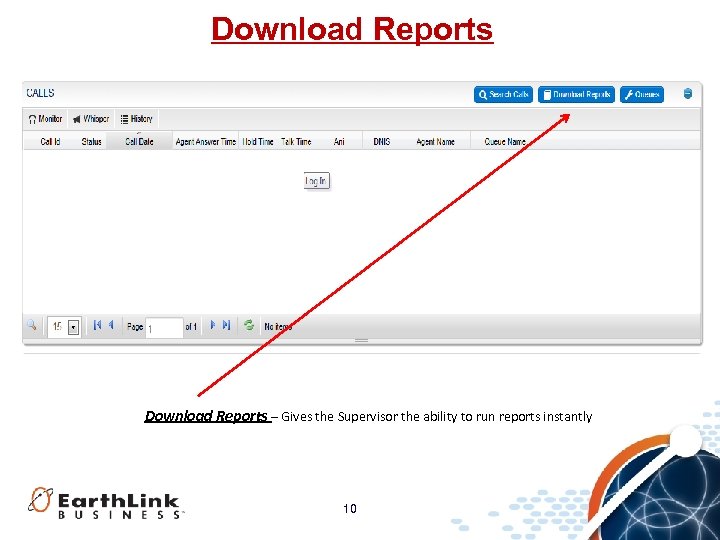
Download Reports – Gives the Supervisor the ability to run reports instantly 10
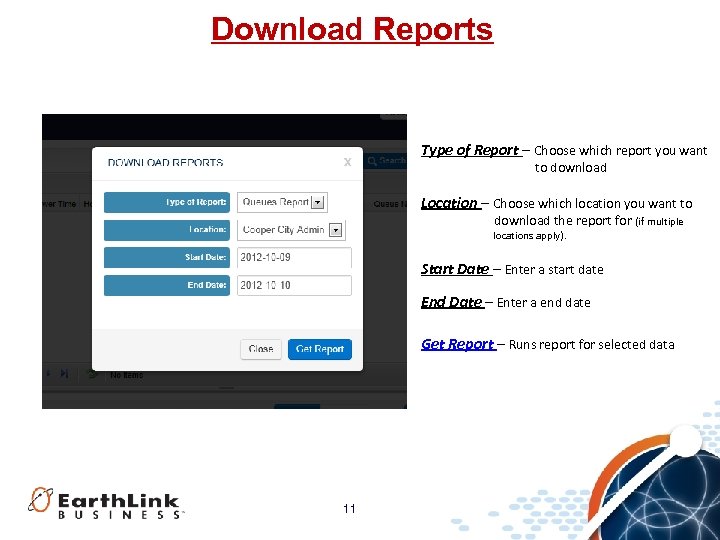
Download Reports Type of Report – Choose which report you want to download Location – Choose which location you want to download the report for (if multiple locations apply). Start Date – Enter a start date End Date – Enter a end date Get Report – Runs report for selected data 11
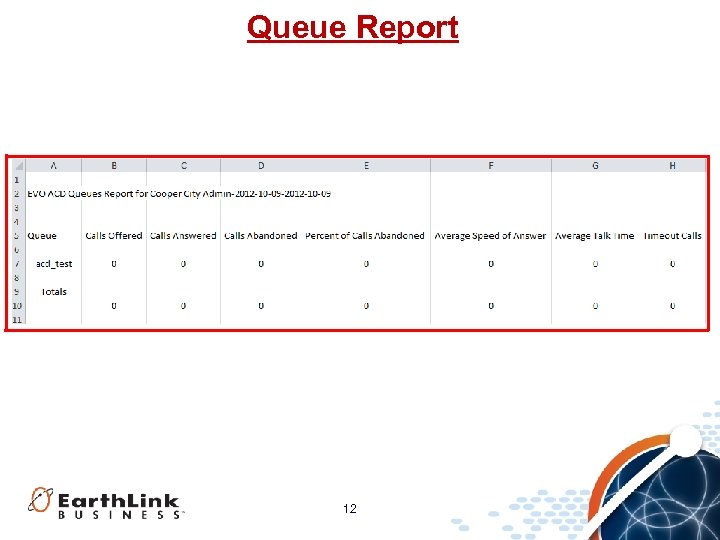
Queue Report 12
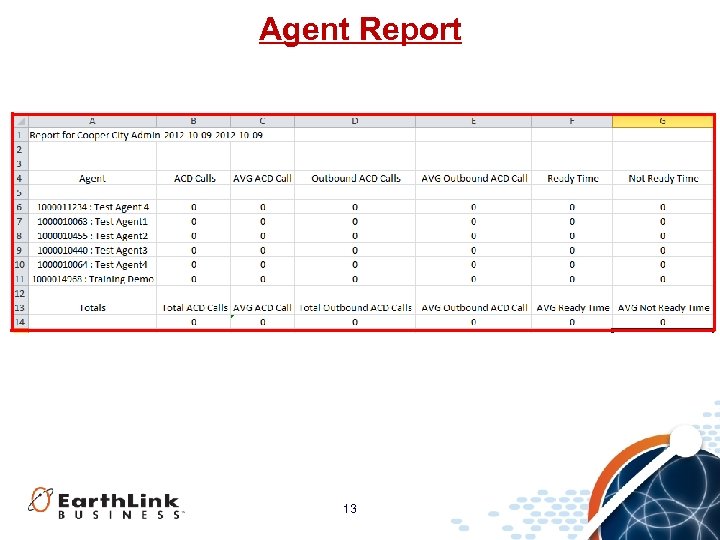
Agent Report 13
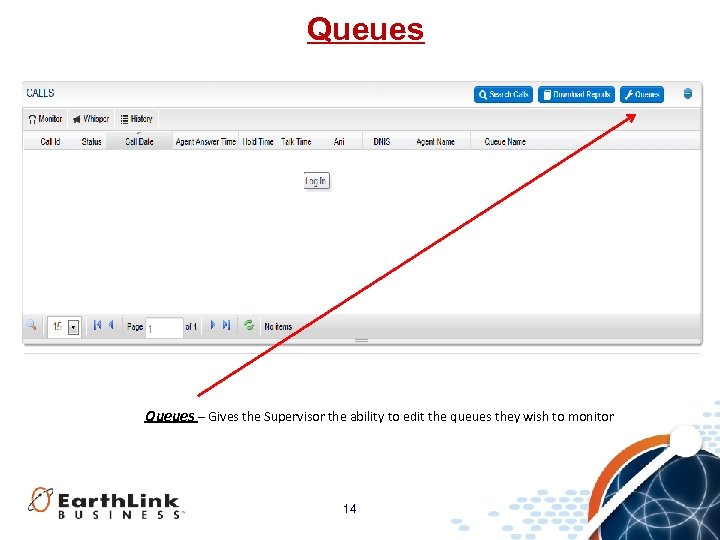
Queues – Gives the Supervisor the ability to edit the queues they wish to monitor 14
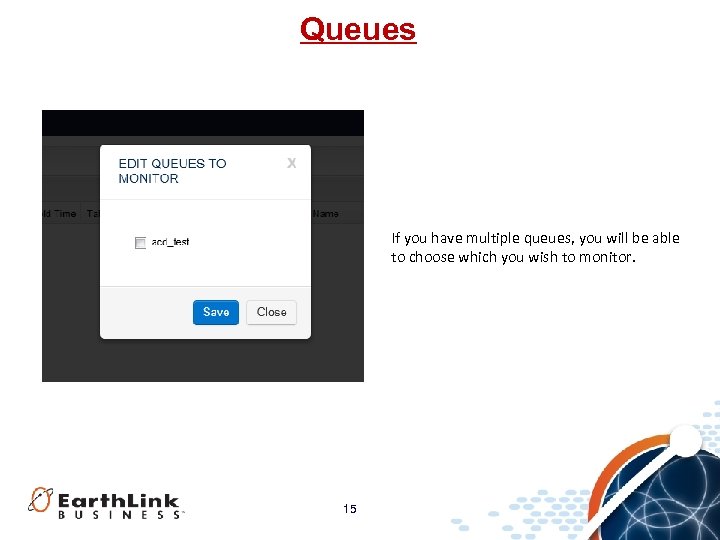
Queues If you have multiple queues, you will be able to choose which you wish to monitor. 15
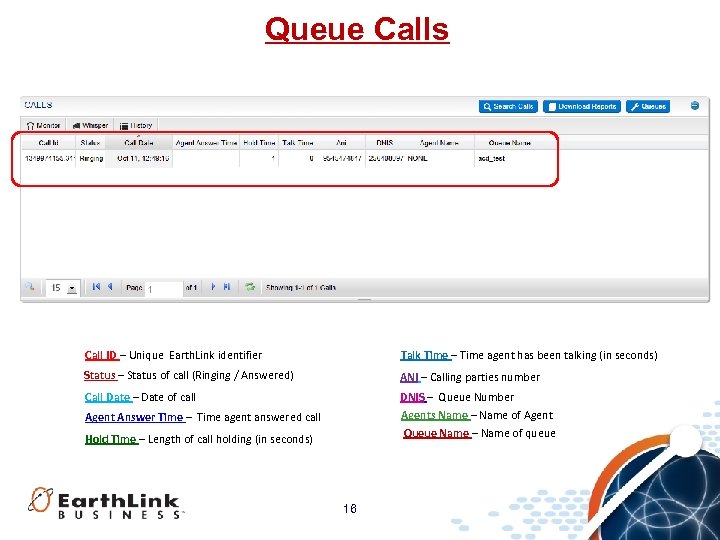
Queue Calls Call ID – Unique Earth. Link identifier Talk Time – Time agent has been talking (in seconds) Status – Status of call (Ringing / Answered) ANI – Calling parties number Call Date – Date of call DNIS – Queue Number Agents Name – Name of Agent Queue Name – Name of queue Agent Answer Time – Time agent answered call Hold Time – Length of call holding (in seconds) 16
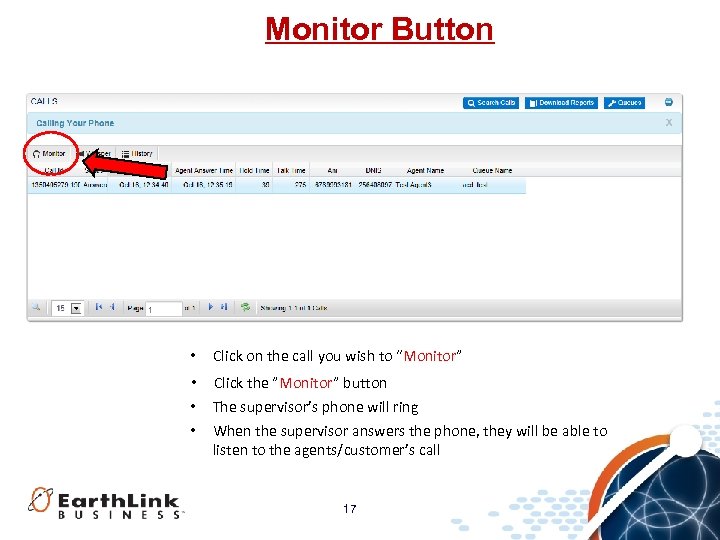
Monitor Button • Click on the call you wish to “Monitor” • Click the ”Monitor” button • The supervisor’s phone will ring • When the supervisor answers the phone, they will be able to listen to the agents/customer’s call 17
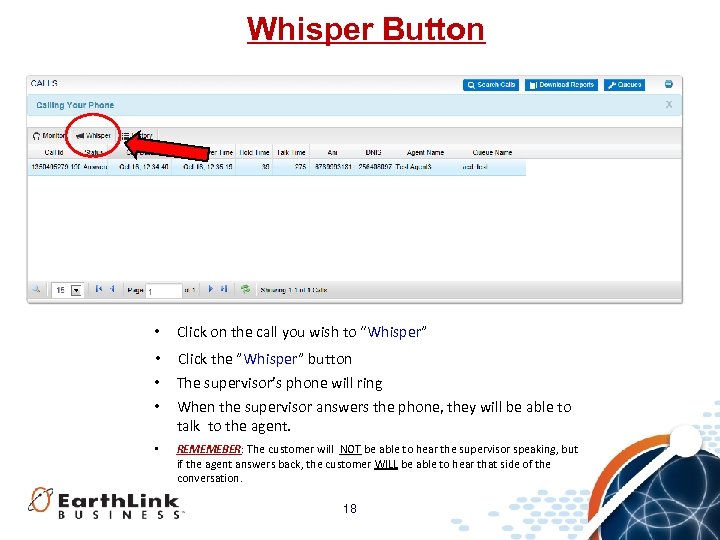
Whisper Button • Click on the call you wish to “Whisper” • Click the ”Whisper” button • The supervisor’s phone will ring • When the supervisor answers the phone, they will be able to talk to the agent. • REMEMEBER: The customer will NOT be able to hear the supervisor speaking, but if the agent answers back, the customer WILL be able to hear that side of the conversation. 18
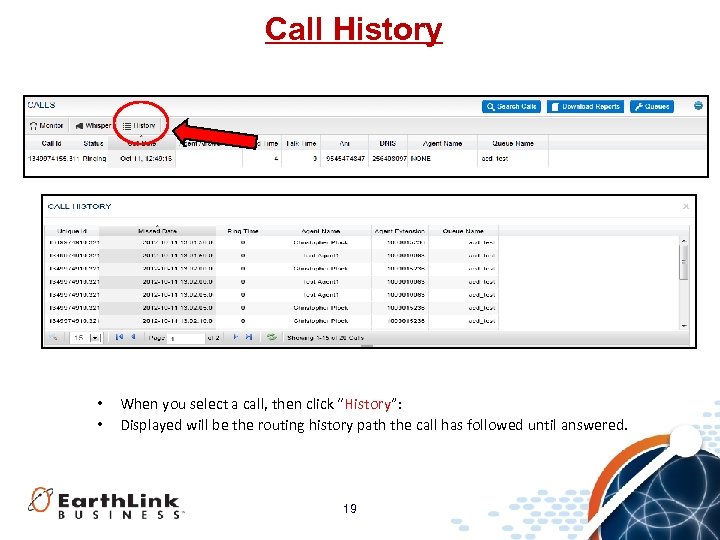
Call History • • When you select a call, then click “History”: Displayed will be the routing history path the call has followed until answered. 19
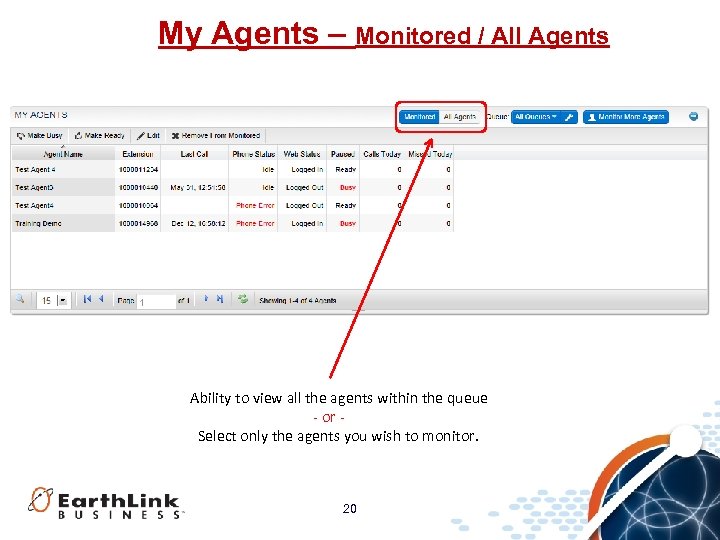
My Agents – Monitored / All Agents Ability to view all the agents within the queue - or Select only the agents you wish to monitor. 20
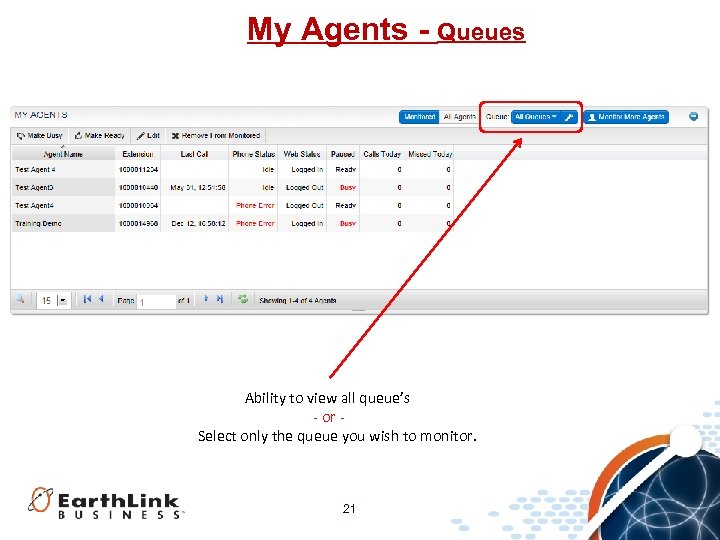
My Agents - Queues Ability to view all queue’s - or Select only the queue you wish to monitor. 21
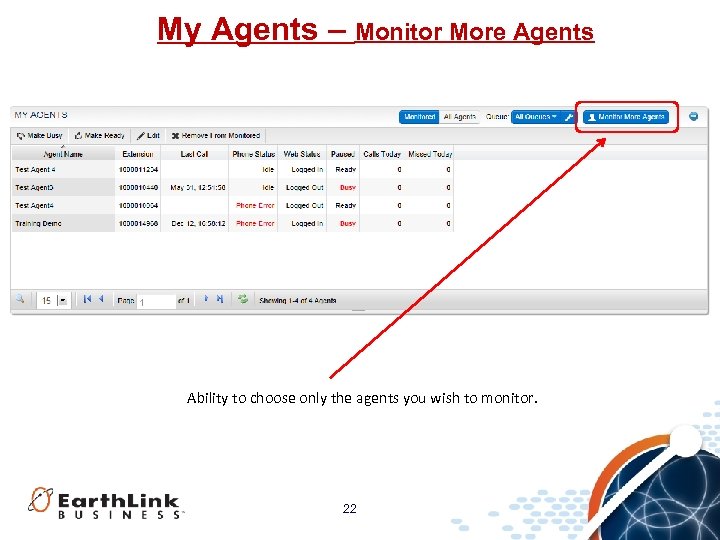
My Agents – Monitor More Agents Ability to choose only the agents you wish to monitor. 22
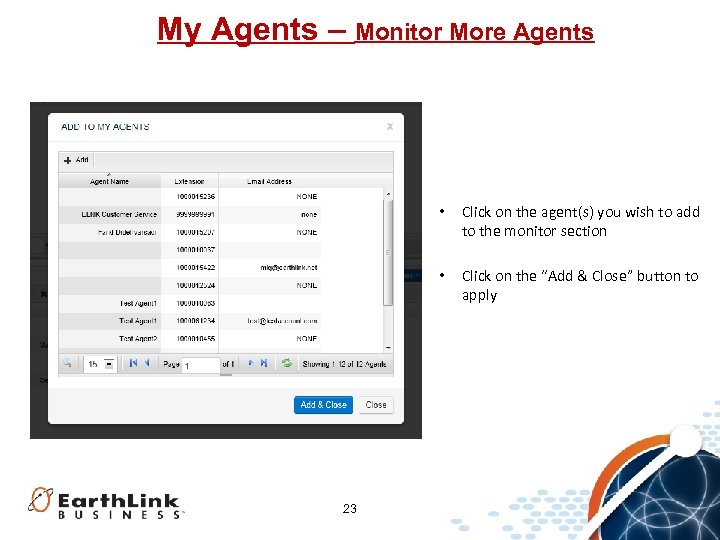
My Agents – Monitor More Agents • • 23 Click on the agent(s) you wish to add to the monitor section Click on the “Add & Close” button to apply
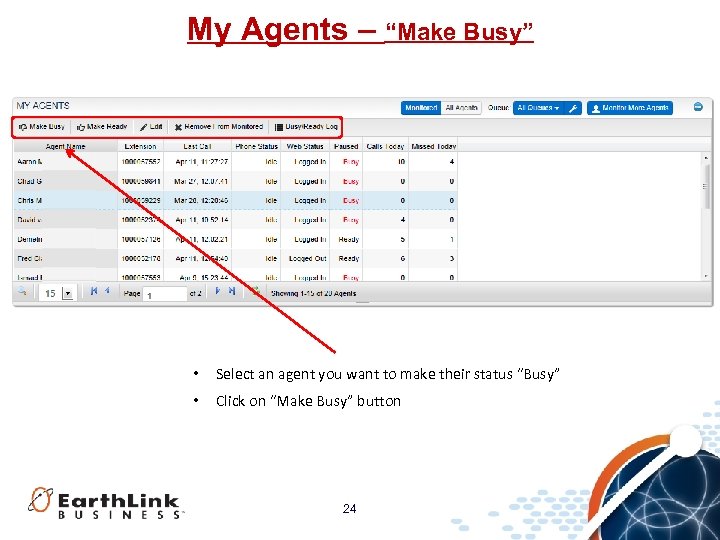
My Agents – “Make Busy” • Select an agent you want to make their status “Busy” • Click on “Make Busy” button 24
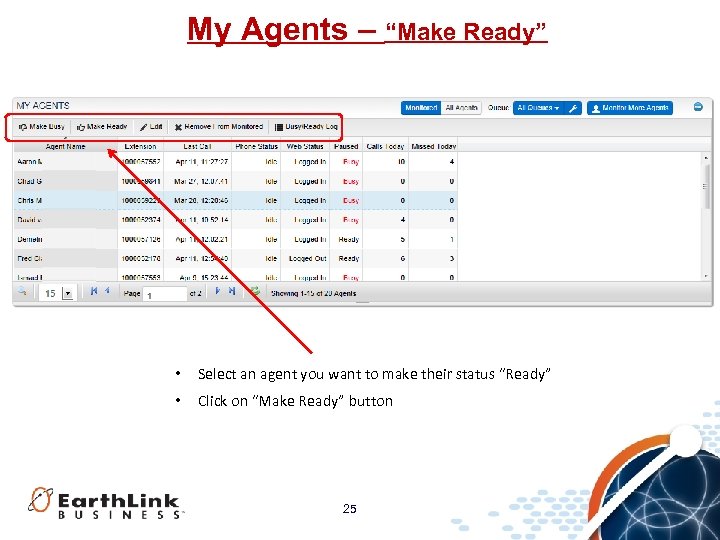
My Agents – “Make Ready” • Select an agent you want to make their status “Ready” • Click on “Make Ready” button 25
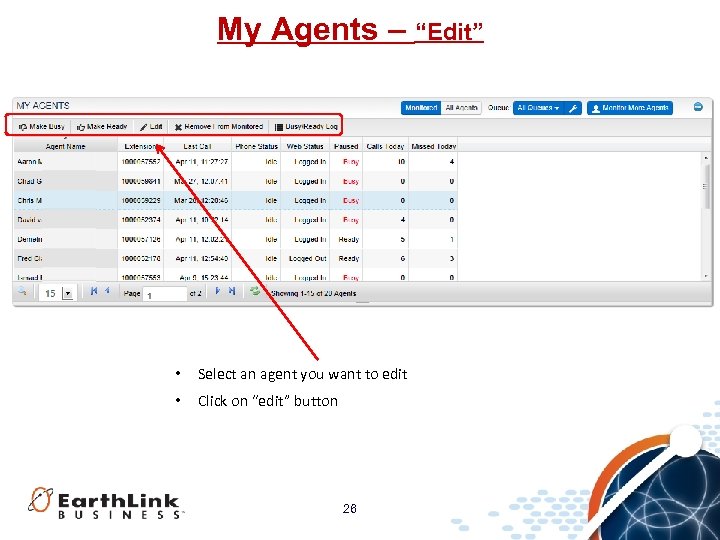
My Agents – “Edit” • Select an agent you want to edit • Click on “edit” button 26
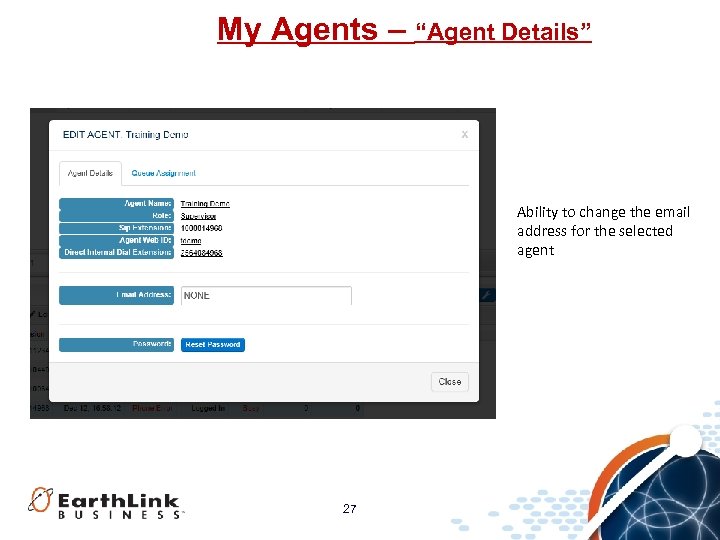
My Agents – “Agent Details” Ability to change the email address for the selected agent 27
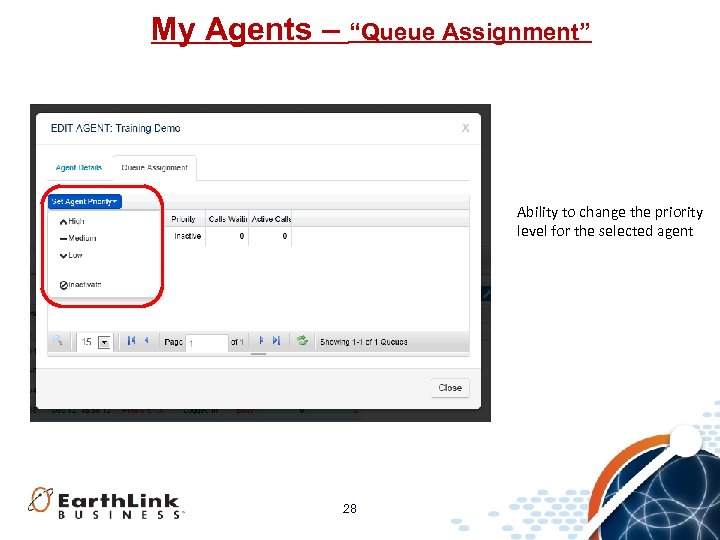
My Agents – “Queue Assignment” Ability to change the priority level for the selected agent 28
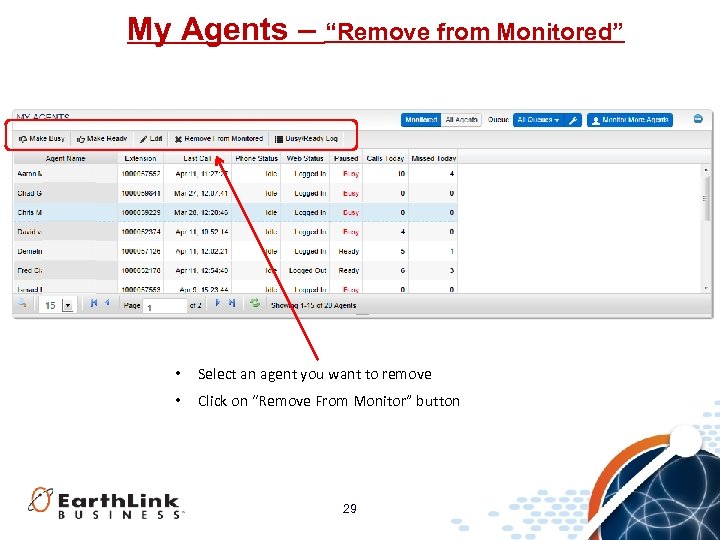
My Agents – “Remove from Monitored” • Select an agent you want to remove • Click on “Remove From Monitor” button 29
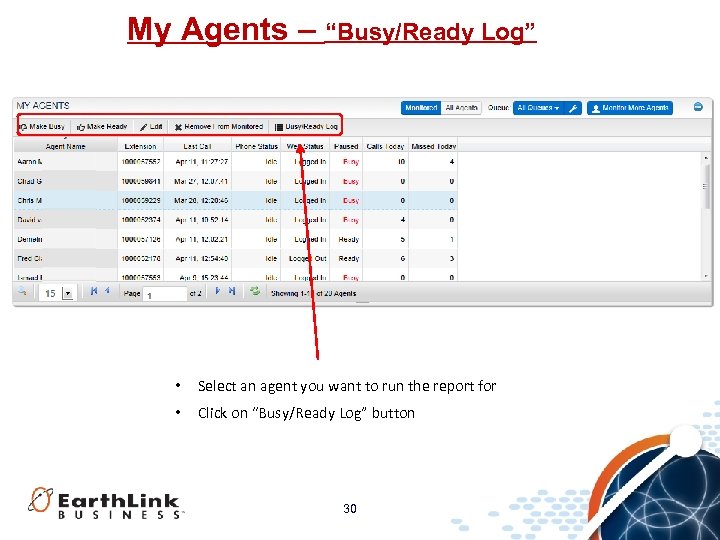
My Agents – “Busy/Ready Log” • Select an agent you want to run the report for • Click on “Busy/Ready Log” button 30
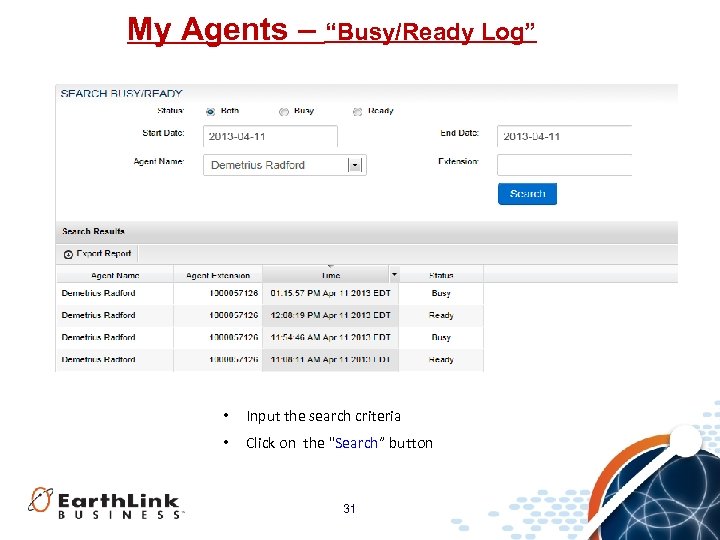
My Agents – “Busy/Ready Log” • Input the search criteria • Click on the "Search” button 31
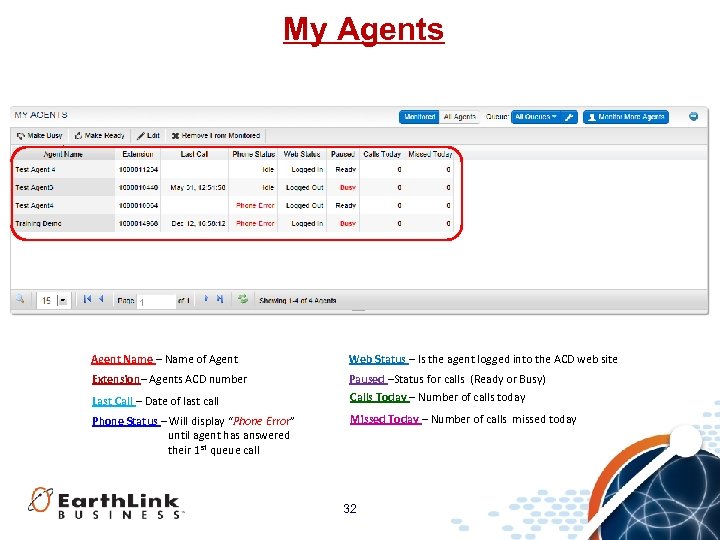
My Agents Agent Name – Name of Agent Web Status – Is the agent logged into the ACD web site Extension– Agents ACD number Paused –Status for calls (Ready or Busy) Calls Today – Number of calls today Last Call – Date of last call Phone Status – Will display “Phone Error” until agent has answered their 1 st queue call Missed Today – Number of calls missed today 32

For any questions or additional help, visit http: //www. earthlinkbusiness. com/hostedvoice - or Contact our Customer Care Specialists @ 1 -855 -352 -2731 33
When you exit this training session, you will automatically be linked to “Survey Monkey”, a training survey evaluation. This survey will help us improve the training content and effectiveness of our facilitators. The survey is confidential and secure Please complete the survey and have a great day. 34
Скачать презентацию Hosted Voice Product Training Automatic Call Distributor ACD
e984aa3049dea4fa42d44de4987091fc.ppt