 Скачать презентацию Handwriting Recognition Replacing the Keyboard and Mouse Presented
71fc08270981129b914964de255e2971.ppt
- Количество слайдов: 68



Handwriting Recognition Replacing the Keyboard and Mouse Presented By Sue Sydow Lyons-Decatur Northeast High School NETA 2005
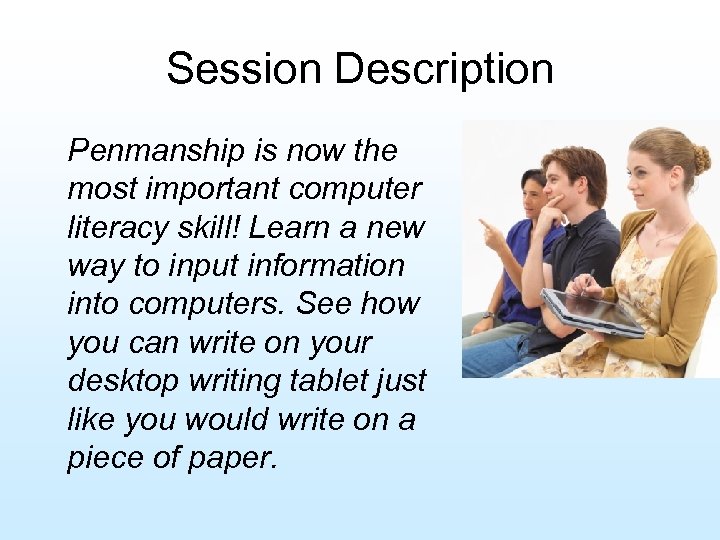
Session Description Penmanship is now the most important computer literacy skill! Learn a new way to input information into computers. See how you can write on your desktop writing tablet just like you would write on a piece of paper.
System Requirements: PC or Macintosh computer running Windows 98, 2000, Me, XP, or Mac OS 9, OS 10. 1. 5 & higher with available USB port, CD-ROM drive, color monitor and 64 MB of RAM (128 MB for Win XP or Mac OS X). pen. Palette LE for Windows requires Adobe Photoshop Elements (included) or Photoshop 5. 5 & higher. pen. Palette LE for Mac requires OS X and Photoshop Elements 2. 0 or Photoshop 7. 0. A special offer for Adobe Photoshop Elements 2. 0 is inside the box. •
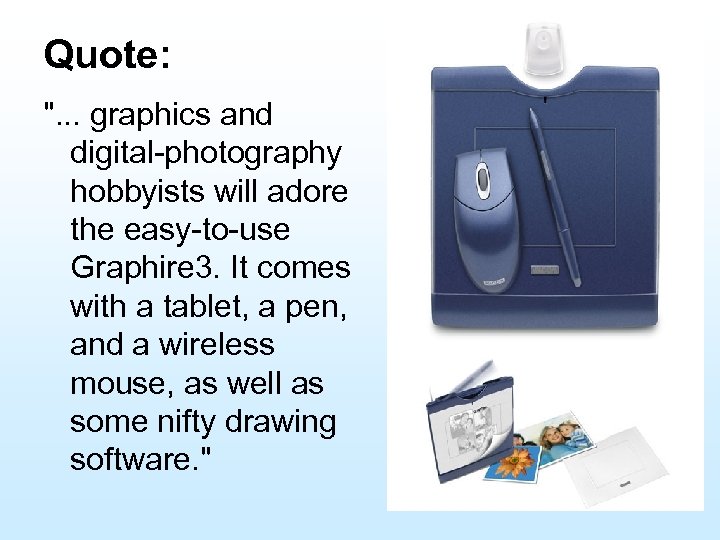
Quote: ". . . graphics and digital-photography hobbyists will adore the easy-to-use Graphire 3. It comes with a tablet, a pen, and a wireless mouse, as well as some nifty drawing software. "
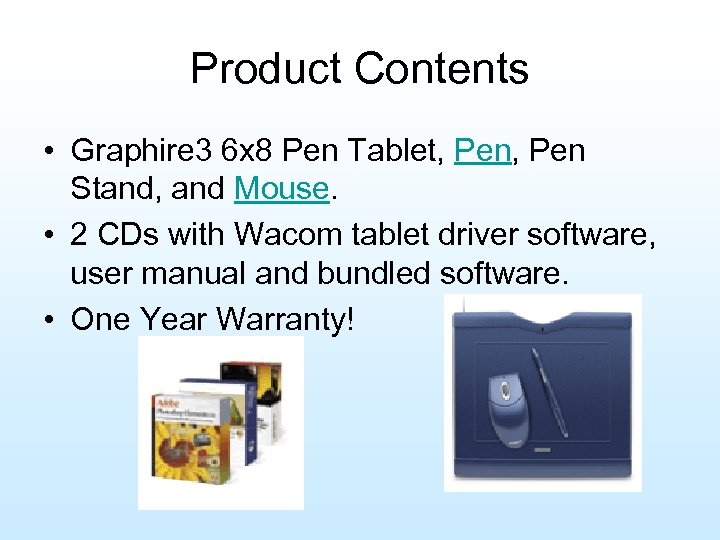
Product Contents • Graphire 3 6 x 8 Pen Tablet, Pen Stand, and Mouse. • 2 CDs with Wacom tablet driver software, user manual and bundled software. • One Year Warranty!
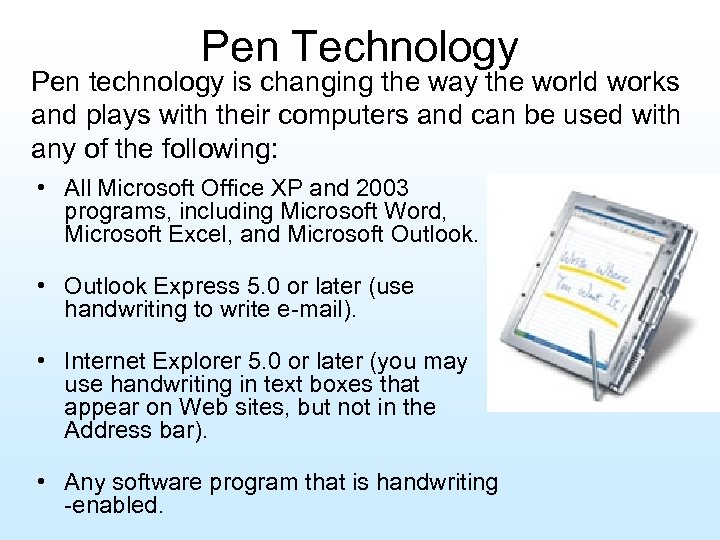
Pen Technology Pen technology is changing the way the world works and plays with their computers and can be used with any of the following: • All Microsoft Office XP and 2003 programs, including Microsoft Word, Microsoft Excel, and Microsoft Outlook. • Outlook Express 5. 0 or later (use handwriting to write e-mail). • Internet Explorer 5. 0 or later (you may use handwriting in text boxes that appear on Web sites, but not in the Address bar). • Any software program that is handwriting -enabled.
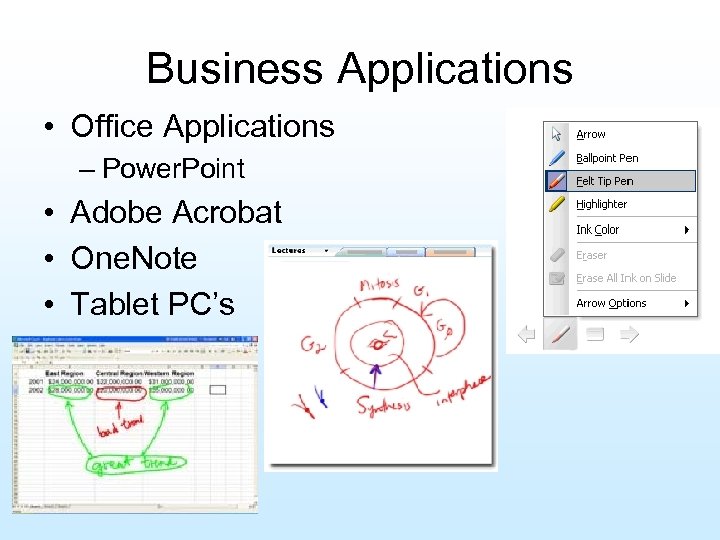
Business Applications • Office Applications – Power. Point • Adobe Acrobat • One. Note • Tablet PC’s
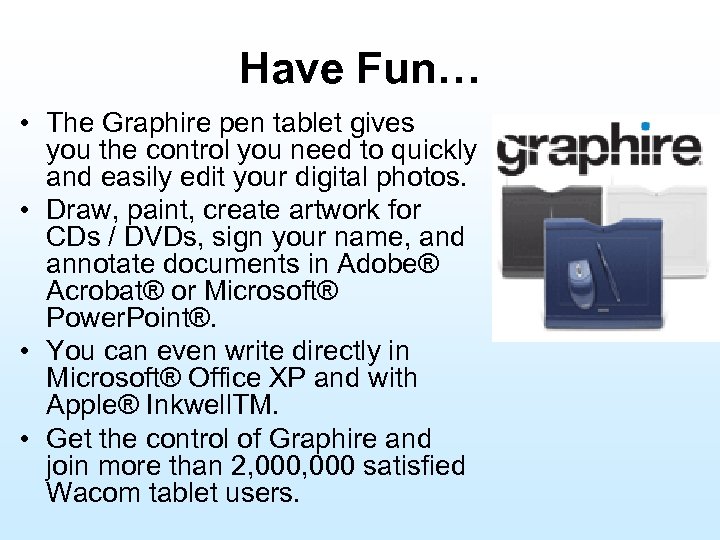
Have Fun… • The Graphire pen tablet gives you the control you need to quickly and easily edit your digital photos. • Draw, paint, create artwork for CDs / DVDs, sign your name, and annotate documents in Adobe® Acrobat® or Microsoft® Power. Point®. • You can even write directly in Microsoft® Office XP and with Apple® Inkwell. TM. • Get the control of Graphire and join more than 2, 000 satisfied Wacom tablet users.
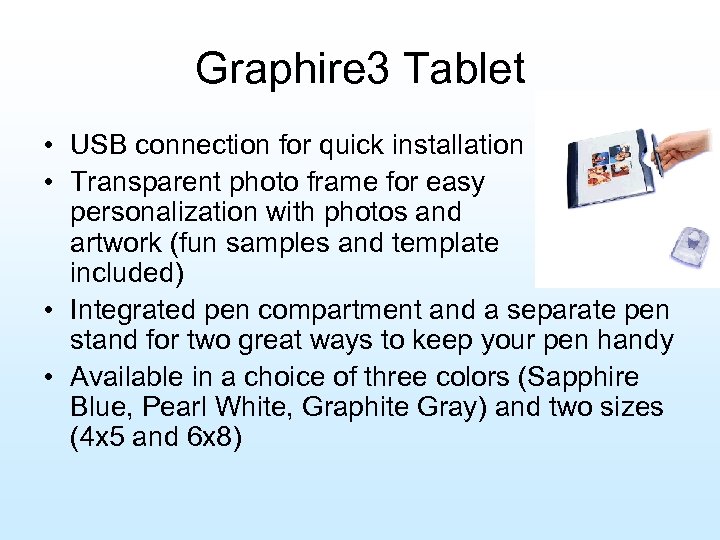
Graphire 3 Tablet • USB connection for quick installation • Transparent photo frame for easy personalization with photos and artwork (fun samples and template included) • Integrated pen compartment and a separate pen stand for two great ways to keep your pen handy • Available in a choice of three colors (Sapphire Blue, Pearl White, Graphite Gray) and two sizes (4 x 5 and 6 x 8)
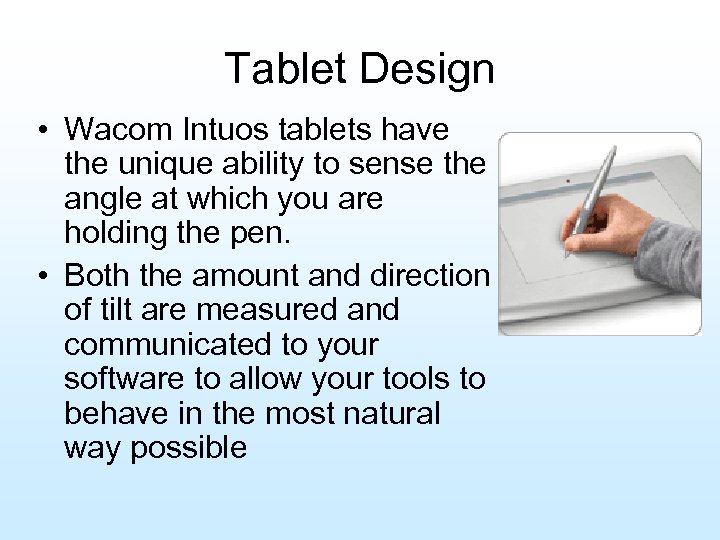
Tablet Design • Wacom Intuos tablets have the unique ability to sense the angle at which you are holding the pen. • Both the amount and direction of tilt are measured and communicated to your software to allow your tools to behave in the most natural way possible
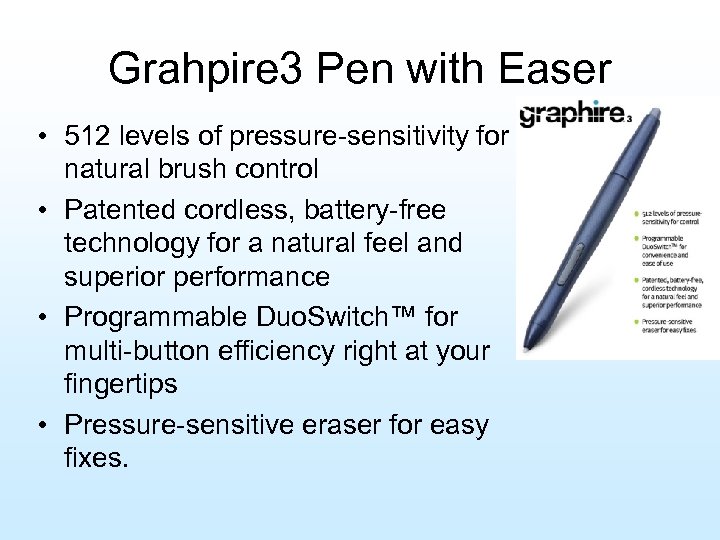
Grahpire 3 Pen with Easer • 512 levels of pressure-sensitivity for natural brush control • Patented cordless, battery-free technology for a natural feel and superior performance • Programmable Duo. Switch™ for multi-button efficiency right at your fingertips • Pressure-sensitive eraser for easy fixes.
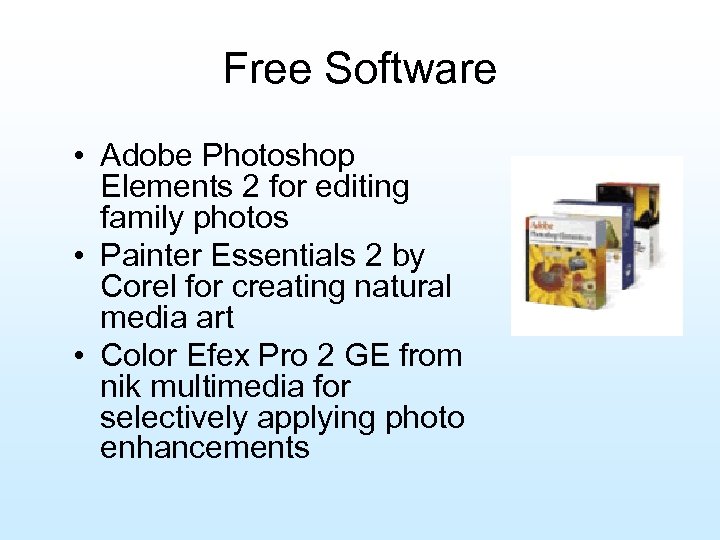
Free Software • Adobe Photoshop Elements 2 for editing family photos • Painter Essentials 2 by Corel for creating natural media art • Color Efex Pro 2 GE from nik multimedia for selectively applying photo enhancements
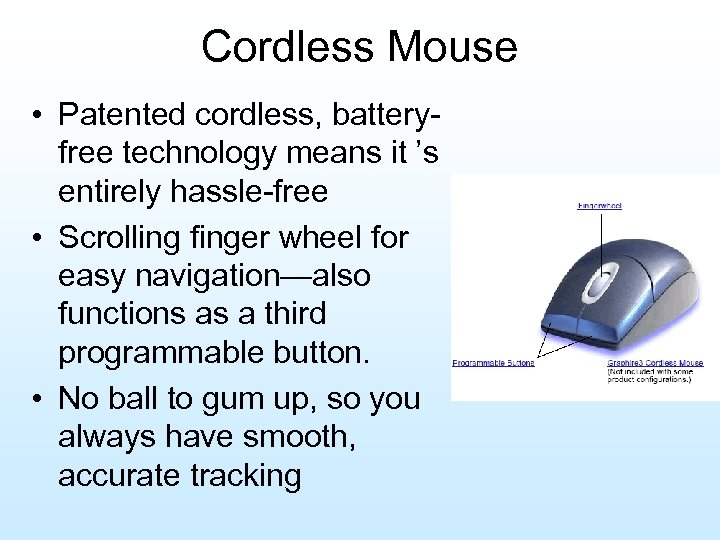
Cordless Mouse • Patented cordless, batteryfree technology means it ’s entirely hassle-free • Scrolling finger wheel for easy navigation—also functions as a third programmable button. • No ball to gum up, so you always have smooth, accurate tracking
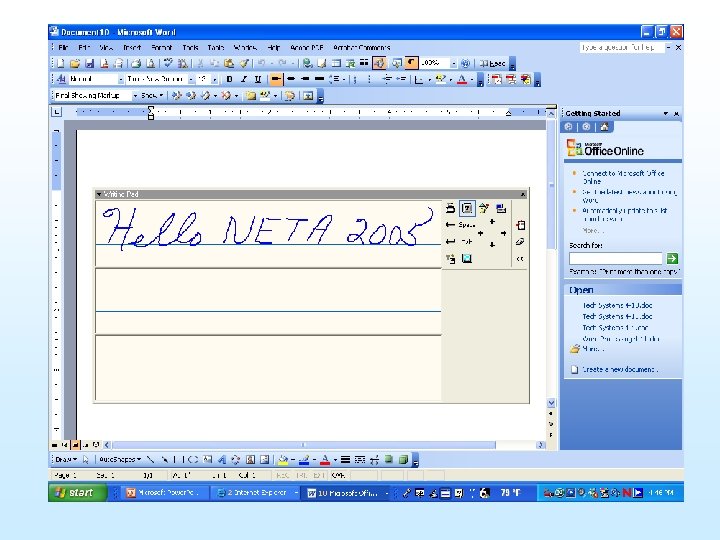
Writing Pad
Penmanship… Penmanship is now a very important computer literacy skill!
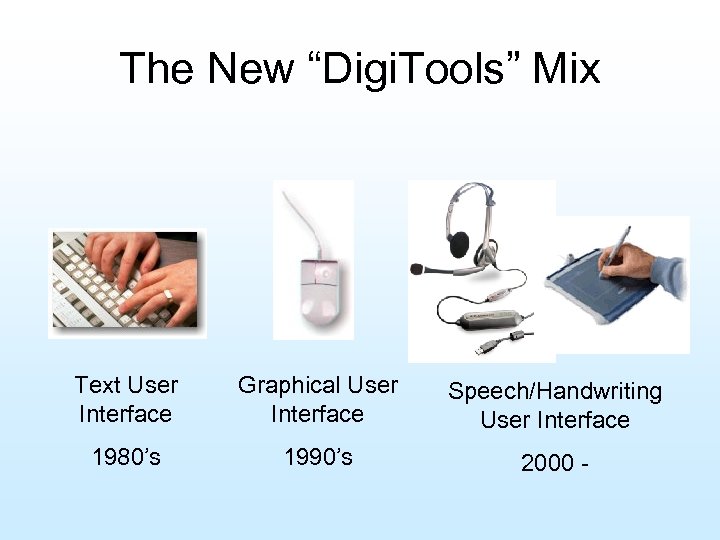
The New “Digi. Tools” Mix Text User Interface Graphical User Interface Speech/Handwriting User Interface 1980’s 1990’s 2000 -
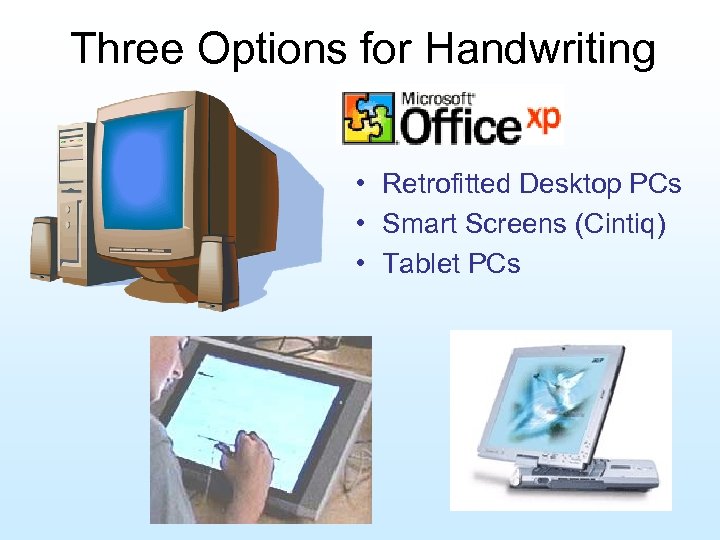
Three Options for Handwriting • Retrofitted Desktop PCs • Smart Screens (Cintiq) • Tablet PCs
Bill Gates -- Comdex 2001 in November “The Tablet takes cutting-edge PC technology and makes it available wherever you want it, which is why I'm already using a Tablet as my everyday computer. It's a PC that is virtually without limits -- and within five years (3. 25 years and counting) I predict it will be the most popular form of PC sold in America. " [PCs with Tablet capabilities] (Bill Gates Keynote Speech, Comdex 2001, downloaded from HTTP: //www. microsoft. com/presspass/press/2001/.
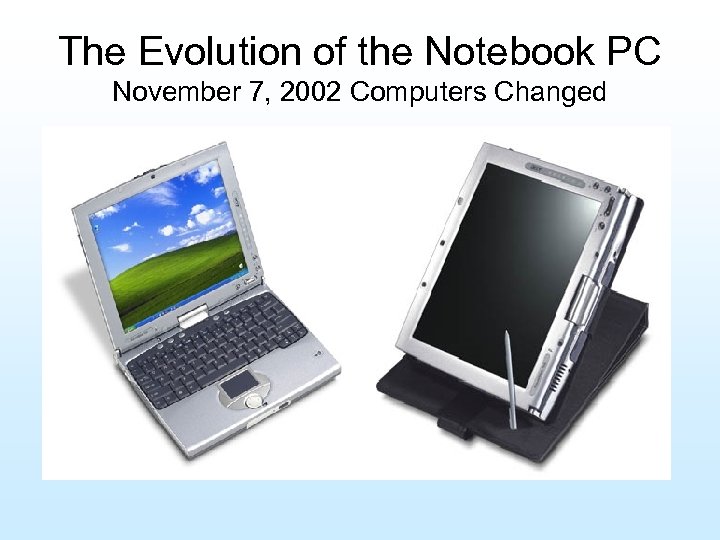
The Evolution of the Notebook PC November 7, 2002 Computers Changed
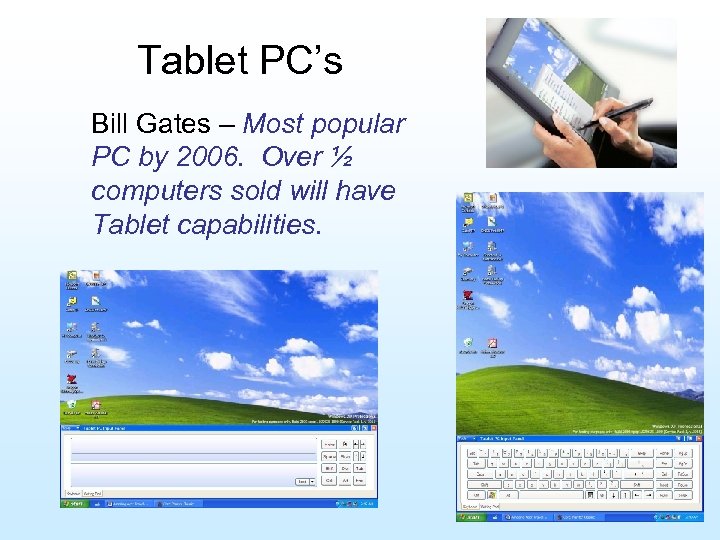
Tablet PC’s Bill Gates – Most popular PC by 2006. Over ½ computers sold will have Tablet capabilities.
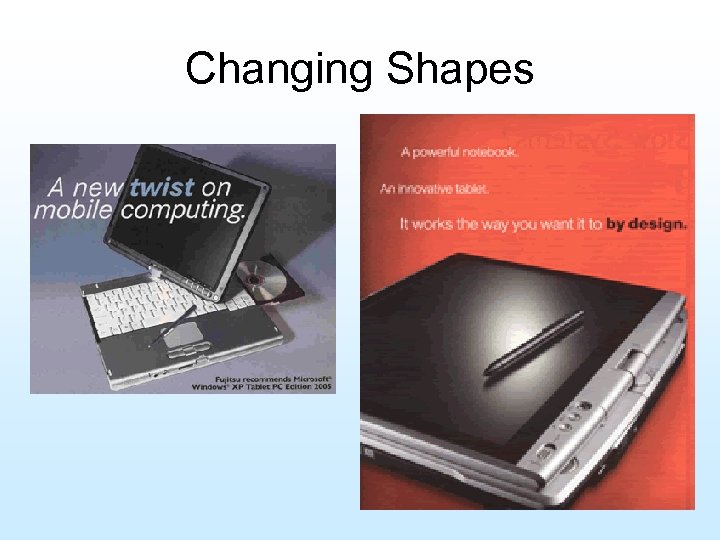
Changing Shapes
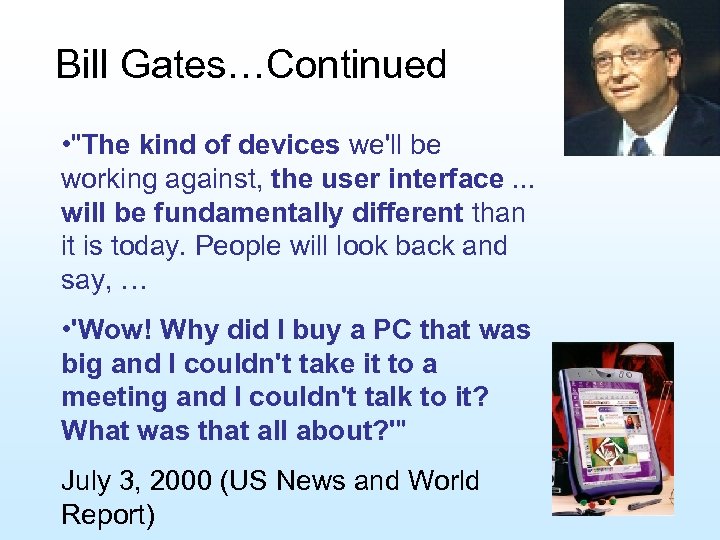
Bill Gates…Continued • "The kind of devices we'll be working against, the user interface. . . will be fundamentally different than it is today. People will look back and say, … • 'Wow! Why did I buy a PC that was big and I couldn't take it to a meeting and I couldn't talk to it? What was that all about? '" July 3, 2000 (US News and World Report)
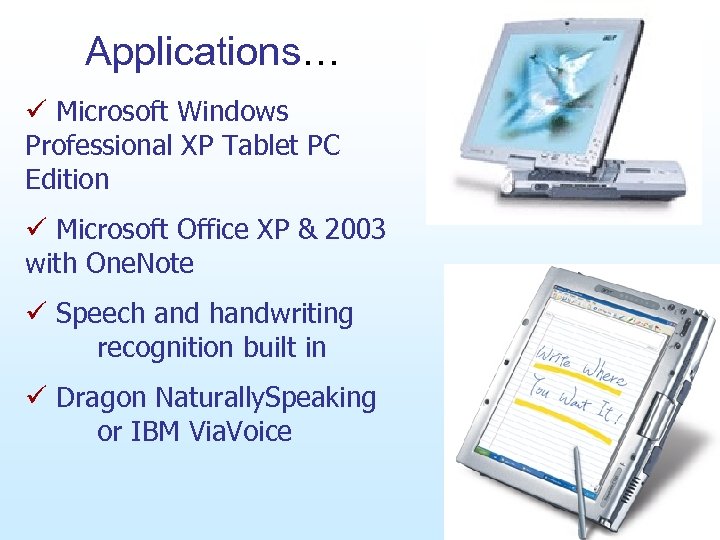
Applications… ü Microsoft Windows Professional XP Tablet PC Edition ü Microsoft Office XP & 2003 with One. Note ü Speech and handwriting recognition built in ü Dragon Naturally. Speaking or IBM Via. Voice
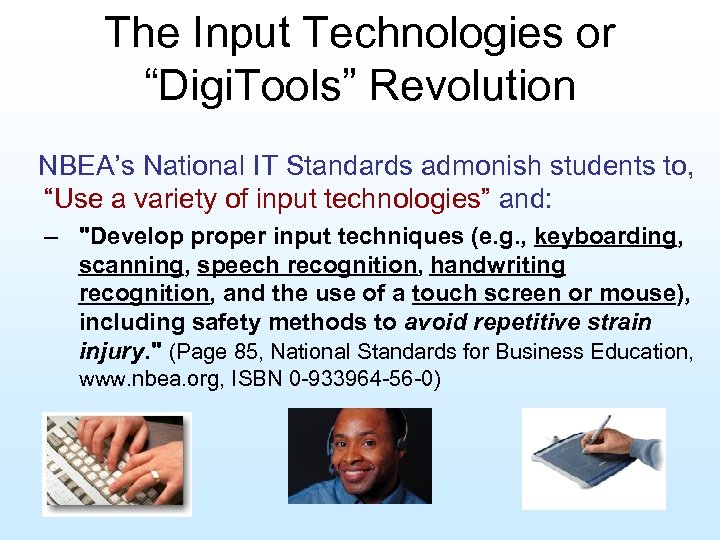
The Input Technologies or “Digi. Tools” Revolution NBEA’s National IT Standards admonish students to, “Use a variety of input technologies” and: – "Develop proper input techniques (e. g. , keyboarding, scanning, speech recognition, handwriting recognition, and the use of a touch screen or mouse), including safety methods to avoid repetitive strain injury. " (Page 85, National Standards for Business Education, www. nbea. org, ISBN 0 -933964 -56 -0)
The Input Technologies or “Digi. Tools” Revolution The Policies Commission for Business and Economic Education is a national-level commission representing the ACTE or Association for Career and Technical Education/Business Education Division, Delta Pi Epsilon, and the National Business Education Association or NBEA. Policy Statement 73: This We Believe about Computer. Input Technologies: • “The policy asks Business Education teachers to “. . . take the lead in using, teaching, and integrating computerinput technologies into the curriculum. "
The Input Technologies or “Digi. Tools” Revolution “Trends in technology require business educators to provide opportunities for all students to learn the new technologies and techniques that are emerging in today’s workplace. Current technologies include speech recognition; handwriting recognition tools, such as Tablet PCs; Personal Digital Assistants (PDAs) and other handheld devices; and scanners. While touch keyboarding techniques remain a viable foundation for entering and manipulating text and data, other skills include composing, editing, enunciating, electronic handwriting, and scanning. Educators must provide instruction on a variety of input technologies for successful academic, professional, and personal applications. ” (www. Speaking. Solutions. com/news/art 16. htm)
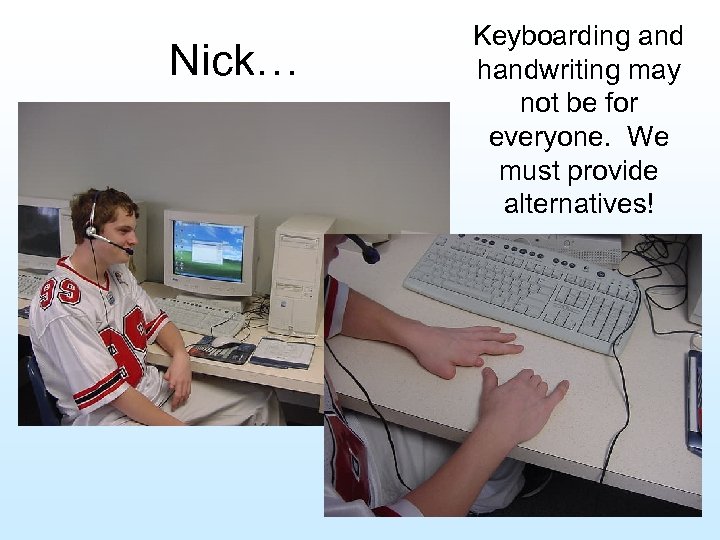
Nick… Keyboarding and handwriting may not be for everyone. We must provide alternatives!
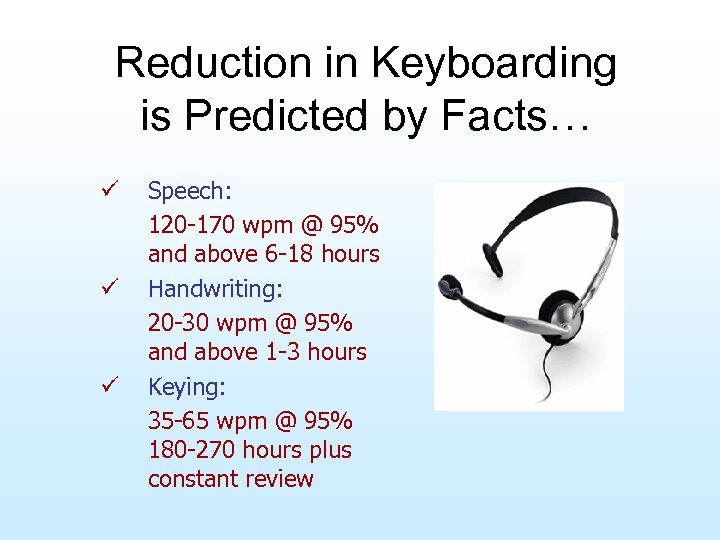
Reduction in Keyboarding is Predicted by Facts… ü ü ü Speech: 120 -170 wpm @ 95% and above 6 -18 hours Handwriting: 20 -30 wpm @ 95% and above 1 -3 hours Keying: 35 -65 wpm @ 95% 180 -270 hours plus constant review
New Computer Literacy Skills P Penmanship P Reading Aloud Clearly P Pronunciation & Enunciation
Policy Statement 73: The Policies Commission also took a powerful position on the injury prevention issue with the following statement: "We believe that students must be made aware of the health benefits of an integrated approach to text and data input. Research indicates that carpal tunnel syndrome and other repetitive strain injuries may be linked to occupations that require repetitive use of the hands (i. e. , keyboarding and mouse operations). Varying the use of computerinput technologies reduces the risk of repetitive motion injuries. " • Please take the time to read the entire document. . . www. speakingsolutions. com/news/art 16. htm
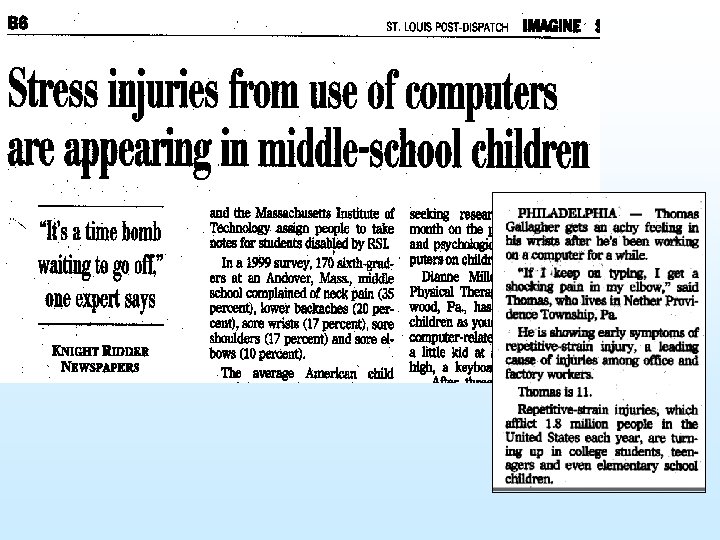
• Are Keyboard & Mouse Hazards to your Children? • Michael Rutter • Christa Mc. Auliffe Fellow • For the record, one in four adult computer users will suffer from some form of RSI. With children, since young bodies are still growing, the number is greater. And the problem isn’t gender friendly since females are three times as likely as males to have problems. Apparently, there is a down side to technology.

• Are Keyboard & Mouse Hazards to your Children? • Michael Rutter • Christa Mc. Auliffe Fellow • Are your children at risk? • Millions are. Currently, 21 million Americans suffer from some form of repetitive stress injury (RSI) including carpal tunnel syndrome. What is especially troubling to health officials, however, is the ever-increasing injuries among children and teens. • The culprit isn’t lurking among the shadows. It’s likely sitting in plain sight. Don’t look further than the trusty keyboard and mouse on the nearest PC.
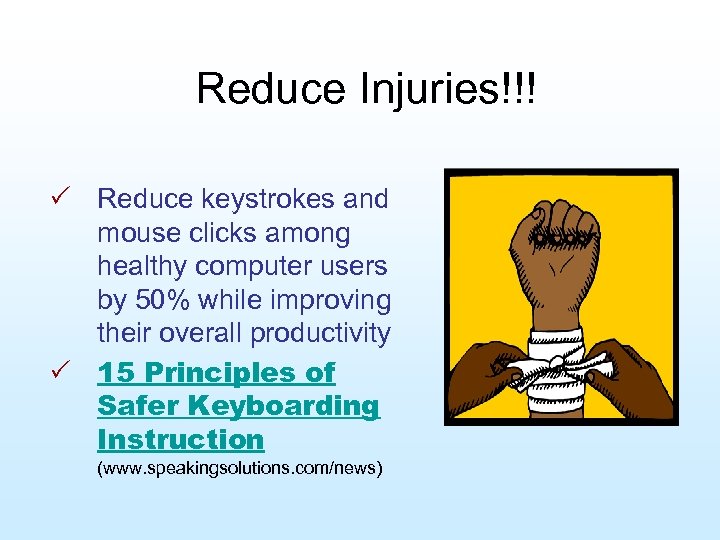
Reduce Injuries!!! P Reduce keystrokes and mouse clicks among healthy computer users by 50% while improving their overall productivity P 15 Principles of Safer Keyboarding Instruction (www. speakingsolutions. com/news)
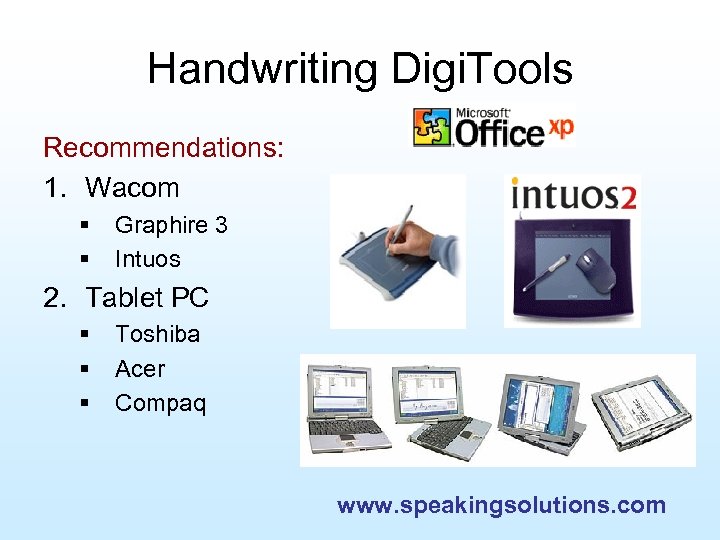
Handwriting Digi. Tools Recommendations: 1. Wacom § § Graphire 3 Intuos 2. Tablet PC § § § Toshiba Acer Compaq www. speakingsolutions. com
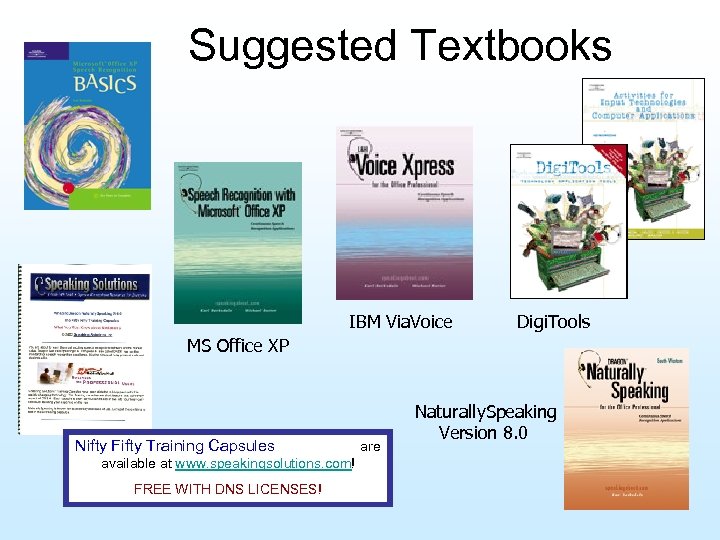
Suggested Textbooks IBM Via. Voice Digi. Tools MS Office XP Nifty Fifty Training Capsules are available at www. speakingsolutions. com! FREE WITH DNS LICENSES! Naturally. Speaking Version 8. 0
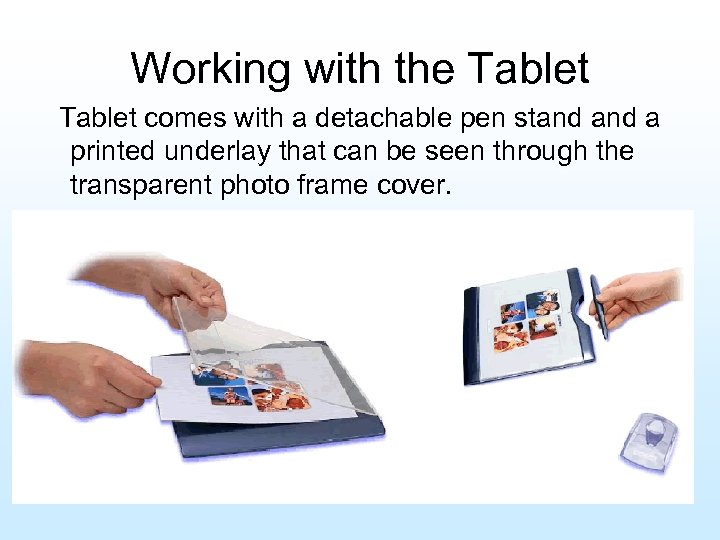
Working with the Tablet comes with a detachable pen stand a printed underlay that can be seen through the transparent photo frame cover.
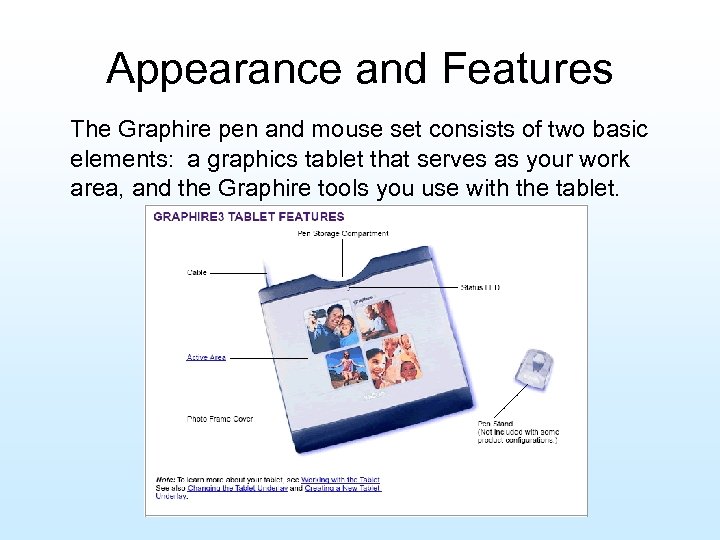
Appearance and Features The Graphire pen and mouse set consists of two basic elements: a graphics tablet that serves as your work area, and the Graphire tools you use with the tablet.
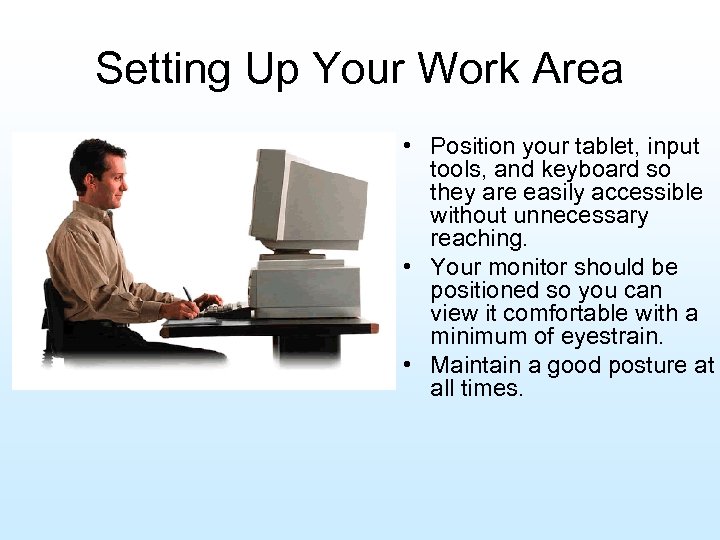
Setting Up Your Work Area • Position your tablet, input tools, and keyboard so they are easily accessible without unnecessary reaching. • Your monitor should be positioned so you can view it comfortable with a minimum of eyestrain. • Maintain a good posture at all times.
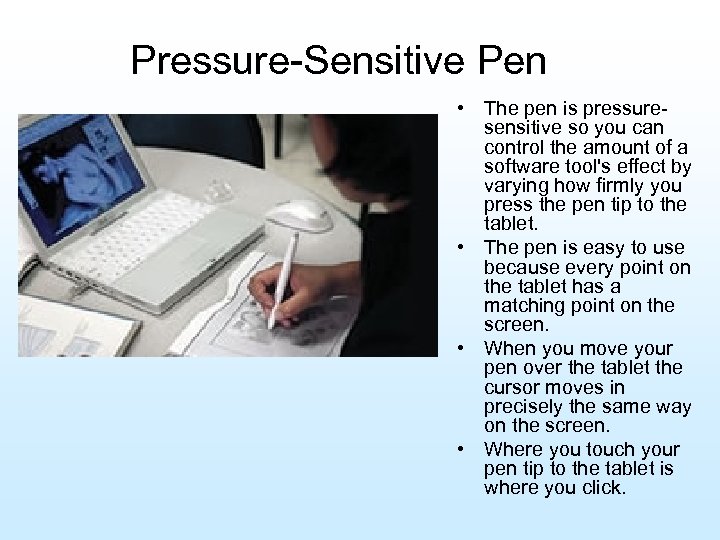
Pressure-Sensitive Pen • The pen is pressuresensitive so you can control the amount of a software tool's effect by varying how firmly you press the pen tip to the tablet. • The pen is easy to use because every point on the tablet has a matching point on the screen. • When you move your pen over the tablet the cursor moves in precisely the same way on the screen. • Where you touch your pen tip to the tablet is where you click.
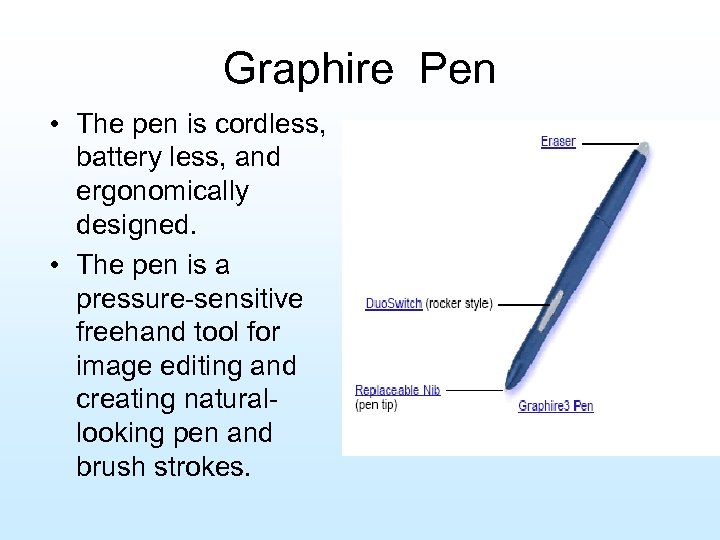
Graphire Pen • The pen is cordless, battery less, and ergonomically designed. • The pen is a pressure-sensitive freehand tool for image editing and creating naturallooking pen and brush strokes.
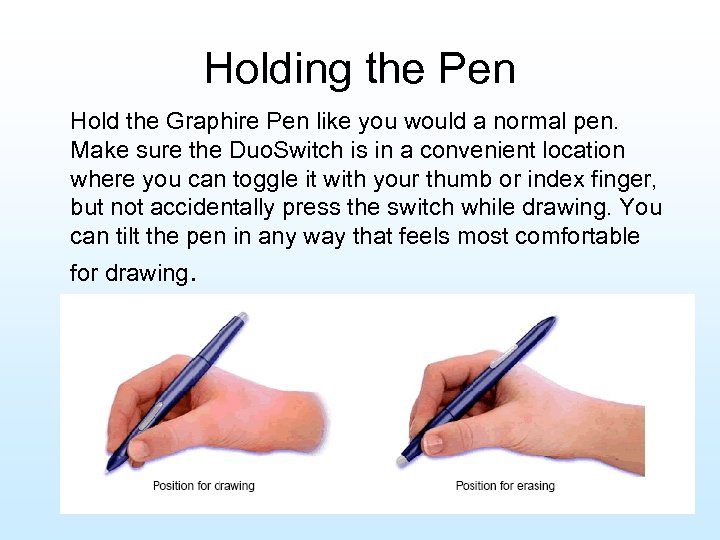
Holding the Pen Hold the Graphire Pen like you would a normal pen. Make sure the Duo. Switch is in a convenient location where you can toggle it with your thumb or index finger, but not accidentally press the switch while drawing. You can tilt the pen in any way that feels most comfortable for drawing.
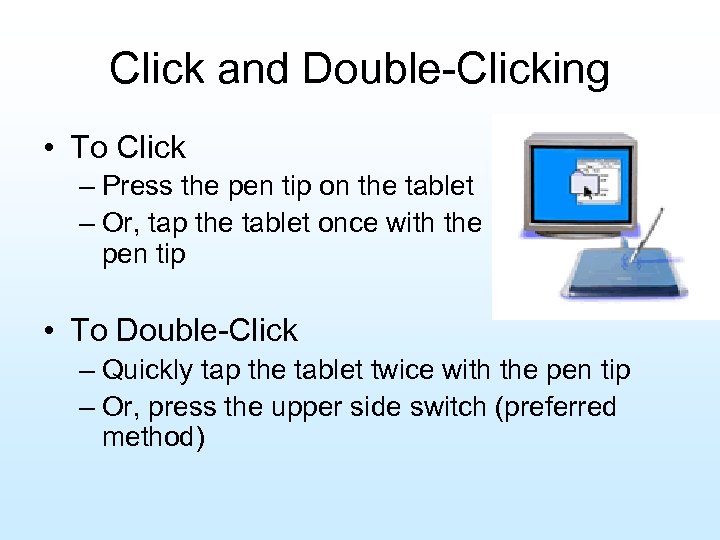
Click and Double-Clicking • To Click – Press the pen tip on the tablet – Or, tap the tablet once with the pen tip • To Double-Click – Quickly tap the tablet twice with the pen tip – Or, press the upper side switch (preferred method)
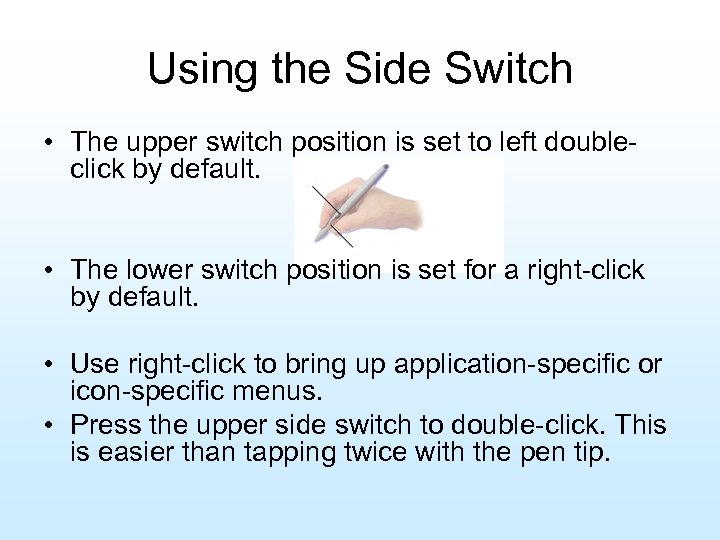
Using the Side Switch • The upper switch position is set to left doubleclick by default. • The lower switch position is set for a right-click by default. • Use right-click to bring up application-specific or icon-specific menus. • Press the upper side switch to double-click. This is easier than tapping twice with the pen tip.
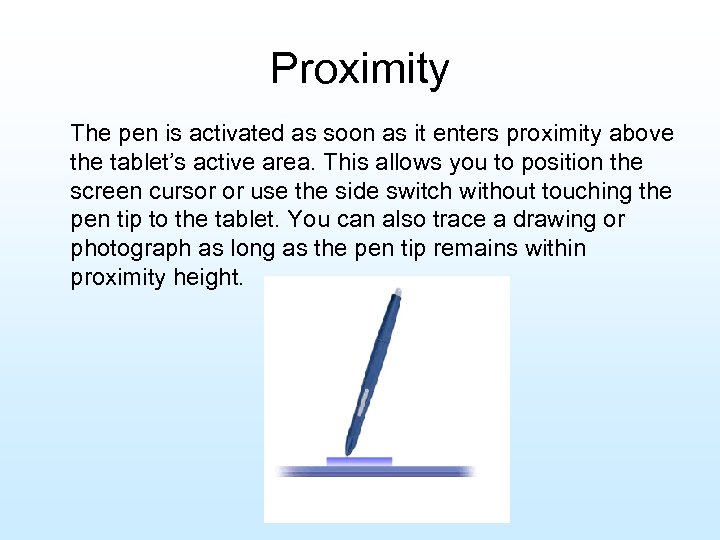
Proximity The pen is activated as soon as it enters proximity above the tablet’s active area. This allows you to position the screen cursor or use the side switch without touching the pen tip to the tablet. You can also trace a drawing or photograph as long as the pen tip remains within proximity height.
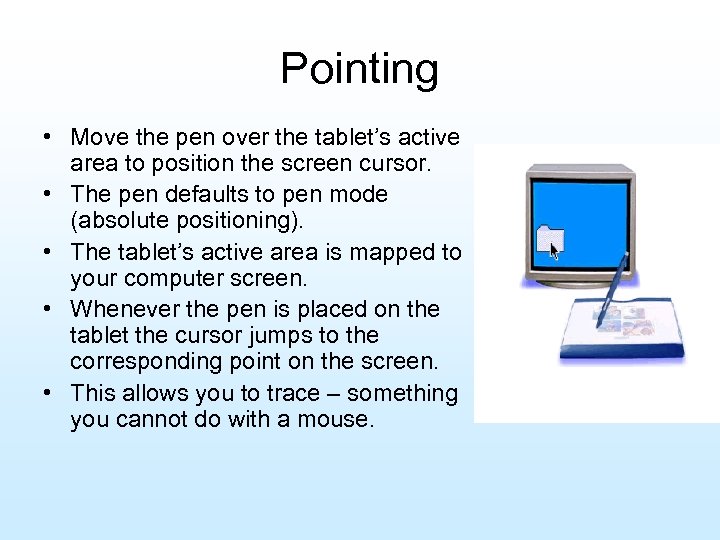
Pointing • Move the pen over the tablet’s active area to position the screen cursor. • The pen defaults to pen mode (absolute positioning). • The tablet’s active area is mapped to your computer screen. • Whenever the pen is placed on the tablet the cursor jumps to the corresponding point on the screen. • This allows you to trace – something you cannot do with a mouse.
Pointing…continued • Pen Mode, the tablet’s active area is a mapped representation of your computer screen where every point on the tablet’s active area corresponds to exactly one point on the display screen. Wherever you place the pen on the tablet, the screen cursor will jump to the corresponding point on the screen. Ths is the default setting for the pen and makes tracing possible. • In Mouse Mode, (the default position for the Cordless Mouse), you move the cursor with a “pick up and roll” action similar to using a mouse. • Pointing is easier when you orient the tablet so the screen cursor follows the same direction as your hand movements over the tablet.
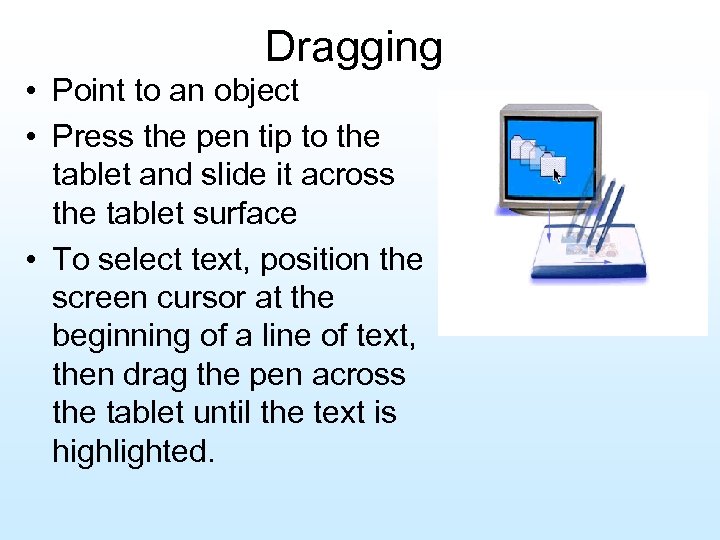
Dragging • Point to an object • Press the pen tip to the tablet and slide it across the tablet surface • To select text, position the screen cursor at the beginning of a line of text, then drag the pen across the tablet until the text is highlighted.
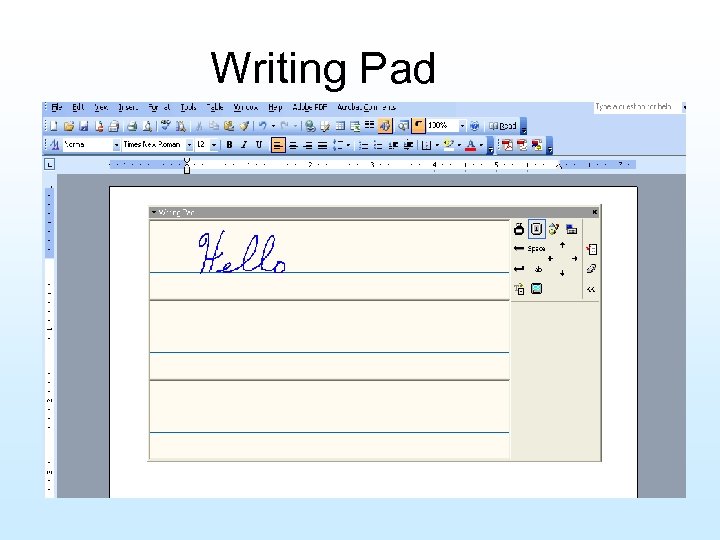
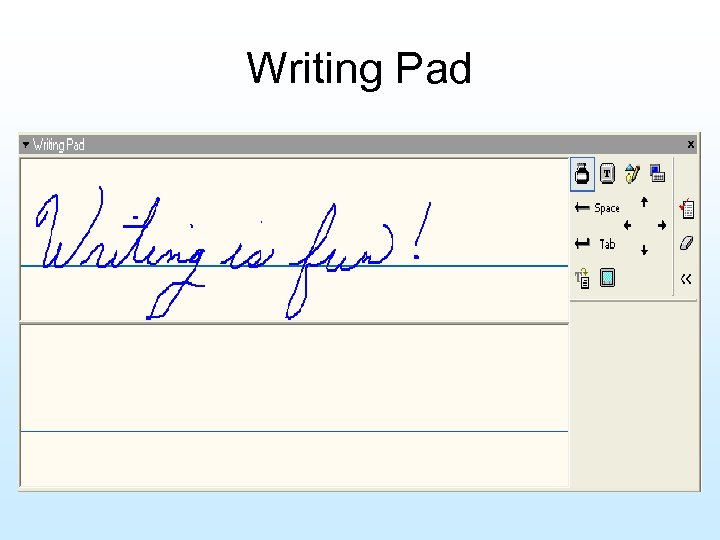
Writing Pad
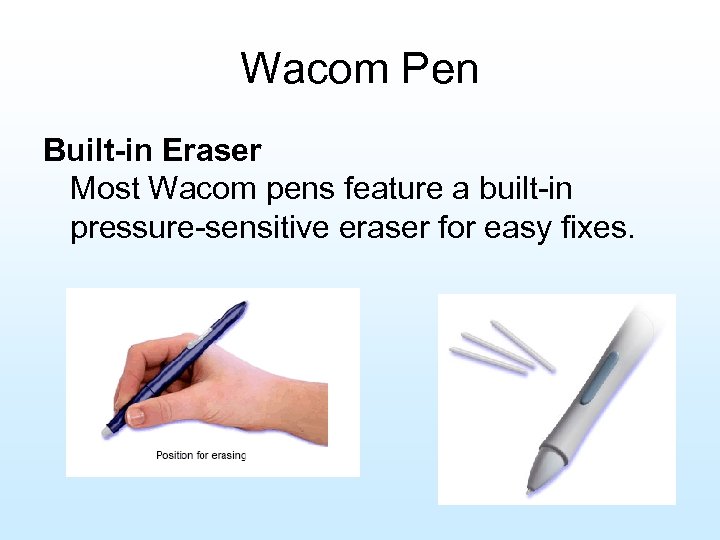
Wacom Pen Built-in Eraser Most Wacom pens feature a built-in pressure-sensitive eraser for easy fixes.
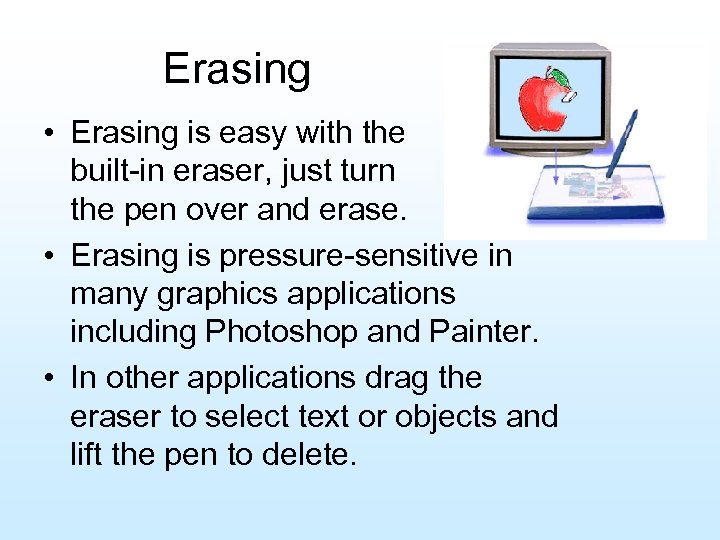
Erasing • Erasing is easy with the built-in eraser, just turn the pen over and erase. • Erasing is pressure-sensitive in many graphics applications including Photoshop and Painter. • In other applications drag the eraser to select text or objects and lift the pen to delete.
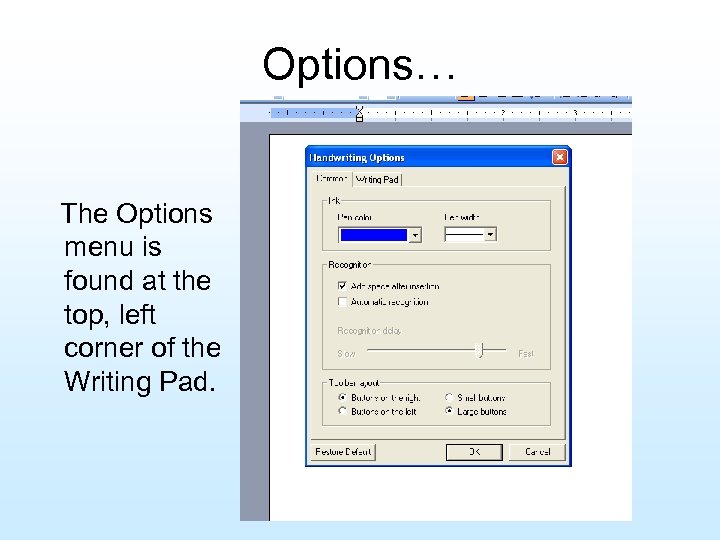
Options… The Options menu is found at the top, left corner of the Writing Pad.
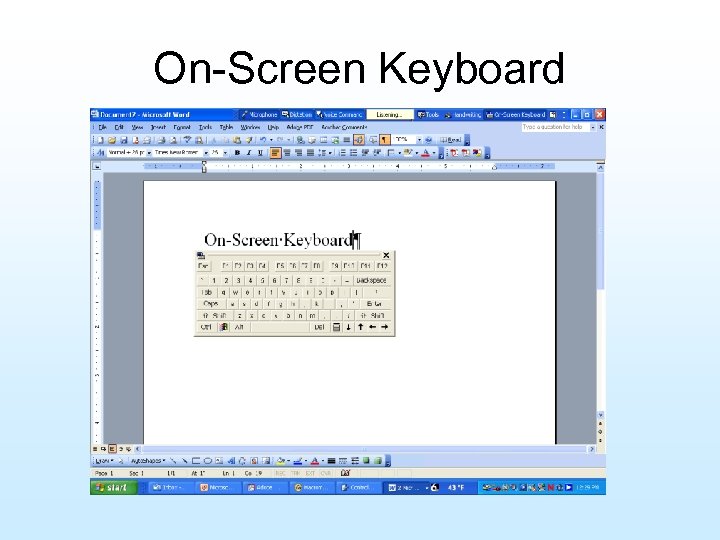
On-Screen Keyboard
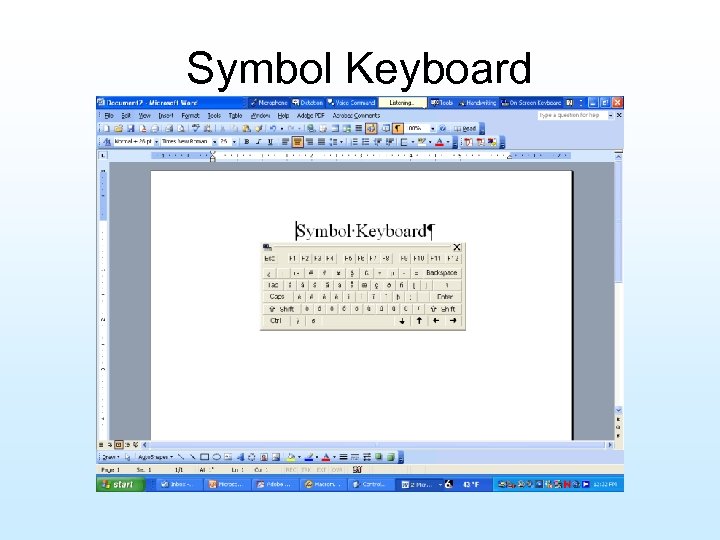
Symbol Keyboard
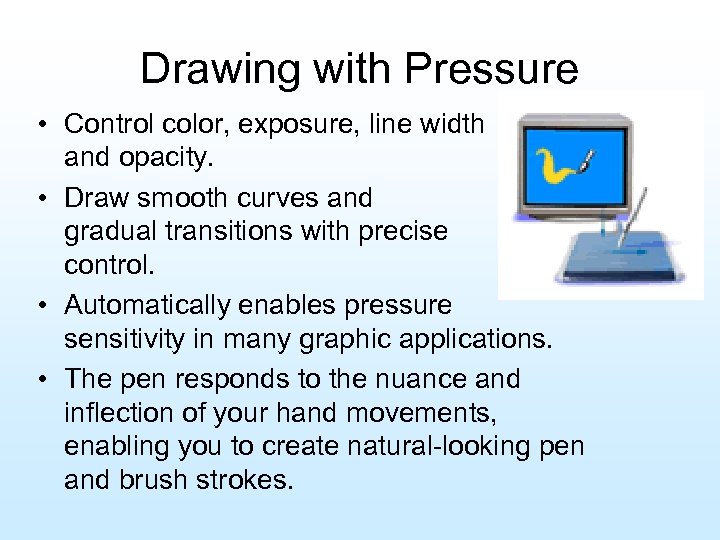
Drawing with Pressure • Control color, exposure, line width and opacity. • Draw smooth curves and gradual transitions with precise control. • Automatically enables pressure sensitivity in many graphic applications. • The pen responds to the nuance and inflection of your hand movements, enabling you to create natural-looking pen and brush strokes.
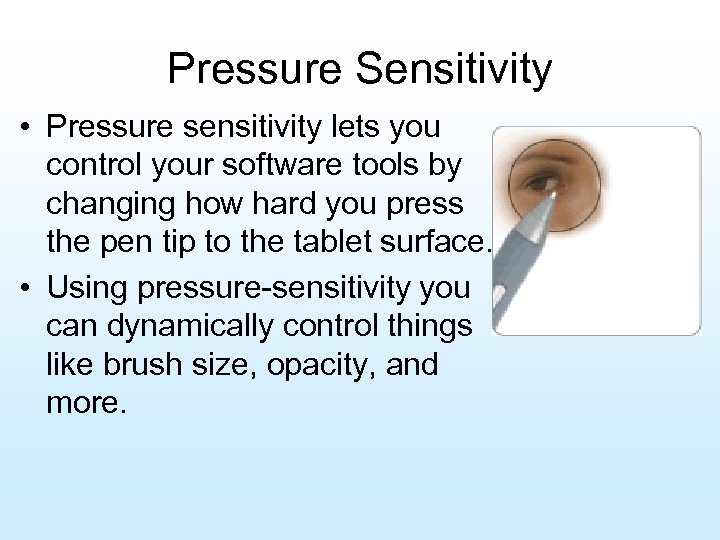
Pressure Sensitivity • Pressure sensitivity lets you control your software tools by changing how hard you press the pen tip to the tablet surface. • Using pressure-sensitivity you can dynamically control things like brush size, opacity, and more.
Care for your Tools and Tablet • Keep tools and tablet surface clean. • Dust and dirt particles can stick and cause wear to the tablet surface. • Regular cleaning with a soft, damp cloth will help prolong the life of your tablet surface and tools. • Use a very mild soap diluted with water. Do not use volatile liquids.
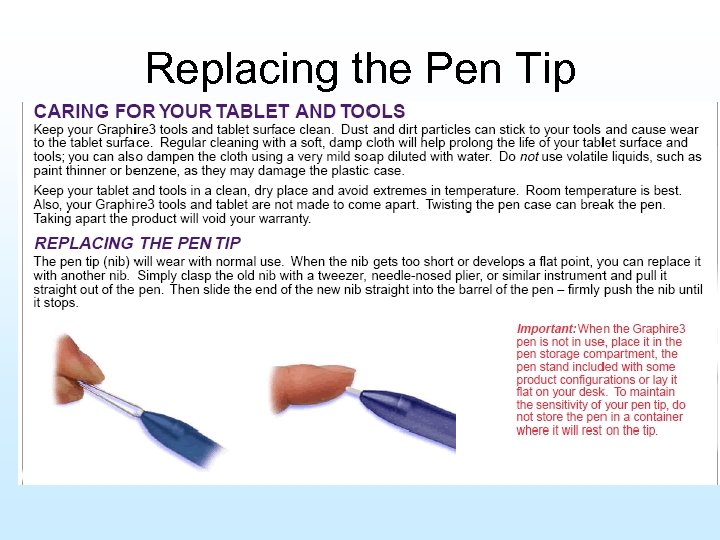
Replacing the Pen Tip
Storage • Keep your tablet and tools in a clean, dry place and avoid extremes in temperature. • Room temperature is best. • The tools and tablet are not made to come apart —twisting the pen case can break the pen. Taking apart the product will void your warranty. • When the pen is not in use, place it in the pen stand or lay it flat on your desk. To maintain the sensitivity of your pen tip, do not store the pen in a container where it will rest on the tip.
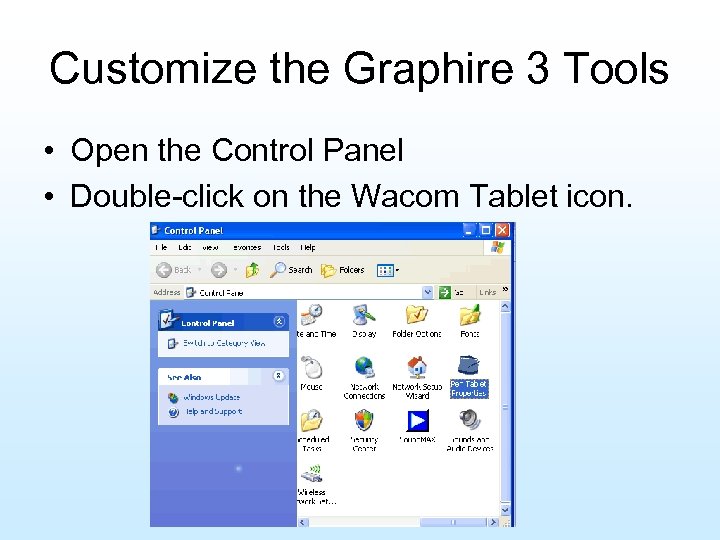
Customize the Graphire 3 Tools • Open the Control Panel • Double-click on the Wacom Tablet icon.
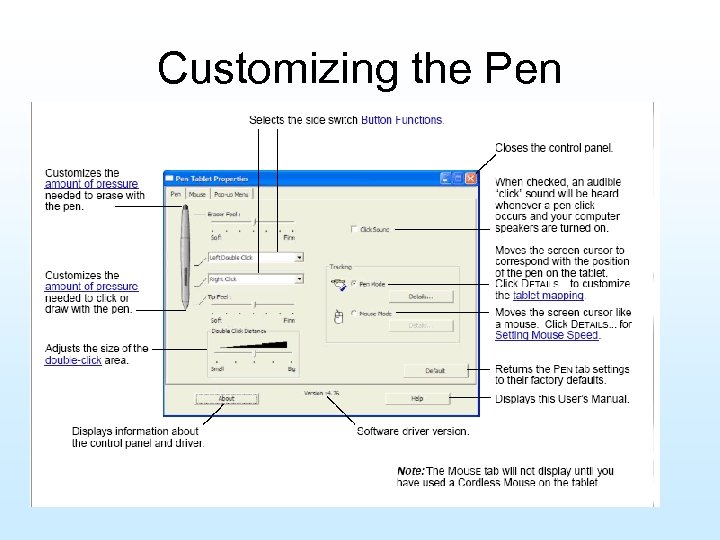
Customizing the Pen
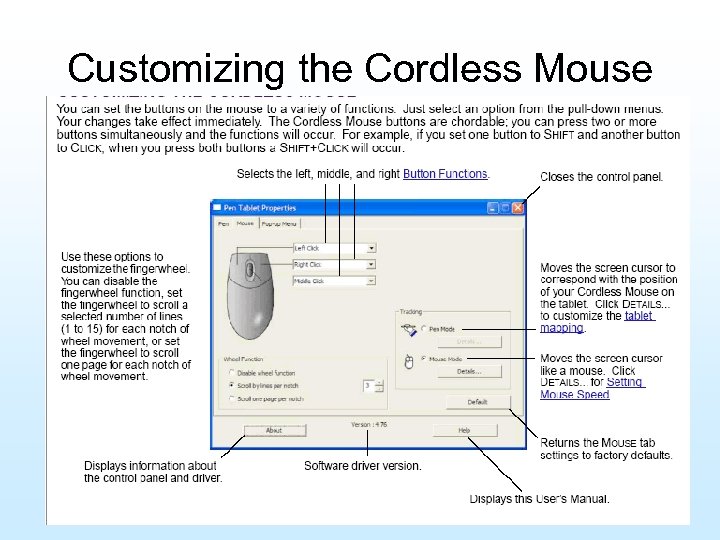
Customizing the Cordless Mouse
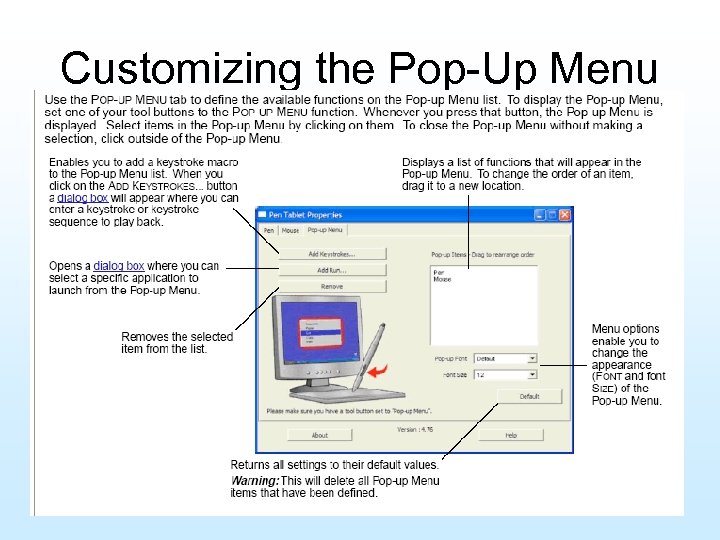
Customizing the Pop-Up Menu

Wacom Technology Corporation 1311 SE Cardinal Court Vancouver, WA 98683 USA Telephone: Main Number: 800. 922. 9348 Tech Support: 360. 896. 9833 (Dial 4) Main Fax: 360. 896. 9724 Sales Fax: 360. 896. 9814 Email: www. wacom. com

Speaking Solutions, Inc. 2445 Lake Shore Drive Lake Wa. Con. Da, NE 68455 www. speakingsolutions. com Carl Fielder Karl Barksdale
Contact me: Sue Sydow Lyons-Decatur Northeast High School 400 South 5 th Street PO Box 526 Lyons, NE 68038 -0526 Phone: 402 -687 -2363 Fax: 402 -687 -2472 School email: ssydow@ldn. esu 2. org Home email: suesydow@huntel. net

Questions? ?
Скачать презентацию Handwriting Recognition Replacing the Keyboard and Mouse Presented
71fc08270981129b914964de255e2971.ppt