


 Скачать презентацию Hands-On Tirgul 1 Introducing Linux environment http
c95933a6cd565f6572e2254ac1d0c7ce.ppt
- Количество слайдов: 46
 Hands-On – Tirgul 1 Introducing Linux environment http: //www. cs. huji. ac. il/~intro 2 cse 1
 Objectives: • • • What is an OS? The Linux environment The shell Basic shell commands Basic editing (gedit) This presentation can be found at: http: //www. cs. huji. ac. il/~intro 2 cse under Tirgul 1 2
 Further Exercise regulations and rules can be found under course guidelines link in the course website. Ex 0 (which we will solve together today) is online. It won’t count as a part of your grade. Next week’s tirgulim will be held in their original locations. 3
 Working at the Labs We’ll now explain how to perform basic operations on the computers in front of you. Detailed information about working on the school’s system can be found here: http: //wiki. cs. huji. ac. il/wikis/Media. Wiki/c s/images/c/c 9/Intro 2 CSE. pdf 10/15/09
 Login Log into a workstation Enter username Every user has his own resources Enter password Identification Privacy Passwords types Static OTP (One Time Password) - Safer Try to login 5
 Linux is a UNIX-like operating system OS is a software that controls the computer (CPU, memory, files, IO, …) Windows is an OS too (and there are many more: DOS, Mac OS, OS/2, Vx. Works, Palm. OS etc. ) We (CS) use Linux It’s an open source. It’s free. You can use it at home too. 6
 The Shell We usually interact with a computer using a "GUI" (graphical user interface) The “Shell” enables us to interact with the computer in a textual manner We could automate tasks Faster than using the GUI Try to open a shell in few different ways: 1. Left click your terminal icon on your panel (desktop top) 2. Left click on the Gnome Application Menu (panel) terminal Accessories Terminal 3. Execute ‘xterm &’ from some other open shell 7
 Important technical thing: In an open shell type the following line: source ~intro 2 cse/bin/fix-class-path. csh [enter] This will allow you to run utilities that are specific to the intro 2 cse course. Those are necessary for your home assignments. You only need to call the script once during the semester (this would be now). 8
 GUI The GUI (Desktop environment) you are using is called Gnome You can modify your DE settings and even replace Gnome with other DE Some Gnome hints – very similar to windows Alt+Tab : choose upper/active application You have your minimized applications on the desktop bottom. Use left click to reopen them Applications also appear as icons on the (top) left part of your desktop. Use double (left) click to open them Drag windows with the left button and mouse movements Resize windows by dragging their borders / corners Activate a window by left clicking it 9
 The Shell (2) Now lets create the directory we’ll use for the rest of this TIRGUL (Later we’ll learn more about directories etc. ) 1. Close all shells but one 2. Excecute ‘ls’ [enter] 3. Excecute ‘ls –l’ [enter] 4. Execute ‘mkdir intro 2 cse [enter]' 5. Execute ‘cd intro 2 cse [enter]‘ 6. Excecute ‘ls’ [enter] 10
 Internet We browse with “Mozilla Firefox” Again, open source Add-ons Try to open Firefox in different ways (you might have to answer some simple questions on your 1 st time) 1. Left click world icon on your panel (desktop top) 2. Execute ‘firefox&’ from a shell There are obviously other ways to open Firefox, try to find them… 11
 Internet (2) Change your Firefox Downloads preferences: On firefox choose : Edit menu Preferences → General → Downloads Always ask me where to save files close Now, instead of saving your downloads on default location, they’ll be saved at specific locations in your file system Experience the “tabbed browsing” (IE 7 users might be familiar with it already) 1. Open www. google. com 2. Click ‘Ctrl + t’ to open a new tab with www. cs. huji. ac. il 3. Switch between hebrew and english by pressing both “shift” keys. 4. Press the left button on a link to open it 5. Press the right button on a link and choose to open in a new tab 6. Close your browser (firefox) 12
 Administration The course has 1 lecturer and 2 TA's. The office hours of the course staff members will be published on the site. PLEASE USE THEM! Our email address is intro 2 cse@cs. huji. ac. il Use this address for personal problems. Exercise questions should not be sent by e-mail rather than by using the forum. Do not send e-mails to private addresses of Ta’s. Those will not be answered! Appeals on exercise grades will be done through dedicated forums. On any technical problem/question (out of the course scope) you can email system@cs. huji. ac. il 13
 Connecting from home Information about connecting from home can be found at: School’s website (www. cs. huji. ac. il)->Online support>working from outside->Connecting from outside The course staff does not support connecting from home! Please refer to the system group for questions/problems: system@cs. huji. ac. il 14
 Mail Account Every cs student has two e-mail accounts: login@cs. huji. ac. il (provided by cs department) firstname. lastname@mail. huji. ac. il (provided by the university) Your cs email messages are automatically forwarded to your mail. huji account. Always include your cs login when sending us email. The university e-mail site is: http: //mail. huji. ac. il Using this site you can get, send, forward, delete messages 15
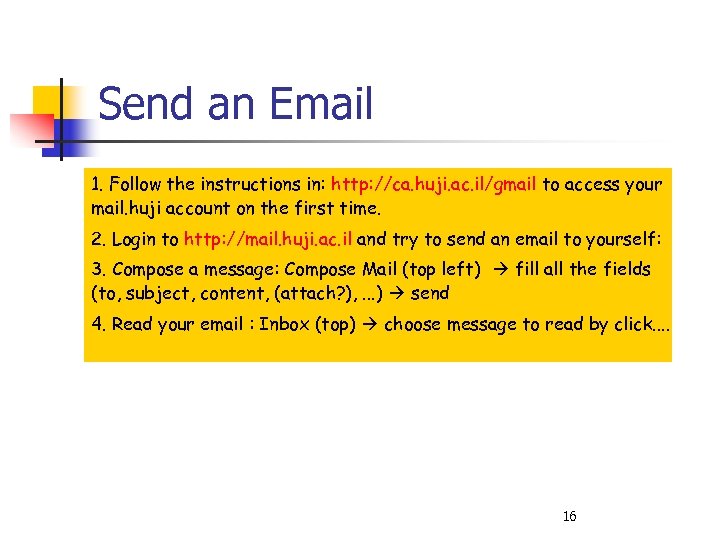 Send an Email 1. Follow the instructions in: http: //ca. huji. ac. il/gmail to access your mail. huji account on the first time. 2. Login to http: //mail. huji. ac. il and try to send an email to yourself: 3. Compose a message: Compose Mail (top left) fill all the fields (to, subject, content, (attach? ), . . . ) send 4. Read your email : Inbox (top) choose message to read by click. . 16
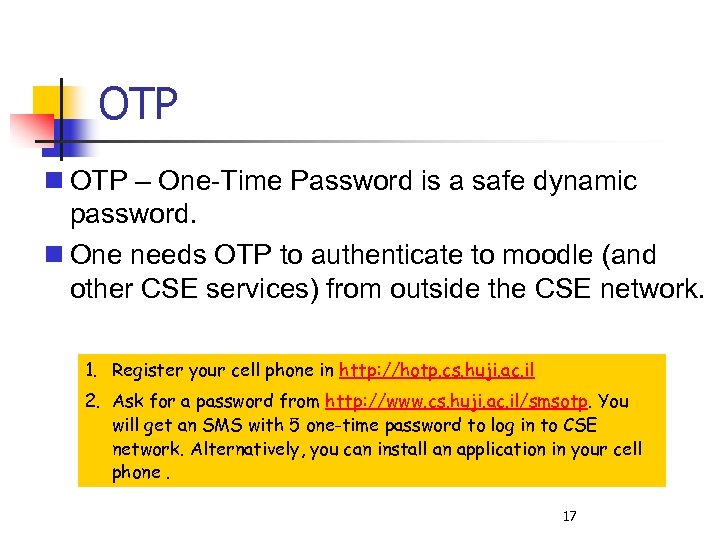 OTP – One-Time Password is a safe dynamic password. One needs OTP to authenticate to moodle (and other CSE services) from outside the CSE network. 1. Register your cell phone in http: //hotp. cs. huji. ac. il 2. Ask for a password from http: //www. cs. huji. ac. il/smsotp. You will get an SMS with 5 one-time password to log in to CSE network. Alternatively, you can install an application in your cell phone. 17
 OTP – One Time Password If a user did not install the HOTP application on his phone, he can request to receive OTP by SMS at http: //www. cs. huji. ac. il/smsotp Five OTPs are SMS'ed in response to each request. The OTPs should be used in sequential order. It doesn't matter if any are skipped. One can request OTP as often as one likes. 18
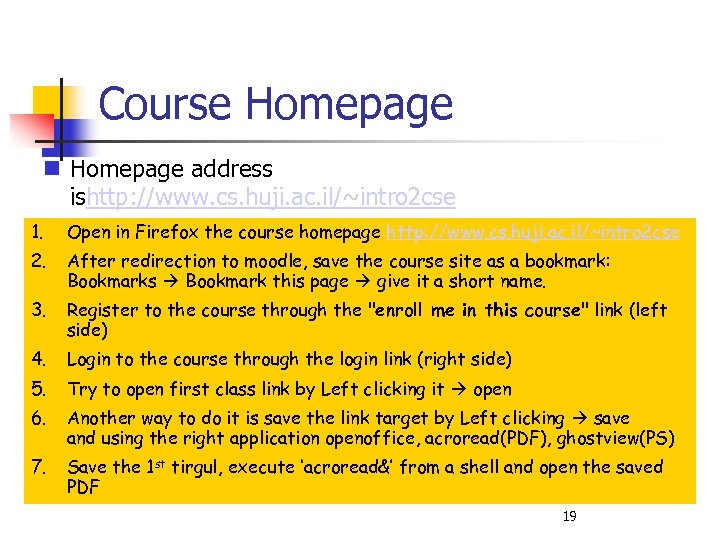 Course Homepage address ishttp: //www. cs. huji. ac. il/~intro 2 cse 1. Open in Firefox the course homepage http: //www. cs. huji. ac. il/~intro 2 cse 2. After redirection to moodle, save the course site as a bookmark: Bookmarks Bookmark this page give it a short name. 3. Register to the course through the "enroll me in this course" link (left side) 4. Login to the course through the login link (right side) 5. Try to open first class link by Left clicking it open 6. Another way to do it is save the link target by Left clicking save and using the right application openoffice, acroread(PDF), ghostview(PS) 7. Save the 1 st tirgul, execute ‘acroread&’ from a shell and open the saved PDF 19
 Forums A media in which a group of people may discuss topics of their interests You can read, post, and reply to messages We’ll use 3 types of forums Course announcements (news forum) – (either general announcements or announcements per an exercise) You cannot post messages, but you’re obliged to read it on a regular basis Unmoderated discussion forum – Discuss anything related to the course as long as you don’t cheat !!! Not read by us on a regular basis but we check it from time to time (hint). Exercise related forum – will be opened for every home exercise. Used for contacting the course staff (and for your discussion) regarding questions/problem about the relevant exercise. 20
 Forums (2) Don’t forget to register (once) and login (every time) We might block guests’ access in the future Some resources will be viewable for the course only Login so you can use the forums (you can fill details, add picture in your registration) Students are encouraged to ask questions about exercise in the forum and not by mail. By subscribing to a forum you will get the messages by email to your CS mail address 1. Try to read some messages from the course announcements forum 21
 The File System The OS long time memory is based on disk files A file is basically a sequence of bits that encode data When you open the file in the right application you can see that it represents picture/text/music etc. A file has attributes such as: Name Owner Size Dates (creation, last modification) Permissions (who can do what on this file) 22
 File System (2) A user (with the right permissions) can create/delete/modify/read/rename a file The file-system is organized as a tree Your home-directory (~login) is the tree root A directory may contain files and other directories as well 1. Execute ‘cd ~’ to go back to your home directory 2. Check your tree of files by executing the shell command ‘tree’ 3. If it takes too much time and you want to stop it, press ‘Ctrl + c’ This applies to every running foreground process (as will be explained later) 4. Now return to the previous directory by executing ‘cd –’ 5. You could also tarvel up the tree by executing ‘cd. . ’ (‘cd. . /’ will travel three levels) 23
 File Permissions Represented by a mask of 10 characters trwxrwxrwx The ‘t’ stands for type (‘-’ for regular file, ‘d’ for a directory) 3 triplets of ‘rwx’ (read, write, execute) indicate the permissions of owner, group, and others respectively For example, a mask of –rw–r--r– indicates that this is a regular file that can be read by everyone and written by its owner alone The owner of a file can change its permissions using the shell command ‘chmod’ 24
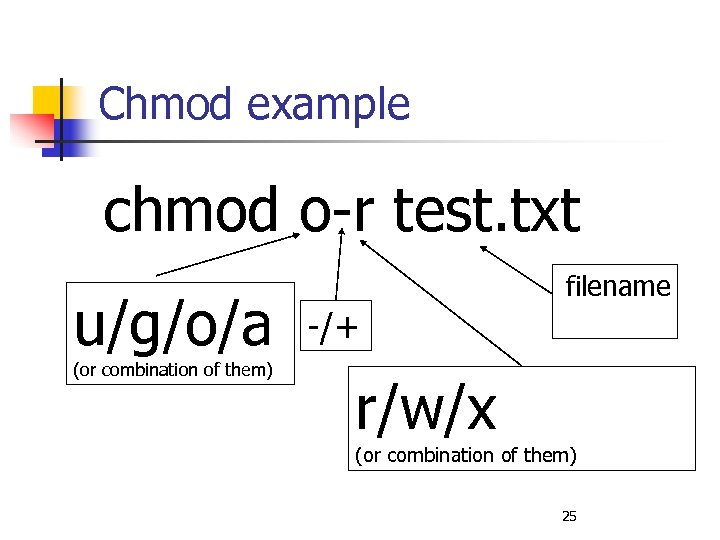 Chmod example chmod o-r test. txt u/g/o/a -/+ r/w/x filename (or combination of them) 25
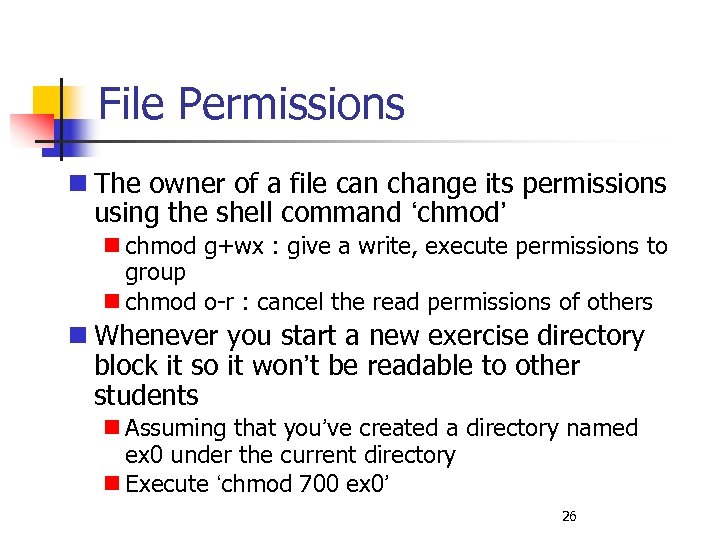 File Permissions The owner of a file can change its permissions using the shell command ‘chmod’ chmod g+wx : give a write, execute permissions to group chmod o-r : cancel the read permissions of others Whenever you start a new exercise directory block it so it won’t be readable to other students Assuming that you’ve created a directory named ex 0 under the current directory Execute ‘chmod 700 ex 0’ 26
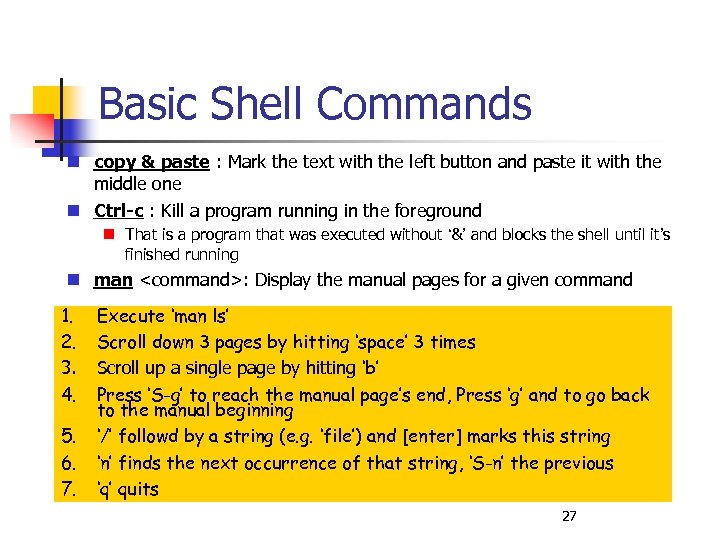 Basic Shell Commands copy & paste : Mark the text with the left button and paste it with the middle one Ctrl-c : Kill a program running in the foreground That is a program that was executed without ‘&’ and blocks the shell until it’s finished running man
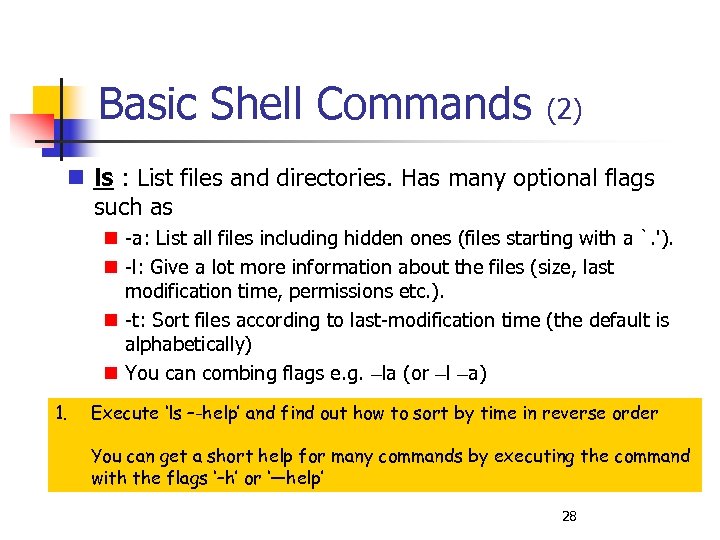 Basic Shell Commands (2) ls : List files and directories. Has many optional flags such as -a: List all files including hidden ones (files starting with a `. '). -l: Give a lot more information about the files (size, last modification time, permissions etc. ). -t: Sort files according to last-modification time (the default is alphabetically) You can combing flags e. g. –la (or –l –a) 1. Execute ‘ls –-help’ and find out how to sort by time in reverse order You can get a short help for many commands by executing the command with the flags ‘–h’ or ‘—help’ 28
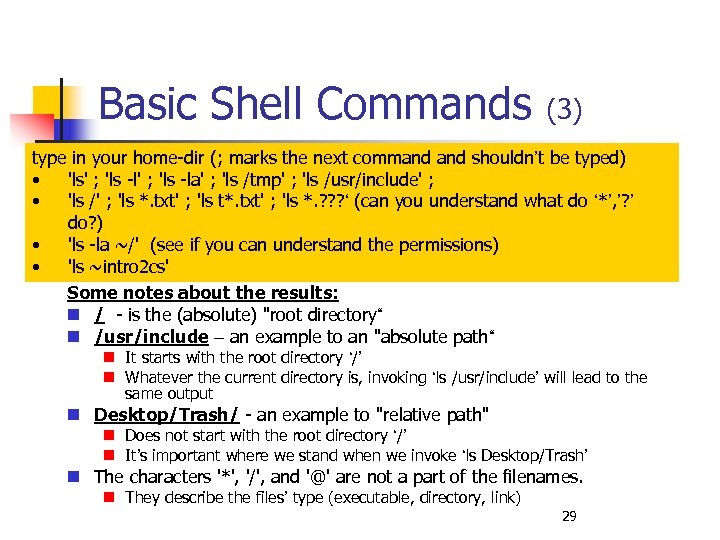 Basic Shell Commands (3) type in your home-dir (; marks the next command shouldn’t be typed) • 'ls' ; 'ls -la' ; 'ls /tmp' ; 'ls /usr/include' ; • 'ls /' ; 'ls *. txt' ; 'ls t*. txt' ; 'ls *. ? ? ? ‘ (can you understand what do ‘*’, ’? ’ do? ) • 'ls -la ~/' (see if you can understand the permissions) • 'ls ~intro 2 cs' Some notes about the results: / - is the (absolute) "root directory“ /usr/include – an example to an "absolute path“ It starts with the root directory ‘/’ Whatever the current directory is, invoking ‘ls /usr/include’ will lead to the same output Desktop/Trash/ - an example to "relative path" Does not start with the root directory ‘/’ It’s important where we stand when we invoke ‘ls Desktop/Trash’ The characters '*', '/', and '@' are not a part of the filenames. They describe the files’ type (executable, directory, link) 29
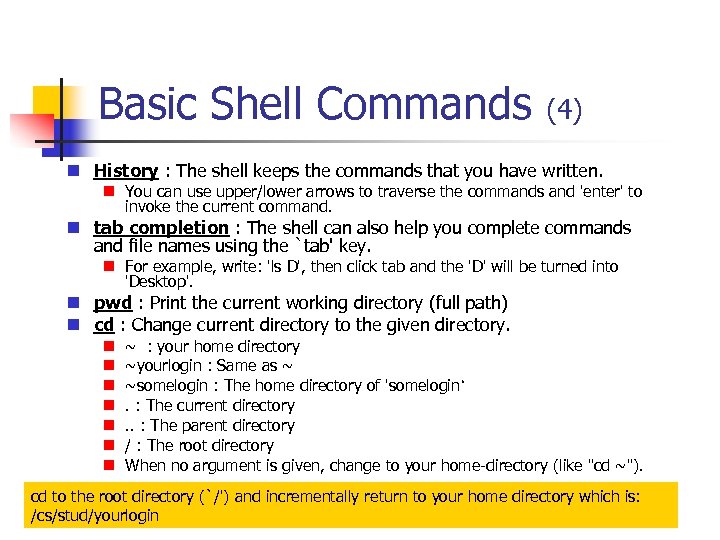 Basic Shell Commands (4) History : The shell keeps the commands that you have written. You can use upper/lower arrows to traverse the commands and 'enter' to invoke the current command. tab completion : The shell can also help you complete commands and file names using the `tab' key. For example, write: 'ls D', then click tab and the 'D' will be turned into 'Desktop'. pwd : Print the current working directory (full path) cd : Change current directory to the given directory. ~ : your home directory ~yourlogin : Same as ~ ~somelogin : The home directory of 'somelogin‘. : The current directory. . : The parent directory / : The root directory When no argument is given, change to your home-directory (like "cd ~"). cd to the root directory (`/') and incrementally return to your home directory which is: /cs/stud/yourlogin 30
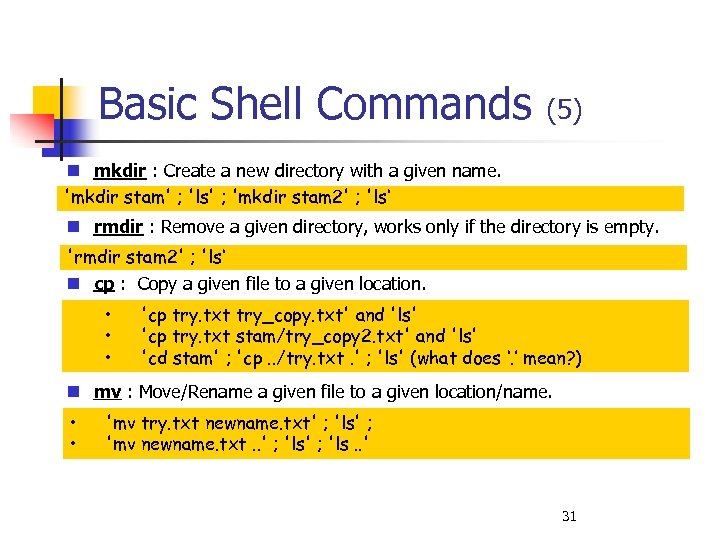 Basic Shell Commands (5) mkdir : Create a new directory with a given name. 'mkdir stam' ; 'ls' ; 'mkdir stam 2' ; 'ls‘ rmdir : Remove a given directory, works only if the directory is empty. 'rmdir stam 2' ; 'ls‘ cp : Copy a given file to a given location. • • • 'cp try. txt try_copy. txt' and 'ls' 'cp try. txt stam/try_copy 2. txt' and 'ls' 'cd stam' ; 'cp. . /try. txt. ' ; 'ls' (what does ‘. ’ mean? ) mv : Move/Rename a given file to a given location/name. • • 'mv try. txt newname. txt' ; 'ls' ; 'mv newname. txt. . ' ; 'ls. . ' 31
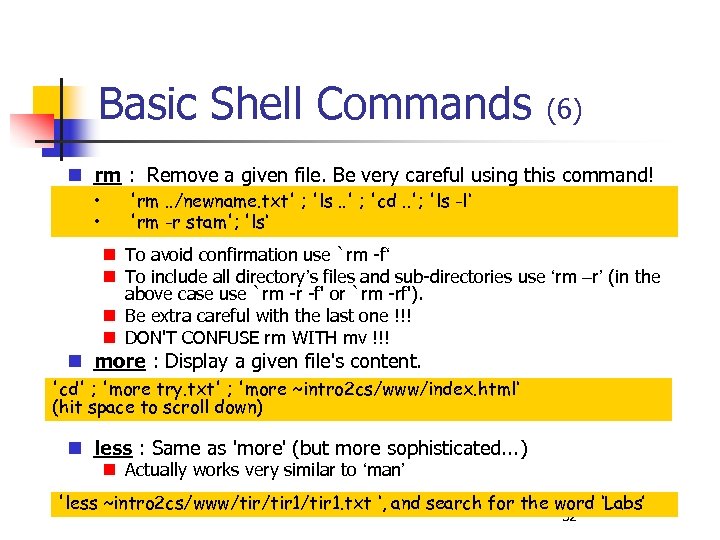 Basic Shell Commands (6) rm : Remove a given file. Be very careful using this command! • • 'rm. . /newname. txt' ; 'ls. . ' ; 'cd. . '; 'ls -l‘ 'rm -r stam'; 'ls‘ To avoid confirmation use `rm -f‘ To include all directory’s files and sub-directories use ‘rm –r’ (in the above case use `rm -r -f' or `rm -rf'). Be extra careful with the last one !!! DON'T CONFUSE rm WITH mv !!! more : Display a given file's content. 'cd' ; 'more try. txt' ; 'more ~intro 2 cs/www/index. html‘ (hit space to scroll down) less : Same as 'more' (but more sophisticated. . . ) Actually works very similar to ‘man’ 'less ~intro 2 cs/www/tir 1/tir 1. txt ‘, and search for the word ‘Labs’ 32
 Basic Shell Commands (7) lpr, a 2 ps : Print file/files. To print files f 1, f 3 type: 'lpr f 1 f 2 f 3‘ or 'a 2 ps f 1 f 2 f 3‘ a 2 ps prints it more compactly and pretty You can use the -P flag to decide the printer (e. g. lpr –P
 Basic Shell Commands (8) jar : Combines multiple files into a single JAR (= Java ARchive) file. You will use this application when you submit your solutions. This is needed since your solutions will use more than one file, but you may submit only one file per exercise. • • • 1. 2. 3. 4. We will create a JAR file named stam_tirgul. jar from the files 'try. txt' and 'try_copy. txt'. We will open the JAR file in a different directory (you should do that before submitting to check that everything is o. k. ): We will submit this JAR file through the submit link in the home-page (under the assignments link in the course homepage). jar cfv stam_tirgul. jar try. txt try_copy. txt ‘mkdir check_jar’ ; cp stam_tirgul. jar check_jar cd check_jar ; jar xvf stam_tirgul. jar; ls submit through home-page using the ‘ex 0' link (you could resubmit the real one) 34
 Basic Shell Commands (9) Running an application in the background (the '&' character) : If a shell command is added an ampersand character ('&') at the end, the command will execute in the BACKGROUND That means - it will not block the shell from accepting further command, but it will still run. try running ‘gedit' vs. running ‘gedit &' Using the '&' character is very useful and saves you from opening a different shell for every applications. If you forgot adding the '&' to a comman, you should type 'ctrl-z' to suspend the running application, and type 'bg' to un-suspend it in the background 35
 Basic Shell Commands (10) Backups : Your home directory and its sub-tree is periodically backed up. To access the backups for a specific directory, goto that directory and cd to a directory called '. snapshot'. The. snapshot directory contains several backups of the directory from which you started. Once you pick a backup, you can copy the files from the backup directory to the original one using regular UNIX shell commands. Remember this as you will certainly delete necessary files by accident at some point. To find out how to use backups explore this link: http: //wiki. cs. huji. ac. il/wiki/Snapshot 36
 Basic Shell Commands (11) Re-installing configuration files By typing the command 'reinstall' you can reinstall your environment. After you type the command, you will be asked which parts of your environment to reinstall: Firefox, general dotfiles (emacs etc. ), xfce 4 Using this command you can always revert to the default configuration, so if you want to change something, don't be afraid to try. . . Logout Right click on the desktop quit logout 37
 Connecting from outside http: //wiki. cs. huji. ac. il/wiki/Connecting_from_outside SSH (secure shell) connection ssh to gw. cs. huji. ac. il as user USERNAME%HOSTNAME Pu. TTy Telnet Graphical (X) connection Xming 38
 Ex 0 • We will now go through Ex 0 together to see how to edit files, compile them and submit an exercise. • The exercise description is at the course web page. Read it now • The exercise requires creating and editing a file. For this purpose we’ll use g. Edit
 g. Edit • g. Edit is a text editor with additional capabilities suited for software development. – Has a version for windows – Open source • An alternative with some more features that you can use remotely from home is emacs. A bit more complicated to work with than g. Edit but you’re encouraged to try and learn it yourselves.
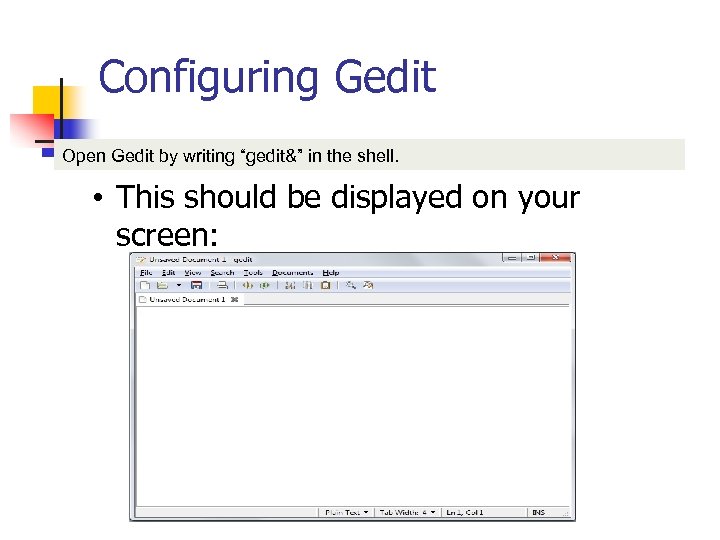 Configuring Gedit Open Gedit by writing “gedit&” in the shell. • This should be displayed on your screen:
 Configuring g. Edit’s workspace (2) 1. To save files use Ctrl+Shift+S or File →Save As. To save changes use Ctrl+S (Like you do in common windows programs) 2. Create a directory called ~intro 2 cse, and a directory called ex 0 under it. 3. Save the file you’re currently working on under “~/intro 2 cse/ex 0” with the name “Hello. java”. • Saving a file with the. java extension makes g. Edit move to java mode. In java mode g. Edit paints words that has special meaning in the language with different colors.
 Tweaking g. Edit • Here a couple of useful tweaks for Gedit: 1. Go to Edit →Preferences 2. under the “Editor” tab choose Tab width of 4 and check “Insert spaces instead of tabs” and “Enable automatic indentation”. 3. g. Edit has plugins that enable some extra features. You can turn plugins on/off at the “Plugins” tab and download additional plugins from the internet. Try the “Embedded terminal” plugin
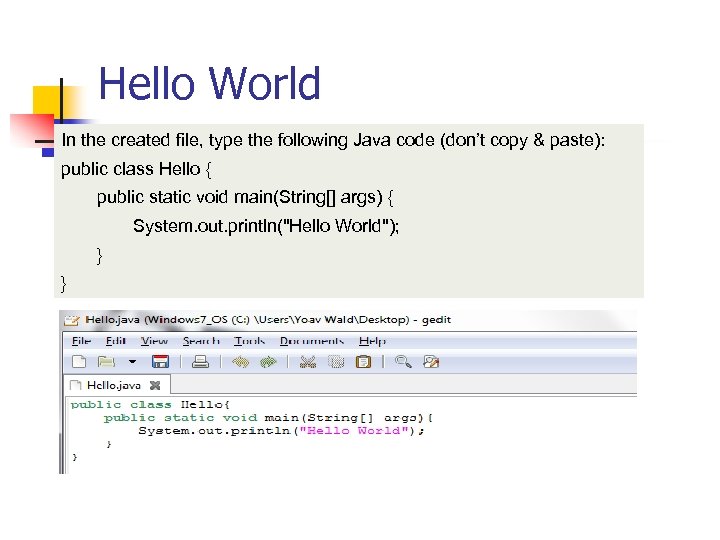 Hello World In the created file, type the following Java code (don’t copy & paste): public class Hello { public static void main(String[] args) { System. out. println("Hello World"); } }
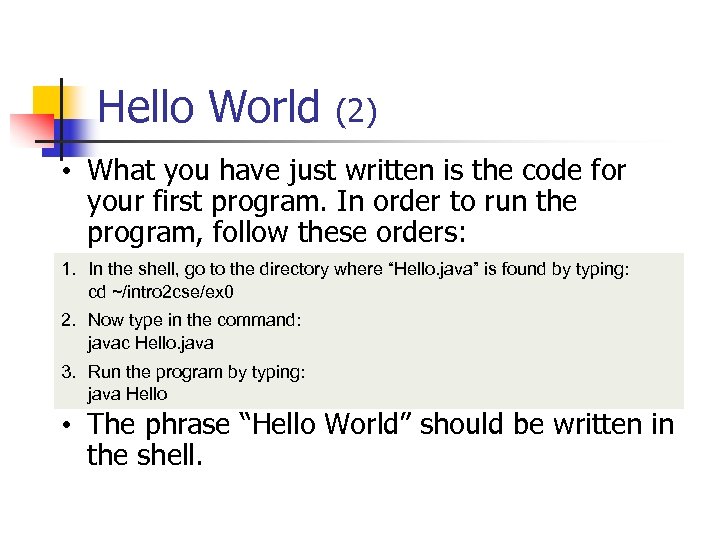 Hello World (2) • What you have just written is the code for your first program. In order to run the program, follow these orders: 1. In the shell, go to the directory where “Hello. java” is found by typing: cd ~/intro 2 cse/ex 0 2. Now type in the command: javac Hello. java 3. Run the program by typing: java Hello • The phrase “Hello World” should be written in the shell.
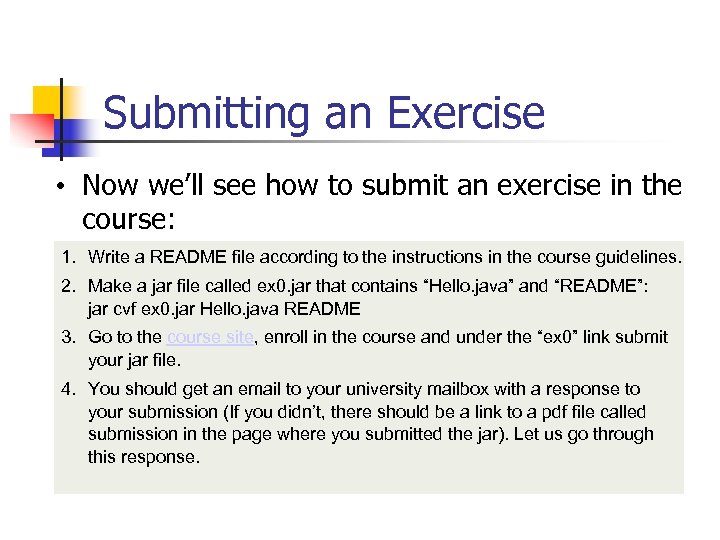 Submitting an Exercise • Now we’ll see how to submit an exercise in the course: 1. Write a README file according to the instructions in the course guidelines. 2. Make a jar file called ex 0. jar that contains “Hello. java” and “README”: jar cvf ex 0. jar Hello. java README 3. Go to the course site, enroll in the course and under the “ex 0” link submit your jar file. 4. You should get an email to your university mailbox with a response to your submission (If you didn’t, there should be a link to a pdf file called submission in the page where you submitted the jar). Let us go through this response.