


 Скачать презентацию Hands-On Microsoft Windows Server 2008 Chapter 6 Configuring
64953874756f83c6ca68f96c54a895c9.ppt
- Количество слайдов: 67
 Hands-On Microsoft Windows Server 2008 Chapter 6 Configuring Windows Server 2008 Printing
 Objectives • Understand how Windows Server 2008 printing works • Use the XPS Print Path • Use the XML Paper Specification (XPS) • Install the Print Services role • Use the Printers window to configure printing properties Hands-On Microsoft Windows Server 2008 2
 Objectives (continued) • • • Install local and shared printers Configure printer properties Configure a nonlocal or Internet printer Manage print jobs Use the Print Management tool Troubleshoot common printing problems Hands-On Microsoft Windows Server 2008 3
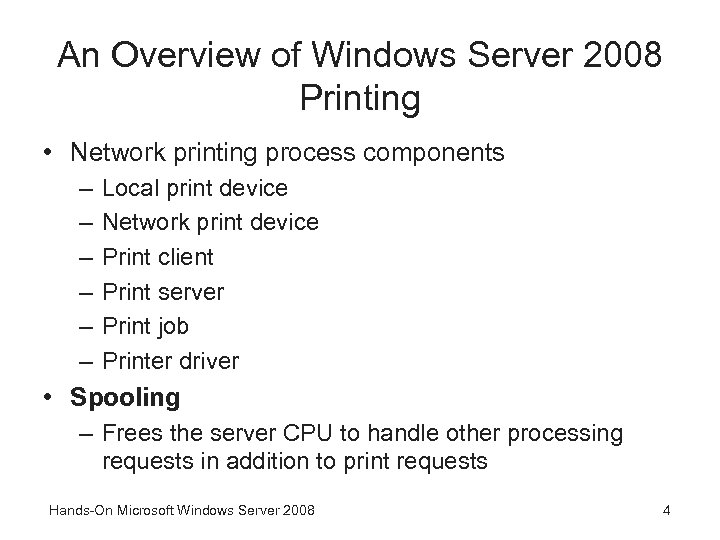 An Overview of Windows Server 2008 Printing • Network printing process components – – – Local print device Network print device Print client Print server Print job Printer driver • Spooling – Frees the server CPU to handle other processing requests in addition to print requests Hands-On Microsoft Windows Server 2008 4
 How Network Printing Works • Printing process steps – Application client generates a print file – Application communicates with the Windows graphics device interface (GDI) – When the GDI is finished, the print file is formatted with control codes – The remote print provider at the client makes a remote procedure call to the network print server – The network print server uses four processes to receive and process a print file: router, print provider, print processor, and print monitor Hands-On Microsoft Windows Server 2008 5
 How Network Printing Works (continued) • Printing process steps (continued) – The Server service calls its router, the Print Spooler service – While the file is spooled, the print provider works with the print processor to ensure that the file is formatted to use the right data type – The print monitor pulls it from the spooler’s disk storage and sends it off to the printer Hands-On Microsoft Windows Server 2008 6
 How Network Printing Works (continued) • Activity 6 -1: Print Spooler Service – Time Required: Approximately 5 minutes – Objective: Learn about the Print Spooler service and the services upon which it depends Hands-On Microsoft Windows Server 2008 7
 How Internet Printing Works • Internet Information Services (IIS) must be installed and running in Windows Server 2008 – The client must connect to the Windows Server 2008 IIS using a Web browser • The print process on the client is nearly the same as for network printing with a couple of exceptions: – Browser sends the print file to the GDI – Remote print provider at the client makes a remote procedure call to IIS using Internet Printing Protocol (IPP) Hands-On Microsoft Windows Server 2008 8
 How Internet Printing Works (continued) • Activity 6 -2: Installing the Internet Printing Client – Time Required: Approximately 5 minutes – Objective: Install the Internet Printing Client so that clients can use IPP Hands-On Microsoft Windows Server 2008 9
 Using the XPS Print Path • XML Paper Specification (XPS) – An advanced way of printing documents for multiple purposes, including viewing electronic pages and printing pages in a polished format • XPS is a concept similar to using PDF files • The XPS print path in Windows Server 2008 is offered as an alternative to the GDI print path – Used by conventional documents Hands-On Microsoft Windows Server 2008 10
 Using the XPS Print Path (continued) • XPS enhancements – Customized print path for documents using XPS – Advanced color support for sophisticated color printers – Faster performance for printouts generated by. NET Framework applications – Full WYSIWYG • The XPS drive path uses the XPSDrv Driver Model – This driver can print to an XPS-enabled printer or a file Hands-On Microsoft Windows Server 2008 11
 Installing the Print Services Role • Print Services role – Enables you to use the Print Management tool to manage shared printers – Also enables you to track printing events through a log you can view using the Event Viewer • Services within the role: – Print Server – Internet Printing – LPD Service Hands-On Microsoft Windows Server 2008 12
 Installing the Print Services Role (continued) • Activity 6 -3: Installing the Print Services Role – Time Required: Approximately 10 minutes – Objective: Install the Print Services role using Windows Server 2008 Hands-On Microsoft Windows Server 2008 13
 Using the Printers Window • Windows Server 2008 Printers window is enhanced from previous versions to enable more versatility Hands-On Microsoft Windows Server 2008 14
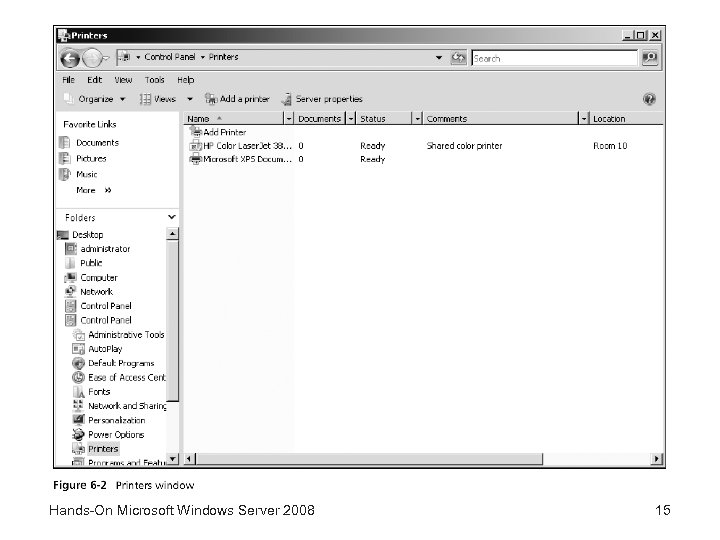 Hands-On Microsoft Windows Server 2008 15
 Using the Printers Window (continued) • Activity 6 -4: Configuring the Print Server Properties – Time Required: Approximately 10 minutes – Objective: Configure the print server properties from the Printers window Hands-On Microsoft Windows Server 2008 16
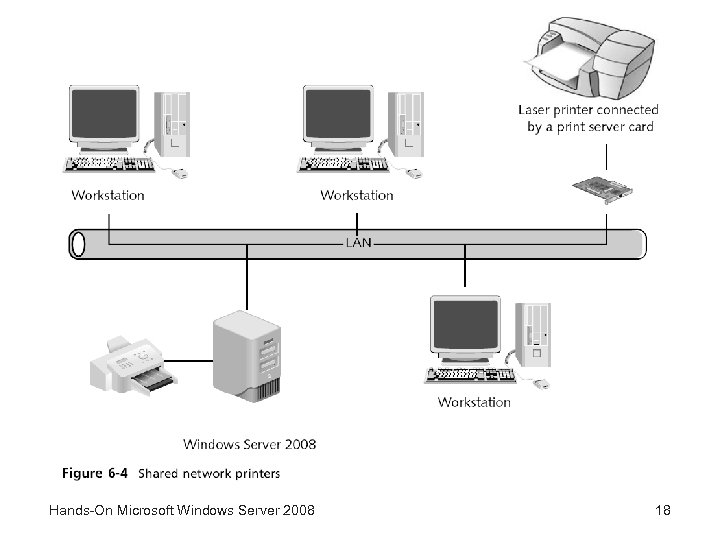
 Installing Local and Shared Printers • In Windows Server 2008, you can configure a printer that is attached to the server computer as a local printer – And then enable it as a shared printer • When you share a printer, the Windows Server 2008 server becomes a true print server Hands-On Microsoft Windows Server 2008 17
 Hands-On Microsoft Windows Server 2008 18
 Installing a Printer • If you are installing a Plug and Play compatible printer – Windows Server 2008 will automatically detect and install the new hardware • If the printer is not automatically detected, you can use the Add Printer Wizard to install it – Printers that are added using the Add Printer Wizard are shared by default Hands-On Microsoft Windows Server 2008 19
 Installing a Printer (continued) • Activity 6 -5: Installing a Printer – Time Required: Approximately 15 minutes – Objective: Install a printer using the Add Printer Wizard Hands-On Microsoft Windows Server 2008 20
 Enabling Printer Sharing on a Network • After you install a printer on a network to be shared, turn on network printer sharing – This step enables printer sharing through the Windows Firewall Hands-On Microsoft Windows Server 2008 21
 Enabling Printer Sharing on a Network (continued) • Activity 6 -6: Enabling Printer Sharing – Time Required: Approximately 5 minutes – Objective: Turn on printer sharing over the network Hands-On Microsoft Windows Server 2008 22
 Configure Printer Properties • Printer properties are available by opening Control Panel, then clicking Printer in the Control Panel Home View – Or the Printers applet in the Classic View to access the Printers window Hands-On Microsoft Windows Server 2008 23
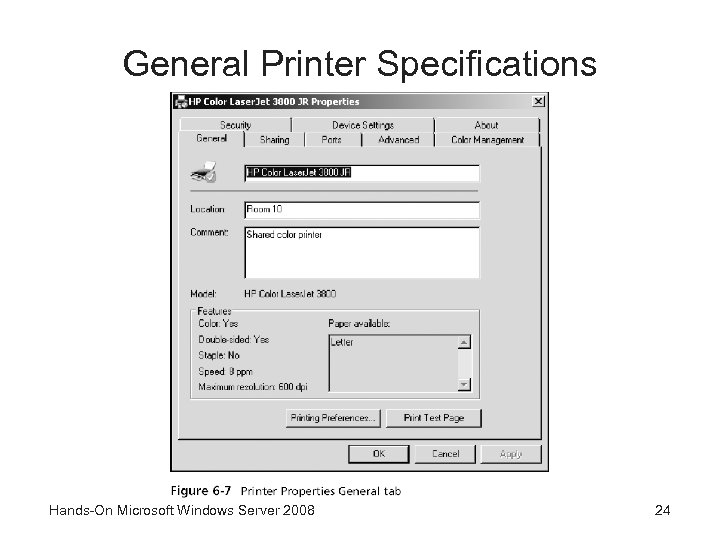 General Printer Specifications Hands-On Microsoft Windows Server 2008 24
 General Printer Specifications (continued) • Activity 6 -7: Viewing Printing Preferences – Time Required: Approximately 10 minutes – Objective: Determine the default setup for printing preferences on a printer Hands-On Microsoft Windows Server 2008 25
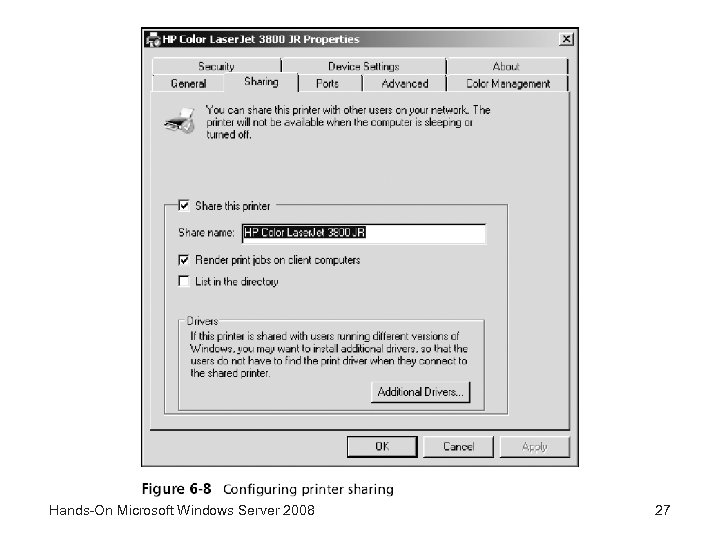
 Sharing Printers • The Sharing tab is used to enable or disable a printer for sharing – As well as to specify the name of the share • If you enable sharing, provide a name for the shared printer – And check List in the directory to publish the printer through Active Directory • The Additional Drivers button on a printer’s properties Sharing tab is used to add new types of clients Hands-On Microsoft Windows Server 2008 26
 Hands-On Microsoft Windows Server 2008 27
 Sharing Printers (continued) • Activity 6 -8: Configuring the Domain Group Policy to Enable Publishing a Printer – Time Required: Approximately 10 minutes – Objective: Learn how to enable printer publishing in the domain’s group policy Hands-On Microsoft Windows Server 2008 28
 Port Specifications • The Ports tab has options to: – Specify which server port, such as LPT 1, is used for the printer – Set up bidirectional printing and printer pooling • Bidirectional printing – Used with printers that have bidirectional capability – A bidirectional printer can engage in two-way communications with the print server and with software applications Hands-On Microsoft Windows Server 2008 29
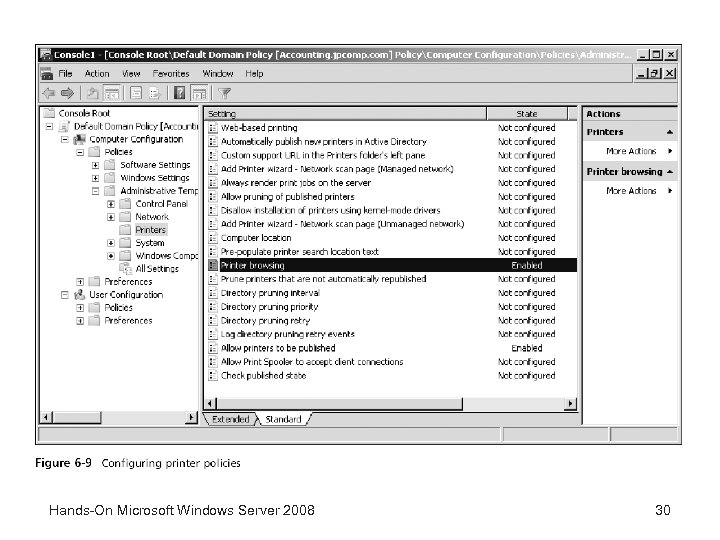 Hands-On Microsoft Windows Server 2008 30
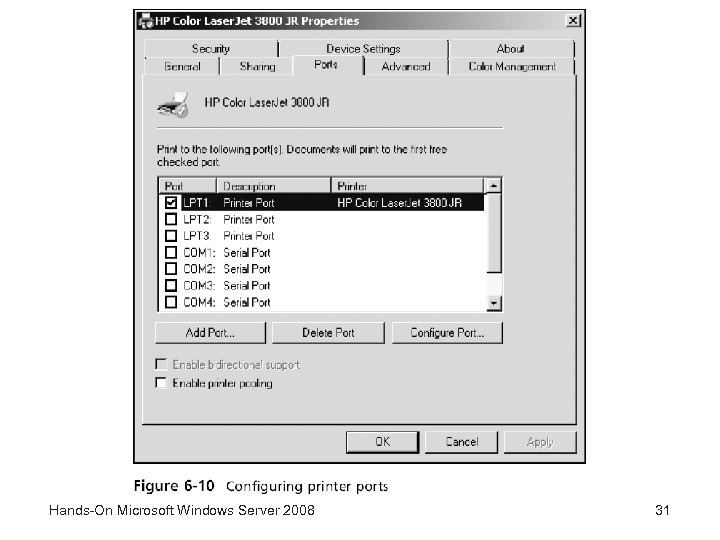 Hands-On Microsoft Windows Server 2008 31
 Port Specifications (continued) • Printer pooling – Involves configuring two or more identical printers connected to one print server • All of the printers in a pool must be identical so that they use the same printer driver and handle print files in the same way • The Add Port button enables you to add a new port • The Delete Port button is used to remove a port option from the list of ports Hands-On Microsoft Windows Server 2008 32
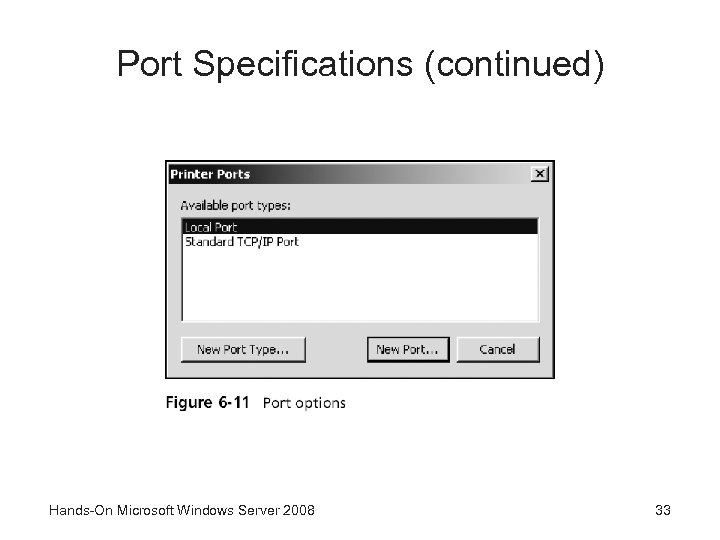 Port Specifications (continued) Hands-On Microsoft Windows Server 2008 33
 Port Specifications (continued) • Activity 6 -9: Configuring Printer Pooling – Time Required: Approximately 10 minutes – Objective: Learn how to configure printer pooling Hands-On Microsoft Windows Server 2008 34
 Port Specifications (continued) • Activity 6 -10: Transferring Print Jobs – Time Required: Approximately 15 minutes – Objective: Learn how to transfer print jobs from a malfunctioning printer Hands-On Microsoft Windows Server 2008 35
 Printer Scheduling and Advanced Options • The Advanced tab allows you to: – Have a printer available at all times – Limit the time to a range of hours • You can set the priority higher to give a particular printer or printer pool priority – Over other printers attached to the server • Printer scheduling can be useful when there is one printer and two printer objects (shares) for that printer Hands-On Microsoft Windows Server 2008 36
 Printer Scheduling and Advanced Options (continued) • The Advanced tab provides the option to use spooled printing or to bypass the spooler – Works best to spool print jobs so they are printed on a first-come, first-served basis • Enable background printing so the CPU can work on other tasks • Also helps ensure that jobs are printed together Hands-On Microsoft Windows Server 2008 37
 Printer Scheduling and Advanced Options (continued) • Other advanced options include: – – Hold mismatched documents Print spooled documents first Keep printed documents Enable advanced printing features • A data type is the way in which information is formatted in a print file – RAW (FF appended) – RAW (FF auto) Hands-On Microsoft Windows Server 2008 38
 Printer Scheduling and Advanced Options (continued) • Data types (continued) – NT EMF – TEXT • Windows Server 2008 has four separator page files – – Pcl. sep Pscript. sep Sysprint. sep Sysprtj. sep Hands-On Microsoft Windows Server 2008 39
 Printer Scheduling and Advanced Options (continued) • Activity 6 -11: Changing Data Types – Time Required: Approximately 10 minutes – Objective: Learn how to change the data type when printing problems occur Hands-On Microsoft Windows Server 2008 40
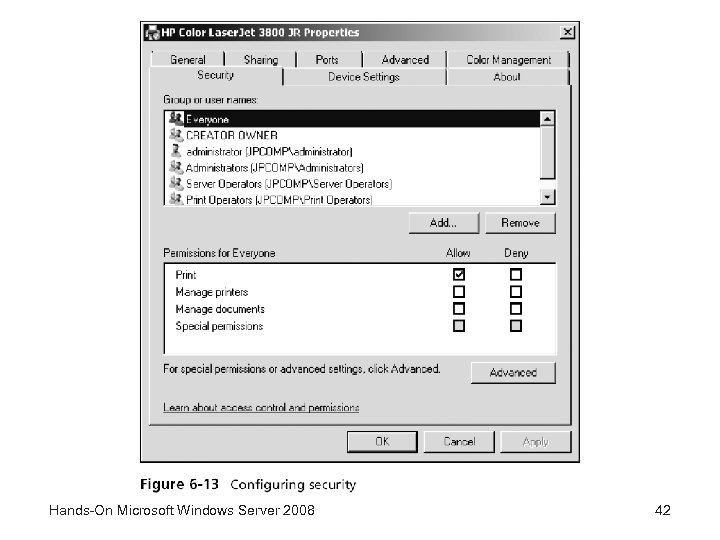
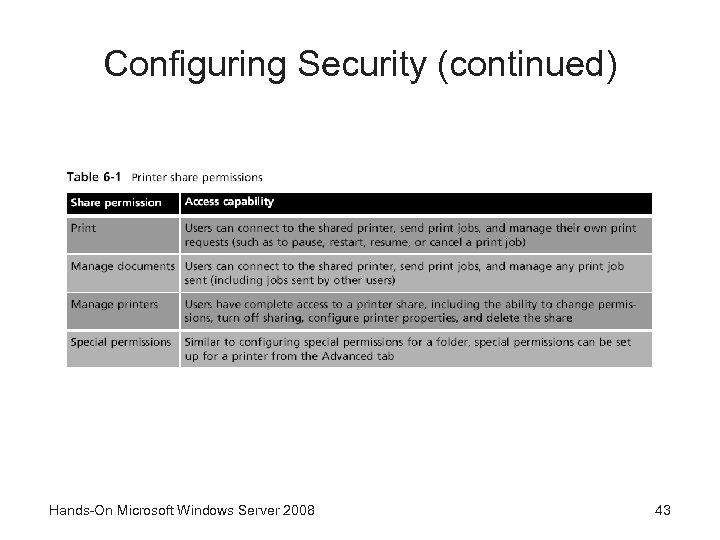
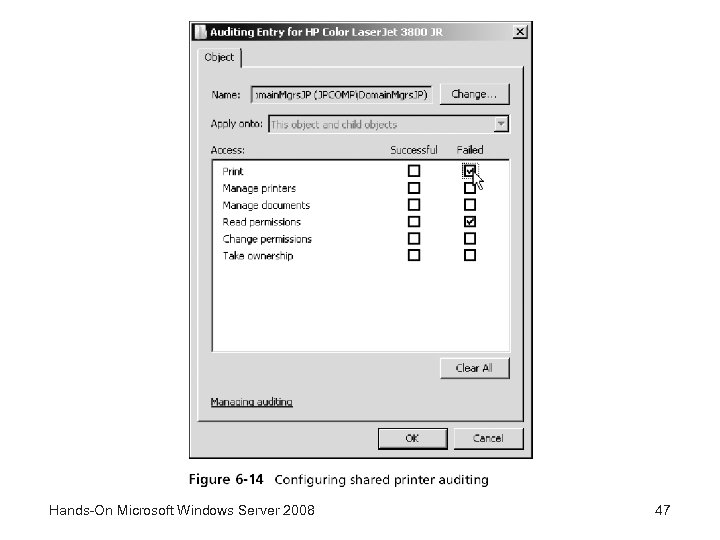
 Configuring Security • To configure security for a printer, you must have Manage printers permissions for that printer – Use the Security tab to set up printer share permissions • Use the Advanced button on the Security tab to: – Set up special printer permissions for a specific group or user – Add or remove a group or user for security access – Set up printer auditing – Take ownership of a printer – View the effective permissions for a user or group Hands-On Microsoft Windows Server 2008 41
 Hands-On Microsoft Windows Server 2008 42
 Configuring Security (continued) Hands-On Microsoft Windows Server 2008 43
 Configuring Security (continued) • Special permissions enable you to fine-tune shared printer permissions • For a shared printer you can track successful or failed attempts to: – – – Print jobs Manage printers Manage documents Read printer share permissions Change printer share permissions Take ownership of the printer Hands-On Microsoft Windows Server 2008 44
 Configuring Security (continued) • Activity 6 -12: Configuring Printer Security – Time Required: Approximately 10 minutes – Objective: Learn how to set up security on a shared printer Hands-On Microsoft Windows Server 2008 45
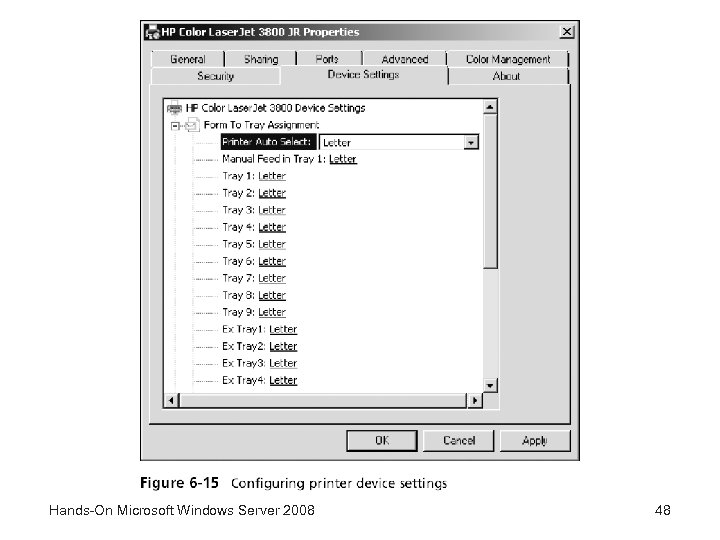
 Configuring Device Settings • The Device Settings tab – Enables you to specify printer settings that are specific to the printer you have installed • Such as printer trays, memory, paper size, fonts, duplexing, and installable options • Make sure the memory reported in the device settings matches the memory installed in the printer – This enables the print server to off-load more work to the printer, improving the speed at which print jobs are completed as well as server performance Hands-On Microsoft Windows Server 2008 46
 Hands-On Microsoft Windows Server 2008 47
 Hands-On Microsoft Windows Server 2008 48
 Configuring a Nonlocal Printer or an Internet Printer • You can connect to a network printer by using the Add Printer Wizard • When the remote printer is installed on a domain controller – You can change the properties of the shared printer you just installed – Even though you are not logged on to its host computer Hands-On Microsoft Windows Server 2008 49
 Managing Print Jobs • Users with Print permissions can: – Send print jobs to the printer – Pause, resume, and restart their own print jobs – Cancel their own print jobs • Print Operators, Server Operators, and other groups having Manage documents permissions can: – Send print jobs to the printer – Pause, resume, and restart any user’s print jobs – Cancel any user’s print jobs Hands-On Microsoft Windows Server 2008 50
 Controlling the Status of Printing • In Windows Server 2008, printer control and setup information for a particular printer is associated with that printer’s properties • Sometimes you need to pause a printer to fix a problem • You can pause printing to that printer by opening the Printers window, double-clicking the printer, clicking the Printer menu – And clicking the Pause Printing option so there is a check mark beside it Hands-On Microsoft Windows Server 2008 51
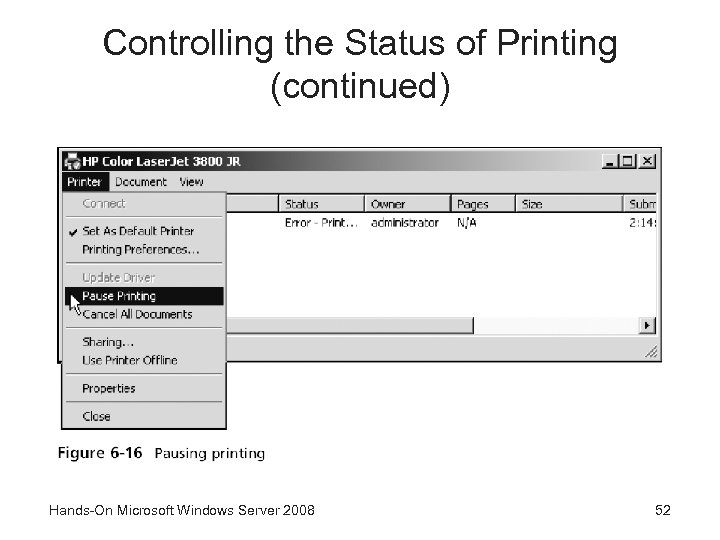 Controlling the Status of Printing (continued) Hands-On Microsoft Windows Server 2008 52
 Controlling Specific Print Jobs • You can pause, resume, restart, or view the properties of one or more documents – In the print queue of a printer • Print queue – A stack of print jobs, with the first job submitted at the top of the stack and the last job submitted at the bottom – And all of the jobs waiting to be sent from the spooler to the printer Hands-On Microsoft Windows Server 2008 53
 Controlling Specific Print Jobs (continued) • In Windows Server 2008, to pause a print job, open the Printers window from Control Panel and doubleclick the appropriate printer • The resulting window shows a list of jobs to be printed – Click the document you want to pause, click the Document menu, and then click Pause • Jobs print in the order they are received, unless the administrator changes their priority Hands-On Microsoft Windows Server 2008 54
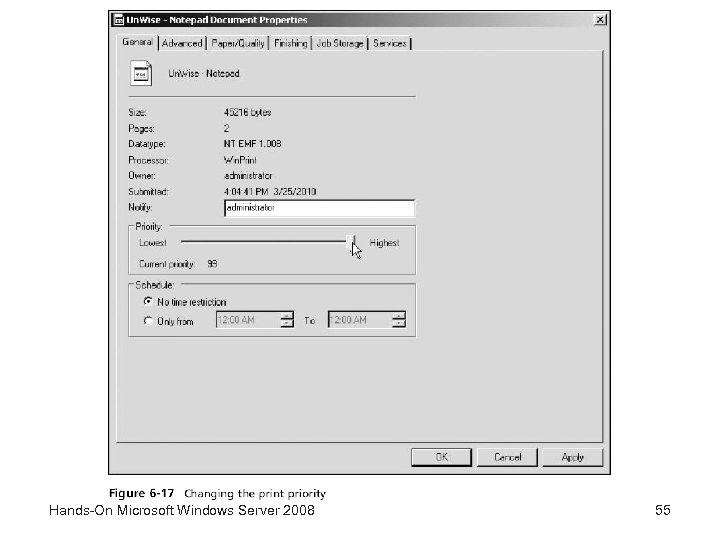 Hands-On Microsoft Windows Server 2008 55
 Controlling Specific Print Jobs (continued) • Activity 6 -13: Pausing a Printer and Canceling a Document – Time Required: Approximately 10 minutes – Objective: Learn how to pause a printer and then cancel a document Hands-On Microsoft Windows Server 2008 56
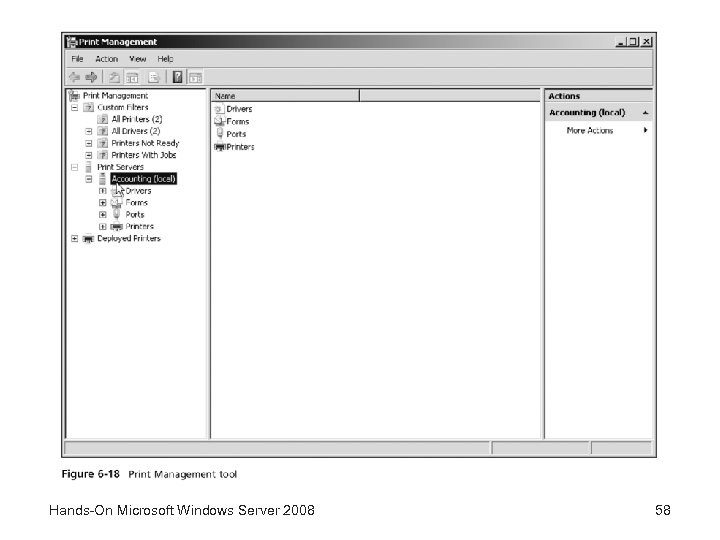
 Using the Print Management Tool • The Print Management tool – Also called the Print Management Console or PMC – Centralizes shared printer control in one place • Enabling printer administrators and operators to manage the print functions of some or all of the shared printers on a network • Using the Print Management tool, you can: – Start the Network Printer Installation Wizard to set up network printers for sharing – View and manage installed printers – View and manage printer drivers for installed printers Hands-On Microsoft Windows Server 2008 57
 Hands-On Microsoft Windows Server 2008 58
 Using the Print Management Tool (continued) • Using the Print Management tool, you can: (continued) – Determine if any printers are not ready to print – Determine which printers have print jobs in the print queue – Manage the use of printer forms – Manage which printers are associated with which printer ports – Pause and restart printing on a particular shared printer – Manage print jobs Hands-On Microsoft Windows Server 2008 59
 Using the Print Management Tool (continued) • Using the Print Management tool, you can: (continued) – Manage printer sharing – Configure printer pooling – Add Windows Server 2008 print server for central printer management – Manage from one place shared printers set up on Windows 2000, Windows Vista, Windows Server 2003, and Windows Server 2008 – Export preconfigured settings to a network printer using the Printer Migration Wizard Hands-On Microsoft Windows Server 2008 60
 Using the Print Management Tool (continued) • Activity 6 -14: Using the Print Management Tool – Time Required: Approximately 15 minutes – Objective: Learn how to use the Print Management tool Hands-On Microsoft Windows Server 2008 61
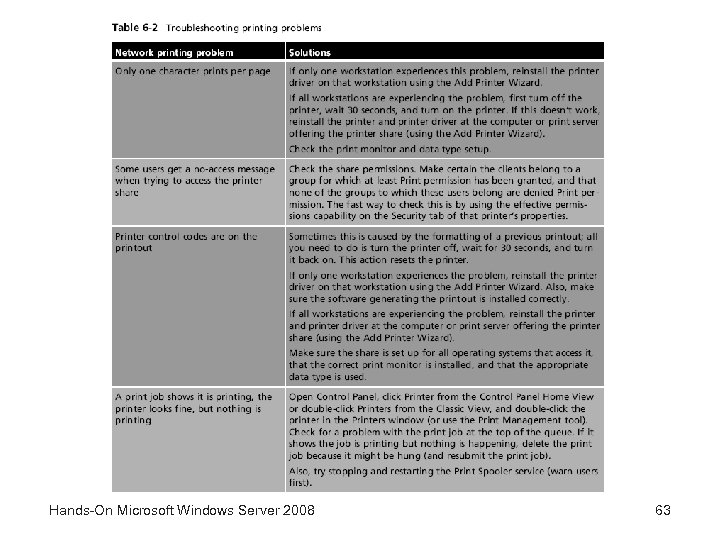
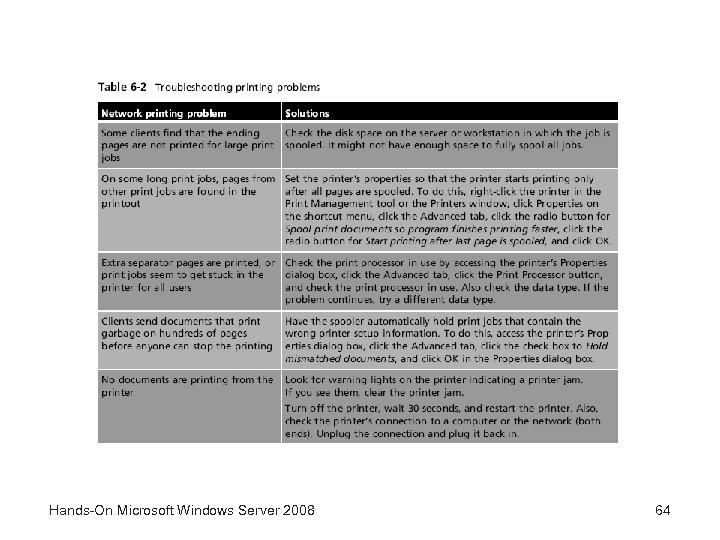
 Troubleshooting Common Printing Problems • Because the spooler contains several complex pieces – It is a possible source of printer problems • If a print job is not going through, and you determine that one or more printers are not paused, and that the cable connection is good, then stop and restart the Print Spooler service Hands-On Microsoft Windows Server 2008 62
 Hands-On Microsoft Windows Server 2008 63
 Hands-On Microsoft Windows Server 2008 64
 Summary • Windows Server 2008 printing uses the graphics device interface (GDI) to integrate print file information with the printer driver • Internet printing enables users to print files through an Internet connection using HTTP and Internet Printing Protocol (IPP) • Windows Server 2008 supports using XML Paper Specification (XPS) for polished print documents • You can turn Windows Server 2008 into a fullfeatured print server by installing the Print Services role Hands-On Microsoft Windows Server 2008 65
 Summary (continued) • Use the Add Printers Wizard to install local and shared printers • The properties of an installed printer enable you to configure printer sharing, printer port setup, scheduling, security, and specialized device settings • Through the Add Printer Wizard, you can install a nonlocal printer or an Internet printer • Managing a printer involves actions such as pausing and unpausing printing and setting the default printer Hands-On Microsoft Windows Server 2008 66
 Summary (continued) • The Print Management tool consolidates printer control and management features in one place • Printer problems can occur at any time Hands-On Microsoft Windows Server 2008 67