


 Скачать презентацию Guide to Operating Systems th Edition 5 Chapter
d52f3968c75afb1a86b0237c39f82104.ppt
- Количество слайдов: 56
 Guide to Operating Systems, th Edition 5 Chapter 7 Using and Configuring Storage Devices
 Objectives After completing this chapter, you will be able to: • Describe computer storage • Configure local disks • Work with different types of volumes and virtual disks • Describe cloud storage • Describe tape drive technologies • Work with storage management tools Guide to Operating Systems, 5 th Edition © Cengage Learning 2017 2
 An Overview of Computer Storage • Files and documents are stored on digital media • People want instant access to whatever they store – Cloud storage services are more popular than ever Guide to Operating Systems, 5 th Edition © Cengage Learning 2017 3
 What is Storage? • Storage – any digital medium that data can be written to and later retrieved • Long-term storage includes: – – – USB memory sticks (flash drives) Secure Digital (SD) and Compact Flash (CF) cards CDs and DVDs Magnetic tape Solid-state drives Hard disk drives Guide to Operating Systems, 5 th Edition © Cengage Learning 2017 4
 What is Storage? • Solid-state drives (SSDs) are very popular for applications requiring greater speed, smaller size, and lower power requirements – Uses flash memory and high-speed interfaces – Has no moving parts and requires less power – Do not yet have the capacity of HDDs • Discussions of computer storage are mainly about traditional HDD storage – Most of the discussion of HDD storage applies to SSDs as well Guide to Operating Systems, 5 th Edition © Cengage Learning 2017 5
 Reasons for Storage • Most uses of computer storage: – – – – Operating system files User applications User documents Virtual memory Log files Virtual machines Database storage Guide to Operating Systems, 5 th Edition © Cengage Learning 2017 6
 Storage Access Methods • Four categories of storage access methods: – – Local storage Direct-attached storage (DAS) Network-attached storage (NAS) Storage area network (SAN) Guide to Operating Systems, 5 th Edition © Cengage Learning 2017 7
 Storage Access Methods • Local storage - storage media with a direct, exclusive connection to the computer’s system board through a disk controller – Almost always inside the computer’s case – Usually refers to HDDs or SDDs instead of CD/DVDs – Provides rapid and exclusive access • Disadvantage: only the system where it’s installed has direct access to the storage medium Guide to Operating Systems, 5 th Edition © Cengage Learning 2017 8
 Storage Access Methods • Direct-attached storage (DAS) - similar to local storage but can also refer to one or more HDDs in an enclosure with its own power supply • A DAS device with its own enclosure and power supply can usually be configured as a disk array – Such as a RAID configuration • Some DAS have multiple interfaces so that more than one computer can access the storage medium simultaneously Guide to Operating Systems, 5 th Edition © Cengage Learning 2017 9
 Storage Access Methods • Network-attached storage (NAS) - has an enclosure, power supply, slots for multiple HDDs, a network interface, and a built-in OS tailored for managing shared storage – Sometimes referred to as a storage appliance • NAS is typically dedicated to file sharing • NAS shares files through standard network protocols such as: – Server Message Block(SMB), Network File System (NFS), and File Transfer Protocol (FTP) Guide to Operating Systems, 5 th Edition © Cengage Learning 2017 10
 Storage Access Methods • Storage area network (SAN) - uses high-speed networking technologies to give servers fast access to large amounts of shared disk storage • Most common network technologies used in SANs are Fibre Channel and i. SCSI • SANS use the concept of logical unit number (LUN) to identify a unit of storage – LUN is a logical reference point to a unit of storage that could refer to an entire array of disks, a single disk, or just part of a disk Guide to Operating Systems, 5 th Edition © Cengage Learning 2017 11
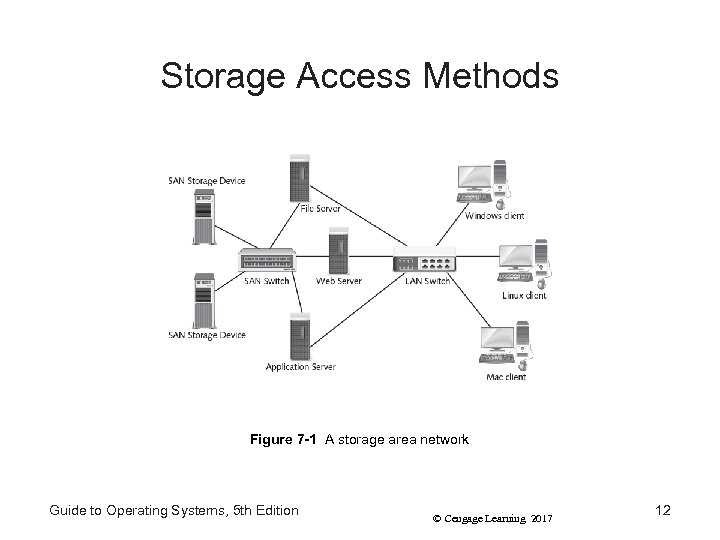 Storage Access Methods Figure 7 -1 A storage area network Guide to Operating Systems, 5 th Edition © Cengage Learning 2017 12
 Configuring Local Disks • Configuration of local disks can be divided into two categories: – Physical disk properties - involve disk capacity, physical speed, and the interface for attaching a disk to the system – Logical disk properties - include its format and the partitions or volumes created on it Guide to Operating Systems, 5 th Edition © Cengage Learning 2017 13
 Configuring Local Disks • Disk-storage terminology: – Disk drive - a physical component with a disk interface connector and a power connector – Volume - a logical unit of storage that can be formatted with a file system • A disk drive can contain one or more volumes – Partition - an older term that means the same thing as a “volume” but is used with basic disk – Formatting - prepares a disk with a file system used to organize and store files Guide to Operating Systems, 5 th Edition © Cengage Learning 2017 14
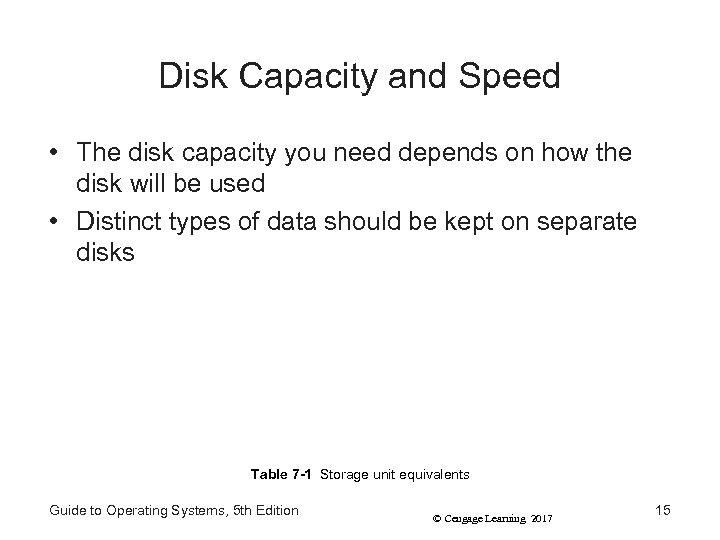 Disk Capacity and Speed • The disk capacity you need depends on how the disk will be used • Distinct types of data should be kept on separate disks Table 7 -1 Storage unit equivalents Guide to Operating Systems, 5 th Edition © Cengage Learning 2017 15
 Disk Capacity and Speed • Disk capacity considerations: – On servers or high-performance workstations, the OS installation should be on a separate disk from data and applications – Virtual memory should be on its own disk, if possible • An SSD is also a good choice for the page file – Using RAID as a fault tolerance option, will combine multiple disks to make a single volume • Overall storage capacity is diminished Guide to Operating Systems, 5 th Edition © Cengage Learning 2017 16
 Disk Capacity and Speed • Factors that affect the speed of HDDs: – Disk interface technology – Rotation speed - servers should have an HDD with a minimum speed of 7200 rpm (10, 000 -15, 000 preferred) – Amount of cache memory installed - 32 -64 MB cache sizes are common for server-class drives Guide to Operating Systems, 5 th Edition © Cengage Learning 2017 17
 Disk Interface Technologies • Disk interface - connects a disk to a computer system – Usually with some type of cable • The faster the bus, the faster the system can read from and write to the disk • Most common types of disk interfaces: – SATA – SAS – SCSI Guide to Operating Systems, 5 th Edition © Cengage Learning 2017 18
 Disk Interface Technologies • Serial ATA Drives (SATA) - have mostly replaced parallel ATA (PATA) drives – Advantages: faster transfer times and small cable size • SATA drives are inexpensive, fast, and reliable • Current standard: 3. 2 – Supports speeds up to 16 Gb/s Guide to Operating Systems, 5 th Edition © Cengage Learning 2017 19
 Disk Interface Technologies • Small computer system interface (SCSI) drives a parallel bus technology still used on some servers but has reached its performance limits – Latest variation is Ultra-640 which supports up to 640 MB/s transfer rates • Serial attached SCSI (SAS) - a newer, serial form of SCSI with transfer rates up to 6 Gb/s and higher – SATA drives can be connected to SAS backplanes – Backplane - a connection system that uses a printed circuit board instead of traditional cables to carry signals Guide to Operating Systems, 5 th Edition © Cengage Learning 2017 20
 Disk Interface Technologies • Partitioning methods offered by most OSs: – Master Boot Record (MBR) - most common method that has been around since DOS • Supports volume sizes up to 2 TB – GUID Partitioning Table (GPT) - support volumes sizes up to 18 exabytes (EB, a million terabytes) • Offer improved reliability through partition table replication and Cyclic Redundancy Check (CRC) protection of the partition table Guide to Operating Systems, 5 th Edition © Cengage Learning 2017 21
 Types of Volumes • RAID Arrays – Redundant array of inexpensive (or independent) disks – A disk configuration that uses space on multiple disks to from a single logical volume • RAID is commonly configured in one of two ways: – By the storage controller in hardware – Via the OS storage system in software • Hardware RAID provides better performance by offloading the OS from having to perform the processes involved in RAID Guide to Operating Systems, 5 th Edition © Cengage Learning 2017 22
 Types of Volumes • Common volume types supported by most OSs: – Simple volume - resides on a single disk, basic or dynamic – Spanned volume - extends across two or more physical disks – RAID 0 volume - extends across two or more dynamic disks, but data is written to all disks in the volume equally Guide to Operating Systems, 5 th Edition © Cengage Learning 2017 23
 Types of Volumes • Common volume types supported by most OSs (cont’d): – RAID 1 volume (Mirrored volume ) - uses space from two dynamic disks and provides fault tolerance • Data written to one disk is duplicated, or mirrored, to the second disk • If one disk fails, the other has a copy of the data – RAID 5 volume - uses space from three or more dynamic disks and uses disk striping with parity • Parity information is used to re-create lost data after a disk failure Guide to Operating Systems, 5 th Edition © Cengage Learning 2017 24
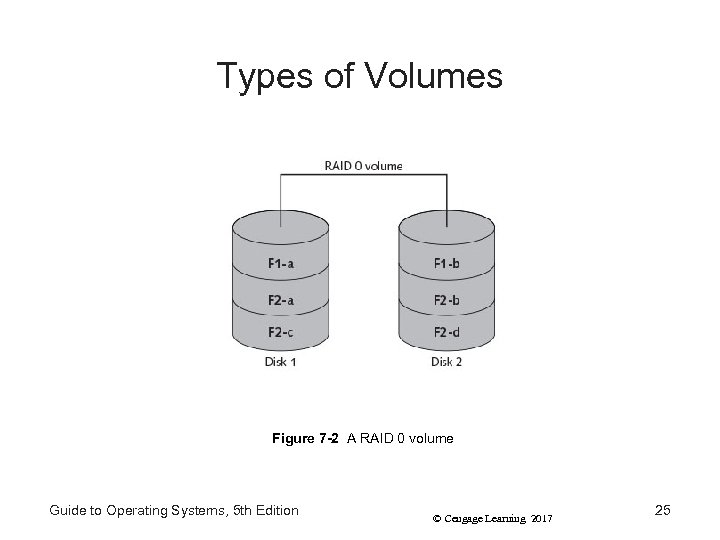 Types of Volumes Figure 7 -2 A RAID 0 volume Guide to Operating Systems, 5 th Edition © Cengage Learning 2017 25
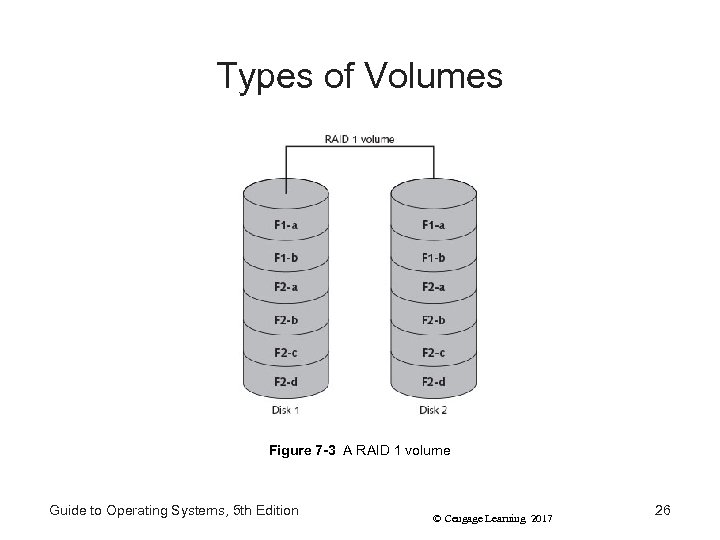 Types of Volumes Figure 7 -3 A RAID 1 volume Guide to Operating Systems, 5 th Edition © Cengage Learning 2017 26
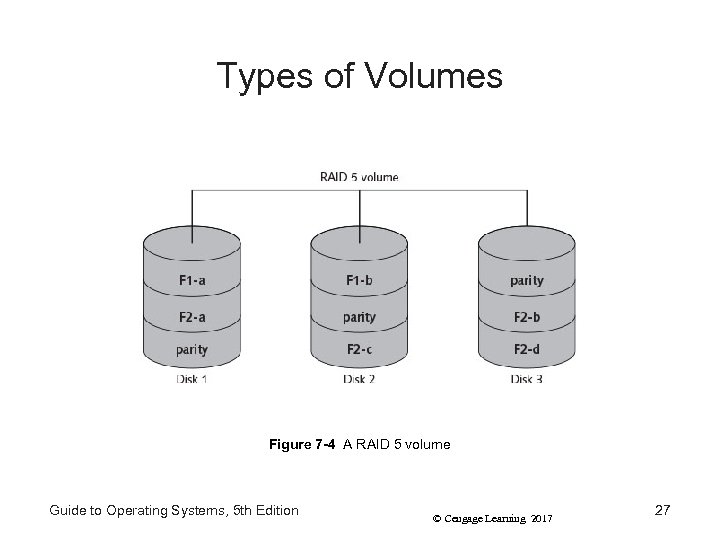 Types of Volumes Figure 7 -4 A RAID 5 volume Guide to Operating Systems, 5 th Edition © Cengage Learning 2017 27
 Windows Volumes and Disk Types • Two Microsoft-specific volume definitions: – Boot volume - the volume where the Windows folder is located (also called boot partition) – System volume - contains files the computer needs to find and load the Windows OS (also called system partition) • In Windows 2008 and later versions, it’s created automatically during installation if you’re installing an OS for the first time on a system • Not assigned a drive letter (can’t be viewed in File Explorer) Guide to Operating Systems, 5 th Edition © Cengage Learning 2017 28
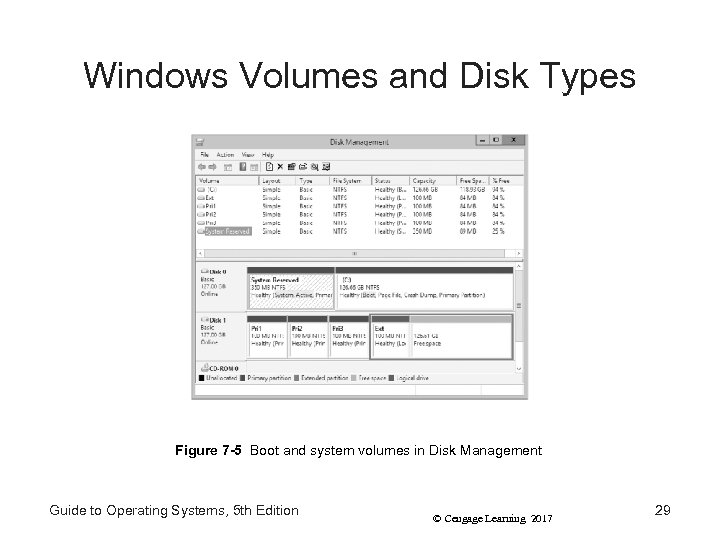 Windows Volumes and Disk Types Figure 7 -5 Boot and system volumes in Disk Management Guide to Operating Systems, 5 th Edition © Cengage Learning 2017 29
 Windows Volumes and Disk Types • Basic Disks - accommodates only basic volumes – Can accommodate only simple volumes – Volumes on a basic disk are called “partitions” – Can support a maximum of four partitions • First three are primary partitions and the fourth is called an extended partition • Primary partition - can be assigned a drive letter, be marked active, and contain the Windows system volume • Extended partition - must be divided into logical drives Guide to Operating Systems, 5 th Edition © Cengage Learning 2017 30
 Windows Volumes and Disk Types • Dynamic Disks - a disk arrangement that can hold up to 128 volumes – Volumes can span multiple disks and be configured for RAID – Can hold the Windows boot or system partition, but only if converted to dynamic after Windows is already installed on the volume • To convert a basic disk to dynamic: – In Disk Management, right-click the disk and Convert to Dynamic Disk Guide to Operating Systems, 5 th Edition © Cengage Learning 2017 31
 Windows Volumes and Disk Types • Virtual hard disk (VHD) file - the format virtual machines running in Hyper-V use for their virtual disks – VHD files can also be created and mounted with Disk Management and used like physical disks • A VHD can also be mounted by double-clicking it in File Explorer (or right-click it and click Mount) • Virtual disks are portable – VHD files can be copied to any location for the purposes of backing up data or allowing it to be used by another computer Guide to Operating Systems, 5 th Edition © Cengage Learning 2017 32
 Windows Volumes and Disk Types • Storage Spaces - a new features in Windows Server 2012 that provides flexible provisioning of virtual storage – Creates volumes from storage pools • Storage pools - a collection of physical disks from which virtual disks and volumes are created and assigned dynamically • Storage Spaces can allocate storage by using thin provisioning – Which uses dynamically expanding disks so that you can provision a large volume Guide to Operating Systems, 5 th Edition © Cengage Learning 2017 33
 Windows Volumes and Disk Types • Storage Spaces uses the concept of just a bunch of disks (JBOD) – Two or more disks appear as a single disk to the OS • With JBOD, you can add a physical disk to a storage pool • Storage Spaces features: – – Disk pooling Data deduplication Flexible storage layouts Storage tiering Guide to Operating Systems, 5 th Edition © Cengage Learning 2017 34
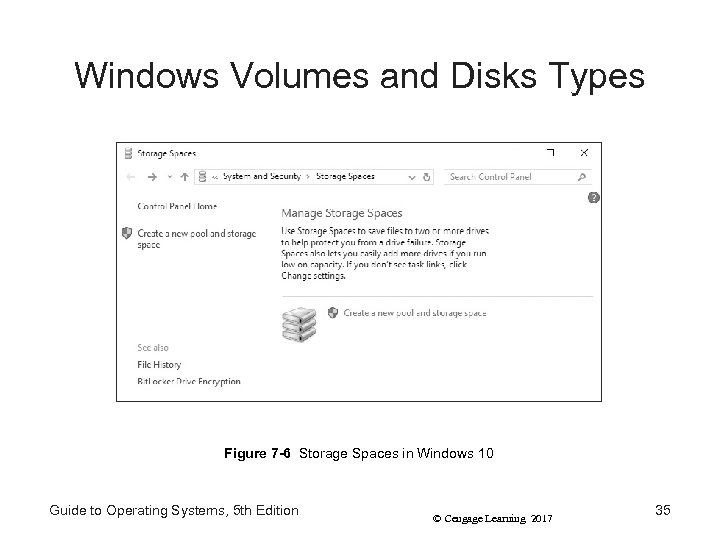 Windows Volumes and Disks Types Figure 7 -6 Storage Spaces in Windows 10 Guide to Operating Systems, 5 th Edition © Cengage Learning 2017 35
 Volume Types in Linux/UNIX and Mac OS X • Linux/UNIX and Mac OS X share most terminology for managing storage • Linux volumes can be created using two methods: – Basic partitions – offers same restrictions as basic disks in Windows – Logical volume manager (LVM) – can create as many partitions as you have space and use RAID • LVM uses physical disk partitions called volume groups – From volume groups, logical volumes are created and assigned space Guide to Operating Systems, 5 th Edition © Cengage Learning 2017 36
 Volume Types in Linux/UNIX and Mac OS X • Virtual Disks in Linux – You can work with virtual disks in Linux by: – Creating an image file – Installing a file system on it – Mounting it into the file system • You can also use the Disks utility in GNOME to create a disk image from a hard disk or CD/DVD and attach a disk image • In Mac OS X, use the Disk Utility to create an image from an existing device or folder Guide to Operating Systems, 5 th Edition © Cengage Learning 2017 37
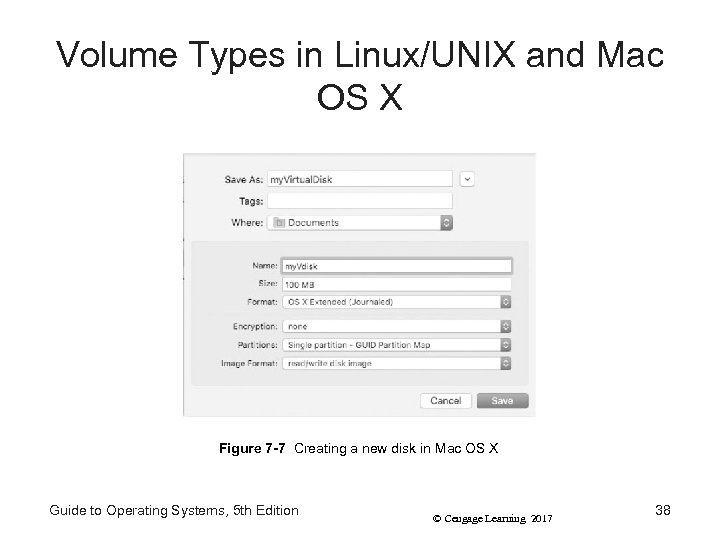 Volume Types in Linux/UNIX and Mac OS X Figure 7 -7 Creating a new disk in Mac OS X Guide to Operating Systems, 5 th Edition © Cengage Learning 2017 38
 Cloud Storage • Cloud storage – Some or all of an organization’s data is stored on servers located offsite and maintained by a storage hosting company – Customers can manage storage by assigning permissions for user access • Advantage of cloud storage – Details of managing and backing up storage on local servers are offloaded to a third party • Examples: Dropbox, Microsoft One. Drive and Google Drive Guide to Operating Systems, 5 th Edition © Cengage Learning 2017 39
 Tapes and Tape Drives • Tape backup systems are a traditional choice for backing up large amounts of data • Use magnetic storage and record data in sequential order – Disadvantage – to find a file near the end of the tape, drive must first go through all of the data recorded prior to that file • Most popular for long-term storage – With disk drives growing into terabytes, tape drive technology is continuing to evolve in order to keep up Guide to Operating Systems, 5 th Edition © Cengage Learning 2017 40
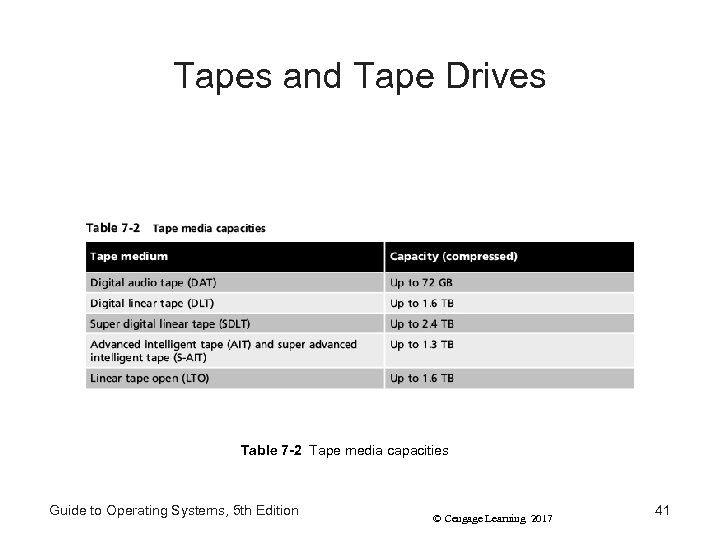 Tapes and Tape Drives Table 7 -2 Tape media capacities Guide to Operating Systems, 5 th Edition © Cengage Learning 2017 41
 DAT Drives • DAT Drives - Digital audio tape – Use a 4 -mm tape and the digital data storage (DDS) format – DDS-1 has a capacity of 2 GB (4 GB compressed) – Current standard is DDS-5 – storage capacity of 36 GB (72 GB compressed) – Backward compatible – can upgrade to a DDS-5 drive and still read DDS-4 tapes – Rated at an archival life of 10 years – Still used for audio recordings, but use for data storage is mostly replaced by other technologies Guide to Operating Systems, 5 th Edition © Cengage Learning 2017 42
 DLT and SDLT Drives • DLT Drives – Digital linear tape – – Use half-inch wide magnetic tapes Record data in tracks Offers a high-speed search capability Used in many automated tape backup systems • SDLT Drives – Super digital linear tape – Use both magnetic and optical recording methods – Laser technology can more accurately write data to the tape and allows for greater density of information • DLT/SDLT have an archival life of up to 30 years Guide to Operating Systems, 5 th Edition © Cengage Learning 2017 43
 AIT and S-AIT Drives • AIT Drives – Advanced intelligent tape (AIT) – Used mainly in midrange servers – Tapes have an erasable memory chip inside the cartridge that stores information normally written at the beginning of the tape • Can fast forward and pinpoint information faster • S-AIT Drives – Super advanced intelligent tape – Has a capacity of 500 GB/1. 3 TB (native/compressed) • Both of these drives can sustain up to 30, 000 tape passes and have an archival life of 30 years Guide to Operating Systems, 5 th Edition © Cengage Learning 2017 44
 LTO Drives • LTO Drives – Linear tape open – Most widely accepted in high-end servers (because of high-speed performance) – Standards are open to the public and are nonproprietary – LTO Ultrium format was developed so that LTO tapes can be used in existing DLT tape drives – Fast data transfer speed up to 240 MBps (noncompressed data) and 120 MBps (compressed data) – Can sustain up to 260 tape passes and have an archival life of 15 -30 years Guide to Operating Systems, 5 th Edition © Cengage Learning 2017 45
 Storage Management Tools • This section covers: – Windows Storage Management Tools – Disk Management Tools in UNIX/Linux – Mac OS X Disk Utility Guide to Operating Systems, 5 th Edition © Cengage Learning 2017 46
 Windows Storage Management Tools • Windows Disk Management tool for hard drive and removable enables you to: – Create, format, and delete partitions – Manage removable storage such as hard drives, DVD/CD-ROM drives, and flash drives – Convert a basic disk to a dynamic disk • Can access this tool from Computer Management console – And by right-clicking Start Guide to Operating Systems, 5 th Edition © Cengage Learning 2017 47
 Windows Storage Management Tools • On Windows 2012/R 2 and newer versions – You can use the File and Storage Services tool from Server Manager to manage volumes and Storage Spaces Guide to Operating Systems, 5 th Edition © Cengage Learning 2017 48
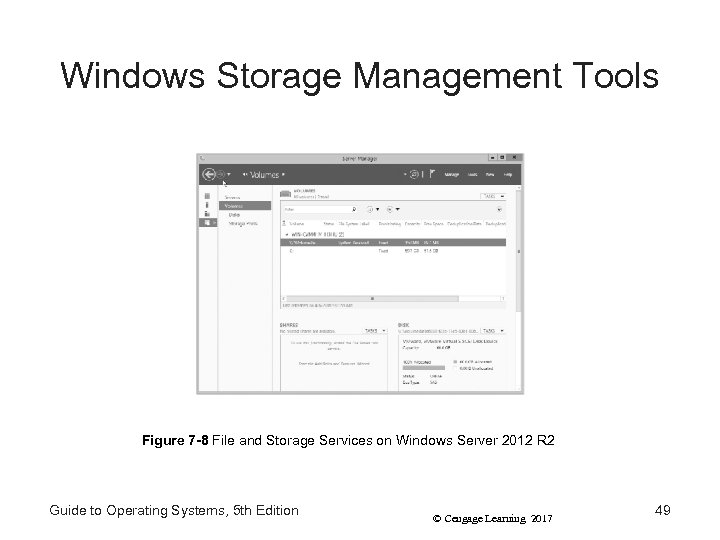 Windows Storage Management Tools Figure 7 -8 File and Storage Services on Windows Server 2012 R 2 Guide to Operating Systems, 5 th Edition © Cengage Learning 2017 49
 Disk Management Tools in UNIX/Linux • Common command-line utilities: fdisk, format, sfdisk, and cfdisk – sfdisk and cfdisk enable you to verify partitions, list information about partitions, and repartition a disk • Command-line utility mount – mounts a file system so that you can use a disk partition – Many need to manually mount file systems for DVD/CD-ROM or flash drives • In Linux with the GNOME desktop, there are GUI tools to manage disk storage Guide to Operating Systems, 5 th Edition © Cengage Learning 2017 50
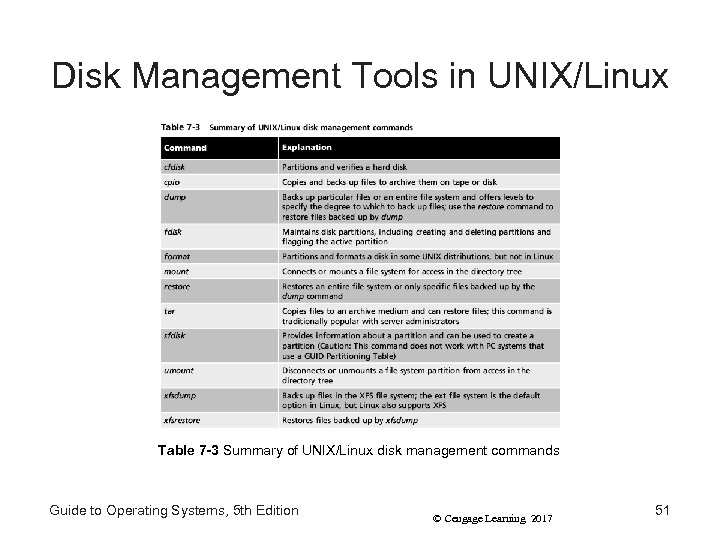 Disk Management Tools in UNIX/Linux Table 7 -3 Summary of UNIX/Linux disk management commands Guide to Operating Systems, 5 th Edition © Cengage Learning 2017 51
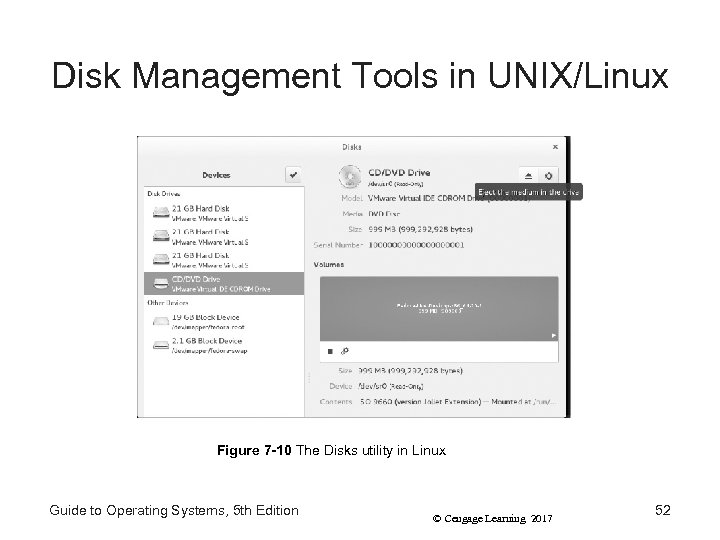 Disk Management Tools in UNIX/Linux Figure 7 -10 The Disks utility in Linux Guide to Operating Systems, 5 th Edition © Cengage Learning 2017 52
 Mac OS X Disk Utility • Can partition, format, and manage hard drives – Can also manage DVD/CD-ROM drives, removable hard drives, flash drives, and other storage • For removable media – You can use the Disk Utility to mount, eject media, burn a CD or DVD, and perform other actions • Because Mac OS X is UNIX-based, you can also open a terminal window and use the mount command to manage storage media Guide to Operating Systems, 5 th Edition © Cengage Learning 2017 53
 Summary • Storage is any digital media that data can be written to and later retrieved from • All computers require at least some storage but servers usually require more than client computers • The main methods of storage access are local, DAS, NAS, and SAN • Configuration of local disks can be divided into two broad categories: physical disk properties and logical properties • Disk types include basic disks and dynamic disks Guide to Operating Systems, 5 th Edition © Cengage Learning 2017 54
 Summary • Storage Spaces provides flexible provisioning of virtualized storage by using storage pools • Storage Spaces uses the concept of just a bunch of disks (JBOD) – Two or more disks are abstracted to appear as a single disk to the OS • With cloud storage, some or all of an organization’s data is stored on servers located offsite and managed by a storage hosting company Guide to Operating Systems, 5 th Edition © Cengage Learning 2017 55
 Summary • Tape backup systems are a relatively inexpensive and traditional choice for backing up large amounts of data • Storage management tools in Windows include Disk Management and File and Storage Services • Linux has a number of command-line tools plus the Disks GUI tool • Mac OS X includes many of the same Linux command-line tools, plus the Disk Utility tool Guide to Operating Systems, 5 th Edition © Cengage Learning 2017 56