


 Скачать презентацию Guide to Operating Systems 4 th ed Chapter
08a029ad4107e01792d09b7b13343412.ppt
- Количество слайдов: 43
 Guide to Operating Systems, 4 th ed. Chapter 6: Configuring Input and Output Devices
 Objectives • Understand how operating systems interface with input and output devices • Explain the need for device drivers and install devices and drivers • Describe popular input device technologies • Discuss the types of printers and install printers • Explain display adapter technologies • Install circuit boards for new devices • Explain the use of sound cards and other output devices Guide to Operating Systems, 4 th ed. 2
 Operating Systems and Devices: An Overview • A primary function of any OS is to provide basic I/O support for application software – To translate requests from software into commands that the hardware can understand carry out • Two ways an OS does this: – Through software(device drivers) – Through hardware (controllers and adapter boards) controlled by the OS • Device drivers perform the communication between the physical device and OS • Adapters are the interface between hardware components (such as display adapters to produce video) Guide to Operating Systems, 4 th ed. 3
 Operating Systems and Devices: An Overview • Configuration of device drivers and adapters varies from OS to OS, but they function the same in each OS • Setting up or installing I/O devices involves three general steps: – Install any software drivers that are required – Connect the input, output, or storage device – Turn on the device and follow any configuration instructions Guide to Operating Systems, 4 th ed. 4
 Using Device Drivers • The OS provides basic I/O support for devices but it doesn’t support specific features of each device – For specific features to be supported and work properly, a device driver for the device is needed • Advantages of using device drivers: – Only essential code is necessary to build into the OS kernel for maximum performance – Use of specific devices does not have to be linked to a single OS – The number of I/O devices can expand to offer the computer user a broad range of device selections and features – New devices can come on the market without requiring extensive updates to OSs Guide to Operating Systems, 4 th ed. 5
 Using Device Drivers • You should use the manufacturer’s driver instead of the one supplied with your OS – Using the driver shipped with your device gives you a better chance of having the latest version designed for your specific hardware • The procedure to install drivers varies – If you download a new driver from a manufacturer’s Web site, you may have to uncompress it – Microsoft includes built-in zip support (starting in late 90’s) – Some files may be supplied in self-extraction format (executable file that usually uses an. exe file extension) – If the file includes a. zip extension, you’ll need a program like PKZIP or Win. Zip to expand the file before installing – Mac OS X since version 10. 3 Tiger has built-in zip support – UNIX/Linux users may retrieve drivers in a tar format Guide to Operating Systems, 4 th ed. 6
 Using Device Drivers • Once the driver is located, you generally have 3 options for install: – Use your OS’s install utility – Plug and Play (Pn. P) feature – The install utility provided by the hardware manufacturer • Procedures differ among different OSs and with different equipment – General process is very similar Guide to Operating Systems, 4 th ed. 7
 Using Device Drivers • Manufacturer Driver Installation – most come with an install utility that makes driver installation fully automatic – If problems occur, go to manufacturer’s Web site or looks for a. txt file on the install disk for more information • Windows XP (and later versions) Driver Installation – Easiest way to install a driver is to use the Pn. P capability to automatically detect new hardware – Also can use the Add Hardware Wizard in Windows – A third way is through the Control Panel – A final way is to use Device Manager – install a new driver or update an existing one Guide to Operating Systems, 4 th ed. 8
 Using Device Drivers • Using Pn. P to Install a Device and Driver – – Install any software drivers that are required Connect the printer to the computer Plug the printer into a power outlet and turn it on Follow any configuration instructions • Windows may try to find the built-in driver for the device on the Windows distribution disk or DVD/CD -ROM • You can insert the manufacturer’s DVD/CD-ROM into the appropriate drive when the OS asks for it Guide to Operating Systems, 4 th ed. 9
 Using Device Drivers • Using a Windows Wizard to Install a Device/Driver – Use the Add Hardware Wizard if: • Windows doesn’t recognize newly installed hardware • Want to conduct an installation manually • To start automatic procedures to detect a hardware device – Starting the Add Hardware Wizard varies from OS to OS (see examples of how to start on page 310) – When using the Wizard, the drivers may not be the most current • It is recommended to use the installation CD from the device manufacturer (if available) to ensure the latest drivers are used Guide to Operating Systems, 4 th ed. 10
 Using Device Drivers • Using Control Panel to Install a Device/Driver – Many devices can be configured through Control Panel – Examples are: monitor, game controllers, keyboard, mouse, network interfaces, printers and faxes, scanners, etc… – Double-click the icon and look for configuration options Guide to Operating Systems, 4 th ed. 11
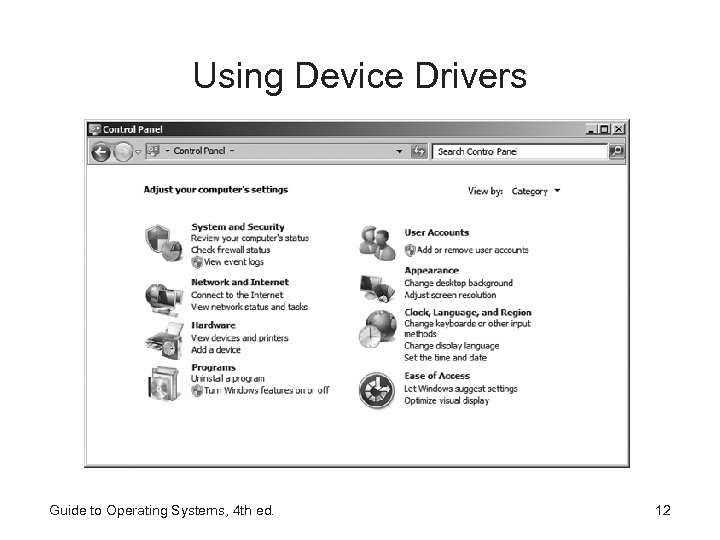 Using Device Drivers Guide to Operating Systems, 4 th ed. 12
 Using Device Drivers • Using Device Manager to Install or Update a Driver – Also use Device Manager to: • Determine the location of device driver files • Check to make sure a device is working properly • Determine if there is a resource conflict for a device – A conflict could occur more than once device is assigned the same IRQ or I/O address • Interrupt request (IRQ) line – channel within the computer that is used for communications with the CPU • I/O address range – memory reserved for use by a particular device – Hands-On Project 6 -2 gives you the opportunity to use Device Manager Guide to Operating Systems, 4 th ed. 13
 Using Device Drivers • When a new I/O device is installed under Windows, you have the option to make sure the driver has been verified by Microsoft • When it has been verified a unique digital signature is incorporated into that driver (a process called driver signing) • Using driver signing helps to ensure that the driver works properly with the device and in conjunction with other devices • Hands-On Project 6 -3 shows you how to configure driver signing in Windows XP and Server 2003/R 2 Guide to Operating Systems, 4 th ed. 14
 UNIX/Linux Driver Installation • Concept of drivers is a little different in UNIX/Linux • Central portion of the OS, the kernel, is where most of the device drivers are loaded • Drivers are either in the form of: – Kernel modules – pieces of code that must be linked into the kernel – Loadable modules – pieces of code that are not linked into the kernel, but are loaded when the OS is started • Device support in most UNIX/Linux versions is limited compared to other OSs Guide to Operating Systems, 4 th ed. 15
 UNIX/Linux Driver Installation • UNIX/Linux devices are managed through the use of device special files (contain information about I/O devices) • Three types of device special files: – Block special files – used to manage random access devices that involve handling blocks of data (hard drives, DVD/CD-ROM drives) – Character special files – handle byte-by-byte streams of data (USB connections such as mice, keyboards, printers, etc…) – Named pipes – handling internal communications, such as redirecting file output to a monitor • Device special files are usually stored in the /dev directory – To view, use the ls command to see all of the files in the /dev folder Guide to Operating Systems, 4 th ed. 16
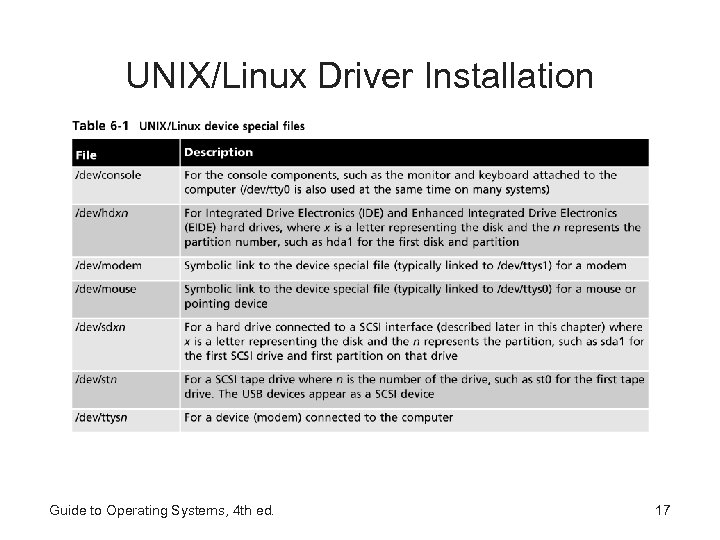 UNIX/Linux Driver Installation Guide to Operating Systems, 4 th ed. 17
 Mac OS X Driver Installation • Mac OS X systems come with device drivers for most hardware • When you obtain new hardware, follow these general steps: – – – Shut down the OS and turn off the computer Attach the new hardware Restart the computer and OS Insert the DVD/CD-ROM for the hardware Run the installer program on the DVD/CD-ROM for that hardware Guide to Operating Systems, 4 th ed. 18
 Standard Input Devices • Mouse and Keyboard Drivers – highly standardized across OSs, it is unlikely you will need to setup these devices (drivers are usually standard) • Wireless mice and keyboards require batteries to operate, along with a USB receiver (usually shared by both mouse and keyboard) – May come with drivers and additional software on DVD/CDROM • Some OSs include keyboard and mouse configuration utilities – Example – you can set the double-click speed of a mouse Guide to Operating Systems, 4 th ed. 19
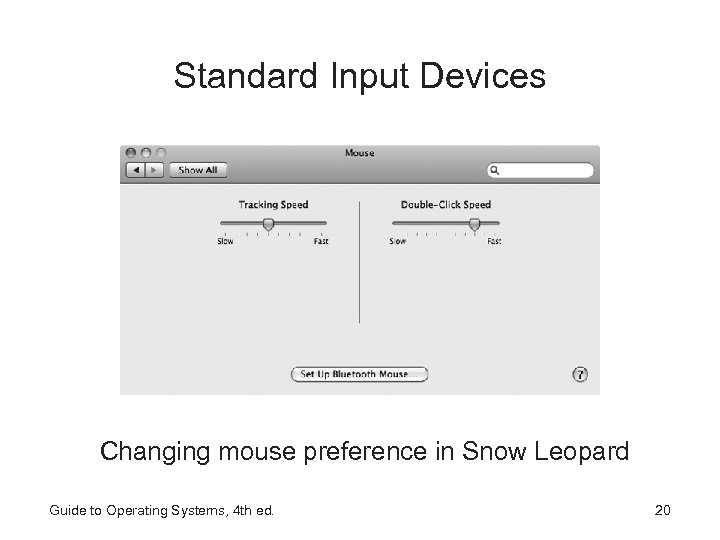 Standard Input Devices Changing mouse preference in Snow Leopard Guide to Operating Systems, 4 th ed. 20
 Standard Input Devices • Touch Input Drivers – most often, drivers are included in the OS or preloaded by the computer manufacturer – Touch Screen controlled by using your fingers – Multi-touch technology allows you to use multiple fingers • Windows 7 and Linux/Fedora support multi-touch capabilities – Apple will most likely be incorporating the touch technology already used in the i. Pad and i. Phone • Touch pad is an example of touch input – Usually found below the keyboard on laptops Guide to Operating Systems, 4 th ed. 21
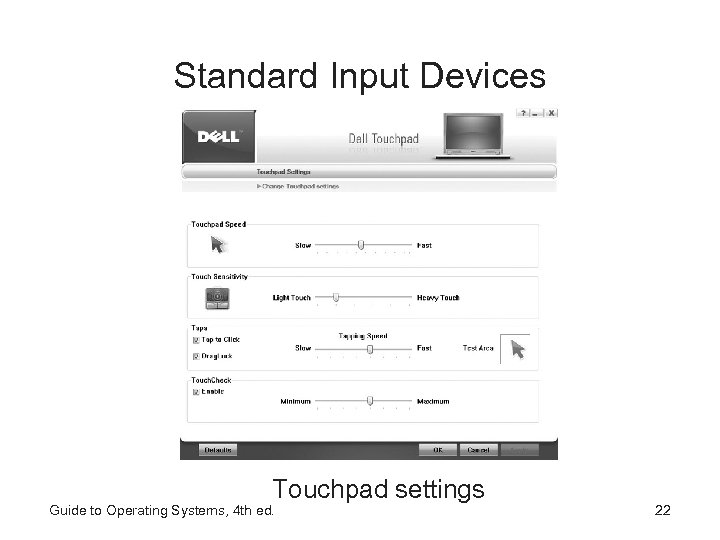 Standard Input Devices Touchpad settings Guide to Operating Systems, 4 th ed. 22
 Other Input Devices • Digital Pads – different kind of mouse – Used to draw pictures, sign you name, color a detailed graphic image (tasks that require a high degree of manual dexterity) – Uses a USB port and requires special drivers/installation – Can range from standard to specialty devices that include LCD panels that mirror your computer’s video display • Scanners – scans text and images to be manipulated by software – May also be used with optical character recognition (OCR) software – Installation (in Windows) is usually automatic through Pn. P – To get the best performance, install drivers that shipped with scanner instead of the driver in Windows Guide to Operating Systems, 4 th ed. 23
 Other Input Devices • Joysticks, Game Pads, and Other Controllers – Joystick is more like a mouse instead of a digital pad • Offers more control than a mouse when it comes to detailed movements of graphical screen objects • Can be used for any application task, given the proper driver • Specialized joysticks: flight yoke systems, 3 D joysticks, attack joysticks – Game Pads – designed for interaction with games and include multiple buttons, wheels or balls • Some are wireless and programmable • Sends standard signals to the USB port where the OS takes data and passes it off to an application program or customer driver for interpretation Guide to Operating Systems, 4 th ed. 24
 Other Input Devices • Digital Sound Input – today’s computer is supplied with some kind of digital sound card – May be built into the motherboard or a separate card – Can connect a microphone to a USB port and record voice – Can download custom sounds or music from Internet sites for use with software applications – There are multiple audio I/O standards, but most devices come with a USB port Guide to Operating Systems, 4 th ed. 25
 Other Input Devices • Digital Picture and Video Input/Output – Works similarly to digital audio I/O – Need a digital I/O interface and drivers to allow your OS to use the USB device – In some cases, use a utility supplied by the manufacturer to import digital images – Some manufacturers include the ability to link their hardware drivers directly into editing software • You can import and export digital files and edit them from the same application Guide to Operating Systems, 4 th ed. 26
 Other Input Devices • 1394 Technology – IEEE 1394 is the original specification for a high-speed digital interface that supports data rates at 100, 200, or 400 Mbps – The newer 1394 b standard supports 800 Mbps, 1. 6 and 3. 2 Gbps • Enables data transfer over twisted-pair and fiber-optic cable – Currently targeted at multimedia peripherals • Fire. Wire – an IEEE 1394 implementation for bus communications, is used by Apple Computer and Texas Instruments Guide to Operating Systems, 4 th ed. 27
 Printers • Printer types: – Ink-jet printers – create characters by squirting tiny drops of ink directly onto the page – Laser printers – use an imaging technology similar to copiers to produce computer output • Typical laser printer contains its own CPU and memory – Multifunction printers – combine ink-jet or laser printing, scanning, copying, and faxing into one physical device – Plotter – used in engineering, architecture, and other fields where hard copy output won’t fit on standard paper sizes – Other types available: 3 D printers, label printers, dot-matrix, line printers, portable printers, thermal-wax transfer printers, and dye sublimation Guide to Operating Systems, 4 th ed. 28
 Printers • Printer Connections – Most new printers come standard with a USB port – Many printers support wireless printing – Some printers have a direct network connection option that lets you place the printer on a LAN • If a printer does not include this, you can purchase a network printerface from a third party – More efficient to use a direct network-attached printer rather than a printer attached to a computer and configured for sharing on a network • Network interface is always on, making the printer always available to network users Guide to Operating Systems, 4 th ed. 29
 Installing Printers • Installing Windows Printers – usually installed by connecting the printer to the computer and letting Pn. P initiate the installation – Can also connect the printer and use Add Hardware Wizard – Best approach is to insert the DVD/CD-ROM that came with the printer and follow the instructions – If you need to perform a manual installation or to initiate automatic detection and setup, use the Add a Printer option through Control Panel Guide to Operating Systems, 4 th ed. 30
 Installing Printers • Installing UNIX/Linux Printers – When a print job is sent from an application, a print queue temporarily stores the print job until it is sent to the printer – In order to configure a printer, you must first define the printer parameters and the print queue • All definitions are kept in the file /etc/printcap • File is in ASCII text and can be edited by hand – there are utilities that make the job easier (utilities vary by version) – Linux uses a printer configuration utility called printtool Guide to Operating Systems, 4 th ed. 31
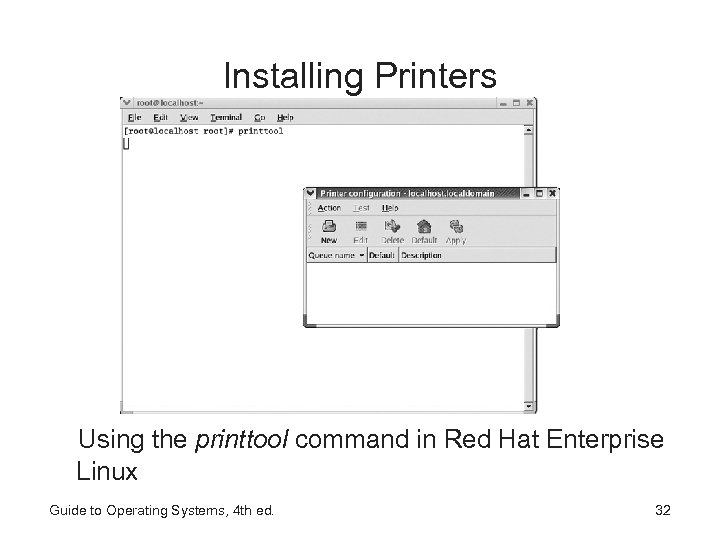 Installing Printers Using the printtool command in Red Hat Enterprise Linux Guide to Operating Systems, 4 th ed. 32
 Installing Printers • Installing Mac OS X Printers – Most printer drivers are already installed when you install the OS – If not, use the Printer Setup Utility and the DVD/CD-ROM that came with the new printer – You can configure the following types of printers: • LPR – for connecting to a shared network printer that uses the traditional UNIX-based LPR configuration • IP – for printing on a network through TCP/IP • Fire. Wire – for connecting through an IEEE 1394 interface • USB – most typical type of printer connection • FAXstf – for sending a print file to a fax machine Guide to Operating Systems, 4 th ed. 33
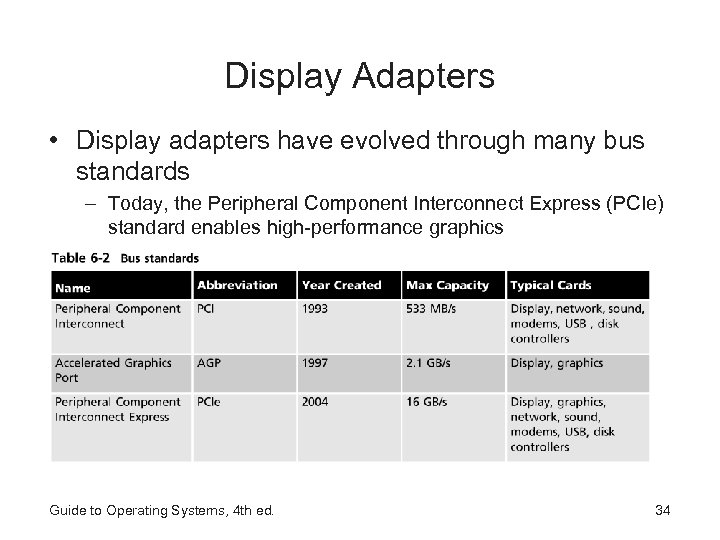 Display Adapters • Display adapters have evolved through many bus standards – Today, the Peripheral Component Interconnect Express (PCIe) standard enables high-performance graphics Guide to Operating Systems, 4 th ed. 34
 Display Adapters • The display adapter is part of a standard computer package – Basic display consists of a number of pixels (small dot of light) both horizontally and vertically – The more pixels on the screen, the larger the monitor needs to be • 19” monitor is recommended for 1280 X 1024 resolution • 21” monitor is recommended for 1600 X 1200 resolution • Major considerations in choosing an adapter are: – – Resolution capabilities Amount of memory included onboard the adapter Type of video processor (optional, used to speed things up) Cost Guide to Operating Systems, 4 th ed. 35
 Display Adapters • Bit density – how many pixels can be shown in an inch of the display – Referred to as pixels per inch (ppi) • Digital Visual Interface (DVI) – developed as a very high visual quality standard for flat panel LCD and digital projectors • High-Definition Multimedia Interface (HDMI) – a way to connect digital audio/video devices in televisions and computers • Display-Port – digital interface standard that is projected to replace DVI and HDMI Guide to Operating Systems, 4 th ed. 36
 Installing Display Adapters • May need to install a new adapter if upgrading to a better one • Today, most adapters plug into the PCIe slot on the motherboard • Installing a display adapter is similar to installing circuit boards (detailed later in this chapter) Guide to Operating Systems, 4 th ed. 37
 Sound Cards • Today, most computers include high-end audio support – Sound cards come preinstalled and the OS includes support for sound input and output • Two types of sound devices : – Bus cards (installed in a bus slot) – Integrated with the motherboard (onboard) • Onboard sound hardware may be harder to update or change Guide to Operating Systems, 4 th ed. 38
 Other Output Devices • Digital video – let you capture and output digital video to a camera or DVR • Multiport sound cards – permit a computer to serve as a fully digital, multichannel recorder for sound studio applications • Most specialty output devices have some software required to make everything work properly Guide to Operating Systems, 4 th ed. 39
 Installing Circuit Boards • Biggest enemy to circuit boards is static • To avoid damage during installation: – Leave the card inside its protective cover until you are ready to install it – Disconnect all power to the computer – Prepare the computer by removing the case and any slot covers – Position the card inside its over, near the computer – Touch a grounded part of the computer (ex - power supply) • Without moving your hand from the computer, use other hand to open the cover, remove the card – Insert the card into the slot and press it firmly into place Guide to Operating Systems, 4 th ed. 40
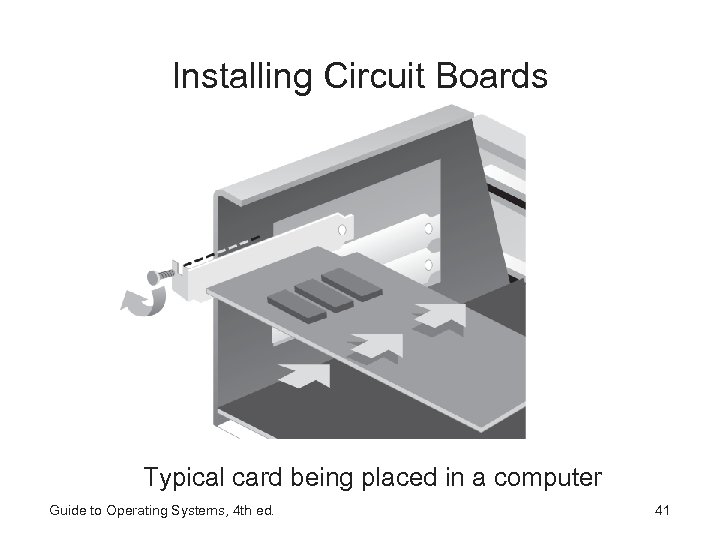 Installing Circuit Boards Typical card being placed in a computer Guide to Operating Systems, 4 th ed. 41
 Chapter Summary • An OS handles input and output device communications through device drivers (software) and hardware such as adapter boards • Device drivers are often provided with an OS, but the most up-todate device drivers come directly form each device manufacturer • Manufacturer device and device driver installations typically are performed from a manufacturer’s DVD/CD-ROM. Current drivers can also be downloaded from the manufacturer’s Web site • Installing devices and drivers in Windows can be done using Pn. P, the Add Hardware Wizard, Control Panel options, and Device Manager • UNIX/Linux systems use device special files for managing input and output devices • For Mac OS X devices, most drivers come with the OS or can be installed from the DVD/CD-ROM that came with the device Guide to Operating Systems, 4 th ed. 42
 Chapter Summary • Common input devices include a mouse, keyboard, touch input, digital pad, scanner, joystick, game pad, digital sound devices, digital picture devices, and devices that use 1394 technology • Printers are common output devices • Most OSs include tools for installing printers, such as Add Printer Wizard in Windows, printtool in Fedora Linux, and the Printer Setup Utility in Mac OS X • Besides printers, other examples of common output devices include display adapters and sound cards Guide to Operating Systems, 4 th ed. 43