


 Скачать презентацию Guest Lecturers Guide PTE-TTK Szentágothai Szakkollégium Faculty of
8b446eac432d40a19fb52a6636871574.ppt
- Количество слайдов: 36
 Guest Lecturers Guide PTE-TTK Szentágothai Szakkollégium Faculty of Science, University of Pécs 6 th Ifjúság str. Pécs 7624 Hungary, Europe Sz. JSz. K Presentation Template Dr. Gábor Pauler Associate Professor, Department of Information Technology Tel: +36 -309 -015 -488 E-mail: pauler@t-online. hu
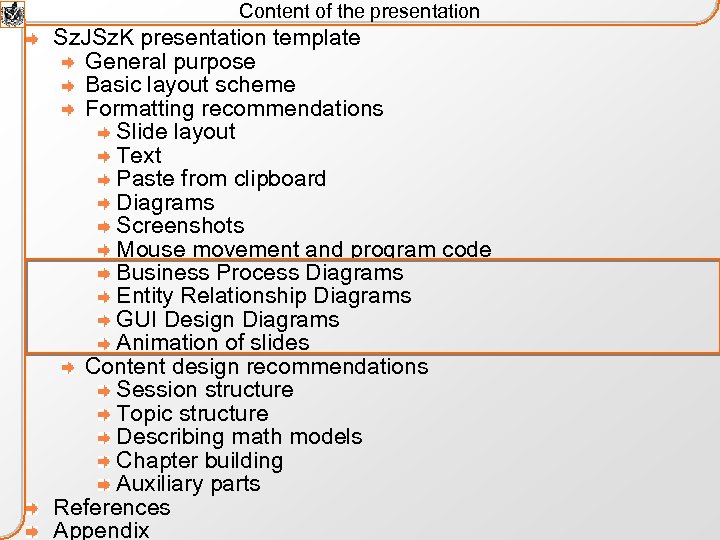
 Content of the presentation Sz. JSz. K presentation template General purpose Basic layout scheme Formatting recommendations Slide layout Text Paste from clipboard Diagrams Screenshots Mouse movement and program code Business Process Diagrams Entity Relationship Diagrams GUI Design Diagrams Animation of slides Content design recommendations Session structure Topic structure Describing math models Chapter building Auxiliary parts References Appendix
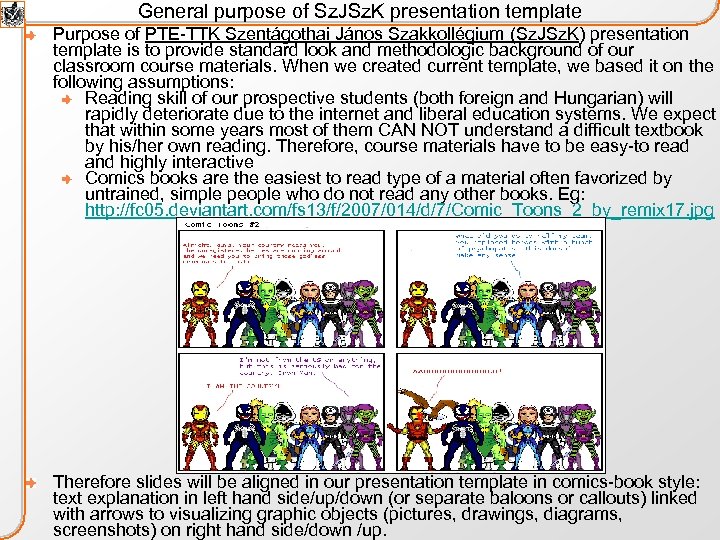 General purpose of Sz. JSz. K presentation template Purpose of PTE-TTK Szentágothai János Szakkollégium (Sz. JSz. K) presentation template is to provide standard look and methodologic background of our classroom course materials. When we created current template, we based it on the following assumptions: Reading skill of our prospective students (both foreign and Hungarian) will rapidly deteriorate due to the internet and liberal education systems. We expect that within some years most of them CAN NOT understand a difficult textbook by his/her own reading. Therefore, course materials have to be easy-to read and highly interactive Comics books are the easiest to read type of a material often favorized by untrained, simple people who do not read any other books. Eg: http: //fc 05. deviantart. com/fs 13/f/2007/014/d/7/Comic_Toons_2_by_remix 17. jpg Therefore slides will be aligned in our presentation template in comics-book style: text explanation in left hand side/up/down (or separate baloons or callouts) linked with arrows to visualizing graphic objects (pictures, drawings, diagrams, screenshots) on right hand side/down /up.
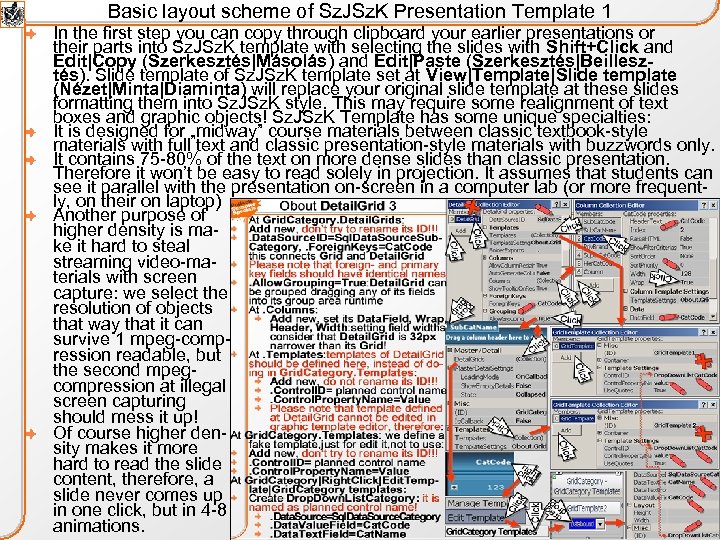 Basic layout scheme of Sz. JSz. K Presentation Template 1 In the first step you can copy through clipboard your earlier presentations or their parts into Sz. JSz. K template with selecting the slides with Shift+Click and Edit|Copy (Szerkesztés|Másolás) and Edit|Paste (Szerkesztés|Beillesztés). Slide template of Sz. JSz. K template set at View|Template|Slide template (Nézet|Minta|Diaminta) will replace your original slide template at these slides formatting them into Sz. JSz. K style. This may require some realignment of text boxes and graphic objects! Sz. JSz. K Template has some unique specialties: It is designed for „midway” course materials between classic textbook-style materials with full text and classic presentation-style materials with buzzwords only. It contains 75 -80% of the text on more dense slides than classic presentation. Therefore it won’t be easy to read solely in projection. It assumes that students can see it parallel with the presentation on-screen in a computer lab (or more frequently, on their on laptop) Another purpose of higher density is make it hard to steal streaming video-materials with screen capture: we select the resolution of objects that way that it can survive 1 mpeg-compression readable, but the second mpegcompression at illegal screen capturing should mess it up! Of course higher density makes it more hard to read the slide content, therefore, a slide never comes up in one click, but in 4 -8 animations.
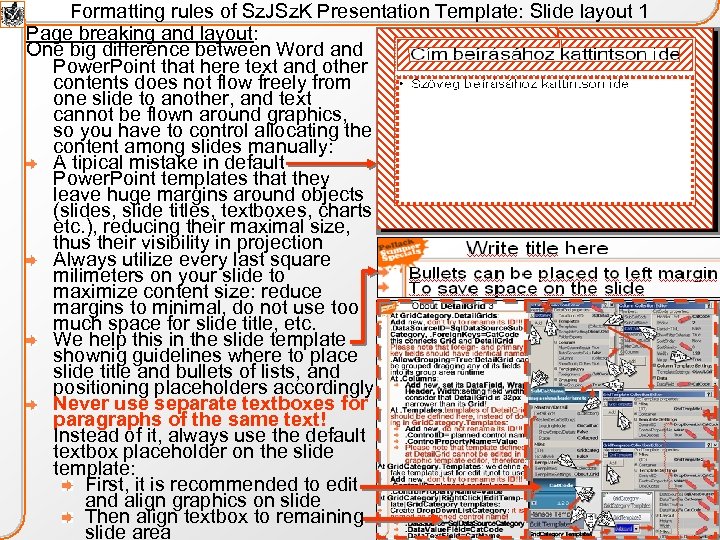 Formatting rules of Sz. JSz. K Presentation Template: Slide layout 1 Page breaking and layout: One big difference between Word and Power. Point that here text and other contents does not flow freely from one slide to another, and text cannot be flown around graphics, so you have to control allocating the content among slides manually: A tipical mistake in default Power. Point templates that they leave huge margins around objects (slides, slide titles, textboxes, charts etc. ), reducing their maximal size, thus their visibility in projection Always utilize every last square milimeters on your slide to maximize content size: reduce margins to minimal, do not use too much space for slide title, etc. We help this in the slide template shownig guidelines where to place slide title and bullets of lists, and positioning placeholders accordingly Never use separate textboxes for paragraphs of the same text! Instead of it, always use the default textbox placeholder on the slide template: First, it is recommended to edit and align graphics on slide Then align textbox to remaining slide area
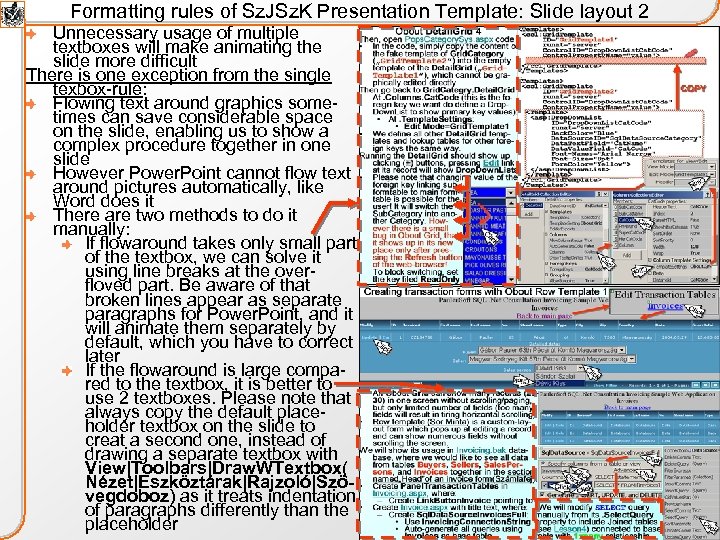 Formatting rules of Sz. JSz. K Presentation Template: Slide layout 2 Unnecessary usage of multiple textboxes will make animating the slide more difficult There is one exception from the single texbox-rule: Flowing text around graphics sometimes can save considerable space on the slide, enabling us to show a complex procedure together in one slide However Power. Point cannot flow text around pictures automatically, like Word does it There are two methods to do it manually: If flowaround takes only small part of the textbox, we can solve it using line breaks at the overfloved part. Be aware of that broken lines appear as separate paragraphs for Power. Point, and it will animate them separately by default, which you have to correct later If the flowaround is large compared to the textbox, it is better to use 2 textboxes. Please note that always copy the default placeholder textbox on the slide to creat a second one, instead of drawing a separate textbox with View|Toolbars|Draw. WTextbox( Nézet|Eszköztárak|Rajzoló|Szövegdoboz) as it treats indentation of paragraphs differently than the placeholder
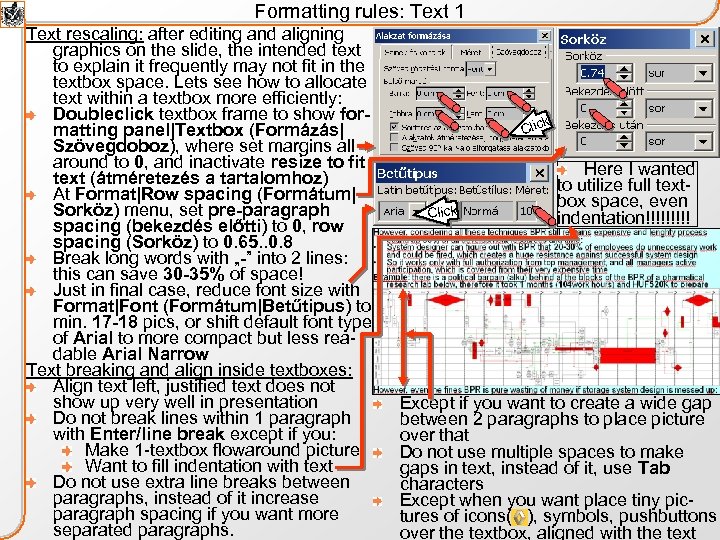 Formatting rules: Text 1 Text rescaling: after editing and aligning graphics on the slide, the intended text to explain it frequently may not fit in the textbox space. Lets see how to allocate text within a textbox more efficiently: Doubleclick textbox frame to show formatting panel|Textbox (Formázás| Szövegdoboz), where set margins all around to 0, and inactivate resize to fit text (átméretezés a tartalomhoz) At Format|Row spacing (Formátum| Sorköz) menu, set pre-paragraph spacing (bekezdés előtti) to 0, row spacing (Sorköz) to 0. 65. . 0. 8 Break long words with „-” into 2 lines: this can save 30 -35% of space! Just in final case, reduce font size with Format|Font (Formátum|Betűtipus) to min. 17 -18 pics, or shift default font type of Arial to more compact but less readable Arial Narrow Text breaking and align inside textboxes: Align text left, justified text does not show up very well in presentation Do not break lines within 1 paragraph with Enter/line break except if you: Make 1 -textbox flowaround picture Want to fill indentation with text Do not use extra line breaks between paragraphs, instead of it increase paragraph spacing if you want more separated paragraphs. k Click Here I wanted to utilize full textbox space, even indentation!!!!! Except if you want to create a wide gap between 2 paragraphs to place picture over that Do not use multiple spaces to make gaps in text, instead of it, use Tab characters Except when you want place tiny pictures of icons( ), symbols, pushbuttons over the textbox, aligned with the text
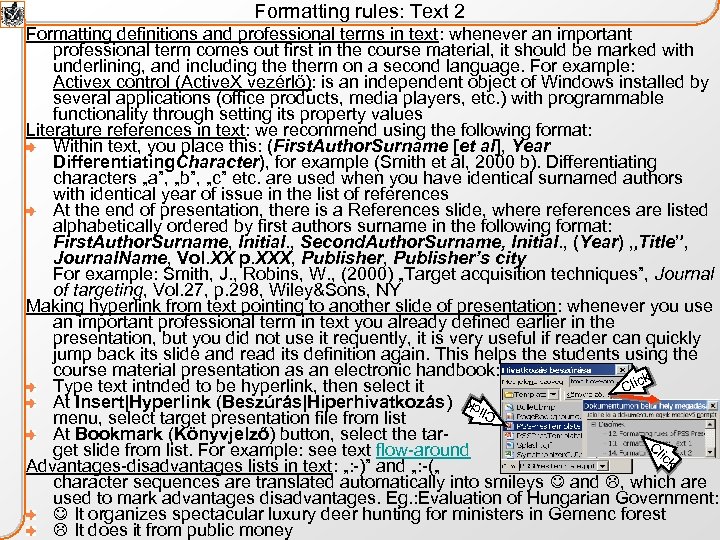 Formatting rules: Text 2 Formatting definitions and professional terms in text: whenever an important professional term comes out first in the course material, it should be marked with underlining, and including therm on a second language. For example: Activex control (Active. X vezérlő): is an independent object of Windows installed by several applications (office products, media players, etc. ) with programmable functionality through setting its property values Literature references in text: we recommend using the following format: Within text, you place this: (First. Author. Surname [et al], Year Differentiating. Character), for example (Smith et al, 2000 b). Differentiating characters „a”, „b”, „c” etc. are used when you have identical surnamed authors with identical year of issue in the list of references At the end of presentation, there is a References slide, where references are listed alphabetically ordered by first authors surname in the following format: First. Author. Surname, Initial. , Second. Author. Surname, Initial. , (Year) „Title”, Journal. Name, Vol. XX p. XXX, Publisher’s city For example: Smith, J. , Robins, W. , (2000) „Target acquisition techniques”, Journal of targeting, Vol. 27, p. 298, Wiley&Sons, NY Making hyperlink from text pointing to another slide of presentation: whenever you use an important professional term in text you already defined earlier in the presentation, but you did not use it requently, it is very useful if reader can quickly jump back its slide and read its definition again. This helps the students using the course material presentation as an electronic handbook: k Type text intnded to be hyperlink, then select it Clic At Insert|Hyperlink (Beszúrás|Hiperhivatkozás) menu, select target presentation file from list At Bookmark (Könyvjelző) button, select the tar. Cl get slide from list. For example: see text flow-around ick Advantages-disadvantages lists in text: „: -)” and „: -(„ character sequences are translated automatically into smileys and , which are used to mark advantages disadvantages. Eg. : Evaluation of Hungarian Government: It organizes spectacular luxury deer hunting for ministers in Gemenc forest It does it from public money Cli ck
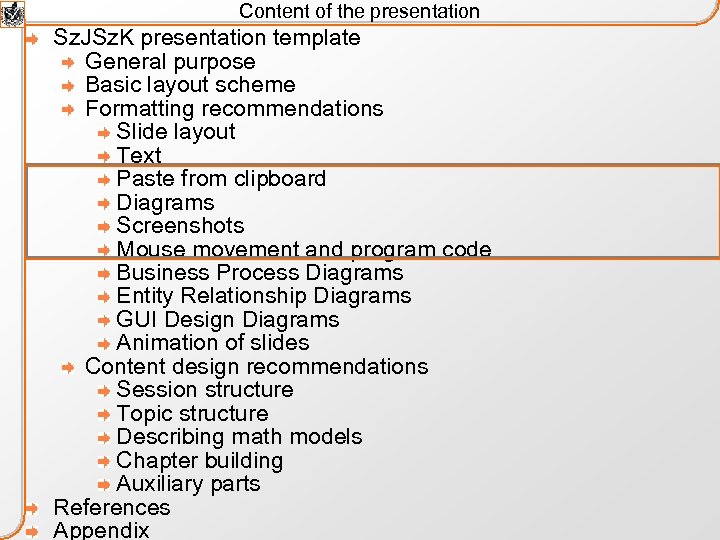 Content of the presentation Sz. JSz. K presentation template General purpose Basic layout scheme Formatting recommendations Slide layout Text Paste from clipboard Diagrams Screenshots Mouse movement and program code Business Process Diagrams Entity Relationship Diagrams GUI Design Diagrams Animation of slides Content design recommendations Session structure Topic structure Describing math models Chapter building Auxiliary parts References Appendix
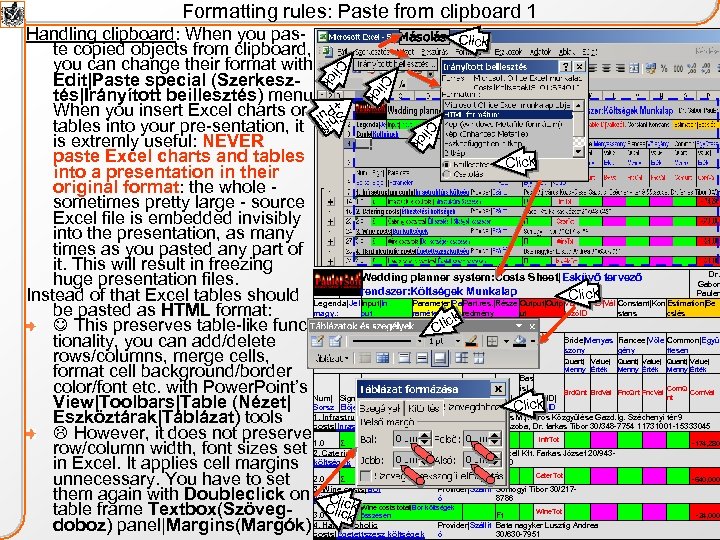 Formatting rules: Paste from clipboard 1 C lic k Handling clipboard: When you pas. Másolás Click te copied objects from clipboard, you can change their format with Edit|Paste special (Szerkesztés|Irányított beillesztés) menu. When you insert Excel charts or tables into your pre-sentation, it is extremly useful: NEVER paste Excel charts and tables Click into a presentation in their original format: the whole - sometimes pretty large - source Excel file is embedded invisibly into the presentation, as many times as you pasted any part of it. This will result in freezing Dr. Wedding planner system: Costs Sheet|Esküvő tervező huge presentation files. Gabor rendszer: Költségek Munkalap Pauler Click Instead of that Excel tables should Legenda|Jel Input|In Parameter|Pa Part. res. |Része Output|Outp Variable. ID|Vál Constant|Kon Estimation|Be magy. : put raméter redmény ut tozóID stans cslés be pasted as HTML format: ick This preserves table-like func-Costs|Költségek Cl Bride|Menyas Fiancee|Vőle Common|Együ tionality, you can add/delete szony gény ttesen rows/columns, merge cells, format cell background/border Bas is| color/font etc. with Power. Point’s Num| Sign| Rate| Unit| Ala Var. ID| View|Toolbars|Table (Nézet| Sorsz Előjel Parameter |Paraméter Ráta Egys. Clic. Vált. ID k p 1. Infrastructure Provider|Szállít Pécs M. j. Város Közgyűlése Gazd. Ig. Széchenyi tér 9 Eszköztárak|Táblázat) tools costs|Inrastruktúra költségek ó 55. szoba, Dr. farkas Tibor 30/348 -7754 11731001 -15333045 However, it does not preserve Σ row/column width, font sizes set 1. 0 Catering costs|Étkeztetési Provider|Szállít Ft 2. Diacell Kft. Farkas József 20/943 költségek ó 6420 in Excel. It applies cell margins Ft unnecessary. You have to set 2. 0 WineΣcosts|Bor 3. Provider|Szállít Somogyi Tibor 30/217 them again with Doubleclick on költségek ó 8786 Cli table frame Textbox(Szöveg- 3. 0 CliΣckk c Ft doboz) panel|Margins(Margók) 4. Hard alcoholic költségek Provider|Szállít Bata nagyker Lusztig Andrea costs|Égetettszesz ó 30/630 -7951 Cl ick Quant| Value| Menny Érték Brd. Qnt Brd. Val Fnc. Qnt Fnc. Val Infrastructure cost total|Infrastruktúra összesen Infr. Tot Com. Q Com. Val nt -174, 280 Catering costs total|Étkeztetési költségek összesen Cater. Tot Wine costs total|Bor költségek összesen Wine. Tot -640, 000 -24, 000 ift Sh ull +P
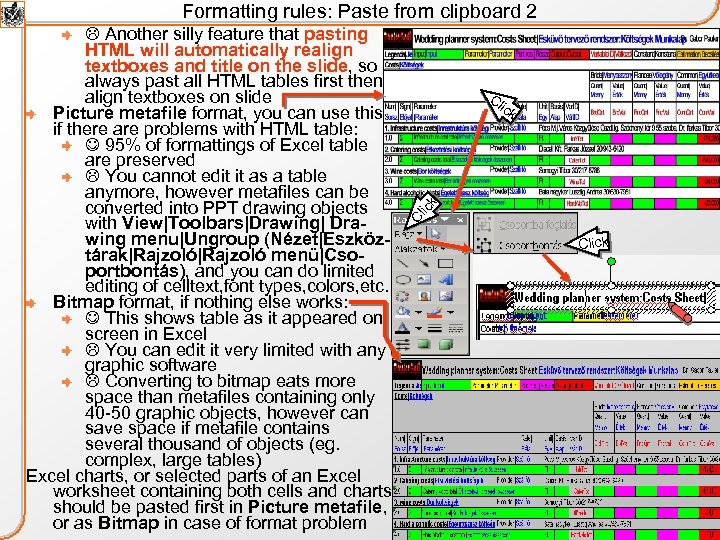 Formatting rules: Paste from clipboard 2 Cl ick Cl Another silly feature that pasting HTML will automatically realign textboxes and title on the slide, so always past all HTML tables first then align textboxes on slide Picture metafile format, you can use this if there are problems with HTML table: 95% of formattings of Excel table are preserved You cannot edit it as a table anymore, however metafiles can be converted into PPT drawing objects with View|Toolbars|Drawing| Drawing menu|Ungroup (Nézet|Eszköztárak|Rajzoló menü|Csoportbontás), and you can do limited editing of celltext, font types, colors, etc. Bitmap format, if nothing else works: This shows table as it appeared on screen in Excel You can edit it very limited with any graphic software Converting to bitmap eats more space than metafiles containing only 40 -50 graphic objects, however can save space if metafile contains several thousand of objects (eg. complex, large tables) Excel charts, or selected parts of an Excel worksheet containing both cells and charts should be pasted first in Picture metafile, or as Bitmap in case of format problem Click
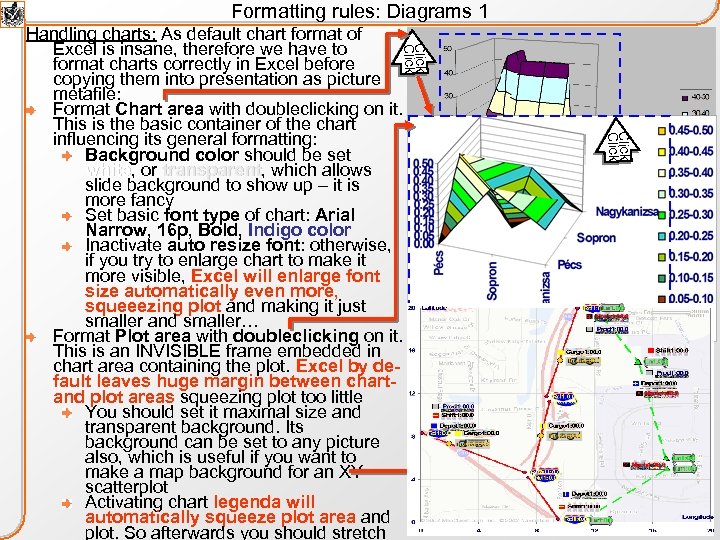 Formatting rules: Diagrams 1 Click Handling charts: As default chart format of Excel is insane, therefore we have to format charts correctly in Excel before copying them into presentation as picture metafile: Format Chart area with doubleclicking on it. This is the basic container of the chart influencing its general formatting: Background color should be set white, or transparent, which allows white transparent slide background to show up – it is more fancy Set basic font type of chart: Arial Narrow, 16 p, Bold, Indigo color Inactivate auto resize font: otherwise, if you try to enlarge chart to make it more visible, Excel will enlarge font size automatically even more, squeeezing plot and making it just smaller and smaller… Format Plot area with doubleclicking on it. This is an INVISIBLE frame embedded in chart area containing the plot. Excel by default leaves huge margin between chartand plot areas squeezing plot too little You should set it maximal size and transparent background. Its background can be set to any picture also, which is useful if you want to make a map background for an XY scatterplot Activating chart legenda will automatically squeeze plot area and plot. So afterwards you should stretch Click
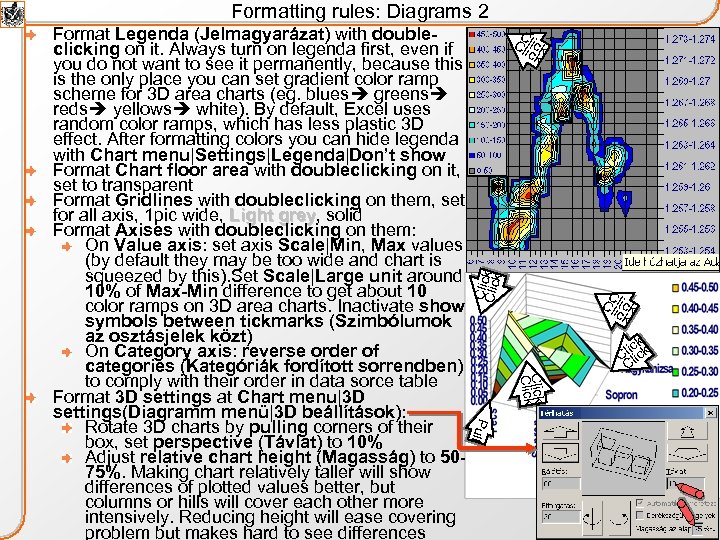 Formatting rules: Diagrams 2 C Cl lick Click Format Legenda (Jelmagyarázat) with doubleclicking on it. Always turn on legenda first, even if you do not want to see it permanently, because this is the only place you can set gradient color ramp scheme for 3 D area charts (eg. blues greens reds yellows white). By default, Excel uses random color ramps, which has less plastic 3 D effect. After formatting colors you can hide legenda with Chart menu|Settings|Legenda|Don’t show Format Chart floor area with doubleclicking on it, set to transparent Format Gridlines with doubleclicking on them, set for all axis, 1 pic wide, Light grey, solid grey Format Axises with doubleclicking on them: On Value axis: set axis Scale|Min, Max values (by default they may be too wide and chart is squeezed by this). Set Scale|Large unit around 10% of Max-Min difference to get about 10 color ramps on 3 D area charts. Inactivate show symbols between tickmarks (Szimbólumok az osztásjelek közt) On Category axis: reverse order of categories (Kategóriák fordított sorrendben) to comply with their order in data sorce table Format 3 D settings at Chart menu|3 D settings(Diagramm menü|3 D beállítások): Rotate 3 D charts by pulling corners of their box, set perspective (Távlat) to 10% Adjust relative chart height (Magasság) to 5075%. Making chart relatively taller will show differences of plotted values better, but columns or hills will cover each other more intensively. Reducing height will ease covering problem but makes hard to see differences C Cl lick k licick C l C Click Pull
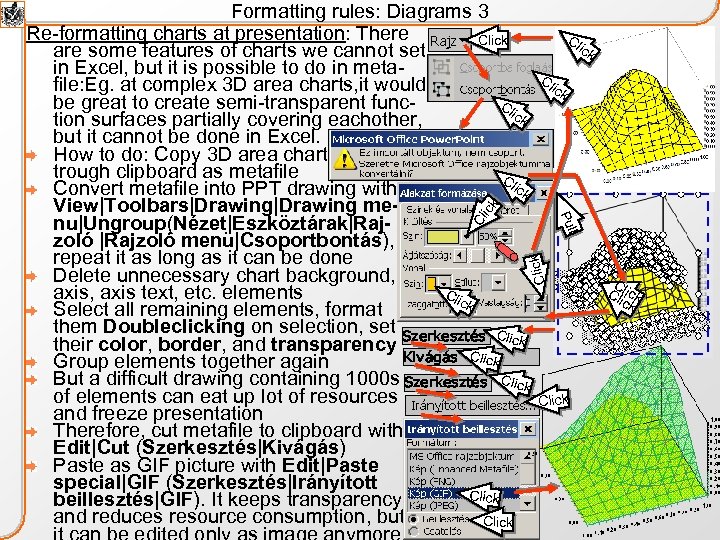 Cl ick Click Cl l Pul ick Formatting rules: Diagrams 3 Re-formatting charts at presentation: There Click are some features of charts we cannot set in Excel, but it is possible to do in metafile: Eg. at complex 3 D area charts, it would Cl be great to create semi-transparent funcick tion surfaces partially covering eachother, but it cannot be done in Excel. How to do: Copy 3 D area chart trough clipboard as metafile Cl ick Convert metafile into PPT drawing with View|Toolbars|Drawing menu|Ungroup(Nézet|Eszköztárak|Rajzoló menü|Csoportbontás), repeat it as long as it can be done Delete unnecessary chart background, Cli axis, axis text, etc. elements ck Select all remaining elements, format them Doubleclicking on selection, set Szerkesztés Cli ck their color, border, and transparency Kivágás Click Group elements together again But a difficult drawing containing 1000 s Szerkesztés Click of elements can eat up lot of resources and freeze presentation Therefore, cut metafile to clipboard with Edit|Cut (Szerkesztés|Kivágás) Paste as GIF picture with Edit|Paste special|GIF (Szerkesztés|Irányított Click beillesztés|GIF). It keeps transparency, and reduces resource consumption, but Click C Cl lick
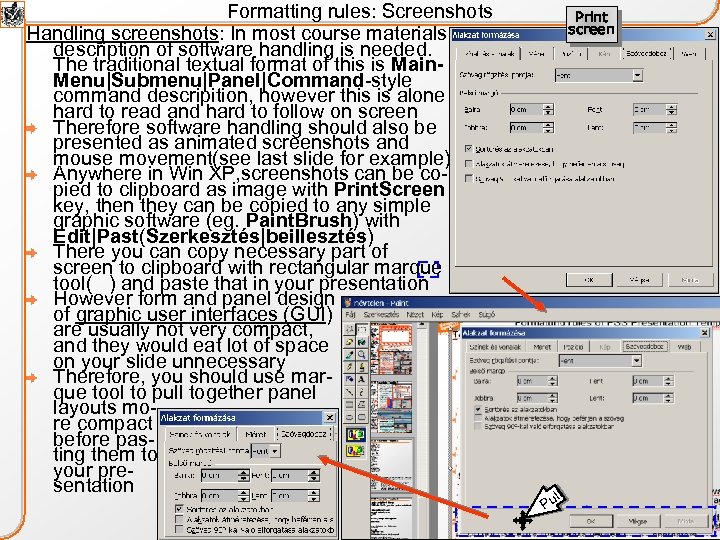 Formatting rules: Screenshots Handling screenshots: In most course materials description of software handling is needed. The traditional textual format of this is Main. Menu|Submenu|Panel|Command-style command descripition, however this is alone hard to read and hard to follow on screen Therefore software handling should also be presented as animated screenshots and mouse movement(see last slide for example) Anywhere in Win XP, screenshots can be copied to clipboard as image with Print. Screen key, then they can be copied to any simple graphic software (eg. Paint. Brush) with Edit|Past(Szerkesztés|beillesztés) There you can copy necessary part of screen to clipboard with rectangular marque tool( ) and paste that in your presentation However form and panel design of graphic user interfaces (GUI) are usually not very compact, and they would eat lot of space on your slide unnecessary Therefore, you should use marque tool to pull together panel layouts more compact before pasting them to your presentation Print screen ll Pu
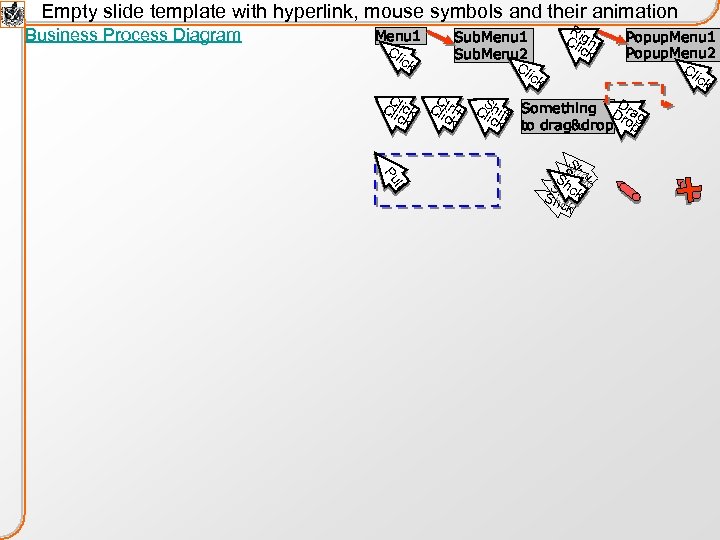
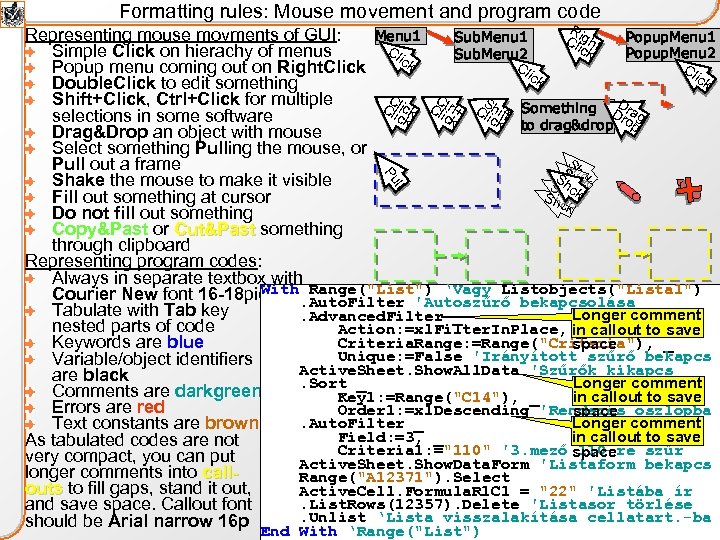 Formatting rules: Mouse movement and program code ck End With ‘Range("List") Sh ll Pu R Representing mouse movments of GUI: Menu 1 Popup. Menu 1 Sub. Menu 1 Cl ight ick Cl Simple Click on hierachy of menus Popup. Menu 2 Sub. Menu 2 ick Cl Cl Popup menu coming out on Right. Click ick Double. Click to edit something C C Shift+Click, Ctrl+Click for multiple Cl lick Cl trl+ CShift Something DDra ick g lic selections in some software k to drag&drop Drag&Drop an object with mouse Select something Pulling the mouse, or Pull out a frame S Shhc Shake the mouse to make it visible S ck Shhckk Fill out something at cursor ck Do not fill out something Copy&Past or Cut&Past something Cut&Past through clipboard Representing program codes: Always in separate textbox with With Range("List") ‘Vagy Listobjects("Lista 1") Courier New font 16 -18 pic, bold. Auto. Filter 'Autoszűrő bekapcsolása Tabulate with Tab key Longer comment. Advanced. Filter _ nested parts of code Action: =xl. Filter. In. Place, in callout to save _ Criteria. Range: =Range("Criteria"), _ Keywords are blue space Unique: =False 'Irányított szűrő bekapcs Variable/object identifiers Active. Sheet. Show. All. Data 'Szűrők kikapcs are black Longer comment. Sort _ Comments are darkgreen Key 1: =Range("C 14"), _ in callout to save Errors are red Order 1: =xl. Descending 'Rendezés oszlopba space Longer comment. Auto. Filter _ Text constants are brown Field: =3, _ in callout to save As tabulated codes are not Criteria 1: ="110" '3. mező space 110 -re szűr very compact, you can put Active. Sheet. Show. Data. Form 'Listaform bekapcs longer comments into call. Range("A 12371"). Select outs to fill gaps, stand it out, outs Active. Cell. Formula. R 1 C 1 = "22" 'Listába ír. List. Rows(12357). Delete 'Listasor törlése and save space. Callout font. Unlist ‘Lista visszalakítása cellatart. -ba should be Arial narrow 16 p
 Content of the presentation Sz. JSz. K presentation template General purpose Basic layout scheme Formatting recommendations Slide layout Text Paste from clipboard Diagrams Screenshots Mouse movement and program code Business Process Diagrams Entity Relationship Diagrams GUI Design Diagrams Animation of slides Content design recommendations Session structure Topic structure Describing math models Chapter building Auxiliary parts References Appendix
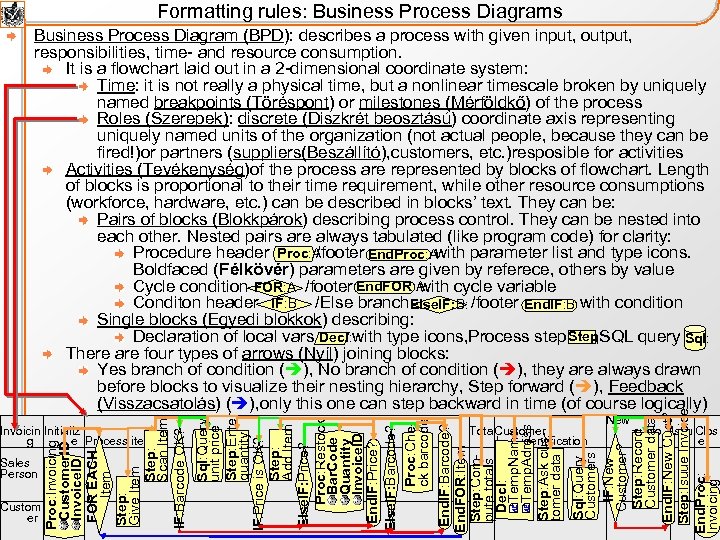 Formatting rules: Business Process Diagrams Sales Person Custom er Sql: Query Customers IF: New Customer? Step: Record Customer data End. IF: New Cust? Step: Isuue Invoice End. Proc: Invoicing Invoicin Initializ g e Process items Tota Customer l identification New custo Issu Clos mer e Sql: Query unit price Step: Enter quantity IF: Price is OK? Step: Add Item Else. IF: Price? Proc: Restock Bar. Code Quantity Invoice. ID End. IF: Price? Else. IF: Barcode? Proc: Check barcode End. IF: Barcode? End. FOR: Item Step: Compute totals Decl: Temp. Name Temp. Adress Step: Ask customer data Proc: Invoicing Customer. ID Invoice. ID FOR EACH Item Step: Give Item Step: Scan Item IF: Barcode OK? Business Process Diagram (BPD): describes a process with given input, output, responsibilities, time- and resource consumption. It is a flowchart laid out in a 2 -dimensional coordinate system: Time: it is not really a physical time, but a nonlinear timescale broken by uniquely named breakpoints (Töréspont) or milestones (Mérföldkő) of the process Roles (Szerepek): discrete (Diszkrét beosztású) coordinate axis representing uniquely named units of the organization (not actual people, because they can be fired!)or partners (suppliers(Beszállító), customers, etc. )resposible for activities Activities (Tevékenység)of the process are represented by blocks of flowchart. Length of blocks is proportional to their time requirement, while other resource consumptions (workforce, hardware, etc. ) can be described in blocks’ text. They can be: Pairs of blocks (Blokkpárok) describing process control. They can be nested into each other. Nested pairs are always tabulated (like program code) for clarity: Proc: A Procedure header /footer with parameter list and type icons. End. Proc: A Boldfaced (Félkövér) parameters are given by referece, others by value End. FOR: A Cycle condition /footer with cycle variable FOR: A IF: B Conditon header /Else branch /footer with condition Else. IF: B: End. IF: B Single blocks (Egyedi blokkok) describing: Step: Declaration of local vars with type icons, Process step , SQL query Sql: Decl: There are four types of arrows (Nyíl) joining blocks: Yes branch of condition ( ), No branch of condition ( ), they are always drawn before blocks to visualize their nesting hierarchy, Step forward ( ), Feedback (Visszacsatolás) ( ), only this one can step backward in time (of course logically)
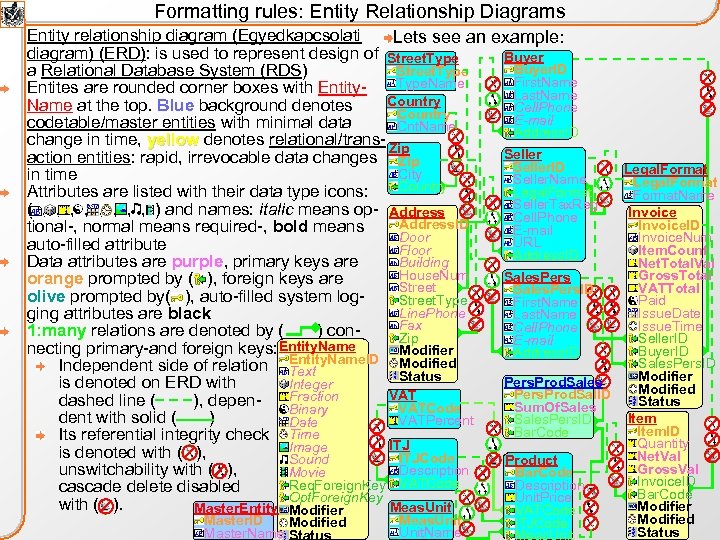 Formatting rules: Entity Relationship Diagrams Entity relationship diagram (Egyedkapcsolati Lets see an example: diagram) (ERD): is used to represent design of Street. Type Buyer. ID Street. Type a Relational Database System (RDS) First. Name Type. Name Entites are rounded corner boxes with Entity. Last. Name Country Name at the top. Blue background denotes Cell. Phone Country E-mail codetable/master entities with minimal data Cnt. Name Address. ID change in time, yellow denotes relational/trans- Zip yellow Seller action entities: rapid, irrevocable data changes Zip Seller. ID Legal. Format City in time Seller. Name Legal. Format Country Legal. Format Attributes are listed with their data type icons: Format. Name Seller. Tax. Reg ( , , ) and names: italic means op- Address Invoice Cell. Phone Address. ID Invoice. ID tional-, normal means required-, bold means E-mail Door Invoice. Num URL auto-filled attribute Floor Item. Count Address. ID Data attributes are purple, primary keys are Building Net. Total. Val House. Num Gross. Total Sales. Pers orange prompted by ( ), foreign keys are Street VATTotal Sales. Pers. ID olive prompted by( ), auto-filled system log. Street. Type Paid First. Name Line. Phone Issue. Date ging attributes are black Last. Name Fax Issue. Time Cell. Phone 1: many relations are denoted by ( ) con. Zip Seller. ID E-mail Entity. Name necting primary-and foreign keys: Modifier Buyer. ID Address. ID Entity. Name. ID Modified Sales. Pers. ID Independent side of relation Text Status Modifier Pers. Prod. Sales is denoted on ERD with Integer Modified Pers. Prod. Sal. ID VAT Fraction dashed line ( ), depen. Status Sum. Of. Sales VATCode Binary dent with solid ( ) Item Sales. Pers. ID VATPercent Date Item. ID Bar. Code Its referential integrity check Time Quantity ITJ Image is denoted with ( ), Net. Val ITJCode Sound Product Gross. Val unswitchability with ( ), Description Movie Bar. Code Invoice. ID VATCode Req. Foreign. Key Description cascade delete disabled Bar. Code Opt. Foreign. Key Unit. Price with ( ). Modifier Meas. Unit Master. Entity Modifier VATCode Master. ID Modified Master. Name Meas. Unit. Name ITJCode Modified Status
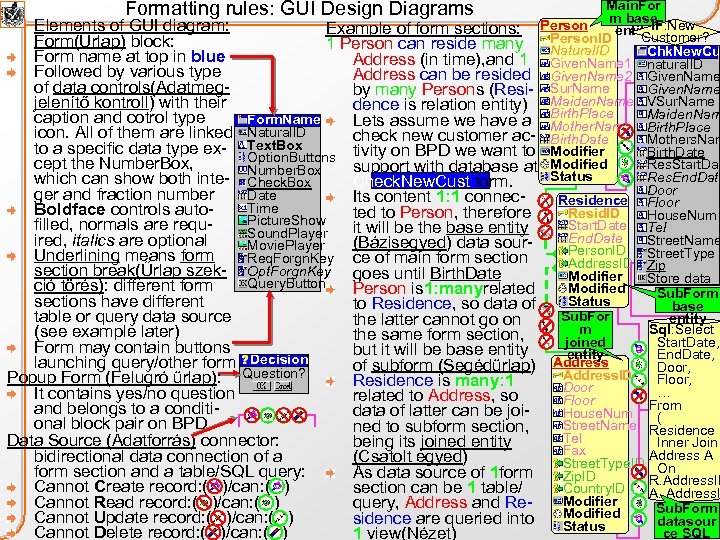 Formatting rules: GUI Design Diagrams Main. For m base Elements of GUI diagram: Example of form sections: Person entity. IF: New Customer? Person. ID Form(Űrlap) block: 1 Person can reside many Natural. ID Chk. New. Cu Form name at top in blue Address (in time), and 1 Given. Name 1 natural. ID Followed by various type Address can be resided Given. Name 2 Given. Name of data controls(Adatmeg. Given. Name by many Persons (Resi- Sur. Name Maiden. Name VSur. Name jelenítő kontroll) with their dence is relation entity) Birth. Place caption and cotrol type Form. Name Lets assume we have a Mother. Name Maiden. Nam Birth. Place icon. All of them are linked Natural. ID check new customer ac- Birth. Date Mothers. Nam to a specific data type ex- Text. Box tivity on BPD we want to Modifier Birth. Date Option. Buttons cept the Number. Box, Res. Start. Dat support with database at Modified Number. Box Status Res. End. Date which can show both inte- Check. Box Check. New. Cust form. Door ger and fraction number Date Its content 1: 1 connec. Residence Floor Time Boldface controls autoted to Person, therefore Resid. ID House. Num Picture. Show Start. Date Tel filled, normals are requit will be the base entity Sound. Player End. Date Street. Name ired, italics are optional (Bázisegyed) data sour. Movie. Player Person. ID Street. Type Underlining means form Req. Forgn. Key ce of main form section Address. ID Zip section break(Űrlap szek- Opt. Forgn. Key goes until Birth. Date Modifier Store data Query. Button ció törés): different form Modified Person is 1: manyrelated Sub. Form Status sections have different to Residence, so data of base Sub. For table or query data source entity the latter cannot go on m Sql: Select (see example later) the same form section, joined Start. Date, Form may contain buttons but it will be base entity End. Date, launching query/other form Decision of subform (Segédűrlap) Address Door, Address. ID Floor, Popup Form (Felugró űrlap): Question? Residence is many: 1 Door … It contains yes/no question related to Address, so Floor From and belongs to a conditidata of latter can be joi. House. Num ( onal block pair on BPD Street. Name Residence R ned to subform section, Tel Data Source (Adatforrás) connector: being its joined entity Inner Join Fax Address A bidirectional data connection of a (Csatolt egyed) Street. Type. ID On form section and a table/SQL query: As data source of 1 form Zip. ID R. Address. ID Cannot Create record: ( )/can: ( ) section can be 1 table/ Country. ID A. Address. I Modifier Cannot Read record: ( )/can: ( ) query, Address and Re. Sub. Form Cannot Update record: ( )/can: ( ) sidence are queried into Modified datasour Status ce SQL Cannot Delete record: ( )/can: ( ) 1 view(Nézet)
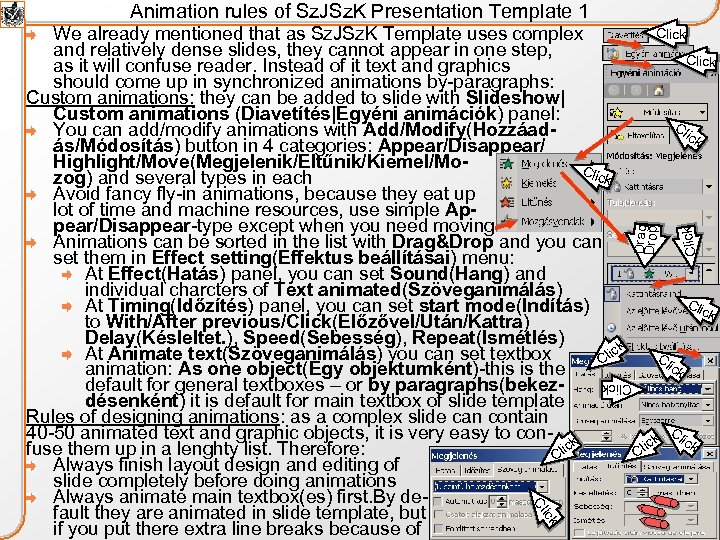 Animation rules of Sz. JSz. K Presentation Template 1 Click Click Drag Drop We already mentioned that as Sz. JSz. K Template uses complex and relatively dense slides, they cannot appear in one step, as it will confuse reader. Instead of it text and graphics should come up in synchronized animations by-paragraphs: Custom animations: they can be added to slide with Slideshow| Custom animations (Diavetítés|Egyéni animációk) panel: You can add/modify animations with Add/Modify(Hozzáadás/Módosítás) button in 4 categories: Appear/Disappear/ Highlight/Move(Megjelenik/Eltűnik/Kiemel/Mo. Clic k zog) and several types in each Avoid fancy fly-in animations, because they eat up lot of time and machine resources, use simple Appear/Disappear-type except when you need moving Animations can be sorted in the list with Drag&Drop and you can set them in Effect setting(Effektus beállításai) menu: At Effect(Hatás) panel, you can set Sound(Hang) and individual charcters of Text animated(Szöveganimálás) At Timing(Időzítés) panel, you can set start mode(Indítás) to With/After previous/Click(Előzővel/Után/Kattra) Delay(Késleltet. ), Speed(Sebesség), Repeat(Ismétlés) k lic At Animate text(Szöveganimálás) you can set textbox C animation: As one object(Egy objektumként)-this is the default for general textboxes – or by paragraphs(bekezdésenként) it is default for main textbox of slide template Rules of designing animations: as a complex slide can contain 40 -50 animated text and graphic objects, it is very easy to con- k ic fuse them up in a lenghty list. Therefore: Cl Always finish layout design and editing of slide completely before doing animations Always animate main textbox(es) first. By default they are animated in slide template, but if you put there extra line breaks because of Cli ck Cl ick Cl ick Cl
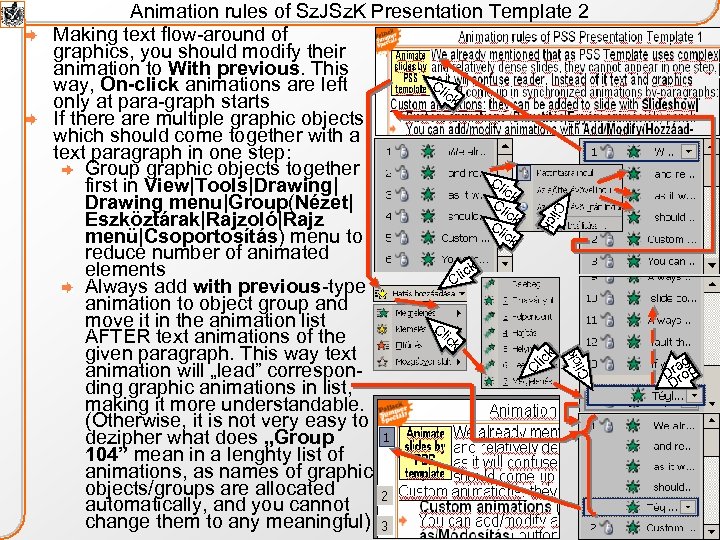 Cli ck k Cl ic Animation rules of Sz. JSz. K Presentation Template 2 Making text flow-around of graphics, you should modify their animation to With previous. This Cl way, On-click animations are left ick only at para-graph starts If there are multiple graphic objects which should come together with a text paragraph in one step: Group graphic objects together Cl first in View|Tools|Drawing| ick Cl Drawing menu|Group(Nézet| ick Eszköztárak|Rajzoló|Rajz Cl ick menü|Csoportosítás) menu to reduce number of animated elements ick Cl Always add with previous-type animation to object group and move it in the animation list Cl ick AFTER text animations of the k given paragraph. This way text lic C animation will „lead” corresponding graphic animations in list, making it more understandable. (Otherwise, it is not very easy to dezipher what does „Group 104” mean in a lenghty list of animations, as names of graphic objects/groups are allocated automatically, and you cannot change them to any meaningful) ag Dr rop D
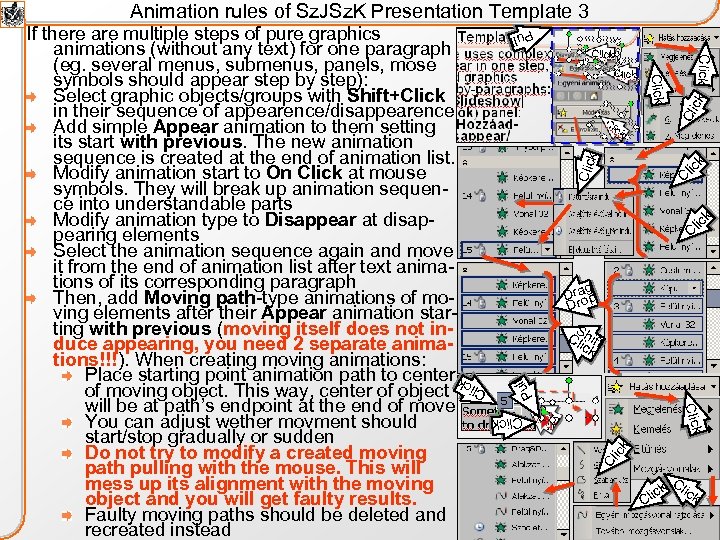 Animation rules of Sz. JSz. K Presentation Template 3 Pull Clic k Cl ick Click k ic Cl k lic C ag Drrop D ll Pu S Cl hift ick Click Cli ck If there are multiple steps of pure graphics animations (without any text) for one paragraph (eg. several menus, submenus, panels, mose symbols should appear step by step): Select graphic objects/groups with Shift+Click in their sequence of appearence/disappearence Add simple Appear animation to them setting its start with previous. The new animation sequence is created at the end of animation list. Modify animation start to On Click at mouse symbols. They will break up animation sequence into understandable parts Modify animation type to Disappear at disappearing elements Select the animation sequence again and move it from the end of animation list after text animations of its corresponding paragraph Then, add Moving path-type animations of moving elements after their Appear animation starting with previous (moving itself does not induce appearing, you need 2 separate animations!!!). When creating moving animations: Place starting point animation path to center of moving object. This way, center of object will be at path’s endpoint at the end of move You can adjust wether movment should start/stop gradually or sudden Do not try to modify a created moving path pulling with the mouse. This will mess up its alignment with the moving object and you will get faulty results. Faulty moving paths should be deleted and recreated instead C ick lick Cl
 Content of the presentation Sz. JSz. K presentation template General purpose Basic layout scheme Formatting recommendations Slide layout Text Paste from clipboard Diagrams Screenshots Mouse movement and program code Business Process Diagrams Entity Relationship Diagrams GUI Design Diagrams Animation of slides Content design recommendations Session structure Topic structure Describing math models Chapter building Auxiliary parts References Appendix
 Content design recommendations 1: Session Structure As principles of content design of course material may vary field by field, Sz. JSz. K Presentation Template will not contain such a strict rules here as at formatting, we just give some recommendations: Basic structure of a Session (Előadás): Table of contents (TOC) slide, with animated pointer frame (see Appendix) It should be repeated at the beginning of each main chapter (Fejezet) of presentation Learning objectives (Az előadás célja) (you can use the icon there): In this part you should describe, which competences the student will gain learning the presentation: which practical problems in his/her professional carreer can be solved with this knowledge, it is important motivating the student as hard learning is always a pain! What is the estimated time requirement of learning it (the session itself, the group project, the assignments, etc. ) Description of topics: at each topic you should follow the following sequence of detailing called the Object-Property-Method Principle (Objektum-Tulajdonság-Metódus hármas) in information theory: Basic definitions (Definíciók): first you should describe the boundaries of the current topic/system/object and how it is related to the environment: former topics/systems/objects. This will allow the student immediately place the new object into the right place in his/her knowledge base. Lets see a bad example: eg. you start to talk about „competitively clustered space structures” but what is that is only described at 5 slides later – hard to follow, student has to search forth and back Don’t forget to underline defined terms and making hyperlinks to that later slides if you do not use it continuously
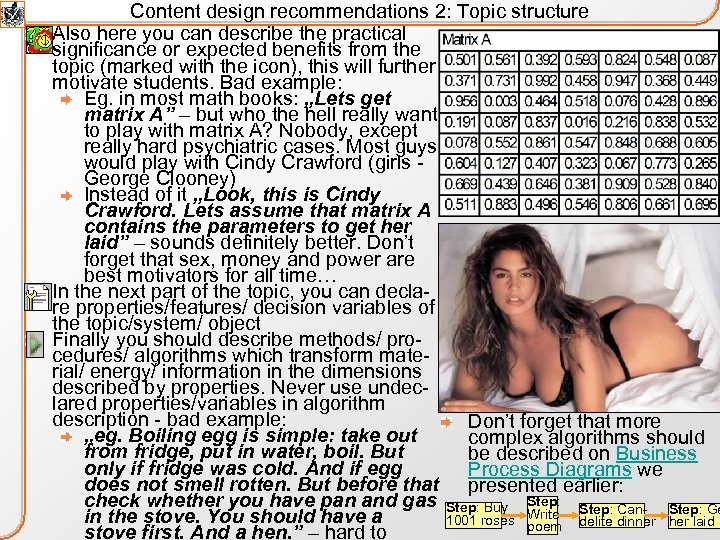 Content design recommendations 2: Topic structure Also here you can describe the practical significance or expected benefits from the topic (marked with the icon), this will further motivate students. Bad example: Eg. in most math books: „Lets get matrix A” – but who the hell really want to play with matrix A? Nobody, except really hard psychiatric cases. Most guys would play with Cindy Crawford (girls - George Clooney) Instead of it „Look, this is Cindy Crawford. Lets assume that matrix A contains the parameters to get her laid” – sounds definitely better. Don’t forget that sex, money and power are best motivators for all time… In the next part of the topic, you can declare properties/features/ decision variables of the topic/system/ object Finally you should describe methods/ procedures/ algorithms which transform material/ energy/ information in the dimensions described by properties. Never use undeclared properties/variables in algorithm description - bad example: Don’t forget that more „eg. Boiling egg is simple: take out complex algorithms should from fridge, put in water, boil. But be described on Business only if fridge was cold. And if egg Process Diagrams we does not smell rotten. But before that presented earlier: check whether you have pan and gas Step: Buy Step: Can- Step: Ge in the stove. You should have a 1001 roses Write delite dinner her laid poem stove first. And a hen. ” – hard to
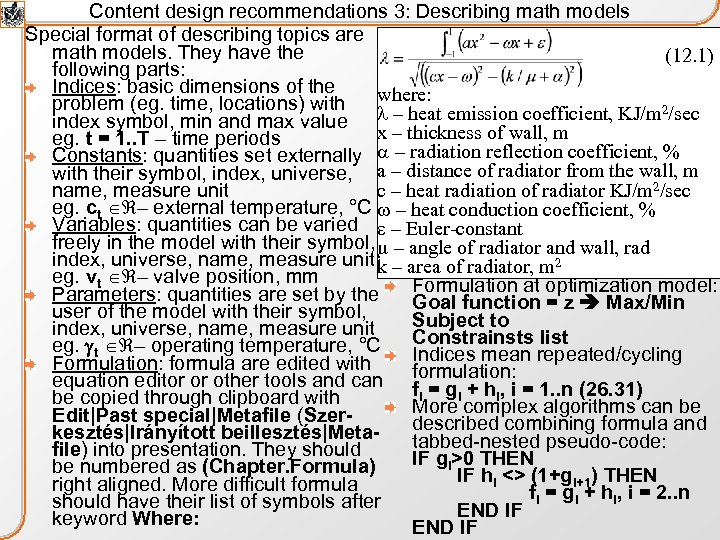 Content design recommendations 3: Describing math models Special format of describing topics are math models. They have the (12. 1) following parts: Indices: basic dimensions of the problem (eg. time, locations) with where: emission coefficient, KJ/m 2/sec index symbol, min and max value l – heat x – thickness of wall, m eg. t = 1. . T – time periods Constants: quantities set externally a – radiation reflection coefficient, % with their symbol, index, universe, a – distance of radiator from the wall, m c – heat radiation of radiator KJ/m 2/sec name, measure unit eg. ct – external temperature, °C w – heat conduction coefficient, % Variables: quantities can be varied e – Euler-constant freely in the model with their symbol, m – angle of radiator and wall, rad index, universe, name, measure unit k – area of radiator, m 2 eg. vt – valve position, mm Parameters: quantities are set by the Formulation at optimization model: Goal function = z Max/Min user of the model with their symbol, Subject to index, universe, name, measure unit Constrainsts list eg. gt – operating temperature, °C Indices mean repeated/cycling Formulation: formula are edited with equation editor or other tools and can formulation: = 1. . n (26. 31) fi = gi + hi, i be copied through clipboard with More complex algorithms can be Edit|Past special|Metafile (Szerdescribed combining formula and kesztés|Irányított beillesztés|Metatabbed-nested pseudo-code: file) into presentation. They should IF gi>0 THEN be numbered as (Chapter. Formula) IF hi <> (1+gi+1) THEN right aligned. More difficult formula fi = gi + hi, i = 2. . n should have their list of symbols after END IF keyword Where: END IF
 Content design recommendations 4: Chapter building When building a chapter of the presentation, you should build a hierarchy of topics/objects/systems/model. It has 2 basic methods: Top-down: First you define the complex main topic and then detail its part topics going downward in topic hierarchy. In this case description of subtopics should be indented, and in more complex hierarchies it should be decimally numbered, eg: 1 Main topic 1. 1 Subtopic 1. 1. 1 Sub-subtopic 1. 1. 2 Another sub-subtopic 1. 2 Another subtopic Down-top: First you define simple components and radually build up more complex ones until completing the whole topic/object/system moving upward in topic hierarchy Never mix the two methods because it will totally confuse students When you describe in a chapter more – partially conflicting – methods/ models/ approaches/ theories, there are two methods to compare them: You go through theories linearly, mainly in historic sequence and describe definition, properties and methods of each theories separately. This is the conventional method When you have lot of theories to compare and comparison is difficult, you can compare them partially: Compare their definition, scope of area, basic constraints first Then compare their properties used Finally compare their methods Sessions should be closed by summary (Összegzés) of their chapters, which should be consistent with learning objectives It can be in a form of series of steps: eg. Step 1: Lock target. . Step 10: Get her laid You can create an acronym of steps easily memorizable: eg. SCUBA: Select feasible target, Catch eye movment, Utilize oral skills, Bold introduction, Access her phone number/e-mail, etc.
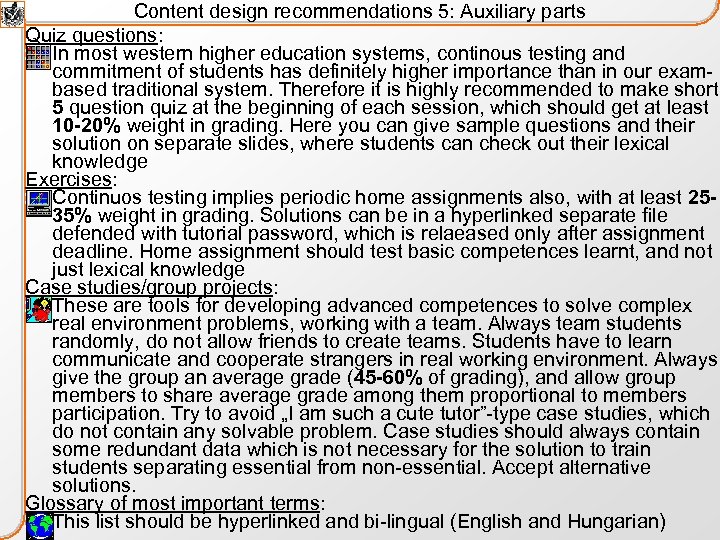 Content design recommendations 5: Auxiliary parts Quiz questions: In most western higher education systems, continous testing and commitment of students has definitely higher importance than in our exambased traditional system. Therefore it is highly recommended to make short 5 question quiz at the beginning of each session, which should get at least 10 -20% weight in grading. Here you can give sample questions and their solution on separate slides, where students can check out their lexical knowledge Exercises: Continuos testing implies periodic home assignments also, with at least 2535% weight in grading. Solutions can be in a hyperlinked separate file defended with tutorial password, which is relaeased only after assignment deadline. Home assignment should test basic competences learnt, and not just lexical knowledge Case studies/group projects: These are tools for developing advanced competences to solve complex real environment problems, working with a team. Always team students randomly, do not allow friends to create teams. Students have to learn communicate and cooperate strangers in real working environment. Always give the group an average grade (45 -60% of grading), and allow group members to share average grade among them proportional to members participation. Try to avoid „I am such a cute tutor”-type case studies, which do not contain any solvable problem. Case studies should always contain some redundant data which is not necessary for the solution to train students separating essential from non-essential. Accept alternative solutions. Glossary of most important terms: This list should be hyperlinked and bi-lingual (English and Hungarian)
 Content of the presentation Sz. JSz. K presentation template General purpose Basic layout scheme Formatting recommendations Slide layout Text Paste from clipboard Diagrams Screenshots Mouse movement and program code Business Process Diagrams Entity Relationship Diagrams GUI Design Diagrams Animation of slides Content design recommendations Session structure Topic structure Describing math models Chapter building Auxiliary parts References Appendix
 References Power. Point Tutorials: http: //www. bcschools. net/staff/Power. Point. Help. htm http: //oregonstate. edu/instruction/ed 596/ppoint/pphome. htm http: //www. fgcu. edu/support/office 2000/ppt/ http: //www. actden. com/PP/ Effective presentation techniques: http: //dcc 2. bumc. bu. edu/prdu/Session_Guides/oral_presentation_techniqu es. htm http: //www. lkka. lt/~r. gulbinas/Pristatymo%20 metodika. pdf Other slide templates: http: //desktoppub. about. com/od/templatespowerpoint/Free_Microsoft_Pow er. Point_Templates. htm http: //groups. ucanr. org/posters/Templates_for_Slide_Shows/ http: //office. microsoft. com/en-us/templates/CT 101172621033. aspx
 Appendix Empty table of contents slide template Empty slide template with hyperlink, mouse symbols and their animation Empty references slide template
 Content of the presentation
 Empty slide template
 Empty slide template with hyperlink, mouse symbols and their animation Business Process Diagram Menu 1 Cl ick C Cl lick Sub. Menu 1 Sub. Menu 2 Cl ick C Cl trl+ ick S Cl hift ick R Cl ight ick Popup. Menu 1 Popup. Menu 2 Cl ick Something DDrag r to drag&drop op ck Sh ll Pu S Shhc S ck Shhckk ck
 References First. Author. Surname, Initial. , Second. Author. Surname, Initial. , (Year) „Title”, Journal. Name, Vol. XX p. XXX, Publisher’s city