


 Скачать презентацию Graphics Graphics Features in Java n Topics
f4272ee51dc92ec31a5e73c74a3e9f5a.ppt
- Количество слайдов: 31
 Graphics
 Graphics Features in Java n Topics to be covered n Graphics Basics n Coordinate System n Graphics, Color, Font classes n Displaying graphics n Graphic User Interface (GUI) n Frames and Containers n Applets n Event-driven Programs
 Graphics-related Classes in Package java. awt n Graphics n n Color n n —for drawing geometric figures —for background and foreground colors for text, for geometric figures Font n —for text formatting, size, style, face, etc.
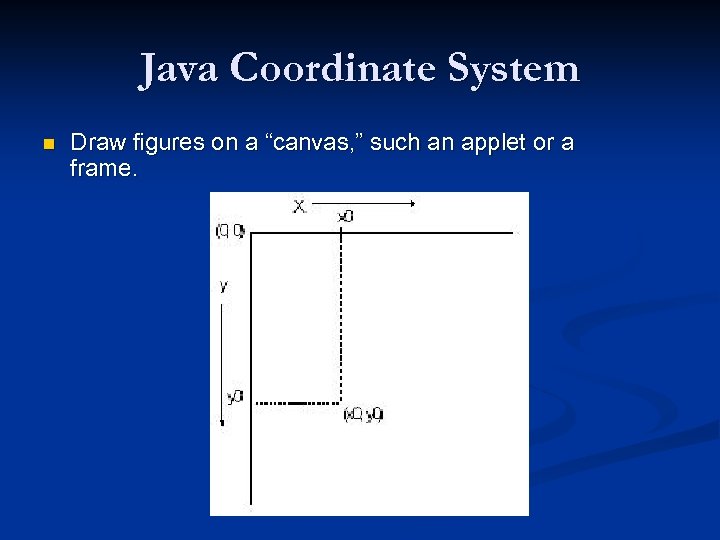 Java Coordinate System n Draw figures on a “canvas, ” such an applet or a frame.
 Graphics Methods n A Graphics object provides a handle (graphics environment) for various graphics methods, such as Set. Color() n set. Font() n draw. Rect() n draw. Oval() n fill. Rect() n fill. Oval() n
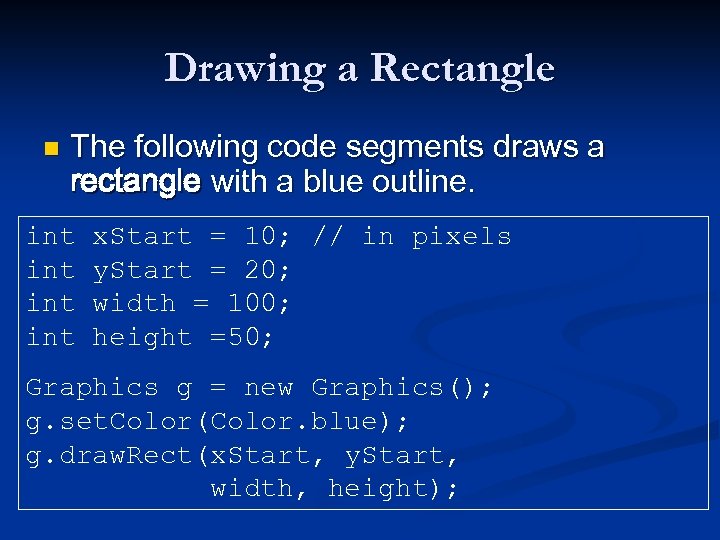 Drawing a Rectangle n The following code segments draws a rectangle with a blue outline. int x. Start = 10; // in pixels int y. Start = 20; int width = 100; int height =50; Graphics g = new Graphics(); g. set. Color(Color. blue); g. draw. Rect(x. Start, y. Start, width, height);
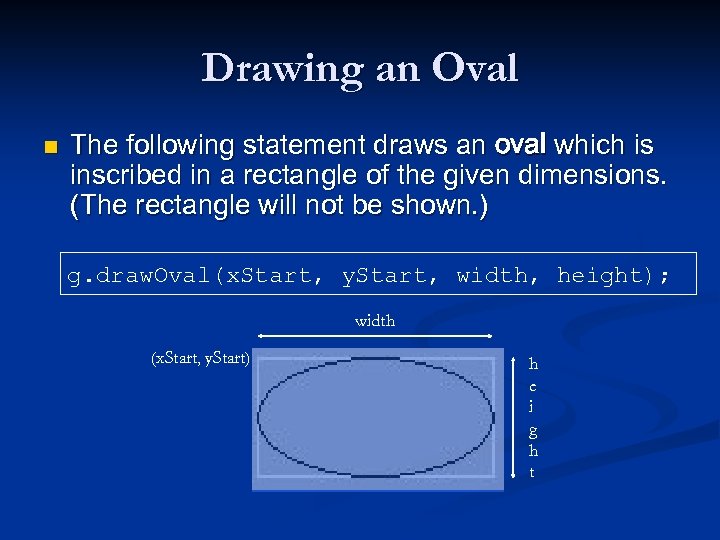 Drawing an Oval n The following statement draws an oval which is inscribed in a rectangle of the given dimensions. (The rectangle will not be shown. ) g. draw. Oval(x. Start, y. Start, width, height); width (x. Start, y. Start) h e i g h t
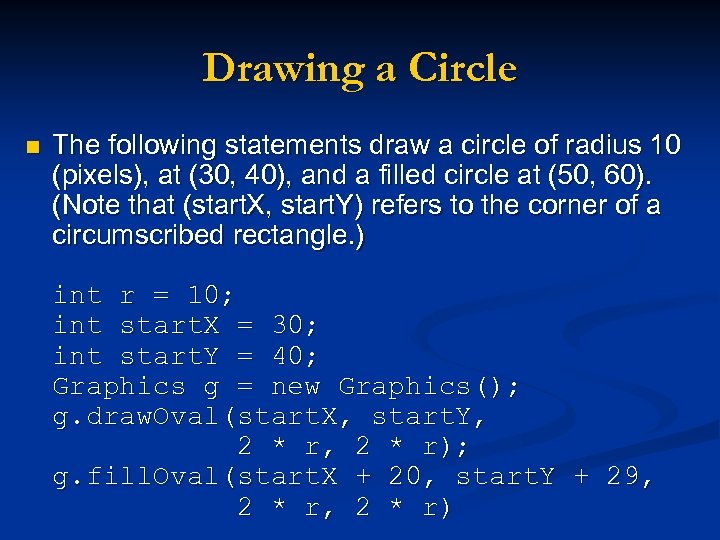 Drawing a Circle n The following statements draw a circle of radius 10 (pixels), at (30, 40), and a filled circle at (50, 60). (Note that (start. X, start. Y) refers to the corner of a circumscribed rectangle. ) int r = 10; int start. X = 30; int start. Y = 40; Graphics g = new Graphics(); g. draw. Oval(start. X, start. Y, 2 * r, 2 * r); g. fill. Oval(start. X + 20, start. Y + 29, 2 * r, 2 * r)
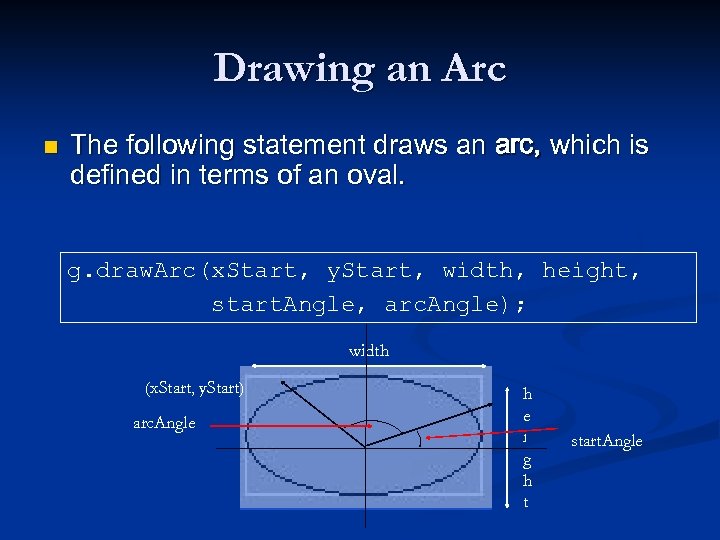 Drawing an Arc n The following statement draws an arc, which is defined in terms of an oval. g. draw. Arc(x. Start, y. Start, width, height, start. Angle, arc. Angle); width (x. Start, y. Start) arc. Angle h e i g h t start. Angle
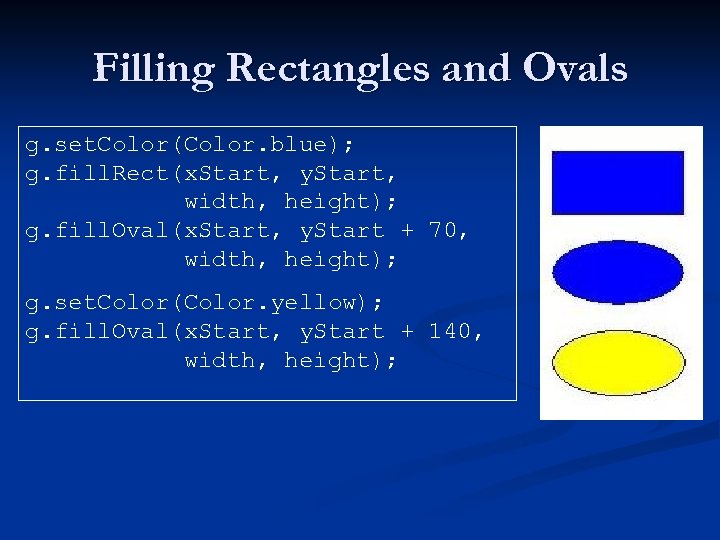 Filling Rectangles and Ovals g. set. Color(Color. blue); g. fill. Rect(x. Start, y. Start, width, height); g. fill. Oval(x. Start, y. Start + 70, width, height); g. set. Color(Color. yellow); g. fill. Oval(x. Start, y. Start + 140, width, height);
 Drawing a Line n The following statements draw a line from (20, 30) to (120, 50). x. Start = 20; y. Start = 30; x. End = 120; y. End = 50; draw. Line(x. Start, y. Start, x. End, y. End);
 Drawing a Text n The following statements draw a text starting at (20, 30). int x. Text = 20; int y. Text = 30; g. draw. String("Welcome to Hawaii. ", x. Text, y. Text);
 Setting Color n The following statements create a yellow circle at (20, 40) and a blue square at (80, 40). int r = 10; g. set. Color(Color. YELLOW); g. fill. Oval(20, 40, r, r); g. set. Color(Color. BLUE); g. fill. Rect(80, 40, r, r);
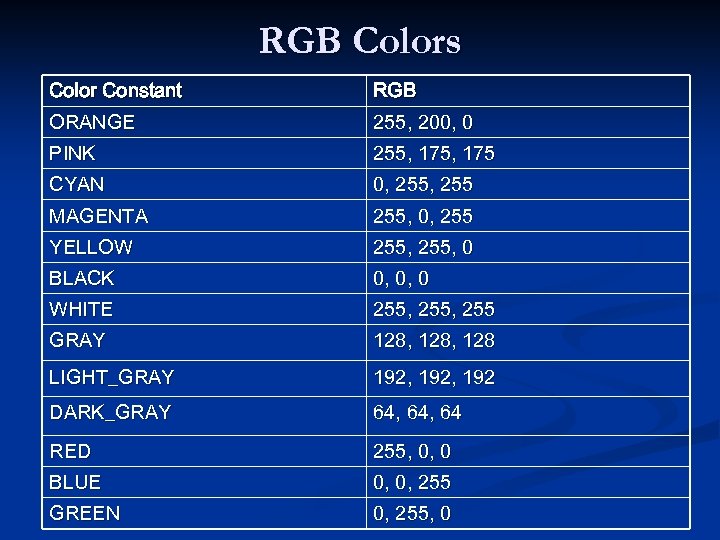 RGB Colors Color Constant RGB ORANGE 255, 200, 0 PINK 255, 175 CYAN 0, 255 MAGENTA 255, 0, 255 YELLOW 255, 0 BLACK 0, 0, 0 WHITE 255, 255 GRAY 128, 128 LIGHT_GRAY 192, 192 DARK_GRAY 64, 64 RED 255, 0, 0 BLUE 0, 0, 255 GREEN 0, 255, 0
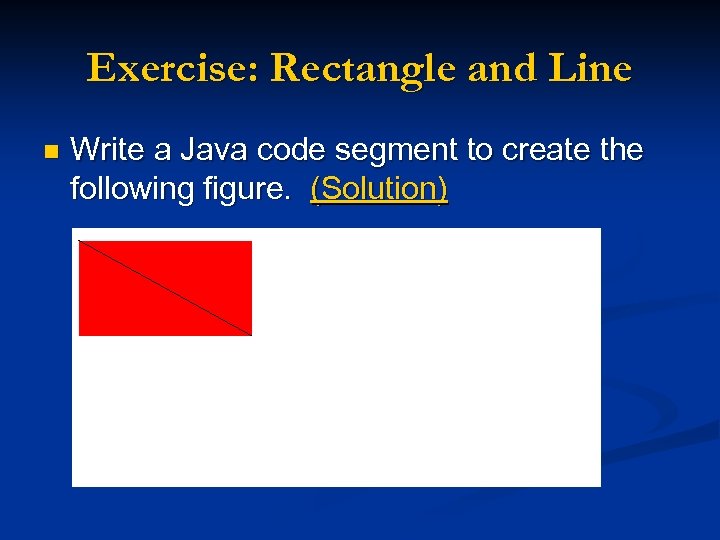 Exercise: Rectangle and Line n Write a Java code segment to create the following figure. (Solution)
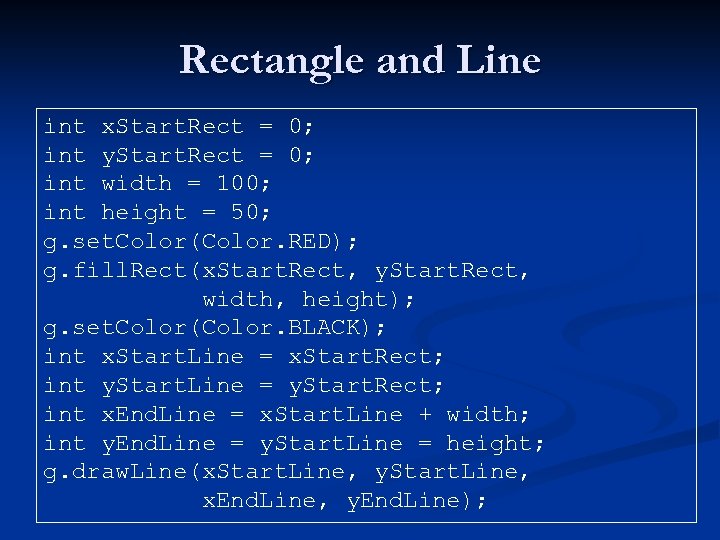 Rectangle and Line int x. Start. Rect = 0; int y. Start. Rect = 0; int width = 100; int height = 50; g. set. Color(Color. RED); g. fill. Rect(x. Start. Rect, y. Start. Rect, width, height); g. set. Color(Color. BLACK); int x. Start. Line = x. Start. Rect; int y. Start. Line = y. Start. Rect; int x. End. Line = x. Start. Line + width; int y. End. Line = y. Start. Line = height; g. draw. Line(x. Start. Line, y. Start. Line, x. End. Line, y. End. Line);
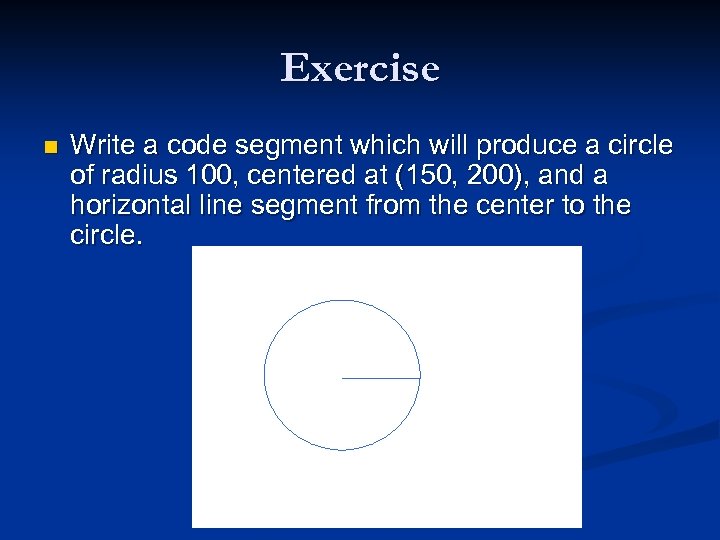 Exercise n Write a code segment which will produce a circle of radius 100, centered at (150, 200), and a horizontal line segment from the center to the circle.
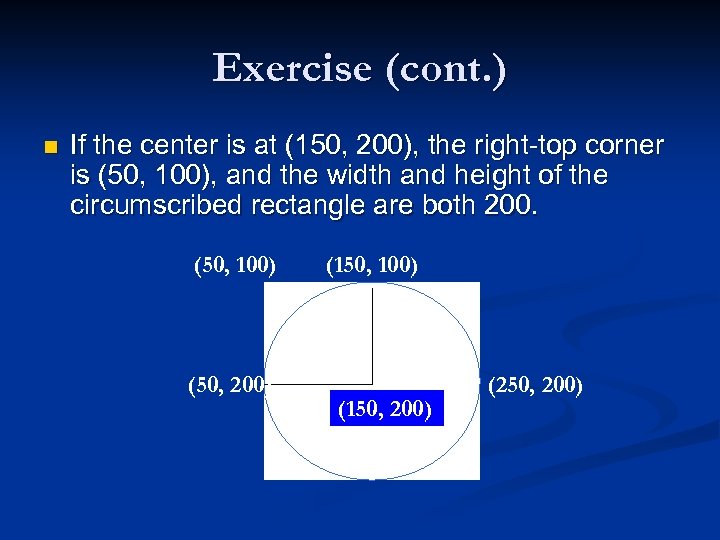 Exercise (cont. ) n If the center is at (150, 200), the right-top corner is (50, 100), and the width and height of the circumscribed rectangle are both 200. (50, 100) (50, 200) (150, 100) (150, 200) (250, 200)
 Displaying Graphics n Graphics objects must be drawn inside a “container” n Top-level Container (heavy-weight) n JApplet, JFrame, JWindow n Secondary Container: (light-weight) n JPanel, JScroll. Pane, JRoot. Pane n Used to arrange layout of components like JButton, JLabel, Jtext. Field, etc
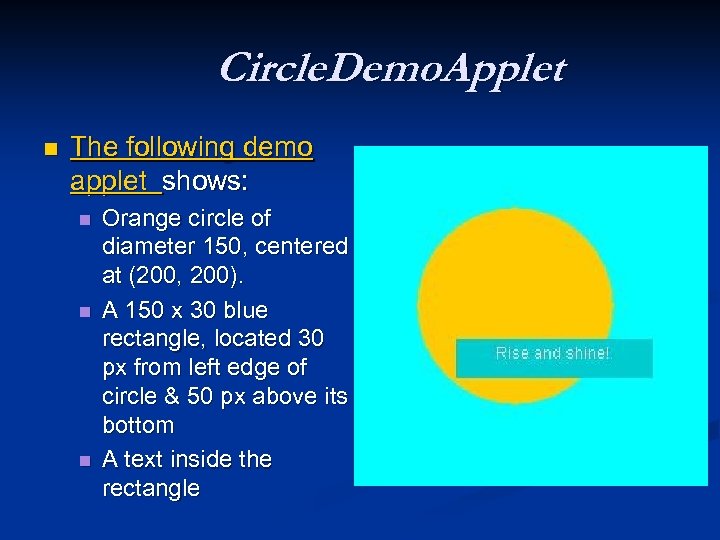 Circle. Demo. Applet n The following demo applet shows: n n n Orange circle of diameter 150, centered at (200, 200). A 150 x 30 blue rectangle, located 30 px from left edge of circle & 50 px above its bottom A text inside the rectangle
 Color. Use Demo Applet (cont. ) n All drawings occur in paint() method. set. Background()--sets the applet's background color n g. set. Color()--sets the color for the graphics context (unless it is changed, color remains the same for all subsequent figures) n Color my. Color = new Color(0, 200); g. set. Color(my. Color); n can be combined to g. set. Color(new Color(0, 200));
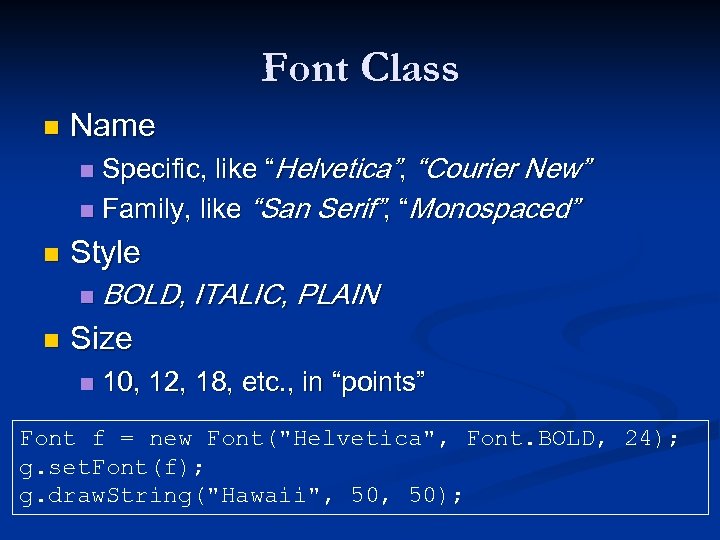 Font Class n Name Specific, like “Helvetica”, “Courier New” n Family, like “San Serif”, “Monospaced” n n Style n n BOLD, ITALIC, PLAIN Size n 10, 12, 18, etc. , in “points” Font f = new Font("Helvetica", Font. BOLD, 24); g. set. Font(f); g. draw. String("Hawaii", 50);
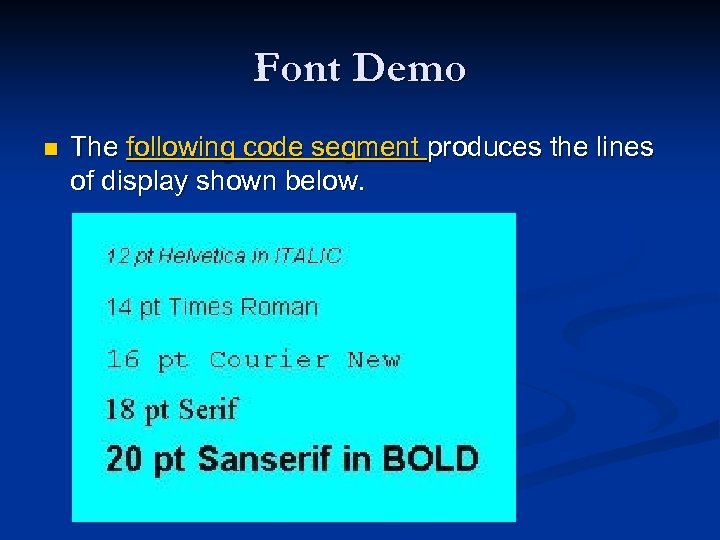 Font Demo n The following code segment produces the lines of display shown below.
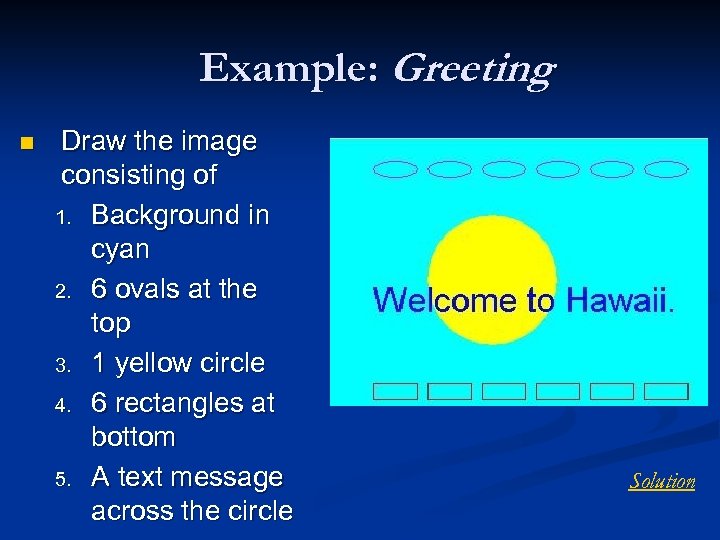 Example: Greeting n Draw the image consisting of 1. Background in cyan 2. 6 ovals at the top 3. 1 yellow circle 4. 6 rectangles at bottom 5. A text message across the circle Solution
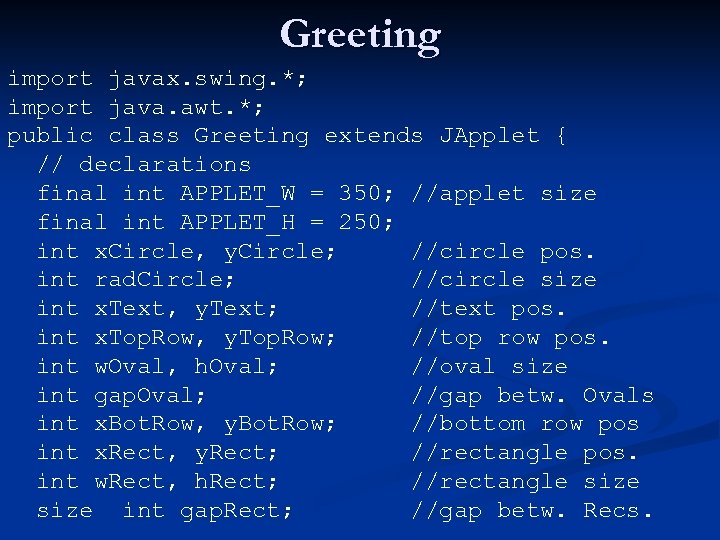 Greeting import javax. swing. *; import java. awt. *; public class Greeting extends JApplet { // declarations final int APPLET_W = 350; //applet size final int APPLET_H = 250; int x. Circle, y. Circle; //circle pos. int rad. Circle; //circle size int x. Text, y. Text; //text pos. int x. Top. Row, y. Top. Row; //top row pos. int w. Oval, h. Oval; //oval size int gap. Oval; //gap betw. Ovals int x. Bot. Row, y. Bot. Row; //bottom row pos int x. Rect, y. Rect; //rectangle pos. int w. Rect, h. Rect; //rectangle size int gap. Rect; //gap betw. Recs.
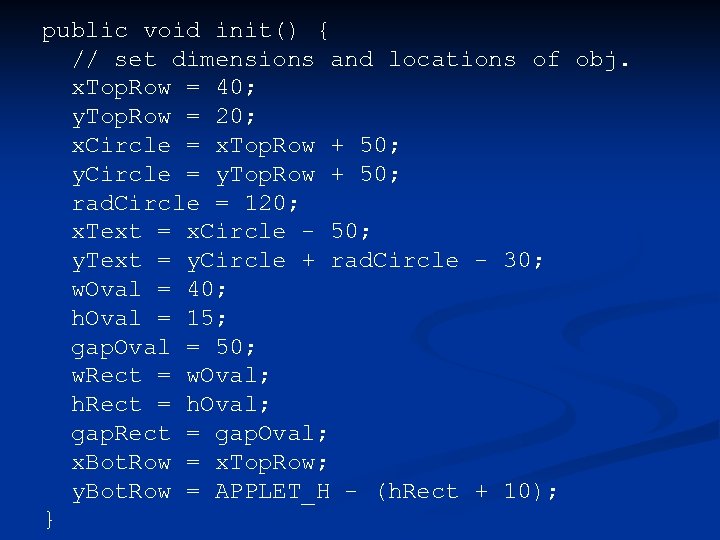 public void init() { // set dimensions and locations of obj. x. Top. Row = 40; y. Top. Row = 20; x. Circle = x. Top. Row + 50; y. Circle = y. Top. Row + 50; rad. Circle = 120; x. Text = x. Circle - 50; y. Text = y. Circle + rad. Circle - 30; w. Oval = 40; h. Oval = 15; gap. Oval = 50; w. Rect = w. Oval; h. Rect = h. Oval; gap. Rect = gap. Oval; x. Bot. Row = x. Top. Row; y. Bot. Row = APPLET_H - (h. Rect + 10); }
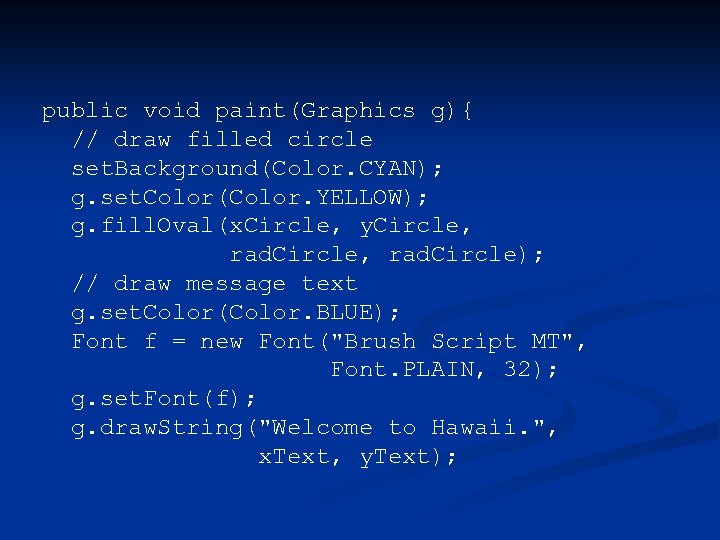 public void paint(Graphics g){ // draw filled circle set. Background(Color. CYAN); g. set. Color(Color. YELLOW); g. fill. Oval(x. Circle, y. Circle, rad. Circle, rad. Circle); // draw message text g. set. Color(Color. BLUE); Font f = new Font("Brush Script MT", Font. PLAIN, 32); g. set. Font(f); g. draw. String("Welcome to Hawaii. ", x. Text, y. Text);
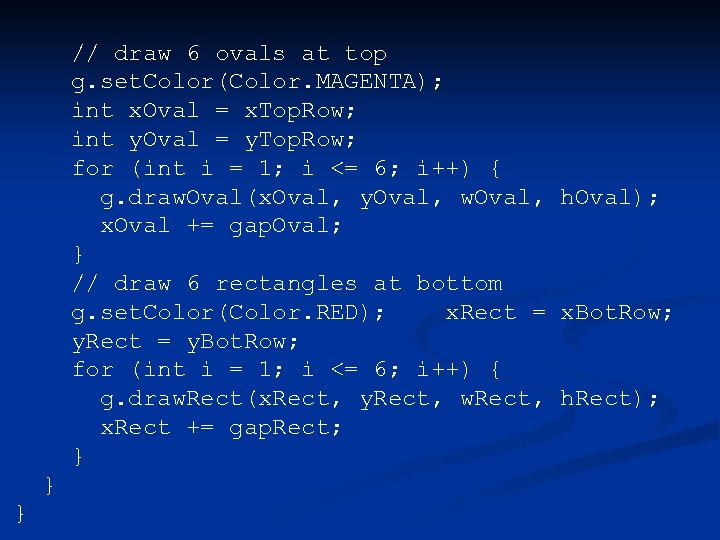 // draw 6 ovals at top g. set. Color(Color. MAGENTA); int x. Oval = x. Top. Row; int y. Oval = y. Top. Row; for (int i = 1; i <= 6; i++) { g. draw. Oval(x. Oval, y. Oval, w. Oval, h. Oval); x. Oval += gap. Oval; } // draw 6 rectangles at bottom g. set. Color(Color. RED); x. Rect = x. Bot. Row; y. Rect = y. Bot. Row; for (int i = 1; i <= 6; i++) { g. draw. Rect(x. Rect, y. Rect, w. Rect, h. Rect); x. Rect += gap. Rect; } } }
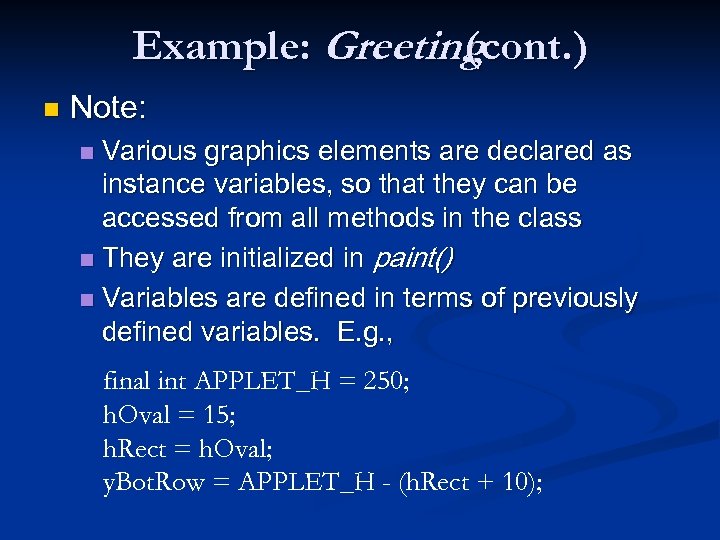 Example: Greeting (cont. ) n Note: Various graphics elements are declared as instance variables, so that they can be accessed from all methods in the class n They are initialized in paint() n Variables are defined in terms of previously defined variables. E. g. , n final int APPLET_H = 250; h. Oval = 15; h. Rect = h. Oval; y. Bot. Row = APPLET_H - (h. Rect + 10);
 Example: House Applet House uses geometric shapes with colors can be used to paint a simple scenery. n Here is the source code for House. java. n
 Example: Smiley Applet Smiley is another example to illustrate the use of Graphics objects. n Here is the source code for Smiley. java. n