 Скачать презентацию GLOBAL BUSINESS SERVICES GBS CHANGE ADVISORY BOARD CAB
8c4bdc295f398906cc8a4decb45d620e.ppt
- Количество слайдов: 99



GLOBAL BUSINESS SERVICES (GBS) CHANGE ADVISORY BOARD (CAB) Service-now Change Module Instructions by Role
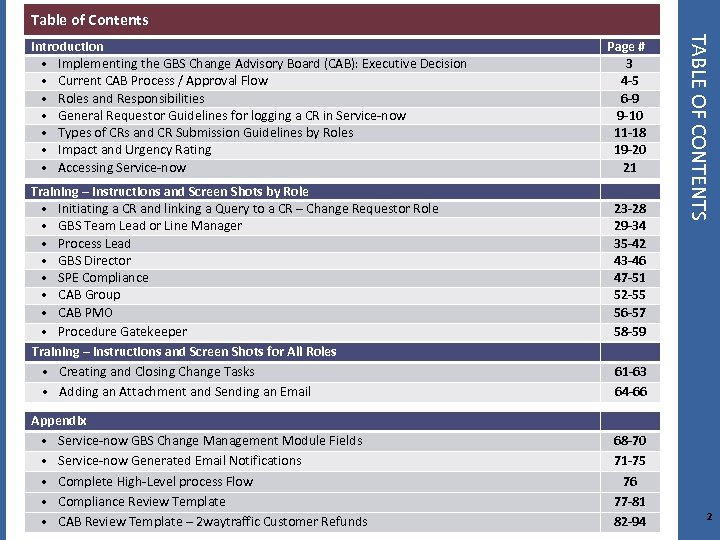
Table of Contents Training – Instructions and Screen Shots by Role • Initiating a CR and linking a Query to a CR – Change Requestor Role • GBS Team Lead or Line Manager • Process Lead • GBS Director • SPE Compliance • CAB Group • CAB PMO • Procedure Gatekeeper Training – Instructions and Screen Shots for All Roles • Creating and Closing Change Tasks • Adding an Attachment and Sending an Email Appendix • Service-now GBS Change Management Module Fields • Service-now Generated Email Notifications • Complete High-Level process Flow • Compliance Review Template • CAB Review Template – 2 waytraffic Customer Refunds Page # 3 4 -5 6 -9 9 -10 11 -18 19 -20 21 23 -28 29 -34 35 -42 43 -46 47 -51 52 -55 56 -57 58 -59 TABLE OF CONTENTS Introduction • Implementing the GBS Change Advisory Board (CAB): Executive Decision • Current CAB Process / Approval Flow • Roles and Responsibilities • General Requestor Guidelines for logging a CR in Service-now • Types of CRs and CR Submission Guidelines by Roles • Impact and Urgency Rating • Accessing Service-now 61 -63 64 -66 68 -70 71 -75 76 77 -81 82 -94 2
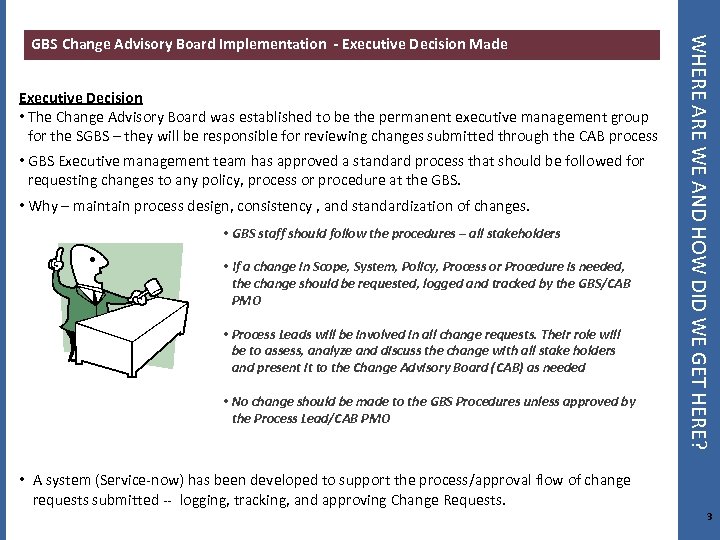
Executive Decision • The Change Advisory Board was established to be the permanent executive management group for the SGBS – they will be responsible for reviewing changes submitted through the CAB process • GBS Executive management team has approved a standard process that should be followed for requesting changes to any policy, process or procedure at the GBS. • Why – maintain process design, consistency , and standardization of changes. • GBS staff should follow the procedures – all stakeholders ● • If a change in Scope, System, Policy, Process or Procedure is needed, the change should be requested, logged and tracked by the GBS/CAB PMO • Process Leads will be involved in all change requests. Their role will be to assess, analyze and discuss the change with all stake holders and present it to the Change Advisory Board (CAB) as needed • No change should be made to the GBS Procedures unless approved by the Process Lead/CAB PMO WHERE ARE WE AND HOW DID WE GET HERE? GBS Change Advisory Board Implementation - Executive Decision Made • A system (Service-now) has been developed to support the process/approval flow of change requests submitted -- logging, tracking, and approving Change Requests. 3
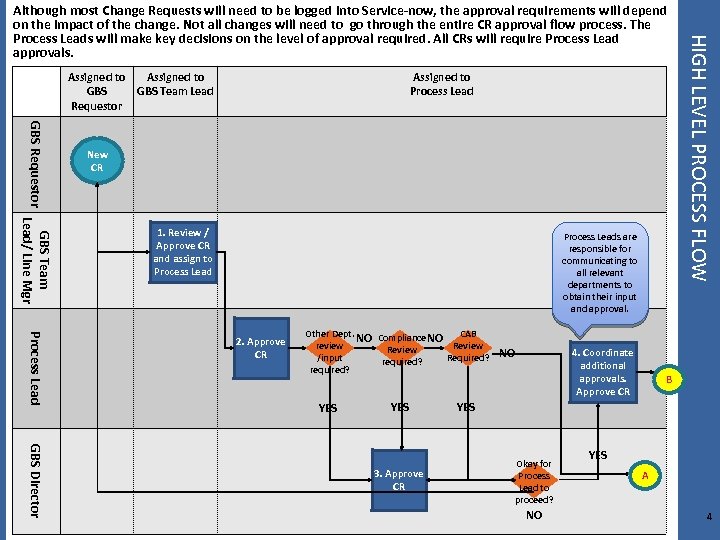
Assigned to GBS Team Lead Requestor Assigned to Process Lead GBS Requestor New CR GBS Team Lead/ Line Mgr 1. Review / Approve CR and assign to Process Leads are responsible for communicating to all relevant departments to obtain their input and approval. Process Lead 2. Approve CR Other Dept. NO Compliance NO CAB review Review /input Required? required? YES GBS Director 3. Approve CR NO 4. Coordinate additional approvals. Approve CR HIGH LEVEL PROCESS FLOW Although most Change Requests will need to be logged into Service-now, the approval requirements will depend on the impact of the change. Not all changes will need to go through the entire CR approval flow process. The Process Leads will make key decisions on the level of approval required. All CRs will require Process Lead approvals. B YES Okay for Process Lead to proceed? NO YES A 4
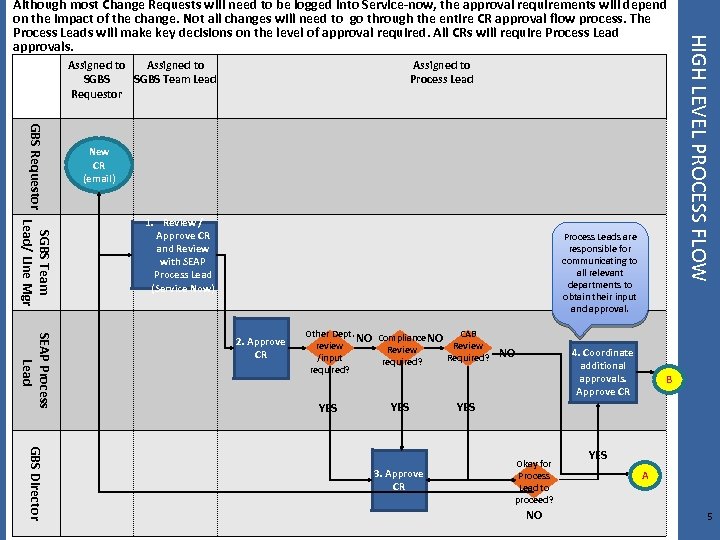
Assigned to SGBS Team Lead Requestor Assigned to Process Lead GBS Requestor New CR (email) SGBS Team Lead/ Line Mgr 1. Review / Approve CR and Review with SEAP Process Lead (Service Now) Process Leads are responsible for communicating to all relevant departments to obtain their input and approval. SEAP Process Lead 2. Approve CR Other Dept. NO Compliance NO CAB review Review /input Required? required? YES GBS Director 3. Approve CR NO 4. Coordinate additional approvals. Approve CR HIGH LEVEL PROCESS FLOW Although most Change Requests will need to be logged into Service-now, the approval requirements will depend on the impact of the change. Not all changes will need to go through the entire CR approval flow process. The Process Leads will make key decisions on the level of approval required. All CRs will require Process Lead approvals. B YES Okay for Process Lead to proceed? NO YES A 5
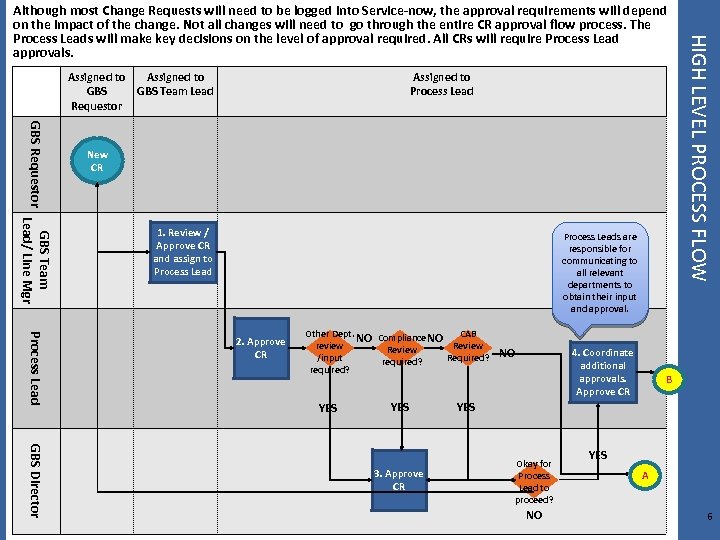
Assigned to GBS Team Lead Requestor Assigned to Process Lead GBS Requestor New CR GBS Team Lead/ Line Mgr 1. Review / Approve CR and assign to Process Leads are responsible for communicating to all relevant departments to obtain their input and approval. Process Lead 2. Approve CR Other Dept. NO Compliance NO CAB review Review /input Required? required? YES GBS Director 3. Approve CR NO 4. Coordinate additional approvals. Approve CR HIGH LEVEL PROCESS FLOW Although most Change Requests will need to be logged into Service-now, the approval requirements will depend on the impact of the change. Not all changes will need to go through the entire CR approval flow process. The Process Leads will make key decisions on the level of approval required. All CRs will require Process Lead approvals. B YES Okay for Process Lead to proceed? NO YES A 6
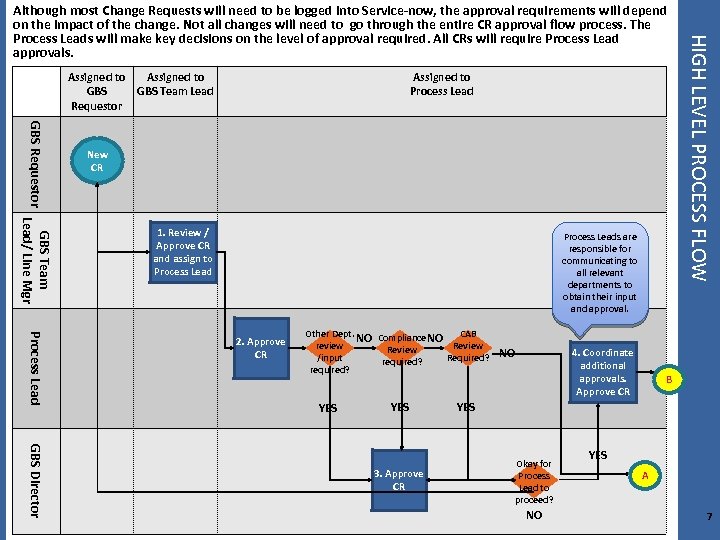
Assigned to GBS Team Lead Requestor Assigned to Process Lead GBS Requestor New CR GBS Team Lead/ Line Mgr 1. Review / Approve CR and assign to Process Leads are responsible for communicating to all relevant departments to obtain their input and approval. Process Lead 2. Approve CR Other Dept. NO Compliance NO CAB review Review /input Required? required? YES GBS Director 3. Approve CR NO 4. Coordinate additional approvals. Approve CR HIGH LEVEL PROCESS FLOW Although most Change Requests will need to be logged into Service-now, the approval requirements will depend on the impact of the change. Not all changes will need to go through the entire CR approval flow process. The Process Leads will make key decisions on the level of approval required. All CRs will require Process Lead approvals. B YES Okay for Process Lead to proceed? NO YES A 7
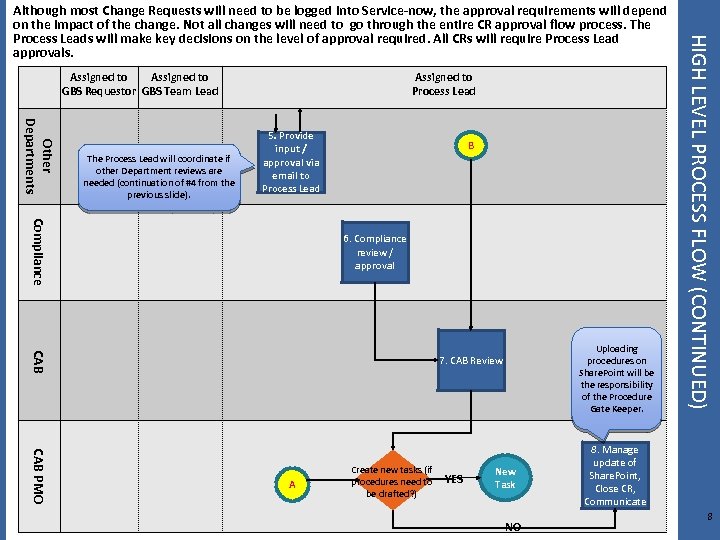
Assigned to GBS Requestor GBS Team Lead Other Departments The Process Lead will coordinate if other Department reviews are needed (continuation of #4 from the previous slide). Assigned to Process Lead 5. Provide input / approval via email to Process Lead B Compliance 6. Compliance review / approval CAB Uploading procedures on Share. Point will be the responsibility of the Procedure Gate Keeper. 7. CAB Review CAB PMO A Create new tasks (if procedures need to be drafted? ) YES New Task NO HIGH LEVEL PROCESS FLOW (CONTINUED) Although most Change Requests will need to be logged into Service-now, the approval requirements will depend on the impact of the change. Not all changes will need to go through the entire CR approval flow process. The Process Leads will make key decisions on the level of approval required. All CRs will require Process Lead approvals. 8. Manage update of Share. Point, Close CR, Communicate 8
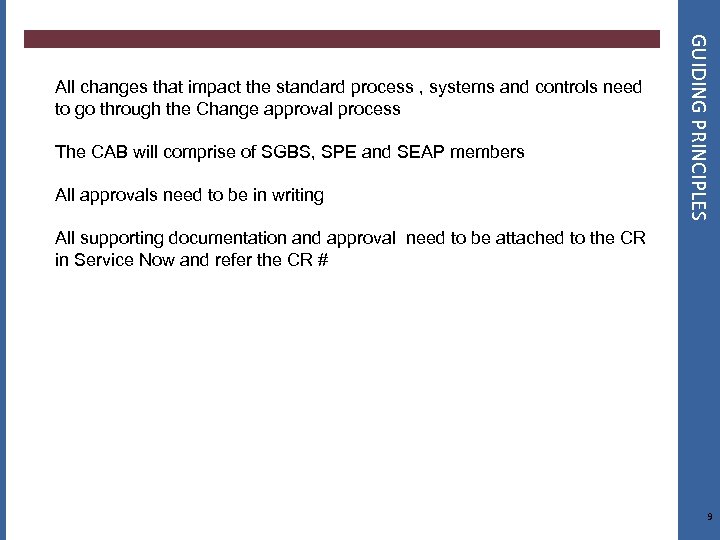
The CAB will comprise of SGBS, SPE and SEAP members All approvals need to be in writing GUIDING PRINCIPLES All changes that impact the standard process , systems and controls need to go through the Change approval process All supporting documentation and approval need to be attached to the CR in Service Now and refer the CR # 9
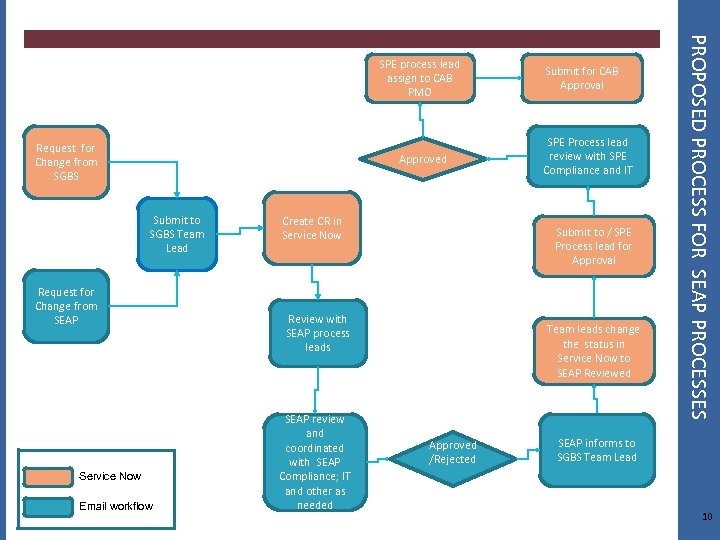
Request for Change from SGBS Approved Submit to SGBS Team Lead Request for Change from SEAP Service Now Email workflow Create CR in Service Now SPE Process lead review with SPE Compliance and IT Submit to / SPE Process lead for Approval Review with SEAP process leads SEAP review and coordinated with SEAP Compliance; IT and other as needed Submit for CAB Approval Team leads change the status in Service Now to SEAP Reviewed Approved /Rejected PROPOSED PROCESS FOR SEAP PROCESSES SPE process lead assign to CAB PMO SEAP informs to SGBS Team Lead 10
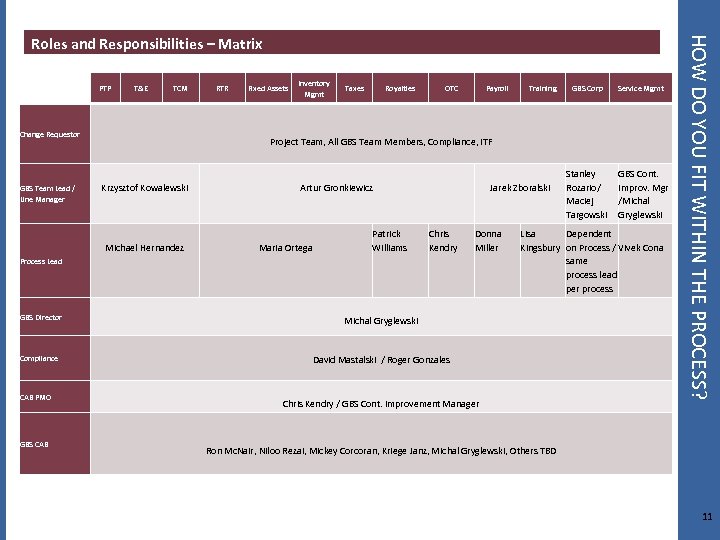
PTP T&E TCM Change Requestor GBS Team Lead / Line Manager RTR Fixed Assets Inventory Mgmt Taxes Royalties OTC Payroll Training Krzysztof Kowalewski Artur Gronkiewicz Maria Ortega Patrick Williams Jarek Zboralski Chris Kendry Donna Miller Process Lead GBS Director Compliance Stanley Rozario/ Maciej Targowski GBS Cont. Improv. Mgr /Michal Gryglewski Lisa Dependent Kingsbury on Process / Vivek Cona same process lead per process Michal Gryglewski David Mastalski / Roger Gonzales GBS CAB Service Mgmt Project Team, All GBS Team Members, Compliance, ITF Michael Hernandez CAB PMO GBS Corp Chris Kendry / GBS Cont. Improvement Manager HOW DO YOU FIT WITHIN THE PROCESS? Roles and Responsibilities – Matrix Ron Mc. Nair, Niloo Rezai, Mickey Corcoran, Kriege Janz, Michal Gryglewski, Others TBD 11
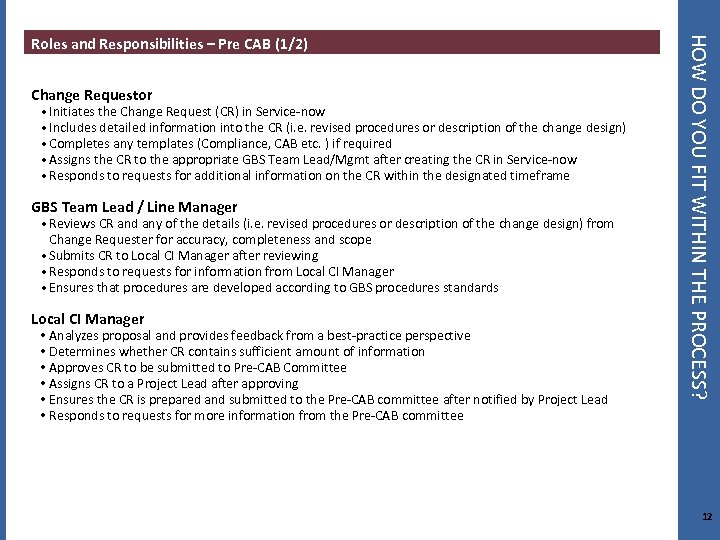
Change Requestor • Initiates the Change Request (CR) in Service-now • Includes detailed information into the CR (i. e. revised procedures or description of the change design) • Completes any templates (Compliance, CAB etc. ) if required • Assigns the CR to the appropriate GBS Team Lead/Mgmt after creating the CR in Service-now • Responds to requests for additional information on the CR within the designated timeframe GBS Team Lead / Line Manager • Reviews CR and any of the details (i. e. revised procedures or description of the change design) from Change Requester for accuracy, completeness and scope • Submits CR to Local CI Manager after reviewing • Responds to requests for information from Local CI Manager • Ensures that procedures are developed according to GBS procedures standards Local CI Manager • Analyzes proposal and provides feedback from a best-practice perspective • Determines whether CR contains sufficient amount of information • Approves CR to be submitted to Pre-CAB Committee • Assigns CR to a Project Lead after approving • Ensures the CR is prepared and submitted to the Pre-CAB committee after notified by Project Lead • Responds to requests for more information from the Pre-CAB committee HOW DO YOU FIT WITHIN THE PROCESS? Roles and Responsibilities – Pre CAB (1/2) 12
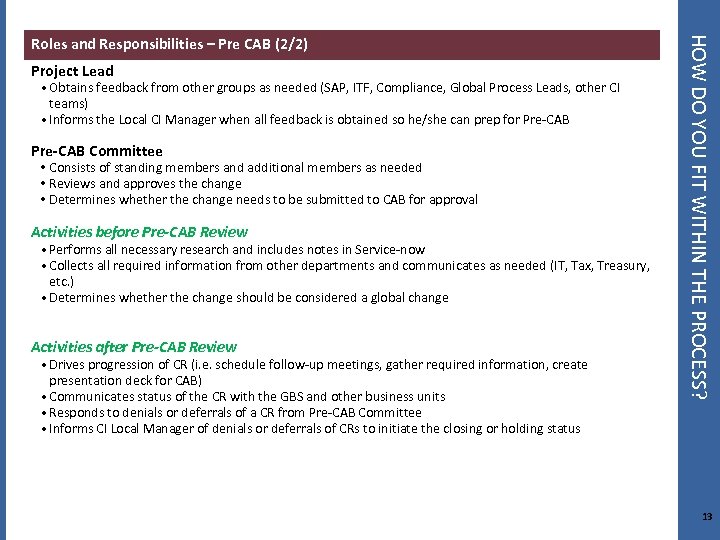
Project Lead • Obtains feedback from other groups as needed (SAP, ITF, Compliance, Global Process Leads, other CI teams) • Informs the Local CI Manager when all feedback is obtained so he/she can prep for Pre-CAB Committee • Consists of standing members and additional members as needed • Reviews and approves the change • Determines whether the change needs to be submitted to CAB for approval Activities before Pre-CAB Review • Performs all necessary research and includes notes in Service-now • Collects all required information from other departments and communicates as needed (IT, Tax, Treasury, etc. ) • Determines whether the change should be considered a global change Activities after Pre-CAB Review • Drives progression of CR (i. e. schedule follow-up meetings, gather required information, create presentation deck for CAB) • Communicates status of the CR with the GBS and other business units • Responds to denials or deferrals of a CR from Pre-CAB Committee • Informs CI Local Manager of denials or deferrals of CRs to initiate the closing or holding status HOW DO YOU FIT WITHIN THE PROCESS? Roles and Responsibilities – Pre CAB (2/2) 13
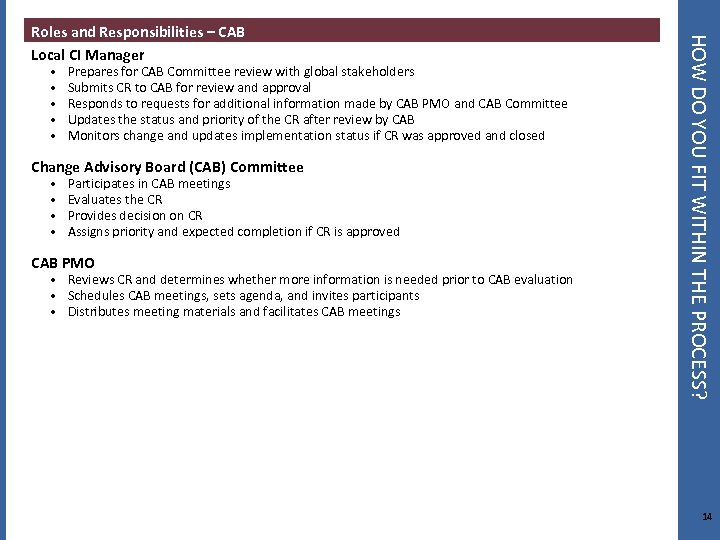
• • • Prepares for CAB Committee review with global stakeholders Submits CR to CAB for review and approval Responds to requests for additional information made by CAB PMO and CAB Committee Updates the status and priority of the CR after review by CAB Monitors change and updates implementation status if CR was approved and closed • • Participates in CAB meetings Evaluates the CR Provides decision on CR Assigns priority and expected completion if CR is approved Change Advisory Board (CAB) Committee CAB PMO • Reviews CR and determines whether more information is needed prior to CAB evaluation • Schedules CAB meetings, sets agenda, and invites participants • Distributes meeting materials and facilitates CAB meetings HOW DO YOU FIT WITHIN THE PROCESS? Roles and Responsibilities – CAB Local CI Manager 14
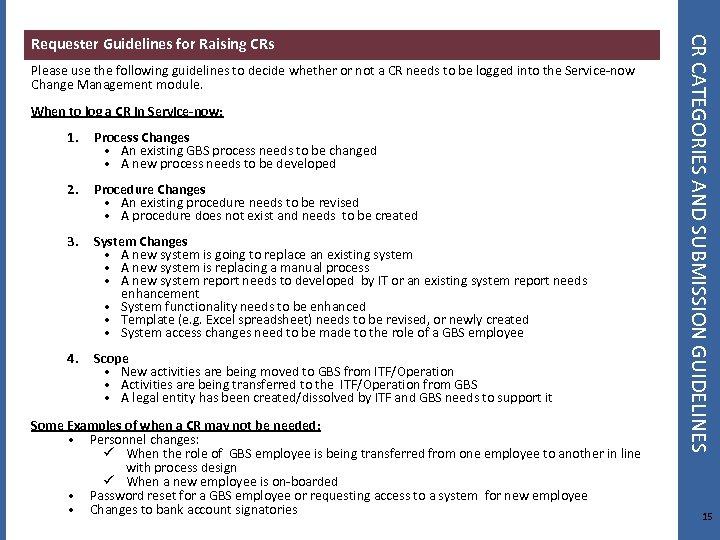
Please use the following guidelines to decide whether or not a CR needs to be logged into the Service-now Change Management module. When to log a CR in Service-now: 1. Process Changes • An existing GBS process needs to be changed • A new process needs to be developed 2. Procedure Changes • An existing procedure needs to be revised • A procedure does not exist and needs to be created 3. System Changes • A new system is going to replace an existing system • A new system is replacing a manual process • A new system report needs to developed by IT or an existing system report needs enhancement • System functionality needs to be enhanced • Template (e. g. Excel spreadsheet) needs to be revised, or newly created • System access changes need to be made to the role of a GBS employee 4. Scope • New activities are being moved to GBS from ITF/Operation • Activities are being transferred to the ITF/Operation from GBS • A legal entity has been created/dissolved by ITF and GBS needs to support it Some Examples of when a CR may not be needed: • Personnel changes: ü When the role of GBS employee is being transferred from one employee to another in line with process design ü When a new employee is on-boarded • Password reset for a GBS employee or requesting access to a system for new employee • Changes to bank account signatories CR CATEGORIES AND SUBMISSION GUIDELINES Requester Guidelines for Raising CRs 15
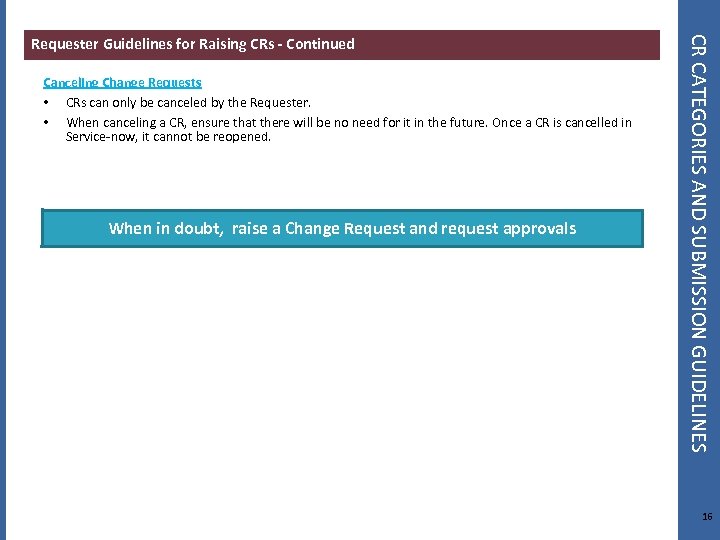
Canceling Change Requests • CRs can only be canceled by the Requester. • When canceling a CR, ensure that there will be no need for it in the future. Once a CR is cancelled in Service-now, it cannot be reopened. When in doubt, raise a Change Request and request approvals CR CATEGORIES AND SUBMISSION GUIDELINES Requester Guidelines for Raising CRs - Continued 16
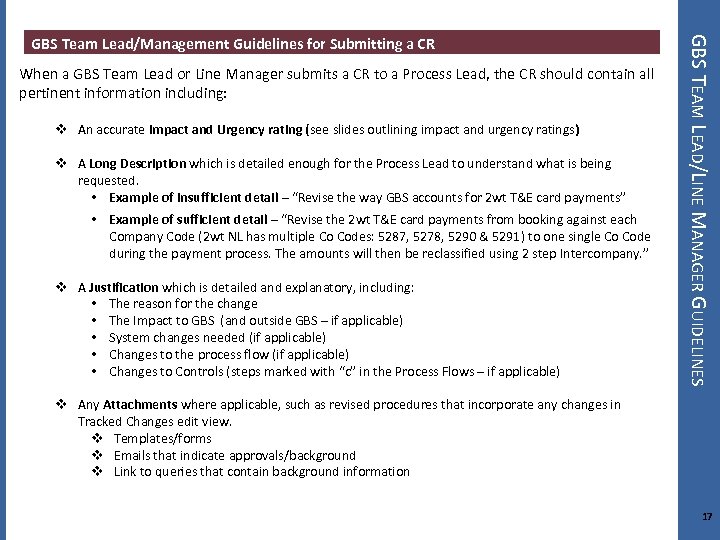
When a GBS Team Lead or Line Manager submits a CR to a Process Lead, the CR should contain all pertinent information including: v An accurate Impact and Urgency rating (see slides outlining impact and urgency ratings) v A Long Description which is detailed enough for the Process Lead to understand what is being requested. • Example of insufficient detail – “Revise the way GBS accounts for 2 wt T&E card payments” • Example of sufficient detail – “Revise the 2 wt T&E card payments from booking against each Company Code (2 wt NL has multiple Co Codes: 5287, 5278, 5290 & 5291) to one single Co Code during the payment process. The amounts will then be reclassified using 2 step Intercompany. ” v A Justification which is detailed and explanatory, including: • The reason for the change • The Impact to GBS (and outside GBS – if applicable) • System changes needed (if applicable) • Changes to the process flow (if applicable) • Changes to Controls (steps marked with “c” in the Process Flows – if applicable) GBS TEAM LEAD/LINE MANAGER GUIDELINES GBS Team Lead/Management Guidelines for Submitting a CR v Any Attachments where applicable, such as revised procedures that incorporate any changes in Tracked Changes edit view. v Templates/forms v Emails that indicate approvals/background v Link to queries that contain background information 17
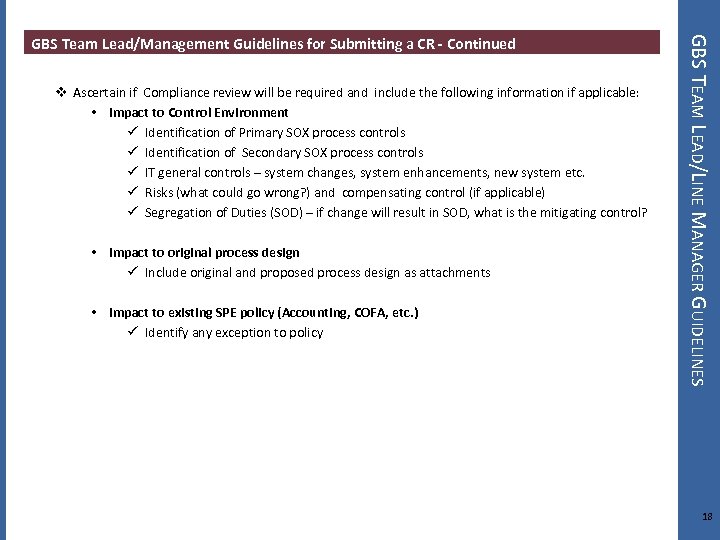
v Ascertain if Compliance review will be required and include the following information if applicable: • Impact to Control Environment ü Identification of Primary SOX process controls ü Identification of Secondary SOX process controls ü IT general controls – system changes, system enhancements, new system etc. ü Risks (what could go wrong? ) and compensating control (if applicable) ü Segregation of Duties (SOD) – if change will result in SOD, what is the mitigating control? • Impact to original process design ü Include original and proposed process design as attachments • Impact to existing SPE policy (Accounting, COFA, etc. ) ü Identify any exception to policy GBS TEAM LEAD/LINE MANAGER GUIDELINES GBS Team Lead/Management Guidelines for Submitting a CR - Continued 18
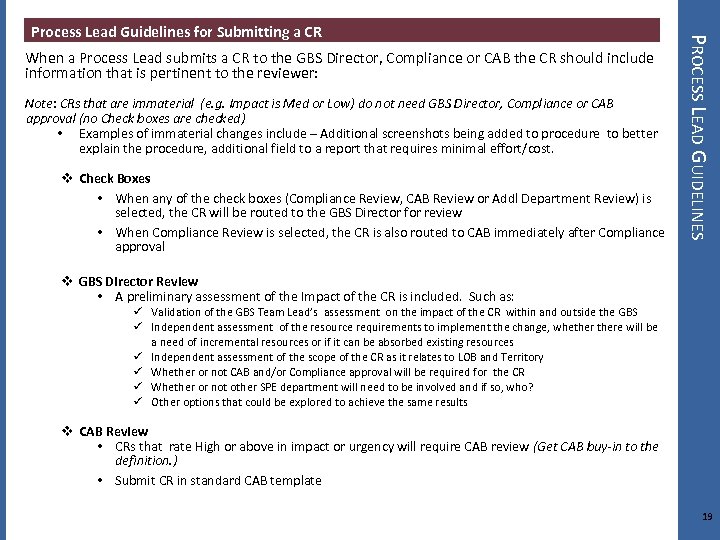
When a Process Lead submits a CR to the GBS Director, Compliance or CAB the CR should include information that is pertinent to the reviewer: Note: CRs that are immaterial (e. g. Impact is Med or Low) do not need GBS Director, Compliance or CAB approval (no Check boxes are checked) • Examples of immaterial changes include – Additional screenshots being added to procedure to better explain the procedure, additional field to a report that requires minimal effort/cost. v Check Boxes • When any of the check boxes (Compliance Review, CAB Review or Addl Department Review) is selected, the CR will be routed to the GBS Director for review • When Compliance Review is selected, the CR is also routed to CAB immediately after Compliance approval PROCESS LEAD GUIDELINES Process Lead Guidelines for Submitting a CR v GBS Director Review • A preliminary assessment of the Impact of the CR is included. Such as: ü Validation of the GBS Team Lead’s assessment on the impact of the CR within and outside the GBS ü Independent assessment of the resource requirements to implement the change, whethere will be a need of incremental resources or if it can be absorbed existing resources ü Independent assessment of the scope of the CR as it relates to LOB and Territory ü Whether or not CAB and/or Compliance approval will be required for the CR ü Whether or not other SPE department will need to be involved and if so, who? ü Other options that could be explored to achieve the same results v CAB Review • CRs that rate High or above in impact or urgency will require CAB review (Get CAB buy-in to the definition. ) • Submit CR in standard CAB template 19
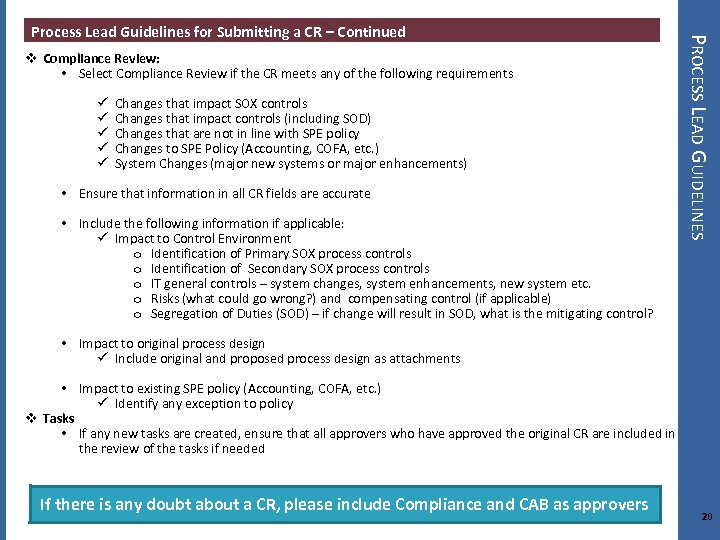
v Compliance Review: • Select Compliance Review if the CR meets any of the following requirements ü ü ü Changes that impact SOX controls Changes that impact controls (including SOD) Changes that are not in line with SPE policy Changes to SPE Policy (Accounting, COFA, etc. ) System Changes (major new systems or major enhancements) • Ensure that information in all CR fields are accurate • Include the following information if applicable: ü Impact to Control Environment o Identification of Primary SOX process controls o Identification of Secondary SOX process controls o IT general controls – system changes, system enhancements, new system etc. o Risks (what could go wrong? ) and compensating control (if applicable) o Segregation of Duties (SOD) – if change will result in SOD, what is the mitigating control? PROCESS LEAD GUIDELINES Process Lead Guidelines for Submitting a CR – Continued • Impact to original process design ü Include original and proposed process design as attachments • Impact to existing SPE policy (Accounting, COFA, etc. ) ü Identify any exception to policy v Tasks • If any new tasks are created, ensure that all approvers who have approved the original CR are included in the review of the tasks if needed If there is any doubt about a CR, please include Compliance and CAB as approvers 20
v GBS Director is required to clearly indicate the reason for Approval/Rejection in the comments section. GBS DIRECTOR GUIDELINES GBS Director Guidelines for Submitting a CR 21
v Compliance department is to clearly indicate the reason for Approval/Rejection in the comments section. SPE COMPLIANCE GUIDELINES SPE Compliance Guidelines for submitting a CR 22
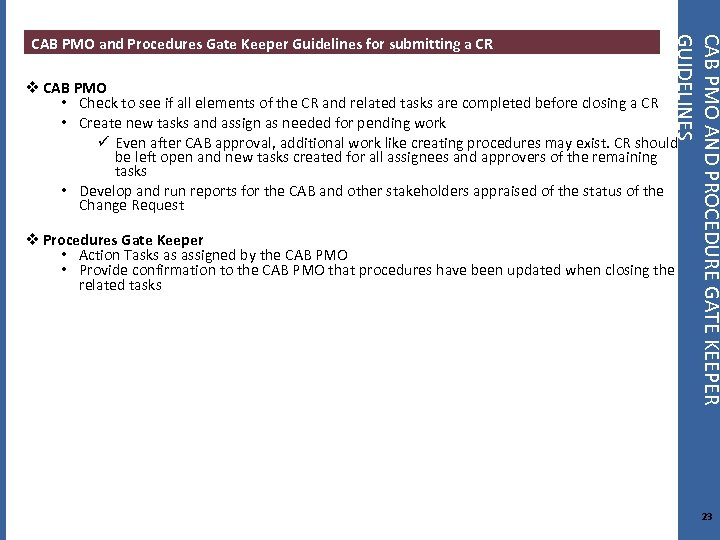
CAB PMO AND PROCEDURE GATE KEEPER GUIDELINES CAB PMO and Procedures Gate Keeper Guidelines for submitting a CR v CAB PMO • Check to see if all elements of the CR and related tasks are completed before closing a CR • Create new tasks and assign as needed for pending work ü Even after CAB approval, additional work like creating procedures may exist. CR should be left open and new tasks created for all assignees and approvers of the remaining tasks • Develop and run reports for the CAB and other stakeholders appraised of the status of the Change Request v Procedures Gate Keeper • Action Tasks as assigned by the CAB PMO • Provide confirmation to the CAB PMO that procedures have been updated when closing the related tasks 23
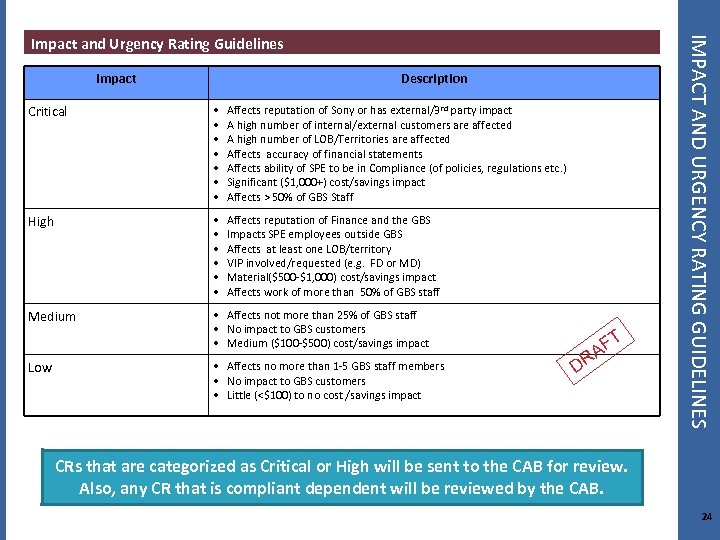
Impact Description Critical • • Affects reputation of Sony or has external/3 rd party impact A high number of internal/external customers are affected A high number of LOB/Territories are affected Affects accuracy of financial statements Affects ability of SPE to be in Compliance (of policies, regulations etc. ) Significant ($1, 000+) cost/savings impact Affects > 50% of GBS Staff High • • • Affects reputation of Finance and the GBS Impacts SPE employees outside GBS Affects at least one LOB/territory VIP involved/requested (e. g. FD or MD) Material($500 -$1, 000) cost/savings impact Affects work of more than 50% of GBS staff Medium • Affects not more than 25% of GBS staff • No impact to GBS customers • Medium ($100 -$500) cost/savings impact Low • Affects no more than 1 -5 GBS staff members • No impact to GBS customers • Little (<$100) to no cost /savings impact T AF R D IMPACT AND URGENCY RATING GUIDELINES Impact and Urgency Rating Guidelines CRs that are categorized as Critical or High will be sent to the CAB for review. Also, any CR that is compliant dependent will be reviewed by the CAB. 24
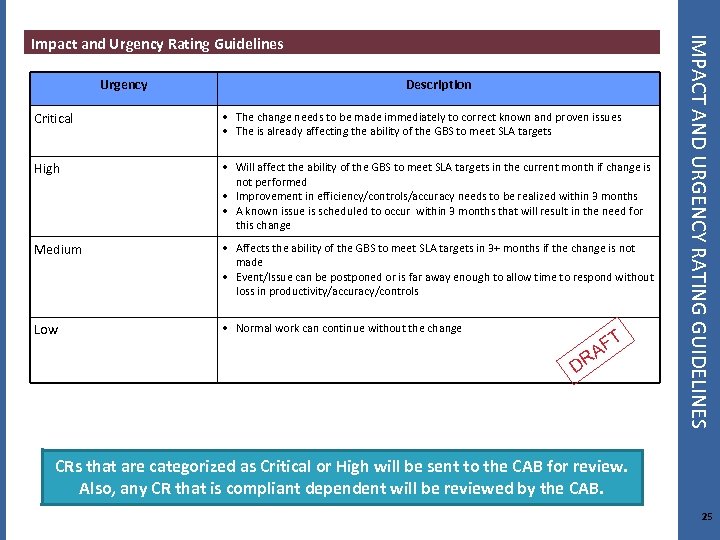
Urgency Description Critical • The change needs to be made immediately to correct known and proven issues • The is already affecting the ability of the GBS to meet SLA targets High • Will affect the ability of the GBS to meet SLA targets in the current month if change is not performed • Improvement in efficiency/controls/accuracy needs to be realized within 3 months • A known issue is scheduled to occur within 3 months that will result in the need for this change Medium • Affects the ability of the GBS to meet SLA targets in 3+ months if the change is not made • Event/Issue can be postponed or is far away enough to allow time to respond without loss in productivity/accuracy/controls Low • Normal work can continue without the change T AF R D IMPACT AND URGENCY RATING GUIDELINES Impact and Urgency Rating Guidelines CRs that are categorized as Critical or High will be sent to the CAB for review. Also, any CR that is compliant dependent will be reviewed by the CAB. 25
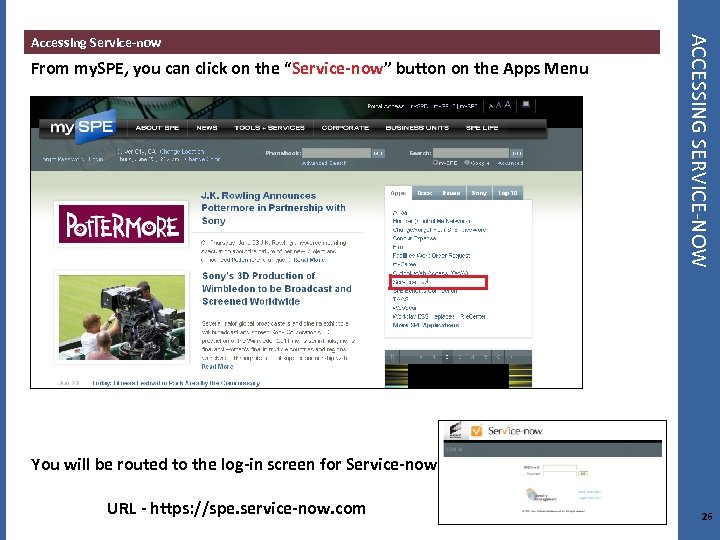
From my. SPE, you can click on the “Service-now” button on the Apps Menu ACCESSING SERVICE-NOW Accessing Service-now You will be routed to the log-in screen for Service-now URL - https: //spe. service-now. com 26

SERVICE-NOW SCREEN SHOTS AND INSTRUCTIONS BY ROLE 27
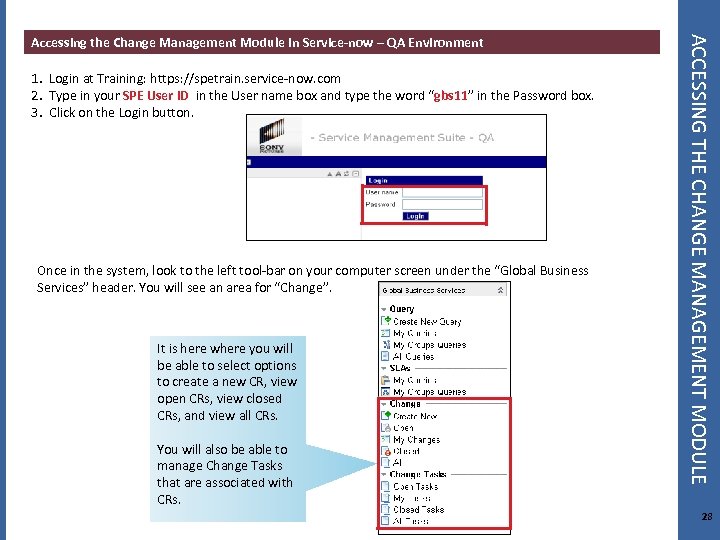
1. Login at Training: https: //spetrain. service-now. com 2. Type in your SPE User ID in the User name box and type the word “gbs 11” in the Password box. 3. Click on the Login button. Once in the system, look to the left tool-bar on your computer screen under the “Global Business Services” header. You will see an area for “Change”. It is here where you will be able to select options to create a new CR, view open CRs, view closed CRs, and view all CRs. You will also be able to manage Change Tasks that are associated with CRs. ACCESSING THE CHANGE MANAGEMENT MODULE Accessing the Change Management Module in Service-now – QA Environment 28
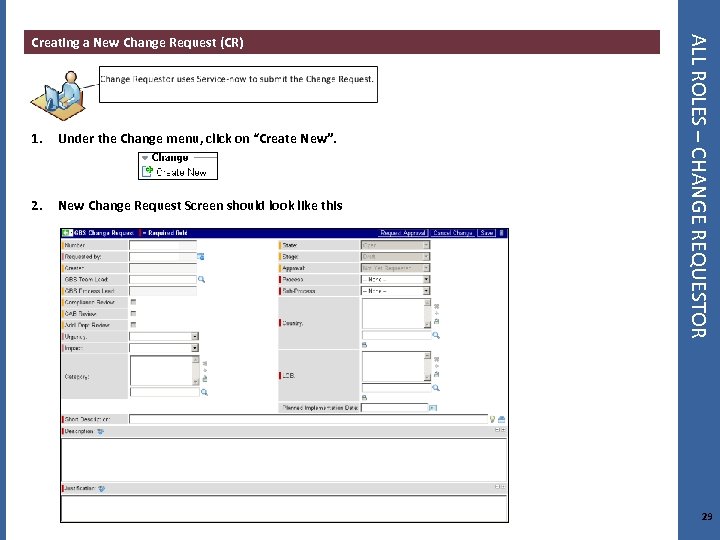
1. Under the Change menu, click on “Create New”. 2. New Change Request Screen should look like this ALL ROLES – CHANGE REQUESTOR Creating a New Change Request (CR) 29
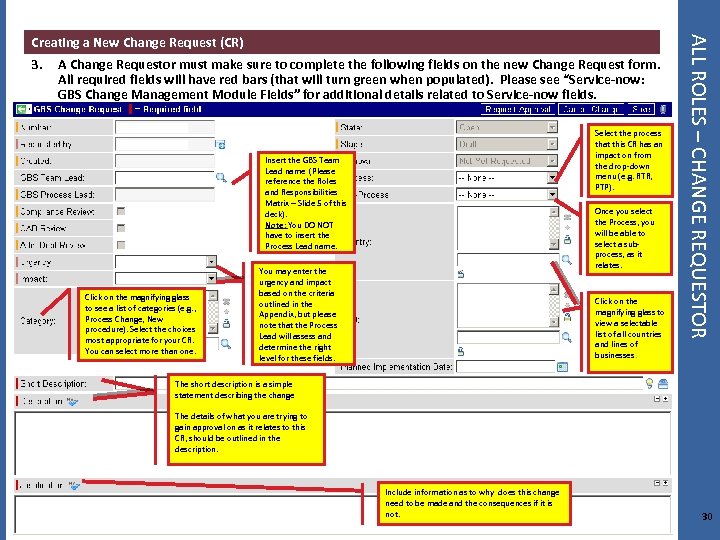
3. A Change Requestor must make sure to complete the following fields on the new Change Request form. All required fields will have red bars (that will turn green when populated). Please see “Service-now: GBS Change Management Module Fields” for additional details related to Service-now fields. Select the process that this CR has an impact on from the drop-down menu (e. g. RTR, PTP). Insert the GBS Team Lead name (Please reference the Roles and Responsibilities Matrix – Slide 5 of this deck). Note: You DO NOT have to insert the Process Lead name. Click on the magnifying glass to see a list of categories (e. g. , Process Change, New procedure). Select the choices most appropriate for your CR. You can select more than one. Once you select the Process, you will be able to select a subprocess, as it relates. You may enter the urgency and impact based on the criteria outlined in the Appendix, but please note that the Process Lead will assess and determine the right level for these fields. Click on the magnifying glass to view a selectable list of all countries and lines of businesses. ALL ROLES – CHANGE REQUESTOR Creating a New Change Request (CR) The short description is a simple statement describing the change The details of what you are trying to gain approval on as it relates to this CR, should be outlined in the description. Include information as to why does this change need to be made and the consequences if it is not. 30
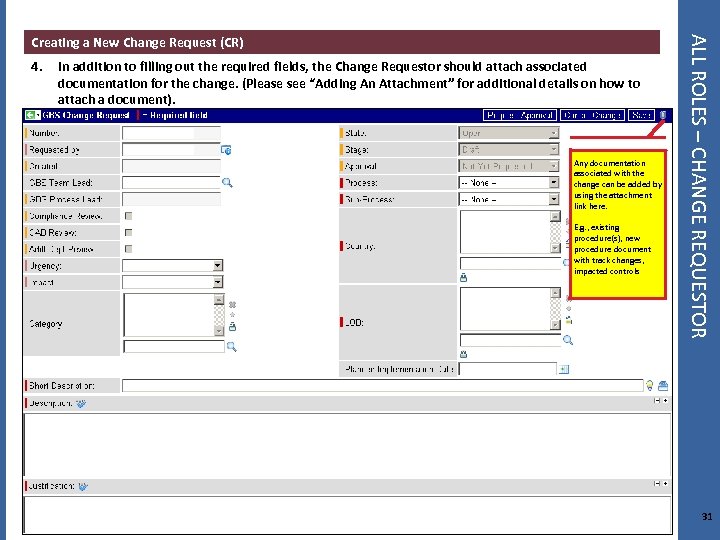
4. In addition to filling out the required fields, the Change Requestor should attach associated documentation for the change. (Please see “Adding An Attachment” for additional details on how to attach a document). Any documentation associated with the change can be added by using the attachment link here. E. g. , existing procedure(s), new procedure document with track changes, impacted controls ALL ROLES – CHANGE REQUESTOR Creating a New Change Request (CR) 31
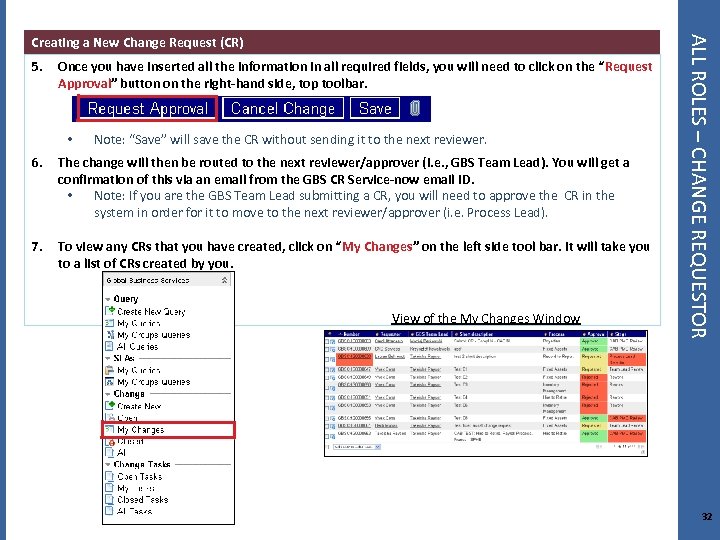
5. Once you have inserted all the information in all required fields, you will need to click on the “Request Approval” button on the right-hand side, top toolbar. • Note: “Save” will save the CR without sending it to the next reviewer. 6. The change will then be routed to the next reviewer/approver (i. e. , GBS Team Lead). You will get a confirmation of this via an email from the GBS CR Service-now email ID. • Note: If you are the GBS Team Lead submitting a CR, you will need to approve the CR in the system in order for it to move to the next reviewer/approver (i. e. Process Lead). 7. To view any CRs that you have created, click on “My Changes” on the left side tool bar. It will take you to a list of CRs created by you. View of the My Changes Window ALL ROLES – CHANGE REQUESTOR Creating a New Change Request (CR) 32
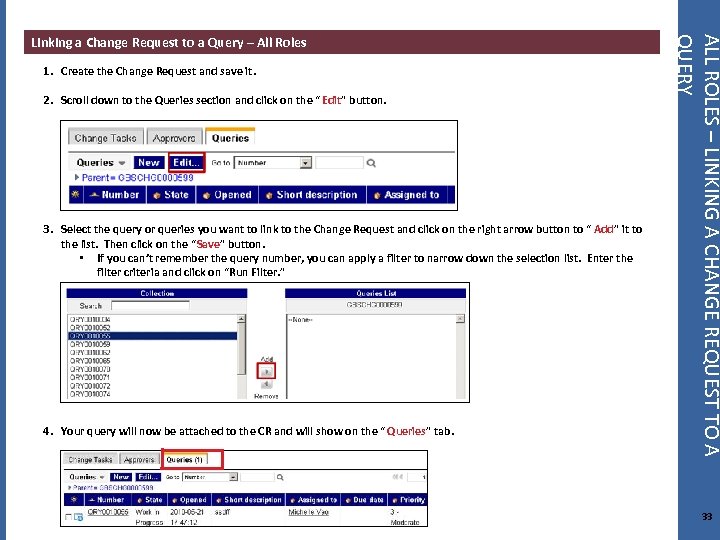
1. Create the Change Request and save it. 2. Scroll down to the Queries section and click on the “ Edit” button. 3. Select the query or queries you want to link to the Change Request and click on the right arrow button to “ Add” it to the list. Then click on the “Save” button. • If you can’t remember the query number, you can apply a filter to narrow down the selection list. Enter the filter criteria and click on “Run Filter. ” 4. Your query will now be attached to the CR and will show on the “ Queries” tab. ALL ROLES – LINKING A CHANGE REQUEST TO A QUERY Linking a Change Request to a Query – All Roles 33
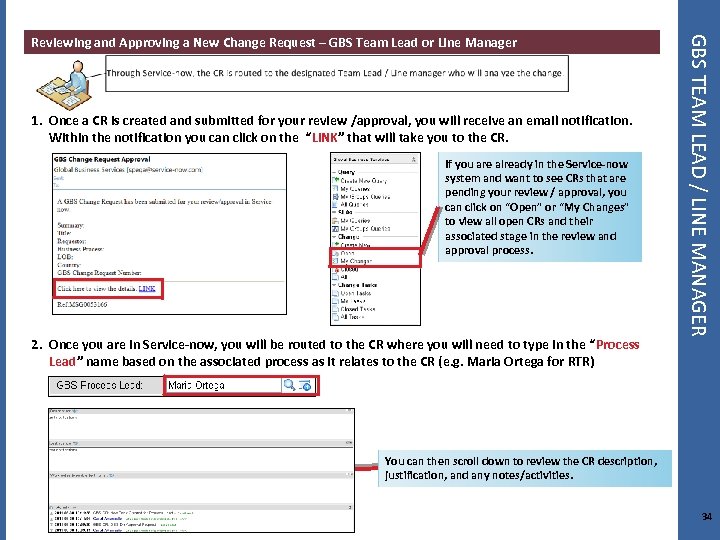
1. Once a CR is created and submitted for your review /approval, you will receive an email notification. Within the notification you can click on the “LINK” that will take you to the CR. If you are already in the Service-now system and want to see CRs that are pending your review / approval, you can click on “Open” or “My Changes” to view all open CRs and their associated stage in the review and approval process. 2. Once you are in Service-now, you will be routed to the CR where you will need to type in the “Process Lead” name based on the associated process as it relates to the CR (e. g. Maria Ortega for RTR) GBS TEAM LEAD / LINE MANAGER Reviewing and Approving a New Change Request – GBS Team Lead or Line Manager You can then scroll down to review the CR description, justification, and any notes/activities. 34
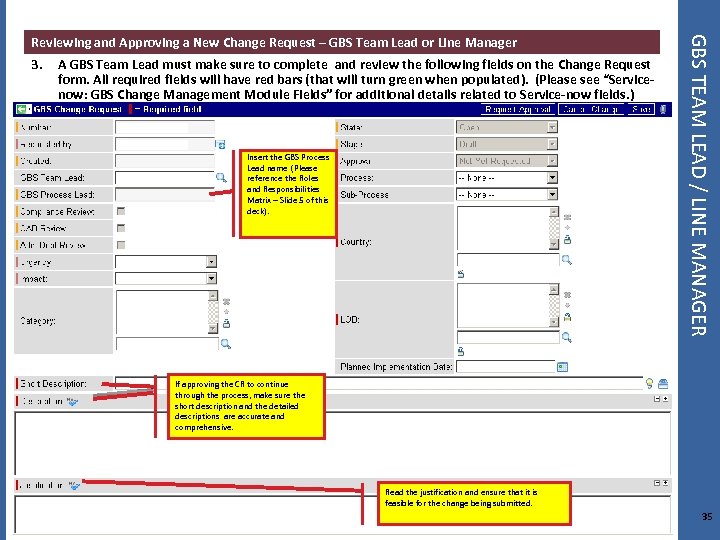
3. A GBS Team Lead must make sure to complete and review the following fields on the Change Request form. All required fields will have red bars (that will turn green when populated). (Please see “Servicenow: GBS Change Management Module Fields” for additional details related to Service-now fields. ) Insert the GBS Process Lead name (Please reference the Roles and Responsibilities Matrix – Slide 5 of this deck). GBS TEAM LEAD / LINE MANAGER Reviewing and Approving a New Change Request – GBS Team Lead or Line Manager If approving the CR to continue through the process, make sure the short description and the detailed descriptions are accurate and comprehensive. Read the justification and ensure that it is feasible for the change being submitted. 35
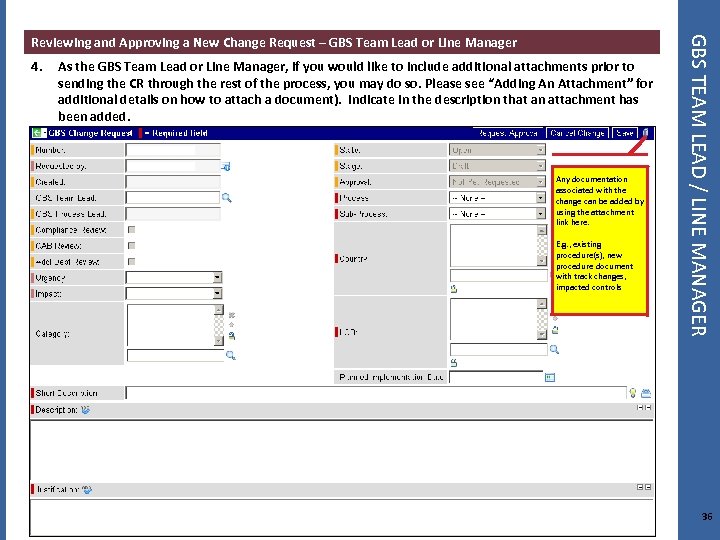
4. As the GBS Team Lead or Line Manager, if you would like to include additional attachments prior to sending the CR through the rest of the process, you may do so. Please see “Adding An Attachment” for additional details on how to attach a document). Indicate in the description that an attachment has been added. Any documentation associated with the change can be added by using the attachment link here. E. g. , existing procedure(s), new procedure document with track changes, impacted controls GBS TEAM LEAD / LINE MANAGER Reviewing and Approving a New Change Request – GBS Team Lead or Line Manager 36
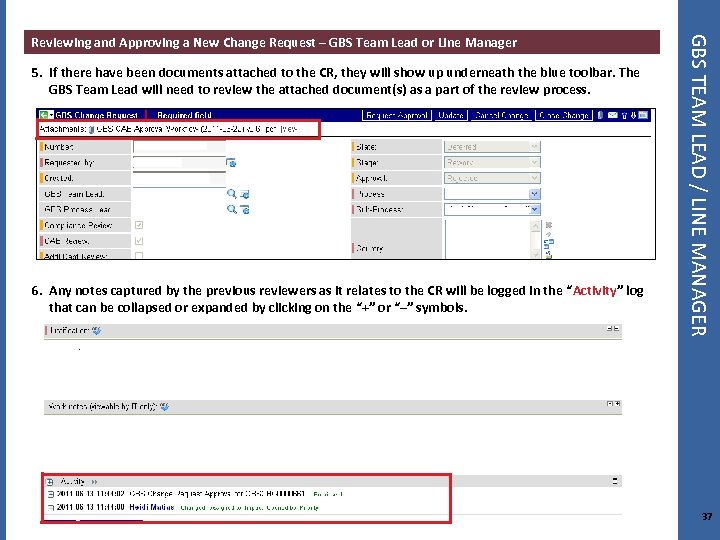
5. If there have been documents attached to the CR, they will show up underneath the blue toolbar. The GBS Team Lead will need to review the attached document(s) as a part of the review process. 6. Any notes captured by the previous reviewers as it relates to the CR will be logged in the “Activity” log that can be collapsed or expanded by clicking on the “+” or “–” symbols. GBS TEAM LEAD / LINE MANAGER Reviewing and Approving a New Change Request – GBS Team Lead or Line Manager 37
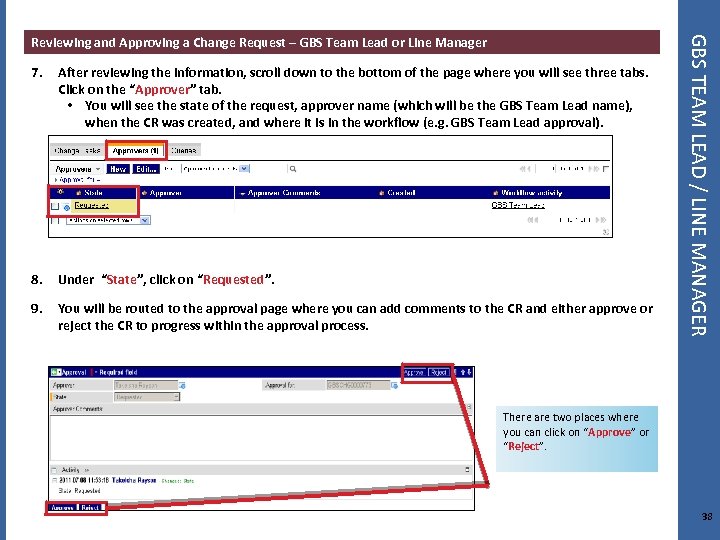
7. After reviewing the information, scroll down to the bottom of the page where you will see three tabs. Click on the “Approver” tab. • You will see the state of the request, approver name (which will be the GBS Team Lead name), when the CR was created, and where it is in the workflow (e. g. GBS Team Lead approval). 8. Under “State”, click on “Requested”. 9. You will be routed to the approval page where you can add comments to the CR and either approve or reject the CR to progress within the approval process. GBS TEAM LEAD / LINE MANAGER Reviewing and Approving a Change Request – GBS Team Lead or Line Manager There are two places where you can click on “Approve” or “Reject”. 38
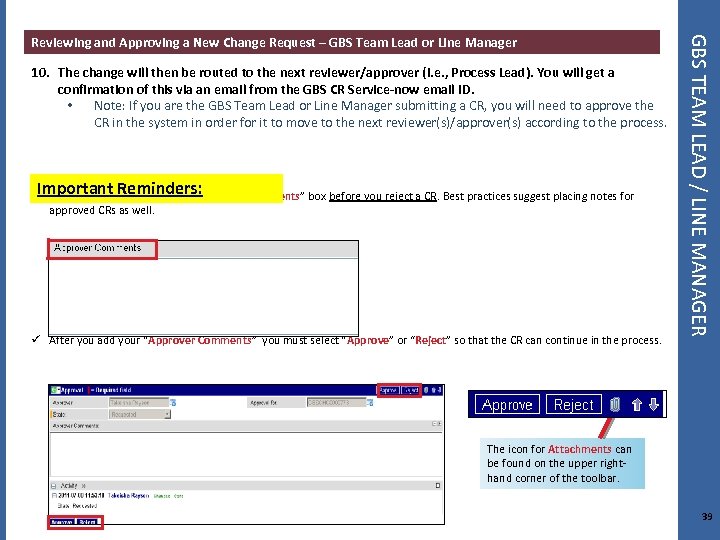
10. The change will then be routed to the next reviewer/approver (i. e. , Process Lead). You will get a confirmation of this via an email from the GBS CR Service-now email ID. • Note: If you are the GBS Team Lead or Line Manager submitting a CR, you will need to approve the CR in the system in order for it to move to the next reviewer(s)/approver(s) according to the process. Important Reminders: ü You MUST place notes in the “Approver Comments” box before you reject a CR. Best practices suggest placing notes for approved CRs as well. ü After you add your “Approver Comments” you must select “Approve” or “Reject” so that the CR can continue in the process. GBS TEAM LEAD / LINE MANAGER Reviewing and Approving a New Change Request – GBS Team Lead or Line Manager The icon for Attachments can be found on the upper righthand corner of the toolbar. 39
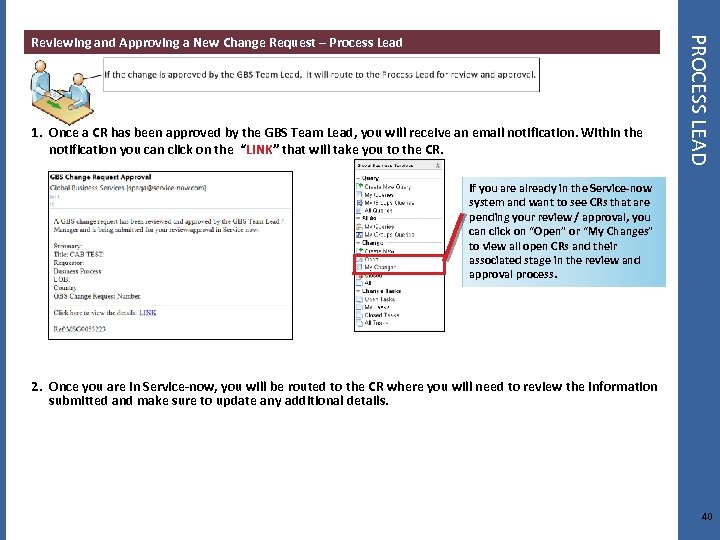
1. Once a CR has been approved by the GBS Team Lead, you will receive an email notification. Within the notification you can click on the “LINK” that will take you to the CR. PROCESS LEAD Reviewing and Approving a New Change Request – Process Lead If you are already in the Service-now system and want to see CRs that are pending your review / approval, you can click on “Open” or “My Changes” to view all open CRs and their associated stage in the review and approval process. 2. Once you are in Service-now, you will be routed to the CR where you will need to review the information submitted and make sure to update any additional details. 40
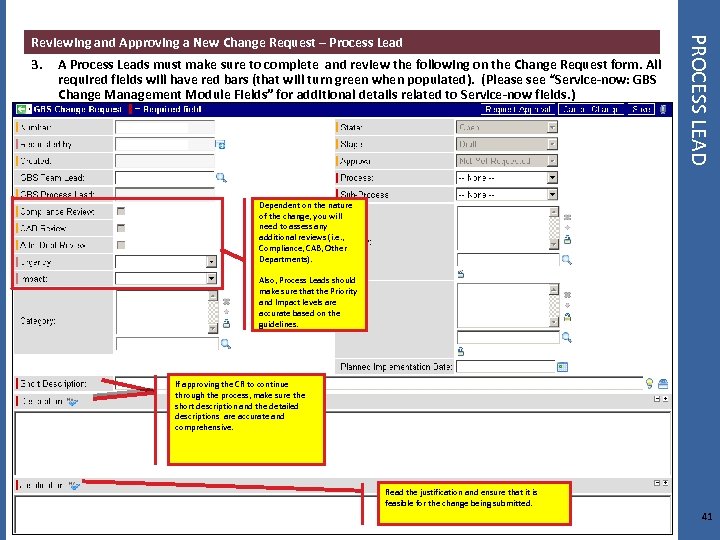
3. A Process Leads must make sure to complete and review the following on the Change Request form. All required fields will have red bars (that will turn green when populated). (Please see “Service-now: GBS Change Management Module Fields” for additional details related to Service-now fields. ) PROCESS LEAD Reviewing and Approving a New Change Request – Process Lead Dependent on the nature of the change, you will need to assess any additional reviews (i. e. , Compliance, CAB, Other Departments). Also, Process Leads should make sure that the Priority and Impact levels are accurate based on the guidelines. If approving the CR to continue through the process, make sure the short description and the detailed descriptions are accurate and comprehensive. Read the justification and ensure that it is feasible for the change being submitted. 41
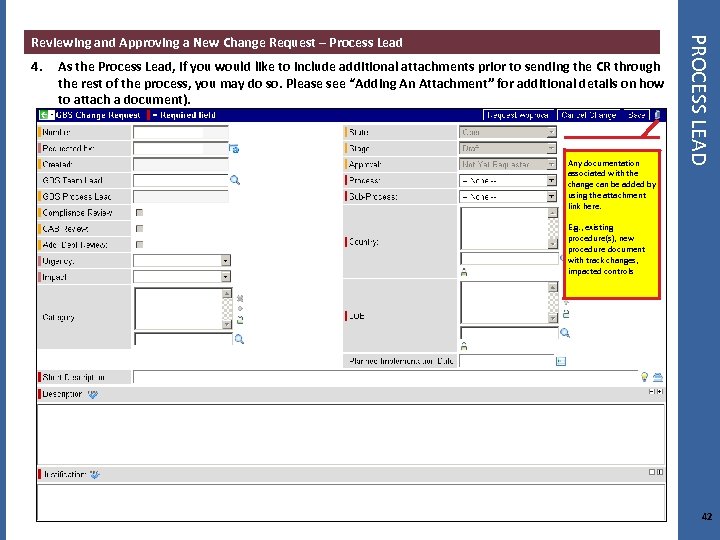
4. As the Process Lead, if you would like to include additional attachments prior to sending the CR through the rest of the process, you may do so. Please see “Adding An Attachment” for additional details on how to attach a document). Any documentation associated with the change can be added by using the attachment link here. PROCESS LEAD Reviewing and Approving a New Change Request – Process Lead E. g. , existing procedure(s), new procedure document with track changes, impacted controls 42
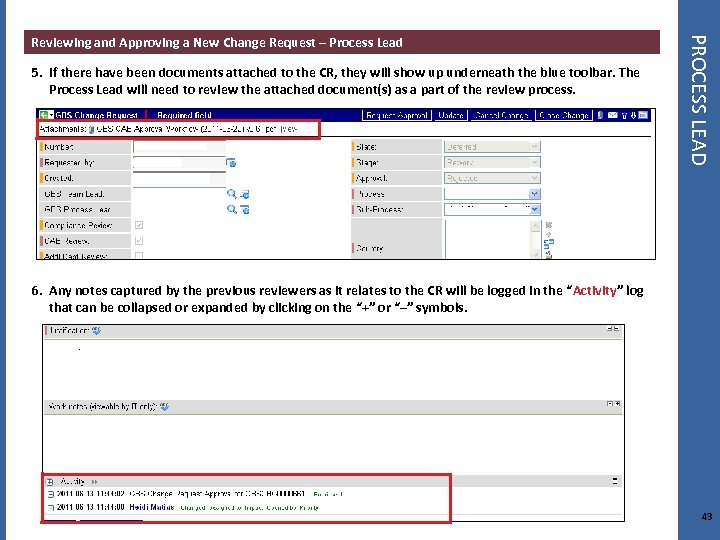
5. If there have been documents attached to the CR, they will show up underneath the blue toolbar. The Process Lead will need to review the attached document(s) as a part of the review process. PROCESS LEAD Reviewing and Approving a New Change Request – Process Lead 6. Any notes captured by the previous reviewers as it relates to the CR will be logged in the “Activity” log that can be collapsed or expanded by clicking on the “+” or “–” symbols. 43
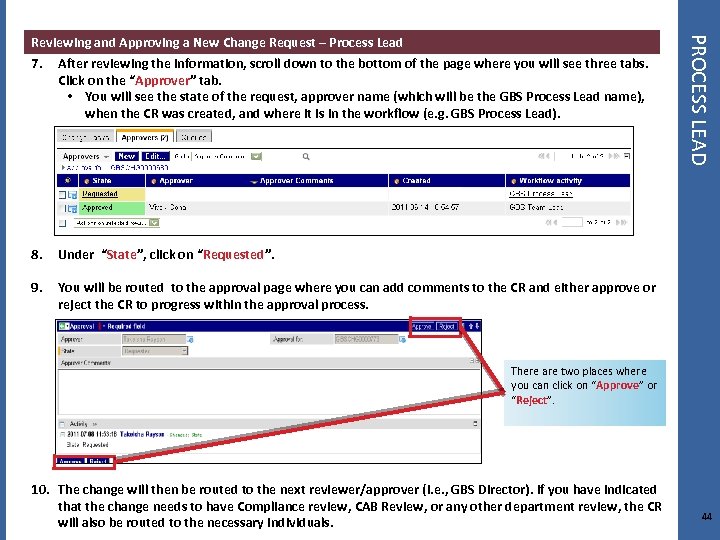
7. After reviewing the information, scroll down to the bottom of the page where you will see three tabs. Click on the “Approver” tab. • You will see the state of the request, approver name (which will be the GBS Process Lead name), when the CR was created, and where it is in the workflow (e. g. GBS Process Lead). 8. Under “State”, click on “Requested”. 9. PROCESS LEAD Reviewing and Approving a New Change Request – Process Lead You will be routed to the approval page where you can add comments to the CR and either approve or reject the CR to progress within the approval process. There are two places where you can click on “Approve” or “Reject”. 10. The change will then be routed to the next reviewer/approver (i. e. , GBS Director). If you have indicated that the change needs to have Compliance review, CAB Review, or any other department review, the CR will also be routed to the necessary individuals. 44
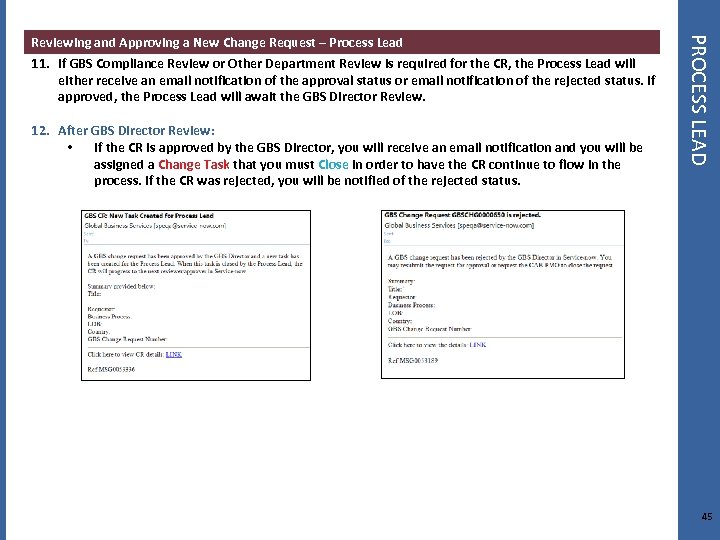
11. If GBS Compliance Review or Other Department Review is required for the CR, the Process Lead will either receive an email notification of the approval status or email notification of the rejected status. If approved, the Process Lead will await the GBS Director Review. 12. After GBS Director Review: • If the CR is approved by the GBS Director, you will receive an email notification and you will be assigned a Change Task that you must Close in order to have the CR continue to flow in the process. If the CR was rejected, you will be notified of the rejected status. PROCESS LEAD Reviewing and Approving a New Change Request – Process Lead 45
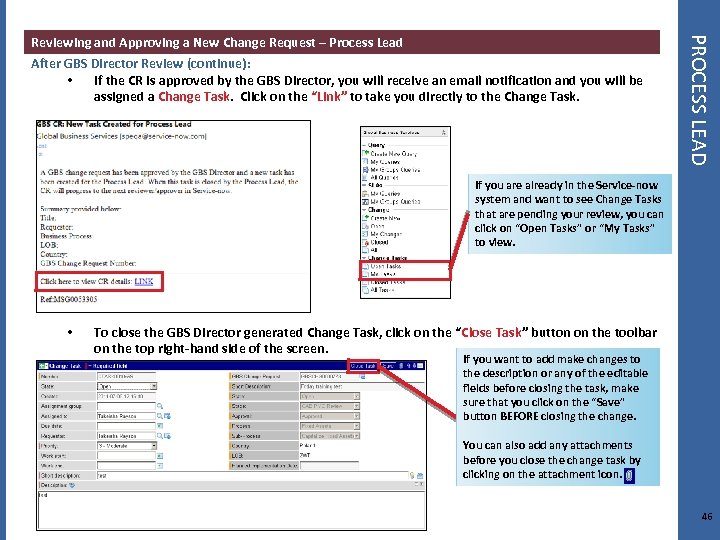
After GBS Director Review (continue): • If the CR is approved by the GBS Director, you will receive an email notification and you will be assigned a Change Task. Click on the “Link” to take you directly to the Change Task. PROCESS LEAD Reviewing and Approving a New Change Request – Process Lead If you are already in the Service-now system and want to see Change Tasks that are pending your review, you can click on “Open Tasks” or “My Tasks” to view. • To close the GBS Director generated Change Task, click on the “Close Task” button on the toolbar on the top right-hand side of the screen. If you want to add make changes to the description or any of the editable fields before closing the task, make sure that you click on the “Save” button BEFORE closing the change. You can also add any attachments before you close the change task by clicking on the attachment icon. 46
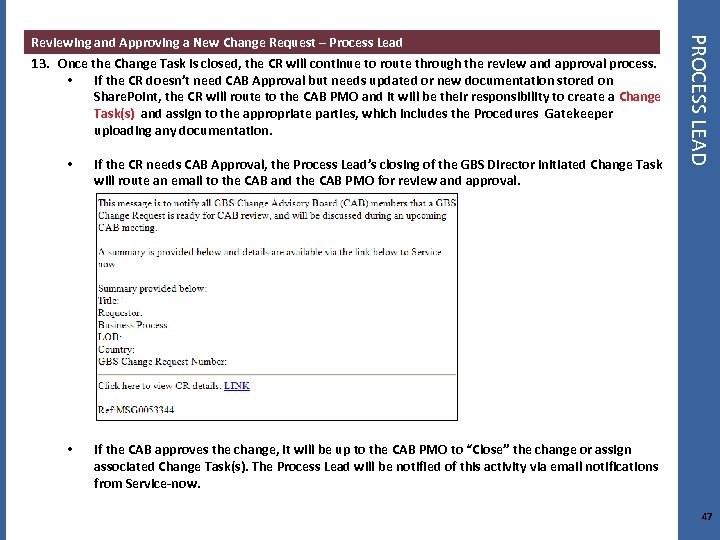
13. Once the Change Task is closed, the CR will continue to route through the review and approval process. • If the CR doesn’t need CAB Approval but needs updated or new documentation stored on Share. Point, the CR will route to the CAB PMO and it will be their responsibility to create a Change Task(s) and assign to the appropriate parties, which includes the Procedures Gatekeeper uploading any documentation. • If the CR needs CAB Approval, the Process Lead’s closing of the GBS Director initiated Change Task will route an email to the CAB and the CAB PMO for review and approval. • PROCESS LEAD Reviewing and Approving a New Change Request – Process Lead If the CAB approves the change, it will be up to the CAB PMO to “Close” the change or assign associated Change Task(s). The Process Lead will be notified of this activity via email notifications from Service-now. 47
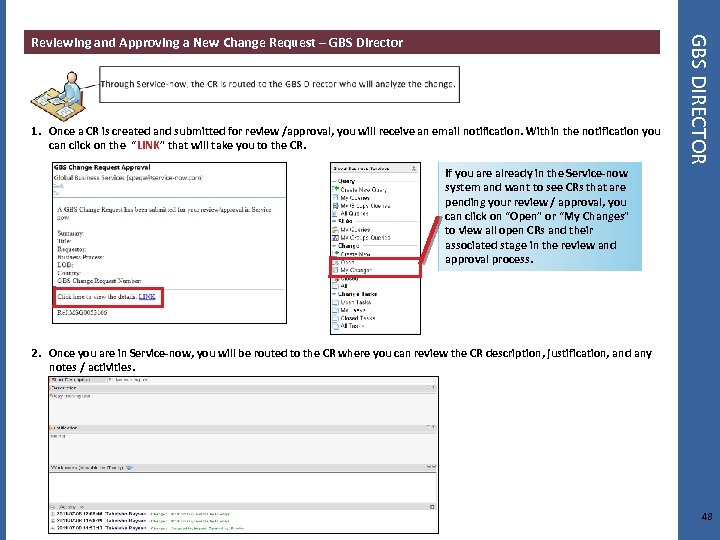
1. Once a CR is created and submitted for review /approval, you will receive an email notification. Within the notification you can click on the “LINK” that will take you to the CR. GBS DIRECTOR Reviewing and Approving a New Change Request – GBS Director If you are already in the Service-now system and want to see CRs that are pending your review / approval, you can click on “Open” or “My Changes” to view all open CRs and their associated stage in the review and approval process. 2. Once you are in Service-now, you will be routed to the CR where you can review the CR description, justification, and any notes / activities. 48
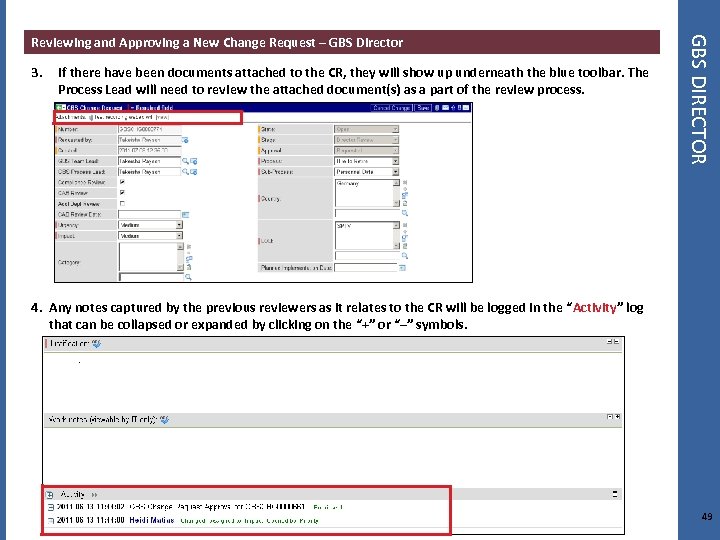
3. If there have been documents attached to the CR, they will show up underneath the blue toolbar. The Process Lead will need to review the attached document(s) as a part of the review process. GBS DIRECTOR Reviewing and Approving a New Change Request – GBS Director 4. Any notes captured by the previous reviewers as it relates to the CR will be logged in the “Activity” log that can be collapsed or expanded by clicking on the “+” or “–” symbols. 49
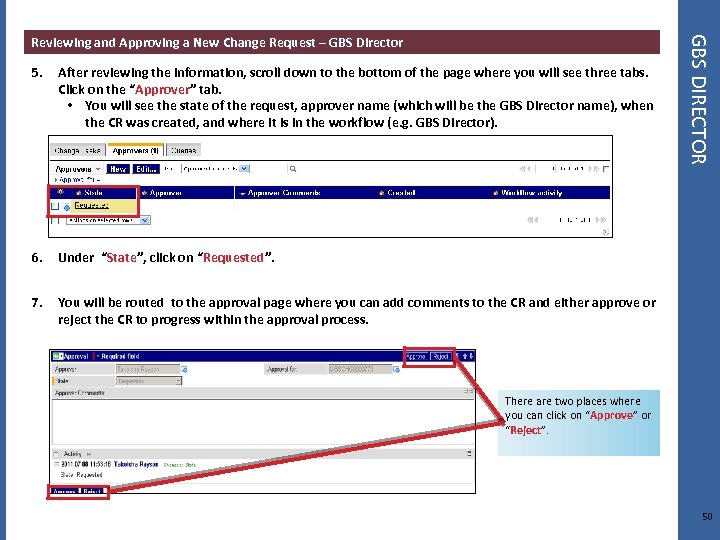
5. After reviewing the information, scroll down to the bottom of the page where you will see three tabs. Click on the “Approver” tab. • You will see the state of the request, approver name (which will be the GBS Director name), when the CR was created, and where it is in the workflow (e. g. GBS Director). 6. Under “State”, click on “Requested”. 7. GBS DIRECTOR Reviewing and Approving a New Change Request – GBS Director You will be routed to the approval page where you can add comments to the CR and either approve or reject the CR to progress within the approval process. There are two places where you can click on “Approve” or “Reject”. 50
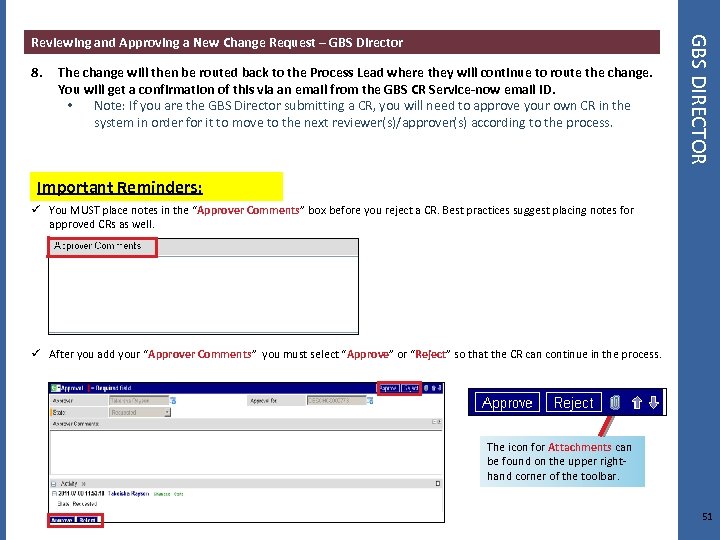
8. The change will then be routed back to the Process Lead where they will continue to route the change. You will get a confirmation of this via an email from the GBS CR Service-now email ID. • Note: If you are the GBS Director submitting a CR, you will need to approve your own CR in the system in order for it to move to the next reviewer(s)/approver(s) according to the process. GBS DIRECTOR Reviewing and Approving a New Change Request – GBS Director Important Reminders: ü You MUST place notes in the “Approver Comments” box before you reject a CR. Best practices suggest placing notes for approved CRs as well. ü After you add your “Approver Comments” you must select “Approve” or “Reject” so that the CR can continue in the process. The icon for Attachments can be found on the upper righthand corner of the toolbar. 51
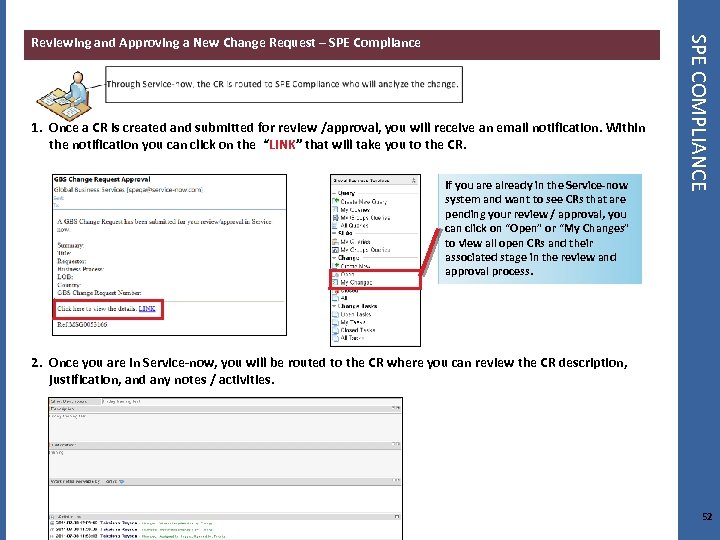
1. Once a CR is created and submitted for review /approval, you will receive an email notification. Within the notification you can click on the “LINK” that will take you to the CR. If you are already in the Service-now system and want to see CRs that are pending your review / approval, you can click on “Open” or “My Changes” to view all open CRs and their associated stage in the review and approval process. SPE COMPLIANCE Reviewing and Approving a New Change Request – SPE Compliance 2. Once you are in Service-now, you will be routed to the CR where you can review the CR description, justification, and any notes / activities. 52
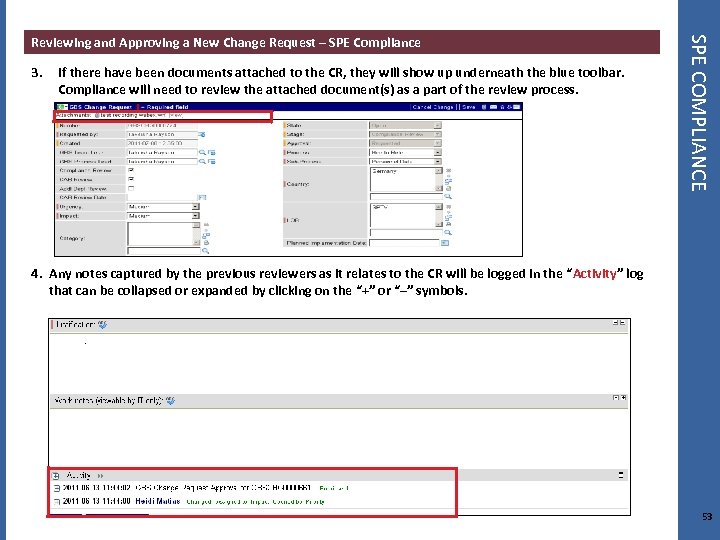
3. If there have been documents attached to the CR, they will show up underneath the blue toolbar. Compliance will need to review the attached document(s) as a part of the review process. SPE COMPLIANCE Reviewing and Approving a New Change Request – SPE Compliance 4. Any notes captured by the previous reviewers as it relates to the CR will be logged in the “Activity” log that can be collapsed or expanded by clicking on the “+” or “–” symbols. 53
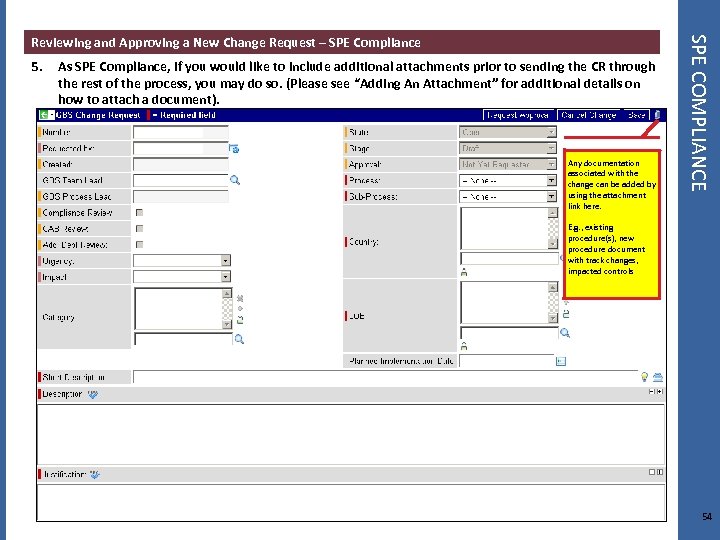
5. As SPE Compliance, if you would like to include additional attachments prior to sending the CR through the rest of the process, you may do so. (Please see “Adding An Attachment” for additional details on how to attach a document). Any documentation associated with the change can be added by using the attachment link here. SPE COMPLIANCE Reviewing and Approving a New Change Request – SPE Compliance E. g. , existing procedure(s), new procedure document with track changes, impacted controls 54
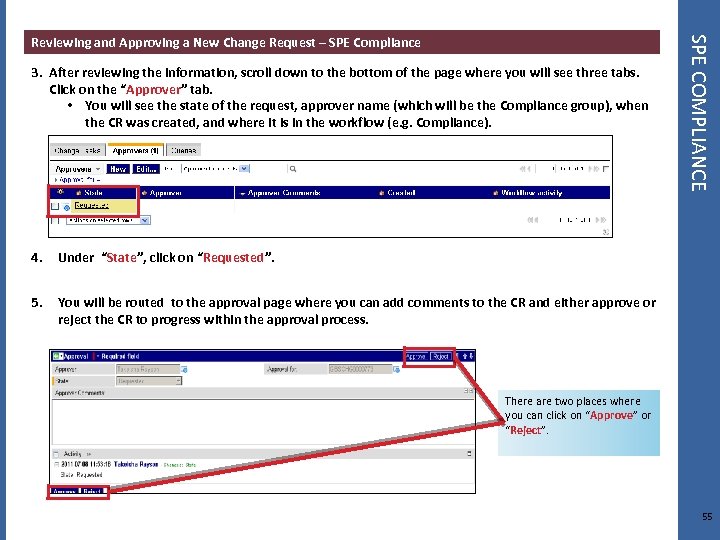
3. After reviewing the information, scroll down to the bottom of the page where you will see three tabs. Click on the “Approver” tab. • You will see the state of the request, approver name (which will be the Compliance group), when the CR was created, and where it is in the workflow (e. g. Compliance). 4. Under “State”, click on “Requested”. 5. SPE COMPLIANCE Reviewing and Approving a New Change Request – SPE Compliance You will be routed to the approval page where you can add comments to the CR and either approve or reject the CR to progress within the approval process. There are two places where you can click on “Approve” or “Reject”. 55
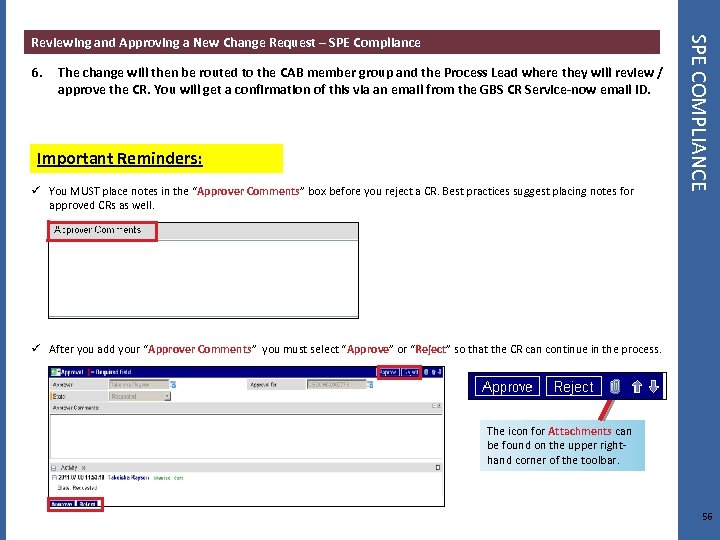
6. The change will then be routed to the CAB member group and the Process Lead where they will review / approve the CR. You will get a confirmation of this via an email from the GBS CR Service-now email ID. Important Reminders: ü You MUST place notes in the “Approver Comments” box before you reject a CR. Best practices suggest placing notes for approved CRs as well. SPE COMPLIANCE Reviewing and Approving a New Change Request – SPE Compliance ü After you add your “Approver Comments” you must select “Approve” or “Reject” so that the CR can continue in the process. The icon for Attachments can be found on the upper righthand corner of the toolbar. 56
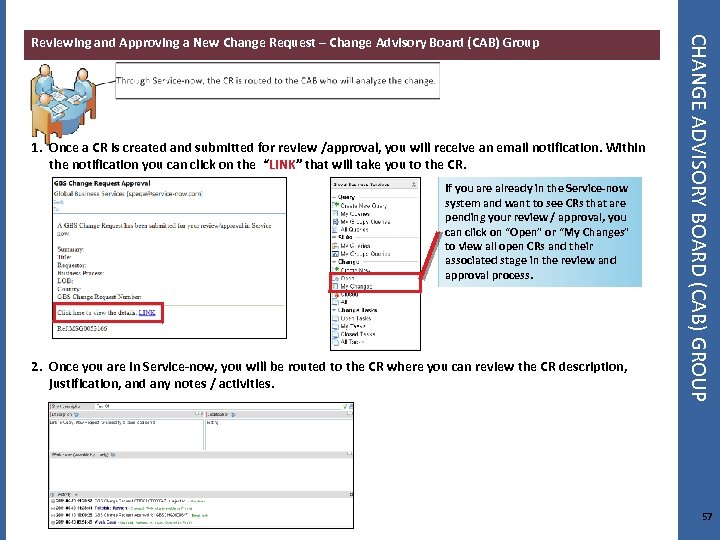
1. Once a CR is created and submitted for review /approval, you will receive an email notification. Within the notification you can click on the “LINK” that will take you to the CR. If you are already in the Service-now system and want to see CRs that are pending your review / approval, you can click on “Open” or “My Changes” to view all open CRs and their associated stage in the review and approval process. 2. Once you are in Service-now, you will be routed to the CR where you can review the CR description, justification, and any notes / activities. CHANGE ADVISORY BOARD (CAB) GROUP Reviewing and Approving a New Change Request – Change Advisory Board (CAB) Group 57
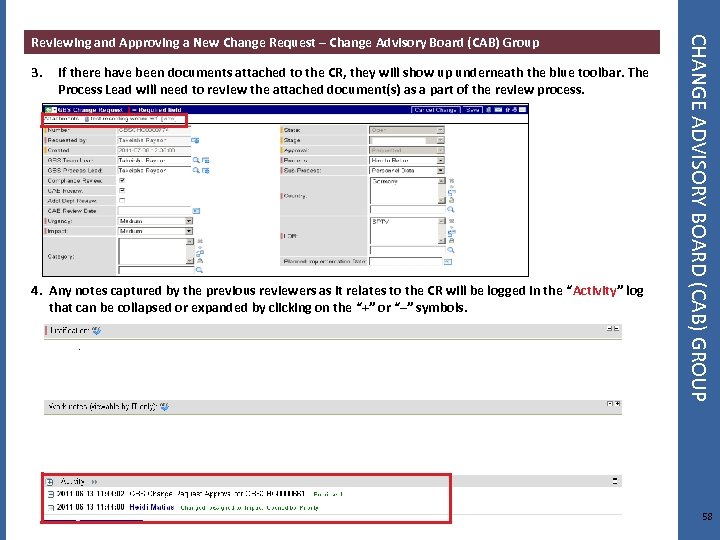
3. If there have been documents attached to the CR, they will show up underneath the blue toolbar. The Process Lead will need to review the attached document(s) as a part of the review process. 4. Any notes captured by the previous reviewers as it relates to the CR will be logged in the “Activity” log that can be collapsed or expanded by clicking on the “+” or “–” symbols. CHANGE ADVISORY BOARD (CAB) GROUP Reviewing and Approving a New Change Request – Change Advisory Board (CAB) Group 58
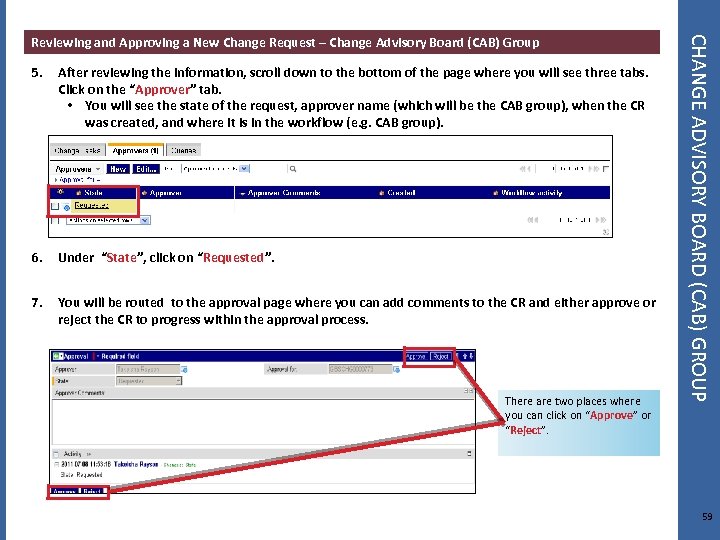
5. After reviewing the information, scroll down to the bottom of the page where you will see three tabs. Click on the “Approver” tab. • You will see the state of the request, approver name (which will be the CAB group), when the CR was created, and where it is in the workflow (e. g. CAB group). 6. Under “State”, click on “Requested”. 7. You will be routed to the approval page where you can add comments to the CR and either approve or reject the CR to progress within the approval process. There are two places where you can click on “Approve” or “Reject”. CHANGE ADVISORY BOARD (CAB) GROUP Reviewing and Approving a New Change Request – Change Advisory Board (CAB) Group 59
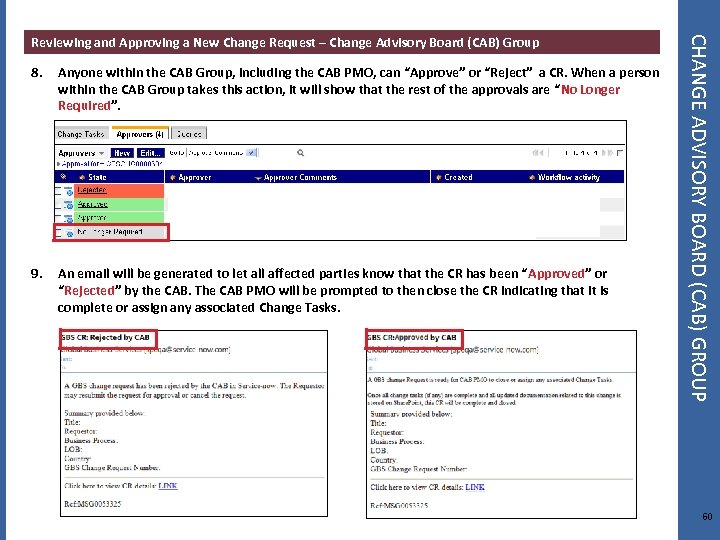
8. Anyone within the CAB Group, including the CAB PMO, can “Approve” or “Reject” a CR. When a person within the CAB Group takes this action, it will show that the rest of the approvals are “No Longer Required”. 9. An email will be generated to let all affected parties know that the CR has been “Approved” or “Rejected” by the CAB. The CAB PMO will be prompted to then close the CR indicating that it is complete or assign any associated Change Tasks. CHANGE ADVISORY BOARD (CAB) GROUP Reviewing and Approving a New Change Request – Change Advisory Board (CAB) Group 60
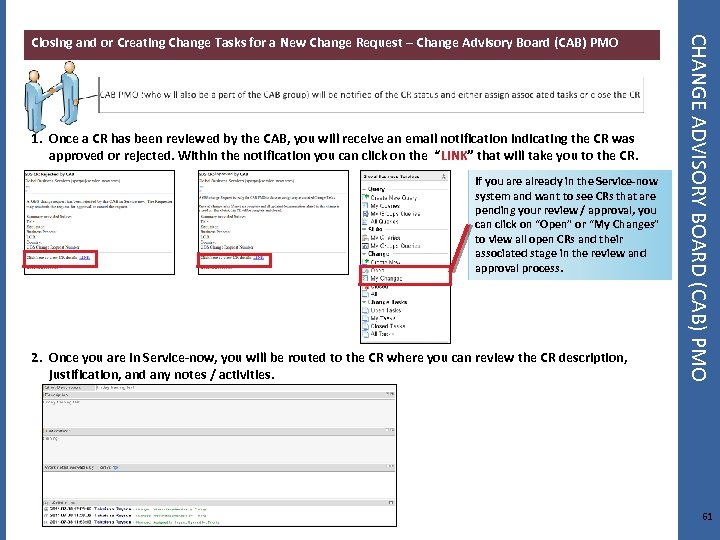
1. Once a CR has been reviewed by the CAB, you will receive an email notification indicating the CR was approved or rejected. Within the notification you can click on the “LINK” that will take you to the CR. If you are already in the Service-now system and want to see CRs that are pending your review / approval, you can click on “Open” or “My Changes” to view all open CRs and their associated stage in the review and approval process. 2. Once you are in Service-now, you will be routed to the CR where you can review the CR description, justification, and any notes / activities. CHANGE ADVISORY BOARD (CAB) PMO Closing and or Creating Change Tasks for a New Change Request – Change Advisory Board (CAB) PMO 61
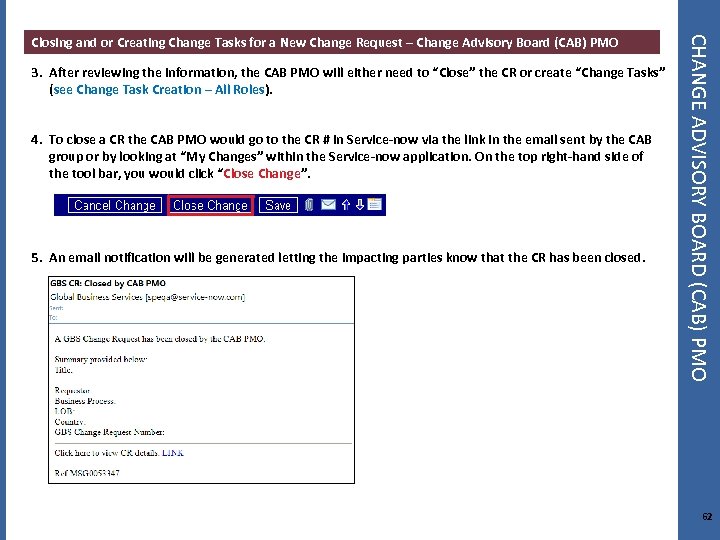
3. After reviewing the information, the CAB PMO will either need to “Close” the CR or create “Change Tasks” (see Change Task Creation – All Roles). 4. To close a CR the CAB PMO would go to the CR # in Service-now via the link in the email sent by the CAB group or by looking at “My Changes” within the Service-now application. On the top right-hand side of the tool bar, you would click “Close Change”. 5. An email notification will be generated letting the impacting parties know that the CR has been closed. CHANGE ADVISORY BOARD (CAB) PMO Closing and or Creating Change Tasks for a New Change Request – Change Advisory Board (CAB) PMO 62
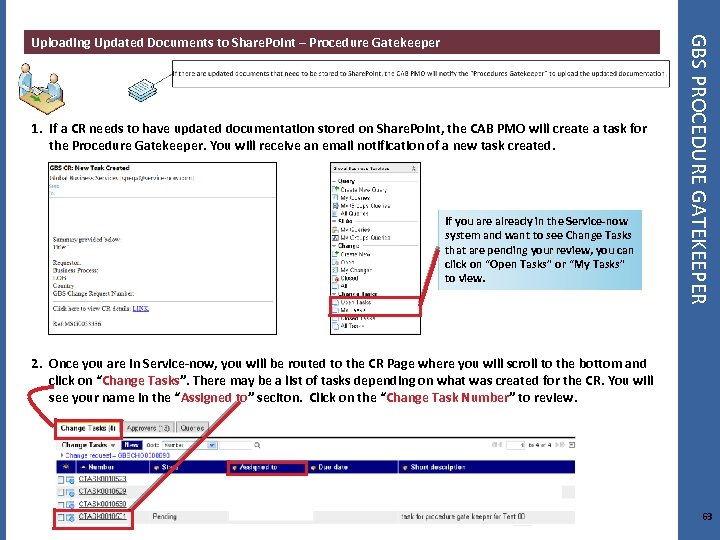
1. If a CR needs to have updated documentation stored on Share. Point, the CAB PMO will create a task for the Procedure Gatekeeper. You will receive an email notification of a new task created. If you are already in the Service-now system and want to see Change Tasks that are pending your review, you can click on “Open Tasks” or “My Tasks” to view. GBS PROCEDURE GATEKEEPER Uploading Updated Documents to Share. Point – Procedure Gatekeeper 2. Once you are in Service-now, you will be routed to the CR Page where you will scroll to the bottom and click on “Change Tasks”. There may be a list of tasks depending on what was created for the CR. You will see your name in the “Assigned to” seciton. Click on the “Change Task Number” to review. 63
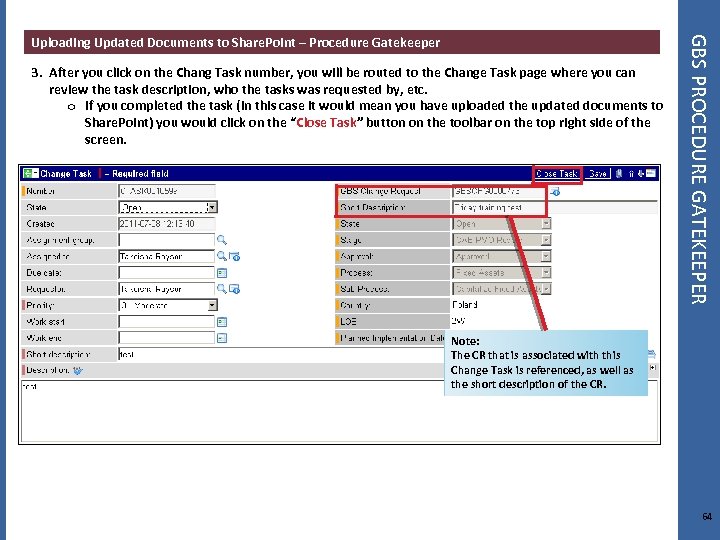
3. After you click on the Chang Task number, you will be routed to the Change Task page where you can review the task description, who the tasks was requested by, etc. o If you completed the task (in this case it would mean you have uploaded the updated documents to Share. Point) you would click on the “Close Task” button on the toolbar on the top right side of the screen. GBS PROCEDURE GATEKEEPER Uploading Updated Documents to Share. Point – Procedure Gatekeeper Note: The CR that is associated with this Change Task is referenced, as well as the short description of the CR. 64
ALL ROLES – INITIATING A CR, CHANGE TASKS, ATTACHMENTS, EMAILS 65
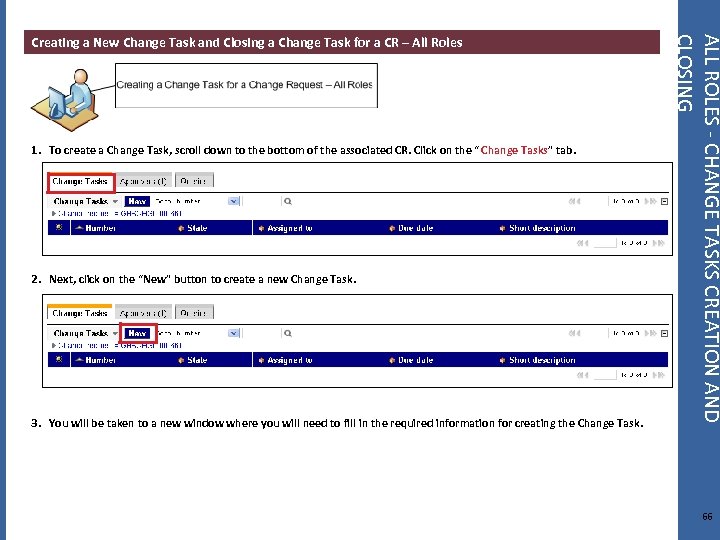
1. To create a Change Task, scroll down to the bottom of the associated CR. Click on the “ Change Tasks” tab. 2. Next, click on the “New” button to create a new Change Task. 3. You will be taken to a new window where you will need to fill in the required information for creating the Change Task. ALL ROLES - CHANGE TASKS CREATION AND CLOSING Creating a New Change Task and Closing a Change Task for a CR – All Roles 66
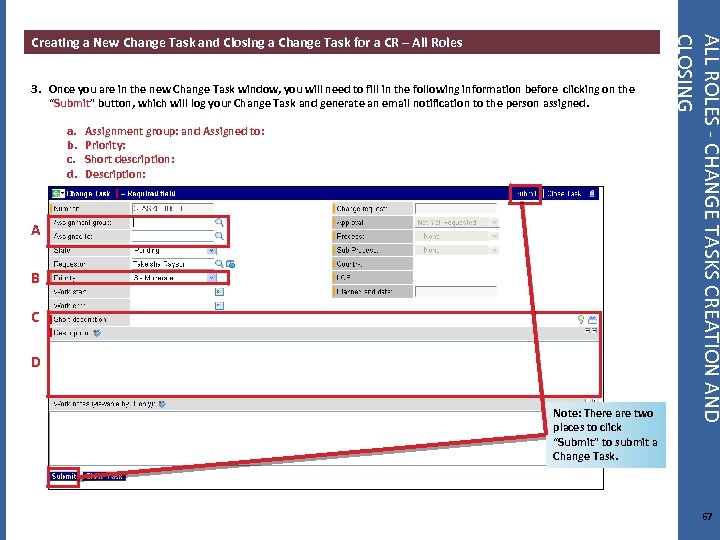
3. Once you are in the new Change Task window, you will need to fill in the following information before clicking on the “Submit” button, which will log your Change Task and generate an email notification to the person assigned. a. b. c. d. Assignment group: and Assigned to: Priority: Short description: Description: A B C D Note: There are two places to click “Submit” to submit a Change Task. ALL ROLES - CHANGE TASKS CREATION AND CLOSING Creating a New Change Task and Closing a Change Task for a CR – All Roles 67
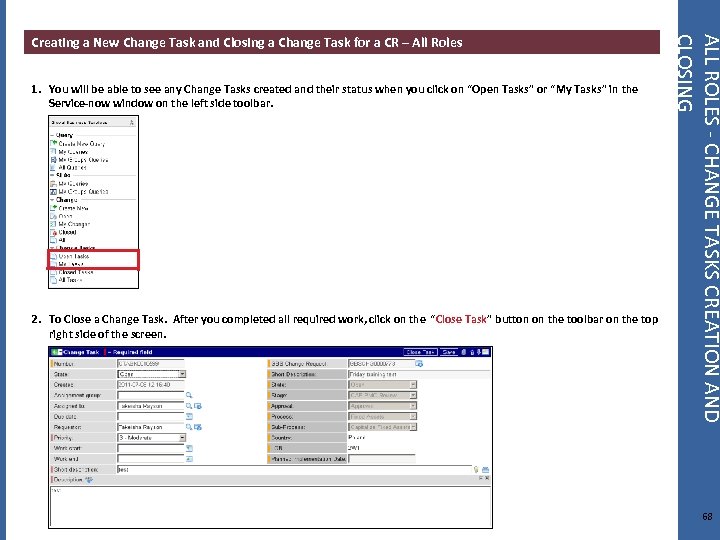
1. You will be able to see any Change Tasks created and their status when you click on “Open Tasks” or “My Tasks” in the Service-now window on the left side toolbar. 2. To Close a Change Task. After you completed all required work, click on the “Close Task” button on the toolbar on the top right side of the screen. ALL ROLES - CHANGE TASKS CREATION AND CLOSING Creating a New Change Task and Closing a Change Task for a CR – All Roles 68
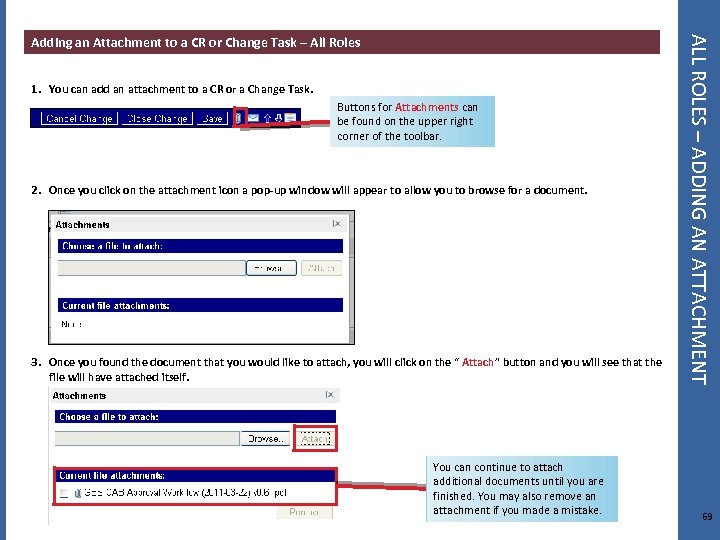
1. You can add an attachment to a CR or a Change Task. Buttons for Attachments can be found on the upper right corner of the toolbar. 2. Once you click on the attachment icon a pop-up window will appear to allow you to browse for a document. 3. Once you found the document that you would like to attach, you will click on the “ Attach” button and you will see that the file will have attached itself. You can continue to attach additional documents until you are finished. You may also remove an attachment if you made a mistake. ALL ROLES – ADDING AN ATTACHMENT Adding an Attachment to a CR or Change Task – All Roles 69
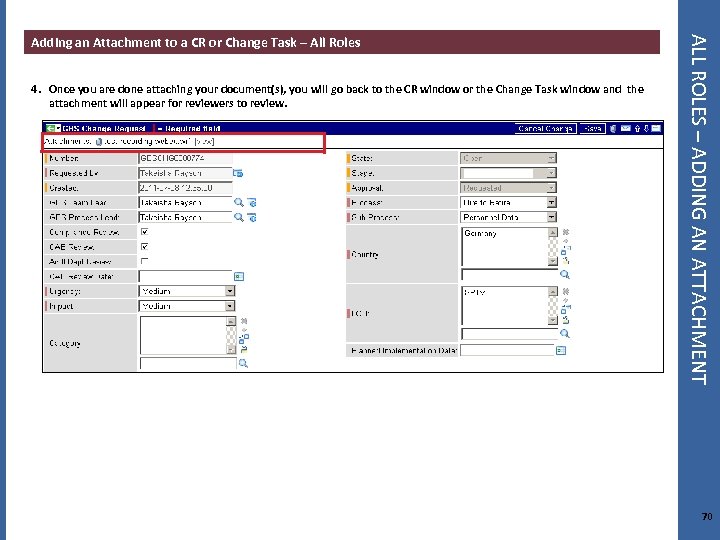
4. Once you are done attaching your document(s), you will go back to the CR window or the Change Task window and the attachment will appear for reviewers to review. ALL ROLES – ADDING AN ATTACHMENT Adding an Attachment to a CR or Change Task – All Roles 70
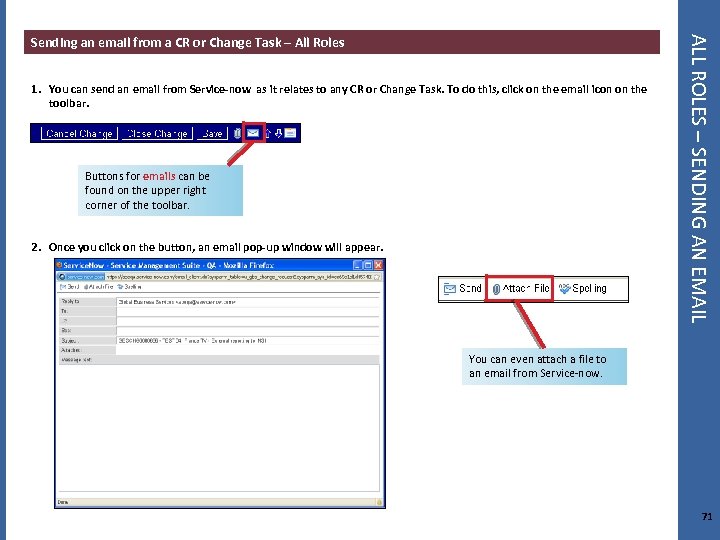
1. You can send an email from Service-now as it relates to any CR or Change Task. To do this, click on the email icon on the toolbar. Buttons for emails can be found on the upper right corner of the toolbar. 2. Once you click on the button, an email pop-up window will appear. ALL ROLES – SENDING AN EMAIL Sending an email from a CR or Change Task – All Roles You can even attach a file to an email from Service-now. 71

APPENDIX 72
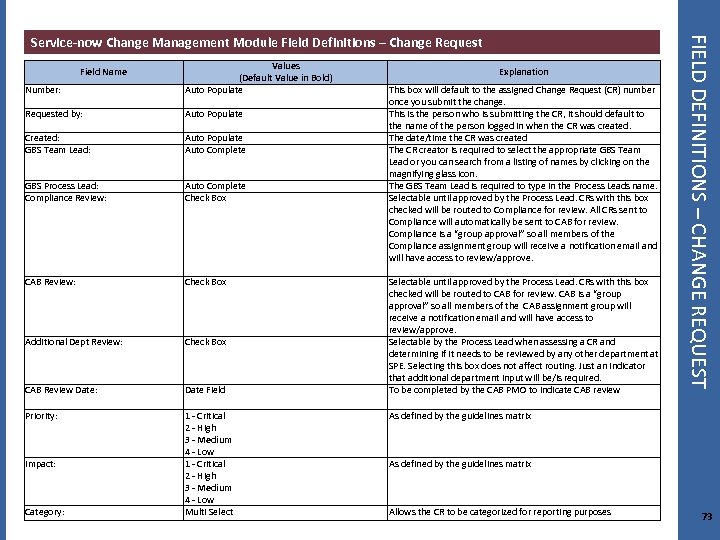
Number: Values (Default Value in Bold) Auto Populate Requested by: Auto Populate Created: GBS Team Lead: Auto Populate Auto Complete GBS Process Lead: Compliance Review: Auto Complete Check Box CAB Review: Check Box Additional Dept Review: Check Box CAB Review Date: Date Field Priority: 1 - Critical 2 - High 3 - Medium 4 - Low Multi Select Field Name Impact: Category: Explanation This box will default to the assigned Change Request (CR) number once you submit the change. This is the person who is submitting the CR, it should default to the name of the person logged in when the CR was created. The date/time the CR was created The CR creator is required to select the appropriate GBS Team Lead or you can search from a listing of names by clicking on the magnifying glass icon. The GBS Team Lead is required to type in the Process Leads name. Selectable until approved by the Process Lead. CRs with this box checked will be routed to Compliance for review. All CRs sent to Compliance will automatically be sent to CAB for review. Compliance is a “group approval” so all members of the Compliance assignment group will receive a notification email and will have access to review/approve. Selectable until approved by the Process Lead. CRs with this box checked will be routed to CAB for review. CAB is a “group approval” so all members of the CAB assignment group will receive a notification email and will have access to review/approve. Selectable by the Process Lead when assessing a CR and determining if it needs to be reviewed by any other department at SPE. Selecting this box does not affect routing. Just an indicator that additional department input will be/is required. To be completed by the CAB PMO to indicate CAB review FIELD DEFINITIONS – CHANGE REQUEST Service-now Change Management Module Field Definitions – Change Request As defined by the guidelines matrix Allows the CR to be categorized for reporting purposes 73
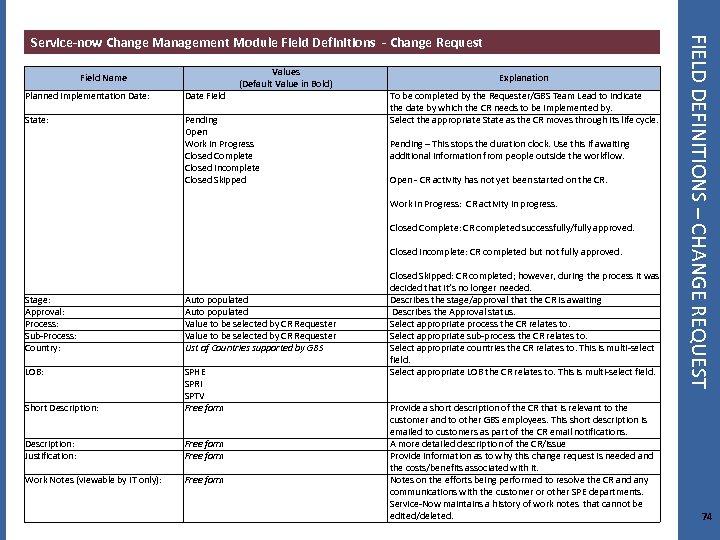
Field Name Values (Default Value in Bold) Planned Implementation Date: Date Field State: Pending Open Work in Progress Closed Complete Closed Incomplete Closed Skipped Explanation To be completed by the Requester/GBS Team Lead to indicate the date by which the CR needs to be implemented by. Select the appropriate State as the CR moves through its life cycle. Pending – This stops the duration clock. Use this if awaiting additional information from people outside the workflow. Open - CR activity has not yet been started on the CR. Work in Progress: CR activity in progress. Closed Complete: CR completed successfully/fully approved. Closed Incomplete: CR completed but not fully approved. Stage: Approval: Process: Sub-Process: Country: Auto populated Value to be selected by CR Requester List of Countries supported by GBS LOB: Short Description: SPHE SPRI SPTV Free form Description: Justification: Free form Work Notes (viewable by IT only): Free form Closed Skipped: CR completed; however, during the process it was decided that it’s no longer needed. Describes the stage/approval that the CR is awaiting Describes the Approval status. Select appropriate process the CR relates to. Select appropriate sub-process the CR relates to. Select appropriate countries the CR relates to. This is multi-select field. Select appropriate LOB the CR relates to. This is multi-select field. Provide a short description of the CR that is relevant to the customer and to other GBS employees. This short description is emailed to customers as part of the CR email notifications. A more detailed description of the CR/issue Provide information as to why this change request is needed and the costs/benefits associated with it. Notes on the efforts being performed to resolve the CR and any communications with the customer or other SPE departments. Service-Now maintains a history of work notes that cannot be edited/deleted. FIELD DEFINITIONS – CHANGE REQUEST Service-now Change Management Module Field Definitions - Change Request 74
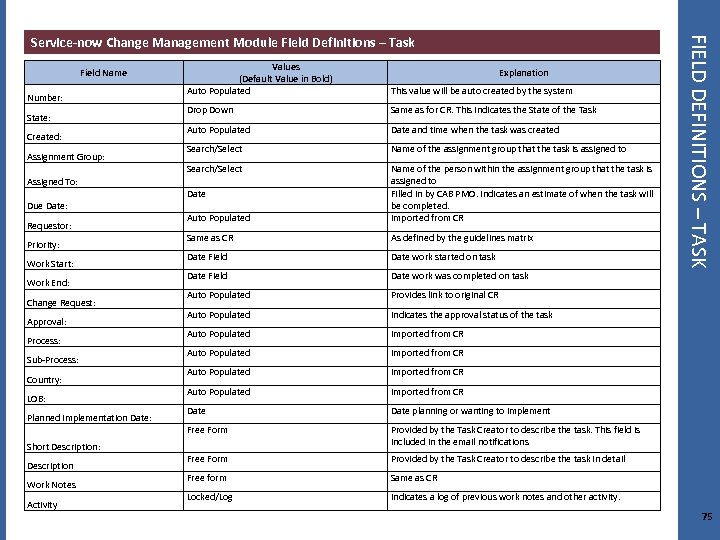
Field Name Number: State: Created: Assignment Group: Assigned To: Due Date: Requestor: Priority: Work Start: Work End: Change Request: Approval: Process: Sub-Process: Country: LOB: Planned Implementation Date: Short Description: Description Work Notes Activity Values (Default Value in Bold) Auto Populated This value will be auto created by the system Drop Down Same as for CR. This indicates the State of the Task Auto Populated Date and time when the task was created Search/Select Name of the assignment group that the task is assigned to Search/Select Auto Populated Name of the person within the assignment group that the task is assigned to Filled in by CAB PMO. Indicates an estimate of when the task will be completed. Imported from CR Same as CR As defined by the guidelines matrix Date Field Date work started on task Date Field Date work was completed on task Auto Populated Provides link to original CR Auto Populated Indicates the approval status of the task Auto Populated Imported from CR Auto Populated Imported from CR Auto Populated Imported from CR Date planning or wanting to implement Free Form Provided by the Task Creator to describe the task. This field is included in the email notifications Free Form Provided by the Task Creator to describe the task in detail Free form Same as CR Locked/Log FIELD DEFINITIONS – TASK Service-now Change Management Module Field Definitions – Task Indicates a log of previous work notes and other activity. Date Explanation 75
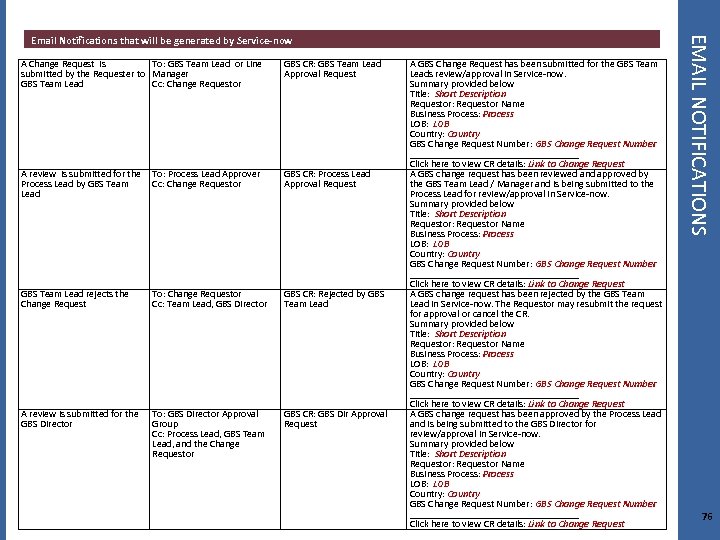
A Change Request is To: GBS Team Lead or Line submitted by the Requester to Manager GBS Team Lead Cc: Change Requestor GBS CR: GBS Team Lead Approval Request A review is submitted for the To: Process Lead Approver Process Lead by GBS Team Cc: Change Requestor Lead GBS CR: Process Lead Approval Request GBS Team Lead rejects the Change Request To: Change Requestor Cc: Team Lead, GBS Director GBS CR: Rejected by GBS Team Lead A review is submitted for the GBS Director To: GBS Director Approval Group Cc: Process Lead, GBS Team Lead, and the Change Requestor GBS CR: GBS Dir Approval Request A GBS Change Request has been submitted for the GBS Team Leads review/approval in Service-now. Summary provided below Title: Short Description Requestor: Requestor Name Business Process: Process LOB: LOB Country: Country GBS Change Request Number: GBS Change Request Number _________________ Click here to view CR details: Link to Change Request A GBS change request has been reviewed and approved by the GBS Team Lead / Manager and is being submitted to the Process Lead for review/approval in Service-now. Summary provided below Title: Short Description Requestor: Requestor Name Business Process: Process LOB: LOB Country: Country GBS Change Request Number: GBS Change Request Number _________________ Click here to view CR details: Link to Change Request A GBS change request has been rejected by the GBS Team Lead in Service-now. The Requestor may resubmit the request for approval or cancel the CR. Summary provided below Title: Short Description Requestor: Requestor Name Business Process: Process LOB: LOB Country: Country GBS Change Request Number: GBS Change Request Number _________________ Click here to view CR details: Link to Change Request A GBS change request has been approved by the Process Lead and is being submitted to the GBS Director for review/approval in Service-now. Summary provided below Title: Short Description Requestor: Requestor Name Business Process: Process LOB: LOB Country: Country GBS Change Request Number: GBS Change Request Number _________________ Click here to view CR details: Link to Change Request EMAIL NOTIFICATIONS Email Notifications that will be generated by Service-now 76
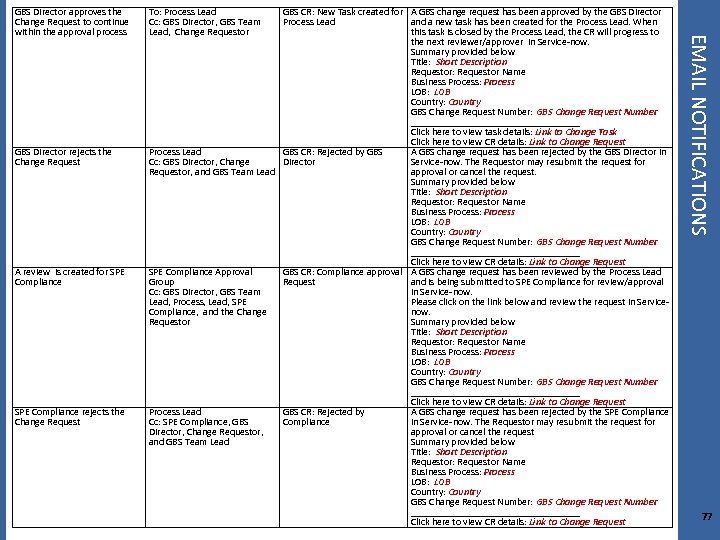
GBS Director rejects the Change Request A review is created for SPE Compliance rejects the Change Request To: Process Lead Cc: GBS Director, GBS Team Lead, Change Requestor GBS CR: New Task created for A GBS change request has been approved by the GBS Director Process Lead and a new task has been created for the Process Lead. When this task is closed by the Process Lead, the CR will progress to the next reviewer/approver in Service-now. Summary provided below Title: Short Description Requestor: Requestor Name Business Process: Process LOB: LOB Country: Country GBS Change Request Number: GBS Change Request Number _________________ Click here to view task details: Link to Change Task Click here to view CR details: Link to Change Request Process Lead GBS CR: Rejected by GBS A GBS change request has been rejected by the GBS Director in Cc: GBS Director, Change Director Service-now. The Requestor may resubmit the request for Requestor, and GBS Team Lead approval or cancel the request. Summary provided below Title: Short Description Requestor: Requestor Name Business Process: Process LOB: LOB Country: Country GBS Change Request Number: GBS Change Request Number _________________ Click here to view CR details: Link to Change Request SPE Compliance Approval GBS CR: Compliance approval A GBS change request has been reviewed by the Process Lead Group Request and is being submitted to SPE Compliance for review/approval Cc: GBS Director, GBS Team in Service-now. Lead, Process, Lead, SPE Please click on the link below and review the request in Service. Compliance, and the Change now. Requestor Summary provided below Title: Short Description Requestor: Requestor Name Business Process: Process LOB: LOB Country: Country GBS Change Request Number: GBS Change Request Number _________________ Click here to view CR details: Link to Change Request Process Lead GBS CR: Rejected by A GBS change request has been rejected by the SPE Compliance Cc: SPE Compliance, GBS Compliance in Service-now. The Requestor may resubmit the request for Director, Change Requestor, approval or cancel the request and GBS Team Lead Summary provided below Title: Short Description Requestor: Requestor Name Business Process: Process LOB: LOB Country: Country GBS Change Request Number: GBS Change Request Number _________________ Click here to view CR details: Link to Change Request EMAIL NOTIFICATIONS GBS Director approves the Change Request to continue within the approval process 77
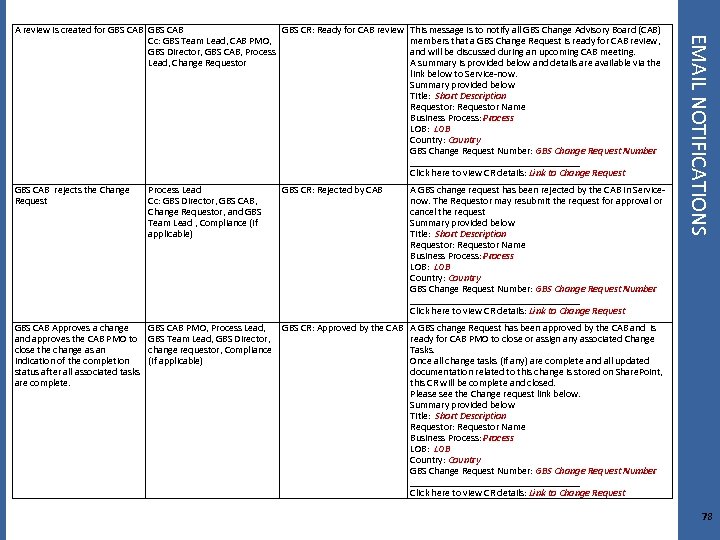
GBS CAB rejects the Change Request Process Lead Cc: GBS Director, GBS CAB, Change Requestor, and GBS Team Lead , Compliance (if applicable) GBS CR: Rejected by CAB A GBS change request has been rejected by the CAB in Servicenow. The Requestor may resubmit the request for approval or cancel the request Summary provided below Title: Short Description Requestor: Requestor Name Business Process: Process LOB: LOB Country: Country GBS Change Request Number: GBS Change Request Number _________________ Click here to view CR details: Link to Change Request GBS CAB Approves a change and approves the CAB PMO to close the change as an indication of the completion status after all associated tasks are complete. EMAIL NOTIFICATIONS A review is created for GBS CAB GBS CR: Ready for CAB review This message is to notify all GBS Change Advisory Board (CAB) Cc: GBS Team Lead, CAB PMO, members that a GBS Change Request is ready for CAB review, GBS Director, GBS CAB, Process and will be discussed during an upcoming CAB meeting. Lead, Change Requestor A summary is provided below and details are available via the link below to Service-now. Summary provided below Title: Short Description Requestor: Requestor Name Business Process: Process LOB: LOB Country: Country GBS Change Request Number: GBS Change Request Number _________________ Click here to view CR details: Link to Change Request GBS CAB PMO, Process Lead, GBS CR: Approved by the CAB A GBS change Request has been approved by the CAB and is GBS Team Lead, GBS Director, ready for CAB PMO to close or assign any associated Change change requestor, Compliance Tasks. (if applicable) Once all change tasks (if any) are complete and all updated documentation related to this change is stored on Share. Point, this CR will be complete and closed. Please see the Change request link below. Summary provided below Title: Short Description Requestor: Requestor Name Business Process: Process LOB: LOB Country: Country GBS Change Request Number: GBS Change Request Number _________________ Click here to view CR details: Link to Change Request 78
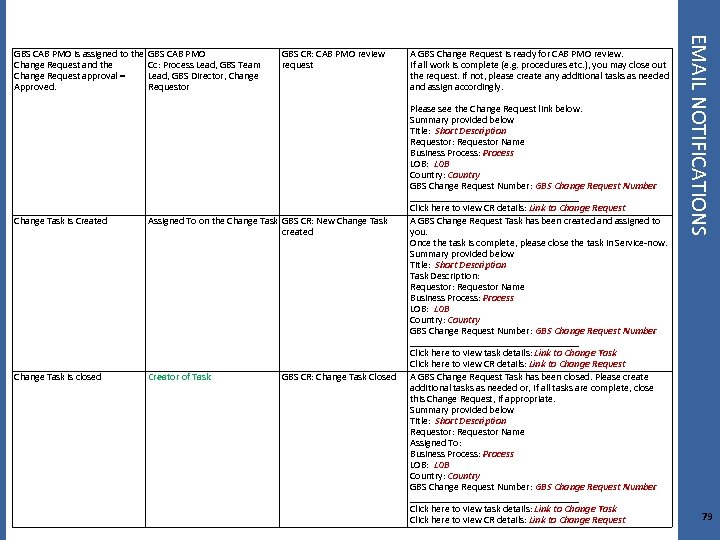
GBS CR: CAB PMO review request Change Task is Created Assigned To on the Change Task GBS CR: New Change Task created Change Task is closed Creator of Task GBS CR: Change Task Closed A GBS Change Request is ready for CAB PMO review. If all work is complete (e. g. procedures etc. ), you may close out the request. If not, please create any additional tasks as needed and assign accordingly. Please see the Change Request link below. Summary provided below Title: Short Description Requestor: Requestor Name Business Process: Process LOB: LOB Country: Country GBS Change Request Number: GBS Change Request Number _________________ Click here to view CR details: Link to Change Request A GBS Change Request Task has been created and assigned to you. Once the task is complete, please close the task in Service-now. Summary provided below Title: Short Description Task Description: Requestor Name Business Process: Process LOB: LOB Country: Country GBS Change Request Number: GBS Change Request Number _________________ Click here to view task details: Link to Change Task Click here to view CR details: Link to Change Request A GBS Change Request Task has been closed. Please create additional tasks as needed or, if all tasks are complete, close this Change Request, if appropriate. Summary provided below Title: Short Description Requestor: Requestor Name Assigned To: Business Process: Process LOB: LOB Country: Country GBS Change Request Number: GBS Change Request Number _________________ Click here to view task details: Link to Change Task Click here to view CR details: Link to Change Request EMAIL NOTIFICATIONS GBS CAB PMO is assigned to the GBS CAB PMO Change Request and the Cc: Process Lead, GBS Team Change Request approval = Lead, GBS Director, Change Approved. Requestor 79
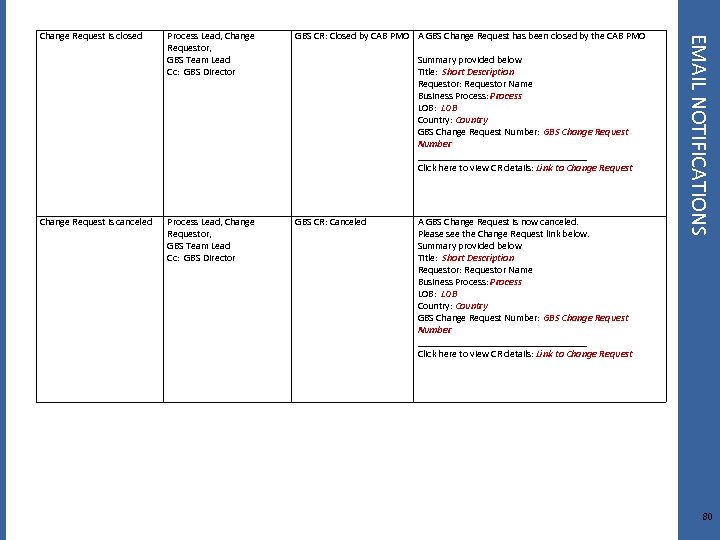
Process Lead, Change Requestor, GBS Team Lead Cc: GBS Director GBS CR: Closed by CAB PMO A GBS Change Request has been closed by the CAB PMO Summary provided below Title: Short Description Requestor: Requestor Name Business Process: Process LOB: LOB Country: Country GBS Change Request Number: GBS Change Request Number _________________ Click here to view CR details: Link to Change Request is canceled Process Lead, Change Requestor, GBS Team Lead Cc: GBS Director GBS CR: Canceled A GBS Change Request is now canceled. Please see the Change Request link below. Summary provided below Title: Short Description Requestor: Requestor Name Business Process: Process LOB: LOB Country: Country GBS Change Request Number: GBS Change Request Number _________________ Click here to view CR details: Link to Change Request EMAIL NOTIFICATIONS Change Request is closed 80
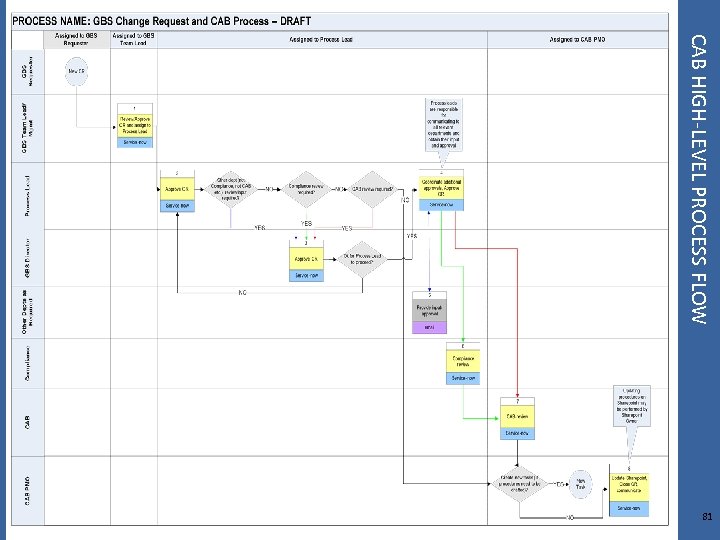
CAB HIGH-LEVEL PROCESS FLOW 81
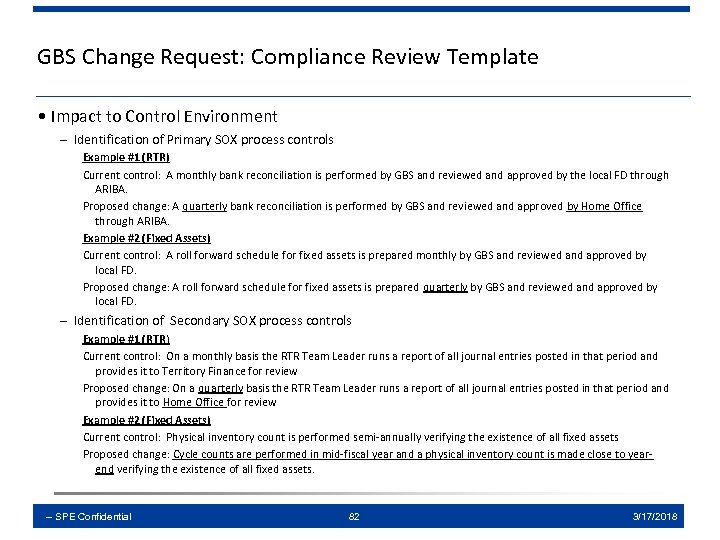
GBS Change Request: Compliance Review Template • Impact to Control Environment – Identification of Primary SOX process controls Example #1 (RTR) Current control: A monthly bank reconciliation is performed by GBS and reviewed and approved by the local FD through ARIBA. Proposed change: A quarterly bank reconciliation is performed by GBS and reviewed and approved by Home Office through ARIBA. Example #2 (Fixed Assets) Current control: A roll forward schedule for fixed assets is prepared monthly by GBS and reviewed and approved by local FD. Proposed change: A roll forward schedule for fixed assets is prepared quarterly by GBS and reviewed and approved by local FD. – Identification of Secondary SOX process controls Example #1 (RTR) Current control: On a monthly basis the RTR Team Leader runs a report of all journal entries posted in that period and provides it to Territory Finance for review Proposed change: On a quarterly basis the RTR Team Leader runs a report of all journal entries posted in that period and provides it to Home Office for review Example #2 (Fixed Assets) Current control: Physical inventory count is performed semi-annually verifying the existence of all fixed assets Proposed change: Cycle counts are performed in mid-fiscal year and a physical inventory count is made close to yearend verifying the existence of all fixed assets. -- SPE Confidential 82 3/17/2018
GBS Change Request: Compliance Review Template • Impact to Control Environment (continued) – IT General controls – system changes, system enhancements, new system etc. Example (RTR) A new accounting system is replacing SAP. [Need to consider impact to current close and financial reporting processes. In addition, any impact to IT controls such as project approval, User Acceptance Testing, access controls, etc. ] – Risks (what could go wrong? ) and compensating control (if applicable) Example (RTR): Current control: Monthly the manual routines checklist is completed by SSC RTR Clerk and FC. If the proposed change relates to the frequency (from monthly to quarterly), you will need to evaluate the impact to the risk that you are mitigating (i. e. Risk 00059 Errors or omissions exist in the compilation of the consolidated financial statements) Possible mitigating control: Monthly financial statement analytics e. g. balance sheet flux analysis and P&L variance analysis. – Segregation of Duties – if change will result in SOD, what is the mitigating control? Example Change: A reduction in force has occurred and the finance staff of 3 was reduced to one staff resulting in only one person parking and posting JEs, therefore an SOD conflict exists. Mitigating control: The local FD reviews and approves the following reports: (1) weekly JE report (2) Monthly financial statement analytics e. g. balance sheet flux analysis and P&L variance analysis. -- SPE Confidential 83 3/17/2018
GBS Change Request: Compliance Review Template • Impact to original process design – Include original and proposed process design as attachments • Impact to existing SPE policy (Accounting, COFA, etc. ) – Identify any exception to policy -- SPE Confidential 84 3/17/2018
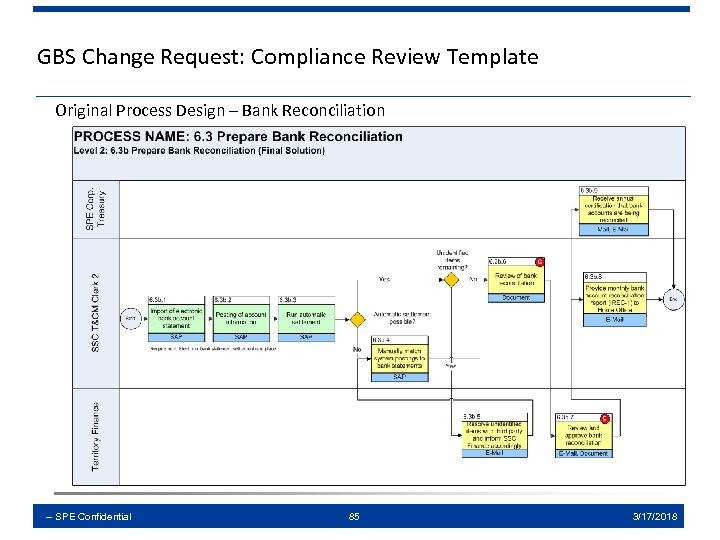
GBS Change Request: Compliance Review Template Original Process Design – Bank Reconciliation -- SPE Confidential 85 3/17/2018
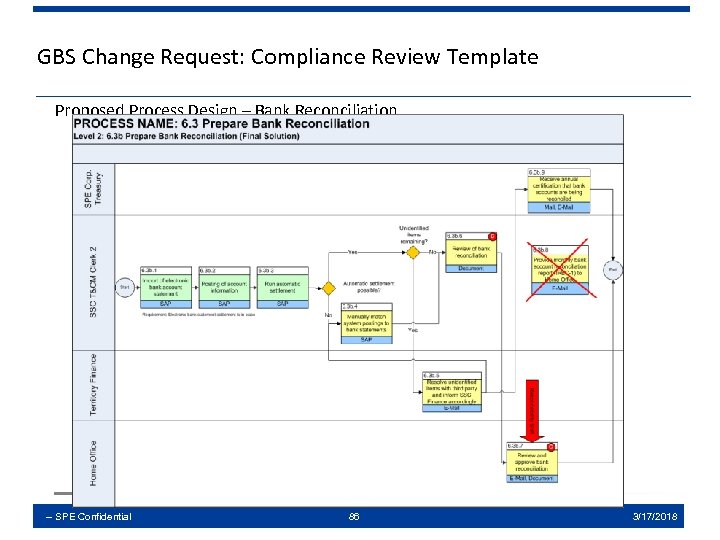
GBS Change Request: Compliance Review Template Proposed Process Design – Bank Reconciliation -- SPE Confidential 86 3/17/2018
2 waytraffic Customer Refunds CAB Options Review Deck April 2011 -- SPE Confidential 87 3/17/2018
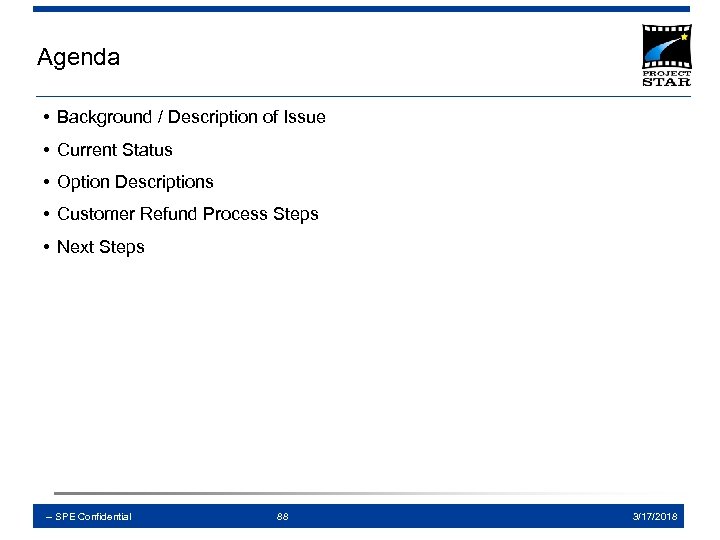
Agenda • Background / Description of Issue • Current Status • Option Descriptions • Customer Refund Process Steps • Next Steps -- SPE Confidential 88 3/17/2018
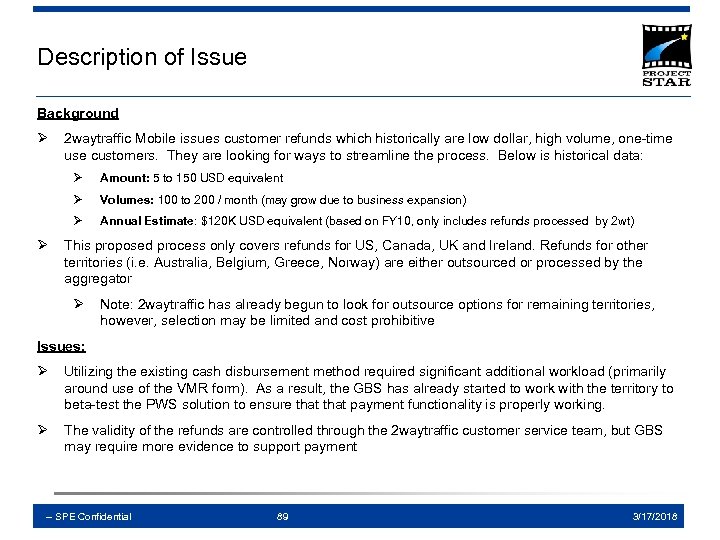
Description of Issue Background Ø 2 waytraffic Mobile issues customer refunds which historically are low dollar, high volume, one-time use customers. They are looking for ways to streamline the process. Below is historical data: Ø Ø Volumes: 100 to 200 / month (may grow due to business expansion) Ø Ø Amount: 5 to 150 USD equivalent Annual Estimate: $120 K USD equivalent (based on FY 10, only includes refunds processed by 2 wt) This proposed process only covers refunds for US, Canada, UK and Ireland. Refunds for other territories (i. e. Australia, Belgium, Greece, Norway) are either outsourced or processed by the aggregator Ø Note: 2 waytraffic has already begun to look for outsource options for remaining territories, however, selection may be limited and cost prohibitive Issues: Ø Utilizing the existing cash disbursement method required significant additional workload (primarily around use of the VMR form). As a result, the GBS has already started to work with the territory to beta-test the PWS solution to ensure that payment functionality is properly working. Ø The validity of the refunds are controlled through the 2 waytraffic customer service team, but GBS may require more evidence to support payment -- SPE Confidential 89 3/17/2018
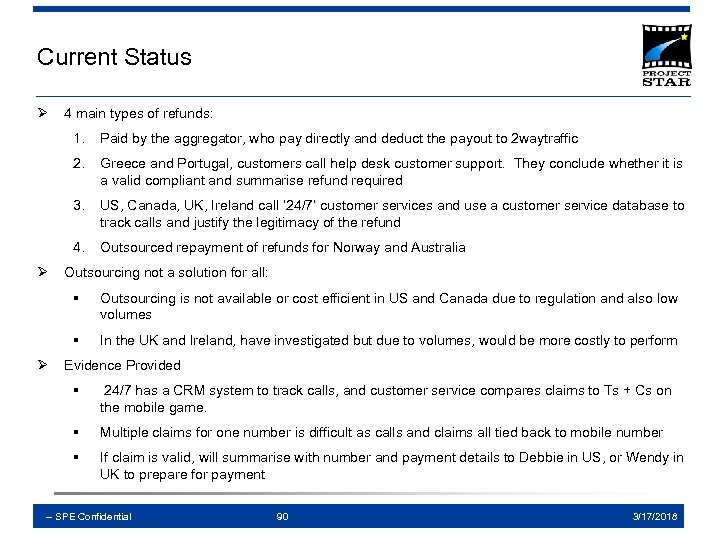
Current Status Ø 4 main types of refunds: 1. 2. Greece and Portugal, customers call help desk customer support. They conclude whether it is a valid compliant and summarise refund required 3. US, Canada, UK, Ireland call ‘ 24/7’ customer services and use a customer service database to track calls and justify the legitimacy of the refund 4. Ø Paid by the aggregator, who pay directly and deduct the payout to 2 waytraffic Outsourced repayment of refunds for Norway and Australia Outsourcing not a solution for all: § § Ø Outsourcing is not available or cost efficient in US and Canada due to regulation and also low volumes In the UK and Ireland, have investigated but due to volumes, would be more costly to perform Evidence Provided § 24/7 has a CRM system to track calls, and customer service compares claims to Ts + Cs on the mobile game. § Multiple claims for one number is difficult as calls and claims all tied back to mobile number § If claim is valid, will summarise with number and payment details to Debbie in US, or Wendy in UK to prepare for payment -- SPE Confidential 90 3/17/2018
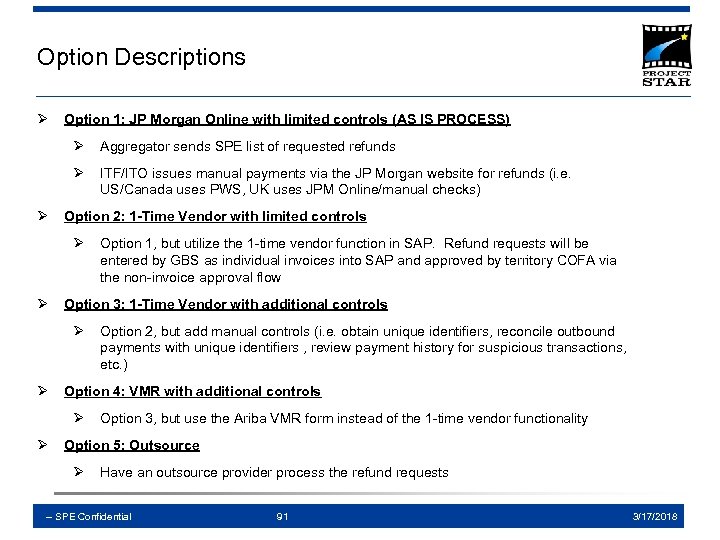
Option Descriptions Ø Option 1: JP Morgan Online with limited controls (AS IS PROCESS) Ø Ø Ø Aggregator sends SPE list of requested refunds ITF/ITO issues manual payments via the JP Morgan website for refunds (i. e. US/Canada uses PWS, UK uses JPM Online/manual checks) Option 2: 1 -Time Vendor with limited controls Ø Ø Option 3: 1 -Time Vendor with additional controls Ø Ø Option 2, but add manual controls (i. e. obtain unique identifiers, reconcile outbound payments with unique identifiers , review payment history for suspicious transactions, etc. ) Option 4: VMR with additional controls Ø Ø Option 1, but utilize the 1 -time vendor function in SAP. Refund requests will be entered by GBS as individual invoices into SAP and approved by territory COFA via the non-invoice approval flow Option 3, but use the Ariba VMR form instead of the 1 -time vendor functionality Option 5: Outsource Ø Have an outsource provider process the refund requests -- SPE Confidential 91 3/17/2018
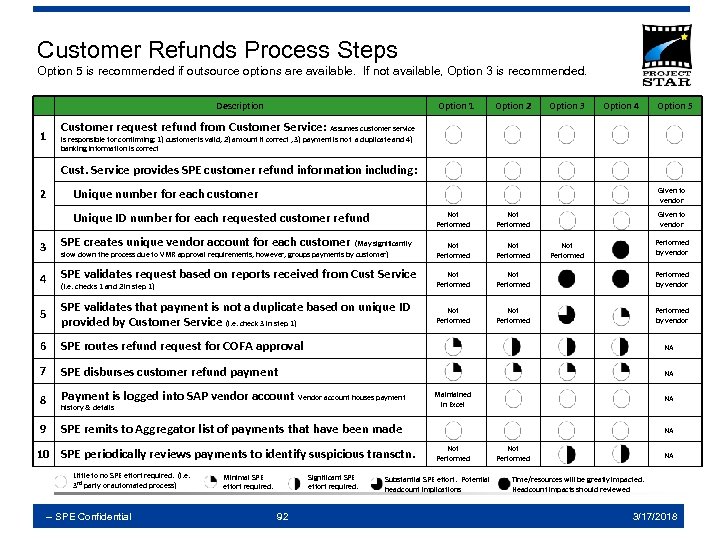
Customer Refunds Process Steps Option 5 is recommended if outsource options are available. If not available, Option 3 is recommended. Description 1 Option 2 Option 3 Option 4 Option 5 Customer request refund from Customer Service: Assumes customer service is responsible for confirming: 1) customer is valid, 2) amount if correct , 3) payment is not a duplicate and 4) banking information is correct Cust. Service provides SPE customer refund information including: 2 Unique number for each customer Given to vendor Not Performed Unique ID number for each requested customer refund Not Performed Given to vendor Not Performed Performed by vendor Not Performed by vendor 3 SPE creates unique vendor account for each customer (May significantly 4 SPE validates request based on reports received from Cust Service 5 SPE validates that payment is not a duplicate based on unique ID provided by Customer Service (i. e. check 3 in step 1) 6 SPE routes refund request for COFA approval NA 7 SPE disburses customer refund payment NA 8 Payment is logged into SAP vendor account Vendor account houses payment 9 SPE remits to Aggregator list of payments that have been made slow down the process due to VMR approval requirements, however, groups payments by customer) (i. e. checks 1 and 2 in step 1) history & details 10 SPE periodically reviews payments to identify suspicious transctn. Little to no SPE effort required. (i. e. 3 rd party or automated process) -- SPE Confidential Minimal SPE effort required. Significant SPE effort required. 92 Performed by vendor Not Performed Maintained in Excel NA NA Not Performed Substantial SPE effort. Potential headcount implications Not Performed NA Time/resources will be greatly impacted. Headcount impacts should reviewed 3/17/2018
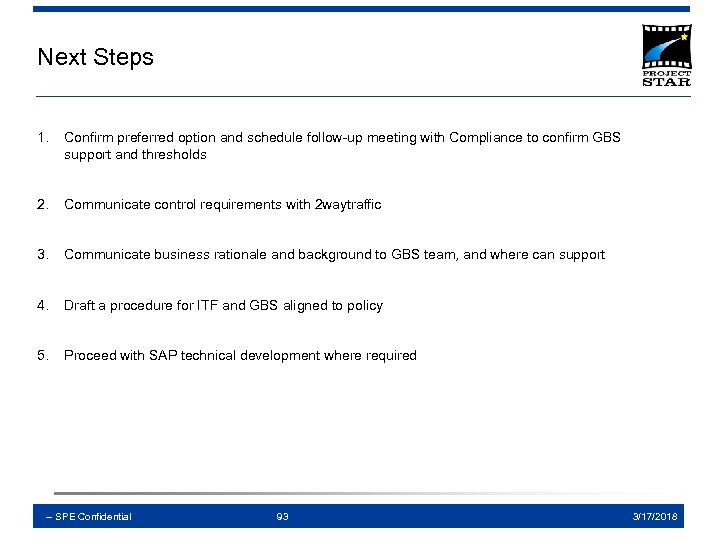
Next Steps 1. Confirm preferred option and schedule follow-up meeting with Compliance to confirm GBS support and thresholds 2. Communicate control requirements with 2 waytraffic 3. Communicate business rationale and background to GBS team, and where can support 4. Draft a procedure for ITF and GBS aligned to policy 5. Proceed with SAP technical development where required -- SPE Confidential 93 3/17/2018
Appendix -- SPE Confidential 94 3/17/2018
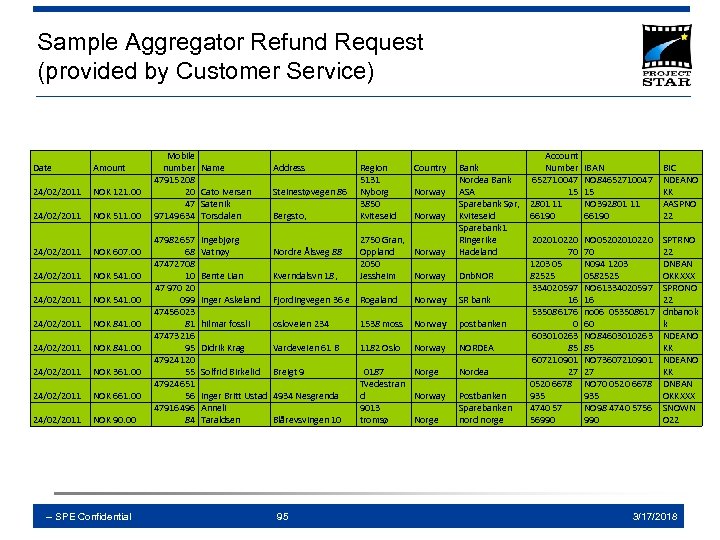
Sample Aggregator Refund Request (provided by Customer Service) Date Amount 24/02/2011 NOK 121. 00 24/02/2011 NOK 511. 00 24/02/2011 NOK 607. 00 24/02/2011 NOK 541. 00 24/02/2011 NOK 841. 00 24/02/2011 NOK 361. 00 24/02/2011 NOK 661. 00 24/02/2011 NOK 90. 00 -- SPE Confidential Mobile number 47915208 20 47 97149634 47982657 68 47472708 10 47 970 20 099 47456023 81 47473216 95 47924120 55 47924651 56 47916496 84 Name Address Cato Iversen Satenik Torsdalen Region 5131 Steinestøvegen 86 Nyborg 3850 Bergsto, Kviteseid Ingebjørg Vatnøy Nordre Ålsveg 88 Bente Lian Kverndalsvn 18, Country Norway 2750 Gran, Oppland Norway 2050 Jessheim Norway Inger Askeland Fjordingvegen 36 e Rogaland Norway hilmar fossli osloveien 234 1538 moss Norway Didrik Krag Vardeveien 61 B 1182 Oslo Solfrid Birkelid Breigt 9 0187 Norge Tvedestran d Norway 9013 tromsø Norge Inger Britt Ustad 4934 Nesgrenda Anneli Taraldsen Blårevsvingen 10 95 Norway Account Bank Number Nordea Bank 652710047 ASA 15 Sparebank Sør, 2801 11 Kviteseid 66190 Sparebank 1 Ringerike 202010220 Hadeland 70 1203 05 Dnb. NOR 82525 334020597 SR bank 16 535086176 postbanken 0 603010263 NORDEA 85 607210901 Nordea 27 0520 6678 Postbanken 935 Sparebanken 4740 57 nord norge 56990 IBAN NO 84652710047 15 NO 392801 11 66190 BIC NDEANO KK AASPNO 22 NO 05202010220 70 N 094 1203 0582525 NO 61334020597 16 no 06 053508617 60 NO 84603010263 85 NO 73607210901 27 NO 70 0520 6678 935 NO 98 4740 5756 990 SPTRNO 22 DNBAN OKKXXX SPRONO 22 dnbanok k NDEANO KK DNBAN OKKXXX SNOWN O 22 3/17/2018
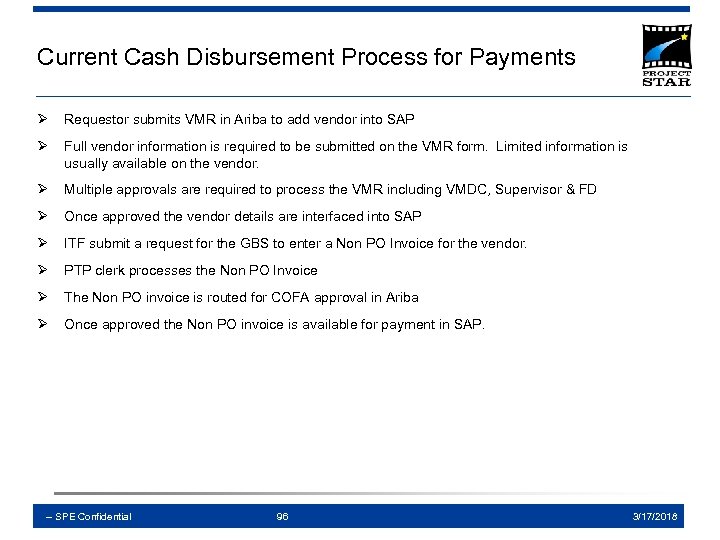
Current Cash Disbursement Process for Payments Ø Requestor submits VMR in Ariba to add vendor into SAP Ø Full vendor information is required to be submitted on the VMR form. Limited information is usually available on the vendor. Ø Multiple approvals are required to process the VMR including VMDC, Supervisor & FD Ø Once approved the vendor details are interfaced into SAP Ø ITF submit a request for the GBS to enter a Non PO Invoice for the vendor. Ø PTP clerk processes the Non PO Invoice Ø The Non PO invoice is routed for COFA approval in Ariba Ø Once approved the Non PO invoice is available for payment in SAP. -- SPE Confidential 96 3/17/2018
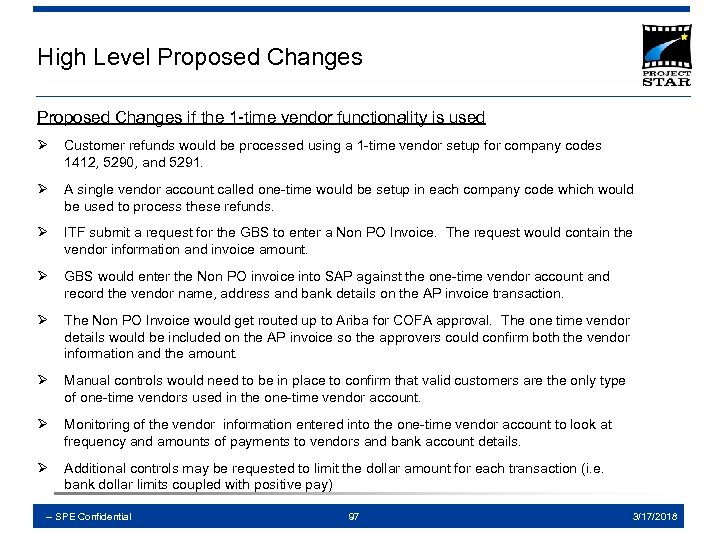
High Level Proposed Changes if the 1 -time vendor functionality is used Ø Customer refunds would be processed using a 1 -time vendor setup for company codes 1412, 5290, and 5291. Ø A single vendor account called one-time would be setup in each company code which would be used to process these refunds. Ø ITF submit a request for the GBS to enter a Non PO Invoice. The request would contain the vendor information and invoice amount. Ø GBS would enter the Non PO invoice into SAP against the one-time vendor account and record the vendor name, address and bank details on the AP invoice transaction. Ø The Non PO Invoice would get routed up to Ariba for COFA approval. The one time vendor details would be included on the AP invoice so the approvers could confirm both the vendor information and the amount. Ø Manual controls would need to be in place to confirm that valid customers are the only type of one-time vendors used in the one-time vendor account. Ø Monitoring of the vendor information entered into the one-time vendor account to look at frequency and amounts of payments to vendors and bank account details. Ø Additional controls may be requested to limit the dollar amount for each transaction (i. e. bank dollar limits coupled with positive pay) -- SPE Confidential 97 3/17/2018
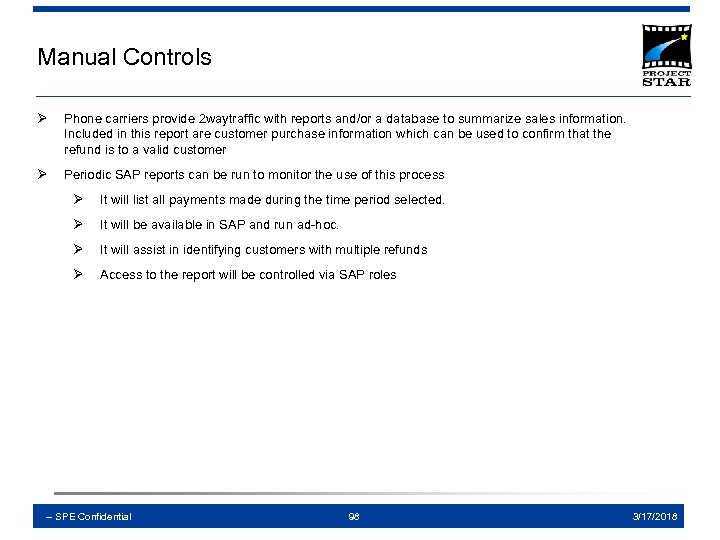
Manual Controls Ø Phone carriers provide 2 waytraffic with reports and/or a database to summarize sales information. Included in this report are customer purchase information which can be used to confirm that the refund is to a valid customer Ø Periodic SAP reports can be run to monitor the use of this process Ø It will list all payments made during the time period selected. Ø It will be available in SAP and run ad-hoc. Ø It will assist in identifying customers with multiple refunds Ø Access to the report will be controlled via SAP roles -- SPE Confidential 98 3/17/2018
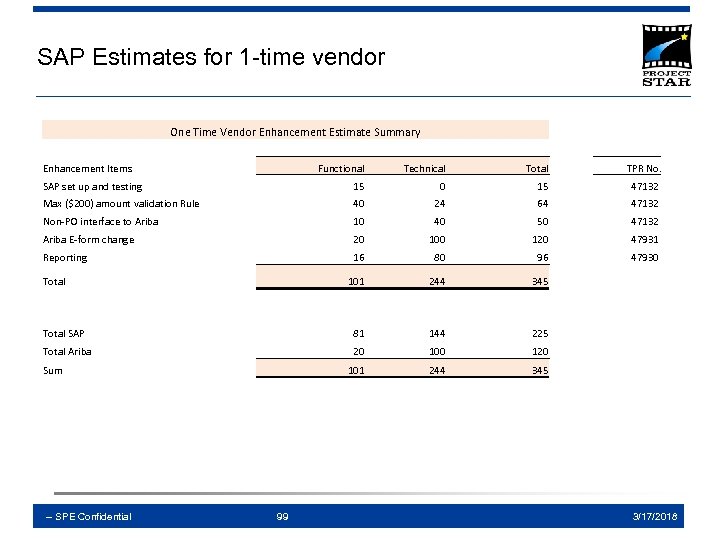
SAP Estimates for 1 -time vendor One Time Vendor Enhancement Estimate Summary Enhancement Items Functional Technical Total TPR No. SAP set up and testing 15 0 15 47132 Max ($200) amount validation Rule 40 24 64 47132 Non-PO interface to Ariba 10 40 50 47132 Ariba E-form change 20 100 120 47931 Reporting 16 80 96 47930 101 244 345 Total SAP 81 144 225 Total Ariba 20 100 120 101 244 345 Total Sum -- SPE Confidential 99 3/17/2018
Скачать презентацию GLOBAL BUSINESS SERVICES GBS CHANGE ADVISORY BOARD CAB
8c4bdc295f398906cc8a4decb45d620e.ppt