


 Скачать презентацию Getting to Know Your Laptop Printer LCD
543e28267f1065f0a103ef182ddcaba1.ppt
- Количество слайдов: 13
 Getting to Know Your Laptop, Printer & LCD Projector HP Compaq Business Notebook HP Laser. Jet 1022 Printer In. Focus Learn Big Projector
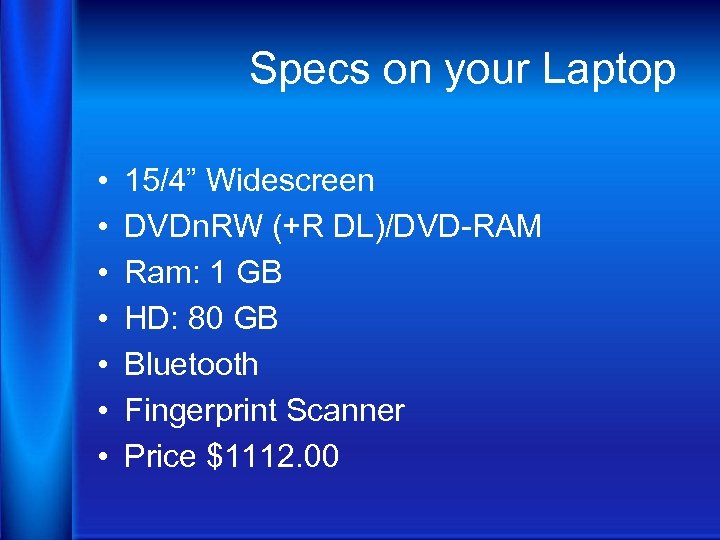 Specs on your Laptop • • 15/4” Widescreen DVDn. RW (+R DL)/DVD-RAM Ram: 1 GB HD: 80 GB Bluetooth Fingerprint Scanner Price $1112. 00
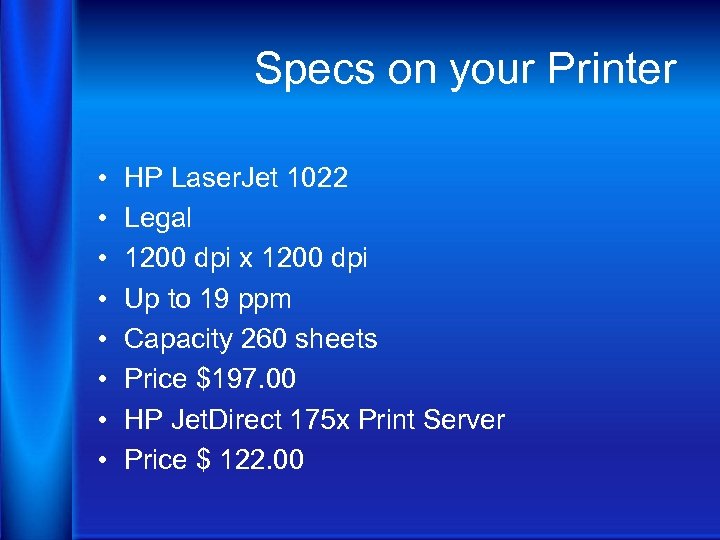 Specs on your Printer • • HP Laser. Jet 1022 Legal 1200 dpi x 1200 dpi Up to 19 ppm Capacity 260 sheets Price $197. 00 HP Jet. Direct 175 x Print Server Price $ 122. 00
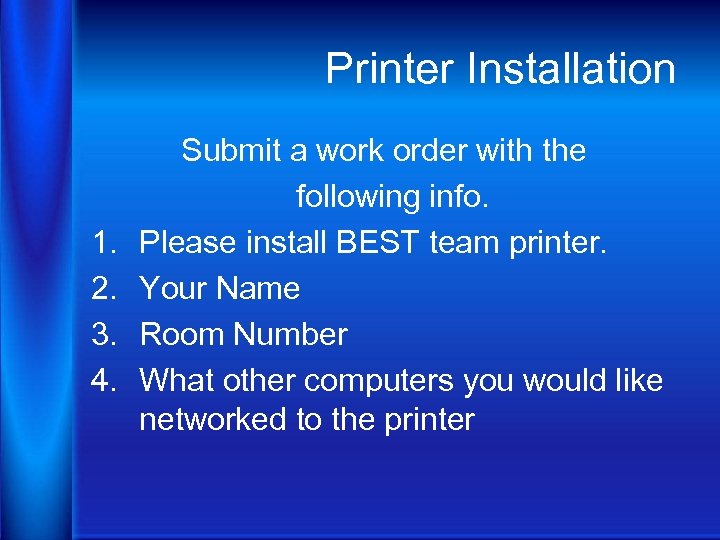 Printer Installation 1. 2. 3. 4. Submit a work order with the following info. Please install BEST team printer. Your Name Room Number What other computers you would like networked to the printer
 Printer Installation Please have a clear space next to a power outlet and network connection. Please have your laptop at school so the technicians will not be able to set it up to print and you will have to submit another work order.
 Specs on your LCD • 2400 ANSI Lumens • Dimensions (Wx. Dx. H) 12 in. x 9. 4 in. x 4 in. • Price $784. 00 • Travel Case Price $54. 00 • Replacement Bulb Part # SP-LAMP 028 – Price $227. 00
 What comes in your LCD Box • Projector • Remote • CD-ROM (Product Regis. & Reference Guide) • Computer Cable • Power Cord • User Guides
 Using your LCD 1. If you plan on using your remote, put in the batteries. 2. Connect to your computer. 3. These projectors can be connected to a DVD or VCR using optional cables. See User’s Guide for more info.
 Using your LCD 4. Connect to power cord to the projector and to an electrical outlet. 5. Turn on the Projector (The Power light will start blinking). 6. Wait for the lamp to warm up (~10 seconds). 7. Turn on computer or other source (Fn + F 4)
 Using your LCD 8. Adjust the Picture 1. Height 1. Hold Down the release button on top of the projector 2. Lift the front of the projector to the desired height 3. Release the button 2. Keystone 3. Press the keystone buttons to make the picture square 3. Zoom and Focus 1. Adjust zoom first, then focus the center of the
 Using your LCD 9. Using the Menus 1. Press menu to show menus 2. Press V or ^ to choose focus (or adjust settings) 3. Press select to confirm menu choice 4. Press menu to hide menus
 Using your LCD 1. 10. Turn off the projector 2. Press the power button twice 3. IMPORTANT! 4. If you need to unplug the projector, wait until 5. the fan stops and the power light stops 6. blinking! Not doing so will shorten the bulb life on your projector!
 Using your LCD 11. Register with In. Focus 12. This activates your warranty to ensure eligibility for service and support. 13. Write down your Serial Number. 14. For More Info. Go to: 15. www. infocus. com/service