


 Скачать презентацию Getting to Know Your Laptop Printer LCD
6dfb04b267c29087d7bcd60b93f92fb9.ppt
- Количество слайдов: 28
 Getting to Know Your Laptop, Printer & LCD Projector HP Compaq Business Notebook HP Laser. Jet 1022 Printer In. Focus Learn Big Projector
 Specs on your Laptop • • 15/4” Widescreen DVDn. RW (+R DL)/DVD-RAM Ram: 1 GB HD: 80 GB Bluetooth Fingerprint Scanner Price $1112. 00
 What comes in the box? • • Laptop Power Cord AC adapter User Guide When you would like to run the Laptop off of the battery, please charge for at least 8 hours prior to use.
 When the computer receives AC power, the battery begins to charge and the battery light (on the front of the computer) turns on. When the battery is fully charged, the battery light turns off. Leave the computer connected to external power until the battery is fully charged and the battery light turns off.
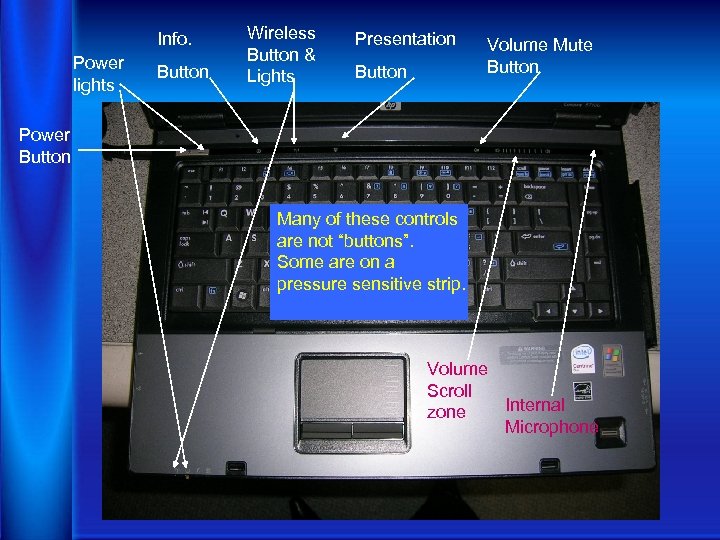 Info. Power lights Button Wireless Button & Lights Presentation Button Volume Mute Button Power Button Many of these controls are not “buttons”. Some are on a pressure sensitive strip. Volume Scroll Internal zone Microphone
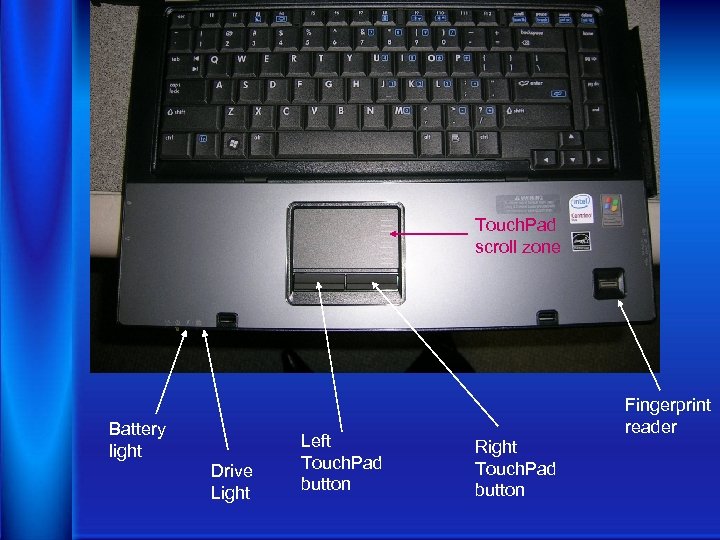 Touch. Pad scroll zone Battery light Drive Light Left Touch. Pad button Fingerprint reader Right Touch. Pad button
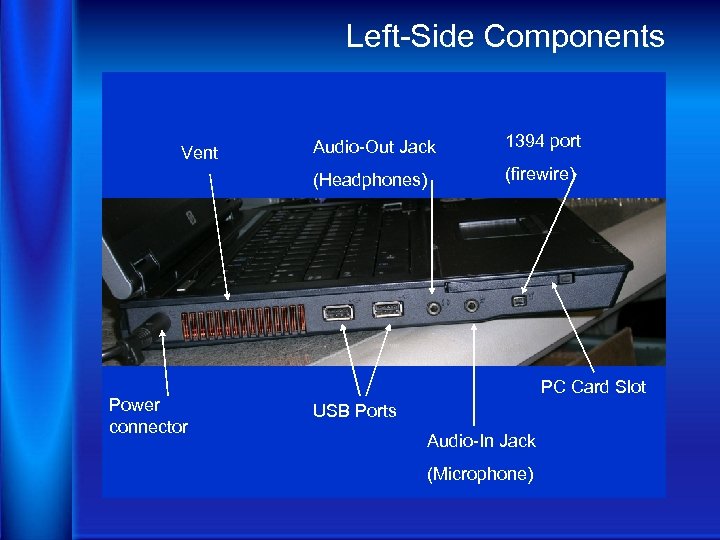 Left-Side Components Power connector Audio-Out Jack 1394 port (Headphones) Vent (firewire) PC Card Slot USB Ports Audio-In Jack (Microphone)
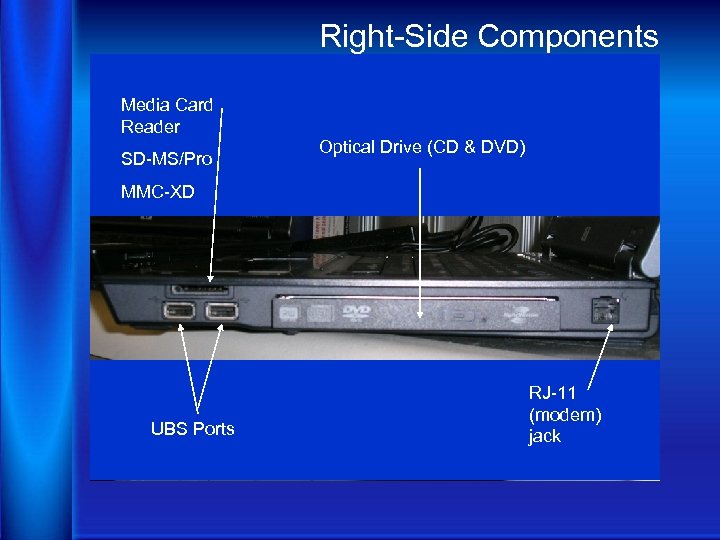 Right-Side Components Media Card Reader SD-MS/Pro Optical Drive (CD & DVD) MMC-XD UBS Ports RJ-11 (modem) jack
 Protecting your Laptop • Do Not leave your equipment in your vehicle. • No not eat or drink next to your equipment • Always lock your classroom door • Be careful what you download. The virus protection software that was installed will catch most, but not all viruses. • NEVER share your passwords (even with your kids)
 Caution about the Fingerprint Scanner 1. When you 1 st configure your laptop, scan at least 2 fingers from each hand. 2. Set it to read your fingerprint and Ctrl, Alt, Delete! 3. If you set it to only read your fingerprint, no one else will be able to use your laptop. 4. Another reason, if your fingerprint scanner ever goes out and the techs need to re-configure your computer, everything you have on it will be lost forever.
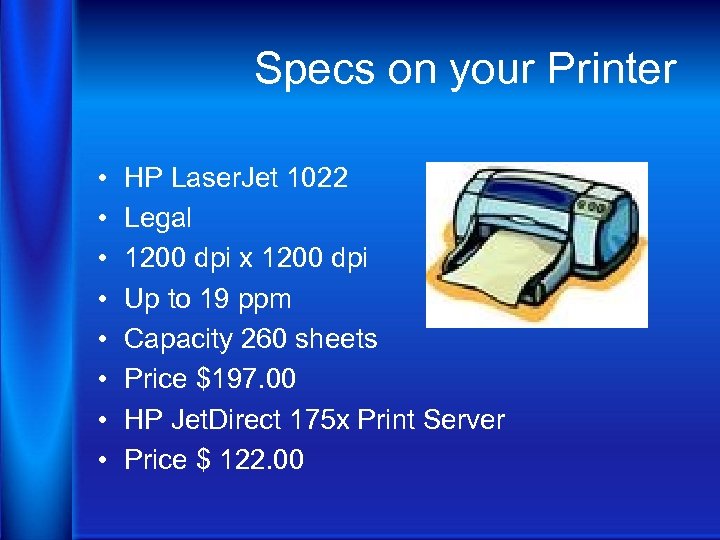 Specs on your Printer • • HP Laser. Jet 1022 Legal 1200 dpi x 1200 dpi Up to 19 ppm Capacity 260 sheets Price $197. 00 HP Jet. Direct 175 x Print Server Price $ 122. 00
 Printer Installation 1. 2. 3. 4. Submit a work order with the following info. Please install BEST team printer (HP Laser. Jet 1022) and network driver. Your Name Room Number What other computers you would like networked to the printer
 Printer Installation Please have a clear space next to a power outlet and network connection. Please have your laptop at school or the technicians will not be able to set it up to print and you will have to submit another work order.
 Specs on your LCD • 2400 ANSI Lumens • Dimensions (Wx. Dx. H) 12 in. x 9. 4 in. x 4 in. • Price $784. 00 • Travel Case Price $54. 00 • Replacement Bulb Part # SP-LAMP 028 – Price $227. 00
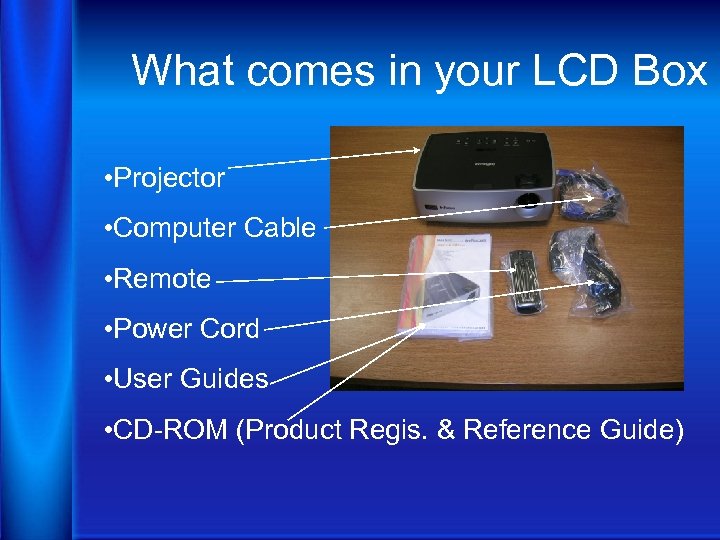 What comes in your LCD Box • Projector • Computer Cable • Remote • Power Cord • User Guides • CD-ROM (Product Regis. & Reference Guide)
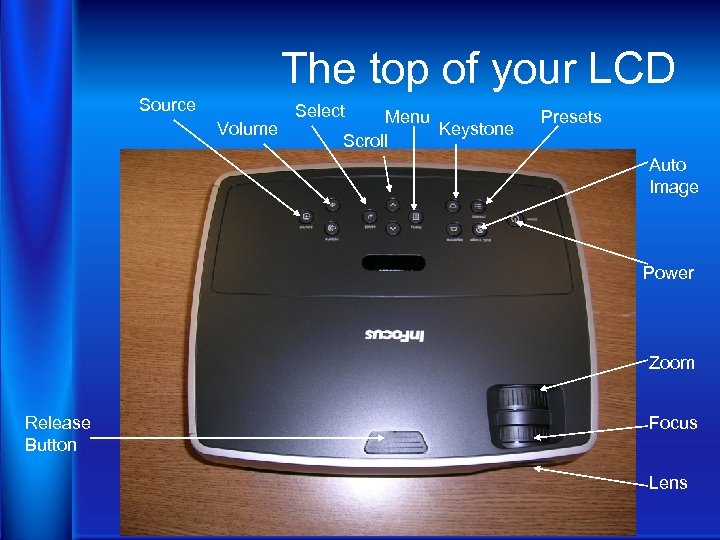 The top of your LCD Source Volume Select Menu Keystone Scroll Presets Auto Image Power Zoom Release Button Focus Lens
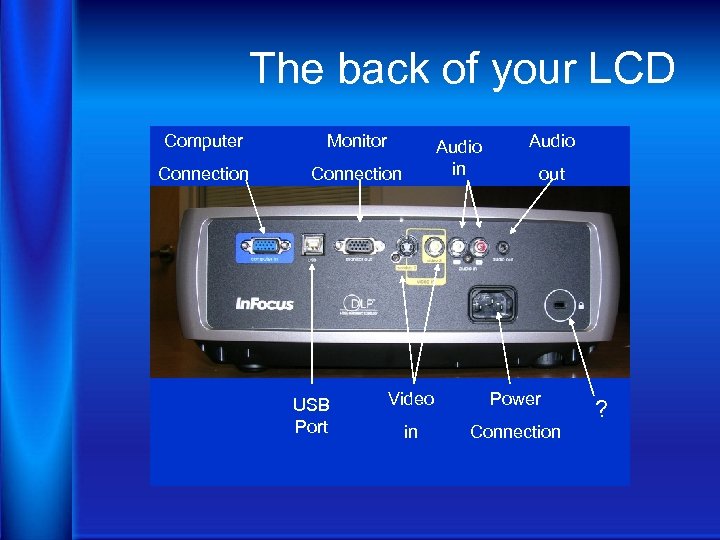 The back of your LCD Computer Monitor Connection USB Port Audio in Audio out Video Power in Connection ?
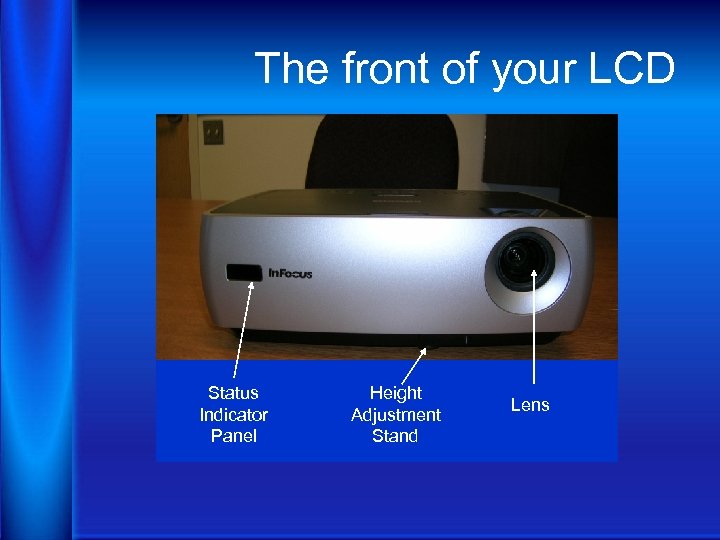 The front of your LCD Status Indicator Panel Height Adjustment Stand Lens
 Using your LCD 1. If you plan on using your remote, put in the batteries. 2. Connect to your computer. 3. These projectors can be connected to a DVD or VCR using optional cables. See User’s Guide for more info.
 Using your LCD 4. Connect to power cord to the projector and to an electrical outlet. 5. Turn on the Projector (The Power light will start blinking). 6. Wait for the lamp to warm up (~10 seconds). 7. Turn on computer or other source (Fn + F 4)
 Using your LCD 8. Adjust the Picture 1. Height Hold Down the release button on top of the projector Lift the front of the projector to the desired height Release the button 2. Keystone Press the keystone buttons to make the picture square 3. Zoom and Focus Adjust zoom first, then focus the center of the image
 Using your LCD 9. Using the Menus 1. Press menu to show menus 2. Press V or ^ to choose focus (or adjust settings) 3. Press select to confirm menu choice 4. Press menu to hide menus
 Using your LCD 10. Turn off the projector Press the power button twice IMPORTANT! If you need to unplug the projector, wait until the fan stops and the power light stops blinking! Not doing so will shorten the bulb life on your projector!
 Using your LCD 11. Register with In. Focus This activates your warranty to ensure eligibility for service and support. Write down your Serial Number. For More Info. Go to: www. infocus. com/service
 When Packing your LCD When you pack your LCD Projector, please make sure that the lens is faced up in the bag. Placing your Projector, lens down, can damage lens and focus dials.
 Tip for LCD Projector The less you move the Projector, the longer your bulb life will be. Try to place it on a rolling cart or other object that can be moved easily when not in use.
 If your equipment ever needs service, please submit a work order via the work order coordinator at your school site.
 Click here to return to the BEST Team Website Training materials copyright and created by Bernalillo Public School Education Technology Department © 2006 -2008. Permission to reproduce for K-12 teacher training or classroom use is given as long as authorship credit is retained.