


 Скачать презентацию Getting Started with Phidgets CSCI 1302 Proposals
76d9f4711a74766666d39ee6fadc13e3.ppt
- Количество слайдов: 20
 Getting Started with Phidgets CSCI 1302 Proposals
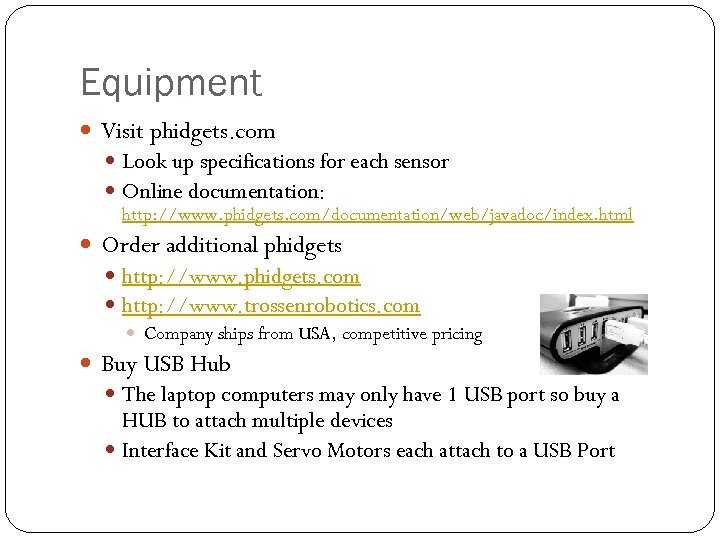 Equipment Visit phidgets. com Look up specifications for each sensor Online documentation: http: //www. phidgets. com/documentation/web/javadoc/index. html Order additional phidgets http: //www. phidgets. com http: //www. trossenrobotics. com Company ships from USA, competitive pricing Buy USB Hub The laptop computers may only have 1 USB port so buy a HUB to attach multiple devices Interface Kit and Servo Motors each attach to a USB Port
 Installation Procedure (1 of 6) Computer must have Java Installed JGrasp or Text. Pad
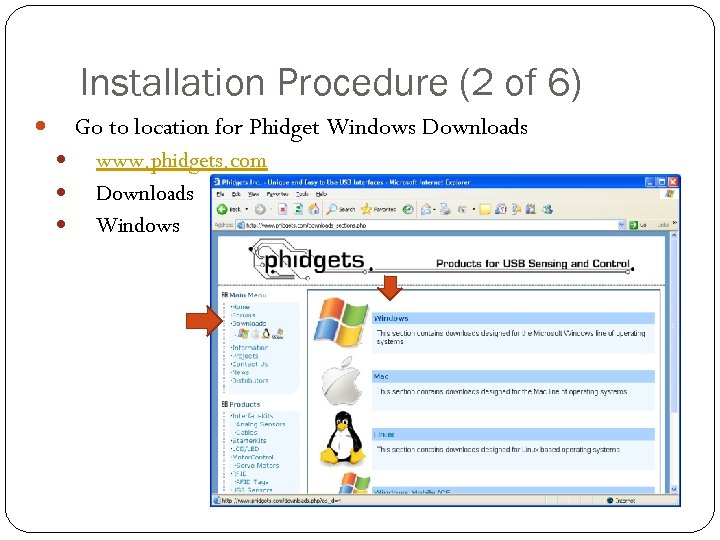 Installation Procedure (2 of 6) Go to location for Phidget Windows Downloads www. phidgets. com Downloads Windows
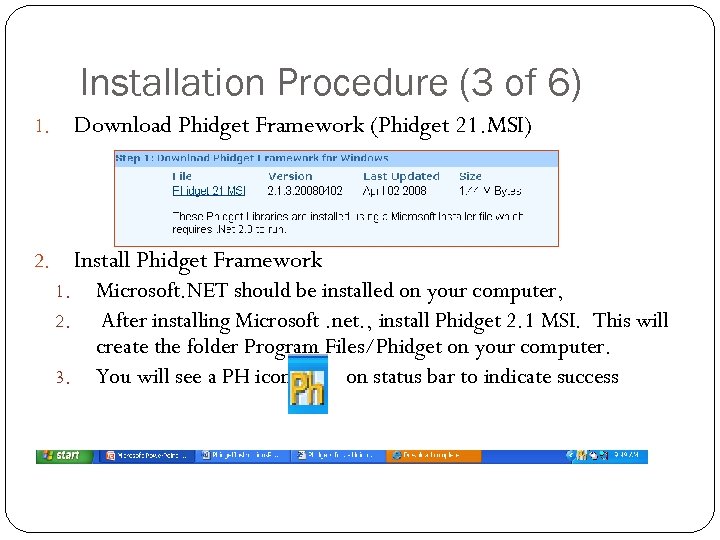 Installation Procedure (3 of 6) 1. Download Phidget Framework (Phidget 21. MSI) 2. Install Phidget Framework 1. 2. 3. Microsoft. NET should be installed on your computer, After installing Microsoft. net. , install Phidget 2. 1 MSI. This will create the folder Program Files/Phidget on your computer. You will see a PH icon on status bar to indicate success
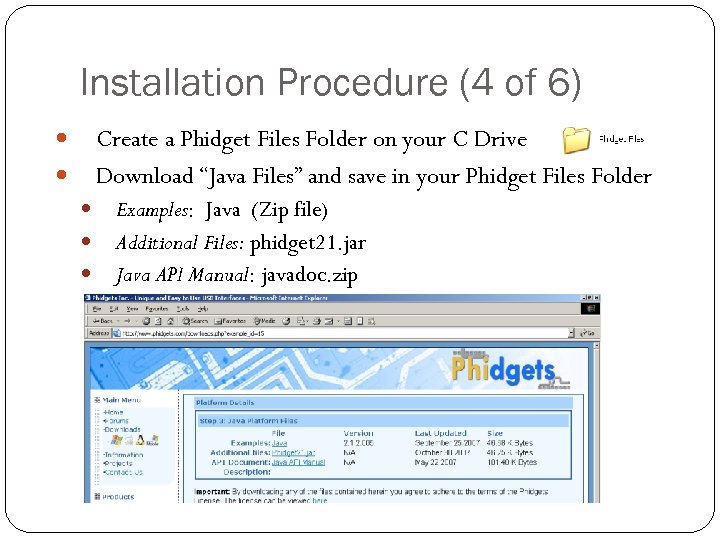 Installation Procedure (4 of 6) Create a Phidget Files Folder on your C Drive Download “Java Files” and save in your Phidget Files Folder Examples: Java (Zip file) Additional Files: phidget 21. jar Java API Manual: javadoc. zip
 Installation Procedure (5 of 6) Unzip Files Use Un. Zip to extract files from. zip The phiget 21. jar is a compressed java file. You can use JGrasp to extract all files (Tools/Jar). Ultimate Zip is another program to extract the java files.
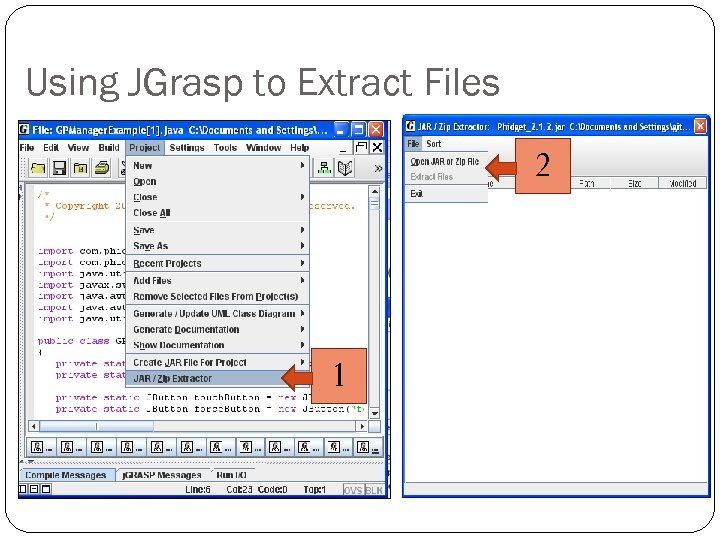 Using JGrasp to Extract Files 2 1
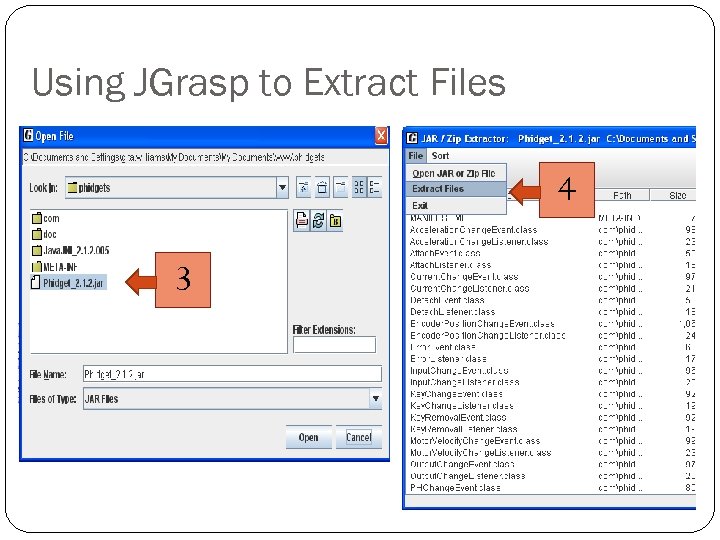 Using JGrasp to Extract Files 4 3
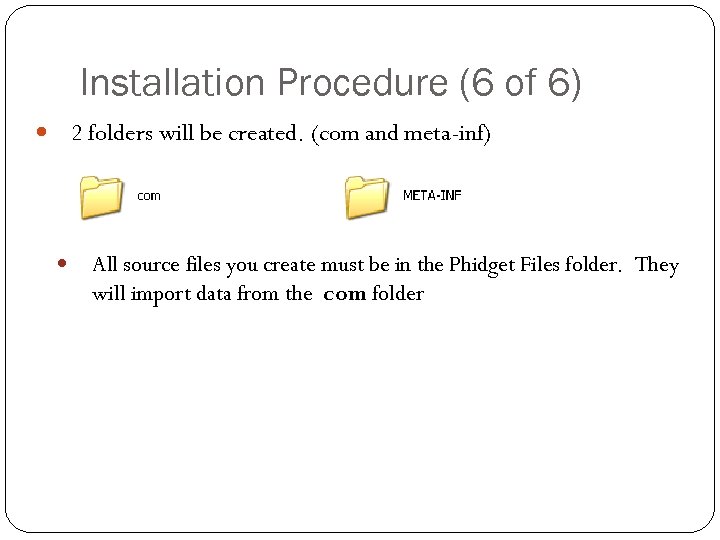 Installation Procedure (6 of 6) 2 folders will be created. (com and meta-inf) All source files you create must be in the Phidget Files folder. They will import data from the com folder
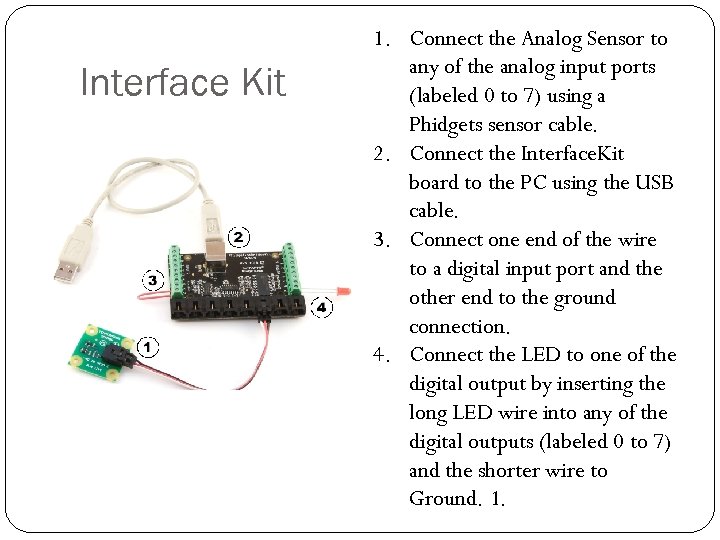 Interface Kit 1. Connect the Analog Sensor to any of the analog input ports (labeled 0 to 7) using a Phidgets sensor cable. 2. Connect the Interface. Kit board to the PC using the USB cable. 3. Connect one end of the wire to a digital input port and the other end to the ground connection. 4. Connect the LED to one of the digital output by inserting the long LED wire into any of the digital outputs (labeled 0 to 7) and the shorter wire to Ground. 1.
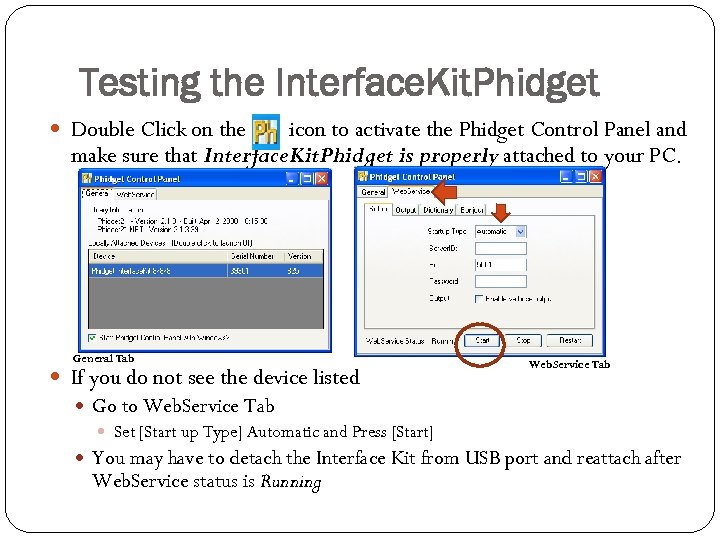 Testing the Interface. Kit. Phidget Double Click on the icon to activate the Phidget Control Panel and make sure that Interface. Kit. Phidget is properly attached to your PC. General Tab If you do not see the device listed Web. Service Tab Go to Web. Service Tab Set [Start up Type] Automatic and Press [Start] You may have to detach the Interface Kit from USB port and reattach after Web. Service status is Running
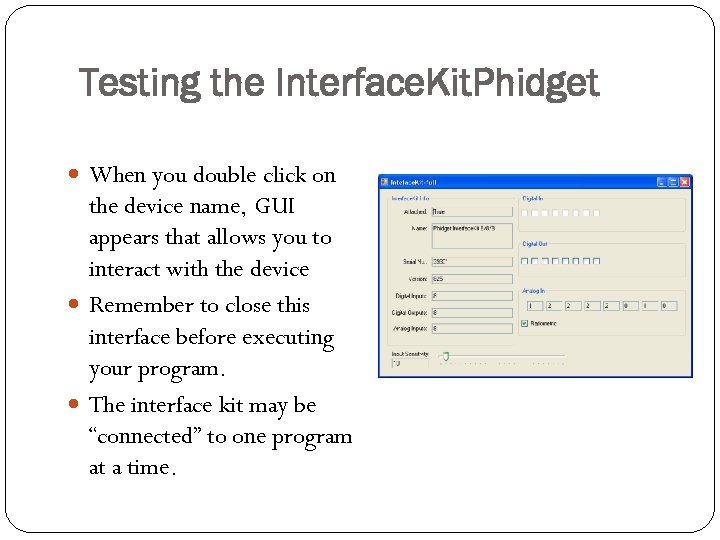 Testing the Interface. Kit. Phidget When you double click on the device name, GUI appears that allows you to interact with the device Remember to close this interface before executing your program. The interface kit may be “connected” to one program at a time.
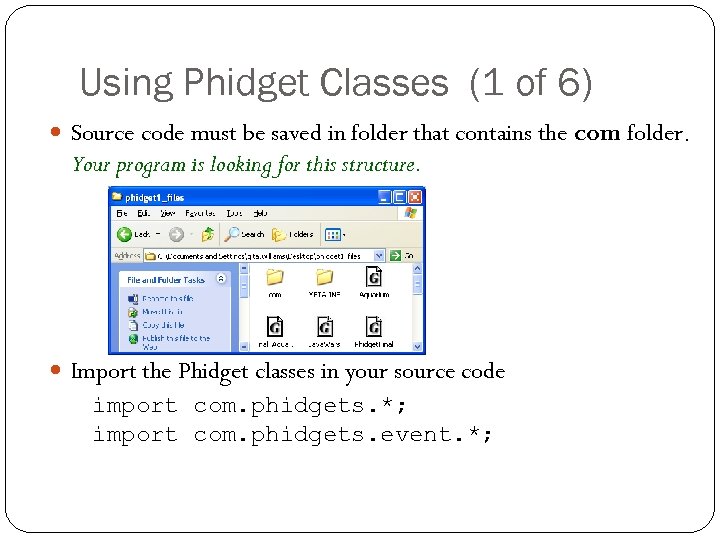 Using Phidget Classes (1 of 6) Source code must be saved in folder that contains the com folder. Your program is looking for this structure. Import the Phidget classes in your source code import com. phidgets. *; import com. phidgets. event. *;
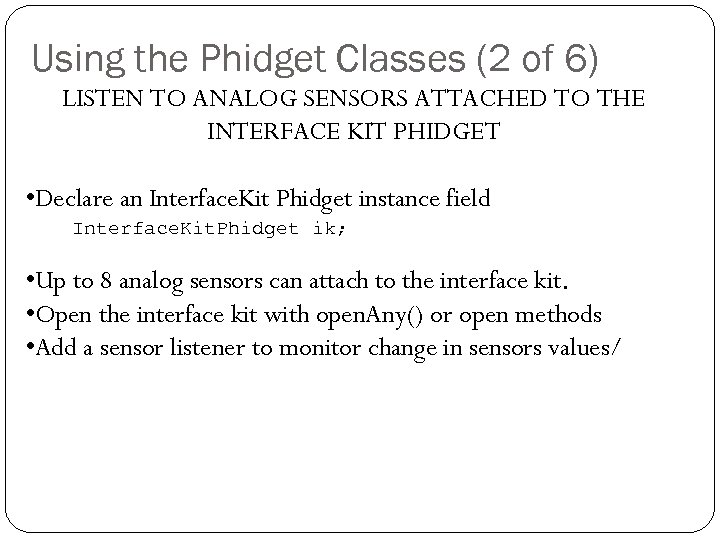 Using the Phidget Classes (2 of 6) LISTEN TO ANALOG SENSORS ATTACHED TO THE INTERFACE KIT PHIDGET • Declare an Interface. Kit Phidget instance field Interface. Kit. Phidget ik; • Up to 8 analog sensors can attach to the interface kit. • Open the interface kit with open. Any() or open methods • Add a sensor listener to monitor change in sensors values/
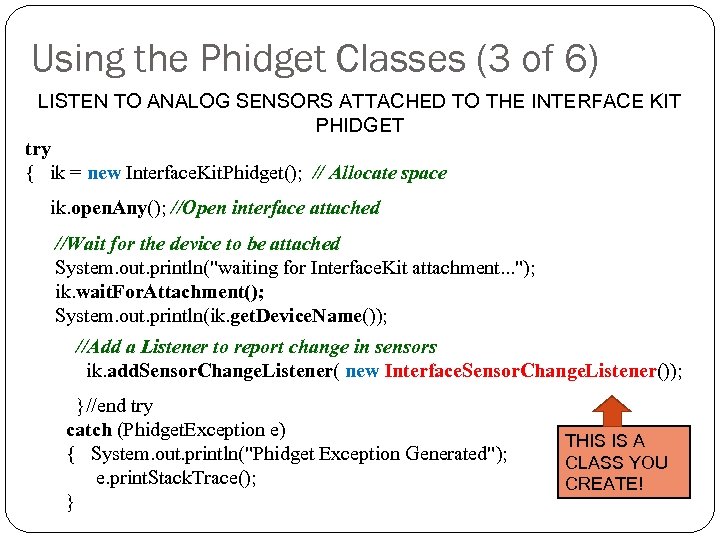 Using the Phidget Classes (3 of 6) LISTEN TO ANALOG SENSORS ATTACHED TO THE INTERFACE KIT PHIDGET try { ik = new Interface. Kit. Phidget(); // Allocate space ik. open. Any(); //Open interface attached //Wait for the device to be attached System. out. println("waiting for Interface. Kit attachment. . . "); ik. wait. For. Attachment(); System. out. println(ik. get. Device. Name()); //Add a Listener to report change in sensors ik. add. Sensor. Change. Listener( new Interface. Sensor. Change. Listener()); }//end try catch (Phidget. Exception e) { System. out. println("Phidget Exception Generated"); e. print. Stack. Trace(); } THIS IS A CLASS YOU CREATE!
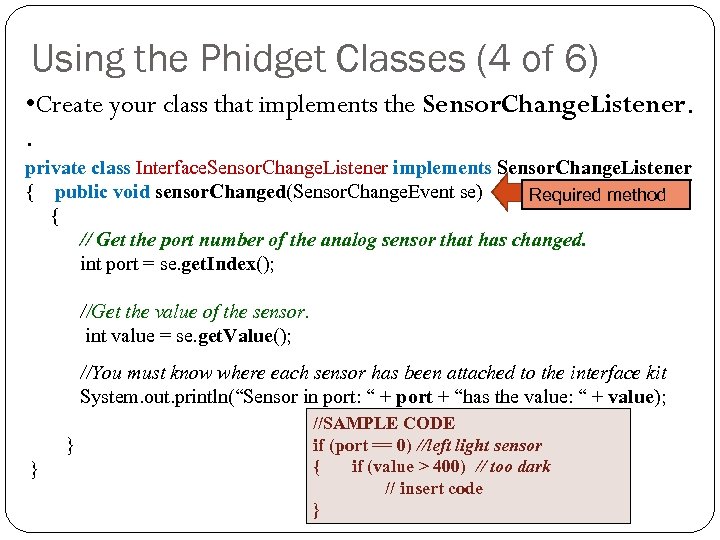 Using the Phidget Classes (4 of 6) • Create your class that implements the Sensor. Change. Listener. . private class Interface. Sensor. Change. Listener implements Sensor. Change. Listener { public void sensor. Changed(Sensor. Change. Event se) Required method { // Get the port number of the analog sensor that has changed. int port = se. get. Index(); //Get the value of the sensor. int value = se. get. Value(); //You must know where each sensor has been attached to the interface kit System. out. println(“Sensor in port: “ + port + “has the value: “ + value); //SAMPLE CODE if (port == 0) //left light sensor } { if (value > 400) // too dark } // insert code }
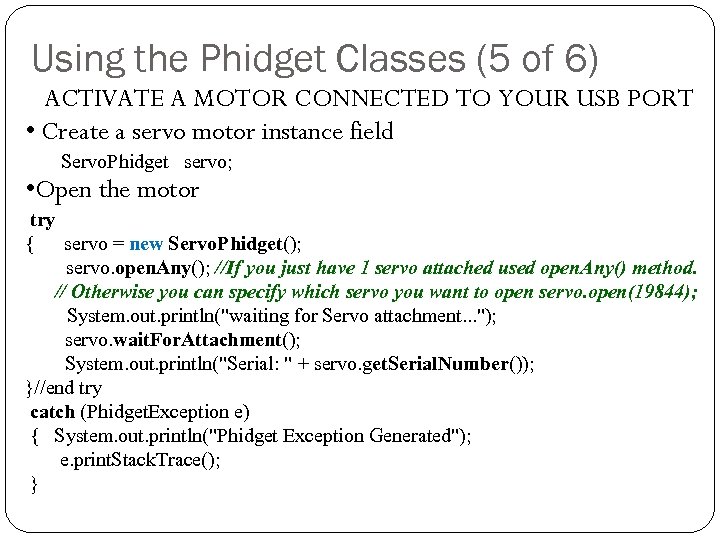 Using the Phidget Classes (5 of 6) ACTIVATE A MOTOR CONNECTED TO YOUR USB PORT • Create a servo motor instance field Servo. Phidget servo; • Open the motor try { servo = new Servo. Phidget(); servo. open. Any(); //If you just have 1 servo attached used open. Any() method. // Otherwise you can specify which servo you want to open servo. open(19844); System. out. println("waiting for Servo attachment. . . "); servo. wait. For. Attachment(); System. out. println("Serial: " + servo. get. Serial. Number()); }//end try catch (Phidget. Exception e) { System. out. println("Phidget Exception Generated"); e. print. Stack. Trace(); }
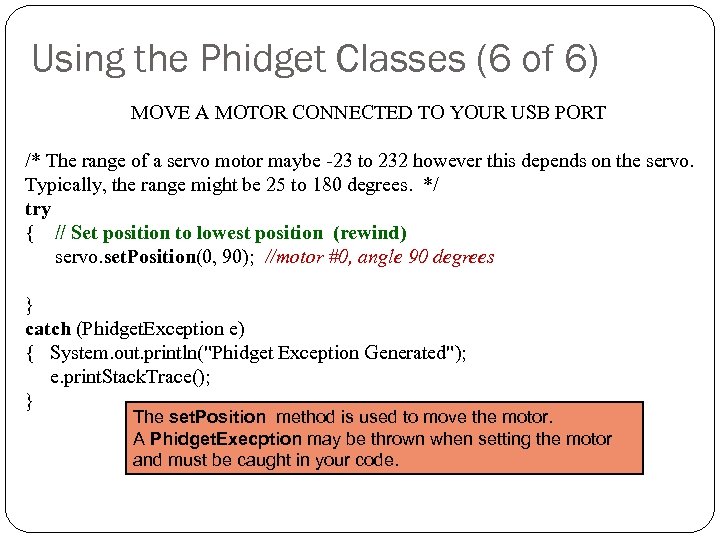 Using the Phidget Classes (6 of 6) MOVE A MOTOR CONNECTED TO YOUR USB PORT /* The range of a servo motor maybe -23 to 232 however this depends on the servo. Typically, the range might be 25 to 180 degrees. */ try { // Set position to lowest position (rewind) servo. set. Position(0, 90); //motor #0, angle 90 degrees } catch (Phidget. Exception e) { System. out. println("Phidget Exception Generated"); e. print. Stack. Trace(); } The set. Position method is used to move the motor. A Phidget. Execption may be thrown when setting the motor and must be caught in your code.
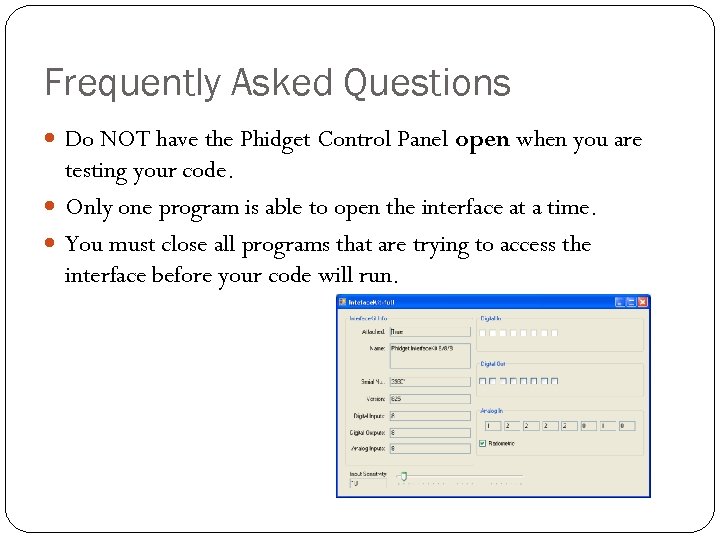 Frequently Asked Questions Do NOT have the Phidget Control Panel open when you are testing your code. Only one program is able to open the interface at a time. You must close all programs that are trying to access the interface before your code will run.