


 Скачать презентацию Getting Started with Linux Novell s Guide to Comp
251f1e87065230d1b5ee00973062df5e.ppt
- Количество слайдов: 45
 Getting Started with Linux: Novell’s Guide to Comp. TIA’s Linux+ (Course 3060) Section 2 Use the Linux Desktop Getting Started with Linux: Novell’s Guide to Comp. TIA’s Linux+ (Course
 Objectives • • Overview of the Linux Desktop Use the KDE Desktop Environment Use the GNOME Desktop Environment Access the Command-Line Interface from the Desktop Getting Started with Linux: Novell’s Guide to Comp. TIA’s Linux+ (Course 3060) 2
 Introduction • In Linux, the GUI is a normal application that you can choose whether or not to install • You can configure most services in Linux by editing an ASCII text file, so you do not need a GUI if you want your computer to act only as a server • Not installing a GUI has the following advantages: – Stability – Performance – Security Getting Started with Linux: Novell’s Guide to Comp. TIA’s Linux+ (Course 3060) 3
 Overview of the Linux Desktop • The base of any GUI on Linux is the X Window System (simply called X or X 11) – It allows you to control the input and output of several applications in different windows of a GUI – Created in 1984 at MIT – Initial goal: enable graphical applications across a network, independent of hardware • Graphical applications run in their own windows • Text-based applications are carried out in a terminal window Getting Started with Linux: Novell’s Guide to Comp. TIA’s Linux+ (Course 3060) 4
 Overview of the Linux Desktop (continued) • X 11 allows graphical applications to be displayed on any monitor, without running the apps on the machines to which these monitors are connected • The basis is the separation into a server component and the application itself (client application) – X server: controls the graphical screen; manages input devices and transmits their actions to the client • The appearance of the window and the desktop is the task of the window manager • XFree 86 is a free implementation of the X server • SLES defaults to using XFree 86 4. x Getting Started with Linux: Novell’s Guide to Comp. TIA’s Linux+ (Course 3060) 5
 Overview of the Linux Desktop (continued) Getting Started with Linux: Novell’s Guide to Comp. TIA’s Linux+ (Course 3060) 6
 Overview of the Linux Desktop (continued) • The communication between X server and X client uses TCP/IP • Window managers are specialized client applications – Provide control elements – Manage virtual desktops – Provide functionality of window frames • X is not linked to any specific window manager • SLES 9 has several window managers, including kwin (default), GNOME, and twm Getting Started with Linux: Novell’s Guide to Comp. TIA’s Linux+ (Course 3060) 7
 Use the KDE Desktop Environment • One of the most frequently used graphical desktop environments is KDE (installed by default) • The following explains how to use KDE on SLES 9: – – – How to Log In How to Log Out How to Shut Down and Reboot the Linux System How to Identify KDE Desktop Components How to Manage Icons in the KDE Environment How to Use the Konqueror File Manager Getting Started with Linux: Novell’s Guide to Comp. TIA’s Linux+ (Course 3060) 8
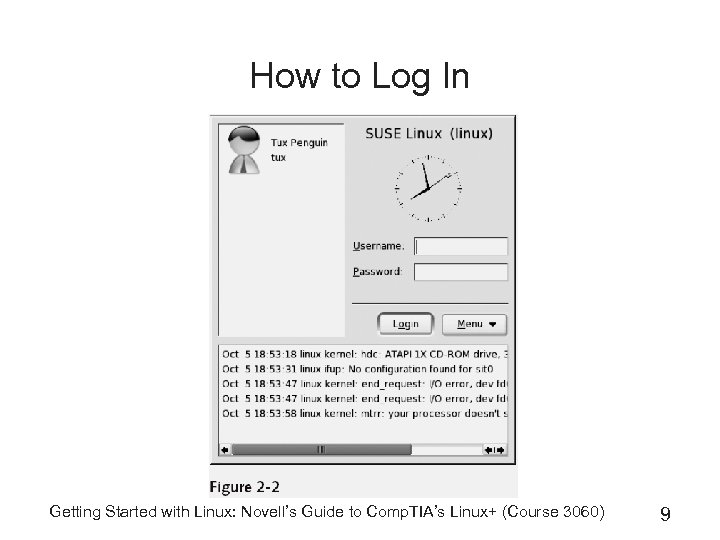 How to Log In Getting Started with Linux: Novell’s Guide to Comp. TIA’s Linux+ (Course 3060) 9
 How to Log In (continued) Getting Started with Linux: Novell’s Guide to Comp. TIA’s Linux+ (Course 3060) 10
 How to Log In (continued) Getting Started with Linux: Novell’s Guide to Comp. TIA’s Linux+ (Course 3060) 11
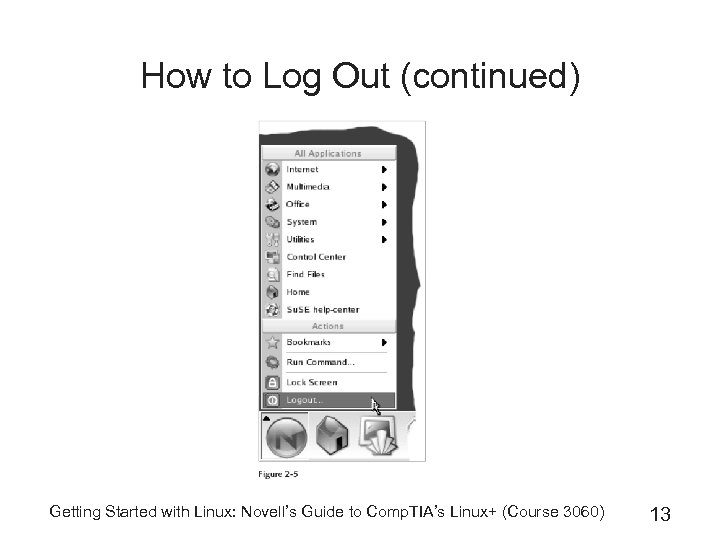
 How to Log Out • At the bottom of the KDE menu, select Logout • You can also right-click on the window background and select the same option from the popup menu • A confirmation dialog box appears • If you select Logout again, you are logged out and the login screen reappears, allowing you or another person to log in Getting Started with Linux: Novell’s Guide to Comp. TIA’s Linux+ (Course 3060) 12
 How to Log Out (continued) Getting Started with Linux: Novell’s Guide to Comp. TIA’s Linux+ (Course 3060) 13
 How to Shut Down and Reboot the Linux System • If you are at the login screen, you can open the Menu menu and select from: – Session Type – Restart X Server – Shutdown Type (see Figure 2 -6) • Older computers have to be switched off manually when indicated to do so – If you switch the machine off too soon, this could possibly lead to loss of data • Always shut down your computer before you turn it off Getting Started with Linux: Novell’s Guide to Comp. TIA’s Linux+ (Course 3060) 14
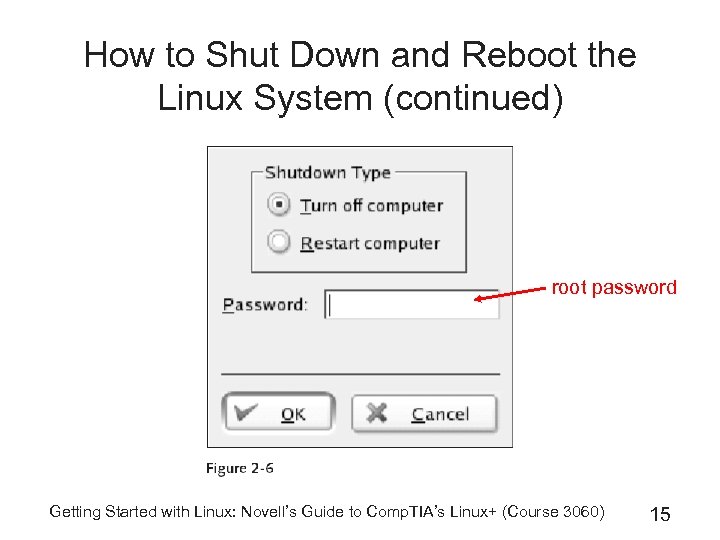 How to Shut Down and Reboot the Linux System (continued) root password Getting Started with Linux: Novell’s Guide to Comp. TIA’s Linux+ (Course 3060) 15
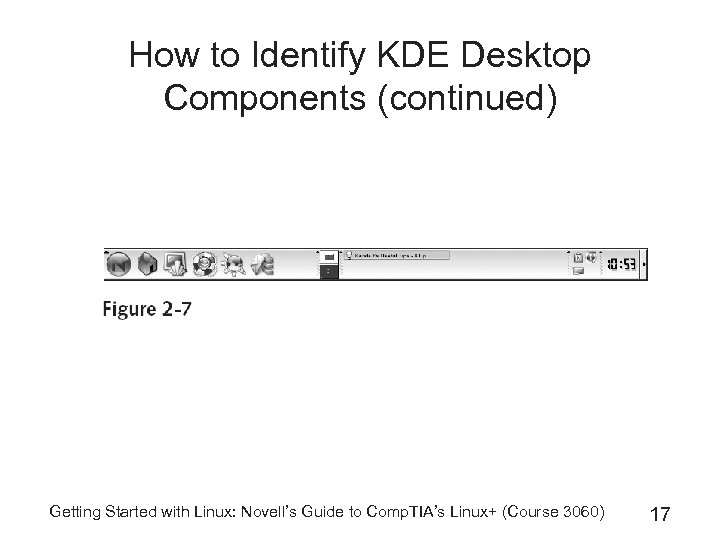
 How to Identify KDE Desktop Components • After you log in, your system will by default start the KDE desktop environment; it is composed of: – – The Desktop The KDE Control Panel (Kicker) The KDE Menu (see Figure 2 -8) Virtual Desktops • By default, two virtual desktops are configured • Increase the number of usable virtual desktops up to sixteen (use the KDE control center) Getting Started with Linux: Novell’s Guide to Comp. TIA’s Linux+ (Course 3060) 16
 How to Identify KDE Desktop Components (continued) Getting Started with Linux: Novell’s Guide to Comp. TIA’s Linux+ (Course 3060) 17
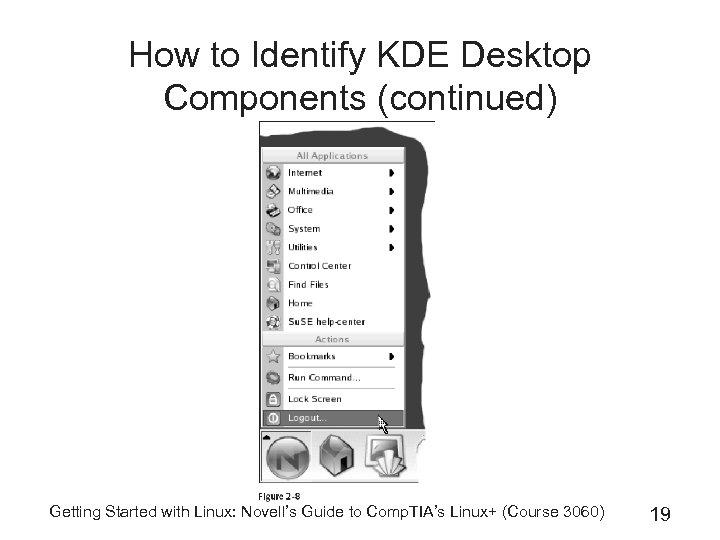
 How to Identify KDE Desktop Components (continued) • The KDE menu consists of the following three sections: – Most Frequently Used Applications – All Applications – Actions • A submenu in the KDE menu is marked by a small black arrow in the right-hand corner Getting Started with Linux: Novell’s Guide to Comp. TIA’s Linux+ (Course 3060) 18
 How to Identify KDE Desktop Components (continued) Getting Started with Linux: Novell’s Guide to Comp. TIA’s Linux+ (Course 3060) 19
 How to Manage Icons in the KDE Environment • Three areas in your KDE environment contain icons: – Desktop – Kicker – KDE Menu Getting Started with Linux: Novell’s Guide to Comp. TIA’s Linux+ (Course 3060) 20
 How to Manage Icons in the KDE Environment: Desktop • • There are several ways to create a new icon on your desktop To create an icon for an application on your desktop, do the following: 1. Select the item in your KDE menu 2. Hold down the left mouse button, move the mouse pointer to free space on your desktop, and release the mouse button 3. In the menu that appears, select Copy Here Getting Started with Linux: Novell’s Guide to Comp. TIA’s Linux+ (Course 3060) 21
 How to Manage Icons in the KDE Environment: Kicker • You can add new programs to the control panel by right-clicking a free area of the panel and then selecting Add • You can remove a program from the control panel by right-clicking its icon in the control panel and then selecting Remove program name • You can move icons in the panel by holding down the middle mouse button or by choosing Move from the Context menu Getting Started with Linux: Novell’s Guide to Comp. TIA’s Linux+ (Course 3060) 22
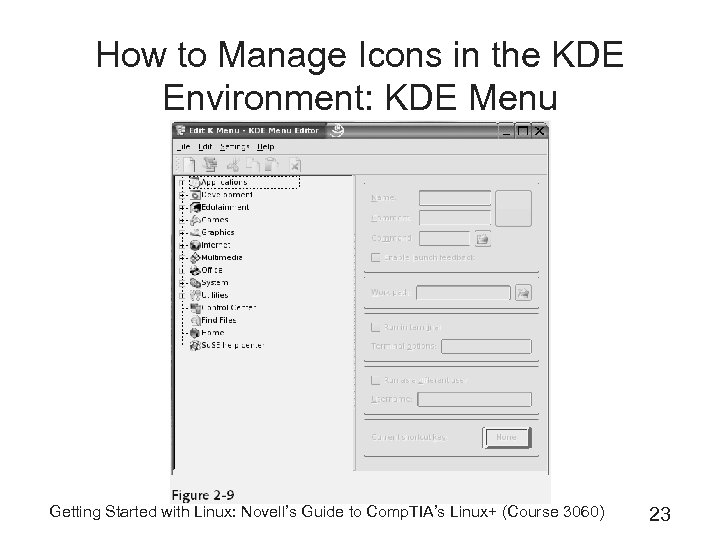 How to Manage Icons in the KDE Environment: KDE Menu Getting Started with Linux: Novell’s Guide to Comp. TIA’s Linux+ (Course 3060) 23
 How to Use the Konqueror File Manager Getting Started with Linux: Novell’s Guide to Comp. TIA’s Linux+ (Course 3060) 24
 How to Use the Konqueror File Manager (continued) Getting Started with Linux: Novell’s Guide to Comp. TIA’s Linux+ (Course 3060) 25
 Exercise 2 -1 Explore Your KDE Desktop • It is possible to administer SLES 9 without a graphical user interface • However, sometimes a GUI is much more convenient than a pure text console • The purpose of this exercise is to familiarize you with KDE Getting Started with Linux: Novell’s Guide to Comp. TIA’s Linux+ (Course 3060) 26
 Use the GNOME Desktop Environment • Both GNOME and KDE are comfortable desktop environments • Like KDE, GNOME supports drag and drop • Numerous programs are specifically designed for GNOME • To use the GNOME desktop environment, you need to know the following: – – How to Start GNOME How to Navigate in GNOME How to Manage Icons in GNOME How to Use the GNOME File Manager (Nautilus) Getting Started with Linux: Novell’s Guide to Comp. TIA’s Linux+ (Course 3060) 27
 How to Start GNOME • At login screen, select Session Type > GNOME from the Menu drop-down list Getting Started with Linux: Novell’s Guide to Comp. TIA’s Linux+ (Course 3060) 28
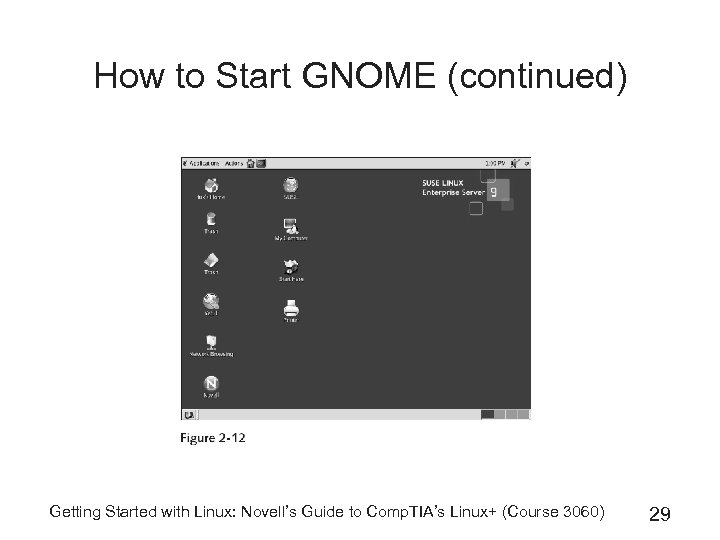 How to Start GNOME (continued) Getting Started with Linux: Novell’s Guide to Comp. TIA’s Linux+ (Course 3060) 29
 How to Navigate in GNOME • Top panel – – – – Applications menu for launching applications Actions menu for basic actions (such as logging out) The Nautilus file manager (house icon) The terminal emulation window (monitor icon) A clock A speaker icon for volume A menu listing all open windows • Bottom panel – An icon to close all open windows – A task manager – A pager for the four virtual desktops Getting Started with Linux: Novell’s Guide to Comp. TIA’s Linux+ (Course 3060) 30
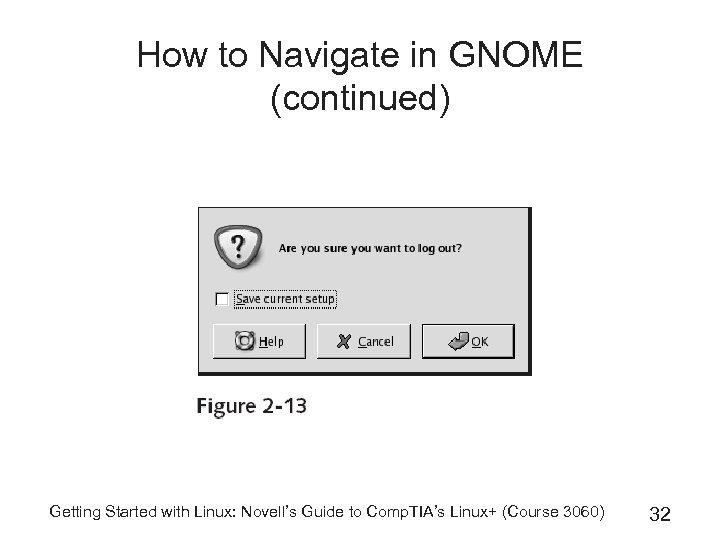
 How to Navigate in GNOME (continued) • Double-clicking an icon to start a program • Set preferences for the desktop environment by selecting the Start Here icon • To quit: Actions > Log Out in the GNOME panel Getting Started with Linux: Novell’s Guide to Comp. TIA’s Linux+ (Course 3060) 31
 How to Navigate in GNOME (continued) Getting Started with Linux: Novell’s Guide to Comp. TIA’s Linux+ (Course 3060) 32
 How to Manage Icons in GNOME • You can find icons in the following three areas on your desktop: – Desktop – Panel – Application Menu Getting Started with Linux: Novell’s Guide to Comp. TIA’s Linux+ (Course 3060) 33
 How to Manage Icons in GNOME: Desktop • There are several ways to create a new icon on your desktop • To create an icon for an application on your desktop, select the item in your Applications menu, drag it to a free space on your desktop, release the mouse button; then select Copy Here Getting Started with Linux: Novell’s Guide to Comp. TIA’s Linux+ (Course 3060) 34
 How to Manage Icons in GNOME: Panel • You can add new programs to the control panel by right-clicking a free area of the panel and then selecting Add to Panel – From the submenus displayed, select the application you want to add • You can remove a program from the control panel by right-clicking its icon in the control panel and then selecting Remove from Panel • You can move icons in the panel by holding down the right mouse button and selecting Move from the context menu Getting Started with Linux: Novell’s Guide to Comp. TIA’s Linux+ (Course 3060) 35
 How to Manage Icons in GNOME: Application Menu • To add an entry to a menu, do the following: 1. Double-click the Start Here icon on the desktop; the Start Here location appears 2. In the file manager window, double-click the icon that represents the menu (Applications or Menu Su. SE) to which you want to add the launcher 3. Select File > Create Launcher; a Create Launcher dialog box is displayed 4. Enter the properties of the launcher in the Create Launcher dialog box; then select OK Getting Started with Linux: Novell’s Guide to Comp. TIA’s Linux+ (Course 3060) 36
 How to Use the GNOME File Manager (Nautilus) Getting Started with Linux: Novell’s Guide to Comp. TIA’s Linux+ (Course 3060) 37
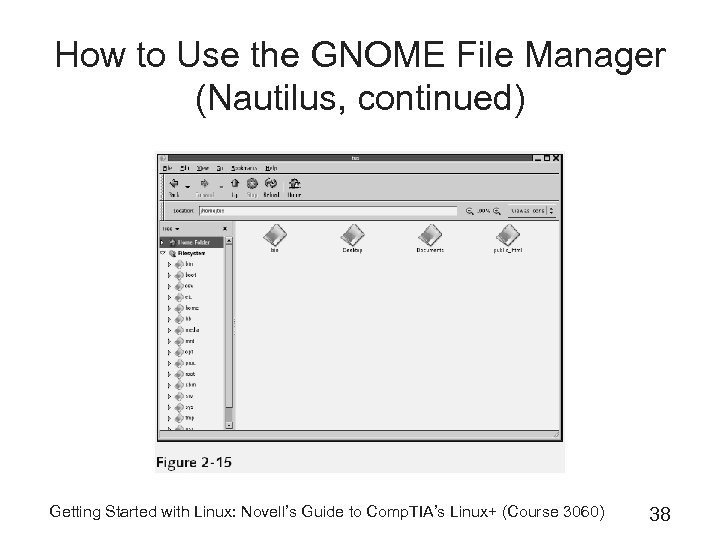 How to Use the GNOME File Manager (Nautilus, continued) Getting Started with Linux: Novell’s Guide to Comp. TIA’s Linux+ (Course 3060) 38
 Exercise 2 -2 Explore Your GNOME Desktop • Whether you use KDE or GNOME is entirely a matter of personal preference • The purpose of this exercise is to familiarize you with the GNOME desktop Getting Started with Linux: Novell’s Guide to Comp. TIA’s Linux+ (Course 3060) 39
 Access the Command-Line Interface from the Desktop • Virtual terminals were created in Linux to allow a user to run tasks in parallel • With virtual terminals, you can work in Linux as if you had several classic terminals available at the same time • By default, you have six virtual terminals (F 1–F 6) running on your computer – Press Ctrl + Alt + Fx to switch between individual terminals – Press Ctrl + Alt + F 7 to switch back to your GUI Getting Started with Linux: Novell’s Guide to Comp. TIA’s Linux+ (Course 3060) 40
 Access the Command-Line Interface from the Desktop (continued) • You can determine the terminal currently being used from the tty (teletype) number (tty 1–tty 6) • When you switch to a virtual terminal, a login prompt appears: Welcome to SUSE LINUX Enterprise Server 9 (i 586) - Kernel 2. 6. 4 -27 default (tty 1). da 10 login: • To log out enter exit Getting Started with Linux: Novell’s Guide to Comp. TIA’s Linux+ (Course 3060) 41
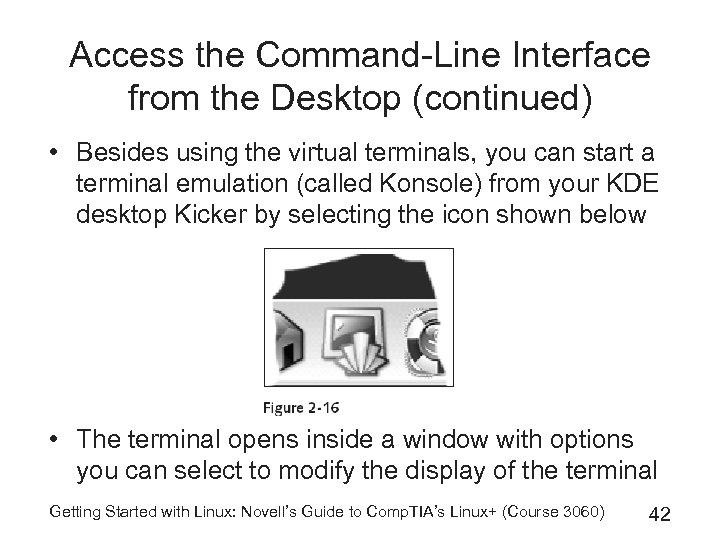 Access the Command-Line Interface from the Desktop (continued) • Besides using the virtual terminals, you can start a terminal emulation (called Konsole) from your KDE desktop Kicker by selecting the icon shown below • The terminal opens inside a window with options you can select to modify the display of the terminal Getting Started with Linux: Novell’s Guide to Comp. TIA’s Linux+ (Course 3060) 42
 Exercise 2 -3 Access the Command Line Interface • SLES 9 does not need a GUI for its administration • Even with a graphical desktop environment running, you can switch to the text consoles any time if you like to • This exercise shows you how Getting Started with Linux: Novell’s Guide to Comp. TIA’s Linux+ (Course 3060) 43
 Summary • You can interact with a Linux system using a graphical user interface (GUI) or command-line interface • The Linux GUI is provided by the X Window System, which consists of an X server, window manager, and client applications • A desktop environment such as KDE or GNOME can be used to standardize the X Window System • The KDE Control Panel at the bottom of the KDE desktop may be used to start applications, switch virtual desktops, or open the KDE menu Getting Started with Linux: Novell’s Guide to Comp. TIA’s Linux+ (Course 3060) 44
 Summary (continued) • The top panel in the GNOME desktop may be used to start applications, whereas the bottom panel may be used to switch virtual desktops or control applications • You can obtain a command-line interface in SLES by interacting with one of six virtual terminals • To switch from a command-line interface to a GUI interface, you can use the Ctrl + Alt + F 7 key combination Getting Started with Linux: Novell’s Guide to Comp. TIA’s Linux+ (Course 3060) 45