


 Скачать презентацию Getting started in NVivo A qualitative software workshop
715d80c4f5c13adbee9b779e8ae10aaf.ppt
- Количество слайдов: 25
 Getting started in NVivo (A qualitative software workshop) ESRC Research Methods Festival 2016 Dr Rosalind Willis and Dr Rebecca Taylor University of Southampton www. southampton. ac. uk/ageing
 Outline of session • Part 1 – creating a project from scratch – Opening the software and creating a project – Importing data (transcripts) – Coding • Part 2 – strategies for working with coded data – Sets – Queries – Exporting nodes 2
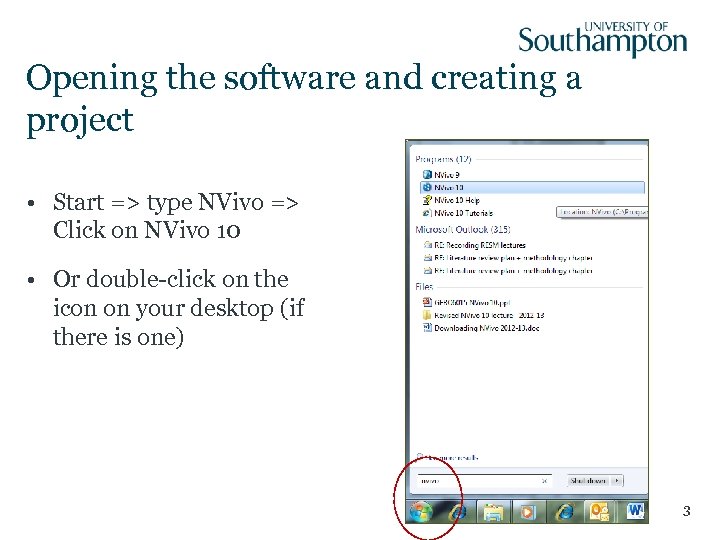 Opening the software and creating a project • Start => type NVivo => Click on NVivo 10 • Or double-click on the icon on your desktop (if there is one) 3
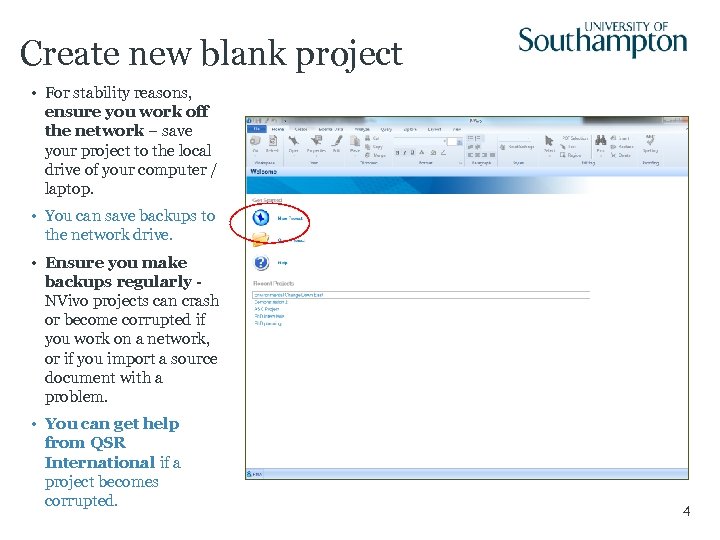 Create new blank project • For stability reasons, ensure you work off the network – save your project to the local drive of your computer / laptop. • You can save backups to the network drive. • Ensure you make backups regularly NVivo projects can crash or become corrupted if you work on a network, or if you import a source document with a problem. • You can get help from QSR International if a project becomes corrupted. 4
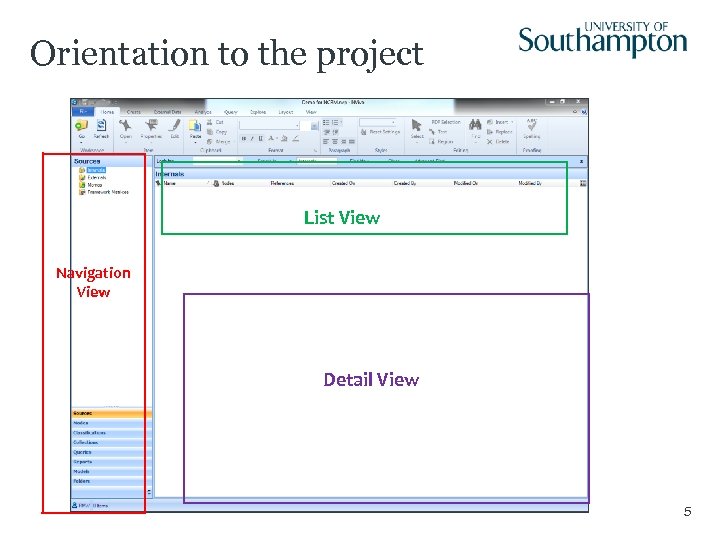 Orientation to the project List View Navigation View Detail View 5
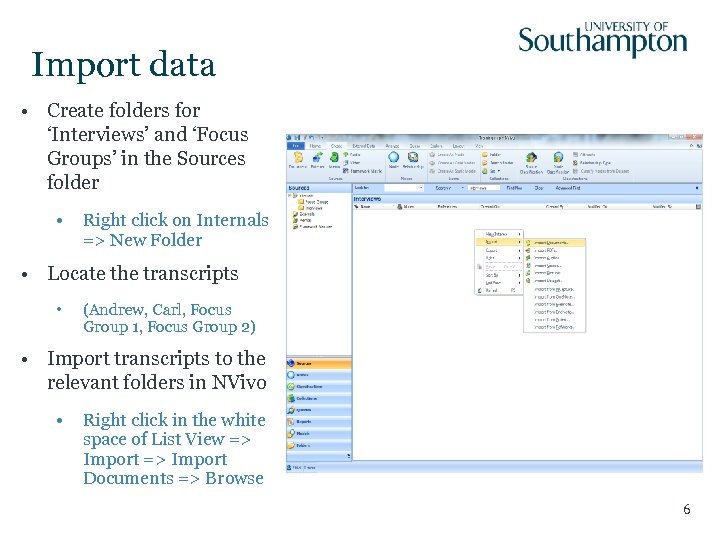 Import data • Create folders for ‘Interviews’ and ‘Focus Groups’ in the Sources folder • Right click on Internals => New Folder • Locate the transcripts • (Andrew, Carl, Focus Group 1, Focus Group 2) • Import transcripts to the relevant folders in NVivo • Right click in the white space of List View => Import Documents => Browse 6
 Coding • Assigning categorical labels to the data 1) You can create nodes from the ground-up while reading the transcript (open coding) 2) Or, you can create nodes within the node listing before opening the transcript, and then apply the nodes later 3) Or, you can do a mixture of both (depending on your analytical approach) • Text can be coded at more than one node • Once coding is complete, you can open a node to instantly view all of the text coded with that node across all transcripts 7
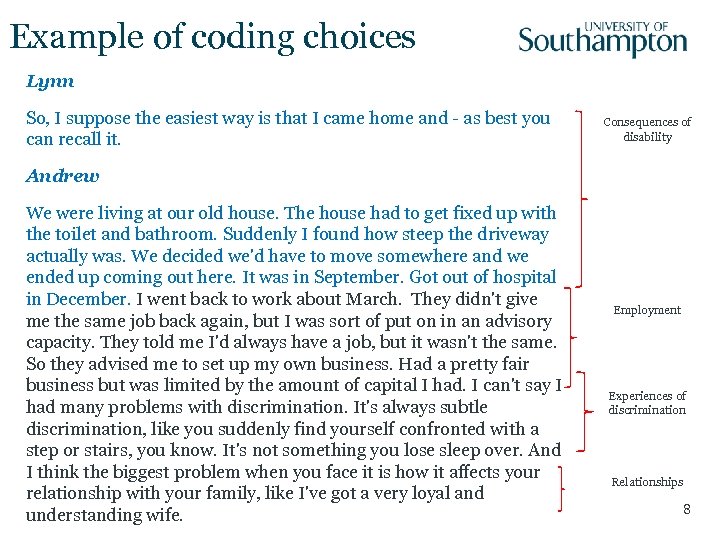 Example of coding choices Lynn So, I suppose the easiest way is that I came home and - as best you can recall it. Consequences of disability Andrew We were living at our old house. The house had to get fixed up with the toilet and bathroom. Suddenly I found how steep the driveway actually was. We decided we'd have to move somewhere and we ended up coming out here. It was in September. Got out of hospital in December. I went back to work about March. They didn't give me the same job back again, but I was sort of put on in an advisory capacity. They told me I'd always have a job, but it wasn't the same. So they advised me to set up my own business. Had a pretty fair business but was limited by the amount of capital I had. I can't say I had many problems with discrimination. It's always subtle discrimination, like you suddenly find yourself confronted with a step or stairs, you know. It's not something you lose sleep over. And I think the biggest problem when you face it is how it affects your relationship with your family, like I've got a very loyal and understanding wife. Employment Experiences of discrimination Relationships 8
 Coding a transcript • Read the transcript and decide on a label to capture the meaning of a chunk of text • Highlight the chunk of text • Right click on the highlighted text and select: • Code Selection => Code Selection at New Node (to create a new node) • Code Selection => Code Selection at Existing Nodes (to browse for a node you have already created) • Alternatively, highlight the chunk of text with the mouse and drag and drop onto relevant node(s) (if you have already created some) • NB: You must have the nodes menu open in Navigation View for the drag and drop technique to work 9
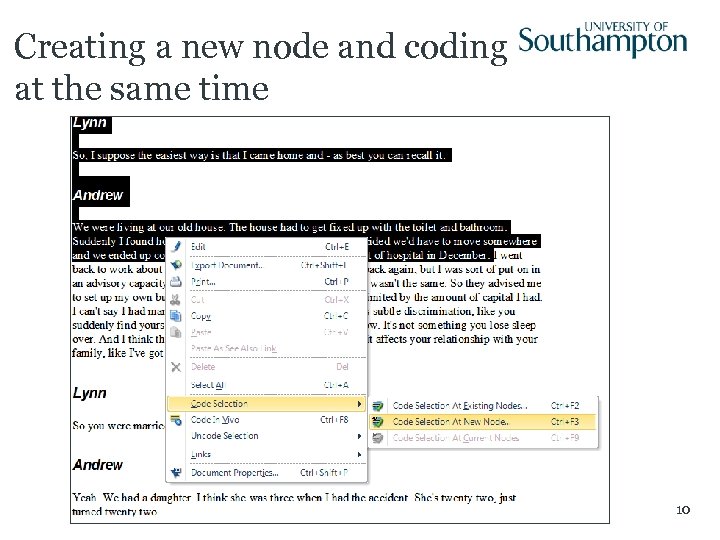 Creating a new node and coding at the same time 10
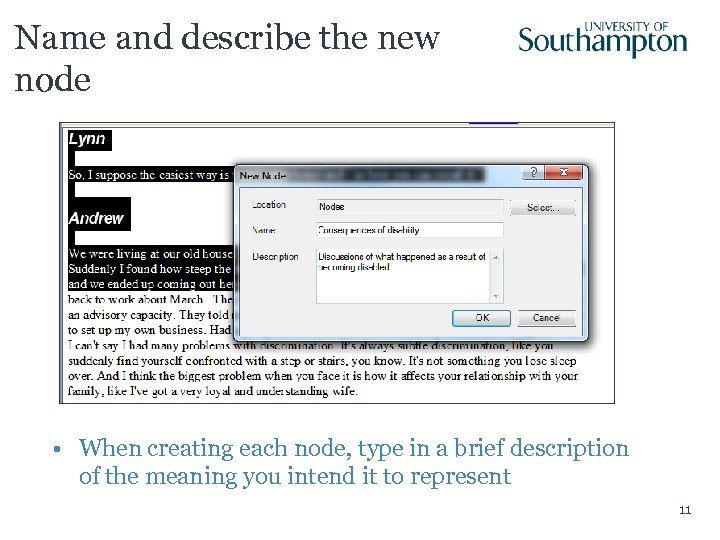 Name and describe the new node • When creating each node, type in a brief description of the meaning you intend it to represent 11
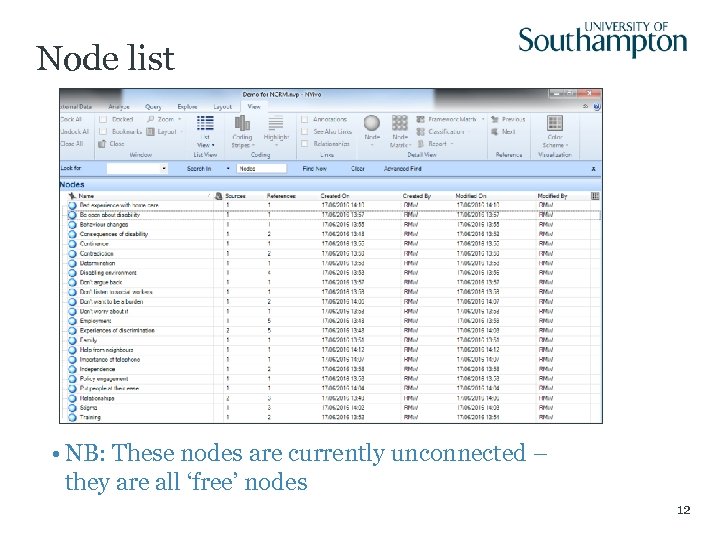 Node list • NB: These nodes are currently unconnected – they are all ‘free’ nodes 12
 Create a coding tree • Some of the nodes I created are conceptually similar (e. g. independence, importance of telephone, don’t want to be a burden), and could be considered to reflect Retaining sense of control • Go to Nodes in the navigation view => Right click in the white space of List View => Select New Node • Create new free node called Retaining sense of control • Then move three nodes to become child-nodes of Retaining sense of control by either: – Drag and drop onto the Retaining node – Cut and paste into the Retaining node (NB: Not merge!) • NB: For project stability reasons, it is best to ensure coding trees are no more than 3 sub-nodes deep (parent => child => grandchild) 13
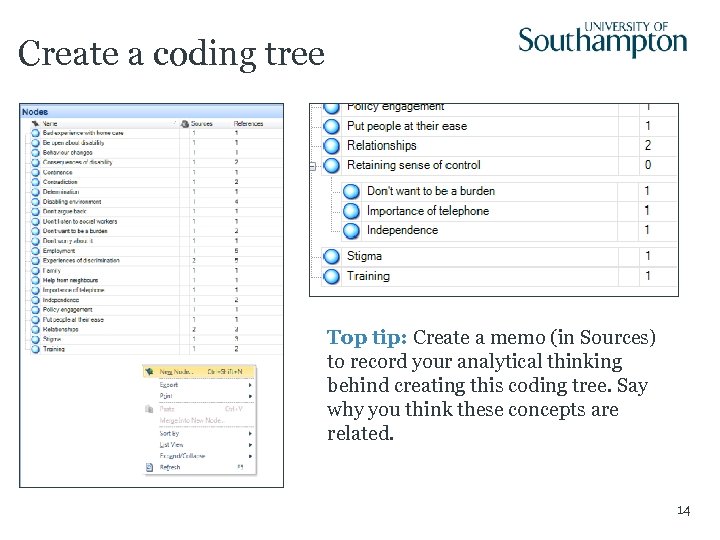 Create a coding tree Top tip: Create a memo (in Sources) to record your analytical thinking behind creating this coding tree. Say why you think these concepts are related. 14
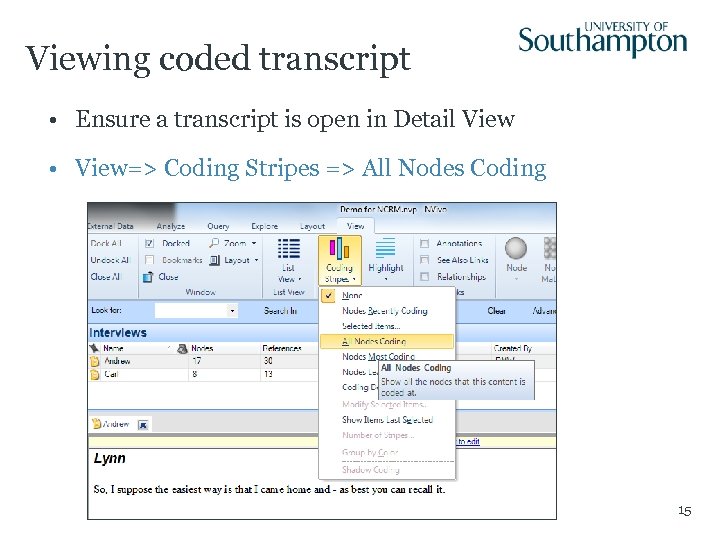 Viewing coded transcript • Ensure a transcript is open in Detail View • View=> Coding Stripes => All Nodes Coding 15
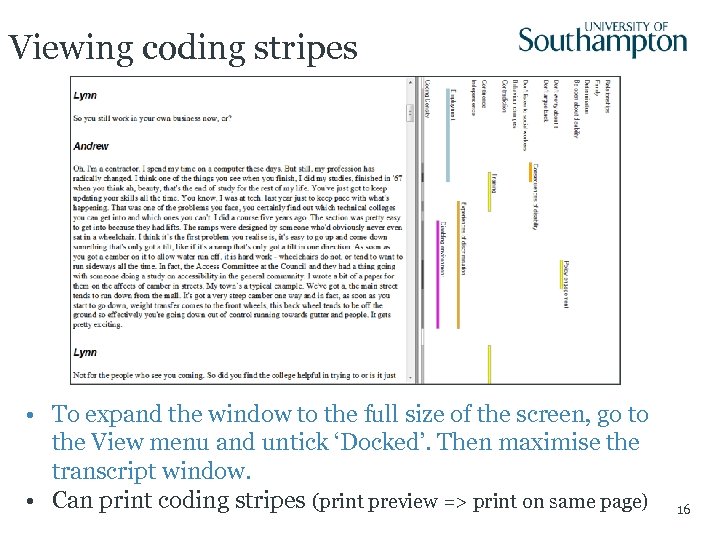 Viewing coding stripes • To expand the window to the full size of the screen, go to the View menu and untick ‘Docked’. Then maximise the transcript window. • Can print coding stripes (print preview => print on same page) 16
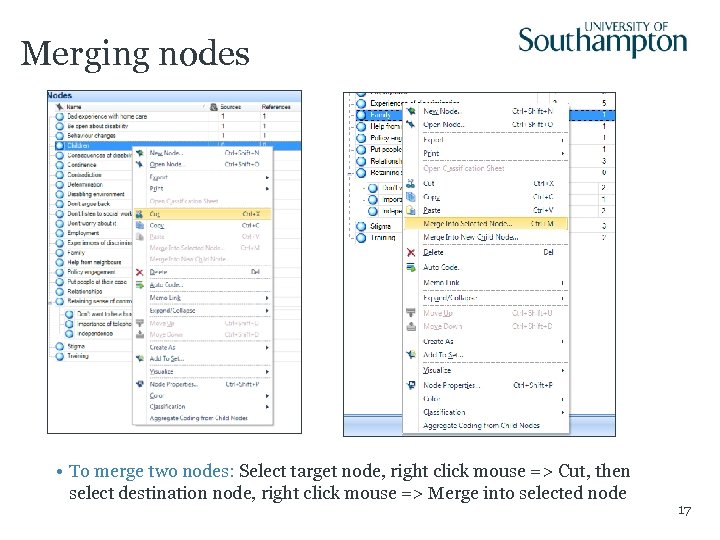 Merging nodes • To merge two nodes: Select target node, right click mouse => Cut, then select destination node, right click mouse => Merge into selected node 17
 NOW SAVE AND CLOSE YOUR PROJECT 18
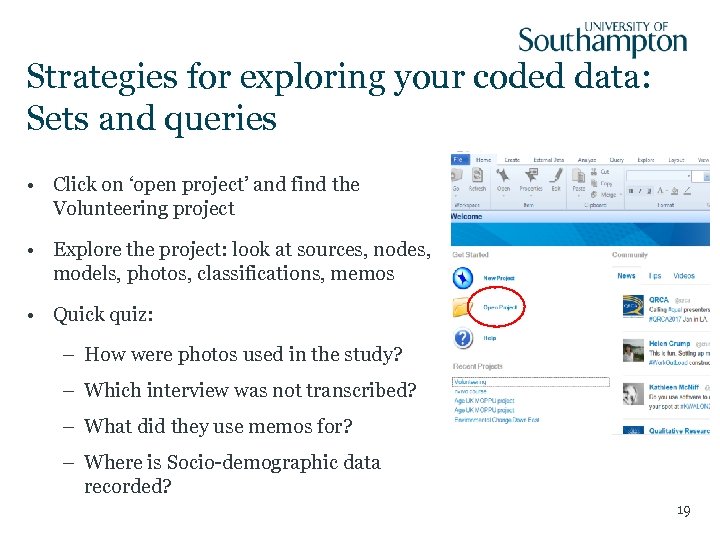 Strategies for exploring your coded data: Sets and queries • Click on ‘open project’ and find the Volunteering project • Explore the project: look at sources, nodes, models, photos, classifications, memos • Quick quiz: – How were photos used in the study? – Which interview was not transcribed? – What did they use memos for? – Where is Socio-demographic data recorded? 19
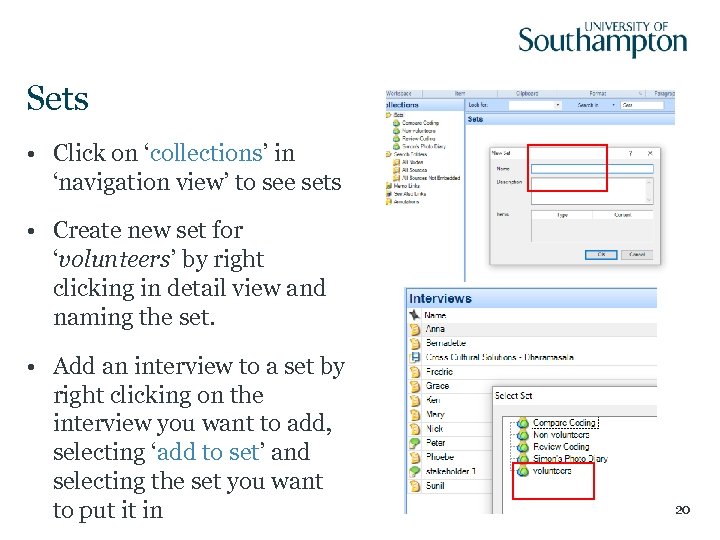 Sets • Click on ‘collections’ in ‘navigation view’ to see sets • Create new set for ‘volunteers’ by right clicking in detail view and naming the set. • Add an interview to a set by right clicking on the interview you want to add, selecting ‘add to set’ and selecting the set you want to put it in 20
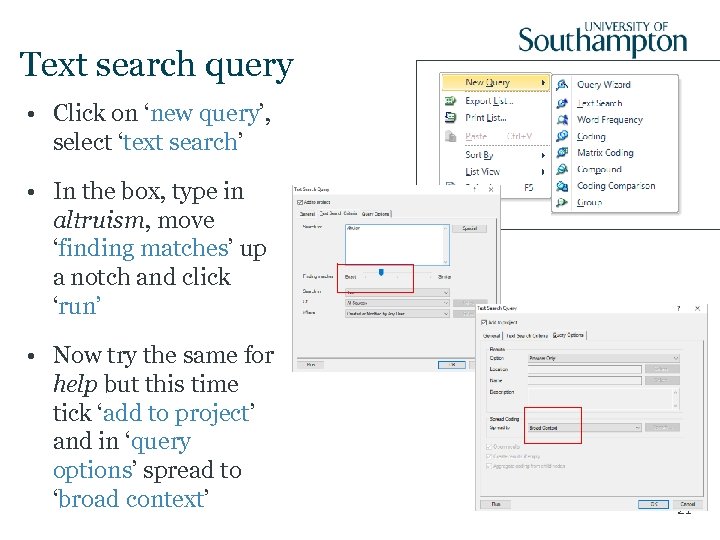 Text search query • Click on ‘new query’, select ‘text search’ • In the box, type in altruism, move ‘finding matches’ up a notch and click ‘run’ • Now try the same for help but this time tick ‘add to project’ and in ‘query options’ spread to ‘broad context’ 21
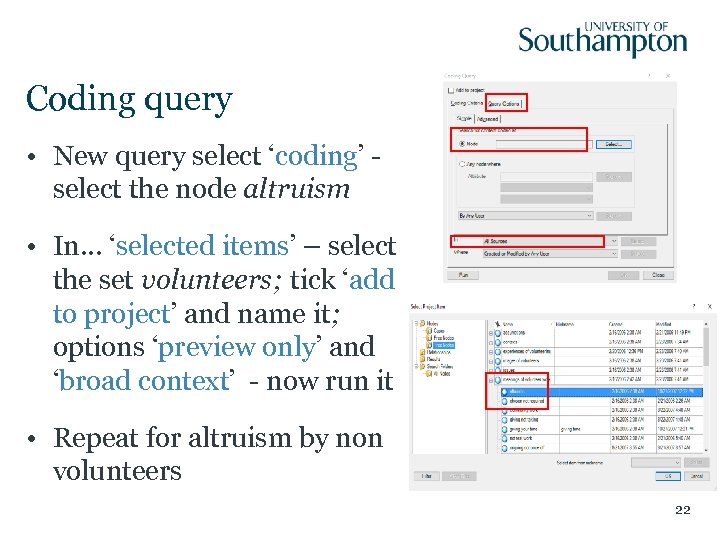 Coding query • New query select ‘coding’ select the node altruism • In… ‘selected items’ – select the set volunteers; tick ‘add to project’ and name it; options ‘preview only’ and ‘broad context’ - now run it • Repeat for altruism by non volunteers 22
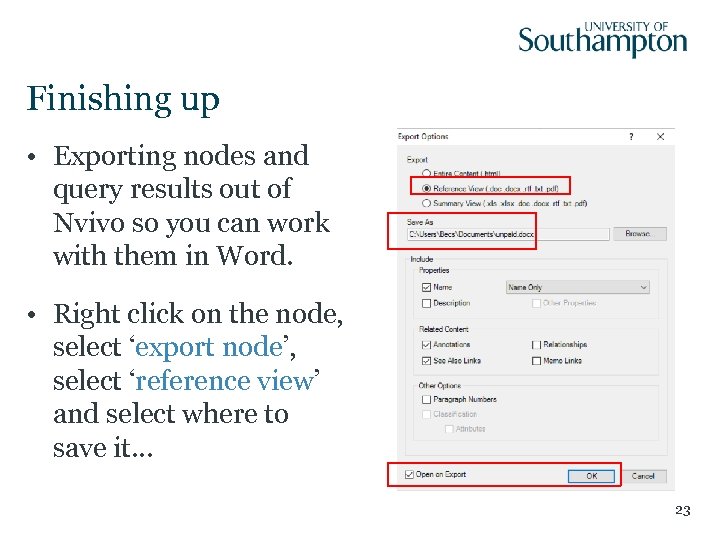 Finishing up • Exporting nodes and query results out of Nvivo so you can work with them in Word. • Right click on the node, select ‘export node’, select ‘reference view’ and select where to save it… 23
 Useful links • NVivo Help (small blue question mark icon top right hand corner) comprehensive and easy to use • QSR International: http: //www. qsrinternational. com/ FAQs, Blog and forum 24
 Thanks for attending our NVivo session Happy coding folks! 25