


 Скачать презентацию Getting a Handle on Your MCP Print System
40a0fa51d7dd836ddc3bb96ce3f0e6ca.ppt
- Количество слайдов: 45
 Getting a Handle on Your MCP Print System (AS 4091) Tue, Nov 6, 2001 4: 00 - 5: 00 Doug Dobson
 Doug Dobson, President - Gold. Eye Software Inc. Print. S is a splendid and wonderful thing. But it also can make your head ring. So just understand it. And you can command it. Then for you it really will sing. In this session we will explore many of the options of the MCP Print System. We will see how they can be set at several points during the report's creation, routing and delivery and how they will interact with each other. Then we will entertain some strategies for reducing and handling the printing at your site(s). Doug Dobson began his career with Burroughs Canada in 1974 and spent several years in the Technical Support Group. In 1990 he moved to an A Series customer's site where he worked for four years integrating their mainframe, UNIX, CTOS, PC and Xerox environments. He is now the President of Gold. Eye Software Inc, which develops E-Mail and E-Printing solutions for MCP systems. Doug can be reached at doug@goldeyesoftware. com Audience: Technical Delegate Presentation
 Preamble Print. S is great. But it is complex. Can be confusing. Works simply and reliably. Can do so much more.
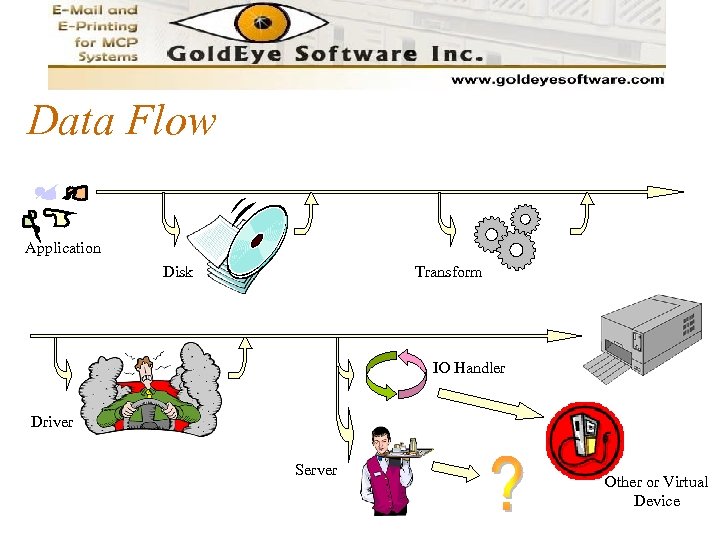 Data Flow Application Disk Transform IO Handler Driver Server Other or Virtual Device
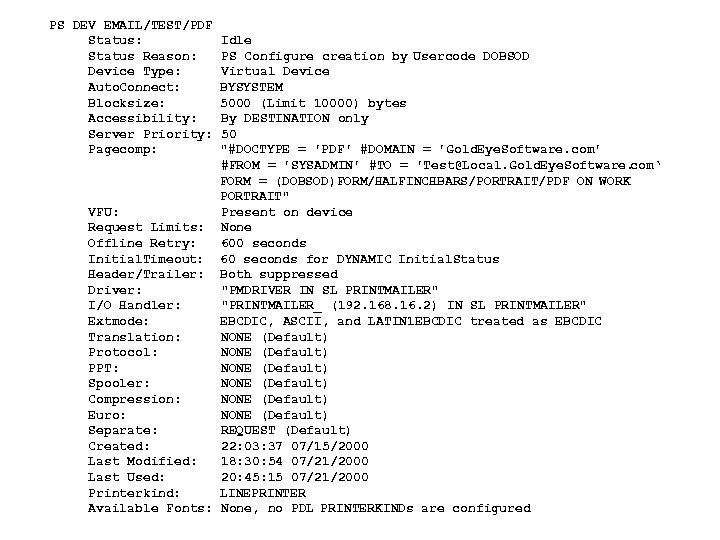 PS DEV EMAIL/TEST/PDF Status: Status Reason: Device Type: Auto. Connect: Blocksize: Accessibility: Server Priority: Pagecomp: Idle PS Configure creation by Usercode DOBSOD Virtual Device BYSYSTEM 5000 (Limit 10000) bytes By DESTINATION only 50 "#DOCTYPE = 'PDF' #DOMAIN = 'Gold. Eye. Software. com' #FROM = 'SYSADMIN' #TO = 'Test@Local. Gold. Eye. Software. com‘ FORM = (DOBSOD)FORM/HALFINCHBARS/PORTRAIT/PDF ON WORK PORTRAIT" VFU: Present on device Request Limits: None Offline Retry: 600 seconds Initial. Timeout: 60 seconds for DYNAMIC Initial. Status Header/Trailer: Both suppressed Driver: "PMDRIVER IN SL PRINTMAILER" I/O Handler: "PRINTMAILER_ (192. 168. 16. 2) IN SL PRINTMAILER" Extmode: EBCDIC, ASCII, and LATIN 1 EBCDIC treated as EBCDIC Translation: NONE (Default) Protocol: NONE (Default) PPT: NONE (Default) Spooler: NONE (Default) Compression: NONE (Default) Euro: NONE (Default) Separate: REQUEST (Default) Created: 22: 03: 37 07/15/2000 Last Modified: 18: 30: 54 07/21/2000 Last Used: 20: 45: 15 07/21/2000 Printerkind: LINEPRINTER Available Fonts: None, no PDL PRINTERKINDs are configured
 Task Attributes and File Attributes The Print System is controlled by many Task and File Attributes. This presentation covers some of those attributes. Some are task attributes, some are file attributes, some are both.
 PRINTDEFAULTS Establishes default values for the job and task and printer files within the task. E. g. PRINTDEFAULTS = (USERBACKUPNAME=TRUE, DESTINATION=“EMAIL/ACCTNG”, PAGECOMP=“PORTRAIT LPI 12 CPL 80 FORM = *FORM/LEDGER ON DISK”, FORMID = “LEDGERPAPER”)
 Setting Print Defaults in CANDE PDEF = (DESTINATION = “PRINT 2 WEB”, PAGECOMP =“FORM=‘LTRHD’ PAGESIZE = LETTER LANDSCAPE” #DIR=‘*UNC/WWW. ME. COM/REPRTS’ ”, PRINTDISPOSITION = CLOSE) Put it in your CANDE/STARTUP file to override system or USERDATA settings.
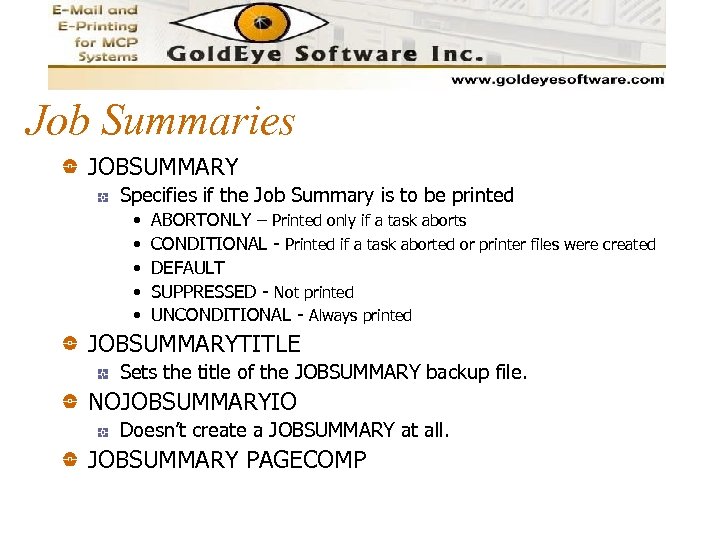 Job Summaries JOBSUMMARY Specifies if the Job Summary is to be printed • • • ABORTONLY – Printed only if a task aborts CONDITIONAL - Printed if a task aborted or printer files were created DEFAULT SUPPRESSED - Not printed UNCONDITIONAL - Always printed JOBSUMMARYTITLE Sets the title of the JOBSUMMARY backup file. NOJOBSUMMARYIO Doesn’t create a JOBSUMMARY at all. JOBSUMMARY PAGECOMP
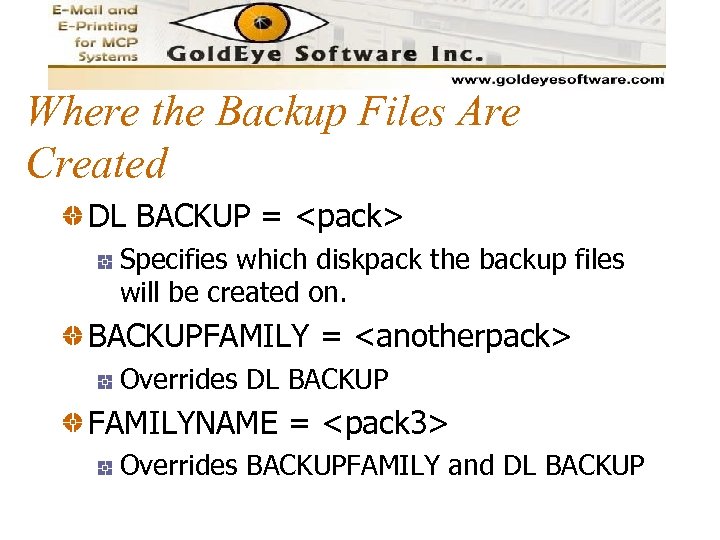 Where the Backup Files Are Created DL BACKUP =
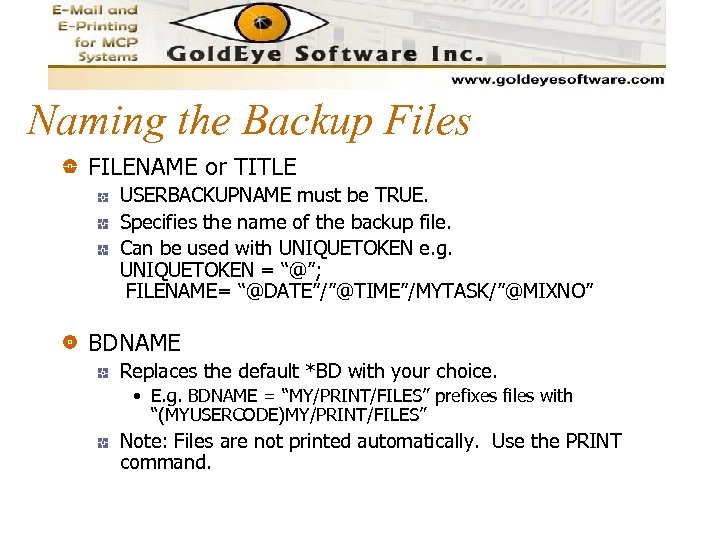 Naming the Backup Files FILENAME or TITLE USERBACKUPNAME must be TRUE. Specifies the name of the backup file. Can be used with UNIQUETOKEN e. g. UNIQUETOKEN = “@”; FILENAME= “@DATE”/”@TIME”/MYTASK/”@MIXNO” BDNAME Replaces the default *BD with your choice. • E. g. BDNAME = “MY/PRINT/FILES” prefixes files with “(MYUSERCODE)MY/PRINT/FILES” Note: Files are not printed automatically. Use the PRINT command.
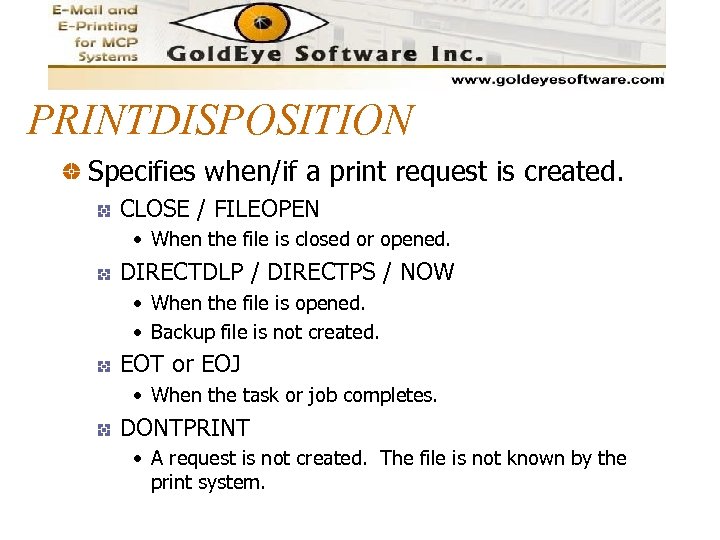 PRINTDISPOSITION Specifies when/if a print request is created. CLOSE / FILEOPEN • When the file is closed or opened. DIRECTDLP / DIRECTPS / NOW • When the file is opened. • Backup file is not created. EOT or EOJ • When the task or job completes. DONTPRINT • A request is not created. The file is not known by the print system.
 WFL PRINT command Can be used to print backup files and many data files from WFL, CANDE or MARC E. g. PRINT *BD/PAYROLL/REPORT (DESTINATION = “EMAIL”, PAGECOMP=“#TO=‘HUMANRESORC’ ”)
 SAVEBACKUPFILE If TRUE then the backup file is not removed after printing. Allows reprinting of reports A naming standard and “PRINTDISPOSITION = CLOSE” help with identifying the files.
 PAGECOMP Just about everything that affects how the output looks: Paper size, color, font, lines per page, borders, duplex, etc. . You can also create your own for use with user-written or third-party transforms, drivers or iohandlers. Just prefix them with “#”. Here are some that I created for Print. Mailer: #SUBJECT, #TO, #BCC, #REPLY
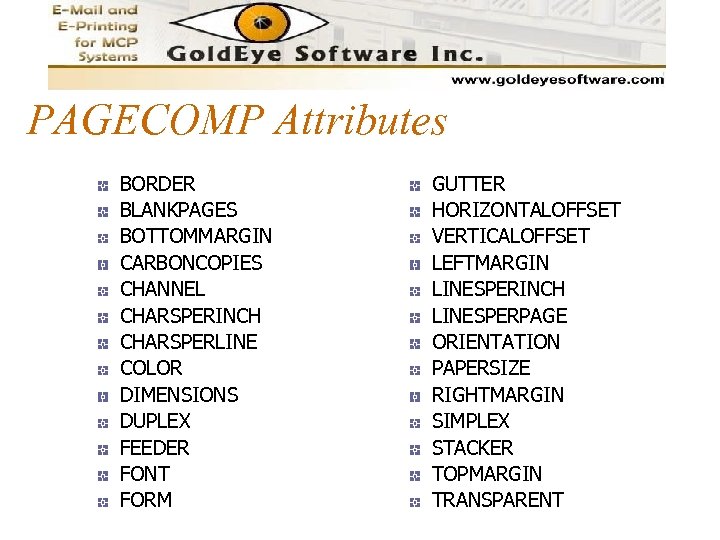 PAGECOMP Attributes BORDER BLANKPAGES BOTTOMMARGIN CARBONCOPIES CHANNEL CHARSPERINCH CHARSPERLINE COLOR DIMENSIONS DUPLEX FEEDER FONT FORM GUTTER HORIZONTALOFFSET VERTICALOFFSET LEFTMARGIN LINESPERINCH LINESPERPAGE ORIENTATION PAPERSIZE RIGHTMARGIN SIMPLEX STACKER TOPMARGIN TRANSPARENT
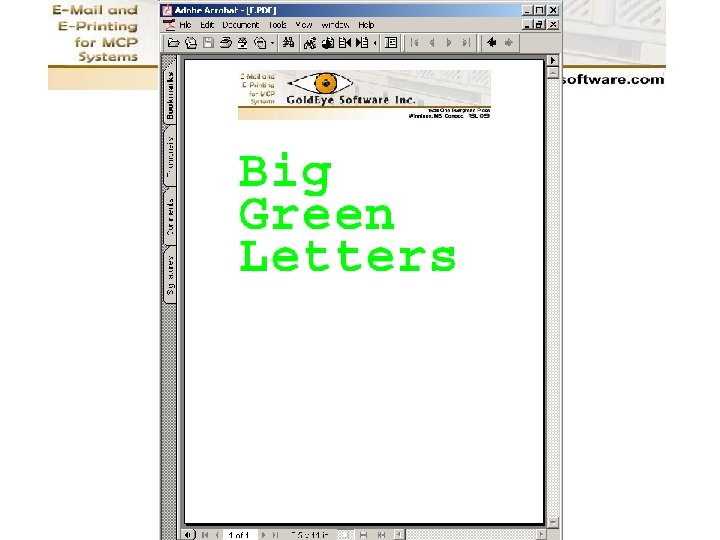
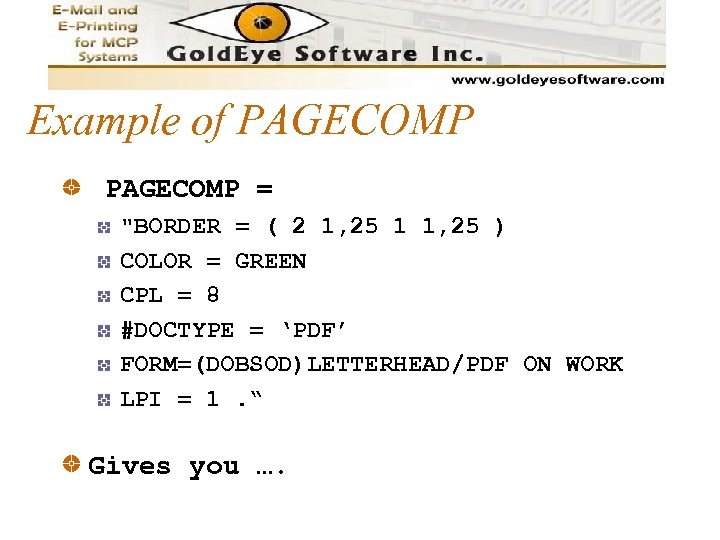 Example of PAGECOMP = "BORDER = ( 2 1, 25 1 1, 25 ) COLOR = GREEN CPL = 8 #DOCTYPE = ‘PDF’ FORM=(DOBSOD)LETTERHEAD/PDF ON WORK LPI = 1. “ Gives you ….
 DESTINATION Specifies which device to use for printing and how many copies. Can be a GROUP, DEVICE or a list of GROUPs and/or DEVICEs e. g. DESTINATION = “LP 10: 3, CEO/LASER, EMAIL/BOARD/OF/DIRS” prints 3 copies at LP 10 and 1 copy at both of the other devices.
 AFTER Specifies a time when the file is to be queued for printing. Can be either absolute or relative e. g. AFTER = “ 18: 00 ON 11/08/01” AFTER = “ 18: 00 ON +2” AFTER = “+13: 30”
 FORMID A print request with a FORMID is not printed until its device has a matching FORMID. • FORMID = “GREENBAR” • PS CONFIG LP 10 FORMID = “GREENBAR”
 TRANSFORM This file attribute can used to specify a library that performs an action on the data as it is being sent to the output device(s). E. g. TRANSFORM = “UPPERCASE” or TRANSFORM = “ENCRYPTOR IN SL MYTRANSFORMLIB”
 Other Print Modifiers DOUBLESPACE PRINTCOPIES HEADER / TRAILER PRINTPRIORITY 0 (hold) to 99 (highest) – default 50 REQUESTNAME / REQUESTNOTE SUPPRESS Changes carriage control commands to blank lines. Good when printing to a file or some devices.
 Attribute Hierarchy Attributes can be assumed or inherited from several sources and altered at various places. Note that there are different rules for file and task attributes vs pagecomp attributes. The following chart shows most of the points where attributes are merged or replaced. Consult the manual for specifics.
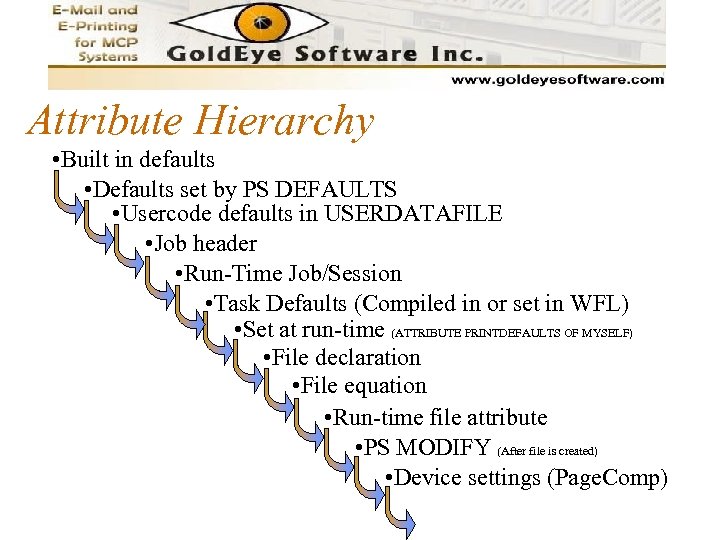 Attribute Hierarchy • Built in defaults • Defaults set by PS DEFAULTS • Usercode defaults in USERDATAFILE • Job header • Run-Time Job/Session • Task Defaults (Compiled in or set in WFL) • Set at run-time (ATTRIBUTE PRINTDEFAULTS OF MYSELF) • File declaration • File equation • Run-time file attribute • PS MODIFY (After file is created) • Device settings (Page. Comp)
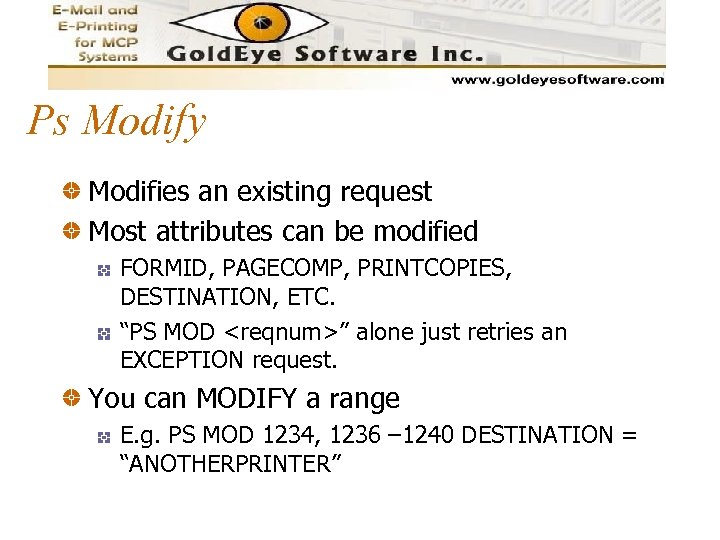 Ps Modify Modifies an existing request Most attributes can be modified FORMID, PAGECOMP, PRINTCOPIES, DESTINATION, ETC. “PS MOD
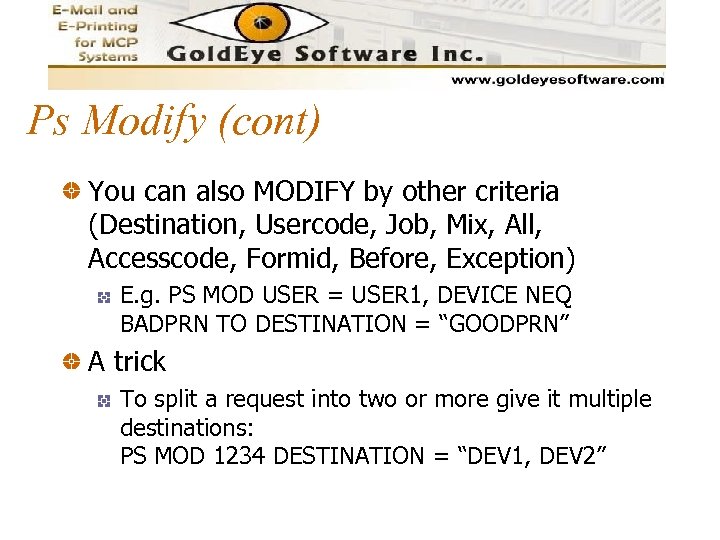 Ps Modify (cont) You can also MODIFY by other criteria (Destination, Usercode, Job, Mix, All, Accesscode, Formid, Before, Exception) E. g. PS MOD USER = USER 1, DEVICE NEQ BADPRN TO DESTINATION = “GOODPRN” A trick To split a request into two or more give it multiple destinations: PS MOD 1234 DESTINATION = “DEV 1, DEV 2”
 Reducing Printing Here are some techniques to reduce printing and printing costs. Which techniques you use will depend on your particular environment and requirements.
 Set PS DEFAULT Put JOBSUMMARY = SUPPRESSED or ABORTONLY in the PS DEFAULT. Set PRINTDISPOSITION = CLOSE to increase granularity. Makes a request for each file. • Some more overhead for print system but allows identification and treatment of individual files. (For example reprinting)
 DUMMYFILE = TRUE DUMMYFILE sends all the output to the bitbucket. The output operation is not done. Saves cycles, bandwidth and storage. Use this when you have to run or rerun a task but you don’t need the output. E. g. RUN LASTNIGHTS/UPDATES; FILE REPORT(DUMMYFILE = TRUE)
 PRINTDISPOSITION = DONTPRINT Creates the report but does not create a print request for it, so it doesn’t get queued for printing. This means periodic purging is required. To find the files you might need a Naming convention. Consider: USERBACKUPNAME UNIQUETOKEN
 Cleaning Up Old Files PS DEL BEFORE Can be absolute or relative • E. g. PS DEL BEFORE 0: 00 ON 11/15/01 • E. g PS DEL BEFORE – 12: 00 ON – 8 Removes the print requests and the files associated with them. Doesn’t remove files that are not associated with a print request.
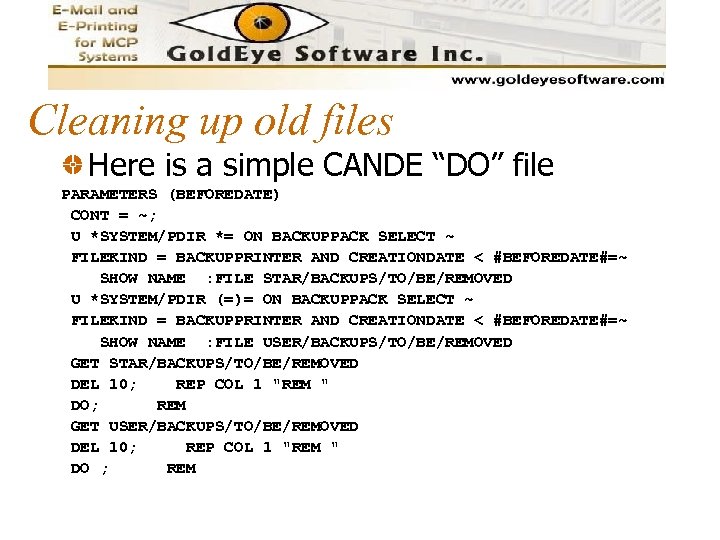 Cleaning up old files Here is a simple CANDE “DO” file PARAMETERS (BEFOREDATE) CONT = ~; U *SYSTEM/PDIR *= ON BACKUPPACK SELECT ~ FILEKIND = BACKUPPRINTER AND CREATIONDATE < #BEFOREDATE#=~ SHOW NAME : FILE STAR/BACKUPS/TO/BE/REMOVED U *SYSTEM/PDIR (=)= ON BACKUPPACK SELECT ~ FILEKIND = BACKUPPRINTER AND CREATIONDATE < #BEFOREDATE#=~ SHOW NAME : FILE USER/BACKUPS/TO/BE/REMOVED GET STAR/BACKUPS/TO/BE/REMOVED DEL 10; REP COL 1 "REM " DO; REM GET USER/BACKUPS/TO/BE/REMOVED DEL 10; REP COL 1 "REM " DO ; REM
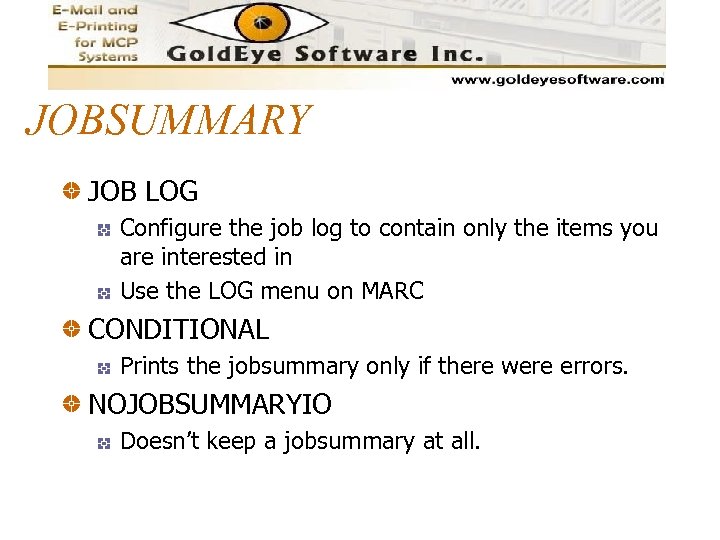 JOBSUMMARY JOB LOG Configure the job log to contain only the items you are interested in Use the LOG menu on MARC CONDITIONAL Prints the jobsummary only if there were errors. NOJOBSUMMARYIO Doesn’t keep a jobsummary at all.
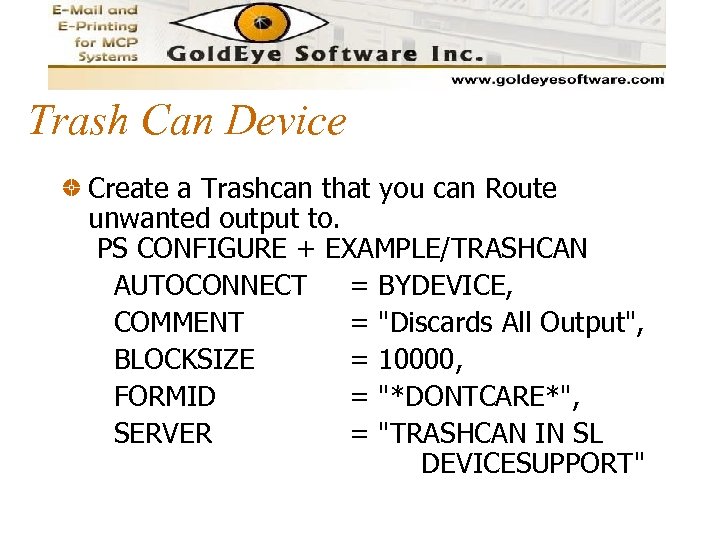 Trash Can Device Create a Trashcan that you can Route unwanted output to. PS CONFIGURE + EXAMPLE/TRASHCAN AUTOCONNECT = BYDEVICE, COMMENT = "Discards All Output", BLOCKSIZE = 10000, FORMID = "*DONTCARE*", SERVER = "TRASHCAN IN SL DEVICESUPPORT"
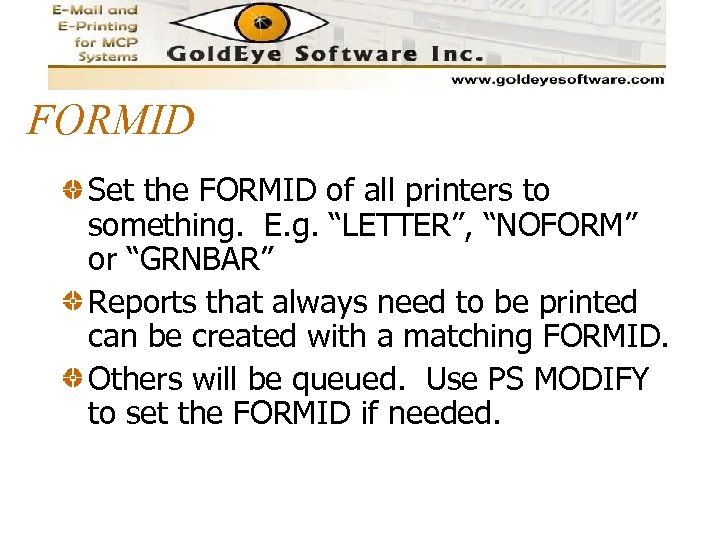 FORMID Set the FORMID of all printers to something. E. g. “LETTER”, “NOFORM” or “GRNBAR” Reports that always need to be printed can be created with a matching FORMID. Others will be queued. Use PS MODIFY to set the FORMID if needed.
 Saved Device Create a “dummy” device and save it with PS SAVE
 Put Limits on Devices Use the PS CONFIG command to limit the size of requests. E. g. PS CONFIG DEV 1 LIMIT MAX 5000 Keeps stuff (like memory dumps) from accidentally printing. Can be overridden with PS FORCE.
 Distribute to remote printers Saves Printing costs and labor Delivery costs These items are now on someone else's budget Faster delivery = Happier Users Reduces reporting Users love to have their reports immediately but they will soon realize that many of them aren’t as necessary as they seemed to be when they were printed in the data center. Requires managing remote printers
 Distribute Electronically Enables Reduced/Eliminated costs Immediately deliverable Searchable Cut and paste able Archive-able, Instantly available, Shareable, Annotate-able More readable – fonts, colors, forms, etc. Printable On Demand Able, Able…
 How to Distribute Electronically TCP/IP printing built-into Print. S Printer Pass Thru Depcon Print. Mailer by Gold. Eye Software Print 2 Web by Gold. Eye Software
 Print. Mailer Converts reports to. TXT, . RTF, . HTML or. PDF FILES Creates an email msg and sends the files as attachments. Fast, easy, reliable. Installed and configured in minutes.
 Print 2 Web Converts reports to. TXT, . RTF, . HTML or. PDF FILES Publishes the files directly on your file or web server. Fast, easy, reliable.
 For more information Print System and Remote Print System Administration, Operations, and Programming Guide Installing a Printer for MCP Print System Use File Attributes Programming Reference Manual Task Attributes Programming Reference Manual
 Questions