 Скачать презентацию Get found with Google July 2010 Brianna Brekke
cd46c6f5f224f4477667aa258e204a11.ppt
- Количество слайдов: 64



Get found with Google July 2010 Brianna Brekke
Today
Today
Today
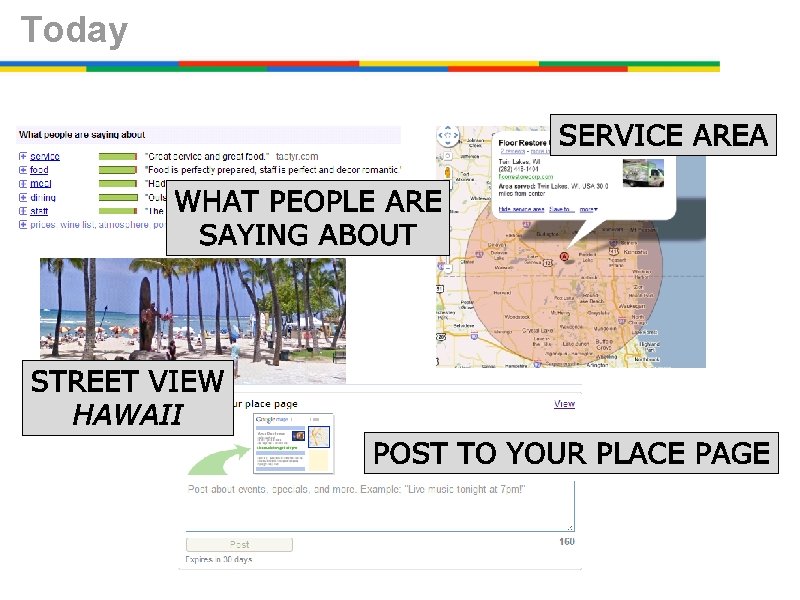
Today
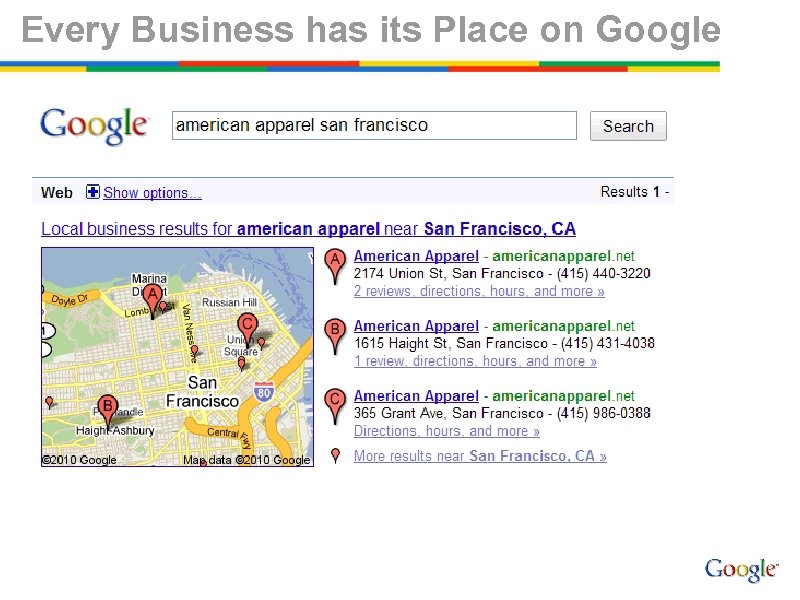
Every Business has its Place on Google
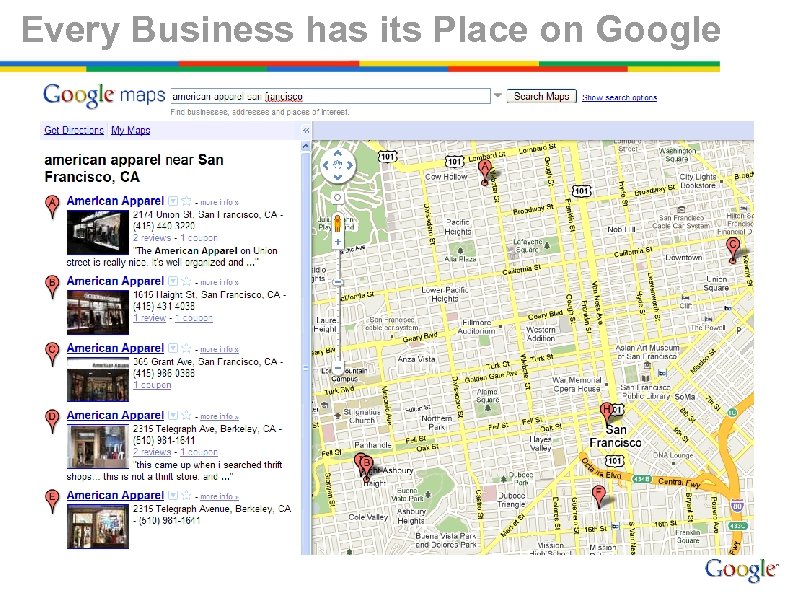
Every Business has its Place on Google
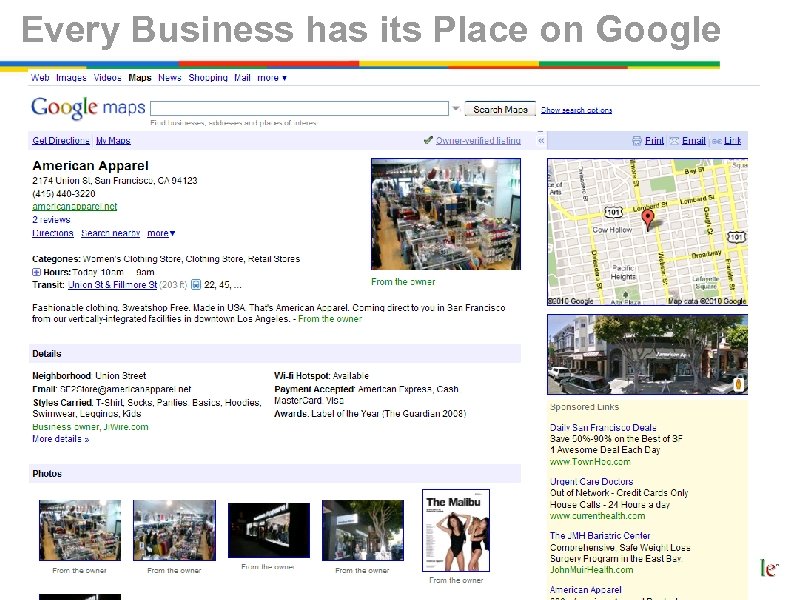
Every Business has its Place on Google
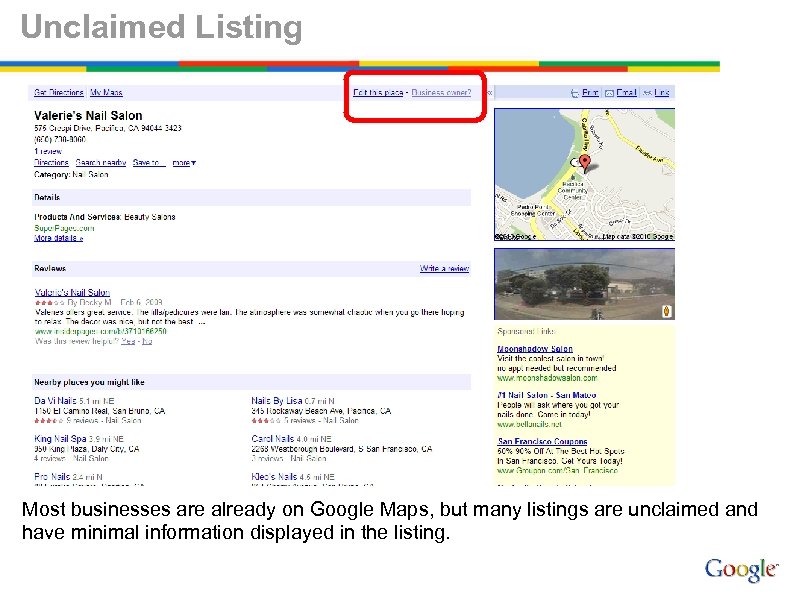
Unclaimed Listing Most businesses are already on Google Maps, but many listings are unclaimed and have minimal information displayed in the listing.
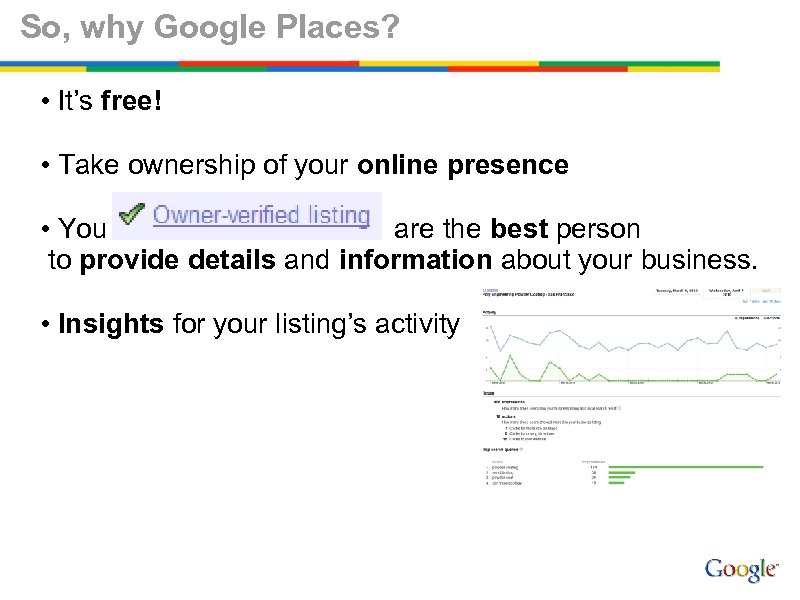
So, why Google Places? • It’s free! • Take ownership of your online presence • You are the best person to provide details and information about your business. • Insights for your listing’s activity
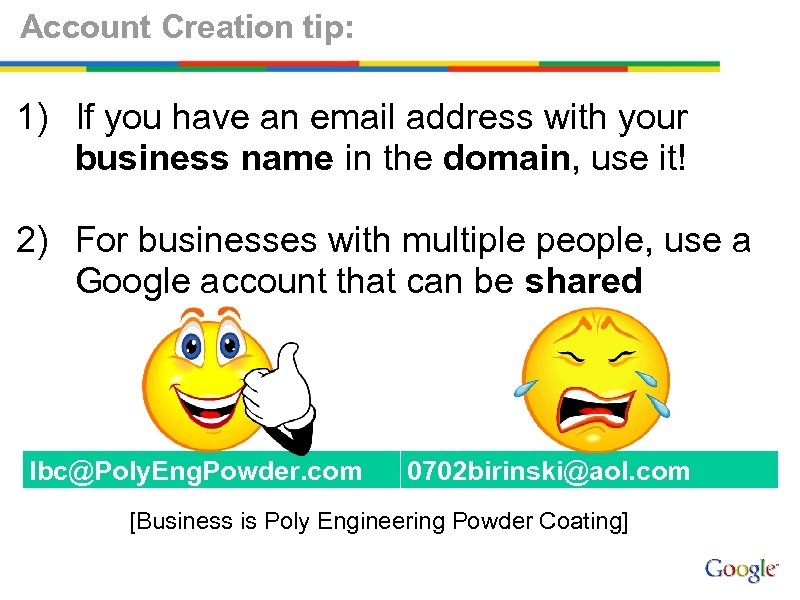
Account Creation tip: 1) If you have an email address with your business name in the domain, use it! 2) For businesses with multiple people, use a Google account that can be shared lbc@Poly. Eng. Powder. com 0702 birinski@aol. com [Business is Poly Engineering Powder Coating]
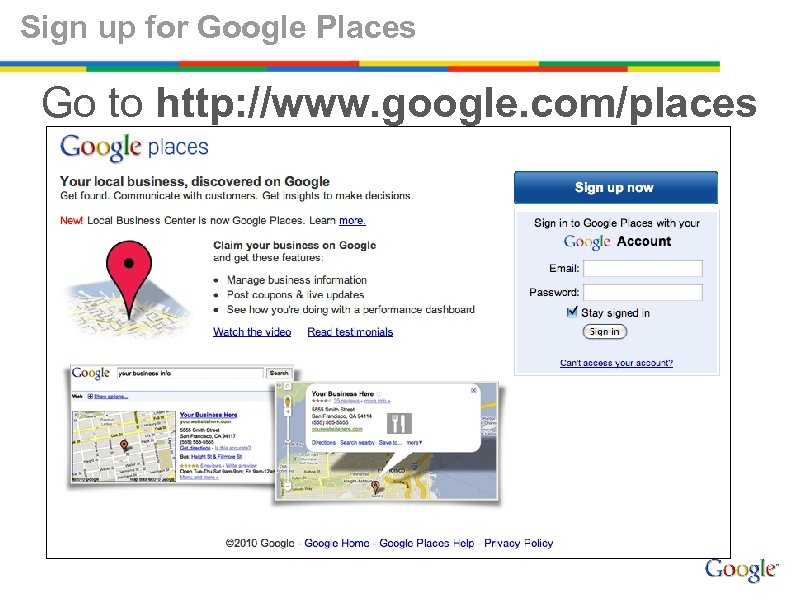
Sign up for Google Places Go to http: //www. google. com/places
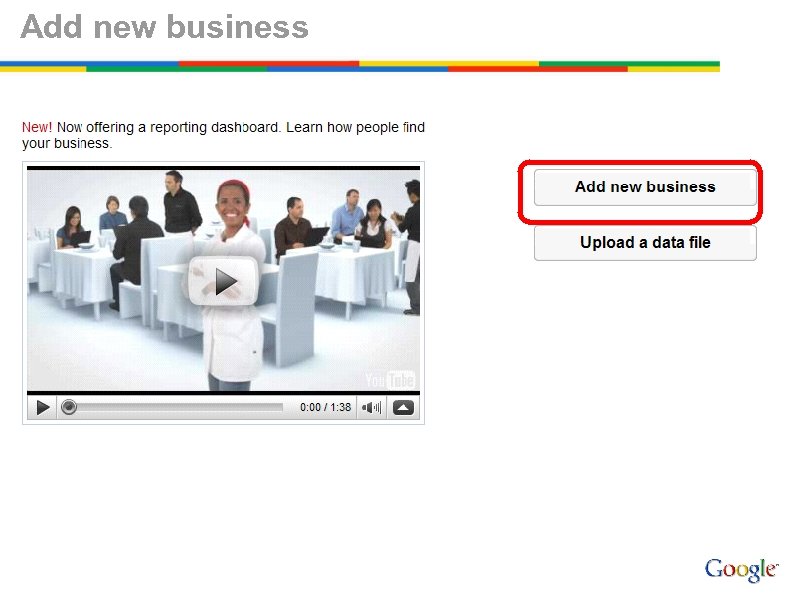
Add new business
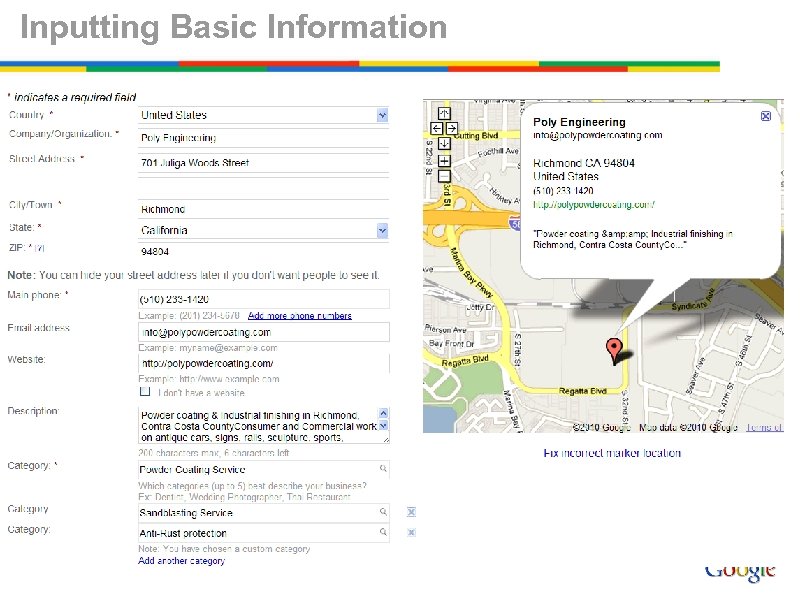
Inputting Basic Information
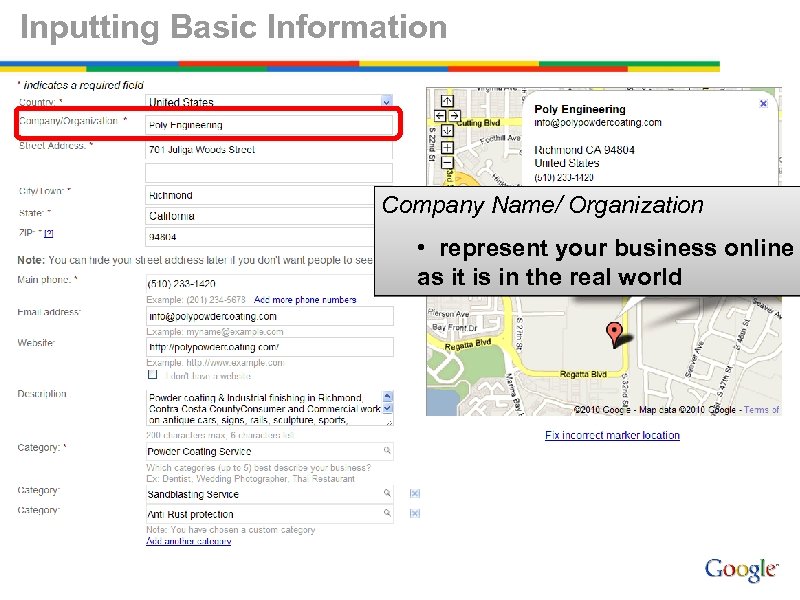
Inputting Basic Information Company Name/ Organization • represent your business online as it is in the real world
![Inputting Basic Information Street Address [Line 1] • street level address including number and](https://present5.com/presentation/cd46c6f5f224f4477667aa258e204a11/image-16.jpg "Inputting Basic Information Street Address [Line 1] • street level address including number and")
Inputting Basic Information Street Address [Line 1] • street level address including number and street name Street Address [optional - Line 2] • additional information to guide people to the exact location, such as Suite Number
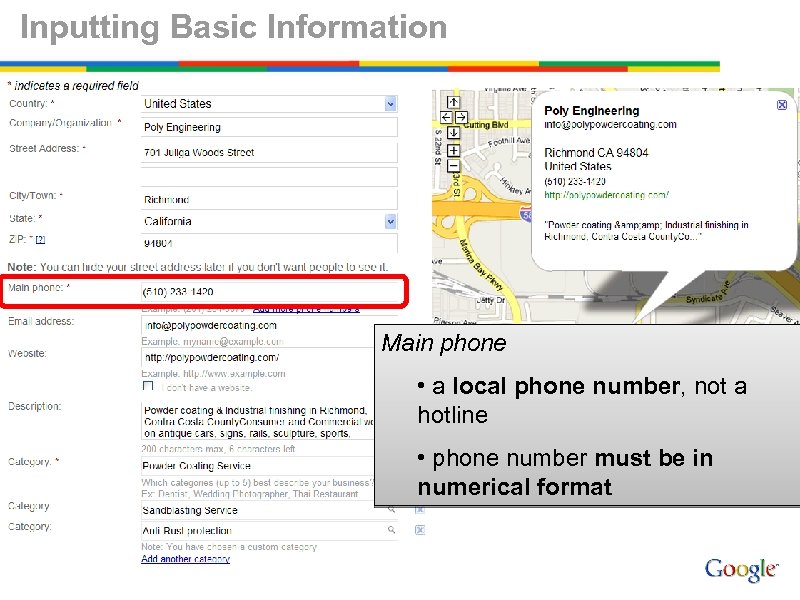
Inputting Basic Information Main phone • a local phone number, not a hotline • phone number must be in numerical format
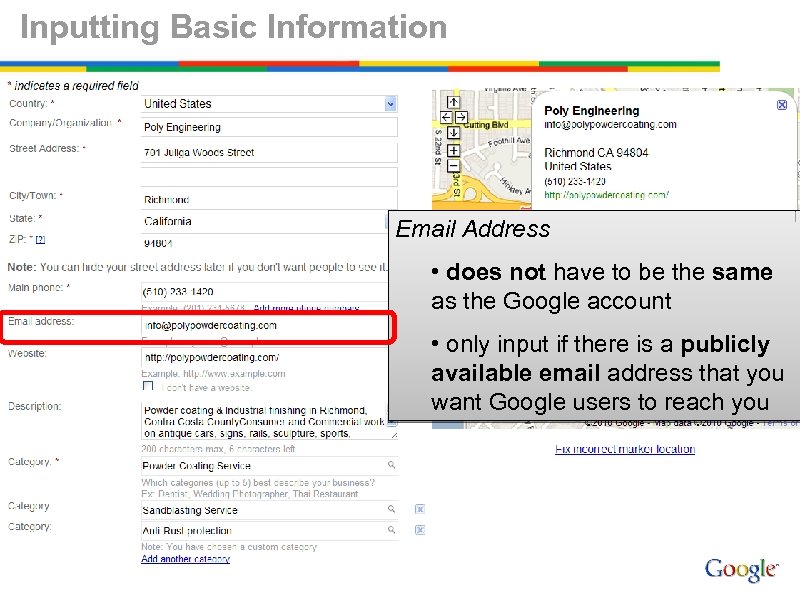
Inputting Basic Information Email Address • does not have to be the same as the Google account • only input if there is a publicly available email address that you want Google users to reach you
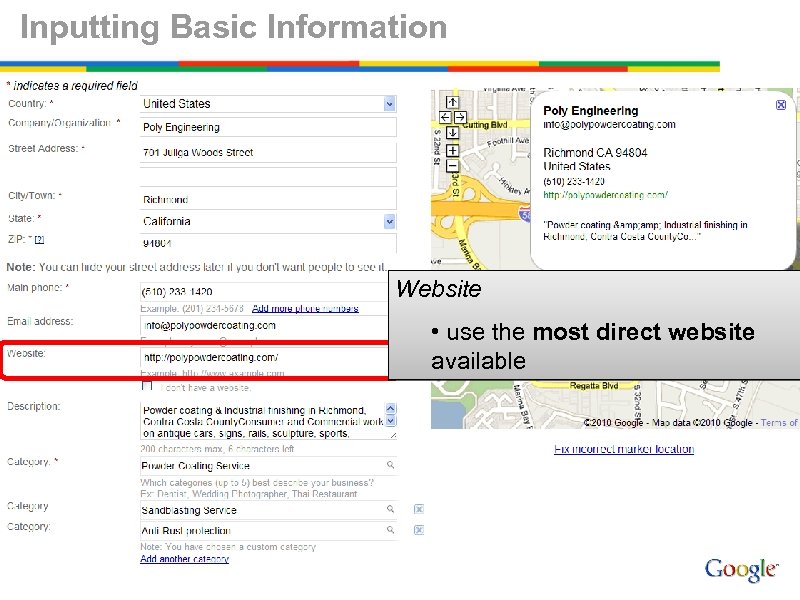
Inputting Basic Information Website • use the most direct website available
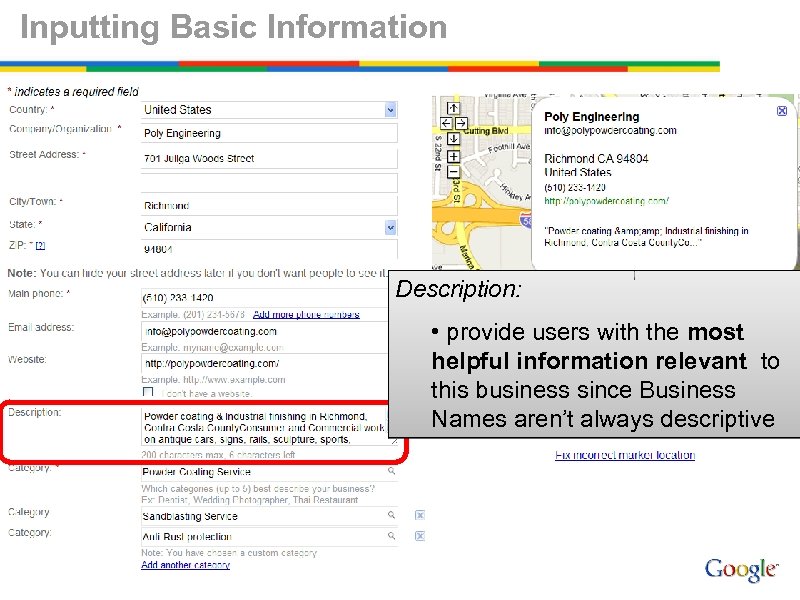
Inputting Basic Information Description: • provide users with the most helpful information relevant to this business since Business Names aren’t always descriptive
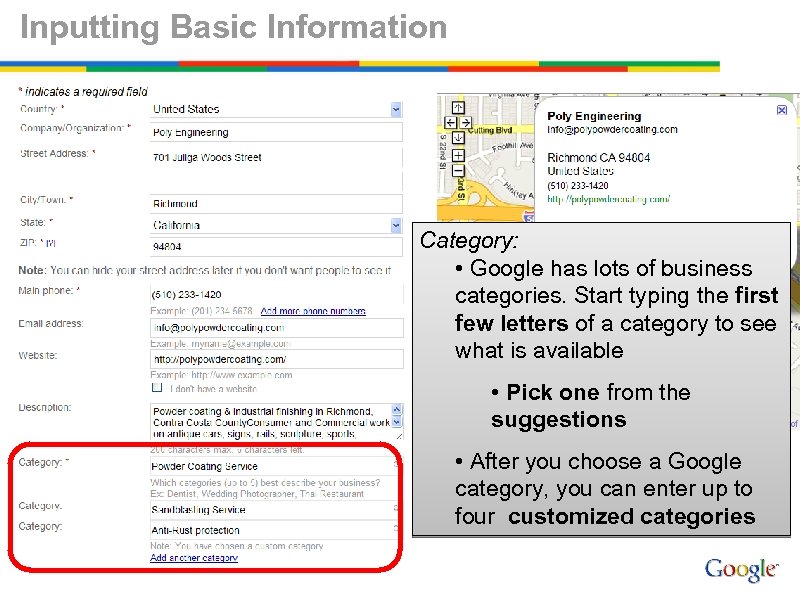
Inputting Basic Information Category: • Google has lots of business categories. Start typing the first few letters of a category to see what is available • Pick one from the suggestions • After you choose a Google category, you can enter up to four customized categories
Basic Information Complete Now that you are done entering basic information about your listing, you’re getting closer to completing the sign-up process. What’s left? • Complete optional information • PIN verification Make sure you click below the Categories section
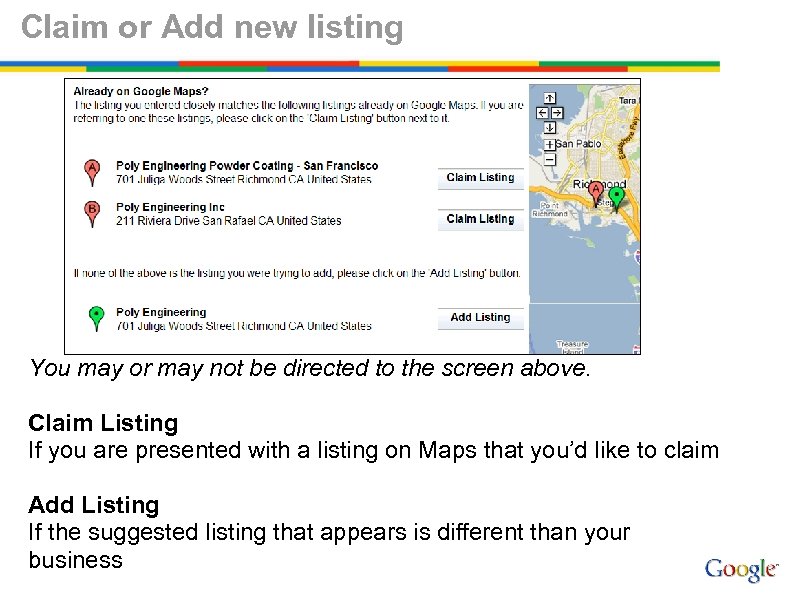
Claim or Add new listing You may or may not be directed to the screen above. Claim Listing If you are presented with a listing on Maps that you’d like to claim Add Listing If the suggested listing that appears is different than your business
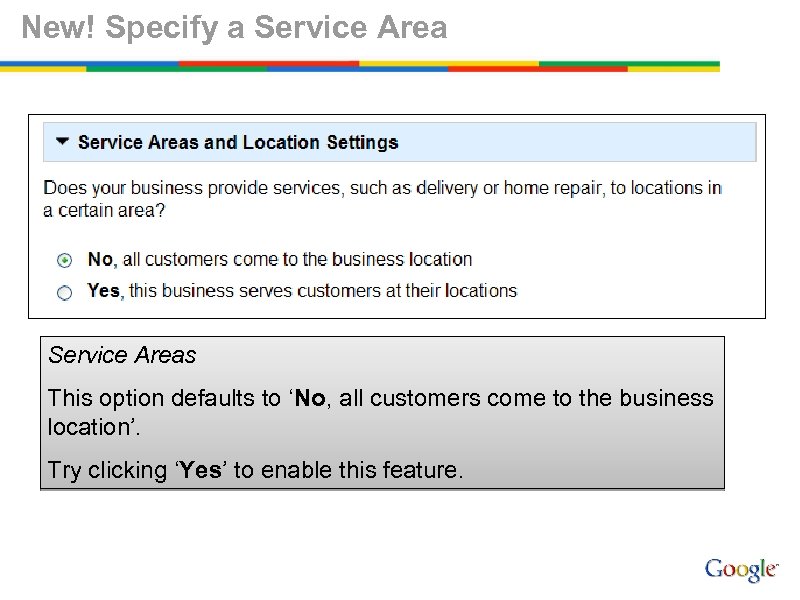
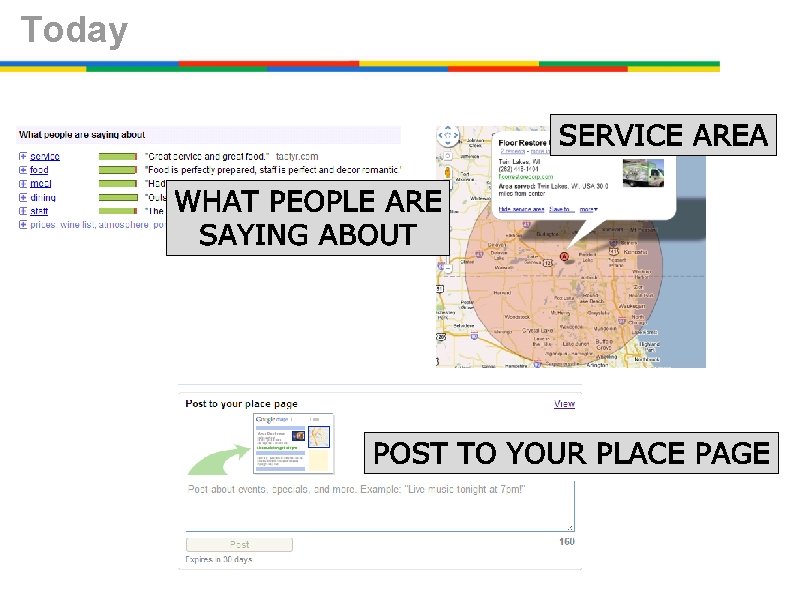
New! Specify a Service Areas This option defaults to ‘No, all customers come to the business location’. Try clicking ‘Yes’ to enable this feature.
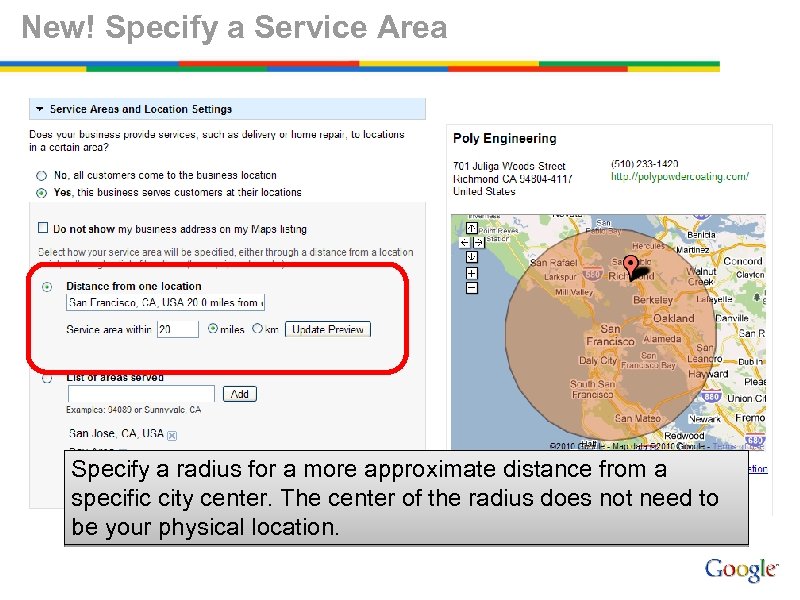
New! Specify a Service Area Specify a radius for a more approximate distance from a specific city center. The center of the radius does not need to be your physical location.
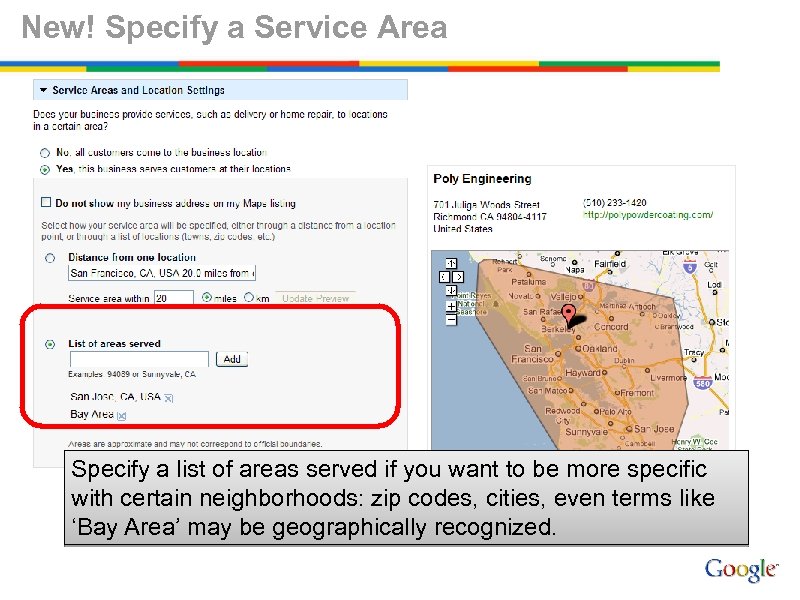
New! Specify a Service Area Specify a list of areas served if you want to be more specific with certain neighborhoods: zip codes, cities, even terms like ‘Bay Area’ may be geographically recognized.
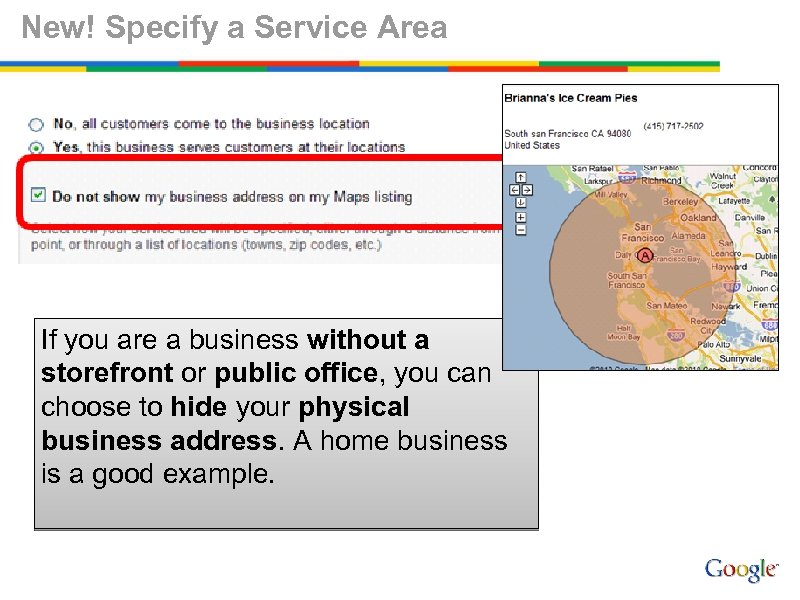
New! Specify a Service Area If you are a business without a storefront or public office, you can choose to hide your physical business address. A home business is a good example.
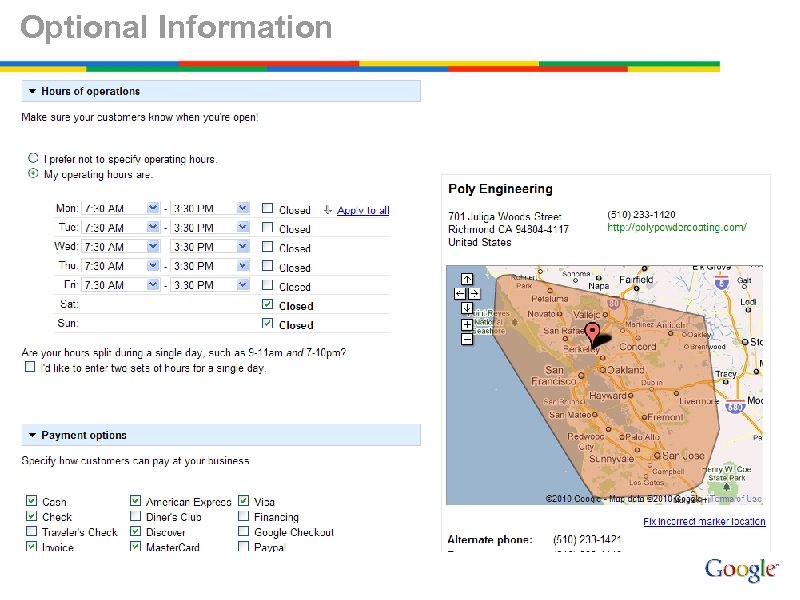
Optional Information
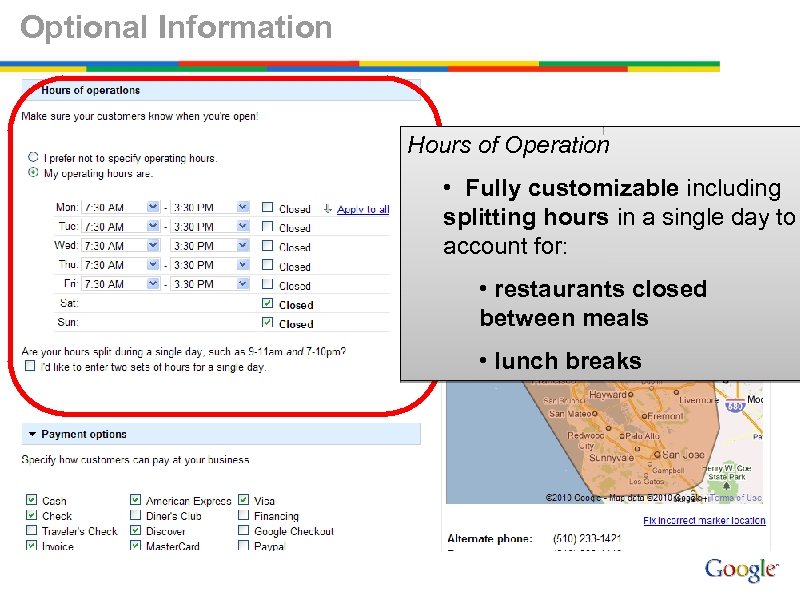
Optional Information Hours of Operation • Fully customizable including splitting hours in a single day to account for: • restaurants closed between meals • lunch breaks
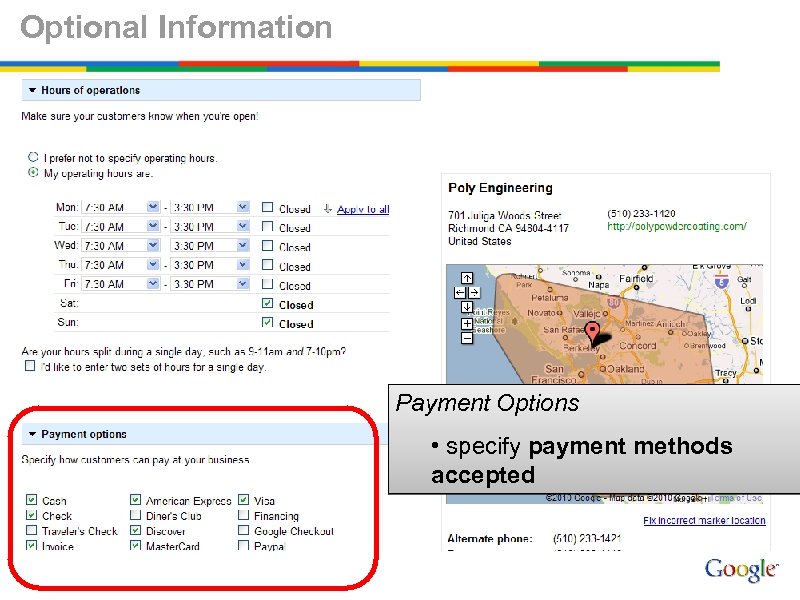
Optional Information Payment Options • specify payment methods accepted
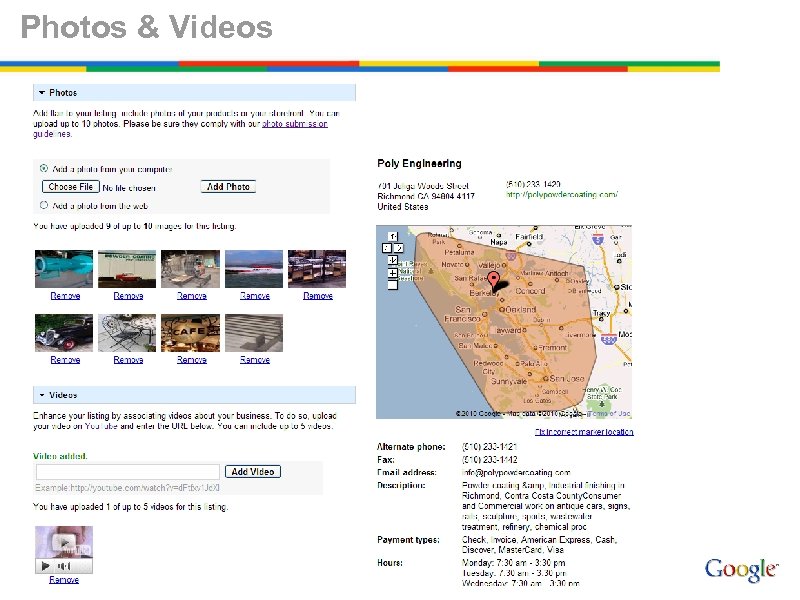
Photos & Videos
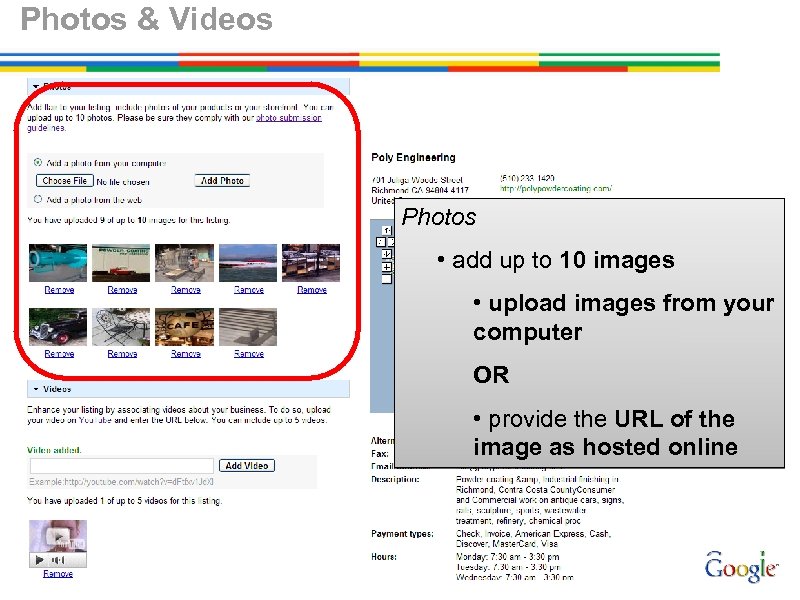
Photos & Videos Photos • add up to 10 images • upload images from your computer OR • provide the URL of the image as hosted online
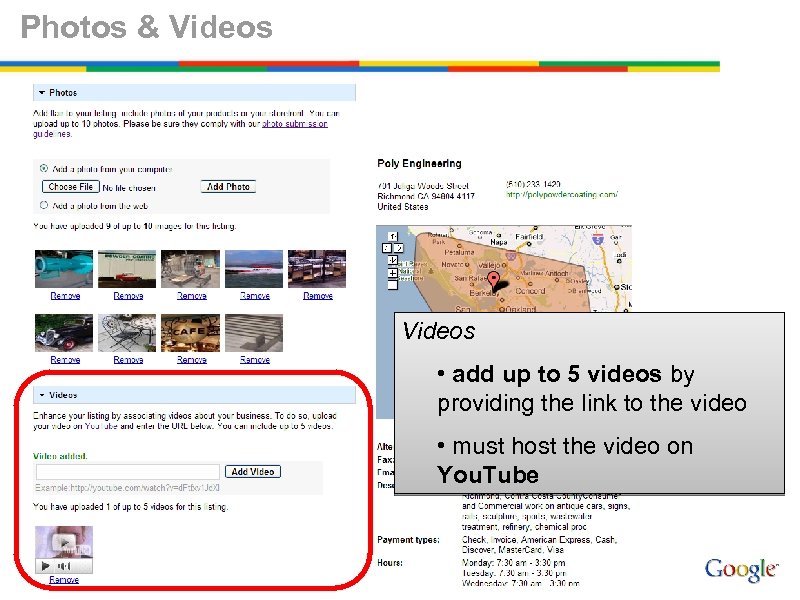
Photos & Videos • add up to 5 videos by providing the link to the video • must host the video on You. Tube
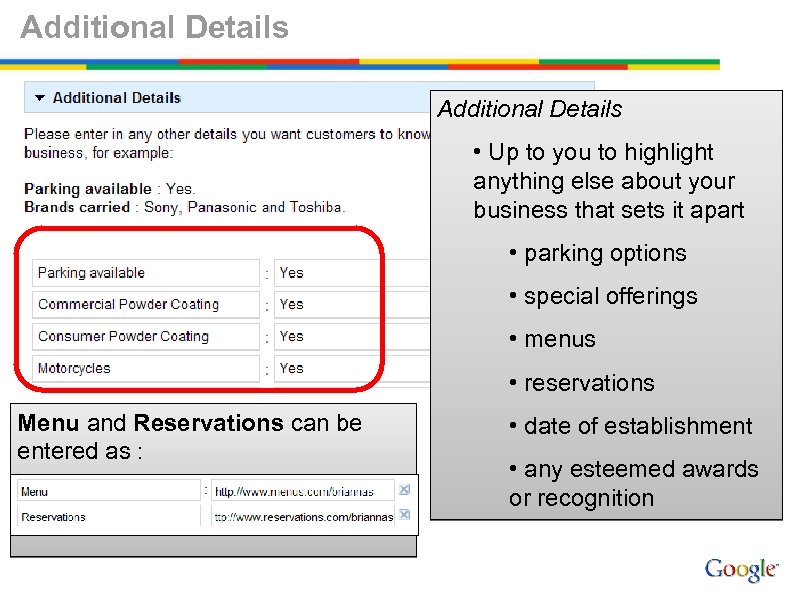
Additional Details • Up to you to highlight anything else about your business that sets it apart • parking options • special offerings • menus • reservations Menu and Reservations can be entered as : • date of establishment • any esteemed awards or recognition
Verification For business owners’ protection, PIN verification is required to prove that you are the business owner. Your listing will not go live until you verify a unique PIN.
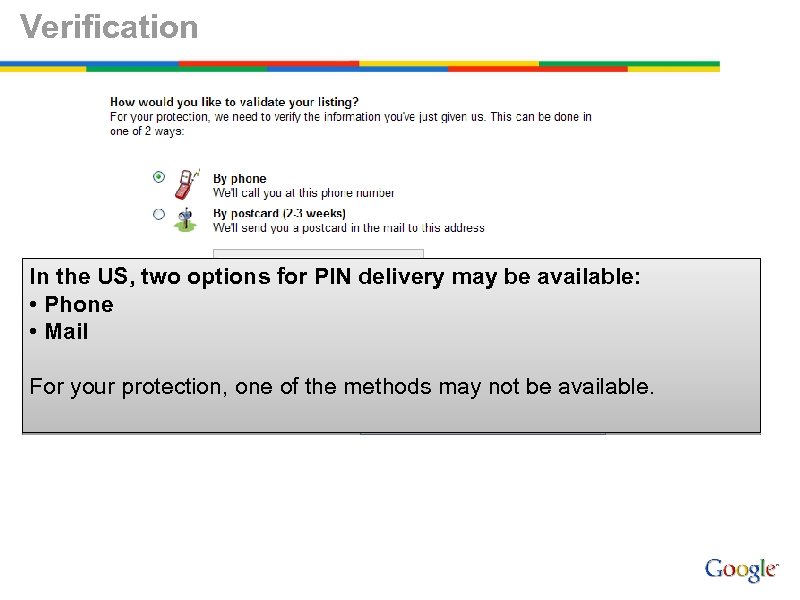
Verification In the US, two options for PIN delivery may be available: • Phone • Mail For your protection, one of the methods may not be available.

Verification Phone • You will receive a phone call instantly • An automated phone system will read you a PIN • The phone will hang up immediately after delivery of the PIN • You’ll be prompted to enter your PIN in your Local Business Center account • Each time you request a phone call, your PIN will change so use the most recent PIN.
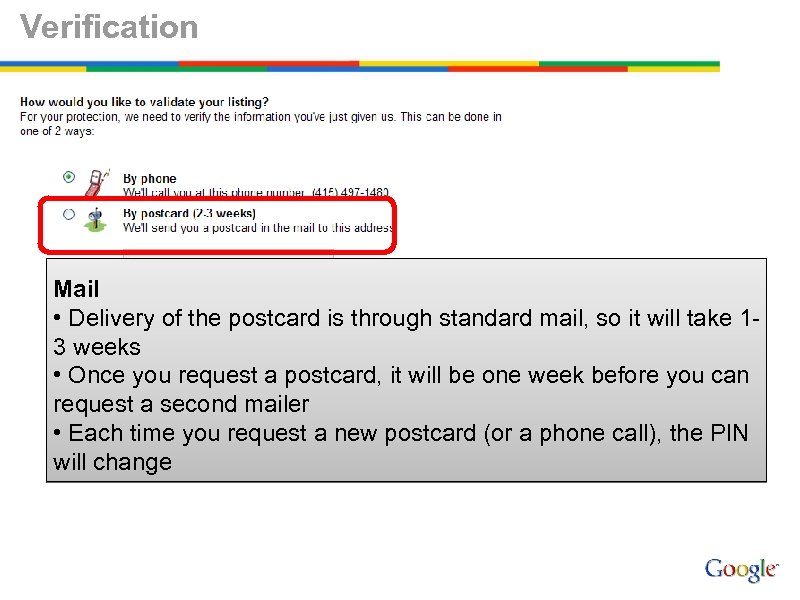
Verification Mail • Delivery of the postcard is through standard mail, so it will take 13 weeks • Once you request a postcard, it will be one week before you can request a second mailer • Each time you request a new postcard (or a phone call), the PIN will change
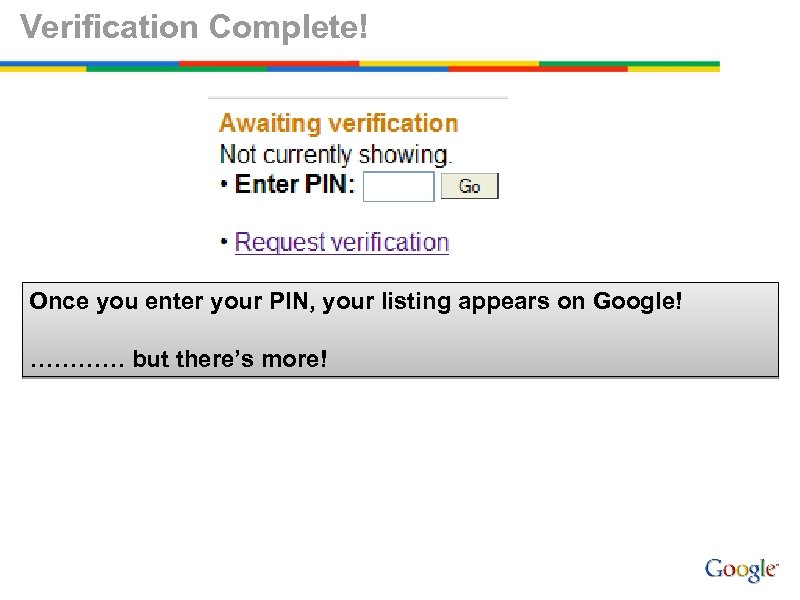
Verification Complete! Once you enter your PIN, your listing appears on Google! ………… but there’s more!
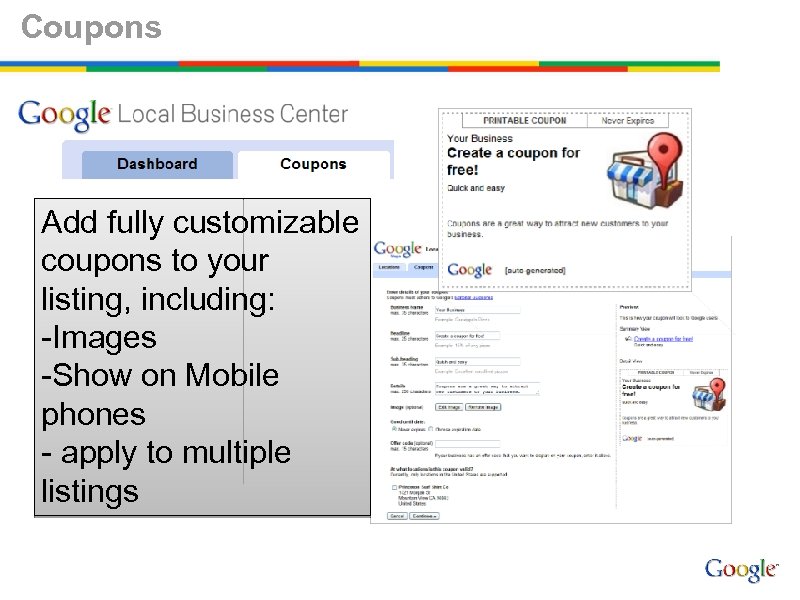
Coupons Add fully customizable coupons to your listing, including: -Images -Show on Mobile phones - apply to multiple listings
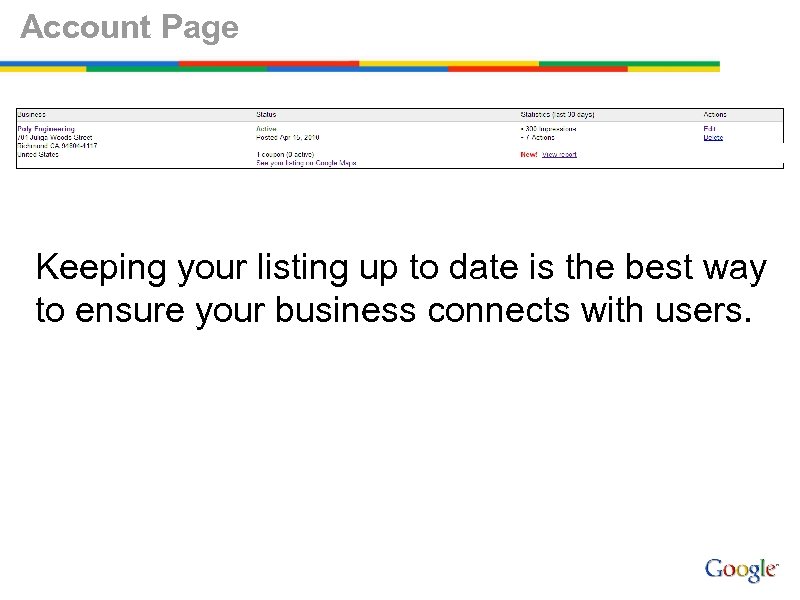
Account Page Keeping your listing up to date is the best way to ensure your business connects with users.
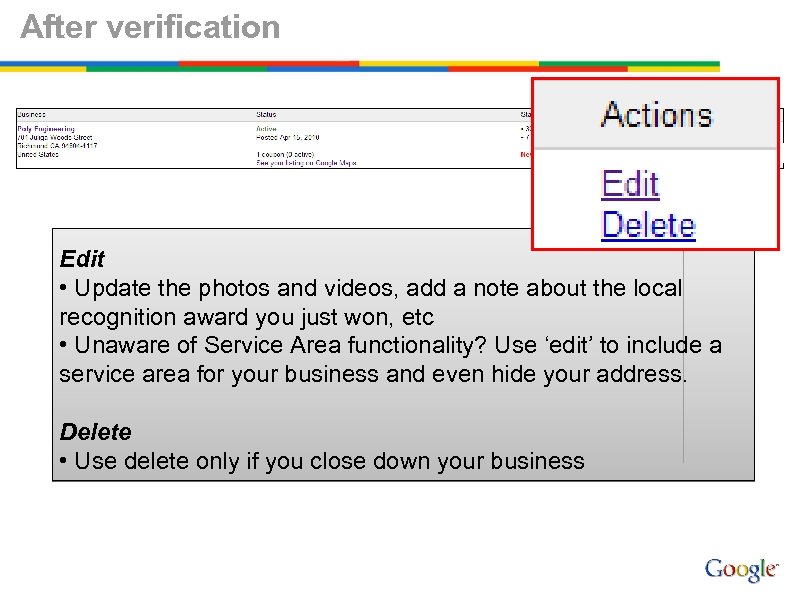
After verification Edit • Update the photos and videos, add a note about the local recognition award you just won, etc • Unaware of Service Area functionality? Use ‘edit’ to include a service area for your business and even hide your address. Delete • Use delete only if you close down your business
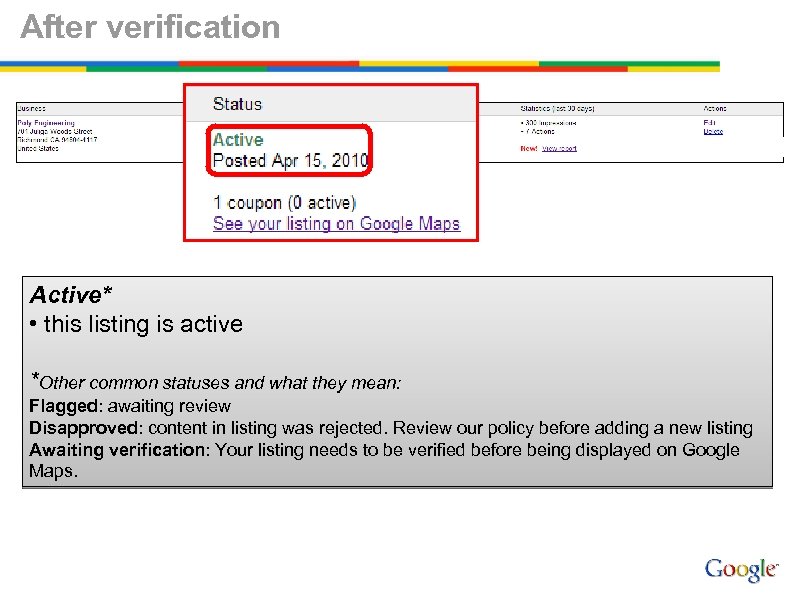
After verification Active* • this listing is active *Other common statuses and what they mean: Flagged: awaiting review Disapproved: content in listing was rejected. Review our policy before adding a new listing Awaiting verification: Your listing needs to be verified before being displayed on Google Maps.
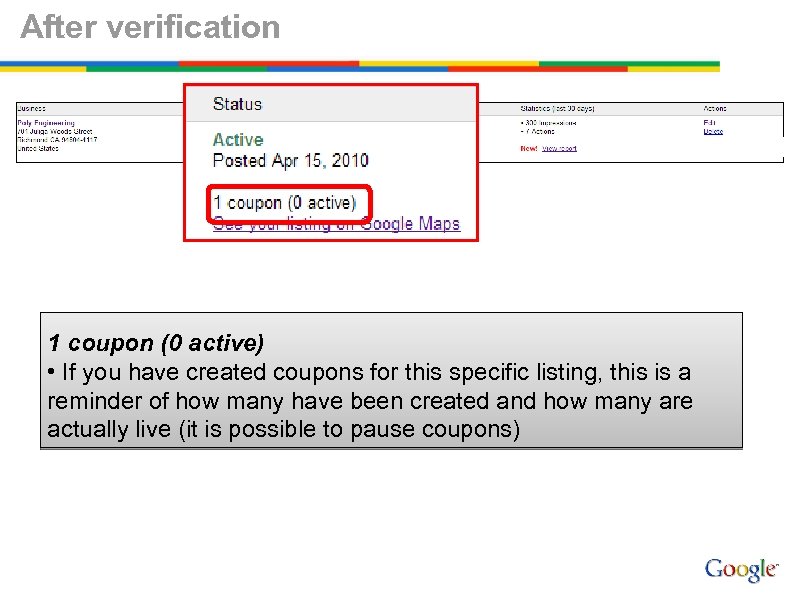
After verification 1 coupon (0 active) • If you have created coupons for this specific listing, this is a reminder of how many have been created and how many are actually live (it is possible to pause coupons)
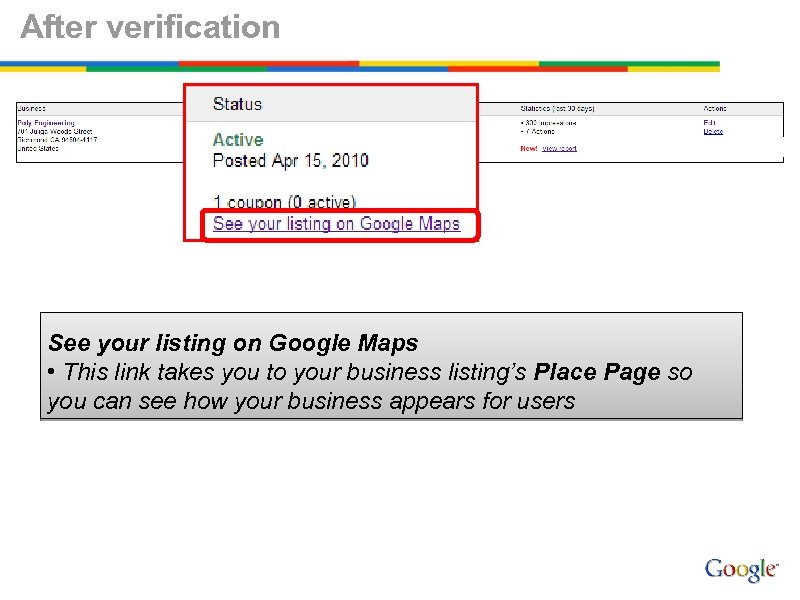
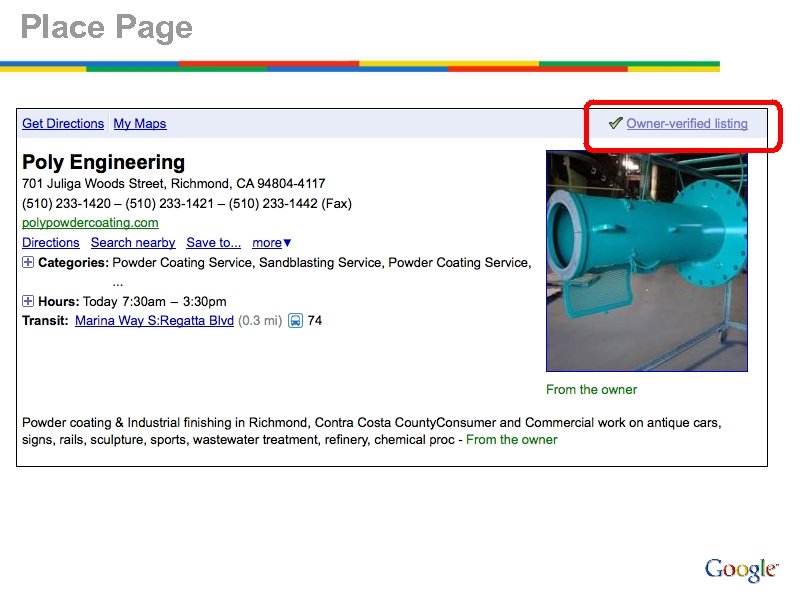
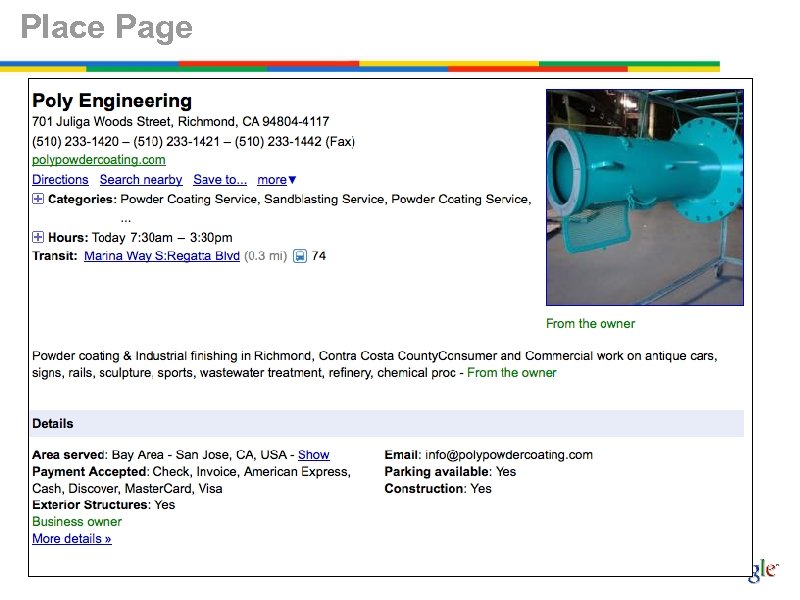
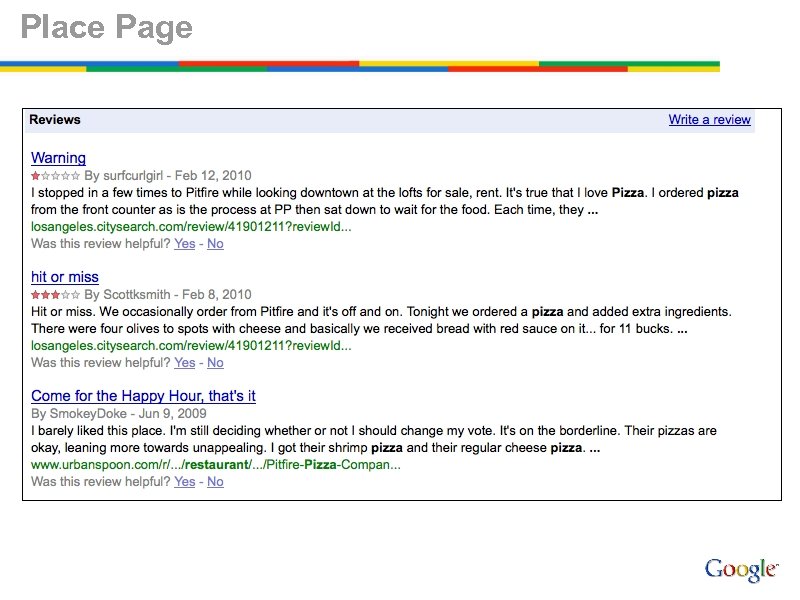
After verification See your listing on Google Maps • This link takes you to your business listing’s Place Page so you can see how your business appears for users
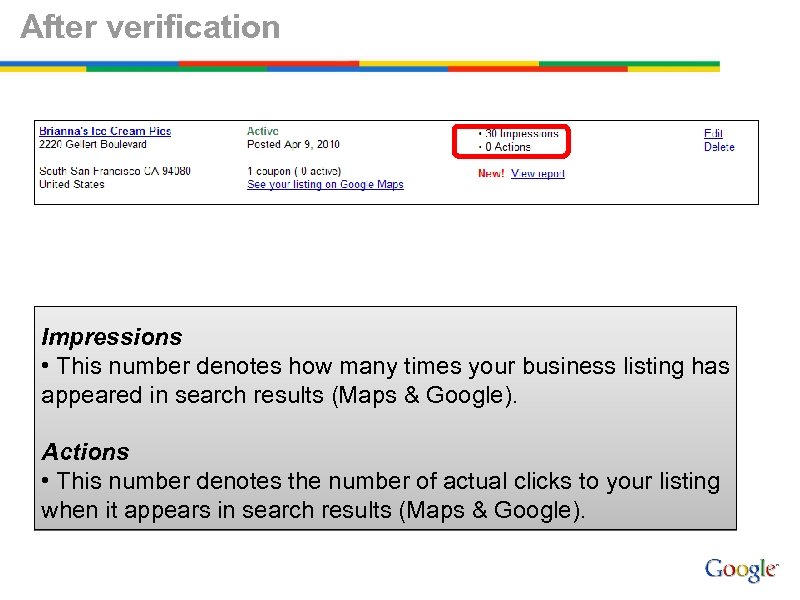
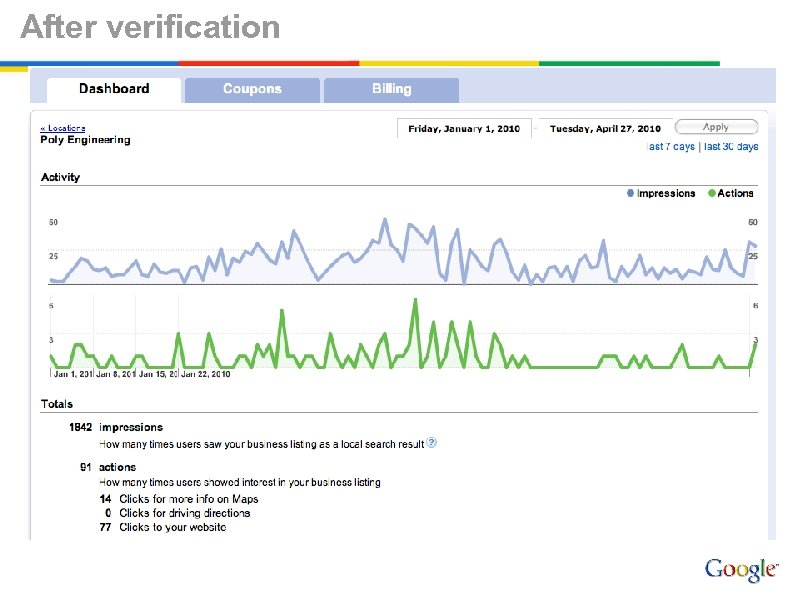
After verification Impressions • This number denotes how many times your business listing has appeared in search results (Maps & Google). Actions • This number denotes the number of actual clicks to your listing when it appears in search results (Maps & Google).
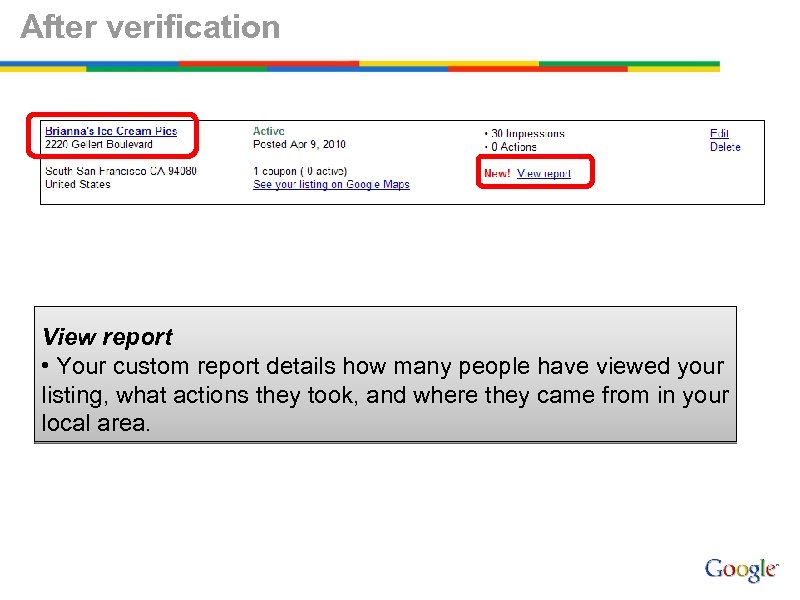
After verification View report • Your custom report details how many people have viewed your listing, what actions they took, and where they came from in your local area.
After verification
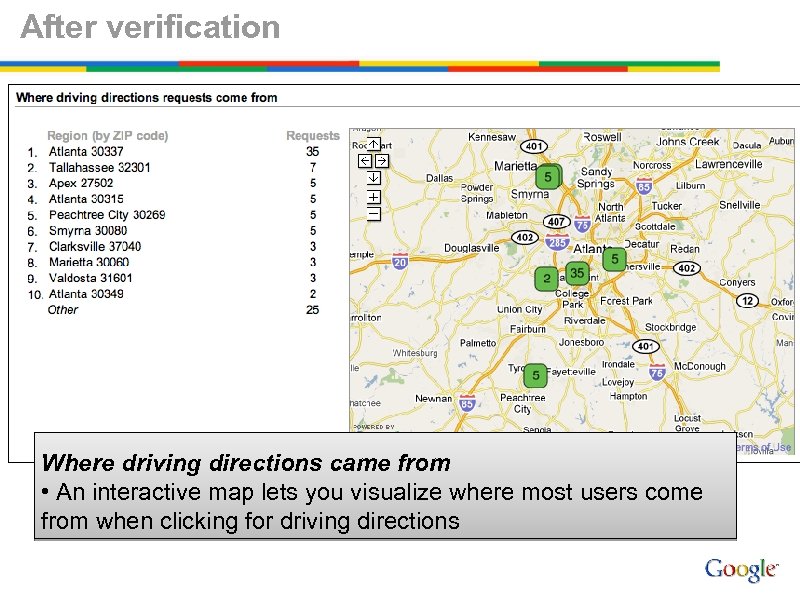
After verification Where driving directions came from • An interactive map lets you visualize where most users come from when clicking for driving directions
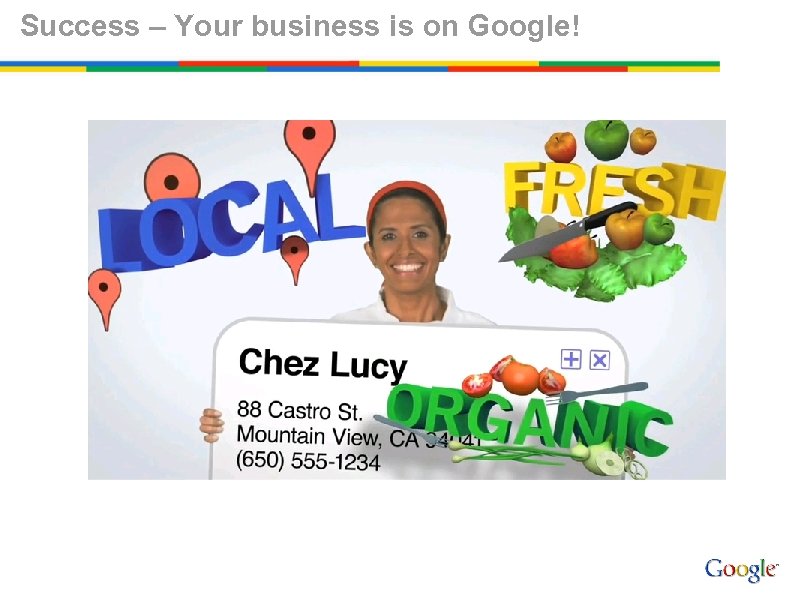
Success – Your business is on Google!
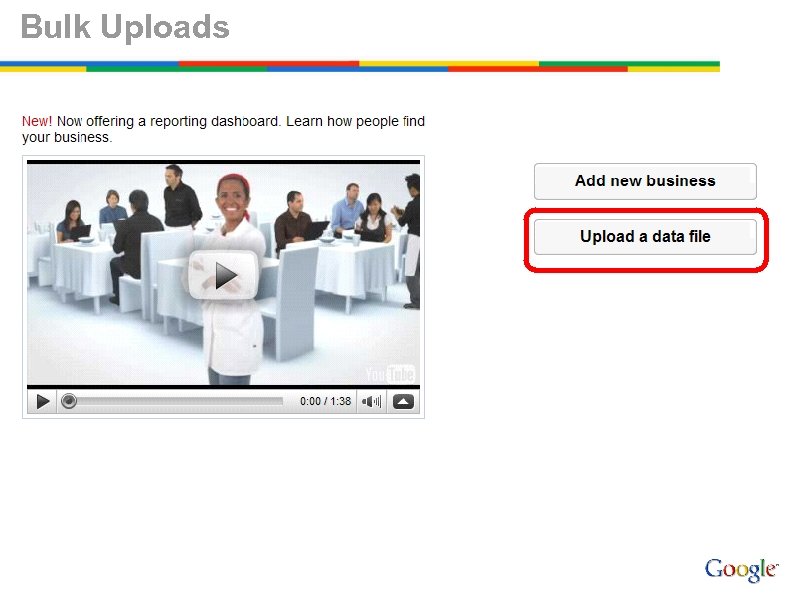
Bulk Uploads
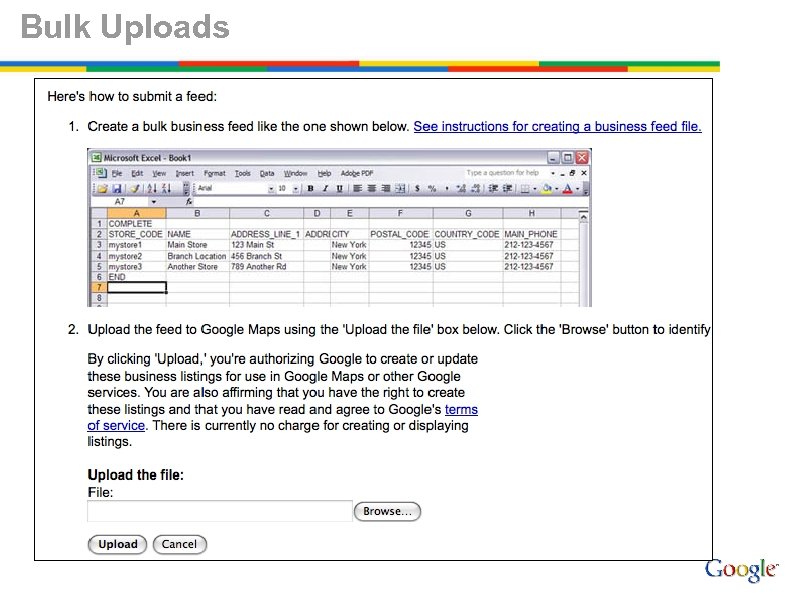
Bulk Uploads
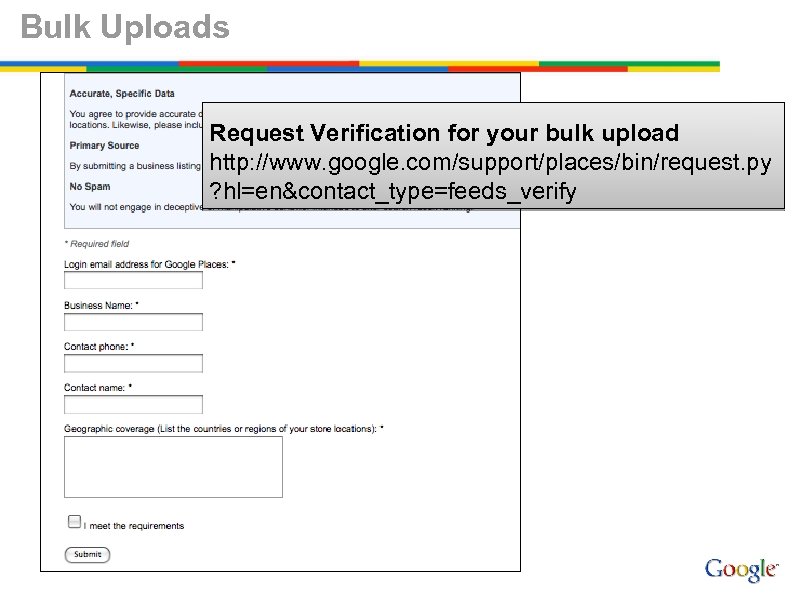
Bulk Uploads Request Verification for your bulk upload http: //www. google. com/support/places/bin/request. py ? hl=en&contact_type=feeds_verify
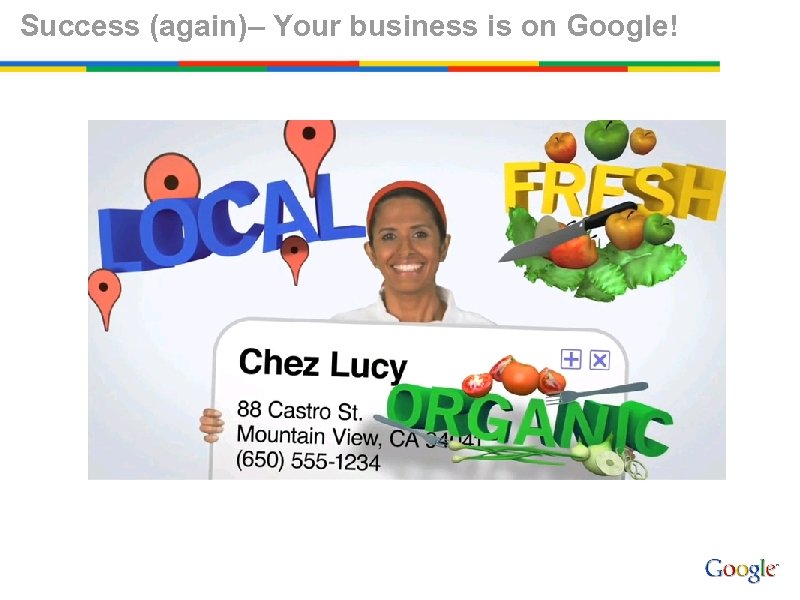
Success (again)– Your business is on Google!
Place Page
Place Page

Place Page
Place Page
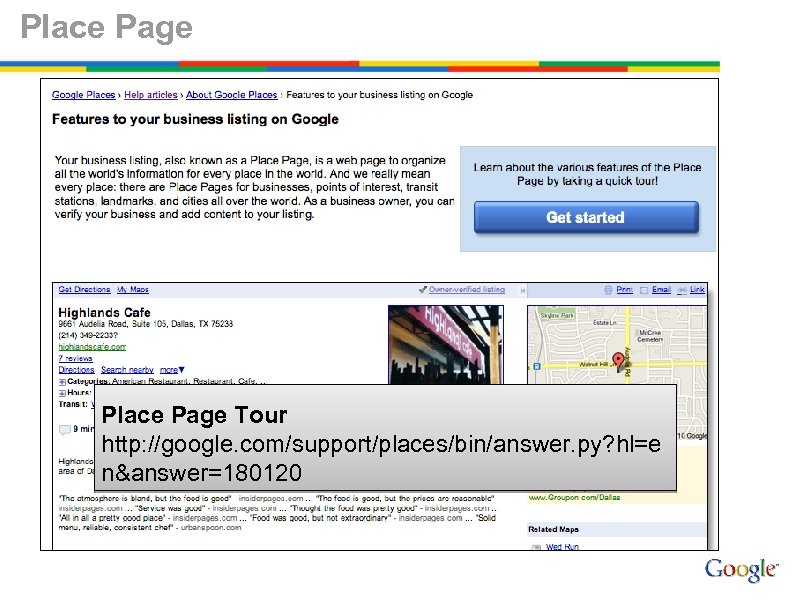
Place Page Tour http: //google. com/support/places/bin/answer. py? hl=e n&answer=180120
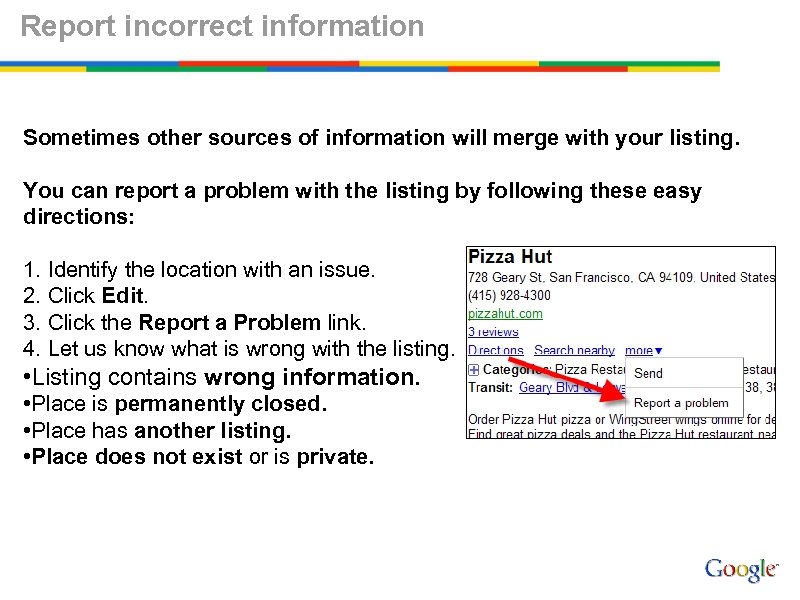
Report incorrect information Sometimes other sources of information will merge with your listing. You can report a problem with the listing by following these easy directions: 1. Identify the location with an issue. 2. Click Edit. 3. Click the Report a Problem link. 4. Let us know what is wrong with the listing. • Listing contains wrong information. • Place is permanently closed. • Place has another listing. • Place does not exist or is private.
The End References: Google Places User Guide: http: //google. com/support/places/bin/static. py? hl=en&page=guide. cs&guide=28247 Edit Your Place: google. com/places Google Maps for your site: maps. google. com/getmaps Favorite Places: google. com/favoriteplaces
Appendix
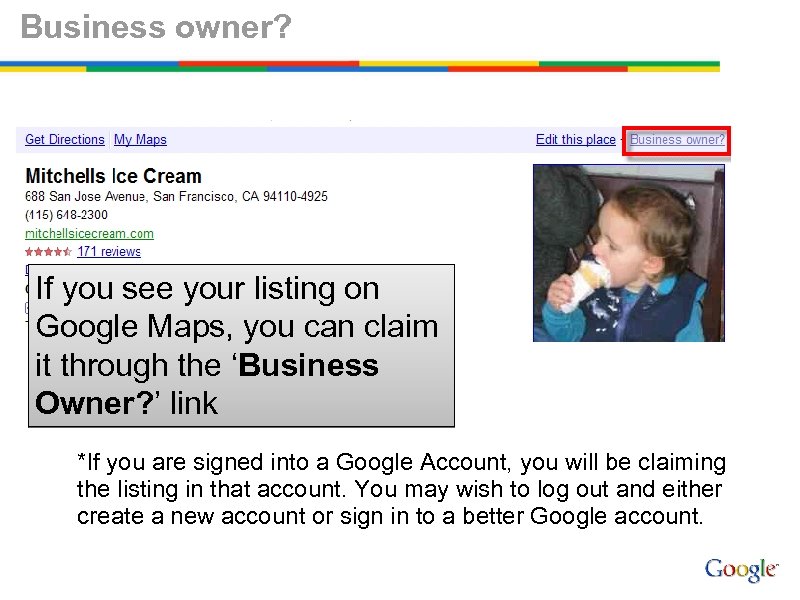
Business owner? If you see your listing on Google Maps, you can claim it through the ‘Business Owner? ’ link *If you are signed into a Google Account, you will be claiming the listing in that account. You may wish to log out and either create a new account or sign in to a better Google account.
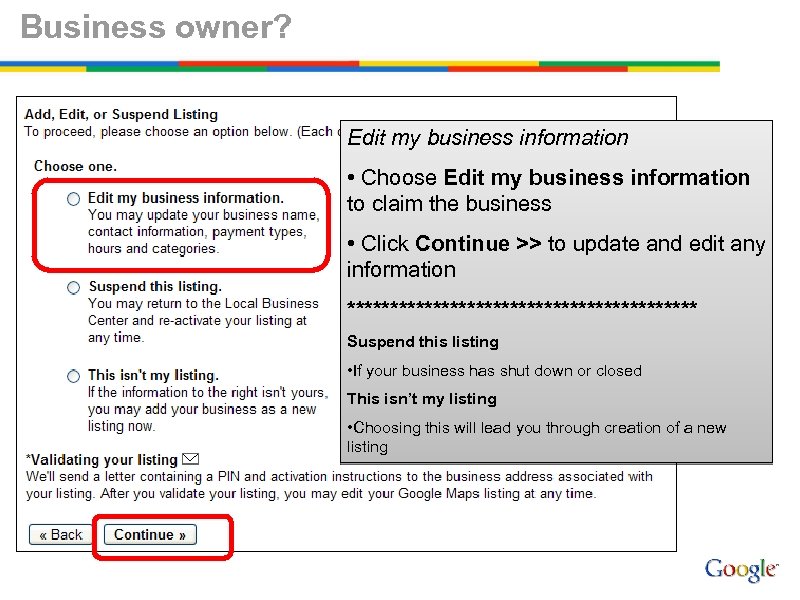
Business owner? Edit my business information • Choose Edit my business information to claim the business • Click Continue >> to update and edit any information ********************* Suspend this listing • If your business has shut down or closed This isn’t my listing • Choosing this will lead you through creation of a new listing
Скачать презентацию Get found with Google July 2010 Brianna Brekke
cd46c6f5f224f4477667aa258e204a11.ppt