


 Скачать презентацию GAVELLOG CO UK LTD Auction sale administration program
19323e94126f743317b292bae5bea893.ppt
- Количество слайдов: 52
 GAVELLOG. CO. UK LTD Auction sale administration program
 New Windows Version Originally written some 20 years ago as a DOS program, Gavellog was successfully operated in a small number of livestock markets. Although never marketed commercially, it was constantly updated and improved until replaced by this new version. l It has been completely re-written for Microsoft Windows, with greatly enhanced performance and many additional and innovative features. l
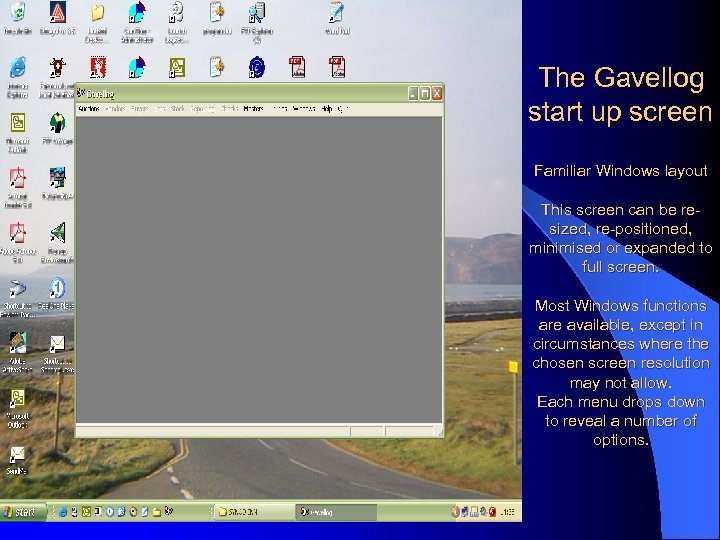 The Gavellog start up screen Familiar Windows layout This screen can be resized, re-positioned, minimised or expanded to full screen. Most Windows functions are available, except in circumstances where the chosen screen resolution may not allow. Each menu drops down to reveal a number of options.
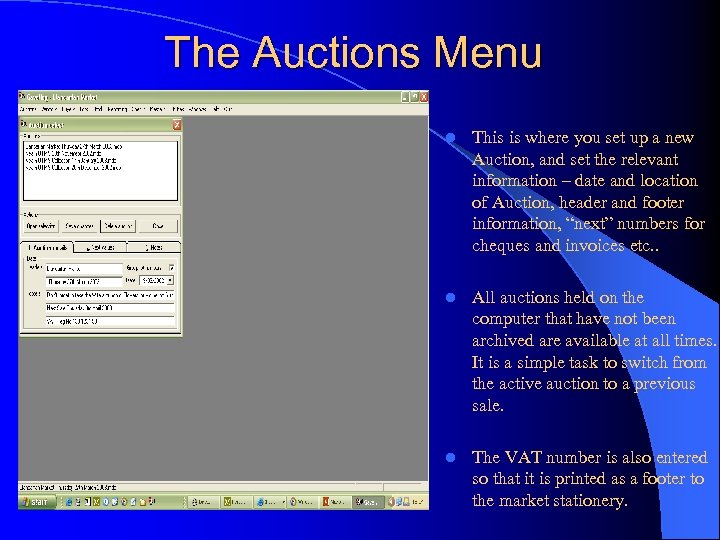 The Auctions Menu l This is where you set up a new Auction, and set the relevant information – date and location of Auction, header and footer information, “next” numbers for cheques and invoices etc. . l All auctions held on the computer that have not been archived are available at all times. It is a simple task to switch from the active auction to a previous sale. l The VAT number is also entered so that it is printed as a footer to the market stationery.
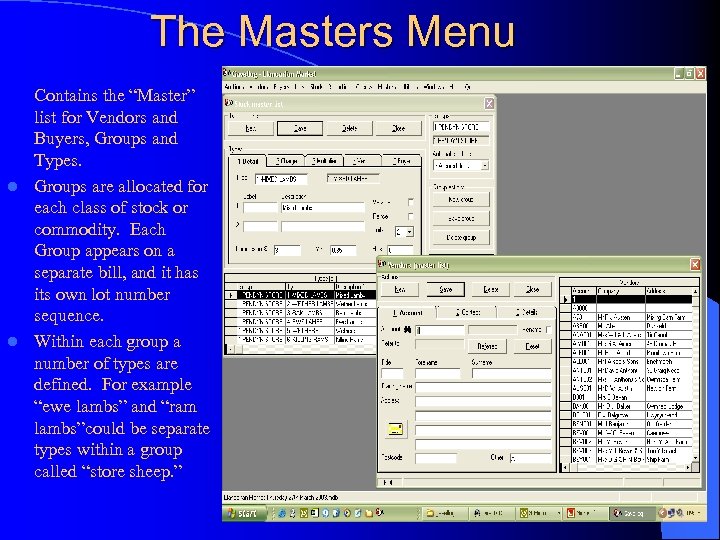 The Masters Menu Contains the “Master” list for Vendors and Buyers, Groups and Types. l Groups are allocated for each class of stock or commodity. Each Group appears on a separate bill, and it has its own lot number sequence. l Within each group a number of types are defined. For example “ewe lambs” and “ram lambs”could be separate types within a group called “store sheep. ”
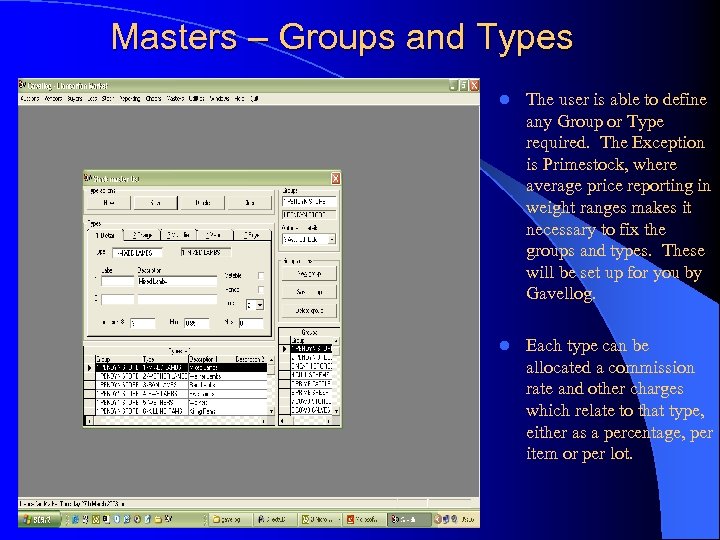 Masters – Groups and Types l The user is able to define any Group or Type required. The Exception is Primestock, where average price reporting in weight ranges makes it necessary to fix the groups and types. These will be set up for you by Gavellog. l Each type can be allocated a commission rate and other charges which relate to that type, either as a percentage, per item or per lot.
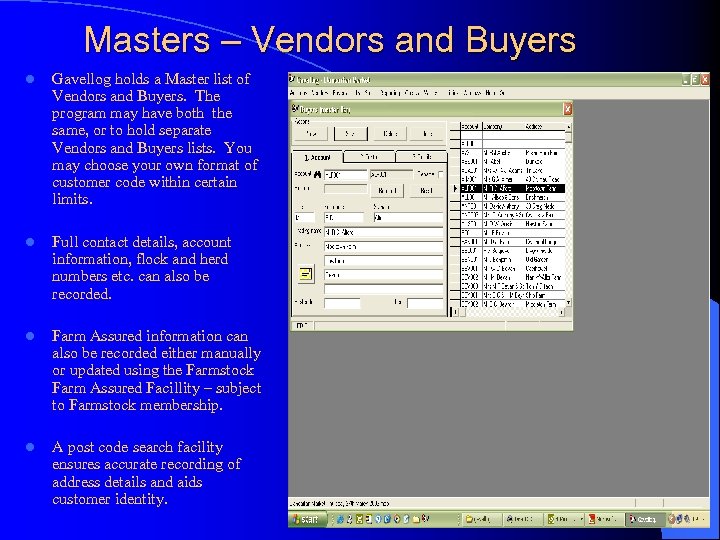 Masters – Vendors and Buyers l Gavellog holds a Master list of Vendors and Buyers. The program may have both the same, or to hold separate Vendors and Buyers lists. You may choose your own format of customer code within certain limits. l Full contact details, account information, flock and herd numbers etc. can also be recorded. l Farm Assured information can also be recorded either manually or updated using the Farmstock Farm Assured Facillity – subject to Farmstock membership. l A post code search facility ensures accurate recording of address details and aids customer identity.
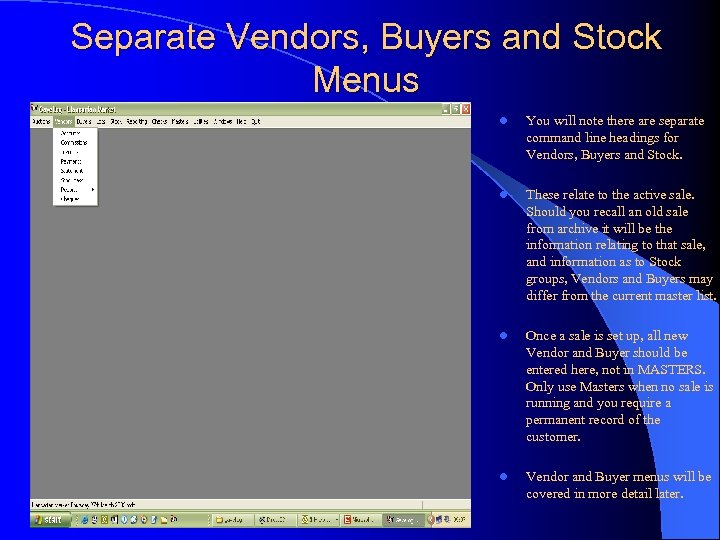 Separate Vendors, Buyers and Stock Menus l You will note there are separate command line headings for Vendors, Buyers and Stock. l These relate to the active sale. Should you recall an old sale from archive it will be the information relating to that sale, and information as to Stock groups, Vendors and Buyers may differ from the current master list. l Once a sale is set up, all new Vendor and Buyer should be entered here, not in MASTERS. Only use Masters when no sale is running and you require a permanent record of the customer. l Vendor and Buyer menus will be covered in more detail later.
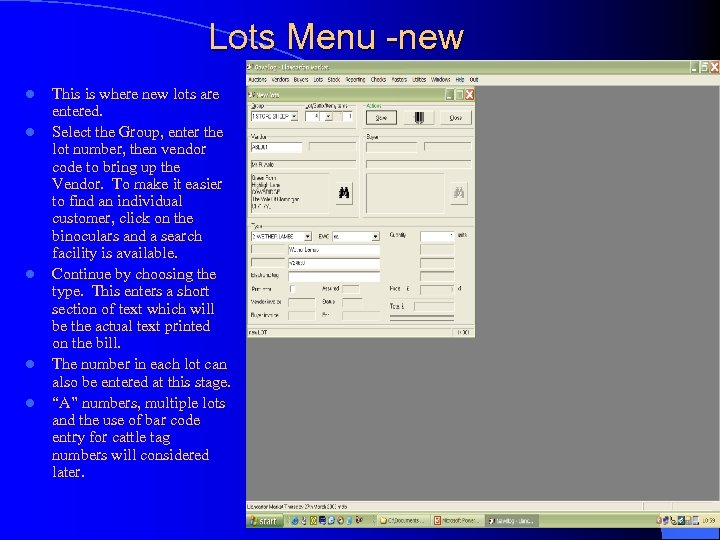 Lots Menu -new l l l This is where new lots are entered. Select the Group, enter the lot number, then vendor code to bring up the Vendor. To make it easier to find an individual customer, click on the binoculars and a search facility is available. Continue by choosing the type. This enters a short section of text which will be the actual text printed on the bill. The number in each lot can also be entered at this stage. “A” numbers, multiple lots and the use of bar code entry for cattle tag numbers will considered later.
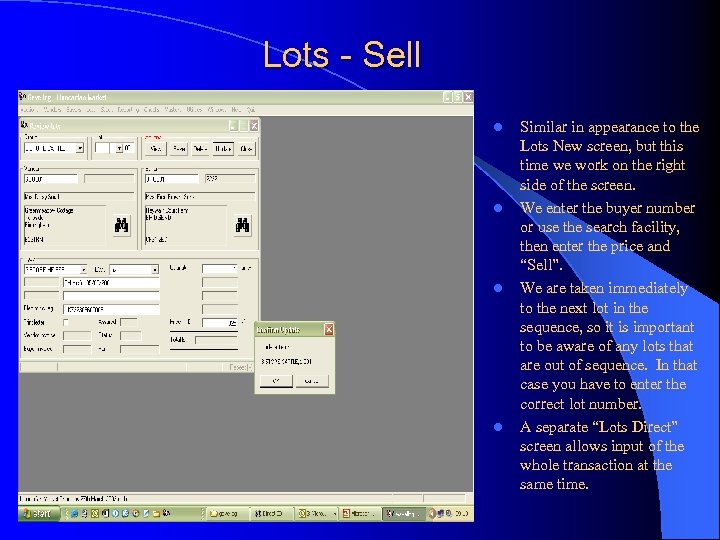 Lots - Sell l l Similar in appearance to the Lots New screen, but this time we work on the right side of the screen. We enter the buyer number or use the search facility, then enter the price and “Sell”. We are taken immediately to the next lot in the sequence, so it is important to be aware of any lots that are out of sequence. In that case you have to enter the correct lot number. A separate “Lots Direct” screen allows input of the whole transaction at the same time.
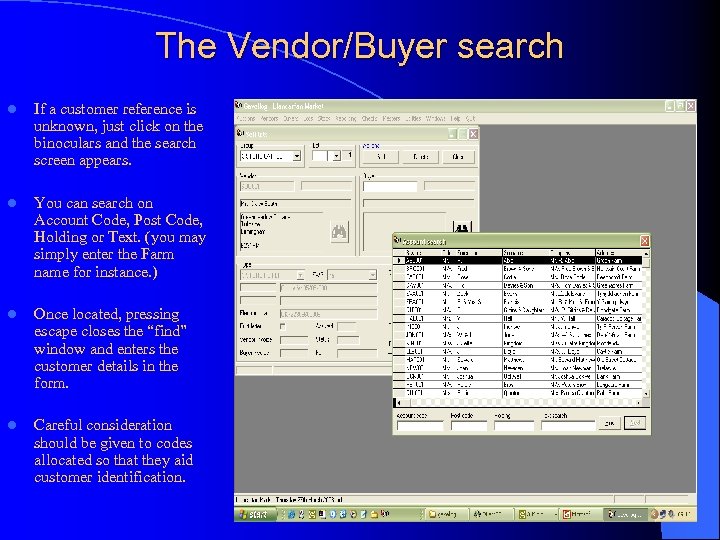 The Vendor/Buyer search l If a customer reference is unknown, just click on the binoculars and the search screen appears. l You can search on Account Code, Post Code, Holding or Text. (you may simply enter the Farm name for instance. ) l Once located, pressing escape closes the “find” window and enters the customer details in the form. l Careful consideration should be given to codes allocated so that they aid customer identification.
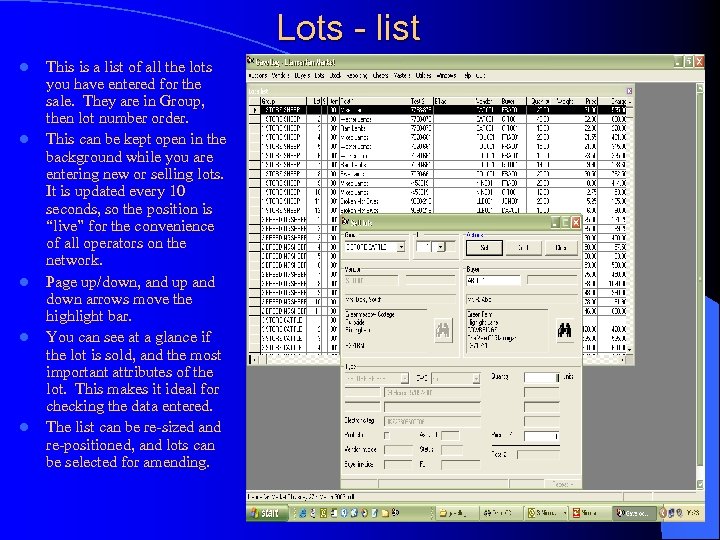 Lots - list l l l This is a list of all the lots you have entered for the sale. They are in Group, then lot number order. This can be kept open in the background while you are entering new or selling lots. It is updated every 10 seconds, so the position is “live” for the convenience of all operators on the network. Page up/down, and up and down arrows move the highlight bar. You can see at a glance if the lot is sold, and the most important attributes of the lot. This makes it ideal for checking the data entered. The list can be re-sized and re-positioned, and lots can be selected for amending.
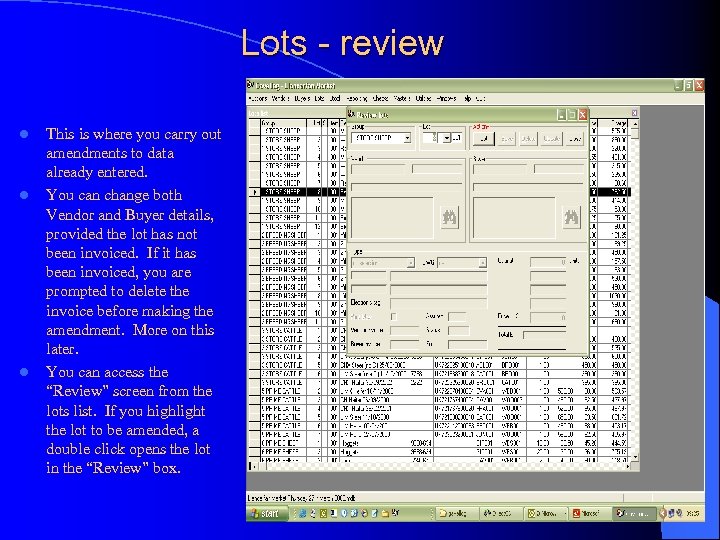 Lots - review l l l This is where you carry out amendments to data already entered. You can change both Vendor and Buyer details, provided the lot has not been invoiced. If it has been invoiced, you are prompted to delete the invoice before making the amendment. More on this later. You can access the “Review” screen from the lots list. If you highlight the lot to be amended, a double click opens the lot in the “Review” box.
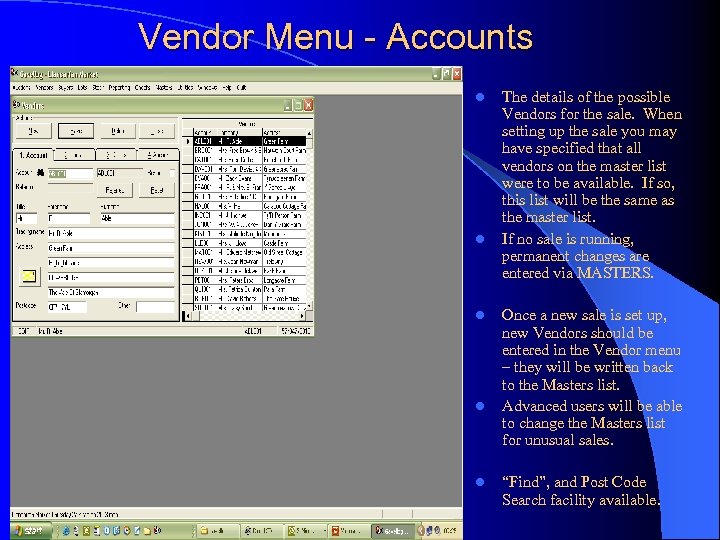 Vendor Menu - Accounts l l l The details of the possible Vendors for the sale. When setting up the sale you may have specified that all vendors on the master list were to be available. If so, this list will be the same as the master list. If no sale is running, permanent changes are entered via MASTERS. Once a new sale is set up, new Vendors should be entered in the Vendor menu – they will be written back to the Masters list. Advanced users will be able to change the Masters list for unusual sales. “Find”, and Post Code Search facility available.
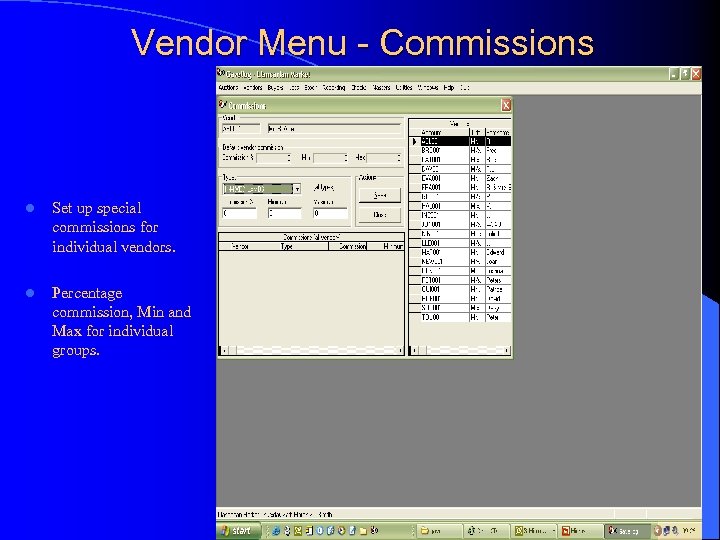 Vendor Menu - Commissions l Set up special commissions for individual vendors. l Percentage commission, Min and Max for individual groups.
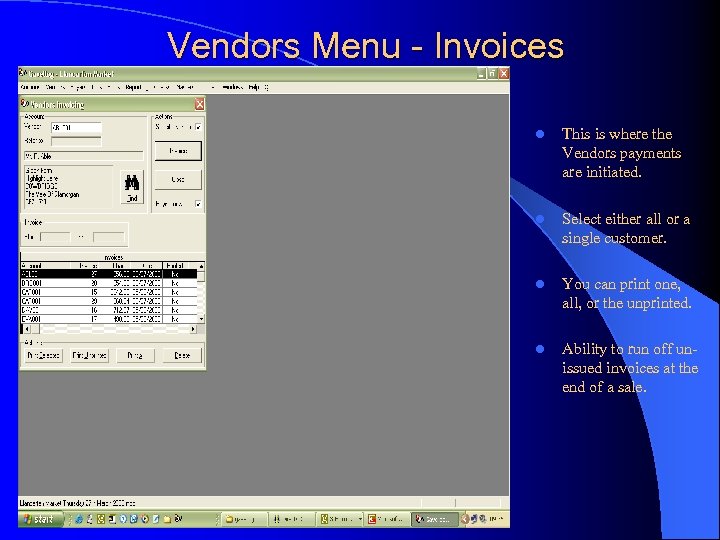 Vendors Menu - Invoices l This is where the Vendors payments are initiated. l Select either all or a single customer. l You can print one, all, or the unprinted. l Ability to run off unissued invoices at the end of a sale.
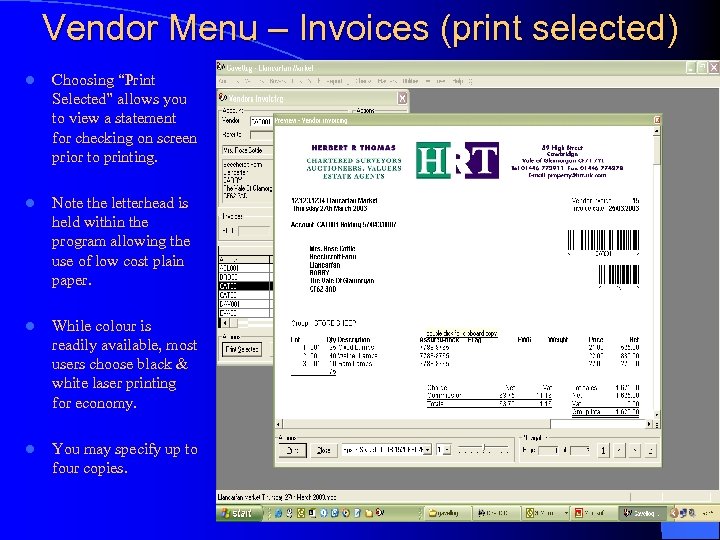 Vendor Menu – Invoices (print selected) l Choosing “Print Selected” allows you to view a statement for checking on screen prior to printing. l Note the letterhead is held within the program allowing the use of low cost plain paper. l While colour is readily available, most users choose black & white laser printing for economy. l You may specify up to four copies.
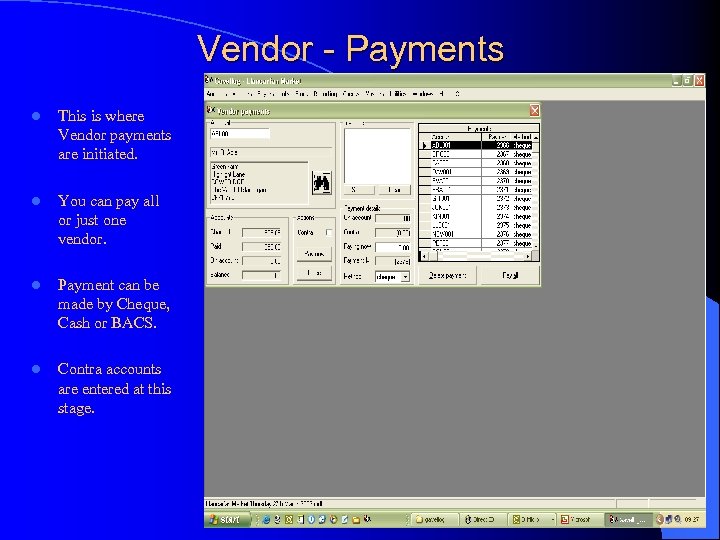 Vendor - Payments l This is where Vendor payments are initiated. l You can pay all or just one vendor. l Payment can be made by Cheque, Cash or BACS. l Contra accounts are entered at this stage.
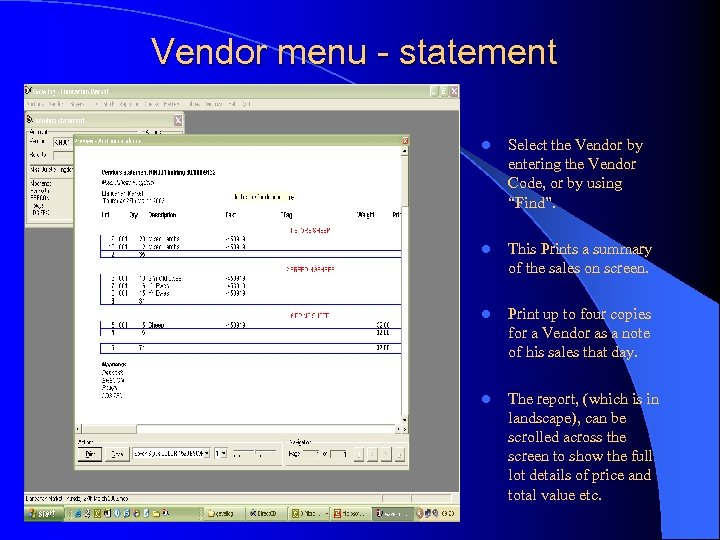 Vendor menu - statement l Select the Vendor by entering the Vendor Code, or by using “Find”. l This Prints a summary of the sales on screen. l Print up to four copies for a Vendor as a note of his sales that day. l The report, (which is in landscape), can be scrolled across the screen to show the full lot details of price and total value etc.
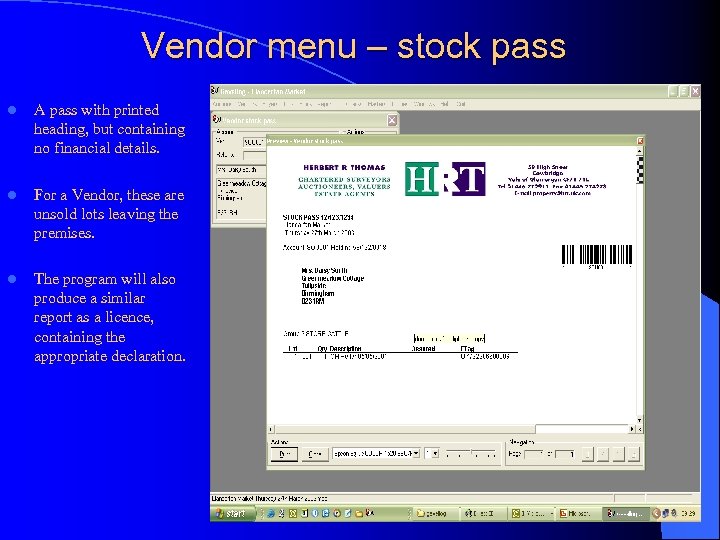 Vendor menu – stock pass l A pass with printed heading, but containing no financial details. l For a Vendor, these are unsold lots leaving the premises. l The program will also produce a similar report as a licence, containing the appropriate declaration.
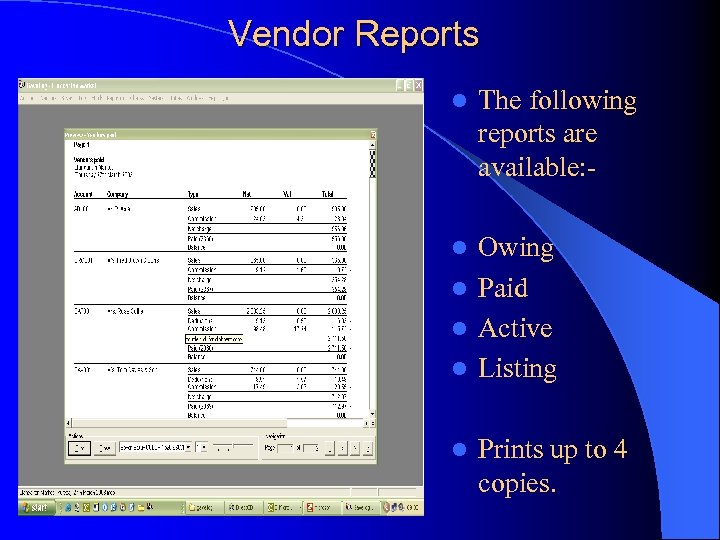 Vendor Reports l The following reports are available: - Owing l Paid l Active l Listing l l Prints up to 4 copies.
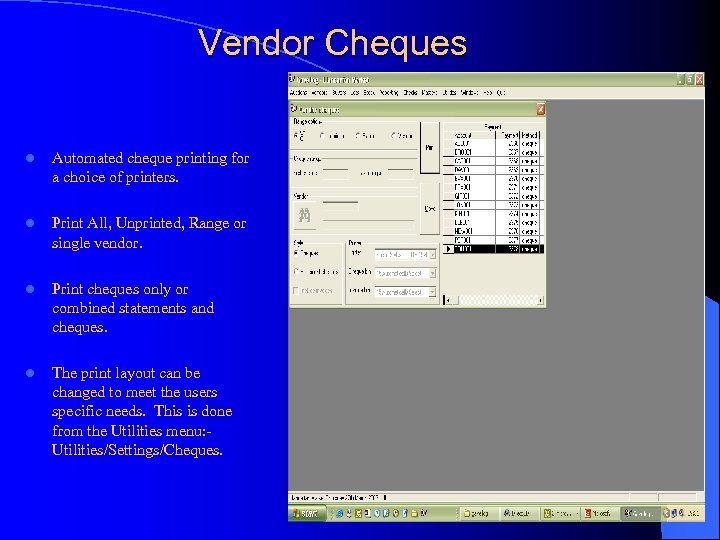 Vendor Cheques l Automated cheque printing for a choice of printers. l Print All, Unprinted, Range or single vendor. l Print cheques only or combined statements and cheques. l The print layout can be changed to meet the users specific needs. This is done from the Utilities menu: Utilities/Settings/Cheques.
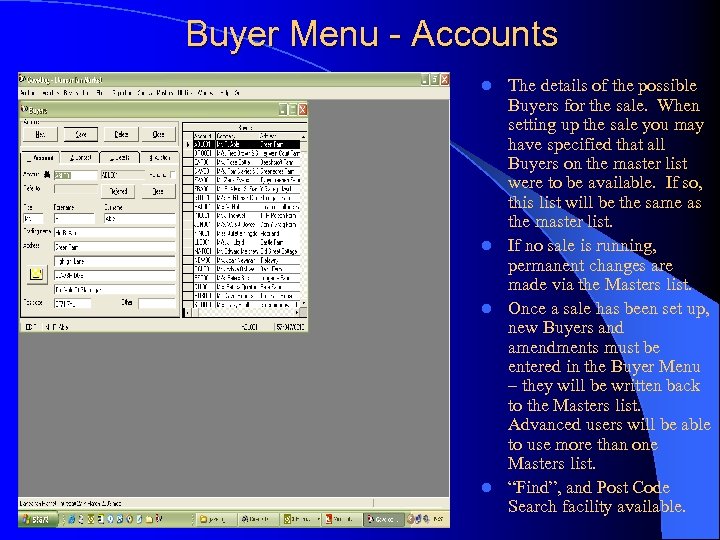 Buyer Menu - Accounts The details of the possible Buyers for the sale. When setting up the sale you may have specified that all Buyers on the master list were to be available. If so, this list will be the same as the master list. l If no sale is running, permanent changes are made via the Masters list. l Once a sale has been set up, new Buyers and amendments must be entered in the Buyer Menu – they will be written back to the Masters list. Advanced users will be able to use more than one Masters list. l “Find”, and Post Code Search facility available. l
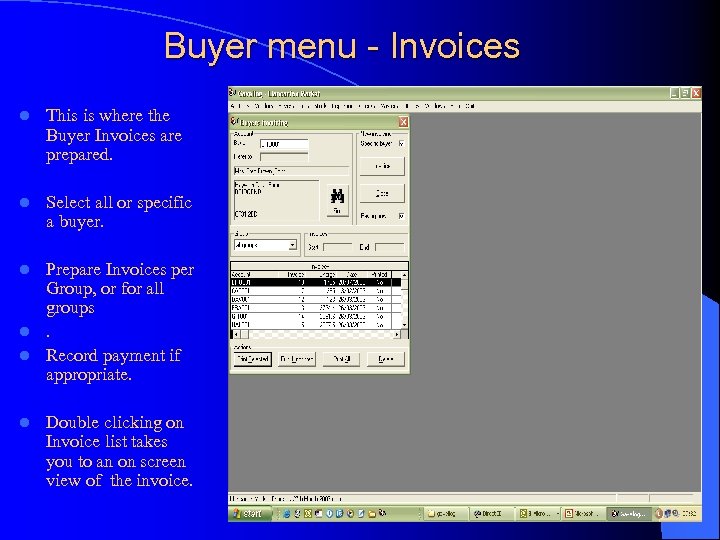 Buyer menu - Invoices l This is where the Buyer Invoices are prepared. l Select all or specific a buyer. Prepare Invoices per Group, or for all groups l. l Record payment if appropriate. l l Double clicking on Invoice list takes you to an on screen view of the invoice.
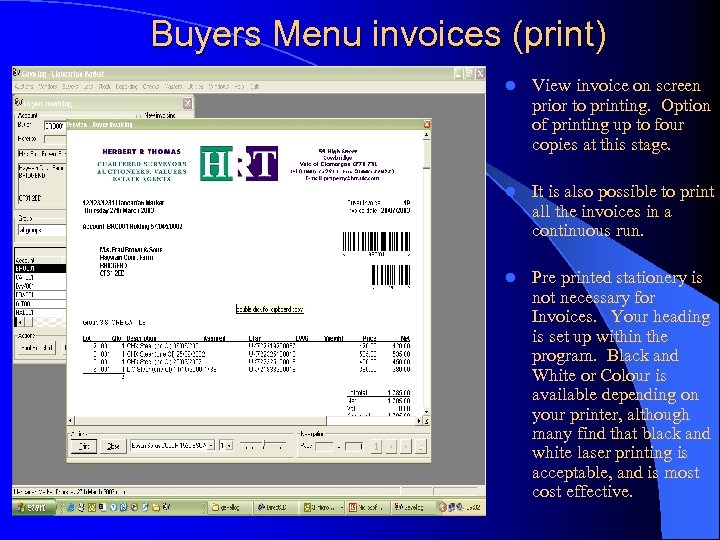 Buyers Menu invoices (print) l View invoice on screen prior to printing. Option of printing up to four copies at this stage. l It is also possible to print all the invoices in a continuous run. l Pre printed stationery is not necessary for Invoices. Your heading is set up within the program. Black and White or Colour is available depending on your printer, although many find that black and white laser printing is acceptable, and is most cost effective.
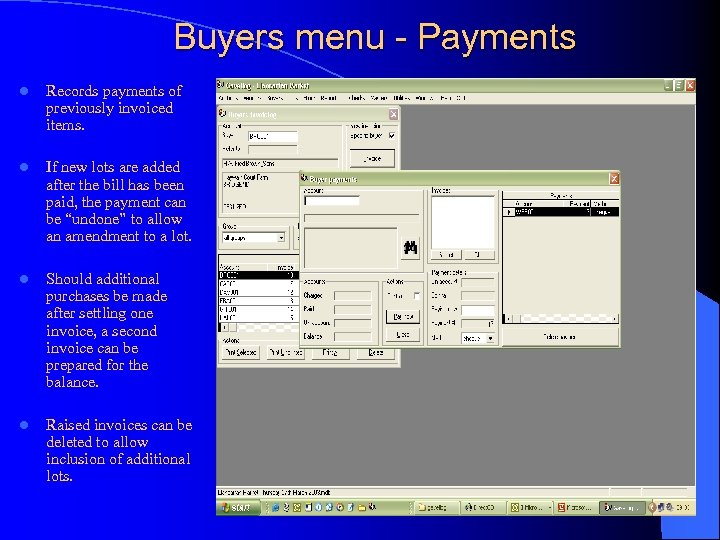 Buyers menu - Payments l Records payments of previously invoiced items. l If new lots are added after the bill has been paid, the payment can be “undone” to allow an amendment to a lot. l Should additional purchases be made after settling one invoice, a second invoice can be prepared for the balance. l Raised invoices can be deleted to allow inclusion of additional lots.
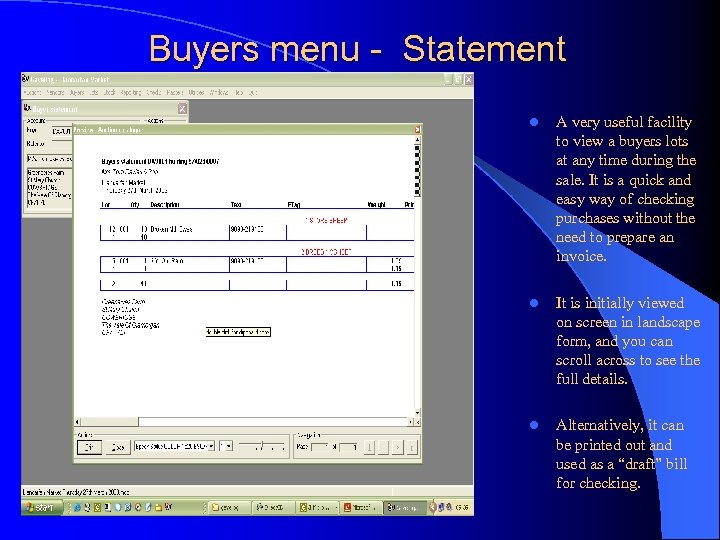 Buyers menu - Statement l A very useful facility to view a buyers lots at any time during the sale. It is a quick and easy way of checking purchases without the need to prepare an invoice. l It is initially viewed on screen in landscape form, and you can scroll across to see the full details. l Alternatively, it can be printed out and used as a “draft” bill for checking.
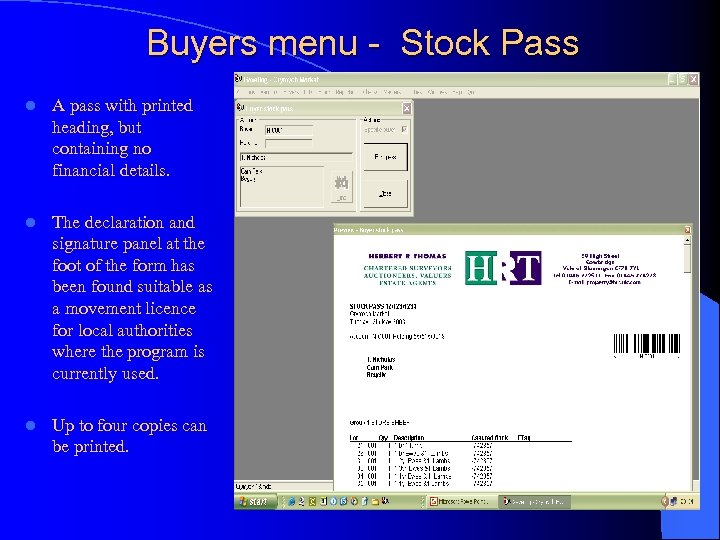 Buyers menu - Stock Pass l A pass with printed heading, but containing no financial details. l The declaration and signature panel at the foot of the form has been found suitable as a movement licence for local authorities where the program is currently used. l Up to four copies can be printed.
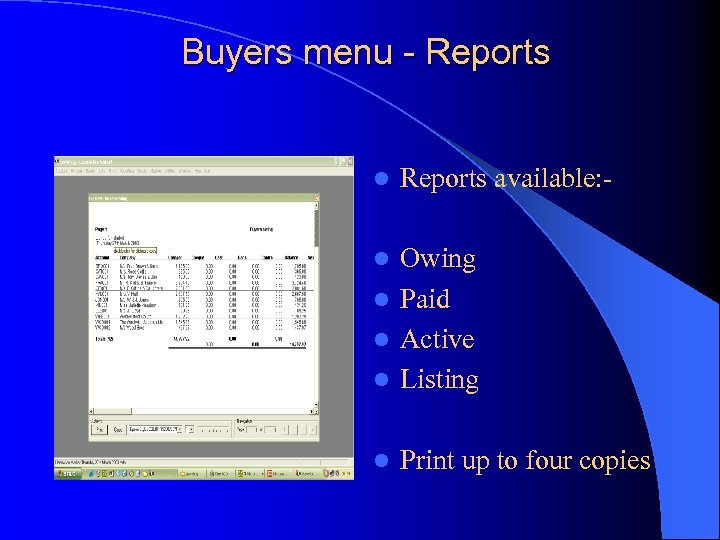 Buyers menu - Reports l Reports available: - Owing l Paid l Active l Listing l l Print up to four copies
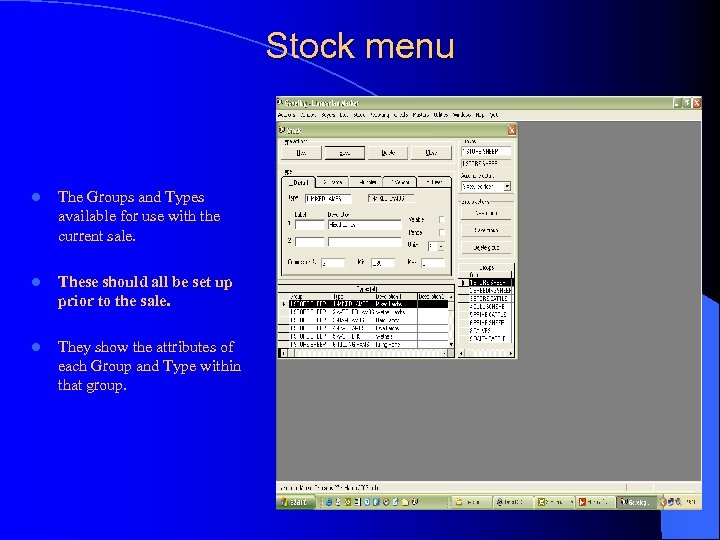 Stock menu l The Groups and Types available for use with the current sale. l These should all be set up prior to the sale. l They show the attributes of each Group and Type within that group.
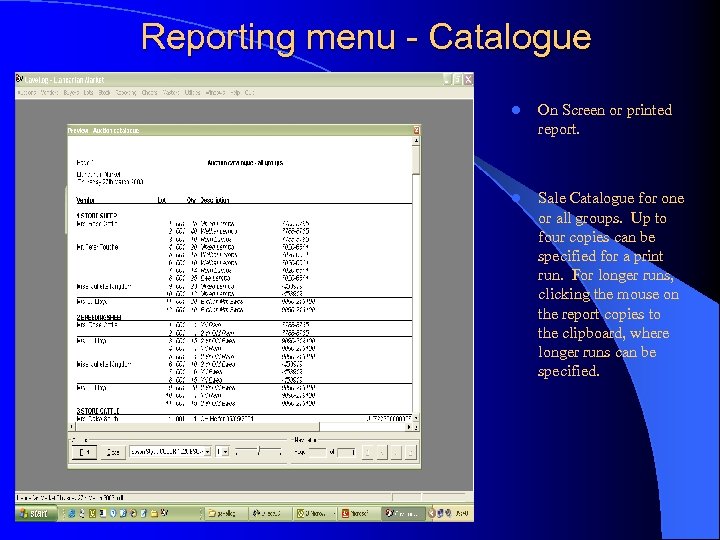 Reporting menu - Catalogue l On Screen or printed report. l Sale Catalogue for one or all groups. Up to four copies can be specified for a print run. For longer runs, clicking the mouse on the report copies to the clipboard, where longer runs can be specified.
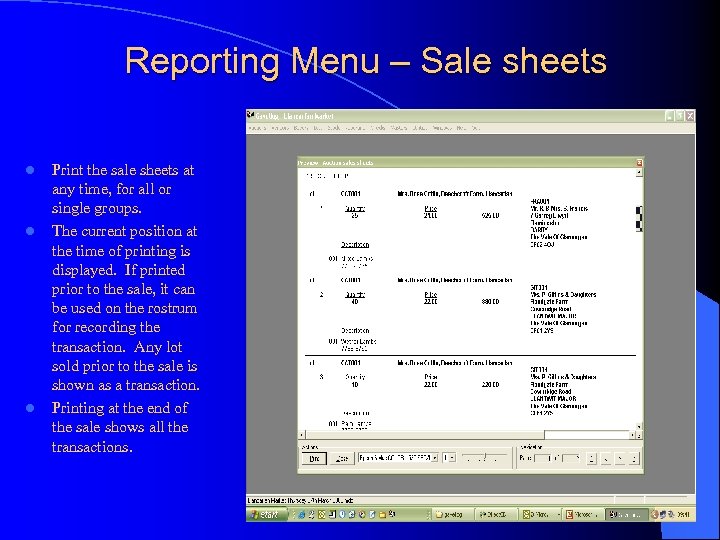 Reporting Menu – Sale sheets l l l Print the sale sheets at any time, for all or single groups. The current position at the time of printing is displayed. If printed prior to the sale, it can be used on the rostrum for recording the transaction. Any lot sold prior to the sale is shown as a transaction. Printing at the end of the sale shows all the transactions.
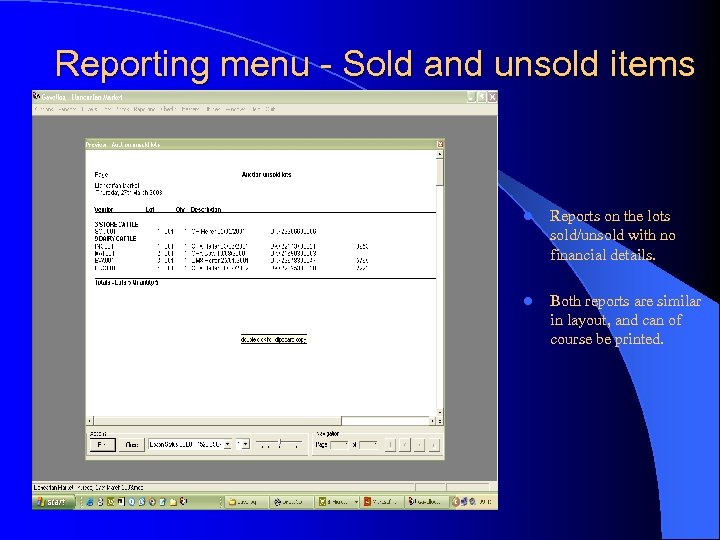 Reporting menu - Sold and unsold items l Reports on the lots sold/unsold with no financial details. l Both reports are similar in layout, and can of course be printed.
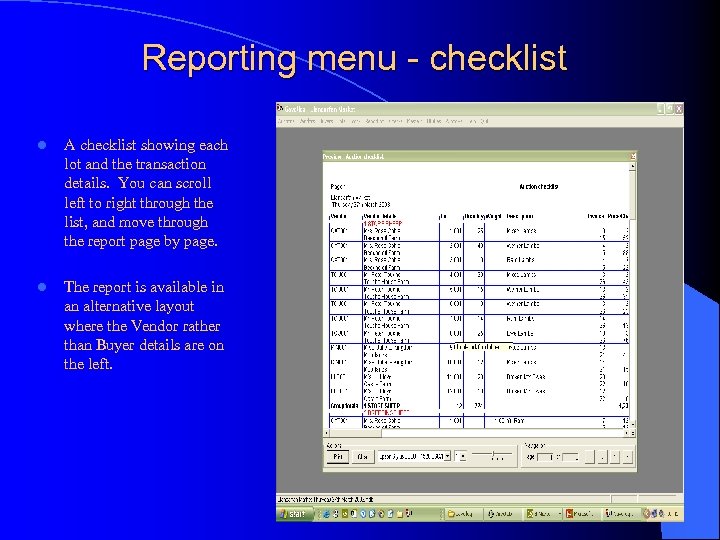 Reporting menu - checklist l A checklist showing each lot and the transaction details. You can scroll left to right through the list, and move through the report page by page. l The report is available in an alternative layout where the Vendor rather than Buyer details are on the left.
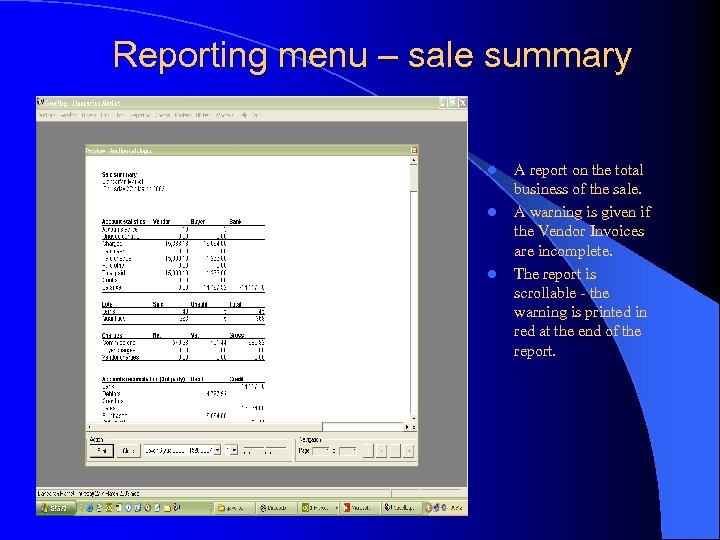 Reporting menu – sale summary l l l A report on the total business of the sale. A warning is given if the Vendor Invoices are incomplete. The report is scrollable - the warning is printed in red at the end of the report.
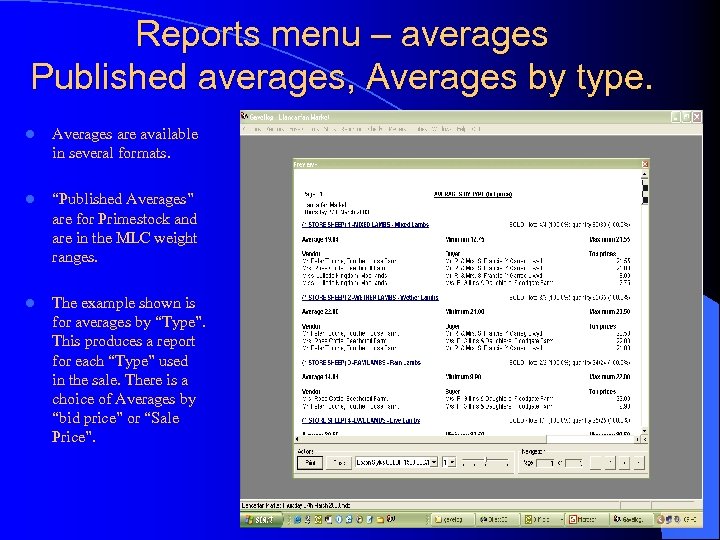 Reports menu – averages Published averages, Averages by type. l Averages are available in several formats. l “Published Averages” are for Primestock and are in the MLC weight ranges. l The example shown is for averages by “Type”. This produces a report for each “Type” used in the sale. There is a choice of Averages by “bid price” or “Sale Price”.
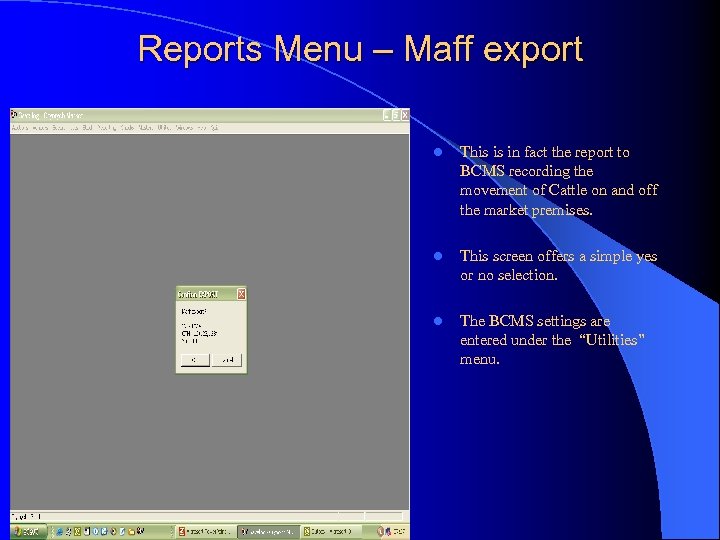 Reports Menu – Maff export l This is in fact the report to BCMS recording the movement of Cattle on and off the market premises. l This screen offers a simple yes or no selection. l The BCMS settings are entered under the “Utilities” menu.
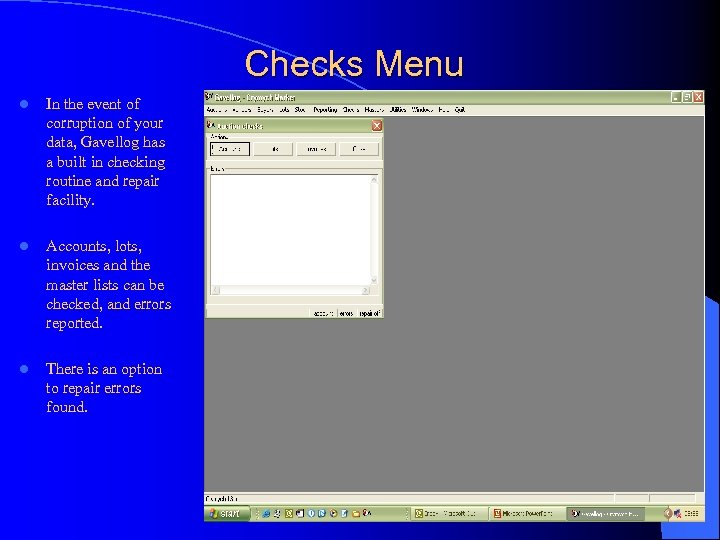 Checks Menu l In the event of corruption of your data, Gavellog has a built in checking routine and repair facility. l Accounts, lots, invoices and the master lists can be checked, and errors reported. l There is an option to repair errors found.
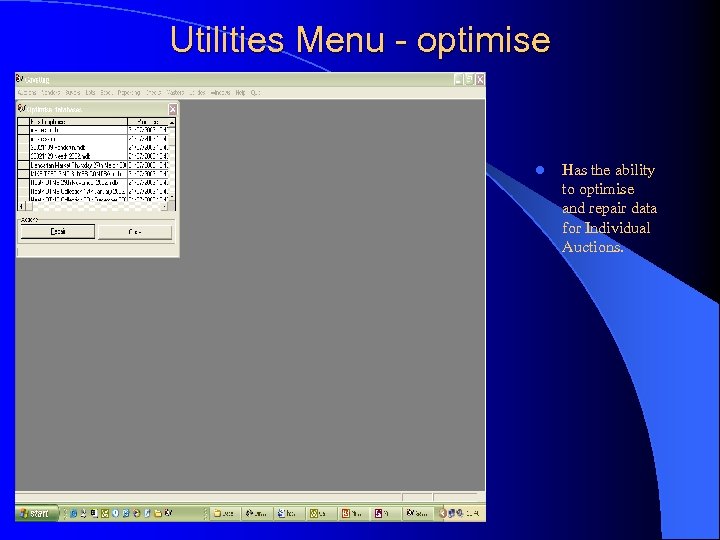 Utilities Menu - optimise l Has the ability to optimise and repair data for Individual Auctions.
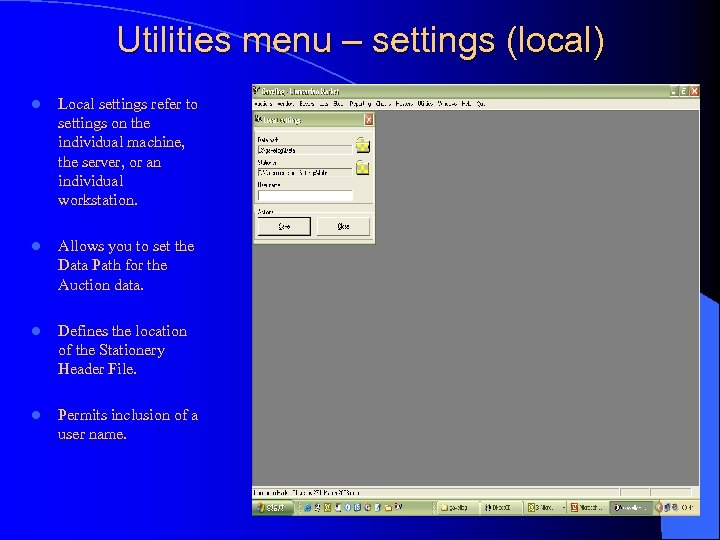 Utilities menu – settings (local) l Local settings refer to settings on the individual machine, the server, or an individual workstation. l Allows you to set the Data Path for the Auction data. l Defines the location of the Stationery Header File. l Permits inclusion of a user name.
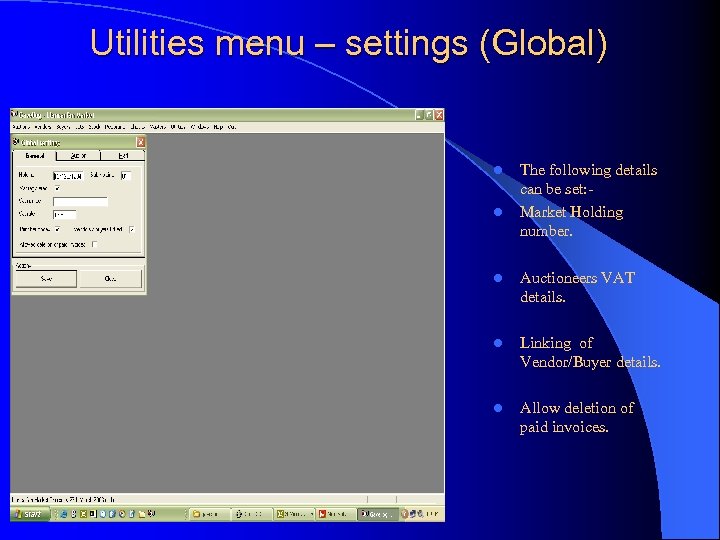 Utilities menu – settings (Global) l l The following details can be set: Market Holding number. l Auctioneers VAT details. l Linking of Vendor/Buyer details. l Allow deletion of paid invoices.
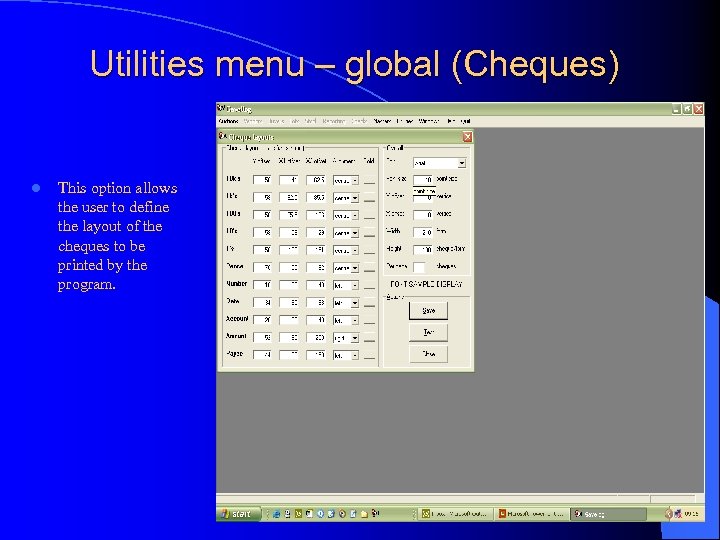 Utilities menu – global (Cheques) l This option allows the user to define the layout of the cheques to be printed by the program.
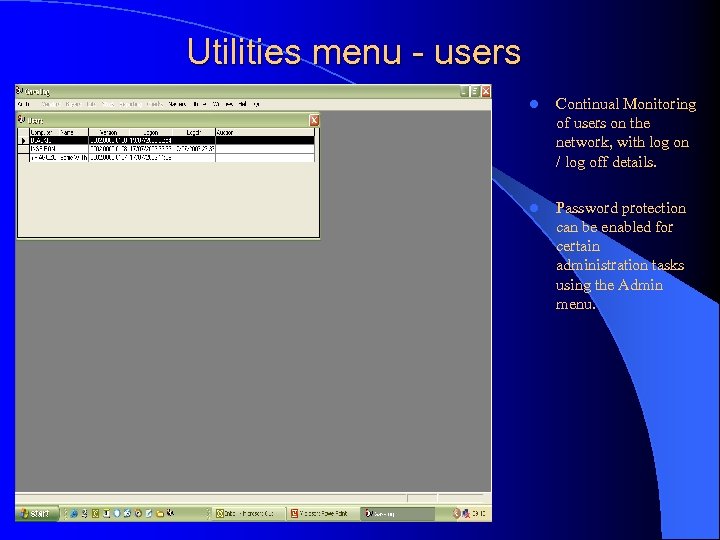 Utilities menu - users l Continual Monitoring of users on the network, with log on / log off details. l Password protection can be enabled for certain administration tasks using the Admin menu.
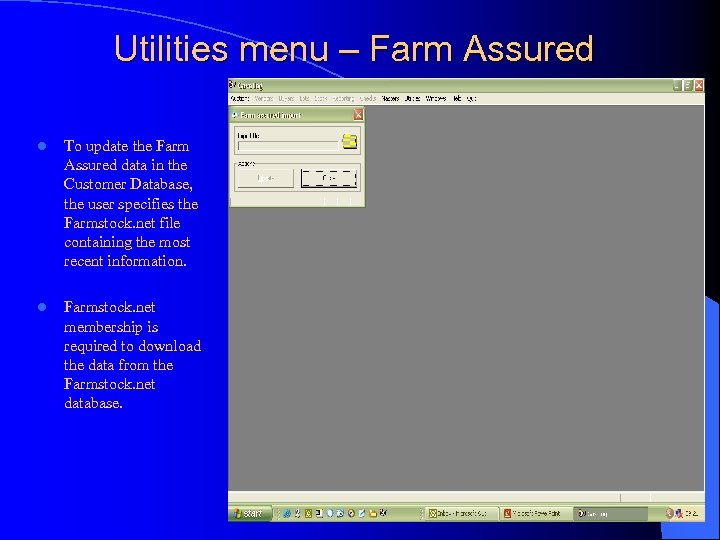 Utilities menu – Farm Assured l To update the Farm Assured data in the Customer Database, the user specifies the Farmstock. net file containing the most recent information. l Farmstock. net membership is required to download the data from the Farmstock. net database.
 Windows menu l Allows the usual Windows Cascade, Vertical tile or Horizontal tile of open windows. Help menu Context sensitive help is available for many of the Gavellog functions. Pressing F 1 brings up the help screen at any time. l
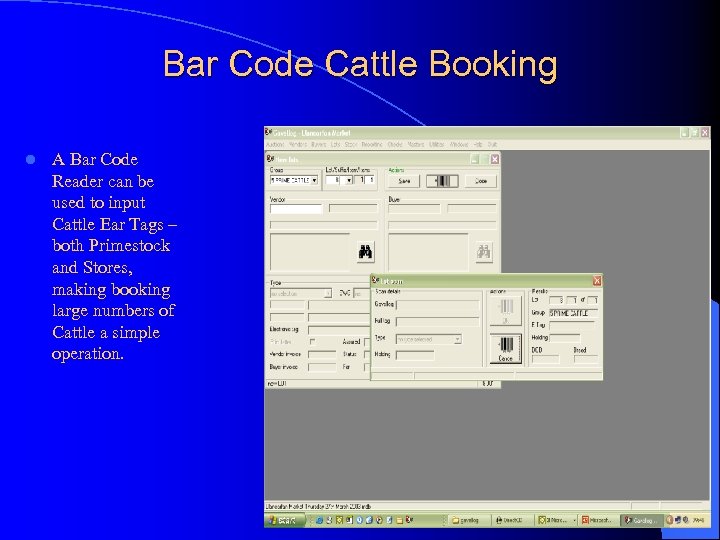 Bar Code Cattle Booking l A Bar Code Reader can be used to input Cattle Ear Tags – both Primestock and Stores, making booking large numbers of Cattle a simple operation.
 “A” numbers and multiple lots. l l The program allows the use of “A” numbers. In the case of multiple groups, should these be split at the time of sale, the program allows for the allocation of “A” numbers to any specific item/s or animal/s.
 Stationery l Pre-printed Cheques with your firms heading can be supplied by Gavellog at competitive prices, and are designed to accommodate Gavellog’s standard cheque layout. l l Gavellog holds details of the Invoice header, which is printed with the invoice details, on economy paper. Should you prefer to use pre-printed headed paper for the invoices, the header within Gavellog can be disabled. The layout needs to be compatible with the invoice layout, and Gavellog can arrange this if you so wish. Gavellog can also supply your firms headed notepaper at competitive prices. Why not ask for a quote?
 Hardware While we can supply and install a suitable computer system, you don’t have to buy your hardware from Gavellog. Provided your equipment is suitable, Gavellog are happy to install the program on computers from any source. While a full specification of hardware requirements can be supplied on request, provided they are fairly modern machines with a good allowance of memory, sufficient disc space, and running Windows 95 or later, the program should run. Most of our clients, however, take the opportunity of upgrading at least a proportion of their equipment when installing Gavellog.
 Sage Exporter This optional extra allows you to transfer the sale financial data directly into Sage Line 50 Accounting Package, holding your main office accounts. l
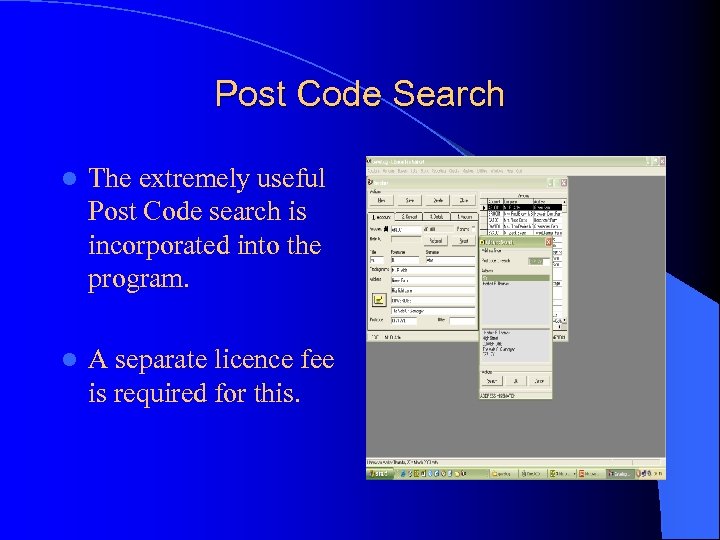 Post Code Search l The extremely useful Post Code search is incorporated into the program. l A separate licence fee is required for this.
 Thank you for taking the time to view this presentation. l l While the layouts, procedures and functions were correct at the time this presentation was prepared, they are subject to change/deletion as the program is developed. There a number of further new and innovative features under development which we cannot disclose at the present time. l If you would like further information or for an on site demonstration, please call us on: l 01656 722278 l 07831 184176 l Gavellog. co. uk Ltd