 Скачать презентацию FUTREX Training Tutorial 62 Table of Contents
c1964831f4cb0359183739af522f1b89.ppt
- Количество слайдов: 35



®FUTREX Training Tutorial 62
Table of Contents Major Components n Connections/Power Switch n Measuring Body Fat n Locating Measurement Site n System Options n Contact Futrex Button Explanation n exit Exit Presentation Return to Last Slide Viewed Back One Slide Forward One Slide Table of Contents exit
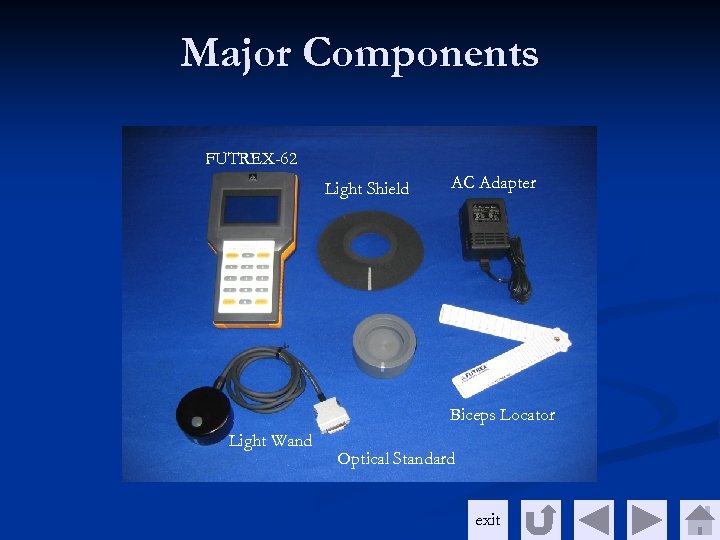
Major Components FUTREX-62 Light Shield AC Adapter Biceps Locator Light Wand Optical Standard exit
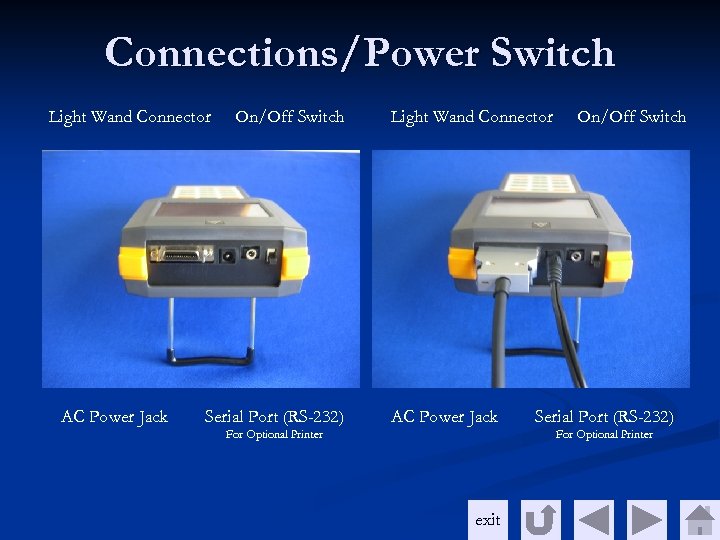
Connections/Power Switch Light Wand Connector AC Power Jack On/Off Switch Serial Port (RS-232) Light Wand Connector AC Power Jack For Optional Printer On/Off Switch Serial Port (RS-232) For Optional Printer exit
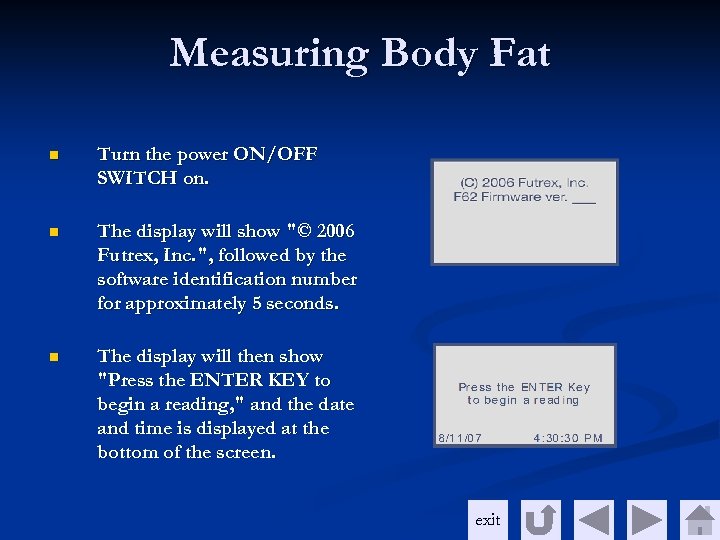
Measuring Body Fat n Turn the power ON/OFF SWITCH on. n The display will show "© 2006 Futrex, Inc. ", followed by the software identification number for approximately 5 seconds. n The display will then show "Press the ENTER KEY to begin a reading, " and the date and time is displayed at the bottom of the screen. exit
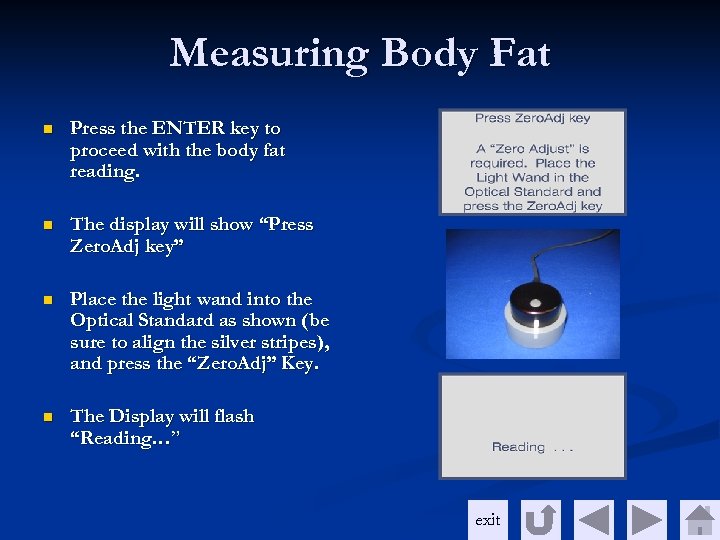
Measuring Body Fat n Press the ENTER key to proceed with the body fat reading. n The display will show “Press Zero. Adj key” n Place the light wand into the Optical Standard as shown (be sure to align the silver stripes), and press the “Zero. Adj” Key. n The Display will flash “Reading…” exit
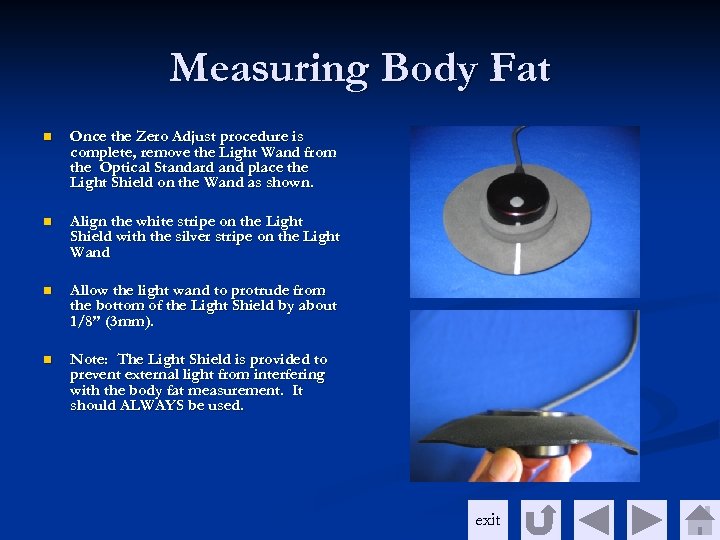
Measuring Body Fat n Once the Zero Adjust procedure is complete, remove the Light Wand from the Optical Standard and place the Light Shield on the Wand as shown. n Align the white stripe on the Light Shield with the silver stripe on the Light Wand n Allow the light wand to protrude from the bottom of the Light Shield by about 1/8” (3 mm). n Note: The Light Shield is provided to prevent external light from interfering with the body fat measurement. It should ALWAYS be used. exit
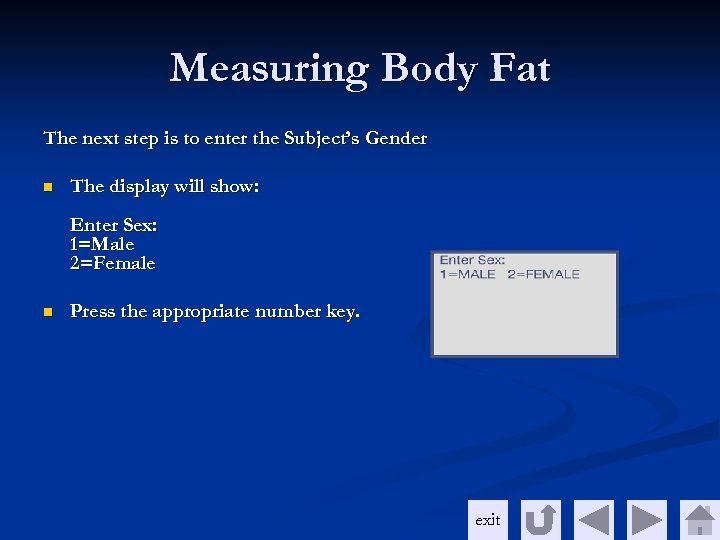
Measuring Body Fat The next step is to enter the Subject’s Gender n The display will show: Enter Sex: 1=Male 2=Female n Press the appropriate number key. exit
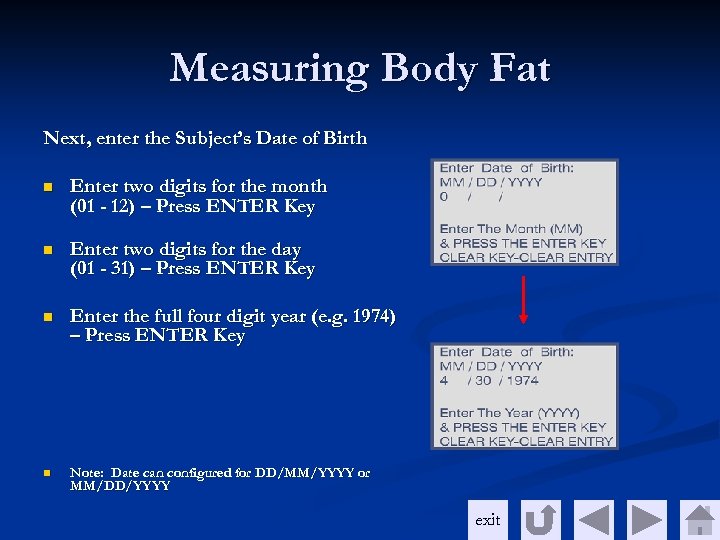
Measuring Body Fat Next, enter the Subject’s Date of Birth n Enter two digits for the month (01 - 12) – Press ENTER Key n Enter two digits for the day (01 - 31) – Press ENTER Key n Enter the full four digit year (e. g. 1974) – Press ENTER Key n Note: Date can configured for DD/MM/YYYY or MM/DD/YYYY exit
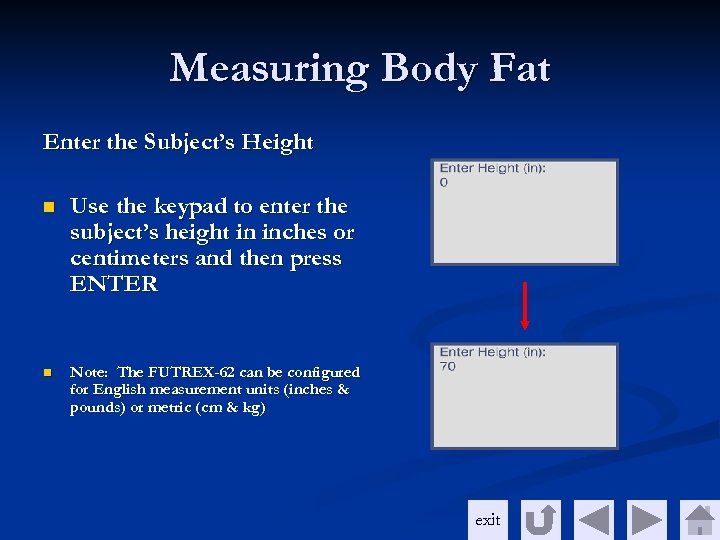
Measuring Body Fat Enter the Subject’s Height n Use the keypad to enter the subject’s height in inches or centimeters and then press ENTER n Note: The FUTREX-62 can be configured for English measurement units (inches & pounds) or metric (cm & kg) exit
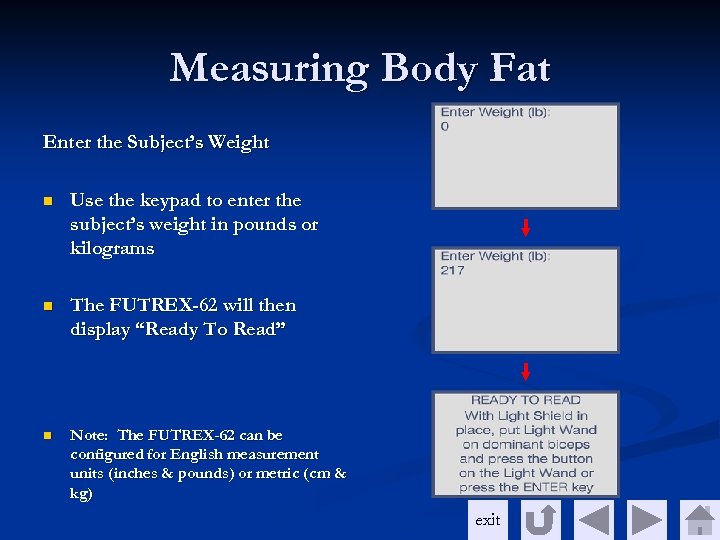
Measuring Body Fat Enter the Subject’s Weight n Use the keypad to enter the subject’s weight in pounds or kilograms n The FUTREX-62 will then display “Ready To Read” n Note: The FUTREX-62 can be configured for English measurement units (inches & pounds) or metric (cm & kg) exit
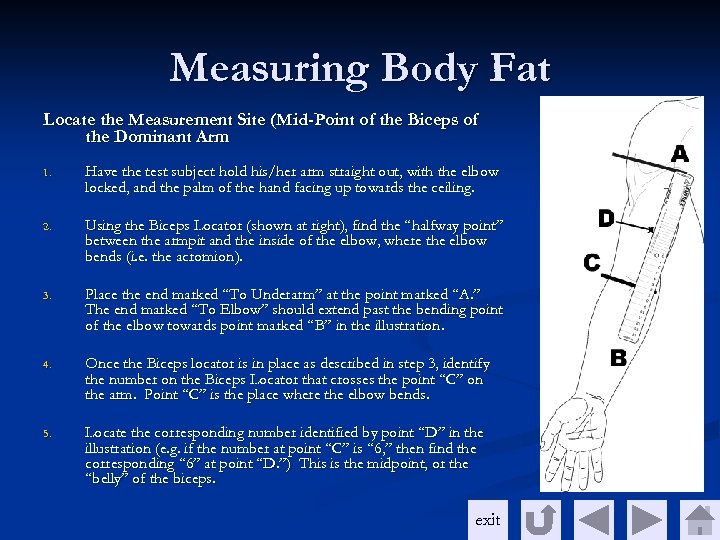
Measuring Body Fat Locate the Measurement Site (Mid-Point of the Biceps of the Dominant Arm 1. Have the test subject hold his/her arm straight out, with the elbow locked, and the palm of the hand facing up towards the ceiling. 2. Using the Biceps Locator (shown at right), find the “halfway point” between the armpit and the inside of the elbow, where the elbow bends (i. e. the acromion). 3. Place the end marked “To Underarm” at the point marked “A. ” The end marked “To Elbow” should extend past the bending point of the elbow towards point marked “B” in the illustration. 4. Once the Biceps locator is in place as described in step 3, identify the number on the Biceps Locator that crosses the point “C” on the arm. Point “C” is the place where the elbow bends. 5. Locate the corresponding number identified by point “D” in the illustration (e. g. if the number at point “C” is “ 6, ” then find the corresponding “ 6” at point “D. ”) This is the midpoint, or the “belly” of the biceps. exit
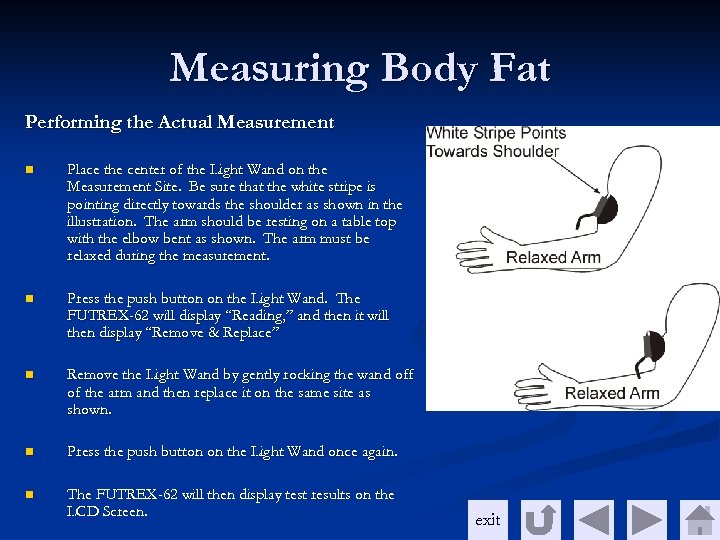
Measuring Body Fat Performing the Actual Measurement n Place the center of the Light Wand on the Measurement Site. Be sure that the white stripe is pointing directly towards the shoulder as shown in the illustration. The arm should be resting on a table top with the elbow bent as shown. The arm must be relaxed during the measurement. n Press the push button on the Light Wand. The FUTREX-62 will display “Reading, ” and then it will then display “Remove & Replace” n Remove the Light Wand by gently rocking the wand off of the arm and then replace it on the same site as shown. n Press the push button on the Light Wand once again. n The FUTREX-62 will then display test results on the LCD Screen. exit
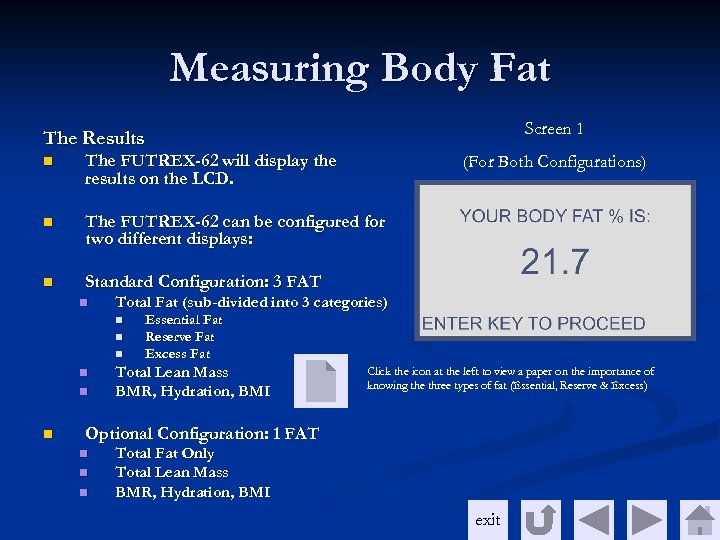
Measuring Body Fat Screen 1 The Results n The FUTREX-62 will display the results on the LCD. n The FUTREX-62 can be configured for two different displays: n Standard Configuration: 3 FAT n Total Fat (sub-divided into 3 categories) n n n (For Both Configurations) Essential Fat Reserve Fat Excess Fat Total Lean Mass BMR, Hydration, BMI Click the icon at the left to view a paper on the importance of knowing the three types of fat (Essential, Reserve & Excess) Optional Configuration: 1 FAT n n n Total Fat Only Total Lean Mass BMR, Hydration, BMI exit
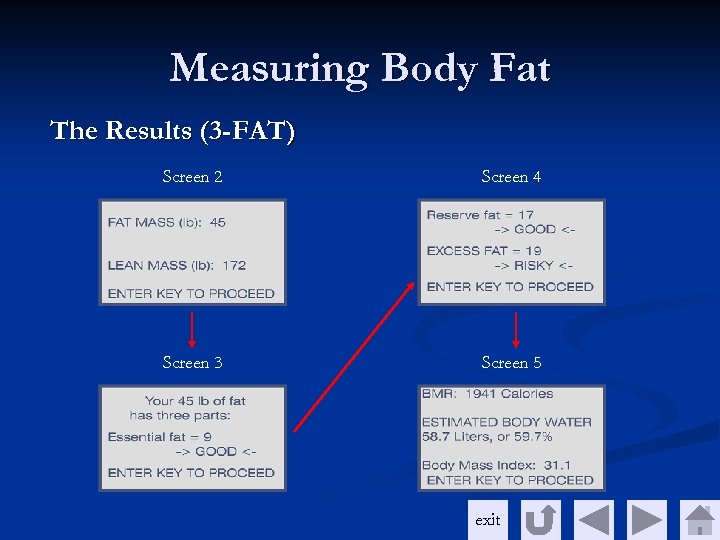
Measuring Body Fat The Results (3 -FAT) Screen 2 Screen 4 Screen 3 Screen 5 exit
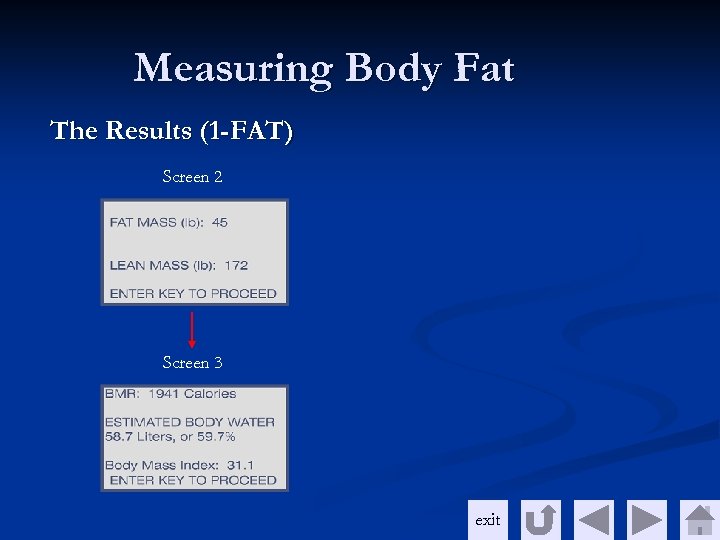
Measuring Body Fat The Results (1 -FAT) Screen 2 Screen 3 exit
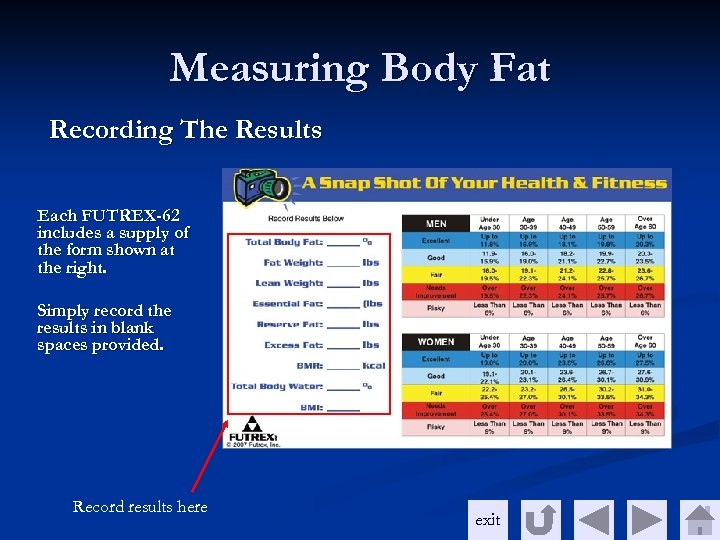
Measuring Body Fat Recording The Results Each FUTREX-62 includes a supply of the form shown at the right. Simply record the results in blank spaces provided. Record results here exit
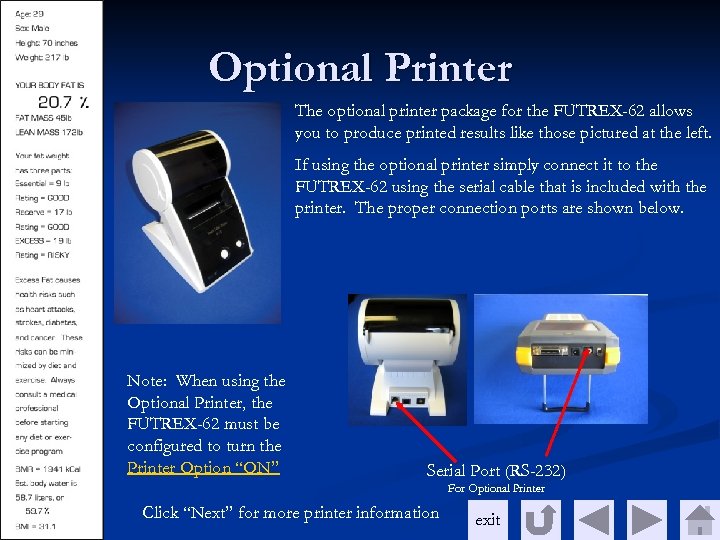
Optional Printer The optional printer package for the FUTREX-62 allows you to produce printed results like those pictured at the left. If using the optional printer simply connect it to the FUTREX-62 using the serial cable that is included with the printer. The proper connection ports are shown below. Note: When using the Optional Printer, the FUTREX-62 must be configured to turn the Printer Option “ON” Serial Port (RS-232) For Optional Printer Click “Next” for more printer information exit
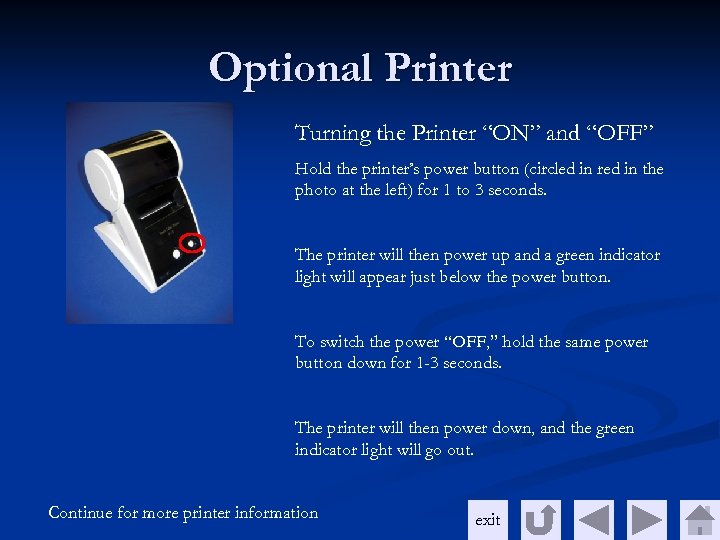
Optional Printer Turning the Printer “ON” and “OFF” Hold the printer’s power button (circled in red in the photo at the left) for 1 to 3 seconds. The printer will then power up and a green indicator light will appear just below the power button. To switch the power “OFF, ” hold the same power button down for 1 -3 seconds. The printer will then power down, and the green indicator light will go out. Continue for more printer information exit
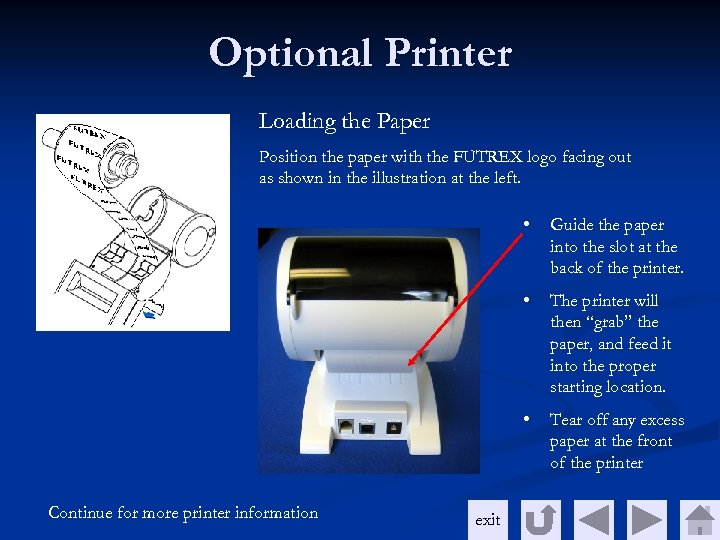
Optional Printer Loading the Paper Position the paper with the FUTREX logo facing out as shown in the illustration at the left. • • exit The printer will then “grab” the paper, and feed it into the proper starting location. • Continue for more printer information Guide the paper into the slot at the back of the printer. Tear off any excess paper at the front of the printer
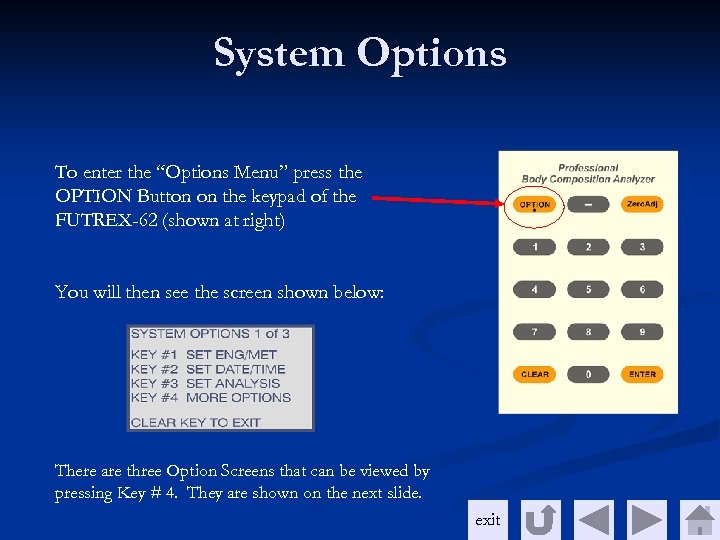
System Options To enter the “Options Menu” press the OPTION Button on the keypad of the FUTREX-62 (shown at right) You will then see the screen shown below: There are three Option Screens that can be viewed by pressing Key # 4. They are shown on the next slide. exit
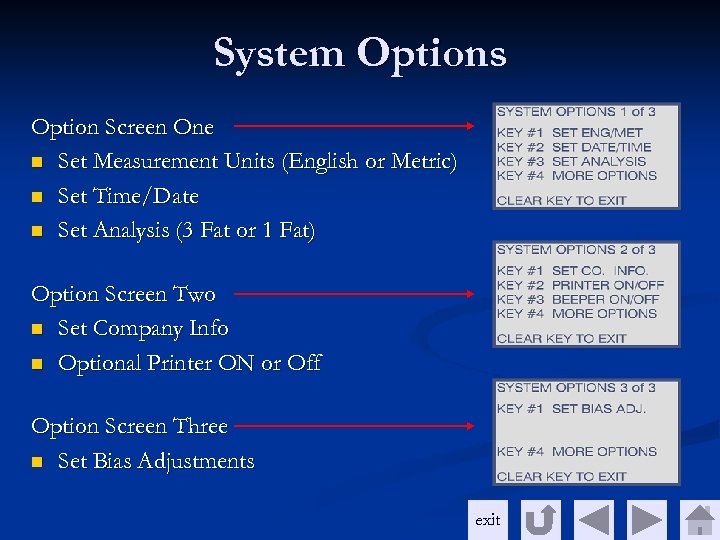
System Options Option Screen One n Set Measurement Units (English or Metric) n Set Time/Date n Set Analysis (3 Fat or 1 Fat) Option Screen Two n Set Company Info n Optional Printer ON or Off Option Screen Three n Set Bias Adjustments exit
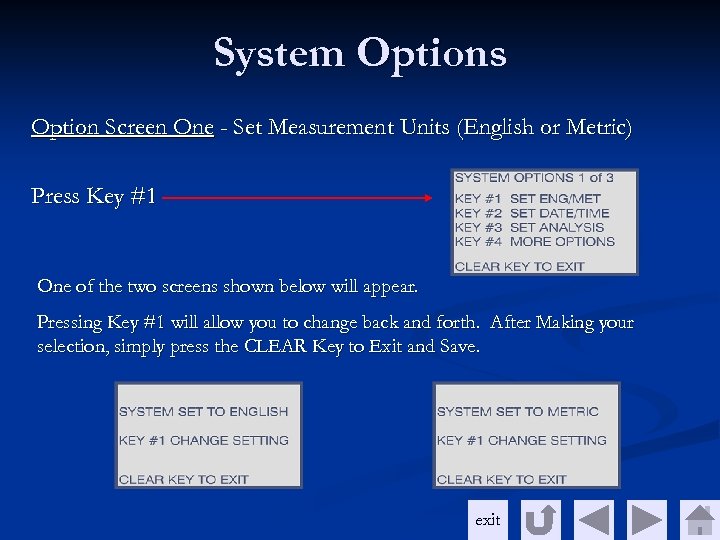
System Options Option Screen One - Set Measurement Units (English or Metric) Press Key #1 One of the two screens shown below will appear. Pressing Key #1 will allow you to change back and forth. After Making your selection, simply press the CLEAR Key to Exit and Save. exit
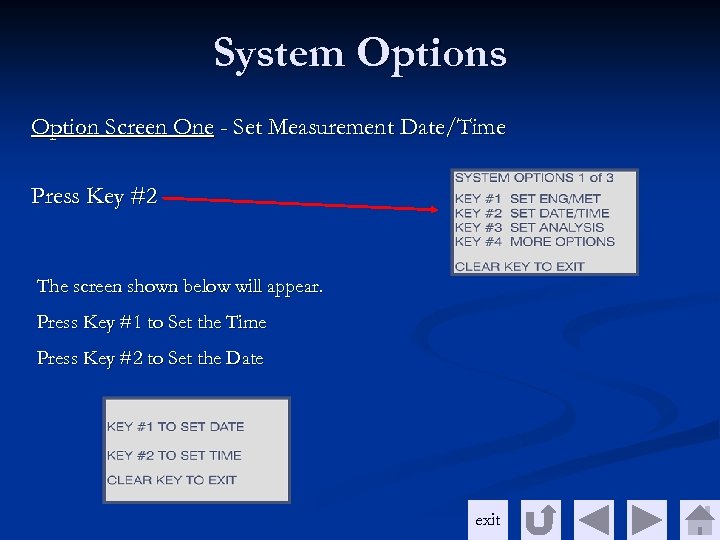
System Options Option Screen One - Set Measurement Date/Time Press Key #2 The screen shown below will appear. Press Key #1 to Set the Time Press Key #2 to Set the Date exit
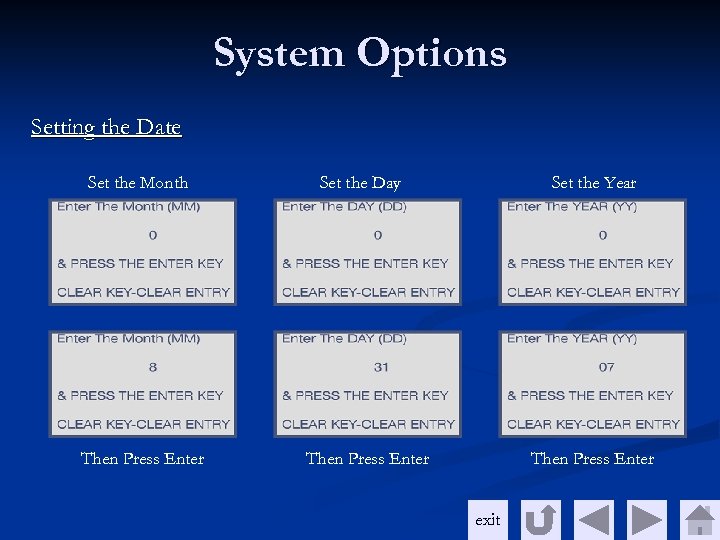
System Options Setting the Date Set the Month Then Press Enter Set the Day Set the Year Then Press Enter exit
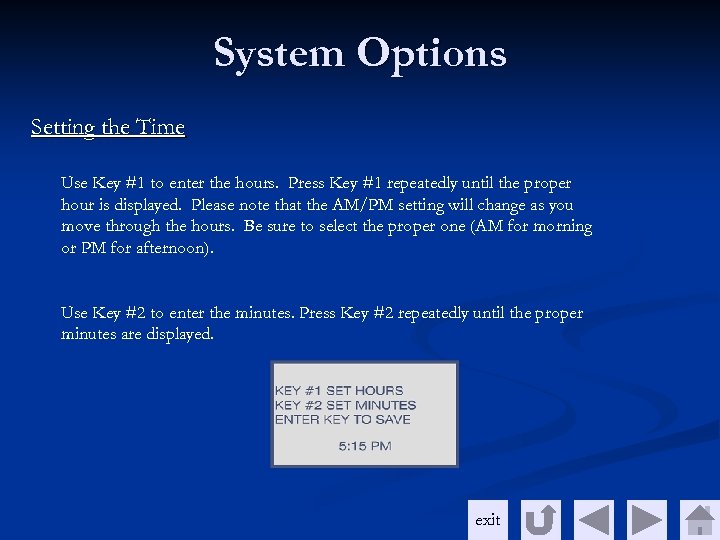
System Options Setting the Time Use Key #1 to enter the hours. Press Key #1 repeatedly until the proper hour is displayed. Please note that the AM/PM setting will change as you move through the hours. Be sure to select the proper one (AM for morning or PM for afternoon). Use Key #2 to enter the minutes. Press Key #2 repeatedly until the proper minutes are displayed. exit
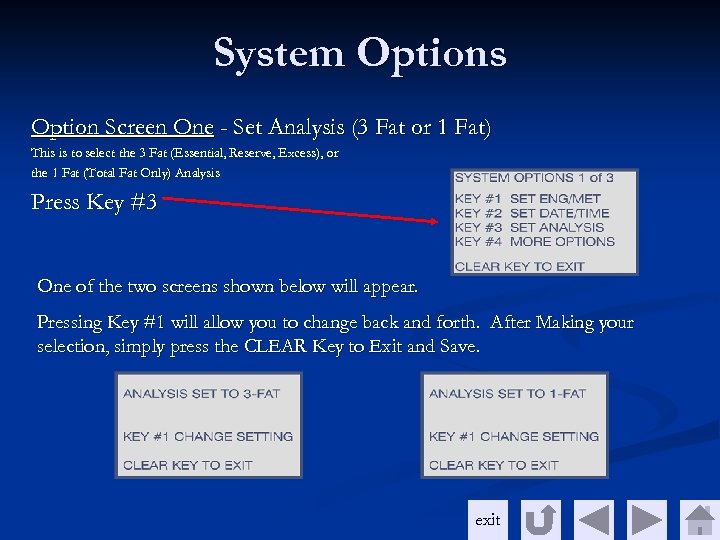
System Options Option Screen One - Set Analysis (3 Fat or 1 Fat) This is to select the 3 Fat (Essential, Reserve, Excess), or the 1 Fat (Total Fat Only) Analysis Press Key #3 One of the two screens shown below will appear. Pressing Key #1 will allow you to change back and forth. After Making your selection, simply press the CLEAR Key to Exit and Save. exit
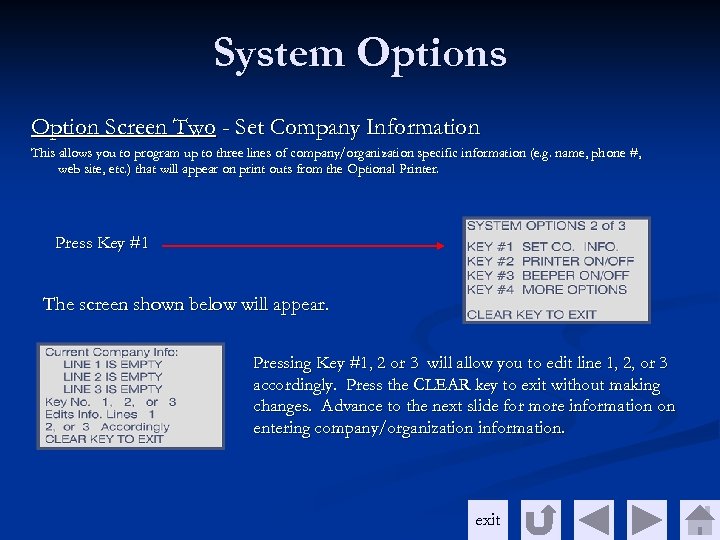
System Options Option Screen Two - Set Company Information This allows you to program up to three lines of company/organization specific information (e. g. name, phone #, web site, etc. ) that will appear on print outs from the Optional Printer. Press Key #1 The screen shown below will appear. Pressing Key #1, 2 or 3 will allow you to edit line 1, 2, or 3 accordingly. Press the CLEAR key to exit without making changes. Advance to the next slide for more information on entering company/organization information. exit
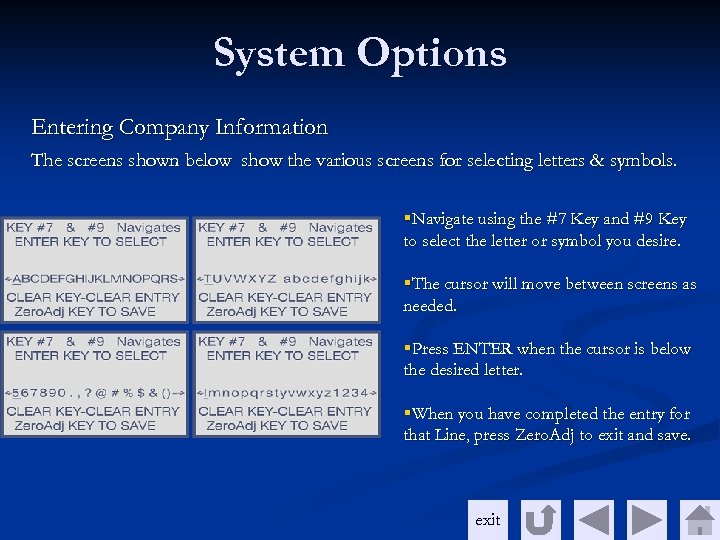
System Options Entering Company Information The screens shown below show the various screens for selecting letters & symbols. §Navigate using the #7 Key and #9 Key to select the letter or symbol you desire. §The cursor will move between screens as needed. §Press ENTER when the cursor is below the desired letter. §When you have completed the entry for that Line, press Zero. Adj to exit and save. exit
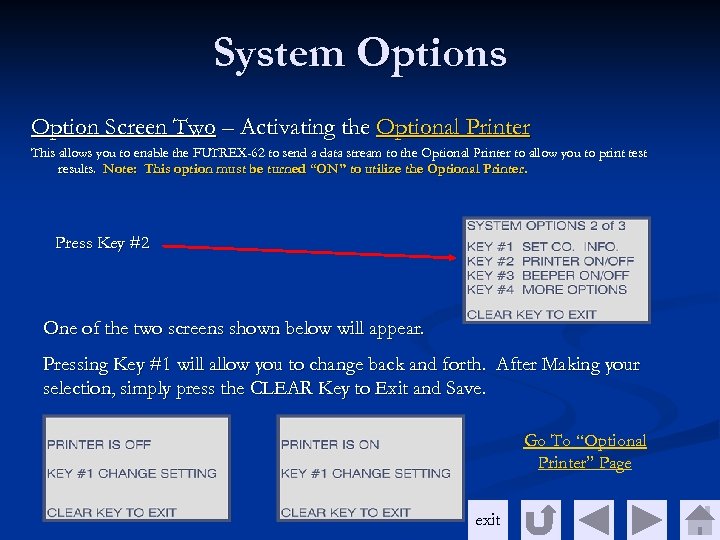
System Options Option Screen Two – Activating the Optional Printer This allows you to enable the FUTREX-62 to send a data stream to the Optional Printer to allow you to print test results. Note: This option must be turned “ON” to utilize the Optional Printer. Press Key #2 One of the two screens shown below will appear. Pressing Key #1 will allow you to change back and forth. After Making your selection, simply press the CLEAR Key to Exit and Save. Go To “Optional Printer” Page exit
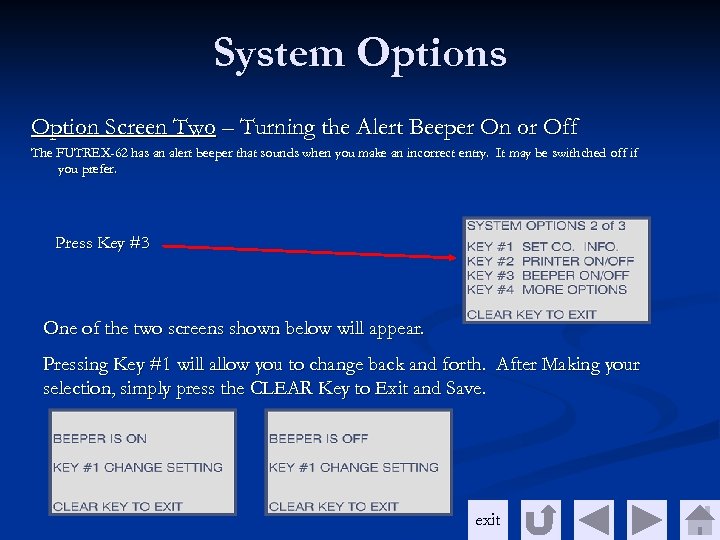
System Options Option Screen Two – Turning the Alert Beeper On or Off The FUTREX-62 has an alert beeper that sounds when you make an incorrect entry. It may be swithched off if you prefer. Press Key #3 One of the two screens shown below will appear. Pressing Key #1 will allow you to change back and forth. After Making your selection, simply press the CLEAR Key to Exit and Save. exit
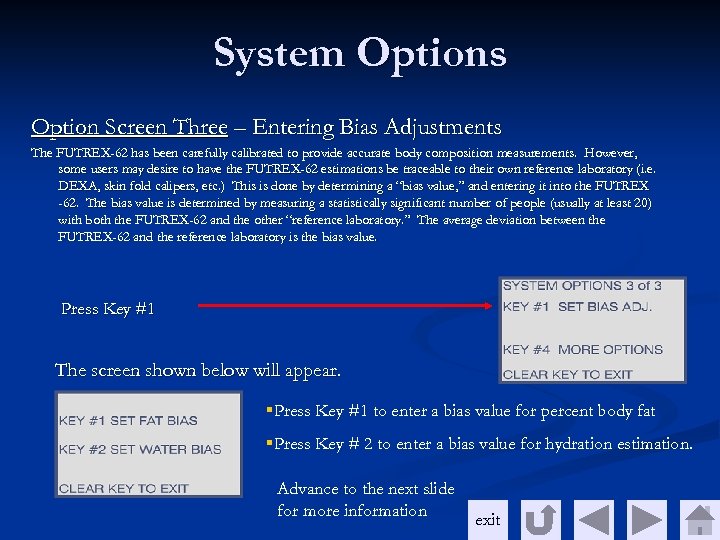
System Options Option Screen Three – Entering Bias Adjustments The FUTREX-62 has been carefully calibrated to provide accurate body composition measurements. However, some users may desire to have the FUTREX-62 estimations be traceable to their own reference laboratory (i. e. DEXA, skin fold calipers, etc. ) This is done by determining a “bias value, ” and entering it into the FUTREX -62. The bias value is determined by measuring a statistically significant number of people (usually at least 20) with both the FUTREX-62 and the other “reference laboratory. ” The average deviation between the FUTREX-62 and the reference laboratory is the bias value. Press Key #1 The screen shown below will appear. §Press Key #1 to enter a bias value for percent body fat §Press Key # 2 to enter a bias value for hydration estimation. Advance to the next slide for more information exit
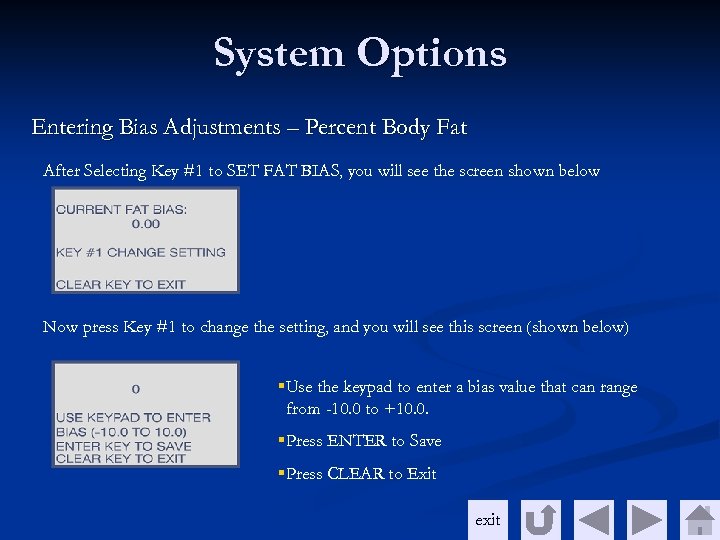
System Options Entering Bias Adjustments – Percent Body Fat After Selecting Key #1 to SET FAT BIAS, you will see the screen shown below Now press Key #1 to change the setting, and you will see this screen (shown below) §Use the keypad to enter a bias value that can range from -10. 0 to +10. 0. §Press ENTER to Save §Press CLEAR to Exit exit
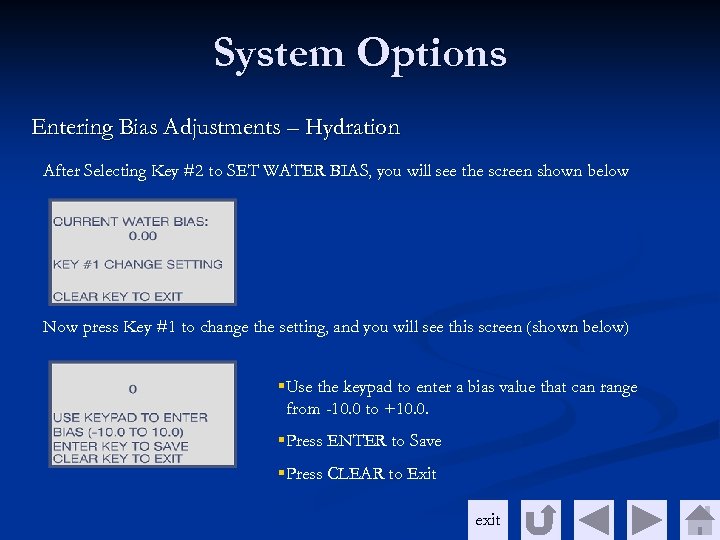
System Options Entering Bias Adjustments – Hydration After Selecting Key #2 to SET WATER BIAS, you will see the screen shown below Now press Key #1 to change the setting, and you will see this screen (shown below) §Use the keypad to enter a bias value that can range from -10. 0 to +10. 0. §Press ENTER to Save §Press CLEAR to Exit exit

Contact Futrex Physical Address: 130 Western Maryland Parkway, Hagerstown, MD 21740 USA Telephone & Telefax: Sales: Toll Free (US & Canada): 800 -576 -0295 • 301 -791 -9220 Customer Service: Toll Free (US & Canada): 800 -545 -1950 • 301 -733 -9369 FAX: 301 -733 -9398 Web & e-mail Web site: www. futrex. com E-mail: info@futrex. com exit
Скачать презентацию FUTREX Training Tutorial 62 Table of Contents
c1964831f4cb0359183739af522f1b89.ppt