 Скачать презентацию FTD Mercury Accounting Module 1 4 Basic
dfb1dbef393671befa434cd5522fcd14.ppt
- Количество слайдов: 33



FTD Mercury Accounting Module 1
4 Basic Concepts ü What kind of data is transferredexported to Quickbooks. ü How FTD Mercury exports sales data to Quickbooks. ü How the FTD Mercury sales data appears in Quickbooks. ü How to handle the payment of wire orders from your monthly clearinghouse statement. 2

What is eligible for export? EVERYTHING ENTERED INTO THE SYSTEM THAT MEETS THE CRITERIA!!! 3
Criteria For Data: • Only completed Order Entry & Point Of Sale transactions • Only POS sales in a closed POS session (z-out) • House account payments • Transactions entered from ‘Manual Ticket’ window (Credit & debit memo) • Finance charges 4
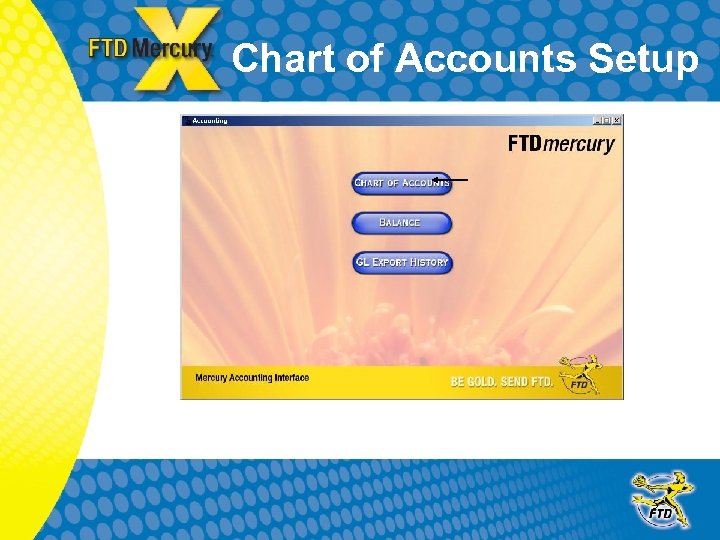
Chart of Accounts Setup 5
Chart of Accounts • Chart of accounts creates the Quickbooks company file where data will be exported. • COA also transfers any changes made in FTD Mercury that will affect the structure of the Quickbooks company file. i. e. creating a new product category. • You must make decisions on how you want certain types of information to transfer to Quickbooks 6
Chart of Accounts Setup: What You Must Consider Multi Store Setups: Single company file for all vs. separate company file for each Cash Deposits: Bank account vs. cash holding account Credit Card deposits: Bank account vs. credit card holding account (Accounts Rec. ) Paid Outs & In from POS: Operating expense vs. Cost of Goods Sold 7
Chart of Accounts: Additional Features • Add additional bank accounts. • Set beginning date for the export. • Editchange GL account numbers. 8
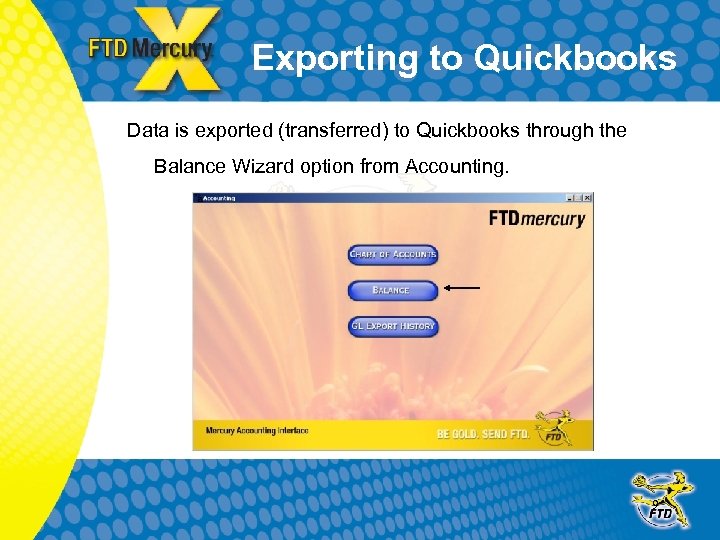
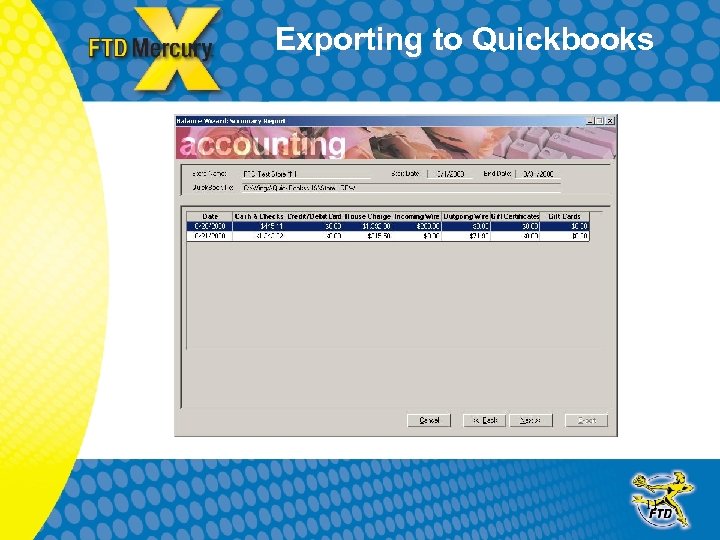
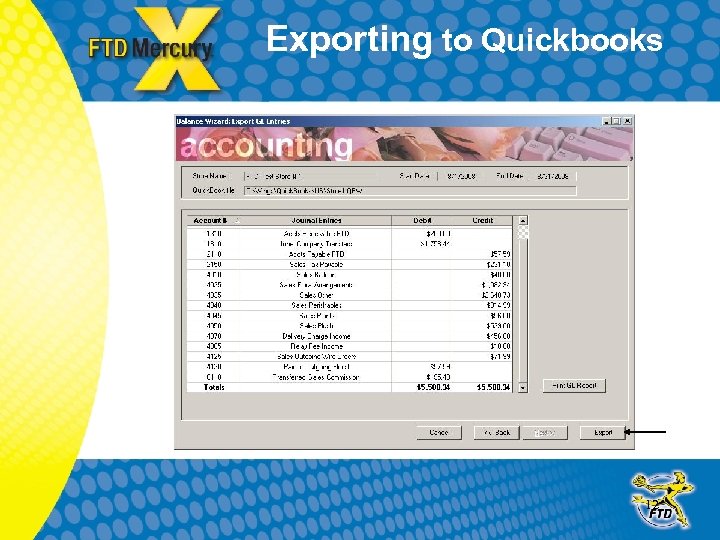
Exporting to Quickbooks Data is exported (transferred) to Quickbooks through the Balance Wizard option from Accounting. 9
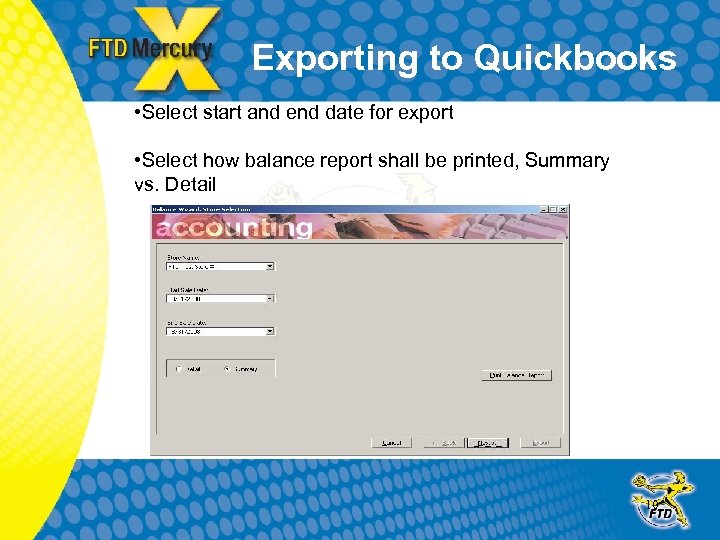
Exporting to Quickbooks • Select start and end date for export • Select how balance report shall be printed, Summary vs. Detail 10
Exporting to Quickbooks 11
Exporting to Quickbooks 12
Data in Quickbooks • OE sales are exported by sale date of transaction. • POS sales are export by z-out date if the z-out date is different than the sale date. • Individual sale data is not exported to Quickbooks. • Data is exported only as daily totals for each day in the date range selected. Detail is found in FTD Mercury Reports (Mercury Forms) • Daily totals include: – Cash & checks received – Credit cards activity – House account activity – Delivery & service charges on orders – Product category of the items on orders 13
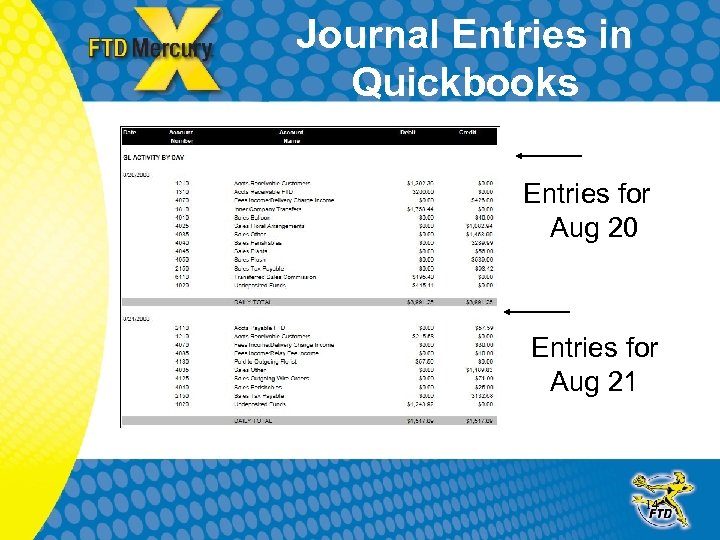
Journal Entries in Quickbooks Entries for Aug 20 Entries for Aug 21 14
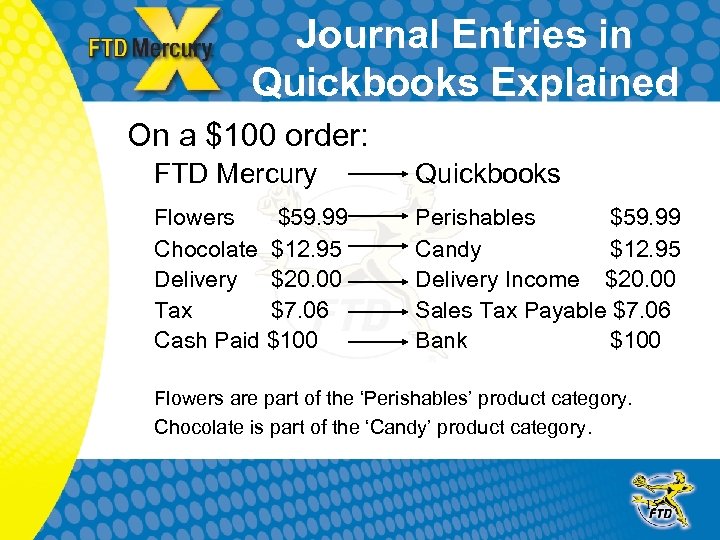
Journal Entries in Quickbooks Explained On a $100 order: FTD Mercury Quickbooks Flowers $59. 99 Chocolate $12. 95 Delivery $20. 00 Tax $7. 06 Cash Paid $100 Perishables $59. 99 Candy $12. 95 Delivery Income $20. 00 Sales Tax Payable $7. 06 Bank $100 Flowers are part of the ‘Perishables’ product category. Chocolate is part of the ‘Candy’ product category. 15

Handling Wire Orders in Quickbooks Generally on wire orders… Sending florist: ØKeeps selling commission of 20% Filling florist: ØPaid for product & delivery less the sending florist commission and wire service commission of 7% 16
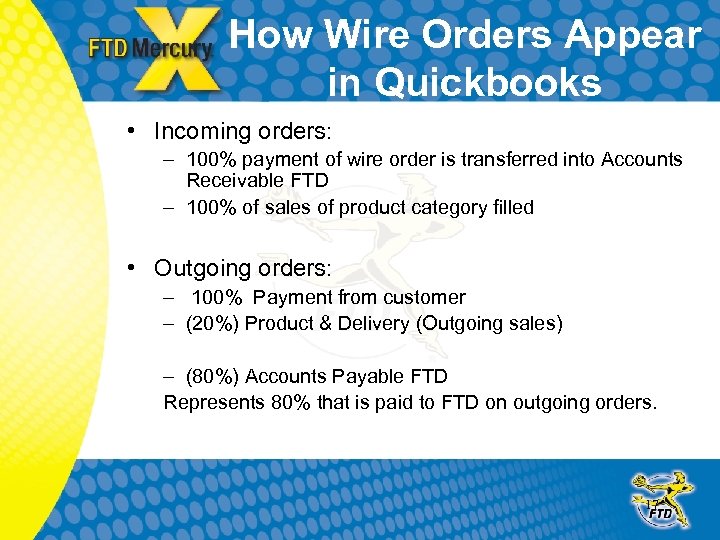
How Wire Orders Appear in Quickbooks • Incoming orders: – 100% payment of wire order is transferred into Accounts Receivable FTD – 100% of sales of product category filled • Outgoing orders: – 100% Payment from customer – (20%) Product & Delivery (Outgoing sales) – (80%) Accounts Payable FTD Represents 80% that is paid to FTD on outgoing orders. 17
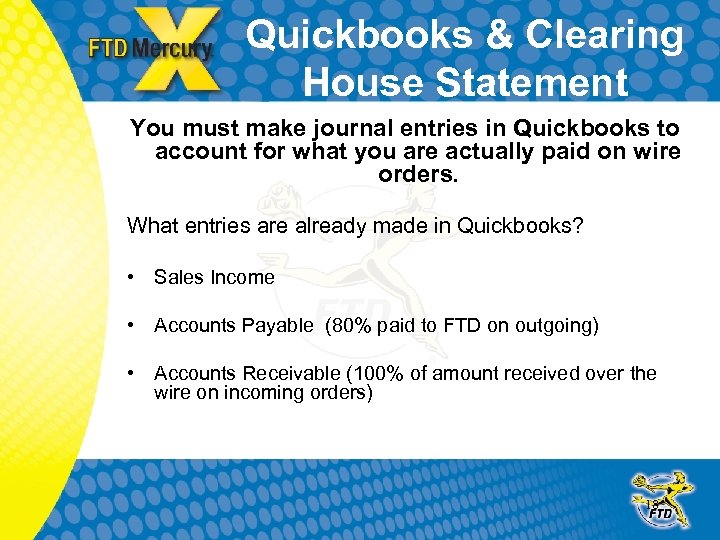
Quickbooks & Clearing House Statement You must make journal entries in Quickbooks to account for what you are actually paid on wire orders. What entries are already made in Quickbooks? • Sales Income • Accounts Payable (80% paid to FTD on outgoing) • Accounts Receivable (100% of amount received over the wire on incoming orders) 18
Quickbooks & Clearing House Statement What entries will you have to make in Quickbooks? • Wire Commissions Expense (20% kept by sending florist on an incoming order). • Marketing Advance Expense (7% commission to FTD taken on an incoming order). • Adjustments and other charges for wire order. • Other wire service expenses and credits. 19
Quickbooks & Clearing House Statement Let’s look at an FTD Clearing House Statement! • Use Section B from the Clearing House Statement page labeled ‘ FTD Member Activity Statement’. • You cannot use the amount listed for Section B from the Statement Summary Page. • The summary page does not show the amounts that you need to enter for ‘Commission Expense’ and ‘Wire Service Commission’. 20
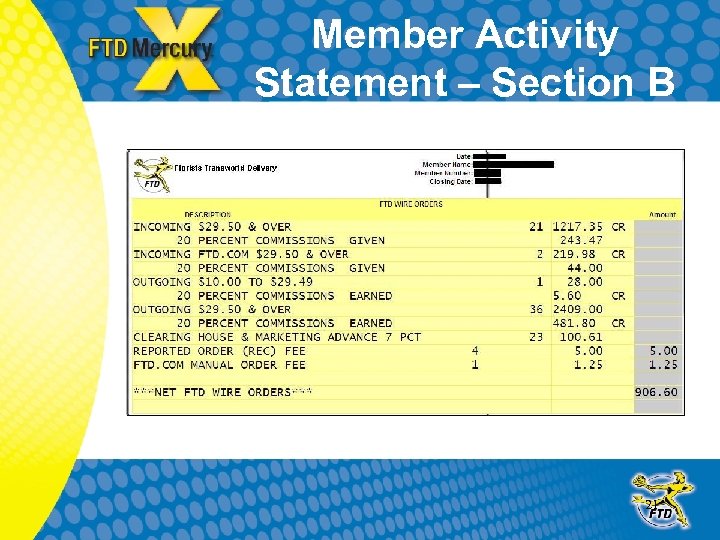
Member Activity Statement – Section B 21
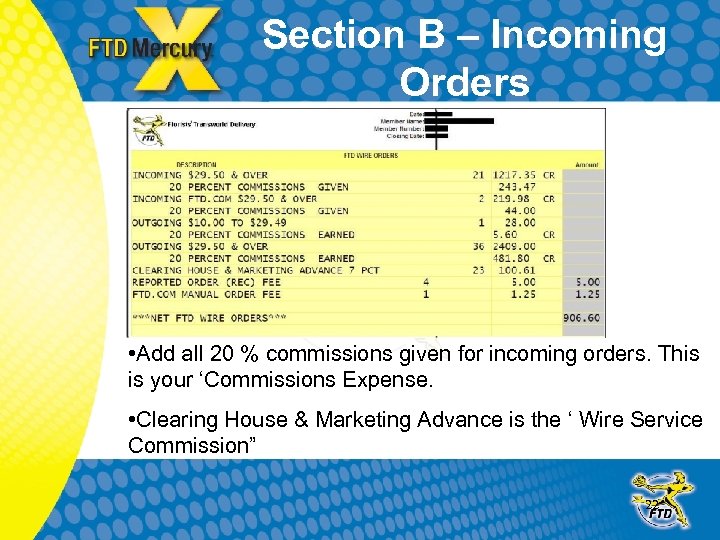
Section B – Incoming Orders • Add all 20 % commissions given for incoming orders. This is your ‘Commissions Expense. • Clearing House & Marketing Advance is the ‘ Wire Service Commission” 22
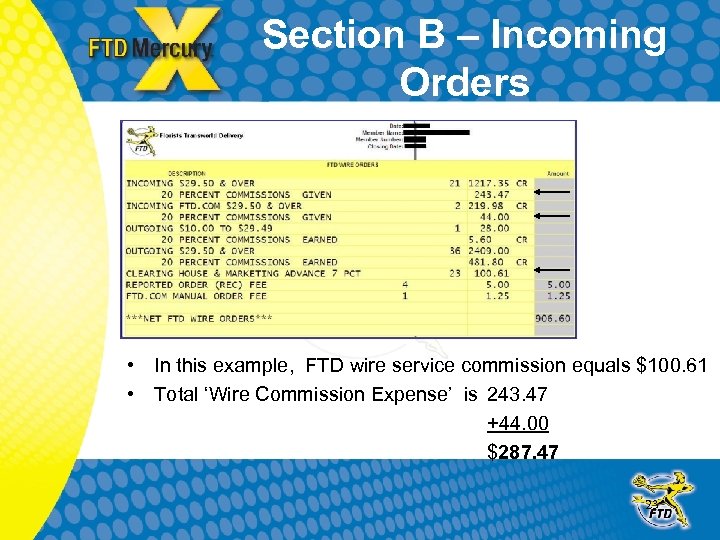
Section B – Incoming Orders • In this example, FTD wire service commission equals $100. 61 • Total ‘Wire Commission Expense’ is 243. 47 +44. 00 $287. 47 23
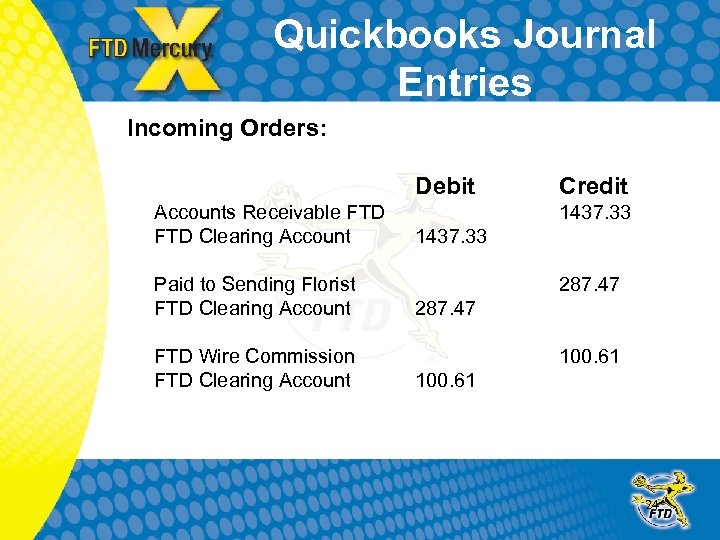
Quickbooks Journal Entries Incoming Orders: Debit Accounts Receivable FTD Clearing Account Paid to Sending Florist FTD Clearing Account FTD Wire Commission FTD Clearing Account Credit 1437. 33 287. 47 100. 61 24
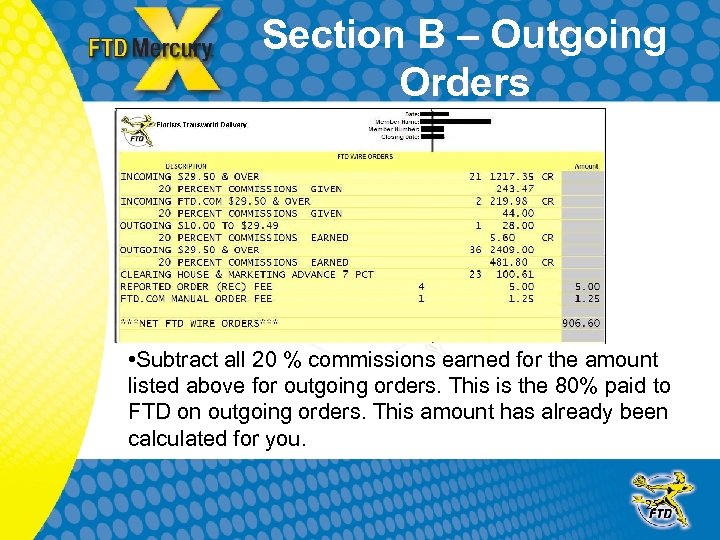
Section B – Outgoing Orders • Subtract all 20 % commissions earned for the amount listed above for outgoing orders. This is the 80% paid to FTD on outgoing orders. This amount has already been calculated for you. 25
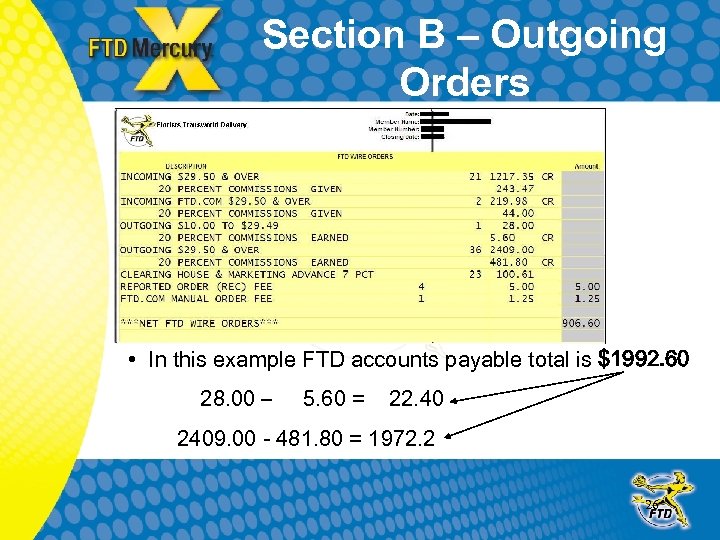
Section B – Outgoing Orders • In this example FTD accounts payable total is $1992. 60 28. 00 – 5. 60 = 22. 40 2409. 00 - 481. 80 = 1972. 2 26
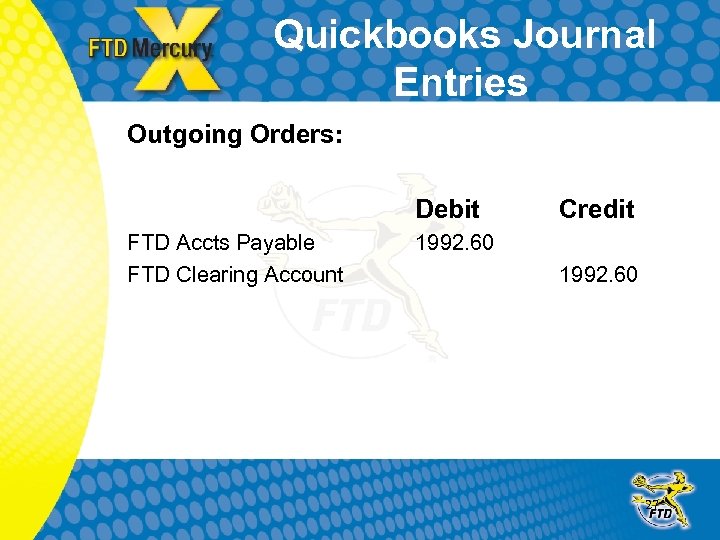
Quickbooks Journal Entries Outgoing Orders: Debit FTD Accts Payable FTD Clearing Account Credit 1992. 60 27
Section B Adjustment & other charges • You may have to additional entries for adjustments, taxes or Retrans charges. • These entries should be made to the appropriate accounts of your choice. 28
Other Wire Expenses & Credits • Non order related expenses and rebates will appear in other sections of the clearing house statement. • These should be entered into Quickbooks to accounts of your choice. • You may need to create additional accounts in Quickbooks to track these expenses and credit 29
Using a Clearing Account What is a Clearing Account? • A clearing account can be used to ensure all entries you make in Quickbooks are accurate. • Quickbooks follows GAAP Generally Accepted Accounting Principles. • This requires that you make an offsetting journal entry when entering in expenses and credit. • Use a clearing account for this. 30
For Example: Using A Clearing Account • When you make an entry for 20% commissions given on incoming orders you would offset this entry against the clearing account. • If all expenses and credit are offset to the same clearing account this ensures the entries are made correctly. • Once all activity has been entered from the clearing house statement and offset to the clearing account, the remaining balance on the clearing account will represent a amount that is owed to FTD or a check received from FTD. 31
Using a Clearing Account • The amount that remains in the clearing account received should match the amount showing on the clearing house statement. • Finally once a check has been deposited from FTD or and check written to FTD that entry will be made against the clearing account. • This entry will clear the balance in the clearing account. 32

Thank You!! Questions? ? ? 33
Скачать презентацию FTD Mercury Accounting Module 1 4 Basic
dfb1dbef393671befa434cd5522fcd14.ppt