


 Скачать презентацию Front Page Tutorial Part 2 Creating a Course
dafe26447831ff0d9234eb1b7c9591c9.ppt
- Количество слайдов: 12
 Front. Page Tutorial Part 2 Creating a Course Web Site
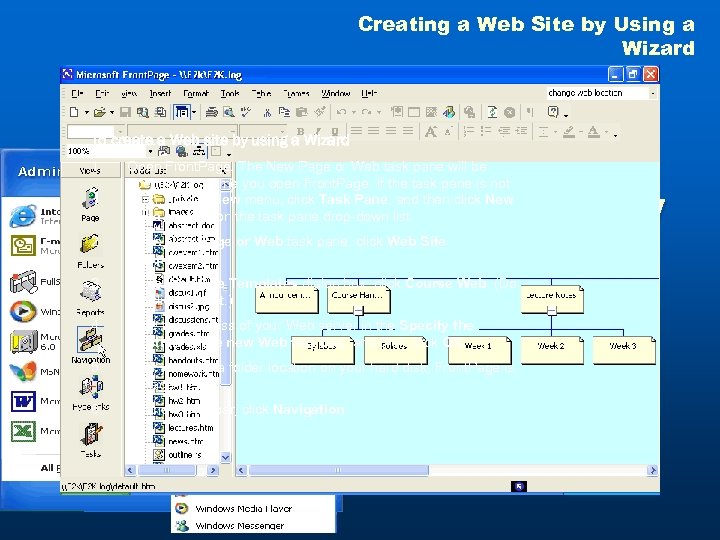 Creating a Web Site by Using a Wizard To create a Web site by using a Wizard 1. Open Front. Page. The New Page or Web task pane will be open the first time you open Front. Page. If the task pane is not open, on the View menu, click Task Pane, and then click New Page or Web on the task pane drop-down list. 2. In the New Page or Web task pane, click Web Site Templates. 3. In the Web Site Templates dialog box, click Course Web. (Do not click OK yet. ) 4. Type the address of your Web server in the Specify the location of the new Web text box, and then click OK. 5. After you type a folder location on your hard disk, Front. Page is in Page view. 6. On the Views bar, click Navigation. Creating a Web Site by Using a Wizard
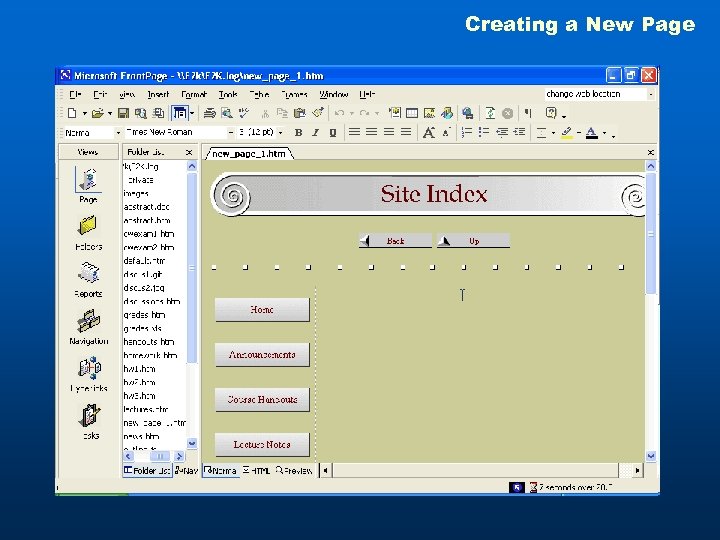 Creating a New Page To create a new page 1. Right click the Course Title page in Navigation view, point to New, and then click Page. Creating a New Page 2. Right-click the new page in Navigation view, and then click Rename. 3. Type Site Index in the page title box and press Enter to change the page name. 4. Double-click the Site Index page to open it for editing in Page view.
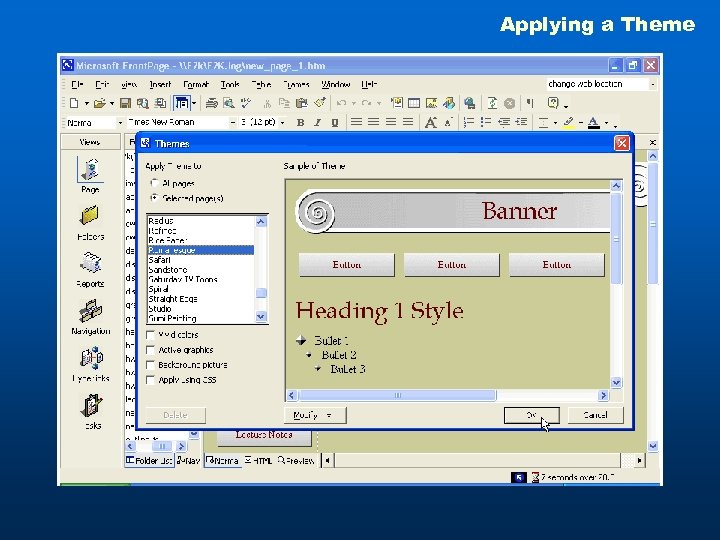 Applying a Theme To apply a theme 1. On the Format menu, click Theme. 2. Click either Selected page or All pages. 3. Click theme you want to apply. When you click a theme, the Sample of Theme pane will show you a preview of a page with theme applied. Click OK. The theme is applied to the entire web or to the selected page, based on your selection. Applying a Theme
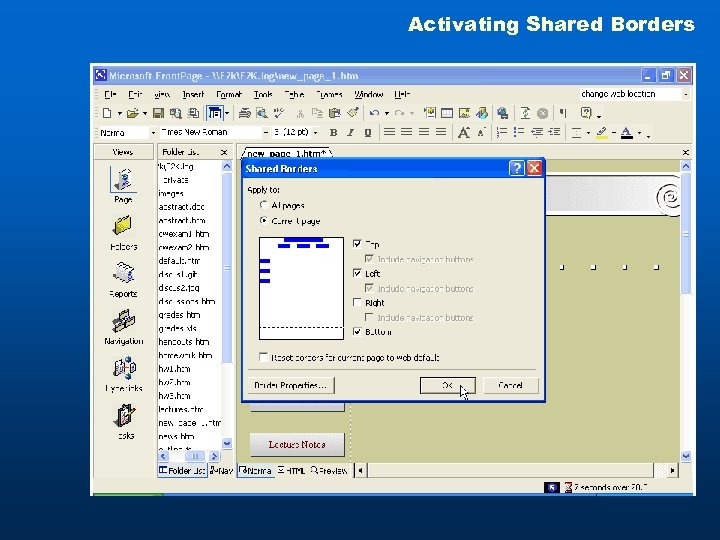 Activating Shared Borders To activate Shared Borders 1. In Page view, click Format, and then click Shared Borders. 2. Select the check boxes for the borders you want to use and then click either All pages or Current page. 3. Click OK to accept your changes and close the dialog box. Activating Shared Borders
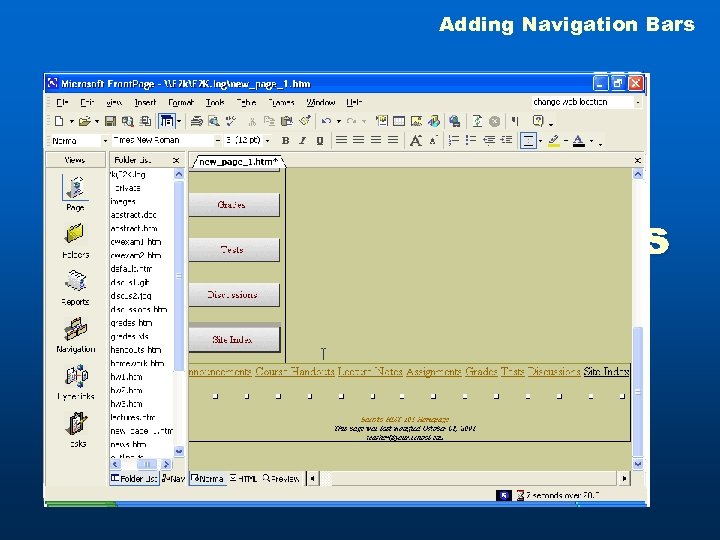 Adding Navigation Bars To add Navigation Bars 1. Click the bottom shared borders and, then on the Insert menu, click Navigation. The Insert Web Component dialog box opens. Adding Navigation Bars 2. Click Bar based on navigation structure, and then click Next. 3. Click the HTML Style at the bottom of the list and then click Next. 4. Click the orientation with the link bars arranged horizontally, and then click Finish. The Link Bar Properties dialog box opens. 5. Click Child pages under Home to indicate that buttons should be displayed for pages directly under the home page in the structure in Navigation view. As you add new pages to your site, the navigation bars will update automatically. Click OK to add the navigation bars to your web.
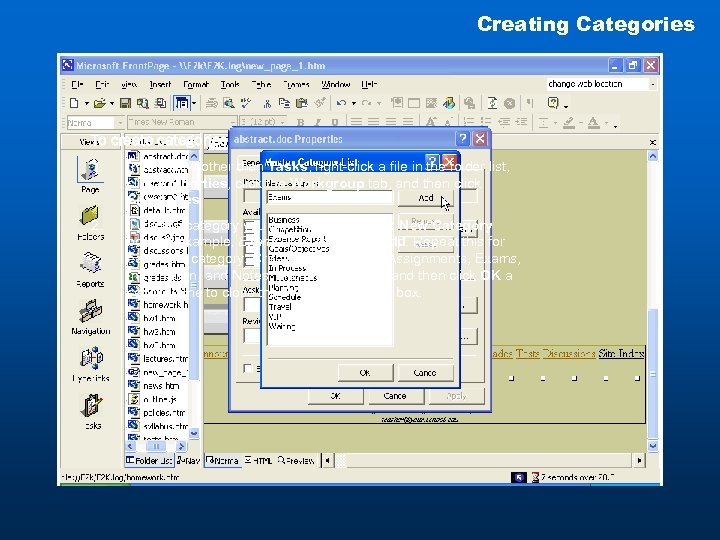 Creating Categories To create categories 1. In any view other than Tasks, right-click a file in the folder list, click Properties, click the Workgroup tab, and then click Categories. Creating Categories 2. Type the category you want to create in the New Category box, for example, Exams, and then click Add. Repeat this for each new category. Create categories for Assignments, Exams, Information, and Notes, and then click OK a second time to close the Properties dialog box.
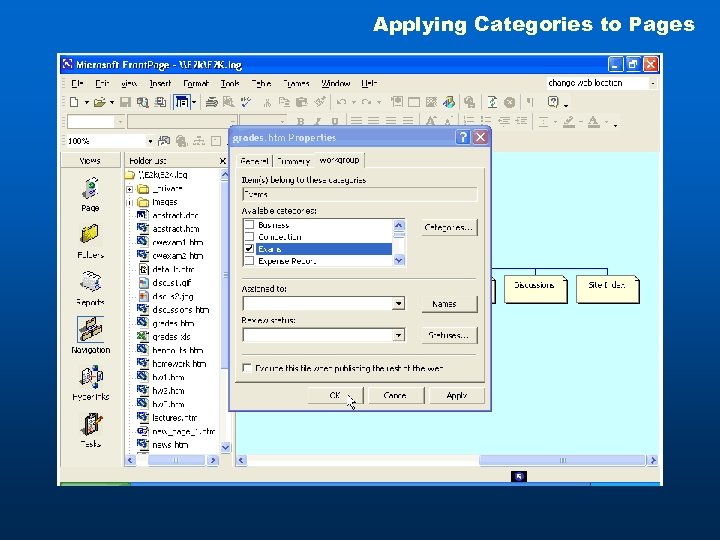 Applying Categories to Pages To apply categories to pages 1. In Navigation view, right-click a page, click Properties, and then click the Workgroup tab. 2. Click the check boxes next to the categories you want to assign to the page, and then click OK. Applying Categories to Pages
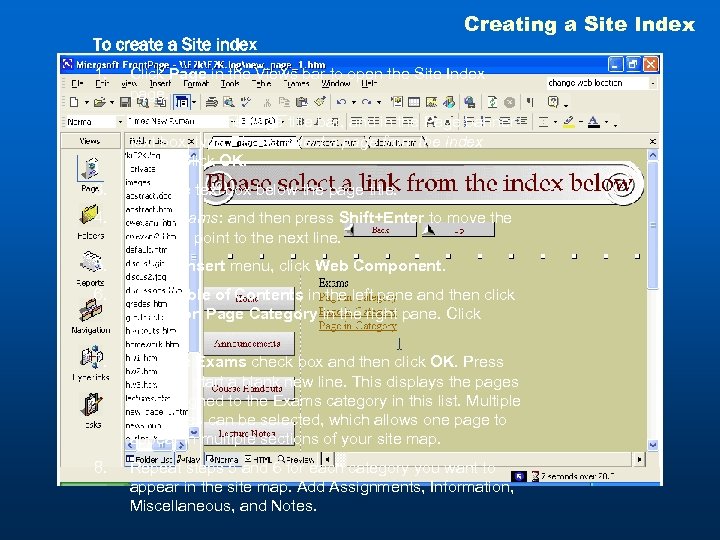 To create a Site index Creating a Site Index 1. Click Page in the Views bar to open the Site Index page. 2. Double-click the page title bar, and in the Page banner text box, type Please select a page from the index below. Click OK. 3. Click the text box below the page title. Creating a Site Index 4. Type Exams: and then press Shift+Enter to move the insertion point to the next line. 5. On the Insert menu, click Web Component. 6. Click Table of Contents in the left pane and then click Based on Page Category in the right pane. Click Finish. 7. Click the Exams check box and then click OK. Press Enter to start a blank new line. This displays the pages you assigned to the Exams category in this list. Multiple categories can be selected, which allows one page to appear in multiple sections of your site map. 8. Repeat steps 5 and 6 for each category you want to appear in the site map. Add Assignments, Information, Miscellaneous, and Notes.
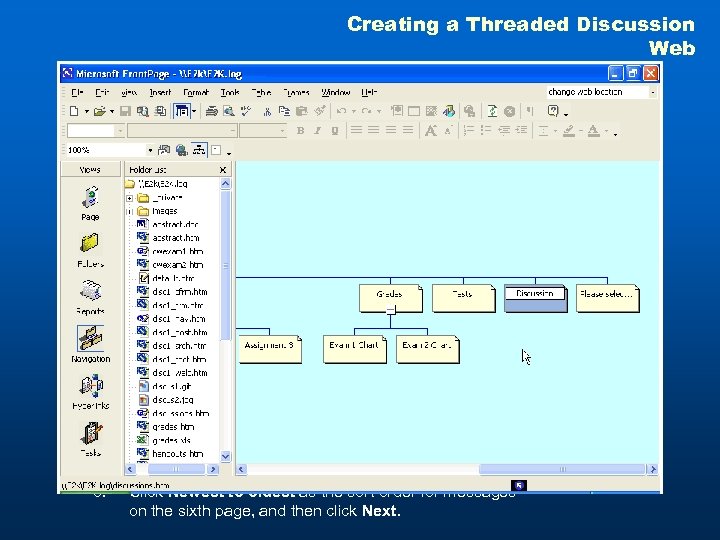 Creating a Threaded Discussion Web 9. create a Threaded Discussion Webthe next page and To Make sure to leave No selected on click Next. 1. On the File menu, point to New, and then click Page or 10. Choose how you. Pane opens. found in a search to be Web. The Task want items displayed and then click Next. 2. Click Web Site Templates to open the New Web 11. Click Contents beside current article to allow ease of dialog box. navigation within the discussion, and then click Next. 3. Frames are supported by most browsers check box for Click Discussion Web Wizard, click the now so don’t Add to to use Web, hesitatecurrentthem. and then click OK. The Discussion Web Wizard opens. 12. Click Finish on the last page, but pay attention to the 4. fact that theand thenis giving you the name of the main Click Next, Wizard click Next again. This confirms the main in the discussion web’s structure. You will need page features of the discussion. Leave the defaults to checked. place this information into the navigational structure of 5. the main web. The file name of the page isdiscussion Type a title for your discussion. Leave the disc 1_frm. htm. and then click Next. folder as _disc 1, Creating a Threaded Discussion Web 13. Switch to Navigation viewyou want to have only 6. Click Next to indicate that and drag and drop disc 1_frm. htm into the organizational structure at the subject and comments on a submission form. level directly below the home page. 7. Click Next to indicate that you want to allow anyone to 14. Right-click the page, click Rename and change the participate in the discussion. page name to Discussion. Press Enter. 8. Click Newest to oldest as the sort order for messages on the sixth page, and then click Next.
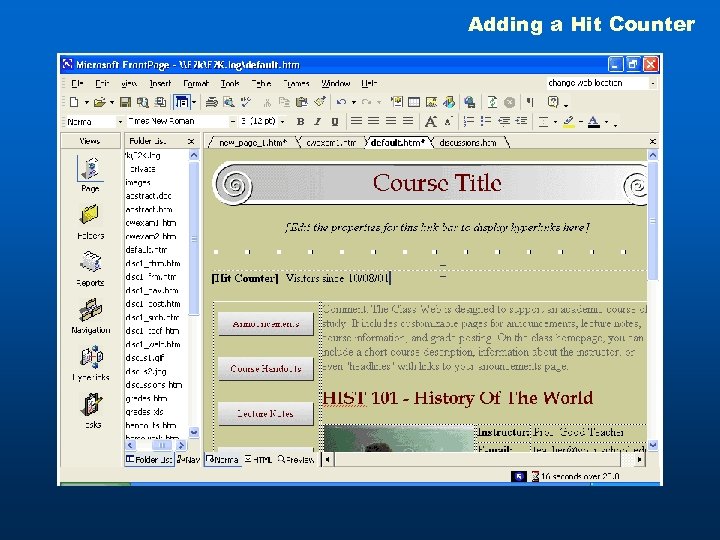 Adding a Hit Counter To add a Hit Counter 1. Double-click the home page in Navigation view to open it for editing. Adding a Hit Counter 2. On the Insert menu, click Web Component. 3. Click Hit Counter in the left pane and then click a style for the numbers in the right pane. Click Finish. 4. In the Hit Counter dialog box, select a starting number other than zero if you want, and then click OK. 5. After the hit counter type Visitors since and today’s date (for example, Visitors since 9/10/2001). This will explain to the students what the numbers mean. Save your web.
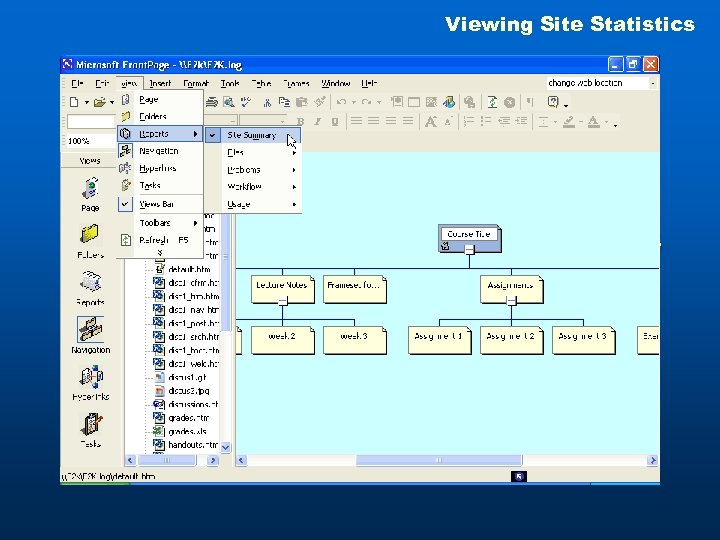 Viewing Site Statistics To view site statistics • On the View menu, point to Reports, and then click the report that you want. If you want an overview of the entire range of items tracked on your site, click Site Summary. -or. Click Reports on the Views bar to display the last selected report. Viewing Site Statistics