


 Скачать презентацию Fluke DAQ 4 0 Visual Demo Guide 2680
500e1c11d56b3d70562e09349ca76a19.ppt
- Количество слайдов: 23
 Fluke DAQ 4. 0 Visual Demo Guide 2680 A-APSW V 4. 0 1
 About This Guide Communication • This guide is designed to give you a quick self-paced overview of Fluke DAQ 4. 0 software without having performing tedious step-by-step “exercises” common to traditional guides. • This is intended to be a visual guide with emphasis placed on showing you where to accomplish certain tasks within the program. • The items on each page are specific to the menu bar Icon shown in the upper right-hand corner of the page. • We suggest you first view this guide and then work with the actual demo program. You may also keep this guide open and switch between the guide and the program as you progress. Fluke DAQ Demo Guide V 4. 0 2007 2
 Fluke DAQ Features • Supports instrument configuration for up to 2, 000 channels (tags). • Intuitive interface • Works with 2680 A Series and Fluke Net. DAQ products • Supports: – – – Instrument configuration and control Trending, real-time and historical File conversion to CSV format Alarm annunciation and acknowledgment, DIO controls Viewing data over the internet using up to four standard browsers Sending email on alarm Fluke DAQ Demo Guide V 4. 0 2007 3
 The Basic Requirements • This Fluke DAQ Demo does not require a 2680 Series instrument. Numbers are randomly generated within the program to simulate data. • You need a Pentium II class computer with 64 Meg RAM, Windows 2000 or later and 100 MB free disk space • Some functions are not available in the demo version • At the end of this Visual Guide is a section covering setup of the 2686 A-DEMO Kit intended for Representatives and Customers using 2686 A demonstration hardware. If you have this hardware please refer to this section first for setup information. This section starts at slide # 18. Fluke DAQ Demo Guide V 4. 0 2007 4
 Installing Fluke DAQ • Insert the Demonstration CD into your computer. * – Follow the installation directions. – If Auto-run is disabled on your computer select the Start button, choose Run, (your drive letter) launch. exe and follow the instructions for installation. – From your desk top shortcut or from the program menu double click on Fluke DAQ. – If you have difficulty with this installation you may contact Fluke Corporation at 1 -800 -44 -Fluke and ask for Data Acquisition Support. * You may also use a working copy of Fluke DAQ 4. 0 for this demonstration Fluke DAQ Demo Guide V 4. 0 2007 5
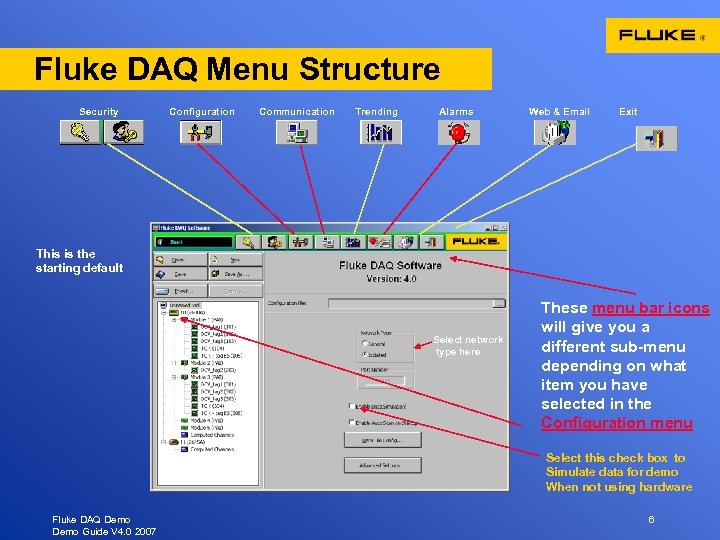 Fluke DAQ Menu Structure Security Configuration Communication Trending Alarms Web & Email Exit This is the starting default Select network type here These menu bar icons will give you a different sub-menu depending on what item you have selected in the Configuration menu Select this check box to Simulate data for demo When not using hardware Fluke DAQ Demo Guide V 4. 0 2007 6
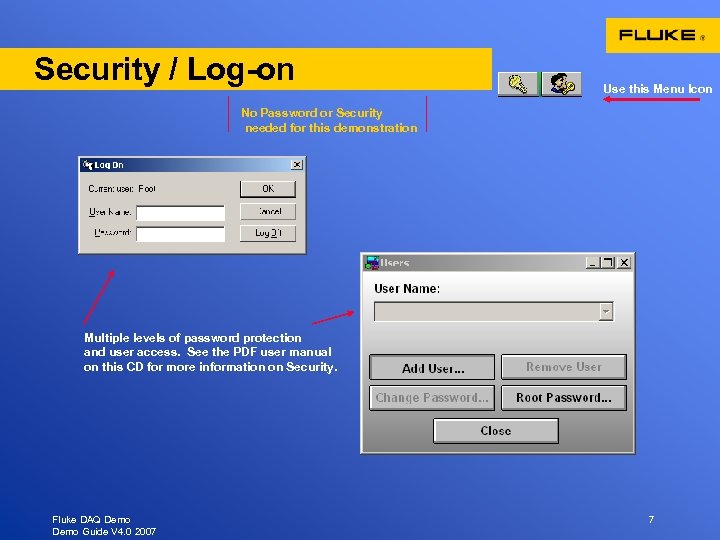 Security / Log-on Use this Menu Icon No Password or Security needed for this demonstration Multiple levels of password protection and user access. See the PDF user manual on this CD for more information on Security. Fluke DAQ Demo Guide V 4. 0 2007 7
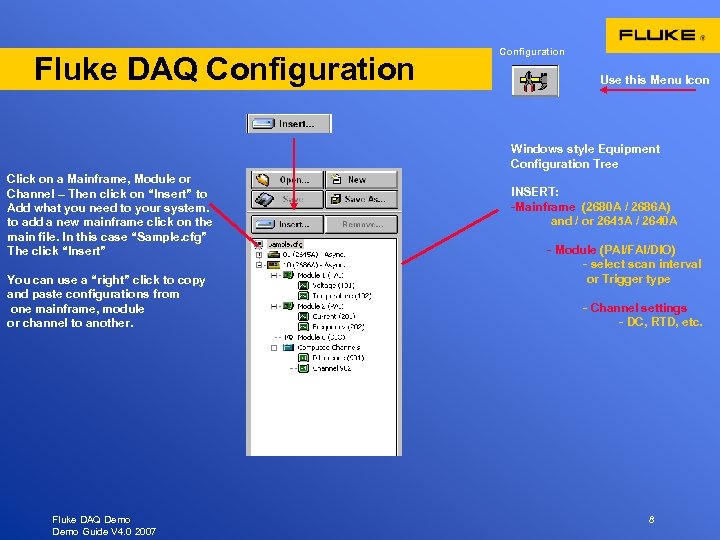 Fluke DAQ Configuration Use this Menu Icon Windows style Equipment Configuration Tree Click on a Mainframe, Module or Channel – Then click on “Insert” to Add what you need to your system. to add a new mainframe click on the main file. In this case “Sample. cfg” The click “Insert” You can use a “right” click to copy and paste configurations from one mainframe, module or channel to another. Fluke DAQ Demo Guide V 4. 0 2007 INSERT: -Mainframe (2680 A / 2686 A) and / or 2645 A / 2640 A - Module (PAI/FAI/DIO) - select scan interval or Trigger type - Channel settings - DC, RTD, etc. 8
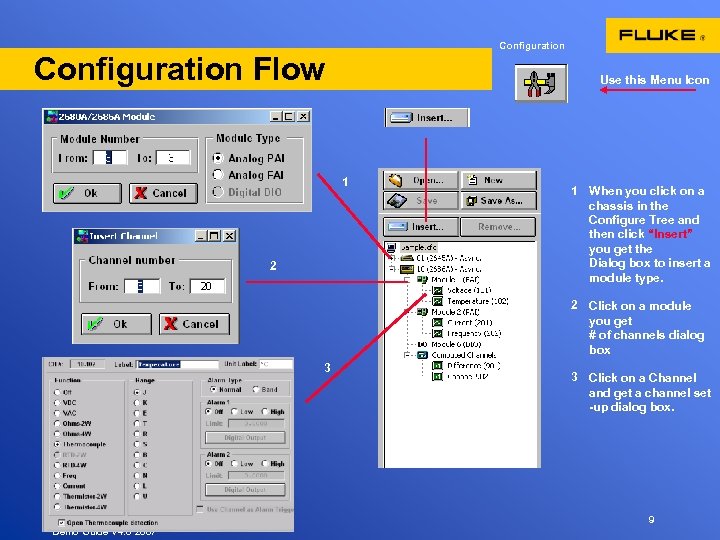 Configuration Flow Use this Menu Icon 1 2 1 When you click on a chassis in the Configure Tree and then click “Insert” you get the Dialog box to insert a module type. 2 Click on a module you get # of channels dialog box 3 Fluke DAQ Demo Guide V 4. 0 2007 3 Click on a Channel and get a channel set -up dialog box. 9
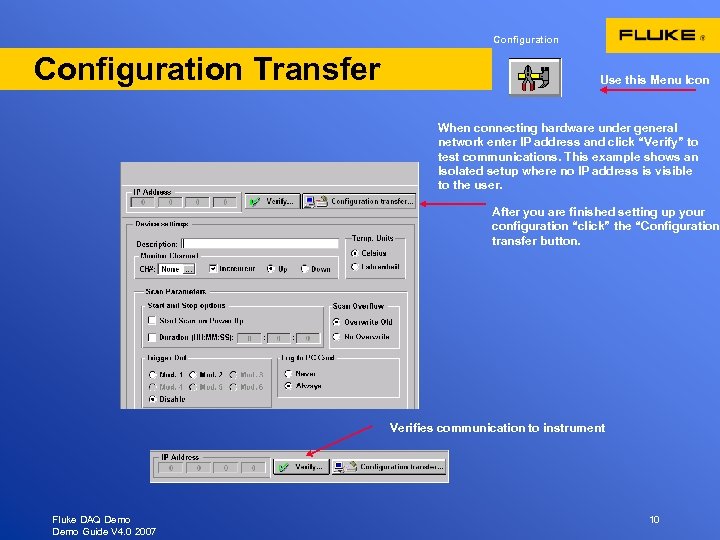 Configuration Transfer Use this Menu Icon When connecting hardware under general network enter IP address and click “Verify” to test communications. This example shows an Isolated setup where no IP address is visible to the user. After you are finished setting up your configuration “click” the “Configuration transfer button. Verifies communication to instrument Fluke DAQ Demo Guide V 4. 0 2007 10
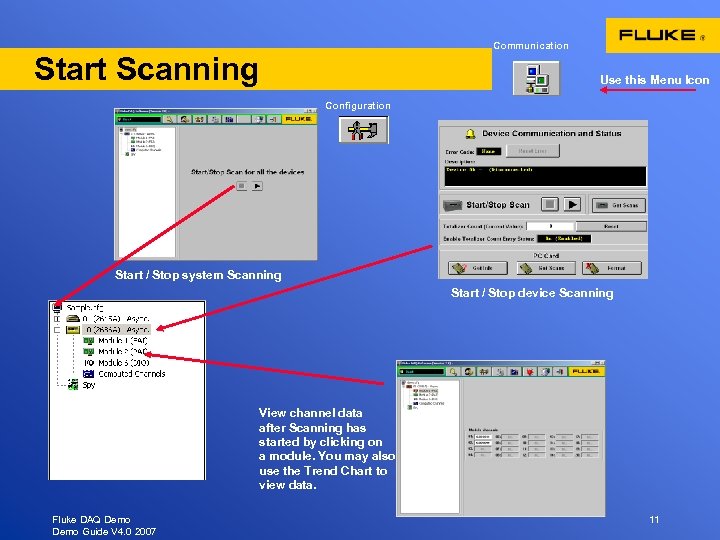 Communication Start Scanning Use this Menu Icon Configuration Start / Stop system Scanning Start / Stop device Scanning View channel data after Scanning has started by clicking on a module. You may also use the Trend Chart to view data. Fluke DAQ Demo Guide V 4. 0 2007 11
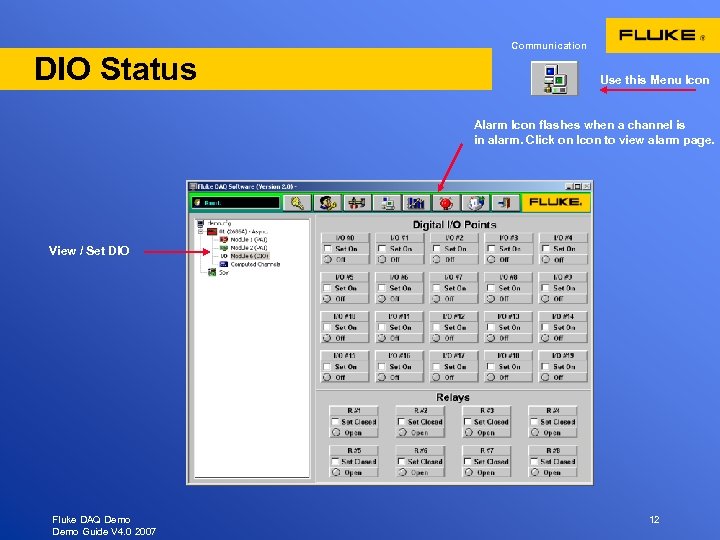 DIO Status Communication Use this Menu Icon Alarm Icon flashes when a channel is in alarm. Click on Icon to view alarm page. View / Set DIO Fluke DAQ Demo Guide V 4. 0 2007 12
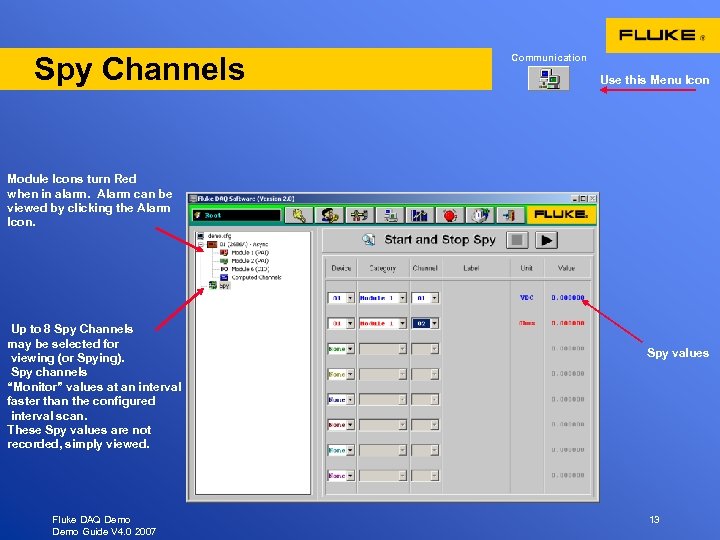 Spy Channels Communication Use this Menu Icon Module Icons turn Red when in alarm. Alarm can be viewed by clicking the Alarm Icon. Up to 8 Spy Channels may be selected for viewing (or Spying). Spy channels “Monitor” values at an interval faster than the configured interval scan. These Spy values are not recorded, simply viewed. Fluke DAQ Demo Guide V 4. 0 2007 Spy values 13
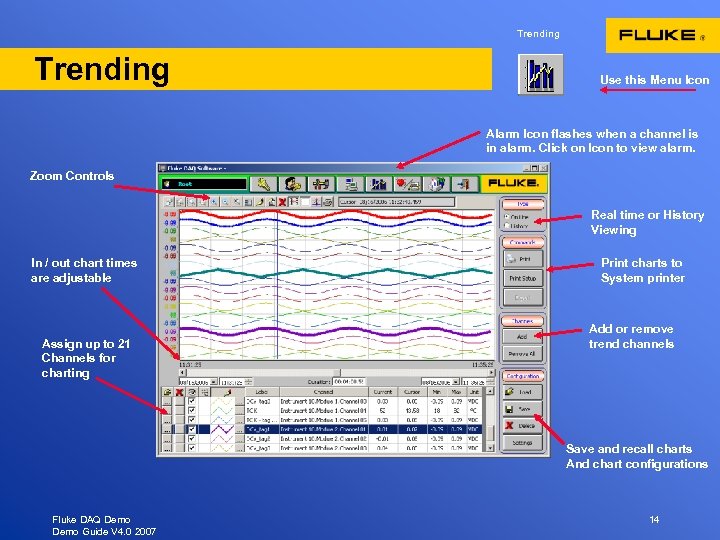 Trending Use this Menu Icon Alarm Icon flashes when a channel is in alarm. Click on Icon to view alarm. Zoom Controls Real time or History Viewing In / out chart times are adjustable Assign up to 21 Channels for charting Print charts to System printer Add or remove trend channels Save and recall charts And chart configurations Fluke DAQ Demo Guide V 4. 0 2007 14
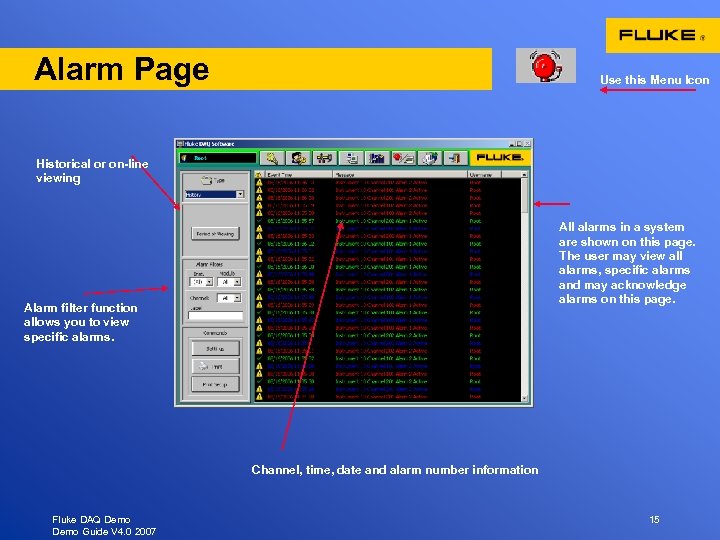 Alarm Page Use this Menu Icon Historical or on-line viewing All alarms in a system are shown on this page. The user may view all alarms, specific alarms and may acknowledge alarms on this page. Alarm filter function allows you to view specific alarms. Channel, time, date and alarm number information Fluke DAQ Demo Guide V 4. 0 2007 15
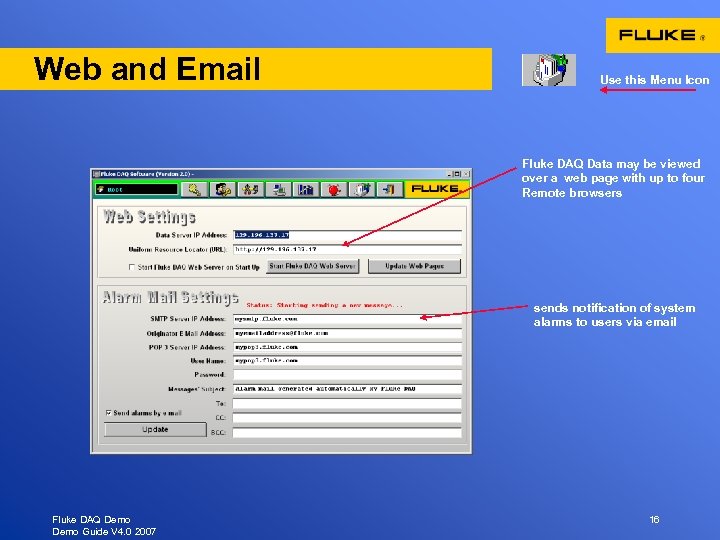 Web and Email Use this Menu Icon Fluke DAQ Data may be viewed over a web page with up to four Remote browsers sends notification of system alarms to users via email Fluke DAQ Demo Guide V 4. 0 2007 16
 Thank You! • Thank you for taking the time to view Fluke DAQ Data Acquisition software. • If you have any questions please contact Fluke directly or your local Fluke Representative. For further information on Fluke Data Acquisition products call 800 -44 -FLUKE or visit www. fluke. com USA: 800 -44 -Fluke Canada: 800 -36 -5853 Europe / M-East / Africa (31 40) 2 675 200 From other countries +1 425 446 5500 Fluke DAQ Demo Guide V 4. 0 2007 17
 Hardware Demo using the 2680 A-DEMO Kit ( for Representatives and Customers using the 2680 A-DEMO Kit ) The Following section offers basic instructions for the operation of the 2680 A-DEMO Kit. This section shows how to setup the demonstration 2680 A simulator hardware and connect the demonstrator to Fluke DAQ software on your laptop computer. Fluke DAQ Demo Guide V 4. 0 2007 18
 Hardware DEMO - First Steps ( for Representatives and Customers using the 2680 A-DEMO Kit ) • • Install Fluke DAQ Software from your CD Initialize , read, erase PC card in the 2680 A Connect the Demo Simulator to Slot # 1 and Slot # 6 Connect the “RED” Ethernet cable between your computer and the 2686 A. Open the “Sample” or “Demo”. cfg file. Select Isolated network Verify communications Start Scanning • Exercise Visual Guide starting on slide #1 Fluke DAQ Demo Guide V 4. 0 2007 19
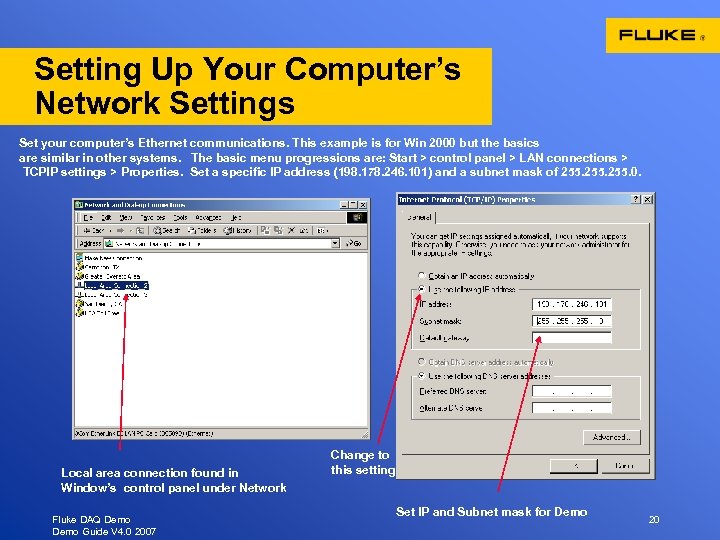 Setting Up Your Computer’s Network Settings Set your computer’s Ethernet communications. This example is for Win 2000 but the basics are similar in other systems. The basic menu progressions are: Start > control panel > LAN connections > TCPIP settings > Properties. Set a specific IP address (198. 178. 246. 101) and a subnet mask of 255. 0. Local area connection found in Window’s control panel under Network Fluke DAQ Demo Guide V 4. 0 2007 Change to this setting Set IP and Subnet mask for Demo 20
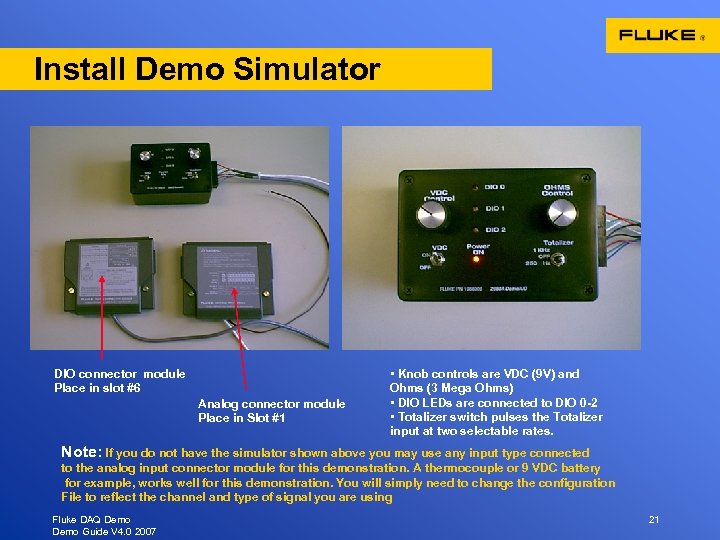 Install Demo Simulator DIO connector module Place in slot #6 Analog connector module Place in Slot #1 • Knob controls are VDC (9 V) and Ohms (3 Mega Ohms) • DIO LEDs are connected to DIO 0 -2 • Totalizer switch pulses the Totalizer input at two selectable rates. Note: If you do not have the simulator shown above you may use any input type connected to the analog input connector module for this demonstration. A thermocouple or 9 VDC battery for example, works well for this demonstration. You will simply need to change the configuration File to reflect the channel and type of signal you are using Fluke DAQ Demo Guide V 4. 0 2007 21
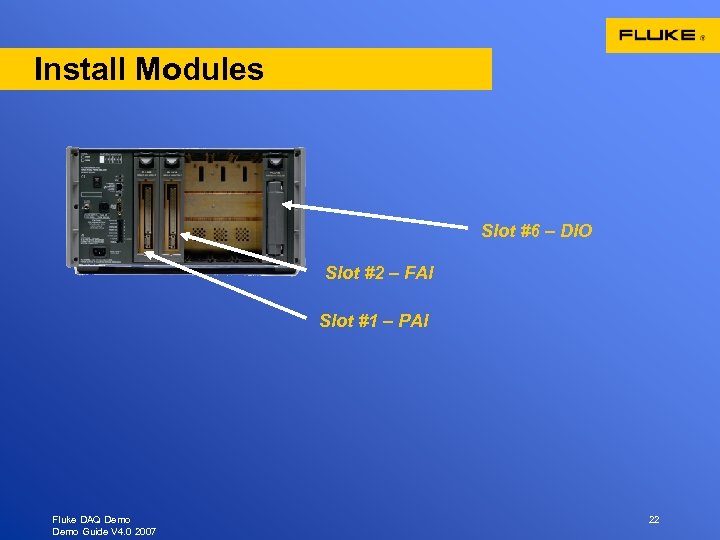 Install Modules Slot #6 – DIO Slot #2 – FAI Slot #1 – PAI Fluke DAQ Demo Guide V 4. 0 2007 22
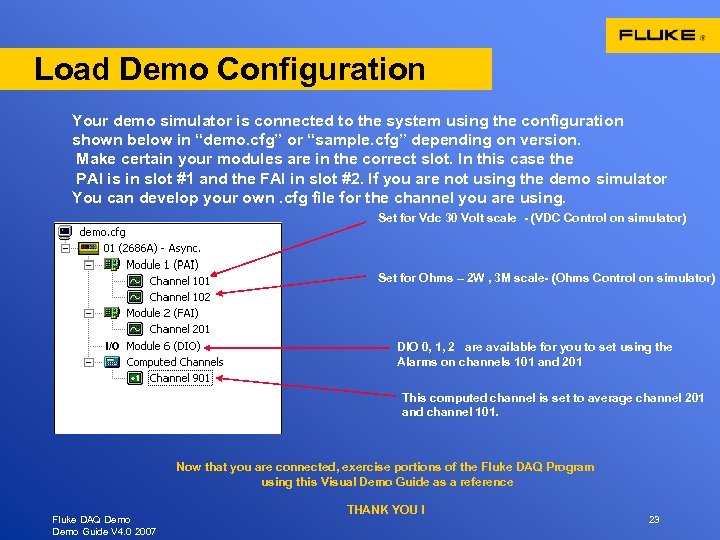 Load Demo Configuration Your demo simulator is connected to the system using the configuration shown below in “demo. cfg” or “sample. cfg” depending on version. Make certain your modules are in the correct slot. In this case the PAI is in slot #1 and the FAI in slot #2. If you are not using the demo simulator You can develop your own. cfg file for the channel you are using. Set for Vdc 30 Volt scale - (VDC Control on simulator) Set for Ohms – 2 W , 3 M scale- (Ohms Control on simulator) DIO 0, 1, 2 are available for you to set using the Alarms on channels 101 and 201 This computed channel is set to average channel 201 and channel 101. Now that you are connected, exercise portions of the Fluke DAQ Program using this Visual Demo Guide as a reference Fluke DAQ Demo Guide V 4. 0 2007 THANK YOU ! 23