


 Скачать презентацию First Step Guide to Kernel Memory Space Analyzer
7943bff13bdb897292cd3de8c9735eac.ppt
- Количество слайдов: 36
 First Step Guide to Kernel Memory Space Analyzer V 8. 1 (Kanalyze) Microsoft Corporation August 2006 © 2006 Microsoft Corporation All Rights Reserved 1
 The information contained in this document represents the current view of Microsoft Corporation on the issues discussed as of the date of publication. Because Microsoft must respond to changing market conditions, it should not be interpreted to be a commitment on the part of Microsoft, and Microsoft cannot guarantee the accuracy of any information presented after the date of publication. This White Paper is for informational purposes only. MICROSOFT MAKES NO WARRANTIES, EXPRESS, IMPLIED OR STATUTORY, AS TO THE INFORMATION IN THIS DOCUMENT. Complying with all applicable copyright laws is the responsibility of the user. Without limiting the rights under copyright, no part of this document may be reproduced, stored in or introduced into a retrieval system, or transmitted in any form or by any means (electronic, mechanical, photocopying, recording, or otherwise), or for any purpose, without the express written permission of Microsoft Corporation. Microsoft may have patents, patent applications, trademarks, copyrights, or other intellectual property rights covering subject matter in this document. Except as expressly provided in any written license agreement from Microsoft, the furnishing of this document does not give you any license to these patents, trademarks, copyrights, or other intellectual property. Unless otherwise noted, the companies, organizations, products, domain names, e-mail addresses, logos, people, places, and events depicted in examples herein are fictitious. No association with any real company, organization, product, domain name, e-mail address, logo, person, place, or event is intended or should be inferred. © 2006 Microsoft Corporation. All rights reserved. Microsoft, MS-DOS, Windows Server, Windows Vista, are either registered trademarks or trademarks of Microsoft Corporation in the United States and/or other countries. All other trademarks are property of their respective owners. © 2006 Microsoft Corporation All Rights Reserved 2
 Kanalyze Overview • Performs heuristics analysis of kernel memory space to aid an expert debugging engineer • How it works ? – Identifies a broad range of kernel space data items in the crash dump – Categorizes the data items into types for modeling purposes – Locates the data items into the Namespace hierarchy – Identifies and reports anomalous conditions by validating the data items and relationships among them • Consists of the engine, plug-ins, and UI to enable high extensibility in its analysis functionality and UI • Not just for crash analysis, but also for deadlocks, waitchain, and other hard problems analysis © 2006 Microsoft Corporation All Rights Reserved 3
 Architecture Basics (1) • Engine and Plug-ins – Kernel memory space is vast • Not feasible for one program to monolithically encompass all the knowledge required to analyze it – Central design idea is to compartmentalize the functionality into the Engine and Plug-ins • Plug-ins are responsible for locating and analyzing important data items for analysis • Kanalyze Engine functions as an excellent framework by providing plug-in interfaces and gathering various analysis data through plug-ins © 2006 Microsoft Corporation All Rights Reserved 4
 Architecture Basics (2) • Data Items – Fundamental unit of information processed by Kanalyze – Located and validated by Base plug-ins or Analysis plug-ins – Basic Data Items • Things that are felt by base plug-ins to be analytically relevant such as modules, stacks, paged pool, pool blocks, particular structs, etc. Basic building blocks of kernel space • Located and validated by base plug-ins – Analytic Data Items • Results of analysis performed by analysis plug-ins that goes beyond validating the items – Anomaly Data Items • Anomalies detected by base plug-ins and by analysis plug-ins – Item ID and Description • Item ID: Every item is assigned a unique ID • Description: Usually, each item has a human-readable description as part of its fixed characteristics © 2006 Microsoft Corporation All Rights Reserved 5
 Architecture Basics (3) • Type and Namespace – Base and Analysis plug-ins report located data items and its validation results to the Engine – Engine maintains a store of reported data items into its internal database during the lifetime of a Kanalyze run – Each data item is of a specific Type; each type is handled by a particular plug-in – Types have names and are organized into a unified Namespace hierarchy • • Root of the hierarchy is Basic Data Item Types are descendents of a such as Object. Table, Kernel. Object, Executive. Object, etc. Anomaly Data Item Types are under Anomaly. Descriptor Analytic Data Item Types are under Analysis © 2006 Microsoft Corporation All Rights Reserved 6
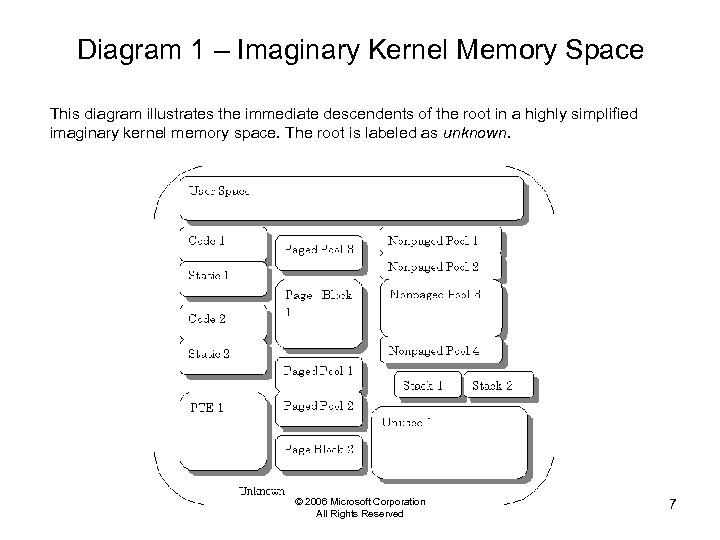 Diagram 1 – Imaginary Kernel Memory Space This diagram illustrates the immediate descendents of the root in a highly simplified imaginary kernel memory space. The root is labeled as unknown. © 2006 Microsoft Corporation All Rights Reserved 7
 Architecture Basics (4) • Container/Containee relationships – Base data item containing another base data item • e. g. an IRP should be contained within a single pool block – Plug-in can specify Allowed Container Types for a type on plug-in registration • Data Item Links – Structures within kernel space can point to each other. Such pointer relationships are modeled in Kanalyze with Data Item Links – Kanalyze provides plug-in interfaces so that it can trace all data item links © 2006 Microsoft Corporation All Rights Reserved 8
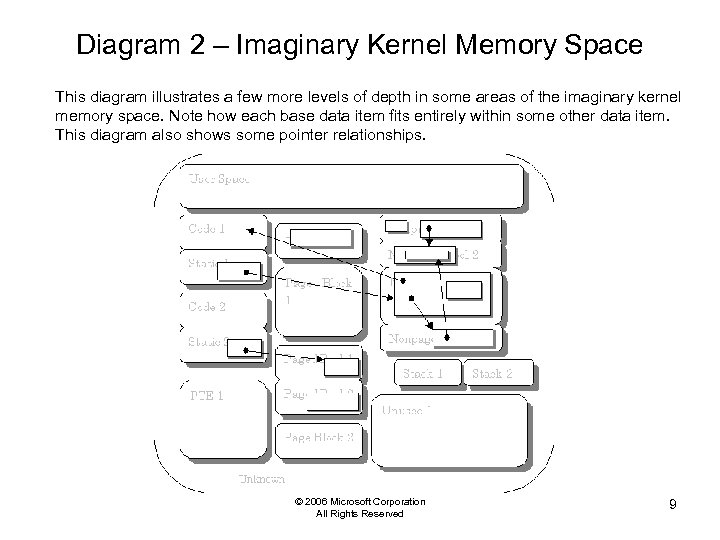 Diagram 2 – Imaginary Kernel Memory Space This diagram illustrates a few more levels of depth in some areas of the imaginary kernel memory space. Note how each base data item fits entirely within some other data item. This diagram also shows some pointer relationships. © 2006 Microsoft Corporation All Rights Reserved 9
 Architecture Basics (5) • Plug-ins live inside Win 32 DLLs – One DLL may contain multiple plug-ins • Plug-ins are conceptually categorized into the following three types – Base Plug-ins • Responsible for locating and validating the data items • Each base plug-in supports particular types of data items – Analysis Plug-ins • Based on the specific analysis scenario, responsible for performing higher level analysis that goes beyond validating the items – Director Plug-ins • Responsible formatting the results reported by base and analysis plugins and reporting to a terminal in a human-readable form *Note that Base and Analysis plug-ins have the knowledge of Windows internal data structures and logic inside the plug-ins. This enables Kanalyze to perform in-depth kernel space analysis though Kanalyze is assumed to run with public symbol files © 2006 Microsoft Corporation All Rights Reserved 10
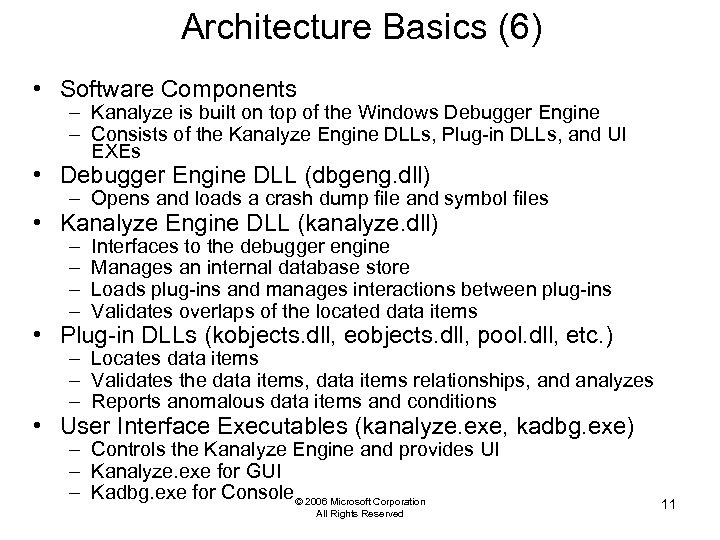 Architecture Basics (6) • Software Components – Kanalyze is built on top of the Windows Debugger Engine – Consists of the Kanalyze Engine DLLs, Plug-in DLLs, and UI EXEs • Debugger Engine DLL (dbgeng. dll) – Opens and loads a crash dump file and symbol files • Kanalyze Engine DLL (kanalyze. dll) – – Interfaces to the debugger engine Manages an internal database store Loads plug-ins and manages interactions between plug-ins Validates overlaps of the located data items • Plug-in DLLs (kobjects. dll, eobjects. dll, pool. dll, etc. ) – Locates data items – Validates the data items, data items relationships, and analyzes – Reports anomalous data items and conditions • User Interface Executables (kanalyze. exe, kadbg. exe) – Controls the Kanalyze Engine and provides UI – Kanalyze. exe for GUI – Kadbg. exe for Console© 2006 Microsoft Corporation All Rights Reserved 11
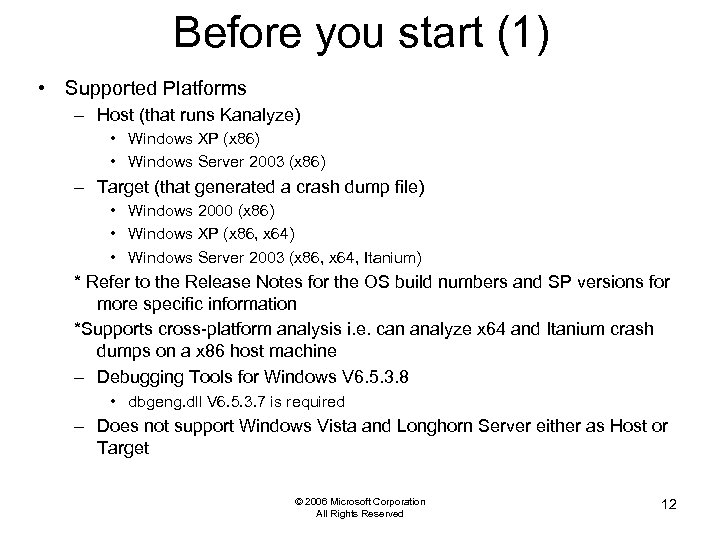 Before you start (1) • Supported Platforms – Host (that runs Kanalyze) • Windows XP (x 86) • Windows Server 2003 (x 86) – Target (that generated a crash dump file) • Windows 2000 (x 86) • Windows XP (x 86, x 64) • Windows Server 2003 (x 86, x 64, Itanium) * Refer to the Release Notes for the OS build numbers and SP versions for more specific information *Supports cross-platform analysis i. e. can analyze x 64 and Itanium crash dumps on a x 86 host machine – Debugging Tools for Windows V 6. 5. 3. 8 • dbgeng. dll V 6. 5. 3. 7 is required – Does not support Windows Vista and Longhorn Server either as Host or Target © 2006 Microsoft Corporation All Rights Reserved 12
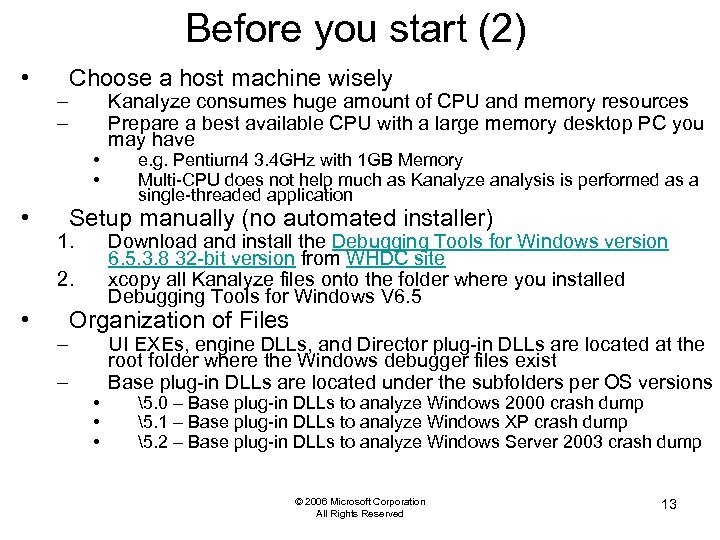 Before you start (2) • – – Choose a host machine wisely • • • e. g. Pentium 4 3. 4 GHz with 1 GB Memory Multi-CPU does not help much as Kanalyze analysis is performed as a single-threaded application Setup manually (no automated installer) 1. Download and install the Debugging Tools for Windows version 6. 5. 3. 8 32 -bit version from WHDC site xcopy all Kanalyze files onto the folder where you installed Debugging Tools for Windows V 6. 5 2. • Kanalyze consumes huge amount of CPU and memory resources Prepare a best available CPU with a large memory desktop PC you may have – – Organization of Files • • • UI EXEs, engine DLLs, and Director plug-in DLLs are located at the root folder where the Windows debugger files exist Base plug-in DLLs are located under the subfolders per OS versions 5. 0 – Base plug-in DLLs to analyze Windows 2000 crash dump 5. 1 – Base plug-in DLLs to analyze Windows XP crash dump 5. 2 – Base plug-in DLLs to analyze Windows Server 2003 crash dump © 2006 Microsoft Corporation All Rights Reserved 13
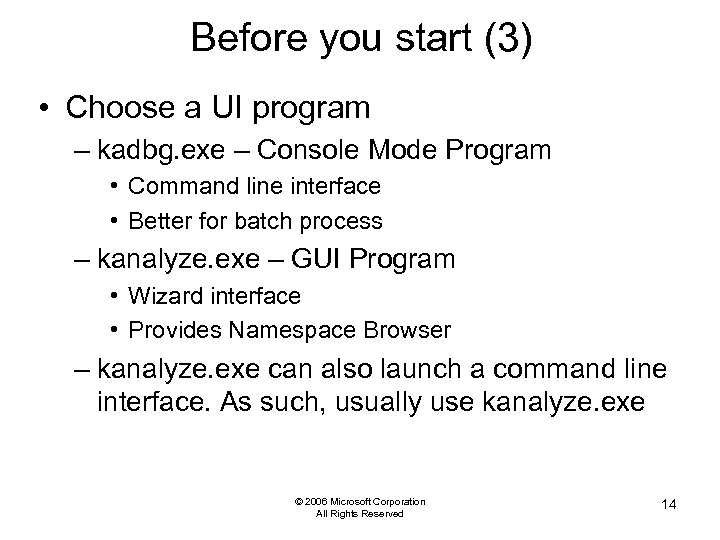 Before you start (3) • Choose a UI program – kadbg. exe – Console Mode Program • Command line interface • Better for batch process – kanalyze. exe – GUI Program • Wizard interface • Provides Namespace Browser – kanalyze. exe can also launch a command line interface. As such, usually use kanalyze. exe © 2006 Microsoft Corporation All Rights Reserved 14
 Run kanalyze. exe (1) • What would you like to do ? – Choose the first option to start a new crash dump analysis – Choose the second option if you have previously analyzed the dump file and have a saved Backing Store File (. kdb) for the dump • Specify the dump and symbol files path – Same as the debugger “–z” and “–y” options • Specify the binary file path – Same as the debugger “–i” option – Required for Module plug-in or mini-dump analysis • Select/Deselect plug-in DLLs • Show detail: opens a progress window if checked © 2006 Microsoft Corporation All Rights Reserved 15
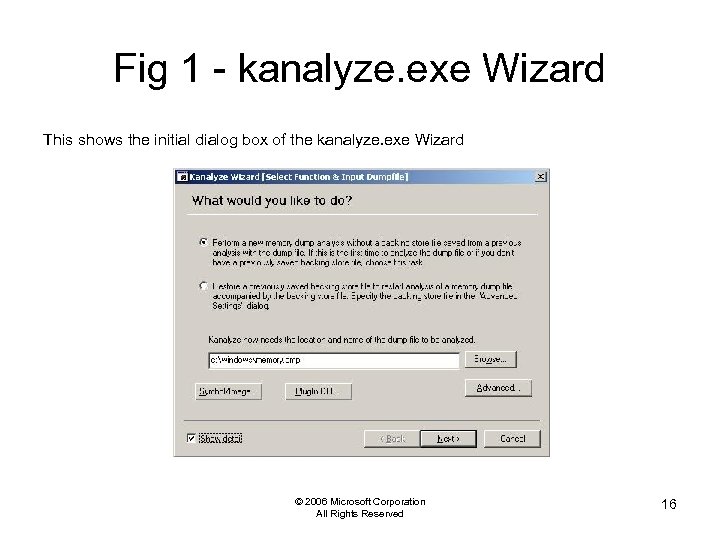 Fig 1 - kanalyze. exe Wizard This shows the initial dialog box of the kanalyze. exe Wizard © 2006 Microsoft Corporation All Rights Reserved 16
 Run kanalyze. exe (2) • “Advanced” button – Page File Path: Optionally specify the path for a page. dmp file generated by the 3 rd party products called “FREEZER” or “NACCIDENT”. Same as debugger “-zp” option – VMCache. Size. KB: Increase the number if you have enough memory and want to get optimal performance. Defaulted to 20 MB. Recommend to set 100~200 MB depending on your memory configuration – Backing Store File: previously saved. kdb file – Symbol load and debugger output options: Same as the debugger options. See debugger. chm help for more detail • Click “Next” after specified all necessary options to start analysis • You can save your favorite options in. ini file and run with it – e. g. kanalyze. exe myconfig. ini *”FREEZER” and “NACCIDENT” are the 3 rd party products developed and released by NTT DATA Intellilink Corporation. Microsoft does not own, sell, distribute, or support these products at all. © 2006 Microsoft Corporation All Rights Reserved 17
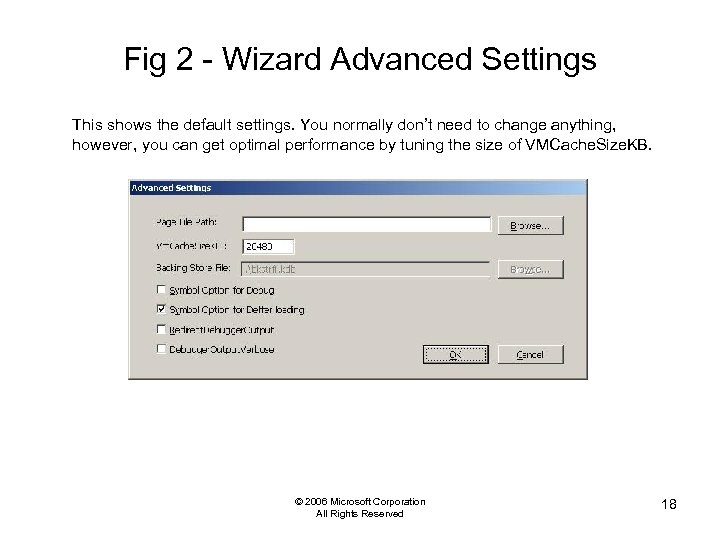 Fig 2 - Wizard Advanced Settings This shows the default settings. You normally don’t need to change anything, however, you can get optimal performance by tuning the size of VMCache. Size. KB. © 2006 Microsoft Corporation All Rights Reserved 18
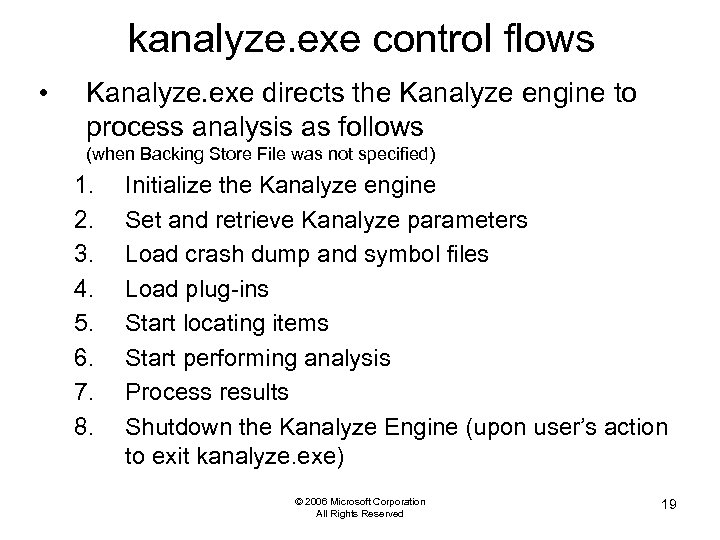 kanalyze. exe control flows • Kanalyze. exe directs the Kanalyze engine to process analysis as follows (when Backing Store File was not specified) 1. 2. 3. 4. 5. 6. 7. 8. Initialize the Kanalyze engine Set and retrieve Kanalyze parameters Load crash dump and symbol files Load plug-ins Start locating items Start performing analysis Process results Shutdown the Kanalyze Engine (upon user’s action to exit kanalyze. exe) © 2006 Microsoft Corporation All Rights Reserved 19
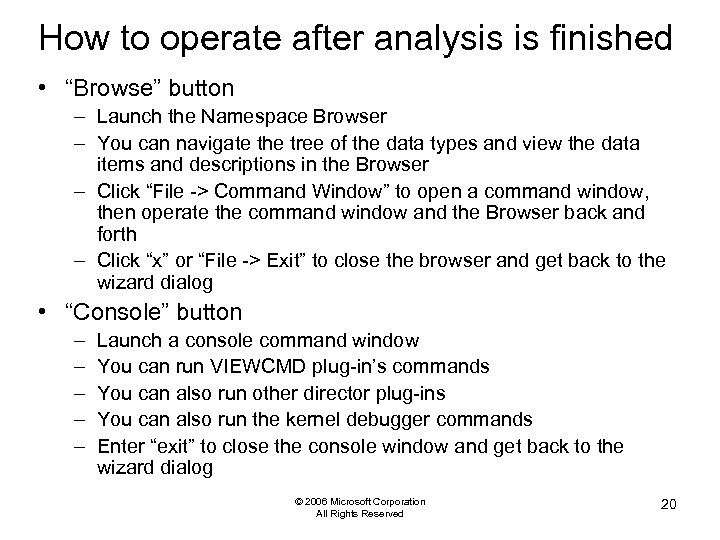 How to operate after analysis is finished • “Browse” button – Launch the Namespace Browser – You can navigate the tree of the data types and view the data items and descriptions in the Browser – Click “File -> Command Window” to open a command window, then operate the command window and the Browser back and forth – Click “x” or “File -> Exit” to close the browser and get back to the wizard dialog • “Console” button – – – Launch a console command window You can run VIEWCMD plug-in’s commands You can also run other director plug-ins You can also run the kernel debugger commands Enter “exit” to close the console window and get back to the wizard dialog © 2006 Microsoft Corporation All Rights Reserved 20
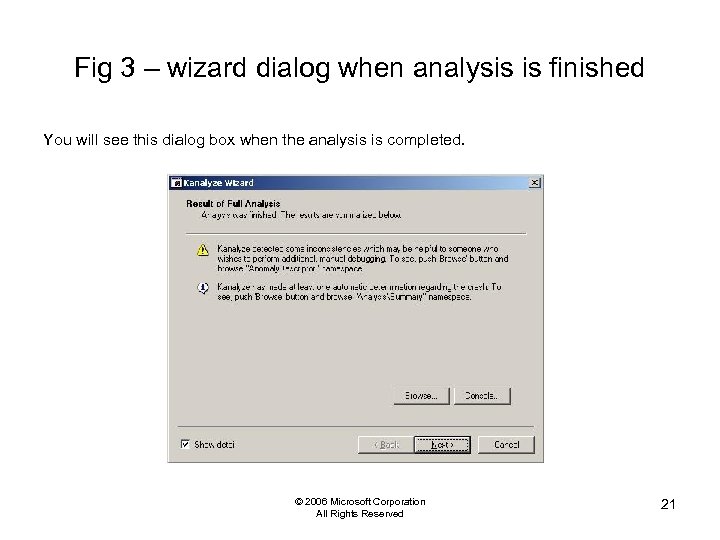 Fig 3 – wizard dialog when analysis is finished You will see this dialog box when the analysis is completed. © 2006 Microsoft Corporation All Rights Reserved 21
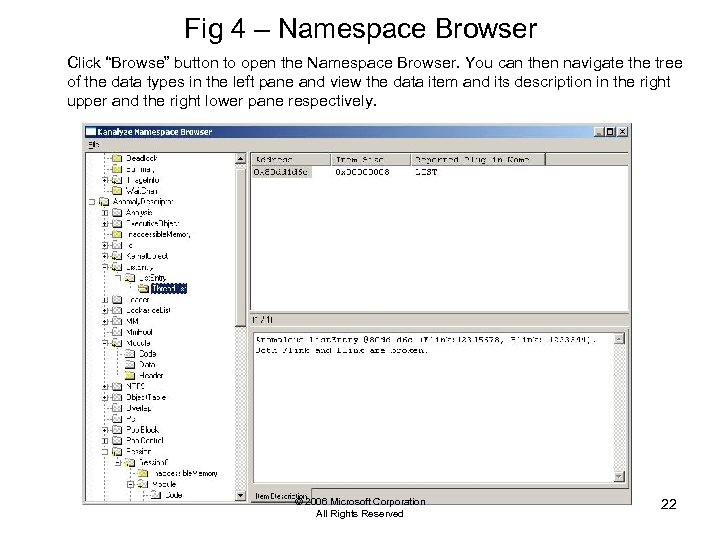 Fig 4 – Namespace Browser Click “Browse” button to open the Namespace Browser. You can then navigate the tree of the data types in the left pane and view the data item and its description in the right upper and the right lower pane respectively. © 2006 Microsoft Corporation All Rights Reserved 22
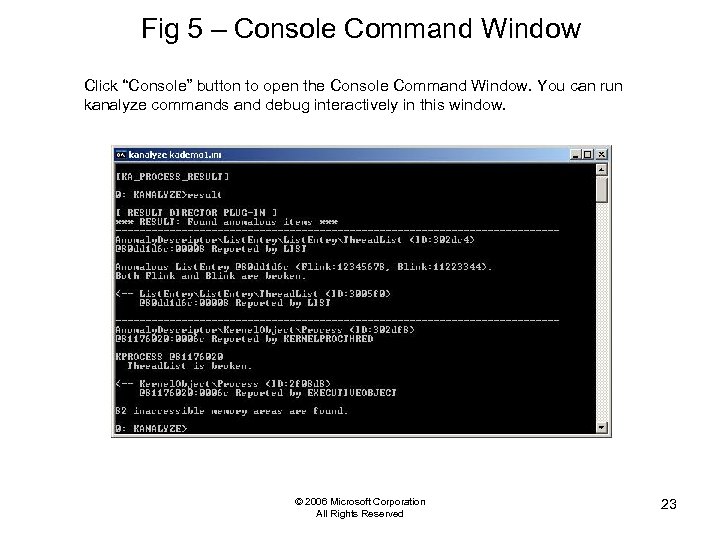 Fig 5 – Console Command Window Click “Console” button to open the Console Command Window. You can run kanalyze commands and debug interactively in this window. © 2006 Microsoft Corporation All Rights Reserved 23
 Terminating the Kanalyze Wizard 1. Click “Next>” button 2. If this was the first analysis, you will be asked if you want to save a Backing Store File 3. Click “Next>” button two more times to exit kanalyz. exe © 2006 Microsoft Corporation All Rights Reserved 24
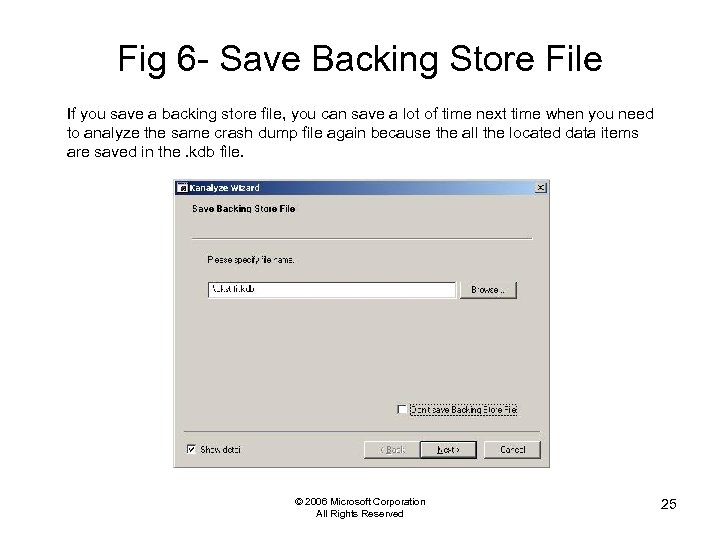 Fig 6 - Save Backing Store File If you save a backing store file, you can save a lot of time next time when you need to analyze the same crash dump file again because the all the located data items are saved in the. kdb file. © 2006 Microsoft Corporation All Rights Reserved 25
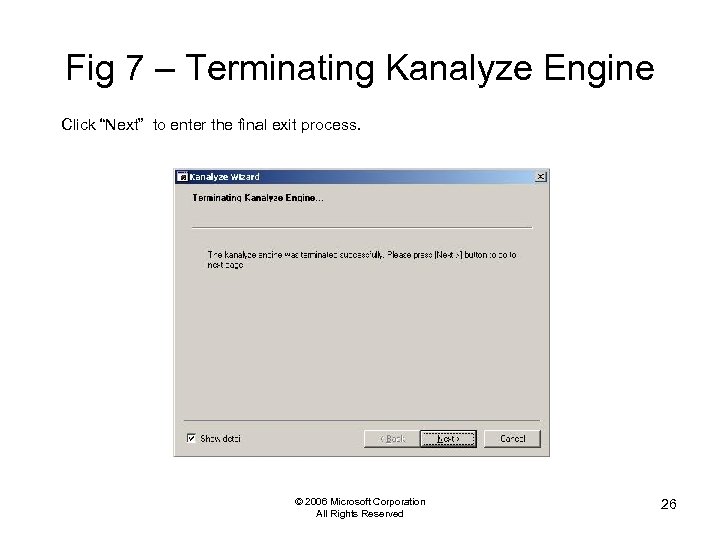 Fig 7 – Terminating Kanalyze Engine Click “Next” to enter the final exit process. © 2006 Microsoft Corporation All Rights Reserved 26
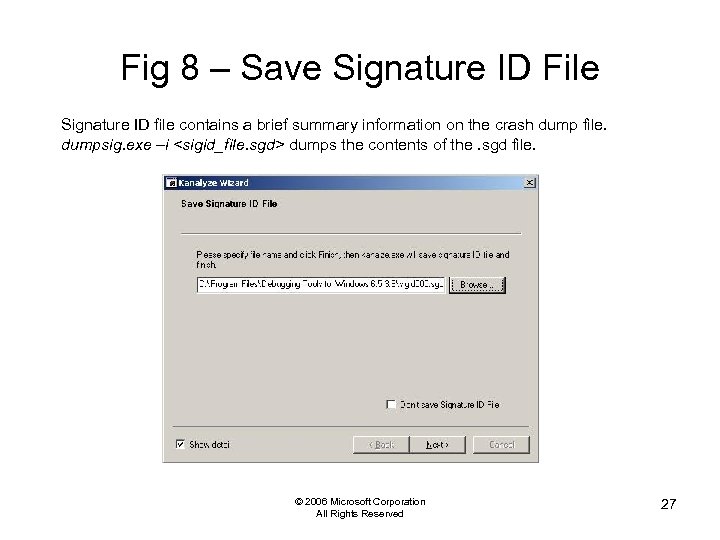 Fig 8 – Save Signature ID File Signature ID file contains a brief summary information on the crash dump file. dumpsig. exe –i
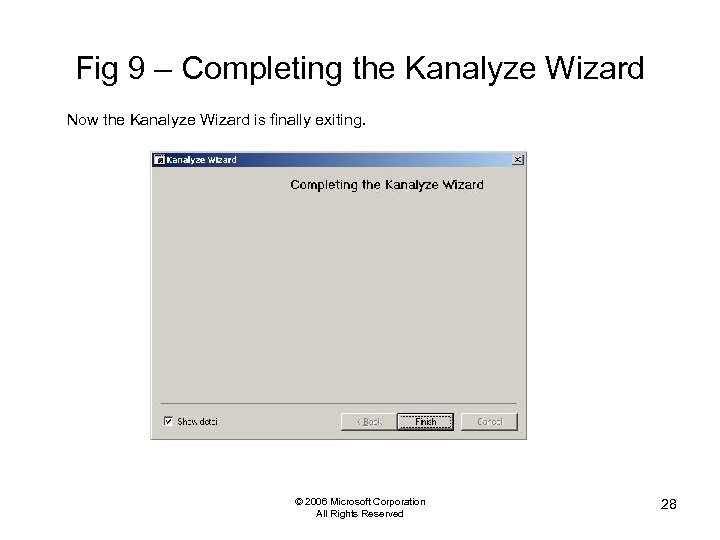 Fig 9 – Completing the Kanalyze Wizard Now the Kanalyze Wizard is finally exiting. © 2006 Microsoft Corporation All Rights Reserved 28
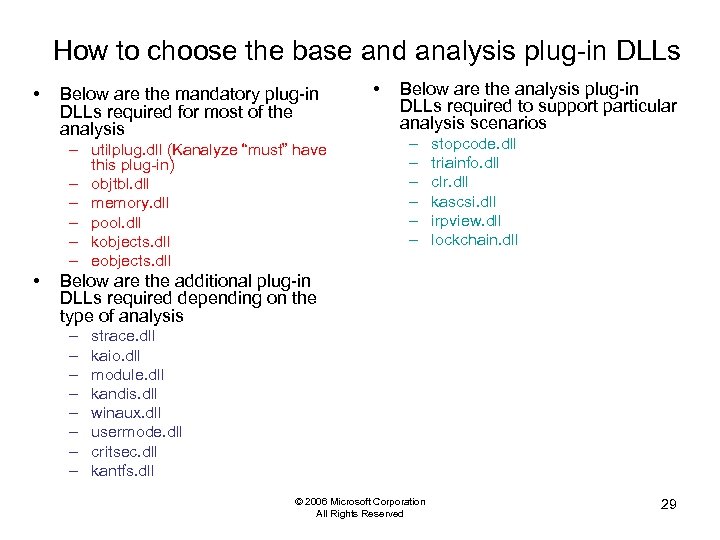 How to choose the base and analysis plug-in DLLs • Below are the mandatory plug-in DLLs required for most of the analysis – utilplug. dll (Kanalyze “must” have this plug-in) – objtbl. dll – memory. dll – pool. dll – kobjects. dll – eobjects. dll • • Below are the analysis plug-in DLLs required to support particular analysis scenarios – – – stopcode. dll triainfo. dll clr. dll kascsi. dll irpview. dll lockchain. dll Below are the additional plug-in DLLs required depending on the type of analysis – – – – strace. dll kaio. dll module. dll kandis. dll winaux. dll usermode. dll critsec. dll kantfs. dll © 2006 Microsoft Corporation All Rights Reserved 29
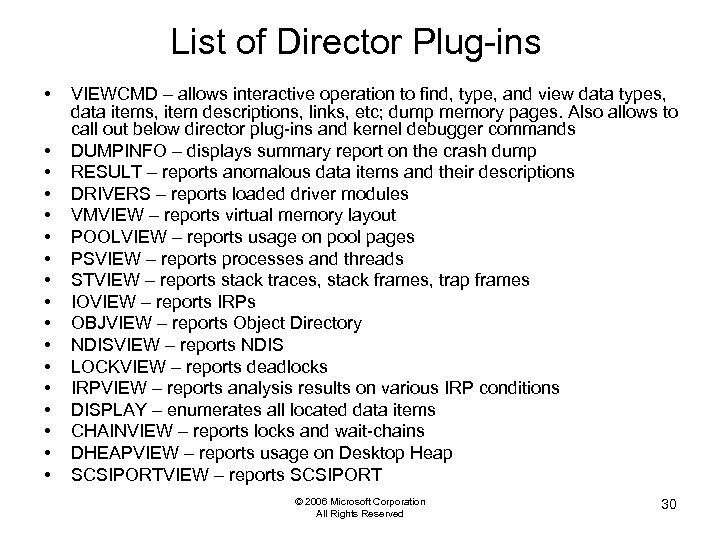 List of Director Plug-ins • • • • • VIEWCMD – allows interactive operation to find, type, and view data types, data items, item descriptions, links, etc; dump memory pages. Also allows to call out below director plug-ins and kernel debugger commands DUMPINFO – displays summary report on the crash dump RESULT – reports anomalous data items and their descriptions DRIVERS – reports loaded driver modules VMVIEW – reports virtual memory layout POOLVIEW – reports usage on pool pages PSVIEW – reports processes and threads STVIEW – reports stack traces, stack frames, trap frames IOVIEW – reports IRPs OBJVIEW – reports Object Directory NDISVIEW – reports NDIS LOCKVIEW – reports deadlocks IRPVIEW – reports analysis results on various IRP conditions DISPLAY – enumerates all located data items CHAINVIEW – reports locks and wait-chains DHEAPVIEW – reports usage on Desktop Heap SCSIPORTVIEW – reports SCSIPORT © 2006 Microsoft Corporation All Rights Reserved 30
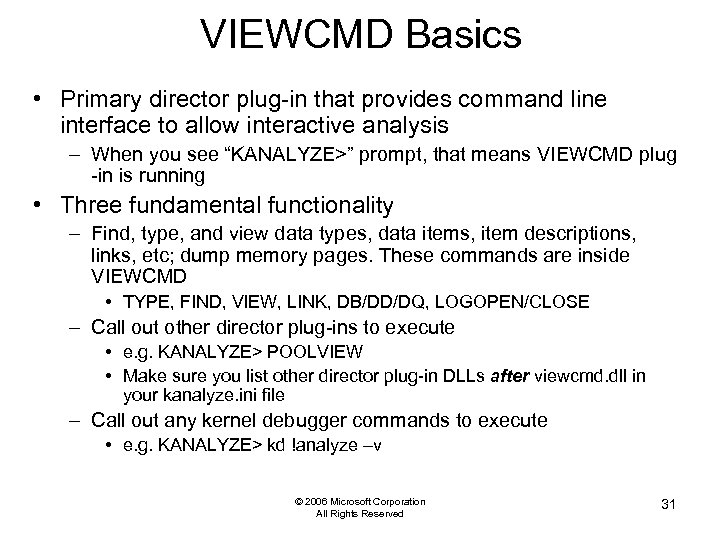 VIEWCMD Basics • Primary director plug-in that provides command line interface to allow interactive analysis – When you see “KANALYZE>” prompt, that means VIEWCMD plug -in is running • Three fundamental functionality – Find, type, and view data types, data items, item descriptions, links, etc; dump memory pages. These commands are inside VIEWCMD • TYPE, FIND, VIEW, LINK, DB/DD/DQ, LOGOPEN/CLOSE – Call out other director plug-ins to execute • e. g. KANALYZE> POOLVIEW • Make sure you list other director plug-in DLLs after viewcmd. dll in your kanalyze. ini file – Call out any kernel debugger commands to execute • e. g. KANALYZE> kd !analyze –v © 2006 Microsoft Corporation All Rights Reserved 31
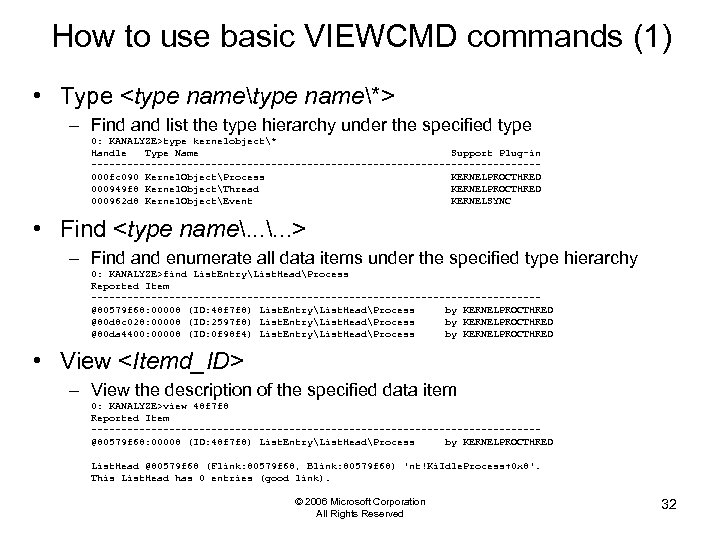 How to use basic VIEWCMD commands (1) • Type
![How to use basic VIEWCMD commands (2) • Link item_id [depth] [-{b|f|m}] – Display](https://present5.com/presentation/7943bff13bdb897292cd3de8c9735eac/image-33.jpg "How to use basic VIEWCMD commands (2) • Link item_id [depth] [-{b|f|m}] – Display") How to use basic VIEWCMD commands (2) • Link item_id [depth] [-{b|f|m}] – Display data item links from the specified data item 0: KANALYZE>link 277194 5 –b List. EntryList. HeadProcess @ffad 7 d 58 (ID: 277194, Reported by KERNELPROCTHRED) <--Kernel. ObjectProcess @ffad 7 d 50 (ID: 277160, Linked by KERNELPROCTHRED) <--Executive. ObjectProcess @ffad 7 d 50 (ID: 41442 c, Linked by EXECUTIVEOBJECT) <--List. EntryActive. Process @ffad 7 dd 8 (ID: 48 f 3 fc, Linked by EXECUTIVEOBJECT) <--List. EntryActive. Process @80 d 8 c 0 a 8 (ID: 48 f 3 c 8, Linked by LIST) <--List. EntryActive. Process @80 da 4480 (ID: 48 f 394, Linked by LIST) • Find
How to use basic VIEWCMD commands (2) • Link item_id [depth] [-{b|f|m}] – Display data item links from the specified data item 0: KANALYZE>link 277194 5 –b List. EntryList. HeadProcess @ffad 7 d 58 (ID: 277194, Reported by KERNELPROCTHRED) <--Kernel. ObjectProcess @ffad 7 d 50 (ID: 277160, Linked by KERNELPROCTHRED) <--Executive. ObjectProcess @ffad 7 d 50 (ID: 41442 c, Linked by EXECUTIVEOBJECT) <--List. EntryActive. Process @ffad 7 dd 8 (ID: 48 f 3 fc, Linked by EXECUTIVEOBJECT) <--List. EntryActive. Process @80 d 8 c 0 a 8 (ID: 48 f 3 c 8, Linked by LIST) <--List. EntryActive. Process @80 da 4480 (ID: 48 f 394, Linked by LIST) • Find
 Appendix – Kanalyze Base and Analysis Plug-Ins List © 2006 Microsoft Corporation All Rights Reserved 34
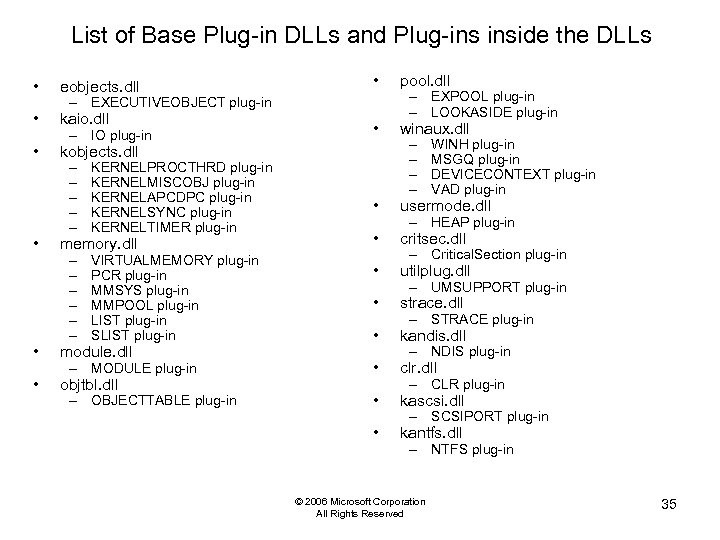 List of Base Plug-in DLLs and Plug-ins inside the DLLs • pool. dll • winaux. dll • usermode. dll • critsec. dll • utilplug. dll • strace. dll • kandis. dll – MODULE plug-in • clr. dll – OBJECTTABLE plug-in • kascsi. dll • kantfs. dll • eobjects. dll • kaio. dll • kobjects. dll • – EXECUTIVEOBJECT plug-in – IO plug-in – – – KERNELPROCTHRD plug-in KERNELMISCOBJ plug-in KERNELAPCDPC plug-in KERNELSYNC plug-in KERNELTIMER plug-in – – – VIRTUALMEMORY plug-in PCR plug-in MMSYS plug-in MMPOOL plug-in LIST plug-in SLIST plug-in memory. dll • module. dll • objtbl. dll – EXPOOL plug-in – LOOKASIDE plug-in – – WINH plug-in MSGQ plug-in DEVICECONTEXT plug-in VAD plug-in – HEAP plug-in – Critical. Section plug-in – UMSUPPORT plug-in – STRACE plug-in – NDIS plug-in – CLR plug-in – SCSIPORT plug-in – NTFS plug-in © 2006 Microsoft Corporation All Rights Reserved 35
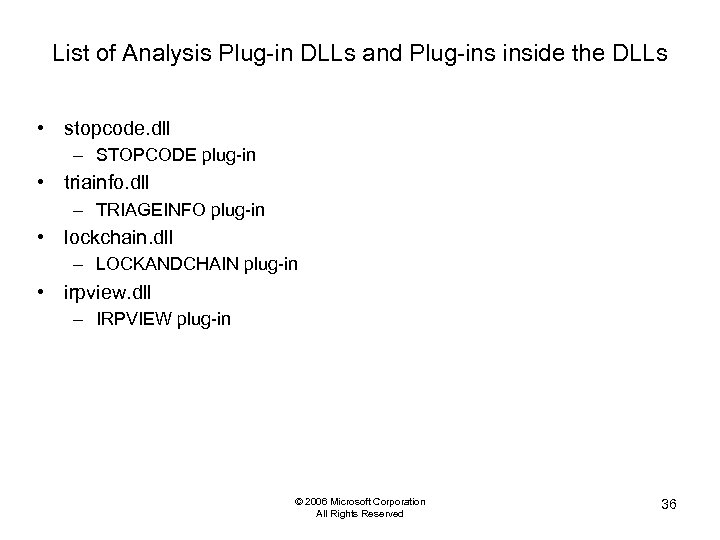 List of Analysis Plug-in DLLs and Plug-ins inside the DLLs • stopcode. dll – STOPCODE plug-in • triainfo. dll – TRIAGEINFO plug-in • lockchain. dll – LOCKANDCHAIN plug-in • irpview. dll – IRPVIEW plug-in © 2006 Microsoft Corporation All Rights Reserved 36