


 Скачать презентацию Financial Calculations in Excel Formulas and Functions Lecture
Lecture_2.pptx
- Количество слайдов: 23
 Financial Calculations in Excel Formulas and Functions Lecture 2
 Functions • By using functions, you can quickly and easily make many useful calculations, such as finding an average, the highest number, the lowest number, and a count of the number of items in a list. Microsoft Excel has many functions that you can use.
 Reference operators • To use functions, you need to understand reference operators. Reference operators refer to a cell or a group of cells. • There are two types of reference operators: range and union.
 Using Reference Operators • A range reference refers to all the cells between and including the reference. A range reference consists of two cell addresses separated by a colon. The reference A 1: A 3 includes cells A 1, A 2, and A 3. The reference A 1: C 3 includes cells A 1, A 2, A 3, B 1, B 2, B 3, C 1, C 2, and C 3. • A union reference includes two or more references. A union reference consists of two or more numbers, range references, or cell addresses separated by a comma. The reference A 7, B 8: B 10, C 9, 10 refers to cells A 7, B 8 to B 10, C 9 and the number 10.
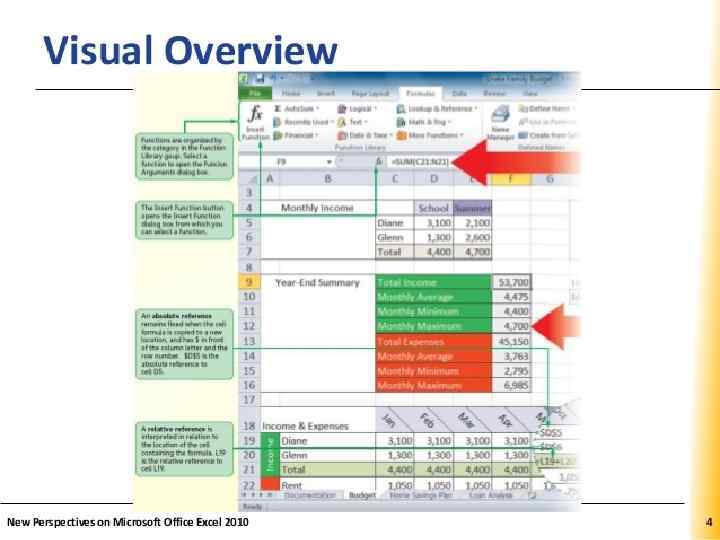
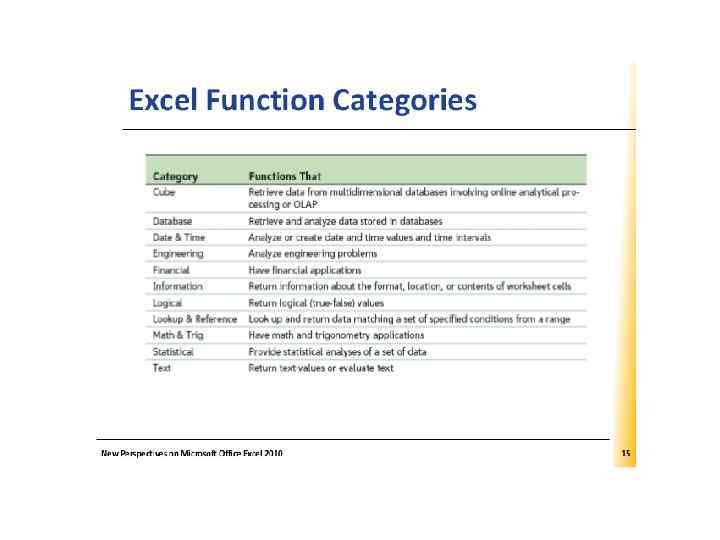
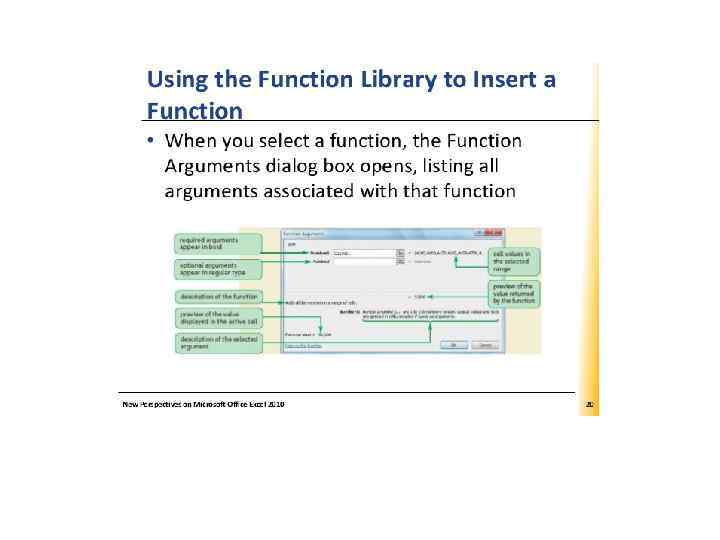
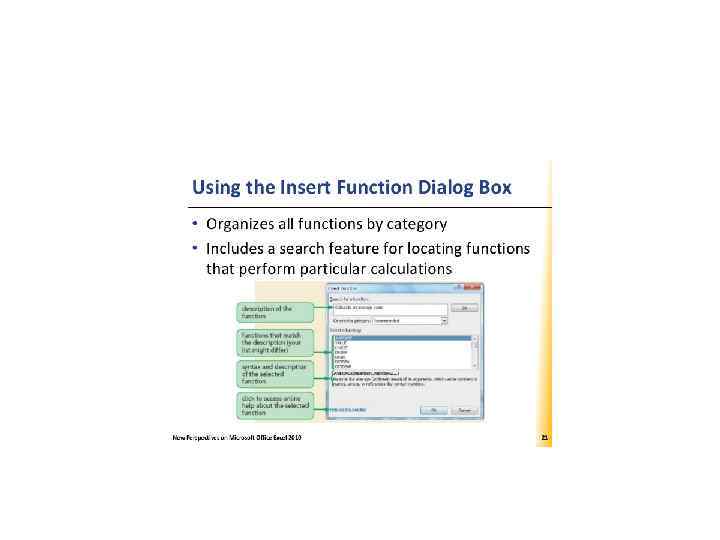
 Excel functions • Functions are organized by categories in the function library group. Select the function to open the function arguments dialog box. • The insert function button (Fx) open the insert function dialog box from which you can select a function
 Understanding cell references • To record analyze data - Enter data in cells in a worksheet - Reference the cells with data in formulas that perform calculations on that data
 Types of cell references • Relative • Absolute • Mixed
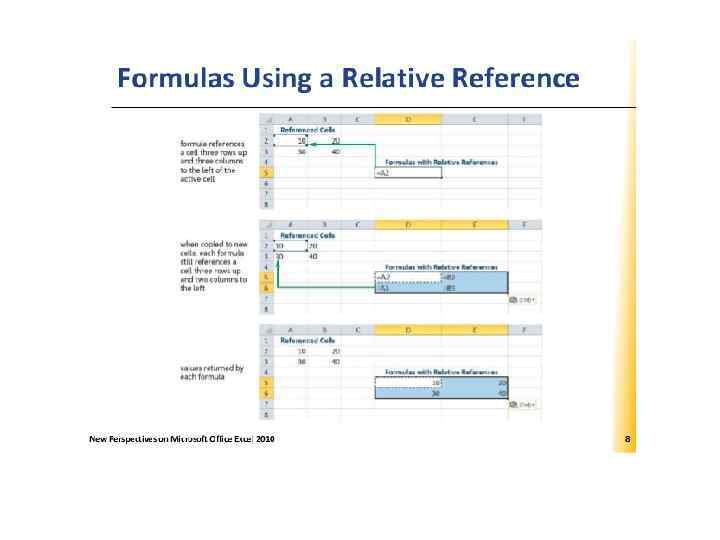
 Using the relative Reference • Cell reference as it appears in worksheet • Always interpreted in relation to the location of the cell containing the formula • Changes when the formula is copied to another group of cells • Allow quick generation of row/column totals without revising formulas
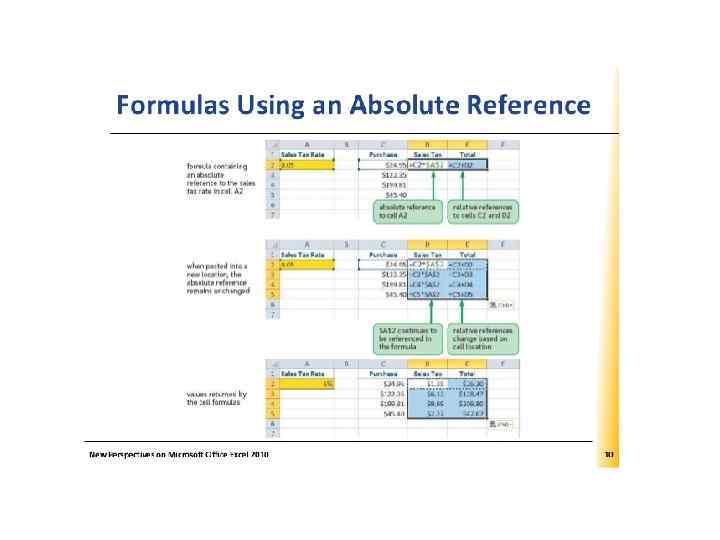
 Using Absolute References • Cell reference that remains fixed when the formula is copied to a new location • Have a $ before each column and row designation ($B$1) • Enter values in their own cells; reference the appropriate cells in formulas in the worksheet -Reduces amount of data entry -when a data valued is changed, all formulas based on that cell are updated to reflect the new value
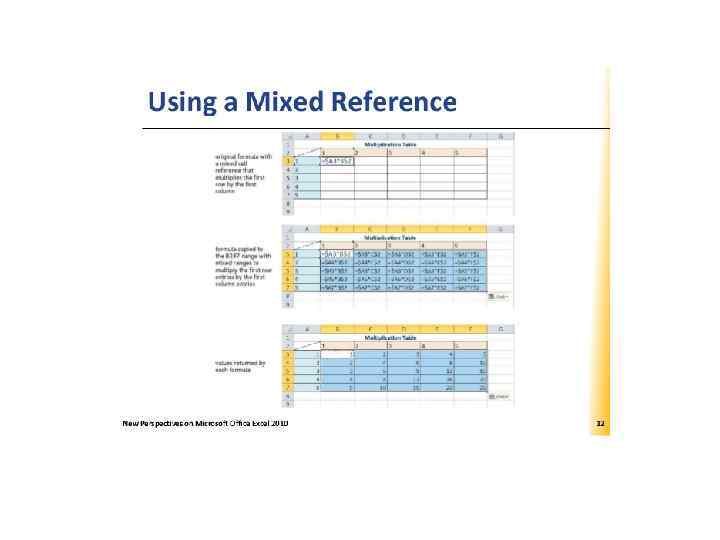
 Using Mixed References • Contain both relative and absolute references • “Lock” one part of the cell reference while the other part can change • Have a $ before either the row or column reference ($B 2 or B$2)
 Absolute and Relative Reference • For example A 1 is a relative range, while $A$1 is an absolute range. If you enter =A 1 in a cell and then fill that cell down a column, the '1' in the reference will increment in each row. Thus, the formula in row 50 would be =A 50. However, if you enter =$A$1 in a cell and fill down, the range reference will remain $A$1 - it will not increment as you fill or copy down a column.
 When to use Relative, Absolute and Mixed References • Relative references - Repeat same formula with cells in different locations • Absolute references - Different formulas to refer to the same cell • Mixed references - Seldom used other than when creating tables of calculated values • Use F 4 key to cycle through different types of references
 Working with functions • Quick way to calculate summary data • Every function follows a set of rules • That specifies how the function should be written • General syntax of all Excel functions FUNCTION (argument 1, argument 2, …) Square brackets indicate optional arguments FUNCTION (argument 1, [arguments 2=value 2, …])
 Working with functions • Advantage of using cell references: -Values in the function are visible to users and can be easily edited as needed • Functions can also be placed inside another function, or must include all parentheses)
 Inserting a Function • 3 possible methods: - Select a function from a function category in the Function Library - Open Insert Function dialog box to search for a particular function - Type function directly in cells
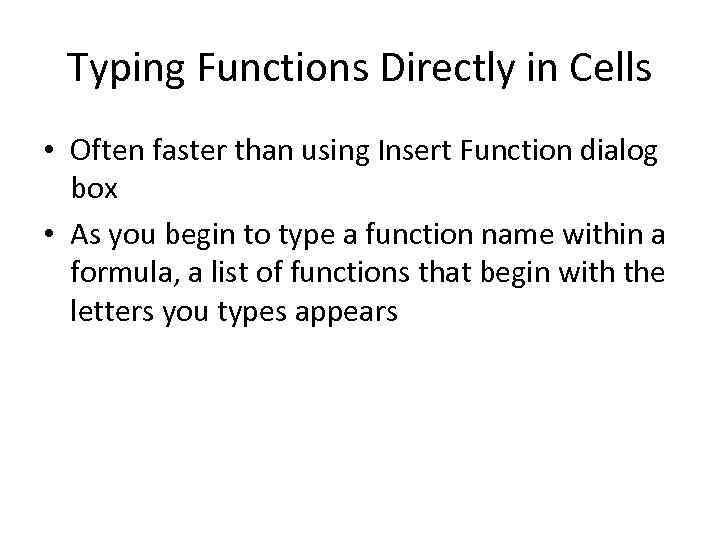 Typing Functions Directly in Cells • Often faster than using Insert Function dialog box • As you begin to type a function name within a formula, a list of functions that begin with the letters you types appears