


 Скачать презентацию Extra Materials Introduction to Arc Workstation What s
5011b0848d3ff54e4d260643a218364a.ppt
- Количество слайдов: 71
 Extra Materials Introduction to Arc. Workstation
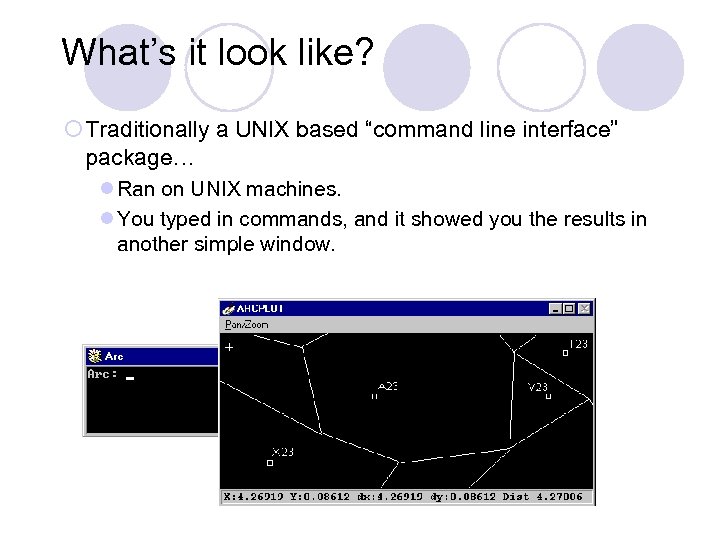 What’s it look like? ¡ Traditionally a UNIX based “command line interface” package… l Ran on UNIX machines. l You typed in commands, and it showed you the results in another simple window.
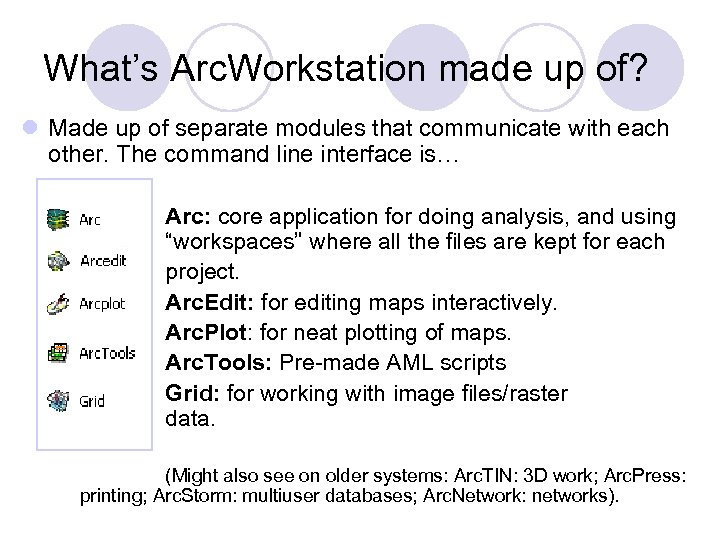 What’s Arc. Workstation made up of? l Made up of separate modules that communicate with each other. The command line interface is… Arc: core application for doing analysis, and using “workspaces” where all the files are kept for each project. Arc. Edit: for editing maps interactively. Arc. Plot: for neat plotting of maps. Arc. Tools: Pre-made AML scripts Grid: for working with image files/raster data. (Might also see on older systems: Arc. TIN: 3 D work; Arc. Press: printing; Arc. Storm: multiuser databases; Arc. Network: networks).
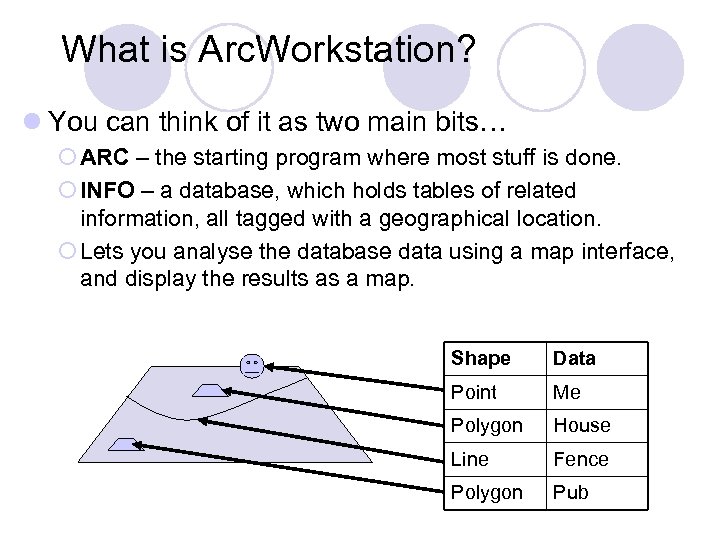 What is Arc. Workstation? l You can think of it as two main bits… ¡ ARC – the starting program where most stuff is done. ¡ INFO – a database, which holds tables of related information, all tagged with a geographical location. ¡ Lets you analyse the database data using a map interface, and display the results as a map. Shape Data Point Me Polygon House Line Fence Polygon Pub
 Why bother with it? l Because: ¡ Arc. GIS 8/9. x doesn’t have the functionality of Arc. Workstation, and plenty of places still use it. ¡ There is still a lot of use of legacy AML code. ¡ There is still a lot of data floating around in Coverages. l We’ll teach you enough to understand how it works and give you a foundation to work from if you come across it.
 The Arc. Info Data Model l Store all the same types of features in one file using x, y coordinates… ¡ i. e. all the point features in one file, all the line features in another file, and all the associated nonlocation data in yet another file. l Makes storage and handling easier. l Makes analysis easier. l The filenames show what kind of data they hold. ¡ e. g. Label Points are stored in a LAB (lab. adf) file.
 Storing Data
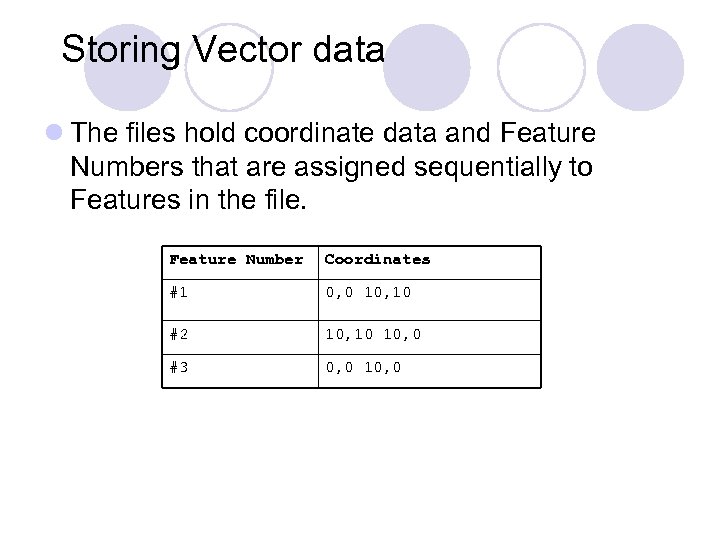 Storing Vector data l The files hold coordinate data and Feature Numbers that are assigned sequentially to Features in the file. Feature Number Coordinates #1 0, 0 10, 10 #2 10, 10 10, 0 #3 0, 0 10, 0
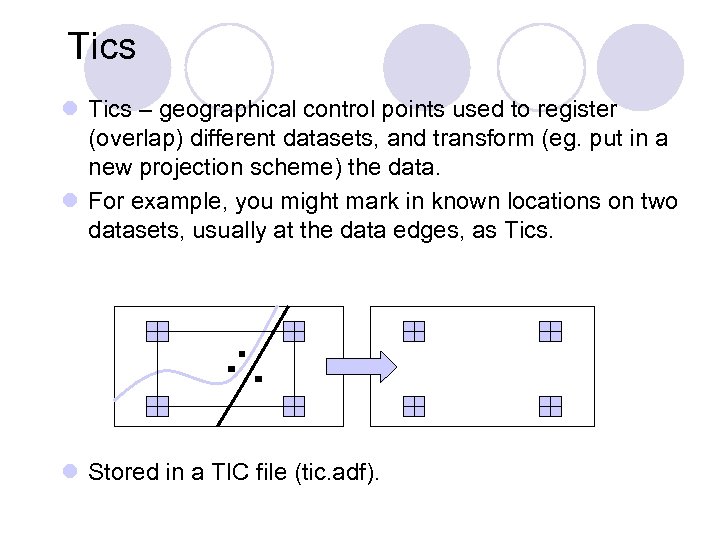 Tics l Tics – geographical control points used to register (overlap) different datasets, and transform (eg. put in a new projection scheme) the data. l For example, you might mark in known locations on two datasets, usually at the data edges, as Tics. l Stored in a TIC file (tic. adf).
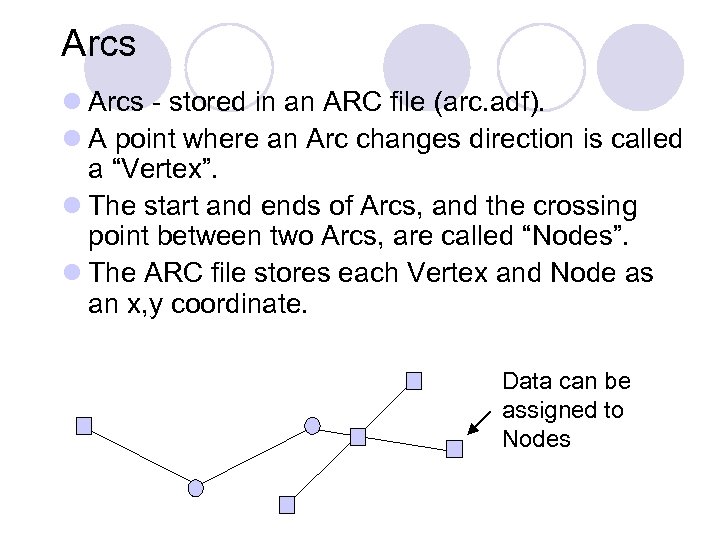 Arcs l Arcs - stored in an ARC file (arc. adf). l A point where an Arc changes direction is called a “Vertex”. l The start and ends of Arcs, and the crossing point between two Arcs, are called “Nodes”. l The ARC file stores each Vertex and Node as an x, y coordinate. Data can be assigned to Nodes
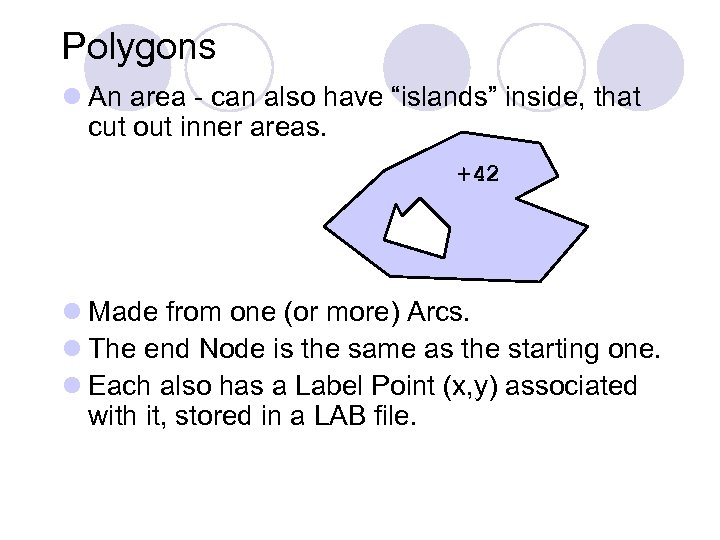 Polygons l An area - can also have “islands” inside, that cut out inner areas. +42 l Made from one (or more) Arcs. l The end Node is the same as the starting one. l Each also has a Label Point (x, y) associated with it, stored in a LAB file.
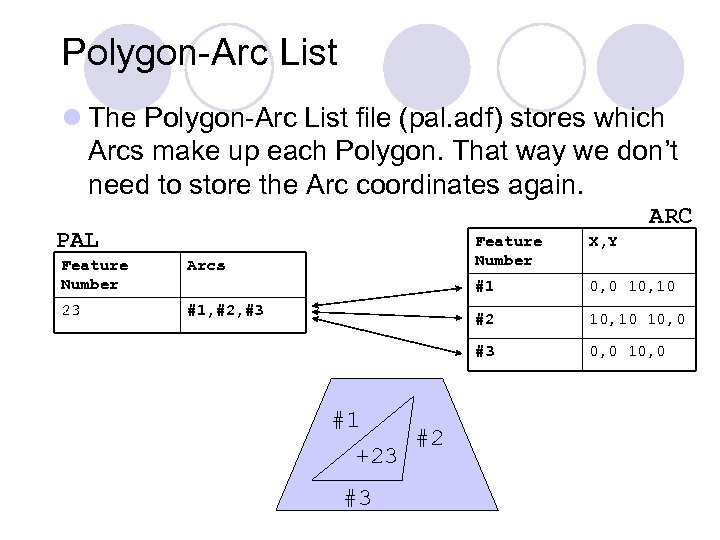 Polygon-Arc List l The Polygon-Arc List file (pal. adf) stores which Arcs make up each Polygon. That way we don’t need to store the Arc coordinates again. ARC PAL 23 #1 #2 +23 #3 10, 10 10, 0 #3 #1, #2, #3 0, 0 10, 10 #2 Arcs X, Y #1 Feature Number 0, 0 10, 0
 Polygon-Arc List l The outside or “Universe” Polygon is always feature number 1, ie. first in the PAL file. l Islands start with a zero, followed by the Arcs.
 Topology l Analysis we might want to do… ¡ “How do I move from Arc to get from A to B fastest? ” ¡ “If I leave Polygon A going north, which Polygon do I enter? ” l To do these analyses we need some notion of Topology, ie. the spatial relationships between features.
 Topology in Arc. Info l Three ways topology is defined in Arc. Info… ¡ Arcs connect at Nodes. ¡ Arcs have direction, and therefore a left and right side. ¡ Arcs that connect to surround an area make a Polygon.
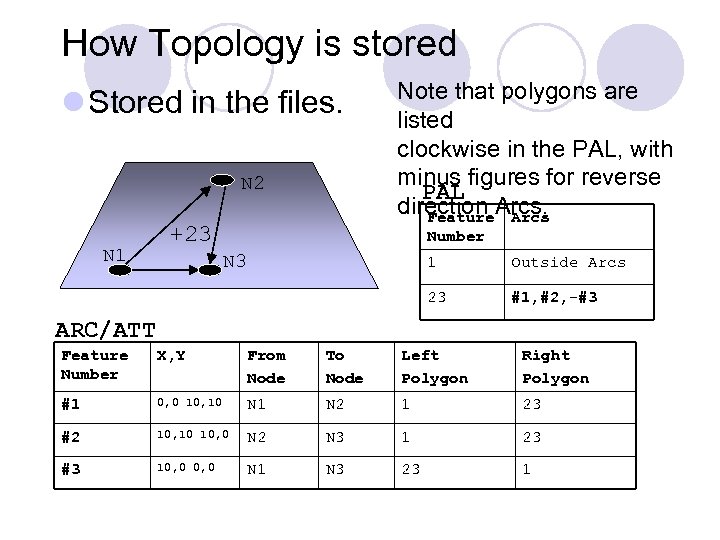 How Topology is stored l Stored in the files. N 2 N 1 +23 Note that polygons are listed clockwise in the PAL, with minus figures for reverse PAL direction Arcs. Feature Arcs Number N 3 1 Outside Arcs 23 #1, #2, -#3 ARC/ATT Feature Number X, Y From Node To Node Left Polygon Right Polygon #1 0, 0 10, 10 N 1 N 2 1 23 #2 10, 10 10, 0 N 2 N 3 1 23 #3 10, 0 N 1 N 3 23 1
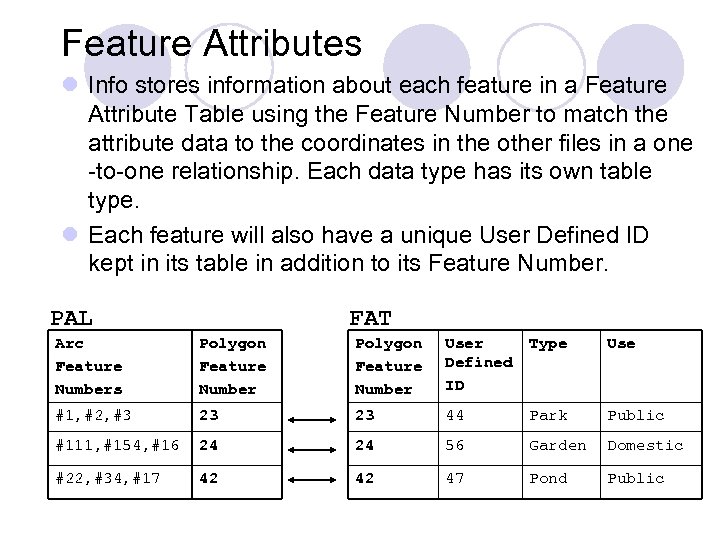 Feature Attributes l Info stores information about each feature in a Feature Attribute Table using the Feature Number to match the attribute data to the coordinates in the other files in a one -to-one relationship. Each data type has its own table type. l Each feature will also have a unique User Defined ID kept in its table in addition to its Feature Number. PAL FAT Arc Feature Numbers Polygon Feature Number User Defined ID Type Use #1, #2, #3 23 23 44 Park Public #111, #154, #16 24 24 56 Garden Domestic #22, #34, #17 42 42 47 Pond Public
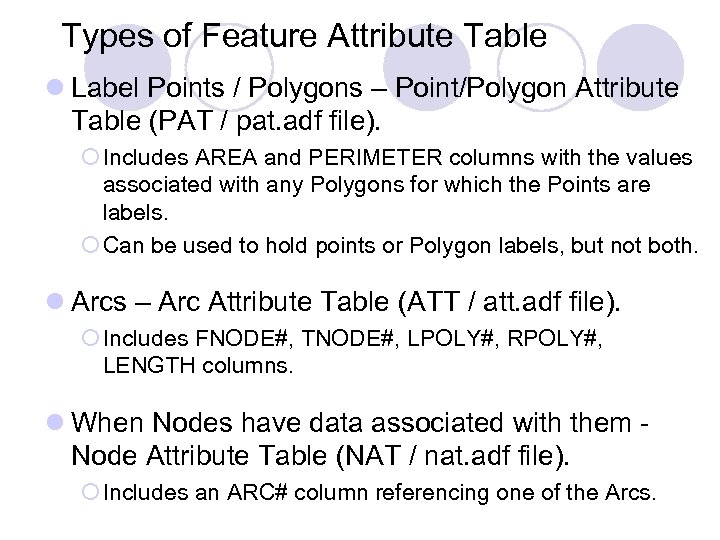 Types of Feature Attribute Table l Label Points / Polygons – Point/Polygon Attribute Table (PAT / pat. adf file). ¡ Includes AREA and PERIMETER columns with the values associated with any Polygons for which the Points are labels. ¡ Can be used to hold points or Polygon labels, but not both. l Arcs – Arc Attribute Table (ATT / att. adf file). ¡ Includes FNODE#, TNODE#, LPOLY#, RPOLY#, LENGTH columns. l When Nodes have data associated with them Node Attribute Table (NAT / nat. adf file). ¡ Includes an ARC# column referencing one of the Arcs.
 Feature Attribute Table Format l After the columns listed above usually come the Feature Number (NAME#) and the User Defined ID (NAME-ID) columns. l Following these, users can then create more columns to hold attribute data.
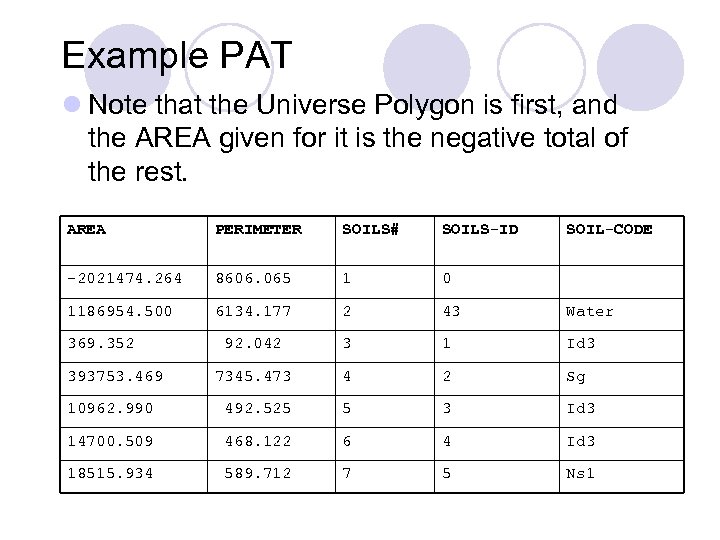 Example PAT l Note that the Universe Polygon is first, and the AREA given for it is the negative total of the rest. AREA PERIMETER SOILS# SOILS-ID -2021474. 264 8606. 065 1 0 1186954. 500 6134. 177 2 43 Water 92. 042 3 1 Id 3 7345. 473 4 2 Sg 10962. 990 492. 525 5 3 Id 3 14700. 509 468. 122 6 4 Id 3 18515. 934 589. 712 7 5 Ns 1 369. 352 393753. 469 SOIL-CODE
 Other Vector data l Region – several related Polygons, nested or overlapping. Stored in a PAT. region. Name (pat. adf file). l Annotation – text drawn along an associated feature. Stored in a T(ext)AT (txt. adf file). l Section – an Arc / portion of Arc representing a part of a pathway. Stored in a SEC table (sec. adf file). l Route – a pathway made out of multiple Sections. Stored in a R(oute)AT (rat. adf file).
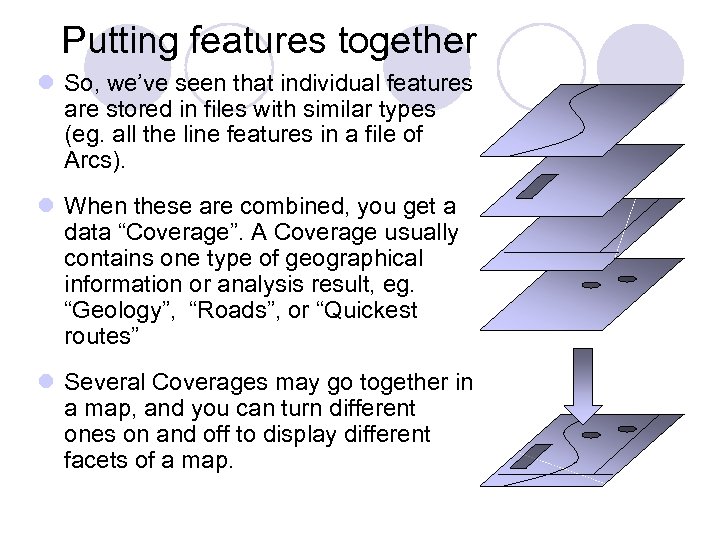 Putting features together l So, we’ve seen that individual features are stored in files with similar types (eg. all the line features in a file of Arcs). l When these are combined, you get a data “Coverage”. A Coverage usually contains one type of geographical information or analysis result, eg. “Geology”, “Roads”, or “Quickest routes” l Several Coverages may go together in a map, and you can turn different ones on and off to display different facets of a map.
 Coverages l In the file system, these are represented as the directories your data files go in. l They let you keep data files together and display them at the same time. l Usually it is the name of the Coverage that goes to form the Feature Number and ID column names. ¡ Eg. The SOILS coverage before gave our example PAT a SOILS# Feature Number column and a SOILS-ID column.
 Addition Coverage information l As well as our data files, a Coverage will have several other pieces of information associated with it. ¡ A Coverage Extent (BND / bnd. adf file) - this records the upper right and lower left corners of a rectangle containing all the feature data in the Coverage. It need not contain all the Tic and Annotation points. ¡ A Coordinate Definition file (PRJ / prj. adf ) - holds the Coverage’s map projection information ¡ A Tolerances file (TOL / tol. adf ) - holds a number of processing tolerances, eg. How close Tics in different files need to be before they count as matching.
 Putting Coverages together l Finally Coverages can be kept together in project areas called “Workspaces”. l Workspaces allow you to keep all the data and Coverages you generate for a project in one place, separate from any other work you may be doing. l In the file system they’re represented as directories which include all the Coverage directories you’re working on in a project. l One of the first things you do on starting any Arc. Workstation project is move to your present Workspace.
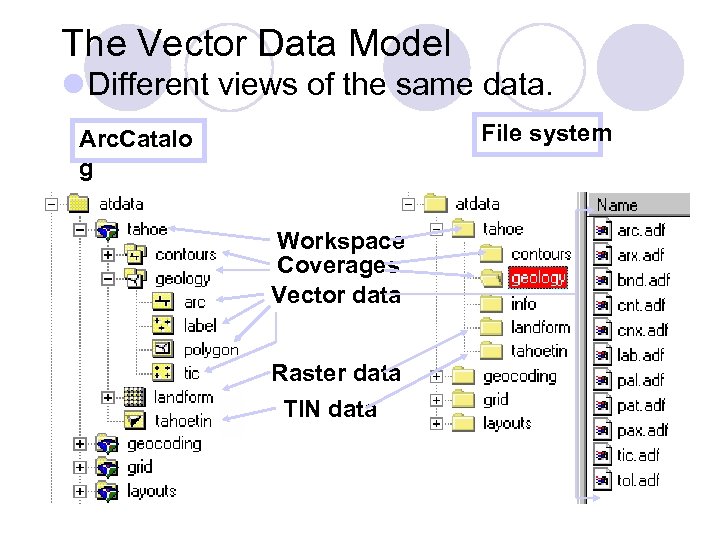 The Vector Data Model l Different views of the same data. File system Arc. Catalo g Workspace Coverages Vector data Raster data TIN data
 Summary l Vector data includes Label Points, Arcs, Polygons and Tics. l The coordinates for the features of each type are stored in separate files, one file for each type. l Within the files, each individual feature has a Feature Number and a set of coordinates. l The Feature Number is used to link features to attribute data stored in a Feature Attribute Table of a particular type. l You can get at the combined data through their representation as Tables in Arc. Workstation.
 Summary l Data stored in separate files / tables can be combined to form Coverages. l Coverages usually contain information about a single landuse or analysis result. l All the Coverages in a project can be kept together in a Workspace. l Coverages and Workspaces are represented as directories in the file system.
 Arc. Catalog l It is vital that you never alter the file names or location outside of the Arc. GIS applications. l You can get at most of the information in the files and change/move/delete them in Arc. GIS. l The best way to do these operations is in Arc. Catalog. l We looked at some of the functions of Arc. Catalog in the last practical. We’ll add a bit more detail now.
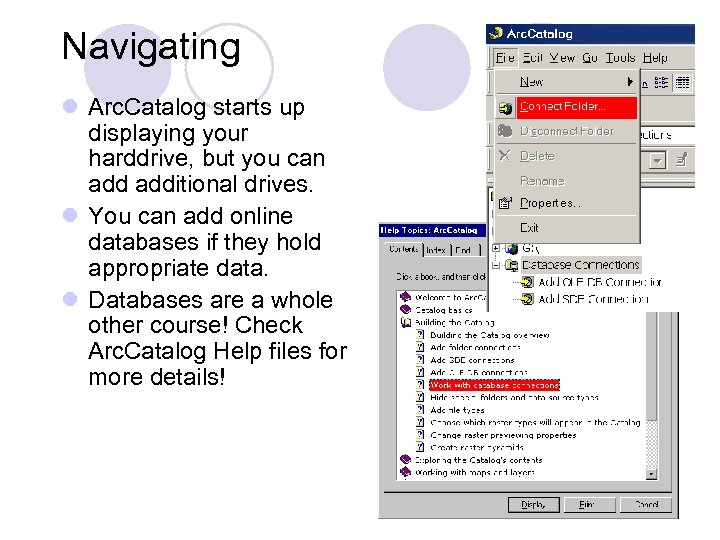 Navigating l Arc. Catalog starts up displaying your harddrive, but you can additional drives. l You can add online databases if they hold appropriate data. l Databases are a whole other course! Check Arc. Catalog Help files for more details!
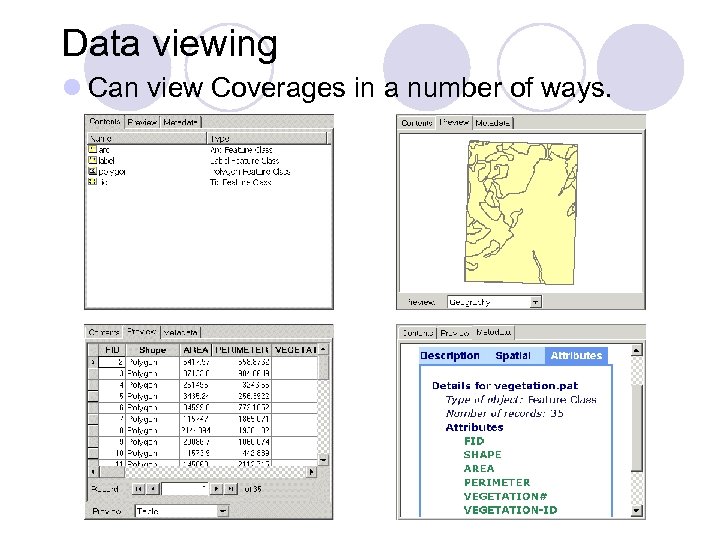 Data viewing l Can view Coverages in a number of ways.
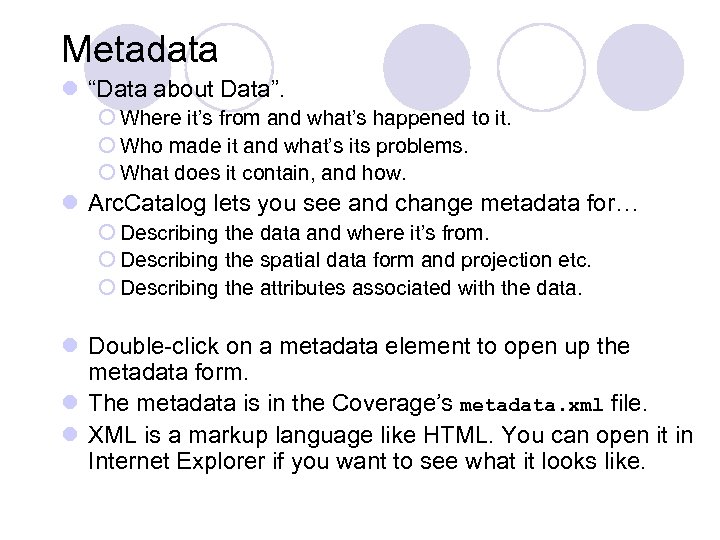 Metadata l “Data about Data”. ¡ Where it’s from and what’s happened to it. ¡ Who made it and what’s its problems. ¡ What does it contain, and how. l Arc. Catalog lets you see and change metadata for… ¡ Describing the data and where it’s from. ¡ Describing the spatial data form and projection etc. ¡ Describing the attributes associated with the data. l Double-click on a metadata element to open up the metadata form. l The metadata is in the Coverage’s metadata. xml file. l XML is a markup language like HTML. You can open it in Internet Explorer if you want to see what it looks like.
 Altering and copying Coverages l You can use Arc. Catalog as if it were Windows Explorer to rename, delete, copy or move Coverages and other data items, and make new folders. l You use exactly the same keys/menus as you would in Explorer. Most menu options can be got at by rightclicking on a folder or file. l The only difference is that Arc. Catalog simultaneously goes through and updates all the files Arc. GIS needs to keep track of what’s happened to the data.
 Making a Workspace l Making a new Workspace is as easy as making a new folder. l File > New > Arc. Info Workspace (or right-click > New > Arc. Info Workspace) l Rename the Workspace appropriately. l If you look in Explorer, you’ll see an Info directory has been made in the Workspace directory to store related information.
 Making a Coverage l Making a Coverage is almost as easy, but requires slightly more thought. l File > New > Coverage… l This brings up a “Wizard” (set of instructional forms to fill in) to help you.
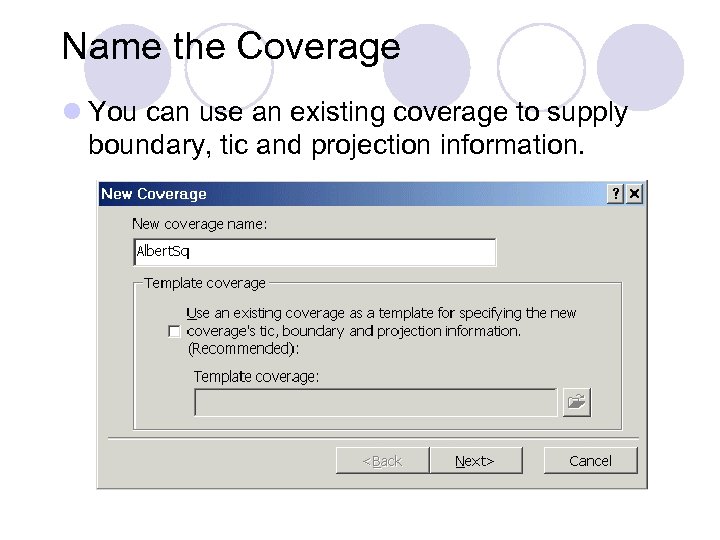 Name the Coverage l You can use an existing coverage to supply boundary, tic and projection information.
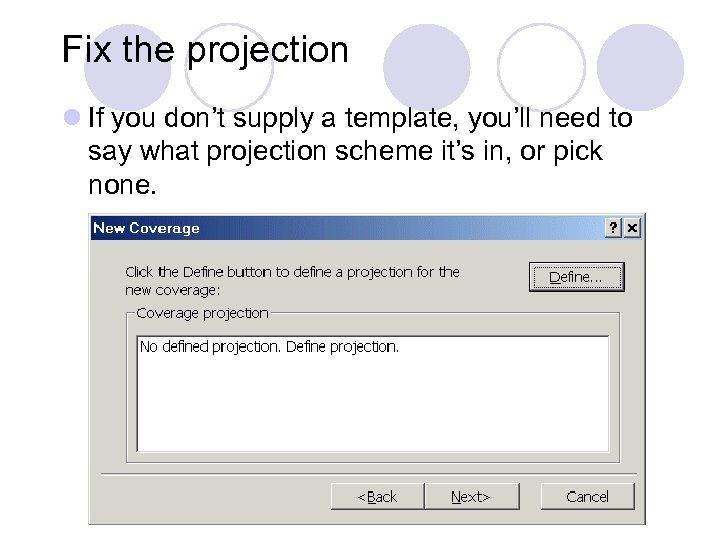 Fix the projection l If you don’t supply a template, you’ll need to say what projection scheme it’s in, or pick none.
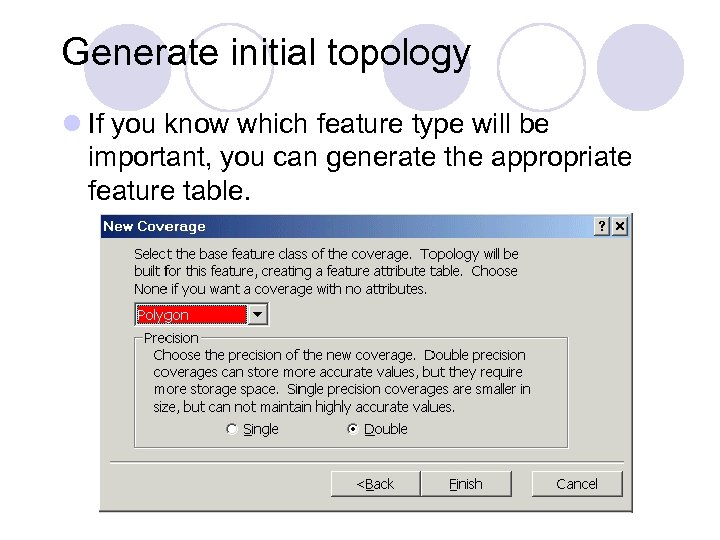 Generate initial topology l If you know which feature type will be important, you can generate the appropriate feature table.
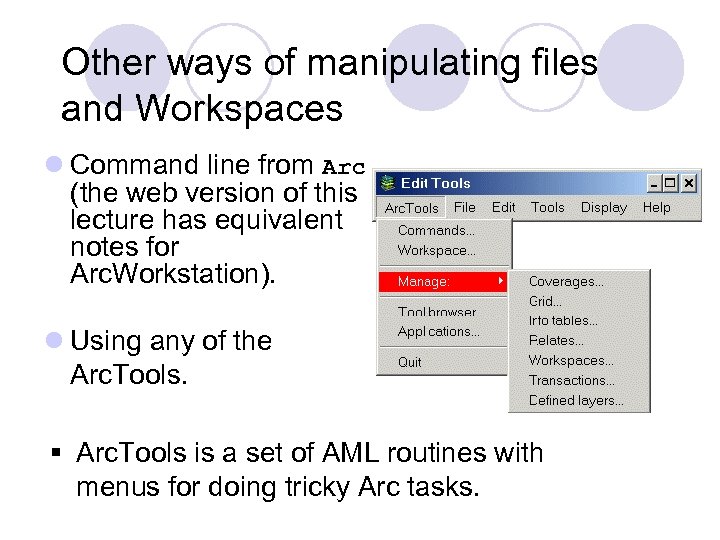 Other ways of manipulating files and Workspaces l Command line from Arc (the web version of this lecture has equivalent notes for Arc. Workstation). l Using any of the Arc. Tools. § Arc. Tools is a set of AML routines with menus for doing tricky Arc tasks.
 Summary l Never alter the files or directories outside of Arc. GIS. l The easiest way to alter, delete or move Arc. GIS data is with Arc. Catalog. It acts like Explorer, but informs Arc what it’s doing. l You can manipulate data and directories using Arc or Arc. Tools.
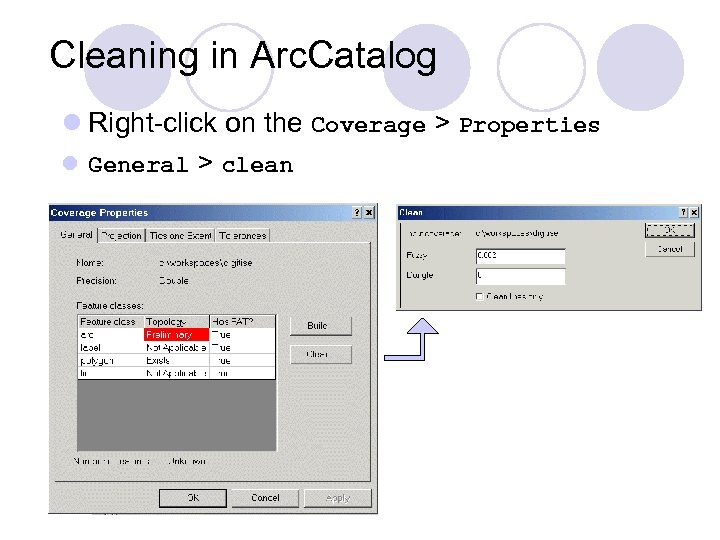 Cleaning in Arc. Catalog l Right-click on the Coverage > Properties l General > clean
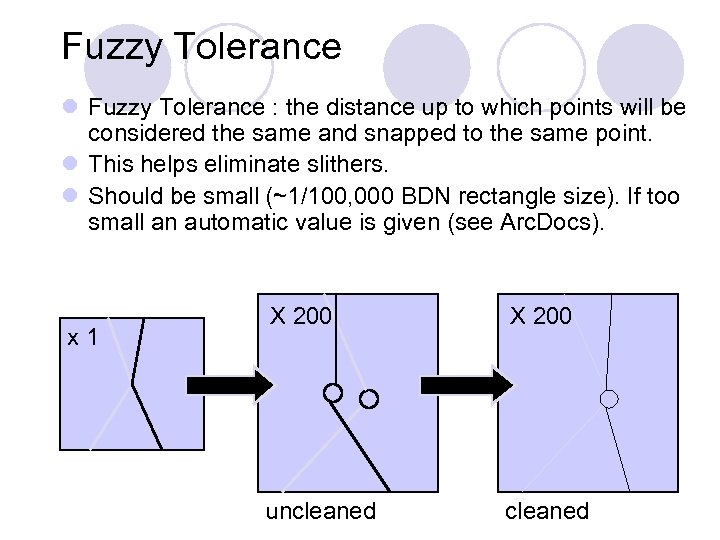 Fuzzy Tolerance l Fuzzy Tolerance : the distance up to which points will be considered the same and snapped to the same point. l This helps eliminate slithers. l Should be small (~1/100, 000 BDN rectangle size). If too small an automatic value is given (see Arc. Docs). x 1 X 200 uncleaned
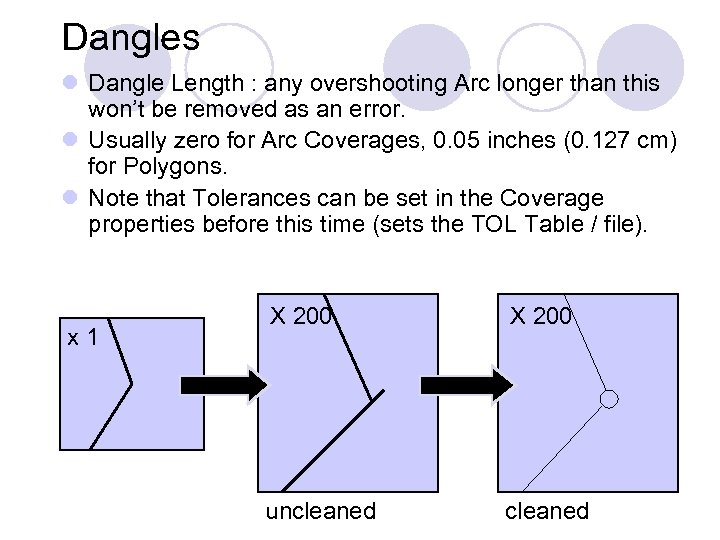 Dangles l Dangle Length : any overshooting Arc longer than this won’t be removed as an error. l Usually zero for Arc Coverages, 0. 05 inches (0. 127 cm) for Polygons. l Note that Tolerances can be set in the Coverage properties before this time (sets the TOL Table / file). x 1 X 200 uncleaned
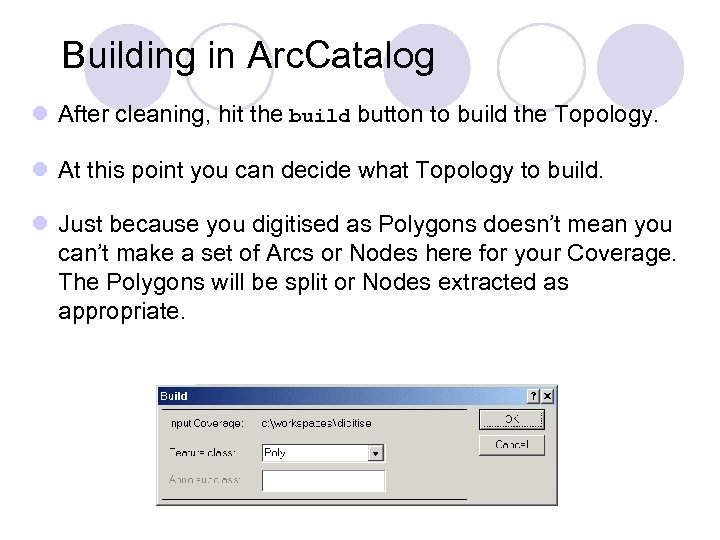 Building in Arc. Catalog l After cleaning, hit the build button to build the Topology. l At this point you can decide what Topology to build. l Just because you digitised as Polygons doesn’t mean you can’t make a set of Arcs or Nodes here for your Coverage. The Polygons will be split or Nodes extracted as appropriate.
 Building in Arc. Catalog l Once you have your new Features (Arcs from Polygons, for example) you can go back into Arc. Map and edit / delete bits using the Editor Select tool.
 Editing - Arc. Edit l By and large, not much point in using it now. l However, there a few useful commands if you can seem to clean/build your topologies. l nodeerrors ¡ Lists Arc undershoots, overshoots and open Polygons. l labelerrors ¡ Lists where Polygons are associated with multiple labels. This should only be a problem if importing a Coverage previously produced in Arc. Workstation.
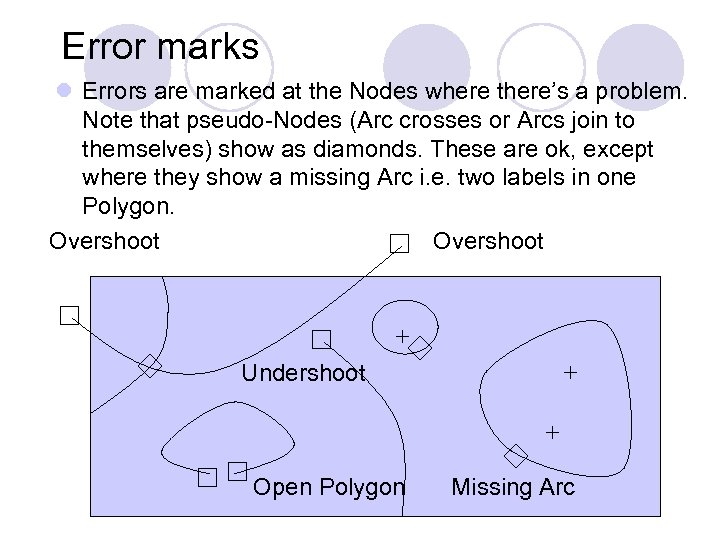 Error marks l Errors are marked at the Nodes where there’s a problem. Note that pseudo-Nodes (Arc crosses or Arcs join to themselves) show as diamonds. These are ok, except where they show a missing Arc i. e. two labels in one Polygon. Overshoot Undershoot Open Polygon Missing Arc
 Exporting l The same Arc. Toolbox conversion tools let you export Coverages as different formats. Also the Arc export command. l Should always clean and build before exporting. l Supported formats include… ¡ “Generate” (. gen) ASCII files. ¡ Interchange “e-naught” (. e 00) files – a popular way of transfering Arc. GIS Coverages – esp. UNIX to NT and vice versa. Includes all the information necessary.
 Data manipulation
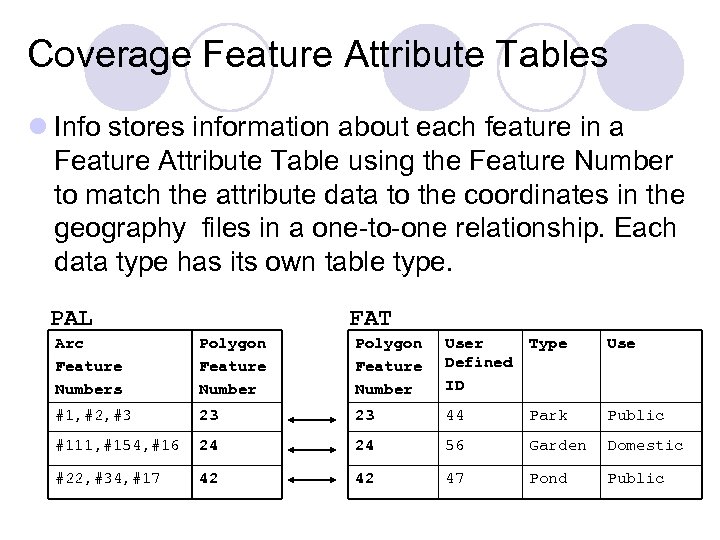 Coverage Feature Attribute Tables l Info stores information about each feature in a Feature Attribute Table using the Feature Number to match the attribute data to the coordinates in the geography files in a one-to-one relationship. Each data type has its own table type. PAL FAT Arc Feature Numbers Polygon Feature Number User Defined ID Type Use #1, #2, #3 23 23 44 Park Public #111, #154, #16 24 24 56 Garden Domestic #22, #34, #17 42 42 47 Pond Public
 Types of Feature Attribute Table l Label Points – Point/Polygon Attribute Table (PAT / pat. adf file). ¡Includes AREA and PERIMETER columns with the values associated with any Polygons for which the Points are labels. l Arcs – Arc Attribute Table (ATT / att. adf file). ¡Includes FNODE#, TNODE#, LPOLY#, RPOLY#, LENGTH columns.
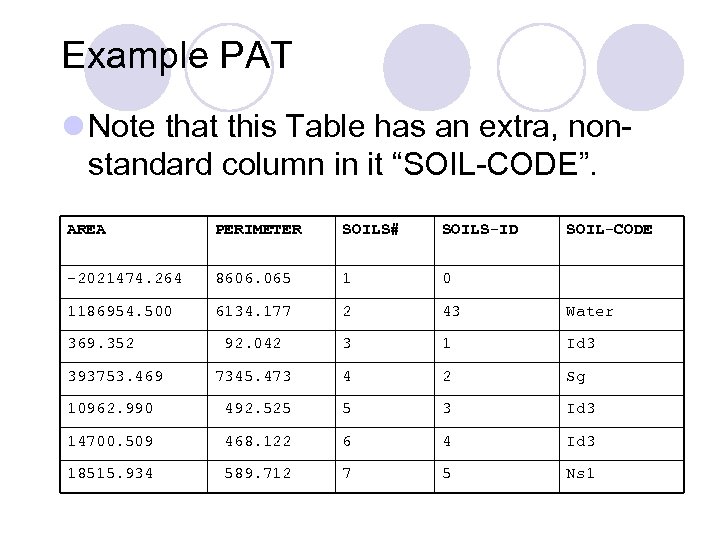 Example PAT l Note that this Table has an extra, nonstandard column in it “SOIL-CODE”. AREA PERIMETER SOILS# SOILS-ID -2021474. 264 8606. 065 1 0 1186954. 500 6134. 177 2 43 Water 92. 042 3 1 Id 3 7345. 473 4 2 Sg 10962. 990 492. 525 5 3 Id 3 14700. 509 468. 122 6 4 Id 3 18515. 934 589. 712 7 5 Ns 1 369. 352 393753. 469 SOIL-CODE
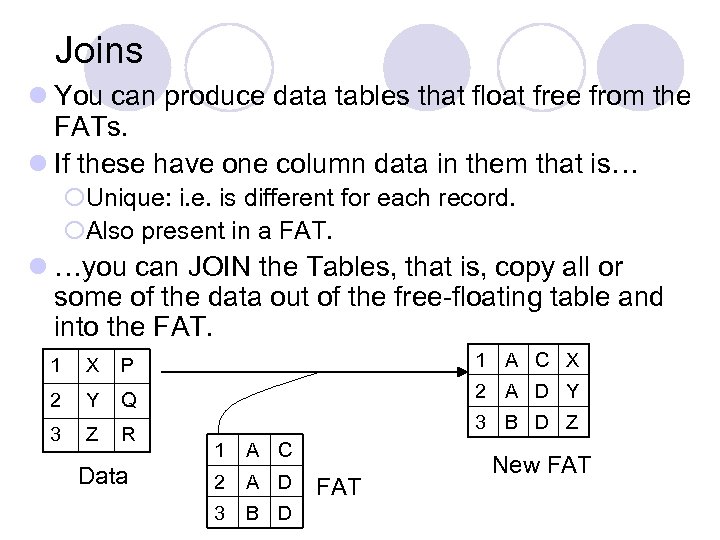 Joins l You can produce data tables that float free from the FATs. l If these have one column data in them that is… ¡Unique: i. e. is different for each record. ¡Also present in a FAT. l …you can JOIN the Tables, that is, copy all or some of the data out of the free-floating table and into the FAT. 1 X P 1 A C X 2 Y Q 2 A D Y 3 Z R Data 3 B D Z 1 A C 2 A D 3 B D FAT New FAT
 Tables in Arc. Map l Selection l Editing
 Table Calculations in Arc. Workstation l In INFO use the CALC command. l Select Table / Records to act on. l Issue CALC command. l Results can only be numeric. l Can use other columns, e. g… CALCULATE ANNUAL_WAGE = MONTHLY * 12 l For non-numeric you need an AML or Java routine.
 Table Relates l INFO is a relational database: one Table item can be linked to multiple items in other Tables. l Types of Relate l Relates in Coverages l Relation Objects in Geodatabases
 Table Relates l This is done without adding the data to the Table, therefore storage space lower than a Join. Also means a group of people can access one large geography file, but connect different data to it. l Usual to link a Feature Attribute Table (FAT) to an external data table. l E. g. link a country geography to Tables of population, domestic products, etc.
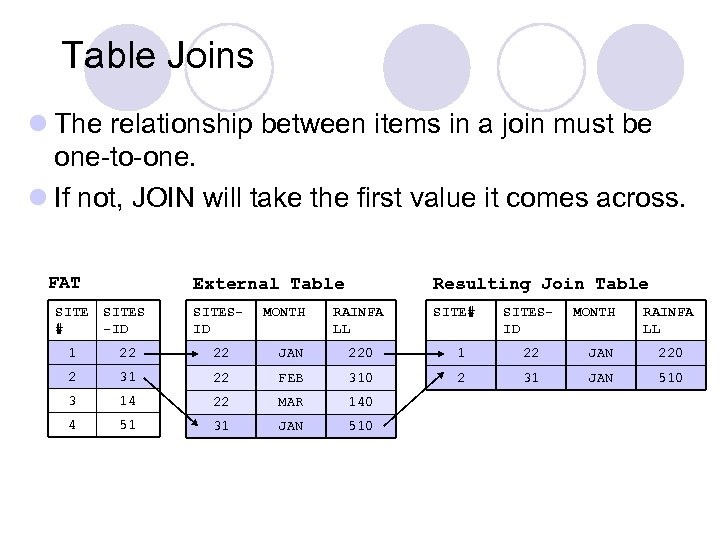 Table Joins l The relationship between items in a join must be one-to-one. l If not, JOIN will take the first value it comes across. FAT External Table Resulting Join Table SITE# SITES -ID SITESID MONTH RAINFA LL 1 22 22 JAN 220 1 22 JAN 220 2 31 22 FEB 310 2 31 JAN 510 3 14 22 MAR 140 4 51 31 JAN 510
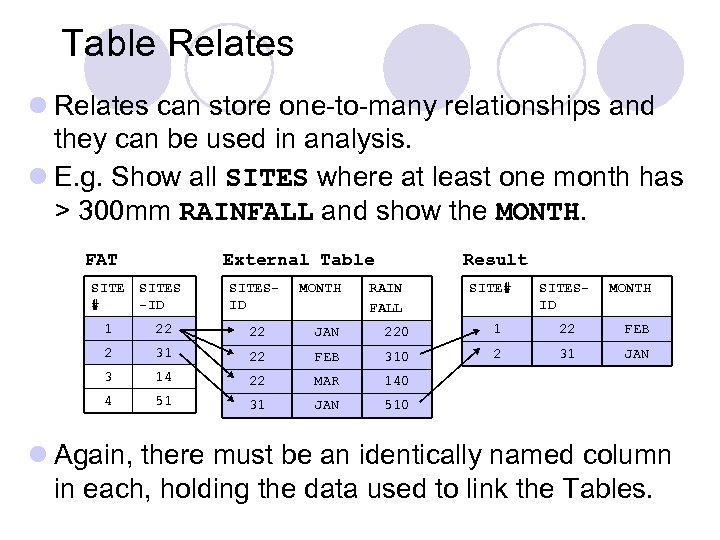 Table Relates l Relates can store one-to-many relationships and they can be used in analysis. l E. g. Show all SITES where at least one month has > 300 mm RAINFALL and show the MONTH. FAT External Table MONTH Result SITE # SITES -ID SITESID RAIN FALL SITE# SITESID MONTH 1 22 22 JAN 220 1 22 FEB 2 31 22 FEB 310 2 31 JAN 3 14 22 MAR 140 4 51 31 JAN 510 l Again, there must be an identically named column in each, holding the data used to link the Tables.
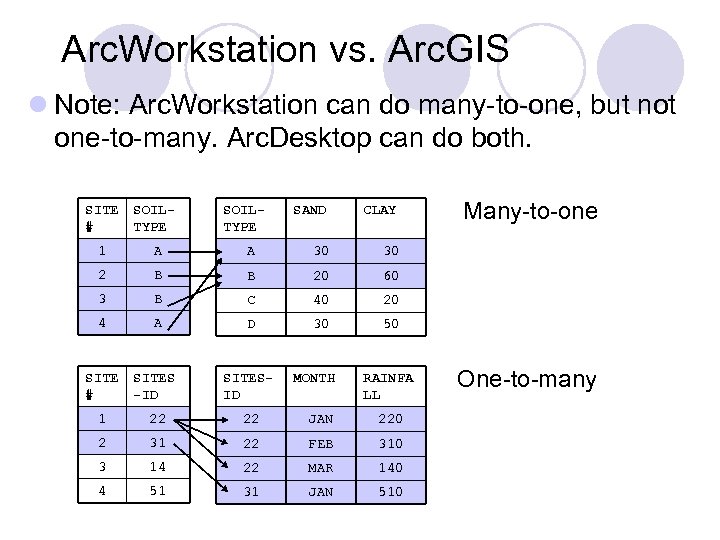 Arc. Workstation vs. Arc. GIS l Note: Arc. Workstation can do many-to-one, but not one-to-many. Arc. Desktop can do both. SITE # SOILTYPE 1 A 2 SOILTYPE SAND CLAY A 30 30 B B 20 60 3 B C 40 20 4 A D 30 50 SITE # SITES -ID SITESID 1 22 22 JAN 220 2 31 22 FEB 310 3 14 22 MAR 140 4 51 31 JAN 510 Many-to-one MONTH RAINFA LL One-to-many
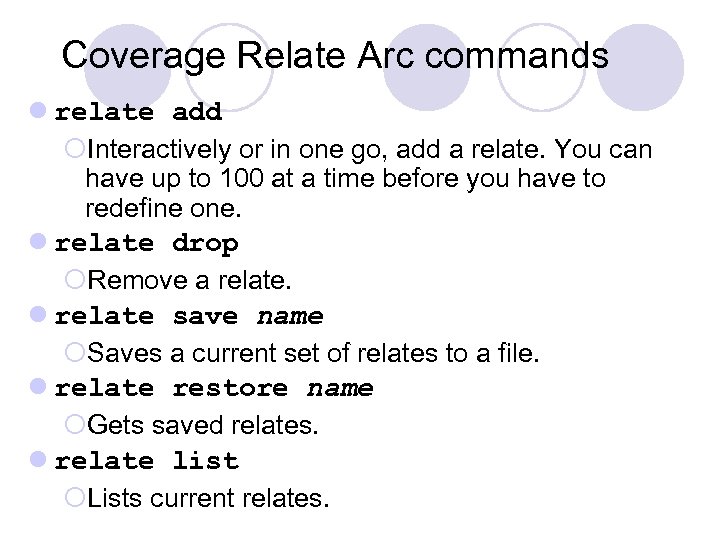 Coverage Relate Arc commands l relate add ¡Interactively or in one go, add a relate. You can have up to 100 at a time before you have to redefine one. l relate drop ¡Remove a relate. l relate save name ¡Saves a current set of relates to a file. l relate restore name ¡Gets saved relates. l relate list ¡Lists current relates.
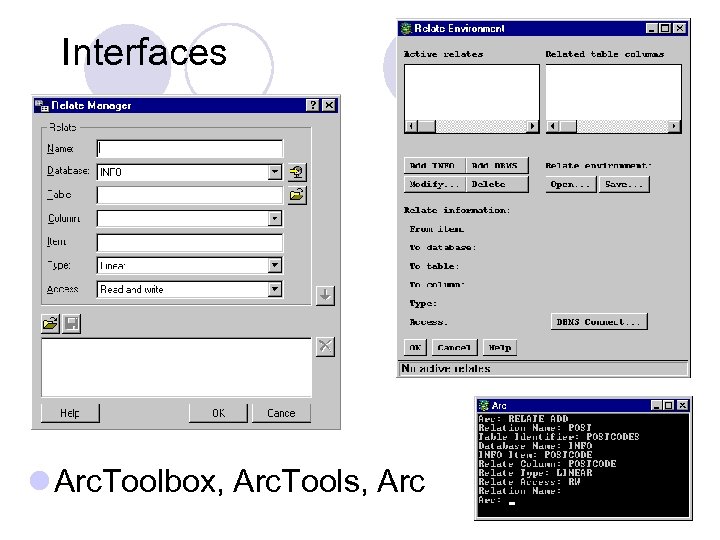 Interfaces l Arc. Toolbox, Arc. Tools, Arc
 Parts of a relate l Relation name: arbitrary name <= 8 letters. l Table Identifier: name of the Table – usually not a Feature Attribute Table (FAT). l Database: usually INFO. Note that you don’t specify a table – the relate works on any table with the right column – usually a FAT. l Info Item: the column in the INFO FATs. l Relate column: column in the non-FAT table l Relate Type: how the Tables are linked. l Relate access: rw (read-write), ro (read only) or auto (same as the FAT).
 Types of relate l This is determined by the sorting in the Tables. l Linear : no sorting – slow unless the FAT and external table are sorted, in which case fast. l Ordered : related non-FAT table must be sorted by the values in the Relate column. l Link : relate by Feature ID. Shouldn’t be used, as the system can change IDs without warning, making the relate outdated. l Table: same conditions as ordered – but if an absolute match is missing the record in the related table with the next highest value is taken. l First: only option if you are not working with INFO.
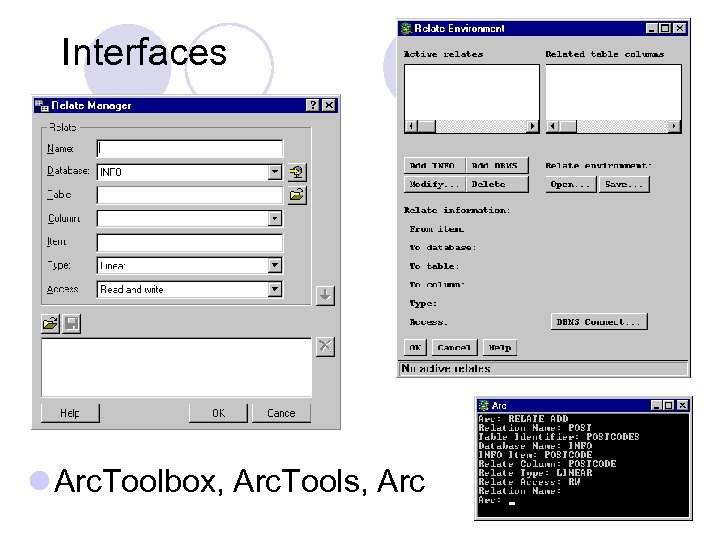 Interfaces l Arc. Toolbox, Arc. Tools, Arc
 Parts of a relate l Relation name: arbitrary name <= 8 letters. l Table Identifier: name of the Table – usually not a Feature Attribute Table (FAT). l Database: usually INFO. Note that you don’t specify a table – the relate works on any table with the right column – usually a FAT. l Info Item: the column in the INFO FATs. l Relate column: column in the non-FAT table l Relate Type: how the Tables are linked. l Relate access: rw (read-write), ro (read only) or auto (same as the FAT).
 Types of relate l This is determined by the sorting in the Tables. l Linear : no sorting – slow unless the FAT and external table are sorted, in which case fast. l Ordered : related non-FAT table must be sorted by the values in the Relate column. l Link : relate by Feature ID. Shouldn’t be used, as the system can change IDs without warning, making the relate outdated. l Table: same conditions as ordered – but if an absolute match is missing the record in the related table with the next highest value is taken. l First: only option if you are not working with INFO.
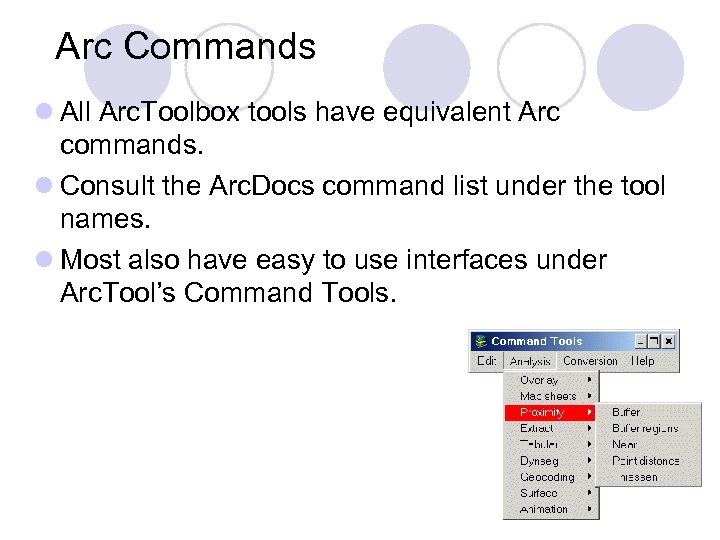 Arc Commands l All Arc. Toolbox tools have equivalent Arc commands. l Consult the Arc. Docs command list under the tool names. l Most also have easy to use interfaces under Arc. Tool’s Command Tools.
 Analysis in Arc. Workstation l Geodatabases don’t exist. l Equivalent is a Network Coverage which is used in Arc. Plot. l The Netcover command creates a Network Coverage and opens the command interface for issuing other network commands.
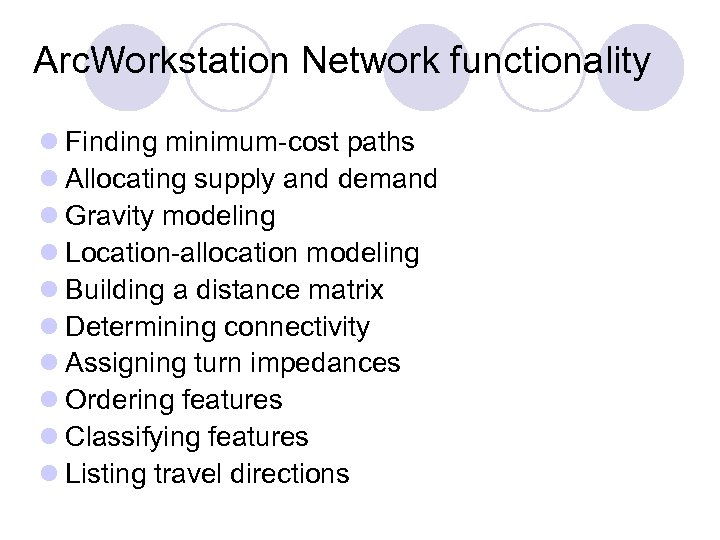 Arc. Workstation Network functionality l Finding minimum-cost paths l Allocating supply and demand l Gravity modeling l Location-allocation modeling l Building a distance matrix l Determining connectivity l Assigning turn impedances l Ordering features l Classifying features l Listing travel directions
 Programming Arc. Workstation l Please see the extra materials on AML.