


 Скачать презентацию EXT 410 Purchase Orders and Follow on Documents
50245c169c0ff8d50b15594e3b591f3f.ppt
- Количество слайдов: 90
 EXT 410– Purchase Orders and Follow on Documents - Domestic
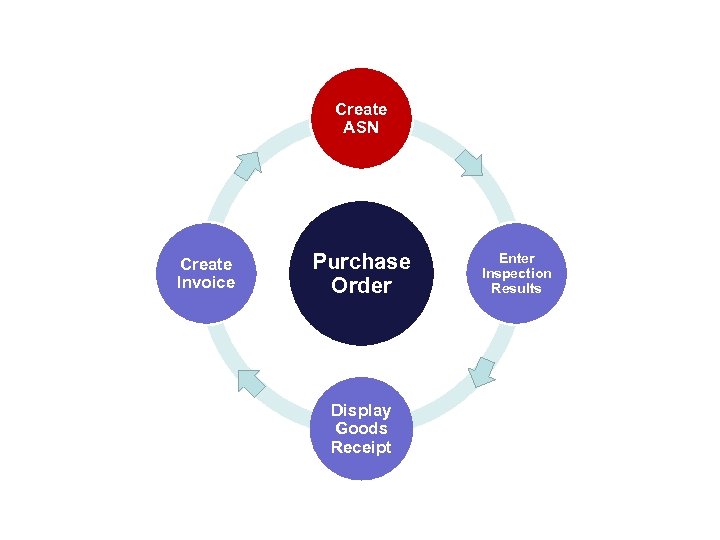
 1. Purchase Order Process Overview 2. Display Purchase Order 3. Create ASN (Advanced Shipping Notification); Upload Multiple ASNs 4. Enter and Update Inspection Results 5. Display Goods Receipts 6. Submit Invoice for Single and Multiple Line Items
 Lesson Objectives • Recognize the basic end-to-end steps associated with the Purchase Order Process • List new key terms
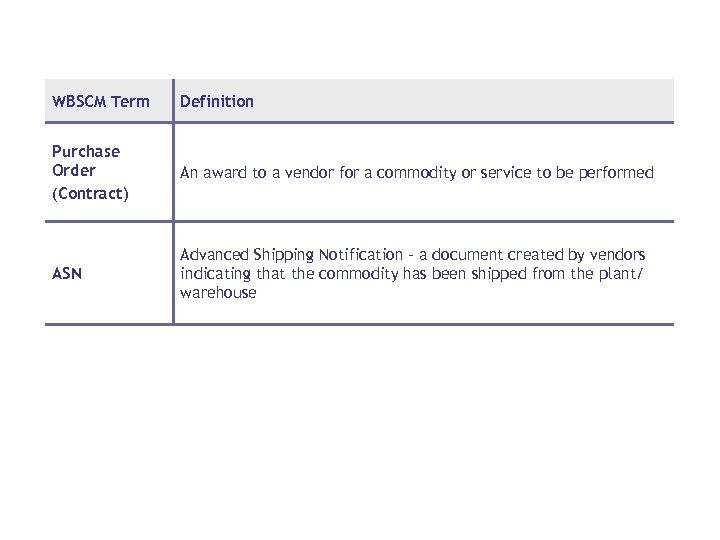 WBSCM Term Definition Purchase Order (Contract) An award to a vendor for a commodity or service to be performed ASN Advanced Shipping Notification – a document created by vendors indicating that the commodity has been shipped from the plant/ warehouse
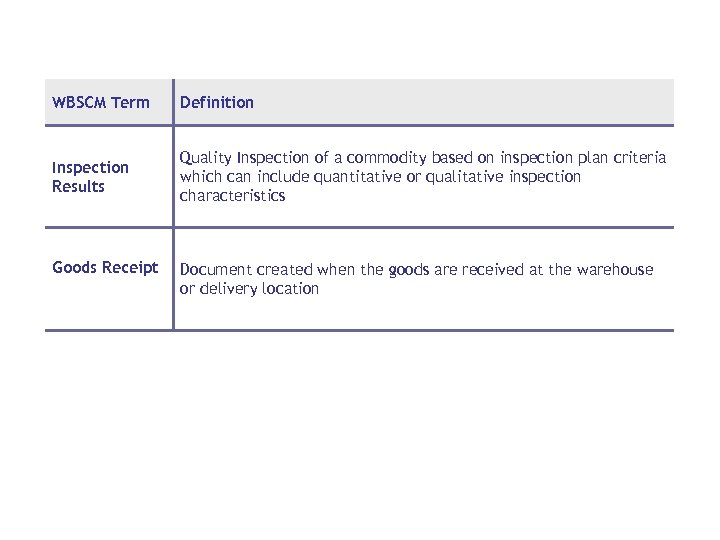 WBSCM Term Definition Inspection Results Quality Inspection of a commodity based on inspection plan criteria which can include quantitative or qualitative inspection characteristics Goods Receipt Document created when the goods are received at the warehouse or delivery location
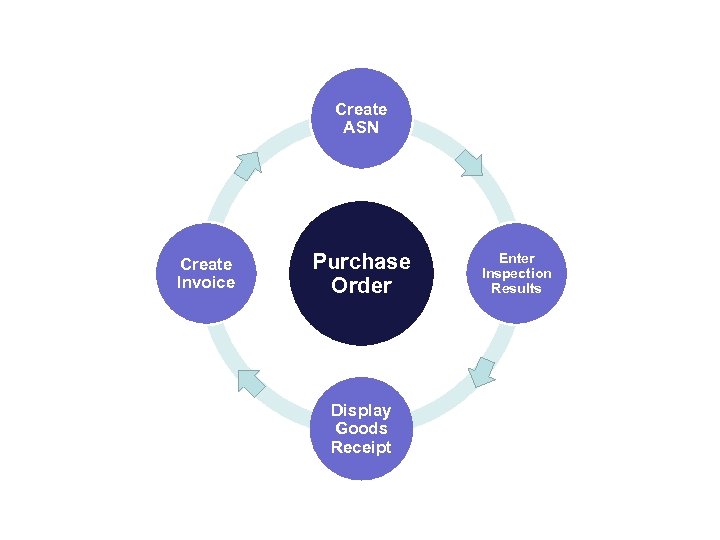 Create ASN Create Invoice Purchase Order Display Goods Receipt Enter Inspection Results
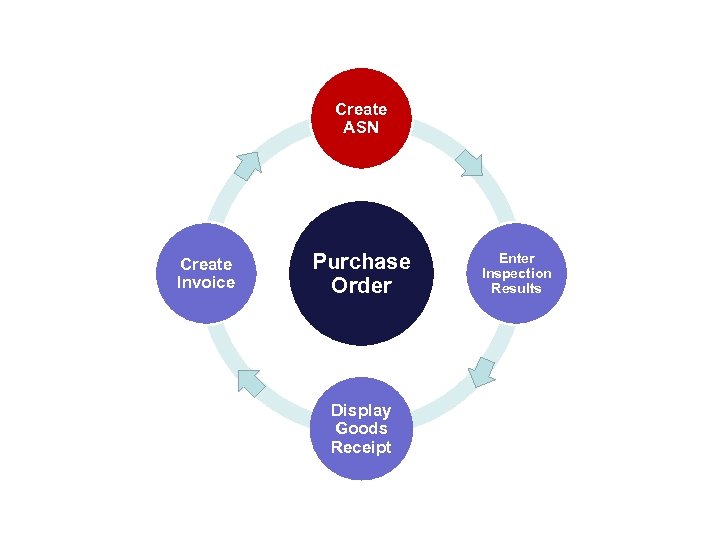 Create ASN Create Invoice Purchase Order Display Goods Receipt Enter Inspection Results
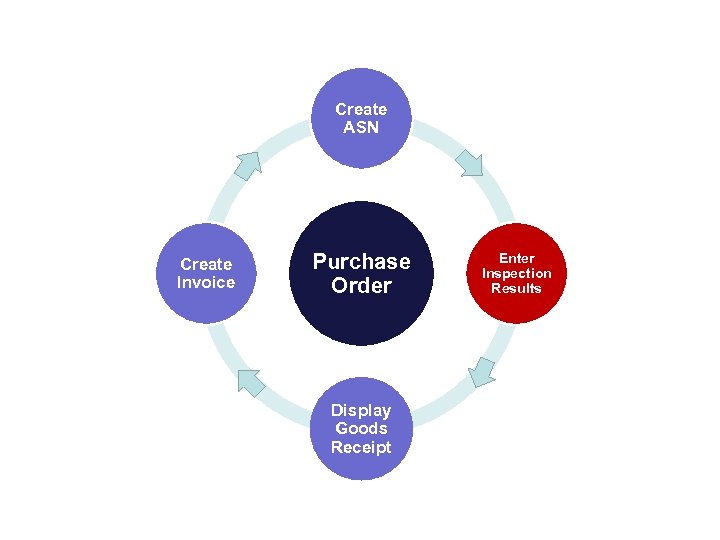 Create ASN Create Invoice Purchase Order Display Goods Receipt Enter Inspection Results
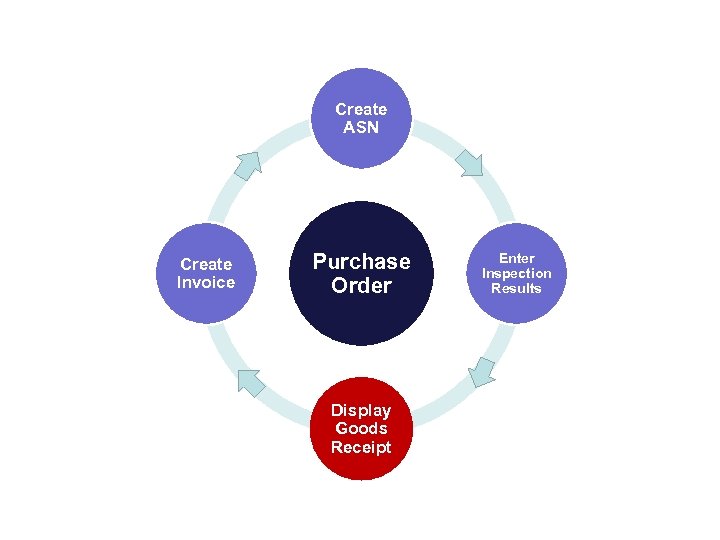 Create ASN Create Invoice Purchase Order Display Goods Receipt Enter Inspection Results
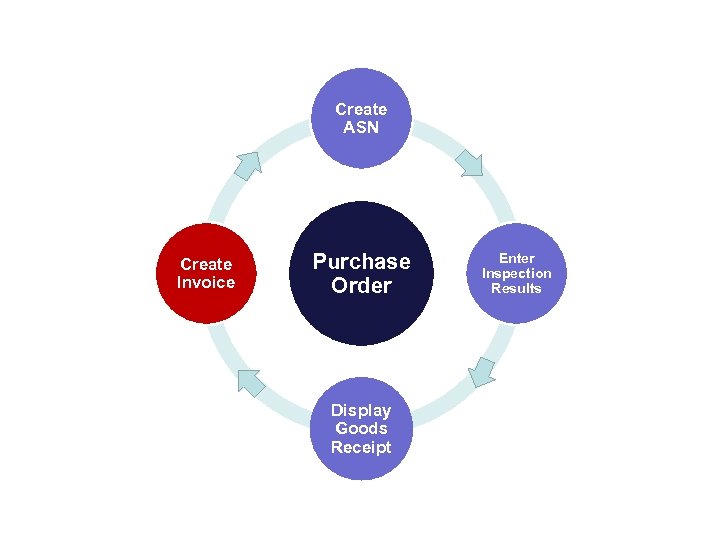 Create ASN Create Invoice Purchase Order Display Goods Receipt Enter Inspection Results

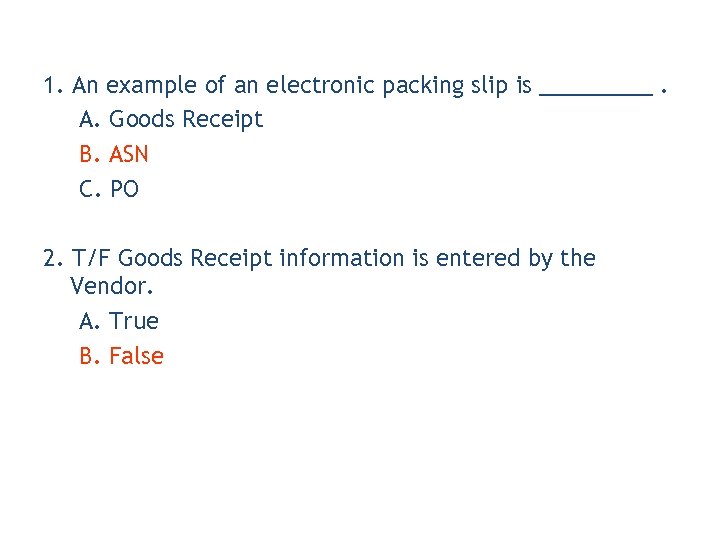 1. An example of an electronic packing slip is _____. A. Goods Receipt B. ASN C. PO 2. T/F Goods Receipt information is entered by the Vendor. A. True B. False
 Lesson Objectives • Display a Purchase Order • Describe the different components of the Purchase Order • Recognize the required Follow on Documents outlined on the Purchase Order
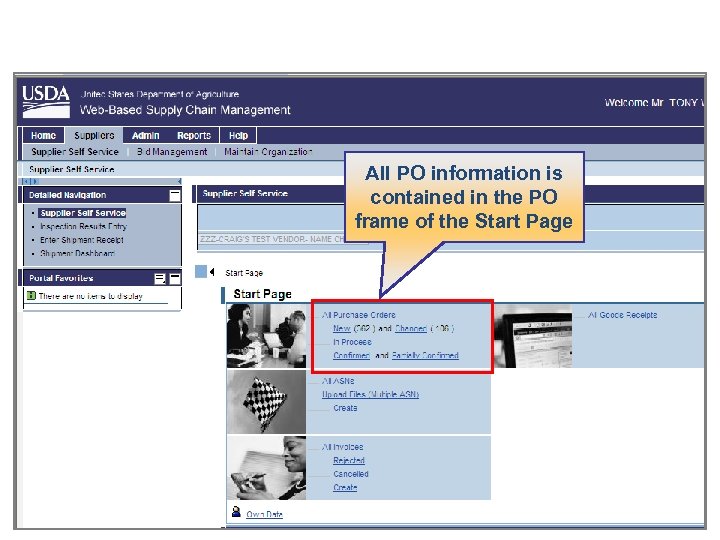 All PO information is contained in the PO frame of the Start Page
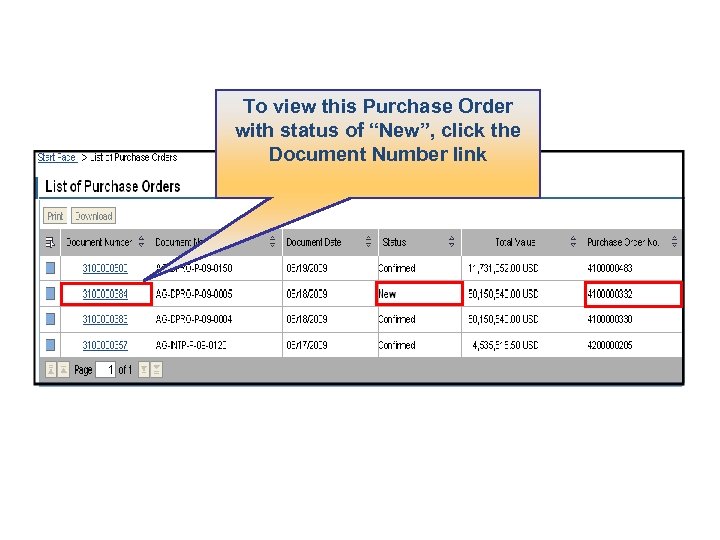 To view this Purchase Order with status of “New”, click the Document Number link
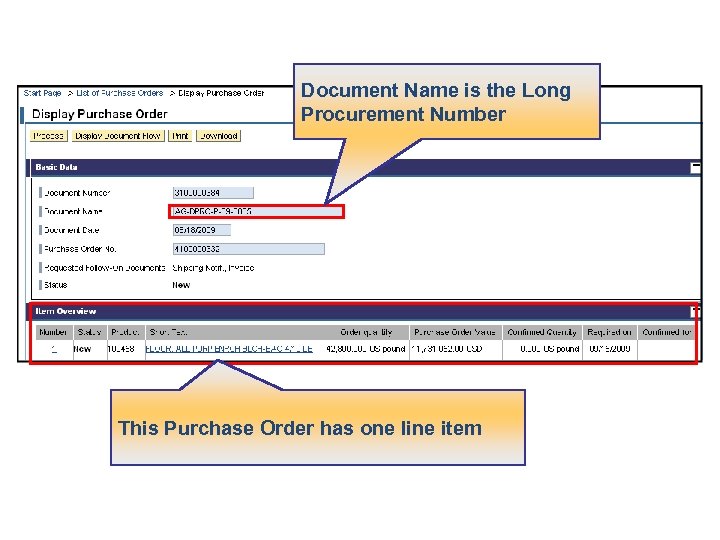 Document Name is the Long Procurement Number This Purchase Order has one line item
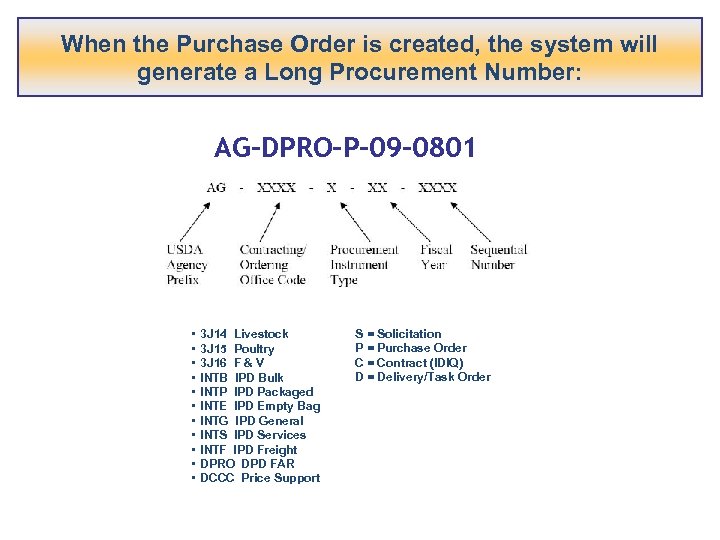 When the Purchase Order is created, the system will generate a Long Procurement Number: AG-DPRO-P-09 -0801 • • • 3 J 14 Livestock 3 J 15 Poultry 3 J 16 F & V INTB IPD Bulk INTP IPD Packaged INTE IPD Empty Bag INTG IPD General INTS IPD Services INTF IPD Freight DPRO DPD FAR DCCC Price Support S = Solicitation P = Purchase Order C = Contract (IDIQ) D = Delivery/Task Order
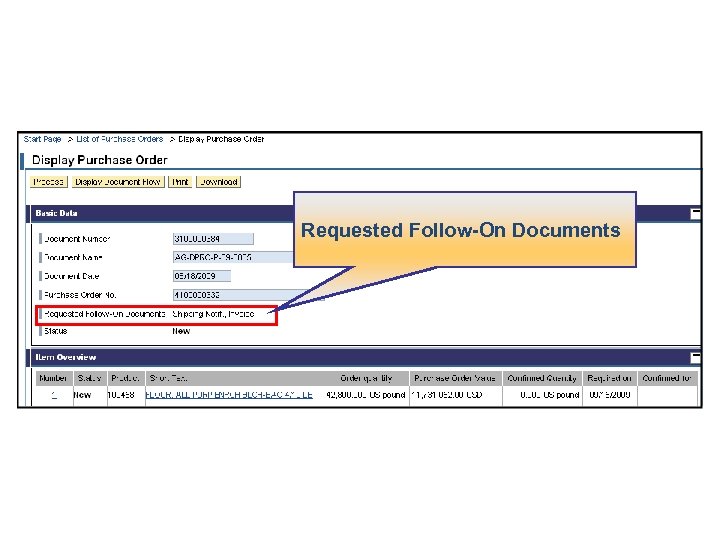 Requested Follow-On Documents
 • Changes to a PO can take place after the PO has been awarded • Changes might include: • Delivery Dates • Destination • Commodity specification • Material quantity • An Email notification goes out to the Vendor • The modified purchase order is available on the Supplier Self-Service Portal
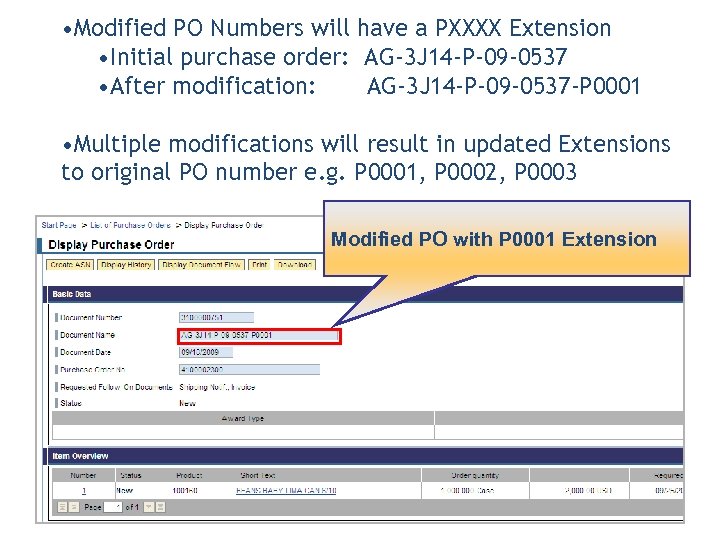 • Modified PO Numbers will have a PXXXX Extension • Initial purchase order: AG-3 J 14 -P-09 -0537 • After modification: AG-3 J 14 -P-09 -0537 -P 0001 • Multiple modifications will result in updated Extensions to original PO number e. g. P 0001, P 0002, P 0003 Modified PO with P 0001 Extension
 • Auto Playback Tutorial: watch the simulation with no user input required
 • Standard Tutorial: guide yourself through the simulation by clicking on certain areas when prompted

 1. A vendor will be notified that they have been awarded a PO via: A. Phone, Email, Twitter B. Email, WBSCM Supplier Self Service Start Page C. Phone, Email, Fax 2. T/F: All USDA Purchase Order Numbers begin with USDA-XXXX-X-XX-XXXX. A. True F. False
 Lesson Objectives • Create an ASN • Upload Multiple ASNs into WBSCM from an Excel spreadsheet
 Create ASN Create Invoice Purchase Order Display Goods Receipt Enter Inspection Results
 • Advanced Shipping Notifications are required from vendors when the product has been shipped from their plant or shipping point location • The means of transportation and any associated Railcar/BOL numbers must be entered into WBSCM • An invoice cannot be created until all of the preinvoice follow-on documents have been created for the PO line item • This also includes inspection results
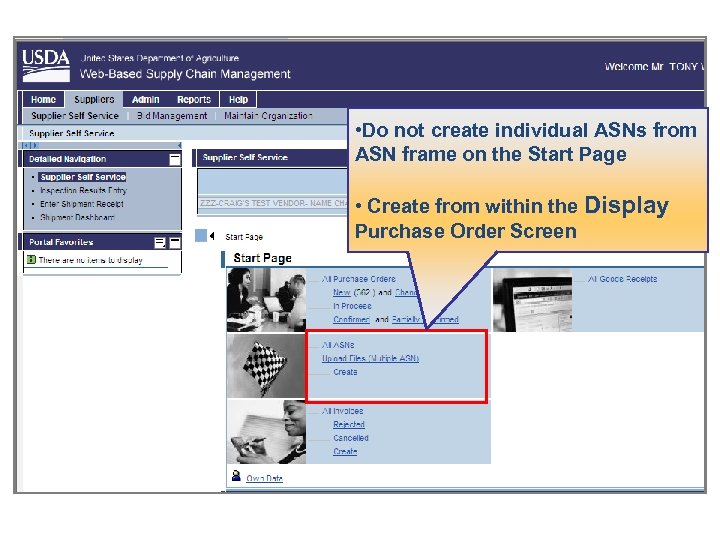 • Do not create individual ASNs from ASN frame on the Start Page • Create from within the Display Purchase Order Screen
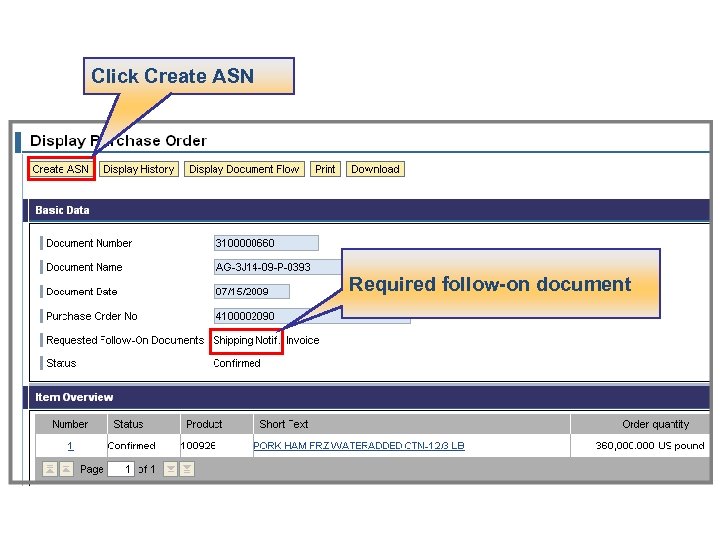 Click Create ASN Required follow-on document
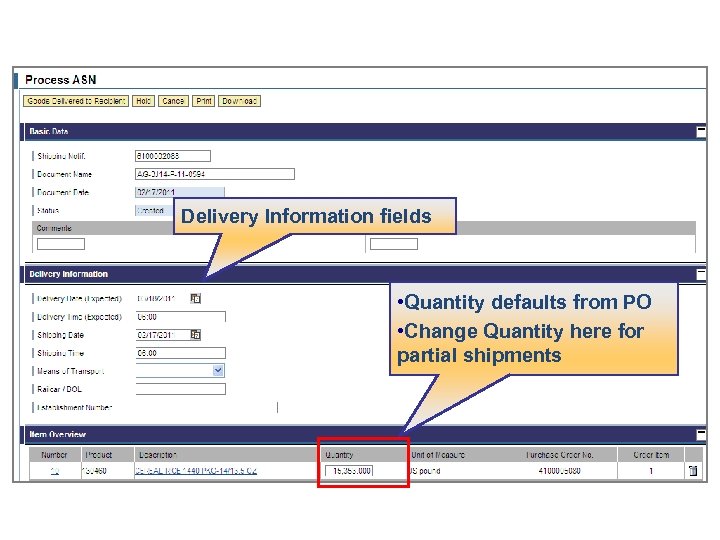 Delivery Information fields • Quantity defaults from PO • Change Quantity here for partial shipments
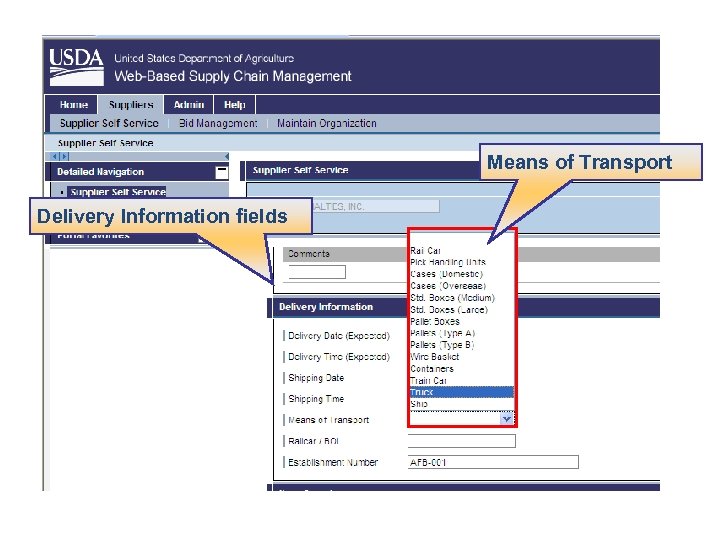 Means of Transport Delivery Information fields
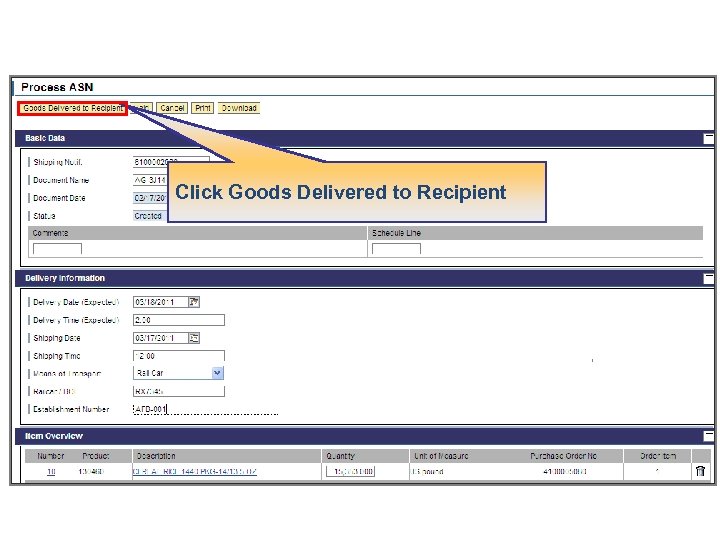 Click Goods Delivered to Recipient
 • Auto Playback Tutorial: watch the simulation with no user input required
 • Standard Tutorial: guide yourself through the simulation by clicking on certain areas when prompted
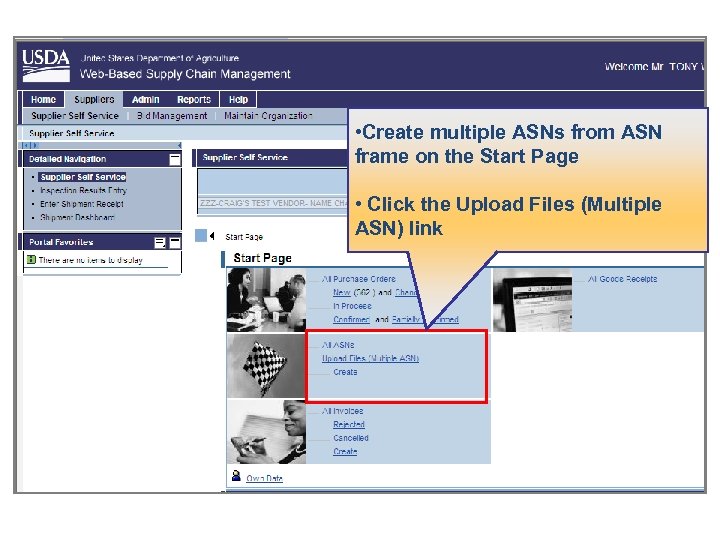 • Create multiple ASNs from ASN frame on the Start Page • Click the Upload Files (Multiple ASN) link
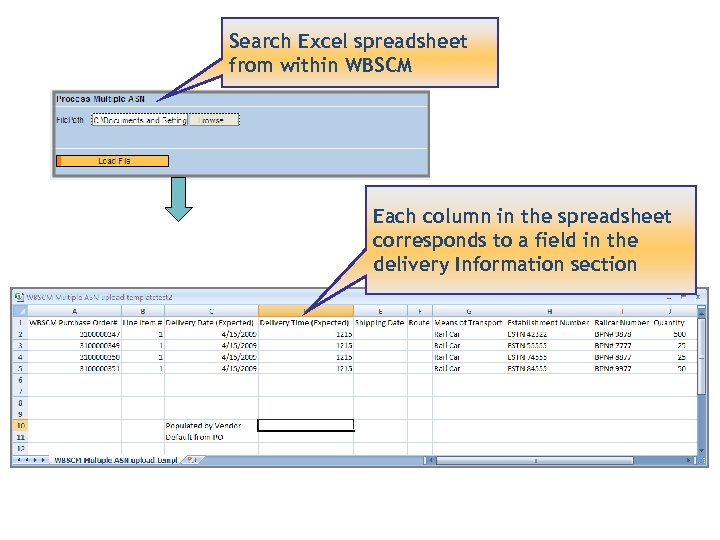 Search Excel spreadsheet from within WBSCM Each column in the spreadsheet corresponds to a field in the delivery Information section
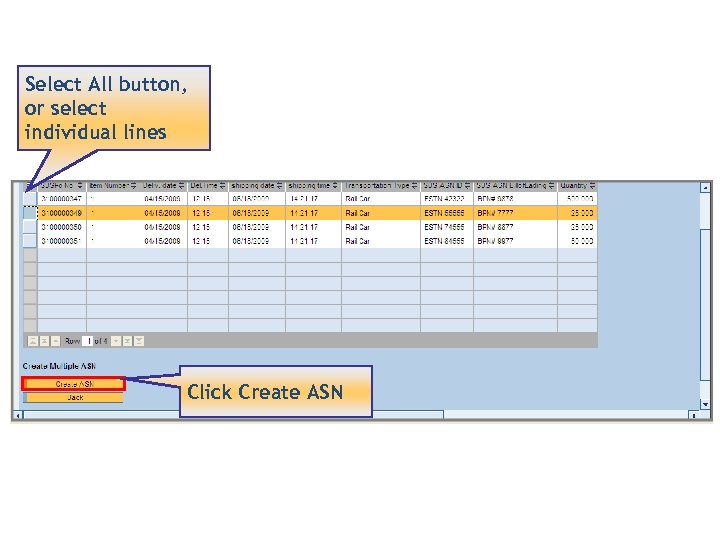 Select All button, or select individual lines Click Create ASN
 • Auto Playback Tutorial: watch the simulation with no user input required
 • Standard Tutorial: guide yourself through the simulation by clicking on certain areas when prompted

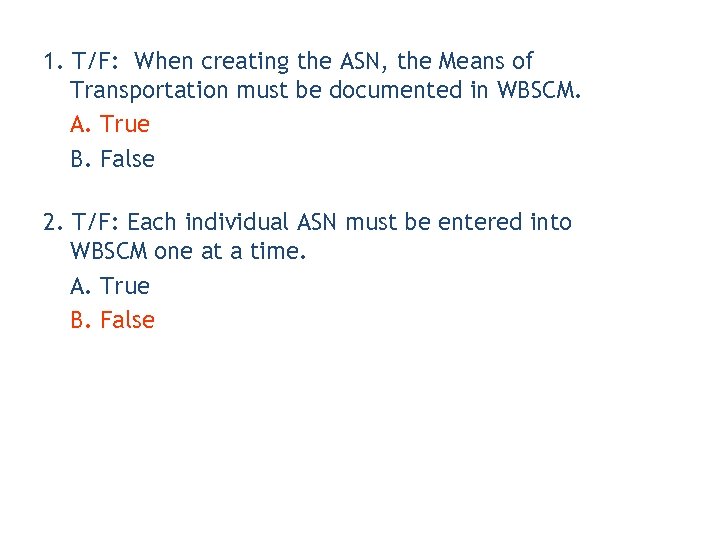 1. T/F: When creating the ASN, the Means of Transportation must be documented in WBSCM. A. True B. False 2. T/F: Each individual ASN must be entered into WBSCM one at a time. A. True B. False
 Lesson Objectives • Enter Inspection Results • Update Inspection Results
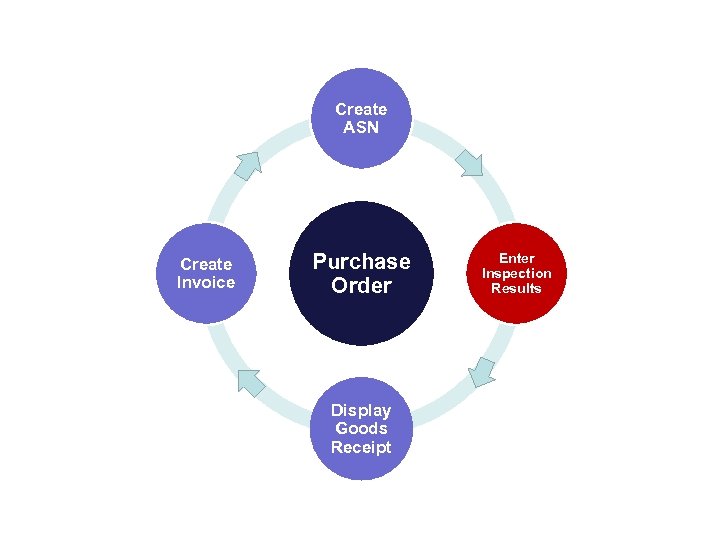 Create ASN Create Invoice Purchase Order Display Goods Receipt Enter Inspection Results
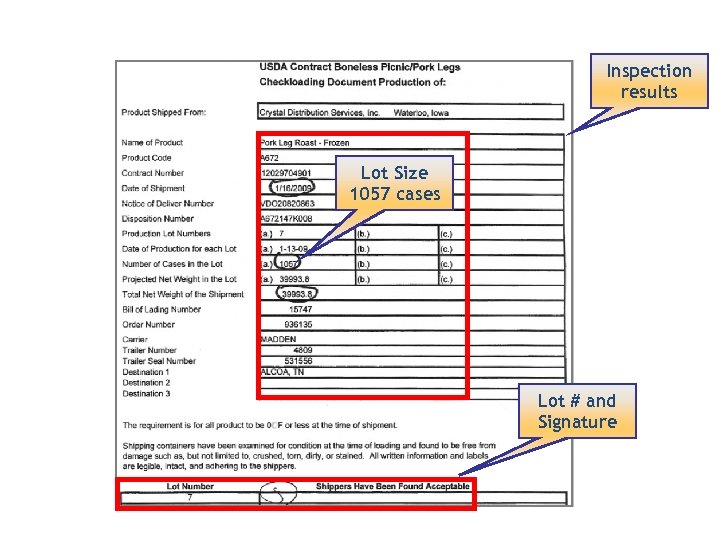 Inspection results Lot Size 1057 cases Lot # and Signature
 • Inspection Results are entered by the vendor based on the Inspection Plan associated with the material • Each line item on a PO will have an Inspection Result • Vendors start the inspection results for each line item using the Quality Certificate Data Entry Screen • The value of the Quantity field must match the ASN quantity
 • Use the Search button associated with the Purchase Order field to find the PO and Line Item • The Line Item and Procurement Document fields will be filled in automatically • Partial inspection results can be entered, but then only a partial invoice may be created • Click the Execute button to continue
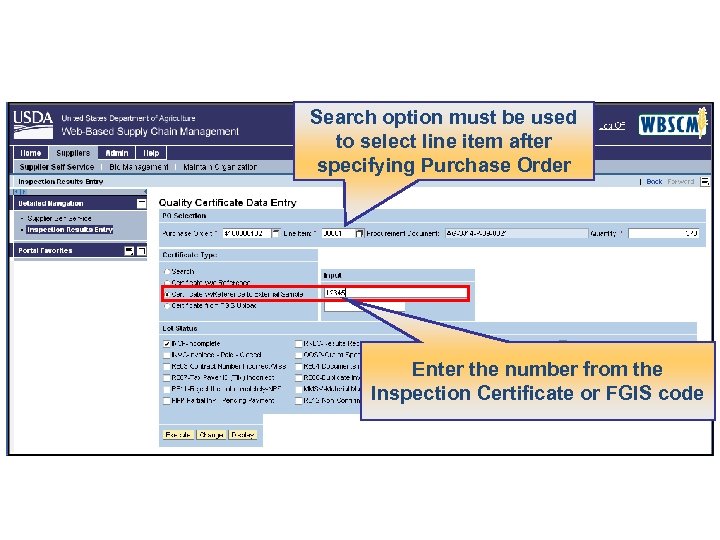 Search option must be used to select line item after specifying Purchase Order Enter the number from the Inspection Certificate or FGIS code
 • The Vendor will be responsible for entering the inspection results from the Inspection certificate into WBSCM • Inspection results may include a grade or a range that must be measured • Depending upon the material and its inspection results, discounts or premiums may be applied • If the material has failed inspection, it gets the status of Out Of Spec (OOSP) and is rejected (depicted by a Red X). In this case, the vendor must negotiate acceptance terms with the Contracting Officer
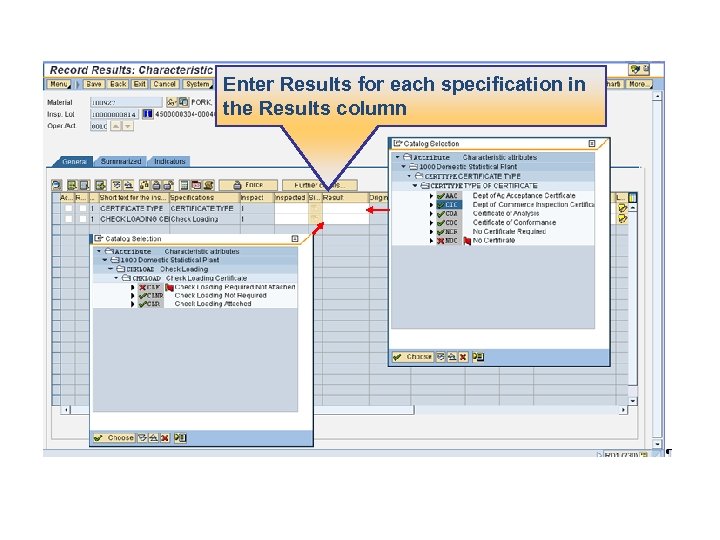 Enter Results for each specification in the Results column
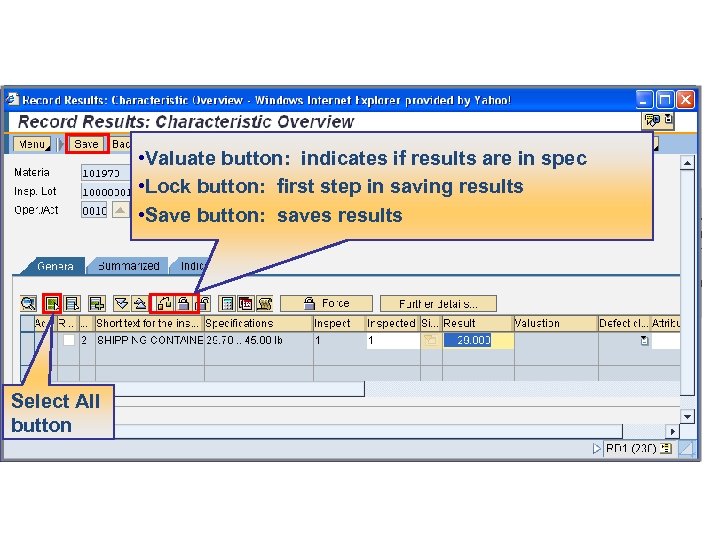 • Valuate button: indicates if results are in spec • Lock button: first step in saving results • Save button: saves results Select All button
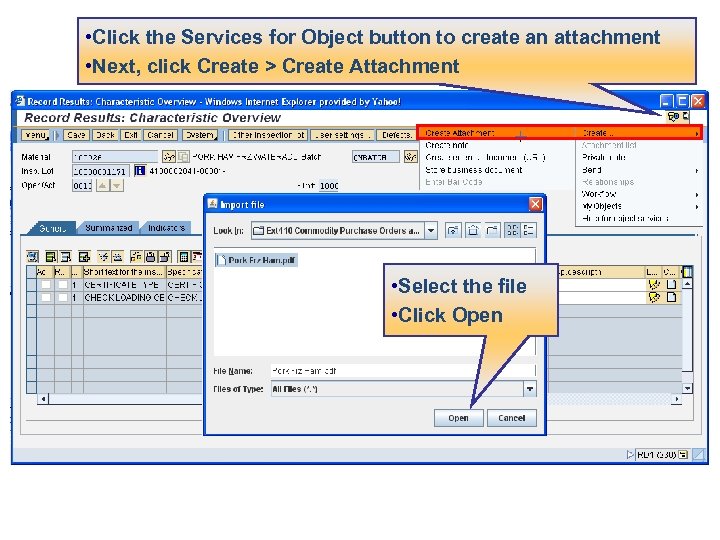 • Click the Services for Object button to create an attachment • Next, click Create > Create Attachment • Select the file • Click Open
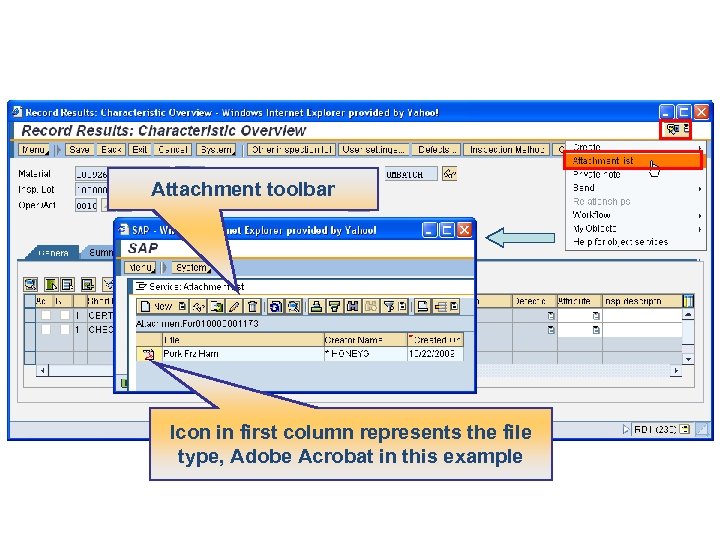 Attachment toolbar Icon in first column represents the file type, Adobe Acrobat in this example
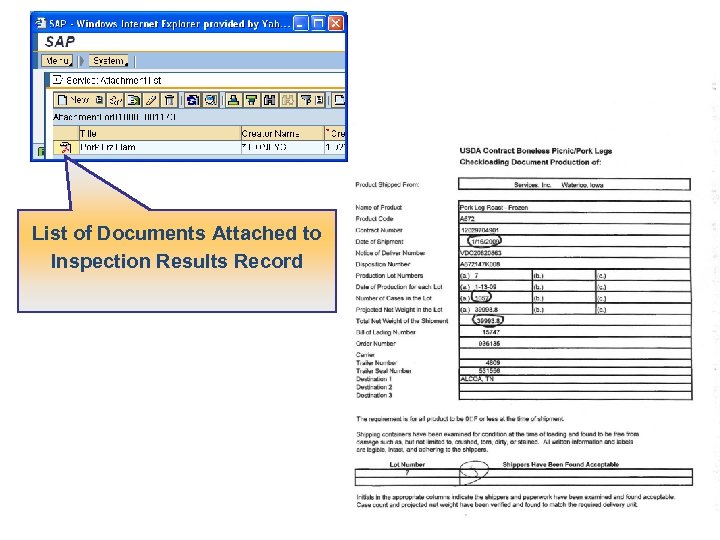 List of Documents Attached to Inspection Results Record
 • Auto Playback Tutorial: watch the simulation with no user input required
 • Standard Tutorial: guide yourself through the simulation by clicking on certain areas when prompted
 • If an error was made when entering Inspection Results, Vendors can edit the incorrect results • This is referred to as “updating the Inspection results entry” • Vendors follow initial Inspection results entry search steps for Purchase Order and Line item • Select the Change button
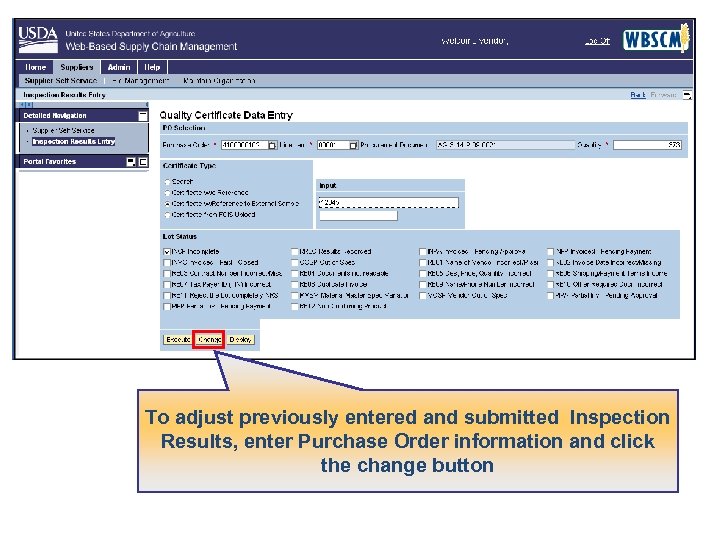 To adjust previously entered and submitted Inspection Results, enter Purchase Order information and click the change button
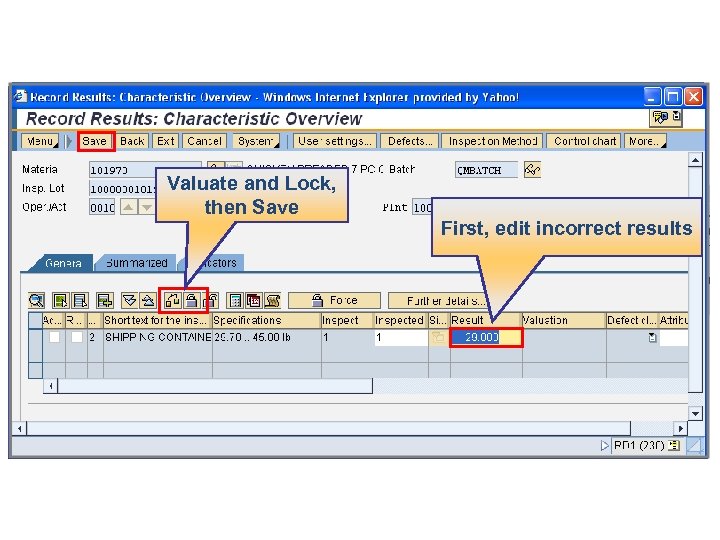 Valuate and Lock, then Save First, edit incorrect results

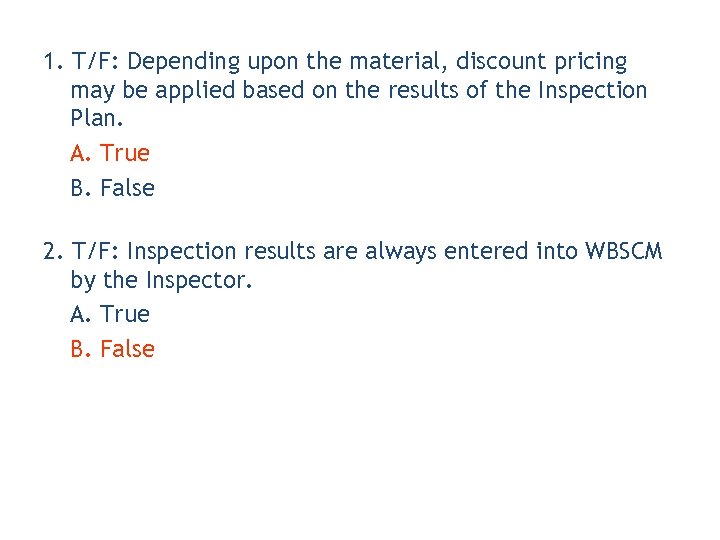 1. T/F: Depending upon the material, discount pricing may be applied based on the results of the Inspection Plan. A. True B. False 2. T/F: Inspection results are always entered into WBSCM by the Inspector. A. True B. False
 Lesson Objectives • Display Goods Receipt Report • Review data in Goods Receipt Report
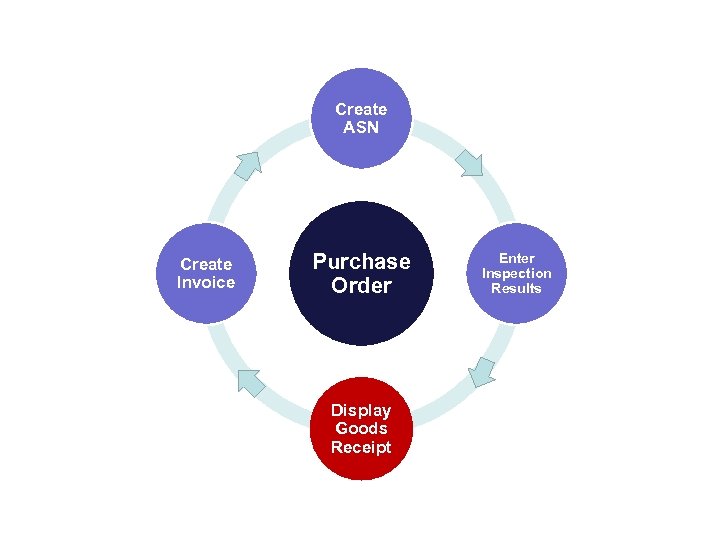 Create ASN Create Invoice Purchase Order Display Goods Receipt Enter Inspection Results
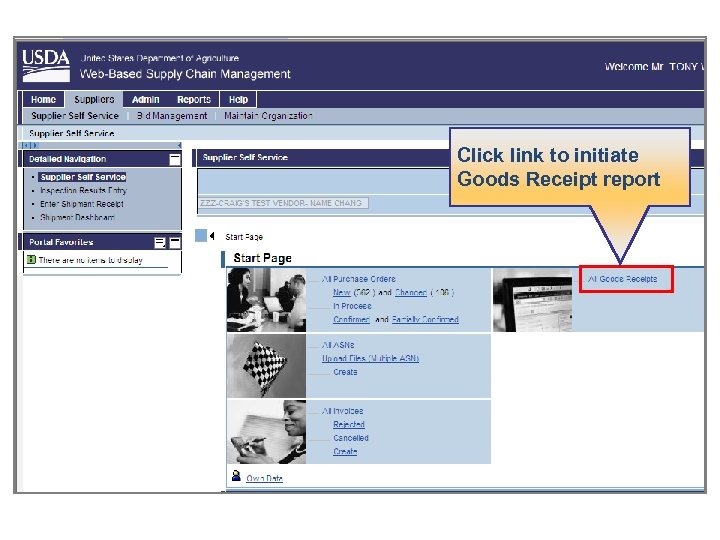 Click link to initiate Goods Receipt report
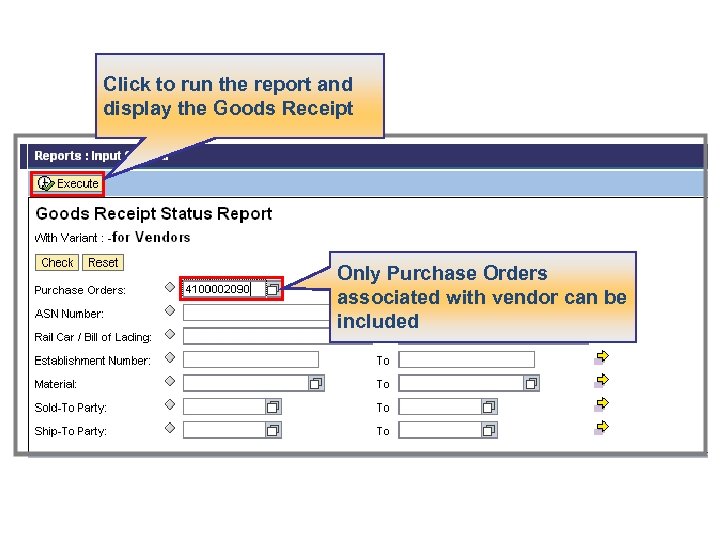 Click to run the report and display the Goods Receipt Only Purchase Orders associated with vendor can be included
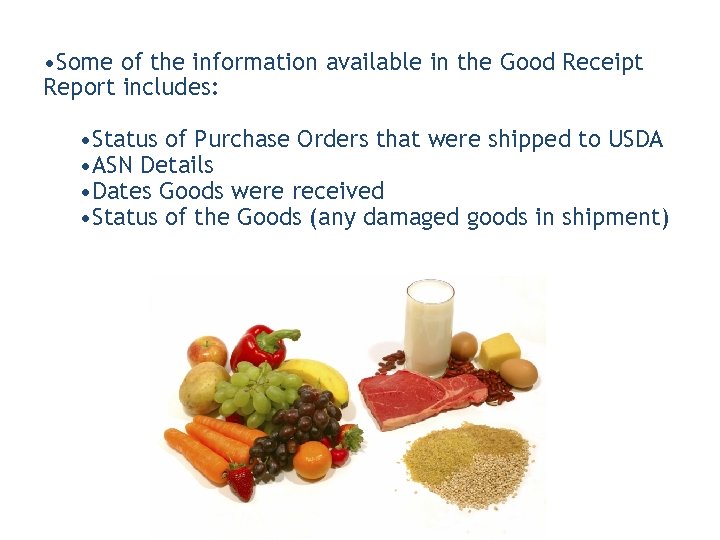 • Some of the information available in the Good Receipt Report includes: • Status of Purchase Orders that were shipped to USDA • ASN Details • Dates Goods were received • Status of the Goods (any damaged goods in shipment)
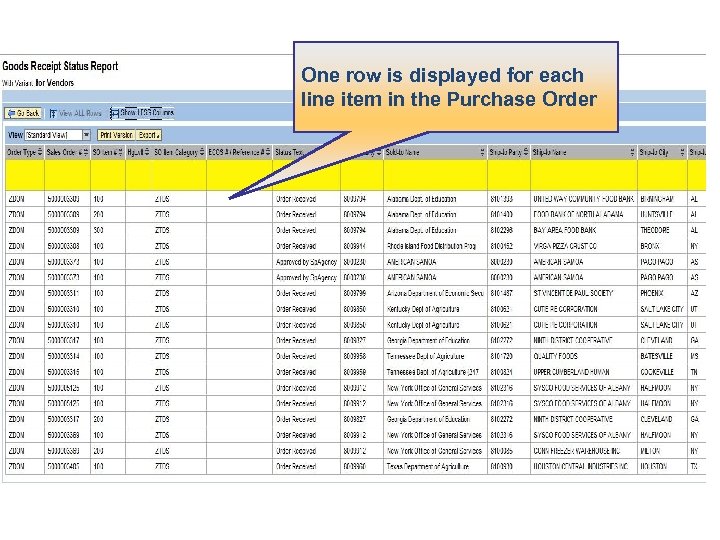 One row is displayed for each line item in the Purchase Order
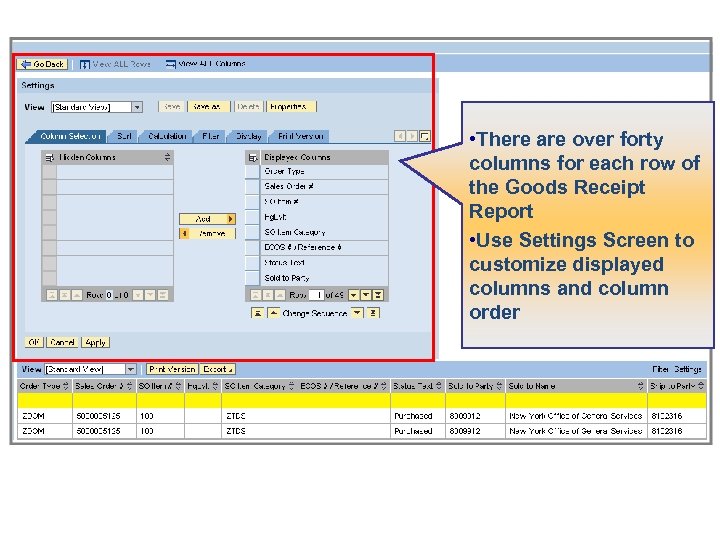 • There are over forty columns for each row of the Goods Receipt Report • Use Settings Screen to customize displayed columns and column order

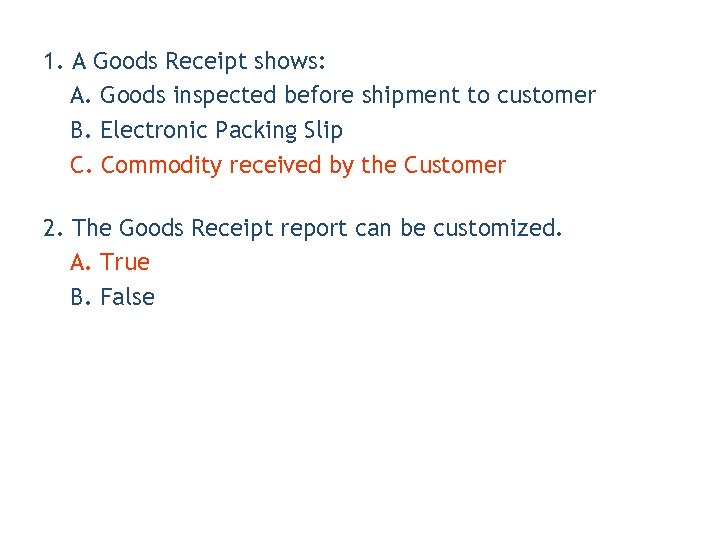 1. A Goods Receipt shows: A. Goods inspected before shipment to customer B. Electronic Packing Slip C. Commodity received by the Customer 2. The Goods Receipt report can be customized. A. True B. False
 Lesson Objectives • Submit Invoice for Single Line Item • Submit Invoice for Multiple Line items
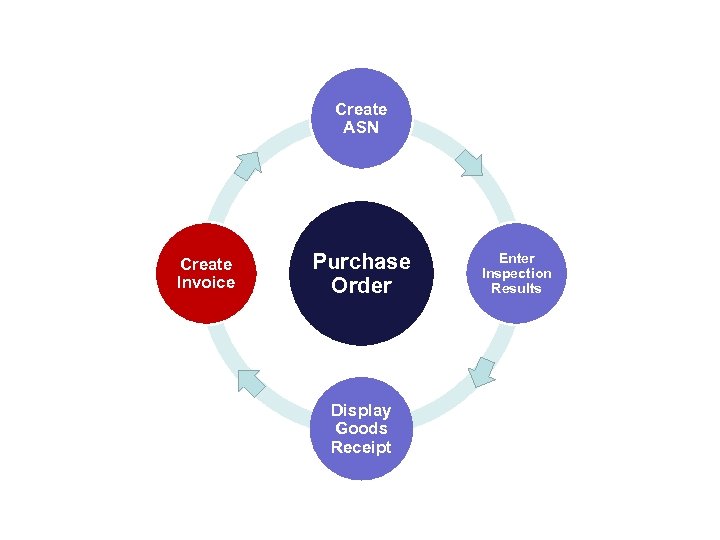 Create ASN Create Invoice Purchase Order Display Goods Receipt Enter Inspection Results
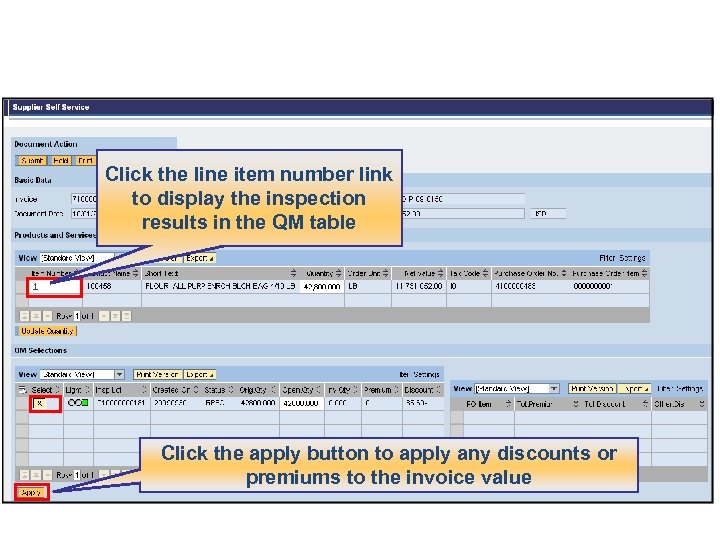
 • Discounts or Premiums applied when inspection results were entered will automatically appear when the invoice is created • Discounts - will reduce the amount owed to the vendor • Premiums –will increase the amount owed to the vendor
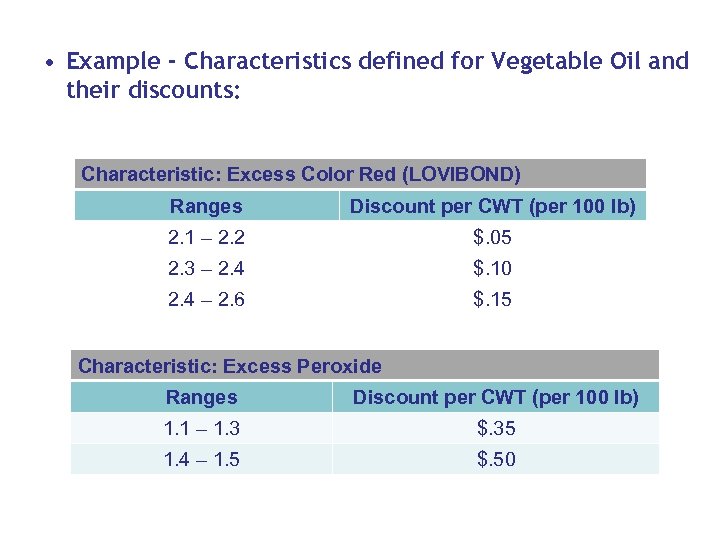 • Example - Characteristics defined for Vegetable Oil and their discounts: Characteristic: Excess Color Red (LOVIBOND) Ranges Discount per CWT (per 100 lb) 2. 1 – 2. 2 $. 05 2. 3 – 2. 4 $. 10 2. 4 – 2. 6 $. 15 Characteristic: Excess Peroxide Ranges Discount per CWT (per 100 lb) 1. 1 – 1. 3 $. 35 1. 4 – 1. 5 $. 50
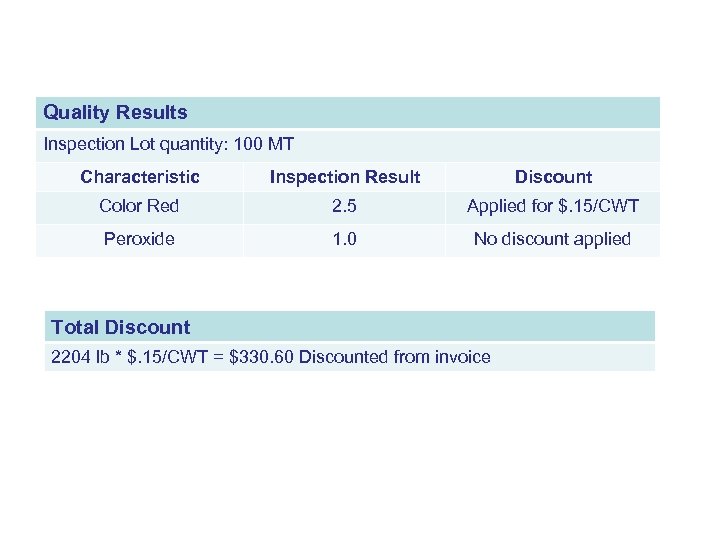 Quality Results Inspection Lot quantity: 100 MT Characteristic Inspection Result Discount Color Red 2. 5 Applied for $. 15/CWT Peroxide 1. 0 No discount applied Total Discount 2204 lb * $. 15/CWT = $330. 60 Discounted from invoice
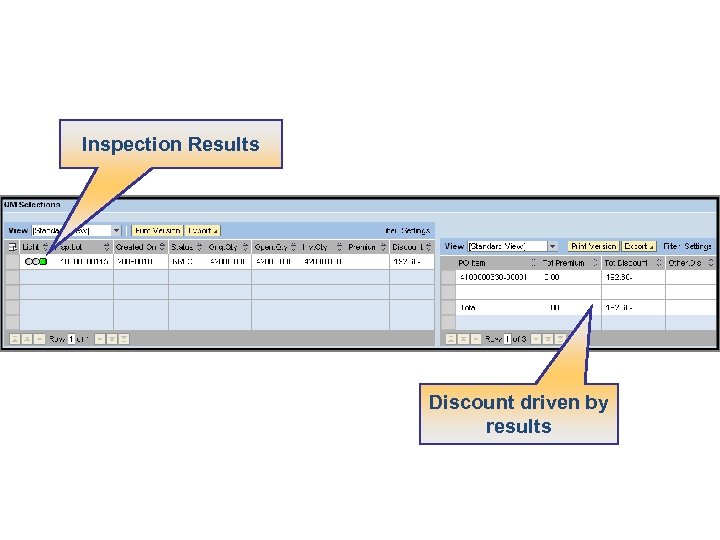 Inspection Results Discount driven by results
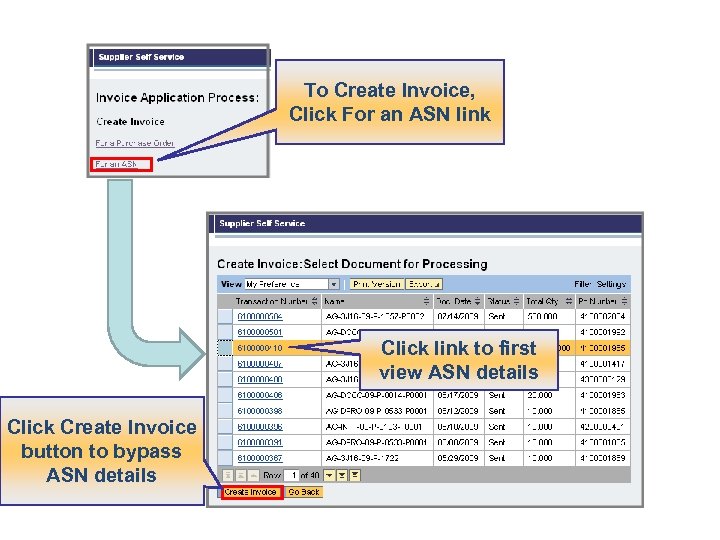
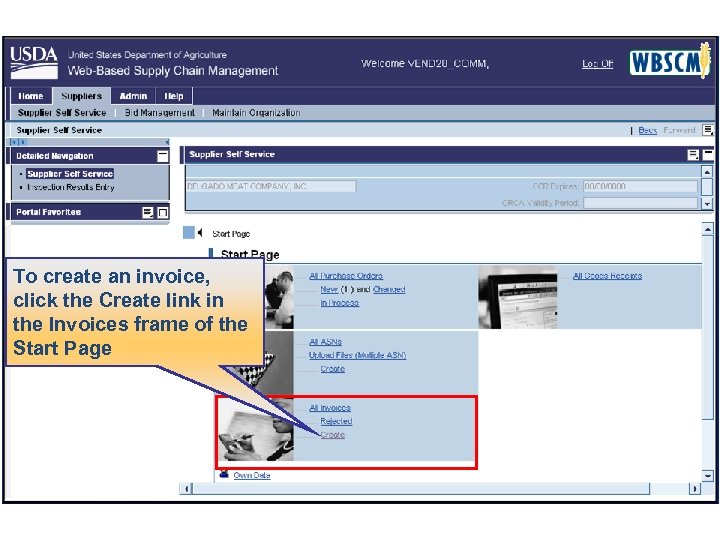 To create an invoice, click the Create link in the Invoices frame of the Start Page
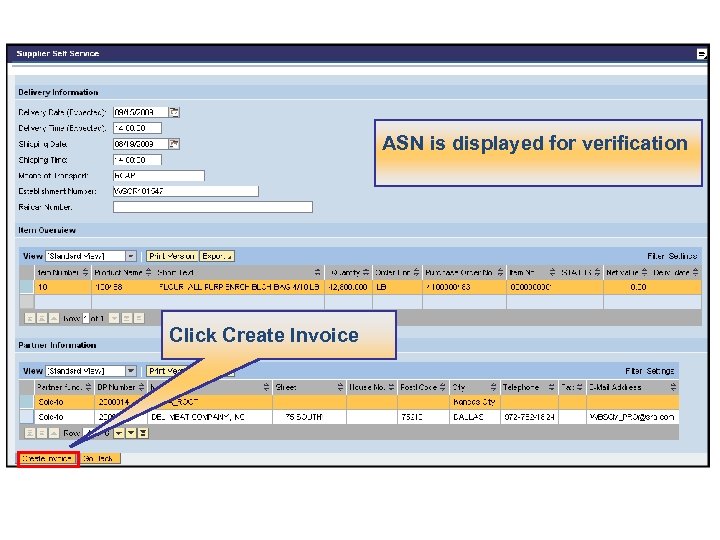
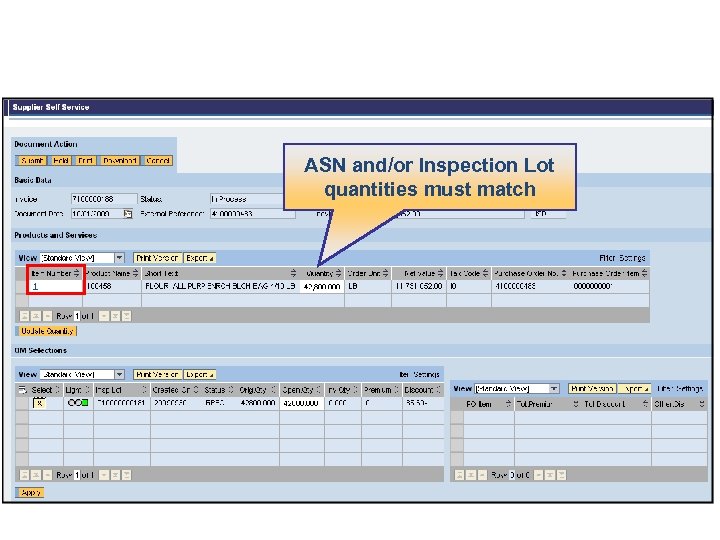
 • An invoice can be created for a Purchase Order or for an ASN by clicking on the corresponding hyperlink which brings up a list of the transaction numbers • Use the “Create Invoice for a Purchase Order” hyperlink only when there is NOT an ASN (for example for a Freight or Service Purchase Order) • WBSCM will accept partial invoices, as long as the inspection results and ASN quantities match the quantity being invoiced
 To Create Invoice, Click For an ASN link Click link to first view ASN details Click Create Invoice button to bypass ASN details
 ASN is displayed for verification Click Create Invoice
 ASN and/or Inspection Lot quantities must match
 Click the line item number link to display the inspection results in the QM table Click the apply button to apply any discounts or premiums to the invoice value
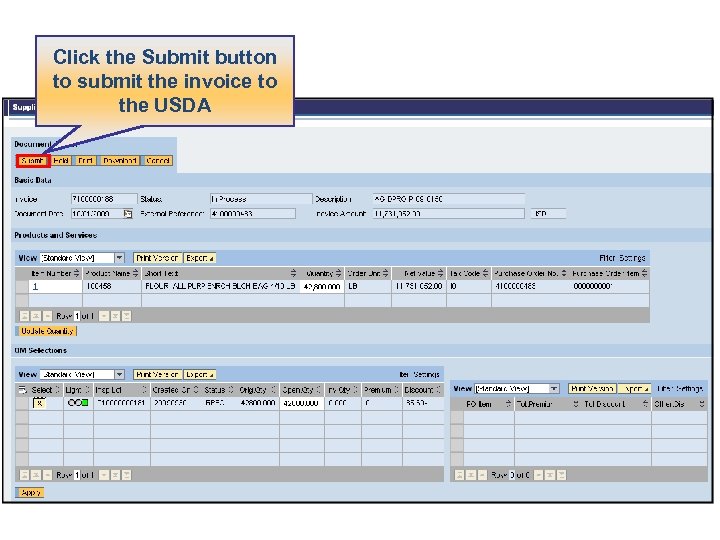 Click the Submit button to submit the invoice to the USDA
 • In addition to quality based discounts, late shipment discounts (Liquidated Damages) may be applied to the invoice • The discount is calculated based on the current contract terms • The Liquidated Damages discount will be visible only after the invoice has been approved
 • Auto Playback Tutorial: watch the simulation with no user input required
 • Standard Tutorial: guide yourself through the simulation by clicking on certain areas when prompted
 • Multiple invoices can be created for one Purchase Order • This would occur for a partial shipment of a commodity • In this scenario, you are invoicing for the remaining quantity of a partial shipment • There would be another ASN as part of the same PO
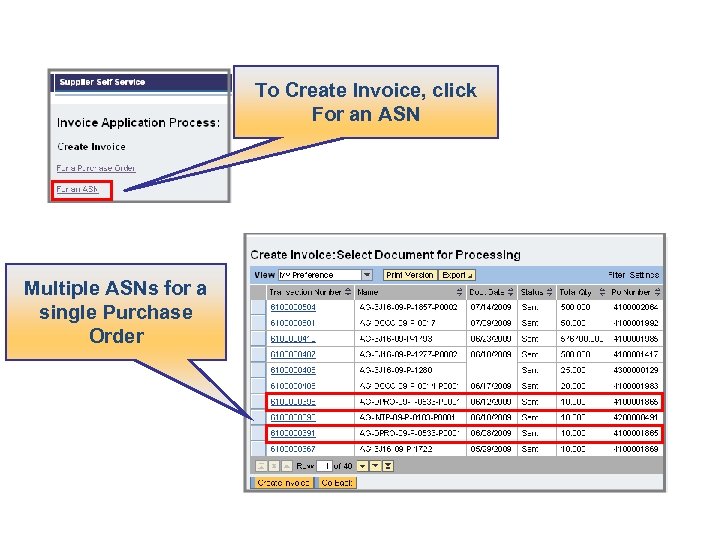 To Create Invoice, click For an ASN Multiple ASNs for a single Purchase Order

 1. Use the “Create Invoice for a Purchase Order” hyperlink for a: A. Freight Purchase Order B. Commodity Purchase Order C. Service Purchase Order D. Both A and C 2. T/F: All of the Line Items on a Purchase Order must be delivered before a Vendor can submit an Invoice. A. True B. False
 You have successfully completed your e. Learning course! Thank You!