


 Скачать презентацию EXT 300 SDA Order Management 1
46c80bb60711b258b79d73d807f96100.ppt
- Количество слайдов: 162
 EXT 300 – SDA Order Management
 1. Order Management Process 2. Catalog Views, Delivery Periods, & Lead Time 3. Domestic Requisitions 4. Order Consolidation & Discussion Forums 5. Sales Order Approval Process 6. Sales Order Types 7. Receipting 8. Reporting
 • Improve Procurement practices & technologies to increase efficiencies • Decrease administrative costs associated with procurement & contract management, and technology • Enable USDA to become more efficient at meeting customer needs • Improve order cycle times, financial processing, and customer relationship management to reduce costs
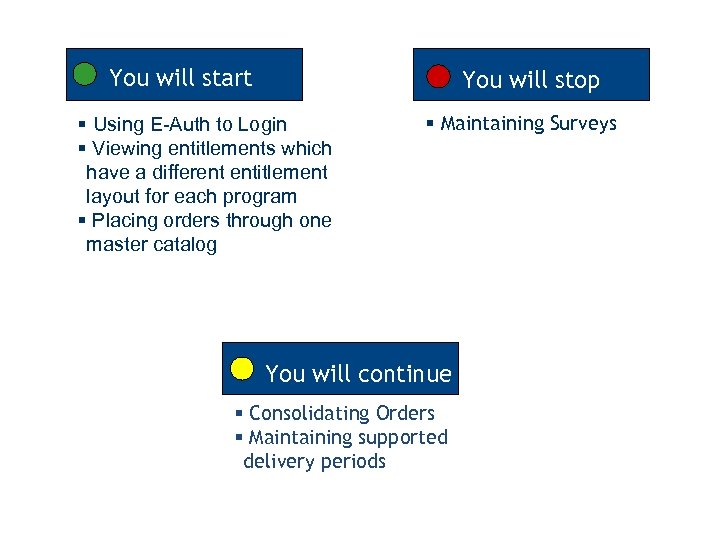 You will start You will stop § Using E-Auth to Login § Viewing entitlements which have a different entitlement layout for each program § Placing orders through one master catalog § Maintaining Surveys You will continue § Consolidating Orders § Maintaining supported delivery periods
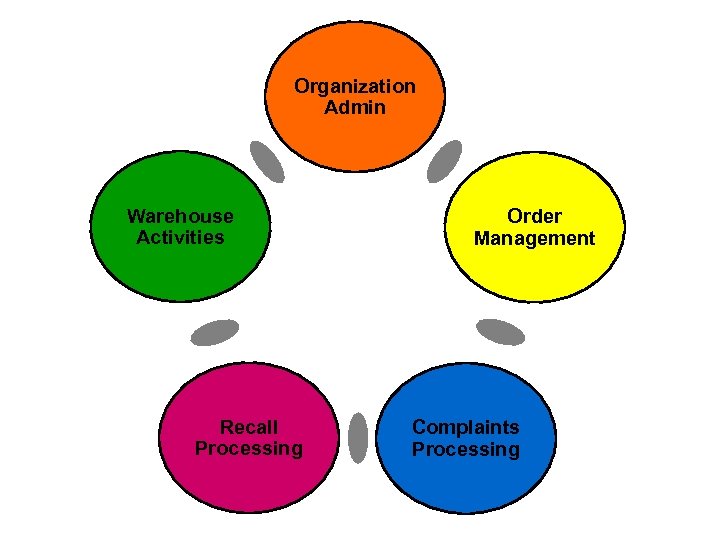 Organization Admin Warehouse Activities Recall Processing Order Management Complaints Processing
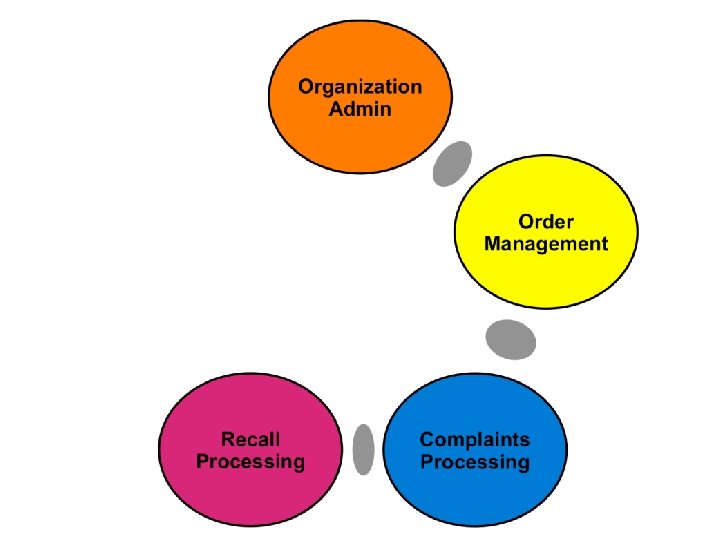
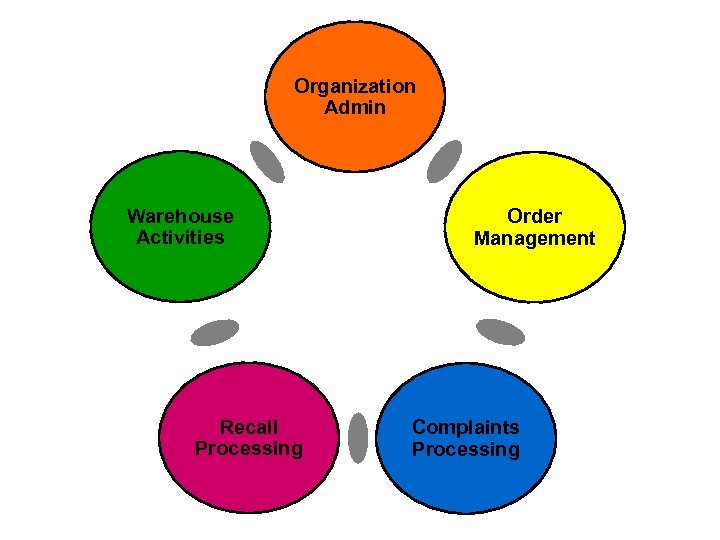 Organization Admin Warehouse Activities Recall Processing Order Management Complaints Processing
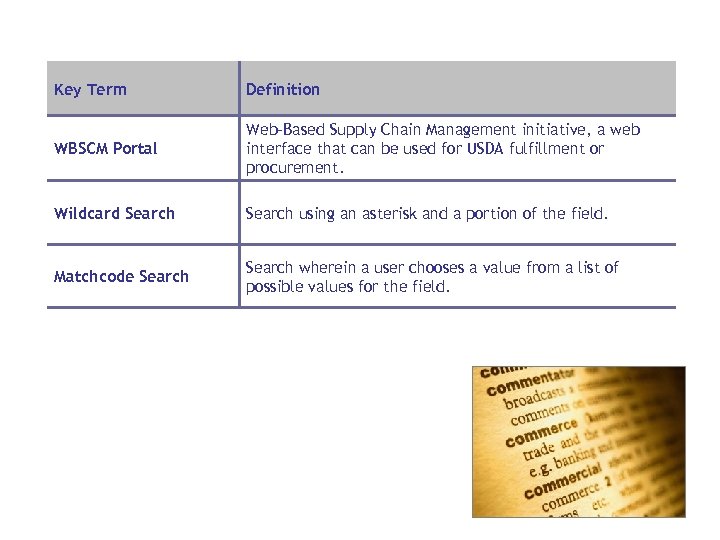 Key Term Definition WBSCM Portal Web-Based Supply Chain Management initiative, a web interface that can be used for USDA fulfillment or procurement. Wildcard Search using an asterisk and a portion of the field. Matchcode Search wherein a user chooses a value from a list of possible values for the field.
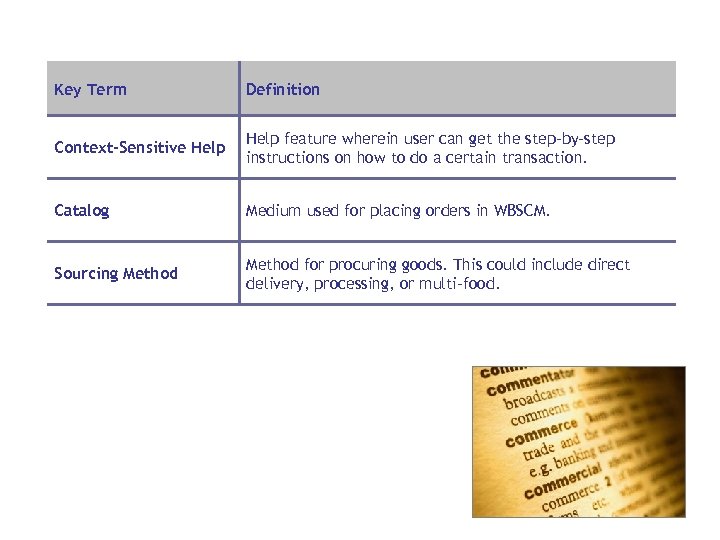 Key Term Definition Context-Sensitive Help feature wherein user can get the step-by-step instructions on how to do a certain transaction. Catalog Medium used for placing orders in WBSCM. Sourcing Method for procuring goods. This could include direct delivery, processing, or multi-food.
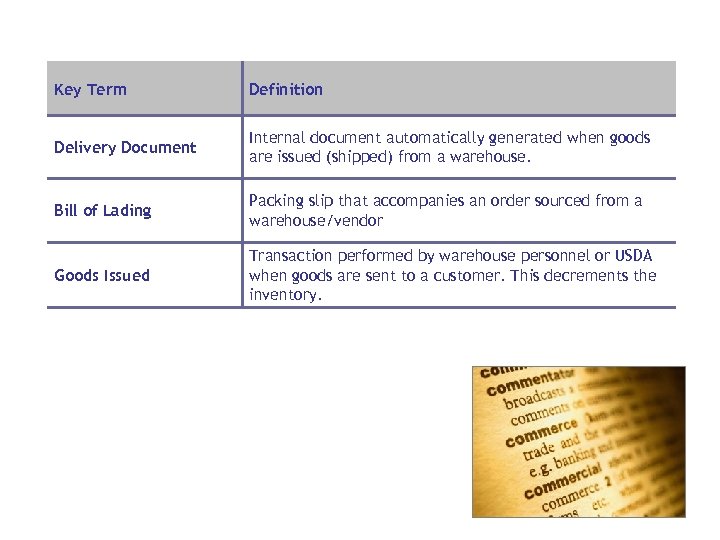 Key Term Definition Delivery Document Internal document automatically generated when goods are issued (shipped) from a warehouse. Bill of Lading Packing slip that accompanies an order sourced from a warehouse/vendor Goods Issued Transaction performed by warehouse personnel or USDA when goods are sent to a customer. This decrements the inventory.
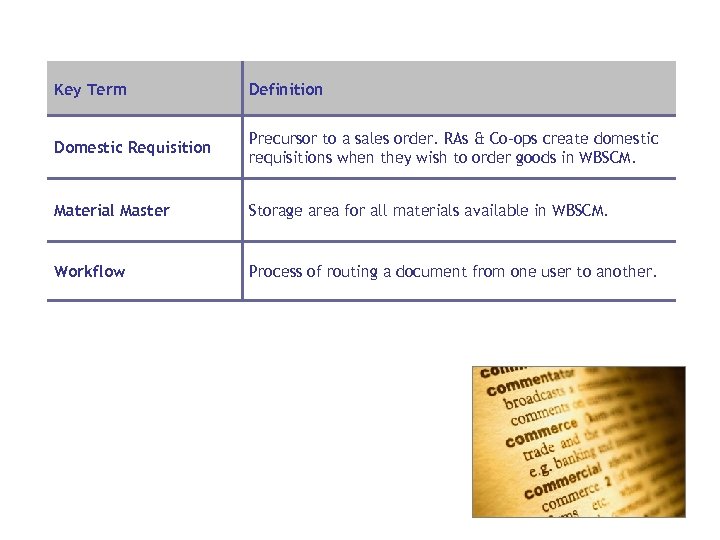 Key Term Definition Domestic Requisition Precursor to a sales order. RAs & Co-ops create domestic requisitions when they wish to order goods in WBSCM. Material Master Storage area for all materials available in WBSCM. Workflow Process of routing a document from one user to another.
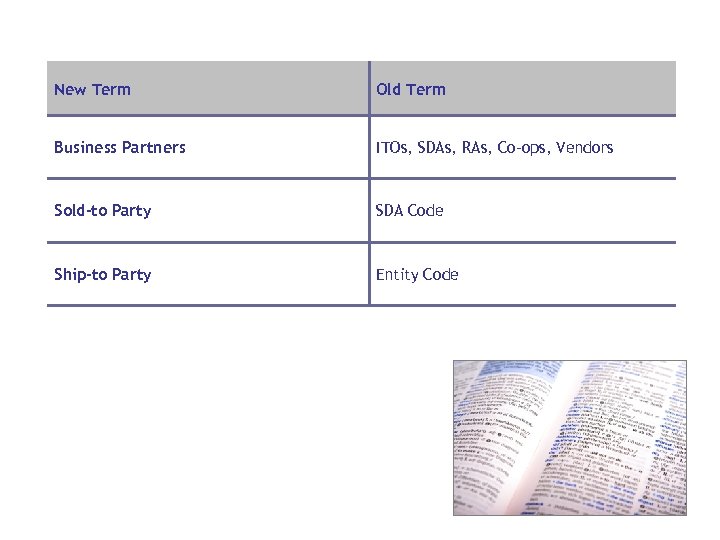 New Term Old Term Business Partners ITOs, SDAs, RAs, Co-ops, Vendors Sold-to Party SDA Code Ship-to Party Entity Code
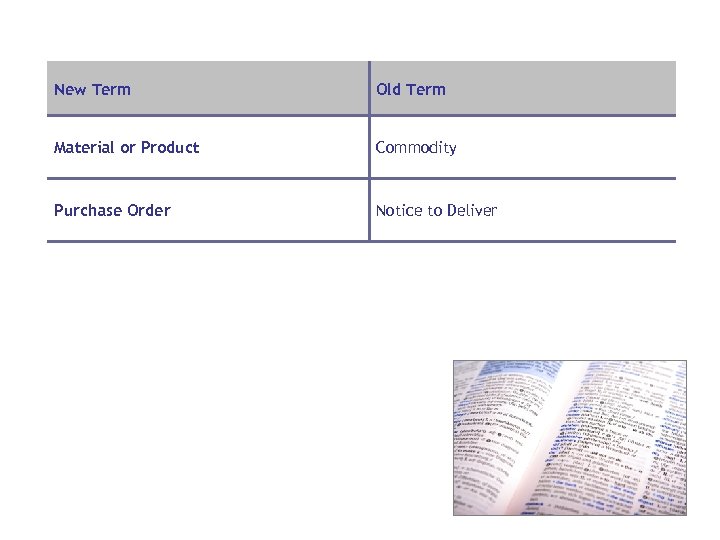 New Term Old Term Material or Product Commodity Purchase Order Notice to Deliver
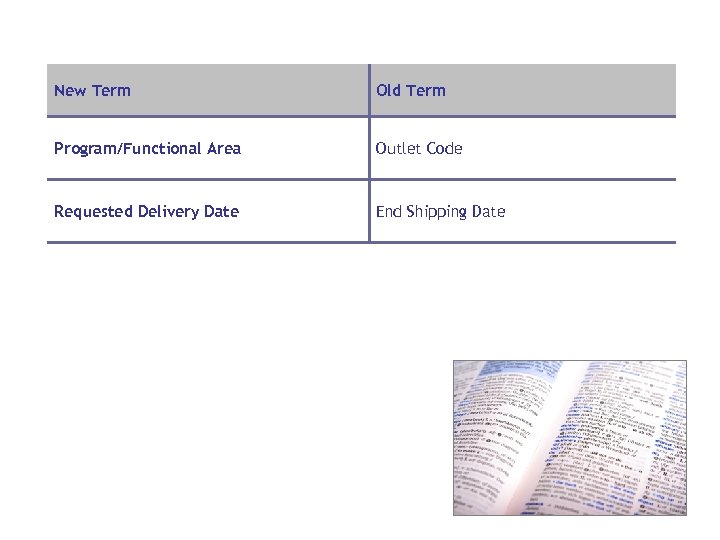 New Term Old Term Program/Functional Area Outlet Code Requested Delivery Date End Shipping Date
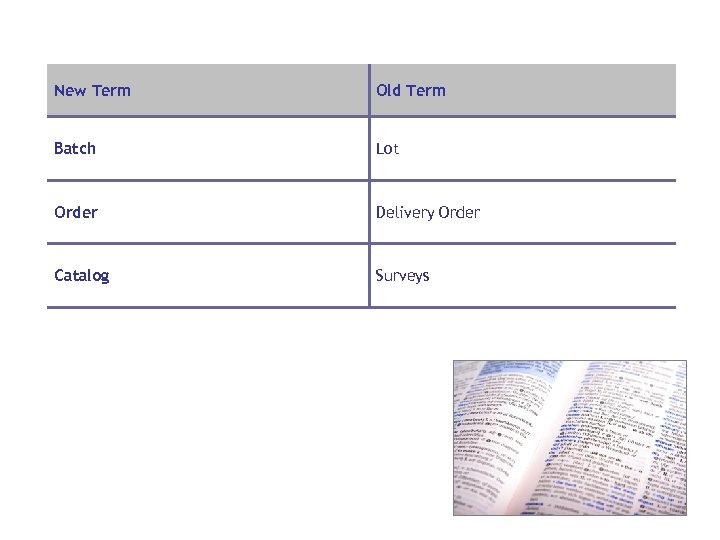 New Term Old Term Batch Lot Order Delivery Order Catalog Surveys
 Lesson Objectives • Outline the Domestic Direct Ship Order Management Process • Explain key differences between Direct Ship Orders & Multi -Food Orders
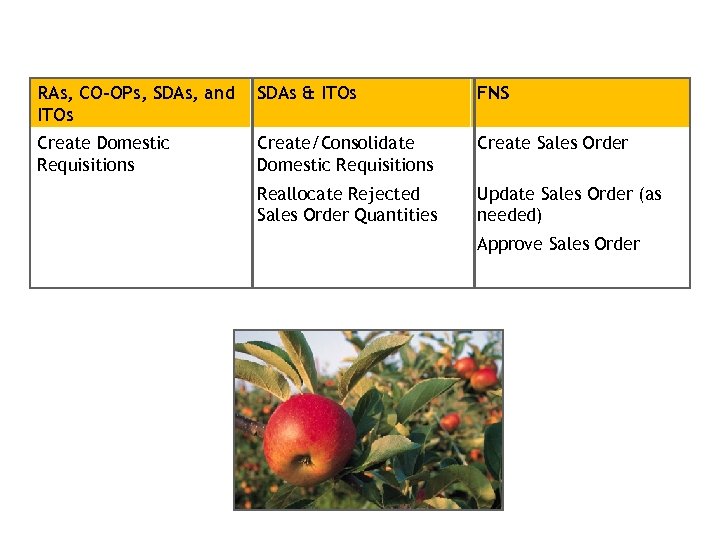 RAs, CO-OPs, SDAs, and ITOs SDAs & ITOs FNS Create Domestic Requisitions Create/Consolidate Domestic Requisitions Create Sales Order Reallocate Rejected Sales Order Quantities Update Sales Order (as needed) Approve Sales Order
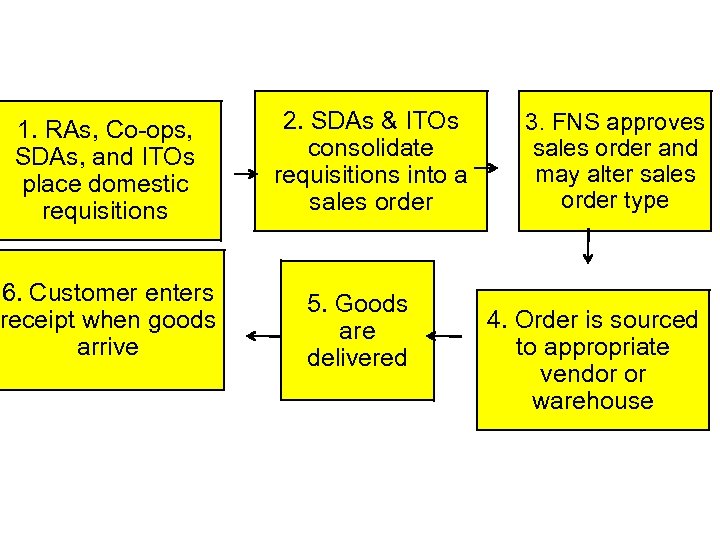 1. RAs, Co-ops, SDAs, and ITOs place domestic requisitions 6. Customer enters receipt when goods arrive 2. SDAs & ITOs consolidate requisitions into a sales order 5. Goods are delivered 3. FNS approves sales order and may alter sales order type 4. Order is sourced to appropriate vendor or warehouse
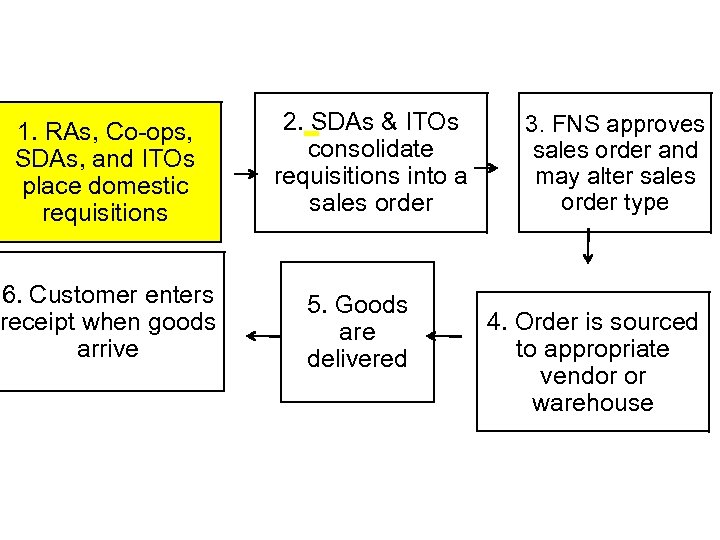 1. RAs, Co-ops, SDAs, and ITOs place domestic requisitions 6. Customer enters receipt when goods arrive 2. SDAs & ITOs consolidate requisitions into a sales order 5. Goods are delivered 3. FNS approves sales order and may alter sales order type 4. Order is sourced to appropriate vendor or warehouse
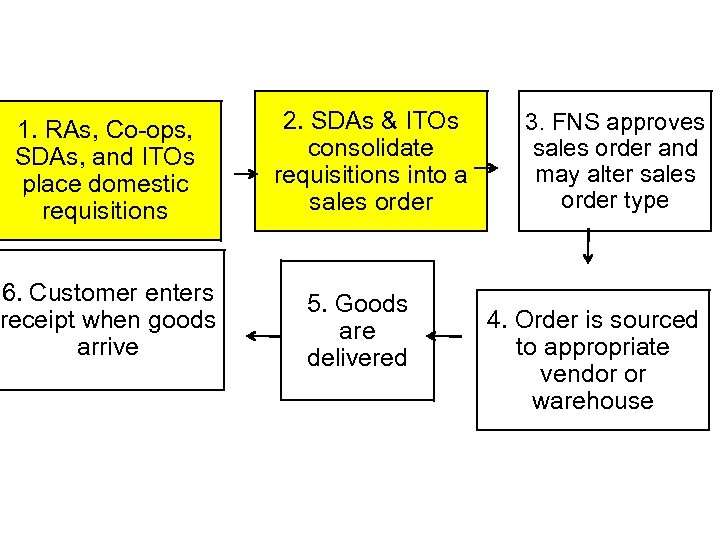 1. RAs, Co-ops, SDAs, and ITOs place domestic requisitions 6. Customer enters receipt when goods arrive 2. SDAs & ITOs consolidate requisitions into a sales order 5. Goods are delivered 3. FNS approves sales order and may alter sales order type 4. Order is sourced to appropriate vendor or warehouse
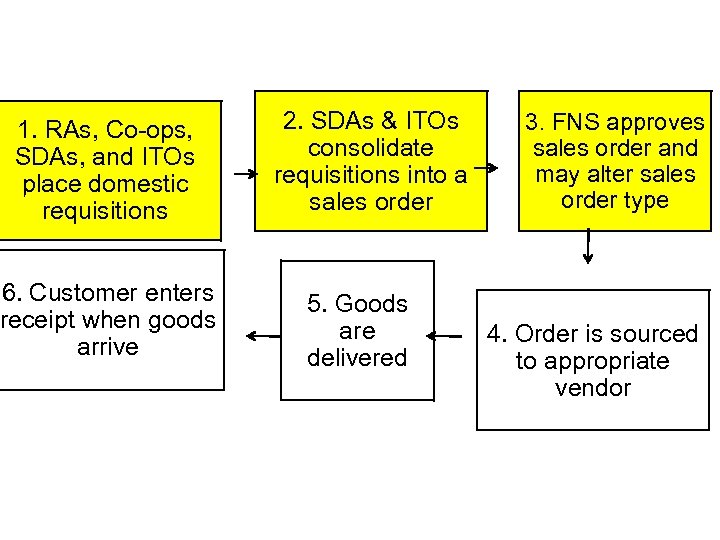 1. RAs, Co-ops, SDAs, and ITOs place domestic requisitions 6. Customer enters receipt when goods arrive 2. SDAs & ITOs consolidate requisitions into a sales order 5. Goods are delivered 3. FNS approves sales order and may alter sales order type 4. Order is sourced to appropriate vendor
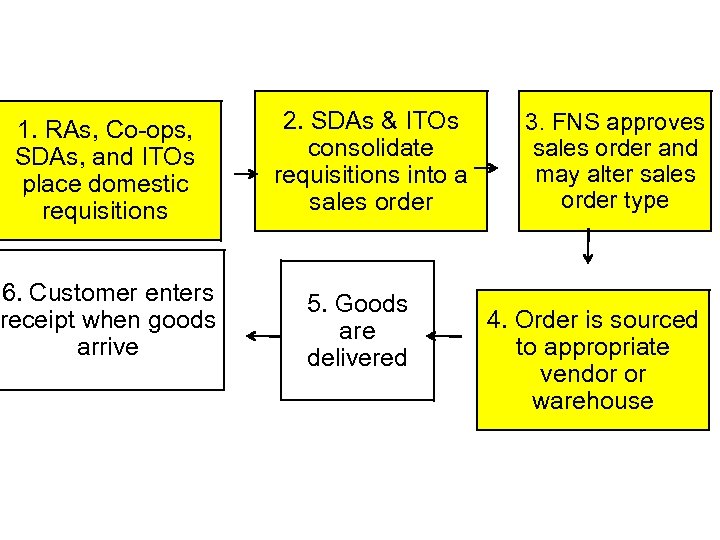 1. RAs, Co-ops, SDAs, and ITOs place domestic requisitions 6. Customer enters receipt when goods arrive 2. SDAs & ITOs consolidate requisitions into a sales order 5. Goods are delivered 3. FNS approves sales order and may alter sales order type 4. Order is sourced to appropriate vendor or warehouse
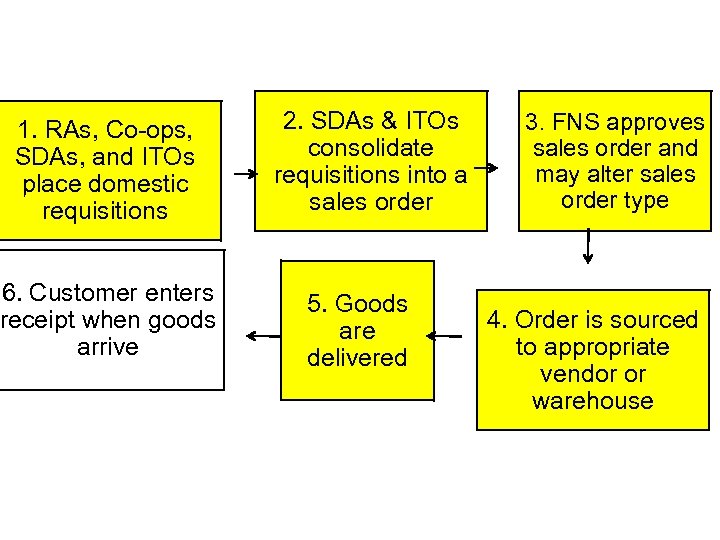 1. RAs, Co-ops, SDAs, and ITOs place domestic requisitions 6. Customer enters receipt when goods arrive 2. SDAs & ITOs consolidate requisitions into a sales order 5. Goods are delivered 3. FNS approves sales order and may alter sales order type 4. Order is sourced to appropriate vendor or warehouse
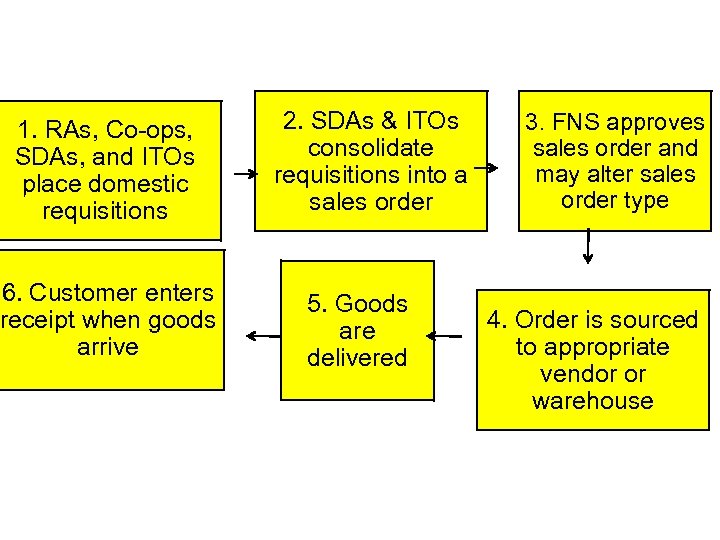 1. RAs, Co-ops, SDAs, and ITOs place domestic requisitions 6. Customer enters receipt when goods arrive 2. SDAs & ITOs consolidate requisitions into a sales order 5. Goods are delivered 3. FNS approves sales order and may alter sales order type 4. Order is sourced to appropriate vendor or warehouse
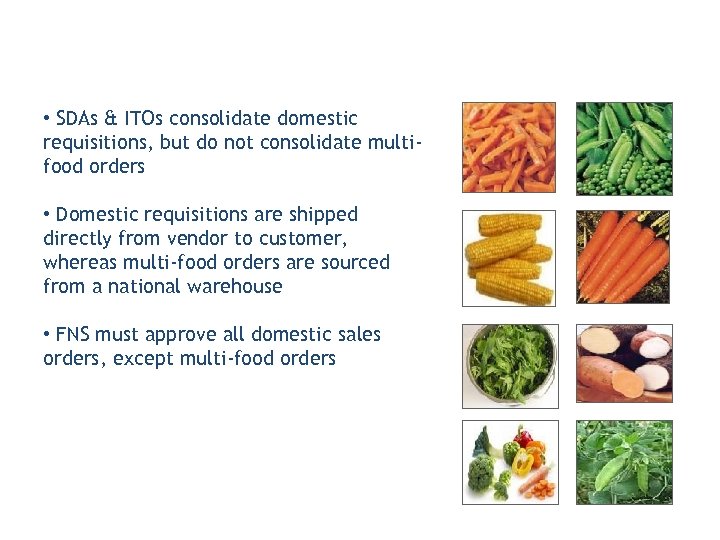 • SDAs & ITOs consolidate domestic requisitions, but do not consolidate multifood orders • Domestic requisitions are shipped directly from vendor to customer, whereas multi-food orders are sourced from a national warehouse • FNS must approve all domestic sales orders, except multi-food orders

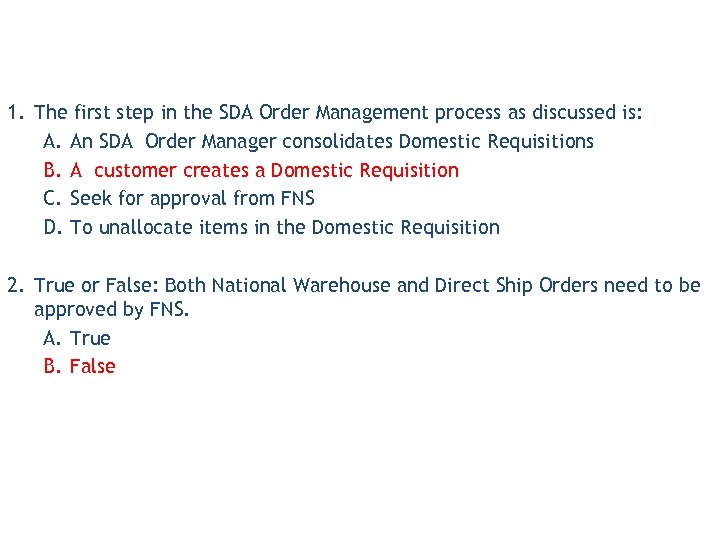 1. The first step in the SDA Order Management process as discussed is: A. An SDA Order Manager consolidates Domestic Requisitions B. A customer creates a Domestic Requisition C. Seek for approval from FNS D. To unallocate items in the Domestic Requisition 2. True or False: Both National Warehouse and Direct Ship Orders need to be approved by FNS. A. True B. False
 Lesson Objectives • Navigate the WBSCM Catalog • Describe the Purpose of Delivery Periods & NLT Dates • Set Lead Time Requirements for your RAs
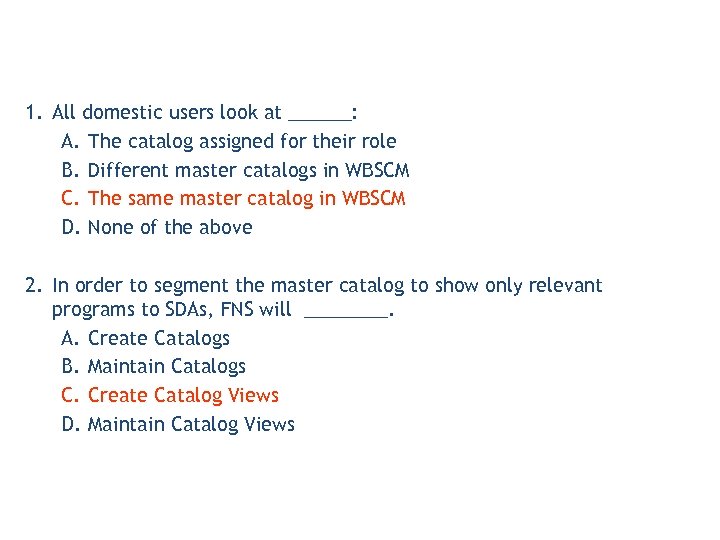
 • All domestic users order from one master catalog • Catalogs can be filtered to create different views of the master catalog for different organizations • Customers will no longer utilize surveys to place orders
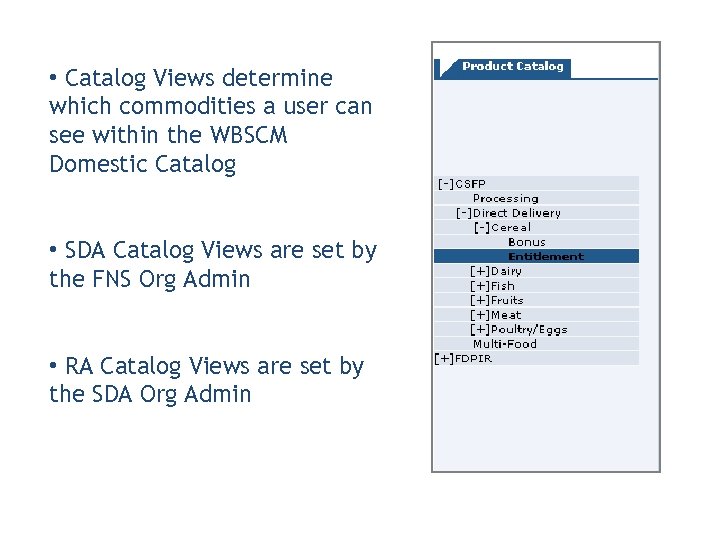 • Catalog Views determine which commodities a user can see within the WBSCM Domestic Catalog • SDA Catalog Views are set by the FNS Org Admin • RA Catalog Views are set by the SDA Org Admin
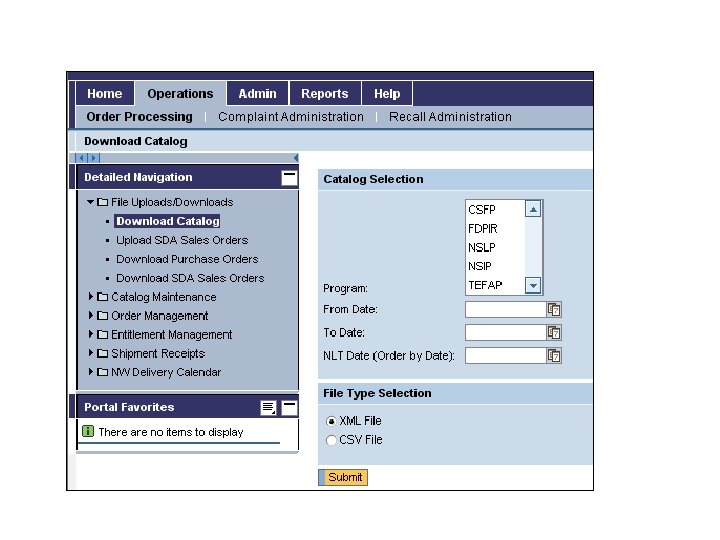
 • Auto Playback Tutorial: watch the simulation with no user input required
 • Standard Tutorial: guide yourself through the simulation by clicking on certain areas when prompted
 • View the predetermined Delivery Periods and Lead Times in the Catalog View • Delivery Periods dictate the date ranges that a commodity can be ordered and delivered • Order By (NLT) date dictates when an order must be placed in order to be received within the corresponding delivery period • Lead Time ensures the sponsoring agency has time to review and approve the orders before the Order By Date passes
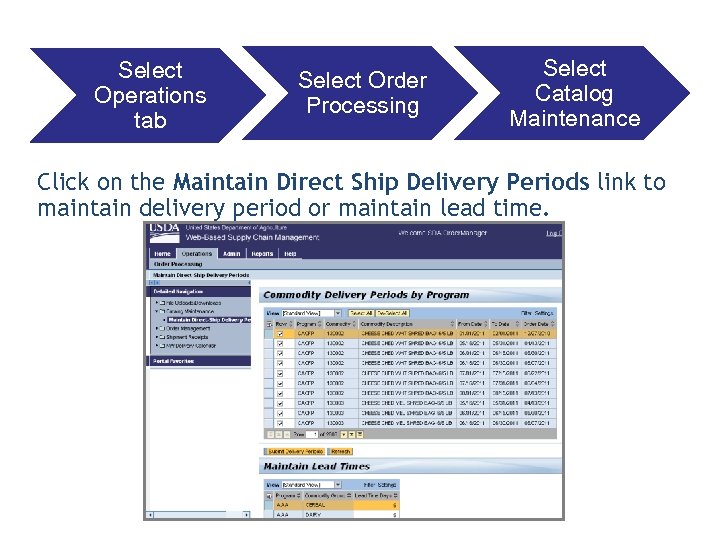 Select Operations tab Select Order Processing Select Catalog Maintenance Click on the Maintain Direct Ship Delivery Periods link to maintain delivery period or maintain lead time.
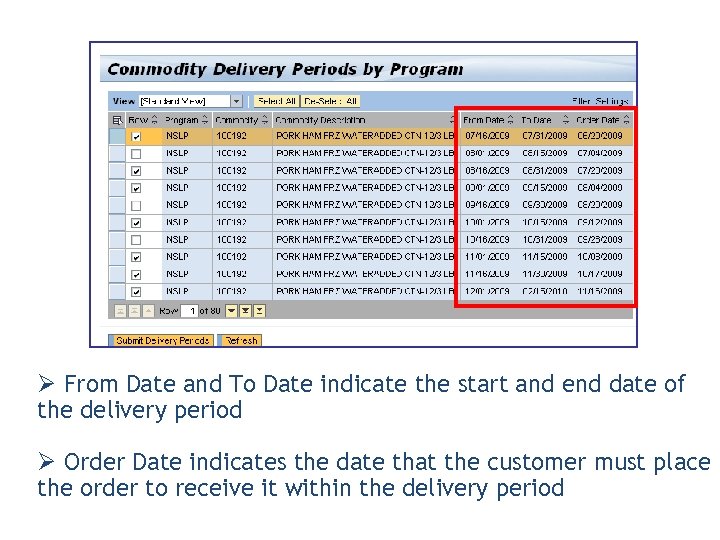 Ø From Date and To Date indicate the start and end date of the delivery period Ø Order Date indicates the date that the customer must place the order to receive it within the delivery period
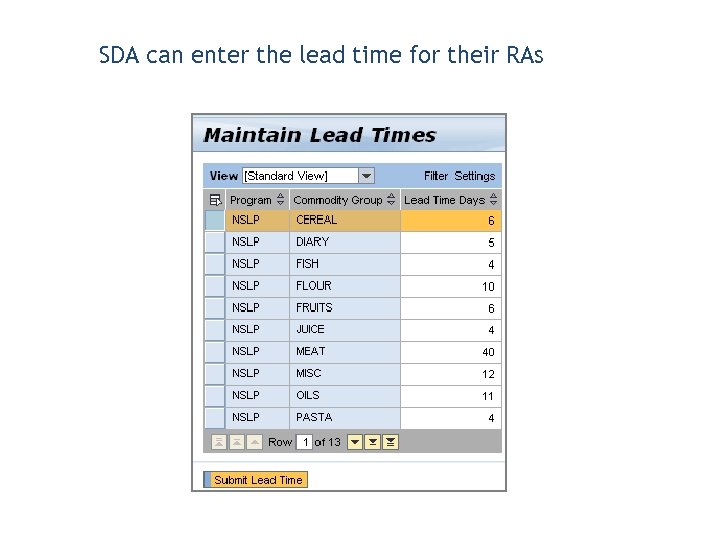 SDA can enter the lead time for their RAs

 1. All domestic users look at ______: A. The catalog assigned for their role B. Different master catalogs in WBSCM C. The same master catalog in WBSCM D. None of the above 2. In order to segment the master catalog to show only relevant programs to SDAs, FNS will ____. A. Create Catalogs B. Maintain Catalogs C. Create Catalog Views D. Maintain Catalog Views
 Lesson Objectives • Describe how to create a domestic requisition • Describe how to view a domestic requisition
 • Starts the order management process • Precursor to a sales order • Requisitions are sent to the SDA • SDAs consolidate, approve, and submit requisitions as consolidated sales orders
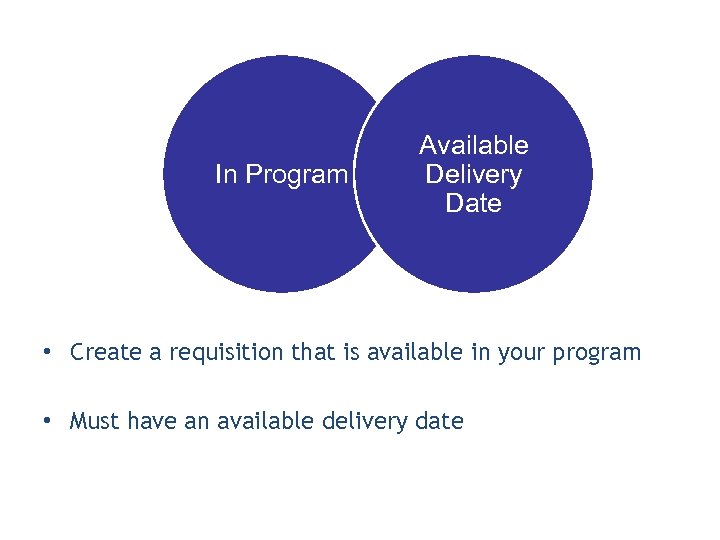 In Program Available Delivery Date • Create a requisition that is available in your program • Must have an available delivery date
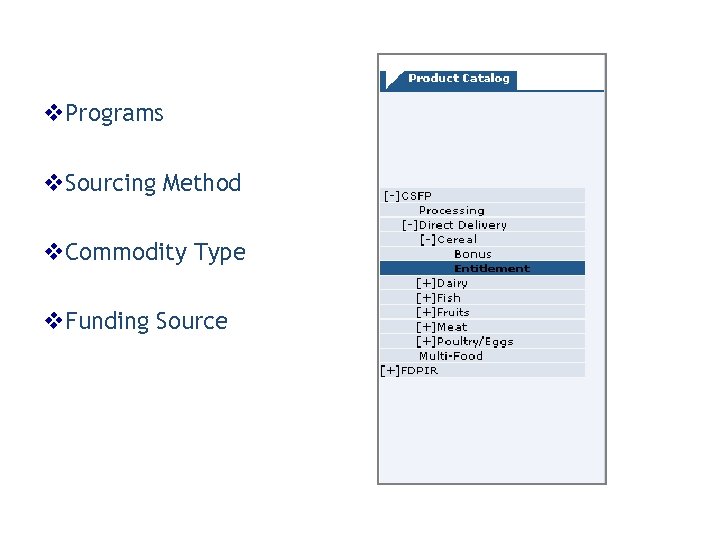 v. Programs v. Sourcing Method v. Commodity Type v. Funding Source
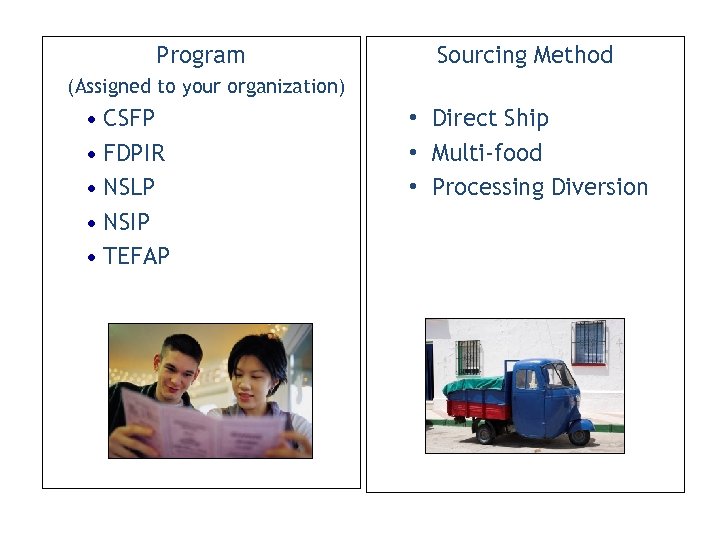 Program Sourcing Method (Assigned to your organization) • CSFP • FDPIR • NSLP • NSIP • TEFAP • Direct Ship • Multi-food • Processing Diversion
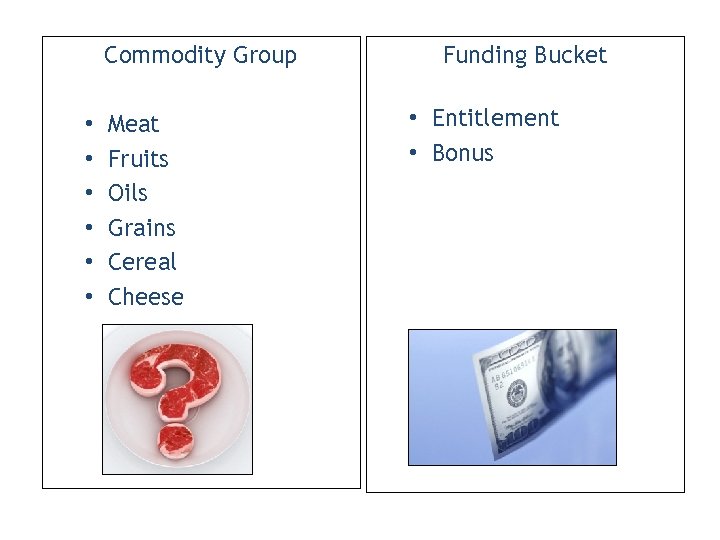 Commodity Group • • • Meat Fruits Oils Grains Cereal Cheese Funding Bucket • Entitlement • Bonus
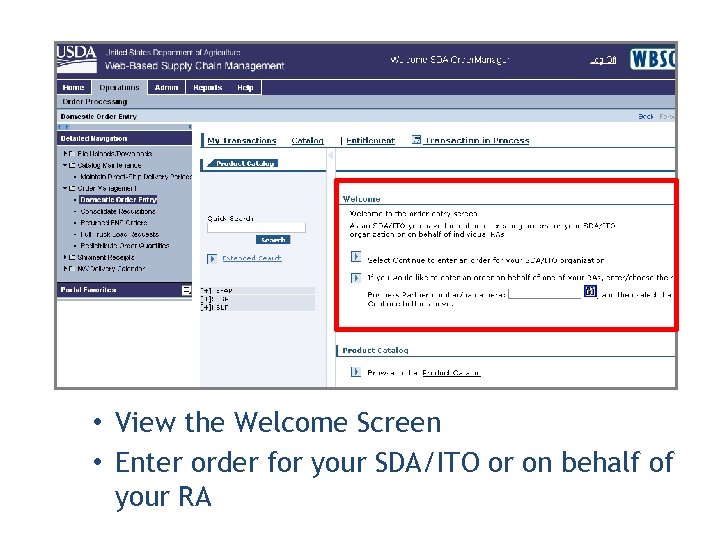 • View the Welcome Screen • Enter order for your SDA/ITO or on behalf of your RA
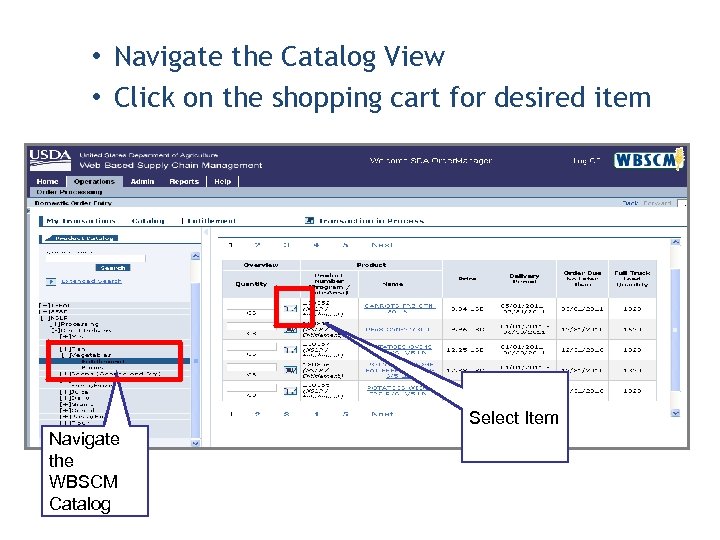 • Navigate the Catalog View • Click on the shopping cart for desired item Select Item Navigate the WBSCM Catalog
 • Only available delivery dates will display • SDAs establish Lead Time requirement for each program and commodity group
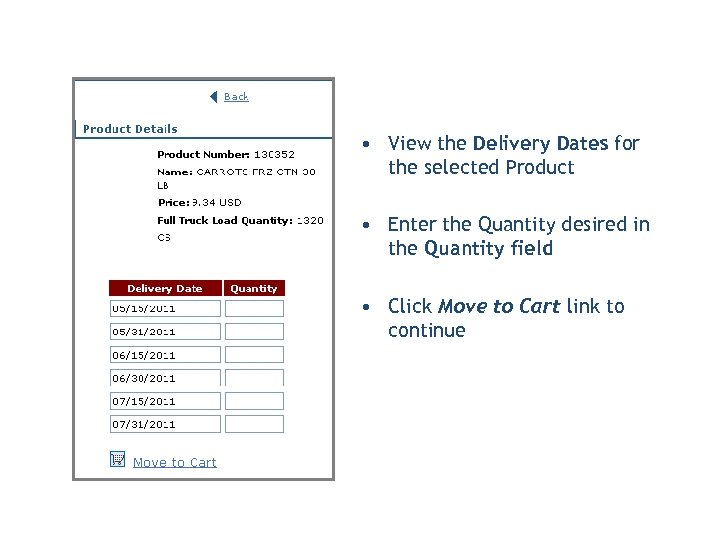 • View the Delivery Dates for the selected Product • Enter the Quantity desired in the Quantity field • Click Move to Cart link to continue
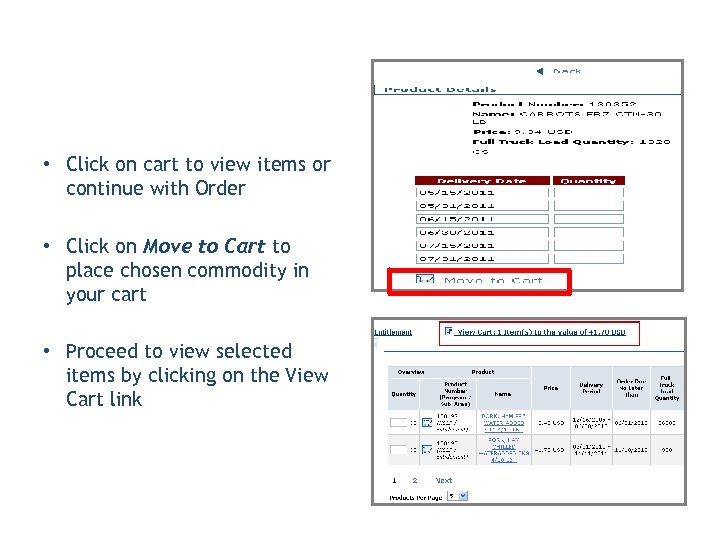 • Click on cart to view items or continue with Order • Click on Move to Cart to place chosen commodity in your cart • Proceed to view selected items by clicking on the View Cart link
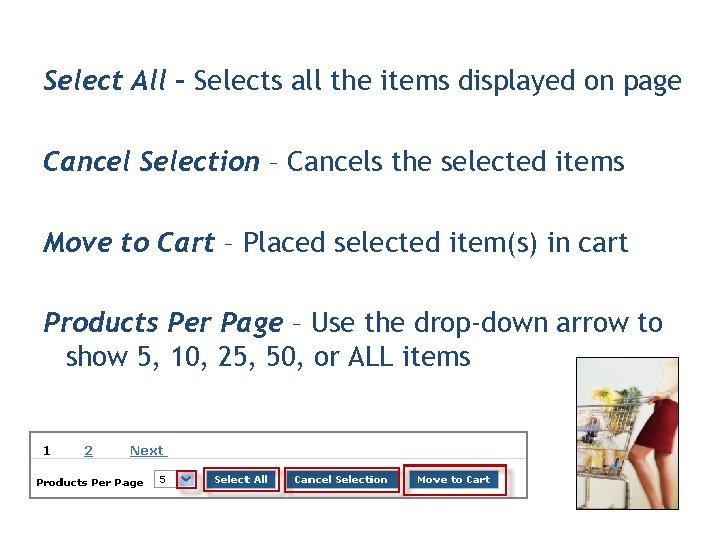 Select All – Selects all the items displayed on page Cancel Selection – Cancels the selected items Move to Cart – Placed selected item(s) in cart Products Per Page – Use the drop-down arrow to show 5, 10, 25, 50, or ALL items
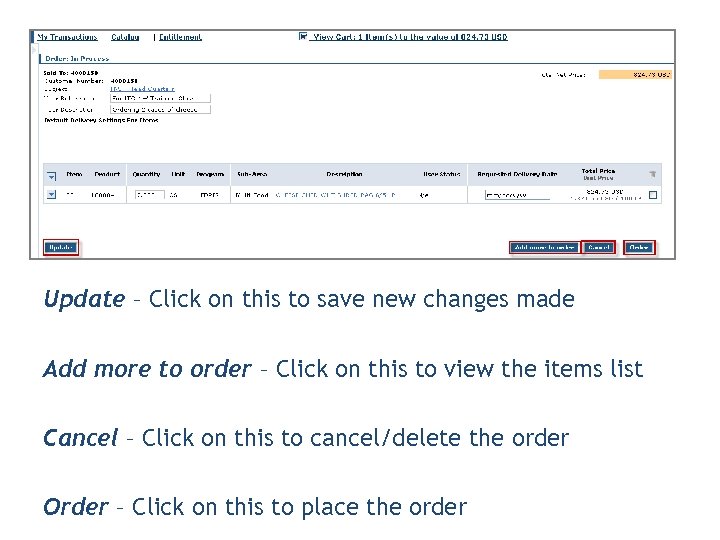 Update – Click on this to save new changes made Add more to order – Click on this to view the items list Cancel – Click on this to cancel/delete the order Order – Click on this to place the order
 • Use the Portal to display a Domestic Requisition • Utilize the search criteria or enter the transaction ID • You can modify an existing Domestic Requisition in draft status; you cannot modify Domestic Requisitions that are already submitted
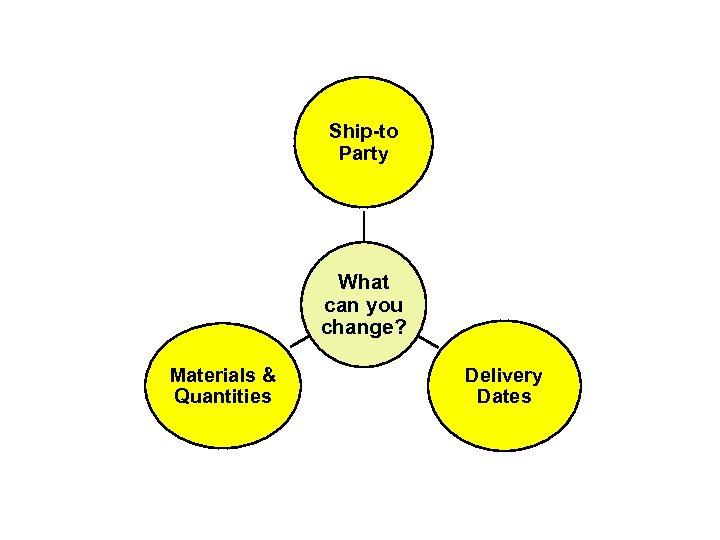 Ship-to Party What can you change? Materials & Quantities Delivery Dates
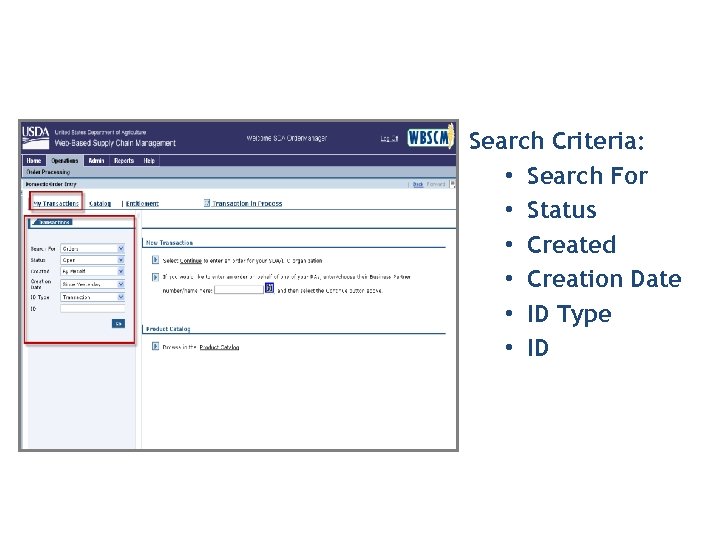 Search Criteria: • Search For • Status • Created • Creation Date • ID Type • ID
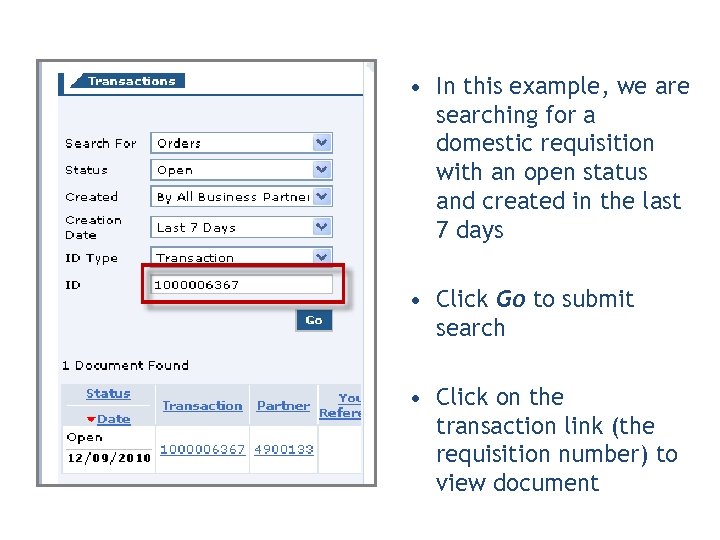 • In this example, we are searching for a domestic requisition with an open status and created in the last 7 days • Click Go to submit search • Click on the transaction link (the requisition number) to view document
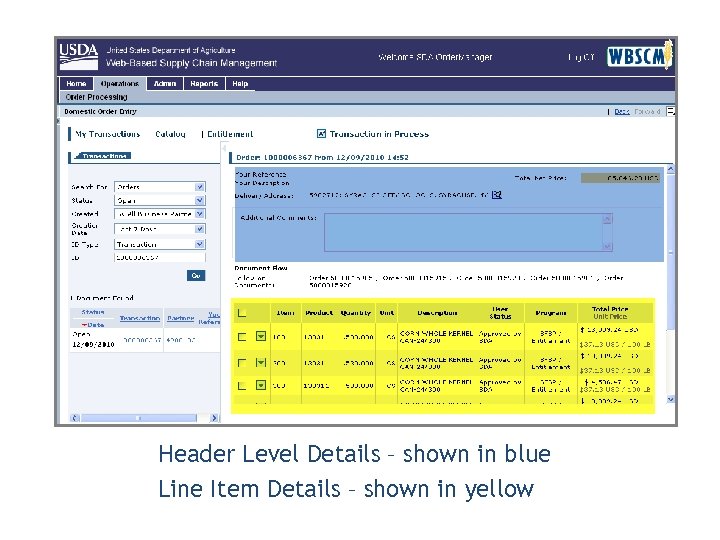 Header Level Details – shown in blue Line Item Details – shown in yellow
 Header Level Details: • Your Reference • Your Description • Default Delivery Settings for Items
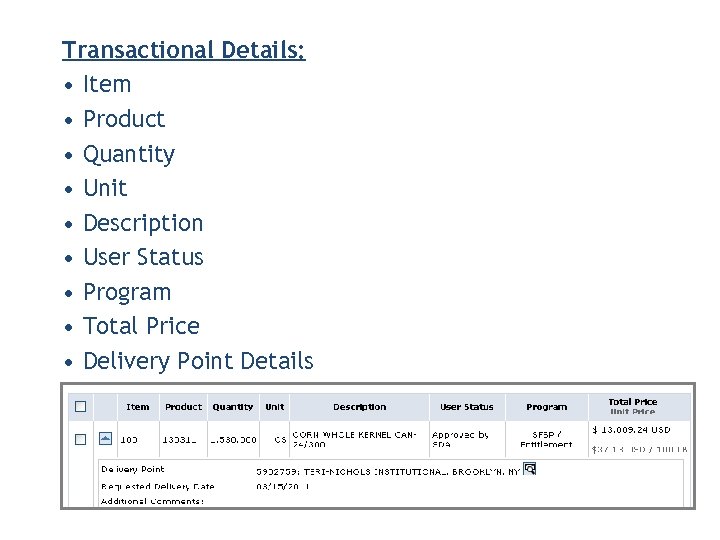 Transactional Details: • Item • Product • Quantity • Unit • Description • User Status • Program • Total Price • Delivery Point Details
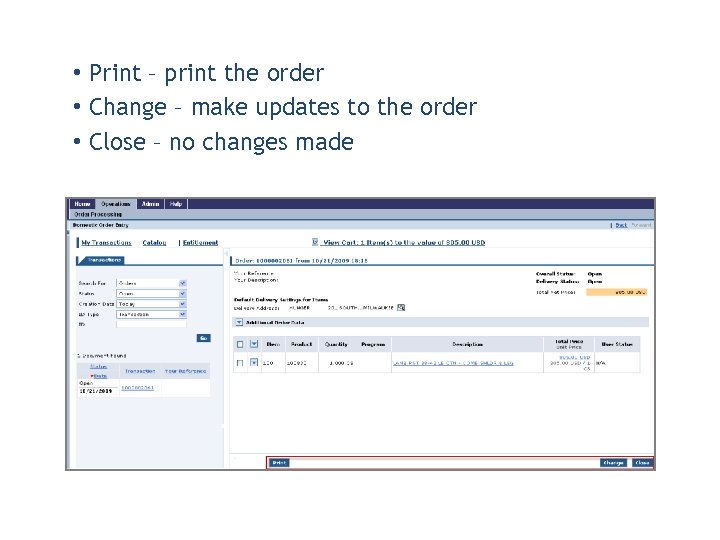 • Print – print the order • Change – make updates to the order • Close – no changes made
 • Auto Playback Tutorial: watch the simulation with no user input required
 • Standard Tutorial: guide yourself through the simulation by clicking on certain areas when prompted

 1. In your Catalog View, _______ Delivery Dates will be displayed for the commodities. A. Available and Unavailable B. Available C. Expired D. All of the above 2. Your Reference, Your Description, and Delivery Status are examples of _____. A. Master data B. Transactional details C. Header level details D. Search Criteria
 Lesson Objectives • Describe the Discussion Forum • Maintain Full Truckload Request • Describe the Order Consolidation Workbench • Redistribute RA Order Quantities
 • Discussion Forums are located on the main page • Used by FNS to post – Recalls information – News & Announcements – Policy Changes • Only FNS can post to this board; SDAs have view-only access
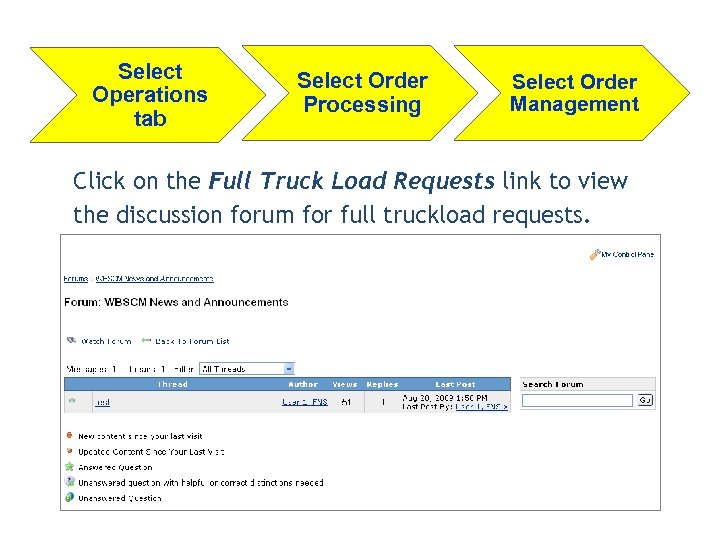 Select Operations tab Select Order Processing Select Order Management Click on the Full Truck Load Requests link to view the discussion forum for full truckload requests.
 • The goal of this discussion forum is for SDAs to communicate with one another about full truckloads • SDAs can view, post, or reply to threads
 Ø The process of consolidating requisitions from all Recipient Agencies in the SDA’s jurisdiction, with the goal of creating full truckloads Ø SDA Order Manager will receive all requisitions from RAs and Co-ops which will be approved and consolidated into a sales order Ø SDA/RA can view entitlements after the sales order has been placed
 Consolidate Requisitions from Coop’s and RA’s to create a Full Truckload (FTL) Consolidate by • Material • Delivery Date • Ship-To
 Ø Linked by associating the same correlation ID in an order item field Ø Multi-line sales orders denote split shipments Ø Status updated to “Approved by SDA” Ø Aggregated orders sent to FNS Order Manager for approval
 • Approve Domestic Requisitions • Utilize the Order Consolidation Workbench • Consolidated line items are submitted as sales orders
 SDA Order Managers can: • Change the individual requisition quantities • Change the delivery date at the sub-total level • Change the Ship-To • Cancel a requisition from the order • Submit to update sales order
 • After you have managed your requisitions in the order consolidation, you can submit them to create the consolidated order • Orders are then sent to FNS for final approval • You will be given an Order Confirmation Number to remember • Domestic Requisitions roll up to a sales order
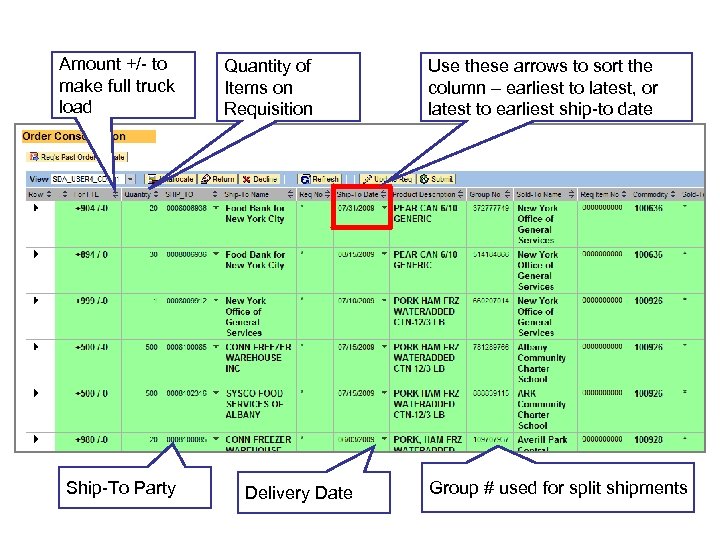
 § The aggregated line items for a single program can be created within a single order item § Line Items for different programs will create separate order items that will be automatically consolidated together by USDA Procurement § Requisition manually linked via the same group # for multi-stop shipments will create separate order items linked by the same group #
 § Each consolidated sales order item will generate a PR line item that is used in the bid invitation process once FNS approves the order § Procurement will recognize multiple lines forming FTL orders via the group # field (correlation ID)
 Amount +/- to make full truck load Ship-To Party Quantity of Items on Requisition Delivery Date Use these arrows to sort the column – earliest to latest, or latest to earliest ship-to date Group # used for split shipments
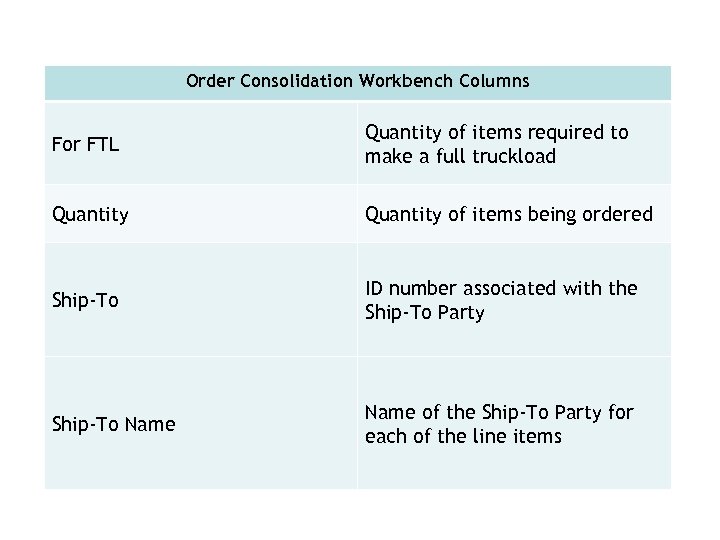 Order Consolidation Workbench Columns For FTL Quantity of items required to make a full truckload Quantity of items being ordered Ship-To ID number associated with the Ship-To Party Ship-To Name of the Ship-To Party for each of the line items
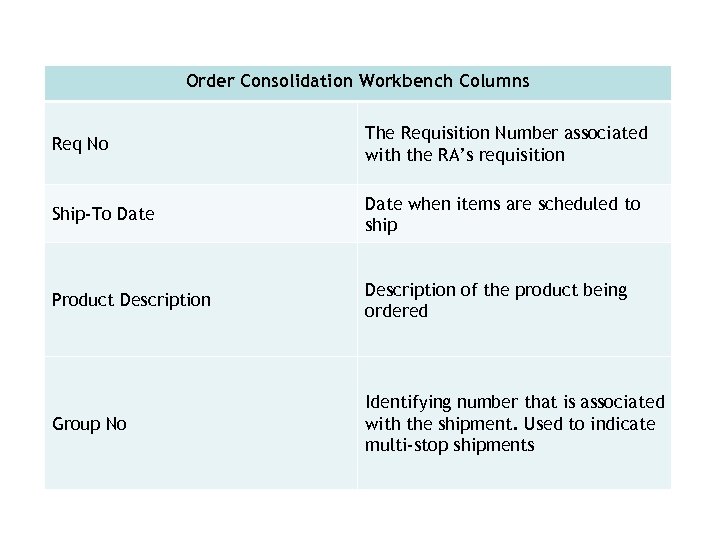 Order Consolidation Workbench Columns Req No The Requisition Number associated with the RA’s requisition Ship-To Date when items are scheduled to ship Product Description of the product being ordered Group No Identifying number that is associated with the shipment. Used to indicate multi-stop shipments
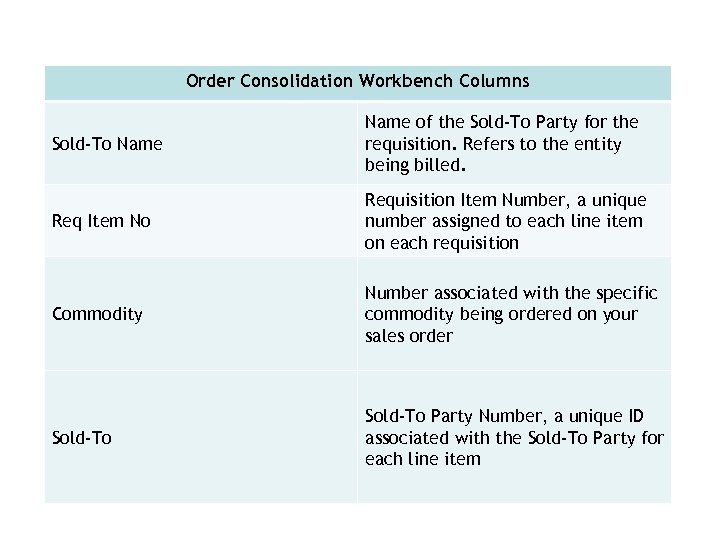 Order Consolidation Workbench Columns Sold-To Name of the Sold-To Party for the requisition. Refers to the entity being billed. Req Item No Requisition Item Number, a unique number assigned to each line item on each requisition Commodity Number associated with the specific commodity being ordered on your sales order Sold-To Party Number, a unique ID associated with the Sold-To Party for each line item
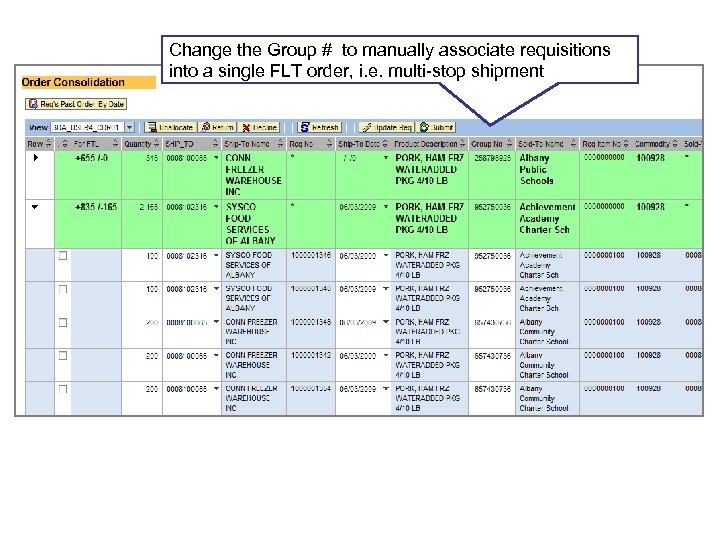 Order Consolidation Workbench: Table Change the Group # to manually associate requisitions into a single FLT order, i. e. multi-stop shipment
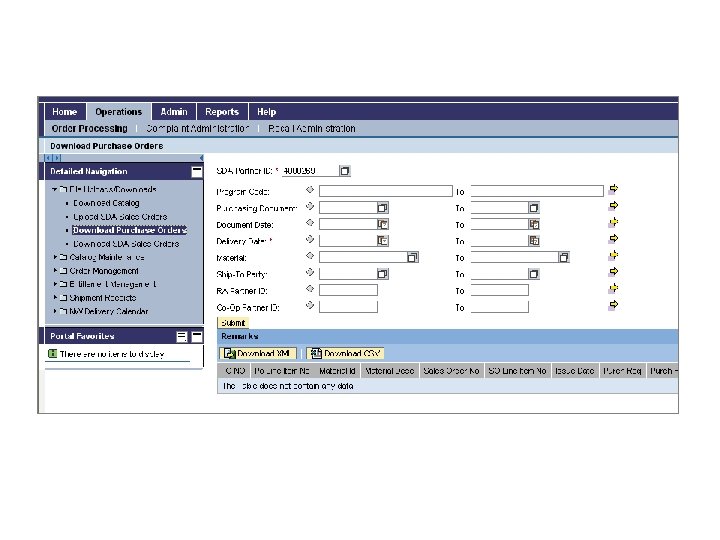
 • Auto Playback Tutorial: watch the simulation with no user input required • Standard Tutorial: guide yourself through the simulation by clicking on certain areas when prompted
 • Auto Playback Tutorial: watch the simulation with no user input required • Standard Tutorial: guide yourself through the simulation by clicking on certain areas when prompted
 • Auto Playback Tutorial: watch the simulation with no user input required • Standard Tutorial: guide yourself through the simulation by clicking on certain areas when prompted
 • Auto Playback Tutorial: watch the simulation with no user input required • Standard Tutorial: guide yourself through the simulation by clicking on certain areas when prompted

 1. When does a Requisition become a Sales Order? A. When all purchases are approved B. When the order manager consolidates the requisitions and clicks “Create Order” and submits to FNS for approval C. As soon as the Order Manager consolidates 2. Requisitions from Co-ops and RAs should be consolidated by _____. A. Material B. Delivery Date C. Ship-to C. All of the above
 Lesson Objectives • Describe the Order Approval Process
 • After the SDA approves and consolidates requisitions the order goes to FNS for approval • FNS Order Manager may approve or reject orders • FNS may change the functional area or change commitment item to statistical if the default functional area does not have enough funding in Mass Order Update
 Common reasons for rejection include: – Item cannot be procured / shortfall situation – SDA exceeded its entitlements budget – SDA notified FNS of an error and asked that it be returned – Lack of program funds
 • The FNS Order Manager will receive the sales order • They can complete the following: - Approve - Reject - Cancel
 • If changes are required, FNS Order Manager can do one of the following: -Send the Sales Order back to the SDA to change the requisition and then resubmit - Make the necessary changes to the order themselves • Once the change is made to the requisition, the sales order is updated and routed back to the FNS with a new status
 SDA Order Managers can change the following fields: – Quantities – Delivery Date – Ship-To (delivery location)
 • FSA, AMS, and/or FNS update the Sales Order Item Category to source it out of the Price Support or mark it as further processing item • The Sales Order Item Category identifies the type of sales order and how it is being sourced
 • Status updates can happen manually or automatically as the Sales Order works its way through workflow • Not every sales order line item will go through every status – Example: If an RA does not belong to a Co-op then the order would not go through the “At Co-Op Awaiting Approval” status. – Multi-food orders don’t go through the procurement process and won’t get status “on invitation” or “purchase”
 • Auto Playback Tutorial: watch the simulation with no user input required • Standard Tutorial: guide yourself through the simulation by clicking on certain areas when prompted

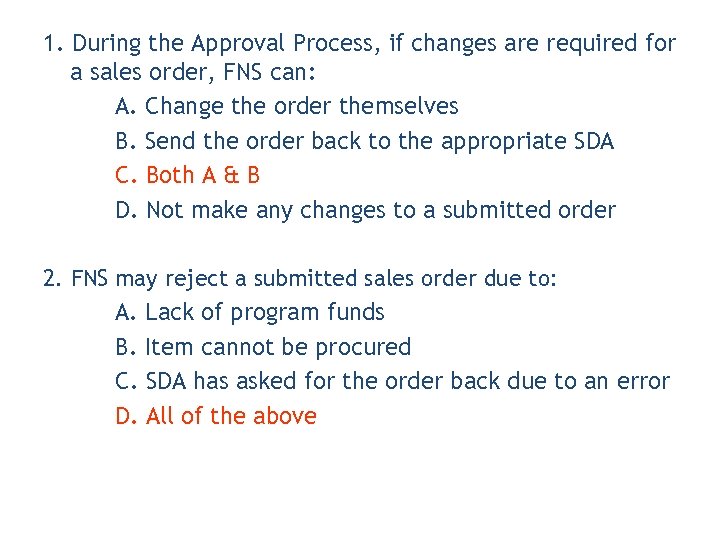 1. During the Approval Process, if changes are required for a sales order, FNS can: A. Change the order themselves B. Send the order back to the appropriate SDA C. Both A & B D. Not make any changes to a submitted order 2. FNS may reject a submitted sales order due to: A. Lack of program funds B. Item cannot be procured C. SDA has asked for the order back due to an error D. All of the above
 Lesson Objectives • Describe the types of Sales Orders
 • • Standard Domestic Emergency Barter/Exchange Further Processing Third Party Barter Redonation & Credit Memo Request Order Sourced From Price Support Substitutable Commodities
 Standard Domestic Sales Order Who does it? SDAs consolidate requisitions to create this, OR FNS creates it Why this type of Sales Order? Ship-to and Sold-to addresses are domestic What’s different than a standard sales order? It is a Standard Sales Order! What is the Item Category? Third Party no BOM (ZTDS)
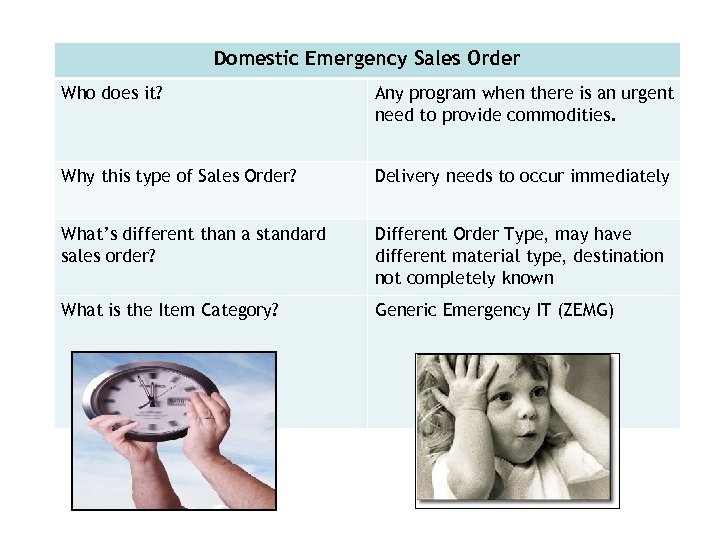 Domestic Emergency Sales Order Who does it? Any program when there is an urgent need to provide commodities. Why this type of Sales Order? Delivery needs to occur immediately What’s different than a standard sales order? Different Order Type, may have different material type, destination not completely known What is the Item Category? Generic Emergency IT (ZEMG)
 Barter/Exchange Who does it? FSA Why this type of Sales Order? To provide raw commodities to a vendor in order to turn it into a finished product What’s different than a standard We will issue raw commodity out of sales order? price support warehouses and provide it to a vendor. The vendor will ship the finished product to the ship-to location identified in the sales order line. What is the Item Category? Sub Contr. Barter. Exch (ZSBT)
 Further Processing Who does it? FSA or AMS Why this type of Sales Order? To provide raw commodities to a vendor in order to turn it into a finished product What’s different than a standard sales order? We will issue raw commodity out of price support warehouses and provide it to a vendor. The vendor will use the commodity to make a different finished product to the ship-to location identified in the sales order line. What is the Item Category? Sub Contr. Barter. Exch (ZSBT)
 Third Party Barter Who does it? FNS Order Manager Why this type of Sales Order? Out sourcing to a vendor to exchange excess commodities for commodities that are needed What’s different than a standard sales order? The order is sourced from a vendor and not a warehouse What is the Item Category? Item Sent to SEAM (ZTPB)
 Redonation Sales Order & Credit Memo Request Who does it? FNS Order Manager creates a credit and redonation order Why this type of sales order If one SDA/RA buys commodities and gives it to another SDA/RA What’s different than a standard sales order? When you create a redonation order you also may create an entitlement credit/debit so that entitlements are appropriately adjusted What is the Item Category? Redonation Item Catg (ZADJ)
 • Credit Memo request is entered by FNS to credit the donating customer’s entitlement and receipt amount • Redonation placed by FNS to show that the receiving customer has gotten the commodities for reporting and entitlement purposes
 1. Domestic Customer receipts an ‘original’ order in WBSCM 2. SDA determines the ‘original’ order’s commodities will be transferred to another SDA 3. FNS Order Manager enters a Redonation Credit document 4. FNS Order Manager enters a Redonation Order
 Substitutable Commodities Who does it? FNS Order Manager Why this type of Sales Order? To allow the customer to place an order for a generic commodity but accept any of the listed substitutable commodities What’s different than a standard sales order? The substitutable commodities appear as sub-items under the generic. What is the Item Category? Dom Subs w/o BOM (ZSDS – Purchased) No substitution (ZNOT – Un-purchased)

 1. When do you use a Standard Domestic Sales Order? A. When the vendor does not include the cost of freight B. When Ship-To and Sold-To are domestic C. When Ship-To and Sold-To are International D. When surprise of existing food can be used for exchange 2. True or False: A Credit Memo request is entered by FNS to credit the donating customer’s entitlement and receipt amount A. True B. False
 Lesson Objectives • Describe the Receipting process
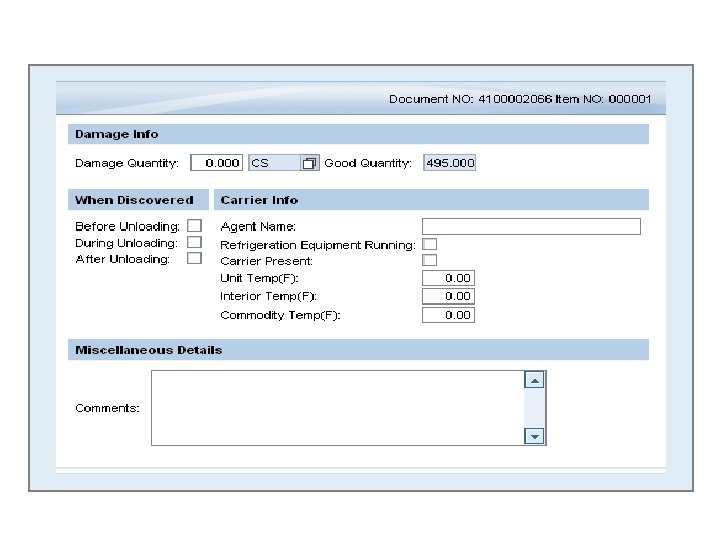
 Provide details such as: • What was received? • When was shipment received? • Who signed for it? • Are there any damages?
 • Verify the quality of goods received • Calculate the delivery shortage or overage • Integral part in the Recall/Complaints Process
 Who enters a customer shipment receipt? • Order Manager • Ship-To Org Admin • Contracting Officer You have the ability to either: • Enter receipt(s) • Upload receipt(s)
 • Shipment Receipt(s) may be uploaded to WBSCM • Receipt file to be uploaded must be an XML file
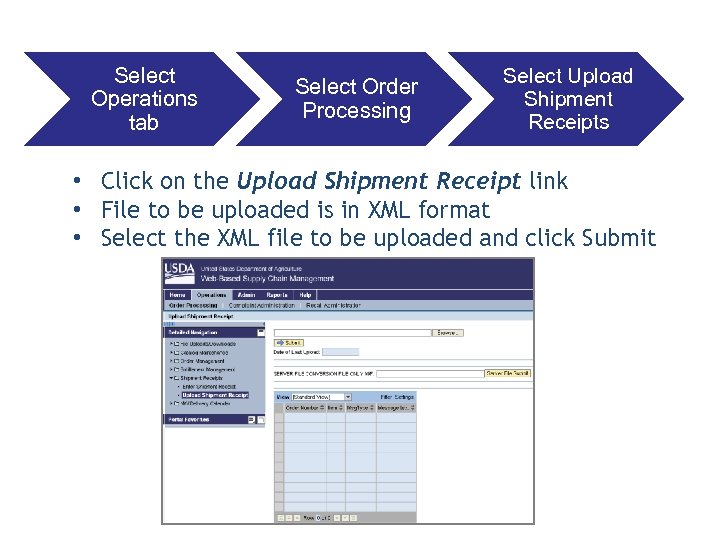 Initial Reporting Screen Select Operations tab Select Order Processing Select Upload Shipment Receipts • Click on the Upload Shipment Receipt link • File to be uploaded is in XML format • Select the XML file to be uploaded and click Submit
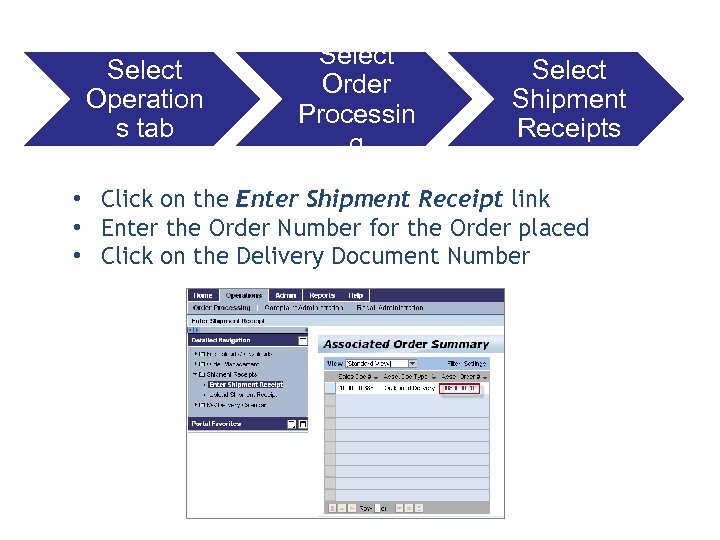 Initial Reporting Screen Select Operation s tab Select Order Processin g Select Shipment Receipts • Click on the Enter Shipment Receipt link • Enter the Order Number for the Order placed • Click on the Delivery Document Number
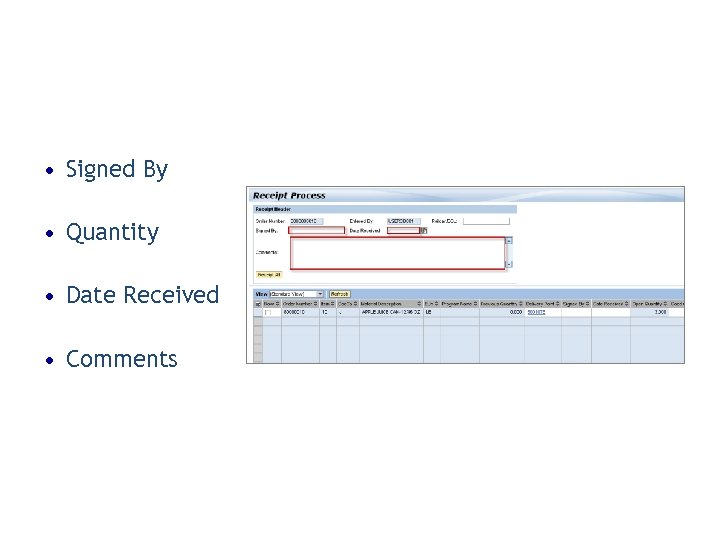 • Signed By • Quantity • Date Received • Comments
 For damaged goods, enter: • Good Quantity: actual quantity received that’s not damaged • Damaged Quantity: quantity that has been damaged due to transport, uploading, or storage • Description: descriptive information about the damaged quantities received
 Click on Submit Receipt to finish receipting the order.
 • Auto Playback Tutorial: watch the simulation with no user input required
 • Standard Tutorial: guide yourself through the simulation by clicking on certain areas when prompted

 1. A benefit of entering a shipment receipt is: A. Track Order B. Verify quality of goods C. Able to report damaged goods D. All of the above 2. The ship-to party can enter receipt. Who else can enter a shipment receipt? A. RA Org Admin B. Co-op Org Admin C. RA Org Admin D. SDA Order Manager
 Lesson Objectives • View the different reporting features and functionalities in WBSCM • View various reports in WBSCM and explain some of their features
 Reports available at your fingertips through WBSCM
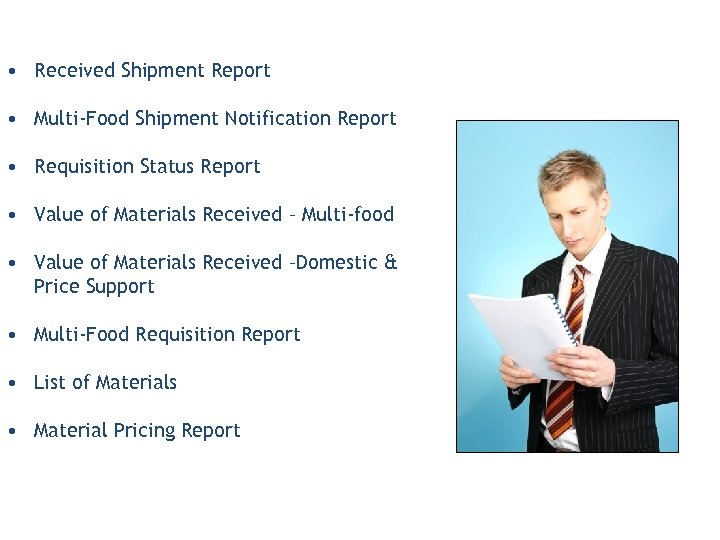 • Received Shipment Report • Multi-Food Shipment Notification Report • Requisition Status Report • Value of Materials Received – Multi-food • Value of Materials Received –Domestic & Price Support • Multi-Food Requisition Report • List of Materials • Material Pricing Report
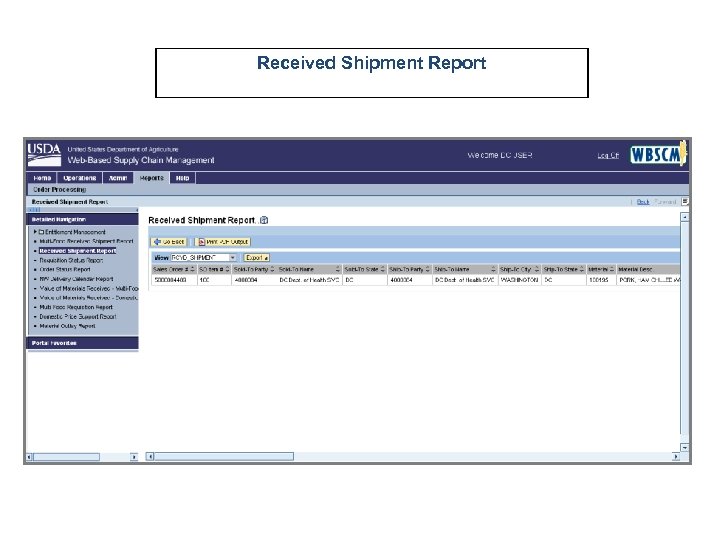 Received Shipment Report
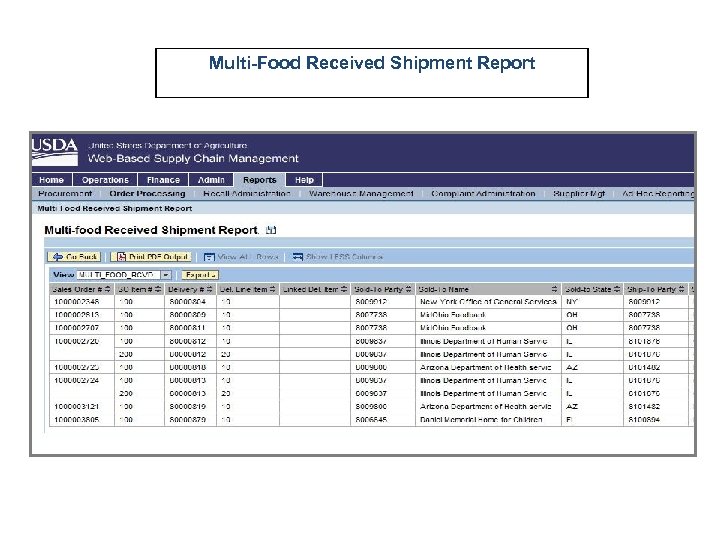 Multi-Food Received Shipment Report
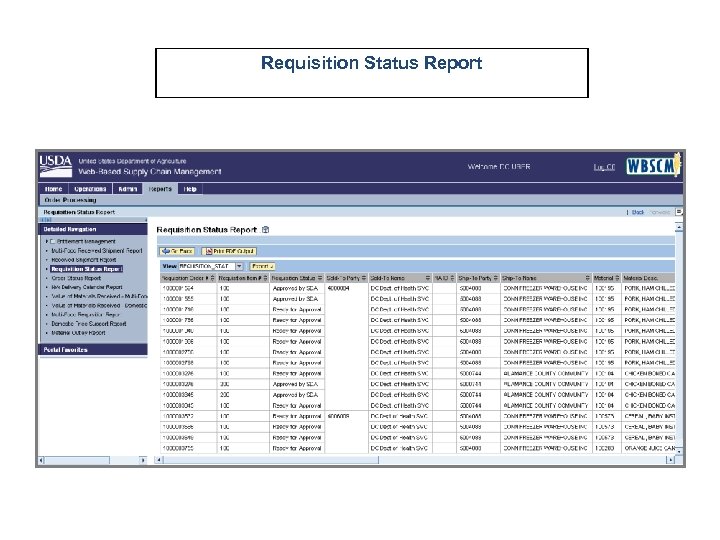 Requisition Status Report
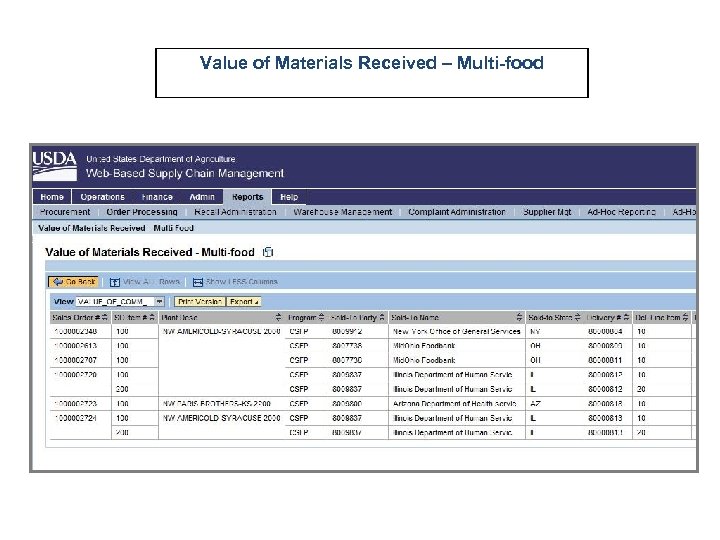 Value of Materials Received – Multi-food
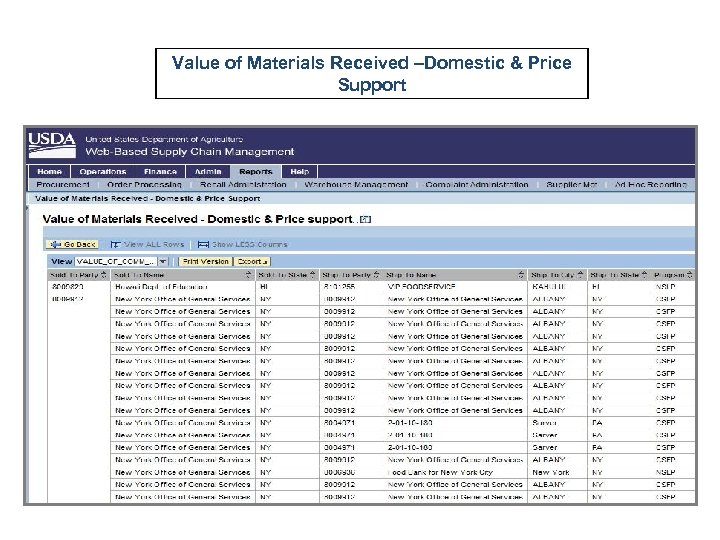 Value of Materials Received –Domestic & Price Support
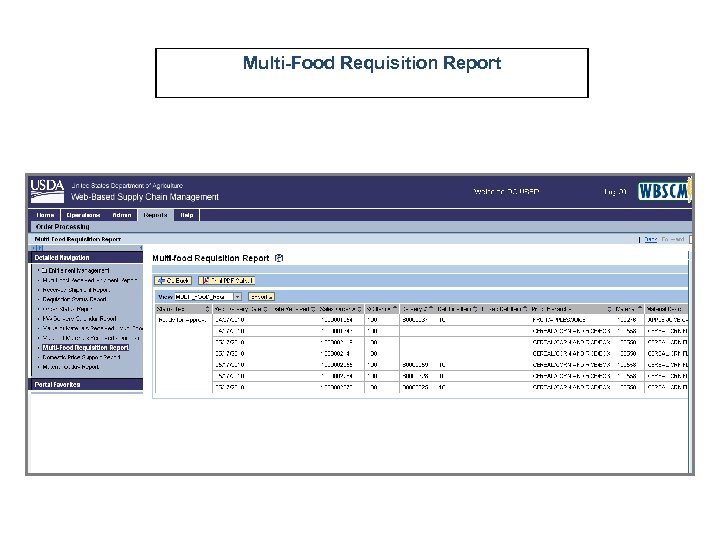 Multi-Food Requisition Report
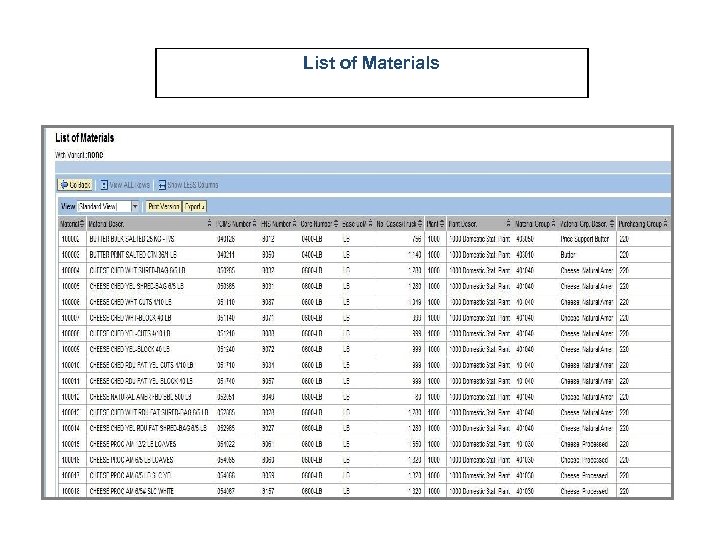 List of Materials
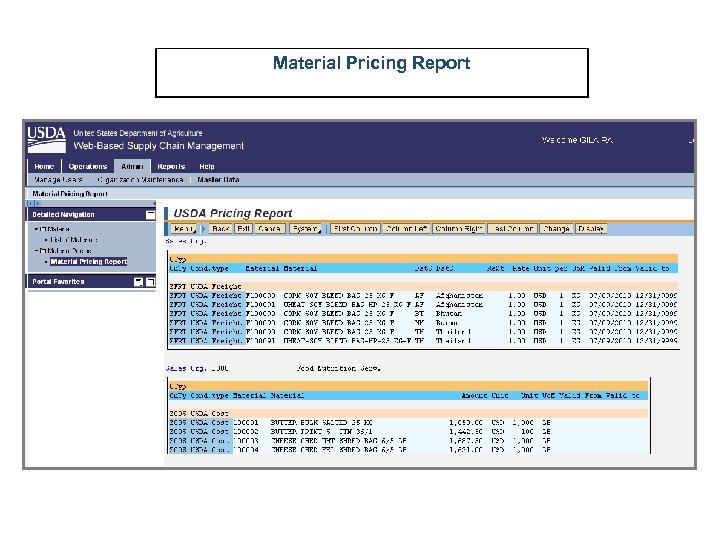 Material Pricing Report
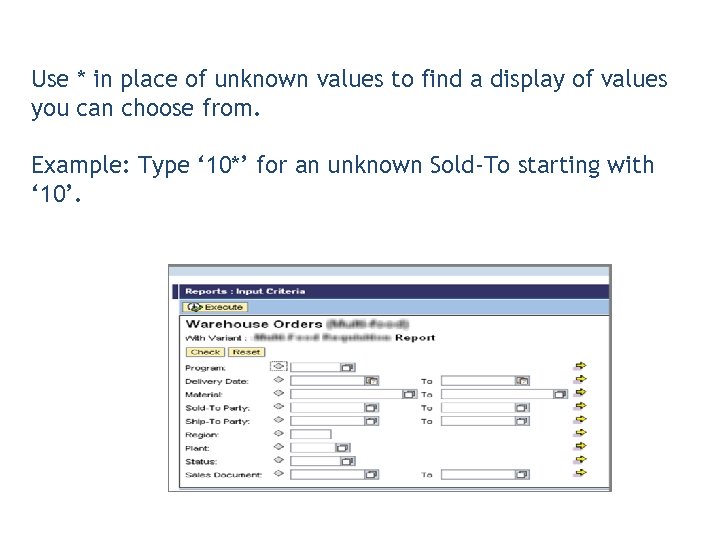 Use * in place of unknown values to find a display of values you can choose from. Example: Type ‘ 10*’ for an unknown Sold-To starting with ‘ 10’.
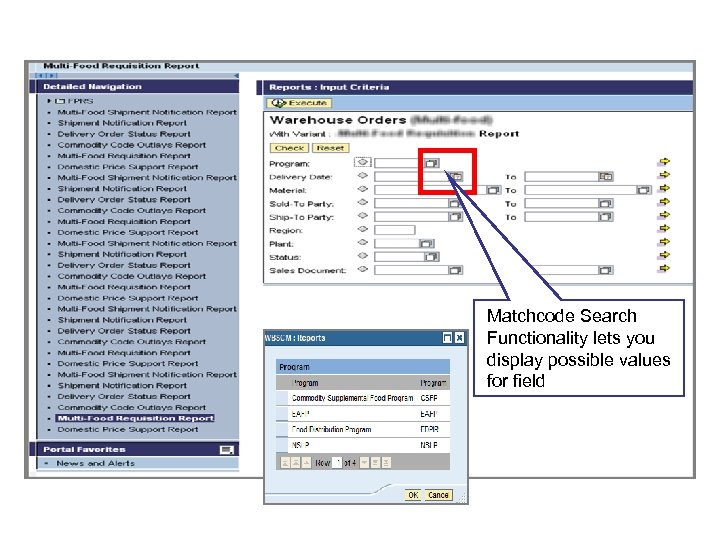 Matchcode Search Functionality lets you display possible values for field
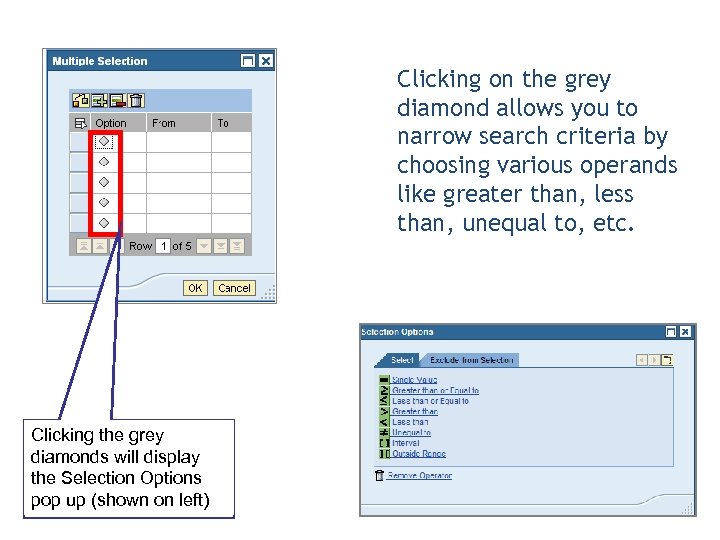 Clicking on the grey diamond allows you to narrow search criteria by choosing various operands like greater than, less than, unequal to, etc. Clicking the grey diamonds will display the Selection Options pop up (shown on left)
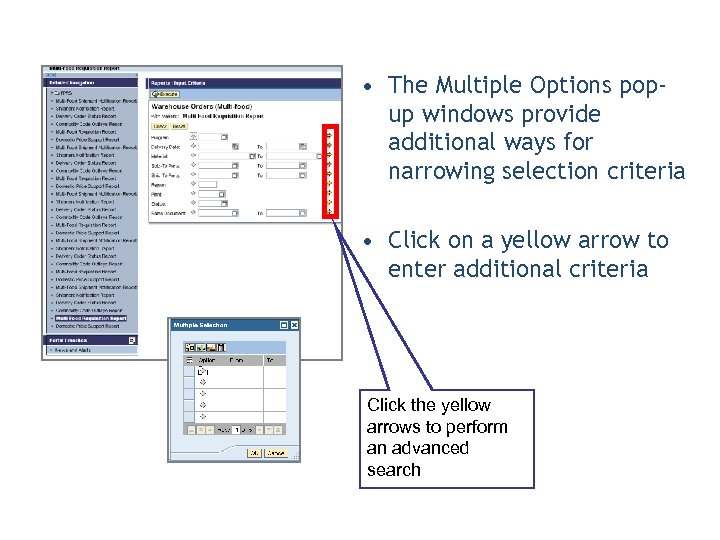 • The Multiple Options popup windows provide additional ways for narrowing selection criteria • Click on a yellow arrow to enter additional criteria Click the yellow arrows to perform an advanced search
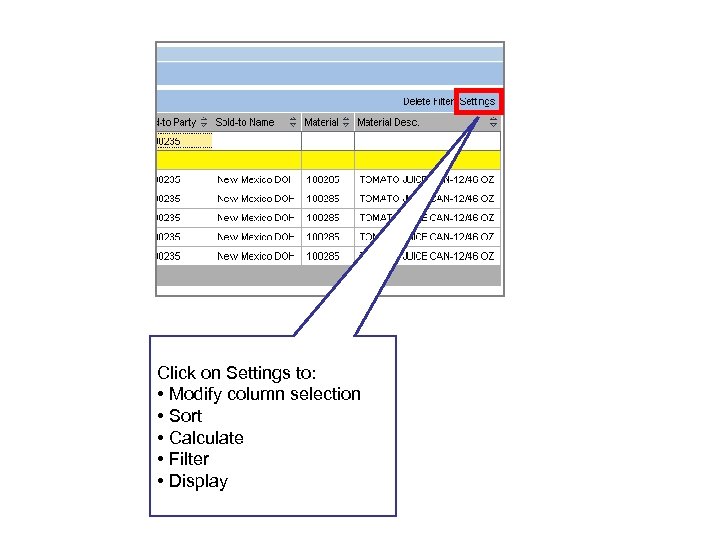 Click on Settings to: • Modify column selection • Sort • Calculate • Filter • Display
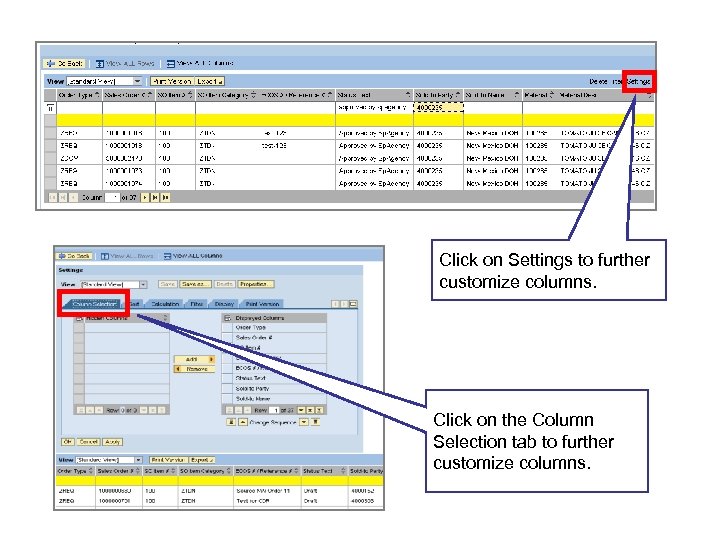 Click on Settings to further customize columns. Click on the Column Selection tab to further customize columns.
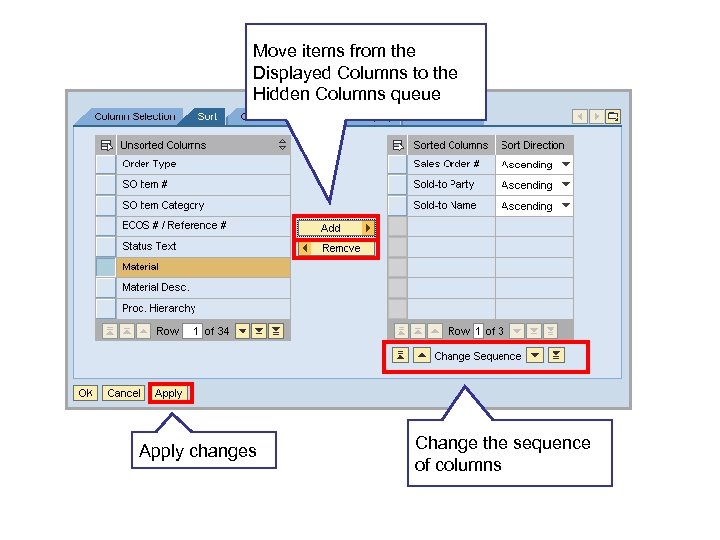 Move items from the Displayed Columns to the Hidden Columns queue Apply changes Change the sequence of columns
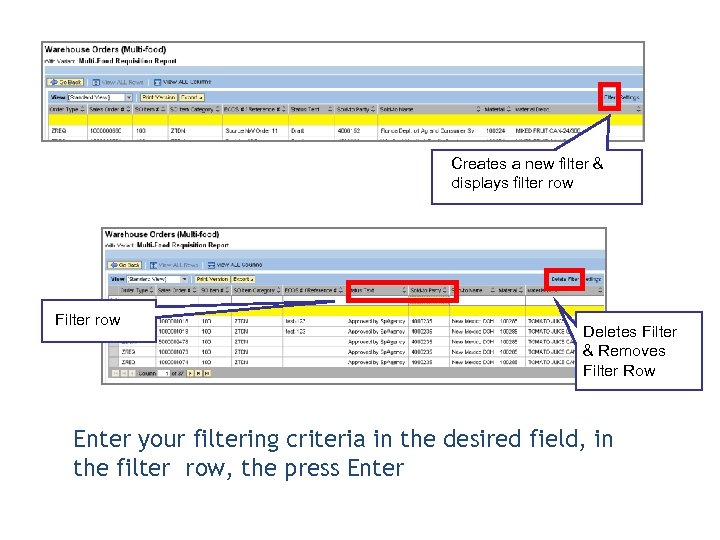 Filtering a Report Creates a new filter & displays filter row Filter row Deletes Filter & Removes Filter Row Enter your filtering criteria in the desired field, in the filter row, the press Enter
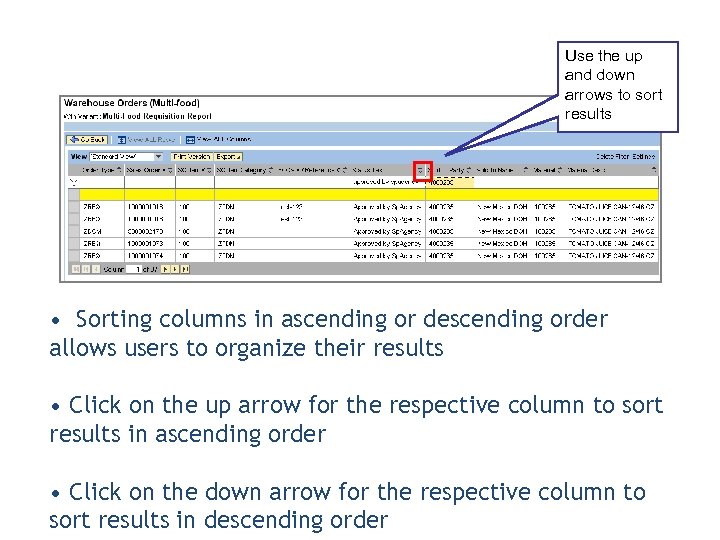 Sorting Columns in a Report Use the up and down arrows to sort results • Sorting columns in ascending or descending order allows users to organize their results • Click on the up arrow for the respective column to sort results in ascending order • Click on the down arrow for the respective column to sort results in descending order
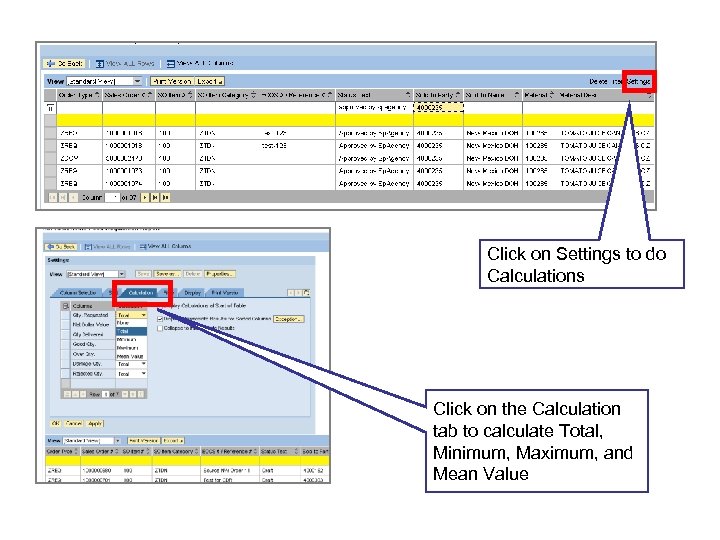 Click on Settings to do Calculations Click on the Calculation tab to calculate Total, Minimum, Maximum, and Mean Value
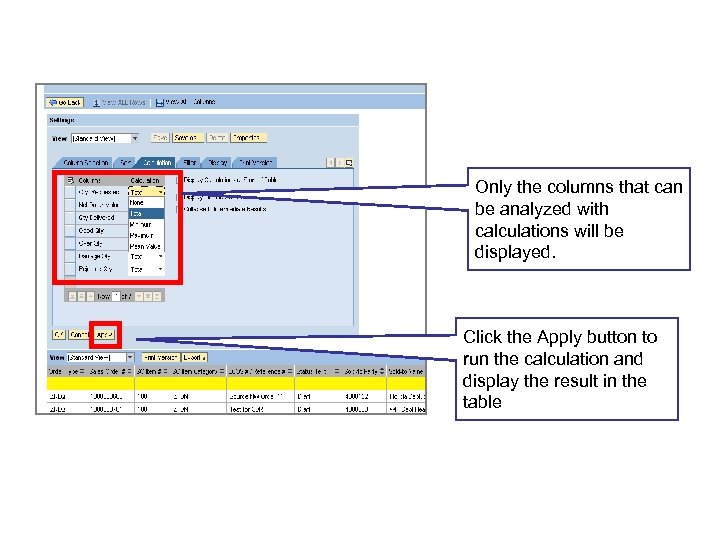 Calculation Features Only the columns that can be analyzed with calculations will be displayed. Click the Apply button to run the calculation and display the result in the table
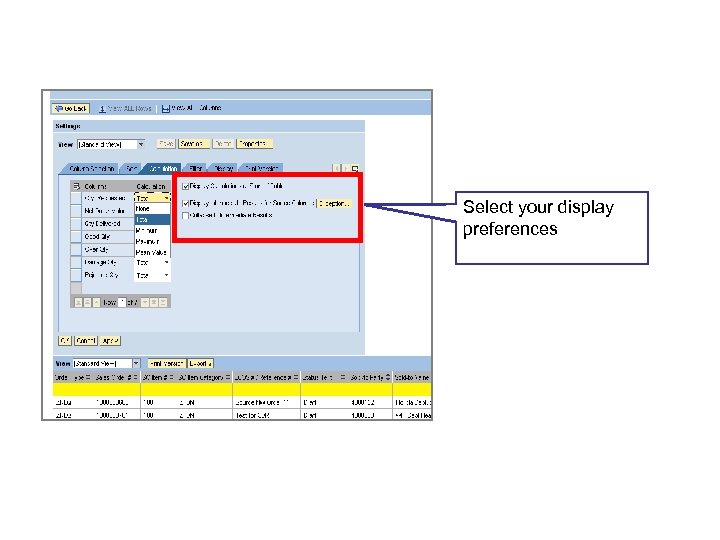 Calculation Features Select your display preferences
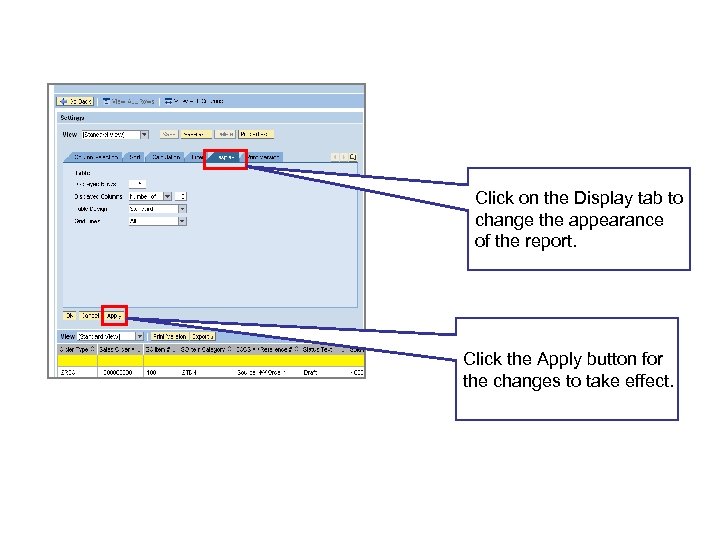 Display Functions Click on the Display tab to change the appearance of the report. Click the Apply button for the changes to take effect.
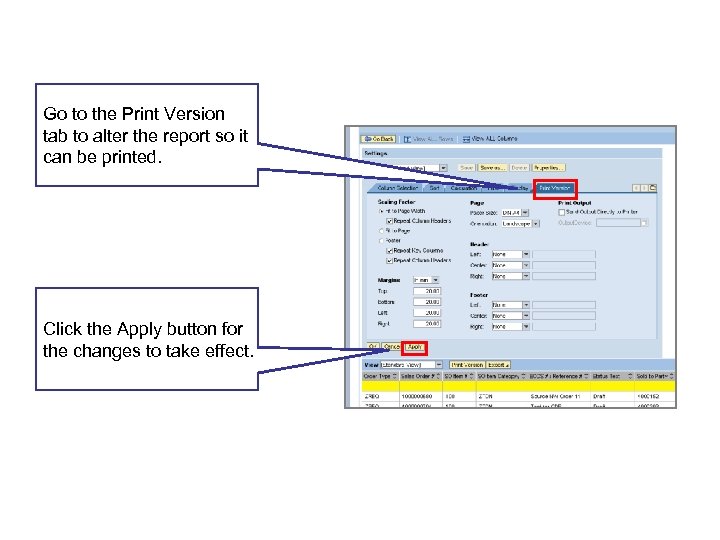 Display Functions Go to the Print Version tab to alter the report so it can be printed. Click the Apply button for the changes to take effect.
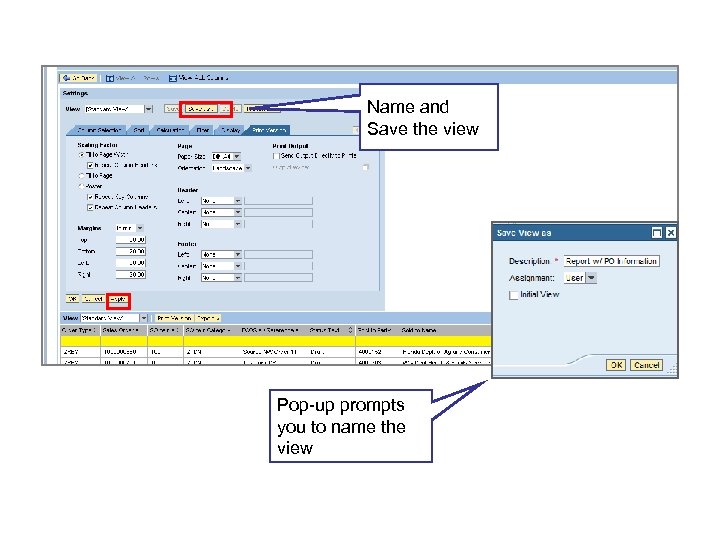 Name and Save the view Pop-up prompts you to name the view
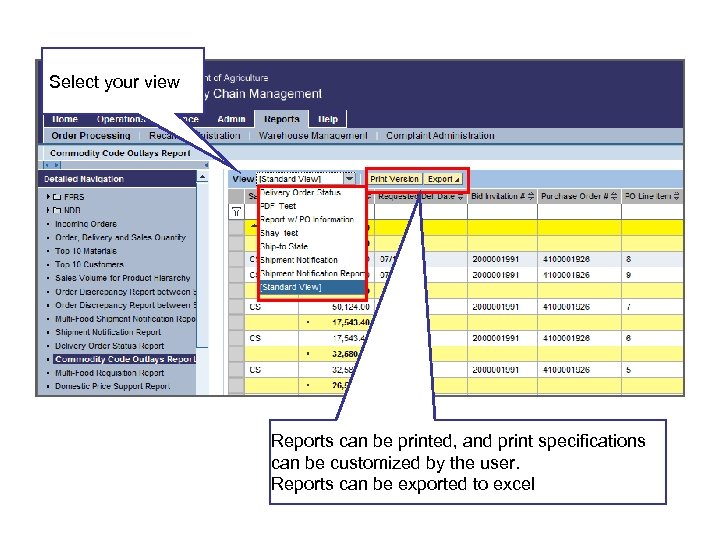 Select your view Reports can be printed, and print specifications can be customized by the user. Reports can be exported to excel
 • Auto Playback Tutorial: watch the simulation with no user input required
 • Standard Tutorial: guide yourself through the simulation by clicking on certain areas when prompted

 1. The Reporting functionality includes: A. Filtering B. Displaying C. Calculating D. All of the above 2. To access the desired report, follow Reports tab to _____. A. Order Processing B. Complaint Administration C. Recall Administration D. None of the above.
 You have successfully completed your e. Learning course! Thank You!