Скачать презентацию Exporting User Certificate from Internet Explorer Down
6ee5ac5a01bec2cea0f0f70cc8defda4.ppt
- Количество слайдов: 18
 Exporting User Certificate from Internet Explorer
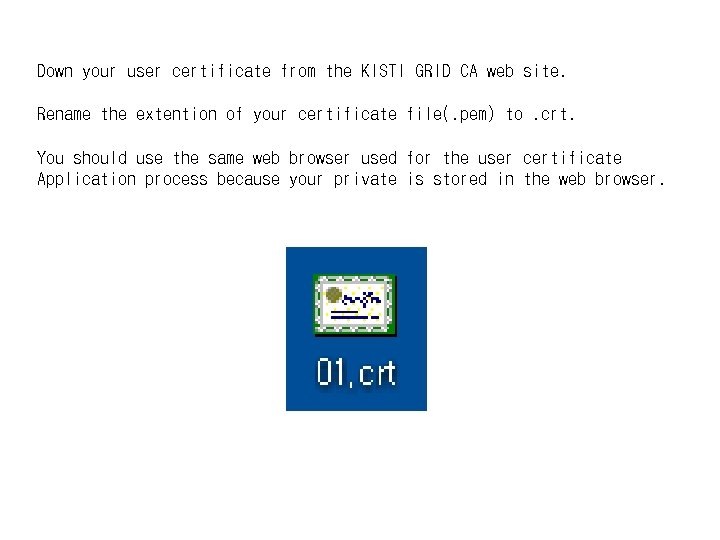 Down your user certificate from the KISTI GRID CA web site. Rename the extention of your certificate file(. pem) to. crt. You should use the same web browser used for the user certificate Application process because your private is stored in the web browser.
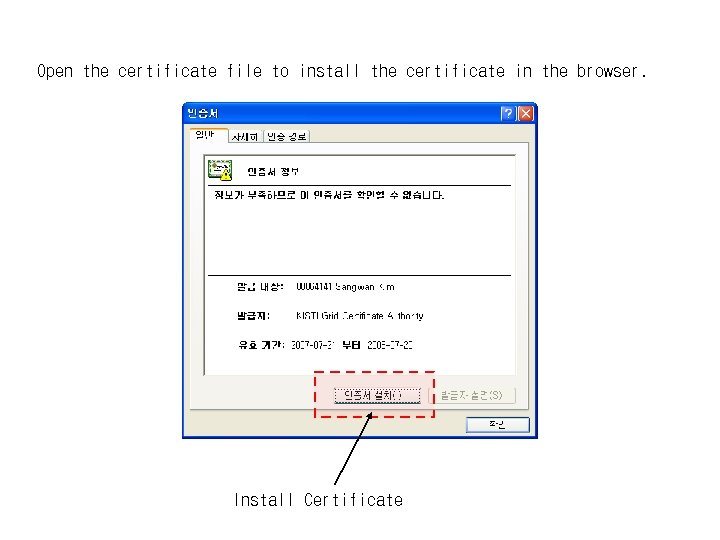 Open the certificate file to install the certificate in the browser. Install Certificate
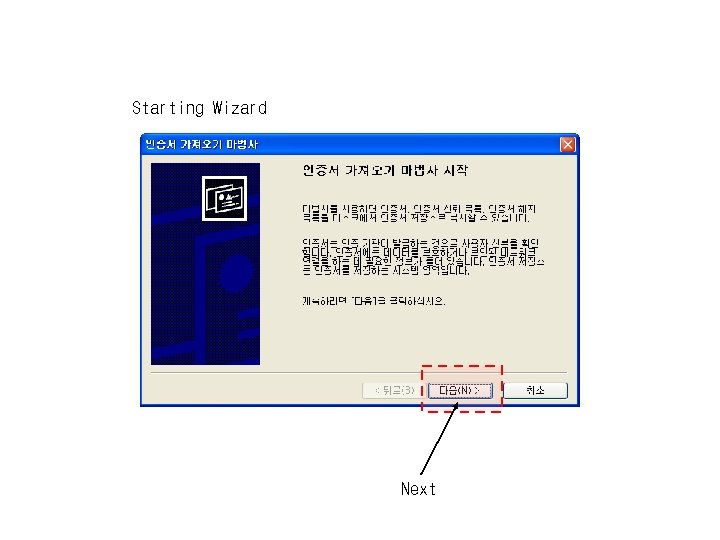 Starting Wizard Next
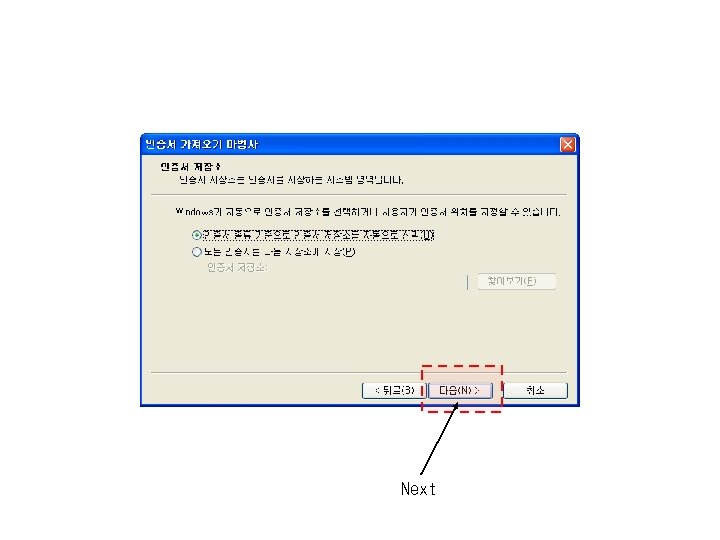 Next
Next
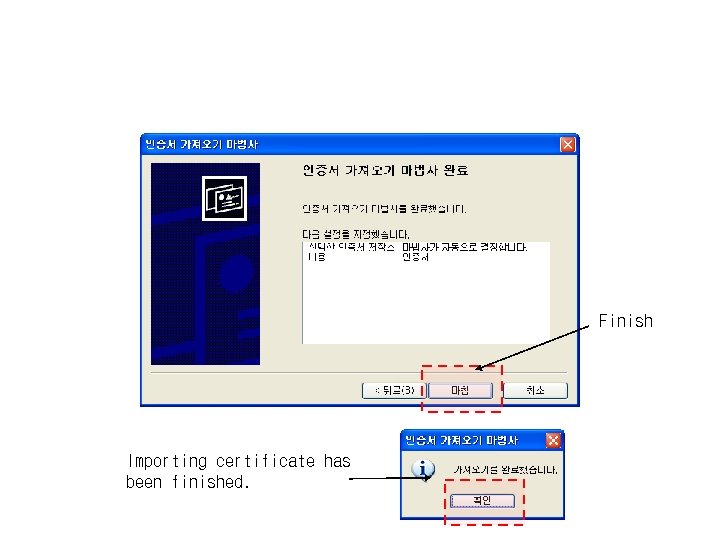 Finish Importing certificate has been finished.
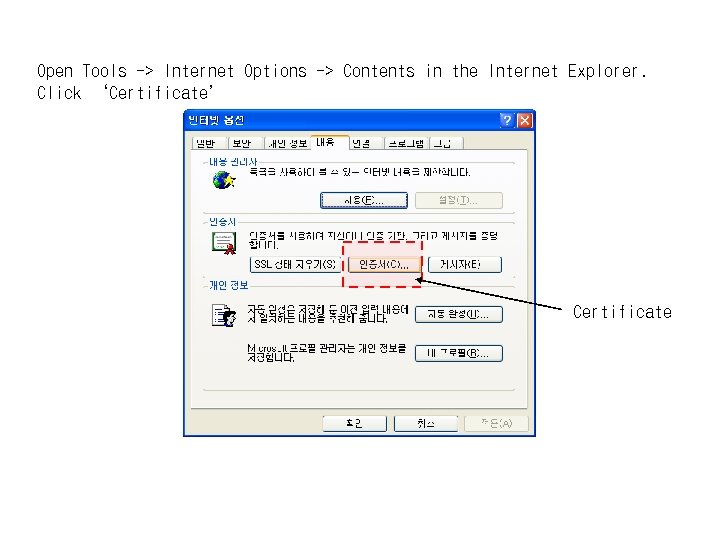 Open Tools -> Internet Options -> Contents in the Internet Explorer. Click ‘Certificate’ Certificate
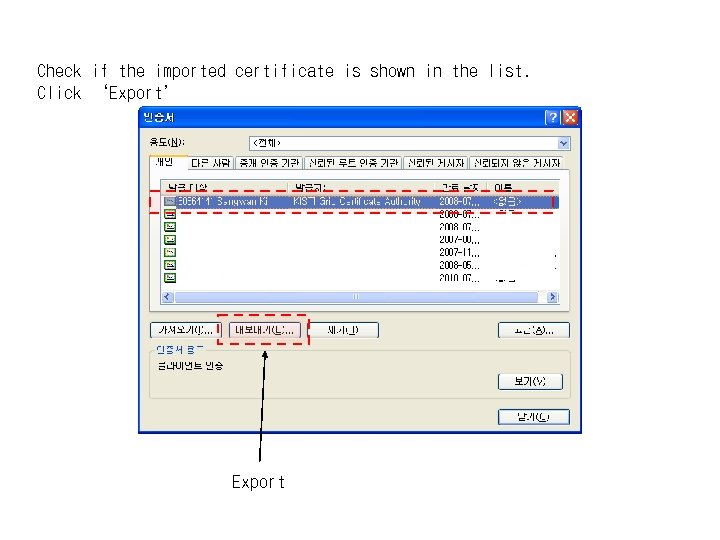 Check if the imported certificate is shown in the list. Click ‘Export’ Export
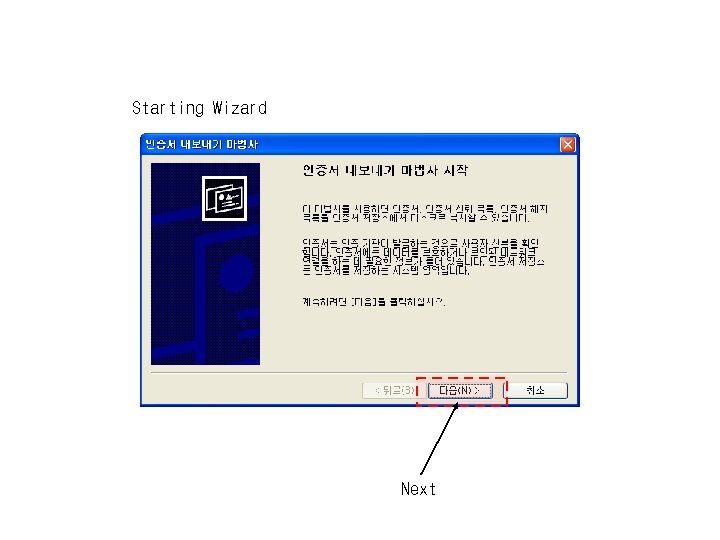 Starting Wizard Next
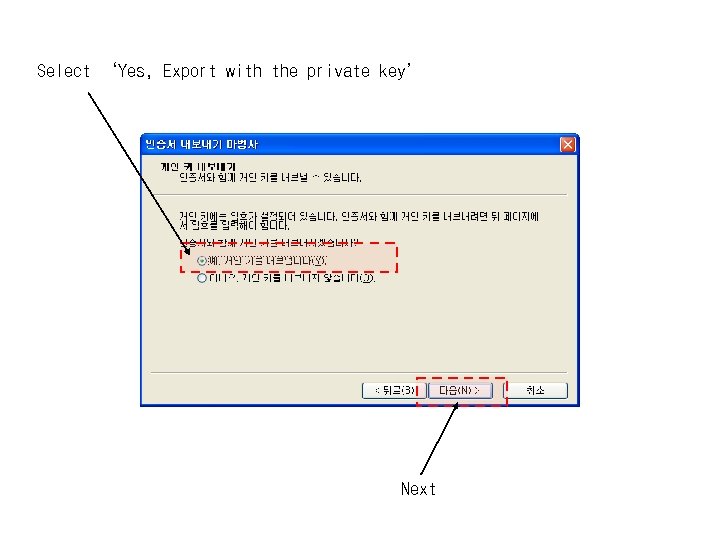 Select ‘Yes, Export with the private key’ Next
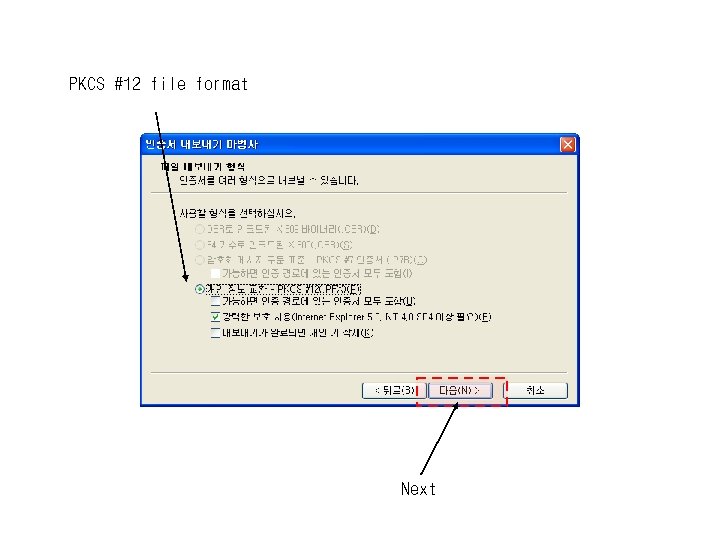 PKCS #12 file format Next
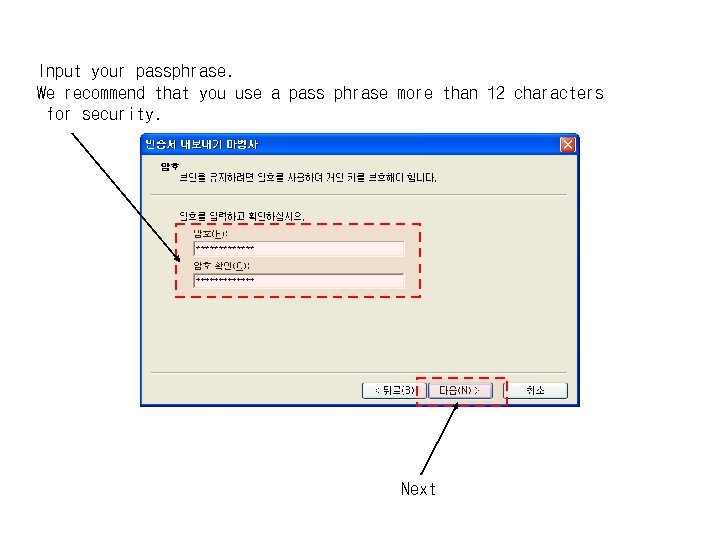 Input your passphrase. We recommend that you use a pass phrase more than 12 characters for security. Next
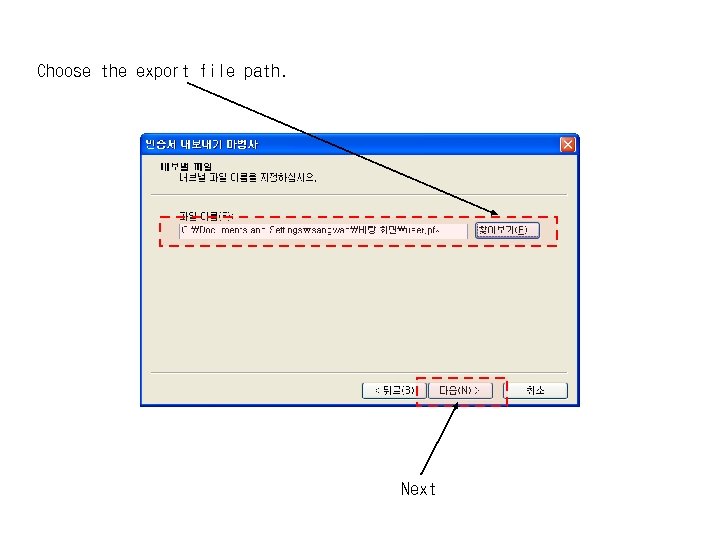 Choose the export file path. Next
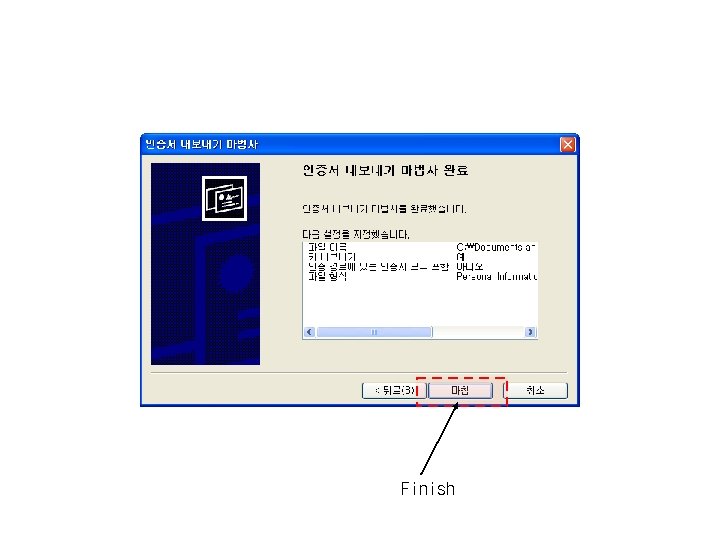 Finish
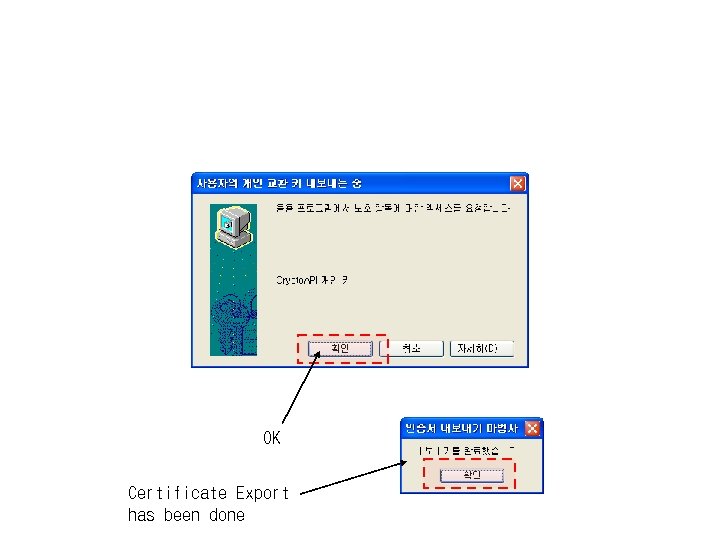 OK Certificate Export has been done
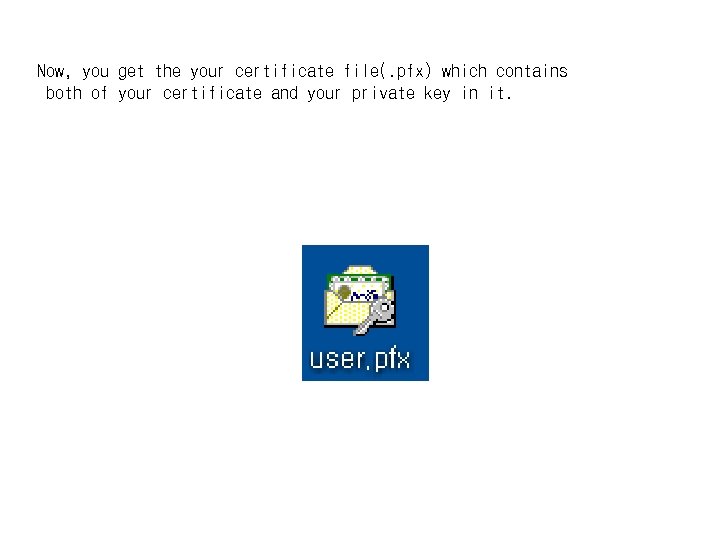 Now, you get the your certificate file(. pfx) which contains both of your certificate and your private key in it.
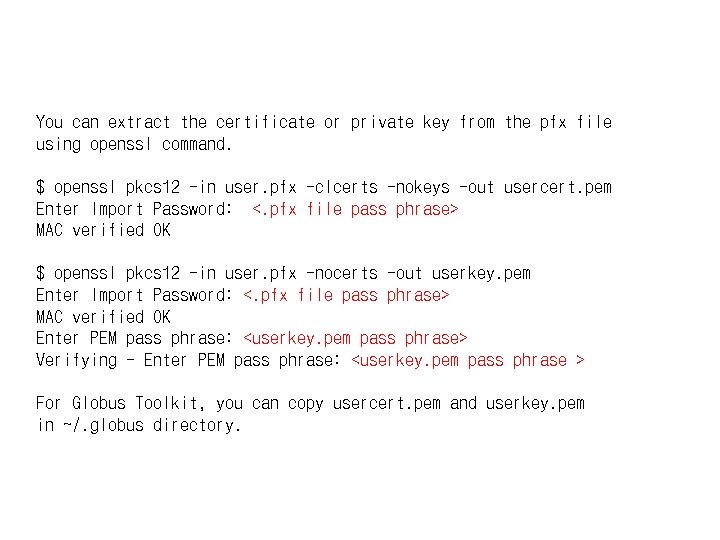 You can extract the certificate or private key from the pfx file using openssl command. $ openssl pkcs 12 -in user. pfx -clcerts -nokeys -out usercert. pem Enter Import Password: <. pfx file pass phrase> MAC verified OK $ openssl pkcs 12 -in user. pfx -nocerts -out userkey. pem Enter Import Password: <. pfx file pass phrase> MAC verified OK Enter PEM pass phrase: