 Скачать презентацию Expansion Bus Chapter 6 2007 The Mc
778fa7fb069e433f0c1a6cc46168710b.ppt
- Количество слайдов: 40



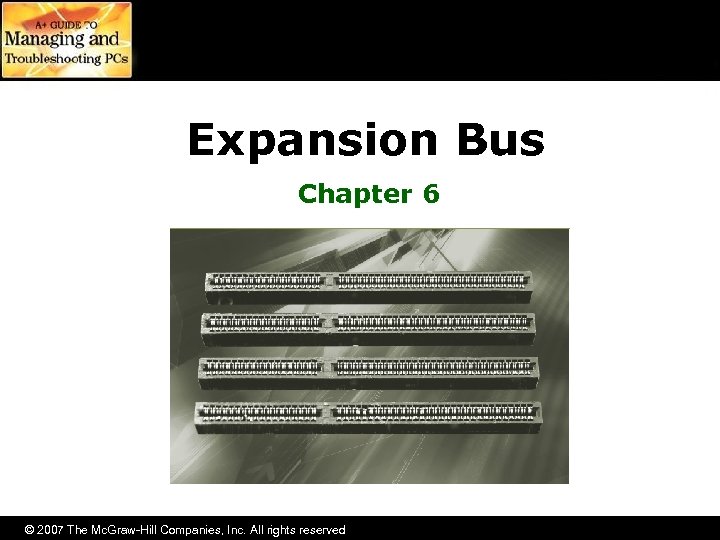
Expansion Bus Chapter 6 © 2007 The Mc. Graw-Hill Companies, Inc. All rights reserved
Overview • In this chapter, you will learn to – Identify the structure and function of the expansion bus – Explain classic system resources – Identify the modern expansion bus slots – Install expansion cards properly – Troubleshoot expansion card problems © 2007 The Mc. Graw-Hill Companies, Inc. All rights reserved
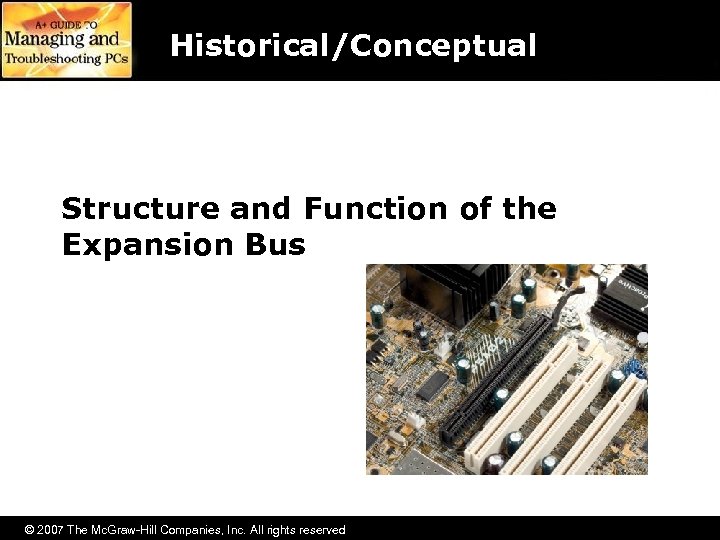
Historical/Conceptual Structure and Function of the Expansion Bus © 2007 The Mc. Graw-Hill Companies, Inc. All rights reserved
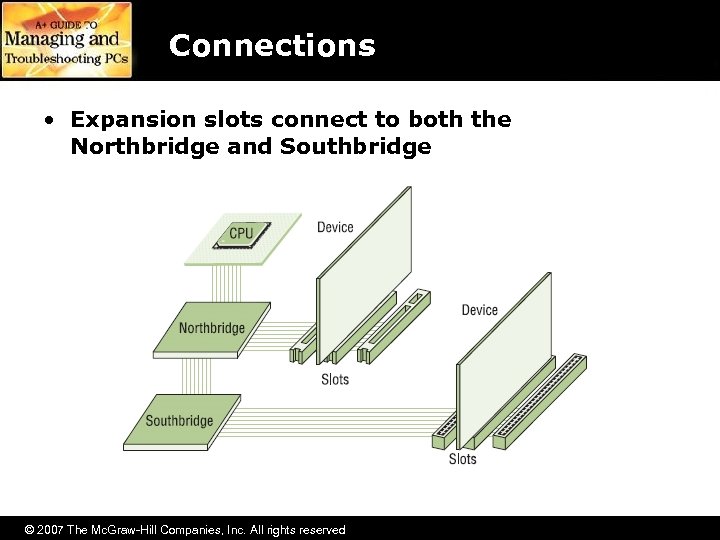
Connections • Expansion slots connect to both the Northbridge and Southbridge © 2007 The Mc. Graw-Hill Companies, Inc. All rights reserved
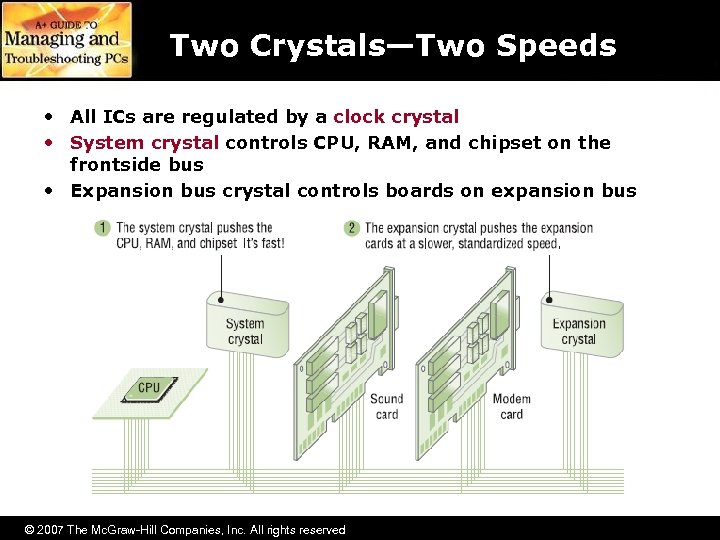
Two Crystals—Two Speeds • All ICs are regulated by a clock crystal • System crystal controls CPU, RAM, and chipset on the frontside bus • Expansion bus crystal controls boards on expansion bus © 2007 The Mc. Graw-Hill Companies, Inc. All rights reserved
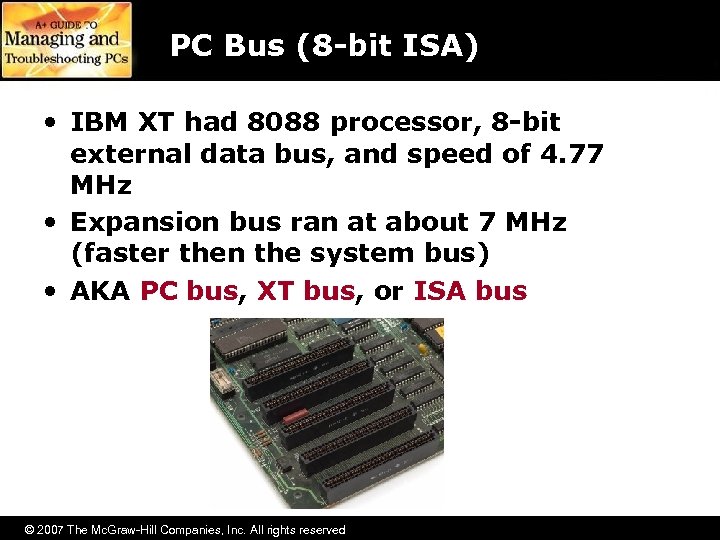
PC Bus (8 -bit ISA) • IBM XT had 8088 processor, 8 -bit external data bus, and speed of 4. 77 MHz • Expansion bus ran at about 7 MHz (faster then the system bus) • AKA PC bus, XT bus, or ISA bus © 2007 The Mc. Graw-Hill Companies, Inc. All rights reserved
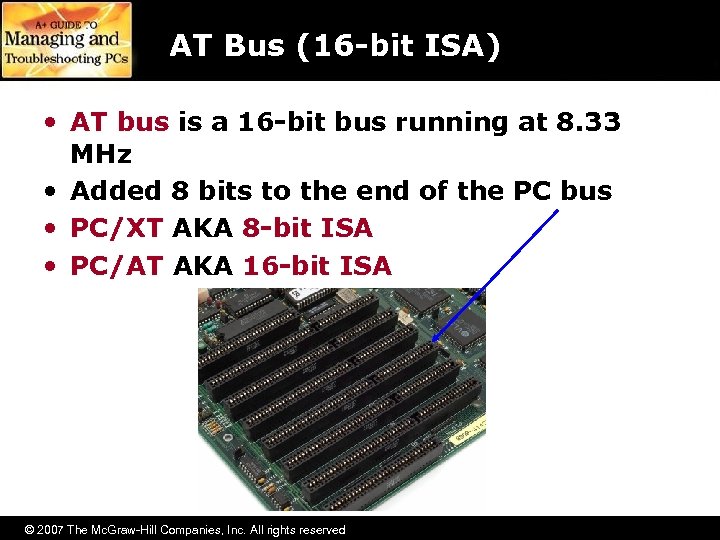
AT Bus (16 -bit ISA) • AT bus is a 16 -bit bus running at 8. 33 MHz • Added 8 bits to the end of the PC bus • PC/XT AKA 8 -bit ISA • PC/AT AKA 16 -bit ISA © 2007 The Mc. Graw-Hill Companies, Inc. All rights reserved
Essentials Comp. TIA A+ Essentials Modern Expansion Bus © 2007 The Mc. Graw-Hill Companies, Inc. All rights reserved
False Starts—Dead Today • Microchannel Architecture (MCA) – MCA had a 32 -bit bus to match the 386 CPU’s external data bus with a speed of 12 MHz • Extended ISA (EISA) – (EE-sah) was a 32 -bit self-configuring expansion bus that was cheaper than MCA • Video Electronics Standards Association (VESA) – Designed to solve the problems of speed and throughput © 2007 The Mc. Graw-Hill Companies, Inc. All rights reserved
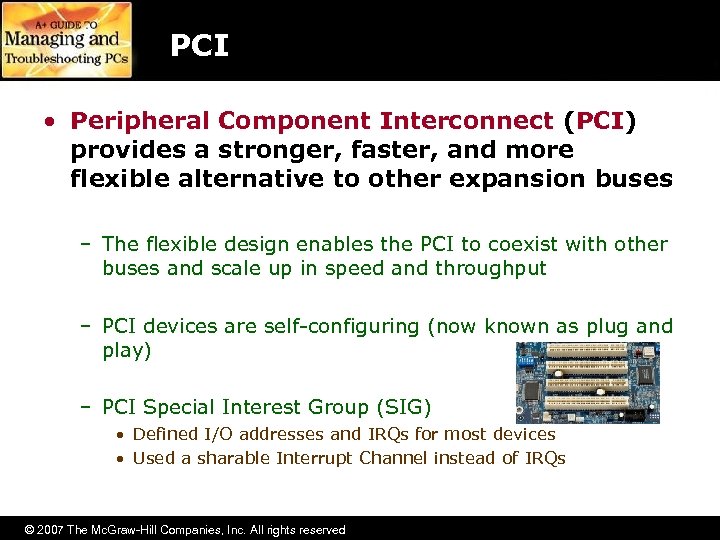
PCI • Peripheral Component Interconnect (PCI) provides a stronger, faster, and more flexible alternative to other expansion buses – The flexible design enables the PCI to coexist with other buses and scale up in speed and throughput – PCI devices are self-configuring (now known as plug and play) – PCI Special Interest Group (SIG) • Defined I/O addresses and IRQs for most devices • Used a sharable Interrupt Channel instead of IRQs © 2007 The Mc. Graw-Hill Companies, Inc. All rights reserved
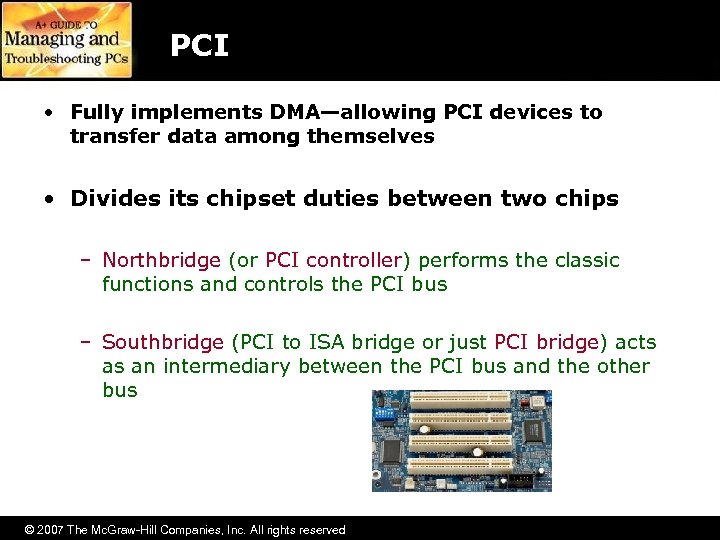
PCI • Fully implements DMA—allowing PCI devices to transfer data among themselves • Divides its chipset duties between two chips – Northbridge (or PCI controller) performs the classic functions and controls the PCI bus – Southbridge (PCI to ISA bridge or just PCI bridge) acts as an intermediary between the PCI bus and the other bus © 2007 The Mc. Graw-Hill Companies, Inc. All rights reserved
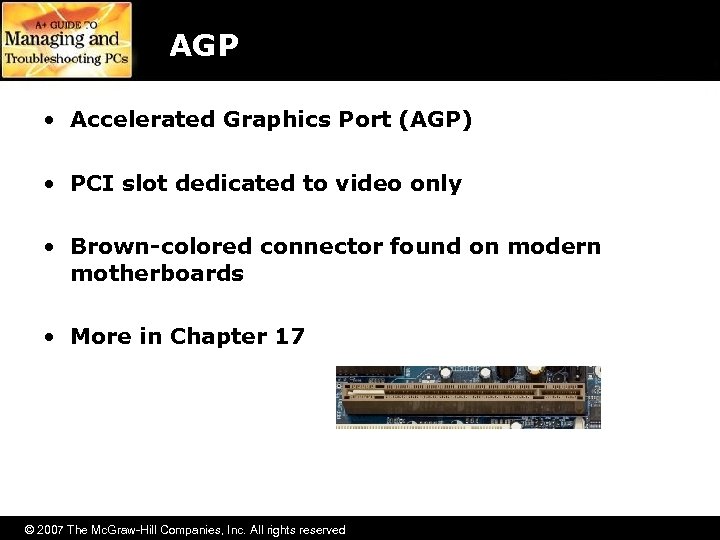
AGP • Accelerated Graphics Port (AGP) • PCI slot dedicated to video only • Brown-colored connector found on modern motherboards • More in Chapter 17 © 2007 The Mc. Graw-Hill Companies, Inc. All rights reserved
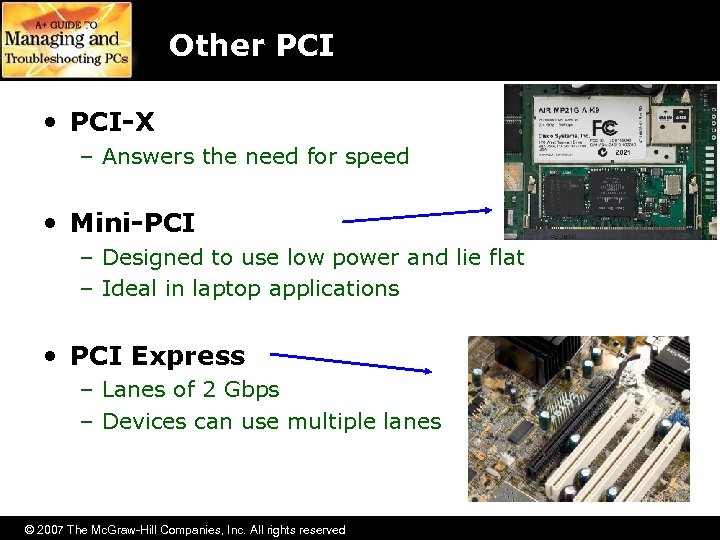
Other PCI • PCI-X – Answers the need for speed • Mini-PCI – Designed to use low power and lie flat – Ideal in laptop applications • PCI Express – Lanes of 2 Gbps – Devices can use multiple lanes © 2007 The Mc. Graw-Hill Companies, Inc. All rights reserved
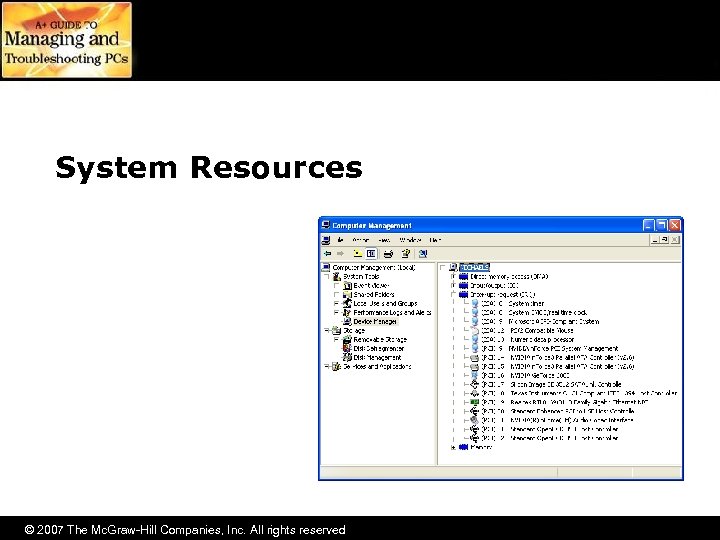
System Resources © 2007 The Mc. Graw-Hill Companies, Inc. All rights reserved
System Resources • Expansion cards and the CPU need some way to communicate • System resources help to define how communication occurs – – I/O addresses IRQs DMA channels Memory addresses • Rarely need to adjust today – Plug and play takes care of most of the work © 2007 The Mc. Graw-Hill Companies, Inc. All rights reserved
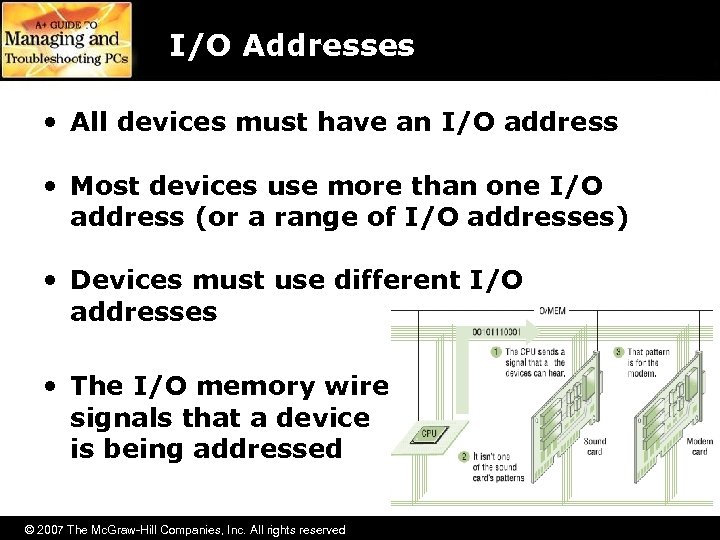
I/O Addresses • All devices must have an I/O address • Most devices use more than one I/O address (or a range of I/O addresses) • Devices must use different I/O addresses • The I/O memory wire signals that a device is being addressed © 2007 The Mc. Graw-Hill Companies, Inc. All rights reserved
I/O Address Terminology • When talking about I/O addresses, drop the leading zeroes (1 F 0…not 01 F 0) • Every device gets a range of addresses • The first I/O address is base I/O address • Put an “h” on the end of the value to specify hex (1 F 0 h) • I/O addresses provide two-way communication (CPU to/from device) © 2007 The Mc. Graw-Hill Companies, Inc. All rights reserved
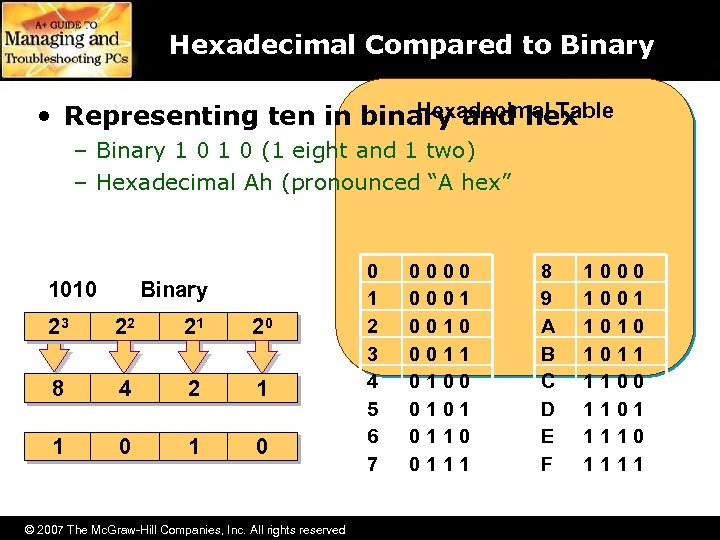
Hexadecimal Compared to Binary Hexadecimal Table • Representing ten in binary and hex – Binary 1 0 (1 eight and 1 two) – Hexadecimal Ah (pronounced “A hex” 1010 Binary 23 22 21 20 8 4 2 1 1 0 © 2007 The Mc. Graw-Hill Companies, Inc. All rights reserved 0 1 2 3 4 5 6 7 0000 0001 0010 0011 0100 0101 0110 0111 8 9 A B C D E F 1000 1001 1010 1011 1100 1101 1110 1111
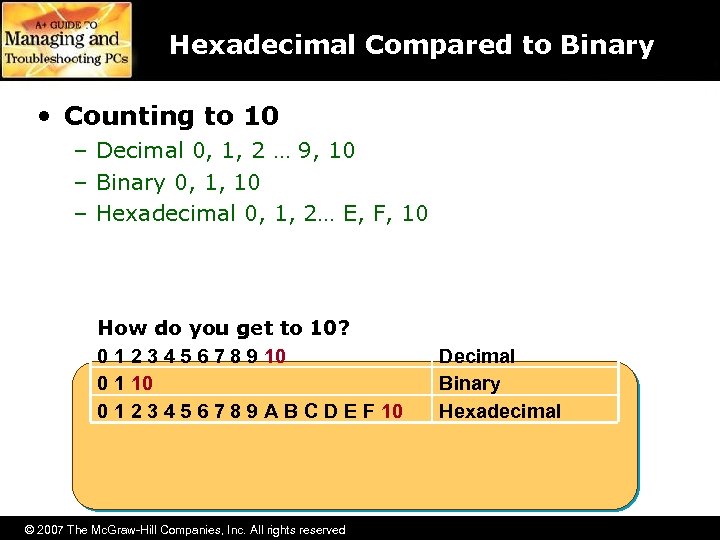
Hexadecimal Compared to Binary • Counting to 10 – Decimal 0, 1, 2 … 9, 10 – Binary 0, 1, 10 – Hexadecimal 0, 1, 2… E, F, 10 How do you get to 10? 0 1 2 3 4 5 6 7 8 9 10 0 1 2 3 4 5 6 7 8 9 A B C D E F 10 © 2007 The Mc. Graw-Hill Companies, Inc. All rights reserved Decimal Binary Hexadecimal
Interrupts • The CPU can initiate a conversation with any device at will • Any device may talk to the CPU, but how does a device get the CPU’s attention? • Devices use the interruption mechanism to gain the attention of the CPU by placing a voltage on a special wire called the INT (interrupt) wire © 2007 The Mc. Graw-Hill Companies, Inc. All rights reserved
Interrupts • Multiple devices, but only one INT • Devices use IRQs (interrupt requests) – Separate IRQ for each device – I/O Advanced Programmable Interrupt Controller (IOAPIC) manages IRQs • IRQs numbered 0 through 23 – Used to be only 16 • Open IRQs are unassigned – Plug and Play assigns IRQs to new devices as needed © 2007 The Mc. Graw-Hill Companies, Inc. All rights reserved
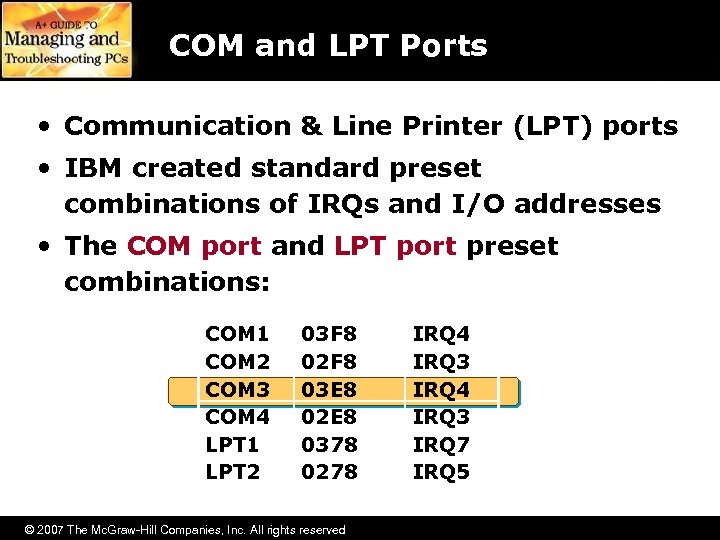
COM and LPT Ports • Communication & Line Printer (LPT) ports • IBM created standard preset combinations of IRQs and I/O addresses • The COM port and LPT port preset combinations: COM 1 COM 2 COM 3 COM 4 LPT 1 LPT 2 03 F 8 02 F 8 03 E 8 02 E 8 0378 0278 © 2007 The Mc. Graw-Hill Companies, Inc. All rights reserved IRQ 4 IRQ 3 IRQ 7 IRQ 5
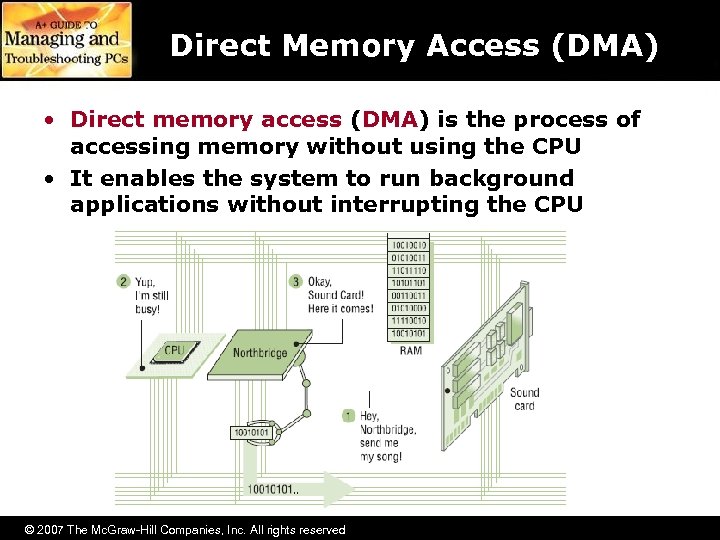
Direct Memory Access (DMA) • Direct memory access (DMA) is the process of accessing memory without using the CPU • It enables the system to run background applications without interrupting the CPU © 2007 The Mc. Graw-Hill Companies, Inc. All rights reserved
Bus Mastering • Bus mastering devices use the DMA without accessing the 8237 or CPU • Circuitry allows them to watch for other devices accessing the external data bus – No two devices can use the external data bus at the same time • Extremely popular in hard drives – All EIDE hard drives take advantage of bus mastering • Floppy drives still use the old DMA © 2007 The Mc. Graw-Hill Companies, Inc. All rights reserved
Memory Addresses • Some (not all) expansion cards need memory addresses • Two reasons for this: 1. May have onboard RAM that the CPU needs to address 2. A few cards have onboard ROM (adapter, option type; see Chapter 5) • RAM or ROM may steal memory addresses from main system RAM • Memory addressing is fully automatic © 2007 The Mc. Graw-Hill Companies, Inc. All rights reserved
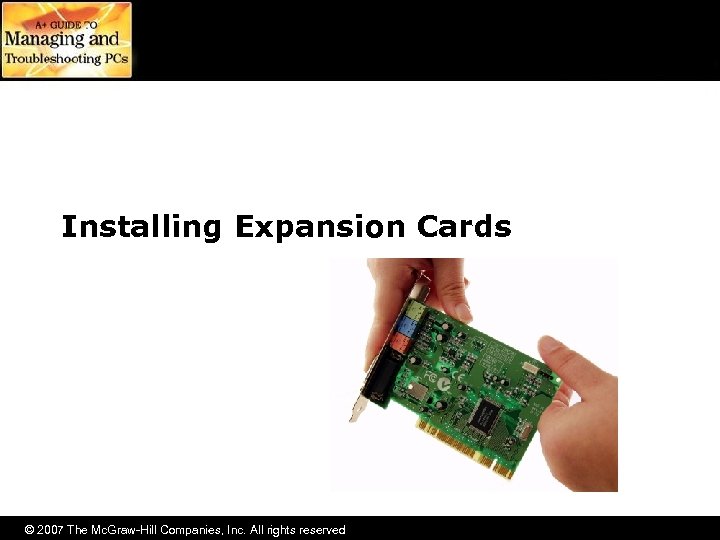
Installing Expansion Cards © 2007 The Mc. Graw-Hill Companies, Inc. All rights reserved
Steps to Installing Expansion Cards 1. Knowledge 2. Physical installation 3. Device drivers 4. Verify © 2007 The Mc. Graw-Hill Companies, Inc. All rights reserved
Step 1: Knowledge 1. Learn about the device by reading the documentation – Do you have device drivers for your operating system (Windows, Linux, etc. ) – Does the device work with your operating system? – Check the Windows Marketplace • http: //testedproducts. windowsmarketplace. com • Devices on this list have been certified by Microsoft to work with Windows © 2007 The Mc. Graw-Hill Companies, Inc. All rights reserved
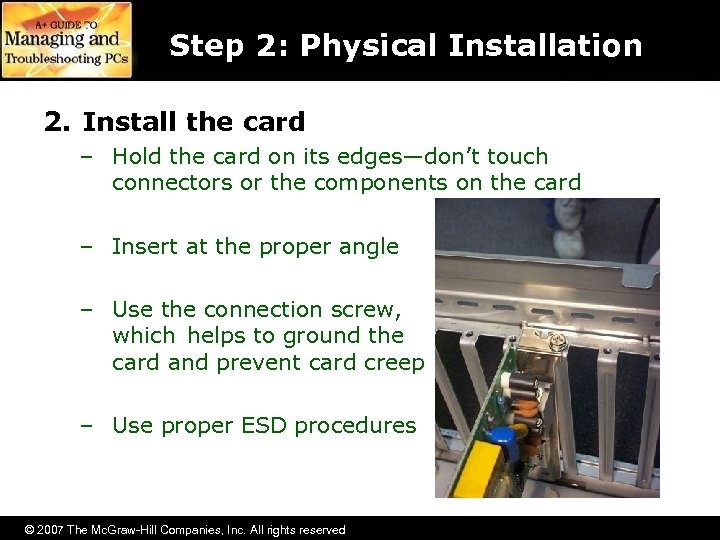
Step 2: Physical Installation 2. Install the card – Hold the card on its edges—don’t touch connectors or the components on the card – Insert at the proper angle – Use the connection screw, which helps to ground the card and prevent card creep – Use proper ESD procedures © 2007 The Mc. Graw-Hill Companies, Inc. All rights reserved
Step 3: Device Drivers • All devices require BIOS, which for expansion cards is almost always a device driver – Devices will come with device drivers on the installation CD – It is recommended that you get the latest drivers from the manufacturer’s Web site • Which one first? – Driver or device? Usually device first – If USB or Fire. Wire, driver first © 2007 The Mc. Graw-Hill Companies, Inc. All rights reserved
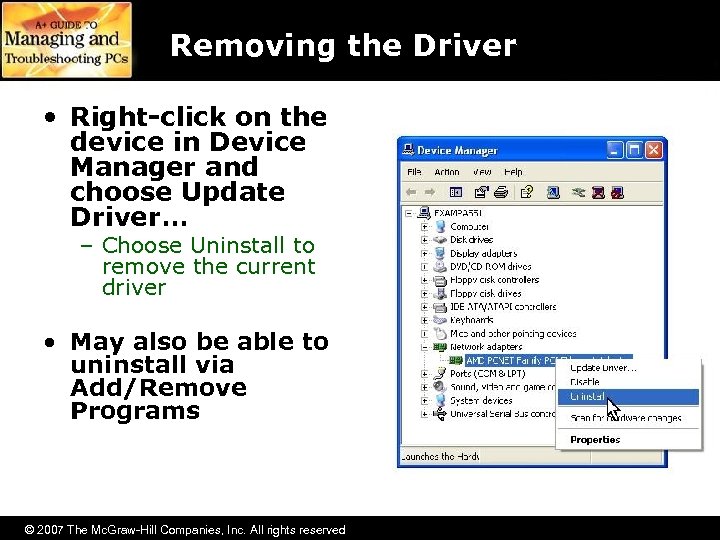
Removing the Driver • Right-click on the device in Device Manager and choose Update Driver… – Choose Uninstall to remove the current driver • May also be able to uninstall via Add/Remove Programs © 2007 The Mc. Graw-Hill Companies, Inc. All rights reserved
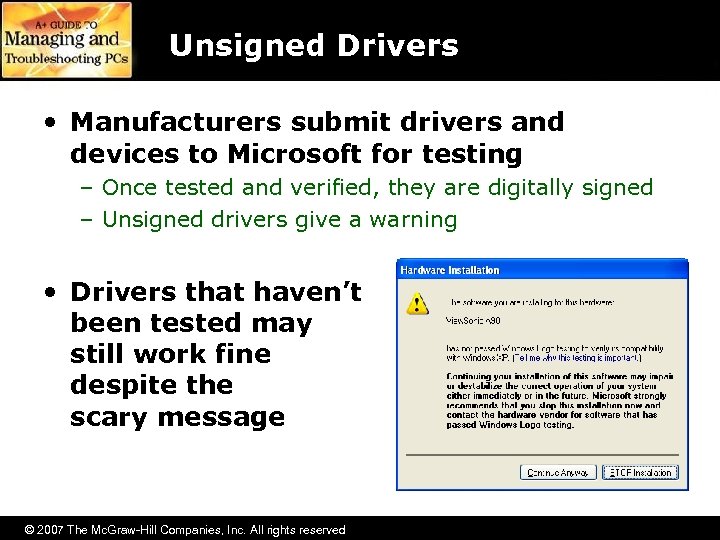
Unsigned Drivers • Manufacturers submit drivers and devices to Microsoft for testing – Once tested and verified, they are digitally signed – Unsigned drivers give a warning • Drivers that haven’t been tested may still work fine despite the scary message © 2007 The Mc. Graw-Hill Companies, Inc. All rights reserved
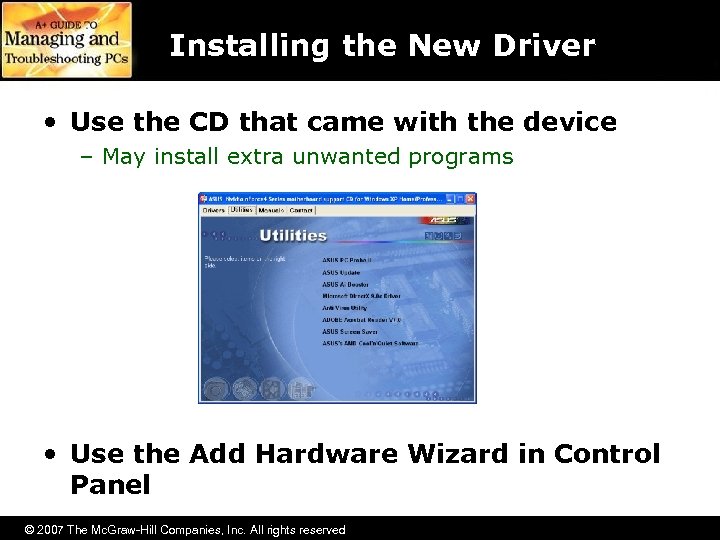
Installing the New Driver • Use the CD that came with the device – May install extra unwanted programs • Use the Add Hardware Wizard in Control Panel © 2007 The Mc. Graw-Hill Companies, Inc. All rights reserved
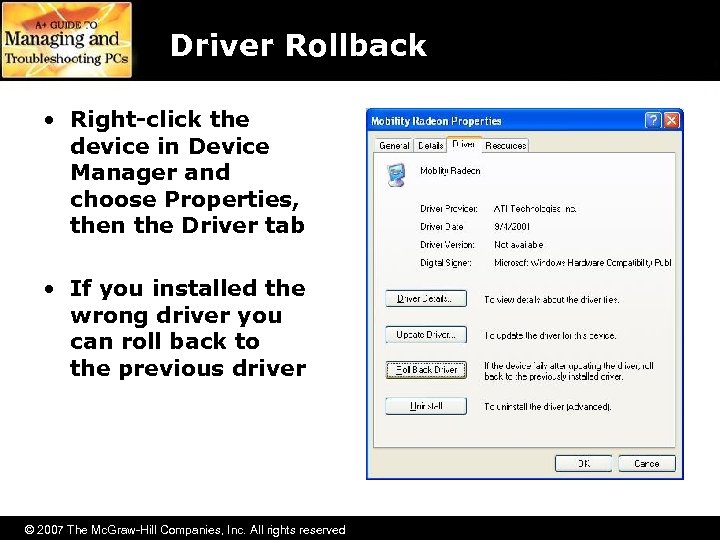
Driver Rollback • Right-click the device in Device Manager and choose Properties, then the Driver tab • If you installed the wrong driver you can roll back to the previous driver © 2007 The Mc. Graw-Hill Companies, Inc. All rights reserved
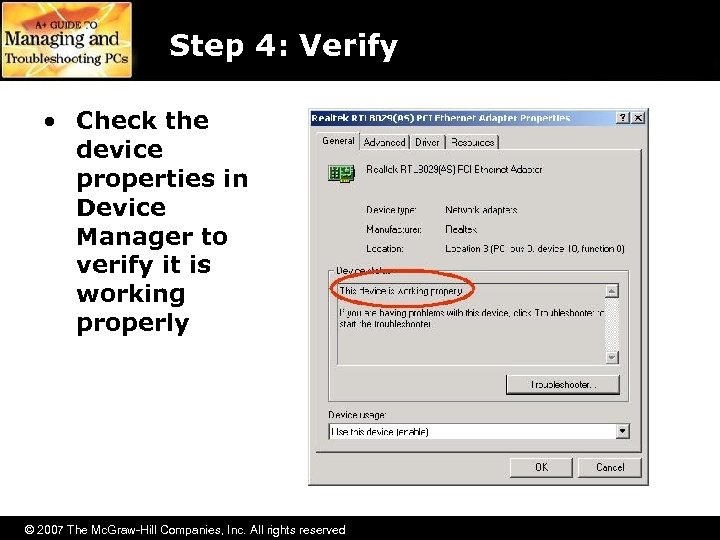
Step 4: Verify • Check the device properties in Device Manager to verify it is working properly © 2007 The Mc. Graw-Hill Companies, Inc. All rights reserved
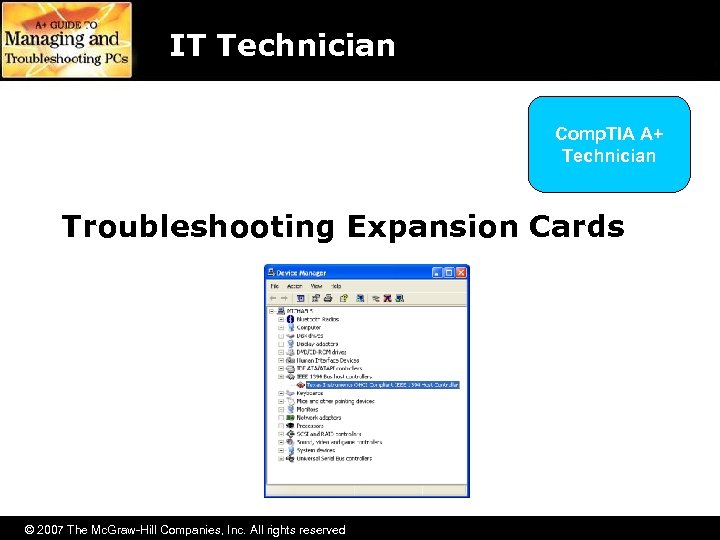
IT Technician Comp. TIA A+ Technician Troubleshooting Expansion Cards © 2007 The Mc. Graw-Hill Companies, Inc. All rights reserved
Device Manager • Check for the device in Device Manager – Right-click My Computer | Properties | Hardware tab | Device Manager – If the device does not show up in Device Manager • Run the Add/Remove Hardware Wizard in Control Panel • If it still doesn’t show up, the device is damaged or is a legacy device whose system resources are not configured properly © 2007 The Mc. Graw-Hill Companies, Inc. All rights reserved
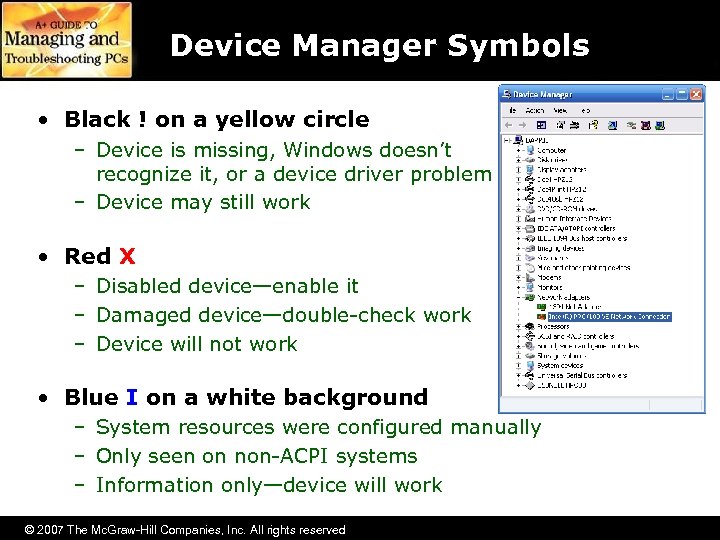
Device Manager Symbols • Black ! on a yellow circle – Device is missing, Windows doesn’t recognize it, or a device driver problem – Device may still work • Red X – Disabled device—enable it – Damaged device—double-check work – Device will not work • Blue I on a white background – System resources were configured manually – Only seen on non-ACPI systems – Information only—device will work © 2007 The Mc. Graw-Hill Companies, Inc. All rights reserved
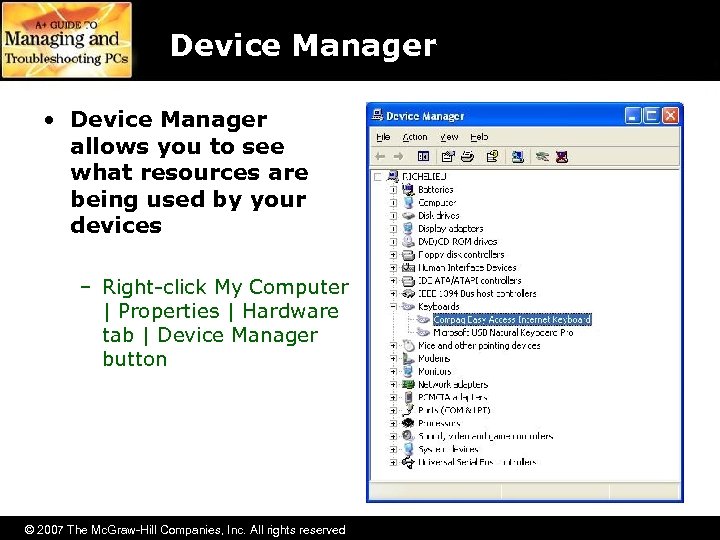
Device Manager • Device Manager allows you to see what resources are being used by your devices – Right-click My Computer | Properties | Hardware tab | Device Manager button © 2007 The Mc. Graw-Hill Companies, Inc. All rights reserved
© 2007 The Mc. Graw-Hill Companies, Inc. All rights reserved
Скачать презентацию Expansion Bus Chapter 6 2007 The Mc
778fa7fb069e433f0c1a6cc46168710b.ppt