Скачать презентацию EXCEL 2010 SPREADSHEETS Spreadsheet A spreadsheet is
spreadsheets-1-без видео.pptx
- Количество слайдов: 62
 EXCEL 2010 SPREADSHEETS
 Spreadsheet A spreadsheet is an interactive computer application program for organization and analysis of information in tabular form. Spreadsheets developed as computerized simulations of paper accounting worksheets.
 The program operates on data represented as cells of an array, organized in rows and columns. Each cell of the array is a model–view–controller element that can contain either numeric or text data, or the results of formulas that automatically calculate and display a value based on the contents of other cells.
 The user of the spreadsheet can make changes in any stored value and observe the effects on calculated values. This makes the spreadsheet useful for "what-if" analysis since many cases can be rapidly investigated without tedious manual recalculation. Modern spreadsheet software can have multiple interacting sheets, and can display data either as text and numerals, or in graphical form.
 In addition to the fundamental operations of arithmetic and mathematical functions, modern spreadsheets provide built-in functions for common financial and statistical operations. Such calculations as net present value or standard deviation can be applied to tabular data with a pre-programmed function in a formula. Spreadsheet programs also provide conditional expressions, functions to convert between text and numbers, and functions that operate on strings of text.
 Spreadsheets have now replaced paperbased systems throughout the business world. Although they were first developed for accounting or bookkeeping tasks, they now are used extensively in any context where tabular lists are built, sorted, and shared.
 First spreadsheet Visi. Calc was the first electronic spreadsheet on a microcomputer, and it helped turn the Apple II computer into a popular and widely used system (1979). For IBM PC in 1981.
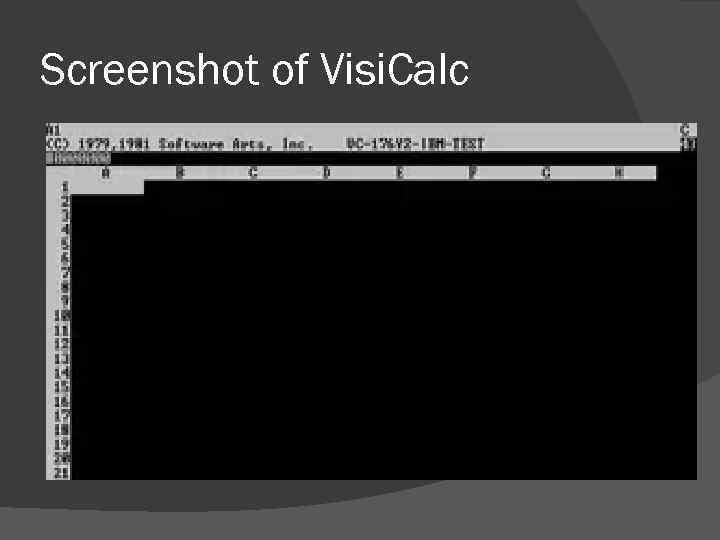 Screenshot of Visi. Calc
 MS-DOS Lotus 1 -2 -3 (1983) was the leading spreadsheet when DOS was the dominant operating system, was written specially for IBM PC => good performance. The first “killer application”
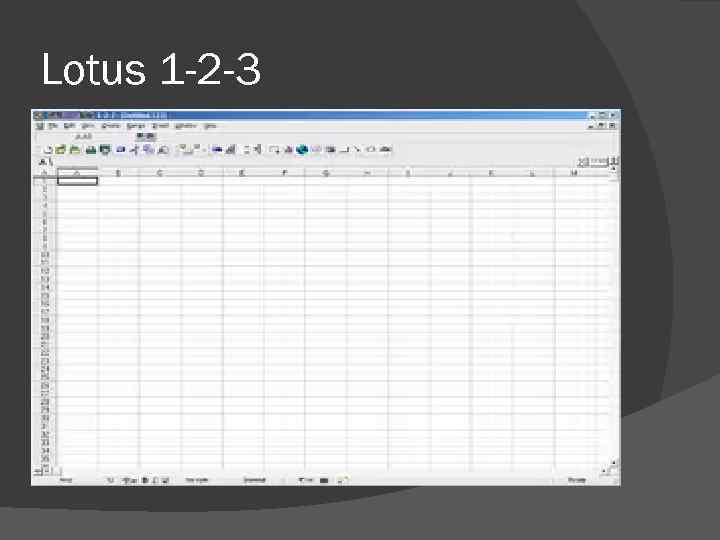 Lotus 1 -2 -3
 Other MS-DOS spreadsheets Borland Quattro that replaced Visi. Calc.
 Now Excel now has the largest market share on the Windows and Macintosh platforms. A spreadsheet program is a standard feature of an office productivity suite; since the advent of web apps, office suites now also exist in web app form.
 Microsoft Excel Since the mid 1990 s Excel has been the domineering commercial electronic spreadsheet.
 Open source software Gnumeric is a free, cross-platform spreadsheet program that is part of the GNOME Free Software Desktop Project. Open. Office. org Calc and the very closely related Libre. Office Calc are free and opensource spreadsheets.
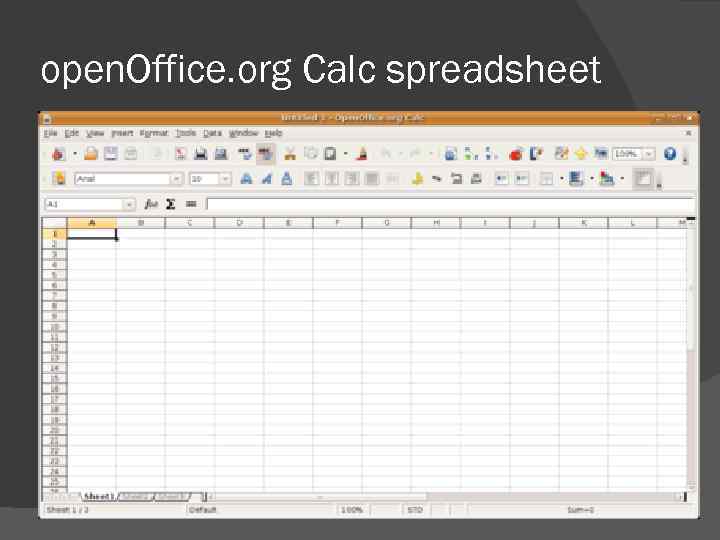 open. Office. org Calc spreadsheet
 Web-based spreadsheets Office Web Apps Google Spreadsheets They have real-time updates from remote sources such as stock prices and currency exchange rates.
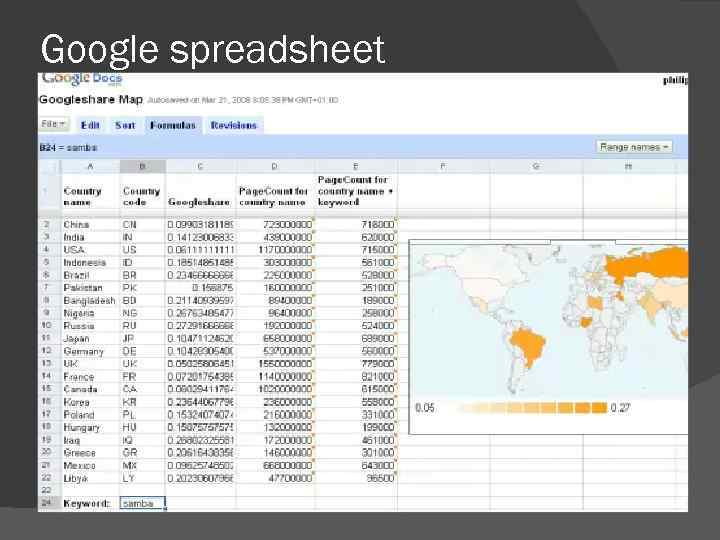 Google spreadsheet
 Excel 2010 Organize financial information Perform calculations Display results in different ways
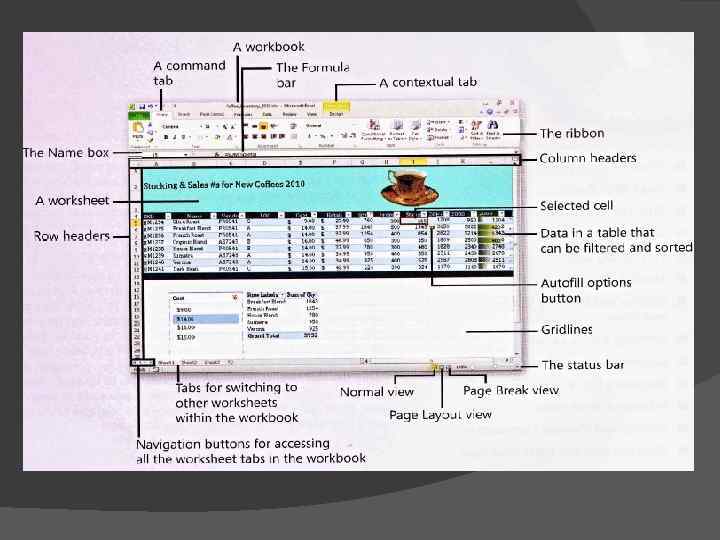
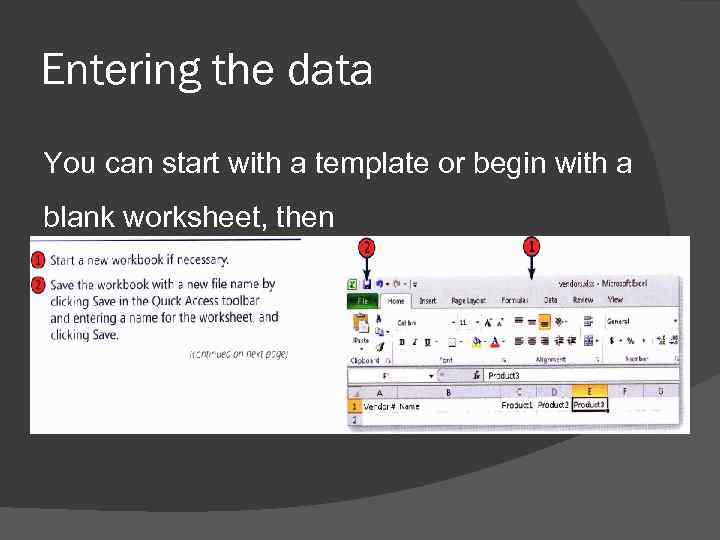 Entering the data You can start with a template or begin with a blank worksheet, then
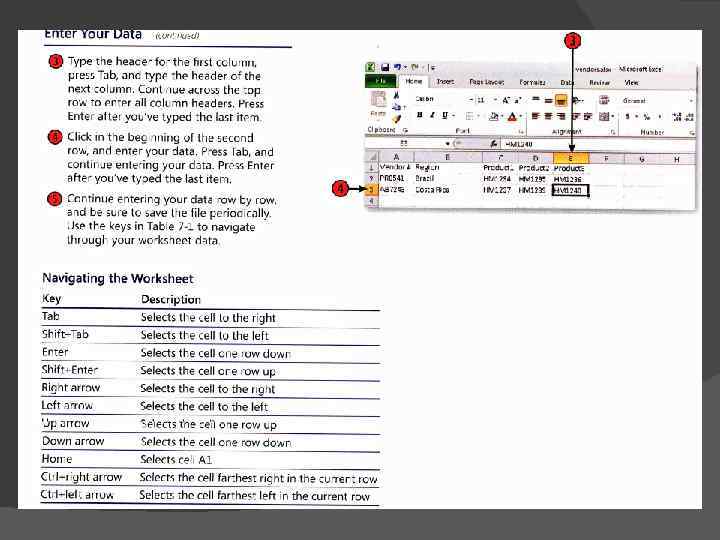
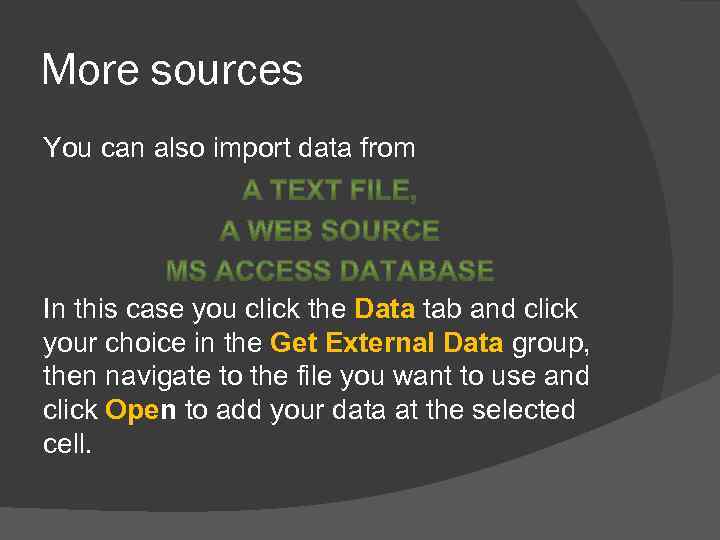 More sources You can also import data from In this case you click the Data tab and click your choice in the Get External Data group, then navigate to the file you want to use and click Open to add your data at the selected cell.
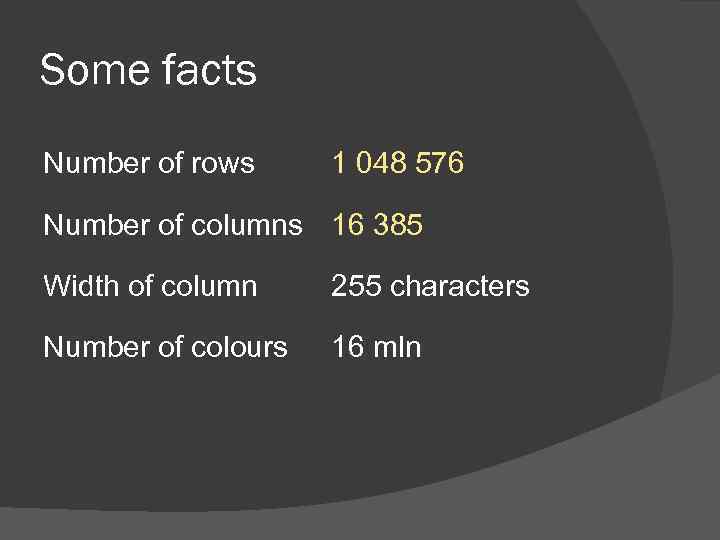 Some facts Number of rows 1 048 576 Number of columns 16 385 Width of column 255 characters Number of colours 16 mln
 Editing data Often you need to go back and make changes to your data after you have entered it. You can correct and update the data quickly either by replacing the contents of an entire cell or by editing the existing content.
 Formatting cells You can considerably improve the look of your worksheet by using Excel’s many formatting features. Formatting your data serves a number of purposes: Helps others reviewing your data see easily what’s most important on the worksheet; Helps you organize your data so that you can easily find what you need later.
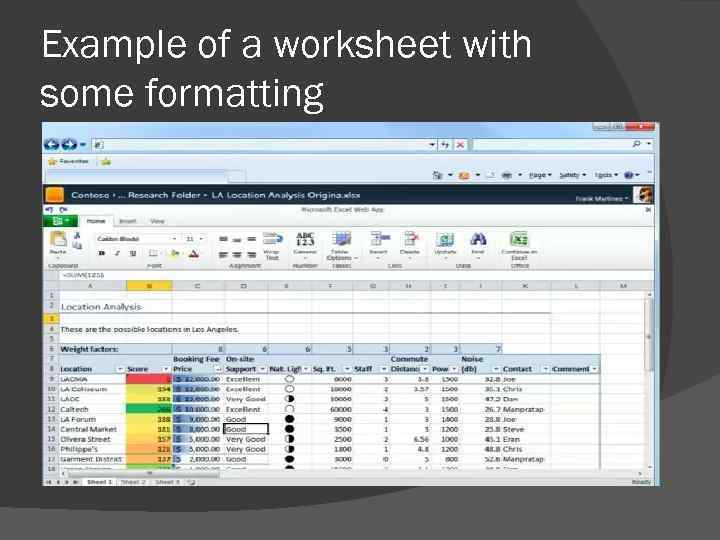 Example of a worksheet with some formatting
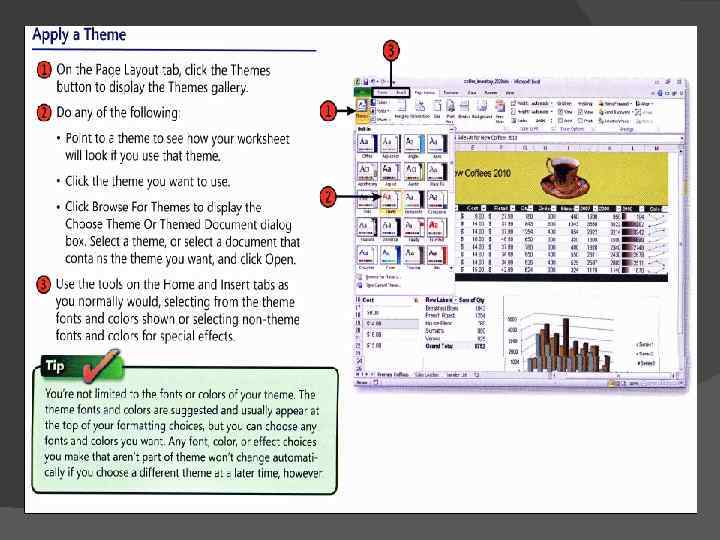
 Predefined formats For this purpose, you can use Excel’s predefined formats to choose a look for your cells that makes the data stand out. The cell styles available in the Styles group of the Home tab are coordinated with theme you select for the worksheet, so all colors and fonts available are consistent with the overall theme you have chosen.
 Formatting numbers When you look at columns and rows full of numbers it might not be clear what those numbers represent. Are they values showing dollar amount? Are they percentages of something? You can improve the readability of your workbook by using standard numeric formatting to make everything as clear as possible for those viewing your worksheet.
 Moving, copying, pasting Moving, copying and pasting data is similar to the same in Word. However, when you copy data in Excel, you’ll need to have a blank area ready to receive the data; otherwise, Excel will overwrite any existing data. You can also tell Excel to copy the contents of a cell to a group of adjacent cells.
 Live Preview Excel 2010 includes Paste with Live Preview feature to see how your information will look when pasted using different paste options. You can choose how you want the information to be pasted both before and after you add it to your worksheet.
 Adding and deleting columns and rows When you add or delete several rows or columns at one time or clear all the contents of multiple rows or columns, select them before you right-click. To select nonadjacent rows or columns. Hold down the Ctrl key as you click each row or column header. To quickly clear the content of a selected cell or cells without removing any formatting, press the Delete key.
 Hiding columns and rows When you create a worksheet, it sometimes contains columns and rows of data that aren’t relevant for every review or for every use of the worksheet. You can suppress the display of data you do not want displayed for general view by hiding columns and rows. Late you can reveal the data once again easily to return the data to normal view.
 To do this, You select rows or columns and then rightclick on the selected headers, and choose Hide from the shortcut menu. BUT, to make sure that you do not accidentally distribute a worksheet that contains information you do not want to share with others, make sure there are no hidden rows or columns in your final version of the workbook.
 How? To check for hidden rows or columns, run the Document Inspector by clicking the File tab, and then clicking Check For Issues in the Prepare Sharing group. Click Inspect Document in the list.
 Formatting cell dimensions You can set the Column width Row height Adjust the Height or Width to fit the content
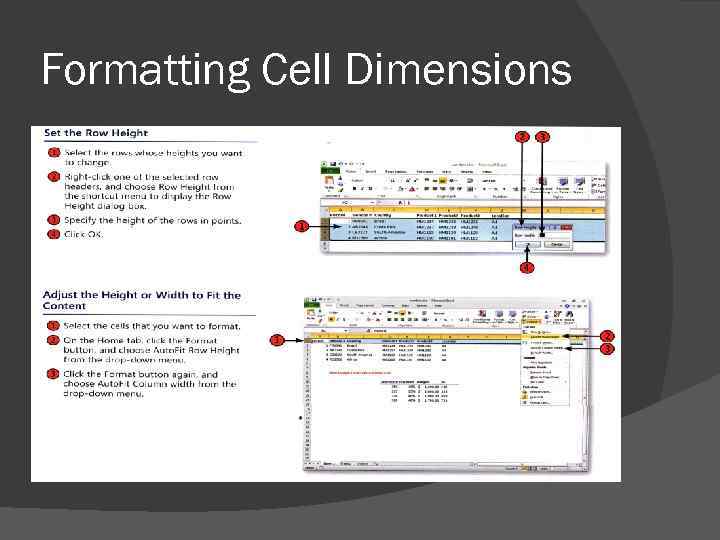 Formatting Cell Dimensions
 Preparing for Printing Set page dimensions: On the Page Layout tab click Margin and set the ones you want to. Click the Orientation button and click either Portrait or Landscape Click the Size button, and select the paper size Specify the scaling to change the size of the printed worksheet Specify whether you want to display and/or print the gridlines and the headings
 Part II
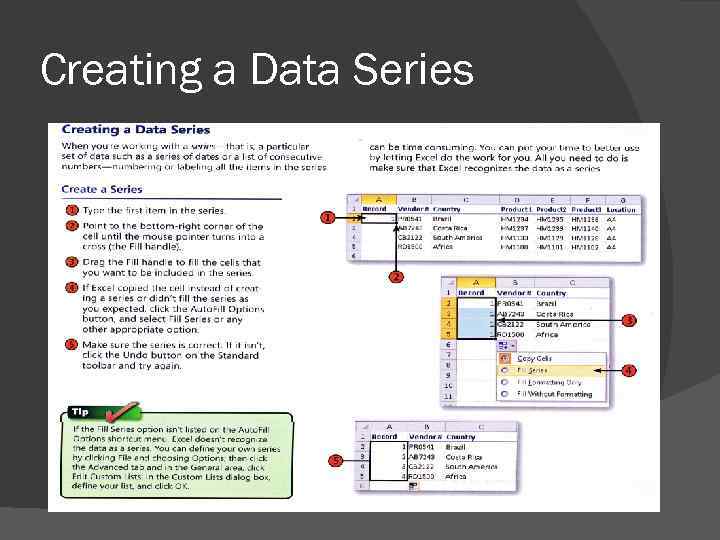 Creating a Data Series
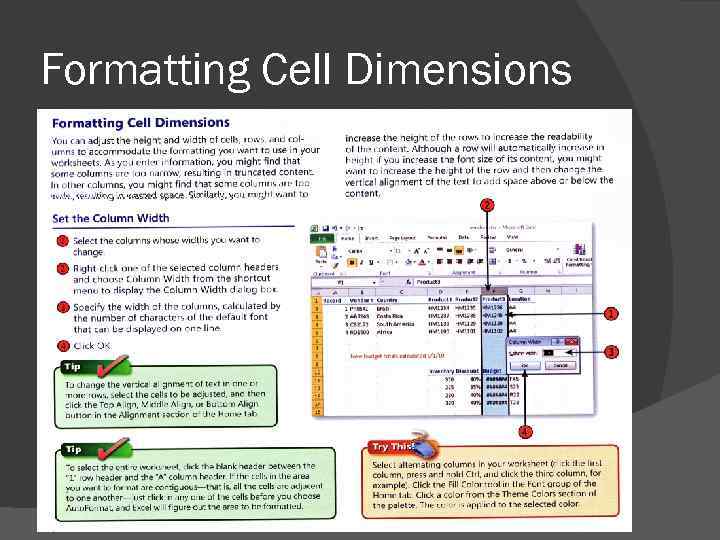 Formatting Cell Dimensions
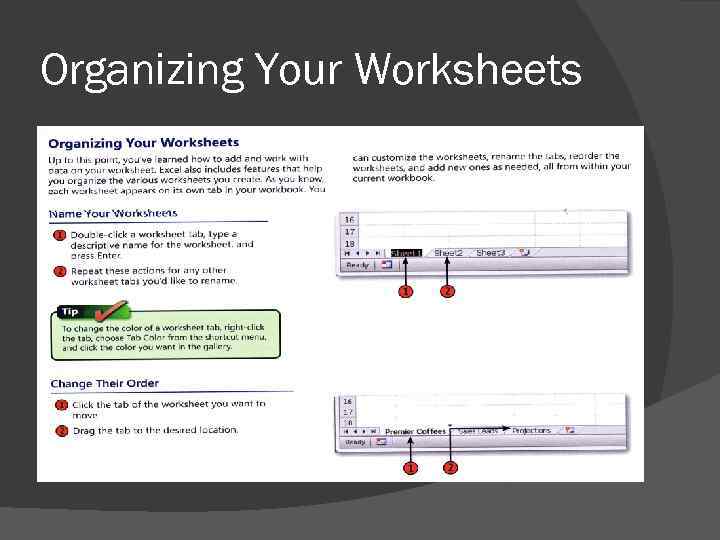 Organizing Your Worksheets
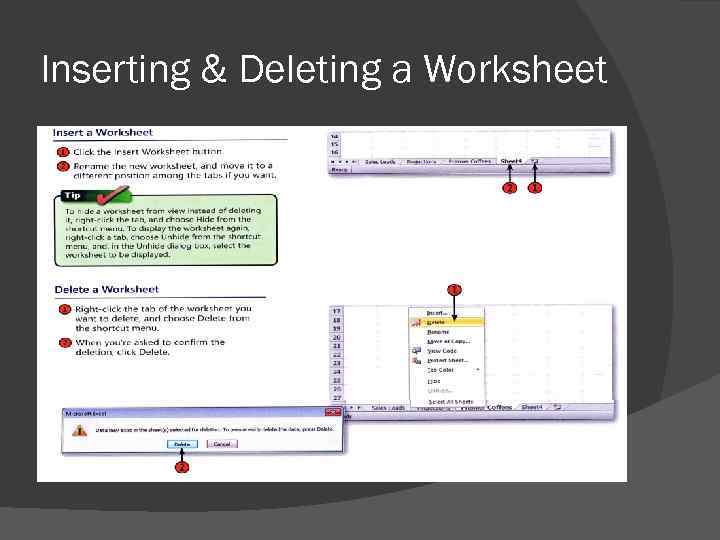 Inserting & Deleting a Worksheet
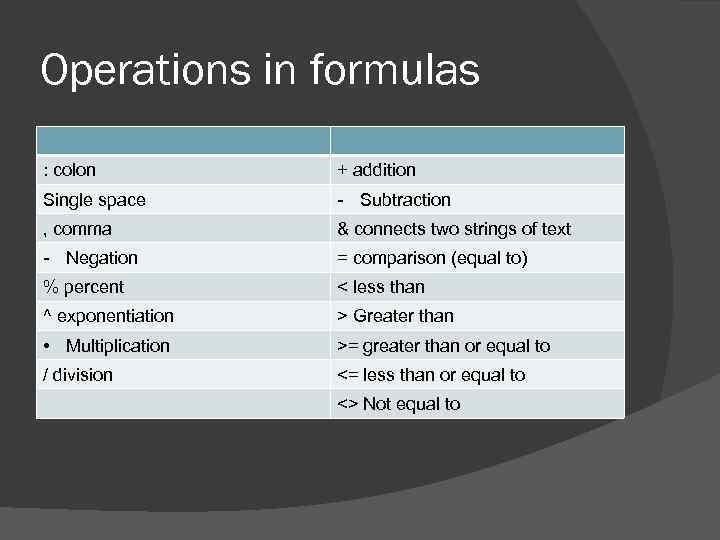 Operations in formulas : colon + addition Single space - Subtraction , comma & connects two strings of text - Negation = comparison (equal to) % percent < less than ^ exponentiation > Greater than • Multiplication >= greater than or equal to / division <= less than or equal to <> Not equal to
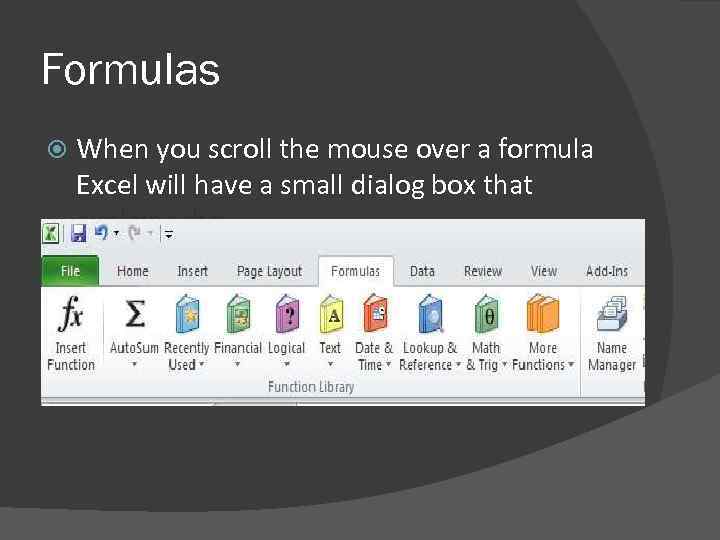 Formulas When you scroll the mouse over a formula Excel will have a small dialog box that explains the purpose of each formula.
 References Relative Absolute Mixed References to other worksheets
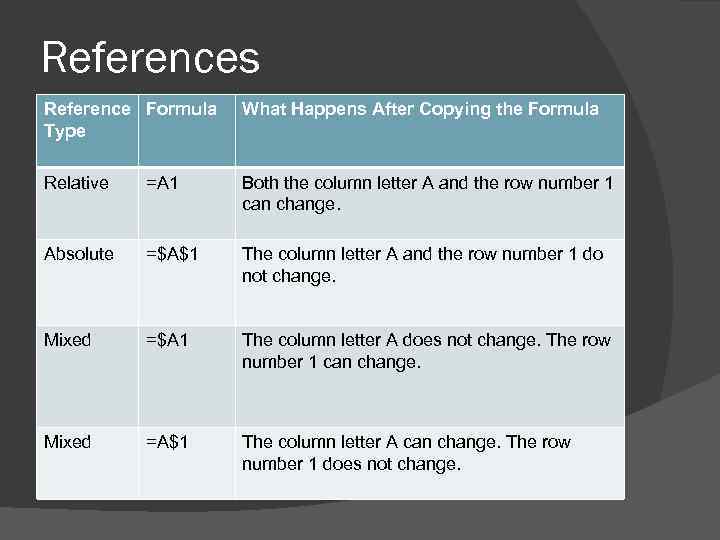 References Reference Formula Type What Happens After Copying the Formula Relative =A 1 Both the column letter A and the row number 1 can change. Absolute =$A$1 The column letter A and the row number 1 do not change. Mixed =$A 1 The column letter A does not change. The row number 1 can change. Mixed =A$1 The column letter A can change. The row number 1 does not change.
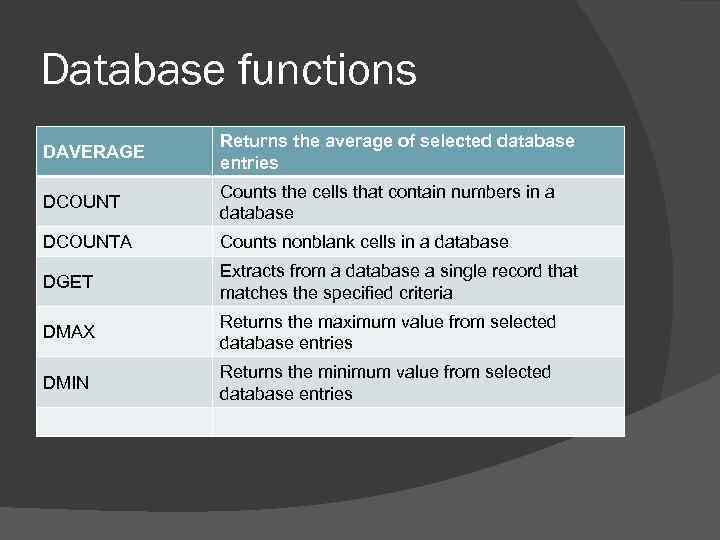 Database functions DAVERAGE Returns the average of selected database entries DCOUNT Counts the cells that contain numbers in a database DCOUNTA Counts nonblank cells in a database DGET Extracts from a database a single record that matches the specified criteria DMAX Returns the maximum value from selected database entries DMIN Returns the minimum value from selected database entries
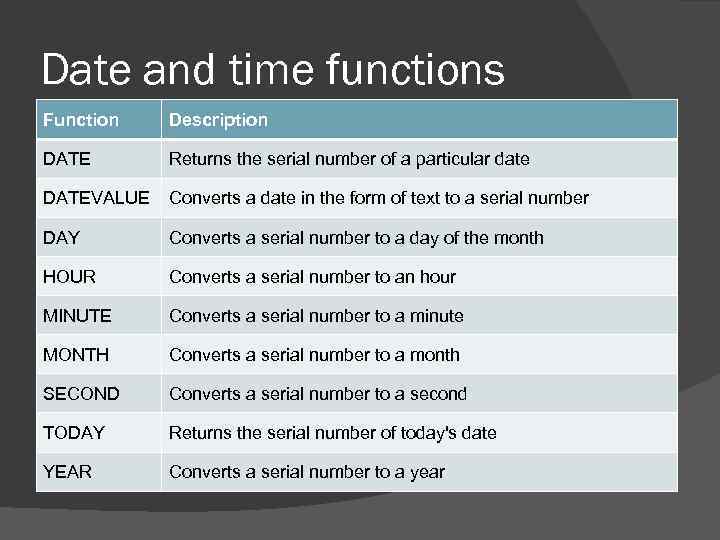 Date and time functions Function Description DATE Returns the serial number of a particular date DATEVALUE Converts a date in the form of text to a serial number DAY Converts a serial number to a day of the month HOUR Converts a serial number to an hour MINUTE Converts a serial number to a minute MONTH Converts a serial number to a month SECOND Converts a serial number to a second TODAY Returns the serial number of today's date YEAR Converts a serial number to a year
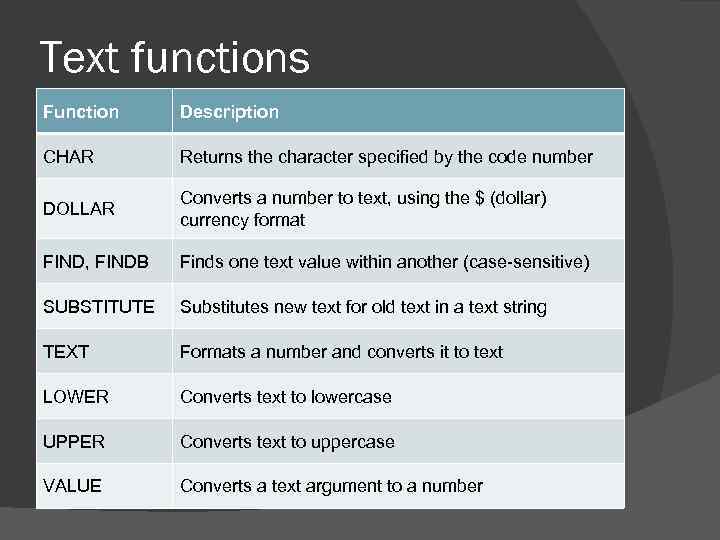 Text functions Function Description CHAR Returns the character specified by the code number DOLLAR Converts a number to text, using the $ (dollar) currency format FIND, FINDB Finds one text value within another (case-sensitive) SUBSTITUTE Substitutes new text for old text in a text string TEXT Formats a number and converts it to text LOWER Converts text to lowercase UPPER Converts text to uppercase VALUE Converts a text argument to a number
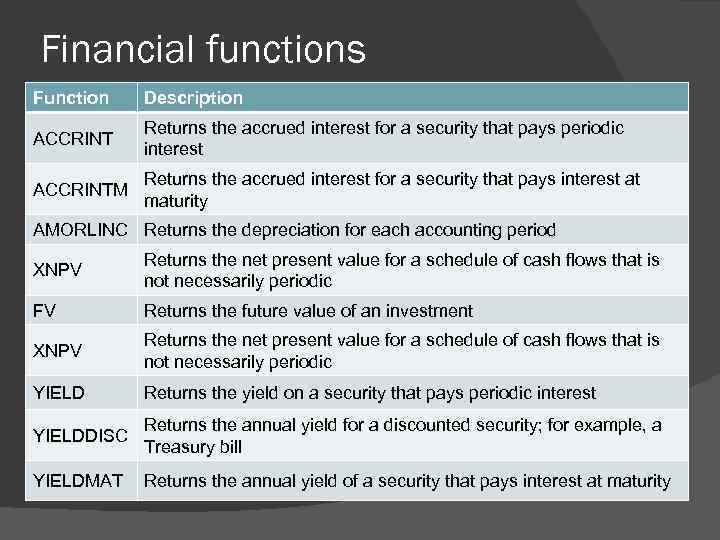 Financial functions Function Description ACCRINT Returns the accrued interest for a security that pays periodic interest ACCRINTM Returns the accrued interest for a security that pays interest at maturity AMORLINC Returns the depreciation for each accounting period XNPV Returns the net present value for a schedule of cash flows that is not necessarily periodic FV Returns the future value of an investment XNPV Returns the net present value for a schedule of cash flows that is not necessarily periodic YIELD Returns the yield on a security that pays periodic interest YIELDDISC Returns the annual yield for a discounted security; for example, a Treasury bill YIELDMAT Returns the annual yield of a security that pays interest at maturity
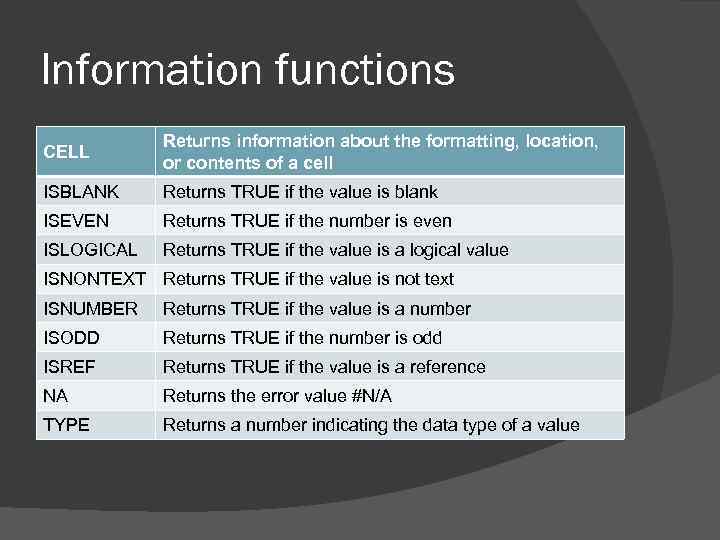 Information functions CELL Returns information about the formatting, location, or contents of a cell ISBLANK Returns TRUE if the value is blank ISEVEN Returns TRUE if the number is even ISLOGICAL Returns TRUE if the value is a logical value ISNONTEXT Returns TRUE if the value is not text ISNUMBER Returns TRUE if the value is a number ISODD Returns TRUE if the number is odd ISREF Returns TRUE if the value is a reference NA Returns the error value #N/A TYPE Returns a number indicating the data type of a value
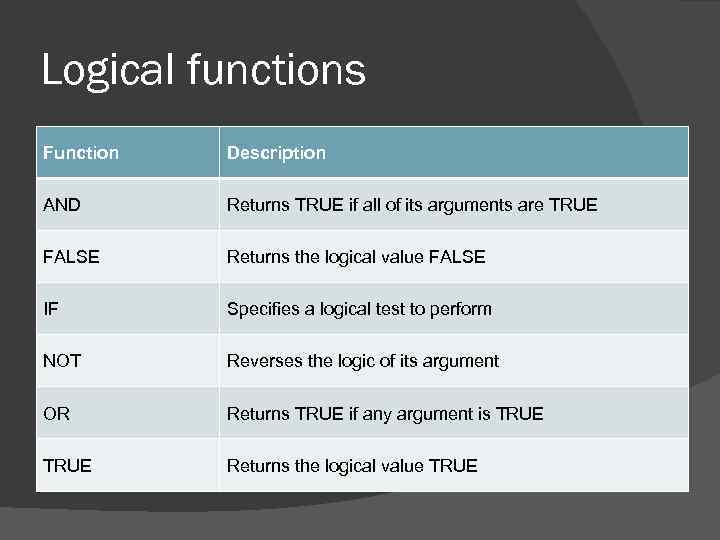 Logical functions Function Description AND Returns TRUE if all of its arguments are TRUE FALSE Returns the logical value FALSE IF Specifies a logical test to perform NOT Reverses the logic of its argument OR Returns TRUE if any argument is TRUE Returns the logical value TRUE
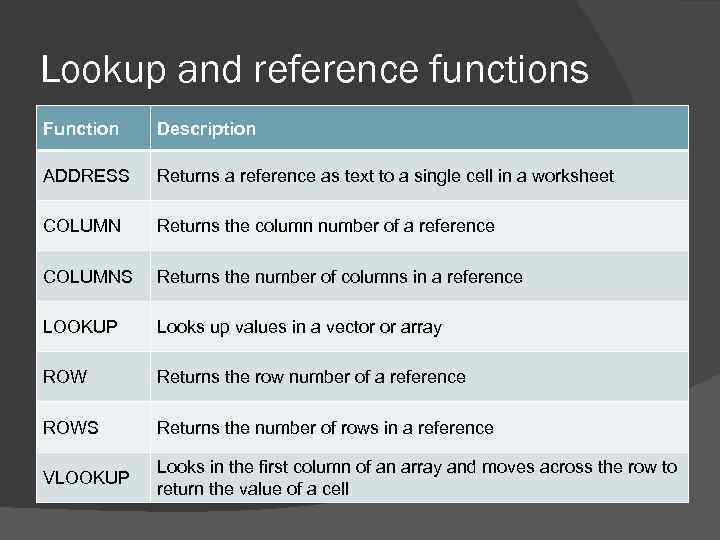 Lookup and reference functions Function Description ADDRESS Returns a reference as text to a single cell in a worksheet COLUMN Returns the column number of a reference COLUMNS Returns the number of columns in a reference LOOKUP Looks up values in a vector or array ROW Returns the row number of a reference ROWS Returns the number of rows in a reference VLOOKUP Looks in the first column of an array and moves across the row to return the value of a cell
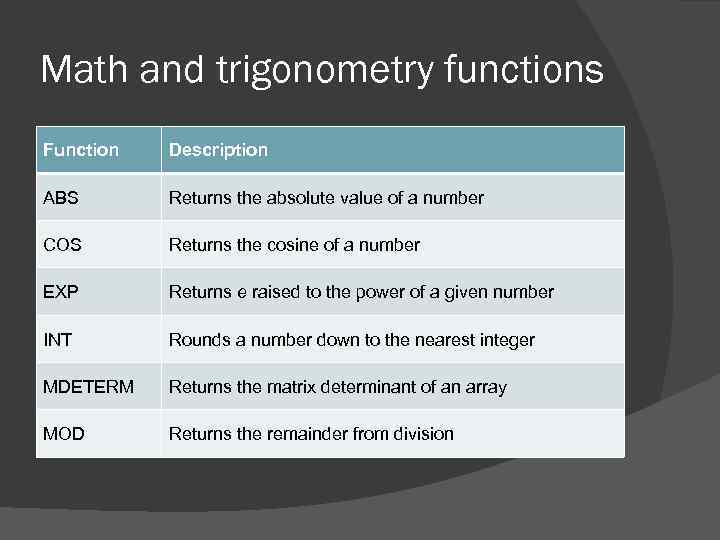 Math and trigonometry functions Function Description ABS Returns the absolute value of a number COS Returns the cosine of a number EXP Returns e raised to the power of a given number INT Rounds a number down to the nearest integer MDETERM Returns the matrix determinant of an array MOD Returns the remainder from division
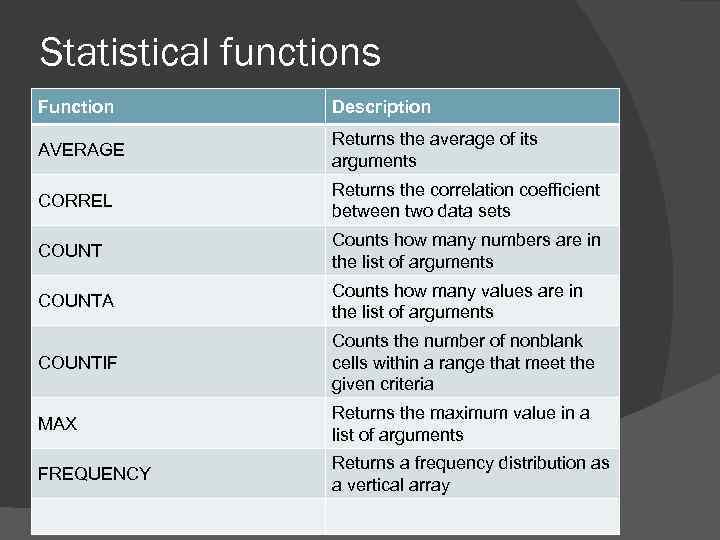 Statistical functions Function Description AVERAGE Returns the average of its arguments CORREL Returns the correlation coefficient between two data sets COUNT Counts how many numbers are in the list of arguments COUNTA Counts how many values are in the list of arguments COUNTIF Counts the number of nonblank cells within a range that meet the given criteria MAX Returns the maximum value in a list of arguments FREQUENCY Returns a frequency distribution as a vertical array
 Engineering functions External functions
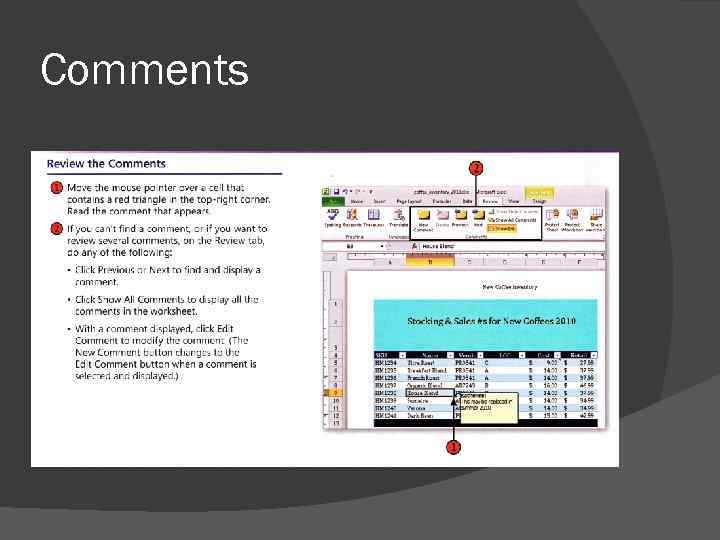
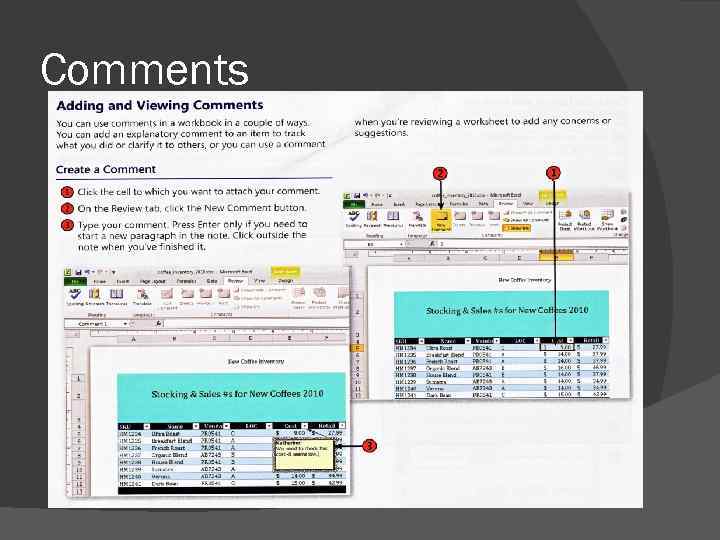 Comments
 Comments