


 Скачать презентацию Eugene School District 4 J How to Apply
c139f3d7d9b507681d05b87511acf551.ppt
- Количество слайдов: 48
 Eugene School District 4 J How to Apply For A Job Online A Step-by-Step Guide 4 J Human Resources Department | 200 North Monroe St. | Eugene, Oregon 97402 Fax: [541] 790 -7665 | [541] 790 -7660 tohttp: //www. 4 j. lane. edu/ | Last Updated on September 25 th, 2009 How | Apply Online: Getting Started with ed. Zapp 4 J Ed. Zapp Tutorial Version 2. 0 by Jason Mak, HR Recruitment Manager. All rights reserved. 1
 We Use Ed. Zapp for Applications n Ed. Zapp is an online application accepted by many Oregon school districts. n 4 J is a “Private Label” subscriber to ed. Zapp that allows us to customize the application. This site is hosted on ed. Zapp’s servers, not at 4 J. Please apply through our website as you may experience different processes if you use the main Ed. Zapp site. n You can “reuse” and update your application to apply for other 4 J postings. n Apply Anytime, self-managed, self-paced. You can exit your application and continue later before the position closes. n Applying is FREE How to Apply Online: Getting Started with ed. Zapp 2
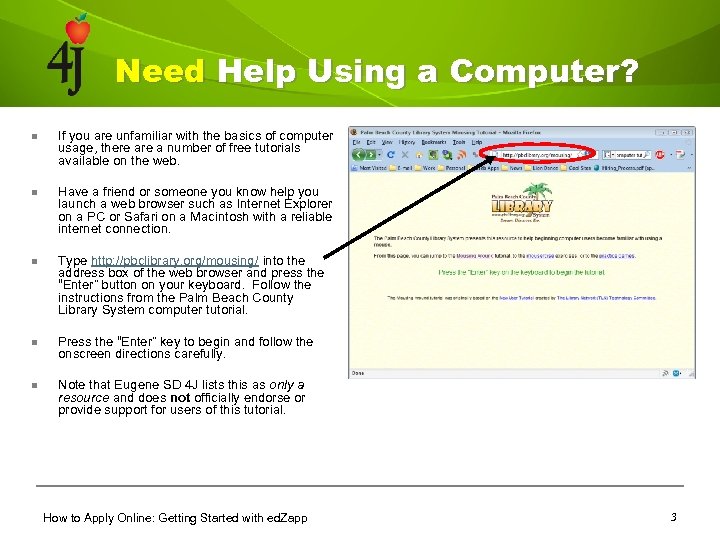 Need Help Using a Computer? n If you are unfamiliar with the basics of computer usage, there a number of free tutorials available on the web. n Have a friend or someone you know help you launch a web browser such as Internet Explorer on a PC or Safari on a Macintosh with a reliable internet connection. n Type http: //pbclibrary. org/mousing/ into the address box of the web browser and press the “Enter” button on your keyboard. Follow the instructions from the Palm Beach County Library System computer tutorial. n Press the “Enter” key to begin and follow the onscreen directions carefully. n Note that Eugene SD 4 J lists this as only a resource and does not officially endorse or provide support for users of this tutorial. How to Apply Online: Getting Started with ed. Zapp 3
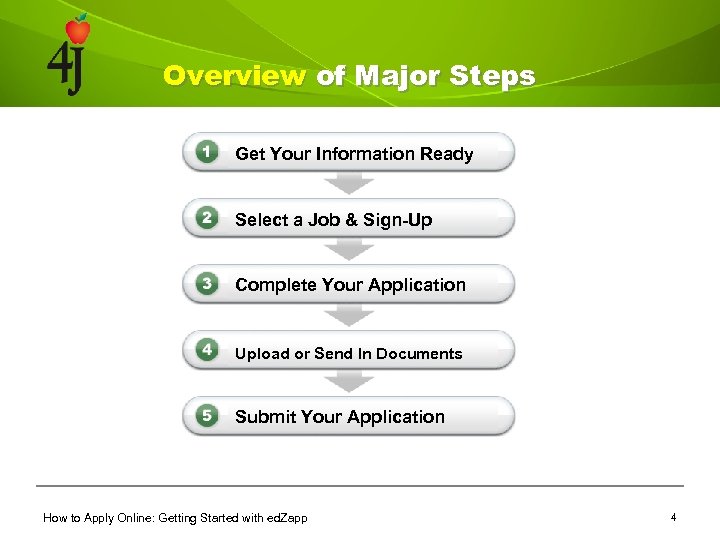 Overview of Major Steps Get Your Information Ready Select a Job & Sign-Up Complete Your Application Upload or Send In Documents Submit Your Application How to Apply Online: Getting Started with ed. Zapp 4
 STEP 1: Get Your Information Ready Before you begin your online application, gather your information about your education, work experience, references, and other documentation that you may need for your application. Certain jobs will either require or make it optional for you to upload supplemental documents. Having the following documents ready in an electronic format will be extremely helpful to you. Examples include: n Resume n Transcripts n Certifications n Licenses n References’ contact info or Letters of Recommendation TIP: Ed. Zapp only accepts uploaded documents in PDF format. There a number of free PDF conversion websites online such as https: //online. primopdf. com/Default. aspx. If you cannot convert required documents, you can always mail them to ed. Zapp to scan into your application for free. How to Apply Online: Getting Started with ed. Zapp 5
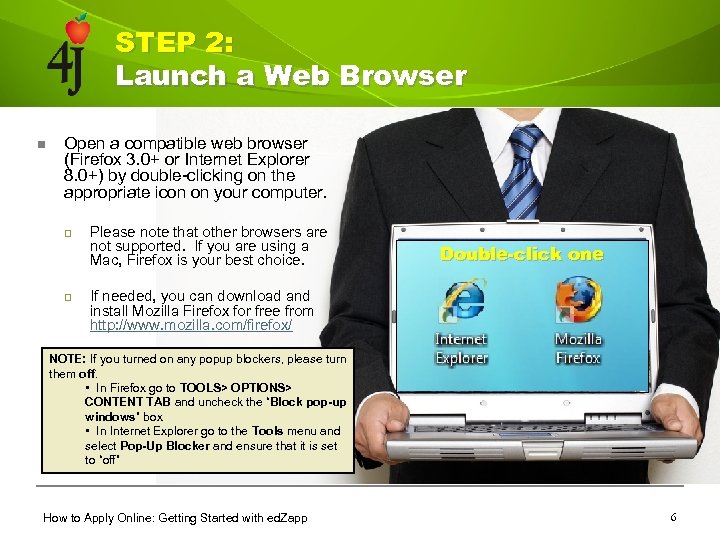 STEP 2: Launch a Web Browser n Open a compatible web browser (Firefox 3. 0+ or Internet Explorer 8. 0+) by double-clicking on the appropriate icon on your computer. q q Please note that other browsers are not supported. If you are using a Mac, Firefox is your best choice. Double-click one If needed, you can download and install Mozilla Firefox for free from http: //www. mozilla. com/firefox/ NOTE: If you turned on any popup blockers, please turn them off. • In Firefox go to TOOLS> OPTIONS> CONTENT TAB and uncheck the “Block pop-up windows” box • In Internet Explorer go to the Tools menu and select Pop-Up Blocker and ensure that it is set to “off” How to Apply Online: Getting Started with ed. Zapp 6
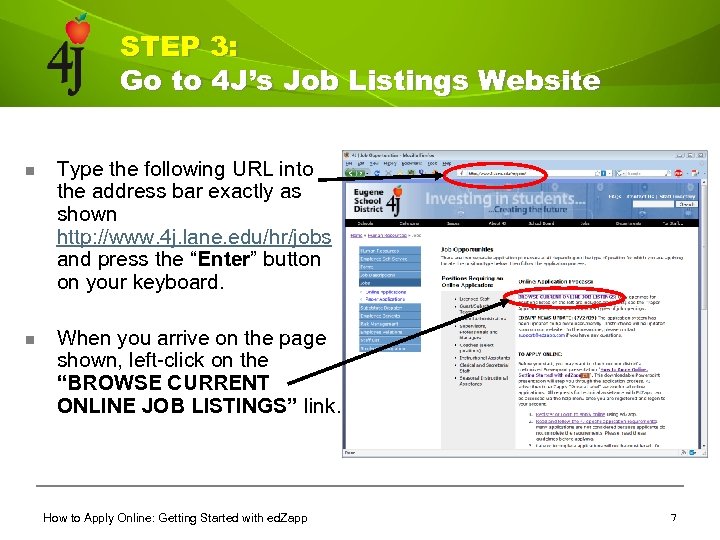 STEP 3: Go to 4 J’s Job Listings Website n Type the following URL into the address bar exactly as shown http: //www. 4 j. lane. edu/hr/jobs and press the “Enter” button on your keyboard. n When you arrive on the page shown, left-click on the “BROWSE CURRENT ONLINE JOB LISTINGS” link. How to Apply Online: Getting Started with ed. Zapp 7
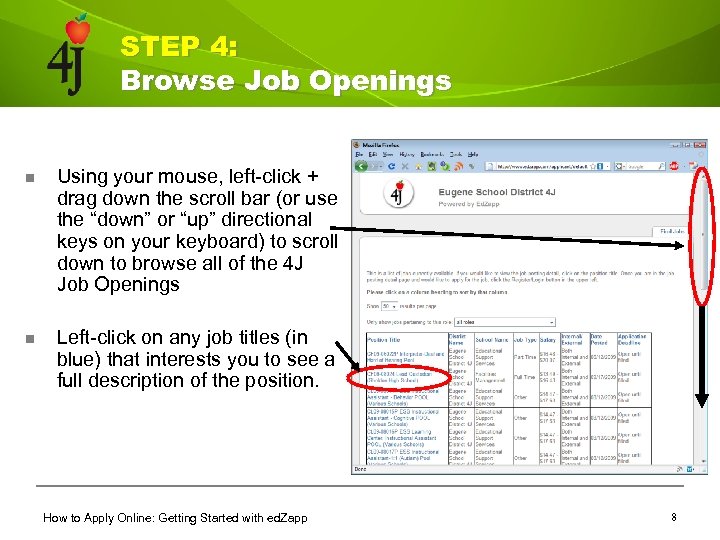 STEP 4: Browse Job Openings n Using your mouse, left-click + drag down the scroll bar (or use the “down” or “up” directional keys on your keyboard) to scroll down to browse all of the 4 J Job Openings n Left-click on any job titles (in blue) that interests you to see a full description of the position. How to Apply Online: Getting Started with ed. Zapp 8
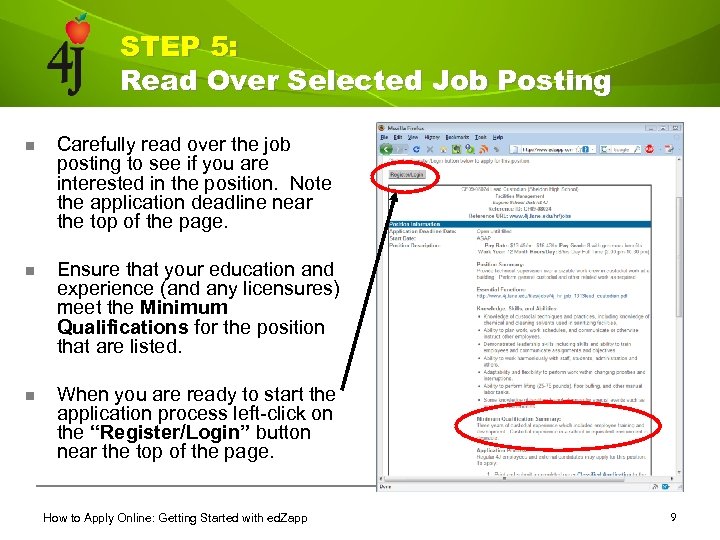 STEP 5: Read Over Selected Job Posting n Carefully read over the job posting to see if you are interested in the position. Note the application deadline near the top of the page. n Ensure that your education and experience (and any licensures) meet the Minimum Qualifications for the position that are listed. n When you are ready to start the application process left-click on the “Register/Login” button near the top of the page. How to Apply Online: Getting Started with ed. Zapp 9
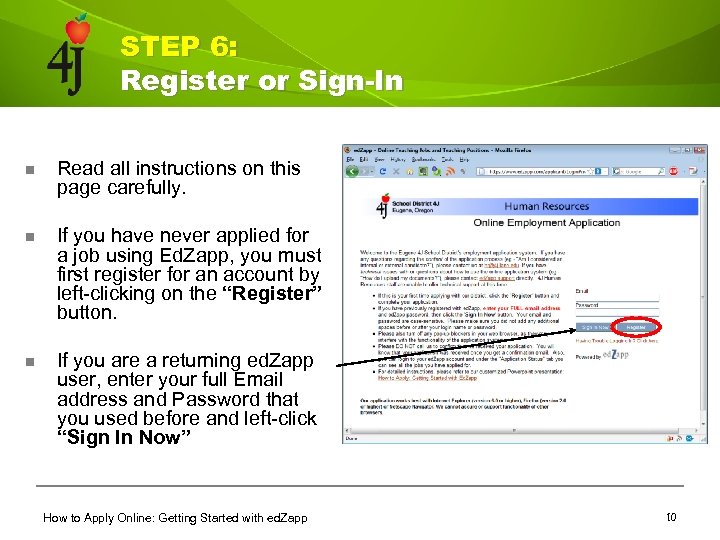 STEP 6: Register or Sign-In n Read all instructions on this page carefully. n If you have never applied for a job using Ed. Zapp, you must first register for an account by left-clicking on the “Register” button. n If you are a returning ed. Zapp user, enter your full Email address and Password that you used before and left-click “Sign In Now” How to Apply Online: Getting Started with ed. Zapp 10
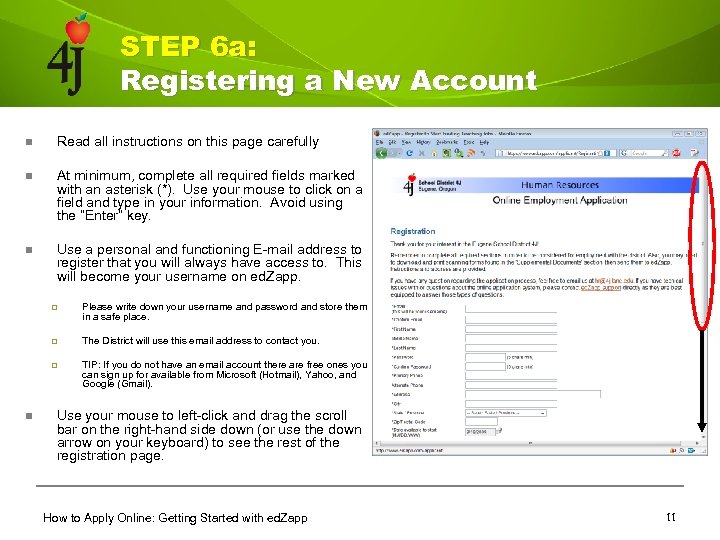 STEP 6 a: Registering a New Account n Read all instructions on this page carefully n At minimum, complete all required fields marked with an asterisk (*). Use your mouse to click on a field and type in your information. Avoid using the “Enter” key. n Use a personal and functioning E-mail address to register that you will always have access to. This will become your username on ed. Zapp. q q The District will use this email address to contact you. q n Please write down your username and password and store them in a safe place. TIP: If you do not have an email account there are free ones you can sign up for available from Microsoft (Hotmail), Yahoo, and Google (Gmail). Use your mouse to left-click and drag the scroll bar on the right-hand side down (or use the down arrow on your keyboard) to see the rest of the registration page. How to Apply Online: Getting Started with ed. Zapp 11
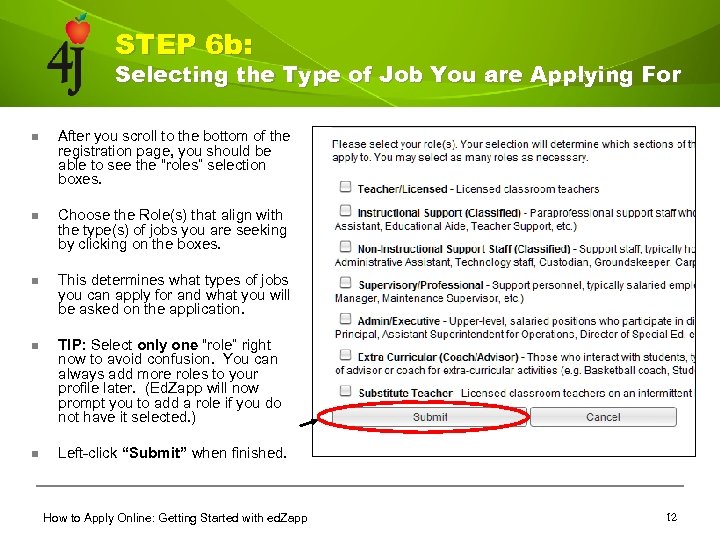 STEP 6 b: Selecting the Type of Job You are Applying For n After you scroll to the bottom of the registration page, you should be able to see the “roles” selection boxes. n Choose the Role(s) that align with the type(s) of jobs you are seeking by clicking on the boxes. n This determines what types of jobs you can apply for and what you will be asked on the application. n TIP: Select only one “role” right now to avoid confusion. You can always add more roles to your profile later. (Ed. Zapp will now prompt you to add a role if you do not have it selected. ) n Left-click “Submit” when finished. How to Apply Online: Getting Started with ed. Zapp 12
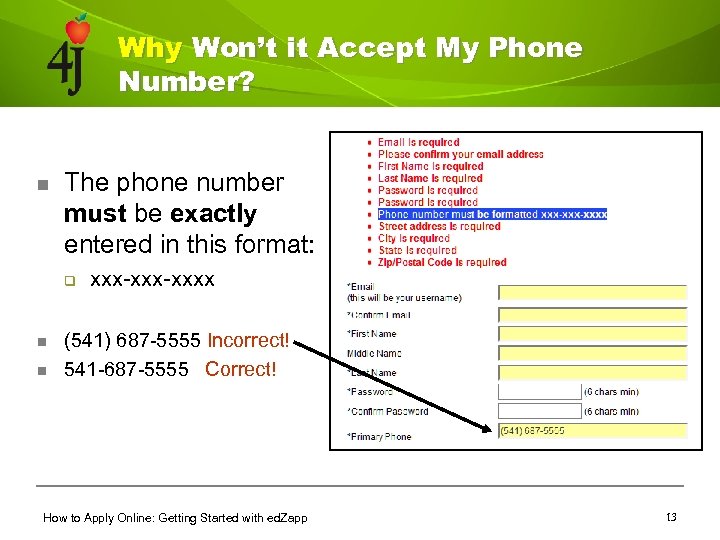 Why Won’t it Accept My Phone Number? n The phone number must be exactly entered in this format: q n n xxx-xxxx (541) 687 -5555 Incorrect! 541 -687 -5555 Correct! How to Apply Online: Getting Started with ed. Zapp 13
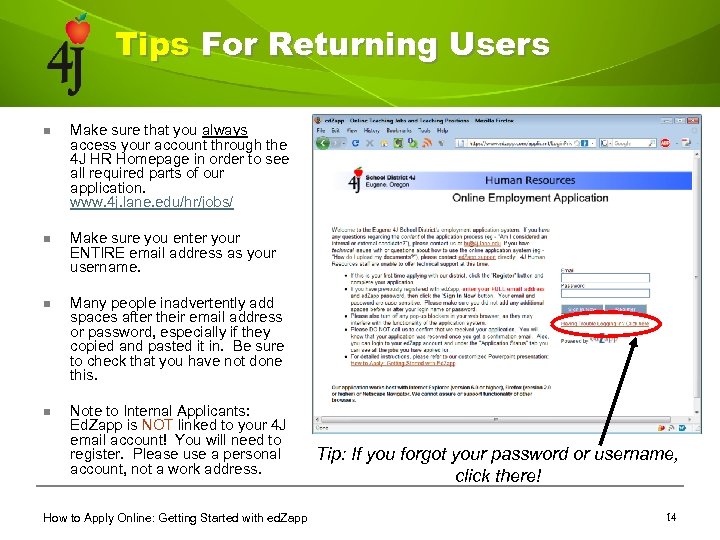 Tips For Returning Users n Make sure that you always access your account through the 4 J HR Homepage in order to see all required parts of our application. www. 4 j. lane. edu/hr/jobs/ n Make sure you enter your ENTIRE email address as your username. n Many people inadvertently add spaces after their email address or password, especially if they copied and pasted it in. Be sure to check that you have not done this. n Note to Internal Applicants: Ed. Zapp is NOT linked to your 4 J email account! You will need to register. Please use a personal account, not a work address. How to Apply Online: Getting Started with ed. Zapp Tip: If you forgot your password or username, click there! 14
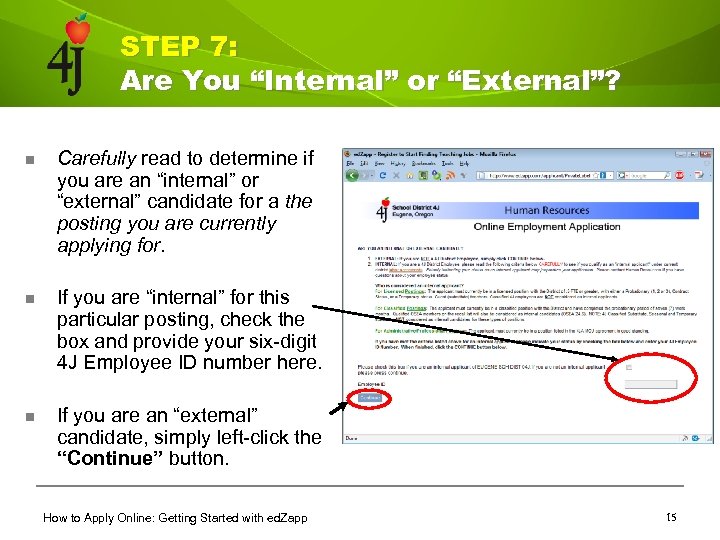 STEP 7: Are You “Internal” or “External”? n Carefully read to determine if you are an “internal” or “external” candidate for a the posting you are currently applying for. n If you are “internal” for this particular posting, check the box and provide your six-digit 4 J Employee ID number here. n If you are an “external” candidate, simply left-click the “Continue” button. How to Apply Online: Getting Started with ed. Zapp 15
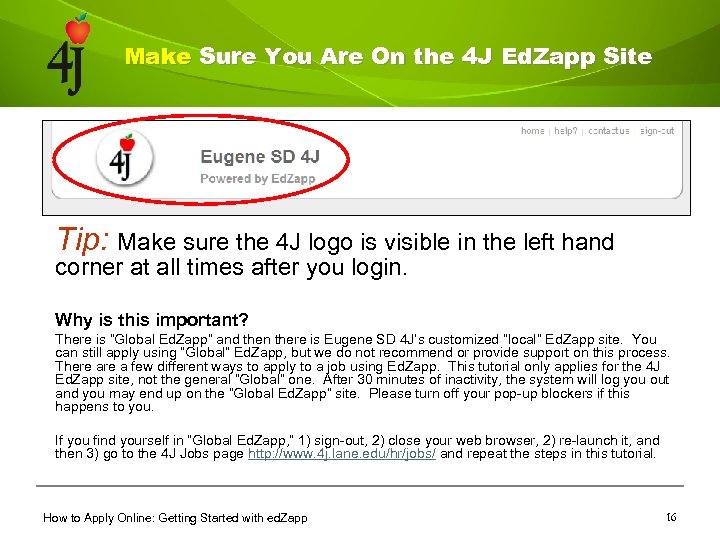 Make Sure You Are On the 4 J Ed. Zapp Site Tip: Make sure the 4 J logo is visible in the left hand corner at all times after you login. Why is this important? There is “Global Ed. Zapp” and then there is Eugene SD 4 J’s customized “local” Ed. Zapp site. You can still apply using “Global” Ed. Zapp, but we do not recommend or provide support on this process. There a few different ways to apply to a job using Ed. Zapp. This tutorial only applies for the 4 J Ed. Zapp site, not the general “Global” one. After 30 minutes of inactivity, the system will log you out and you may end up on the “Global Ed. Zapp” site. Please turn off your pop-up blockers if this happens to you. If you find yourself in “Global Ed. Zapp, ” 1) sign-out, 2) close your web browser, 2) re-launch it, and then 3) go to the 4 J Jobs page http: //www. 4 j. lane. edu/hr/jobs/ and repeat the steps in this tutorial. How to Apply Online: Getting Started with ed. Zapp 16
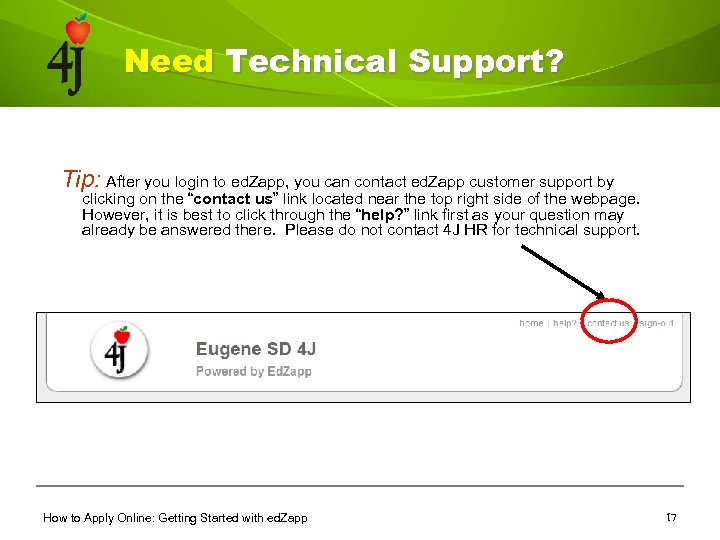 Need Technical Support? Tip: After you login to ed. Zapp, you can contact ed. Zapp customer support by clicking on the “contact us” link located near the top right side of the webpage. However, it is best to click through the “help? ” link first as your question may already be answered there. Please do not contact 4 J HR for technical support. How to Apply Online: Getting Started with ed. Zapp 17
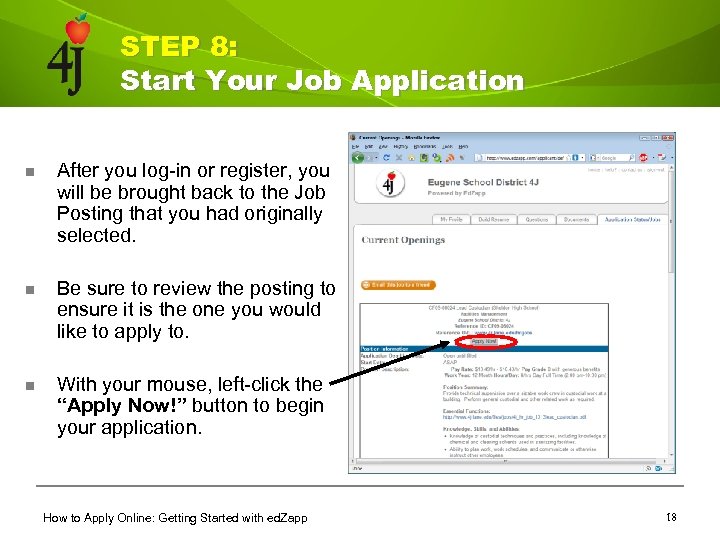 STEP 8: Start Your Job Application n After you log-in or register, you will be brought back to the Job Posting that you had originally selected. n Be sure to review the posting to ensure it is the one you would like to apply to. n With your mouse, left-click the “Apply Now!” button to begin your application. How to Apply Online: Getting Started with ed. Zapp 18
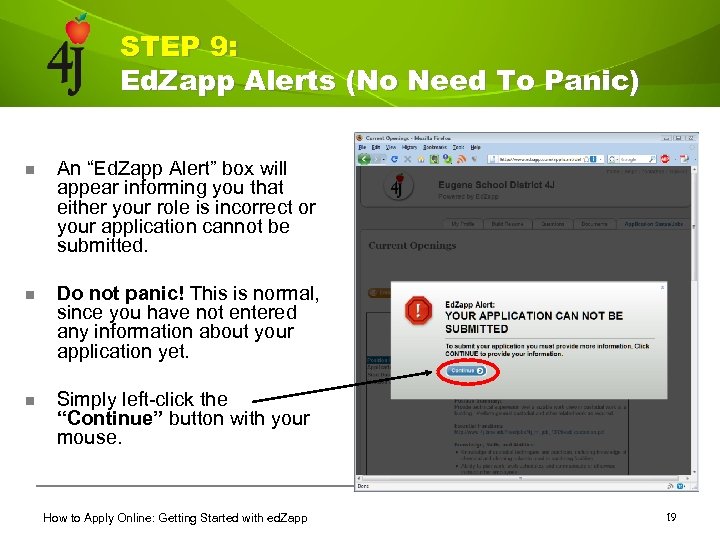 STEP 9: Ed. Zapp Alerts (No Need To Panic) n An “Ed. Zapp Alert” box will appear informing you that either your role is incorrect or your application cannot be submitted. n Do not panic! This is normal, since you have not entered any information about your application yet. n Simply left-click the “Continue” button with your mouse. How to Apply Online: Getting Started with ed. Zapp 19
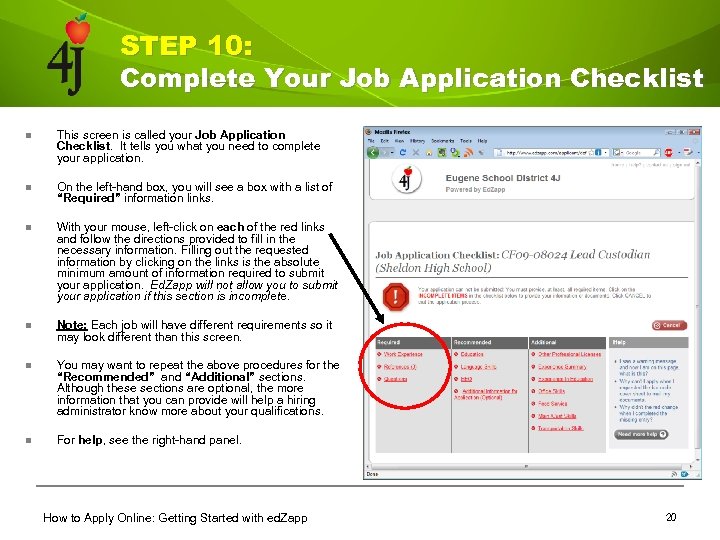 STEP 10: Complete Your Job Application Checklist n This screen is called your Job Application Checklist. It tells you what you need to complete your application. n On the left-hand box, you will see a box with a list of “Required” information links. n With your mouse, left-click on each of the red links and follow the directions provided to fill in the necessary information. Filling out the requested information by clicking on the links is the absolute minimum amount of information required to submit your application. Ed. Zapp will not allow you to submit your application if this section is incomplete. n Note: Each job will have different requirements so it may look different than this screen. n You may want to repeat the above procedures for the “Recommended” and “Additional” sections. Although these sections are optional, the more information that you can provide will help a hiring administrator know more about your qualifications. n For help, see the right-hand panel. How to Apply Online: Getting Started with ed. Zapp 20
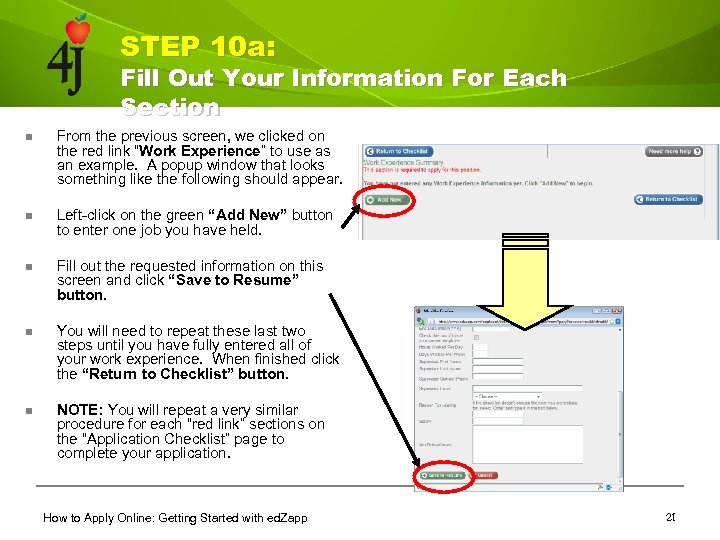 STEP 10 a: Fill Out Your Information For Each Section n From the previous screen, we clicked on the red link “Work Experience” to use as an example. A popup window that looks something like the following should appear. n Left-click on the green “Add New” button to enter one job you have held. n Fill out the requested information on this screen and click “Save to Resume” button. n You will need to repeat these last two steps until you have fully entered all of your work experience. When finished click the “Return to Checklist” button. n NOTE: You will repeat a very similar procedure for each “red link” sections on the “Application Checklist” page to complete your application. How to Apply Online: Getting Started with ed. Zapp 21
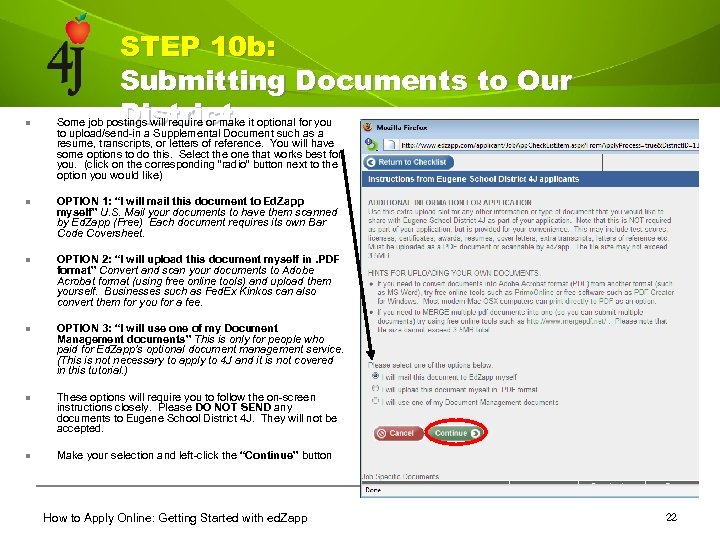 STEP 10 b: Submitting Documents to Our District n Some job postings will require or make it optional for you to upload/send-in a Supplemental Document such as a resume, transcripts, or letters of reference. You will have some options to do this. Select the one that works best for you. (click on the corresponding “radio” button next to the option you would like) n OPTION 1: “I will mail this document to Ed. Zapp myself” U. S. Mail your documents to have them scanned by Ed. Zapp (Free) Each document requires its own Bar Code Coversheet. n OPTION 2: “I will upload this document myself in. PDF format” Convert and scan your documents to Adobe Acrobat format (using free online tools) and upload them yourself. Businesses such as Fed. Ex Kinkos can also convert them for you for a fee. n OPTION 3: “I will use one of my Document Management documents” This is only for people who paid for Ed. Zapp’s optional document management service. (This is not necessary to apply to 4 J and it is not covered in this tutorial. ) n These options will require you to follow the on-screen instructions closely. Please DO NOT SEND any documents to Eugene School District 4 J. They will not be accepted. n Make your selection and left-click the “Continue” button How to Apply Online: Getting Started with ed. Zapp 22
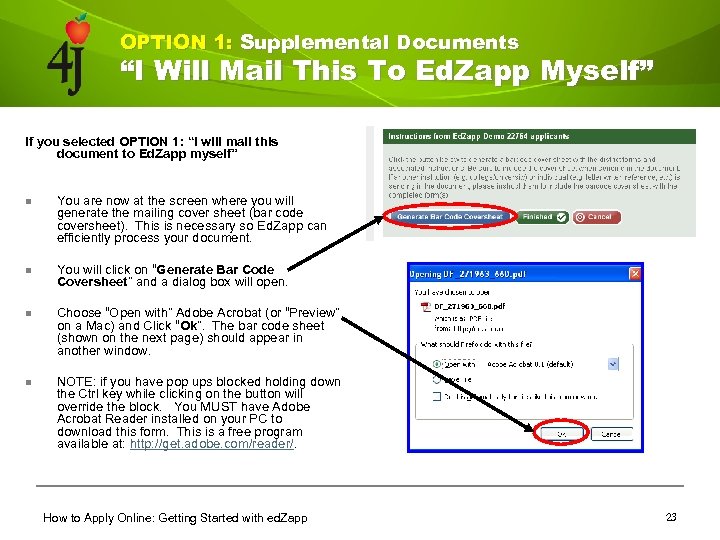 OPTION 1: Supplemental Documents “I Will Mail This To Ed. Zapp Myself” If you selected OPTION 1: “I will mail this document to Ed. Zapp myself” n You are now at the screen where you will generate the mailing cover sheet (bar code coversheet). This is necessary so Ed. Zapp can efficiently process your document. n You will click on “Generate Bar Code Coversheet” and a dialog box will open. n Choose “Open with” Adobe Acrobat (or “Preview” on a Mac) and Click “Ok”. The bar code sheet (shown on the next page) should appear in another window. n NOTE: if you have pop ups blocked holding down the Ctrl key while clicking on the button will override the block. You MUST have Adobe Acrobat Reader installed on your PC to download this form. This is a free program available at: http: //get. adobe. com/reader/. How to Apply Online: Getting Started with ed. Zapp 23
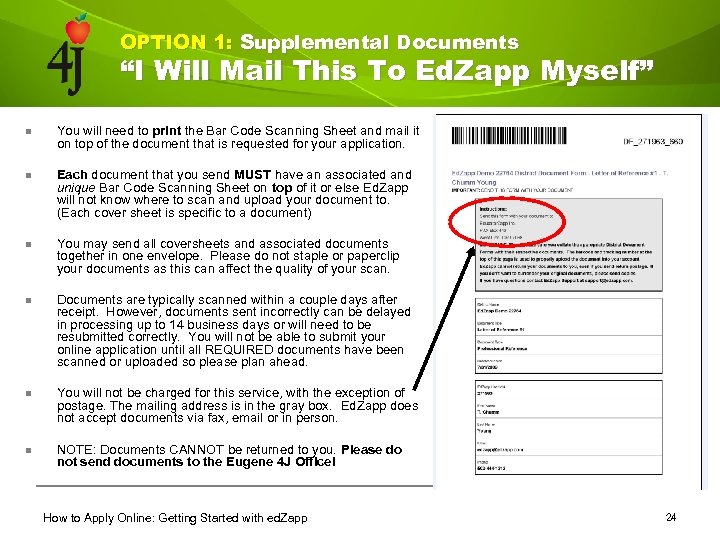 OPTION 1: Supplemental Documents “I Will Mail This To Ed. Zapp Myself” n You will need to print the Bar Code Scanning Sheet and mail it on top of the document that is requested for your application. n Each document that you send MUST have an associated and unique Bar Code Scanning Sheet on top of it or else Ed. Zapp will not know where to scan and upload your document to. (Each cover sheet is specific to a document) n You may send all coversheets and associated documents together in one envelope. Please do not staple or paperclip your documents as this can affect the quality of your scan. n Documents are typically scanned within a couple days after receipt. However, documents sent incorrectly can be delayed in processing up to 14 business days or will need to be resubmitted correctly. You will not be able to submit your online application until all REQUIRED documents have been scanned or uploaded so please plan ahead. n You will not be charged for this service, with the exception of postage. The mailing address is in the gray box. Ed. Zapp does not accept documents via fax, email or in person. n NOTE: Documents CANNOT be returned to you. Please do not send documents to the Eugene 4 J Office! How to Apply Online: Getting Started with ed. Zapp 24
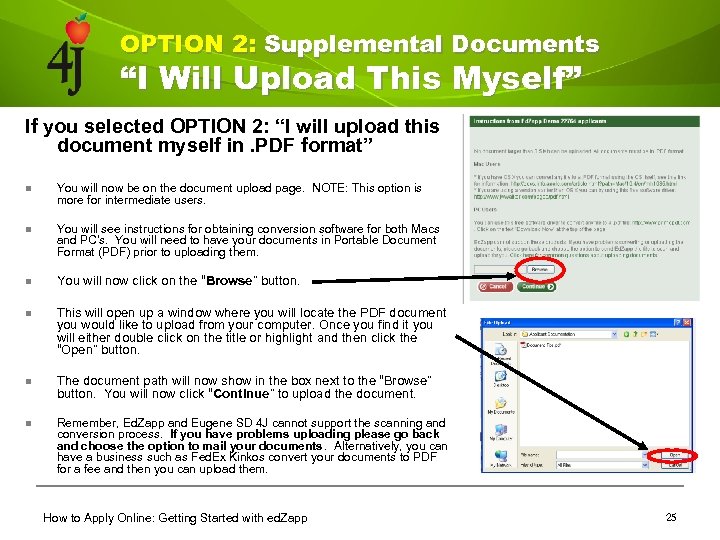 OPTION 2: Supplemental Documents “I Will Upload This Myself” If you selected OPTION 2: “I will upload this document myself in. PDF format” n You will now be on the document upload page. NOTE: This option is more for intermediate users. n You will see instructions for obtaining conversion software for both Macs and PC’s. You will need to have your documents in Portable Document Format (PDF) prior to uploading them. n You will now click on the “Browse” button. n This will open up a window where you will locate the PDF document you would like to upload from your computer. Once you find it you will either double click on the title or highlight and then click the “Open” button. n The document path will now show in the box next to the “Browse” button. You will now click “Continue” to upload the document. n Remember, Ed. Zapp and Eugene SD 4 J cannot support the scanning and conversion process. If you have problems uploading please go back and choose the option to mail your documents. Alternatively, you can have a business such as Fed. Ex Kinkos convert your documents to PDF for a fee and then you can upload them. How to Apply Online: Getting Started with ed. Zapp 25
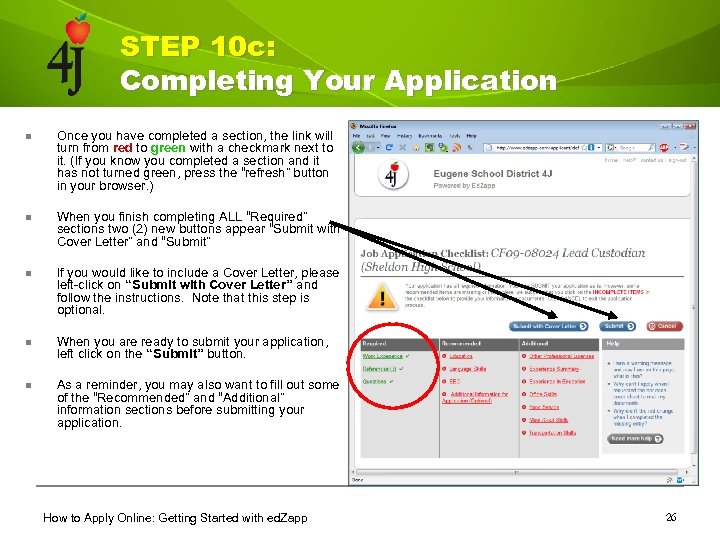 STEP 10 c: Completing Your Application n Once you have completed a section, the link will turn from red to green with a checkmark next to it. (If you know you completed a section and it has not turned green, press the “refresh” button in your browser. ) n When you finish completing ALL “Required” sections two (2) new buttons appear “Submit with Cover Letter” and “Submit” n If you would like to include a Cover Letter, please left-click on “Submit with Cover Letter” and follow the instructions. Note that this step is optional. n When you are ready to submit your application, left click on the “Submit” button. n As a reminder, you may also want to fill out some of the “Recommended” and “Additional” information sections before submitting your application. How to Apply Online: Getting Started with ed. Zapp 26
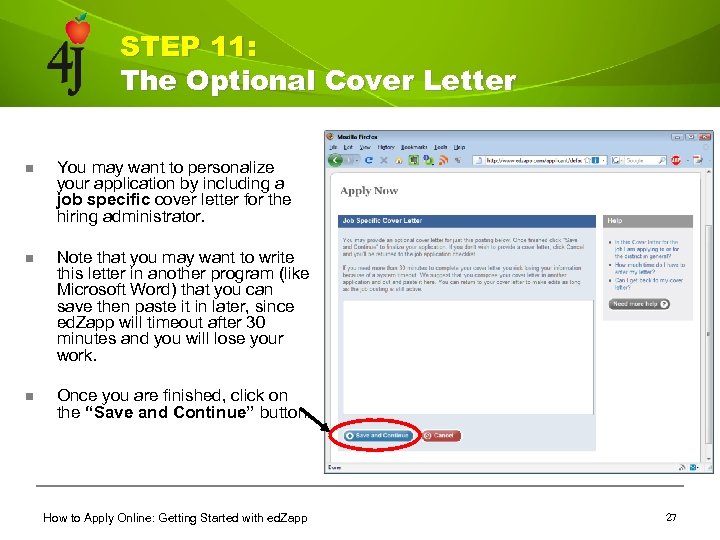 STEP 11: The Optional Cover Letter n You may want to personalize your application by including a job specific cover letter for the hiring administrator. n Note that you may want to write this letter in another program (like Microsoft Word) that you can save then paste it in later, since ed. Zapp will timeout after 30 minutes and you will lose your work. n Once you are finished, click on the “Save and Continue” button. How to Apply Online: Getting Started with ed. Zapp 27
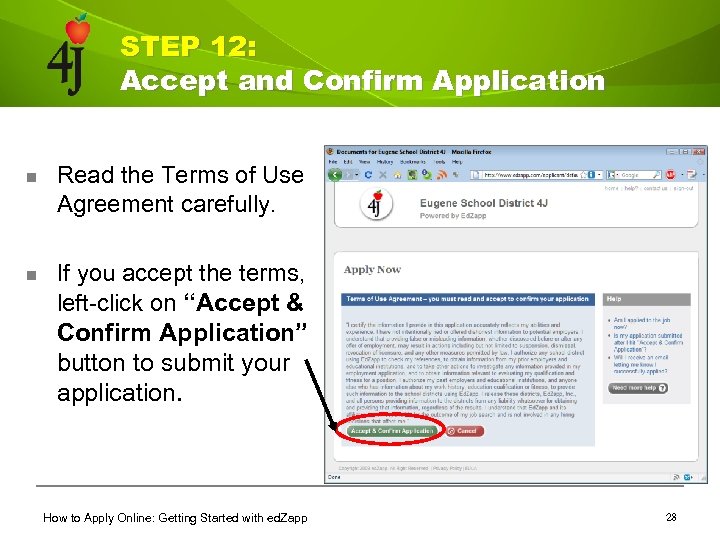 STEP 12: Accept and Confirm Application n Read the Terms of Use Agreement carefully. n If you accept the terms, left-click on “Accept & Confirm Application” button to submit your application. How to Apply Online: Getting Started with ed. Zapp 28
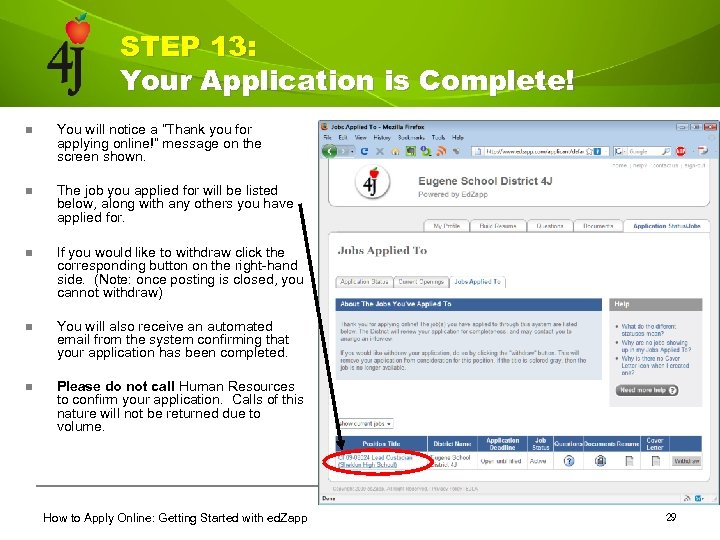 STEP 13: Your Application is Complete! n You will notice a “Thank you for applying online!” message on the screen shown. n The job you applied for will be listed below, along with any others you have applied for. n If you would like to withdraw click the corresponding button on the right-hand side. (Note: once posting is closed, you cannot withdraw) n You will also receive an automated email from the system confirming that your application has been completed. n Please do not call Human Resources to confirm your application. Calls of this nature will not be returned due to volume. How to Apply Online: Getting Started with ed. Zapp 29
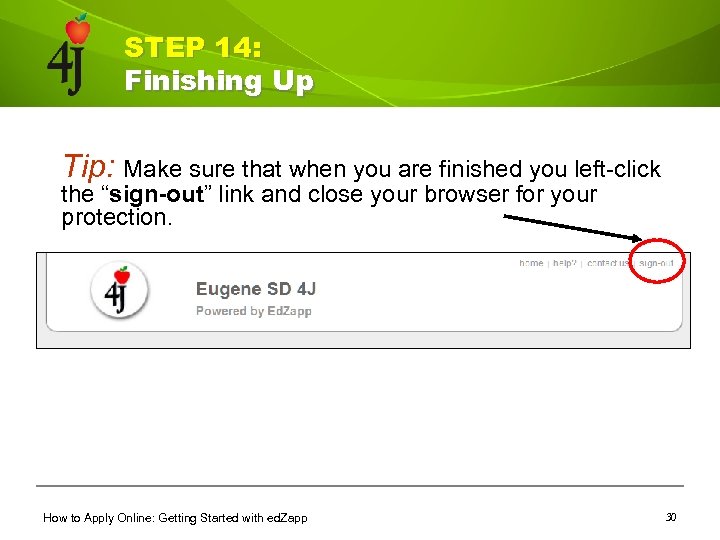 STEP 14: Finishing Up Tip: Make sure that when you are finished you left-click the “sign-out” link and close your browser for your protection. How to Apply Online: Getting Started with ed. Zapp 30
 Some Tips n Start Early! Avoid last-minute frustrations and anxieties by getting your application completed and documents submitted in plenty of time. n Avoid using your web browser’s “Back” button as it may lead to unpredictable behavior in Ed. Zapp. Please only use the navigation provided within the browser window in Ed. Zapp. n Note that late or incomplete applications cannot and will not be accepted. n Try to provide as much accurate information as you can. Hiring Administrators can only judge your qualifications based on the information you enter, so be sure to include everything accurately and fill in all applicable fields. n Represent yourself well. Just like a paper resume, the online application reflects you. How to Apply Online: Getting Started with ed. Zapp 31
 Some Tips n If you are selected for an interview, we will contact you directly. Please do not call us. n In the near future, you will be able to check the 4 J Human Resources website for status updates on the job search. Due to the volume of emails and calls we are unable to answer questions related to search status so please check our website. n If you have questions about the posting or the content of the application please contact 4 J Human Resources. n If you have technical questions regarding ed. Zapp, please contact ed. Zapp support directly they are best equipped to handle these inquiries. To contact them, please login to your ed. Zapp account and click “contact us” or visit www. edzapp. com. How to Apply Online: Getting Started with ed. Zapp 32
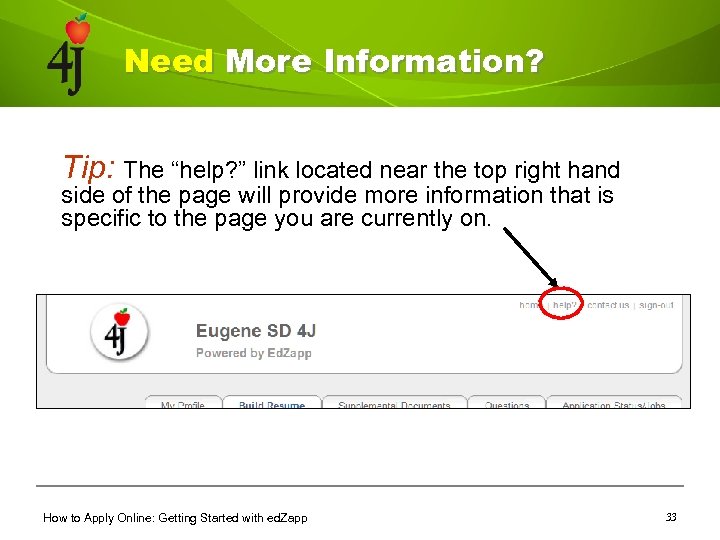 Need More Information? Tip: The “help? ” link located near the top right hand side of the page will provide more information that is specific to the page you are currently on. How to Apply Online: Getting Started with ed. Zapp 33
 Frequently Asked Questions Q: What’s a web browser? How much does it cost? A: A web browser is a software application which enables a user to display and interact with text, images, videos, music, games and other information typically located on a Web page at a website on the World Wide Web or a local area network. To access ed. Zapp you will need internet access and a compatible web browser such as Microsoft Internet Explorer (8. 0 or above) or Firefox (3. 0 or above). They can be downloaded free from the internet and may already be installed on your computer. How to Apply Online: Getting Started with ed. Zapp 34
 Frequently Asked Questions Q: Does ed. Zapp work on either Windows or Mac computers? Which Browsers? A: Yes, ed. Zapp accepts applications from either Windows or Apple systems. Ed. Zapp works best with Internet Explorer (version 8. 0 or higher) or Firefox (version 3. 0). We cannot assure or support functionality of other browsers. If ed. Zapp is looking “weird” in your browser make sure that you are using a compatible browser. However, there are some known issues with Internet Explorer so if you are experiencing problems try Firefox. How to Apply Online: Getting Started with ed. Zapp 35
 Frequently Asked Questions Q: Which browser works best on a Mac? A: Ed. Zapp works best with Firefox (3. 0 or above). You can download it free from http: //www. mozilla. com/en-US/ How to Apply Online: Getting Started with ed. Zapp 36
 Frequently Asked Questions Q: What if I don’t have an e-mail account? A: You can obtain an email account free online at various sites such as Yahoo (Yahoo Mail), Microsoft (Hotmail), Google (Gmail), etc. Sorry, we cannot help you remember lost usernames or passwords for your email account so be sure to write them down in a safe place. We will use this email address to communicate to applicants. How to Apply Online: Getting Started with ed. Zapp 37
 Frequently Asked Questions Q: What is a “pool” posting? A: A pool posting is when the District anticipates that it will have multiple positions to fill in the future and collects applications in preparation for it. Applicants will be selected for interview if and when positions become open. You will notice a “P” at the end of a posting number like CL 09 -09382 P. This indicates that the posting is a pool. How to Apply Online: Getting Started with ed. Zapp 38
 Frequently Asked Questions Q: Can I share my e-mail address to use ed. Zapp? A: No. Every email address can only have one unique ed. Zapp account. It is not recommended you share your email or password with anyone. Every ed. Zapp user must have their own unique and personal email address. How to Apply Online: Getting Started with ed. Zapp 39
 Frequently Asked Questions Q: Can I use my work 4 J email account to register with ed. Zapp? A: No. The district encourages both internal and external applicants to use an email address that they personally own and will have access to regardless of the place of employment. It is inappropriate to use a work account to apply to a position, even if it is to the same organization. Remember, your 4 J email account is considered public property and therefore anything you receive or send may be read by others. How to Apply Online: Getting Started with ed. Zapp 40
 Frequently Asked Questions Q: I can’t login! What’s going on? A: Remember, you must REGISTER with Ed. Zapp before using the system. Your username is the FULL email address you used when you registered in ed. Zapp. Many times people only enter the first part of their email address. Be sure to type it out completely. If you do not remember either your username or password, click on the link underneath the sign-in box and follow the directions provided. As a reminder, to internal candidates, you should not use a 4 J email address to register with ed. Zapp. How to Apply Online: Getting Started with ed. Zapp 41
 Frequently Asked Questions Q: What is the difference between “My Documents” and “Supplemental Documents”? A: Supplemental Documents are district-specific, and are forms posted by a district as part of their customized application. Supplemental Documents are ONLY seen by the district who posted them. My Documents are documents that YOU control, and may be seen by ALL districts, or (if you choose) only by Zapped districts you designate. This is a premium feature offered through ed. Zapp EXAMPLE: When applying for a job at District X, you download the Supplemental Document form for a transcript and send it in. This transcript will only be seen by district X. To have that same transcript seen by ALL districts, you could purchase Document Management and send it in as one of My Documents. How to Apply Online: Getting Started with ed. Zapp 42
 Frequently Asked Questions Q: What if I don’t have access to a computer or internet? A: Try a friend’s or family member’s computer. You can also use one of the public computers at the Eugene Public Library, the Oregon Employment Center, and take advantage of some of the open lab time setup from time to time by Human Resources at the 4 J Ed Center. The City of Eugene also offers free Wi. Fi spots in various public spaces around town. Try a coffee shop with free Wifi. Fed. Ex Kinkos also offers computer use (for a fee. ) Also, EFN. org offers low income accounts. How to Apply Online: Getting Started with ed. Zapp 43
 Frequently Asked Questions Q: Is my application complete? Can you check? A: You will receive an email confirmation that we have received your application. If your application is incomplete, then the system will prompt you to enter the information before submitting. You can check to see what you have entered by logging back on to your account and clicking through each of the sections. The jobs you’ve successfully applied to will be listed under the “Application/Jobs” and under the sub-tab “Jobs Applied To” Due to the heavy volume of calls and emails, HR is unable to check your application for completeness. How to Apply Online: Getting Started with ed. Zapp 44
 Frequently Asked Questions Q: I can’t get my supplemental documents to upload. What should I do? A: First, make sure that the job you are applying requires supplemental documents. Supplemental documents must be uploaded as an Adobe Acrobat PDF formatted file. (Sorry, Microsoft Word and other file types are not accepted. ) There a number of free PDF creation software applications available on the internet. (Google “PDF Creator” for more info. ) You may need to use a scanner to scan letters of reference or unofficial transcripts. Note that uploaded files my not exceed 3. 5 MB in size. You may also send in your documents to ed. Zapp for them to scan in. This is free to you as an applicant as 4 J contracts with them for this service. If you have any additional questions please contact ed. Zapp support directly as Human Resources is unable to answer technical questions about the supplemental documents system. support@edzapp. com How to Apply Online: Getting Started with ed. Zapp 45
 Frequently Asked Questions Q: Can I turn in a paper application? A: Not for any job posting on ed. Zapp. All applications listed using this system requires an online application. Paper applications for these jobs will not be accepted. Note however that there are certain types of classified non -instructional positions that require a paper application instead of an ed. Zapp application. Those are listed on our website under “Paper Process” job postings. How to Apply Online: Getting Started with ed. Zapp 46
 Need More Information? n Visit the 4 J Human Resources Website at n Contact 4 J HR at 790 -7600 or hr@4 j. lane. edu n Visit ed. Zapp at www. Ed. Zapp. com http: //www. 4 j. lane. edu/hr/jobs/ q n Visit the Applicant FAQ from the same page Contact ed. Zapp Technical Support: q q Click on the support link on any ed. Zapp page after you login. Email: support@edzapp. com How to Apply Online: Getting Started with ed. Zapp 47
 Human Resource Recruitment Staff n Jason Mak q q q n Recruitment, Classification, & Compensation Manager (541) 790 -7668 mak_j@4 j. lane. edu Diana Mc. Elhinney q q q HR Assistant II (Leaves & Recruitment) (541) 790 -7676 mcelhinney_d@4 j. lane. edu How to Apply Online: Getting Started with ed. Zapp 48