 Скачать презентацию Enrollment Reporting System Upgrade URL www webconference com
489ceee0d6e2dcf6be850e4d227afea9.ppt
- Количество слайдов: 52



Enrollment Reporting System Upgrade URL: www. webconference. com Conf. Id: CONF 2930990 Password: ERSA 1 Phone Information: (225) 383 -8961 Participant Code: 491773 1
ERS Upgrade : ERA n n n Agenda -Introduction – Ron Basich -Main Objectives – Ron Basich -Data Flow – Ron Basich -Demo – Jenny Philip -Process Flow Summary – Jenny Philip -QA 2
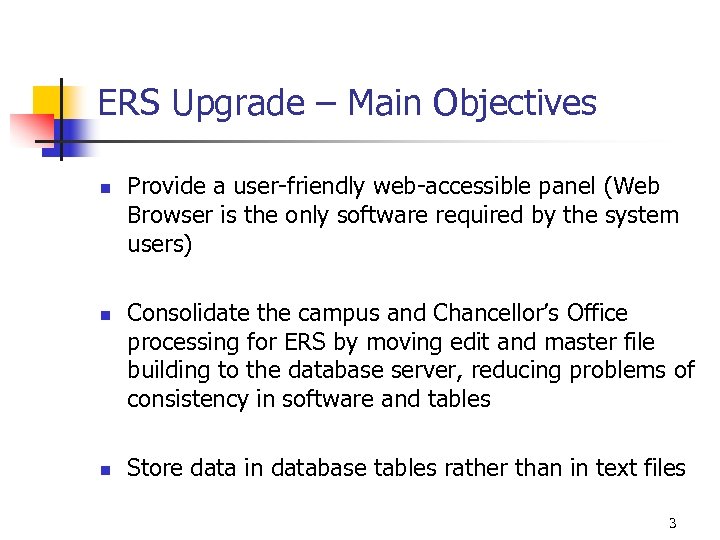
ERS Upgrade – Main Objectives n n n Provide a user-friendly web-accessible panel (Web Browser is the only software required by the system users) Consolidate the campus and Chancellor’s Office processing for ERS by moving edit and master file building to the database server, reducing problems of consistency in software and tables Store data in database tables rather than in text files 3
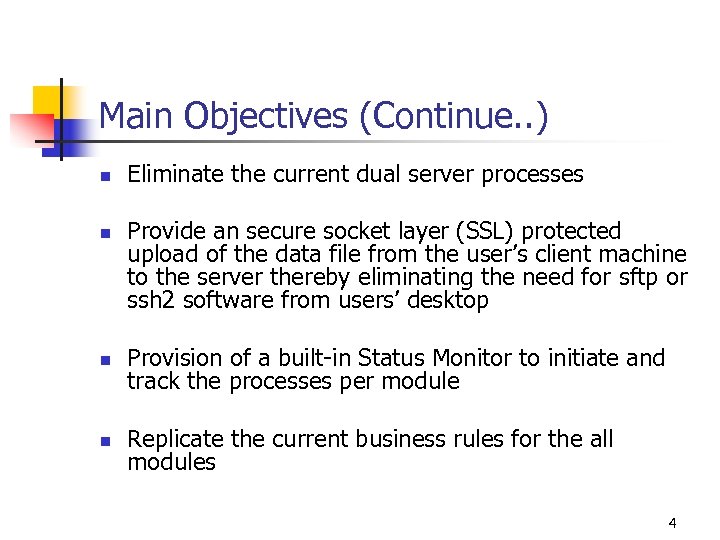
Main Objectives (Continue. . ) n n Eliminate the current dual server processes Provide an secure socket layer (SSL) protected upload of the data file from the user’s client machine to the server thereby eliminating the need for sftp or ssh 2 software from users’ desktop n Provision of a built-in Status Monitor to initiate and track the processes per module n Replicate the current business rules for the all modules 4
Main Objectives (Continue. . ) n n n Query varying levels of information and provide userfriendly reports Identify the user id naming convention as the first character of the first name along with the first seven characters of the last name (e. g. NRAMIREZ) Encryption of confidential data (i. e. Social Security Number) and data communications to improve security 5
Main Objectives (Continue…) n Provide security at function level and the content of data the function accesses. 6
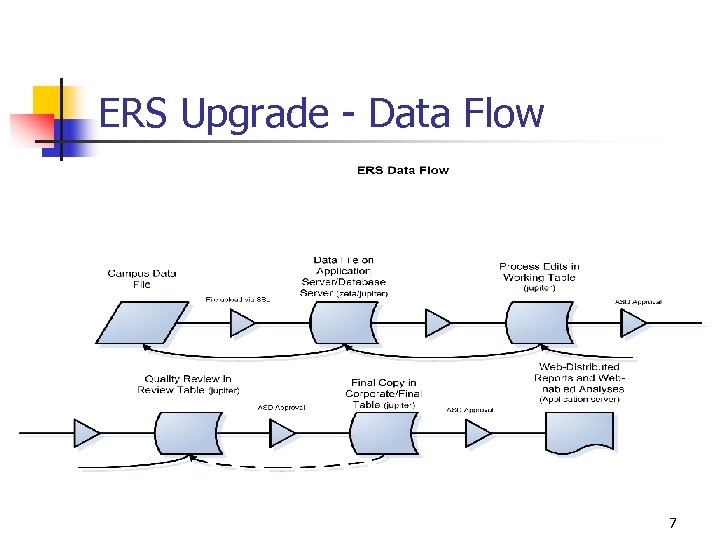
ERS Upgrade - Data Flow 7
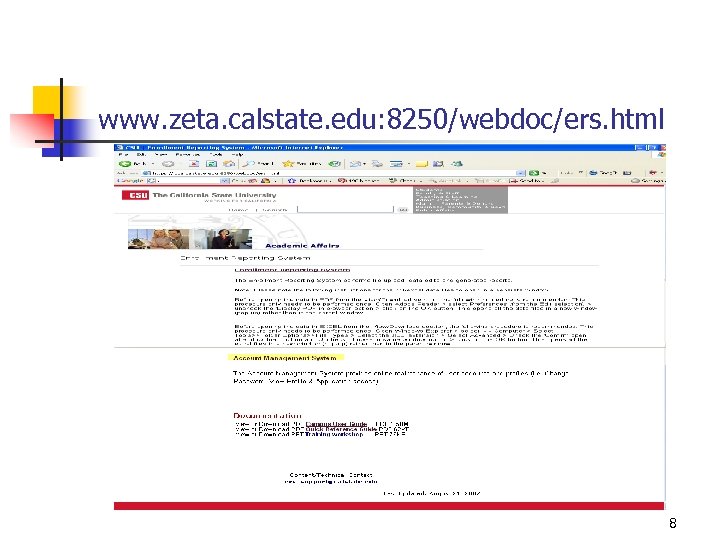
www. zeta. calstate. edu: 8250/webdoc/ers. html 8
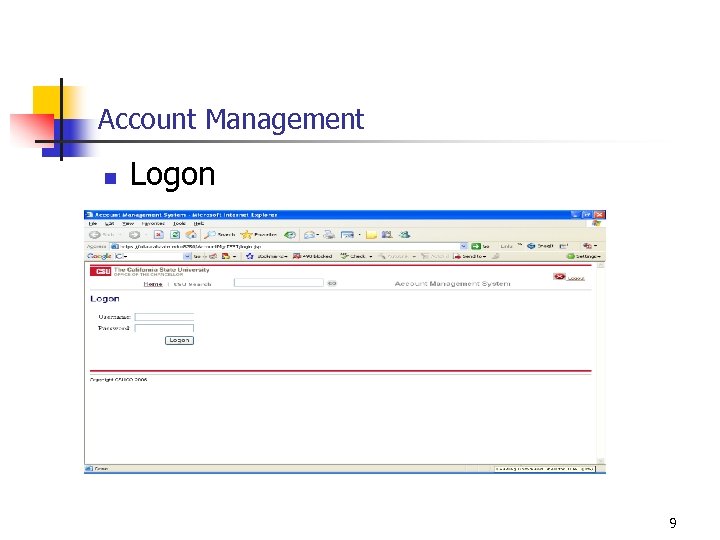
Account Management n Logon 9
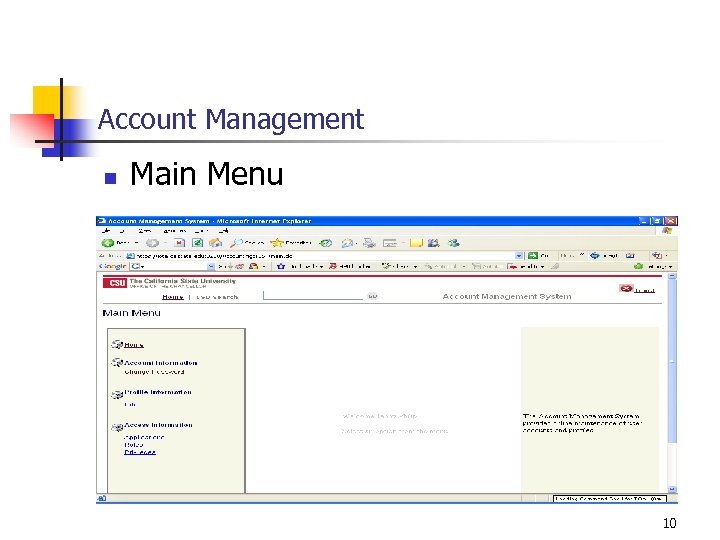
Account Management n Main Menu 10
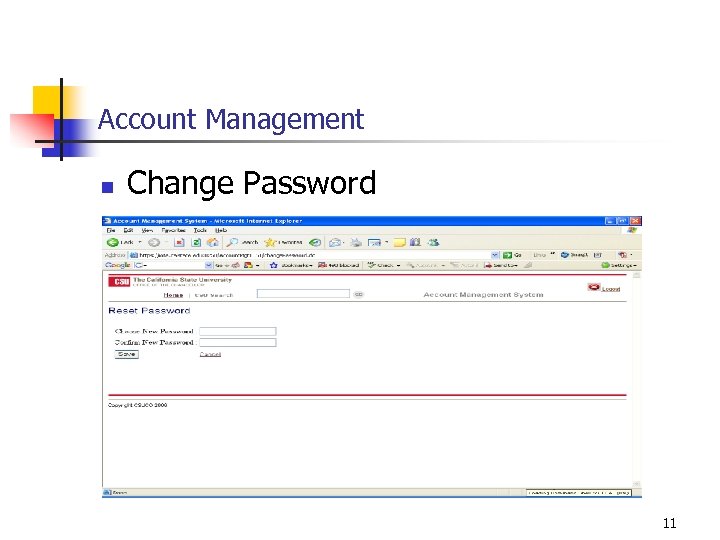
Account Management n Change Password 11
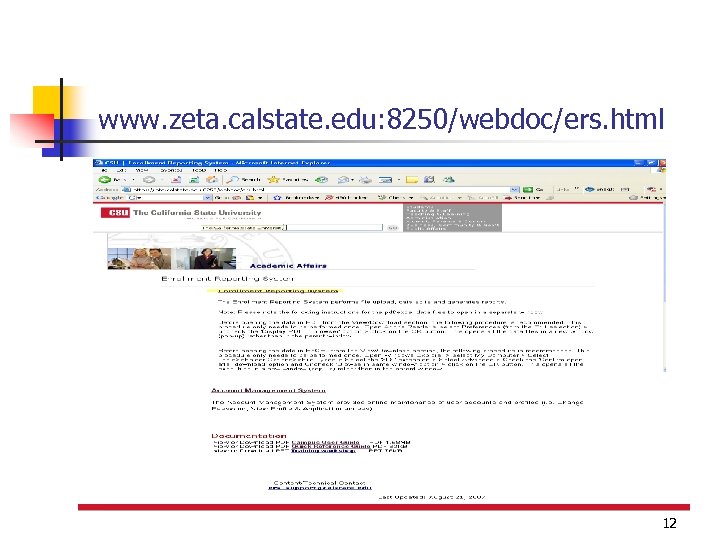
www. zeta. calstate. edu: 8250/webdoc/ers. html 12
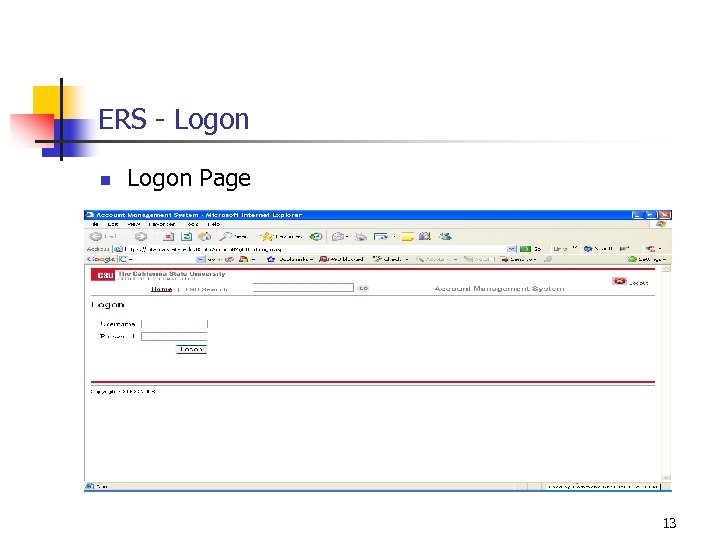
ERS - Logon n Logon Page 13
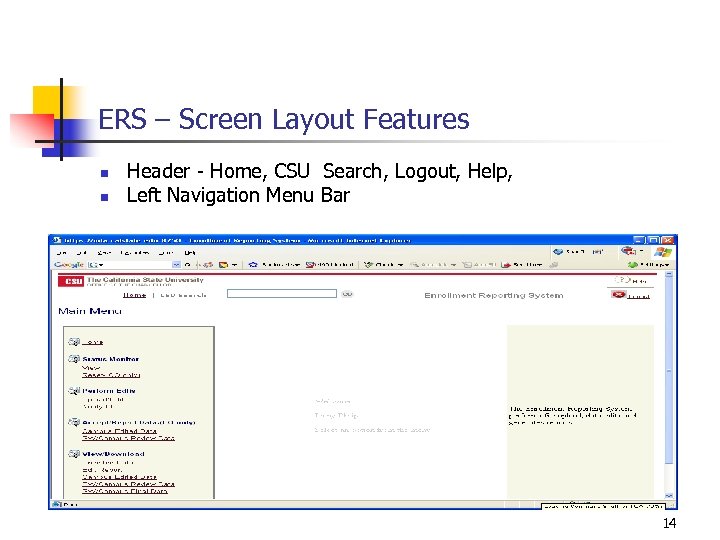
ERS – Screen Layout Features n n Header - Home, CSU Search, Logout, Help, Left Navigation Menu Bar 14
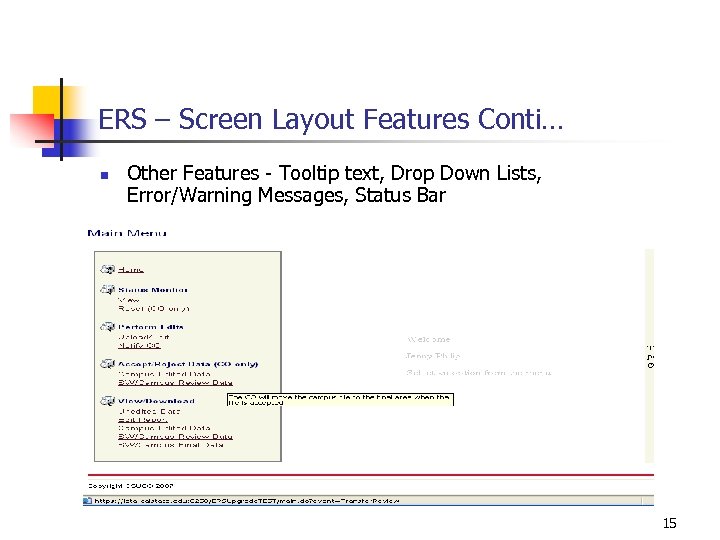
ERS – Screen Layout Features Conti… n Other Features - Tooltip text, Drop Down Lists, Error/Warning Messages, Status Bar 15
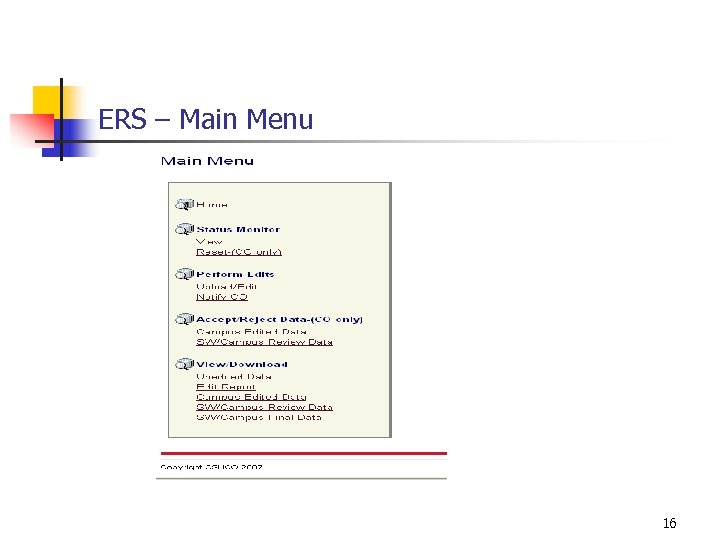
ERS – Main Menu 16
ERS - Security n n Sensitive Information Maintain integrity, confidentiality and security Privileges are assigned to each Role i. e. “Upload/Edit” privilege is assigned to the campus “Staff” role Roles are then assigned to the Users i. e. “Staff” role is assigned to “RMORAN” 17
ERS n Q&A 18
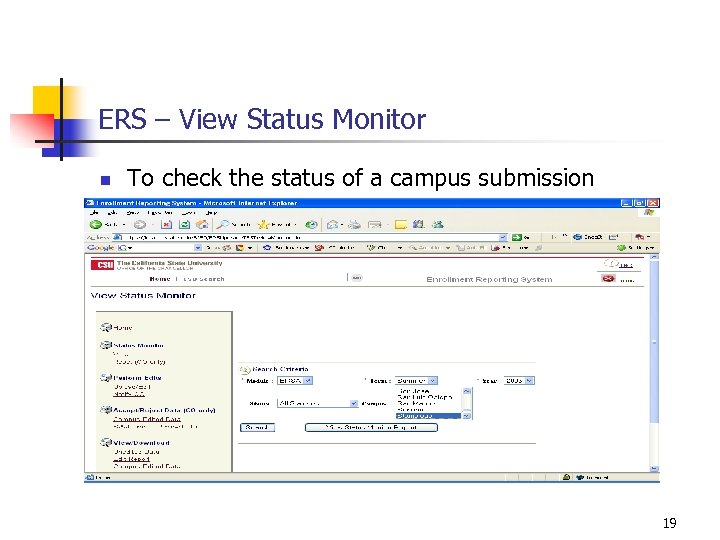
ERS – View Status Monitor n To check the status of a campus submission 19
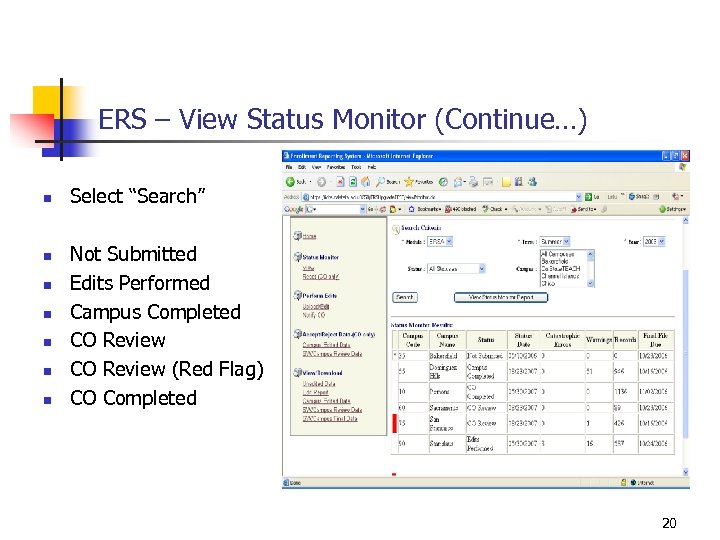
ERS – View Status Monitor (Continue…) n n n n Select “Search” Not Submitted Edits Performed Campus Completed CO Review (Red Flag) CO Completed 20
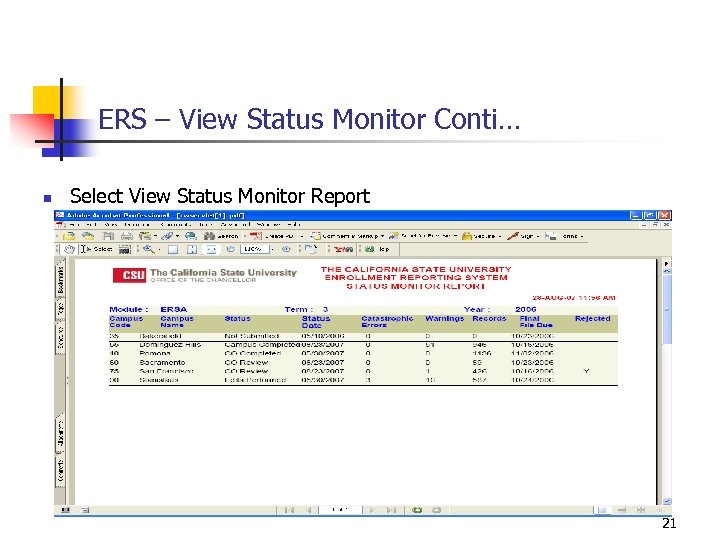
ERS – View Status Monitor Conti… n Select View Status Monitor Report 21
ERS n Q&A 22
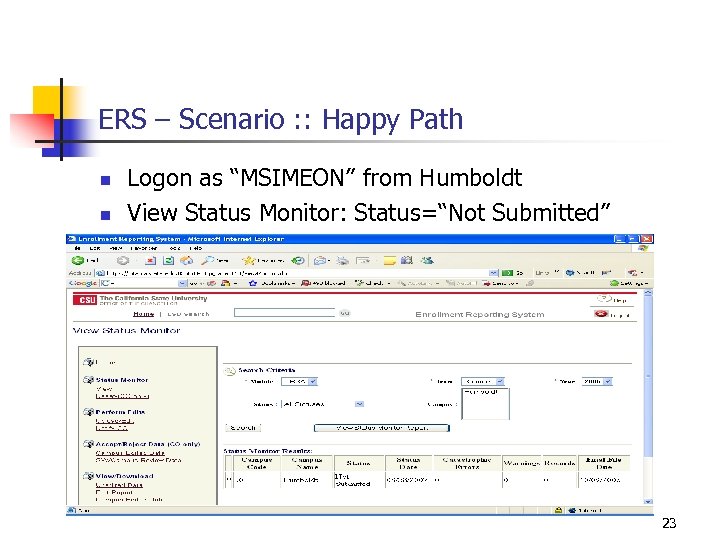
ERS – Scenario : : Happy Path n n Logon as “MSIMEON” from Humboldt View Status Monitor: Status=“Not Submitted” 23
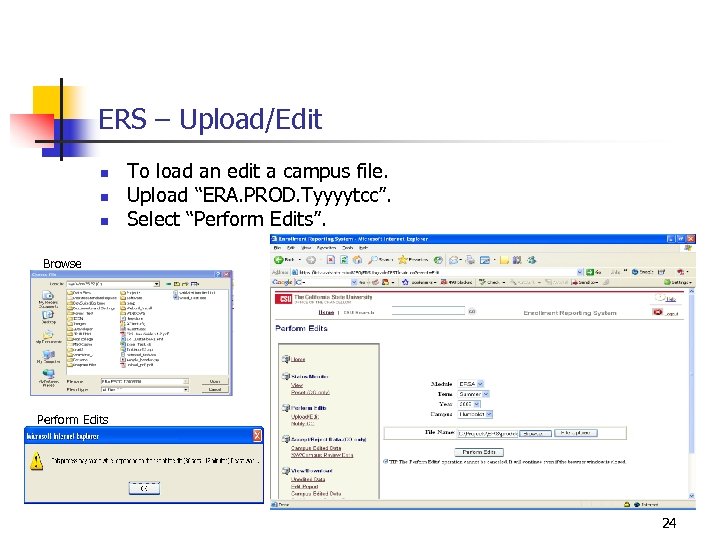
ERS – Upload/Edit n n n To load an edit a campus file. Upload “ERA. PROD. Tyyyytcc”. Select “Perform Edits”. Browse Perform Edits 24
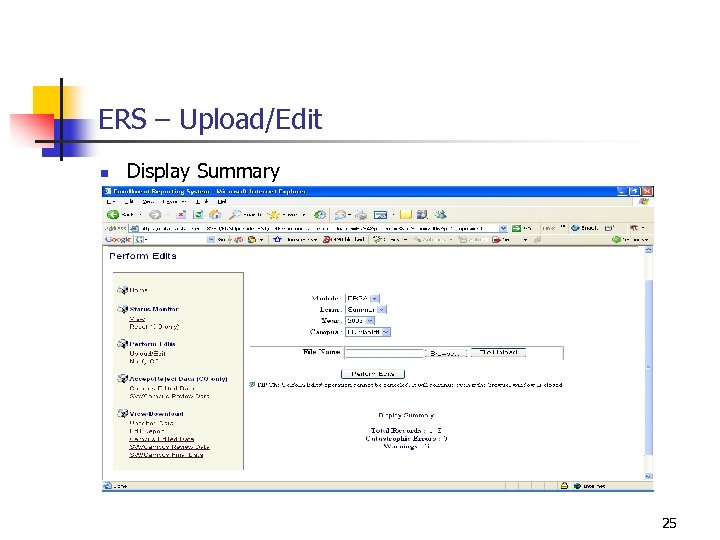
ERS – Upload/Edit n Display Summary 25
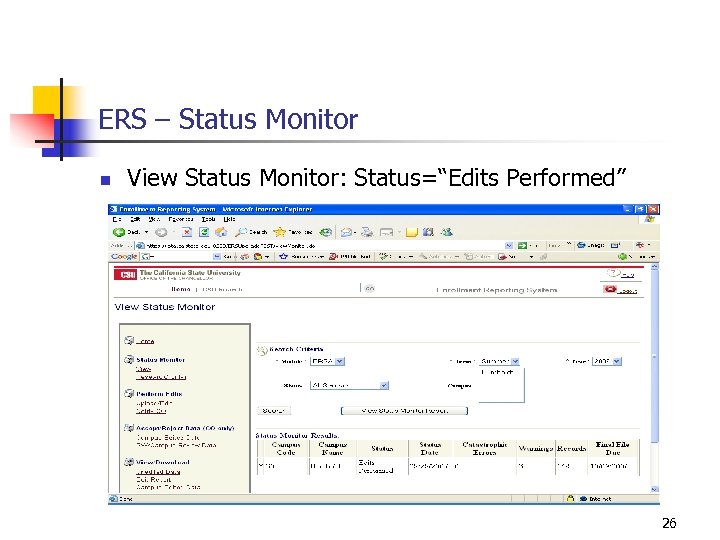
ERS – Status Monitor n View Status Monitor: Status=“Edits Performed” 26
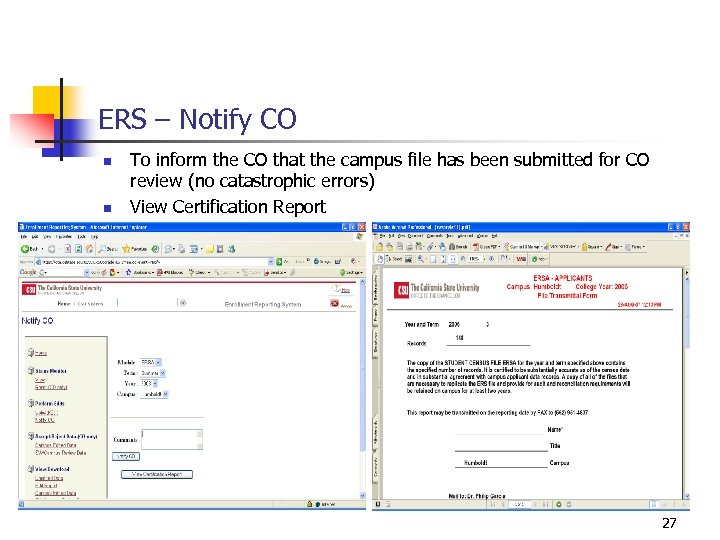
ERS – Notify CO n n To inform the CO that the campus file has been submitted for CO review (no catastrophic errors) View Certification Report 27
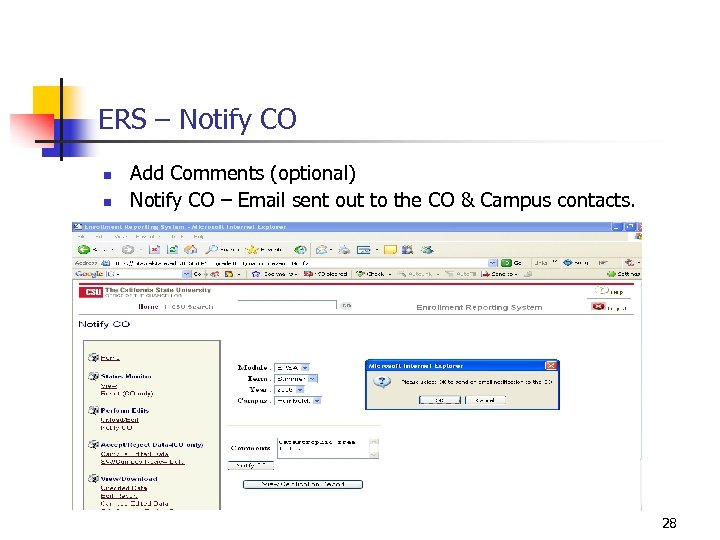
ERS – Notify CO n n Add Comments (optional) Notify CO – Email sent out to the CO & Campus contacts. 28
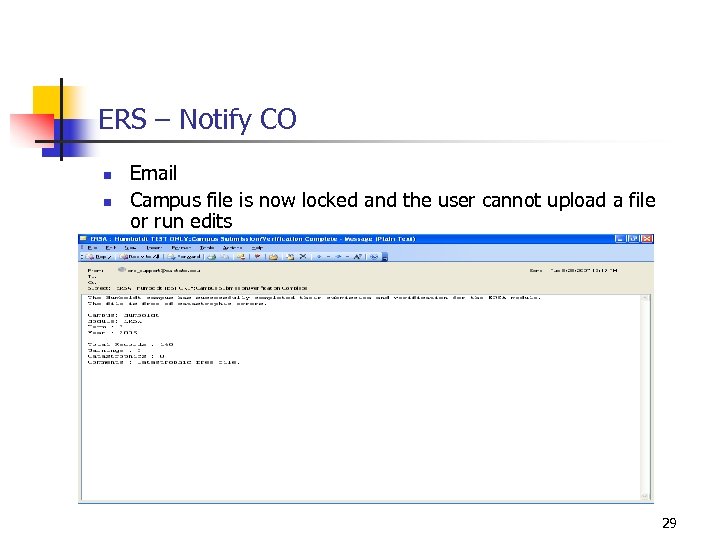
ERS – Notify CO n n Email Campus file is now locked and the user cannot upload a file or run edits 29
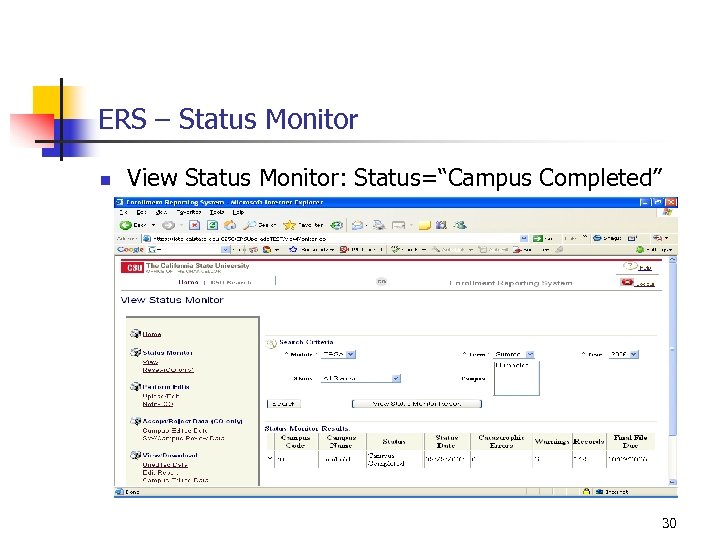
ERS – Status Monitor n View Status Monitor: Status=“Campus Completed” 30
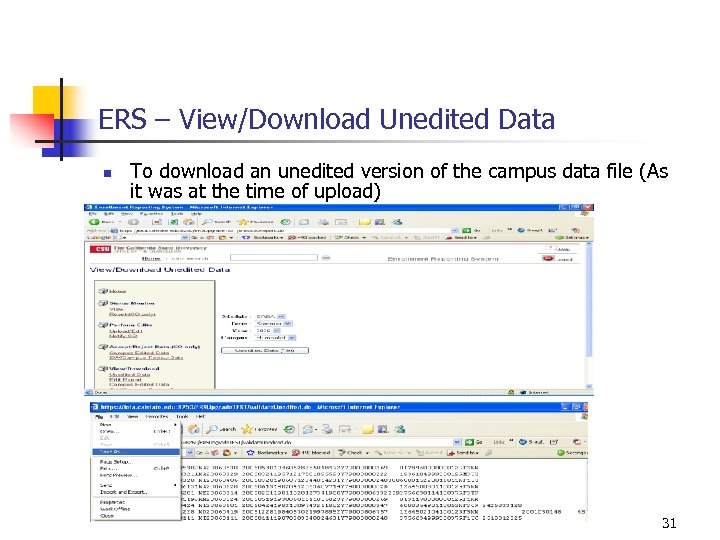
ERS – View/Download Unedited Data n To download an unedited version of the campus data file (As it was at the time of upload) 31
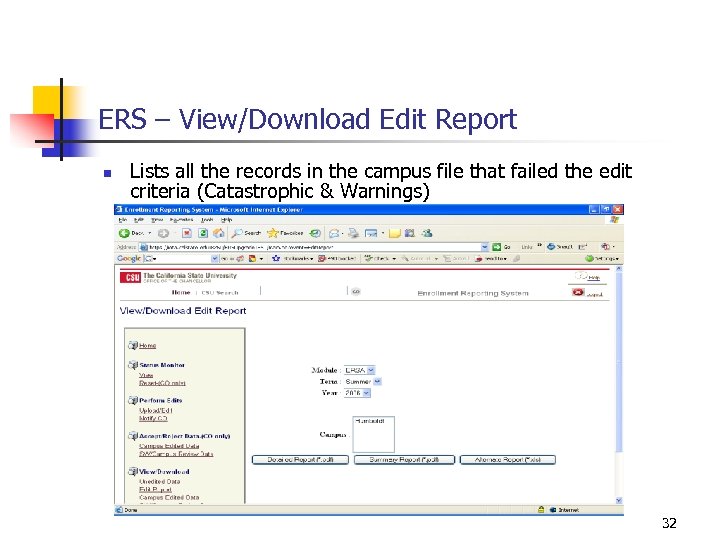
ERS – View/Download Edit Report n Lists all the records in the campus file that failed the edit criteria (Catastrophic & Warnings) 32
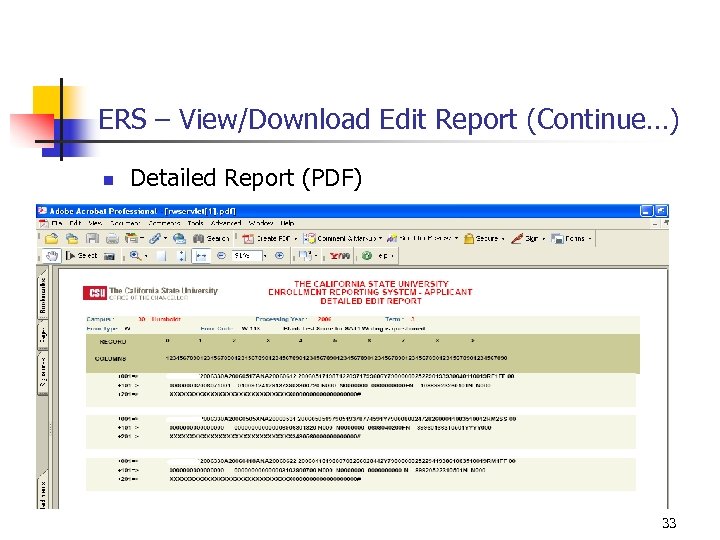
ERS – View/Download Edit Report (Continue…) n Detailed Report (PDF) 33
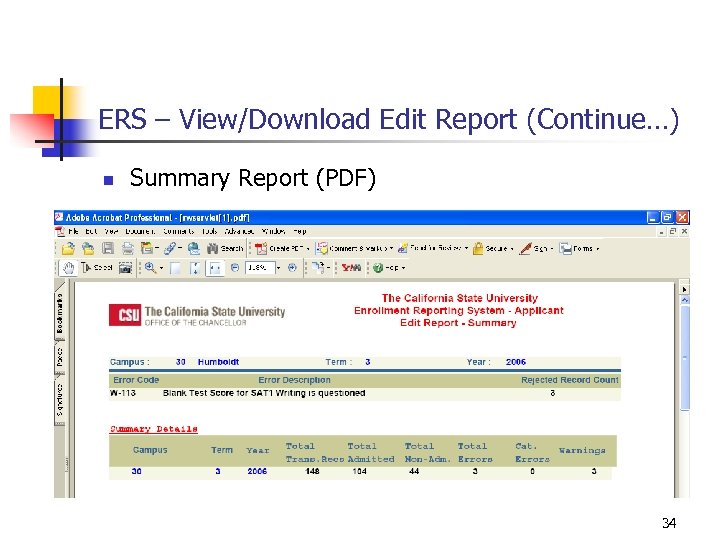
ERS – View/Download Edit Report (Continue…) n Summary Report (PDF) 34
![ERS – View/Download Edit Report (Continue…) n Alternate Report (Excel). [A 2] 35](https://present5.com/presentation/489ceee0d6e2dcf6be850e4d227afea9/image-35.jpg "ERS – View/Download Edit Report (Continue…) n Alternate Report (Excel). [A 2] 35")
ERS – View/Download Edit Report (Continue…) n Alternate Report (Excel). [A 2] 35

ERS – View/Download Campus Edited Data n Lists all the records in the campus file after the CO transformations have been complete 36
ERS n Q&A 37
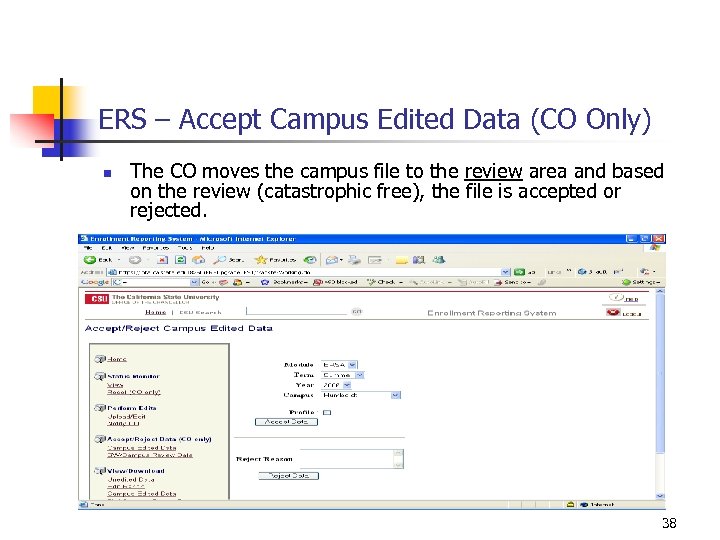
ERS – Accept Campus Edited Data (CO Only) n The CO moves the campus file to the review area and based on the review (catastrophic free), the file is accepted or rejected. 38
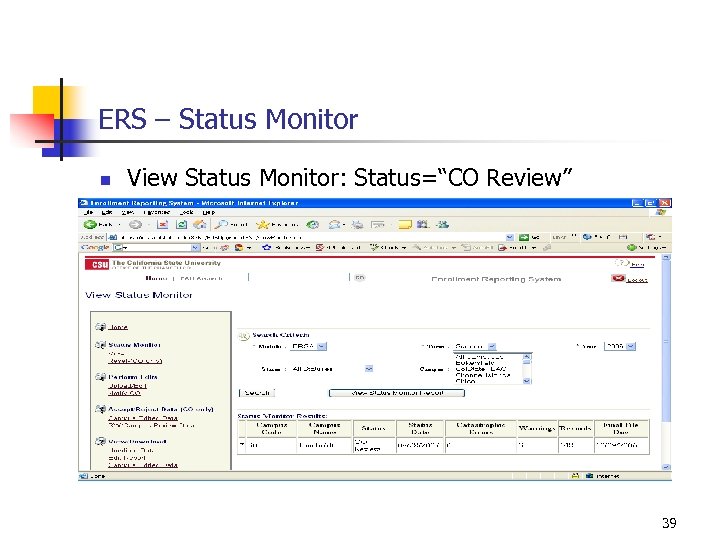
ERS – Status Monitor n View Status Monitor: Status=“CO Review” 39
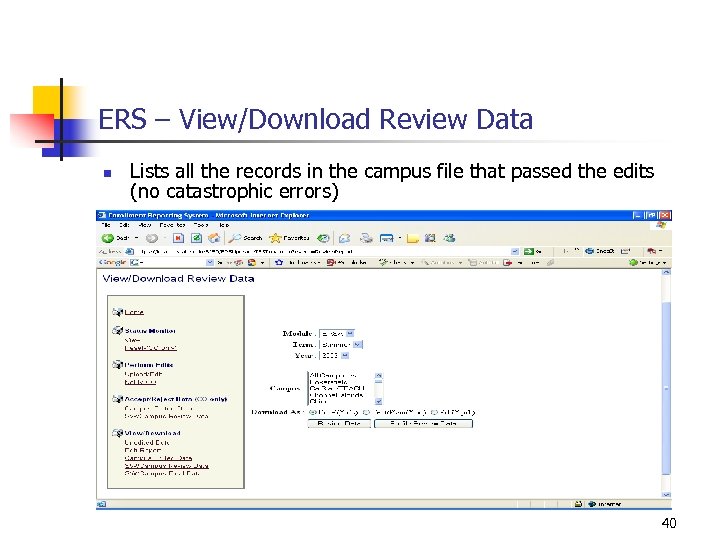
ERS – View/Download Review Data n Lists all the records in the campus file that passed the edits (no catastrophic errors) 40
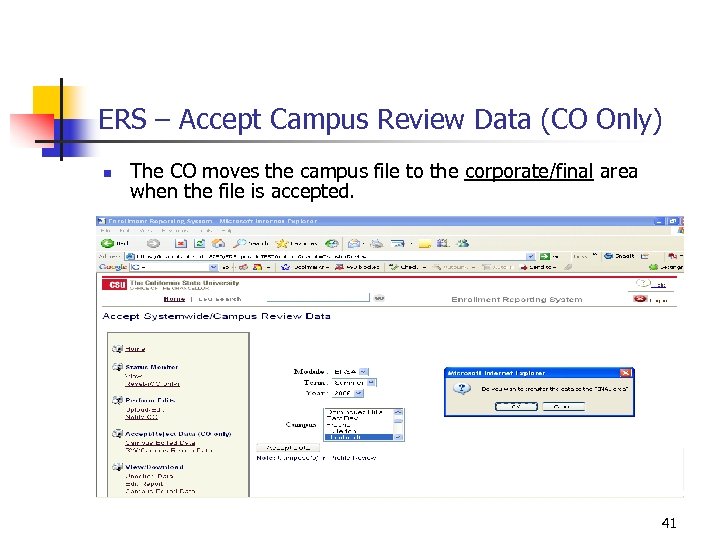
ERS – Accept Campus Review Data (CO Only) n The CO moves the campus file to the corporate/final area when the file is accepted. 41
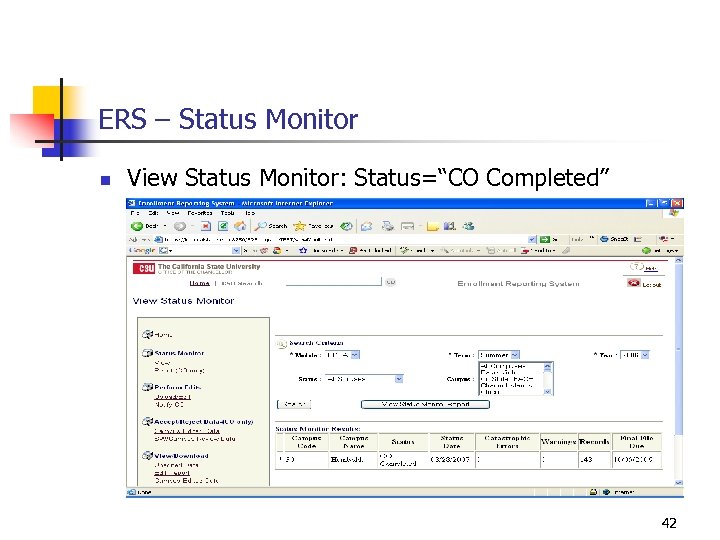
ERS – Status Monitor n View Status Monitor: Status=“CO Completed” 42
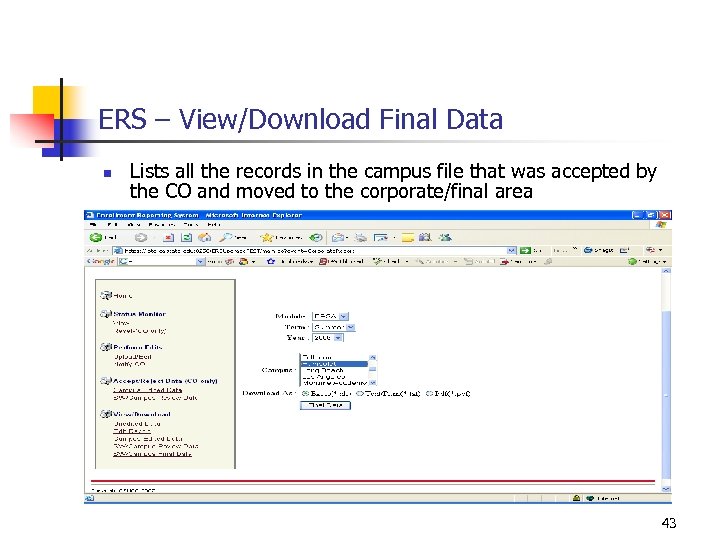
ERS – View/Download Final Data n Lists all the records in the campus file that was accepted by the CO and moved to the corporate/final area 43
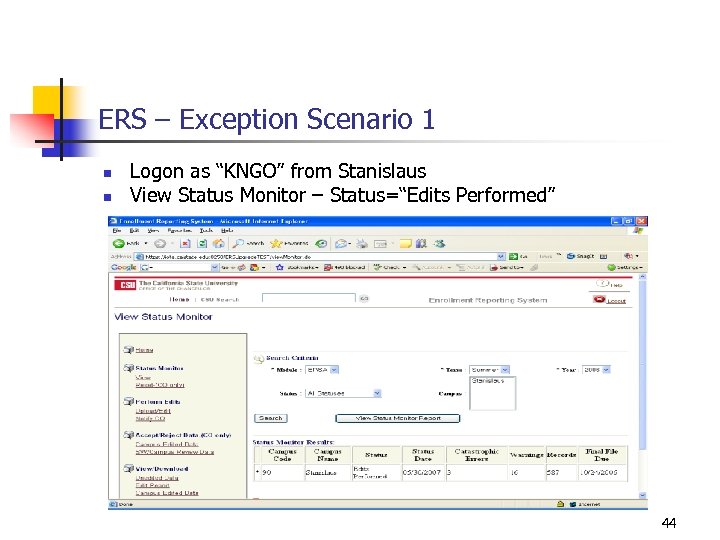
ERS – Exception Scenario 1 n n Logon as “KNGO” from Stanislaus View Status Monitor – Status=“Edits Performed” 44
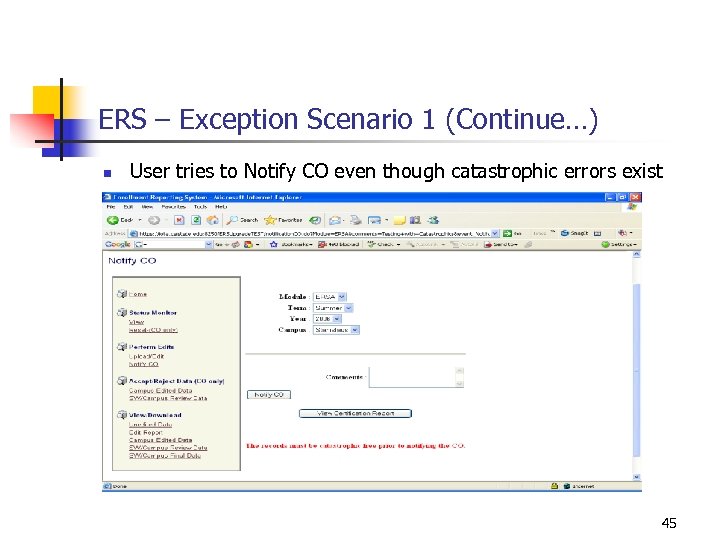
ERS – Exception Scenario 1 (Continue…) n User tries to Notify CO even though catastrophic errors exist 45
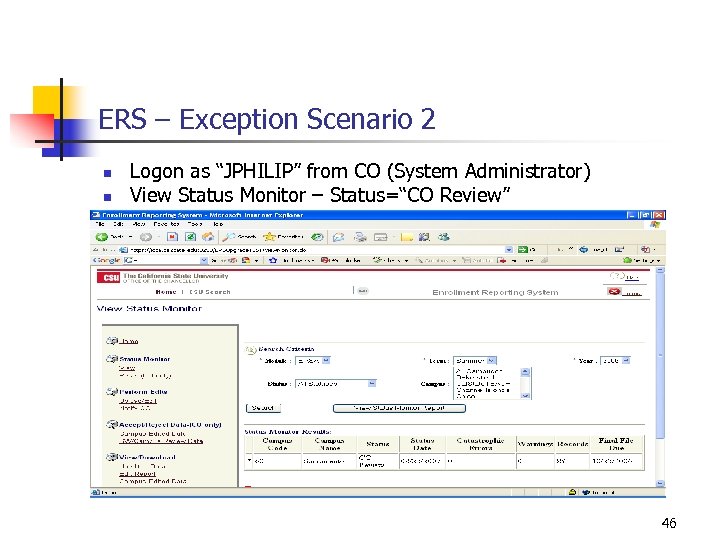
ERS – Exception Scenario 2 n n Logon as “JPHILIP” from CO (System Administrator) View Status Monitor – Status=“CO Review” 46
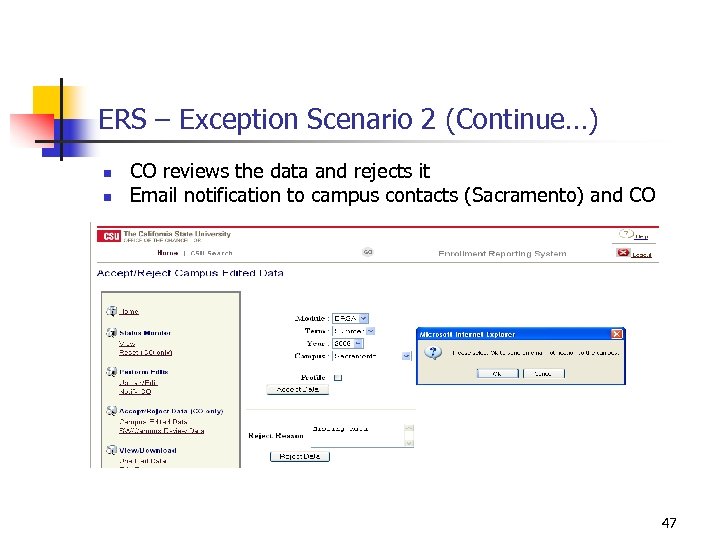
ERS – Exception Scenario 2 (Continue…) n n CO reviews the data and rejects it Email notification to campus contacts (Sacramento) and CO 47
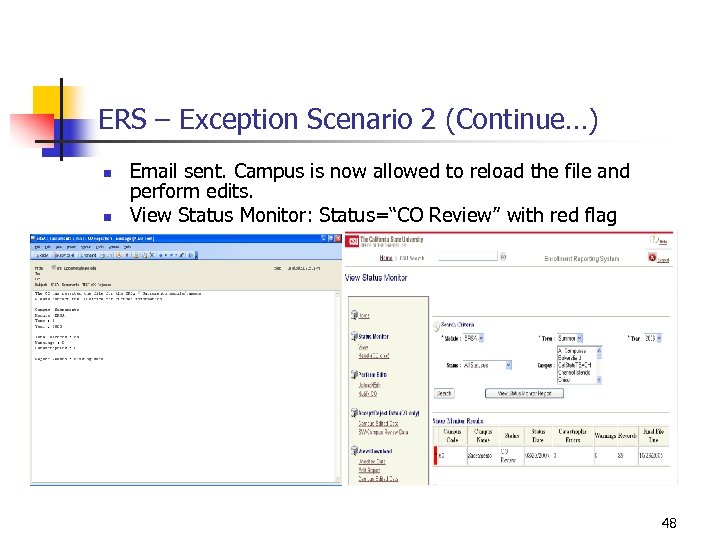
ERS – Exception Scenario 2 (Continue…) n n Email sent. Campus is now allowed to reload the file and perform edits. View Status Monitor: Status=“CO Review” with red flag 48
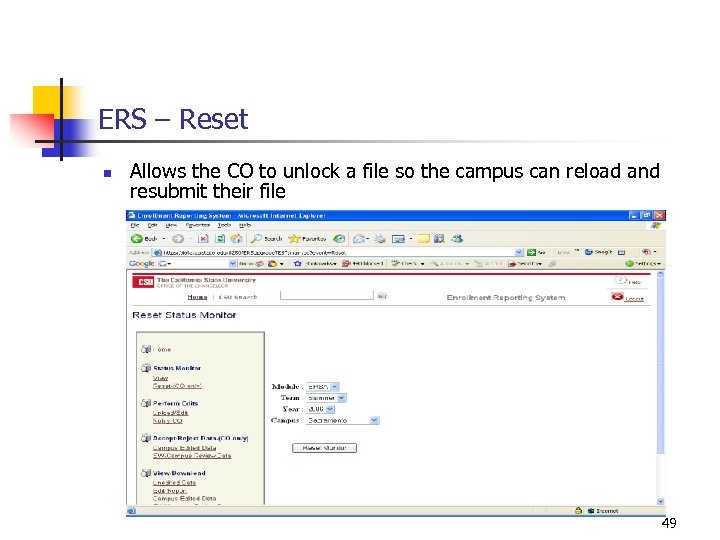
ERS – Reset n Allows the CO to unlock a file so the campus can reload and resubmit their file 49
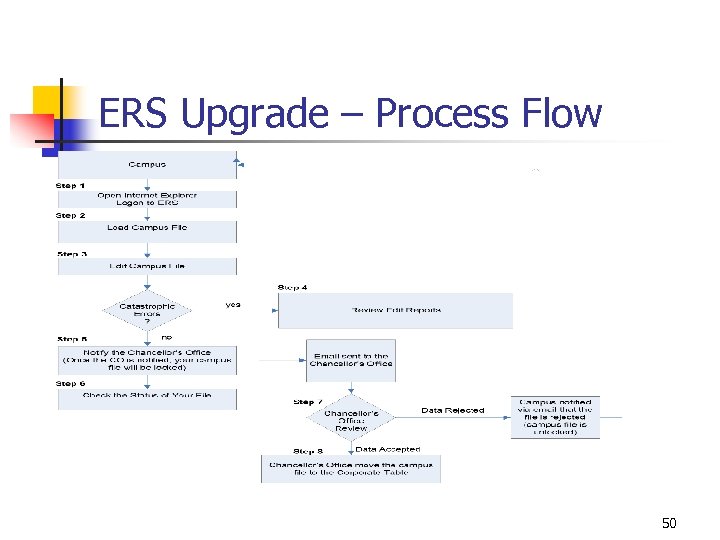
ERS Upgrade – Process Flow 50
ERS – Content/Technical Contact n ers_support@calstate. edu 51
ERS n Q&A 52
Скачать презентацию Enrollment Reporting System Upgrade URL www webconference com
489ceee0d6e2dcf6be850e4d227afea9.ppt