


 Скачать презентацию Engineer Training XL 1200 Poster Shop Onyx
51f33605636ca931792fc8820c24ad77.ppt
- Количество слайдов: 61
 Engineer Training XL 1200 Poster Shop – Onyx Ver 6. 0
 Engineer Training Before Installation Poster shop hardware & software suggested requirements: q Operating System: Windows, 2000(R), ME(R), XP(R) q Minimum 254 MB RAM, 20 GB Hard Drive, Video Display: 1024 X 768 w/16 -bit color q One USB Port required for Security Key q One USB Port required for color management tool (Using the USB could be problematic under windows NT) Confidential XL 1200 Poster Shop – Onyx Ver 6. 0 2
 Engineer Training Installation & Configuration Installation: For windows NT & 2000 you must have administrator privilege. Attached the Hasp key to parallel port. (or USB key to the USB port) Place Poster shop program CD into CD drive. Follow the on screen instructions and click next. Install Scitex vision printer. When it finish restart the computer. Confidential XL 1200 Poster Shop – Onyx Ver 6. 0 3
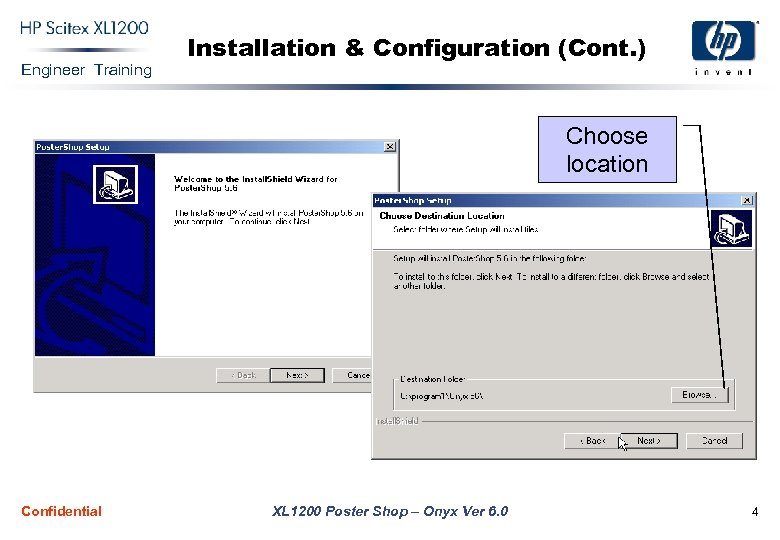 Engineer Training Installation & Configuration (Cont. ) Choose location Confidential XL 1200 Poster Shop – Onyx Ver 6. 0 4
 Engineer Training Installation & Configuration (Cont. ) When software installation finished, the software will install automatically the Scitex printer 1 & 8 bit. The printers installed without media, you need to import the media after the installation (see page 25). In the Onyx poster shop RIP you can install several different printers, and to work on each one of them separately with different devices. Confidential XL 1200 Poster Shop – Onyx Ver 6. 0 5
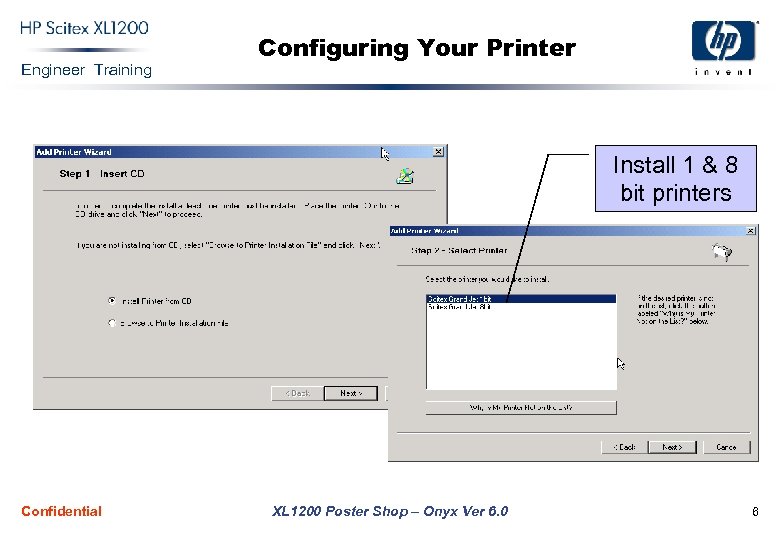 Engineer Training Configuring Your Printer Install 1 & 8 bit printers Confidential XL 1200 Poster Shop – Onyx Ver 6. 0 6
 Engineer Training Configuring Your Printer (Cont. ) Before you can print from Onyx RIP-Queue, you must first configure each printer you have installed. To configure your printer: 1. Start Onyx RIP-Queue by either double-clicking the Onyx RIP -Queue icon on your desktop or choosing Onyx RIP_Queue from the Start menu. 2. If this is the first time you have run Onyx RIP-Queue, the Configure Printer Port dialog appears. 3. Select the print to file port. 4. Configure the media and page size you like to work with. Confidential XL 1200 Poster Shop – Onyx Ver 6. 0 7
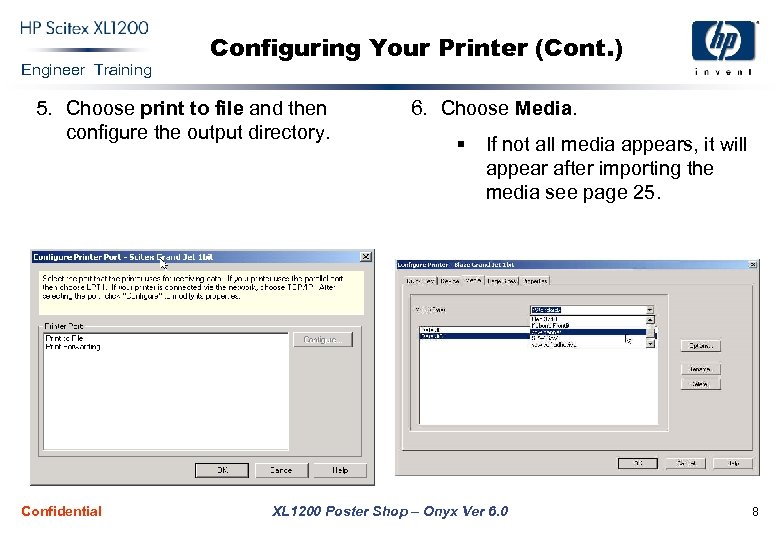 Engineer Training Configuring Your Printer (Cont. ) 5. Choose print to file and then configure the output directory. Confidential 6. Choose Media. § If not all media appears, it will appear after importing the media see page 25. XL 1200 Poster Shop – Onyx Ver 6. 0 8
 Engineer Training RIPing a File You have two options to open and rip a file: 1. Use the RIP server and drag the file from the hold to the print area; (with this option you can’t do file manipulation). 2. Open the file with preflight, then manipulate the file, sizing, cropping, color correction etc. Then you can submit the file and the process will start. Confidential XL 1200 Poster Shop – Onyx Ver 6. 0 9
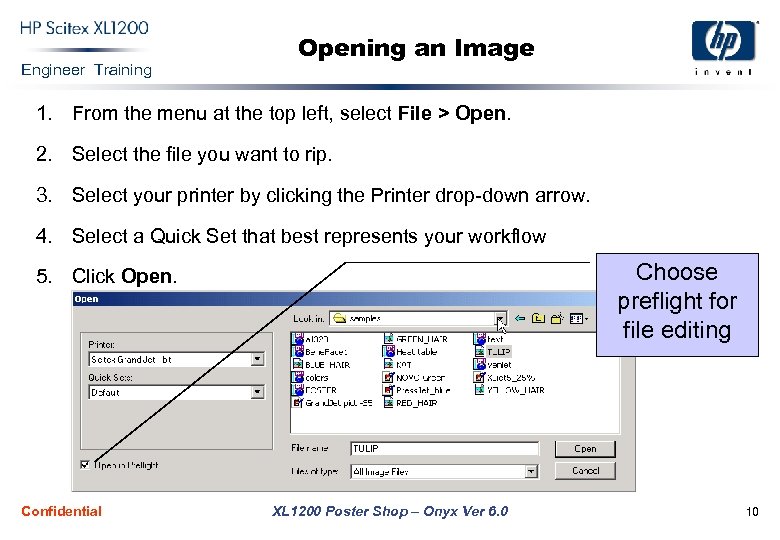 Engineer Training Opening an Image 1. From the menu at the top left, select File > Open. 2. Select the file you want to rip. 3. Select your printer by clicking the Printer drop-down arrow. 4. Select a Quick Set that best represents your workflow Choose preflight for file editing 5. Click Open. Confidential XL 1200 Poster Shop – Onyx Ver 6. 0 10
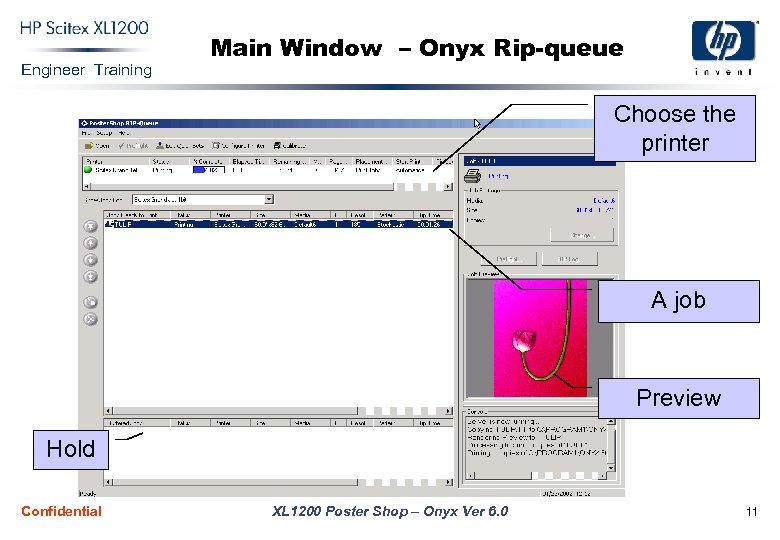 Engineer Training Main Window – Onyx Rip-queue Choose the printer A job Preview Hold Confidential XL 1200 Poster Shop – Onyx Ver 6. 0 11
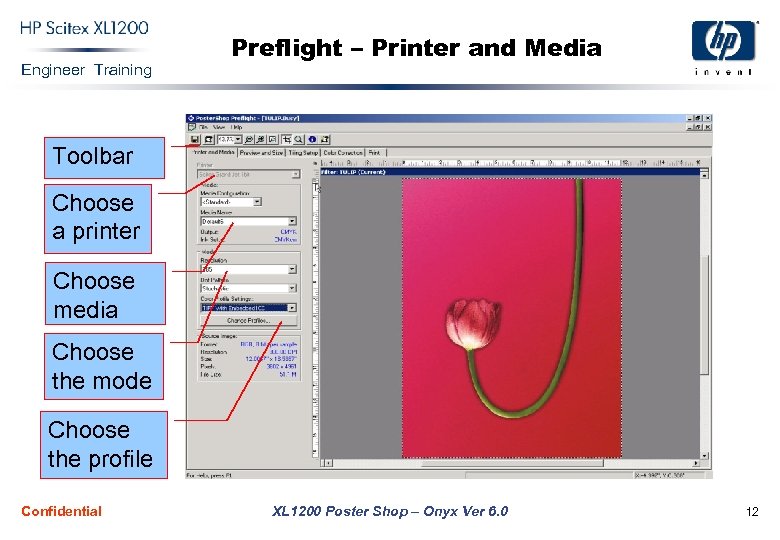 Engineer Training Preflight – Printer and Media Toolbar Choose a printer Choose media Choose the mode Choose the profile Confidential XL 1200 Poster Shop – Onyx Ver 6. 0 12
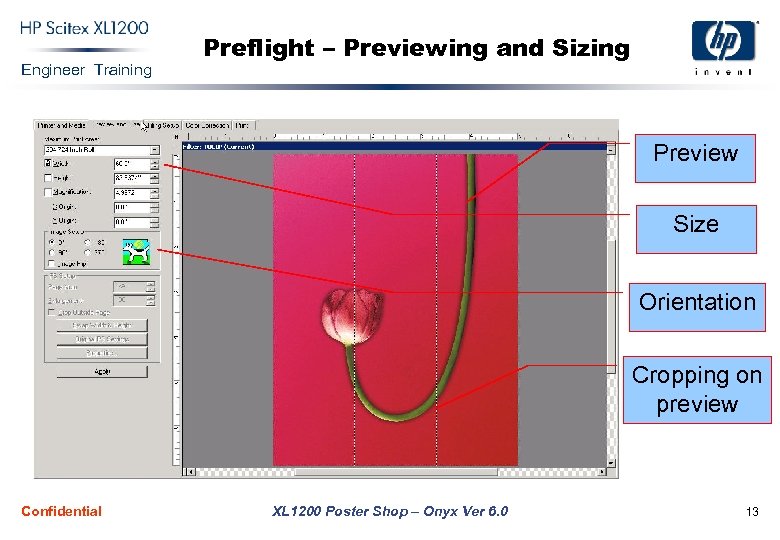 Engineer Training Preflight – Previewing and Sizing Preview Size Orientation Cropping on preview Confidential XL 1200 Poster Shop – Onyx Ver 6. 0 13
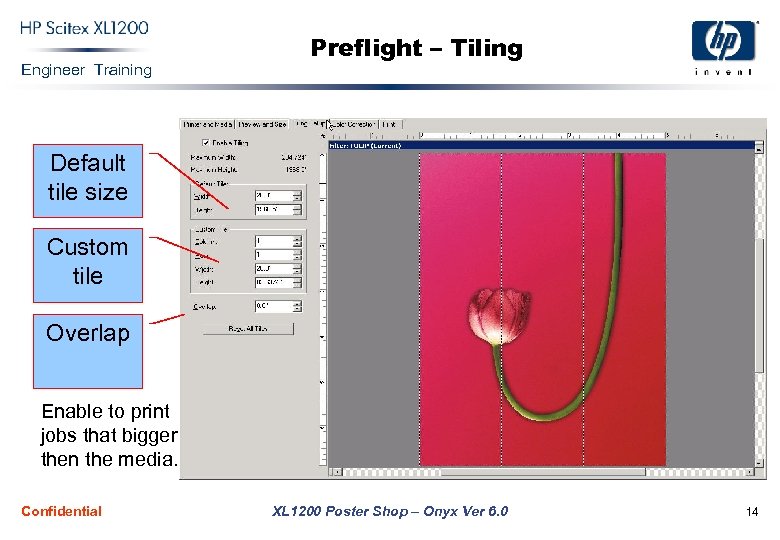 Engineer Training Preflight – Tiling Default tile size Custom tile Overlap Enable to print jobs that bigger then the media. Confidential XL 1200 Poster Shop – Onyx Ver 6. 0 14
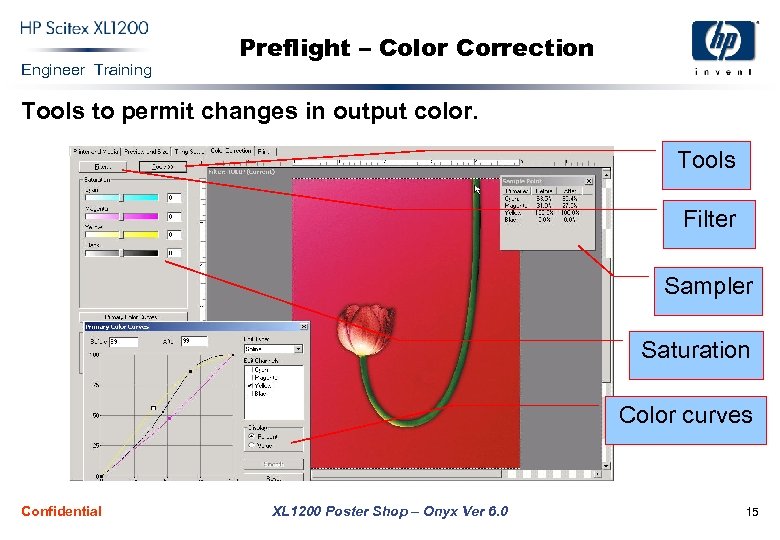 Engineer Training Preflight – Color Correction Tools to permit changes in output color. Tools Filter Sampler Saturation Color curves Confidential XL 1200 Poster Shop – Onyx Ver 6. 0 15
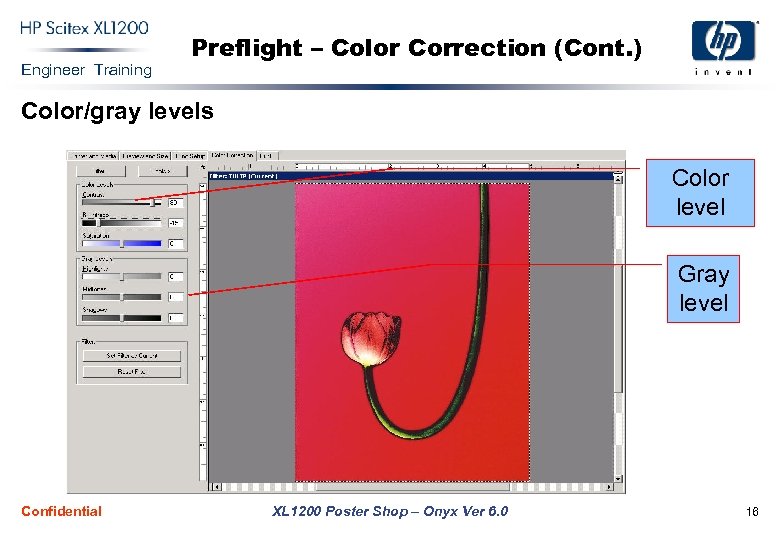 Engineer Training Preflight – Color Correction (Cont. ) Color/gray levels Color level Gray level Confidential XL 1200 Poster Shop – Onyx Ver 6. 0 16
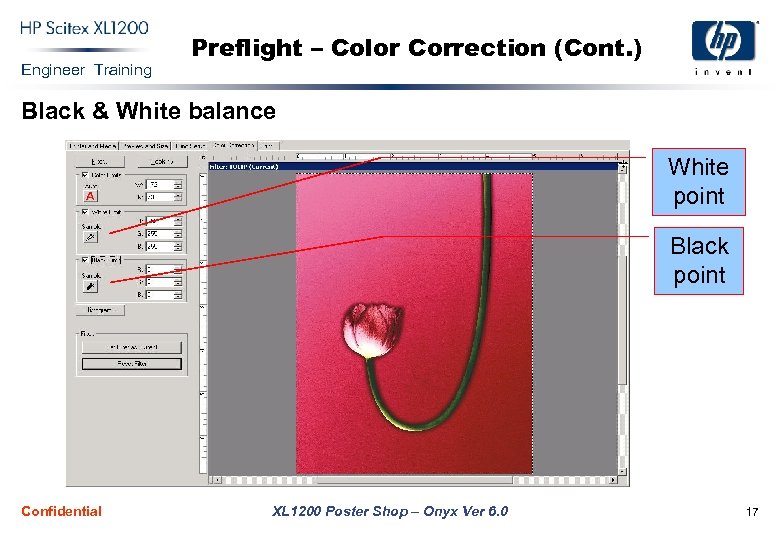 Engineer Training Preflight – Color Correction (Cont. ) Black & White balance White point Black point Confidential XL 1200 Poster Shop – Onyx Ver 6. 0 17
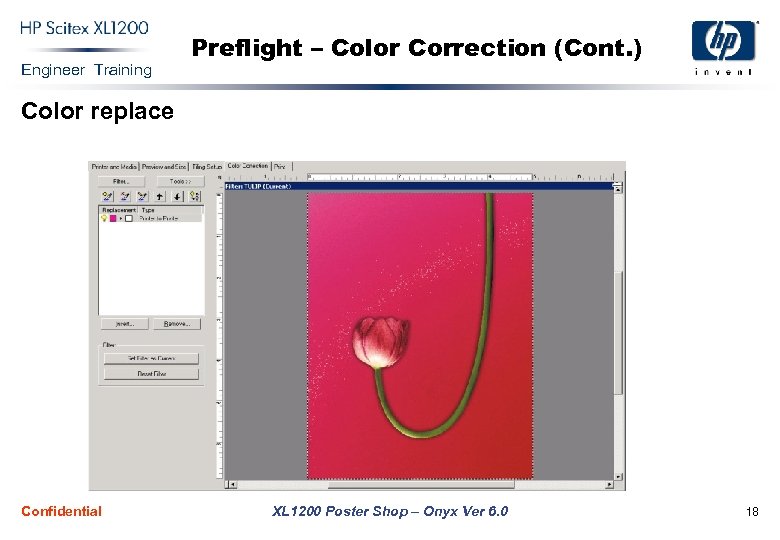 Engineer Training Preflight – Color Correction (Cont. ) Color replace Confidential XL 1200 Poster Shop – Onyx Ver 6. 0 18
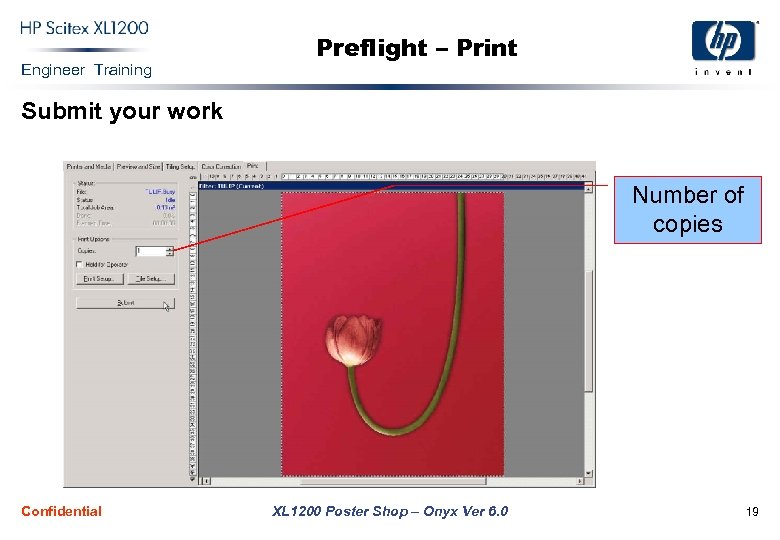 Engineer Training Preflight – Print Submit your work Number of copies Confidential XL 1200 Poster Shop – Onyx Ver 6. 0 19
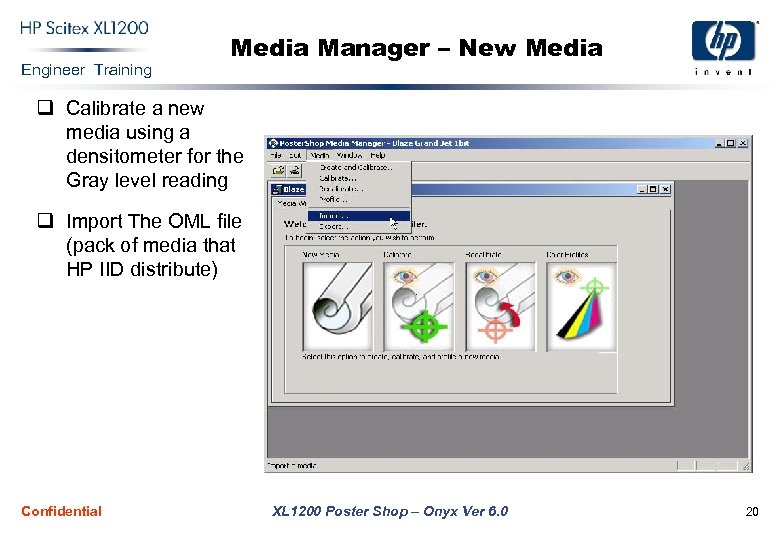 Engineer Training Media Manager – New Media q Calibrate a new media using a densitometer for the Gray level reading q Import The OML file (pack of media that HP IID distribute) Confidential XL 1200 Poster Shop – Onyx Ver 6. 0 20
 Engineer Training Media Manager – New Media (Cont. ) Calibrating a new media 1. Choose the new media icon. Give the media a name & mode. 2. Select Color Setup, choose 4 or 6 color mode. Then enter ink restriction values: 3. Click Ink Restrictions. 4. Select the resolution for which you want to set restrictions. 5. Select the ink level that you want to restrict, and click Set Restriction. Confidential XL 1200 Poster Shop – Onyx Ver 6. 0 21
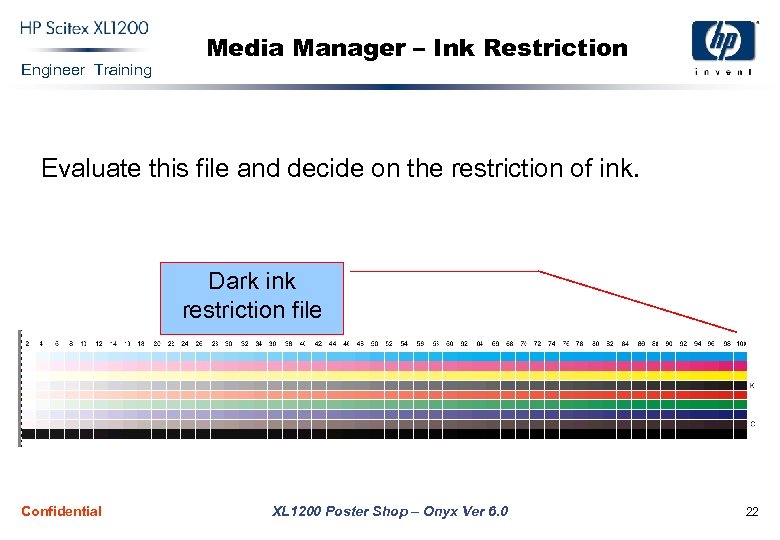 Engineer Training Media Manager – Ink Restriction Evaluate this file and decide on the restriction of ink. Dark ink restriction file Confidential XL 1200 Poster Shop – Onyx Ver 6. 0 22
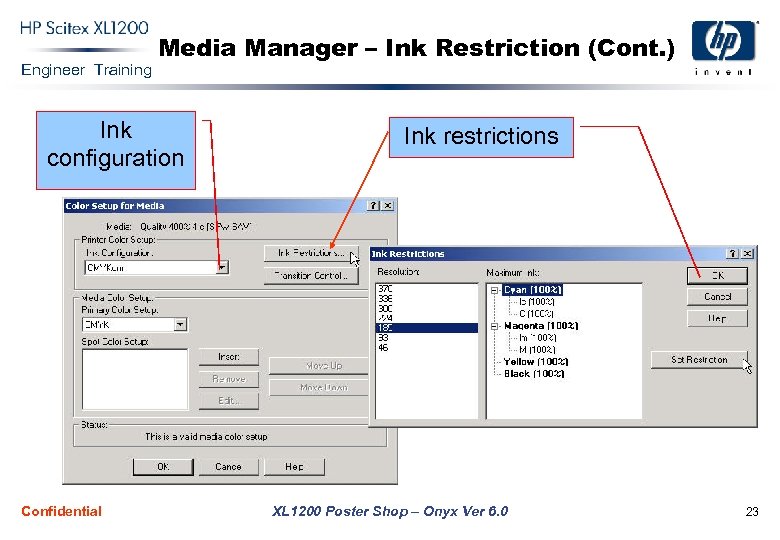 Engineer Training Media Manager – Ink Restriction (Cont. ) Ink configuration Confidential Ink restrictions XL 1200 Poster Shop – Onyx Ver 6. 0 23
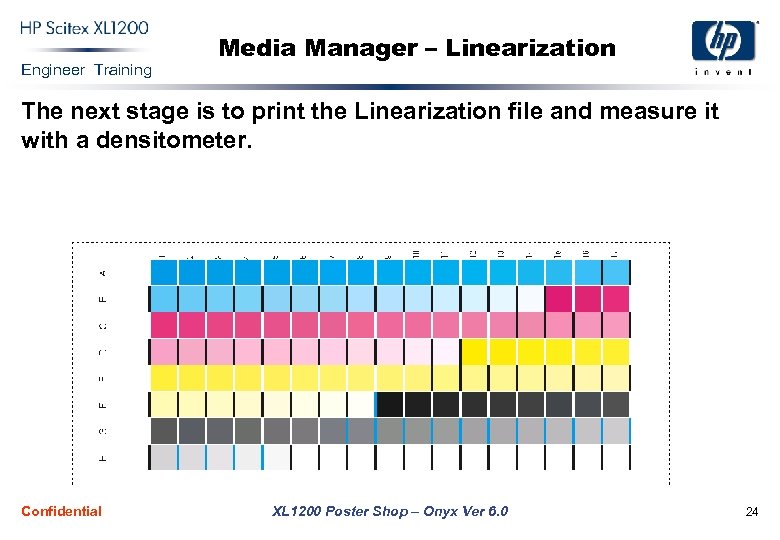 Engineer Training Media Manager – Linearization The next stage is to print the Linearization file and measure it with a densitometer. Confidential XL 1200 Poster Shop – Onyx Ver 6. 0 24
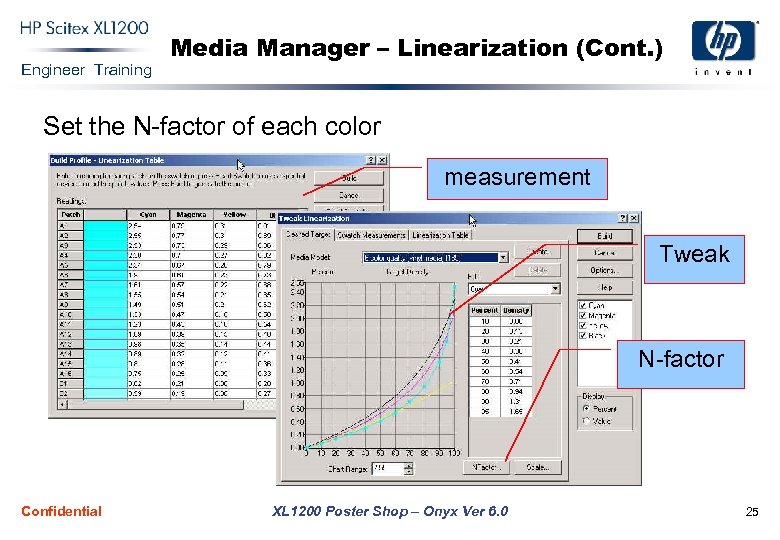 Engineer Training Media Manager – Linearization (Cont. ) Set the N-factor of each color measurement Tweak N-factor Confidential XL 1200 Poster Shop – Onyx Ver 6. 0 25
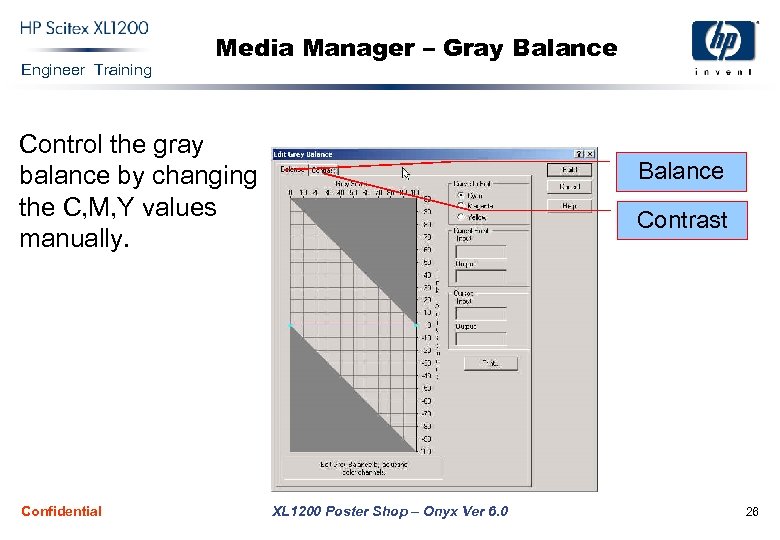 Engineer Training Media Manager – Gray Balance Control the gray balance by changing the C, M, Y values manually. Confidential Balance Contrast XL 1200 Poster Shop – Onyx Ver 6. 0 26
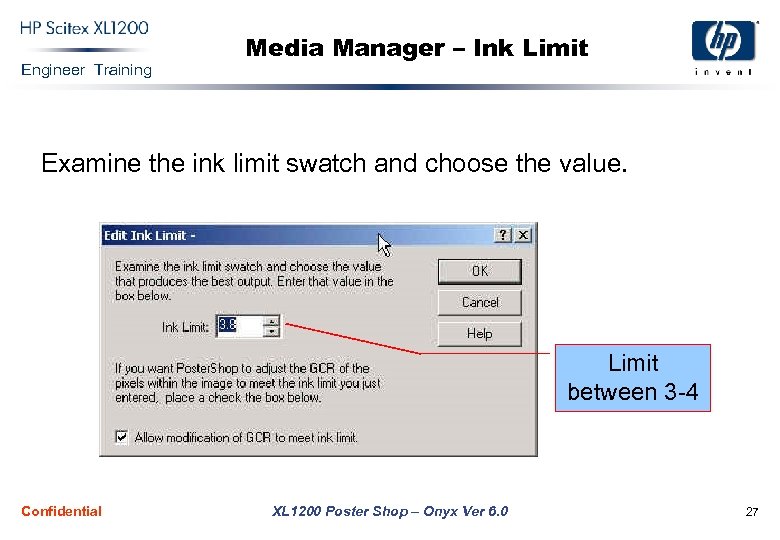 Engineer Training Media Manager – Ink Limit Examine the ink limit swatch and choose the value. Limit between 3 -4 Confidential XL 1200 Poster Shop – Onyx Ver 6. 0 27
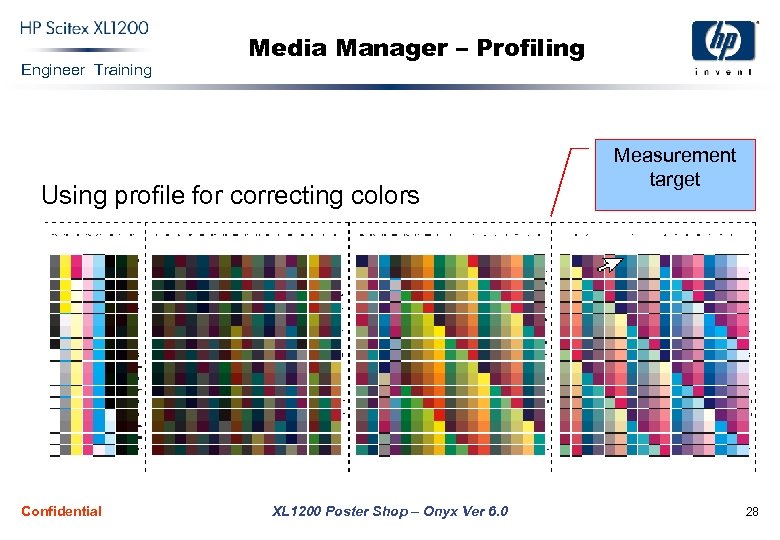 Engineer Training Media Manager – Profiling Using profile for correcting colors Confidential XL 1200 Poster Shop – Onyx Ver 6. 0 Measurement target 28
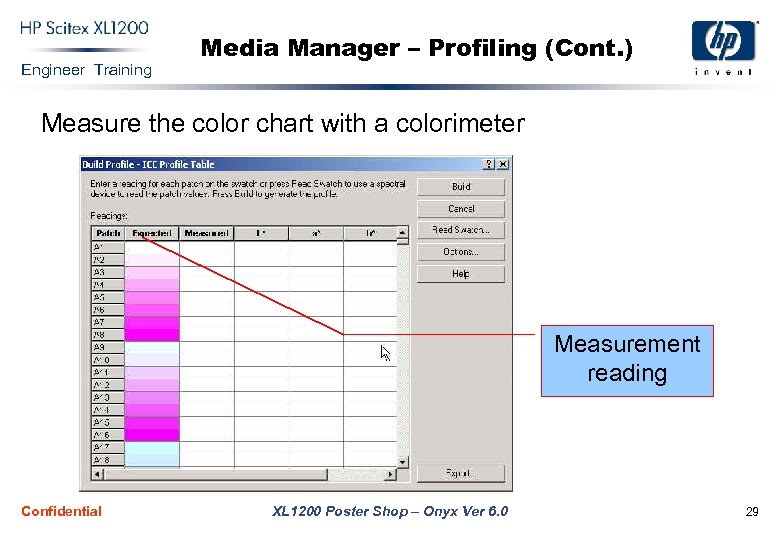 Engineer Training Media Manager – Profiling (Cont. ) Measure the color chart with a colorimeter Measurement reading Confidential XL 1200 Poster Shop – Onyx Ver 6. 0 29
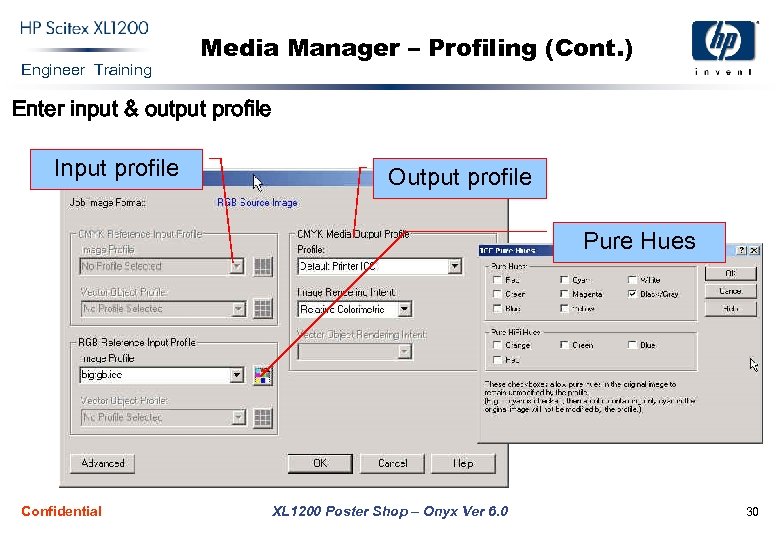 Engineer Training Media Manager – Profiling (Cont. ) Enter input & output profile Input profile Output profile Pure Hues Confidential XL 1200 Poster Shop – Onyx Ver 6. 0 30
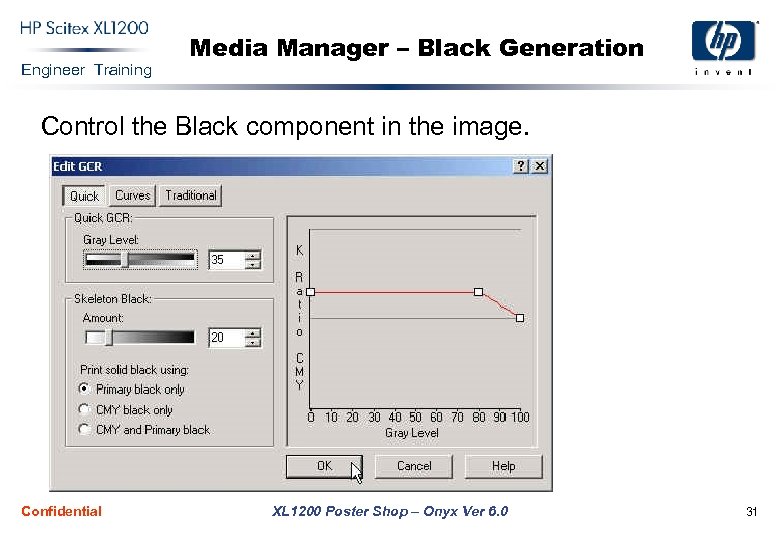 Engineer Training Media Manager – Black Generation Control the Black component in the image. Confidential XL 1200 Poster Shop – Onyx Ver 6. 0 31
 Engineer Training Before Installation Poster shop hardware & software Suggested requirements: q Operating System: Windows, 2000(R), ME(R), XP(R) q Minimum 254 MB RAM, 20 GB Hard Drive, Video Display: 1024 X 768 w/16 -bit color q One USB Port required for Security Key q One USB Port required for color management tool. (Using the USB could be problematic under windows NT) Confidential XL 1200 Poster Shop – Onyx Ver 6. 0 32
 Engineer Training Installation & Configuration Installation: 1. For windows NT & 2000 you must have administrator privilege. 2. Attach the HASP key to the parallel port (or USB key to the USB port). 3. Place Poster shop program CD into the CD drive. 4. Follow the on screen instructions and click Next. 5. Install the printer. 6. When it is finished, restart the computer. Confidential XL 1200 Poster Shop – Onyx Ver 6. 0 33
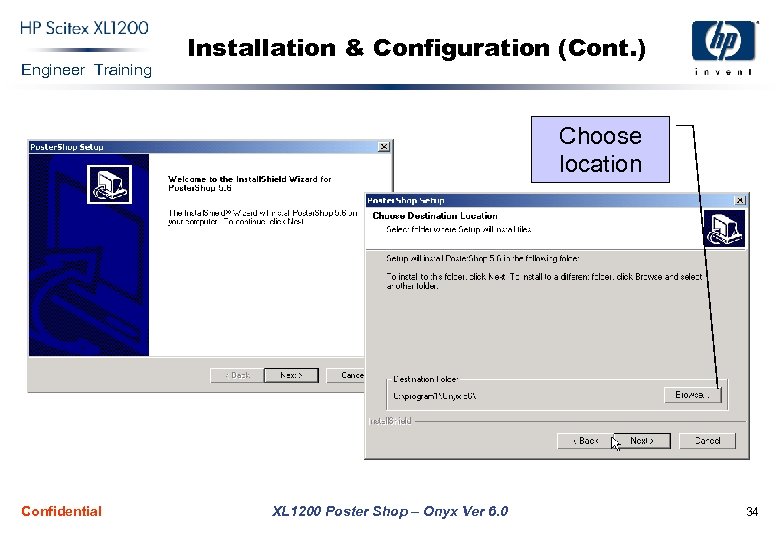 Engineer Training Installation & Configuration (Cont. ) Choose location Confidential XL 1200 Poster Shop – Onyx Ver 6. 0 34
 Engineer Training Installation & Configuration (Cont. ) q When software installation is finished, the software will install automatically the Scitex printer, 1 & 8 bit. q If the printers are installed without media, you need to import the media after the installation (see page 25). q In the Onyx poster shop RIP you can install several different printers, and to work on each one of them separately with different devices. Confidential XL 1200 Poster Shop – Onyx Ver 6. 0 35
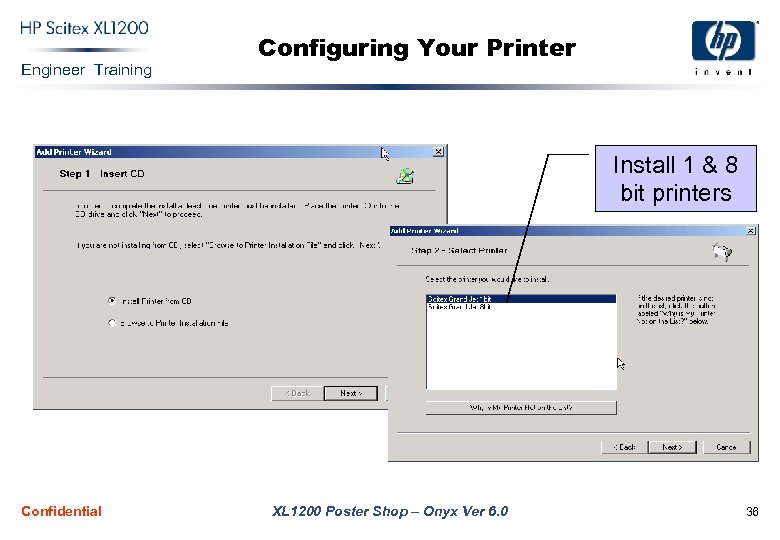 Engineer Training Configuring Your Printer Install 1 & 8 bit printers Confidential XL 1200 Poster Shop – Onyx Ver 6. 0 36
 Engineer Training Configuring Your Printer (Cont. ) q Before you can print from Onyx RIP-Queue, you must first configure each printer you have installed. To configure your printer: 1. Start Onyx RIP-Queue by either double-clicking the Onyx RIP -Queue icon on your desktop or choosing Onyx RIP_Queue from the Start menu. 2. If this is the first time you have run Onyx RIP-Queue, the Configure Printer Port dialog appears. 3. Select the print to file port. 4. Configure the media and page size you would like to work with. Confidential XL 1200 Poster Shop – Onyx Ver 6. 0 37
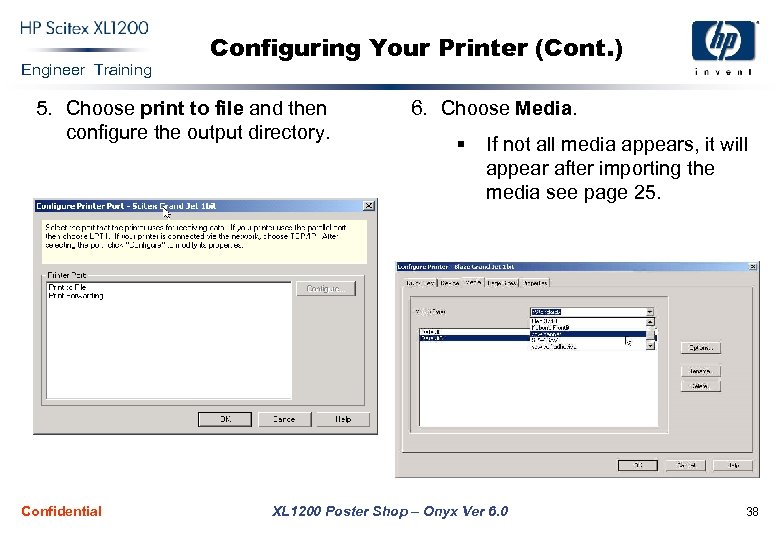 Engineer Training Configuring Your Printer (Cont. ) 5. Choose print to file and then configure the output directory. Confidential 6. Choose Media. § If not all media appears, it will appear after importing the media see page 25. XL 1200 Poster Shop – Onyx Ver 6. 0 38
 Engineer Training RIPing a File You have two options to open and rip a file: 1. Using the RIP server, drag the file from the hold to the print area, (with this option you can’t do file manipulation). 2. Open the file with Preflight, then manipulate the file, sizing, cropping, color correction etc. Then you can submit the file and the process will start. Confidential XL 1200 Poster Shop – Onyx Ver 6. 0 39
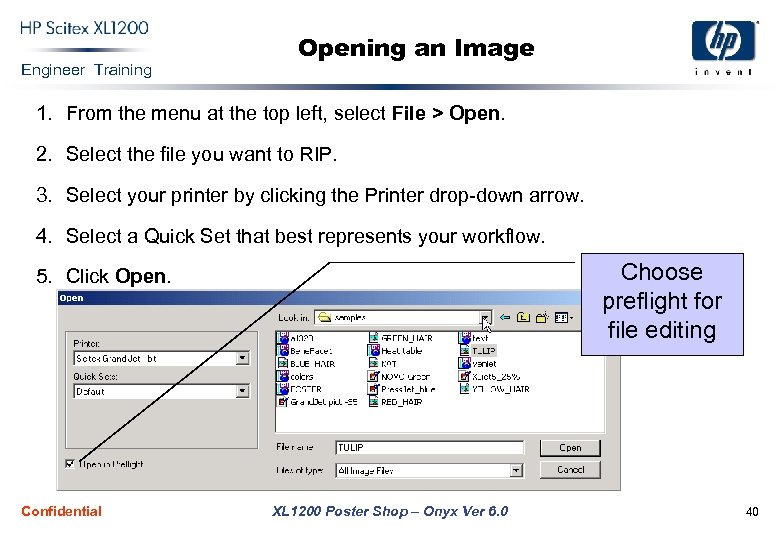 Engineer Training Opening an Image 1. From the menu at the top left, select File > Open. 2. Select the file you want to RIP. 3. Select your printer by clicking the Printer drop-down arrow. 4. Select a Quick Set that best represents your workflow. Choose preflight for file editing 5. Click Open. Confidential XL 1200 Poster Shop – Onyx Ver 6. 0 40
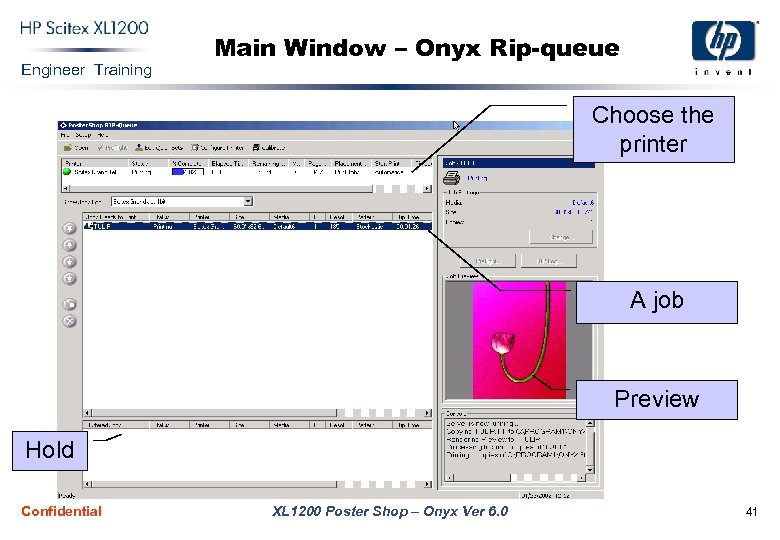 Engineer Training Main Window – Onyx Rip-queue Choose the printer A job Preview Hold Confidential XL 1200 Poster Shop – Onyx Ver 6. 0 41
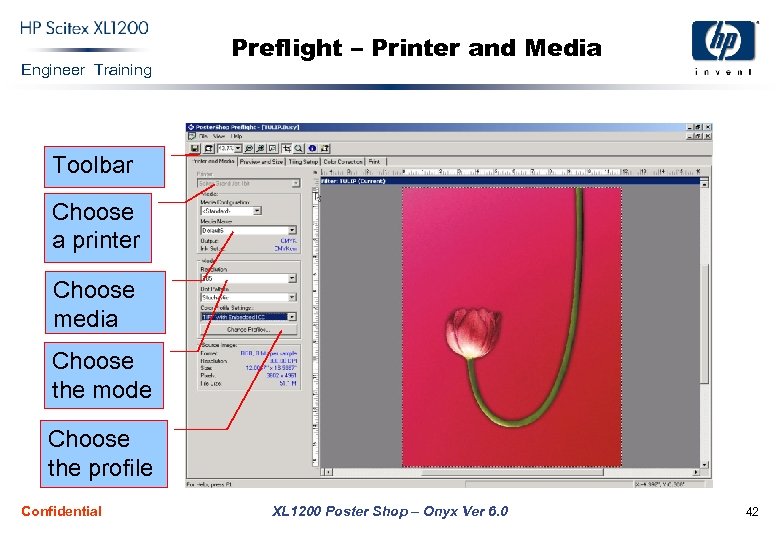 Engineer Training Preflight – Printer and Media Toolbar Choose a printer Choose media Choose the mode Choose the profile Confidential XL 1200 Poster Shop – Onyx Ver 6. 0 42
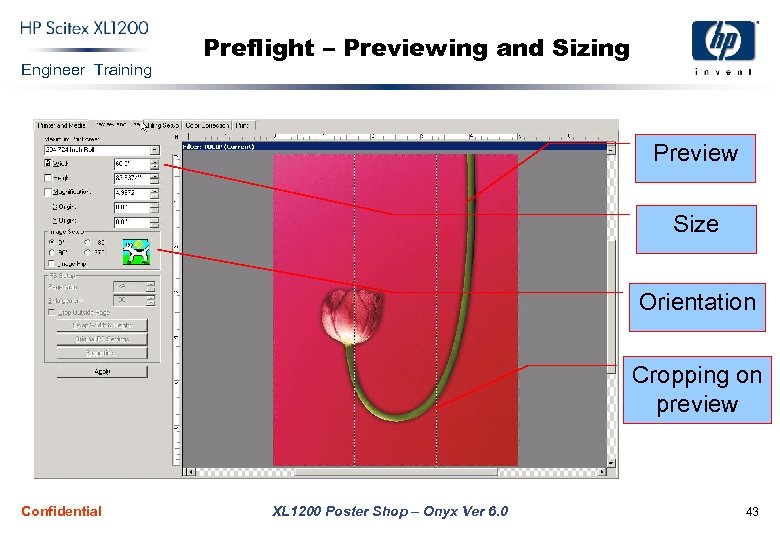 Engineer Training Preflight – Previewing and Sizing Preview Size Orientation Cropping on preview Confidential XL 1200 Poster Shop – Onyx Ver 6. 0 43
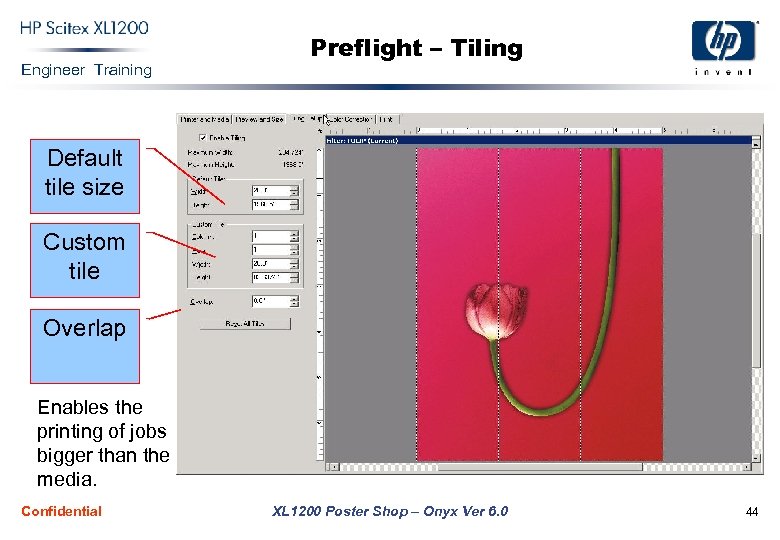 Engineer Training Preflight – Tiling Default tile size Custom tile Overlap Enables the printing of jobs bigger than the media. Confidential XL 1200 Poster Shop – Onyx Ver 6. 0 44
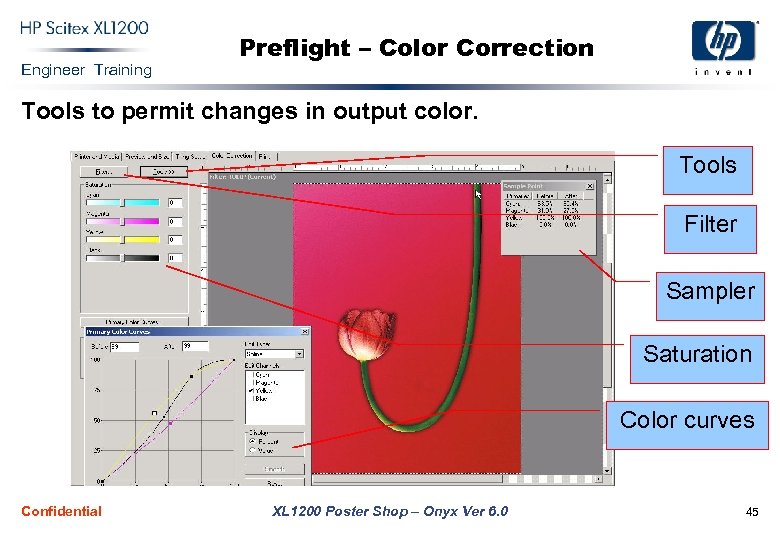 Engineer Training Preflight – Color Correction Tools to permit changes in output color. Tools Filter Sampler Saturation Color curves Confidential XL 1200 Poster Shop – Onyx Ver 6. 0 45
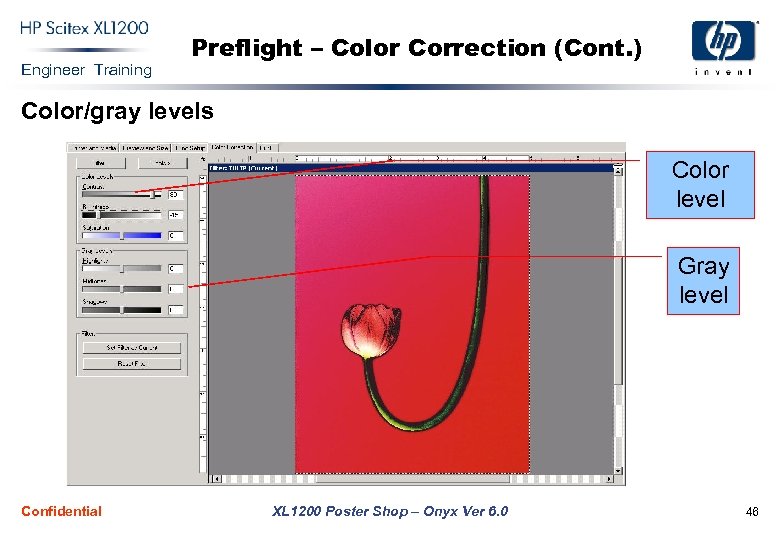 Engineer Training Preflight – Color Correction (Cont. ) Color/gray levels Color level Gray level Confidential XL 1200 Poster Shop – Onyx Ver 6. 0 46
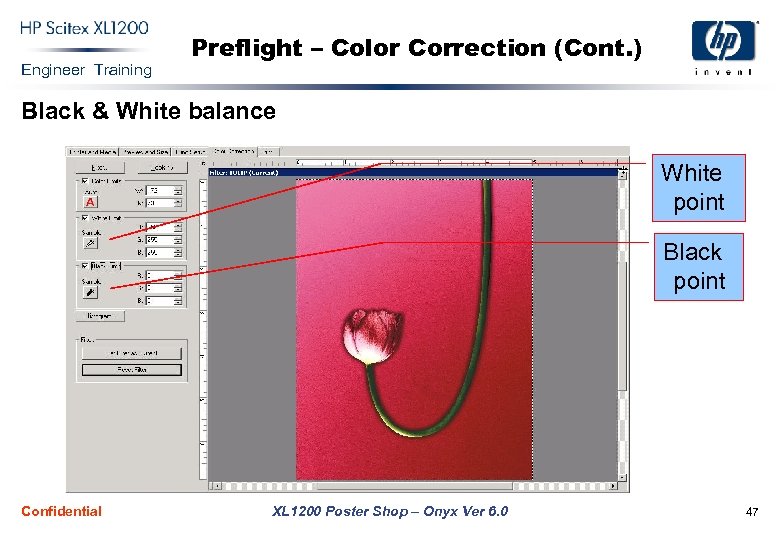 Engineer Training Preflight – Color Correction (Cont. ) Black & White balance White point Black point Confidential XL 1200 Poster Shop – Onyx Ver 6. 0 47
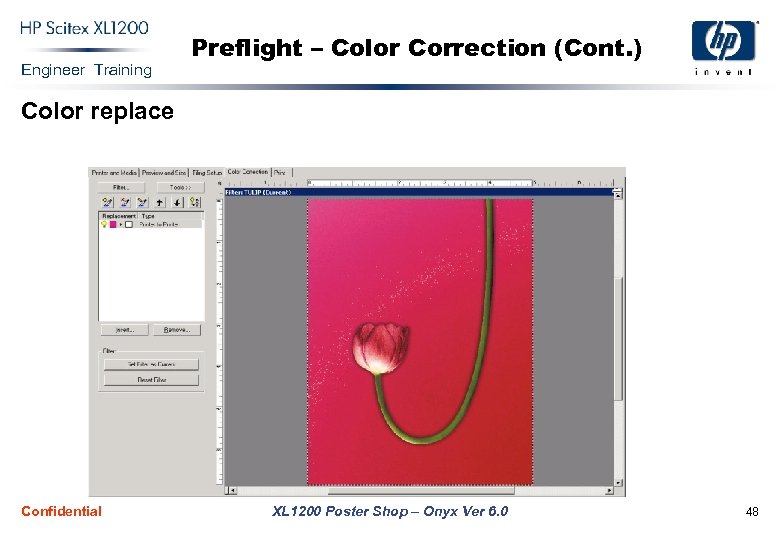 Engineer Training Preflight – Color Correction (Cont. ) Color replace Confidential XL 1200 Poster Shop – Onyx Ver 6. 0 48
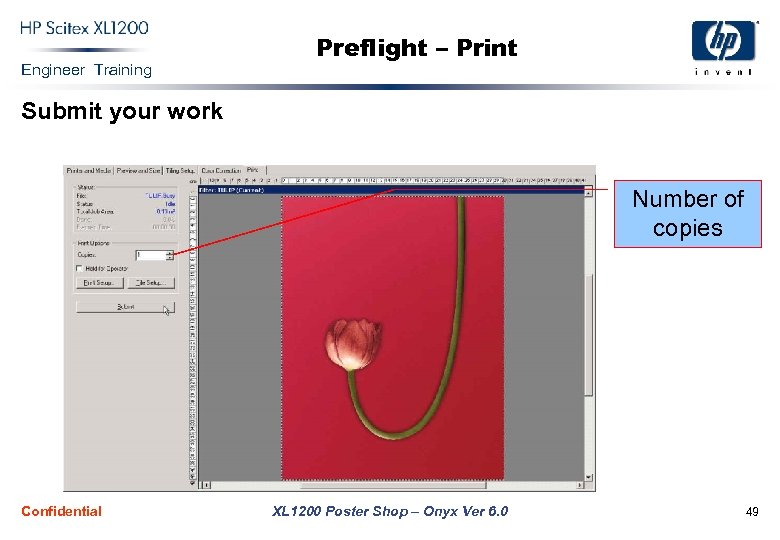 Engineer Training Preflight – Print Submit your work Number of copies Confidential XL 1200 Poster Shop – Onyx Ver 6. 0 49
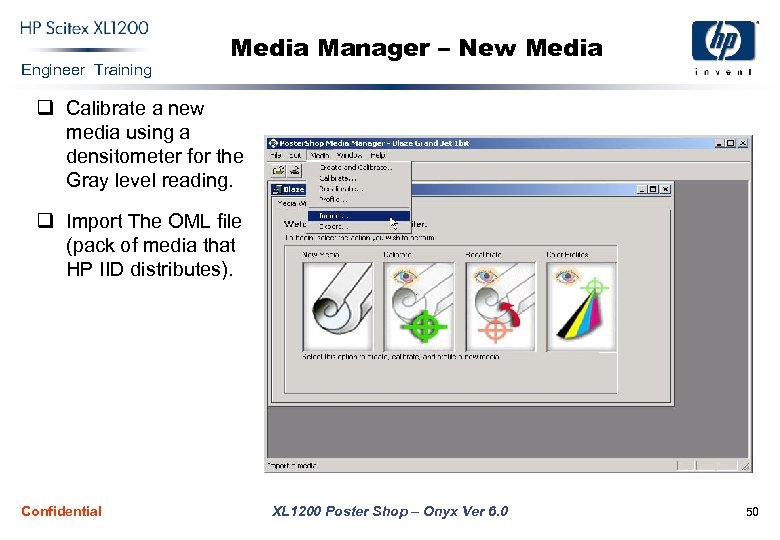 Engineer Training Media Manager – New Media q Calibrate a new media using a densitometer for the Gray level reading. q Import The OML file (pack of media that HP IID distributes). Confidential XL 1200 Poster Shop – Onyx Ver 6. 0 50
 Engineer Training Media Manager – New Media (Cont. ) Calibrating a new media 1. Choose the new media icon. Give the media a name and mode. 2. Select Color Setup, choose 4 or 6 color mode. Then enter the ink restriction values: 3. Click Ink Restrictions. 4. Select the resolution for which you want to set restrictions. 5. Select the ink level that you want to restrict, and click Set Restriction. Confidential XL 1200 Poster Shop – Onyx Ver 6. 0 51
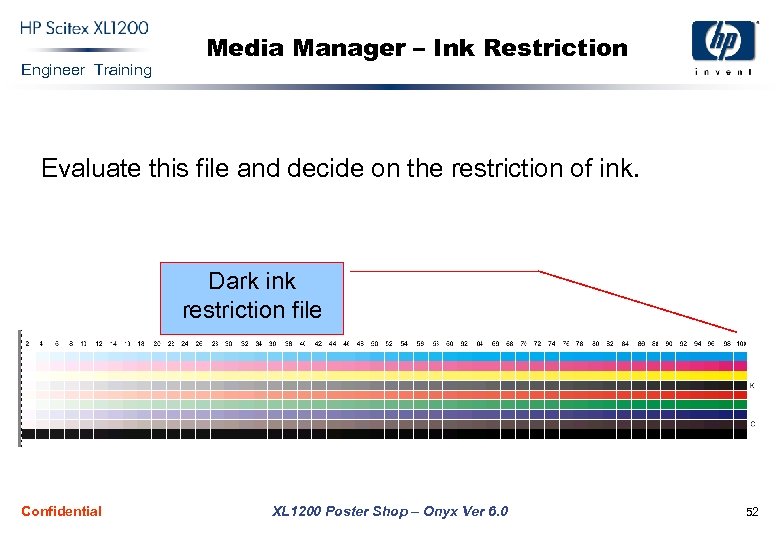 Engineer Training Media Manager – Ink Restriction Evaluate this file and decide on the restriction of ink. Dark ink restriction file Confidential XL 1200 Poster Shop – Onyx Ver 6. 0 52
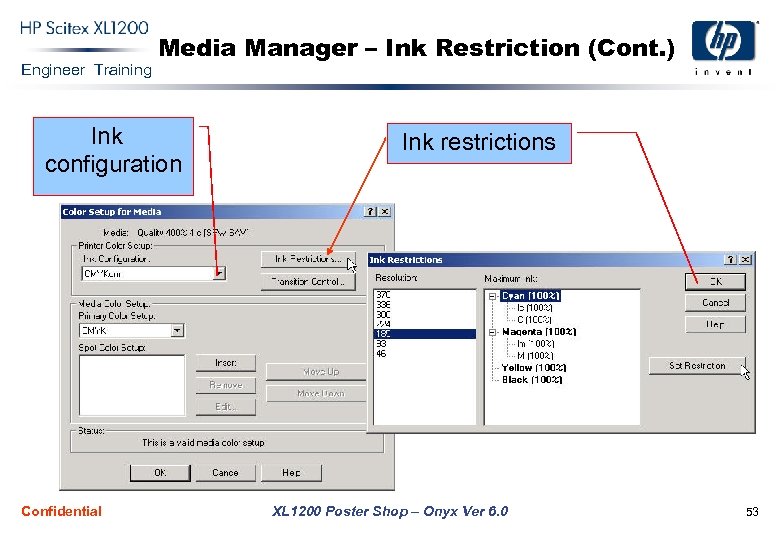 Engineer Training Media Manager – Ink Restriction (Cont. ) Ink configuration Confidential Ink restrictions XL 1200 Poster Shop – Onyx Ver 6. 0 53
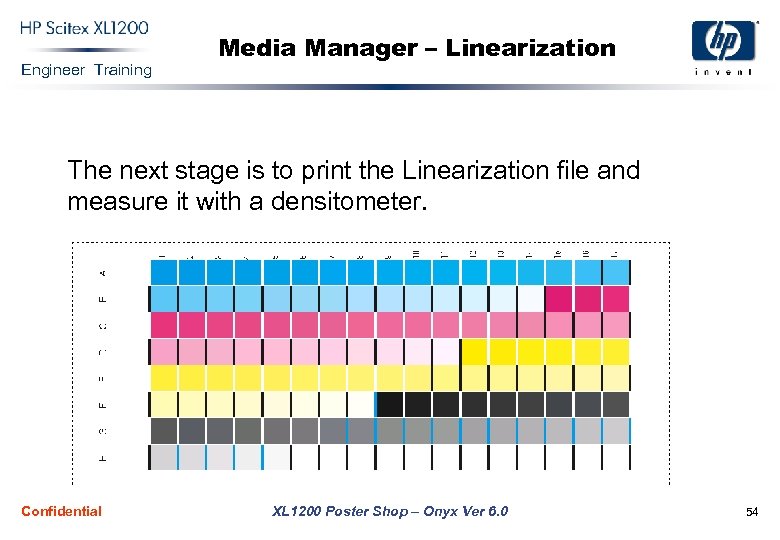 Engineer Training Media Manager – Linearization The next stage is to print the Linearization file and measure it with a densitometer. Confidential XL 1200 Poster Shop – Onyx Ver 6. 0 54
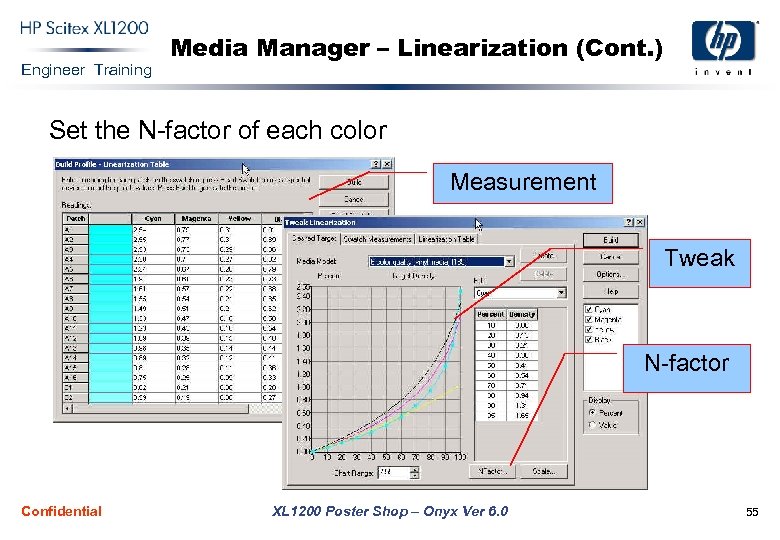 Engineer Training Media Manager – Linearization (Cont. ) Set the N-factor of each color Measurement Tweak N-factor Confidential XL 1200 Poster Shop – Onyx Ver 6. 0 55
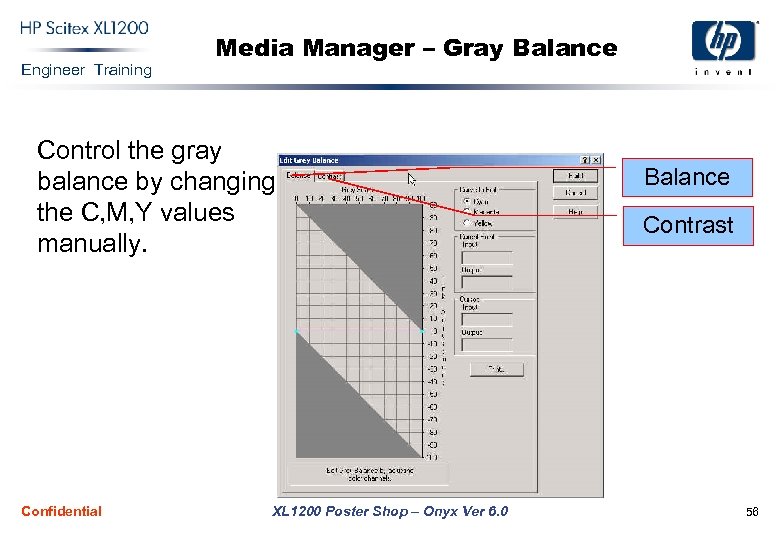 Engineer Training Media Manager – Gray Balance Control the gray balance by changing the C, M, Y values manually. Confidential XL 1200 Poster Shop – Onyx Ver 6. 0 Balance Contrast 56
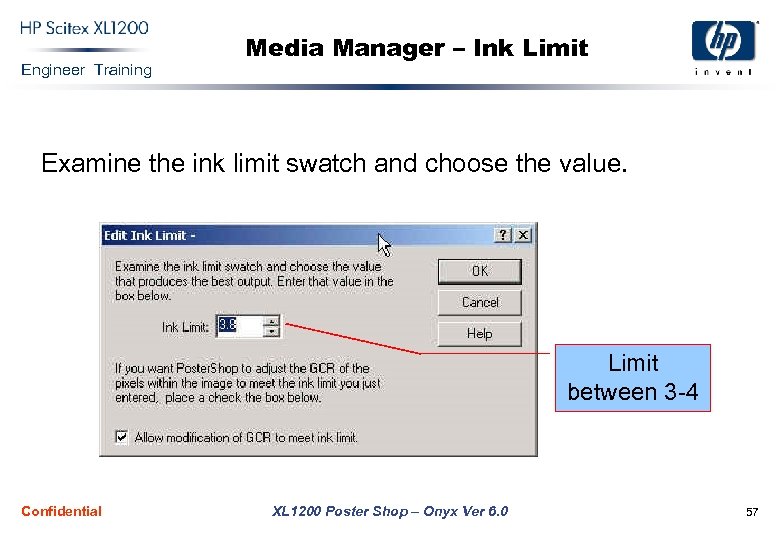 Engineer Training Media Manager – Ink Limit Examine the ink limit swatch and choose the value. Limit between 3 -4 Confidential XL 1200 Poster Shop – Onyx Ver 6. 0 57
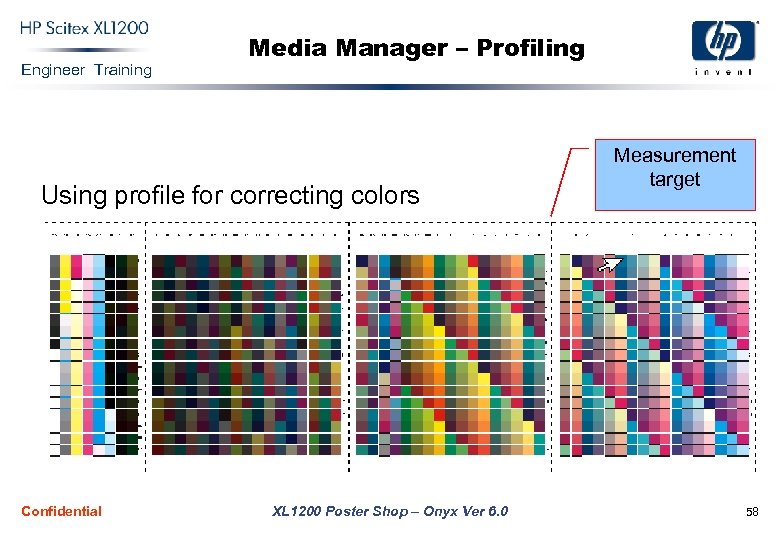 Engineer Training Media Manager – Profiling Using profile for correcting colors Confidential XL 1200 Poster Shop – Onyx Ver 6. 0 Measurement target 58
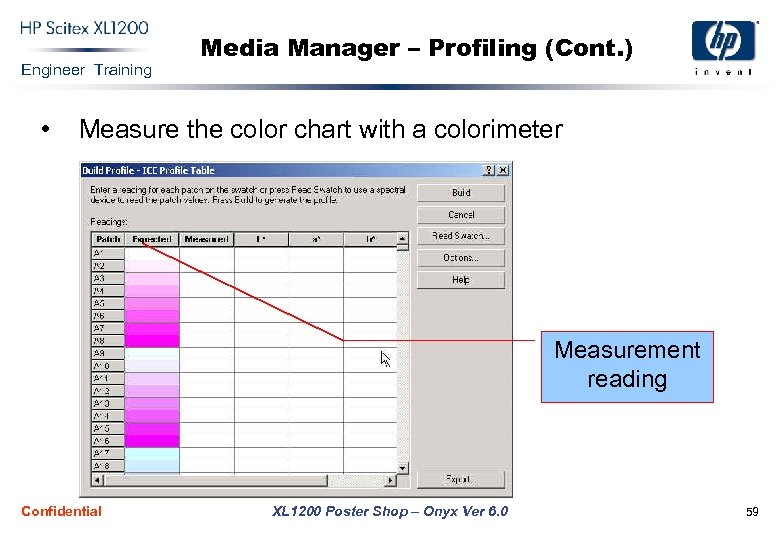 Engineer Training • Media Manager – Profiling (Cont. ) Measure the color chart with a colorimeter Measurement reading Confidential XL 1200 Poster Shop – Onyx Ver 6. 0 59
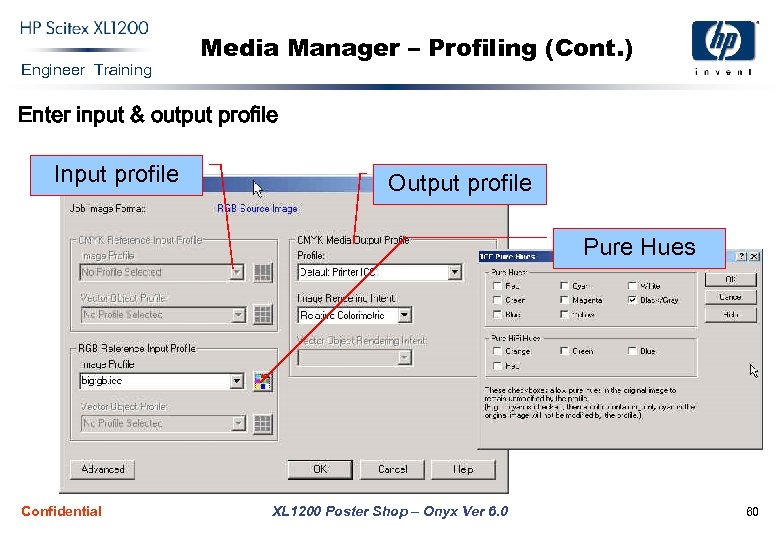 Engineer Training Media Manager – Profiling (Cont. ) Enter input & output profile Input profile Output profile Pure Hues Confidential XL 1200 Poster Shop – Onyx Ver 6. 0 60
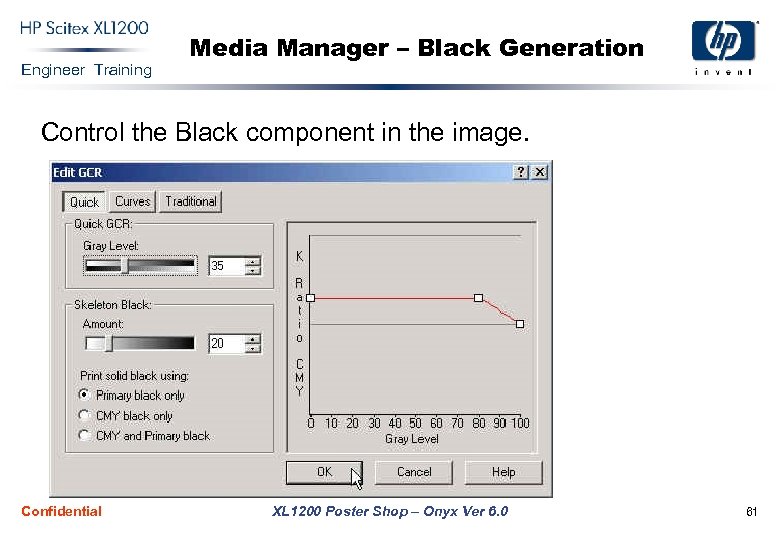 Engineer Training Media Manager – Black Generation Control the Black component in the image. Confidential XL 1200 Poster Shop – Onyx Ver 6. 0 61