


 Скачать презентацию Electronic Death Registration In California MEDICAL FACILITY TRAINING
3583e81f8aaf4a0945d30f39b1c4b782.ppt
- Количество слайдов: 23
 Electronic Death Registration In California MEDICAL FACILITY TRAINING 2 0 0 7_ 0 409
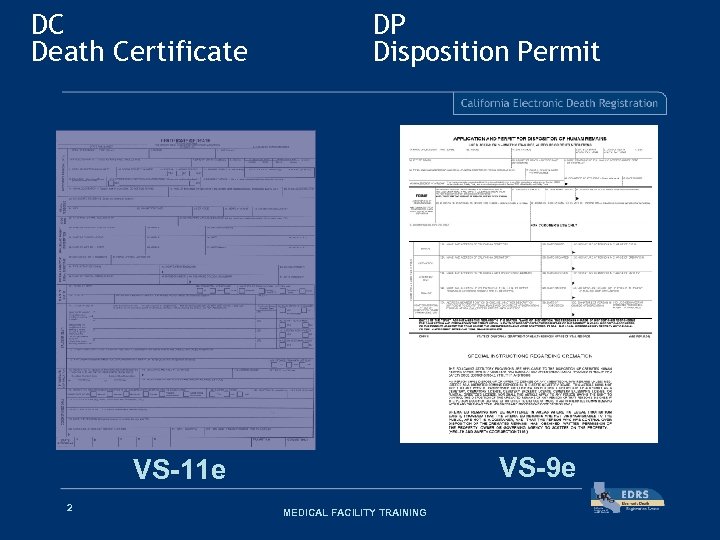 DC Death Certificate DP Disposition Permit VS-9 e VS-11 e 2 MEDICAL FACILITY TRAINING
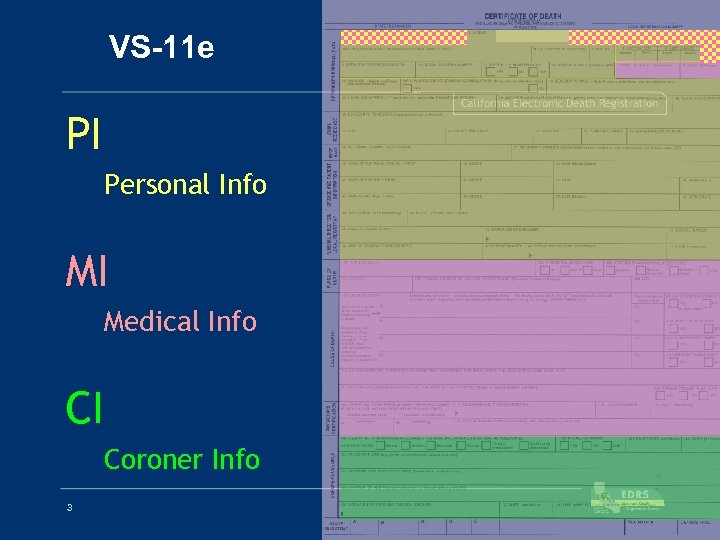 VS-11 e PI Personal Info MI Medical Info CI Coroner Info 3 MEDICAL FACILITY TRAINING
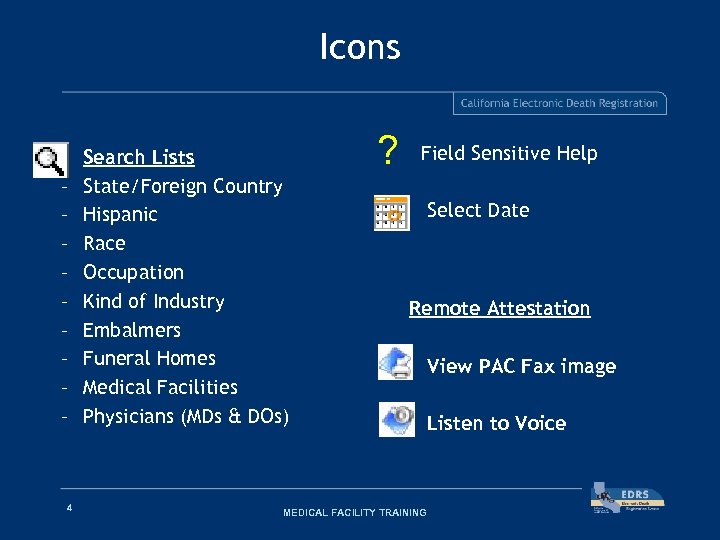 Icons – – – – – 4 Search Lists State/Foreign Country Hispanic Race Occupation Kind of Industry Embalmers Funeral Homes Medical Facilities Physicians (MDs & DOs) ? Field Sensitive Help Select Date Remote Attestation MEDICAL FACILITY TRAINING View PAC Fax image Listen to Voice
 TRAINING NOTE: • When using the Training Environment of EDRS, DO NOT create a Death Certificate of any live person • Please use Cartoon, TV, Movie or other fictional characters • Creating a DC of a living person is a violation of privacy 5 MEDICAL FACILITY TRAINING
 LOG IN & CREATE RECORD • Enter User Name and Password • Record Options > Create New Record • DO NOT Assign Record Access • DO NOT alter default values Note: Assigning Record Access allows other EDRS users to edit/modify a given record. Record Access is NOT the Funeral Home, Medical Facility, ME/Coroner, or Local Registrar on the Death Certificate. 6 MEDICAL FACILITY TRAINING STEP 1
 PERSONAL INFORMATION • Enter PI – – – 7 First Name Last Name DOD Time of Death Sex DOB (optional) MEDICAL FACILITY TRAINING STEP 2
 MEDICAL INFORMATION STEP 3 • Enter MI • Validations > Validate MI • Validations > Spell. Check MI • Record Options > Print Working Copy • Required BEFORE Submitting MI for LR Review, if applicable • Use search icon to auto-populate Fields 115 & 116 or enter Physician’s name & . Title in Field 115, Physician’s License in Field 116. These fields may be blank when Submitting MI for LR Review. • If Coroner assigns number BEFORE Physician attests, select Record Options > Refer to ME/Coroner, then enter number in Field 108 A • If Coroner assigns number AFTER Physician attests, select Record Options > Refer to ME/Coroner 8 MEDICAL FACILITY TRAINING
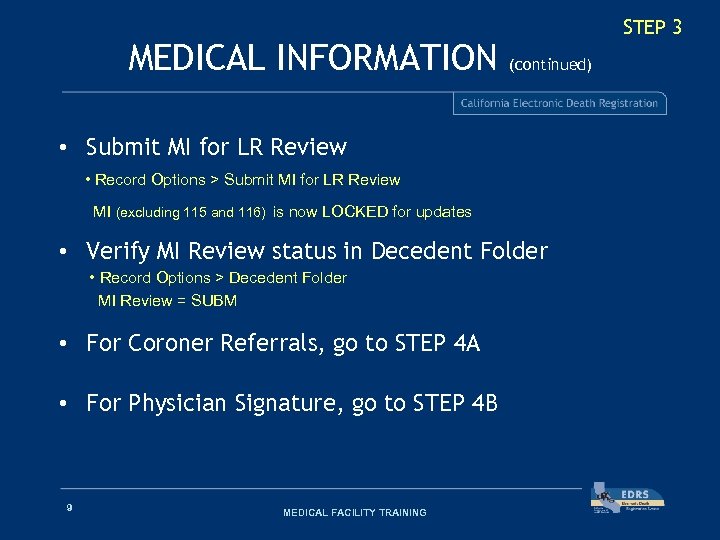 MEDICAL INFORMATION STEP 3 (continued) • Submit MI for LR Review • Record Options > Submit MI for LR Review MI (excluding 115 and 116) is now LOCKED for updates • Verify MI Review status in Decedent Folder • Record Options > Decedent Folder MI Review = SUBM • For Coroner Referrals, go to STEP 4 A • For Physician Signature, go to STEP 4 B 9 MEDICAL FACILITY TRAINING
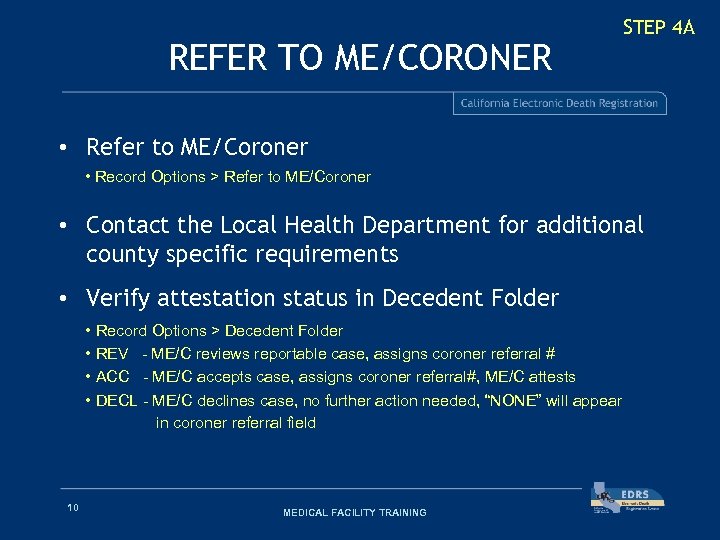 REFER TO ME/CORONER STEP 4 A • Refer to ME/Coroner • Record Options > Refer to ME/Coroner • Contact the Local Health Department for additional county specific requirements • Verify attestation status in Decedent Folder • Record Options > Decedent Folder • REV - ME/C reviews reportable case, assigns coroner referral # • ACC - ME/C accepts case, assigns coroner referral#, ME/C attests • DECL - ME/C declines case, no further action needed, “NONE” will appear in coroner referral field 10 MEDICAL FACILITY TRAINING
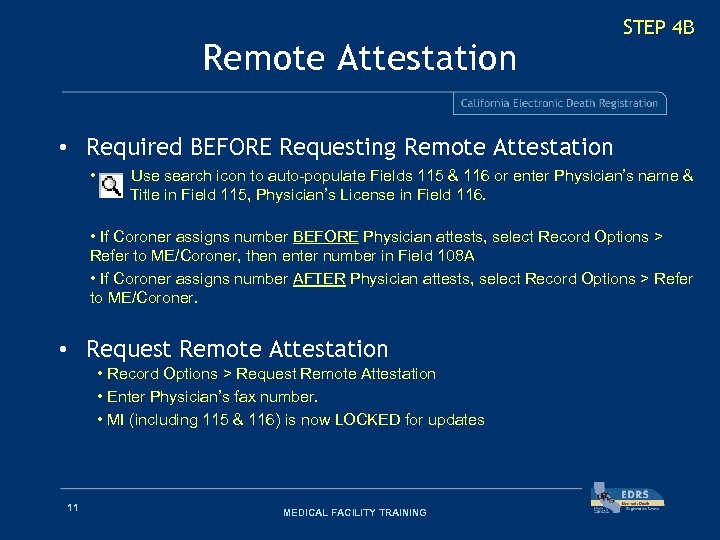 Remote Attestation STEP 4 B • Required BEFORE Requesting Remote Attestation • Use search icon to auto-populate Fields 115 & 116 or enter Physician’s name & . Title in Field 115, Physician’s License in Field 116. • If Coroner assigns number BEFORE Physician attests, select Record Options > Refer to ME/Coroner, then enter number in Field 108 A • If Coroner assigns number AFTER Physician attests, select Record Options > Refer to ME/Coroner. • Request Remote Attestation • Record Options > Request Remote Attestation • Enter Physician’s fax number. • MI (including 115 & 116) is now LOCKED for updates 11 MEDICAL FACILITY TRAINING
 REMOTE ATTESTATION The Physician will Receive… 12 MEDICAL FACILITY TRAINING
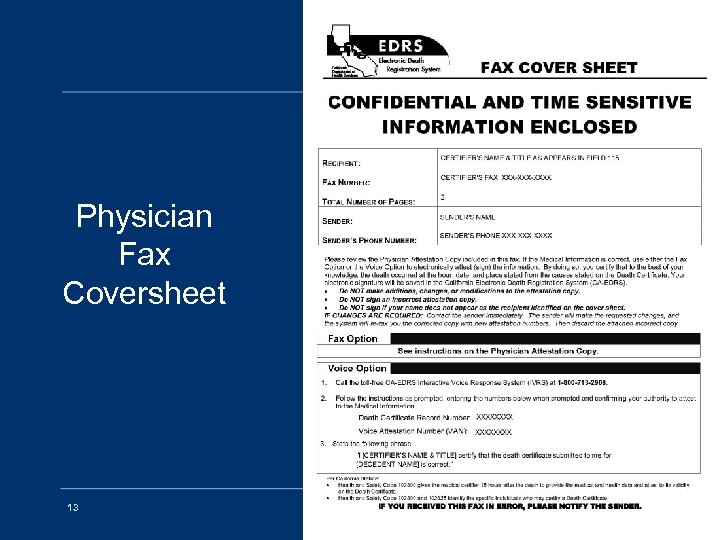 Physician Fax Coversheet 13 MEDICAL FACILITY TRAINING
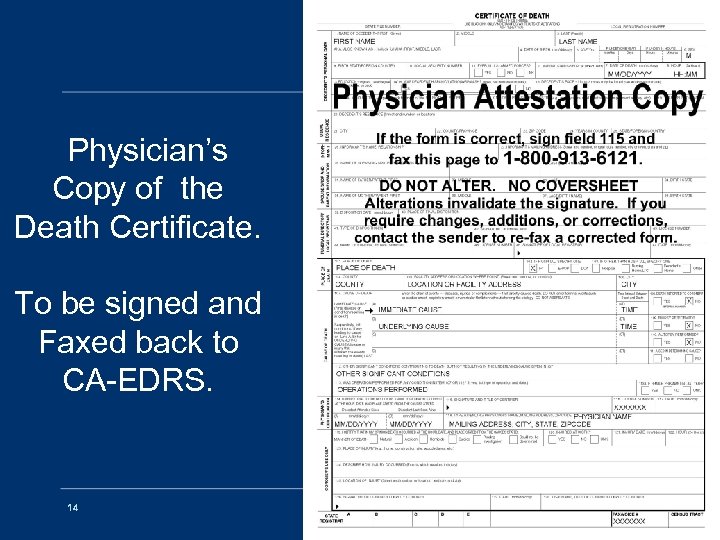 Physician’s Copy of the Death Certificate. To be signed and Faxed back to CA-EDRS. 14 MEDICAL FACILITY TRAINING
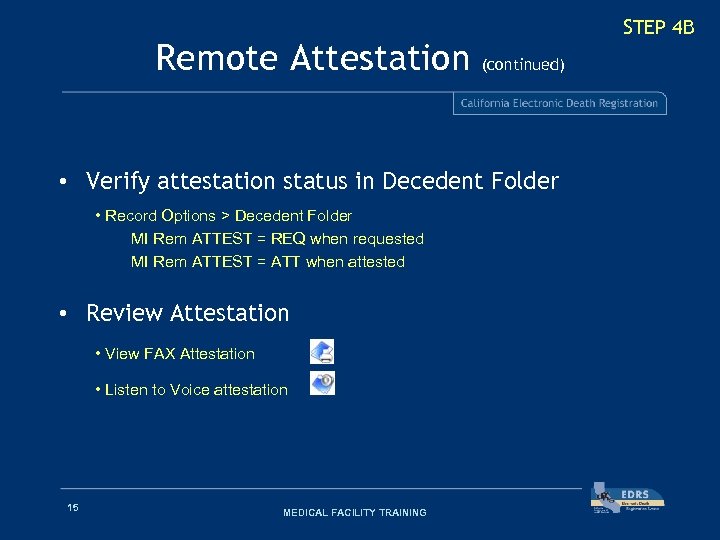 Remote Attestation STEP 4 B (continued) • Verify attestation status in Decedent Folder • Record Options > Decedent Folder MI Rem ATTEST = REQ when requested MI Rem ATTEST = ATT when attested • Review Attestation • View FAX Attestation • Listen to Voice attestation 15 MEDICAL FACILITY TRAINING
 view FAX remote attestation or hear VOICE remote attestation 16 MEDICAL FACILITY TRAINING
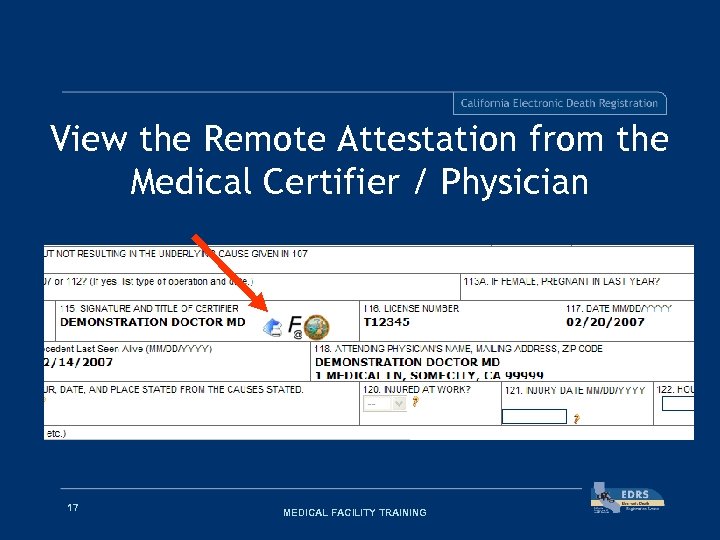 View the Remote Attestation from the Medical Certifier / Physician 17 MEDICAL FACILITY TRAINING
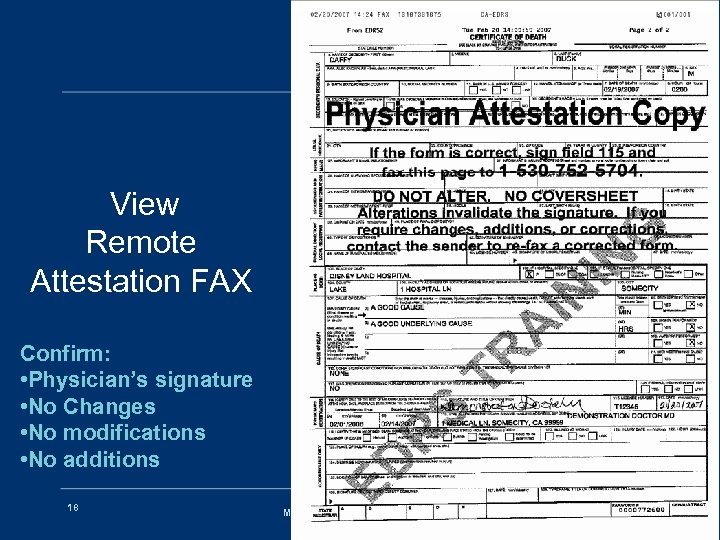 View Remote Attestation FAX Confirm: • Physician’s signature • No Changes • No modifications • No additions 18 MEDICAL FACILITY TRAINING
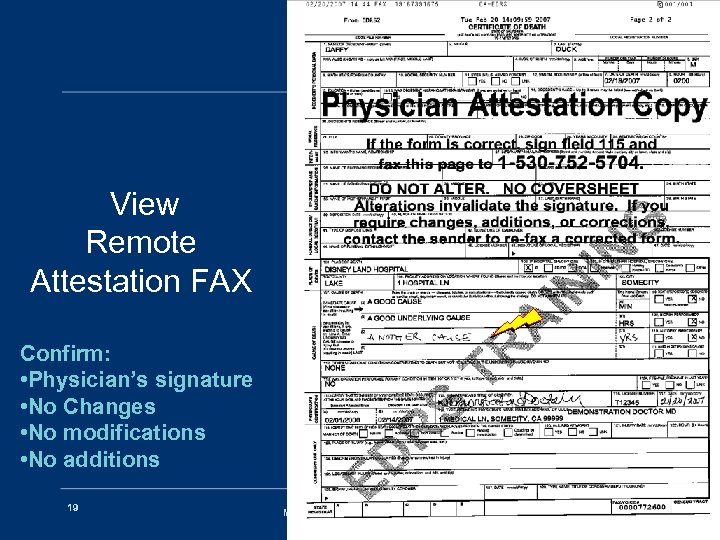 View Remote Attestation FAX Confirm: • Physician’s signature • No Changes • No modifications • No additions 19 MEDICAL FACILITY TRAINING
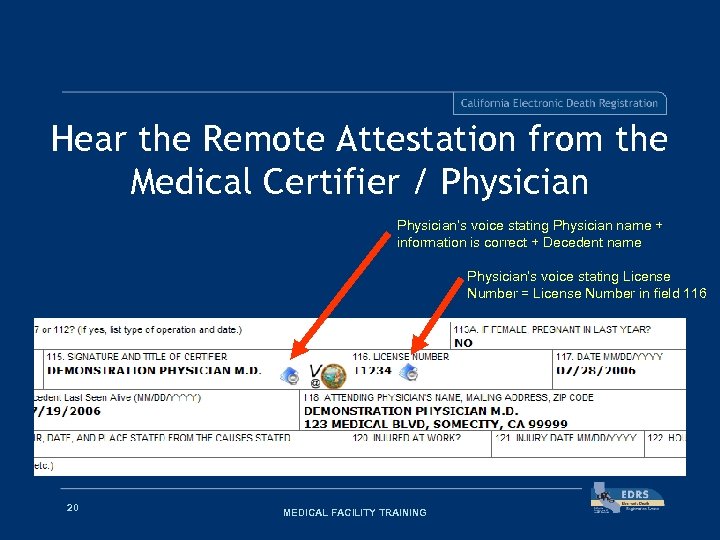 Hear the Remote Attestation from the Medical Certifier / Physician’s voice stating Physician name + information is correct + Decedent name Physician’s voice stating License Number = License Number in field 116 20 MEDICAL FACILITY TRAINING
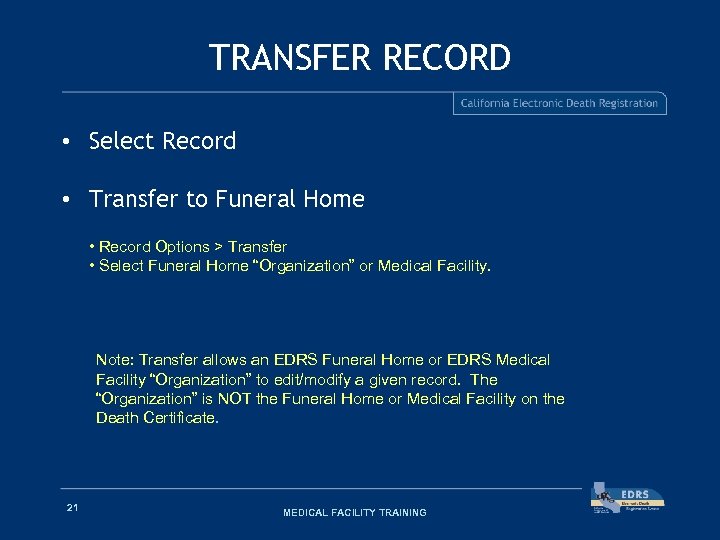 TRANSFER RECORD • Select Record • Transfer to Funeral Home • Record Options > Transfer • Select Funeral Home “Organization” or Medical Facility. Note: Transfer allows an EDRS Funeral Home or EDRS Medical Facility “Organization” to edit/modify a given record. The “Organization” is NOT the Funeral Home or Medical Facility on the Death Certificate. 21 MEDICAL FACILITY TRAINING
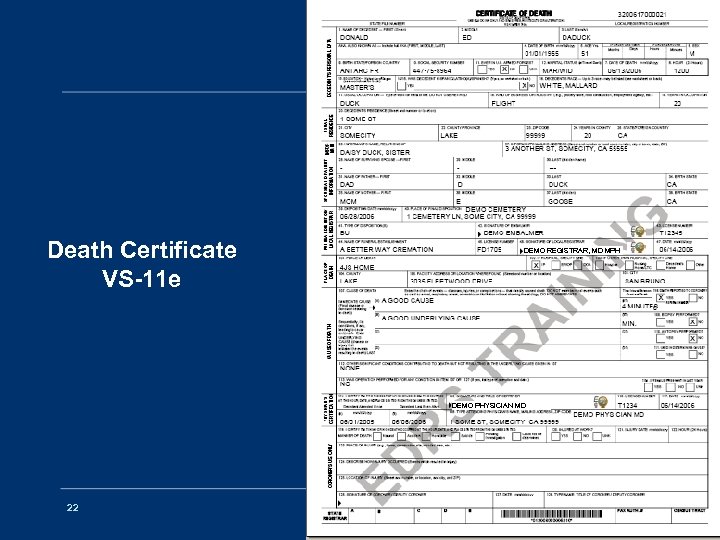 Death Certificate VS-11 e DEMO REGISTRAR, MD MPH DEMO PHYSICIAN MD 22 MEDICAL FACILITY TRAINING
 THANK YOU This completes the Medical Facility training 23 MEDICAL FACILITY TRAINING